display VOLVO V60 2021 Owners Manual
[x] Cancel search | Manufacturer: VOLVO, Model Year: 2021, Model line: V60, Model: VOLVO V60 2021Pages: 661, PDF Size: 12.68 MB
Page 496 of 661
AUDIO, MEDIA AND INTERNET
* Option/accessory.
494
Wireless phone charger *
A charging pad for wireless phone charging is located in the tunnel console.
To be able to charge, the phone must have wireless charging (Qi)capability. Phones not equipped witha wireless charging receiver can
often be supplemented with a shell that ena-bles wireless charging.
WARNING
Wireless charging can affect the operation of an implanted pacemaker or other medi-cal devices. If you have one, it is recom-mended to consult with your doctor beforeusing the wireless charging system.
Related information
Phone (p. 485)
Using the wireless phone charger
*
(p. 494)
Certificate for wireless charger (p. 496)
Using the wireless phone charger
*
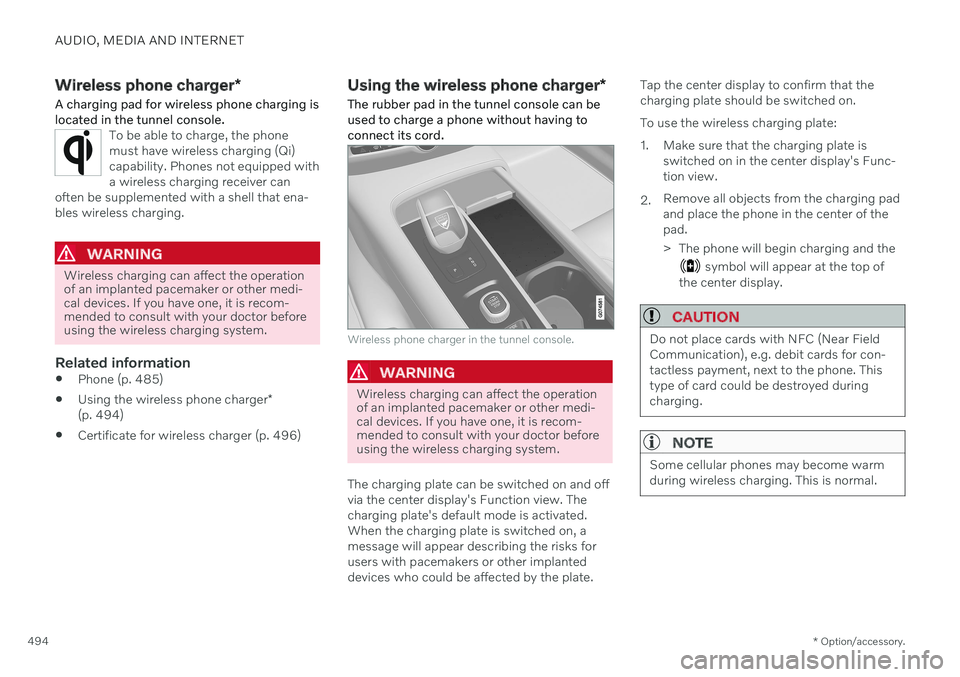
The rubber pad in the tunnel console can be used to charge a phone without having toconnect its cord.
Wireless phone charger in the tunnel console.
WARNING
Wireless charging can affect the operation of an implanted pacemaker or other medi-cal devices. If you have one, it is recom-mended to consult with your doctor beforeusing the wireless charging system.
The charging plate can be switched on and off via the center display's Function view. Thecharging plate's default mode is activated.When the charging plate is switched on, amessage will appear describing the risks forusers with pacemakers or other implanteddevices who could be affected by the plate. Tap the center display to confirm that thecharging plate should be switched on. To use the wireless charging plate:
1. Make sure that the charging plate is
switched on in the center display's Func- tion view.
2. Remove all objects from the charging padand place the phone in the center of thepad.
> The phone will begin charging and the
symbol will appear at the top of
the center display.
CAUTION
Do not place cards with NFC (Near Field Communication), e.g. debit cards for con-tactless payment, next to the phone. Thistype of card could be destroyed duringcharging.
NOTE
Some cellular phones may become warm during wireless charging. This is normal.
Page 497 of 661
AUDIO, MEDIA AND INTERNET
* Option/accessory.495
If the phone is not charging:
Make sure that the charging plate is switched on in the center display's Func-tion view.
Make sure there are no other objects onthe charging pad.
Make sure the phone supports wirelesscharging (Qi).
If the phone has a phone case, remove it.
Lift up the phone and then put it back onthe center of the charging pad.
Make sure the ignition is on.
If the phone is incorrectly positioned or anobject prevents charging on the charge pad, amessage is shown on the center display.
CAUTION
Keep cellular phones and charger stations away from other objects while charging tohelp avoid overheating.
Related information
Phone (p. 485)
Wireless phone charger
* (p. 494)
Certificate for wireless charger (p. 496)
Symbols in the center display status bar (p. 122)
Page 502 of 661
AUDIO, MEDIA AND INTERNET
* Option/accessory.
500
Internet-connected vehicle *
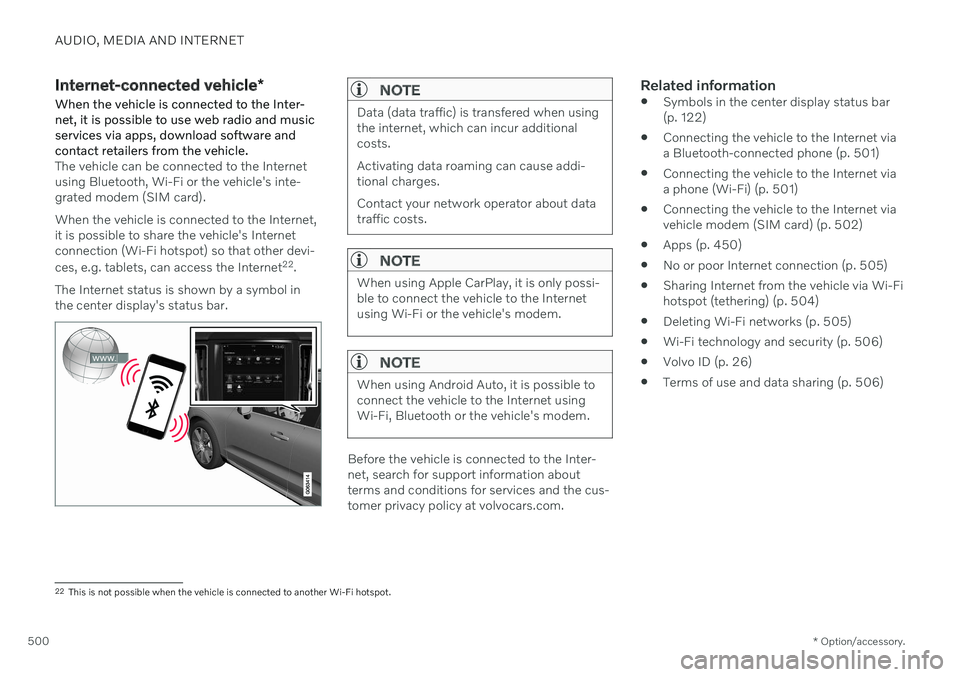
When the vehicle is connected to the Inter- net, it is possible to use web radio and musicservices via apps, download software andcontact retailers from the vehicle.
The vehicle can be connected to the Internet using Bluetooth, Wi-Fi or the vehicle's inte-grated modem (SIM card). When the vehicle is connected to the Internet, it is possible to share the vehicle's Internetconnection (Wi-Fi hotspot) so that other devi- ces, e.g. tablets, can access the Internet 22
.
The Internet status is shown by a symbol in the center display's status bar.
NOTE
Data (data traffic) is transfered when using the internet, which can incur additionalcosts. Activating data roaming can cause addi- tional charges. Contact your network operator about data traffic costs.
NOTE
When using Apple CarPlay, it is only possi- ble to connect the vehicle to the Internetusing Wi-Fi or the vehicle's modem.
NOTE
When using Android Auto, it is possible to connect the vehicle to the Internet usingWi-Fi, Bluetooth or the vehicle's modem.
Before the vehicle is connected to the Inter- net, search for support information aboutterms and conditions for services and the cus-tomer privacy policy at volvocars.com.
Related information
Symbols in the center display status bar(p. 122)
Connecting the vehicle to the Internet viaa Bluetooth-connected phone (p. 501)
Connecting the vehicle to the Internet viaa phone (Wi-Fi) (p. 501)
Connecting the vehicle to the Internet viavehicle modem (SIM card) (p. 502)
Apps (p. 450)
No or poor Internet connection (p. 505)
Sharing Internet from the vehicle via Wi-Fihotspot (tethering) (p. 504)
Deleting Wi-Fi networks (p. 505)
Wi-Fi technology and security (p. 506)
Volvo ID (p. 26)
Terms of use and data sharing (p. 506)
22
This is not possible when the vehicle is connected to another Wi-Fi hotspot.
Page 503 of 661
AUDIO, MEDIA AND INTERNET
}}
* Option/accessory.501
Connecting the vehicle to the Internet via a Bluetooth-connectedphone
Establish an Internet connection using
Bluetooth and tethering from a phone andget access to multiple connected services inyour vehicle.
1. To connect the vehicle to the Internet via a Bluetooth-connected phone, the phone must first be paired with the vehicle viaBluetooth.
2. Make sure that the phone supports Inter- net sharing (tethering) and that the func-tion is activated. In an iPhone, the functionis called "personal hotspot". In Androidphones, the function can have differentnames, but is often called "hotspot". ForiPhone phones, the "personal hotspot"menu page must also be open until theInternet connection has been made.
3. If the phone has been connected via Blue- tooth previously, tap
Settings in the cen-
ter display's Top view.
4. Tap
CommunicationBluetooth
Devices.
5. Mark the window for
Bluetooth Internet
connection under the heading Internet
connection. 6. If a different connection is being used,
confirm the connection change.
> Your vehicle is now connected to theInternet via your Bluetooth-connected phone.
NOTE
The cellular phone and network operator must support tethering (sharing of Internetconnection) and the subscription mustinclude data traffic.
NOTE
When using Apple CarPlay, it is only possi- ble to connect the vehicle to the Internetusing Wi-Fi or the vehicle's modem.
Related information
Internet-connected vehicle
* (p. 500)
Connecting the vehicle to the Internet via vehicle modem (SIM card) (p. 502)
Connecting a phone to the car via Blue-tooth for the first time (p. 486)
Connecting the vehicle to the Internet viaa phone (Wi-Fi) (p. 501)
Apple ®
CarPlay ®
* (p. 478)
No or poor Internet connection (p. 505)
Settings for Bluetooth devices (p. 493)
Connecting the vehicle to the Internet via a phone (Wi-Fi) Establish an Internet connection using Wi-Fi through Internet sharing (tethering) from aphone and get access to the connected servi-ces in your vehicle.
1. Make sure that the phone supports Inter-
net sharing (tethering) and that the func- tion is activated. In an iPhone, the functionis called "personal hotspot". In Androidphones, the function can have differentnames, but is often called "hotspot". ForiPhone phones, the "personal hotspot"menu page must also be open until theInternet connection has been made.
2. Tap
Settings in the Top view.
3. Proceed to
CommunicationWi-Fi.
4. Activate/deactivate by tapping to check/ uncheck the Wi-Fi box.
5. If a different connection is being used, confirm the connection change.
6. Tap the name of the network you would like to connect.
7. Enter the network password. > The vehicle will connect to the network.
Please note that certain cellular phones will disable Internet sharing (tethering) when theconnection to the vehicle has been broken,e.g. when the phone has been removed from
Page 504 of 661

||
AUDIO, MEDIA AND INTERNET
* Option/accessory.
502 the vehicle. The phone's tethering function will then need to be reactivated the next time thephone's hotspot is used to connect to theInternet. When a phone is connected to the vehicle, it will be saved for future use. To display a list ofsaved networks or to manually delete saved networks, tap
SettingsCommunication
Wi-FiSaved networks.
NOTE
The cellular phone and network operator must support tethering (sharing of Internetconnection) and the subscription mustinclude data traffic.
Technical and security requirements for Wi-Fi connection are described in a separate sec-tion.
Related information
Internet-connected vehicle
* (p. 500)
Deleting Wi-Fi networks (p. 505)
No or poor Internet connection (p. 505)
Wi-Fi technology and security (p. 506)
Connecting the vehicle to the Internet via vehicle modem (SIMcard)
It is possible to establish an Internet connec- tion via the vehicle modem and a personal
SIM card (P-SIM).
Vehicles equipped with Volvo On Call will use the vehicle modem Internet connection for theservices. 1.
Insert a personal SIM card in the holder in the passenger-side footwell. Note that the vehicle's card reader requires mini SIM cards.
2. Tap
Settings in the Top view.
Page 506 of 661
AUDIO, MEDIA AND INTERNET
* Option/accessory.
504
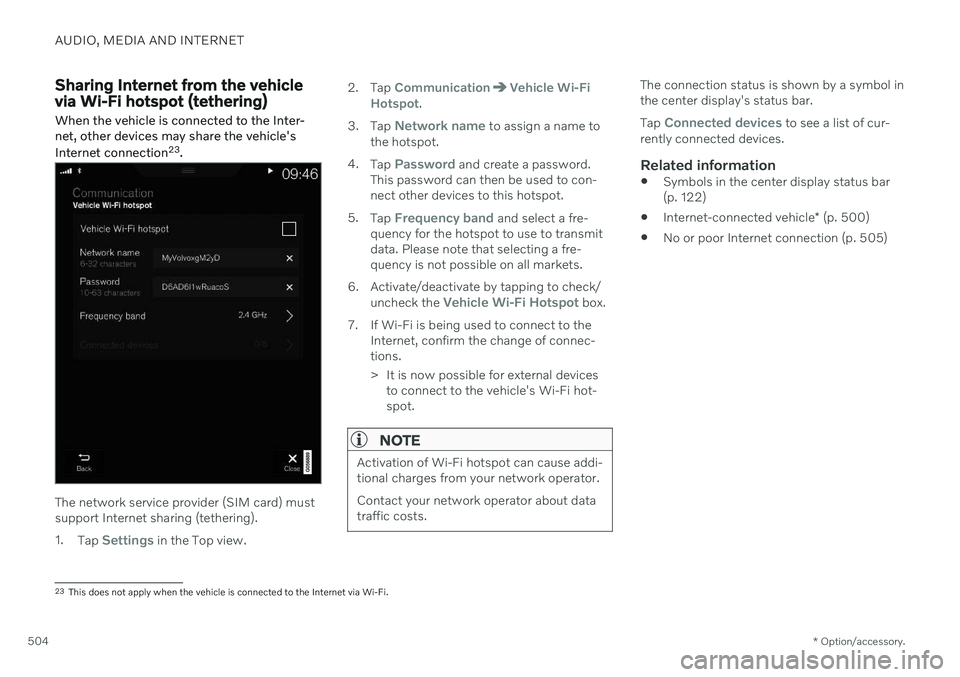
Sharing Internet from the vehicle via Wi-Fi hotspot (tethering)
When the vehicle is connected to the Inter- net, other devices may share the vehicle's Internet connection 23
.
The network service provider (SIM card) must support Internet sharing (tethering). 1. Tap
Settings in the Top view. 2. Tap
CommunicationVehicle Wi-Fi
Hotspot.
3. Tap
Network name to assign a name to
the hotspot.
4. Tap
Password and create a password.
This password can then be used to con- nect other devices to this hotspot.
5. Tap
Frequency band and select a fre-
quency for the hotspot to use to transmit data. Please note that selecting a fre-quency is not possible on all markets.
6. Activate/deactivate by tapping to check/ uncheck the
Vehicle Wi-Fi Hotspot box.
7. If Wi-Fi is being used to connect to the Internet, confirm the change of connec- tions.
> It is now possible for external devicesto connect to the vehicle's Wi-Fi hot- spot.
NOTE
Activation of Wi-Fi hotspot can cause addi- tional charges from your network operator. Contact your network operator about data traffic costs.
The connection status is shown by a symbol in the center display's status bar. Tap
Connected devices to see a list of cur-
rently connected devices.
Related information
Symbols in the center display status bar (p. 122)
Internet-connected vehicle
* (p. 500)
No or poor Internet connection (p. 505)
23
This does not apply when the vehicle is connected to the Internet via Wi-Fi.
Page 507 of 661
AUDIO, MEDIA AND INTERNET
* Option/accessory.505
No or poor Internet connection Factors affecting the Internet connection.
The amount of data transmitted depends on the services or apps currently in use in thevehicle. Streaming music, for example,involves the transmission of a large amount ofdata, and this requires a good connection anda strong signal.
Phone to vehicleInternet connection speed may vary depend-ing on the location of the cellular phone in thevehicle. Move the phone closer to the centerdisplay to increase signal strength. Make surethat nothing is between the phone and centerdisplay that could be blocking the signal.
Phone to network operatorThe speed of the mobile network variesdepending on the coverage in the vehicle'scurrent location. Coverage may be poorer ine.g. tunnels, mountainous areas, deep valleysor indoors. Connection speed is also depend-ent on the subscription you have with yourservice provider.
NOTE
If you experience any problems with data traffic, contact your network service pro-vider.
Restarting the phoneIf you experience any Internet connection problems, it may help to restart your phone.
Related information
Internet-connected vehicle
* (p. 500)
Wi-Fi technology and security (p. 506)
Deleting Wi-Fi networks
Networks that are not needed can be deleted.
1. Tap Settings in the Top view.
2. Proceed to
CommunicationWi-FiSaved networks.
3. Tap
Forget to delete the network.
4. Confirm the selection. > The vehicle will no longer connect tothe deleted network.
Deleting all networksAll networks can be deleted at once by per- forming a factory reset. Please note that alluser data and system settings will be restoredto original default factory settings.
Related information
Internet-connected vehicle
* (p. 500)
No or poor Internet connection (p. 505)
Resetting center display settings (p. 132)
Connecting the vehicle to the Internet viaa phone (Wi-Fi) (p. 501)
Page 508 of 661
AUDIO, MEDIA AND INTERNET
* Option/accessory.
506
Wi-Fi technology and security
Networks must meet certain criteria in order for the vehicle to connect.
It is possible to connect to the following types of networks:
Frequency - 2.4 or 5 GHz 24
.
Standards - 802.11 a/b/g/n.
Security type - WPA2-AES-CCMP.
The vehicle's Wi-Fi system is designed to han- dle Wi-Fi devices inside the vehicle. Performance may be impaired if multiple devi- ces are using a frequency at the same time.
Related information
Internet-connected vehicle
* (p. 500)
Terms of use and data sharing The first time certain services and apps are started, a pop-up window with the heading
Terms and conditions and Data sharingmay open.The aim is to inform the user about Volvo's terms of use and data sharing policy. Byaccepting data sharing, the user accepts thatcertain information will be sent from the vehi-cle. This is required for certain services andapps to work with full functionality. The data sharing function for connected servi- ces and apps is disabled by default 25
. For cer-
tain connected services and apps in the vehi- cle to work, data sharing must be activated.Data sharing can be set from the center dis-play's settings menu or when the services orapps are started in the center display.
Privacy and data sharingThe software update that became available inNovember 2017 introduced privacy and datasharing settings for connected services anddownloaded apps. These settings can be found under
Privacy and data in the settings
menu in the vehicle's center display. There, you can choose which connected servi- ces will be allowed to share data. Data sharingfor downloaded apps can also be disabled there. Note that services and apps cannot beused as intended if data sharing is disabled. After a factory reset or e.g. a workshop visit or a software update, your data sharing preferen-ces may be reset to default settings. You willthen need to reactivate data sharing for con-nected services and downloaded apps.
NOTE
Settings for privacy and data sharing are unique for each driver profile.
Related information
Activating and deactivating data sharing (p. 507)
24
Selecting a frequency is not possible on all markets.
25 Does not apply to Volvo On Call.
Page 509 of 661
AUDIO, MEDIA AND INTERNET
}}
507
Activating and deactivating data sharingData sharing for relevant services and apps can be set via the Settings menu in the centerdisplay.
1. Tap Settings in the center display's Top
view.
2. Tap
SystemPrivacy and data.
3. Select to activate or deactivate data shar- ing for individual services and all apps.
If data sharing for a connected service or downloaded apps is not activated, this can bedone when they are started in the center dis-play. If this is the first time that a service isstarted, or e.g. after a factory reset or certainsoftware updates, Volvo's terms and condi-tions for connected services must be accep-ted. Note that data sharing will then also beactivated for other services or apps that shar-ing has already been accepted for.
NOTE
After visiting a Volvo workshop, you may need to reactivate data sharing so that ser-vices and apps will work again.
Related information
Terms of use and data sharing (p. 506)
Data sharing for services
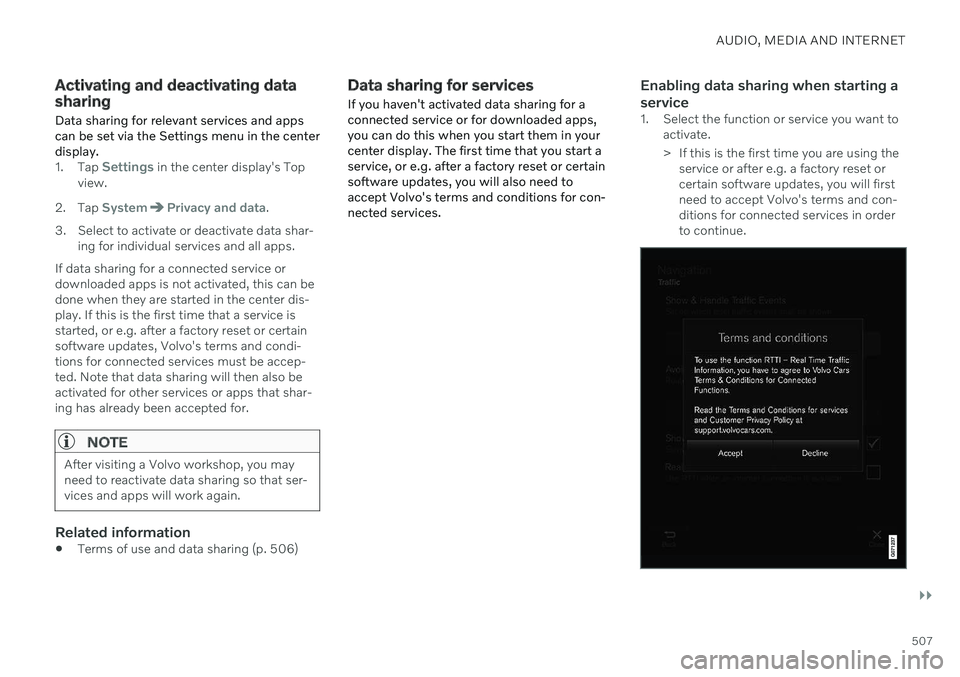
If you haven't activated data sharing for a connected service or for downloaded apps,you can do this when you start them in yourcenter display. The first time that you start aservice, or e.g. after a factory reset or certainsoftware updates, you will also need toaccept Volvo's terms and conditions for con-nected services.Enabling data sharing when starting a service
1. Select the function or service you want to activate.
> If this is the first time you are using theservice or after e.g. a factory reset or certain software updates, you will firstneed to accept Volvo's terms and con-ditions for connected services in orderto continue.
Page 531 of 661
WHEELS AND TIRES
}}
* Option/accessory.529
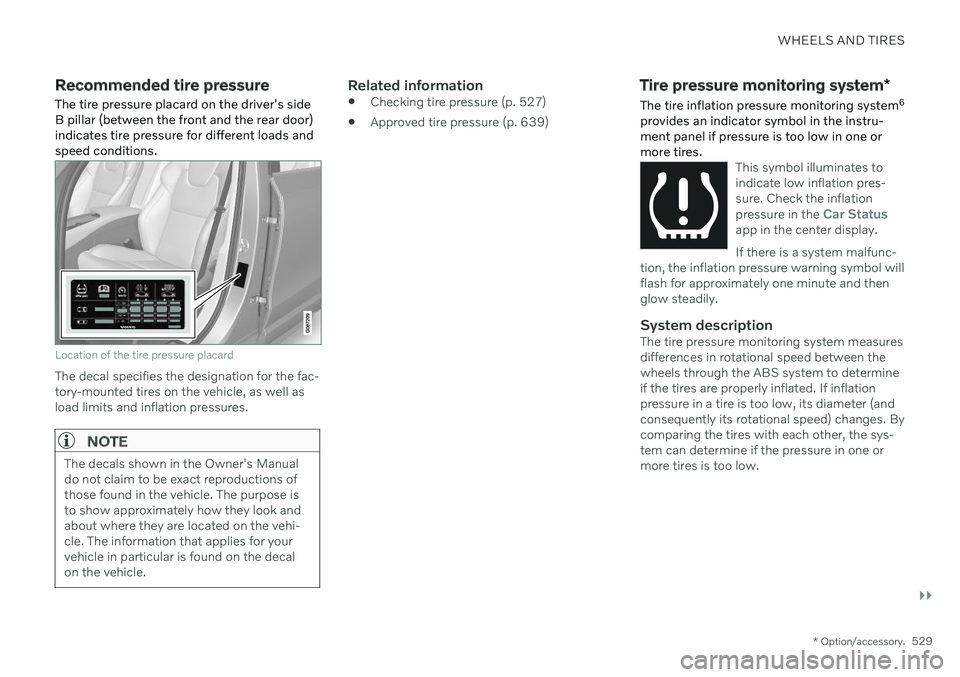
Recommended tire pressure
The tire pressure placard on the driver's side B pillar (between the front and the rear door)indicates tire pressure for different loads andspeed conditions.
Location of the tire pressure placard
The decal specifies the designation for the fac- tory-mounted tires on the vehicle, as well asload limits and inflation pressures.
NOTE
The decals shown in the Owner's Manual do not claim to be exact reproductions ofthose found in the vehicle. The purpose isto show approximately how they look andabout where they are located on the vehi-cle. The information that applies for yourvehicle in particular is found on the decalon the vehicle.
Related information
Checking tire pressure (p. 527)
Approved tire pressure (p. 639)
Tire pressure monitoring system
*
The tire inflation pressure monitoring system 6
provides an indicator symbol in the instru- ment panel if pressure is too low in one ormore tires.
This symbol illuminates to indicate low inflation pres-sure. Check the inflation pressure in the
Car Statusapp in the center display. If there is a system malfunc-
tion, the inflation pressure warning symbol will flash for approximately one minute and thenglow steadily.
System descriptionThe tire pressure monitoring system measures differences in rotational speed between thewheels through the ABS system to determineif the tires are properly inflated. If inflationpressure in a tire is too low, its diameter (andconsequently its rotational speed) changes. Bycomparing the tires with each other, the sys-tem can determine if the pressure in one ormore tires is too low.