change time VOLVO V60 2021 Owner's Manual
[x] Cancel search | Manufacturer: VOLVO, Model Year: 2021, Model line: V60, Model: VOLVO V60 2021Pages: 661, PDF Size: 12.68 MB
Page 244 of 661
||
KEY, LOCKS AND ALARM
242
Unlocking with remote key
–Press the button on the remote key to
unlock the vehicle.
Automatic relockingIf none of the doors or tailgate are opened within two minutes after being unlocked, theywill automatically relock. This function reducesthe risk of inadvertently leaving the vehicleunlocked.
Remote key not working
NOTE
Move closer to the vehicle and try to unlock it again.
If the remote key is not working to lock or unlock the vehicle, its battery may be dis-charged. Use the detachable key blade tolock/unlock the driver's door instead.
Related information
Settings for remote and inside door unlock(p. 242)
Unlocking the tailgate using the remotekey (p. 243)
Remote key (p. 238)
Replacing the remote key's battery(p. 244)
Locking and unlocking with detachablekey blade (p. 250)
Settings for remote and inside door unlock Several different sequences are available for remote unlocking.
To change this setting: 1.
Tap
Settings in the center display's Top
view.
2. Tap
My CarLockingRemote and
Interior Unlock.
3. Select alternative:
All Doors – unlocks all doors at the
same time.
Single Door – unlocks the driver's
door. Press the remote key unlock but- ton twice to unlock all doors.
The settings made here also affect centrallocking using the inside door handle.
Related information
Locking and unlocking using the remotekey (p. 241)
Locking and unlocking from inside thevehicle (p. 258)
Page 258 of 661
||
KEY, LOCKS AND ALARM
* Option/accessory.
256
Related information
Keyless unlock settings
* (p. 256)
Keyless tailgate unlock
* (p. 256)
Keyless and touch-sensitive surfaces
*
(p. 254)
Keyless unlock settings *
Several different sequences are available for keyless unlocking.
To change this setting: 1. Tap
Settings in the center display's Top
view.
2. Tap
My CarLockingKeyless
Unlock.
3. Select alternative:
All Doors – unlocks all doors at the
same time.
Single Door – unlocks the selected
door.
Related information
Keyless locking and unlocking
* (p. 255)
Keyless and touch-sensitive surfaces
*
(p. 254)
Keyless tailgate unlock *
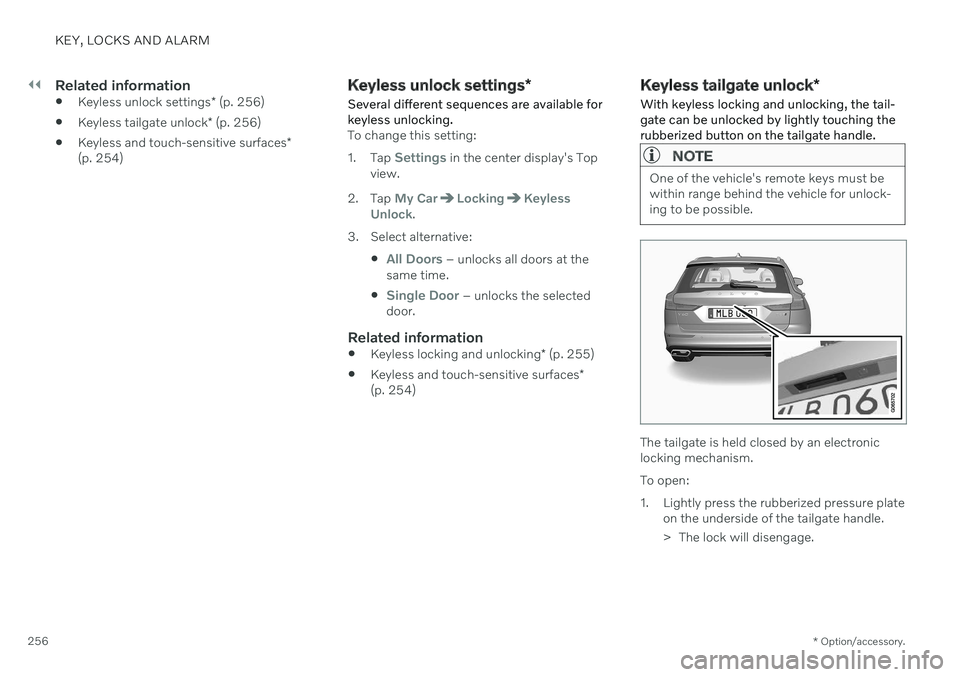
With keyless locking and unlocking, the tail- gate can be unlocked by lightly touching therubberized button on the tailgate handle.
NOTE
One of the vehicle's remote keys must be within range behind the vehicle for unlock-ing to be possible.
The tailgate is held closed by an electronic locking mechanism. To open:
1. Lightly press the rubberized pressure plate on the underside of the tailgate handle.
> The lock will disengage.
Page 267 of 661
KEY, LOCKS AND ALARM
}}
265
Activating and deactivating private lockingPrivate locking is activated using the function button in the center display and a PIN code.
NOTE
For the valet lock function to be activated the car must be in at least ignition mode I.
Two codes are used for private locking:
A security code, which is created the first time the function is used.
A PIN code, which is changed each timethe function is activated.
Entering security code before initial
use
The first time the function is used, a securitycode must be selected. This code can then beused to deactivate private locking if theselected PIN code has been forgotten or lost.The security code functions as a PUK (secur-ity) code for all PIN codes used for privatelocking. Save the security code in a safe place. To create a security code:
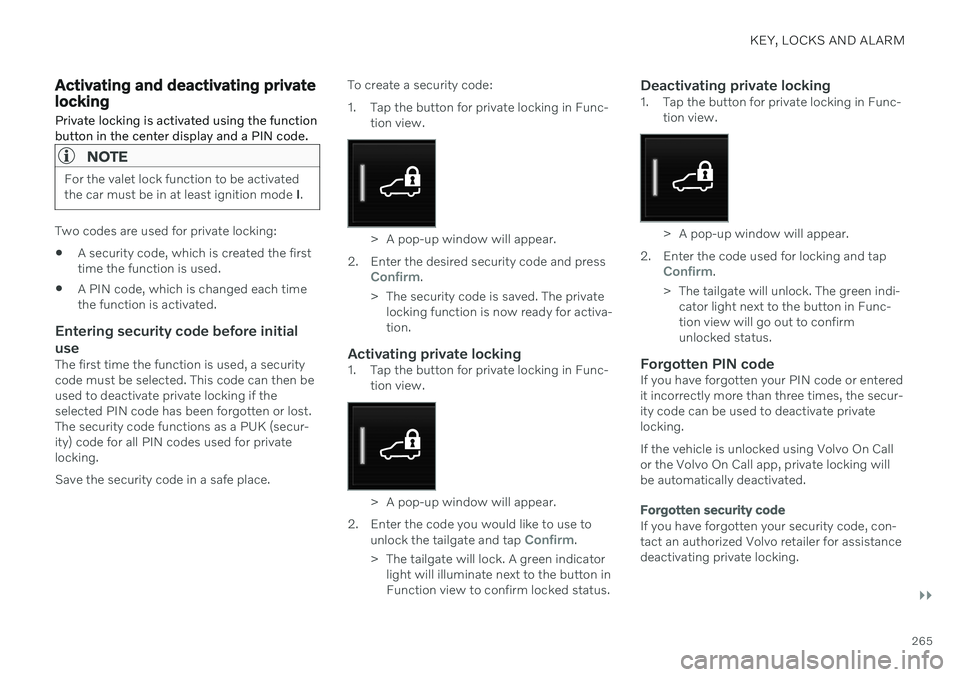
1. Tap the button for private locking in Func-
tion view.
> A pop-up window will appear.
2. Enter the desired security code and press
Confirm.
> The security code is saved. The private locking function is now ready for activa- tion.
Activating private locking1. Tap the button for private locking in Func- tion view.
> A pop-up window will appear.
2. Enter the code you would like to use to unlock the tailgate and tap
Confirm.
> The tailgate will lock. A green indicator light will illuminate next to the button in Function view to confirm locked status.
Deactivating private locking1. Tap the button for private locking in Func- tion view.
> A pop-up window will appear.
2. Enter the code used for locking and tap
Confirm.
> The tailgate will unlock. The green indi- cator light next to the button in Func- tion view will go out to confirmunlocked status.
Forgotten PIN codeIf you have forgotten your PIN code or enteredit incorrectly more than three times, the secur-ity code can be used to deactivate privatelocking. If the vehicle is unlocked using Volvo On Call or the Volvo On Call app, private locking willbe automatically deactivated.
Forgotten security code
If you have forgotten your security code, con- tact an authorized Volvo retailer for assistancedeactivating private locking.
Page 292 of 661
||
DRIVER SUPPORT
* Option/accessory.
290 your vehicle's current speed must be at least 15 km/h (9 mph).
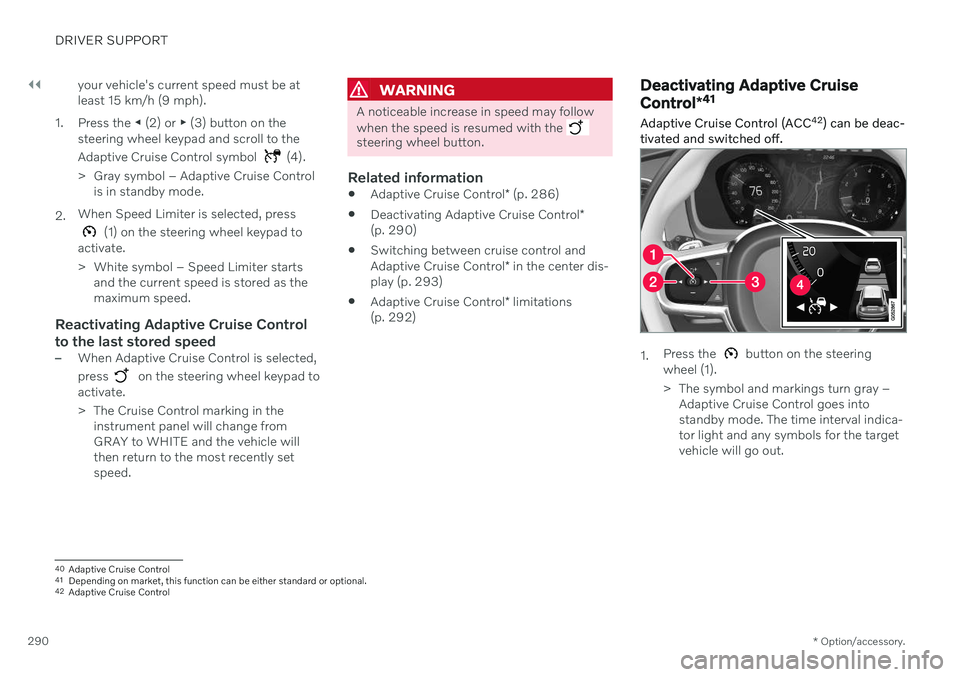
1. Press the ◀ (2) or ▶ (3) button on the
steering wheel keypad and scroll to the Adaptive Cruise Control symbol
(4).
> Gray symbol – Adaptive Cruise Control is in standby mode.
2. When Speed Limiter is selected, press
(1) on the steering wheel keypad to
activate.
> White symbol – Speed Limiter starts and the current speed is stored as the maximum speed.
Reactivating Adaptive Cruise Control to the last stored speed
–When Adaptive Cruise Control is selected, press
on the steering wheel keypad to
activate.
> The Cruise Control marking in the instrument panel will change from GRAY to WHITE and the vehicle willthen return to the most recently setspeed.
WARNING
A noticeable increase in speed may follow when the speed is resumed with the
steering wheel button.
Related information
Adaptive Cruise Control
* (p. 286)
Deactivating Adaptive Cruise Control
*
(p. 290)
Switching between cruise control and Adaptive Cruise Control
* in the center dis-
play (p. 293)
Adaptive Cruise Control
* limitations
(p. 292)
Deactivating Adaptive Cruise Control *41
Adaptive Cruise Control (ACC 42
) can be deac-
tivated and switched off.
1. Press the button on the steering
wheel (1).
> The symbol and markings turn gray – Adaptive Cruise Control goes into standby mode. The time interval indica-tor light and any symbols for the targetvehicle will go out.
40Adaptive Cruise Control
41 Depending on market, this function can be either standard or optional.
42 Adaptive Cruise Control
Page 299 of 661
DRIVER SUPPORT
}}
297
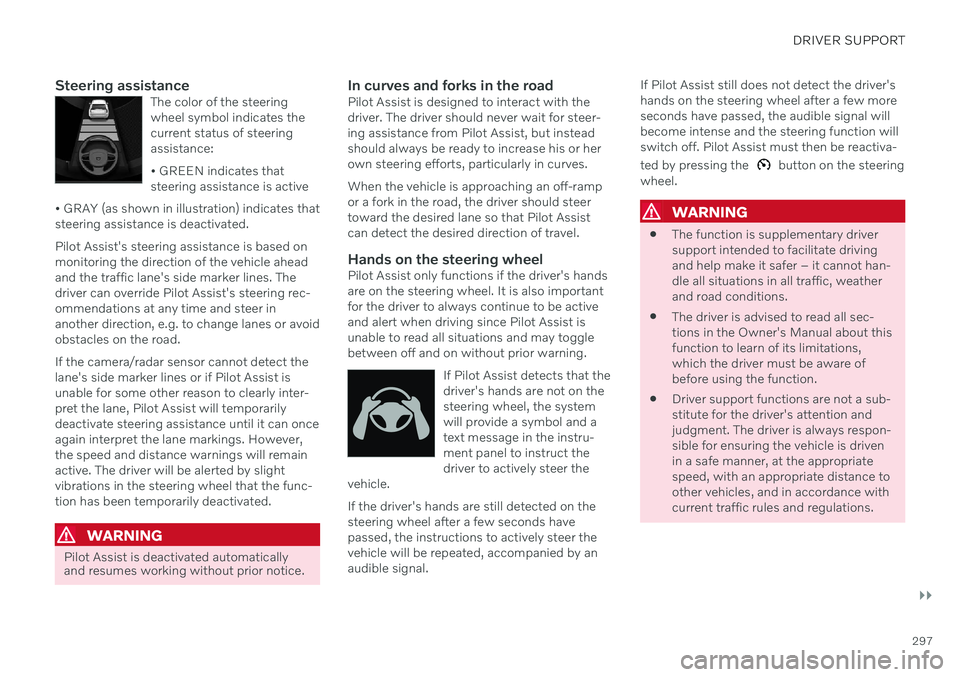
Steering assistanceThe color of the steering wheel symbol indicates thecurrent status of steeringassistance: • GREEN indicates that steering assistance is active
• GRAY (as shown in illustration) indicates thatsteering assistance is deactivated.
Pilot Assist's steering assistance is based on monitoring the direction of the vehicle aheadand the traffic lane's side marker lines. Thedriver can override Pilot Assist's steering rec-ommendations at any time and steer inanother direction, e.g. to change lanes or avoidobstacles on the road. If the camera/radar sensor cannot detect the lane's side marker lines or if Pilot Assist isunable for some other reason to clearly inter-pret the lane, Pilot Assist will temporarilydeactivate steering assistance until it can onceagain interpret the lane markings. However,the speed and distance warnings will remainactive. The driver will be alerted by slightvibrations in the steering wheel that the func-tion has been temporarily deactivated.
WARNING
Pilot Assist is deactivated automatically and resumes working without prior notice.
In curves and forks in the roadPilot Assist is designed to interact with the driver. The driver should never wait for steer-ing assistance from Pilot Assist, but insteadshould always be ready to increase his or herown steering efforts, particularly in curves. When the vehicle is approaching an off-ramp or a fork in the road, the driver should steertoward the desired lane so that Pilot Assistcan detect the desired direction of travel.
Hands on the steering wheelPilot Assist only functions if the driver's handsare on the steering wheel. It is also importantfor the driver to always continue to be activeand alert when driving since Pilot Assist isunable to read all situations and may togglebetween off and on without prior warning.
If Pilot Assist detects that thedriver's hands are not on thesteering wheel, the systemwill provide a symbol and atext message in the instru-ment panel to instruct thedriver to actively steer the
vehicle.
If the driver's hands are still detected on the steering wheel after a few seconds havepassed, the instructions to actively steer thevehicle will be repeated, accompanied by anaudible signal. If Pilot Assist still does not detect the driver'shands on the steering wheel after a few moreseconds have passed, the audible signal willbecome intense and the steering function willswitch off. Pilot Assist must then be reactiva- ted by pressing the
button on the steering
wheel.
WARNING
The function is supplementary driver support intended to facilitate drivingand help make it safer – it cannot han-dle all situations in all traffic, weatherand road conditions.
The driver is advised to read all sec-tions in the Owner's Manual about thisfunction to learn of its limitations,which the driver must be aware ofbefore using the function.
Driver support functions are not a sub-stitute for the driver's attention andjudgment. The driver is always respon-sible for ensuring the vehicle is drivenin a safe manner, at the appropriatespeed, with an appropriate distance toother vehicles, and in accordance withcurrent traffic rules and regulations.
Page 301 of 661
DRIVER SUPPORT
}}
* Option/accessory.299
Pilot Assist*55
displays
The following illustrations show how Pilot Assist can appear in the various displays indifferent situations.
Speed
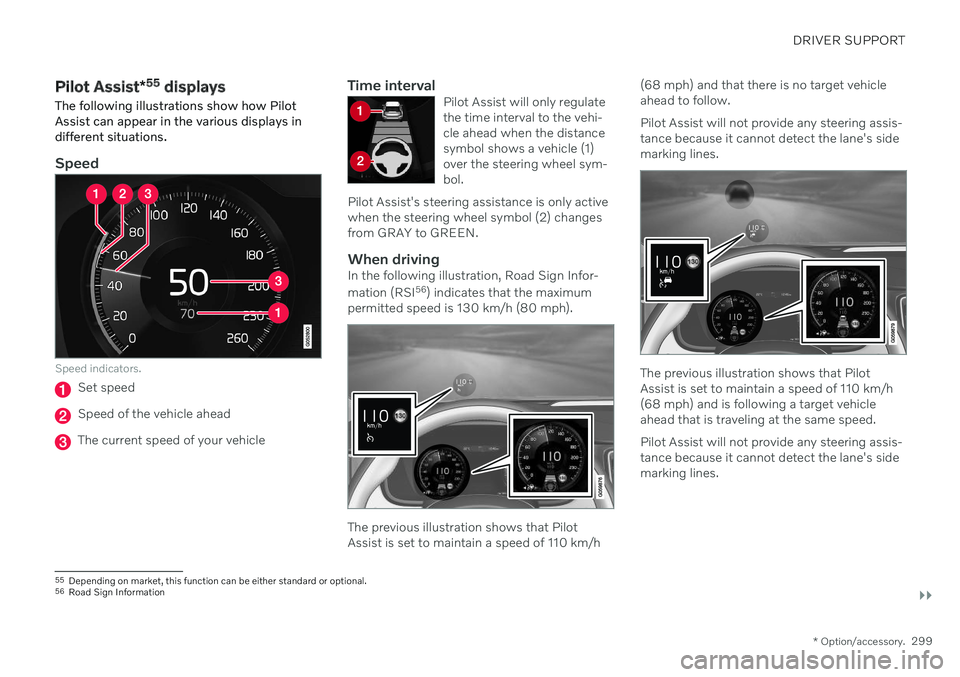
Speed indicators.
Set speed
Speed of the vehicle ahead
The current speed of your vehicle
Time intervalPilot Assist will only regulate the time interval to the vehi-cle ahead when the distancesymbol shows a vehicle (1)over the steering wheel sym-bol.
Pilot Assist's steering assistance is only activewhen the steering wheel symbol (2) changesfrom GRAY to GREEN.
When drivingIn the following illustration, Road Sign Infor- mation (RSI 56
) indicates that the maximum
permitted speed is 130 km/h (80 mph).
The previous illustration shows that Pilot Assist is set to maintain a speed of 110 km/h (68 mph) and that there is no target vehicleahead to follow. Pilot Assist will not provide any steering assis- tance because it cannot detect the lane's sidemarking lines.
The previous illustration shows that Pilot Assist is set to maintain a speed of 110 km/h(68 mph) and is following a target vehicleahead that is traveling at the same speed. Pilot Assist will not provide any steering assis- tance because it cannot detect the lane's sidemarking lines.
55
Depending on market, this function can be either standard or optional.
56 Road Sign Information
Page 303 of 661
DRIVER SUPPORT
}}
* Option/accessory.301
The driver must keep their hands on the steering wheel.
There must be a vehicle ahead (targetvehicle) within a reasonable distance oryour vehicle's current speed must be atleast 15 km/h (9 mph).
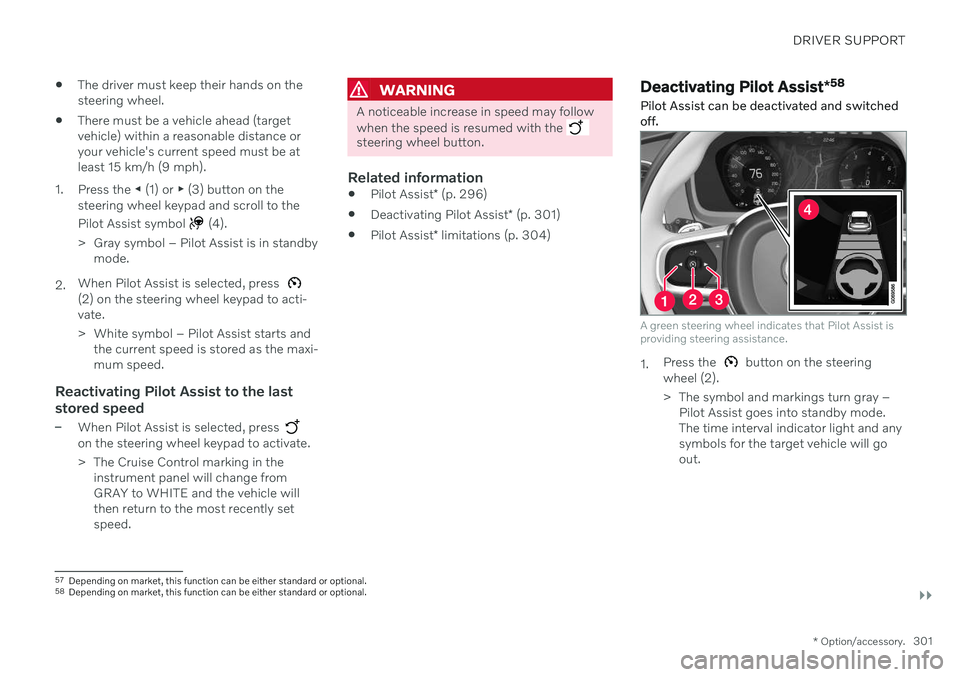
1. Press the ◀ (1) or ▶ (3) button on the
steering wheel keypad and scroll to the Pilot Assist symbol
(4).
> Gray symbol – Pilot Assist is in standby mode.
2. When Pilot Assist is selected, press
(2) on the steering wheel keypad to acti- vate.
> White symbol – Pilot Assist starts and
the current speed is stored as the maxi- mum speed.
Reactivating Pilot Assist to the last stored speed
–When Pilot Assist is selected, press on the steering wheel keypad to activate.
> The Cruise Control marking in theinstrument panel will change from GRAY to WHITE and the vehicle willthen return to the most recently setspeed.
WARNING
A noticeable increase in speed may follow when the speed is resumed with the
steering wheel button.
Related information
Pilot Assist
* (p. 296)
Deactivating Pilot Assist
* (p. 301)
Pilot Assist
* limitations (p. 304)
Deactivating Pilot Assist *58
Pilot Assist can be deactivated and switched off.
A green steering wheel indicates that Pilot Assist is providing steering assistance.
1. Press the button on the steering
wheel (2).
> The symbol and markings turn gray – Pilot Assist goes into standby mode. The time interval indicator light and anysymbols for the target vehicle will goout.
57Depending on market, this function can be either standard or optional.
58 Depending on market, this function can be either standard or optional.
Page 313 of 661
DRIVER SUPPORT
}}
* Option/accessory.311
WARNING
The driver should be aware that if condi- tions suddenly change when using PassingAssistance, the function may implement anundesired acceleration in certain condi-tions. Some situations should be avoided, e.g. if: the vehicle is approaching an exit in the same direction as passing would nor-mally occur
the vehicle ahead slows before yourvehicle has had time to switch to thepassing lane
traffic in the passing lane slows down
Situations of this type can be avoided by temporarily putting Adaptive Cruise Controlor Pilot Assist in standby mode.
Related information
Passing assistance
* (p. 310)
Adaptive Cruise Control
* (p. 286)
Pilot Assist
* (p. 296)
Adaptive Cruise Control
* standby mode
(p. 291)
Pilot Assist
* standby mode (p. 302)
Collision risk warning from driver support
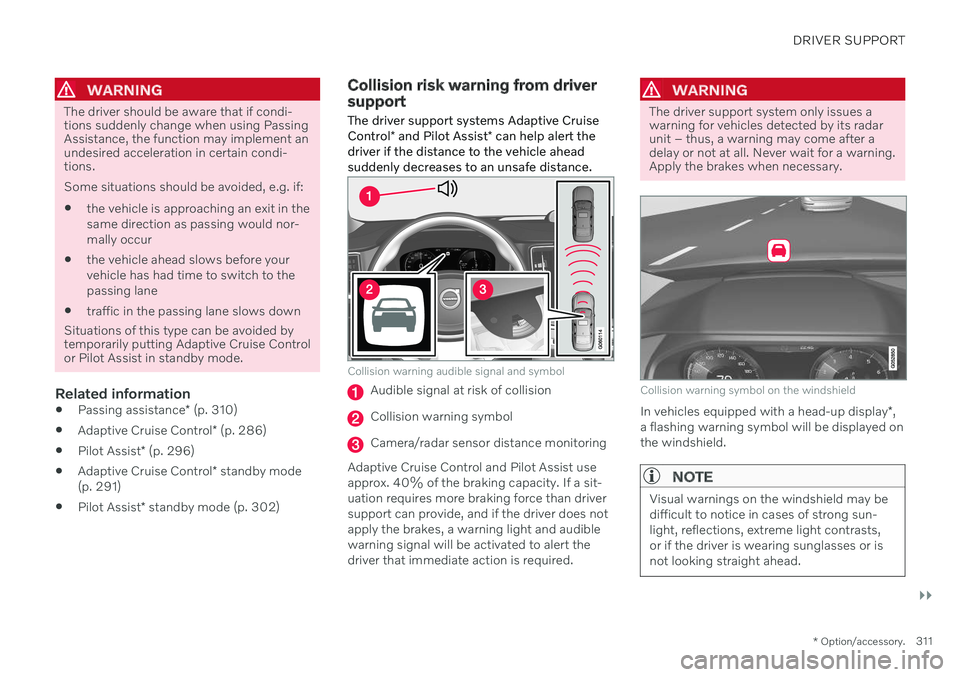
The driver support systems Adaptive Cruise Control * and Pilot Assist * can help alert the
driver if the distance to the vehicle ahead suddenly decreases to an unsafe distance.
Collision warning audible signal and symbol
Audible signal at risk of collision
Collision warning symbol
Camera/radar sensor distance monitoring
Adaptive Cruise Control and Pilot Assist use approx. 40% of the braking capacity. If a sit-uation requires more braking force than driversupport can provide, and if the driver does not apply the brakes, a warning light and audible warning signal will be activated to alert thedriver that immediate action is required.
WARNING
The driver support system only issues a warning for vehicles detected by its radarunit – thus, a warning may come after adelay or not at all. Never wait for a warning.Apply the brakes when necessary.
Collision warning symbol on the windshield
In vehicles equipped with a head-up display *,
a flashing warning symbol will be displayed on the windshield.
NOTE
Visual warnings on the windshield may be difficult to notice in cases of strong sun-light, reflections, extreme light contrasts,or if the driver is wearing sunglasses or isnot looking straight ahead.
Page 315 of 661
DRIVER SUPPORT
* Option/accessory.313
Adjusting set speed for driver support
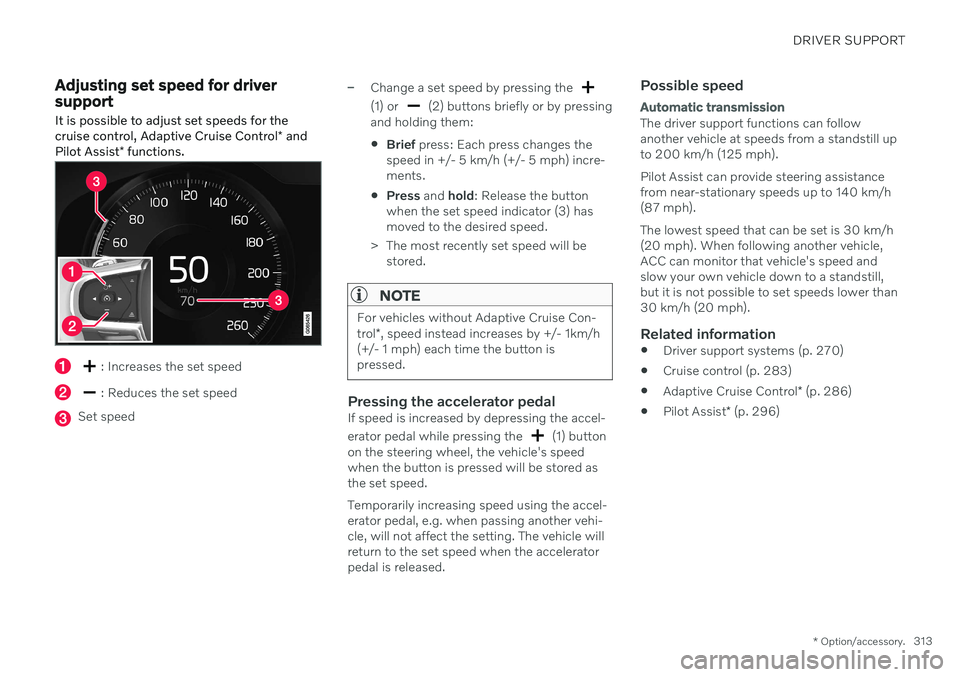
It is possible to adjust set speeds for the cruise control, Adaptive Cruise Control * and
Pilot Assist * functions.
: Increases the set speed
: Reduces the set speed
Set speed
–Change a set speed by pressing the
(1) or (2) buttons briefly or by pressing
and holding them:
Brief
press: Each press changes the
speed in +/- 5 km/h (+/- 5 mph) incre- ments.
Press
and hold: Release the button
when the set speed indicator (3) hasmoved to the desired speed.
> The most recently set speed will be stored.
NOTE
For vehicles without Adaptive Cruise Con- trol *, speed instead increases by +/- 1km/h
(+/- 1 mph) each time the button is pressed.
Pressing the accelerator pedalIf speed is increased by depressing the accel- erator pedal while pressing the
(1) button
on the steering wheel, the vehicle's speed when the button is pressed will be stored asthe set speed. Temporarily increasing speed using the accel- erator pedal, e.g. when passing another vehi-cle, will not affect the setting. The vehicle willreturn to the set speed when the acceleratorpedal is released.
Possible speed
Automatic transmission
The driver support functions can follow another vehicle at speeds from a standstill upto 200 km/h (125 mph). Pilot Assist can provide steering assistance from near-stationary speeds up to 140 km/h(87 mph). The lowest speed that can be set is 30 km/h (20 mph). When following another vehicle,ACC can monitor that vehicle's speed andslow your own vehicle down to a standstill,but it is not possible to set speeds lower than30 km/h (20 mph).
Related information
Driver support systems (p. 270)
Cruise control (p. 283)
Adaptive Cruise Control
* (p. 286)
Pilot Assist
* (p. 296)
Page 325 of 661
DRIVER SUPPORT
}}
323
City Safety™
City Safety 75
can alert the driver with light,
sound and pulsations in the brake pedal to help the driver detect pedestrians, cyclists,large animals and vehicles.
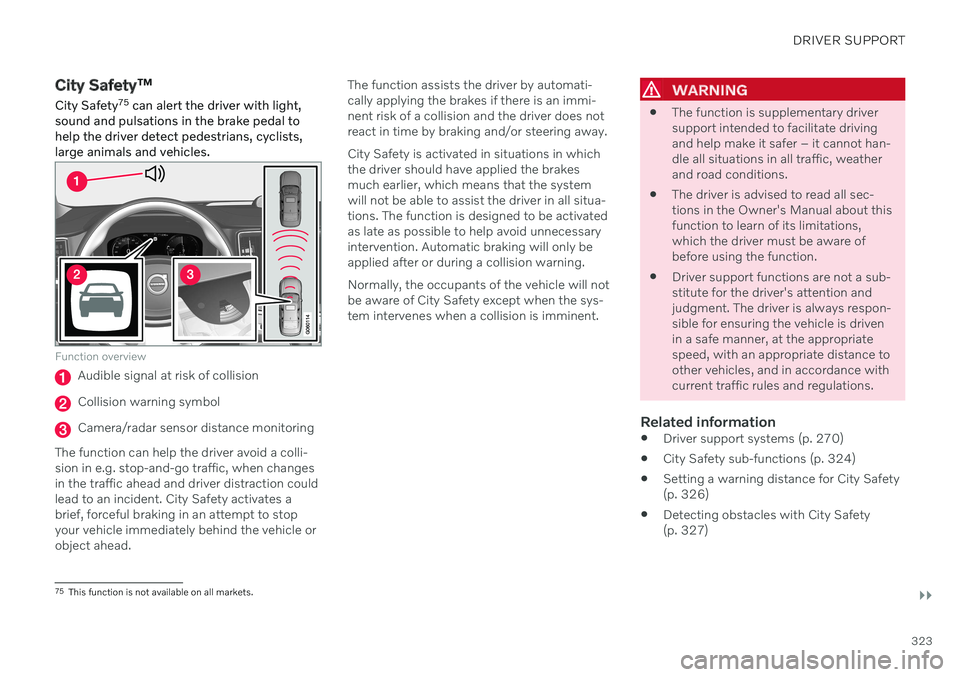
Function overview
Audible signal at risk of collision
Collision warning symbol
Camera/radar sensor distance monitoring
The function can help the driver avoid a colli- sion in e.g. stop-and-go traffic, when changesin the traffic ahead and driver distraction couldlead to an incident. City Safety activates abrief, forceful braking in an attempt to stopyour vehicle immediately behind the vehicle orobject ahead. The function assists the driver by automati-cally applying the brakes if there is an immi-nent risk of a collision and the driver does notreact in time by braking and/or steering away. City Safety is activated in situations in which the driver should have applied the brakesmuch earlier, which means that the systemwill not be able to assist the driver in all situa-tions. The function is designed to be activatedas late as possible to help avoid unnecessaryintervention. Automatic braking will only beapplied after or during a collision warning. Normally, the occupants of the vehicle will not be aware of City Safety except when the sys-tem intervenes when a collision is imminent.
WARNING
The function is supplementary driver support intended to facilitate drivingand help make it safer – it cannot han-dle all situations in all traffic, weatherand road conditions.
The driver is advised to read all sec-tions in the Owner's Manual about thisfunction to learn of its limitations,which the driver must be aware ofbefore using the function.
Driver support functions are not a sub-stitute for the driver's attention andjudgment. The driver is always respon-sible for ensuring the vehicle is drivenin a safe manner, at the appropriatespeed, with an appropriate distance toother vehicles, and in accordance withcurrent traffic rules and regulations.
Related information
Driver support systems (p. 270)
City Safety sub-functions (p. 324)
Setting a warning distance for City Safety(p. 326)
Detecting obstacles with City Safety(p. 327)
75
This function is not available on all markets.