navigation VOLVO V60 2021 Owner's Manual
[x] Cancel search | Manufacturer: VOLVO, Model Year: 2021, Model line: V60, Model: VOLVO V60 2021Pages: 661, PDF Size: 12.68 MB
Page 142 of 661
DISPLAYS AND VOICE CONTROL
* Option/accessory.
140
Head-up display *
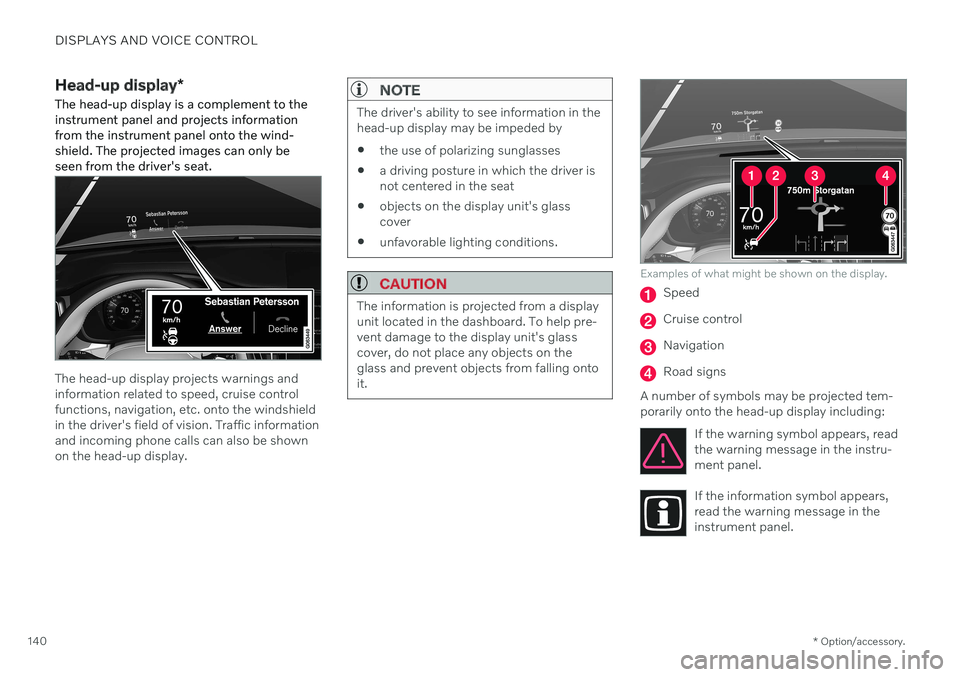
The head-up display is a complement to the instrument panel and projects informationfrom the instrument panel onto the wind-shield. The projected images can only beseen from the driver's seat.
The head-up display projects warnings and information related to speed, cruise controlfunctions, navigation, etc. onto the windshieldin the driver's field of vision. Traffic informationand incoming phone calls can also be shownon the head-up display.
NOTE
The driver's ability to see information in the head-up display may be impeded by
the use of polarizing sunglasses
a driving posture in which the driver isnot centered in the seat
objects on the display unit's glasscover
unfavorable lighting conditions.
CAUTION
The information is projected from a display unit located in the dashboard. To help pre-vent damage to the display unit's glasscover, do not place any objects on theglass and prevent objects from falling ontoit.
Examples of what might be shown on the display.
Speed
Cruise control
Navigation
Road signs
A number of symbols may be projected tem- porarily onto the head-up display including: If the warning symbol appears, readthe warning message in the instru-ment panel.
If the information symbol appears, read the warning message in theinstrument panel.
Page 144 of 661
DISPLAYS AND VOICE CONTROL
* Option/accessory.
142
Head-up display settings *
Adjusting settings for the head-up display.
Settings can be adjusted when the vehicle is started and a projected image is displayed onthe windshield.
Selecting display optionsSelect the functions to be shown in the head-up display. 1. Tap
Settings in the center display's Top
view.
2. Tap
My CarDisplaysHead-Up
Display Options.
3. Select one or more functions:
Show Navigation
Show Road Sign Information
Show Driver Support
Show Phone
This setting is stored as a personal setting in the driver profile.
Adjusting brightness and height position
1.Press the Head-up Display Adjustmentsbutton in the center display's Function view.
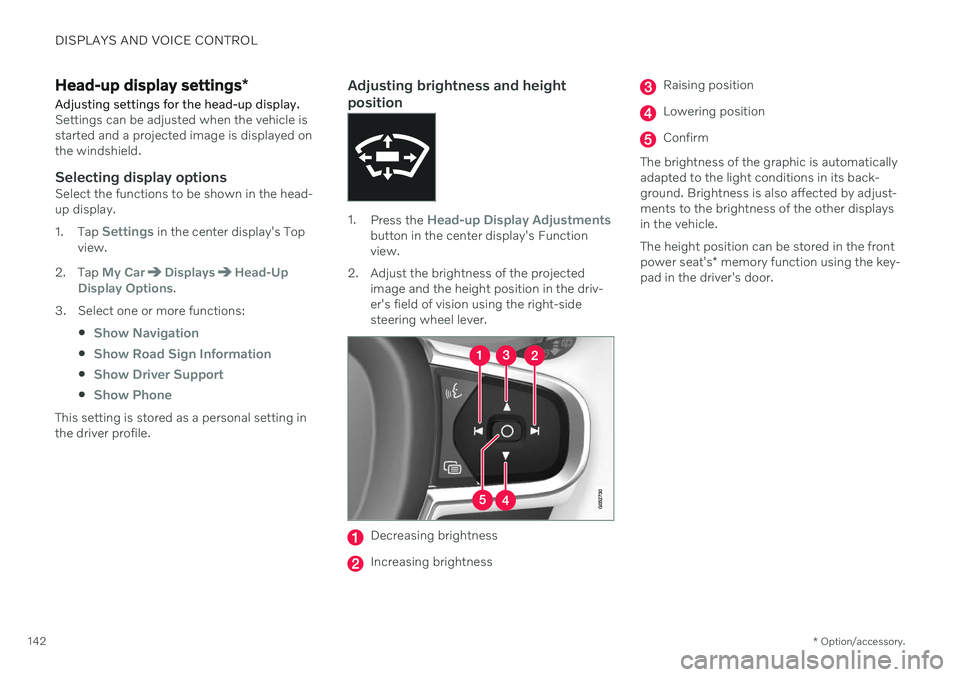
2. Adjust the brightness of the projected image and the height position in the driv-er's field of vision using the right-sidesteering wheel lever.
Decreasing brightness
Increasing brightness
Raising position
Lowering position
Confirm
The brightness of the graphic is automatically adapted to the light conditions in its back-ground. Brightness is also affected by adjust-ments to the brightness of the other displaysin the vehicle. The height position can be stored in the front power seat's * memory function using the key-
pad in the driver's door.
Page 145 of 661
DISPLAYS AND VOICE CONTROL
}}
* Option/accessory.143
Calibrating the horizontal positionIf the windshield or display unit has been replaced, the head-up display's horizontalposition may need to be calibrated. Calibrationmeans that the projected image is rotatedclockwise or counterclockwise. 1.
Tap
Settings in the center display's Top
view.
2. Select
My CarDisplaysHead-Up
Display Options
Head-Up Display
Calibration.
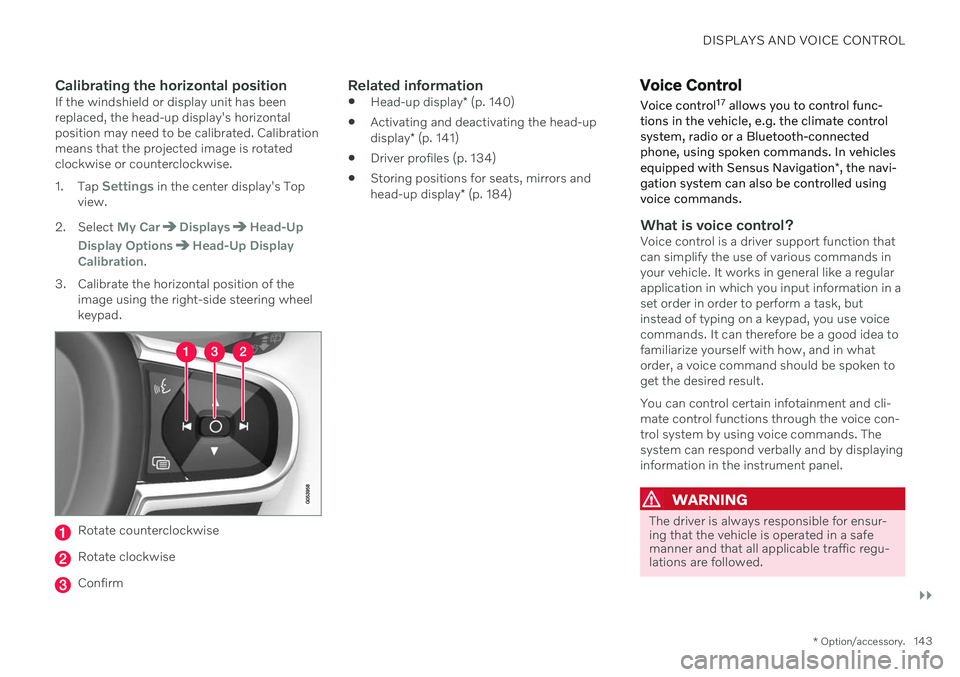
3. Calibrate the horizontal position of the image using the right-side steering wheel keypad.
Rotate counterclockwise
Rotate clockwise
Confirm
Related information
Head-up display
* (p. 140)
Activating and deactivating the head-up display
* (p. 141)
Driver profiles (p. 134)
Storing positions for seats, mirrors andhead-up display
* (p. 184)
Voice Control
Voice control 17
allows you to control func-
tions in the vehicle, e.g. the climate control system, radio or a Bluetooth-connectedphone, using spoken commands. In vehicles equipped with Sensus Navigation *, the navi-
gation system can also be controlled using voice commands.
What is voice control?Voice control is a driver support function that can simplify the use of various commands inyour vehicle. It works in general like a regularapplication in which you input information in aset order in order to perform a task, butinstead of typing on a keypad, you use voicecommands. It can therefore be a good idea tofamiliarize yourself with how, and in whatorder, a voice command should be spoken toget the desired result. You can control certain infotainment and cli- mate control functions through the voice con-trol system by using voice commands. Thesystem can respond verbally and by displayinginformation in the instrument panel.
WARNING
The driver is always responsible for ensur- ing that the vehicle is operated in a safemanner and that all applicable traffic regu-lations are followed.
Page 279 of 661
DRIVER SUPPORT
}}
* Option/accessory.277
Activating or deactivating Connected Safety
For Connected Safety to be able to share information about road conditions with otherdrivers, the function must be activated. If youdo not wish to share information, the functioncan be deactivated.
Activate or deactivate the function using this button inthe center display's Functionview.
Illuminated button indicator light – the function is activated.
Extinguished button indicator light – thefunction is deactivated.
At activation, the driver must accept the spe-cial terms and conditions shown in the display before an Internet connection 12
can be estab-
lished. The driver must, for example, accept that data is sent from the vehicle using thedriver's cellular phone. Even when your vehicle is not connected to the Internet, you will still be notified if the sys-tem in your own vehicle detects slippery roadconditions. For Connected Safety to functionat full capacity, your vehicle needs to be con-nected to the Internet.
Related information
Connected Safety (p. 276)
Internet-connected vehicle
* (p. 500)
Terms of use and data sharing (p. 506)
Connected Safety limitations (p. 277)
Connected Safety limitations
Information on vehicles with activated hazard warning flashers or which have detected slip-pery road conditions is not always communi-cated between all vehicles in the affectedarea.
This may be the case if: No or insufficient Internet connection.
The maneuvers (steering wheel move- ments, acceleration or braking) made bythe vehicles on slippery surfaces are tooweak for friction between the tires androad to be detected.
Vehicles that have detected slippery roadconditions or activated hazard warningflashers have not activated the function.
Vehicles that have detected slippery roadconditions or activated hazard warningflashers are not equipped with the func-tion.
Insufficient GPS/satellite navigation mayprevent warnings.
Slippery road conditions were detected orhazard warning flashers were activated ona road that is not registered in the VolvoCars database.
Connected Safety is not developed on allmarkets and does not cover all areas. Con-
12
There may be a charge for transmitting data over the Internet, depending on your service plan.
Page 280 of 661
||
DRIVER SUPPORT
* Option/accessory.
278 sult a Volvo retailer for more information on covered areas.
WARNING
In certain situations, the function may give false warnings of slippery roadconditions.
The function cannot always detectother vehicles with activated hazardwarning factors or detect all stretchesof road with slippery conditions.
Related information
Connected Safety (p. 276)
Internet-connected vehicle
* (p. 500)
Road Sign Information *
The Road Sign Information (RSI 13
) function
can help the driver observe speed-related road signs.
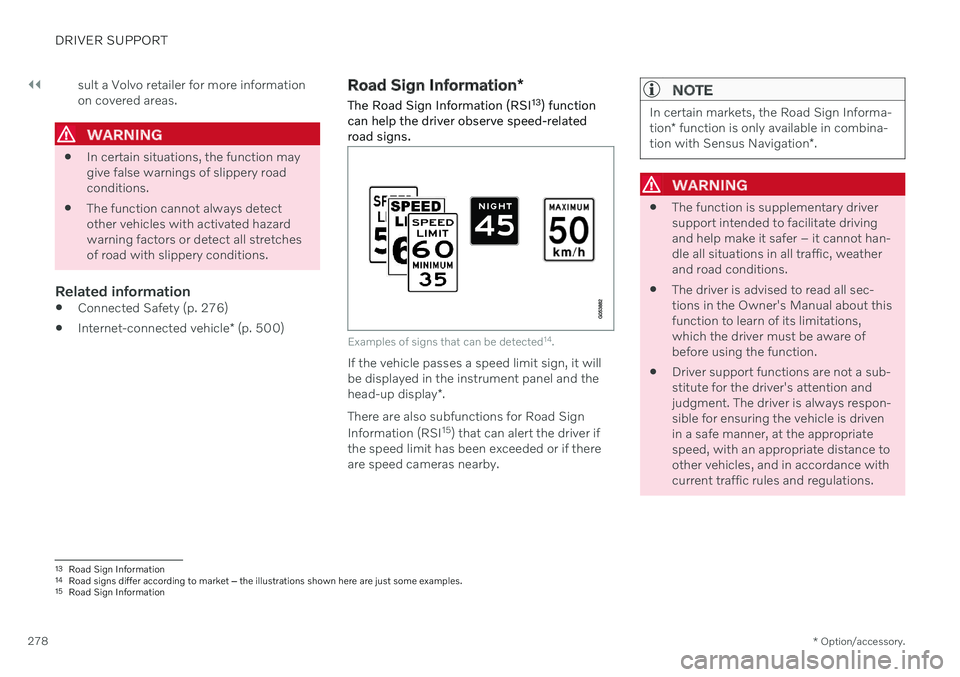
Examples of signs that can be detected 14
.
If the vehicle passes a speed limit sign, it will be displayed in the instrument panel and the head-up display *.
There are also subfunctions for Road Sign Information (RSI 15
) that can alert the driver if
the speed limit has been exceeded or if there are speed cameras nearby.
NOTE
In certain markets, the Road Sign Informa- tion * function is only available in combina-
tion with Sensus Navigation *.
WARNING
The function is supplementary driver support intended to facilitate drivingand help make it safer – it cannot han-dle all situations in all traffic, weatherand road conditions.
The driver is advised to read all sec-tions in the Owner's Manual about thisfunction to learn of its limitations,which the driver must be aware ofbefore using the function.
Driver support functions are not a sub-stitute for the driver's attention andjudgment. The driver is always respon-sible for ensuring the vehicle is drivenin a safe manner, at the appropriatespeed, with an appropriate distance toother vehicles, and in accordance withcurrent traffic rules and regulations.
13
Road Sign Information
14 Road signs differ according to market ‒ the illustrations shown here are just some examples.
15 Road Sign Information
Page 281 of 661
DRIVER SUPPORT
}}
* Option/accessory.279
Related information
Driver support systems (p. 270)
Activating or deactivating Road Sign Infor- mation
* (p. 279)
Road Sign Information
* display (p. 279)
Road Sign Information and SensusNavigation
* (p. 280)
Speed limit and speed camera warningsfrom Road Sign Information
* (p. 280)
Road Sign Information
* limitations
(p. 282)
Activating or deactivating Road Sign Information *
The Road Sign Information (RSI 16
) function is
optional – the driver can choose to have the function activated or deactivated.
Activate or deactivate the function using this button inthe center display's Functionview.
Illuminated button indicator light – the function is activated.
Extinguished button indicator light – thefunction is deactivated.
Related information
Road Sign Information
* (p. 278)
Road Sign Information
* limitations
(p. 282)
Road Sign Information * display
Road Sign Information (RSI 17
) displays road
signs in different ways depending on the sign and situation.
Example 18
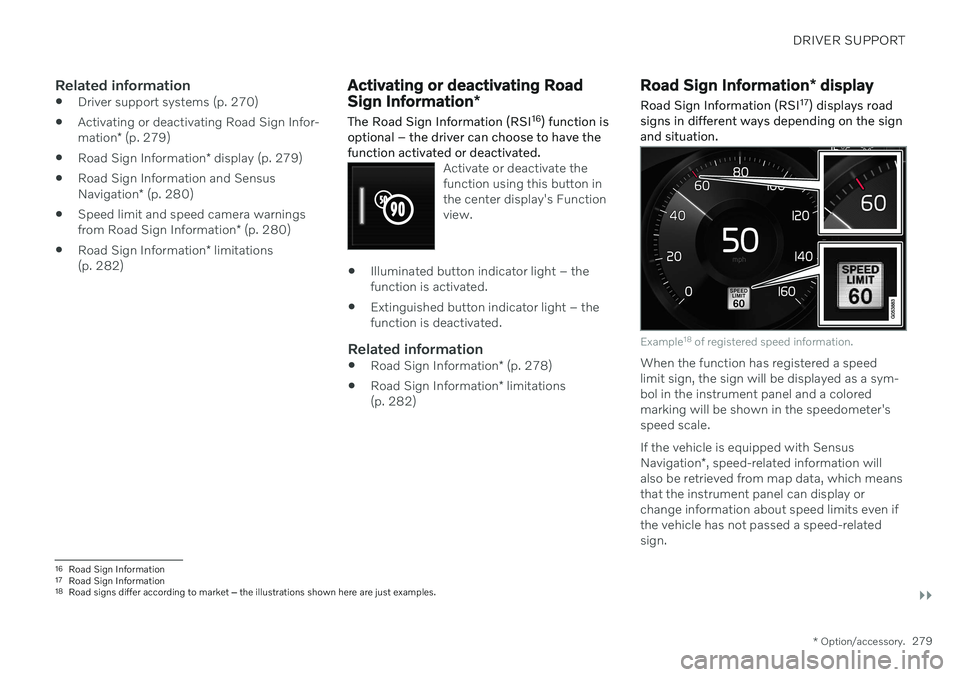
of registered speed information.
When the function has registered a speed limit sign, the sign will be displayed as a sym-bol in the instrument panel and a coloredmarking will be shown in the speedometer'sspeed scale. If the vehicle is equipped with Sensus Navigation *, speed-related information will
also be retrieved from map data, which means that the instrument panel can display orchange information about speed limits even ifthe vehicle has not passed a speed-relatedsign.
16 Road Sign Information
17 Road Sign Information
18 Road signs differ according to market ‒ the illustrations shown here are just examples.
Page 282 of 661
||
DRIVER SUPPORT
* Option/accessory.
280
Signs for "School" and "Children playing"
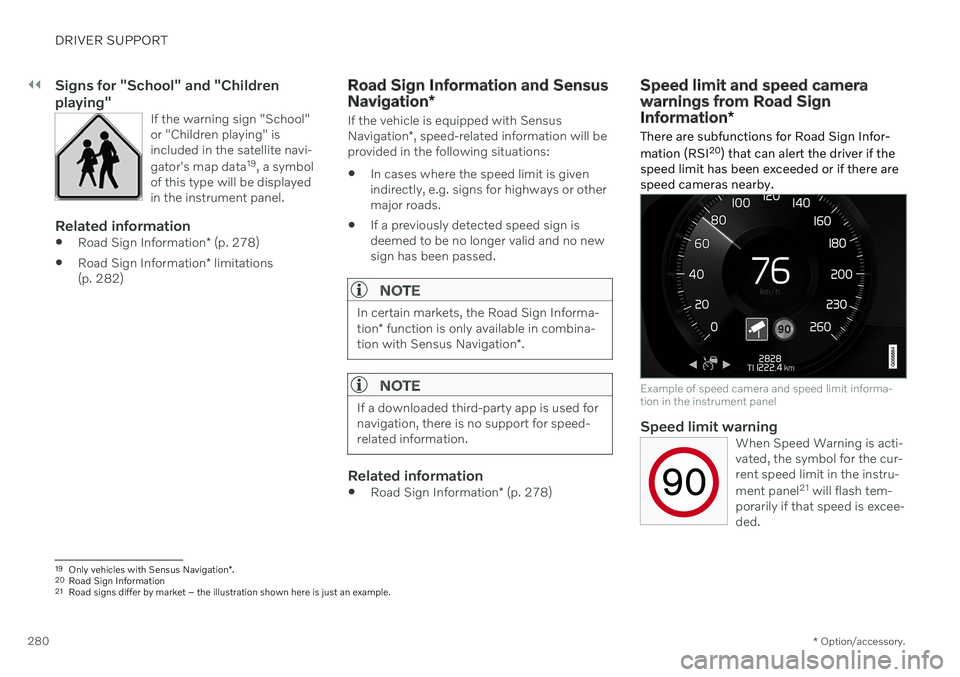
If the warning sign "School" or "Children playing" isincluded in the satellite navi- gator's map data 19
, a symbol
of this type will be displayed in the instrument panel.
Related information
Road Sign Information
* (p. 278)
Road Sign Information
* limitations
(p. 282)
Road Sign Information and Sensus Navigation *
If the vehicle is equipped with Sensus Navigation*, speed-related information will be
provided in the following situations:
In cases where the speed limit is given indirectly, e.g. signs for highways or othermajor roads.
If a previously detected speed sign isdeemed to be no longer valid and no newsign has been passed.
NOTE
In certain markets, the Road Sign Informa- tion
* function is only available in combina-
tion with Sensus Navigation *.
NOTE
If a downloaded third-party app is used for navigation, there is no support for speed-related information.
Related information
Road Sign Information
* (p. 278)
Speed limit and speed camera warnings from Road Sign Information *
There are subfunctions for Road Sign Infor- mation (RSI 20
) that can alert the driver if the
speed limit has been exceeded or if there are speed cameras nearby.
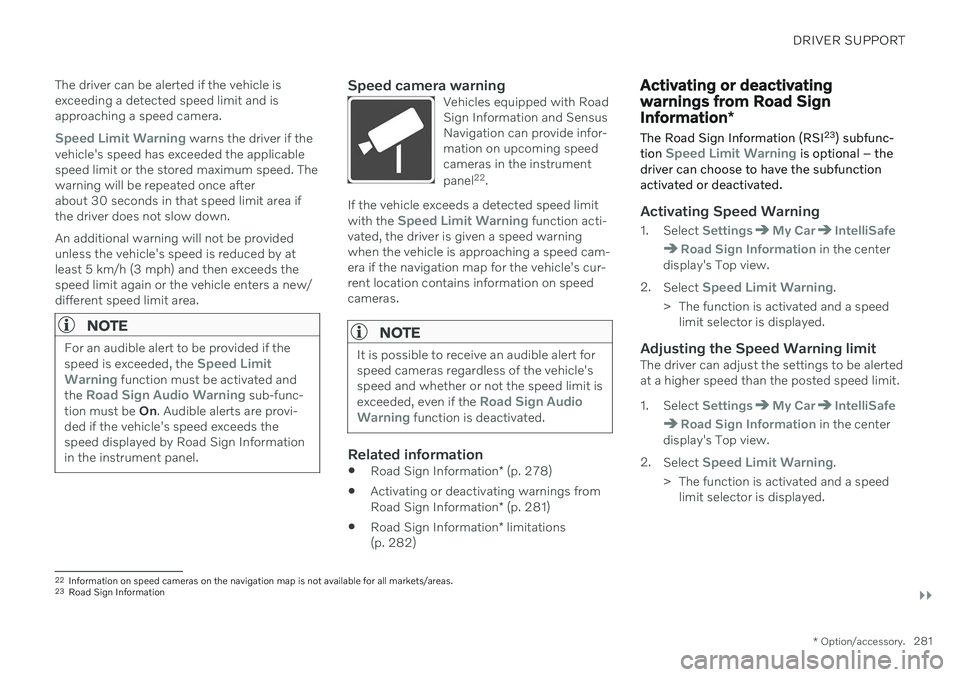
Example of speed camera and speed limit informa- tion in the instrument panel
Speed limit warningWhen Speed Warning is acti- vated, the symbol for the cur-rent speed limit in the instru- ment panel 21
will flash tem-
porarily if that speed is excee- ded.
19 Only vehicles with Sensus Navigation *.
20 Road Sign Information
21 Road signs differ by market – the illustration shown here is just an example.
Page 283 of 661
DRIVER SUPPORT
}}
* Option/accessory.281
The driver can be alerted if the vehicle is exceeding a detected speed limit and isapproaching a speed camera.
Speed Limit Warning warns the driver if the
vehicle's speed has exceeded the applicable speed limit or the stored maximum speed. Thewarning will be repeated once afterabout 30 seconds in that speed limit area ifthe driver does not slow down. An additional warning will not be provided unless the vehicle's speed is reduced by atleast 5 km/h (3 mph) and then exceeds thespeed limit again or the vehicle enters a new/different speed limit area.
NOTE
For an audible alert to be provided if the speed is exceeded, the Speed Limit
Warning function must be activated and
the Road Sign Audio Warning sub-func-
tion must be On. Audible alerts are provi-
ded if the vehicle's speed exceeds the speed displayed by Road Sign Informationin the instrument panel.
Speed camera warningVehicles equipped with Road Sign Information and SensusNavigation can provide infor-mation on upcoming speedcameras in the instrument panel 22
.
If the vehicle exceeds a detected speed limit with the Speed Limit Warning function acti-
vated, the driver is given a speed warning when the vehicle is approaching a speed cam-era if the navigation map for the vehicle's cur-rent location contains information on speedcameras.
NOTE
It is possible to receive an audible alert for speed cameras regardless of the vehicle'sspeed and whether or not the speed limit is exceeded, even if the
Road Sign Audio
Warning function is deactivated.
Related information
Road Sign Information
* (p. 278)
Activating or deactivating warnings from Road Sign Information
* (p. 281)
Road Sign Information
* limitations
(p. 282)
Activating or deactivating warnings from Road Sign Information *
The Road Sign Information (RSI 23
) subfunc-
tion
Speed Limit Warning is optional – the
driver can choose to have the subfunction activated or deactivated.
Activating Speed Warning
1. Select SettingsMy CarIntelliSafe
Road Sign Information in the center
display's Top view.
2. Select
Speed Limit Warning.
> The function is activated and a speed limit selector is displayed.
Adjusting the Speed Warning limitThe driver can adjust the settings to be alerted at a higher speed than the posted speed limit.
1. Select
SettingsMy CarIntelliSafe
Road Sign Information in the center
display's Top view.
2. Select
Speed Limit Warning.
> The function is activated and a speed limit selector is displayed.
22Information on speed cameras on the navigation map is not available for all markets/areas.
23 Road Sign Information
Page 284 of 661
||
DRIVER SUPPORT
* Option/accessory.
282 3. Tap the up/down arrows on the screen to
adjust the speed at which the Speed Warning will be given.
Please note that the setwarning limit will not be usedwhen a speed camera symbolis displayed in the instrumentpanel.
Activating audible alert for Speed Warning
1. Select SettingsMy CarIntelliSafe
Road Sign Information in the center
display's Top view.
2. Select/deselect
Road Sign Audio
Warning to activate/deactivate the audi-
ble alert.
When
Road Sign Audio Warning is acti-
vated, the driver will also be alerted if the vehi- cle is approaching a one-way/"no-entry" roador entrance.
Activating speed camera alertsIf the vehicle is equipped with Sensus Navigation * and map data contains informa-
tion on speed cameras, the driver can choose to receive an audible alert if the vehicle isapproaching a speed camera. 1. Select
SettingsMy CarIntelliSafe
Road Sign Information in the center
display's Top view.
2. Select/deselect
Speed Camera Audio
Warning to activate/deactivate the speed
camera audible alert.
Related information
Road Sign Information
* (p. 278)
Speed limit and speed camera warnings from Road Sign Information
* (p. 280)
Road Sign Information
* limitations
(p. 282)
Road Sign Information * limitations
Road Sign Information (RSI 24
) functionality
may be reduced in certain situations.
The function could have reduced functionality due to e.g.: faded road signs
signs located in a curve in the road
twisted or damaged signs
signs positioned high above the road
fully/partially obstructed or poorly posi- tioned signs
signs partially or fully covered by frost,snow and/or dirt
digital road maps 25
that are outdated,
incorrect or do not contain speed informa- tion 26
NOTE
In certain markets, the Road Sign Informa- tion
* function is only available in combina-
tion with Sensus Navigation *.
24
Road Sign Information
Page 285 of 661
DRIVER SUPPORT
}}
* Option/accessory.283
NOTE
Certain types of bike carriers that are con- nected to the trailer socket may be inter-preted as a connected trailer by the RSIfunction. In such cases, the instrumentpanel may indicate incorrect speed infor-mation.
NOTE
The function uses the vehicle's camera and radar sensor, which has certain generallimitations.
Related information
Road Sign Information
* (p. 278)
Camera/radar sensor limitations (p. 383)
Cruise control
Cruise Control (CC 27
) can help the driver
maintain an even speed to provide a more relaxing driving experience on highways andlong, straight roads with even traffic flows.
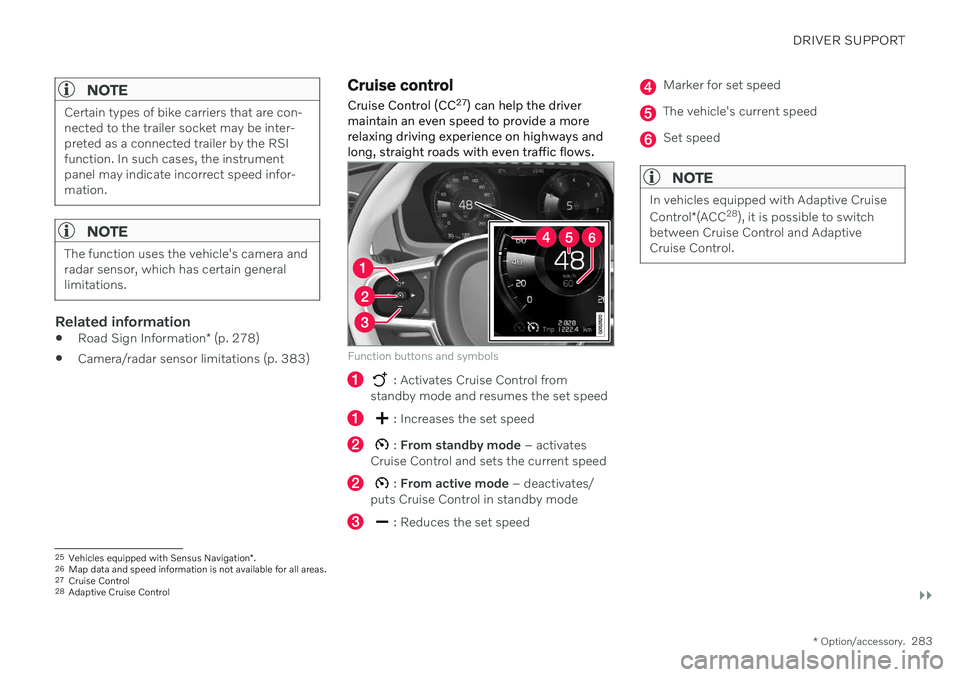
Function buttons and symbols
: Activates Cruise Control from
standby mode and resumes the set speed
: Increases the set speed
: From standby mode – activates
Cruise Control and sets the current speed
: From active mode – deactivates/
puts Cruise Control in standby mode
: Reduces the set speed
Marker for set speed
The vehicle's current speed
Set speed
NOTE
In vehicles equipped with Adaptive Cruise Control *(ACC 28
), it is possible to switch
between Cruise Control and Adaptive Cruise Control.
25 Vehicles equipped with Sensus Navigation *.
26 Map data and speed information is not available for all areas.
27 Cruise Control
28 Adaptive Cruise Control