AUX VOLVO V90 2017 User Guide
[x] Cancel search | Manufacturer: VOLVO, Model Year: 2017, Model line: V90, Model: VOLVO V90 2017Pages: 594, PDF Size: 15.07 MB
Page 450 of 594
AUDIO AND MEDIA
* Option/accessory.
448
Connecting media via AUX/USB input An external audio source, e.g. an iPod or MP3 player, can be connected to the audio system viaany of the connectors in the tunnel console. Thecable must be routed out in the front to avoidbeing trapped when the hatch is closed.
In the cases where there are two USB ports, the one with the white frame around the port must beused for connecting a phone when it will be usedfor Apple CarPlay or Android Auto.
Related information
• Media playback (p. 443)
• Media via AUX/USB input (p. 447)
• Media player (p. 442)
• Technical specifications for media (p. 455)
video
Video from a USB-connected device can be played back with the media player.
There will be no picture when the car is moving, but the audio continues to be played back. Thepicture returns when the car is stationary. See section "Technical specifications for media" for supported video formats.
Related information
• Media playback (p. 443)
• Media player (p. 442)
• Technical specifications for media (p. 455)
Audio settings for media
Personalisation of audio settings for media play- back.
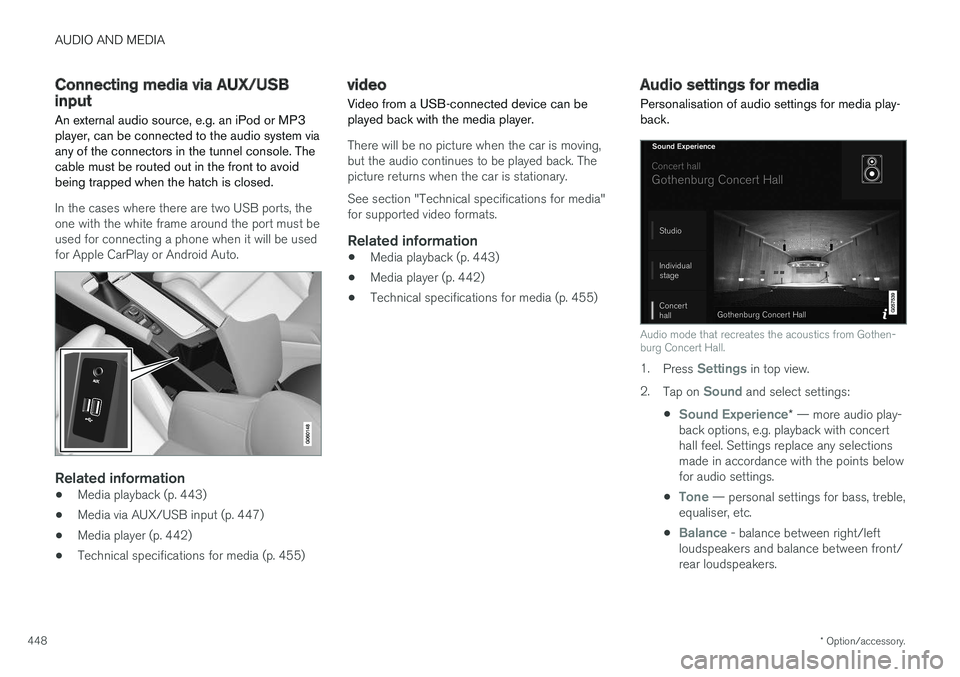
Audio mode that recreates the acoustics from Gothen- burg Concert Hall.
1. Press Settings in top view.
2. Tap on
Sound and select settings:
•
Sound Experience* — more audio play-
back options, e.g. playback with concert hall feel. Settings replace any selectionsmade in accordance with the points belowfor audio settings.
•
Tone — personal settings for bass, treble,
equaliser, etc.
•
Balance - balance between right/left
loudspeakers and balance between front/ rear loudspeakers.
Page 451 of 594
AUDIO AND MEDIA
}}
* Option/accessory.449
System volumes for media1.
Press Settings in top view.
2. Press
SoundSystem Volumes:
•
AUX - If an external audio source (e.g. an
MP3 player or iPod) is connected to the AUX input then the audio source that isconnected can have a different volumethan the audio system's internal volume(e.g. radio). Correct this by adjusting thevolume of the input. If the volume is toohigh or too low then the quality of thesound can be impaired.
•
Speed and Volume Compensation -
the audio system compensates for dis- rupting noises in the passenger compart-ment by increasing the volume in relationto the speed of the car. Compensationlevel can be set.
Related information
• Audio settings (p. 435)
• Media player (p. 442)
TV
*2
The TV picture is only shown when the car is stationary. There will be no picture when the caris moving, but the audio continues to be playedback. The picture returns once more when thecar is almost or completely stationary.
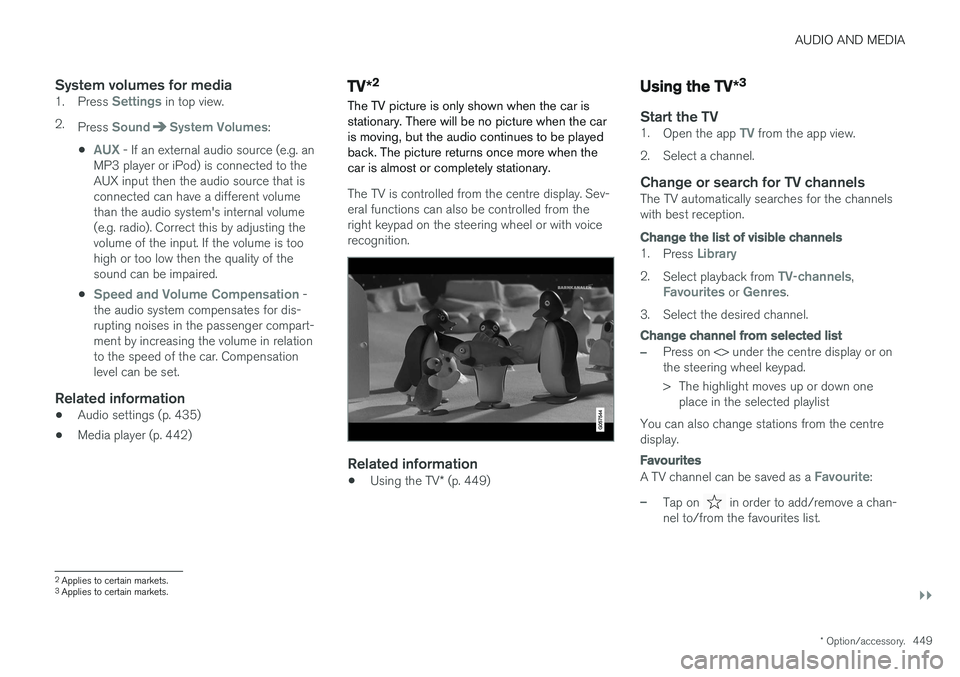
The TV is controlled from the centre display. Sev- eral functions can also be controlled from theright keypad on the steering wheel or with voicerecognition.
Related information
• Using the TV
* (p. 449)
Using the TV *3
Start the TV1.
Open the app TV from the app view.
2. Select a channel.
Change or search for TV channelsThe TV automatically searches for the channels with best reception.
Change the list of visible channels
1. Press Library
2.Select playback from TV-channels,Favourites or Genres.
3. Select the desired channel.
Change channel from selected list
–Press on <> under the centre display or on the steering wheel keypad.
> The highlight moves up or down one place in the selected playlist
You can also change stations from the centre display.
Favourites
A TV channel can be saved as a Favourite:
–Tap on in order to add/remove a chan-
nel to/from the favourites list.
2 Applies to certain markets.
3 Applies to certain markets.
Page 454 of 594
||
AUDIO AND MEDIA
* Option/accessory.
452
Switch the connection between Apple CarPlay and iPod
Apple CarPlay to iPod
1.
Press Settings in top view.
2. Press
CommunicationApple CarPlay.
3. Untick the box for the Apple device that shall no longer start Apple CarPlay automatically when the USB cable is connected.
4. Disconnect and connect the Apple device to the USB input.
5. Open the app
iPod from the app view.
iPod to Apple CarPlay
1.
Tap on Apple CarPlay in the app view.
2. Read the information in the pop-up message and then tap on
OK.
3. Disconnect and connect the Apple device to the USB input.
> The subview with Apple CarPlay is openedand compatible apps are shown.
Related information
• Media player (p. 442)
• Media playback (p. 443)
• Connecting media via AUX/USB input (p. 448)
• Settings for Apple CarPlay
* (p. 452)
• Connecting the car (p. 464)
Settings for Apple CarPlay
*
Settings for phone connected as Apple CarPlay.
Automatic start1. Press Settings in top view.
2. Press
CommunicationApple CarPlayand select setting: •Tick the box - Apple CarPlay starts auto- matically when the USB cable is con-nected.
• Untick the box - Apple CarPlay does notstart automatically when the USB cable isconnected.
A maximum of 20 Apple devices can be stored inthe list. When the list is full and a new device isconnected the oldest one is deleted. A factory reset is required in order to delete the list, see the section "Resetting settings in thesettings view".
System volumes1. Press Settings in top view.
2. Tap on
SoundSystem Volumes and
make the settings for the following:
•
Voice Control
•Navi Voice Guidance
•Phone Ringtone
Related information
• Apple CarPlay
* (p. 450)
• Resetting settings in the settings view (p. 173)
Page 456 of 594
||
AUDIO AND MEDIA
* Option/accessory.
454
Previously connected Android
1. Connect the phone to the USB input.
>If the setting for automatic start is selected - the subview with Android Auto
is opened and compatible apps areshown.
2. If the setting for automatic start is not selected - open the
Android Auto app from
the app view.
> The subview with Android Auto is opened and compatible apps are shown.
3. Tap on the desired app. > The app starts.
Android Auto runs in the background if another app is started in the same subview. To showAndroid Auto in the subview again - tap on theAndroid Auto icon in the app view.
Related information
• Media player (p. 442)
• Media playback (p. 443)
• Connecting media via AUX/USB input(p. 448)
• Settings for Android Auto
* (p. 454)
• Connecting the car (p. 464)
• Overview of the centre display (p. 33)
Settings for Android Auto
*
Settings for a phone that has been connected
the first time with Android Auto.
Automatic start1. Press Settings in top view.
2. Press
CommunicationAndroid Autoand select setting: •Tick the box - Android Auto starts auto- matically when the USB cable is con-nected.
• Untick the box - Android Auto does notstart automatically when the USB cable isconnected.
A maximum of 20 Android devices can be storedin the list. When the list is full and a new device isconnected the oldest one is deleted. A factory reset is required in order to delete the list, see the section "Resetting settings in thesettings view".
System volumes1. Press Settings in top view.
2. Tap on
SoundSystem Volumes and
make the settings for the following:
•
Voice Control
•Navi Voice Guidance
•Phone Ringtone
Related information
• Android Auto
* (p. 453)
• Resetting settings in the settings view (p. 173)
• Overview of the centre display (p. 33)
Page 565 of 594
SPECIFICATIONS
563
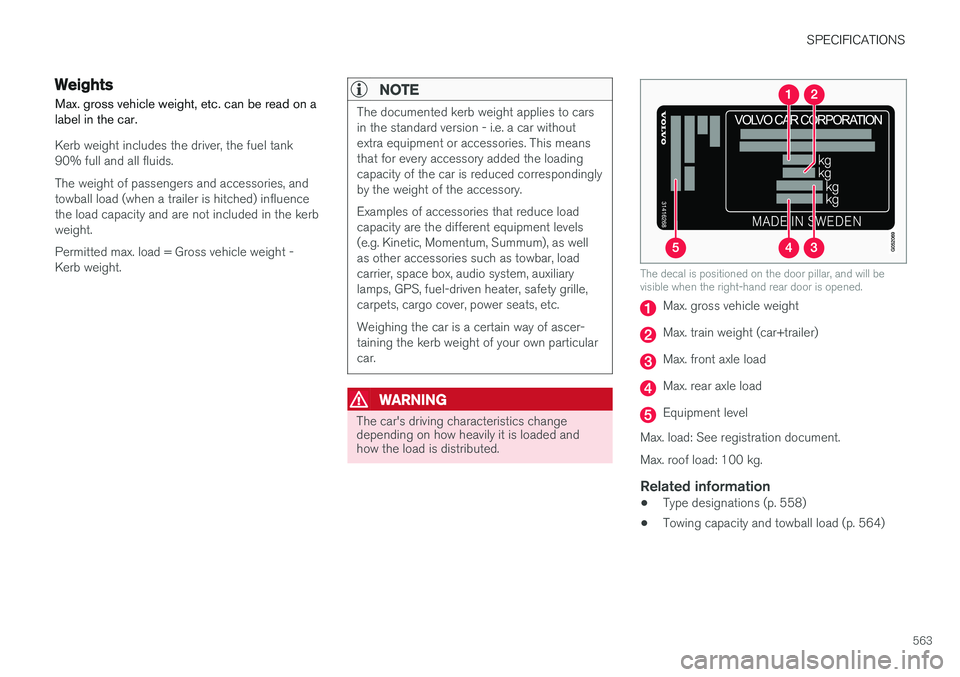
Weights Max. gross vehicle weight, etc. can be read on a label in the car.
Kerb weight includes the driver, the fuel tank 90% full and all fluids. The weight of passengers and accessories, and towball load (when a trailer is hitched) influencethe load capacity and are not included in the kerbweight. Permitted max. load = Gross vehicle weight - Kerb weight.
NOTE
The documented kerb weight applies to cars in the standard version - i.e. a car withoutextra equipment or accessories. This meansthat for every accessory added the loadingcapacity of the car is reduced correspondinglyby the weight of the accessory. Examples of accessories that reduce load capacity are the different equipment levels(e.g. Kinetic, Momentum, Summum), as wellas other accessories such as towbar, loadcarrier, space box, audio system, auxiliarylamps, GPS, fuel-driven heater, safety grille,carpets, cargo cover, power seats, etc. Weighing the car is a certain way of ascer- taining the kerb weight of your own particularcar.
WARNING
The car's driving characteristics change depending on how heavily it is loaded andhow the load is distributed.
The decal is positioned on the door pillar, and will be visible when the right-hand rear door is opened.
Max. gross vehicle weight
Max. train weight (car+trailer)
Max. front axle load
Max. rear axle load
Equipment level
Max. load: See registration document. Max. roof load: 100 kg.
Related information
• Type designations (p. 558)
• Towing capacity and towball load (p. 564)
Page 579 of 594
ALPHABETICAL INDEX
577
1, 2, 3 ...
4WD 405
A
A/C (Air conditioning) 190 ABSanti-lock brakes 406
ACC – Adaptive cruise control 290, 299
Accessories and extra equipment 23
Active bending lights 141
Active main beam 138
Active Park Assist 374 function 374
Limitations 379
operation 376
Symbols and messages 381
Active Yaw Control 273
Adaptation of headlamp beam 141
Adapting driving characteristics 272, 400
Adaptive Cruise Control 290, 299 change cruise control functionality 301
fault tracing 300
function 290
managing speed 294, 295
overtaking 298
radar sensor 318
setting the time interval 296
standby mode 297
temporary deactivation 297
Additional heater (Auxiliary heater) 215
Adjusting the steering wheel 132Aerial location 240
Airbag 63 Activating/deactivating 66
driver's side 64
passenger side 64, 66
Airbag, see Airbag 63
Air conditioning 190Air conditioning, fluid volume and grade 571
Air conditioning system 182, 186 repair 520
Air distribution 197 Air vents 197, 199
change 198
defrosting 194
Recirculation 196
table of options 201
Air quality 184, 185 allergies and asthma 185
passenger compartment filter 185Air recirculation 196
Alarm 262automatic re-arming 264
deactivation 264
reduced alarm level 262
Alcohol lock 384
Allergy and asthma inducing substances. 185
All Wheel Drive, (AWD) 405
All Wheel Drive (AWD) 405
Android Auto 453
Apple CarPlay 450, 451Applications settings 178
Approach lighting 148
Apps 434 download, update and uninstall 468
Ashtray 224
Audio and media 434
Audio settings 435, 463 media 448
phone 462
play media 443
Text message 461
Auto climate control 189
Automatic brake 412 after collision 408
ALPHABETICAL INDEX
Page 580 of 594
ALPHABETICAL INDEX
578Automatic car washes 549 Automatic engine stop
auto-stop 396
Automatic gearbox 390 trailer 428
Automatic relocking 242
Automatic speed limiter 281AUX jack for connecting media 448
Auxiliary heater 215
AWD, All Wheel Drive 405
B
Backrest front seat, adjusting 121, 122, 124
rear seat, lowering 130
Bag holder 228
Battery 388, 530 jump starting 388
maintenance 530
overload 415
start 530
support 533
symbols on the battery 533
warning symbols 533
Bi-Fuel introduction 54
BLIS 340, 342, 343 Bluetooth connect 447
connect car to Internet 464
phone 456
settings 463
Bonnet, opening 514
Book service and repair 506Brake assist after collision 408
Brake fluid grade 570
Brake functions 406
Brake light 143
Brakes 406 Anti-lock braking system, ABS 406
automatic when stationary 412
brake assist system, BAS 408
brake light 143
brake system 406
emergency brake lights 408
handbrake 409, 410, 411
bulbs, specifications 526C
Camera sensor 337
Car care 549 Leather upholstery 552
Car functions in centre display 47
Cargo area 226 electrical socket 220
lighting 146
mounting points 228
protective net 232
Cargo cover 230
Cargo grille 233
Car holiday 415
Car key battery low 257Car modem connect car to Internet 464
settings 468
Car status 506 Tyre pressure 487
Car upholstery 552
Car washing 549Catalytic converter Recovery 432
CD player 446
central locking 245
Page 584 of 594
ALPHABETICAL INDEX
582
H
Handbrake 409, 410Hazard warning flashers 143 Headlamp beam adaptation 141
height adjustment 135
Headlamp control 134
Headlamp levelling of headlamps 135
Headlamp pattern, adjusting 141
Headlamp pattern adjustment 141
head restraint 128
Heated washer nozzles 150
Heater 213 auxiliary heater 215
parking heater 214
Heating seats 203
steering wheel 205
Windows 194
High engine temperature 414 Hill start assist Hill Start Assist (HSA) 412
Hill Start Assist 412 HomeLink ®
162
Home safe light duration 148
Horn 131
I
IAQS (Interior Air Quality System) 185
IC (Inflatable Curtain) 69
Ignition position 385
Immobiliser 260
Indicator symbols 95
Individual drive mode 400
Inflatable curtain 69
Inflatable Curtain 69
Information display 90, 94
Infotainment system (Audio and media) 434
Instrument lighting 135Instrument overview left-hand drive car 86
right-hand drive car 87
Instruments and controls 86, 87
Integrated booster cushion 82 lowering 84
raising 82
IntelliSafe Driver support 28
Interior Air Quality System 185
Interior lighting 145
Interior rearview mirror 155 automatic dimming 155
Intermittent wiping 148
Internet, see Internet-connected car 463Internet-connected car book service and repair 506
system updates 510
iPod ®
, connection 447
ITPMS - Indirect Tyre Pressure Monitoring
System 485, 487, 488, 489
J
Jack 501
Journey statistics 168
Jump starting 388
K
Kerb weight 563
Key 176, 236, 239, 243
Keyboard 49, 53
Keypad in the steering wheel 131
Key tag 236