change time VOLVO XC60 T8 2018 Owner´s Manual
[x] Cancel search | Manufacturer: VOLVO, Model Year: 2018, Model line: XC60 T8, Model: VOLVO XC60 T8 2018Pages: 674, PDF Size: 11.93 MB
Page 126 of 674
||
DISPLAYS AND VOICE CONTROL
124
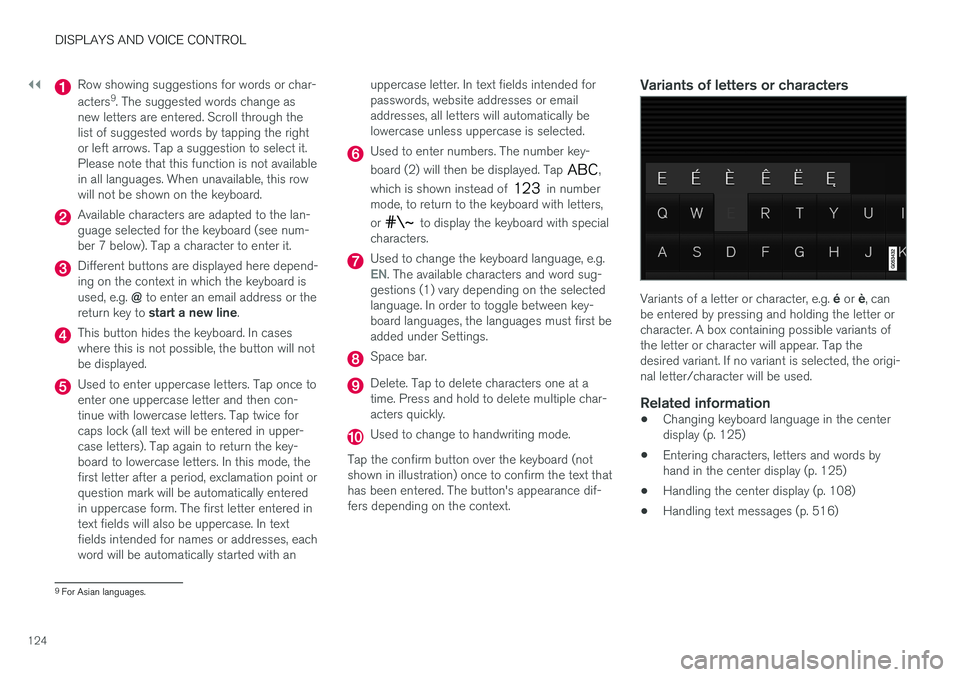
Row showing suggestions for words or char- acters9
. The suggested words change as
new letters are entered. Scroll through the list of suggested words by tapping the rightor left arrows. Tap a suggestion to select it.Please note that this function is not availablein all languages. When unavailable, this rowwill not be shown on the keyboard.
Available characters are adapted to the lan- guage selected for the keyboard (see num-ber 7 below). Tap a character to enter it.
Different buttons are displayed here depend- ing on the context in which the keyboard is used, e.g. @ to enter an email address or the
return key to start a new line .
This button hides the keyboard. In cases where this is not possible, the button will notbe displayed.
Used to enter uppercase letters. Tap once to enter one uppercase letter and then con-tinue with lowercase letters. Tap twice forcaps lock (all text will be entered in upper-case letters). Tap again to return the key-board to lowercase letters. In this mode, thefirst letter after a period, exclamation point orquestion mark will be automatically enteredin uppercase form. The first letter entered intext fields will also be uppercase. In textfields intended for names or addresses, eachword will be automatically started with an uppercase letter. In text fields intended forpasswords, website addresses or emailaddresses, all letters will automatically belowercase unless uppercase is selected.
Used to enter numbers. The number key- board (2) will then be displayed. Tap
,
which is shown instead of
in number
mode, to return to the keyboard with letters, or
to display the keyboard with special
characters.
Used to change the keyboard language, e.g.EN. The available characters and word sug-
gestions (1) vary depending on the selected language. In order to toggle between key-board languages, the languages must first beadded under Settings.
Space bar.
Delete. Tap to delete characters one at a time. Press and hold to delete multiple char-acters quickly.
Used to change to handwriting mode.
Tap the confirm button over the keyboard (not shown in illustration) once to confirm the text thathas been entered. The button's appearance dif-fers depending on the context.
Variants of letters or characters
Variants of a letter or character, e.g. é or è, can
be entered by pressing and holding the letter or character. A box containing possible variants ofthe letter or character will appear. Tap thedesired variant. If no variant is selected, the origi-nal letter/character will be used.
Related information
• Changing keyboard language in the centerdisplay (p. 125)
• Entering characters, letters and words byhand in the center display (p. 125)
• Handling the center display (p. 108)
• Handling text messages (p. 516)
9
For Asian languages.
Page 128 of 674
||
DISPLAYS AND VOICE CONTROL
126
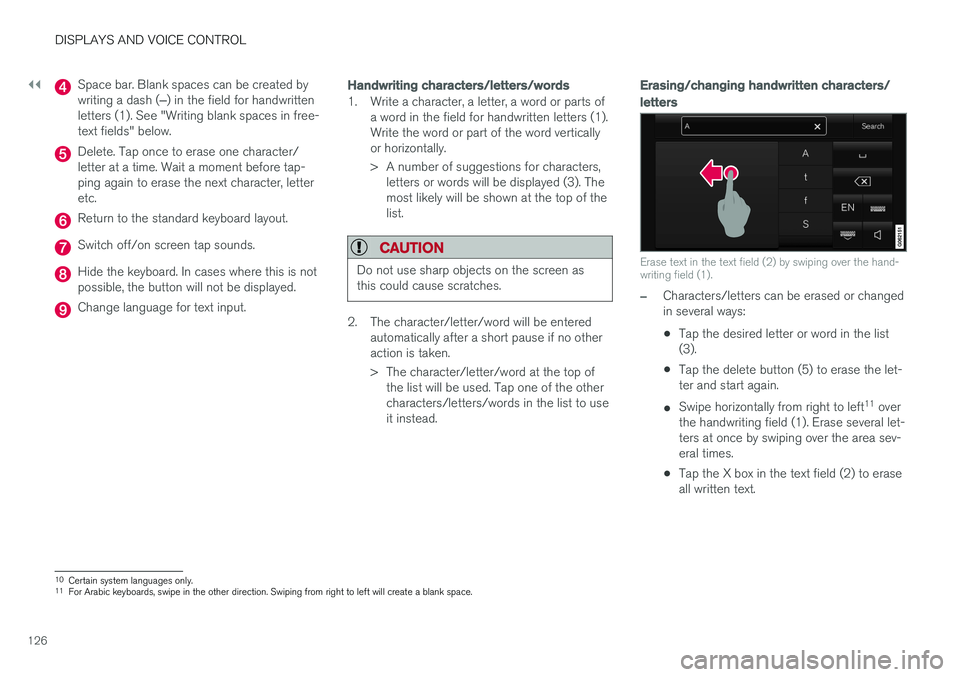
Space bar. Blank spaces can be created by writing a dash (‒) in the field for handwritten
letters (1). See "Writing blank spaces in free- text fields" below.
Delete. Tap once to erase one character/ letter at a time. Wait a moment before tap-ping again to erase the next character, letteretc.
Return to the standard keyboard layout.
Switch off/on screen tap sounds.
Hide the keyboard. In cases where this is not possible, the button will not be displayed.
Change language for text input.
Handwriting characters/letters/words
1. Write a character, a letter, a word or parts of a word in the field for handwritten letters (1). Write the word or part of the word verticallyor horizontally.
> A number of suggestions for characters,letters or words will be displayed (3). The most likely will be shown at the top of thelist.
CAUTION
Do not use sharp objects on the screen as this could cause scratches.
2. The character/letter/word will be entered automatically after a short pause if no other action is taken.
> The character/letter/word at the top ofthe list will be used. Tap one of the other characters/letters/words in the list to useit instead.
Erasing/changing handwritten characters/
letters
Erase text in the text field (2) by swiping over the hand- writing field (1).
–Characters/letters can be erased or changed in several ways: •Tap the desired letter or word in the list (3).
• Tap the delete button (5) to erase the let-ter and start again.
• Swipe horizontally from right to left 11
over
the handwriting field (1). Erase several let-ters at once by swiping over the area sev-eral times.
• Tap the X box in the text field (2) to eraseall written text.
10
Certain system languages only.
11 For Arabic keyboards, swipe in the other direction. Swiping from right to left will create a blank space.
Page 135 of 674
DISPLAYS AND VOICE CONTROL
}}
* Option/accessory.133
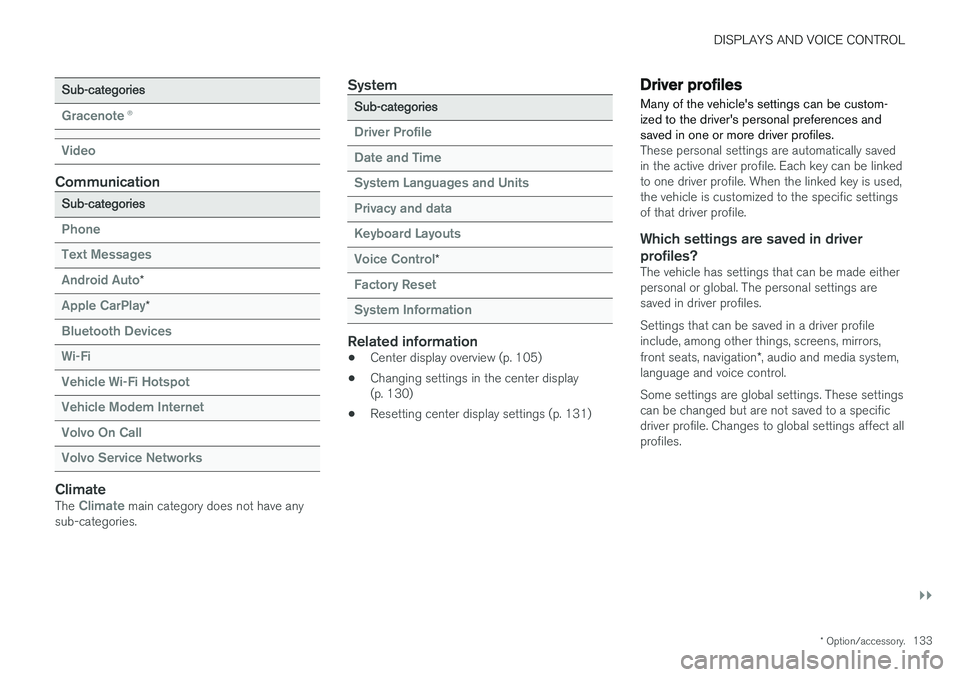
Sub-categories
Gracenote®
Video
Communication
Sub-categories
Phone Text Messages Android Auto
*
Apple CarPlay*
Bluetooth Devices Wi-FiVehicle Wi-Fi HotspotVehicle Modem Internet Volvo On Call Volvo Service Networks
ClimateThe Climate main category does not have any
sub-categories.
System
Sub-categories
Driver Profile Date and TimeSystem Languages and UnitsPrivacy and dataKeyboard Layouts Voice Control
*
Factory Reset System Information
Related information
• Center display overview (p. 105)
• Changing settings in the center display (p. 130)
• Resetting center display settings (p. 131)
Driver profiles
Many of the vehicle's settings can be custom- ized to the driver's personal preferences andsaved in one or more driver profiles.
These personal settings are automatically saved in the active driver profile. Each key can be linkedto one driver profile. When the linked key is used,the vehicle is customized to the specific settingsof that driver profile.
Which settings are saved in driver profiles?
The vehicle has settings that can be made eitherpersonal or global. The personal settings aresaved in driver profiles. Settings that can be saved in a driver profile include, among other things, screens, mirrors, front seats, navigation *, audio and media system,
language and voice control. Some settings are global settings. These settings can be changed but are not saved to a specificdriver profile. Changes to global settings affect allprofiles.
Page 136 of 674
||
DISPLAYS AND VOICE CONTROL
134
Global settings
Global settings and parameters do not change when driver profiles are changed. They remainthe same regardless of which driver profile is cur-rently active. Keyboard layout is an example of a global setting. If driver profile X is used to add additional key-board languages, these languages will also beavailable for driver profile Y. The settings for key-board layout are not saved to a specific driverprofile - the settings are global.
Personal settings
If driver profile X has been used to e.g., set the brightness for the center display, driver profile Ywill not be affected by this setting. It will only besaved to driver profile X because brightness set-ting is a personal setting.
Related information
•Selecting a driver profile (p. 134)
• Changing a driver profile's name (p. 135)
• Resetting driver profile settings (p. 135)
• Linking a remote key to a driver profile(p. 135)
• Table of settings in the center display(p. 132)
Selecting a driver profile When the center display starts up, the selected driver profile will be shown at the top of thescreen. The most recently used driver profile willbe active the next time the vehicle is unlocked. Adifferent driver profile can be selected once thevehicle has been unlocked. However, if theremote key has been linked to a driver profile,this profile will be used instead.
There are two options for switching between driver profiles. Option 1:
1. Tap the name of the driver profile shown at
the top of the center display when the dis- play starts up.
> A list will appear, showing driver profilesthat can be selected.
2. Select desired driver profile. 3. Tap
Confirm.
> The driver profile has now been selected and the system will load the settings stored in that profile.
Option 2:
1. Pull down Top view in the center display.2. Tap
Profile.
> The same list as in option 1 will be dis- played.
3. Select desired driver profile. 4.
Tap
Confirm.
> The driver profile has now been selected and the system will load the settings stored in that profile.
Related information
• Driver profiles (p. 133)
• Navigating in the center display's views(p. 111)
• Changing a driver profile's name (p. 135)
• Linking a remote key to a driver profile(p. 135)
Page 137 of 674
DISPLAYS AND VOICE CONTROL
}}
135
Changing a driver profile's name
It is possible to change the names of the differ- ent driver profiles used in the vehicle.
1. Tap Settings in the Top view in the center
display.
2. Tap
SystemDriver Profiles.
3. Select
Edit Profile.
> A menu will open in which the driver pro- file can be changed.
4. Tap the
Profile Name box.
> A keyboard will be displayed and can be used to change the name. Tap
to
close the keyboard.
5. Save the name change by pressing
Back orClose.
> The name has now been changed.
NOTE
Profile names may not begin with a space. If a space is entered first, the profile name will notbe saved.
Related information
• Selecting a driver profile (p. 134)
• Using the center display keyboard (p. 122)
Resetting driver profile settings
Settings that have been saved for one or more driver profiles can be reset when the vehicle isstationary.
NOTE
Factory Reset is only possible when the
vehicle is stationary.
1. Tap Settings in the Top view.
2. Tap
SystemFactory ResetReset
Personal Settings.
3. Select option
Reset for the active profile,Reset for all profiles or Cancel.
Related information
• Driver profiles (p. 133)
• Resetting center display settings (p. 131)
Linking a remote key to a driverprofile A remote key can be linked to a driver profile. This driver profile and all of its settings will thenautomatically be selected every time the vehicleis used with that particular remote key.
The first time the remote key is used, it is not linked to any specific driver profile. The Guestprofile is automatically activated when the ignition is switched on. A driver profile can also be selected manually without linking it to any key. When the vehicle isunlocked, the last active driver profile will be acti-vated. If the key has ever been linked to a driverprofile, it is not necessary to manually select adriver profile when using that particular key.
Linking a remote key to a specific driver
profile
First select the profile you would like to link tothe key (if that profile is not already active). Theactive profile can then be linked to the key. 1. Tap
Settings in the Top view in the center
display.
2. Tap
SystemDriver Profiles.
3. Mark the desired profile. The display will return to Home view. The
Guest profile can-
not be linked to a remote key.
Page 168 of 674
WINDOWS, GLASS AND MIRRORS
* Option/accessory.
166
Adjusting the rearview mirrordimming function
Bright light entering the vehicle from behind, e.g. from the headlights of following vehicles, couldreflect in the rearview mirror and door mirrorsand cause a glare. Use the dimming functionwhen light from behind is distracting.
Auto-dimIf bright light enters the vehicle from behind, the door mirrors will automatically dim. Auto-dim isalways active when the engine is running, exceptwhen reverse gear is engaged.
NOTE
When the level of sensitivity is changed, this change will not be noticeable immediately butwill instead take effect after a short period oftime.
The sensitivity level for dimming will affect both the rearview mirror and door mirrors. 1. Tap
Settings in the Top view in the center
display.
2. Tap
My CarMirrors and Convenience.
3. Under
Rearview Mirror Auto Dimming,
select Normal, Dark or Light.
The rearview mirror instead has two sensors - one pointing forward and one pointing rearward -which work together to identify and eliminate glare. The forward-pointing sensor monitorsambient light, while the rearward-pointing sensormonitors light from the headlights of followingvehicles. For the door mirrors to be equipped with auto- dim, the rearview mirror must also be equippedwith auto-dim.
NOTE
If the sensors are obstructed by e.g. a parking permit, transponder, sunshade or objects onthe seats or in the cargo compartment in away that prevents light from reaching the sen-sors, the auto-dim function in the door andrearview mirrors will be reduced.
Related information
•
Rearview/door mirrors (p. 165)
• Adjusting the door mirrors (p. 166)
Adjusting the door mirrors
To improve visibility to the rear, the door mirrors need to be adjusted to the driver's height andseating position. There are several automaticsettings that can also be connected to the mem- ory function buttons for the power seat *.
Controls used for door mirrors
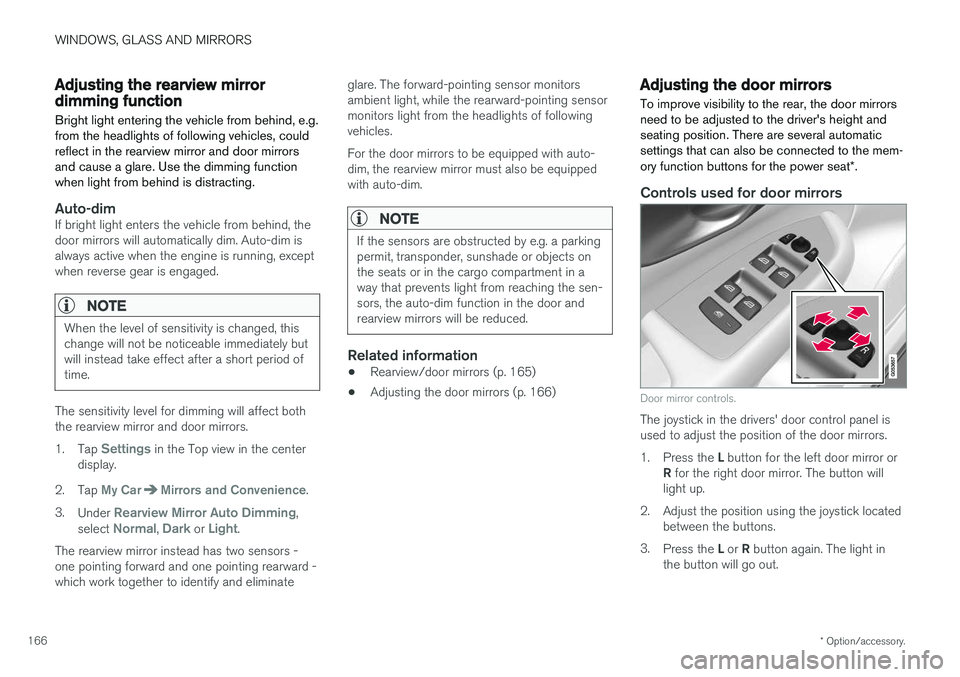
Door mirror controls.
The joystick in the drivers' door control panel is used to adjust the position of the door mirrors. 1.
Press the L button for the left door mirror or
R for the right door mirror. The button will
light up.
2. Adjust the position using the joystick located between the buttons.
3. Press the L or R button again. The light in
the button will go out.
Page 183 of 674
SEATS AND STEERING WHEEL
}}
* Option/accessory.181
Power front seats *
The power front seats can be adjusted in a num- ber of different ways for optimal comfort andergonomics. The power seats can be moved for-ward/backward and up/down. The height and length * of the seat cushion and the tilt of the
backrest can be adjusted. Lumbar support can be adjusted up, down, forward and backward.
The power seats have an overload protector that is triggered if a seat is blocked by any object. Ifthis occurs, remove the object and attempt toadjust the seat again. The power seats can be adjusted for a certain period of time after the door is unlocked withoutthe engine running. The seats can always beadjusted while the engine is running. They canalso be adjusted for a short period after theengine is turned off.
Related information
• Manual front seats (p. 180)
• Adjusting the power front seats
* (p. 181)
• Storing memory settings in power front seats
* (p. 182)
• Using stored memory in a powered front seat (p. 183)
• Adjusting front seat massage settings
*
(p. 184)
• Adjusting front seat cushion length (p. 185)
• Front seat massage settings
* (p. 184) •
Adjusting front seat side bolster settings
*
(p. 186)
• Adjusting front seat lumbar support
* (p. 186)
• Adjusting the passenger seat from the driv- er's seat
* (p. 187)
Adjusting the power front seats *
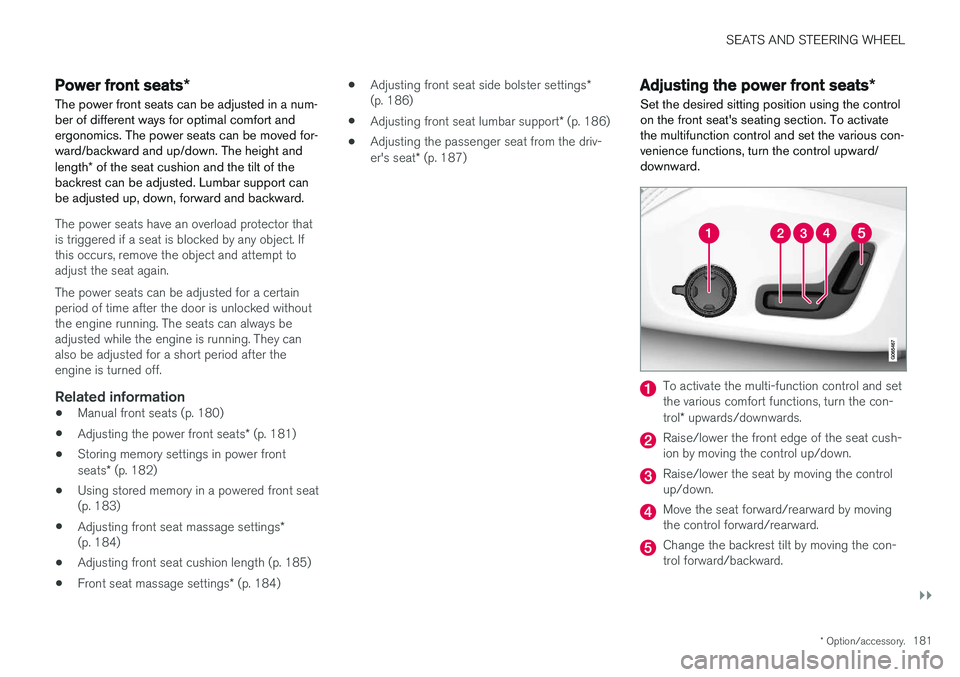
Set the desired sitting position using the control on the front seat's seating section. To activatethe multifunction control and set the various con-venience functions, turn the control upward/downward.
To activate the multi-function control and set the various comfort functions, turn the con- trol * upwards/downwards.
Raise/lower the front edge of the seat cush- ion by moving the control up/down.
Raise/lower the seat by moving the control up/down.
Move the seat forward/rearward by moving the control forward/rearward.
Change the backrest tilt by moving the con- trol forward/backward.
Page 189 of 674
SEATS AND STEERING WHEEL
}}
* Option/accessory.187
2.
Select
Lumbar in the seat settings view.
• Press the four-way button (the round but- ton) up/down to move the lumbar supportupward/downward.
• Press the front part of the four-way buttonto increase lumbar support.
• Press the rear part of the four-way buttonto decrease lumbar support.
Related information
•
Manual front seats (p. 180)
• Power front seats
* (p. 181)
• Adjusting the power front seats
* (p. 181)
• Storing memory settings in power front seats
* (p. 182)
• Using stored memory in a powered front seat (p. 183)
• Adjusting front seat massage settings
*
(p. 184)
• Adjusting front seat cushion length (p. 185)
• Front seat massage settings
* (p. 184)
• Adjusting front seat side bolster settings
*
(p. 186)
• Adjusting the passenger seat from the driv- er's seat
* (p. 187)
Adjusting the passenger seat from
the driver's seat *
The front passenger seat can be adjusted from the driver's seat.
Activating the functionThe function is activated via the function view in the center display:
Tap the
Adjust Passenger
Seat button to activate.
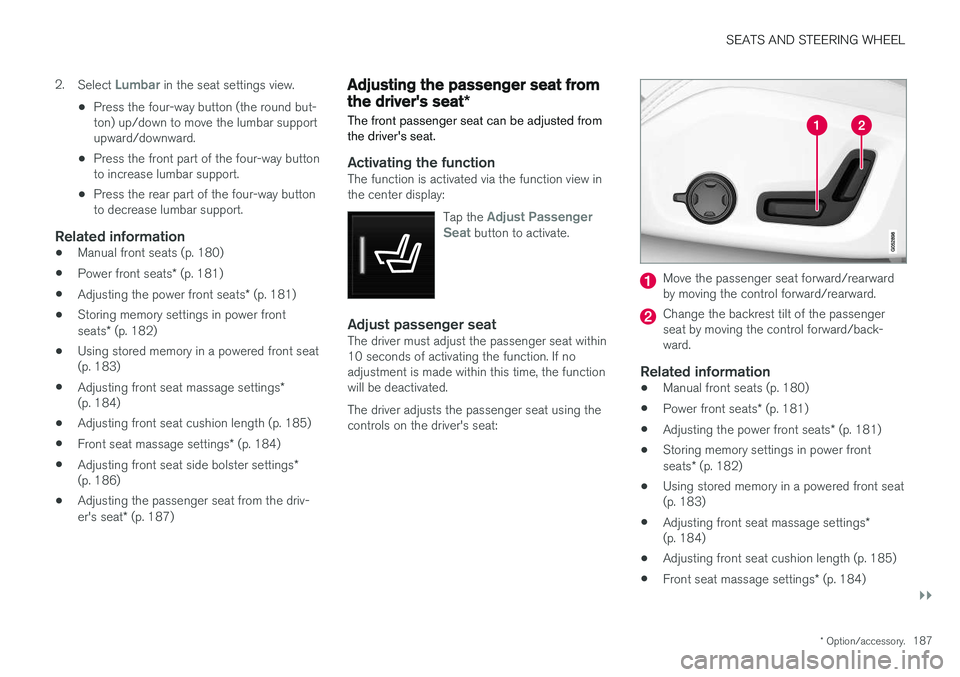
Adjust passenger seatThe driver must adjust the passenger seat within 10 seconds of activating the function. If noadjustment is made within this time, the functionwill be deactivated. The driver adjusts the passenger seat using the controls on the driver's seat:
Move the passenger seat forward/rearward by moving the control forward/rearward.
Change the backrest tilt of the passenger seat by moving the control forward/back-ward.
Related information
• Manual front seats (p. 180)
• Power front seats
* (p. 181)
• Adjusting the power front seats
* (p. 181)
• Storing memory settings in power front seats
* (p. 182)
• Using stored memory in a powered front seat (p. 183)
• Adjusting front seat massage settings
*
(p. 184)
• Adjusting front seat cushion length (p. 185)
• Front seat massage settings
* (p. 184)
Page 215 of 674
CLIMATE CONTROL
213
NOTE
It is possible to change the temperature and blower speed without deactivating automaticclimate control. Automatic climate control isdeactivated when the air distribution ischanged manually or when the max defrosteris activated.
Related information
•Climate system controls (p. 208)
Activating and deactivatingrecirculation
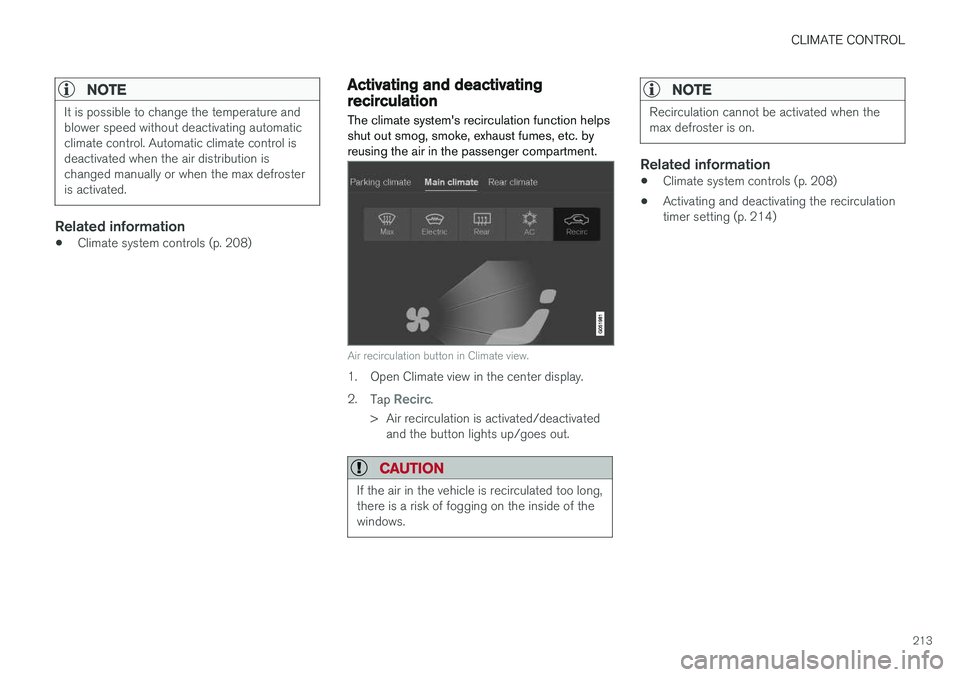
The climate system's recirculation function helps shut out smog, smoke, exhaust fumes, etc. byreusing the air in the passenger compartment.
Air recirculation button in Climate view.
1. Open Climate view in the center display. 2. Tap
Recirc.
> Air recirculation is activated/deactivated and the button lights up/goes out.
CAUTION
If the air in the vehicle is recirculated too long, there is a risk of fogging on the inside of thewindows.
NOTE
Recirculation cannot be activated when the max defroster is on.
Related information
• Climate system controls (p. 208)
• Activating and deactivating the recirculation timer setting (p. 214)
Page 226 of 674
||
CLIMATE CONTROL
2244.
Tap
Date to set a time for a specific date.
Tap
Days to set a time for one or more days
of the week. With
Days: Activate/deactivate the repeat
function by selecting/deselecting the
Repeat weekly checkbox.
5. With
Date: Select a date for preconditioning
by scrolling in the date list using the arrows. With
Days: Select days of the week for pre-
conditioning by tapping the buttons for the days.
6. Set the time at which preconditioning should be completed by scrolling using the arrows inthe clock.
7. Tap
Confirm to add a timer setting.
> The timer setting will be added to the list and activated.
Editing a timer setting1. Open Climate view in the center display. 2. Select the
Parking climate tab.
3. Tap the timer setting you would like to change.
> A pop-up window will appear.
4. To edit a timer setting, follow the procedures described under the heading "Adding a timer setting" above.
Activating and deactivatingpreconditioning timer settings
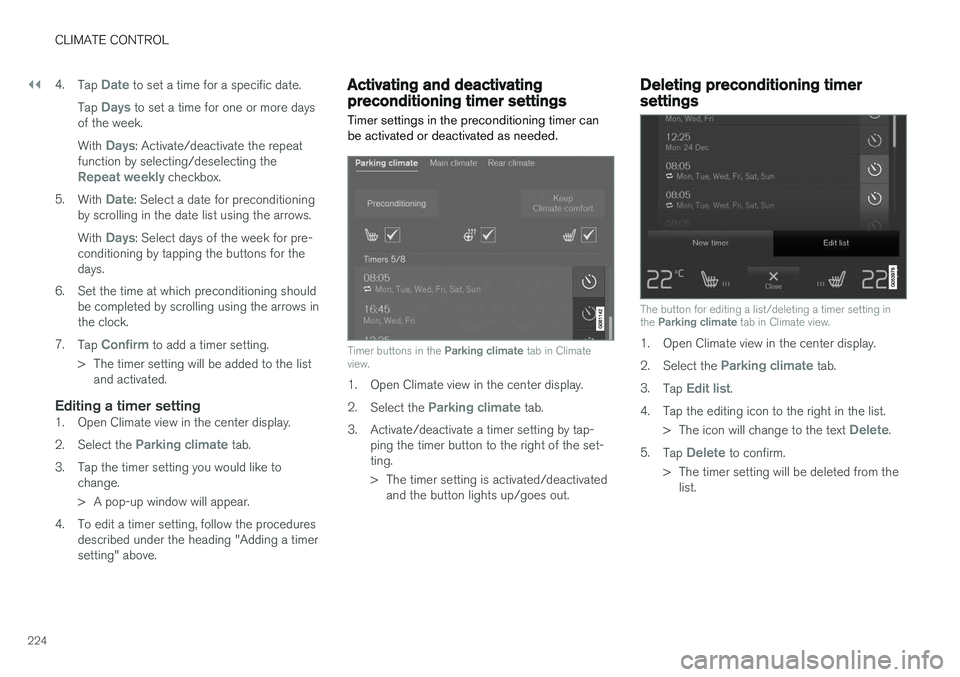
Timer settings in the preconditioning timer can be activated or deactivated as needed.
Timer buttons in the Parking climate tab in Climate
view.
1. Open Climate view in the center display. 2. Select the
Parking climate tab.
3. Activate/deactivate a timer setting by tap- ping the timer button to the right of the set- ting.
> The timer setting is activated/deactivatedand the button lights up/goes out.
Deleting preconditioning timersettings
The button for editing a list/deleting a timer setting in the Parking climate tab in Climate view.
1. Open Climate view in the center display. 2.
Select the
Parking climate tab.
3. Tap
Edit list.
4. Tap the editing icon to the right in the list. >The icon will change to the text
Delete.
5. Tap
Delete to confirm.
> The timer setting will be deleted from the list.