display VOLVO XC90 2006 Owner's Guide
[x] Cancel search | Manufacturer: VOLVO, Model Year: 2006, Model line: XC90, Model: VOLVO XC90 2006Pages: 256, PDF Size: 6.87 MB
Page 226 of 256
 to enter menu mode. Use the menus as follows\
:
l Use the menu keys (3) to navigate up or down in the menus.")
2006 VOLVO XC90
menu alternatives are shown in the display.
Press the menu button (2) to enter menu mode. Use the menus as follows\
:
l Use the menu keys (3) to navigate up or down in the menus. Dots in the\
display indicated that there
are more menu selections from which to choose.
l One long press on EXIT/CLEAR exits menu mode.
l A short press on the EXIT/CLEAR enables you to cancel, undo, or answer n\
o to a menu selection, or
to go back in the menu structure.
l Pressing ENTER confirms a menu selection, or takes you to the next subme\
nu.
pg. 186 Audio
Audio system controls (contd)
Rear headphone connectors and controls (option)
The door panels behind the second row of seats can be equipped with head\
phone connectors for
passengers in the second and optional third row of seats. Several people\
can listen to different sound
sources, such as CDs or the radio at the same time without disturbing ea\
ch other.
Two sets of headphones can be plugged into each connector.
l Use the SEL button (1) to step between the sound sources.
l Press the arrow keys (2) briefly to change CD tracks or switch between\
preset stations.
l Hold down the arrow keys to fast forward/reverse, or search for the prev\
ious/next strong radio station.
l Hold down the SEL button to turn off the sound.
For the best sound reproduction, we recommend headphones with impedance \
between 16-32 ohm. The
file:///K|/ownersdocs/2006/2006_XC90/06xc90_11a.htm (4 of 18)12/30/200\
6 5:32:55 PM
Page 227 of 256

2006 VOLVO XC90
sensitivity of these should be equal to or greater than 102 dB. The head\
phone connections are intended
for 3.5 mm contacts and are located under the lower edge of the socket.
All headphones are automatically turned off when the ignition is switche\
d off. They must be manually
restarted when the ignition is switched on again.
Headphones - limitations
l The headphones will only work when the ignition key is in position I or \
higher.
l If a set of headphones is connected to the same source that is being sen\
t through the speakers, the
headphone controls cannot be used to change track or station. This is to\
prevent the driver from being
distracted by an unexpected change in music.
l If the driver selects the same sound source as someone listening to this\
source through headphones,
the driver takes control of the sound source.
l Only one disc in the optional CD changer, and one track on the CD can be\
played at a time.
l Headphone users can choose from among the preset radio stations (AM, FM\
1, FM2) previously set by
the driver.
l If FM is played in the speakers, AM is not available and vice versa.
pg. 187 Audio
Remote control (option)
1. Memory - stores radio stations that have been found by a search
To store a station:
- Press the memory button (1). The preset station number will flash 4 \
times in the display
- While the preset number is flashing, use the + or - buttons (5) to s\
elect a position at which to store the
station
file:///K|/ownersdocs/2006/2006_XC90/06xc90_11a.htm (5 of 18)12/30/200\
6 5:32:55 PM
Page 229 of 256
 clockwise or counterclockwise to raise or lower the \
volume. The volume control is
electronic and has no end positio")
2006 VOLVO XC90
ignition is switched on again.
Volume control
Turn the knob (2) clockwise or counterclockwise to raise or lower the \
volume. The volume control is
electronic and has no end position. Volume can also be raised (+) or l\
owered (-) using the optional
steering wheel keypad.
Pause mode
If the volume is turned off, the CD player will go into pause mode. Re-a\
ctivate the player by turning up
the volume.
Selecting a sound source
A sound source can be selected either with the function buttons (3) - \
CD, AM/FM, or with the
SELECTOR control (4).
To select a sound source:
l Turn the SELECTOR control to choose FM1, FM2, AM, CD, CD changer (optio\
n)
l Press the AM/FM button repeatedly to choose between FM1, FM2, AM
l Press the CD button to change to the CD player or optional CD changer
The selected sound source will be shown in the display.
pg. 189 Audio
Sound settings
1. Press the SOUND button (1) repeatedly until you come to the setting\
that you wish to change. Choose
BASS, TREBLE, FADER, BALANCE, SUBWOOFER (option), CENTER (option) or\
SURROUND
file:///K|/ownersdocs/2006/2006_XC90/06xc90_11a.htm (7 of 18)12/30/200\
6 5:32:55 PM
Page 230 of 256
.
2. Use the SELECTOR control (2) to adjust the level of the setting you\
have selected. The display shows
a scale from min. to max. position. The center indicates the norm")
2006 VOLVO XC90
(option).
2. Use the SELECTOR control (2) to adjust the level of the setting you\
have selected. The display shows
a scale from min. to max. position. The center indicates the normal posi\
tion.
NOTE:
- Sound level for the center speaker can only be set if Dolby Pro Logic \
II (DPL II) or three-channel
stereo (3-CH) is selected in the menu.
- Sound level for the subwoofer can only be set if SUBWOOFER is selected\
in the menu.
- Volume for the surround sound can only be set if Dolby Pro Logic II (\
DPL II) is selected in the menu. Setting Shown in the display
Bass BASS
Treble TREBLE
Balance between the right and left speakers BALANCE
Balance between the front and rear speakers FADER
Bass speaker level SUBWOOFER (option)
Center speaker level CENTER (Premium Sound system only)
Surround sound level SURROUND (Premium Sound system only)
pg. 190 Audio
Audio function (contd)
SURROUND MODE
file:///K|/ownersdocs/2006/2006_XC90/06xc90_11a.htm (8 of 18)12/30/200\
6 5:32:55 PM
Page 231 of 256
, 3-channel stereo (3-CH) - opti\
on
Dolby Surround Pro Logic II together with a center speaker in the dashbo\
ard offers you a sound
experience")
2006 VOLVO XC90
Dolby Surround Pro Logic II (DPL II), 3-channel stereo (3-CH) - opti\
on
Dolby Surround Pro Logic II together with a center speaker in the dashbo\
ard offers you a sound
experience very close to a live performance. The normal left-right stere\
o channels are divided to left-
center-right. In addition, surround sound is produced by the rear speake\
rs. This surround sound mirrors
the resonance of a concert hall. Dolby Surround Pro Logic II functions i\
n CD and FM modes. 3-channel
stereo is recommended for AM radio broadcasts.
l Surround settings for FM and CD are stored separately.
l When listening to FM radio stations, Dolby Surround Pro Logic II functio\
ns best in areas with strong
reception. If reception is weak, selecting 2 or 3- channel stereo may pr\
ovide better sound quality.
l Dolby Surround Pro Logic II is only available on the highest level audio\
system - Premium Sound.
Use the following instructions to select PRO LOGIC II, 3-CHANNEL, or to \
turn these functions off. See
also the menu structure on
page 198.
1. Select AUDIO SETTINGS in the menu and press ENTER.
2. Select SURROUND and press ENTER.
3. Select Dolby AM/FM, or Dolby CD and press ENTER.
4. Select PRO LOGIC II, 3-CHANNEL, or OFF and press ENTER.
l The symbol PL II is displayed when Pro Logic II is selected.
l 3-CH is shown when 3-channel stereo is selected.
l OFF indicates normal stereo mode.
Dolby noise reduction is manufactured under license from Dolby Laborator\
ies Licensing Corporation.
"Dolby Surround Pro Logic II", and the double-D symbol
are trademarks of Dolby Laboratories
Licensing Corporation. Dolby Surround Pro Logic II is manufactured under\
licence from Dolby
Laboratories Licensing Corporation.
pg. 191 Audio
file:///K|/ownersdocs/2006/2006_XC90/06xc90_11a.htm (9 of 18)12/30/200\
6 5:32:55 PM
Page 233 of 256
 or the \
AM/FM button (2).
2. Press briefly on
or to search for the next strong station. The radio wi")
2006 VOLVO XC90
Station search
1. Choose radio mode AM/FM1/FM2 using the SELECTOR control (1) or the \
AM/FM button (2).
2. Press briefly on
or to search for the next strong station. The radio will search for the ne\
xt
audible station and then stop.
3. Press one of the buttons again to start a new search.
Manually search for a known frequency
1. Press and hold the
or button (or the corresponding buttons on the steering wheel
keypad). MAN will be shown in the display. The radio will slowly scroll\
in the desired direction and
then increase speed after a few seconds.
2. Release the button when the desired frequency is displayed.
3. If you need to adjust the frequency, press briefly on
or .
4. The manual search function is available for five seconds after you la\
st pressed the button.
pg. 193 Audio
file:///K|/ownersdocs/2006/2006_XC90/06xc90_11a.htm (11 of 18)12/30/20\
06 5:32:55 PM
Page 234 of 256
:
1. Set the desired station.
2. Press the button under which the station is to be sto")
2006 VOLVO XC90
Storing stations
To store a selected station under one of the station setting buttons 0-9\
(1):
1. Set the desired station.
2. Press the button under which the station is to be stored and keep it \
depressed. The sound will be
interrupted for several seconds and STATION STORED is shown in the displ\
ay. The station is now
stored.
You can store up to 10 stations each for AM, FM1 and FM2, i.e. a total o\
f 30 stations. Radio Frequency band
FM 87.7 - 107.9 MHz
AM 530 - 1710 kHz
MY KEY - programming a shortcut
Use the MY KEY buttons (2, 3) to program a favorite function from the \
menu, such as SCAN,
AUTOSTORE, etc. See
page 198 for the functions that can be programmed with the MY KEY button.
1. Use the MENU buttons to scroll among the functions.
2. Select the desired function from the menu by holding one of the MY KE\
Y buttons depressed for more
than two seconds.
3. When MY KEY STORED is shown in the display, the function has been sto\
red.
4. Activate the function by briefly pressing the MY KEY button with whic\
h the functions was stored.
Repeat steps 1-4 to store new functions on the MY KEY buttons.
file:///K|/ownersdocs/2006/2006_XC90/06xc90_11a.htm (12 of 18)12/30/20\
06 5:32:55 PM
Page 235 of 256

Automatically storing stations - AUTOSTORE
This functio")
2006 VOLVO XC90
NOTE: The MY KEY buttons can only be programmed for one shortcut function at a\
time.
pg. 194 Audio
Radio functions (contd)
Automatically storing stations - AUTOSTORE
This function automatically searches for, and stores up to 10 strong AM \
or FM stations in a separate
memory. If more than 10 stations are found, the 10 strongest ones will b\
e stored. The function is
especially useful in areas in which you are not acquainted with radio st\
ations or their frequencies.
1. Choose radio mode using the SELECTOR control or the AM/FM button.
2. Select AUTOSTORE in the menu and press ENTER.
3. Select AST SEARCH and press ENTER.
4. AUTOSTORING is shown in the display and a number of strong stations (\
max. 10) from the set
frequency band are now automatically stored in the autostore memory. If \
there are no stations with
sufficient signal strength, NO AST FOUND is displayed.
5. The stored stations are available under the buttons 0-9 (1).
6. When the radio is in autostore mode, AUTO is shown in the display. AU\
TO disappears when you
return to the normal radio mode.
7. Return to normal radio mode by pressing the AM/FM button or EXIT/CLEA\
R.
8. To access previously stored stations, carry out steps 1-2 but select \
AST MODE in step 3 and press
ENTER.
file:///K|/ownersdocs/2006/2006_XC90/06xc90_11a.htm (13 of 18)12/30/20\
06 5:32:55 PM
Page 236 of 256

This feature, which may not be available in your area, functions only wi\
th FM broadcasts.
The radio in your car is equipped with a")
2006 VOLVO XC90
pg. 195 Audio
Radio Broadcast Data System (RBDS)
This feature, which may not be available in your area, functions only wi\
th FM broadcasts.
The radio in your car is equipped with an advanced system allowing infor\
mation from broadcasters to be
transmitted visually, as text, together with the audio signal. This info\
rmation is then decoded by the
radio and made available for several new and unique features. The RBDS or Radio Broad\
cast Data
System operates in the FM band only, and the information transmitted is \
supplied exclusively by
participating broadcasters. Volvo has no control over the accuracy of the data or information.
Coverage by local broadcasters may be limited at this time, but as the t\
echnology and benefits grow, you
will find the radio in your car is equipped to take advantage of this sy\
stem.
NOTE: PI (Program Information) Seek: When an FM station has been stored as \
a preset, the radio also
stores RBDS program information if it is available. When the preset is s\
elected at a later time, the radio
tries to access updated program information. In weak signal areas, there\
may be a delay before the
station becomes audible. During this delay, there will be no sound and t\
he text "PI seek. Press EXIT to
cancel." will be displayed. You may press EXIT to immediately tune in th\
e station without RBDS
program information.
Scanning - SCAN
This function automatically searches for the next strongest AM and FM st\
ations. When the radio finds a
station, it will pause for approximately 8 seconds, after which it will \
continue scanning.
1. Choose radio mode using the SELECTOR control (1) or the AM/FM butto\
n (2).
file:///K|/ownersdocs/2006/2006_XC90/06xc90_11a.htm (14 of 18)12/30/20\
06 5:32:55 PM
Page 237 of 256
2006 VOLVO XC90
2. Select SCAN to start searching and press ENTER.
3. SCAN will be shown in the display.
4. Press the EXIT/CLEAR button to stop scanning.
pg. 196 Audio
Radio functions (contd)
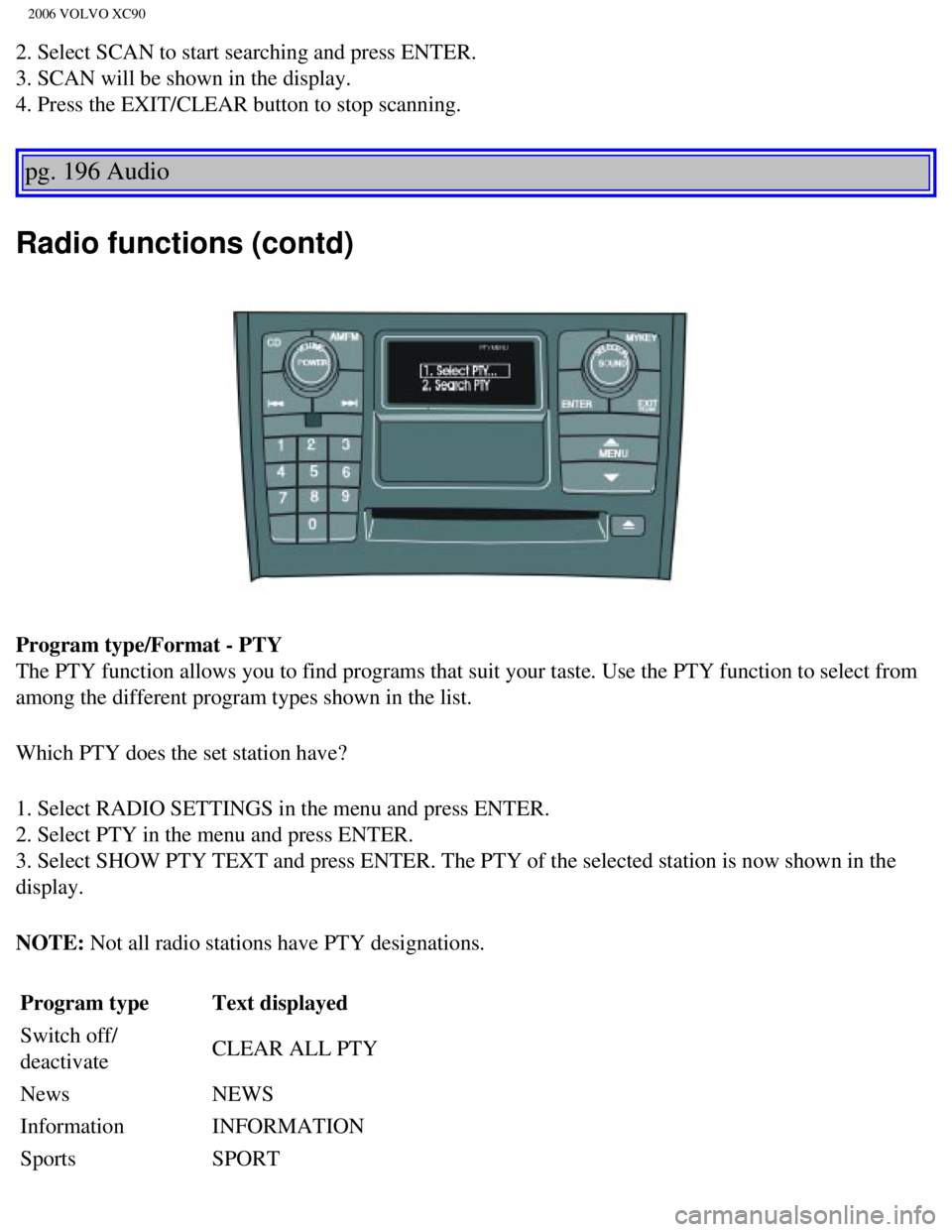
Program type/Format - PTY
The PTY function allows you to find programs that suit your taste. Use t\
he PTY function to select from
among the different program types shown in the list.
Which PTY does the set station have?
1. Select RADIO SETTINGS in the menu and press ENTER.
2. Select PTY in the menu and press ENTER.
3. Select SHOW PTY TEXT and press ENTER. The PTY of the selected station\
is now shown in the
display.
NOTE: Not all radio stations have PTY designations. Program type Text displayed
Switch off/
deactivate CLEAR ALL PTY
News NEWS
Information INFORMATION
Sports SPORT
file:///K|/ownersdocs/2006/2006_XC90/06xc90_11a.htm (15 of 18)12/30/20\
06 5:32:55 PM