buttons VOLVO XC90 2014 Owner´s Manual
[x] Cancel search | Manufacturer: VOLVO, Model Year: 2014, Model line: XC90, Model: VOLVO XC90 2014Pages: 308, PDF Size: 13.31 MB
Page 256 of 308
10 Audio
Audio system controls
10
254* Option/accessory, for more information, see Introduction.
NOTE
The MY KEY buttons can only be pro-
grammed for one shortcut function at a time.
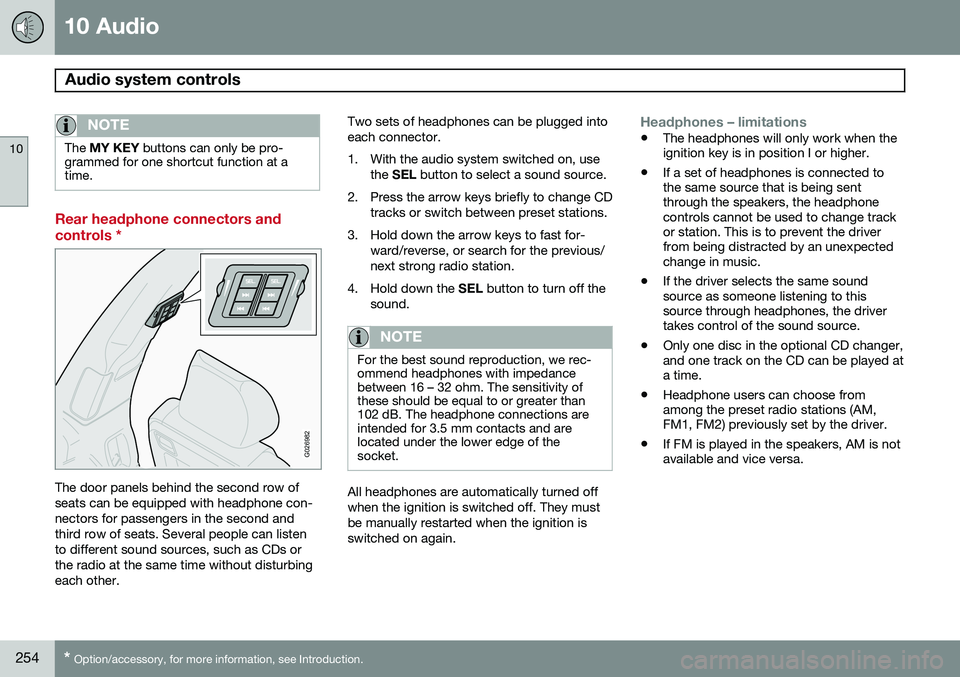
Rear headphone connectors and controls *
G026982
The door panels behind the second row of seats can be equipped with headphone con-nectors for passengers in the second andthird row of seats. Several people can listento different sound sources, such as CDs orthe radio at the same time without disturbingeach other. Two sets of headphones can be plugged intoeach connector.
1. With the audio system switched on, use
the SEL button to select a sound source.
2. Press the arrow keys briefly to change CD tracks or switch between preset stations.
3. Hold down the arrow keys to fast for- ward/reverse, or search for the previous/ next strong radio station.
4. Hold down the SEL button to turn off the
sound.
NOTE
For the best sound reproduction, we rec- ommend headphones with impedancebetween 16 – 32 ohm. The sensitivity ofthese should be equal to or greater than102 dB. The headphone connections areintended for 3.5 mm contacts and arelocated under the lower edge of thesocket.
All headphones are automatically turned off when the ignition is switched off. They mustbe manually restarted when the ignition isswitched on again.
Headphones – limitations
• The headphones will only work when the ignition key is in position I or higher.
• If a set of headphones is connected tothe same source that is being sentthrough the speakers, the headphonecontrols cannot be used to change trackor station. This is to prevent the driverfrom being distracted by an unexpectedchange in music.
• If the driver selects the same soundsource as someone listening to thissource through headphones, the drivertakes control of the sound source.
• Only one disc in the optional CD changer,and one track on the CD can be played ata time.
• Headphone users can choose fromamong the preset radio stations (AM,FM1, FM2) previously set by the driver.
• If FM is played in the speakers, AM is notavailable and vice versa.
Page 259 of 308
10 Audio
Audio system controls
10
257
3. Use the menu selection buttons to set the
level or use the SELECTOR control.
4. Press ENTER to select the next fre-
quency. You can select five frequencies.
5. Press ENTER until you come to the menu
mode to save the changes you have made.
Equalizer RREQ – REAR (certain audio systems) This function is used to fine-tune the sound from the rear speakers. 1. Select
AUDIO SETTINGS in the menu
and press ENTER.
2. Select
EQ- REAR and press ENTER.
3. Use the menu selection buttons to set the level or use the SELECTOR control.
4. Press ENTER to select the next fre-
quency. You can select five frequencies
5. Press ENTER until you come to the menu
mode to save the changes you have made.
Optimal sound reproductionThe audio system is calibrated for optimalsound reproduction through the use of digitalsignal processing. This calibration takes intoaccount the speakers, amplifier, cabin acous-tics, the seating position of the listener, etc., for each combination of vehicle and audiosystem. There is also dynamic calibration thattakes into account the setting of the volumecontrol, radio reception, and the vehicle'sspeed. The sound settings described in this manual, such as
BASS, TREBLE, andEQUALIZER are only intended to enable the
user to adapt sound reproduction to his/her personal preferences.
Page 260 of 308
10 Audio
Radio functions
10
258
Station search
G027148
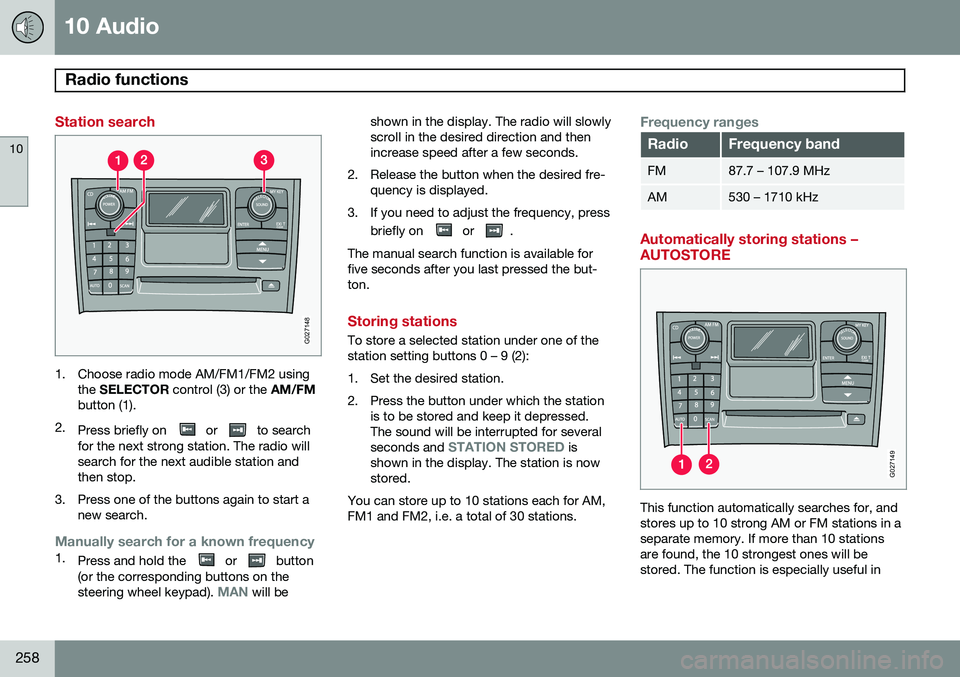
1. Choose radio mode AM/FM1/FM2 usingthe SELECTOR control (3) or the AM/FM
button (1).
2. Press briefly on
or to search
for the next strong station. The radio will search for the next audible station andthen stop.
3. Press one of the buttons again to start a new search.
Manually search for a known frequency1.Press and hold the or button
(or the corresponding buttons on the steering wheel keypad).
MAN will be shown in the display. The radio will slowly scroll in the desired direction and thenincrease speed after a few seconds.
2. Release the button when the desired fre- quency is displayed.
3. If you need to adjust the frequency, press briefly on
or .
The manual search function is available for five seconds after you last pressed the but-ton.
Storing stations
To store a selected station under one of the station setting buttons 0 – 9 (2):
1. Set the desired station.
2. Press the button under which the station is to be stored and keep it depressed. The sound will be interrupted for several seconds and
STATION STORED is
shown in the display. The station is now stored.
You can store up to 10 stations each for AM,FM1 and FM2, i.e. a total of 30 stations.
Frequency ranges
RadioFrequency band
FM87.7 – 107.9 MHz
AM530 – 1710 kHz
Automatically storing stations – AUTOSTORE
G027149
This function automatically searches for, and stores up to 10 strong AM or FM stations in aseparate memory. If more than 10 stationsare found, the 10 strongest ones will bestored. The function is especially useful in
Page 261 of 308
10 Audio
Radio functions
10
}}
259
areas in which you are not acquainted with radio stations or their frequencies.
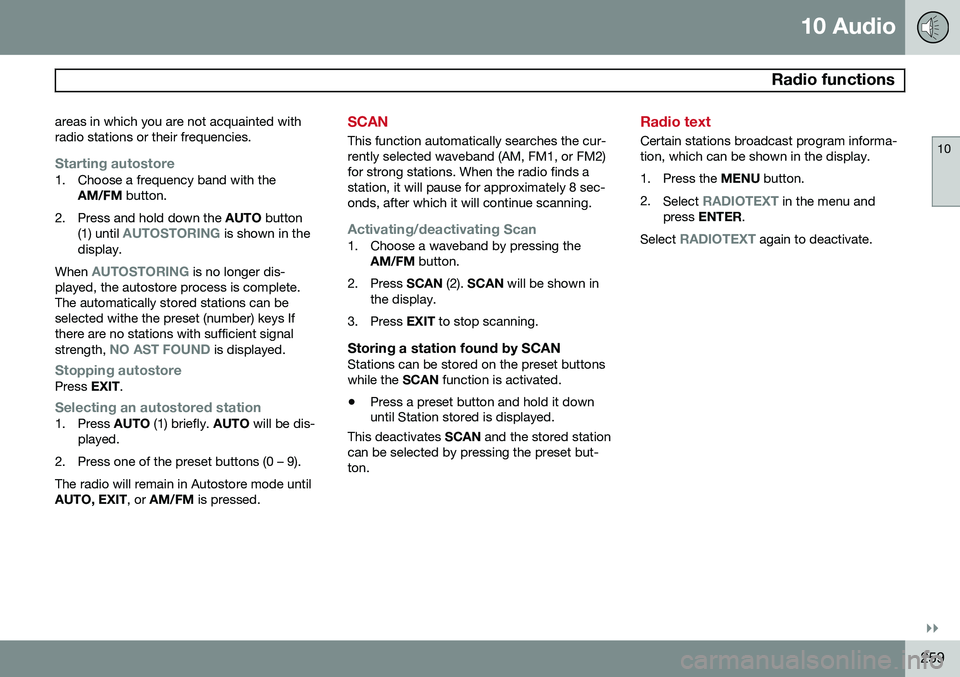
Starting autostore1. Choose a frequency band with the
AM/FM button.
2. Press and hold down the AUTO button
(1) until
AUTOSTORING is shown in the
display.
When
AUTOSTORING is no longer dis-
played, the autostore process is complete. The automatically stored stations can beselected withe the preset (number) keys Ifthere are no stations with sufficient signal strength,
NO AST FOUND is displayed.
Stopping autostorePress EXIT.
Selecting an autostored station1. Press AUTO (1) briefly. AUTO will be dis-
played.
2. Press one of the preset buttons (0 – 9). The radio will remain in Autostore mode until AUTO, EXIT , or AM/FM is pressed.
SCAN
This function automatically searches the cur- rently selected waveband (AM, FM1, or FM2)for strong stations. When the radio finds astation, it will pause for approximately 8 sec-onds, after which it will continue scanning.
Activating/deactivating Scan1. Choose a waveband by pressing the
AM/FM button.
2. Press SCAN (2). SCAN will be shown in
the display.
3. Press EXIT to stop scanning.
Storing a station found by SCANStations can be stored on the preset buttons while the SCAN function is activated.
• Press a preset button and hold it down until Station stored is displayed.
This deactivates SCAN and the stored station
can be selected by pressing the preset but- ton.
Radio text
Certain stations broadcast program informa- tion, which can be shown in the display.
1. Press the MENU button.
2. Select
RADIOTEXT in the menu and
press ENTER .
Select
RADIOTEXT again to deactivate.
Page 265 of 308
10 Audio
SiriusXM™ satellite radio
10
263
Listening to satellite radio
The SiriusXM ™ satellite system consists of a
number of high elevation satellites in geosyn- chronous orbit.
NOTE
• The digital signals from the SiriusXM
™
satellites are line-of-sight, which means that physical obstructions suchas bridges, tunnels, etc, may tempo-rarily interfere with signal reception.
• Avoid any obstructions, such as metal-lic objects transported on roof racks orin a ski box, or other antennas thatmay impede signals from the Sir-iusXM
™ satellites.
Selecting SiriusXM™ radio mode
1. Press Power to switch on the audio sys-
tem (see page 252 for information on the standard radio functions).
2. Turn the SELECTOR dial until Sirius 1 or
2 is displayed.
Activating SiriusXM ™ radio
1. Tune to a satellite channel that has no
audio, which means that the channel is unsubscribed and the text "
Call
888-539-SIRIUS TO SUBSCRIBE" is displayed (see also "Selecting a channel" in the right column).
2. Call SiriusXM ™ at 1-888-539-SIRIUS
(7474).
3. When asked for the SiriusXM ™ ID num-
ber press AUTO to display this number. It
is also possible to retrieve the SiriusXM ™
ID from the MENU.
4. "
UPDATING SUBSCRIPTION" will be
displayed while the subscription is being updated, after which the display willreturn to the normal view.
SiriusXM™ ID
The SiriusXM ™ ID is required when contact-
ing the SiriusXM ™ Call Center. It is used to
activate your account and when making any account transactions. The SiriusXM ™ ID is
sometimes referred to as the Electronic SerialNumber (ESN). This function displays the 12-digit Sir- iusXM ™ID.
Selecting a channel category1. Select SiriusXM ™ radio mode as descri-
bed above.
2. Press ENTER. 3. Use the up/down arrow keys to scroll
through the list of categories.
4. Press ENTER to select a category.
5. Use the
and buttons to select
a channel in the currently chosen cate- gory.
NOTE
The category "All" is default, which ena- bles you to scroll through the entire list ofavailable satellite channels. The channel categories are automatically updated several times a year. This takesapproximately two minutes and will inter-rupt normal broadcasting. A message willbe displayed while updating is in progress.Information on channel or feature updatesis available at www.sirius.com.
Selecting a channelThere are two ways of tuning in a channel:
• By pressing and holding the
and
buttons to start the scroll function.
The scrolling function begins slowly and increases speed after approximately5 seconds. Release the button to listen tothe currently displayed channel.
• Through direct channel entry
Page 270 of 308
10 Audio
Auxiliary equipment
10
268
2. Connect the iPod®, MP3 player or USB
flash drive to the USB connector (see the illustration). > The text
Loading will be displayed
while the system loads the files (folder structure) on the device. This may takea short time.
When the information has been loaded, infor-mation about the tracks on the device will bedisplayed. The
/ buttons can be used to fast
forward/reverse or change tracks:
• Press briefly to change tracks.
• Press slightly longer to fast forward/ reverse.
The arrow keys on the steering wheel keypad can also be used in the same way.
NOTE
• The system supports a number of iPod ®
models produced in 2005 or
later.
• In order to help avoid damage to the USB socket, it will be switched off ifthere is a short circuit or if the con-nected device uses too much current(which can happen if the device doesnot comply with the USB standard).The USB socket will reactivate thenext time the ignition is switched on ifthe problem no longer exists. If theproblem persists, contact a trainedand authorized Volvo service techni-cian.
USB flash driveTo simplify the use of a USB flash drive, it is advisable to only store music files on thedrive. It will take considerably longer for thesystem to index the files on the drive if it con-tains anything other than compatible musicfiles.
NOTE
• The system supports removable media that uses the USB 2.0 standard andthe FAT32 file system. It can index upto 1,000 folders and a maximum of254 sub-folders/files for each folder.However, the highest folder level cansupport up to 1,000 sub-folders/files.
• When using a longer type of USBdevice, connecting it with a USBadapter cable will help reducemechanical wear on the USB socketand on the device.
iPod®
An iPod ®
is charged and draws current if it is
connected to the USB connector. However, if the battery is completely discharged, it should be charged before the iPod ®
is con-
nected to the USB connector.
Bluetooth ®
streaming audio (BT)The vehicle's audio system is equipped withBluetooth ®
, which makes it possible to play
streaming audio files from a Bluetooth ®
con-
nected cell phone. Navigation and control of the phone can be done through the vehicle'scenter console control panel or the steeringwheel keypad. On certain cell phones, it is
Page 271 of 308
10 Audio
Auxiliary equipment
10
269
also possible to change tracks from the phone itself. In order to listen streaming audio,
BT must be
selected as a sound source (see page 255) and a Bluetooth ®
cell phone must be con-
nected (paired) with the audio system. See page 275 for more information.
NOTE
Any Bluetooth cell phones used must sup- port Audio/Video Remote Control Profile(AVRCP) and Advanced Audio DistributionProfile (A2DP). The phone must useAVRCP version 1.3 and A2DP 1.2. If olderversions of these standards are used, cer-tain features (e.g., scan or random) maynot function. Not all cell phones are fully compatible with the vehicle's Bluetooth system. A listof compatible phones is available at youVolvo retailer or at www.volvocars.us.
Listening to streaming audioTurn SELECTOR to select BT as the sound
source. The
/ buttons can be used to fast-
forward/back or change tracks: • Press briefly to change tracks.
• Press and hold to go fast-forward/back. The buttons in the steering wheel keypad can be used in the same way.
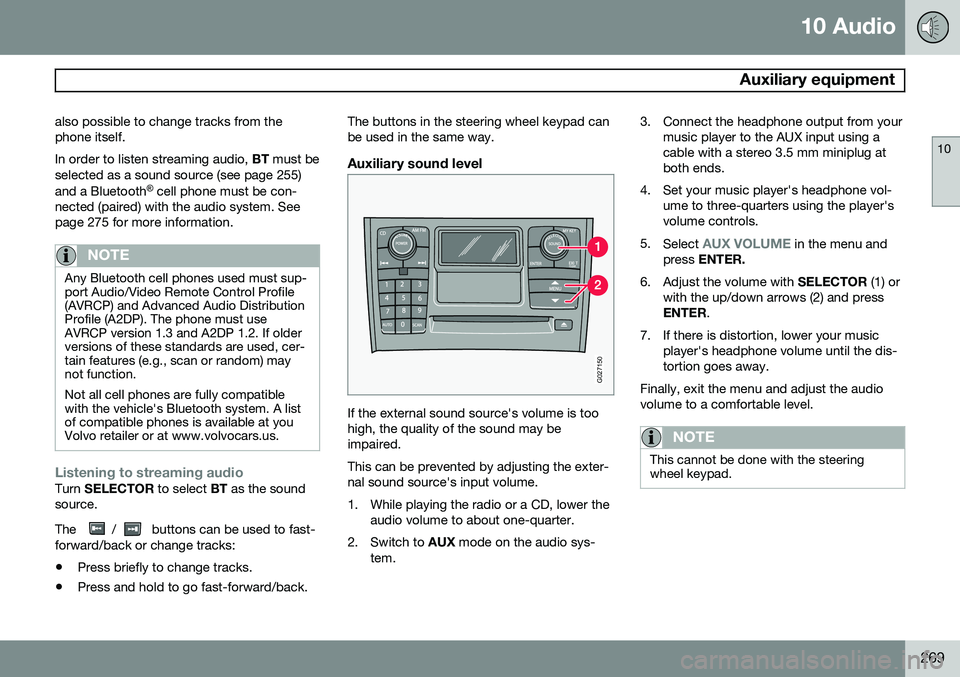
Auxiliary sound level
G027150
If the external sound source's volume is too high, the quality of the sound may beimpaired. This can be prevented by adjusting the exter- nal sound source's input volume.
1. While playing the radio or a CD, lower the
audio volume to about one-quarter.
2. Switch to AUX mode on the audio sys-
tem. 3. Connect the headphone output from your
music player to the AUX input using a cable with a stereo 3.5 mm miniplug atboth ends.
4. Set your music player's headphone vol- ume to three-quarters using the player'svolume controls.
5. Select
AUX VOLUME in the menu and
press ENTER.
6. Adjust the volume with SELECTOR (1) or
with the up/down arrows (2) and press ENTER .
7. If there is distortion, lower your music player's headphone volume until the dis-tortion goes away.
Finally, exit the menu and adjust the audiovolume to a comfortable level.
NOTE
This cannot be done with the steering wheel keypad.
Page 272 of 308
10 Audio
CD player/changer
10
270* Option/accessory, for more information, see Introduction.
G027151
Playing a CD
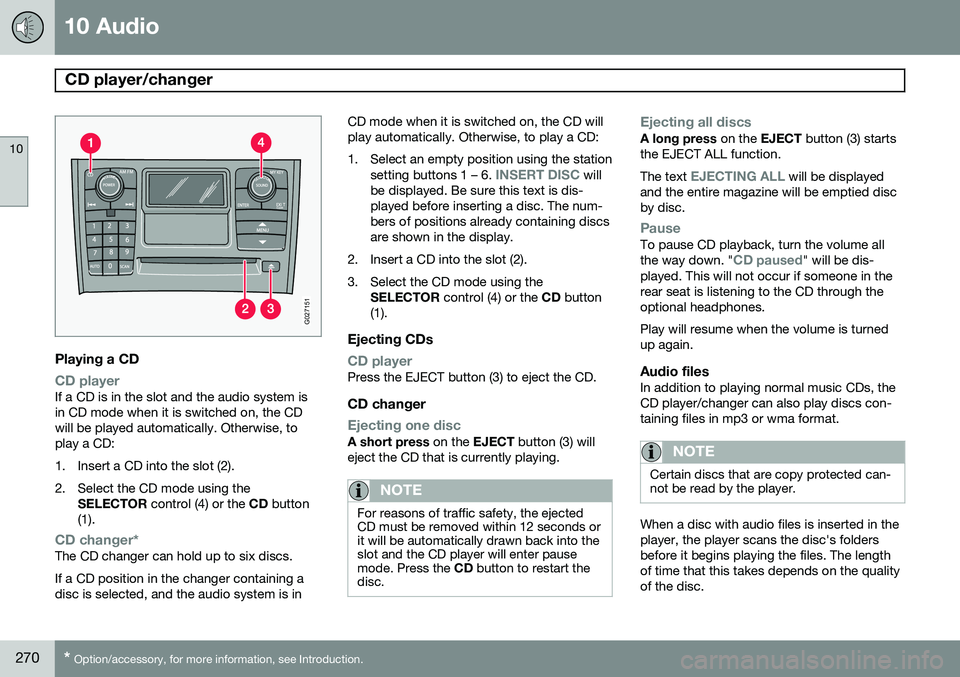
CD playerIf a CD is in the slot and the audio system is in CD mode when it is switched on, the CDwill be played automatically. Otherwise, toplay a CD:
1. Insert a CD into the slot (2).
2. Select the CD mode using the
SELECTOR control (4) or the CD button
(1).
CD changer*The CD changer can hold up to six discs. If a CD position in the changer containing a disc is selected, and the audio system is in CD mode when it is switched on, the CD willplay automatically. Otherwise, to play a CD:
1. Select an empty position using the station
setting buttons 1 – 6.
INSERT DISC will
be displayed. Be sure this text is dis- played before inserting a disc. The num-bers of positions already containing discsare shown in the display.
2. Insert a CD into the slot (2).
3. Select the CD mode using the SELECTOR control (4) or the CD button
(1).
Ejecting CDs
CD playerPress the EJECT button (3) to eject the CD.
CD changer
Ejecting one discA short press on the EJECT button (3) will
eject the CD that is currently playing.
NOTE
For reasons of traffic safety, the ejected CD must be removed within 12 seconds orit will be automatically drawn back into theslot and the CD player will enter pausemode. Press the CD button to restart the
disc.
Ejecting all discsA long press on the EJECT button (3) starts
the EJECT ALL function. The text
EJECTING ALL will be displayed
and the entire magazine will be emptied disc by disc.
PauseTo pause CD playback, turn the volume all the way down. "CD paused" will be dis-
played. This will not occur if someone in the rear seat is listening to the CD through theoptional headphones. Play will resume when the volume is turned up again.
Audio filesIn addition to playing normal music CDs, theCD player/changer can also play discs con-taining files in mp3 or wma format.
NOTE
Certain discs that are copy protected can- not be read by the player.
When a disc with audio files is inserted in the player, the player scans the disc's foldersbefore it begins playing the files. The lengthof time that this takes depends on the qualityof the disc.
Page 273 of 308
10 Audio
CD player/changer
10
271
Navigating the disc and playing tracksIf a disc with audio files is in the CD player, press ENTER to display a list of folders on
the disc. Use the up and down arrows to move among the folders on the disc. Audio files have the
symbol and folders containing these
files have the
symbol.
Press ENTER to play a selected folder or a
file. When the music file has been played, the player will continue to play the rest of the filesin the current folder. When all of the files inthe folder have been played, the player willautomatically go to the next folder and playthe files in it.
NOTE
Press or if the entire name of
the current track does not fit in the display.
Changing tracks
CD player/CD changer1. Briefly press or to go to the
next/previous track or file. The steering wheel keypad can be used in the same way.
2. Press and hold down
or to
search within a track/file. The search con- tinues as long as the buttons aredepressed. The steering wheel keypadcan be used in the same way.
SCANThis function plays the first ten seconds of each track or file 1
.
1. Press SCAN to begin scanning the tracks
or files on the currently selected CD.
2. Press EXIT/CLEAR or SCAN to interrupt
the scan function and listen to an entire track or file.
Random play
CD playerThis function plays the tracks or files on a CD in random order (shuffle).
If a normal music CD is being playedSelect RANDOM in the menu and press
ENTER .
If a CD with mp3 or wma files is being
played
Select DISC or FOLDER in the menu and
press ENTER .
CD changerThis function offers two alternatives for play- ing the tracks on the disc(s) in the CDchanger in random order (shuffle). •
SINGLE DISC (random order on the cur-
rently selected disc)
•
ALL DISCS (random order on all of the
CDs in the changer)
If a normal music CD is being played
• Select RANDOM in the menu and press
ENTER .
• Select
SINGLE DISC or ALL DISCS and
press ENTER .
NOTE
Press to play the next randomly selected track. This can only be done on the cur-rently selected disc.
If a CD with mp3 or wma files is being played
Select SINGLE DISC or FOLDER In the
menu and press ENTER.
This function is deactivated when a new disc is selected.
1 CD changer: SCAN only functions on the currently selected disc.
Page 276 of 308
10 Audio
Bluetooth®
hands-free connection
10
274
Introduction
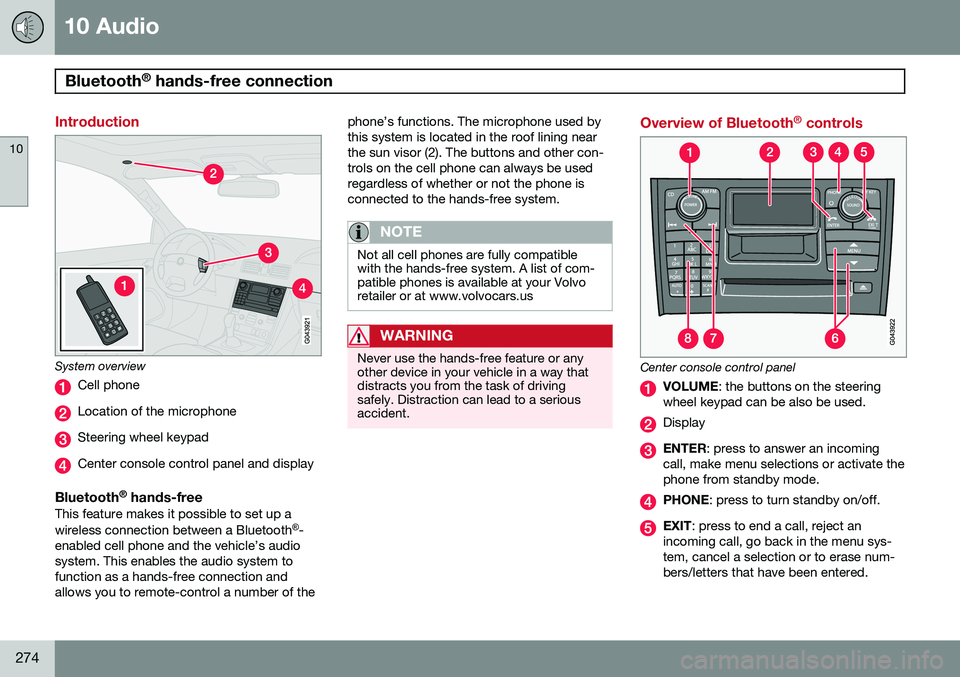
System overview
Cell phone
Location of the microphone
Steering wheel keypad
Center console control panel and display
Bluetooth ®
hands-freeThis feature makes it possible to set up a wireless connection between a Bluetooth ®
-
enabled cell phone and the vehicle’s audio system. This enables the audio system tofunction as a hands-free connection andallows you to remote-control a number of the phone’s functions. The microphone used bythis system is located in the roof lining nearthe sun visor (2). The buttons and other con-trols on the cell phone can always be usedregardless of whether or not the phone isconnected to the hands-free system.
NOTE
Not all cell phones are fully compatible with the hands-free system. A list of com-patible phones is available at your Volvoretailer or at www.volvocars.us
WARNING
Never use the hands-free feature or any other device in your vehicle in a way thatdistracts you from the task of drivingsafely. Distraction can lead to a seriousaccident.
Overview of Bluetooth
®
controls
Center console control panel
VOLUME : the buttons on the steering
wheel keypad can be also be used.
Display
ENTER : press to answer an incoming
call, make menu selections or activate the phone from standby mode.
PHONE : press to turn standby on/off.
EXIT: press to end a call, reject an
incoming call, go back in the menu sys- tem, cancel a selection or to erase num-bers/letters that have been entered.