instrument panel VOLVO XC90 2015 Owners Manual
[x] Cancel search | Manufacturer: VOLVO, Model Year: 2015, Model line: XC90, Model: VOLVO XC90 2015Pages: 570, PDF Size: 12.44 MB
Page 372 of 570
STARTING AND DRIVING
* Option/accessory, for more information, see Introduction.
370
Gear shift indicator
During manual gear shifting, the gear shift indi- cator will prompt the driver to shift up or down tohelp get the best possible fuel economy.
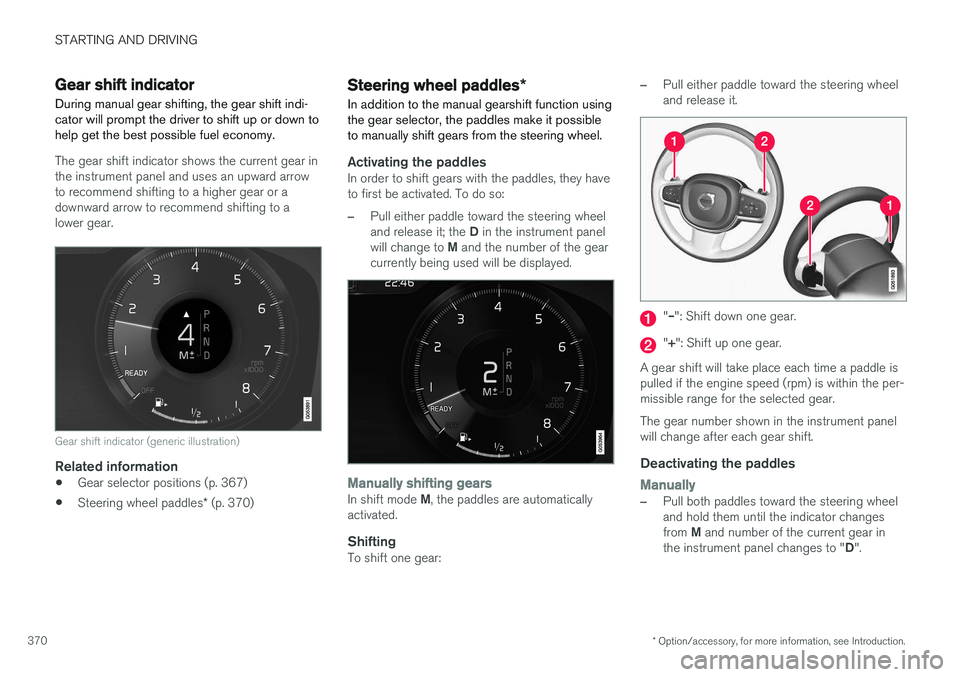
The gear shift indicator shows the current gear in the instrument panel and uses an upward arrowto recommend shifting to a higher gear or adownward arrow to recommend shifting to alower gear.
Gear shift indicator (generic illustration)
Related information
• Gear selector positions (p. 367)
• Steering wheel paddles
* (p. 370)
Steering wheel paddles *
In addition to the manual gearshift function using the gear selector, the paddles make it possibleto manually shift gears from the steering wheel.
Activating the paddlesIn order to shift gears with the paddles, they have to first be activated. To do so:
–Pull either paddle toward the steering wheel and release it; the D in the instrument panel
will change to M and the number of the gear
currently being used will be displayed.
Manually shifting gearsIn shift mode M, the paddles are automatically
activated.
ShiftingTo shift one gear:
–Pull either paddle toward the steering wheel and release it.
"
Page 373 of 570
STARTING AND DRIVING
* Option/accessory, for more information, see Introduction.371
AutomaticallyIf the paddles are not used for a period of time, they will deactivate automatically. The number ofthe current gear in the instrument panel changes to "D".
The paddles will remain active if engine braking is currently being used.
Related information
• Gear selector positions (p. 367)
• Gear shift indicator (p. 370)
Low Speed Control (LSC) Low Speed Control (LSC) helps make off-road driving easier on slippery surfaces when towinga trailer on grass, etc. This feature is part of the
Off Road drive mode.
When driving at low speeds, LSC prioritizes low gears and all wheel drive to help avoid wheel spinand to improve the vehicle's tractive force. Theaccelerator pedal and engine react differently tomake low-speed driving easier. It is activated along with Hill Descent Control (HDC), which increases engine braking to helpkeep vehicle speed low and smooth, even drivingdown steep hills.
Activating LSCThis function can be activated in different ways,depending on how the vehicle is equipped.
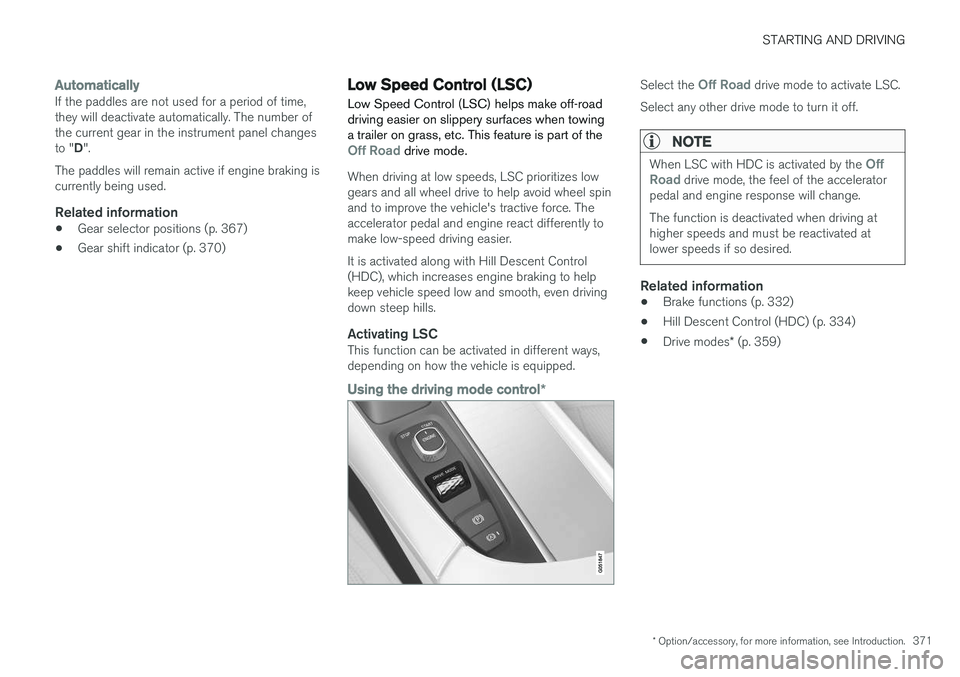
Using the driving mode control
*
Select the Off Road drive mode to activate LSC.
Select any other drive mode to turn it off.
NOTE
When LSC with HDC is activated by the Off
Road drive mode, the feel of the accelerator
pedal and engine response will change. The function is deactivated when driving at higher speeds and must be reactivated atlower speeds if so desired.
Related information
• Brake functions (p. 332)
• Hill Descent Control (HDC) (p. 334)
• Drive modes
* (p. 359)
Page 374 of 570
STARTING AND DRIVING
* Option/accessory, for more information, see Introduction.
372
All Wheel Drive (AWD) 11
Your Volvo can be equipped with All Wheel Drive, which means that power is distributedautomatically between the front and rear wheels.
Under normal driving conditions, most of the engine's power is directed to the front wheels.However, if there is any tendency for the frontwheels to spin, an electronically controlled cou-pling distributes power to the wheels that havethe best traction. AWD reacts differently, depending on the drive mode * selected.
Related information
• Drive modes
* (p. 359)
• Low Speed Control (LSC) (p. 371)
Suspension and leveling control
*
The leveling control system adjusts the suspen- sion and shock absorbers automatically to helpprovide good comfort and control while driving.Leveling can also be controlled manually tomake loading or getting in and out of the vehicleeasier.
Pneumatic suspension and shock absorbers
This system is linked to the selected drive mode and is adapted to the vehicle's speed. The pneu-matic suspension reduces the vehicle's groundclearance at higher speeds to reduce wind resis-tance and increase stability. The shock absorbersare normally set to provide the best possiblecomfort and are adjusted continuously accordingto the road surface, acceleration, braking andcornering. A message will be displayed in the instrument panel when the suspension level is beingadjusted. The level cannot be adjusted if one of the side doors or the hood is open.
Suspension leveling settings
Easy entryThe vehicle can be lowered to entering and exit- ing easier. Select
SettingsVehicleEasy Entry/Exit
Control via the center display's Top view to lower
the vehicle when getting in or out. When the vehicle is parked and the engine is turned off, the level is lowered (if a side door isopened, the level adjustment will stop). When theengine is started and the vehicle begins to move,the level will be raised to the height set by theselected drive mode.
Turning off suspension and leveling
control
In certain situations, this function has to be turned off, for example when lifting the vehicle ona jack or garage hoist. 1. Tap
Settings in the center display's Top
view.
2. Tap
My CarSuspension .
3. Select
Disable Suspension & Leveling
Control.
Changing suspension controlThree different levels of suspension control can be selected from the center display: 1. Tap
Settings in the center display's Top
view.
2. Tap
My CarDrive Mode.
3. Under
Suspension Control, selectComfort, Normal or Dynamic.
11
Standard equipment on certain models.
Page 389 of 570
INFOTAINMENT
387
Phone
A Bluetooth-enabled cell phone can be paired and connected to the vehicle's integrated hands-free system.
The infotainment system offers hands-free func- tionality for remote-controlling a number of a cellphone's features. The phone's integrated controlscan also be used, even when it is connected tothe vehicle. When the phone has been paired and connected to the infotainment system, it can be used tomake or receive calls, send or receive text mes-sages, to stream music, etc., or as an Internetconnection.
The phone is controlled fromthe center display but the Appmenu (accessed using theright-side steering wheel key-pad) and voice commands canalso be used to control certainfunctions.
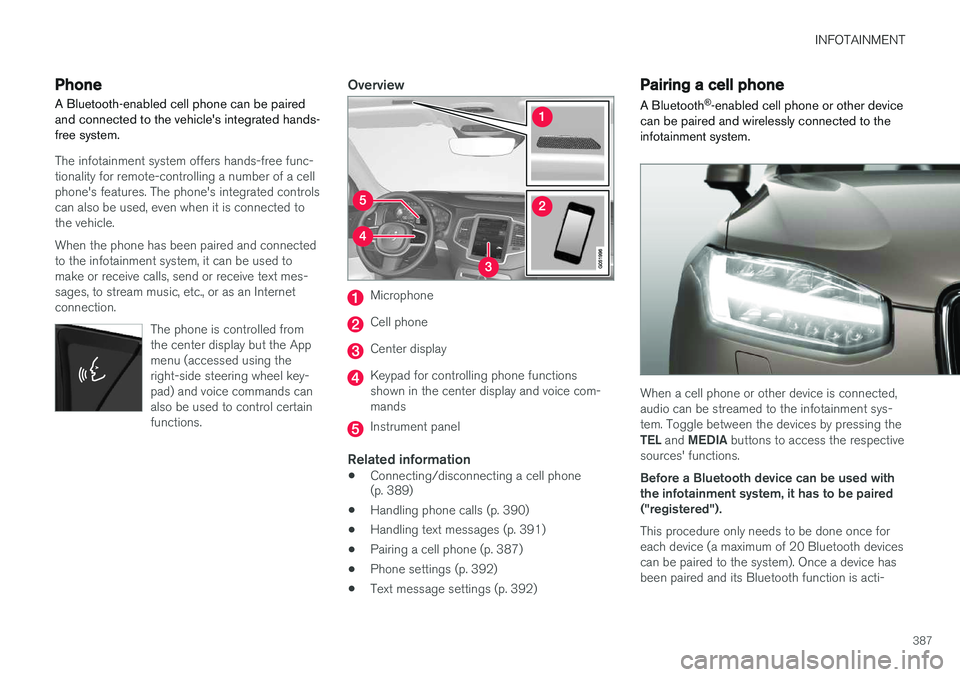
Overview
Microphone
Cell phone
Center display
Keypad for controlling phone functions shown in the center display and voice com-mands
Instrument panel
Related information
•Connecting/disconnecting a cell phone (p. 389)
• Handling phone calls (p. 390)
• Handling text messages (p. 391)
• Pairing a cell phone (p. 387)
• Phone settings (p. 392)
• Text message settings (p. 392)
Pairing a cell phone
A Bluetooth ®
-enabled cell phone or other device
can be paired and wirelessly connected to the infotainment system.
When a cell phone or other device is connected, audio can be streamed to the infotainment sys-tem. Toggle between the devices by pressing the TEL and MEDIA buttons to access the respective
sources' functions. Before a Bluetooth device can be used with the infotainment system, it has to be paired("registered"). This procedure only needs to be done once for each device (a maximum of 20 Bluetooth devicescan be paired to the system). Once a device hasbeen paired and its Bluetooth function is acti-
Page 392 of 570
INFOTAINMENT
3904.
Tap
Remove device and confirm.
> The phone or other device is no longer paired to the vehicle. Before this device can be used again, the pairing procedurewill have to be repeated.
Related information
• Pairing a cell phone (p. 387)
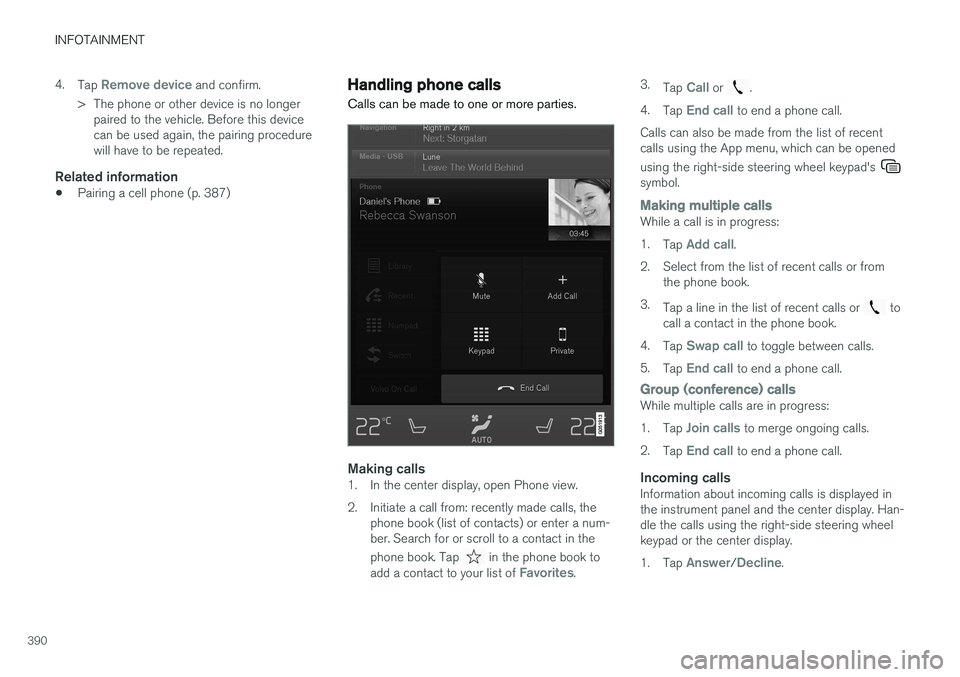
Handling phone calls Calls can be made to one or more parties.
Making calls1. In the center display, open Phone view.
2. Initiate a call from: recently made calls, the
phone book (list of contacts) or enter a num- ber. Search for or scroll to a contact in the phone book. Tap
in the phone book to
add a contact to your list of Favorites. 3.
Tap
Call or .
4. Tap
End call to end a phone call.
Calls can also be made from the list of recent calls using the App menu, which can be opened using the right-side steering wheel keypad's
symbol.
Making multiple callsWhile a call is in progress: 1. Tap
Add call.
2. Select from the list of recent calls or from the phone book.
3. Tap a line in the list of recent calls or
to
call a contact in the phone book.
4. Tap
Swap call to toggle between calls.
5. Tap
End call to end a phone call.
Group (conference) callsWhile multiple calls are in progress: 1.Tap
Join calls to merge ongoing calls.
2. Tap
End call to end a phone call.
Incoming callsInformation about incoming calls is displayed in the instrument panel and the center display. Han-dle the calls using the right-side steering wheelkeypad or the center display. 1.Tap
Answer/Decline.
Page 393 of 570
INFOTAINMENT
391
2.
Tap
End call to end a phone call.
Incoming calls while another call is in progress
1.Tap Answer/Decline.
2. Tap
End call to end a phone call.
PrivacyWhile a call is in progress:
–Tap Privacy.
> The vehicle's integrated microphone will be turned off.
•
Switch to mobile phone: the hands-free
function will be disconnected and the call will continue in the cell phone.
•
Driver only: the microphone in the ceiling
liner on the passenger's side will be muted and the call will continue using vehicle's thehands-free function on the driver's side.
Related information
• Phone (p. 387)
• Voice control for cell phones (p. 121)
• Using the center display (p. 46)
• Using the center display keyboard (p. 32)
• Phone settings (p. 392)
Handling text messages
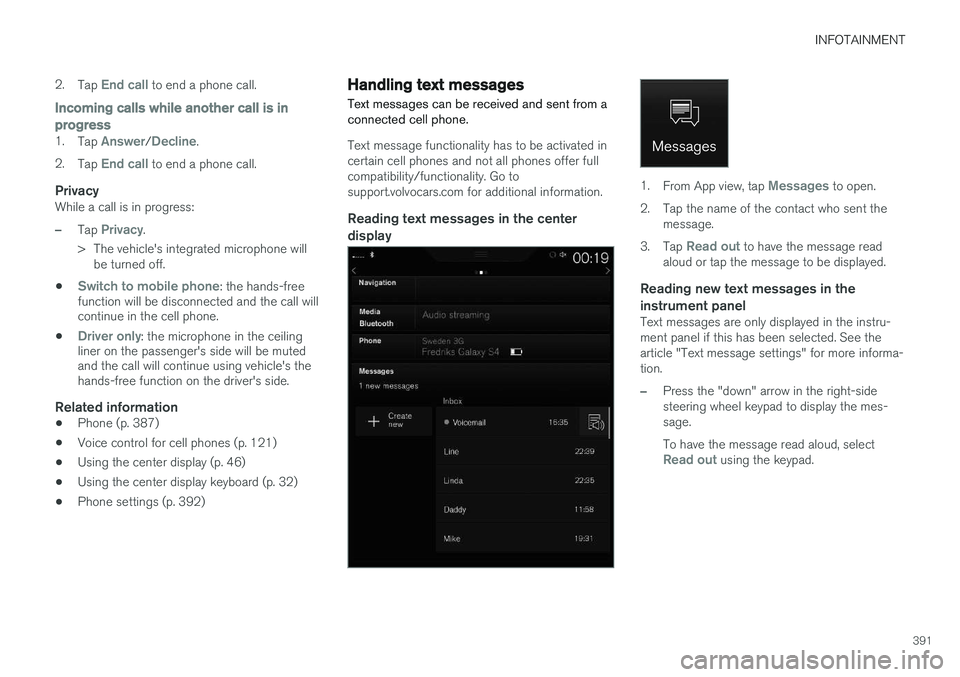
Text messages can be received and sent from a connected cell phone.
Text message functionality has to be activated in certain cell phones and not all phones offer fullcompatibility/functionality. Go tosupport.volvocars.com for additional information.
Reading text messages in the center display
1. From App view, tap Messages to open.
2. Tap the name of the contact who sent the message.
3. Tap
Read out to have the message read
aloud or tap the message to be displayed.
Reading new text messages in the instrument panel
Text messages are only displayed in the instru- ment panel if this has been selected. See thearticle "Text message settings" for more informa-tion.
–Press the "down" arrow in the right-side steering wheel keypad to display the mes-sage. To have the message read aloud, select
Read out using the keypad.
Page 394 of 570
INFOTAINMENT
* Option/accessory, for more information, see Introduction.
392
Sending text messages
1.
From App view, tap Messages to open.
2. •To reply to a message: tap the name of the contact who sent the message and then tap
Answer.
• To create a new message: tap
Create
new
+. Select the contact who will
receive the message or enter a phone number.
3. Write the message. 4. Tap
Send.
Message notificationSee the article "Text message settings" for a list of possible settings.
Related information
• Text message settings (p. 392)
Phone settings
The following settings can be made for a paired and connected cell phone.
Cell phones
–Pull down the center display's Top view and tap
SettingsCommunicationPhoneand choose among the following settings: •
Ringtones: select a ring tone (tones from
the cell phone or the vehicle can be used). Not all cell phones are fully com-patible and it may not be possible to usetheir ring tones in the vehicle. Go towww.volvocars.com for additional informa-tion.
•
Sort order for contacts: select sort cri-
teria for the phone book (list of contacts).
To show call notifications in the head-up dis- play *, see the article "Head-up display."
Related information
• Text message settings (p. 392)
• Bluetooth settings (p. 404)
• Phone (p. 387)
• Handling phone calls (p. 390)
• Head-up display (HUD)
* (p. 117)
Text message settings
The following settings can be made for text mes- sages received through a paired and connectedcell phone.
Text message settings
–Pull down the center display's Top view and tap
SettingsCommunicationText
Messages and choose among the following
settings:
•
Notification in center display: shows
text messages in the center display's sta- tus bar.
•
Notification in driver display: shows
text messages in the instrument panel. With this alternative active, incoming mes-sages can be handled from the right-sidesteering wheel keypad.
•
Text message tone: select an audible
signal for incoming text messages.
Related information
• Connecting/disconnecting a cell phone (p. 389)
• Pairing a cell phone (p. 387)
• Handling text messages (p. 391)
Page 418 of 570
VOLVO ON CALL WITH SENSUS CONNECT *
* Option/accessory, for more information, see Introduction.
416
FunctionCus-
tomer
service centerApp A
Engine remote start (ERS)X
Locating the vehicleXX
Instrument panel informa- tionX
Vehicle "checkup"X
Driving logbookX
Vehicle informationX
A
Some of these functions may not be available for all models.
Related information
• Volvo On Call (VOC)
* (p. 414)
• Volvo On Call mobile app (p. 416)
• Volvo On Call convenience services (p. 416)
• Volvo On Call safety services (p. 424)
• Volvo On Call security services (p. 425)
Volvo On Call convenience services
Convenience services are available by using the mobile app to e.g., remote-start the engine *, etc.
As a VOC user, a mobile app is available that enables you to have telephone contact from aniPhone or from Windows/Android phones withyour vehicle when it is parked. With it, you canlocate the vehicle, lock it from another location,check the fuel level and much more. Read moreabout this app in the following section.
Related information
• Volvo On Call (VOC)
* (p. 414)
• Volvo On Call mobile app (p. 416)
• Volvo On Call (VOC) functions (p. 415)
Volvo On Call mobile app
As a VOC user, you can download a mobile app that enables you to have telephone contact withyour vehicle when it is parked.
Certain functions may not be available in all mod- els. The mobile app is updated regularly, which may result in this information not being completelyup-to-date with respect to the functionality availa-ble. For additional information about the app, goto: United States http://www.volvocars.com/us/support Canada English: http://support.volvocars.com/en-CA French: http://support.volvocars.com/fr-CAThe Volvo On Call mobile app is available for the iPhone and for Windows/Android phones andcan be downloaded from Apple's AppStore, Win-dows Phone Store or Google Play. A personal Volvo ID is required in order to use the mobile app. For additional information about the Volvo ID, the features it offers and how to create it, see thearticle "Volvo ID".
Page 419 of 570
VOLVO ON CALL WITH SENSUS CONNECT *
* Option/accessory, for more information, see Introduction.
417
Locating the vehicleThe vehicle's location is shown on a map and directions to the vehicle can be provided. There isalso a digital compass to help show the ownerthe right direction. When you are within approx.100 yards/meters of the vehicle, you can activateits horn and turn signals to help locate it.
The vehicle's instrument panelThis function provides information such as: thefuel level, range on the remaining fuel, averagefuel consumption, average speed and odometer/trip odometer readings.
Vehicle "checkup"The mobile app monitors the vehicle's conditionand provides information about bulbs and the lev-els of brake fluid, coolant and engine oil.
Driving logbookDetailed information about each trip made duringthe past 40 days can be saved and downloaded.All or part of this information can be exportedfrom the mobile app to a spreadsheet format andsent to an email address. This is very useful fore.g., keeping track of business-related driving. This function can be deactivated, in which case the vehicle will not transmit logbook informationat the end of each trip.
Vehicle informationBasic information such as model, license platenumber and VIN number are readily accessible.
Theft notificationIf the vehicle's alarm is triggered, the owner willbe informed via his/her cell phone.
Remote door unlockThe status of all doors and windows is provided.The owner can lock/unlock the vehicle fromanother location but for security reasons, theapp's password is always required before thevehicle can be unlocked.
Engine remote start (ERS)*1ERS makes it possible to remotely start theengine using the remote key to enable the cli-mate system to cool or heat the passenger com-partment before driving. When the engine starts, the climate and infotain- ment systems will restart using the same settingsas when the engine was switched off. You can choose to let the engine run for between 1 and 15 minutes before it automati-cally switches off again. After 2 ERS starts, theengine must be started in the normal way beforeERS can be used again.
WARNING
Keep the following in mind before using ERS:
• The vehicle should be in view.
• The vehicle should be unoccupied.
• The vehicle must not be parked indoors or in an enclosed area. Exhaust fumes areharmful to the health.
NOTE
Always observe applicable state, province and/or local laws regarding engine idlingwhen using ERS.
Related information
•Volvo On Call convenience services (p. 416)
• Volvo On Call (VOC)
* (p. 414)
• Volvo ID (p. 27)
• Starting the engine (p. 356)
• Volvo On Call (VOC) functions (p. 415)
1
Certain models only.
Page 433 of 570
NAVIGATION*
* Option/accessory, for more information, see Introduction.
431
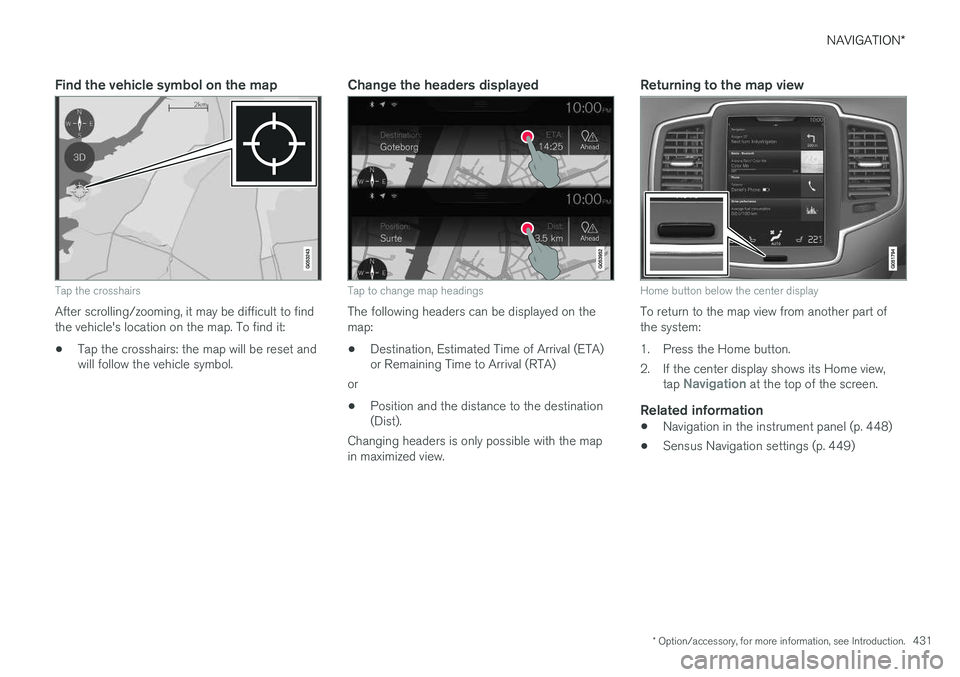
Find the vehicle symbol on the map
Tap the crosshairs
After scrolling/zooming, it may be difficult to find the vehicle's location on the map. To find it:
• Tap the crosshairs: the map will be reset and will follow the vehicle symbol.
Change the headers displayed
Tap to change map headings
The following headers can be displayed on the map:
• Destination, Estimated Time of Arrival (ETA) or Remaining Time to Arrival (RTA)
or
• Position and the distance to the destination(Dist).
Changing headers is only possible with the map in maximized view.
Returning to the map view
Home button below the center display
To return to the map view from another part of the system:
1. Press the Home button.
2. If the center display shows its Home view, tap
Navigation at the top of the screen.
Related information
•Navigation in the instrument panel (p. 448)
• Sensus Navigation settings (p. 449)