display VOLVO XC90 2015 Owners Manual
[x] Cancel search | Manufacturer: VOLVO, Model Year: 2015, Model line: XC90, Model: VOLVO XC90 2015Pages: 570, PDF Size: 12.44 MB
Page 372 of 570
STARTING AND DRIVING
* Option/accessory, for more information, see Introduction.
370
Gear shift indicator
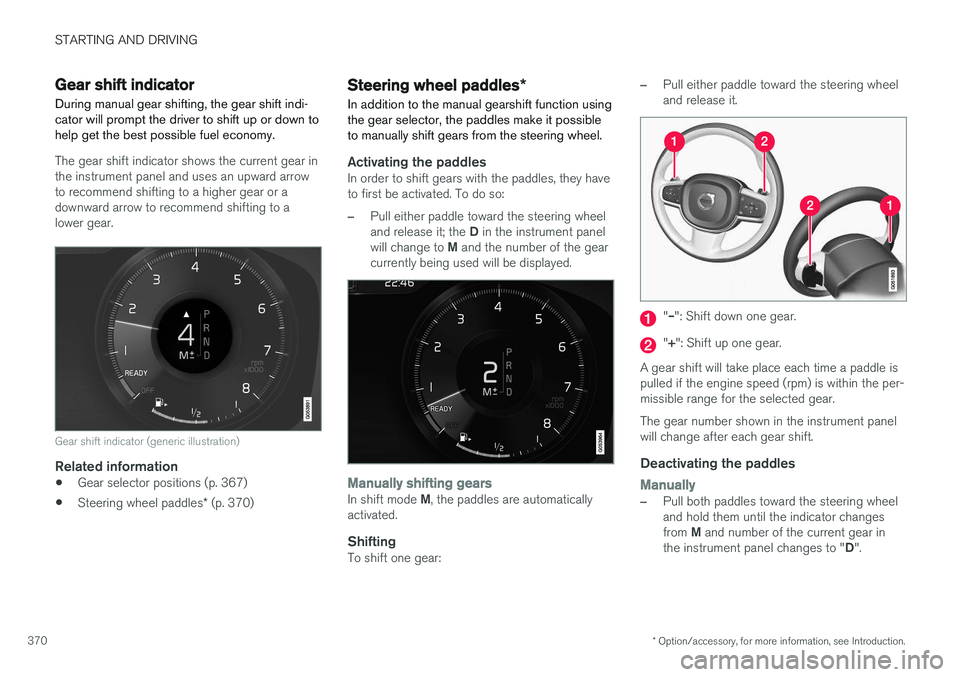
During manual gear shifting, the gear shift indi- cator will prompt the driver to shift up or down tohelp get the best possible fuel economy.
The gear shift indicator shows the current gear in the instrument panel and uses an upward arrowto recommend shifting to a higher gear or adownward arrow to recommend shifting to alower gear.
Gear shift indicator (generic illustration)
Related information
• Gear selector positions (p. 367)
• Steering wheel paddles
* (p. 370)
Steering wheel paddles *
In addition to the manual gearshift function using the gear selector, the paddles make it possibleto manually shift gears from the steering wheel.
Activating the paddlesIn order to shift gears with the paddles, they have to first be activated. To do so:
–Pull either paddle toward the steering wheel and release it; the D in the instrument panel
will change to M and the number of the gear
currently being used will be displayed.
Manually shifting gearsIn shift mode M, the paddles are automatically
activated.
ShiftingTo shift one gear:
–Pull either paddle toward the steering wheel and release it.
"
Page 374 of 570
STARTING AND DRIVING
* Option/accessory, for more information, see Introduction.
372
All Wheel Drive (AWD) 11
Your Volvo can be equipped with All Wheel Drive, which means that power is distributedautomatically between the front and rear wheels.
Under normal driving conditions, most of the engine's power is directed to the front wheels.However, if there is any tendency for the frontwheels to spin, an electronically controlled cou-pling distributes power to the wheels that havethe best traction. AWD reacts differently, depending on the drive mode * selected.
Related information
• Drive modes
* (p. 359)
• Low Speed Control (LSC) (p. 371)
Suspension and leveling control
*
The leveling control system adjusts the suspen- sion and shock absorbers automatically to helpprovide good comfort and control while driving.Leveling can also be controlled manually tomake loading or getting in and out of the vehicleeasier.
Pneumatic suspension and shock absorbers
This system is linked to the selected drive mode and is adapted to the vehicle's speed. The pneu-matic suspension reduces the vehicle's groundclearance at higher speeds to reduce wind resis-tance and increase stability. The shock absorbersare normally set to provide the best possiblecomfort and are adjusted continuously accordingto the road surface, acceleration, braking andcornering. A message will be displayed in the instrument panel when the suspension level is beingadjusted. The level cannot be adjusted if one of the side doors or the hood is open.
Suspension leveling settings
Easy entryThe vehicle can be lowered to entering and exit- ing easier. Select
SettingsVehicleEasy Entry/Exit
Control via the center display's Top view to lower
the vehicle when getting in or out. When the vehicle is parked and the engine is turned off, the level is lowered (if a side door isopened, the level adjustment will stop). When theengine is started and the vehicle begins to move,the level will be raised to the height set by theselected drive mode.
Turning off suspension and leveling
control
In certain situations, this function has to be turned off, for example when lifting the vehicle ona jack or garage hoist. 1. Tap
Settings in the center display's Top
view.
2. Tap
My CarSuspension .
3. Select
Disable Suspension & Leveling
Control.
Changing suspension controlThree different levels of suspension control can be selected from the center display: 1. Tap
Settings in the center display's Top
view.
2. Tap
My CarDrive Mode.
3. Under
Suspension Control, selectComfort, Normal or Dynamic.
11
Standard equipment on certain models.
Page 378 of 570
INFOTAINMENT
376
The infotainment system
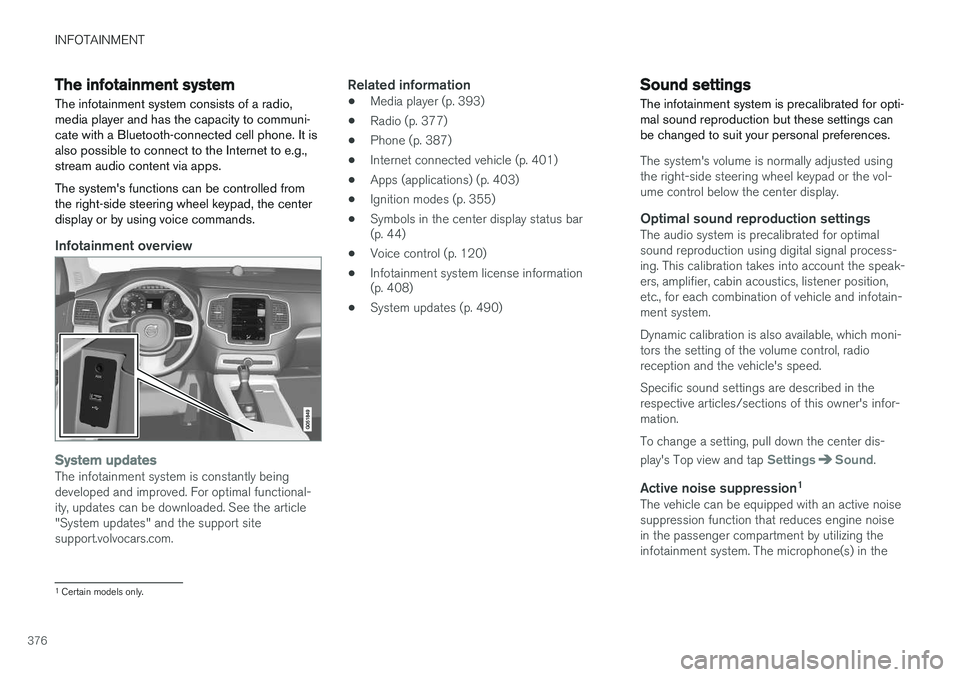
The infotainment system consists of a radio, media player and has the capacity to communi-cate with a Bluetooth-connected cell phone. It isalso possible to connect to the Internet to e.g.,stream audio content via apps. The system's functions can be controlled from the right-side steering wheel keypad, the centerdisplay or by using voice commands.
Infotainment overview
System updatesThe infotainment system is constantly being developed and improved. For optimal functional-ity, updates can be downloaded. See the article"System updates" and the support sitesupport.volvocars.com.
Related information
• Media player (p. 393)
• Radio (p. 377)
• Phone (p. 387)
• Internet connected vehicle (p. 401)
• Apps (applications) (p. 403)
• Ignition modes (p. 355)
• Symbols in the center display status bar (p. 44)
• Voice control (p. 120)
• Infotainment system license information(p. 408)
• System updates (p. 490)
Sound settings
The infotainment system is precalibrated for opti- mal sound reproduction but these settings canbe changed to suit your personal preferences.
The system's volume is normally adjusted using the right-side steering wheel keypad or the vol-ume control below the center display.
Optimal sound reproduction settingsThe audio system is precalibrated for optimalsound reproduction using digital signal process-ing. This calibration takes into account the speak-ers, amplifier, cabin acoustics, listener position,etc., for each combination of vehicle and infotain-ment system. Dynamic calibration is also available, which moni- tors the setting of the volume control, radioreception and the vehicle's speed. Specific sound settings are described in the respective articles/sections of this owner's infor-mation. To change a setting, pull down the center dis- play's Top view and tap
SettingsSound.
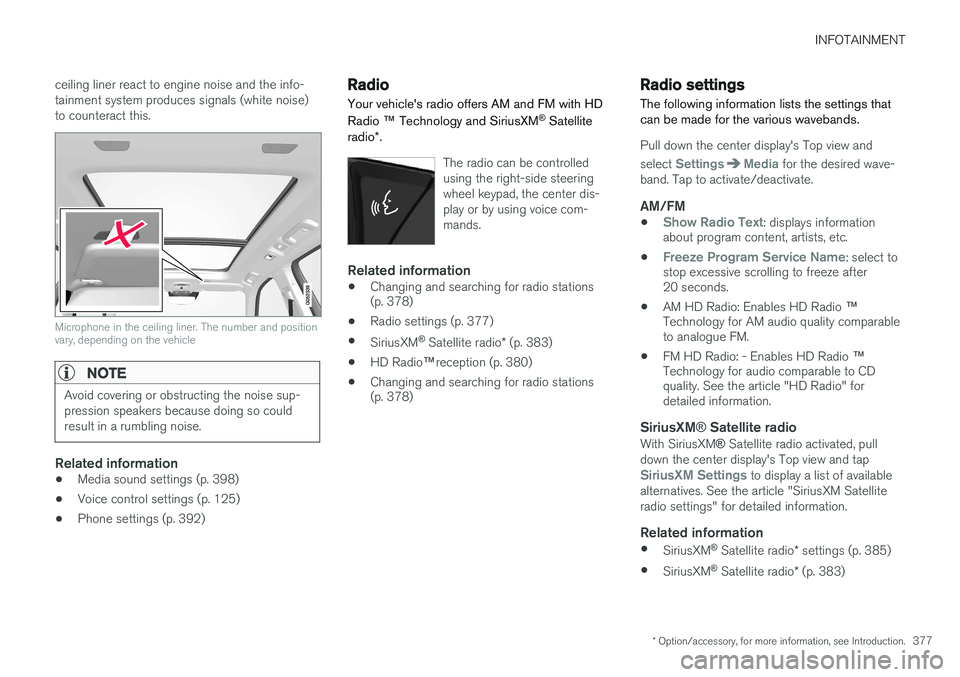
Active noise suppression 1The vehicle can be equipped with an active noise suppression function that reduces engine noisein the passenger compartment by utilizing theinfotainment system. The microphone(s) in the
1
Certain models only.
Page 379 of 570
INFOTAINMENT
* Option/accessory, for more information, see Introduction.377
ceiling liner react to engine noise and the info- tainment system produces signals (white noise)to counteract this.
Microphone in the ceiling liner. The number and position vary, depending on the vehicle
NOTE
Avoid covering or obstructing the noise sup- pression speakers because doing so couldresult in a rumbling noise.
Related information
•
Media sound settings (p. 398)
• Voice control settings (p. 125)
• Phone settings (p. 392)
Radio Your vehicle's radio offers AM and FM with HD Radio
™ Technology and SiriusXM ®
Satellite
radio *.
The radio can be controlled using the right-side steeringwheel keypad, the center dis-play or by using voice com-mands.
Related information
• Changing and searching for radio stations (p. 378)
• Radio settings (p. 377)
• SiriusXM ®
Satellite radio * (p. 383)
• HD Radio
™reception (p. 380)
• Changing and searching for radio stations(p. 378)
Radio settings
The following information lists the settings that can be made for the various wavebands.
Pull down the center display's Top view and select
SettingsMedia for the desired wave-
band. Tap to activate/deactivate.
AM/FM
•Show Radio Text: displays information
about program content, artists, etc.
•
Freeze Program Service Name: select to
stop excessive scrolling to freeze after 20 seconds.
• AM HD Radio: Enables HD Radio
™
Technology for AM audio quality comparableto analogue FM.
• FM HD Radio: - Enables HD Radio
™
Technology for audio comparable to CDquality. See the article "HD Radio" fordetailed information.
SiriusXM ® Satellite radioWith SiriusXM ® Satellite radio activated, pull
down the center display's Top view and tap
SiriusXM Settings to display a list of available
alternatives. See the article "SiriusXM Satellite radio settings" for detailed information.
Related information
• SiriusXM ®
Satellite radio * settings (p. 385)
• SiriusXM ®
Satellite radio * (p. 383)
Page 380 of 570
INFOTAINMENT
378•
Radio (p. 377)
• HD Radio
™reception (p. 380)
RBDS radio
RBDS radio
RBDS (Radio Data Broadcast System) enables certain functionality 2
, such as:
• Searches for program types or new broad- casts
• Text information about currently broadcastprograms
For example, if news is broadcast, the currently playing sound source will be interrupted so thatthe news can be heard. The infotainment systemwill return to the previous sound source when thenews broadcast has been completed. To cancel the announcement, press the
but-
ton on the right-side steering wheel keypad or tap
Cancel on the center display. This function
can be activated/deactivated in the center dis- play's
Settings menu.
Related information
• Radio (p. 377)
• Radio settings (p. 377)
Changing and searching for radio stations The radio automatically compiles a list of the strongest stations that it is currently receiving.
Turning the radio on1. Open the app (e.g., FM, radio favorites) from
the center display's App view.
2. Select a station.
Changing a list in a waveband1. Tap Library.
2. Sect from
Stations, Favorites or Genres.
3. Tap the desired station in the list.
Favorites: only plays stations from the list of
favorites (see "Favorites" below).
Genres: only plays stations broadcasting the
selected genre or program type, e.g., pop, classi- cal, etc.
Changing stations in a selected list
–Tap < > under the center display or on the
right-side steering wheel keypad.
> Move step-by-step through the selected list.
The center display can also be used to change stations.
2 Certain stations only.
Page 382 of 570
INFOTAINMENT
* Option/accessory, for more information, see Introduction.
380
HD Radio ™reception
HD Radio is a brand name registered by the iBiquity digital corporation 3
. They are the devel-
oper of a broadcasting technology called IBOC or In Band On Channel, which refers to themethod of transmitting a digital radio broadcastsignal centered on the same frequency as theAM or FM station's present frequency.
Introduction
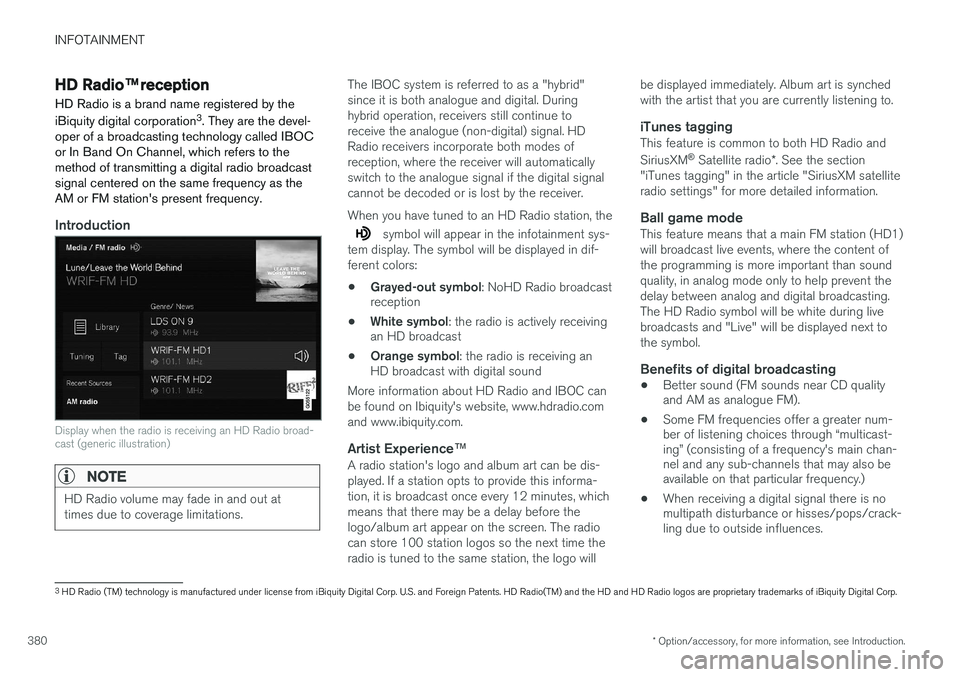
Display when the radio is receiving an HD Radio broad- cast (generic illustration)
NOTE
HD Radio volume may fade in and out at times due to coverage limitations.
The IBOC system is referred to as a "hybrid" since it is both analogue and digital. Duringhybrid operation, receivers still continue toreceive the analogue (non-digital) signal. HDRadio receivers incorporate both modes ofreception, where the receiver will automaticallyswitch to the analogue signal if the digital signalcannot be decoded or is lost by the receiver. When you have tuned to an HD Radio station, the
symbol will appear in the infotainment sys-
tem display. The symbol will be displayed in dif- ferent colors:
• Grayed-out symbol
: NoHD Radio broadcast
reception
• White symbol
: the radio is actively receiving
an HD broadcast
• Orange symbol
: the radio is receiving an
HD broadcast with digital sound
More information about HD Radio and IBOC canbe found on Ibiquity's website, www.hdradio.comand www.ibiquity.com.
Artist Experience ™A radio station's logo and album art can be dis-played. If a station opts to provide this informa-tion, it is broadcast once every 12 minutes, whichmeans that there may be a delay before thelogo/album art appear on the screen. The radiocan store 100 station logos so the next time theradio is tuned to the same station, the logo will be displayed immediately. Album art is synchedwith the artist that you are currently listening to.
iTunes taggingThis feature is common to both HD Radio and SiriusXM
®
Satellite radio *. See the section
"iTunes tagging" in the article "SiriusXM satellite radio settings" for more detailed information.
Ball game modeThis feature means that a main FM station (HD1)will broadcast live events, where the content ofthe programming is more important than soundquality, in analog mode only to help prevent thedelay between analog and digital broadcasting.The HD Radio symbol will be white during livebroadcasts and "Live" will be displayed next tothe symbol.
Benefits of digital broadcasting
• Better sound (FM sounds near CD quality and AM as analogue FM).
• Some FM frequencies offer a greater num-ber of listening choices through
Page 383 of 570
INFOTAINMENT
* Option/accessory, for more information, see Introduction.381
How HD Radio ™ Technology
broadcasting works
HD Radio works similarly to conventional radio and broadcasts of this type are available in manyareas of the United States. However, there are afew key differences:
• Instead of transmitting one analogue signal, stations send out a bundled signal – bothanalogue and digital.
• An HD Radio receiver can receive both digi-tal and analogue broadcasts. Depending onthe terrain and location of the vehicle (whichwill influence the signal strength), thereceiver will determine which signal toreceive.
Related information
•
Switching HD Radio on and off (p. 381)
• HD Radio sub-channels (p. 382)
• HD Radio limitations (p. 382)
• Radio (p. 377)
• Changing and searching for radio stations(p. 378)
Switching HD Radio on and off The factory setting for HD Radio is
off.
Switching HD on or offWhen listening to an HD Radio station and driv- ing through areas with weak HD signals (fringeareas), you may experience that the radio repeat-edly switches between analogue/digital and digi-tal/analogue reception. If this happens, it may bedesirable to switch HD off. To do so:
1. Be sure the infotainment system is switched
on and in AM or FM mode.
2. To access the settings menu from the center display's Home view, pull down Top view and tap
AM/FM radio.
Go to
Adjust settings for media.
3. Tap the
AM HD Radio or FM HD Radio box
to select/deselect this function.
This will disable the radio's capability to receive digital broadcasts but it will continue to functionas a conventional (analogue) AM/FM receiver.Please note that when HD is switched off, it willnot be possible to tune to sub-channels (see thearticle "HD Radio subchannels" for a moredetailed explanation of sub-channels). Please note that this will only switch HD Radio on or off (selecting or deselecting the function)only affects the selected waveband.
Related information
• HD Radio
™reception (p. 380)
• HD Radio sub-channels (p. 382)
• SiriusXM ®
Satellite radio * settings (p. 385)
Page 384 of 570
INFOTAINMENT
382
HD Radio sub-channels
In many cases, a main HD Radio station (FM wavebands only) will also have sub-channelsoffering additional types of programming ormusic.
Sub-channels
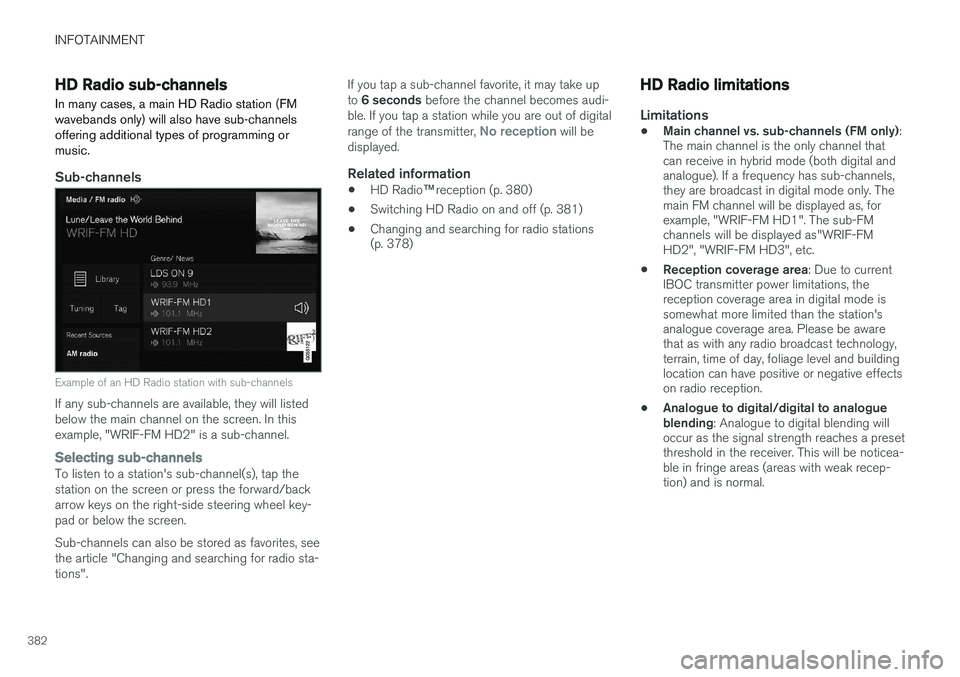
Example of an HD Radio station with sub-channels
If any sub-channels are available, they will listed below the main channel on the screen. In thisexample, "WRIF-FM HD2" is a sub-channel.
Selecting sub-channelsTo listen to a station's sub-channel(s), tap the station on the screen or press the forward/backarrow keys on the right-side steering wheel key-pad or below the screen. Sub-channels can also be stored as favorites, see the article "Changing and searching for radio sta-tions". If you tap a sub-channel favorite, it may take up to
6 seconds before the channel becomes audi-
ble. If you tap a station while you are out of digital range of the transmitter,
No reception will be
displayed.
Related information
• HD Radio
™reception (p. 380)
• Switching HD Radio on and off (p. 381)
• Changing and searching for radio stations (p. 378)
HD Radio limitations
Limitations
•
Main channel vs. sub-channels (FM only)
:
The main channel is the only channel that can receive in hybrid mode (both digital andanalogue). If a frequency has sub-channels,they are broadcast in digital mode only. Themain FM channel will be displayed as, forexample, "WRIF-FM HD1". The sub-FMchannels will be displayed as"WRIF-FMHD2", "WRIF-FM HD3", etc.
• Reception coverage area
: Due to current
IBOC transmitter power limitations, thereception coverage area in digital mode issomewhat more limited than the station'sanalogue coverage area. Please be awarethat as with any radio broadcast technology,terrain, time of day, foliage level and buildinglocation can have positive or negative effectson radio reception.
• Analogue to digital/digital to analogueblending
: Analogue to digital blending will
occur as the signal strength reaches a presetthreshold in the receiver. This will be noticea-ble in fringe areas (areas with weak recep-tion) and is normal.
Page 385 of 570
INFOTAINMENT
* Option/accessory, for more information, see Introduction.383
NOTE
There may be a noticeable difference in sound quality when a change from analogueto digital or digital to analogue occurs, suchas:
• Volume increase or decrease
• Equalizer settings, i.e., Bass/ Midrange/ Treble cut or boost
• Time alignment (Digital program materialin extreme cases can be as much as 8seconds behind the analogue). This willnoticeable as a "stuttering" effect.
The above items are dependant on the broadcaster's equipment settings and donot indicate a fault in the vehicle's radioreceiver or antenna systems .
Related information
•HD Radio sub-channels (p. 382)
• HD Radio
™reception (p. 380)
SiriusXM ®
Satellite radio *
The SiriusXM ®
Satellite system broadcasts from
of a number of high elevation satellites in geo- synchronous orbit.
Listening to satellite radioThe digital signals from the satellites are line-of- sight, which means that physical obstructionssuch as bridges, tunnels, etc, may temporarilyinterfere with signal reception. Avoid any obstructions, such as metallic objects transported on roof racks or in a ski box, or otherantennas that may impede signals from the SiriusXM ®
satellites.
Selecting SiriusXM ®
Satellite radio mode1. From the center display's Home view, swipe
from right to left to come to App view.
2.Tap the SiriusXM ®
Satellite radio icon.
Home view with SiriusXM ®
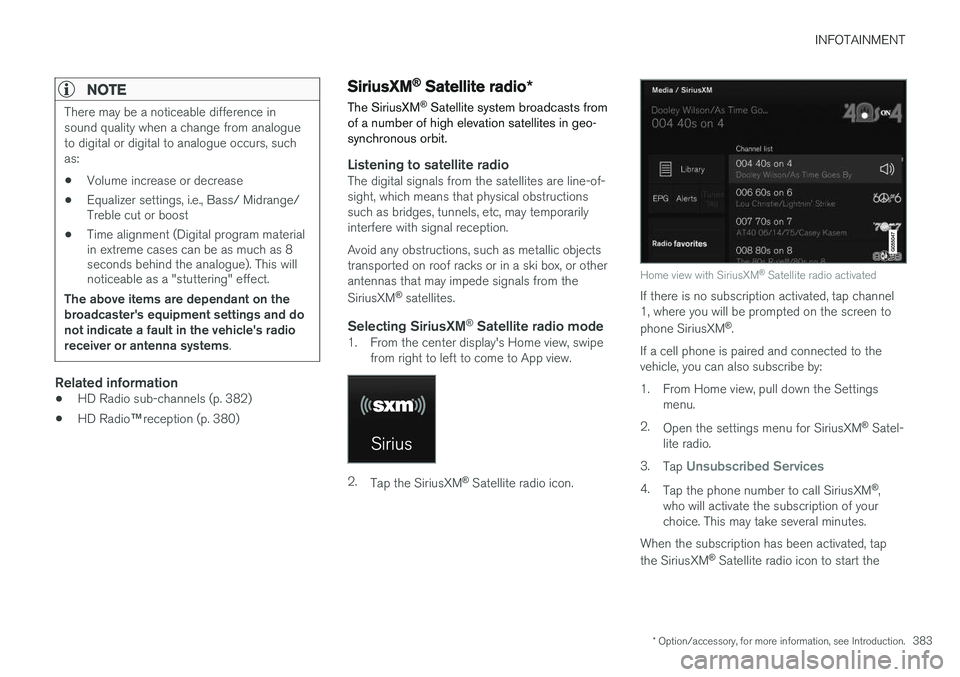
Satellite radio activated
If there is no subscription activated, tap channel 1, where you will be prompted on the screen to phone SiriusXM ®
.
If a cell phone is paired and connected to the vehicle, you can also subscribe by:
1. From Home view, pull down the Settings menu.
2. Open the settings menu for SiriusXM ®
Satel-
lite radio.
3. Tap
Unsubscribed Services
4.
Tap the phone number to call SiriusXM ®
,
who will activate the subscription of your choice. This may take several minutes.
When the subscription has been activated, tap the SiriusXM ®
Satellite radio icon to start the
Page 386 of 570
INFOTAINMENT
* Option/accessory, for more information, see Introduction.
384 function and display the channel list included in your subscription.
Related information
•
Using SiriusXM ®
Satellite radio radio *
(p. 384)
Using SiriusXM ®
Satellite radio
radio *
SiriusXM ®
Satellite radio offers several features
for finding and listening to music, news, sporting events, etc. being broadcast on satellite radiostations.
SiriusXM ®
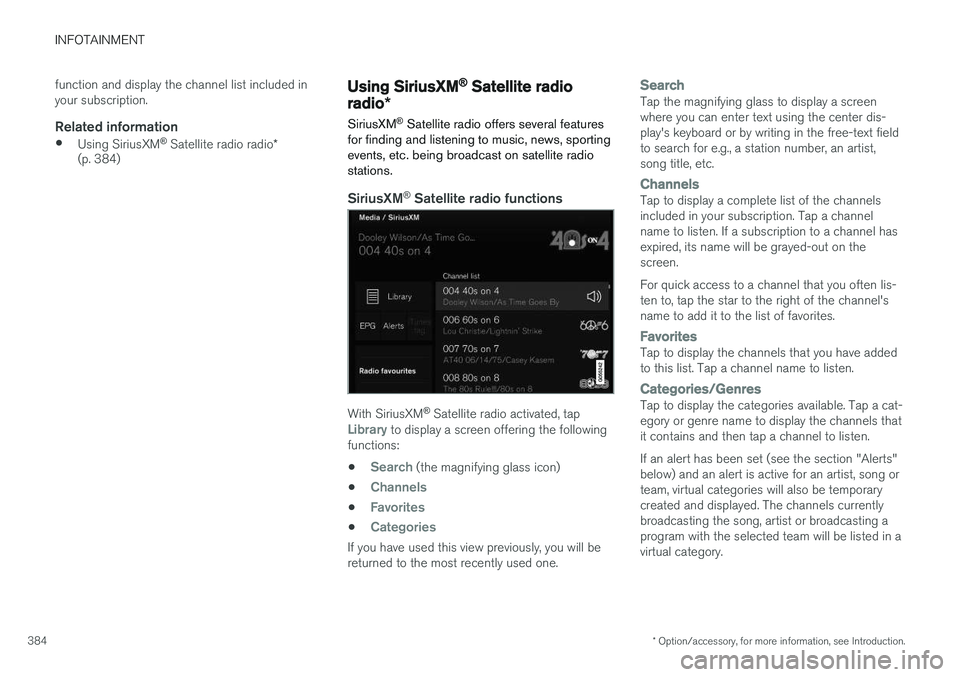
Satellite radio functions
With SiriusXM ®
Satellite radio activated, tapLibrary to display a screen offering the following
functions: •
Search (the magnifying glass icon)
•
Channels
•Favorites
•Categories
If you have used this view previously, you will be returned to the most recently used one.
SearchTap the magnifying glass to display a screen where you can enter text using the center dis-play's keyboard or by writing in the free-text fieldto search for e.g., a station number, an artist,song title, etc.
ChannelsTap to display a complete list of the channels included in your subscription. Tap a channelname to listen. If a subscription to a channel hasexpired, its name will be grayed-out on thescreen. For quick access to a channel that you often lis- ten to, tap the star to the right of the channel'sname to add it to the list of favorites.
FavoritesTap to display the channels that you have added to this list. Tap a channel name to listen.
Categories/GenresTap to display the categories available. Tap a cat- egory or genre name to display the channels thatit contains and then tap a channel to listen. If an alert has been set (see the section "Alerts" below) and an alert is active for an artist, song orteam, virtual categories will also be temporarycreated and displayed. The channels currentlybroadcasting the song, artist or broadcasting aprogram with the selected team will be listed in avirtual category.