head up display VOLVO XC90 2015 User Guide
[x] Cancel search | Manufacturer: VOLVO, Model Year: 2015, Model line: XC90, Model: VOLVO XC90 2015Pages: 570, PDF Size: 12.44 MB
Page 101 of 570
INSTRUMENTS AND CONTROLS
* Option/accessory, for more information, see Introduction.99
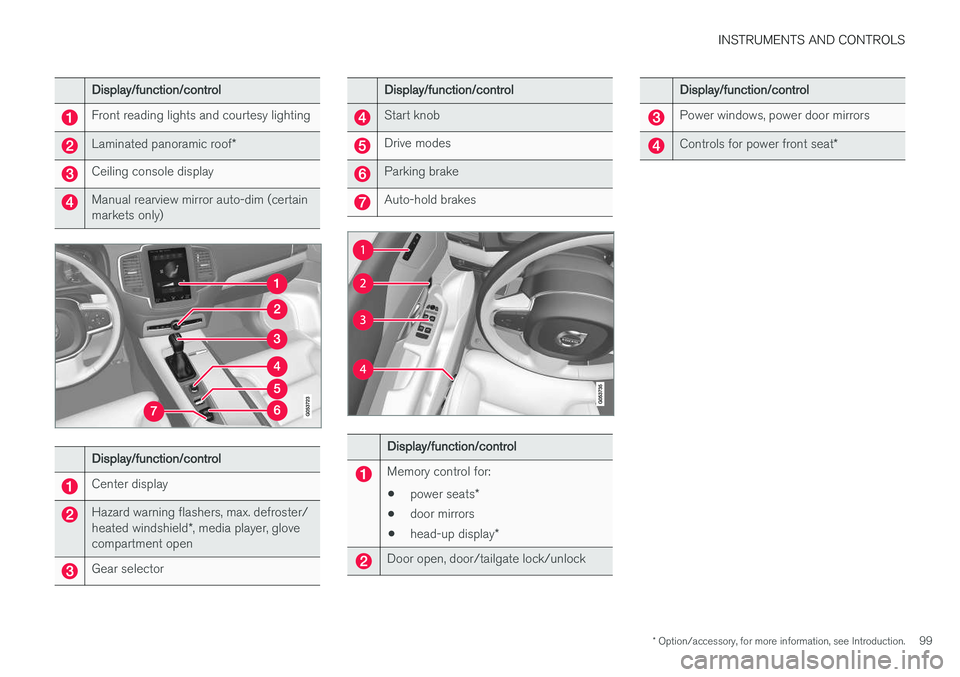
Display/function/control
Front reading lights and courtesy lighting
Laminated panoramic roof*
Ceiling console display
Manual rearview mirror auto-dim (certain markets only)
Display/function/control
Center display
Hazard warning flashers, max. defroster/ heated windshield*, media player, glove
compartment open
Gear selector
Display/function/control
Start knob
Drive modes
Parking brake
Auto-hold brakes
Display/function/control
Memory control for:
• power seats
*
• door mirrors
• head-up display
*
Door open, door/tailgate lock/unlock
Display/function/control
Power windows, power door mirrors
Controls for power front seat *
Page 111 of 570
INSTRUMENTS AND CONTROLS
* Option/accessory, for more information, see Introduction.109
Related information
•Driver profiles (p. 112)
• Settings view (p. 106)
• Changing system settings in Settings view (p. 109)
Changing system settings in Settings view
Settings view's main category
System contains
general settings and information, such as lan- guage, units of measure, etc.
The system settings under Driver Profile, Date
& Time, Keyboard Layouts, Voice Control,Software Updates, Global Reset andServices are described in their respective arti-
cles in the owner's manual.
Changing system languages1. Pull down the center display's Top view and
tap Settings.
2. Tap
SystemLanguage.
3. Select a new system language. Languages that can be used for voice commands are indicated by a voice control symbol.
> This change affects the language used inthe instrument panel, center display and the head-up display *.
Changing units of measure
Changing length and volume units1. Pull down the center display's Top view and
tap Settings.
2. Tap
SystemUnitsUnits. 3. Select one of the following measurement
standards:
•
Metric: kilometers, liters and degrees Cel-
sius.
•
Imperial: miles, gallons and degrees Cel-
sius.
•
US: miles, gallons and degrees Fahren-
heit.
> This change affects the units of measure used in the instrument panel, center dis- play and the head-up display *
Changing tire inflation pressure units1. Pull down the center display's Top view and
tap Settings.
2. Tap
SystemUnitsTire Pressure.
3. Select a unit of measure for tire pressure. > This changes the tire inflation pressureunits used in the
Car status app in the
center display.
Viewing storage information1. Pull down the center display's Top view and
tap Settings.
2. Tap
SystemStorage.
> Storage information for the vehicle's hard drive will be displayed, including total capacity, available capacity and theamount of storage space used by theapps that have been installed.
Page 115 of 570
INSTRUMENTS AND CONTROLS
113
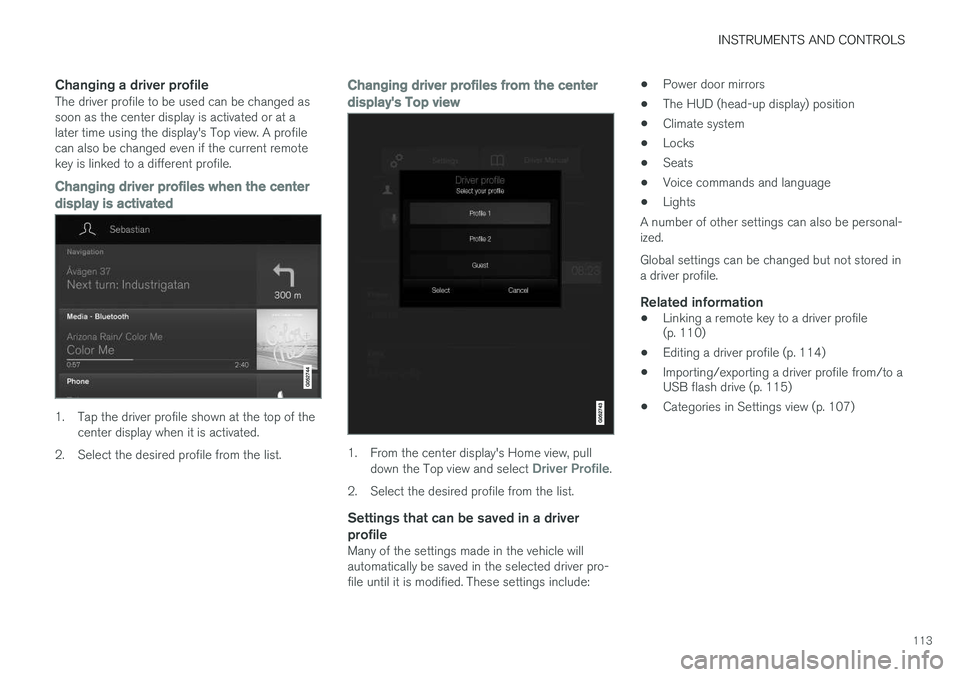
Changing a driver profileThe driver profile to be used can be changed as soon as the center display is activated or at alater time using the display's Top view. A profilecan also be changed even if the current remotekey is linked to a different profile.
Changing driver profiles when the center
display is activated
1. Tap the driver profile shown at the top of the center display when it is activated.
2. Select the desired profile from the list.
Changing driver profiles from the center display's Top view
1. From the center display's Home view, pull down the Top view and select Driver Profile.
2. Select the desired profile from the list.
Settings that can be saved in a driver profile
Many of the settings made in the vehicle will automatically be saved in the selected driver pro-file until it is modified. These settings include: •
Power door mirrors
• The HUD (head-up display) position
• Climate system
• Locks
• Seats
• Voice commands and language
• Lights
A number of other settings can also be personal-ized. Global settings can be changed but not stored in a driver profile.
Related information
• Linking a remote key to a driver profile (p. 110)
• Editing a driver profile (p. 114)
• Importing/exporting a driver profile from/to aUSB flash drive (p. 115)
• Categories in Settings view (p. 107)
Page 119 of 570
INSTRUMENTS AND CONTROLS
* Option/accessory, for more information, see Introduction.117
Automatic time
The function Automatic Time is also available,
which adjusts the time zone automatically, depending on the vehicle's location. If
Automatic
Time has not been selected, set the date and
time manually by tapping the up or down arrows on the center display.
Daylight savings timeIn certain countries, an automatic change to day- light savings time can be selected by activating
Auto. If the automatic change is not available,
change to daylight savings time by selecting Onor Off.
Related information
• Instrument panel (p. 128)
• Center display overview (p. 29)
• Using the center display (p. 46)
Head-up display (HUD)
*
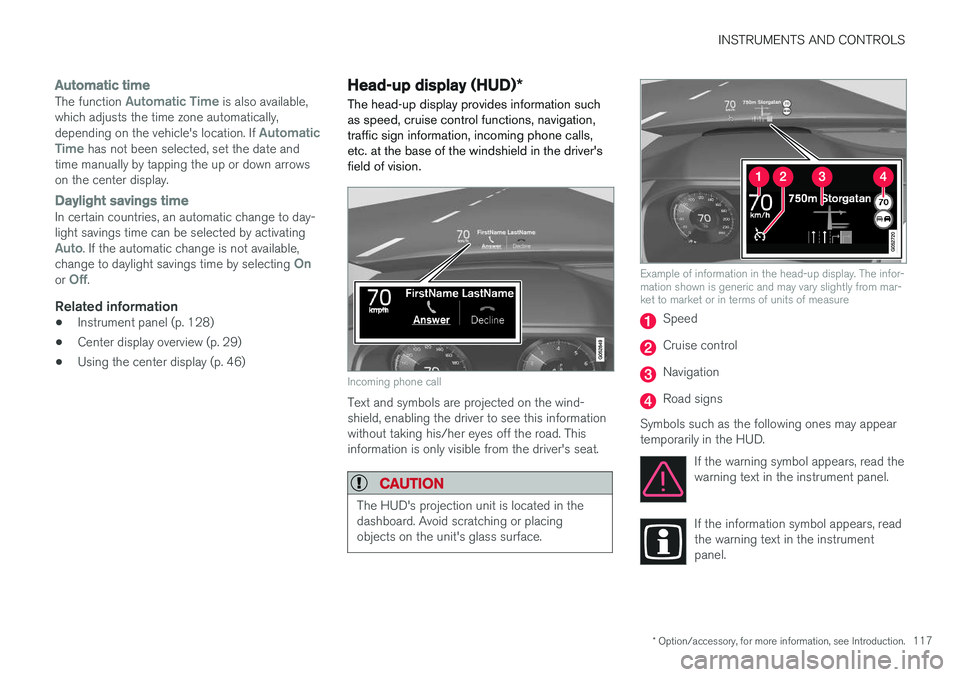
The head-up display provides information such as speed, cruise control functions, navigation,traffic sign information, incoming phone calls,etc. at the base of the windshield in the driver'sfield of vision.
Incoming phone call
Text and symbols are projected on the wind- shield, enabling the driver to see this informationwithout taking his/her eyes off the road. Thisinformation is only visible from the driver's seat.
CAUTION
The HUD's projection unit is located in the dashboard. Avoid scratching or placingobjects on the unit's glass surface.
Example of information in the head-up display. The infor- mation shown is generic and may vary slightly from mar-ket to market or in terms of units of measure
Speed
Cruise control
Navigation
Road signs
Symbols such as the following ones may appear temporarily in the HUD. If the warning symbol appears, read thewarning text in the instrument panel.
If the information symbol appears, read the warning text in the instrumentpanel.
Page 120 of 570
INSTRUMENTS AND CONTROLS
* Option/accessory, for more information, see Introduction.
118
NOTE
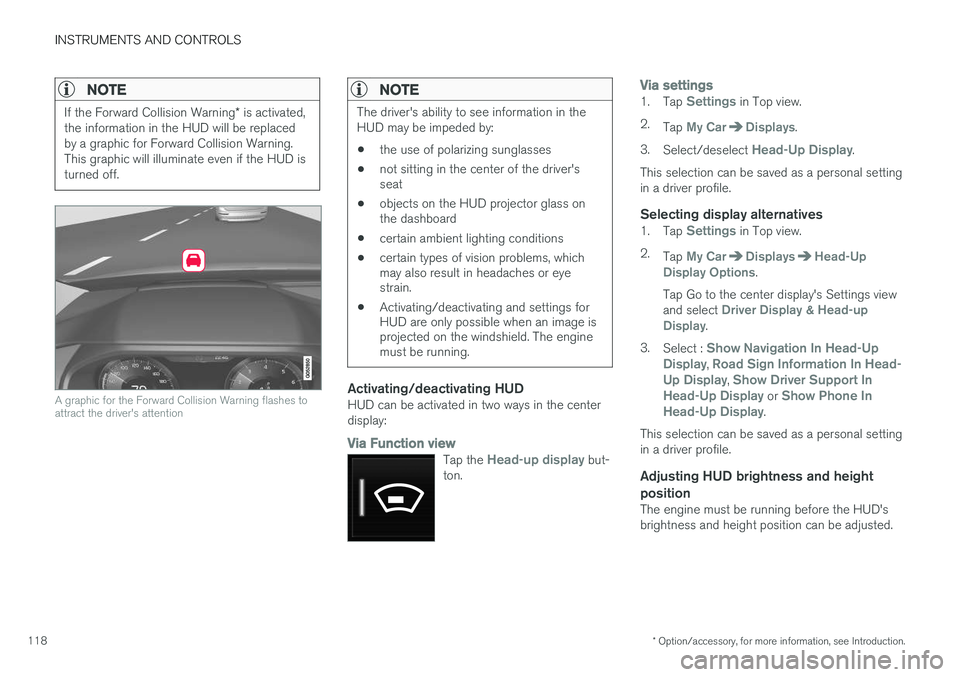
If the Forward Collision Warning * is activated,
the information in the HUD will be replaced by a graphic for Forward Collision Warning.This graphic will illuminate even if the HUD isturned off.
A graphic for the Forward Collision Warning flashes to attract the driver's attention
NOTE
The driver's ability to see information in the HUD may be impeded by: • the use of polarizing sunglasses
• not sitting in the center of the driver's seat
• objects on the HUD projector glass onthe dashboard
• certain ambient lighting conditions
• certain types of vision problems, whichmay also result in headaches or eyestrain.
• Activating/deactivating and settings forHUD are only possible when an image isprojected on the windshield. The enginemust be running.
Activating/deactivating HUDHUD can be activated in two ways in the center display:
Via Function view
Tap the Head-up display but-
ton.
Via settings1. Tap Settings in Top view.
2. Tap
My CarDisplays.
3. Select/deselect
Head-Up Display.
This selection can be saved as a personal setting in a driver profile.
Selecting display alternatives1. Tap Settings in Top view.
2. Tap
My CarDisplaysHead-Up
Display Options.
Tap Go to the center display's Settings view and select
Driver Display & Head-up
Display.
3. Select :
Show Navigation In Head-Up
Display, Road Sign Information In Head-
Up Display, Show Driver Support In
Head-Up Display or Show Phone In
Head-Up Display.
This selection can be saved as a personal setting in a driver profile.
Adjusting HUD brightness and height position
The engine must be running before the HUD'sbrightness and height position can be adjusted.
Page 121 of 570

INSTRUMENTS AND CONTROLS
* Option/accessory, for more information, see Introduction.119
1.
Tap Head-up display adjustments in the
center display's Function view.
2. Use the right-side steering wheel keypad to adjust the HUD's brightness and height posi- tion on the windshield in the driver's field ofvision.
Reduce brightness
Increase brightness
Higher position
Lower position
Confirm
This selection can be saved as a personal setting in a driver profile.
Adapting brightnessThe brightness of the graphics displayed in the HUD are also automatically adjusted according toambient lighting conditions. HUD brightness isalso affected by adjustments to the brightness ofthe other displays in the vehicle.
Power front seat * memory functionThe position of the HUD can be stored in the power seat's memory function.
Replacing the windshieldVehicles with a head-up display have a specialtype of windshield meeting the requirements fordisplaying projected information. If the windshield has to be replaced, contact a trained and qualified Volvo service technician orauthorized workshop. The correct type of replace-ment windshield must be used for a head-up dis-play.
Calibrating the horizontal positionIf the windshield has been replaced, it may benecessary to calibrate the HUD's horizontal posi-tion. This means that the projected image willhave to be rotated clockwise or counterclockwise.To do so: 1. Pull down the center display's Top view and
tap
Settings.
2. Select
My CarDisplaysHead-Up
Display Calibration.
3. Use the buttons on the right-side steering wheel keypad to calibrate the horizontal posi- tion.
Rotate counterclockwise
Rotate clockwise
Confirm
CleaningWipe the glass covering the HUD projection unit carefully with a clean and dry (or very slightlydamp if necessary) microfiber cloth.
Page 140 of 570
INSTRUMENTS AND CONTROLS
* Option/accessory, for more information, see Introduction.
138
Lighting panel and controls
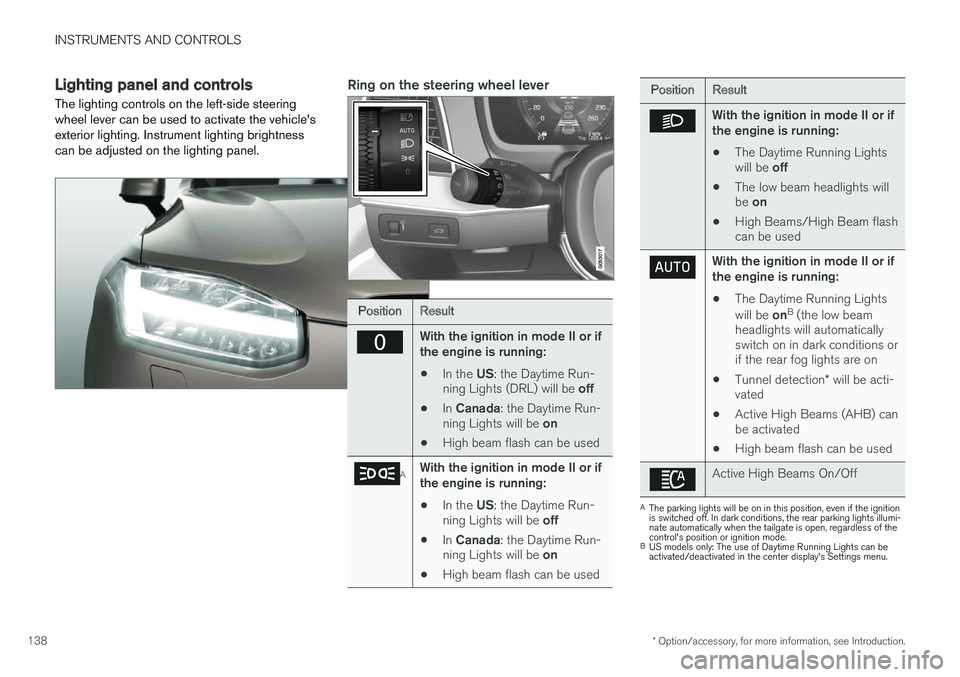
The lighting controls on the left-side steering wheel lever can be used to activate the vehicle'sexterior lighting. Instrument lighting brightnesscan be adjusted on the lighting panel.Ring on the steering wheel lever
PositionResult
With the ignition in mode II or if the engine is running:
• In the
US: the Daytime Run-
ning Lights (DRL) will be off
• In
Canada : the Daytime Run-
ning Lights will be on
• High beam flash can be used
AWith the ignition in mode II or if the engine is running:
• In the
US: the Daytime Run-
ning Lights will be off
• In
Canada : the Daytime Run-
ning Lights will be on
• High beam flash can be used
PositionResult
With the ignition in mode II or if the engine is running:
• The Daytime Running Lights will be
off
• The low beam headlights willbe
on
• High Beams/High Beam flash can be used
With the ignition in mode II or if the engine is running:
• The Daytime Running Lights will be
onB
(the low beam
headlights will automatically switch on in dark conditions orif the rear fog lights are on
• Tunnel detection
* will be acti-
vated
• Active High Beams (AHB) canbe activated
• High beam flash can be used
Active High Beams On/Off
A
The parking lights will be on in this position, even if the ignition is switched off. In dark conditions, the rear parking lights illumi-nate automatically when the tailgate is open, regardless of thecontrol's position or ignition mode.
B US models only: The use of Daytime Running Lights can beactivated/deactivated in the center display's Settings menu.
Page 141 of 570
INSTRUMENTS AND CONTROLS
139
NOTE
The use of Daytime Running Lights is recom- mended in the United States and is manda-
tory in Canada .
Volvo recommends using the position
whenever possible.
WARNING
• Daytime Running Lights are a driving aid designed to help make the vehicle visibleto other roads users.
• The driver is always responsible foradapting the use of Daytime RunningLights/headlights according to ambientlighting and weather conditions.
Lighting panel
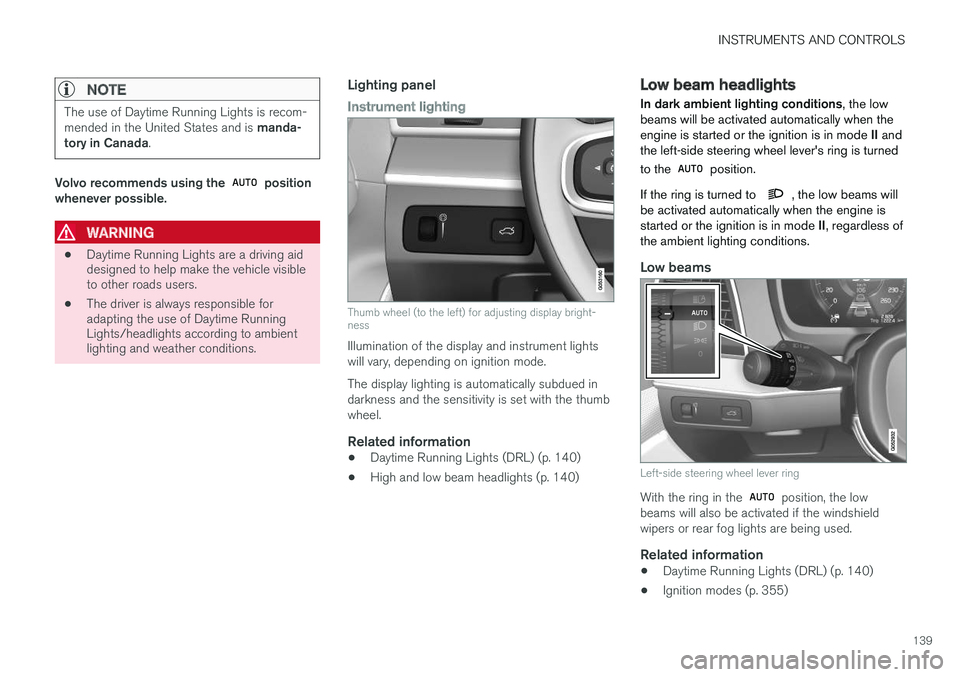
Instrument lighting
Thumb wheel (to the left) for adjusting display bright- ness
Illumination of the display and instrument lights will vary, depending on ignition mode. The display lighting is automatically subdued in darkness and the sensitivity is set with the thumbwheel.
Related information
• Daytime Running Lights (DRL) (p. 140)
• High and low beam headlights (p. 140)
Low beam headlights In dark ambient lighting conditions
, the low
beams will be activated automatically when the engine is started or the ignition is in mode II and
the left-side steering wheel lever's ring is turned to the
position.
If the ring is turned to
, the low beams will
be activated automatically when the engine is started or the ignition is in mode II, regardless of
the ambient lighting conditions.
Low beams
Left-side steering wheel lever ring
With the ring in the position, the low
beams will also be activated if the windshield wipers or rear fog lights are being used.
Related information
• Daytime Running Lights (DRL) (p. 140)
• Ignition modes (p. 355)
Page 142 of 570
INSTRUMENTS AND CONTROLS
140
Daytime Running Lights (DRL)
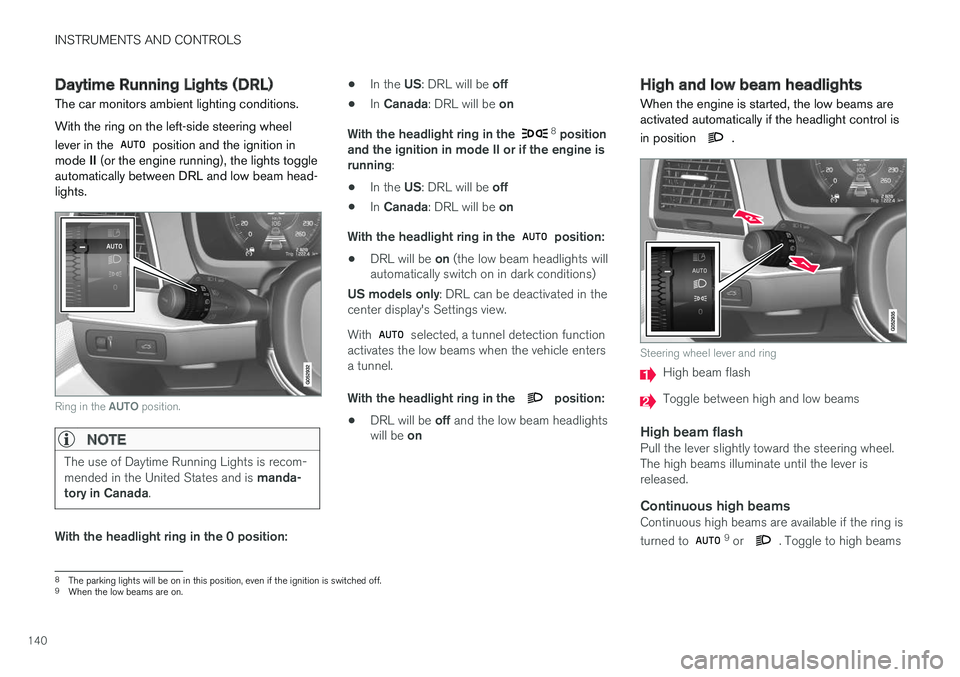
The car monitors ambient lighting conditions. With the ring on the left-side steering wheel lever in the
position and the ignition in
mode II (or the engine running), the lights toggle
automatically between DRL and low beam head- lights.
Ring in the AUTO position.
NOTE
The use of Daytime Running Lights is recom- mended in the United States and is manda-
tory in Canada .
With the headlight ring in the 0 position: •
In the
US: DRL will be off
• In
Canada : DRL will be on
With the headlight ring in the
8
position
and the ignition in mode II or if the engine is running :
• In the
US: DRL will be off
• In
Canada : DRL will be on
With the headlight ring in the
position:
• DRL will be
on (the low beam headlights will
automatically switch on in dark conditions)
US models only : DRL can be deactivated in the
center display's Settings view. With
selected, a tunnel detection function
activates the low beams when the vehicle enters a tunnel. With the headlight ring in the
position:
• DRL will be
off and the low beam headlights
will be on
High and low beam headlights
When the engine is started, the low beams are activated automatically if the headlight control is in position
.
Steering wheel lever and ring
High beam flash
Toggle between high and low beams
High beam flashPull the lever slightly toward the steering wheel. The high beams illuminate until the lever isreleased.
Continuous high beamsContinuous high beams are available if the ring is turned to 9 or . Toggle to high beams
8 The parking lights will be on in this position, even if the ignition is switched off.
9 When the low beams are on.
Page 143 of 570

INSTRUMENTS AND CONTROLS
141
by moving the lever forward. Return to low beams by moving the lever toward the steering wheel. The
symbol will illuminate in the instrument
panel when the high beams are on.
Active high beamsThe active high beam system uses a camera at the upper edge of the windshield to detect theheadlights of oncoming vehicles or the taillightsof a vehicle directly ahead. When this happens,the headlights will automatically switch from highbeams to low beams. When the camera no longer detects the head- lights/taillights of other vehicles, your headlightswill switch back to high beams after several sec-onds.
OperationActivate/deactivate this function by turning the ring on the left-side steering wheel lever to
.
If the ring is not in this position, toggling between high and low beams must be done manually. If the ring is turned to another position while the high beams are on, the headlights will automati-cally switch to low beams. A white symbol (
) in the instrument panel
indicates that the function has been activated. When the high beams are on, the symbol will change to blue.
NOTE
•Keep the windshield in front of the cam- era free of ice, snow, dirt, etc.
• Do not mount or in any way attach any-thing on the windshield that couldobstruct the camera.
If a message is displayed in the instrument panel saying that active high beams are temporarilyunavailable, switching between high and lowbeams will have to be done manually. However, the light switch can remain in the
position.
The same applies if a message saying that the windshield sensors are blocked and the
symbol are displayed. The symbol will go
out if this happens. Automatic high beams may be temporarily unavailable (e.g., in heavy fog or rain). When thesystem becomes active again or if the sensors inthe windshield are no longer obscured, the mes- sages will disappear and the
symbol will
illuminate.
WARNING
• Automatic high beams are a driving aid designed to help provide the best possi-ble headlight illumination in good drivingconditions.
• The driver is always responsible for man-ually toggling between high and lowbeams when this is required by traffic orweather conditions.
CAUTION
In the following situations, it may be neces- sary to switch between high and low beamsmanually:
• In heavy fog or rain
• In blowing snow or slush
• In bright moonlight
• In freezing rain
• In areas with dim street lighting
• When oncoming vehicles have dim front lighting
• If there are pedestrians on or near theroad
• If there are reflective objects, such assigns, near the road
• When oncoming vehicles' lights areobscured by e.g., fences, bushes, etc.