head up display VOLVO XC90 2015 Workshop Manual
[x] Cancel search | Manufacturer: VOLVO, Model Year: 2015, Model line: XC90, Model: VOLVO XC90 2015Pages: 570, PDF Size: 12.44 MB
Page 431 of 570
NAVIGATION*
* Option/accessory, for more information, see Introduction.
429
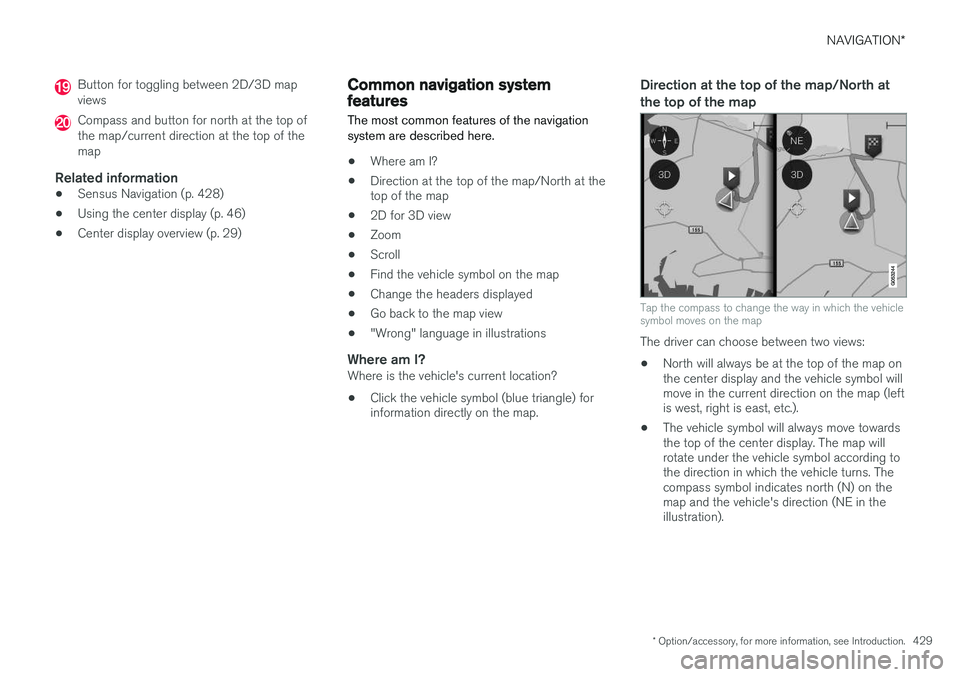
Button for toggling between 2D/3D map views
Compass and button for north at the top of the map/current direction at the top of themap
Related information
•Sensus Navigation (p. 428)
• Using the center display (p. 46)
• Center display overview (p. 29)
Common navigation system features
The most common features of the navigation system are described here.
• Where am I?
• Direction at the top of the map/North at the top of the map
• 2D for 3D view
• Zoom
• Scroll
• Find the vehicle symbol on the map
• Change the headers displayed
• Go back to the map view
• "Wrong" language in illustrations
Where am I?Where is the vehicle's current location?
• Click the vehicle symbol (blue triangle) forinformation directly on the map.
Direction at the top of the map/North at the top of the map
Tap the compass to change the way in which the vehicle symbol moves on the map
The driver can choose between two views: •
North will always be at the top of the map on the center display and the vehicle symbol willmove in the current direction on the map (leftis west, right is east, etc.).
• The vehicle symbol will always move towardsthe top of the center display. The map willrotate under the vehicle symbol according tothe direction in which the vehicle turns. Thecompass symbol indicates north (N) on themap and the vehicle's direction (NE in theillustration).
Page 433 of 570
NAVIGATION*
* Option/accessory, for more information, see Introduction.
431
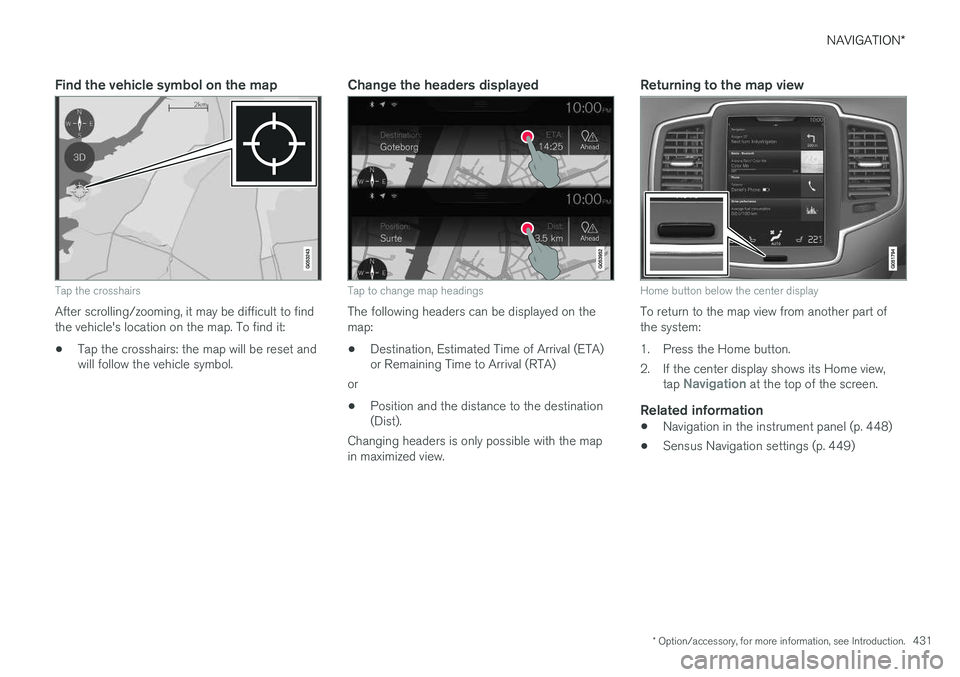
Find the vehicle symbol on the map
Tap the crosshairs
After scrolling/zooming, it may be difficult to find the vehicle's location on the map. To find it:
• Tap the crosshairs: the map will be reset and will follow the vehicle symbol.
Change the headers displayed
Tap to change map headings
The following headers can be displayed on the map:
• Destination, Estimated Time of Arrival (ETA) or Remaining Time to Arrival (RTA)
or
• Position and the distance to the destination(Dist).
Changing headers is only possible with the map in maximized view.
Returning to the map view
Home button below the center display
To return to the map view from another part of the system:
1. Press the Home button.
2. If the center display shows its Home view, tap
Navigation at the top of the screen.
Related information
•Navigation in the instrument panel (p. 448)
• Sensus Navigation settings (p. 449)
Page 435 of 570
NAVIGATION*
* Option/accessory, for more information, see Introduction.
433
StepCenter dis- play/menuAction
5Start navi- gation is
displayed on thescreen.Tap Start navigation.
6A map showingthe route toyour desti-nation isdisplayed.Guidance will begin. Fol- low the directions on theinstrument panel.
Related information
• Using the center display (p. 46)
• Center display overview (p. 29)
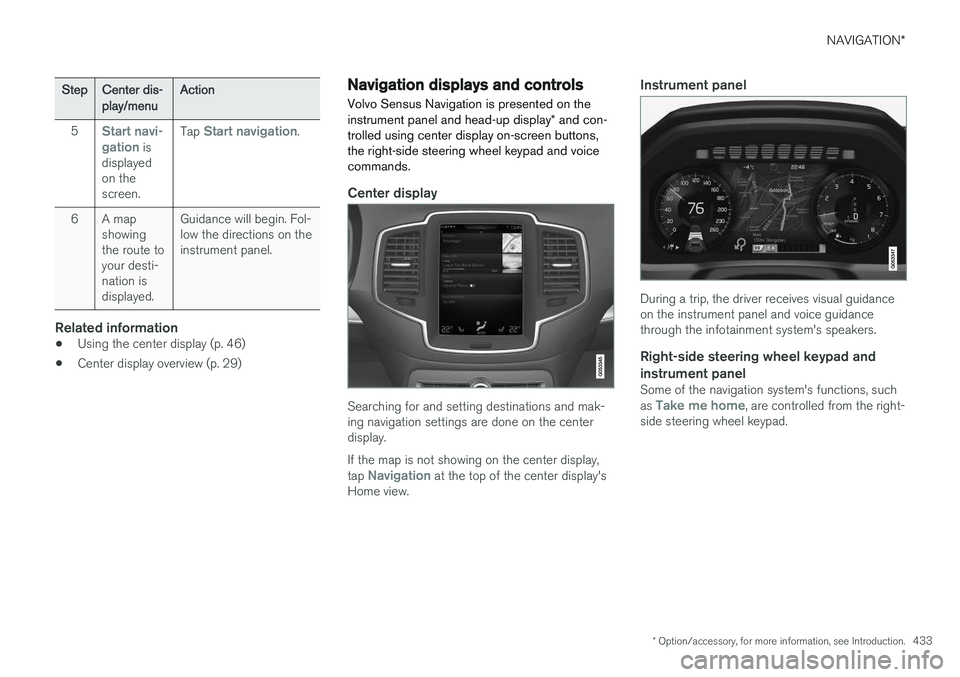
Navigation displays and controls
Volvo Sensus Navigation is presented on the instrument panel and head-up display * and con-
trolled using center display on-screen buttons, the right-side steering wheel keypad and voicecommands.
Center display
Searching for and setting destinations and mak- ing navigation settings are done on the centerdisplay. If the map is not showing on the center display, tap
Navigation at the top of the center display's
Home view.
Instrument panel
During a trip, the driver receives visual guidance on the instrument panel and voice guidancethrough the infotainment system's speakers.
Right-side steering wheel keypad and instrument panel
Some of the navigation system's functions, such as Take me home, are controlled from the right-
side steering wheel keypad.
Page 436 of 570
NAVIGATION*
* Option/accessory, for more information, see Introduction.
434
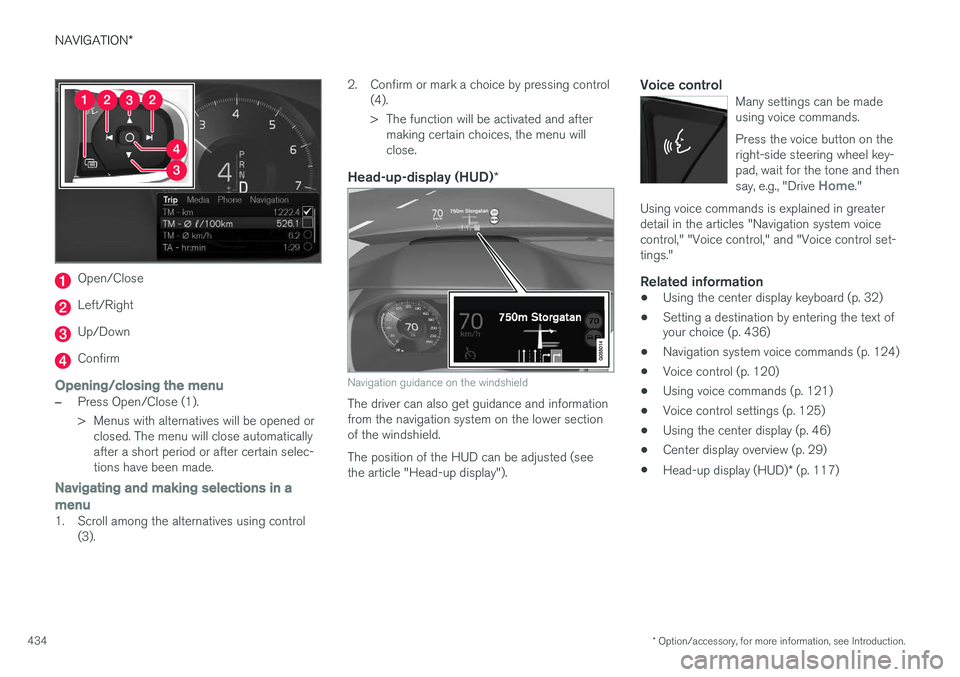
Open/Close
Left/Right
Up/Down
Confirm
Opening/closing the menu
–Press Open/Close (1).
> Menus with alternatives will be opened or
closed. The menu will close automatically after a short period or after certain selec-tions have been made.
Navigating and making selections in a menu
1. Scroll among the alternatives using control (3). 2. Confirm or mark a choice by pressing control
(4).
> The function will be activated and aftermaking certain choices, the menu will close.
Head-up-display (HUD) *
Navigation guidance on the windshield
The driver can also get guidance and information from the navigation system on the lower sectionof the windshield. The position of the HUD can be adjusted (see the article "Head-up display").
Voice controlMany settings can be madeusing voice commands. Press the voice button on the right-side steering wheel key-pad, wait for the tone and then say, e.g., "Drive
Home."
Using voice commands is explained in greater detail in the articles "Navigation system voicecontrol," "Voice control," and "Voice control set-tings."
Related information
•Using the center display keyboard (p. 32)
• Setting a destination by entering the text of your choice (p. 436)
• Navigation system voice commands (p. 124)
• Voice control (p. 120)
• Using voice commands (p. 121)
• Voice control settings (p. 125)
• Using the center display (p. 46)
• Center display overview (p. 29)
• Head-up display (HUD)
* (p. 117)
Page 441 of 570
NAVIGATION*
* Option/accessory, for more information, see Introduction.
439
Favorites
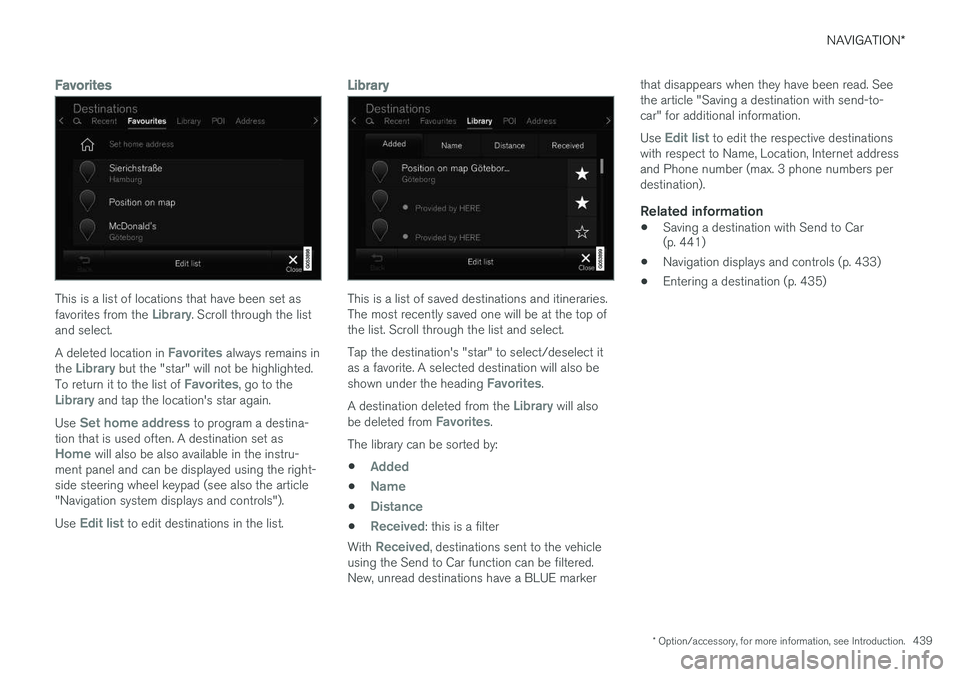
This is a list of locations that have been set as favorites from the Library. Scroll through the list
and select. A deleted location in
Favorites always remains in
the Library but the "star" will not be highlighted.
To return it to the list of Favorites, go to theLibrary and tap the location's star again.
Use
Set home address to program a destina-
tion that is used often. A destination set as
Home will also be also available in the instru-
ment panel and can be displayed using the right- side steering wheel keypad (see also the article"Navigation system displays and controls"). Use
Edit list to edit destinations in the list.
Library
This is a list of saved destinations and itineraries. The most recently saved one will be at the top ofthe list. Scroll through the list and select. Tap the destination's "star" to select/deselect it as a favorite. A selected destination will also be shown under the heading
Favorites.
A destination deleted from the
Library will also
be deleted from Favorites.
The library can be sorted by:
•
Added
•Name
•Distance
•Received: this is a filter
With
Received, destinations sent to the vehicle
using the Send to Car function can be filtered. New, unread destinations have a BLUE marker that disappears when they have been read. Seethe article "Saving a destination with send-to-car" for additional information. Use
Edit list to edit the respective destinations
with respect to Name, Location, Internet address and Phone number (max. 3 phone numbers perdestination).
Related information
• Saving a destination with Send to Car (p. 441)
• Navigation displays and controls (p. 433)
• Entering a destination (p. 435)
Page 447 of 570
NAVIGATION*
* Option/accessory, for more information, see Introduction.
445
POIs along the route
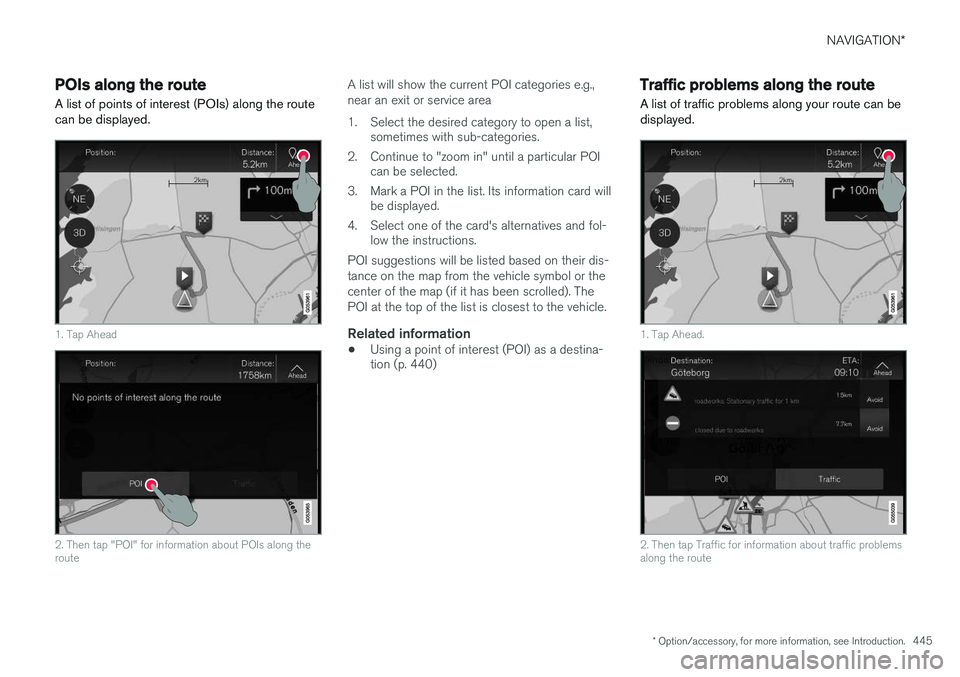
A list of points of interest (POIs) along the route can be displayed.
1. Tap Ahead
2. Then tap "POI" for information about POIs along the route
A list will show the current POI categories e.g., near an exit or service area
1. Select the desired category to open a list, sometimes with sub-categories.
2. Continue to "zoom in" until a particular POI can be selected.
3. Mark a POI in the list. Its information card will be displayed.
4. Select one of the card's alternatives and fol- low the instructions.
POI suggestions will be listed based on their dis- tance on the map from the vehicle symbol or thecenter of the map (if it has been scrolled). ThePOI at the top of the list is closest to the vehicle.
Related information
• Using a point of interest (POI) as a destina- tion (p. 440)
Traffic problems along the route A list of traffic problems along your route can be displayed.
1. Tap Ahead.
2. Then tap Traffic for information about traffic problems along the route
Page 465 of 570
NAVIGATION*
* Option/accessory, for more information, see Introduction.
463
The types of roads that you have chosen to avoid will not be used if there are viable alternatives.
After being transported, the vehicle's location on the map is not correct
If the vehicle has been transported (e.g., on a ferry or train) where GPS signals have beenblocked, it may take up to 5 minutes before itslocation will be shown correctly.
The car symbol moves erratically after
new tires have been installed
In addition to GPS signals, the navigation systemalso uses the speedometer and a gyroscopicsensor to calculate the vehicle's current locationand speed. If e.g., a spare tire or snow tires havebeen installed, the system has to "learn" the newtire dimensions. To do so, drive for a short periodon a road with unobstructed GPS reception.
The map does not correspond to actual road conditions
Due to road changes/additions/rerouting/newtraffic regulations, the map database may not beup-to-date. The database is continuously beingupdated. Consult your Volvo retailer.
The car symbol jumps forward or spinsBefore you begin to drive, the system may needseveral seconds to determine the vehicle's loca-tion. Switch off the navigation system and the ignition.Restart but remain at a standstill for a minute orso before driving.
The map information is not up-to-dateSee the next heading.
How can I check which map version I
have?
1. From the center display's Home view, swipe from right to left to display App view.
2. Select the
Remote update service app.
This contains information about the current map version. See also "Updating map data with Map-Care" for additional information or contact yourVolvo retailer.
Related information
• Getting started with Sensus Navigation (p. 432)
• Map updates with MapCare (p. 456)
Page 491 of 570
MAINTENANCE AND SERVICING
489
Emission inspection readiness
How do states use OBD II for emission
inspections?
Many states connect a computer directly to a vehicle's OBD II system. The inspector can thenread "faults." In some states, this type of inspec-tion has replaced the tailpipe emission test.
How can my vehicle fail OBD II emission
inspection?
Your vehicle can fail OBD II emission inspection for any of the following reasons.
• If your Check Engine (MIL) light is lit, your vehicle may fail inspection.
• If your vehicle's Check Engine light was lit,but went out without any action on your part,OBD II will still have a recorded fault. Yourvehicle may pass or fail, depending on theinspection practices in your area.
• If you had recent service that required dis-connecting the battery, OBD II diagnosticinformation may be incomplete and "notready" for inspection. A vehicle that is notready may fail inspection.
How can I prepare for my next
OBD II
emission inspection?
• If your Check Engine (MIL) light is lit – or was lit but went out without service, have yourvehicle diagnosed and, if necessary, servicedby a qualified Volvo technician.
• If you recently had service for a lit CheckEngine light, or if you had service that required disconnecting the battery, a periodof driving is necessary to bring the OBD IIsystem to "ready" for inspection. Two half-hour trips of mixed stop-and-go/highwaydriving are typically needed to allow OBD II toreach readiness. Your Volvo retailer can pro-vide you with more information on planning atrip.
• Maintain your vehicle in accordance with yourvehicle's maintenance schedule.
Owner maintenancePeriodic maintenance requirements and intervals are described in your vehicle's Warranty andService Records Information booklet. The following points can be carried out between the normally scheduled maintenance services.
Each time the car is refueled:
•Check the engine oil level.
• Clean the windshield, windshield wipers, headlights, and taillights.
Monthly:
•
Check cold tire pressure in all tires. Inspect the tires for wear.
• Check that engine coolant and other fluidlevels are between the indicated "min" and"max" markings.
• Clean interior glass surfaces with a glasscleaner and soft paper towels.
• Wipe driver information displays with a softcloth. •
Visually inspect battery terminals for corro-sion. Corrosion may indicate a loose terminalconnector, or a battery near the end of itsuseful service life. Consult your Volvo retailerfor additional information.
As needed:Wash the car, including the undercarriage, to reduce wear that can be caused by a buildup ofdirt, and corrosion that can be caused by salt res-idues. Clean leaves and twigs from air intake vents at the base of the windshield, and from other placeswhere they may collect.
NOTE
Complete service information for qualified technicians is available online for purchase orsubscription at www.volvotechinfo.com.
Related information
•
Climate system service (p. 495)
Page 508 of 570

MAINTENANCE AND SERVICING
* Option/accessory, for more information, see Introduction.
506
FunctionA
Steering wheel module5
Module for start knob and parking brake5
Heated steering wheel * module15
––
––
––
––
Climate system control module10
––
On-board diagnostics (OBDII)5
Center display5
Climate system blower module (front)40
––
Instrument lighting; Courtesy light- ing; Rearview mirror auto-dim func-tion; Rain and light sensor; Rear tunnel console keypad *; Power
front seats *7.5
FunctionA
Control module for driver support functions5
Panorama roof and sun shade *20
Head-up display*5
Courtesy lighting5
––
Ceiling console display (seat belt reminder, front passenger side air-bag indicator)5
––
Humidity sensor5
Rear passenger-side door module20
Fuses in the cargo compartment10
Internet connection control module; Volvo On Call control module5
Rear driver-side door module20
Infotainment control module (amplifier)40
Climate system blower module (rear)40
FunctionA
Multi-band antenna module5
––
––
Tailgate window wiper15
Fuel pump control module15
––
––
Driver side seat heating *15
Passenger side seat heating *15
Coolant pump10
––
Front driver-side door module20
Active chassis*20
––
Sensus control module10
––
––
Page 561 of 570
559
Head restraints, rear seat 167
Head-up display 117
Heated front seats 191
Heated oxygen sensors 349
Heated steering wheel 189
High beam bulb, replacing 513
High beams 140
active 141
Hill Descent Control 334
Hill Start Assist (HSA) 335
Hoisting the vehicle 516 HomeLink ®
Wireless Control System 94, 95
Home safe lighting 146
Hood, opening/closing 518
Horn, Keypad, Paddles, Signal 157
I
ID, Volvo 27
Ignition modes 355
Immobilizer (start inhibitor) 221
Indicator lights 134
Infant seats 67
Inflatable Curtain 87
Inflation pressure 473
Inflation pressure table 545
Information lights 134
Infotainment 412
Infotainment (Infotainment system) 376
Infotainment system 380, 381, 382 CD player 394
cell phone 387
general sound settings 376
Gracenote 399
introduction 376
media player 393, 395
media player sound settings 398
media search 397
radio 377
searching for radio stations 378
sound settings 376, 398
type approval 408
video 399
voice control 120
Inspection readiness 488
Instrument lighting 139
Instrument overview 98
Intellisafe 16
Interior Air Quality System 178
Interior lighting 146Internet connection 401 applications (apps) 403
bluetooth settings 404
booking service 491
establishing a connection 402
troubleshooting 405
ISOFIX/LATCH anchors 72 Itinerary Guidance points 444
J
Jack 476
location of 476, 478
Jump starting 345, 350
K
Key remote 110, 224
Key blade 227, 237
Keys 226