head up display VOLVO XC90 2015 Owner's Guide
[x] Cancel search | Manufacturer: VOLVO, Model Year: 2015, Model line: XC90, Model: VOLVO XC90 2015Pages: 570, PDF Size: 12.44 MB
Page 168 of 570
INSTRUMENTS AND CONTROLS
* Option/accessory, for more information, see Introduction.
166 2.
Select
Lumbar in the seat settings view.
• Tap the button up/down to move lumbar support up/down.
• Tap the front button to make lumbar sup-port firmer.
• Tap the rear button to make lumbar sup-port softer.
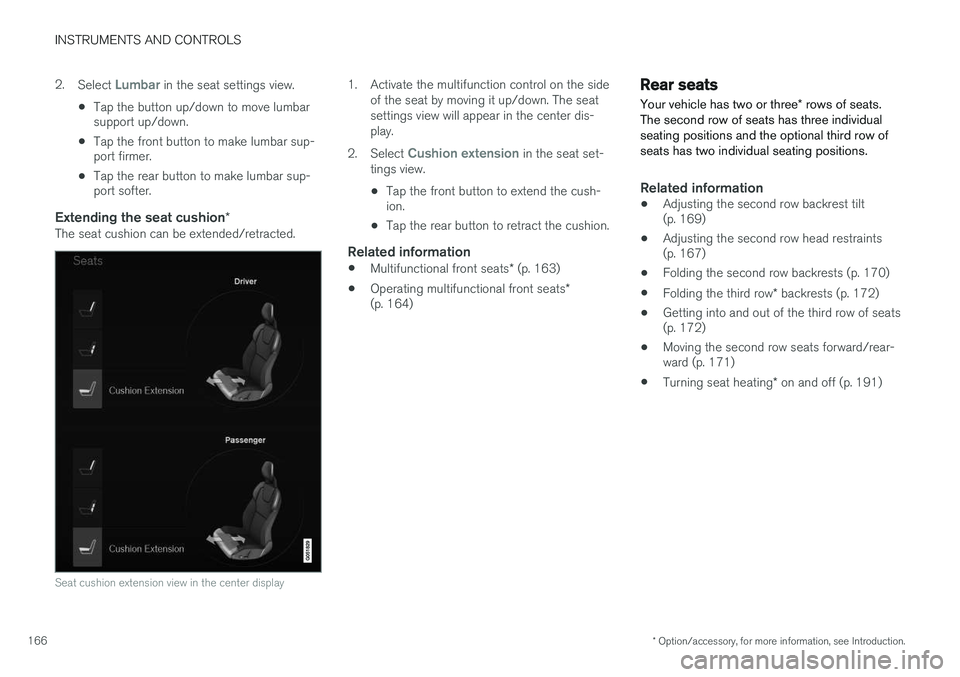
Extending the seat cushion
*The seat cushion can be extended/retracted.
Seat cushion extension view in the center display
1. Activate the multifunction control on the side
of the seat by moving it up/down. The seat settings view will appear in the center dis-play.
2. Select
Cushion extension in the seat set-
tings view.
• Tap the front button to extend the cush- ion.
• Tap the rear button to retract the cushion.
Related information
•
Multifunctional front seats
* (p. 163)
• Operating multifunctional front seats
*
(p. 164)
Rear seats
Your vehicle has two or three * rows of seats.
The second row of seats has three individual seating positions and the optional third row ofseats has two individual seating positions.
Related information
• Adjusting the second row backrest tilt (p. 169)
• Adjusting the second row head restraints(p. 167)
• Folding the second row backrests (p. 170)
• Folding the third row
* backrests (p. 172)
• Getting into and out of the third row of seats(p. 172)
• Moving the second row seats forward/rear-ward (p. 171)
• Turning seat heating
* on and off (p. 191)
Page 169 of 570
INSTRUMENTS AND CONTROLS
* Option/accessory, for more information, see Introduction.167
Easy access to and from the driver seat
The
Easy Ingress & Egress function can be
used to make getting into and out of the driver's seat easier.
Easy egressTo make getting out of the driver's seat easier, the seat is lowered, the side bolsters deflate andthe seat cushion retracts at the same time. The easy egress function must be activated in the center display. 1. Move the gear selector to the P position.
2. Switch off the engine.
3. Unbuckle the seat belt.
4. Open the driver's door. > The seat, side bolsters and seat cushionall move at the same time to a position that makes it easier to leave the seat.
Easy ingressThe seat remains in the easy egress positionwhen the driver leaves the vehicle. When thedriver returns to the vehicle, the seat is in a posi-tion to make sitting down easier. When the driveris seated, has buckled the seat belt and has put the ignition in at least mode 1, the seat will return
to the driver's preferred position.
Activating/deactivating the function1. In the center display, select SettingsMy
Car
Seats.
2. Activate/deactivate the function by select- ing/deselecting the
Easy Ingress & Egressbox.
Related information
• Power front seats
* (p. 161)
• Ignition modes (p. 355)
Adjusting the second row head restraints
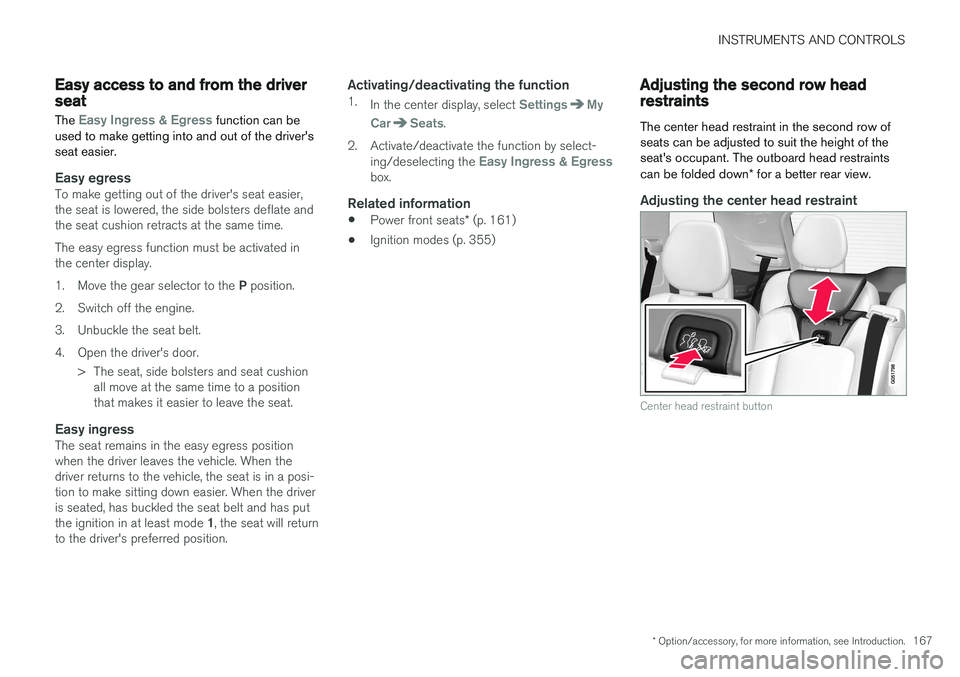
The center head restraint in the second row of seats can be adjusted to suit the height of theseat's occupant. The outboard head restraints can be folded down * for a better rear view.
Adjusting the center head restraint
Center head restraint button
Page 247 of 570

DRIVER SUPPORT
245
Radar sensor limitations
The radar sensor used by several of the driver support systems has certain limitations, whichalso affect the systems using it.
Obstructions
The marked area must not be obstructed in any way. This area of the windshield should always be kept clean
The radar sensor is located at the upper, center section of the windshield along with the camera.
WARNING
Never place any objects, decals, etc., on the windshield in front of the camera/radar unit.This could reduce or block these components'functions, and could cause one or more of thesystems that utilize the them to stop function-ing.
If this symbol and
Windscreen
sensor Sensor blocked, see
Owner's manual appear in the instru-
ment panel, this indicates that the
camera and/or radar sensor cannot detect other vehicles ahead.
The following table shows some of the situations that can cause the message to be displayed andsuggested actions.
CauseAction
The area of the windshield in front of the camera/radar sensor is dirty or covered by ice or snow.Clean the windshield or remove the ice/ snow.
Thick fog or heavy rain/snow blocks reduces the camera/radar sensor's range of visibility.No action. The driver should be extra alert in conditions of this type.
Page 256 of 570

DRIVER SUPPORT
* Option/accessory, for more information, see Introduction.
254
Head-up-display *
A flashing light alerts the driver
A flashing icon will appear in the head-up dis- play* to alert the driver of a collision risk.
WARNING
Adaptive Cruise Control only warns of vehicles detected by the radar sensor. In some casesthere may be no warning or the warning maybe delayed. The driver should always apply thebrakes when necessary.
Related information
• Adaptive Cruise Control (ACC) - fault tracing (p. 271)
• Starting and activating Adaptive CruiseControl (ACC) (p. 254)
• Adaptive cruise control passing assistance(p. 270) •
Setting an Adaptive Cruise Control timeinterval (p. 258)
• Changing Adaptive Cruise Control (ACC)speed (p. 257)
• Deactivating/resuming Adaptive CruiseControl (ACC) (p. 255)
• Adaptive Cruise Control (ACC) symbols andmessages (p. 272)
Starting and activating Adaptive Cruise Control (ACC)
ACC must first be put in active mode before it can be started in order to regulate speed or aset time interval to the vehicle ahead.
Starting ACC (putting it in standby mode)
Function buttons and symbols
–Press ◀ (2) or ▶ (3) to scroll to the ACC
(
) function. The symbol (4) will be dis-
played in the instrument panel.
> The symbol indicates that ACC has been
started and is in standby mode . In
standby mode, the vehicle will not main-
tain a set speed or a time interval to the vehicle ahead.
Activating ACC (putting it in active mode and setting a speed)
Before ACC can be put in active mode:
Page 257 of 570
DRIVER SUPPORT
* Option/accessory, for more information, see Introduction.255
•
The driver's seat belt must be buckled and the driver's door must be closed.
• There must be a vehicle ahead (a target vehi-cle) or your vehicle's current speed must beat least 10 mph (15 km/h).
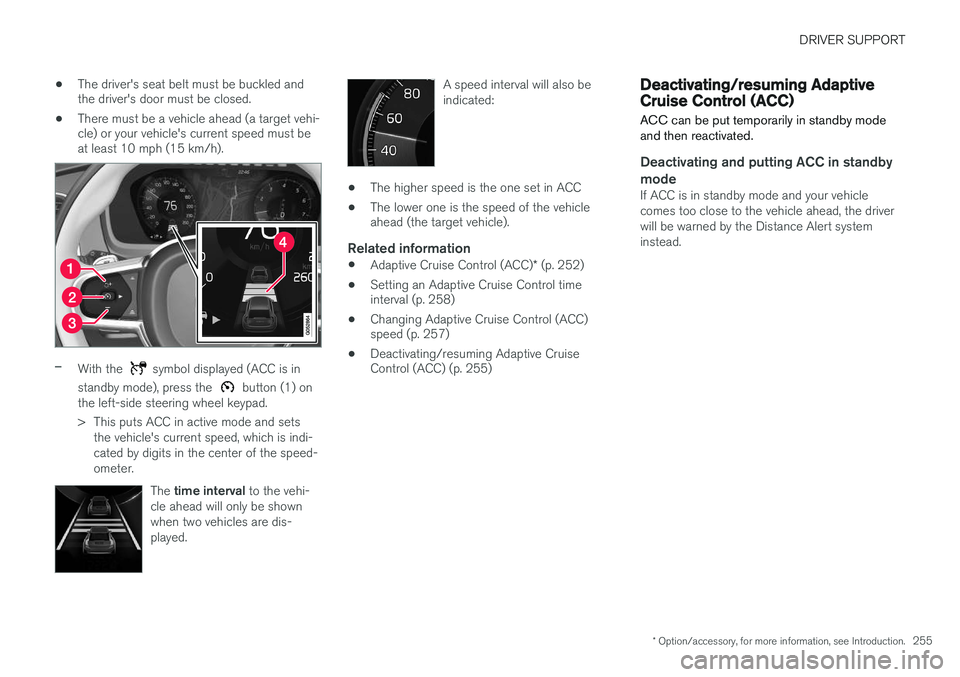
–With the symbol displayed (ACC is in
standby mode), press the
button (1) on
the left-side steering wheel keypad.
> This puts ACC in active mode and sets the vehicle's current speed, which is indi- cated by digits in the center of the speed-ometer.
The time interval to the vehi-
cle ahead will only be shownwhen two vehicles are dis-played.
A speed interval will also be indicated:
• The higher speed is the one set in ACC
• The lower one is the speed of the vehicle ahead (the target vehicle).
Related information
•
Adaptive Cruise Control (ACC)
* (p. 252)
• Setting an Adaptive Cruise Control timeinterval (p. 258)
• Changing Adaptive Cruise Control (ACC)speed (p. 257)
• Deactivating/resuming Adaptive CruiseControl (ACC) (p. 255)
Deactivating/resuming Adaptive Cruise Control (ACC)
ACC can be put temporarily in standby mode and then reactivated.
Deactivating and putting ACC in standby mode
If ACC is in standby mode and your vehicle comes too close to the vehicle ahead, the driverwill be warned by the Distance Alert systeminstead.
Page 260 of 570
DRIVER SUPPORT
* Option/accessory, for more information, see Introduction.
258
Related information
• Adaptive Cruise Control (ACC)
* (p. 252)
• Starting and activating Pilot Assist (p. 262)
• Setting an Adaptive Cruise Control time interval (p. 258)
Setting an Adaptive Cruise Control time interval
ACC makes it possible to set various time inter- vals to the vehicle ahead.
Different time intervals to the vehicle ahead can be selectedand are shown in the instru-ment panel as 1–5 horizontalbars. The greater the number ofbars, the longer the time inter-val. One bar between the vehi-
cles represents a time interval of approximately1 second; 5 bars is approximately 3 seconds. The same symbol appears if Distance Alert is activated.
• If the symbol shows two vehicle's, ACC is actively following the vehicle ahead.
• If only one vehicle is displayed, ACC is
not
actively following another vehicle.
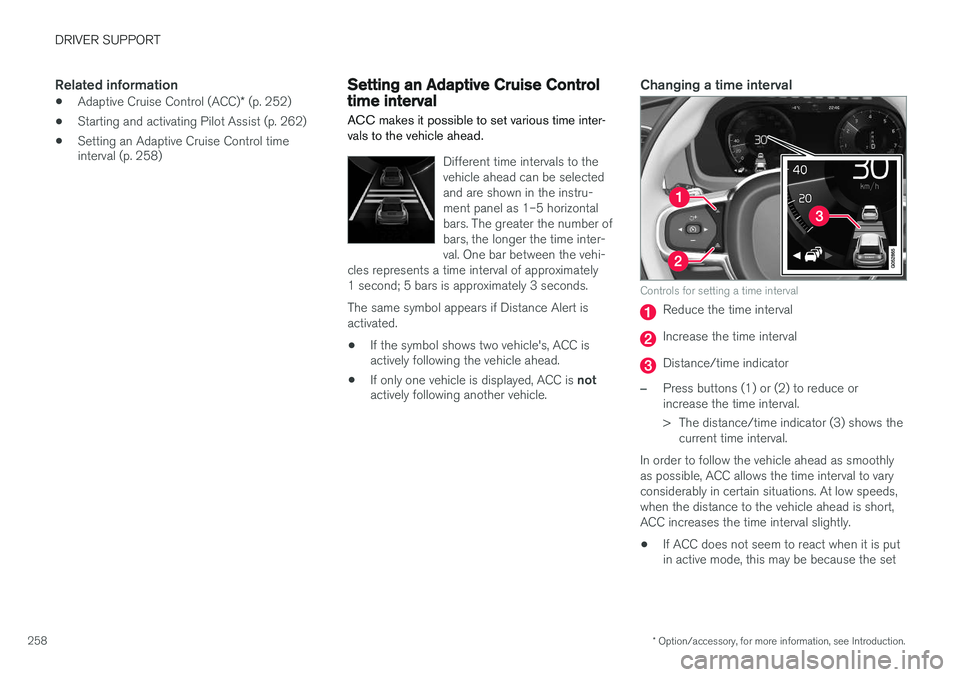
Changing a time interval
Controls for setting a time interval
Reduce the time interval
Increase the time interval
Distance/time indicator
–Press buttons (1) or (2) to reduce or increase the time interval.
> The distance/time indicator (3) shows the
current time interval.
In order to follow the vehicle ahead as smoothly as possible, ACC allows the time interval to varyconsiderably in certain situations. At low speeds,when the distance to the vehicle ahead is short,ACC increases the time interval slightly. • If ACC does not seem to react when it is put in active mode, this may be because the set
Page 263 of 570
DRIVER SUPPORT
* Option/accessory, for more information, see Introduction.261
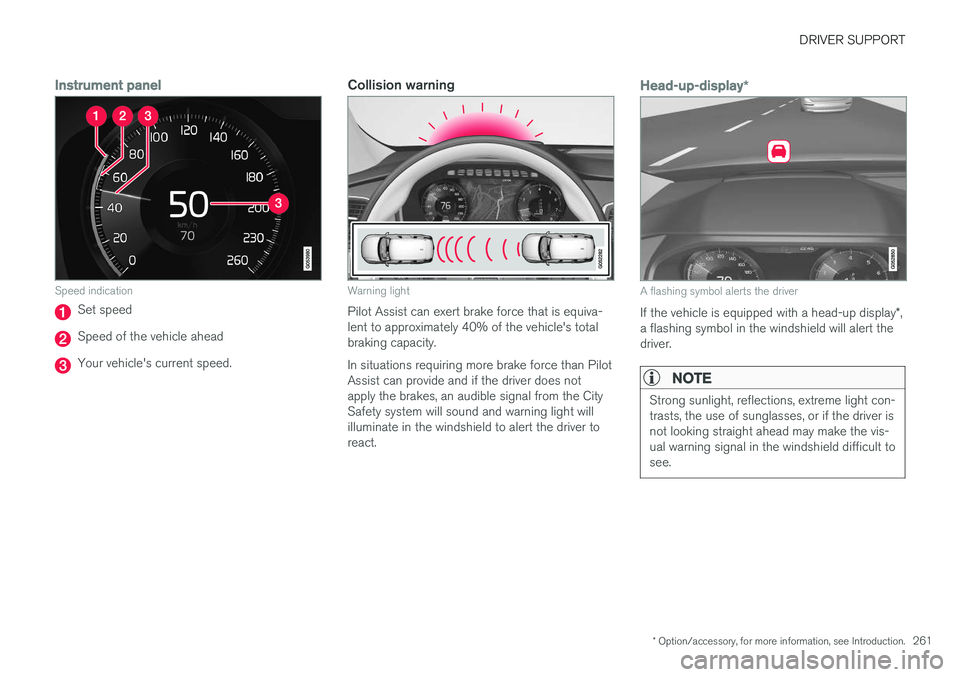
Instrument panel
Speed indication
Set speed
Speed of the vehicle ahead
Your vehicle's current speed.
Collision warning
Warning light
Pilot Assist can exert brake force that is equiva- lent to approximately 40% of the vehicle's totalbraking capacity. In situations requiring more brake force than Pilot Assist can provide and if the driver does notapply the brakes, an audible signal from the CitySafety system will sound and warning light willilluminate in the windshield to alert the driver toreact.
Head-up-display*
A flashing symbol alerts the driver
If the vehicle is equipped with a head-up display *,
a flashing symbol in the windshield will alert the driver.
NOTE
Strong sunlight, reflections, extreme light con- trasts, the use of sunglasses, or if the driver isnot looking straight ahead may make the vis-ual warning signal in the windshield difficult tosee.
Page 264 of 570
DRIVER SUPPORT
* Option/accessory, for more information, see Introduction.
262
WARNING
Pilot Assist only provides warnings for vehi- cles that its radar sensor and camera havedetected. For this reason, a warning may begiven later than expected or not at all. Thedriver should never wait for a warning beforeapplying the brakes.
Related information
• Pilot Assist limitations (p. 266)
• Pilot Assistauto-hold brake function (p. 266)
• Distance Alert
* (p. 314)
• Other Adaptive Cruise Control (ACC) func- tions (p. 268)
• Setting an Adaptive Cruise Control timeinterval (p. 258)
Starting and activating Pilot Assist
The Pilot Assist feature helps keep the vehicle in its current traffic lane, at a set speed and a settime interval to the vehicle ahead.
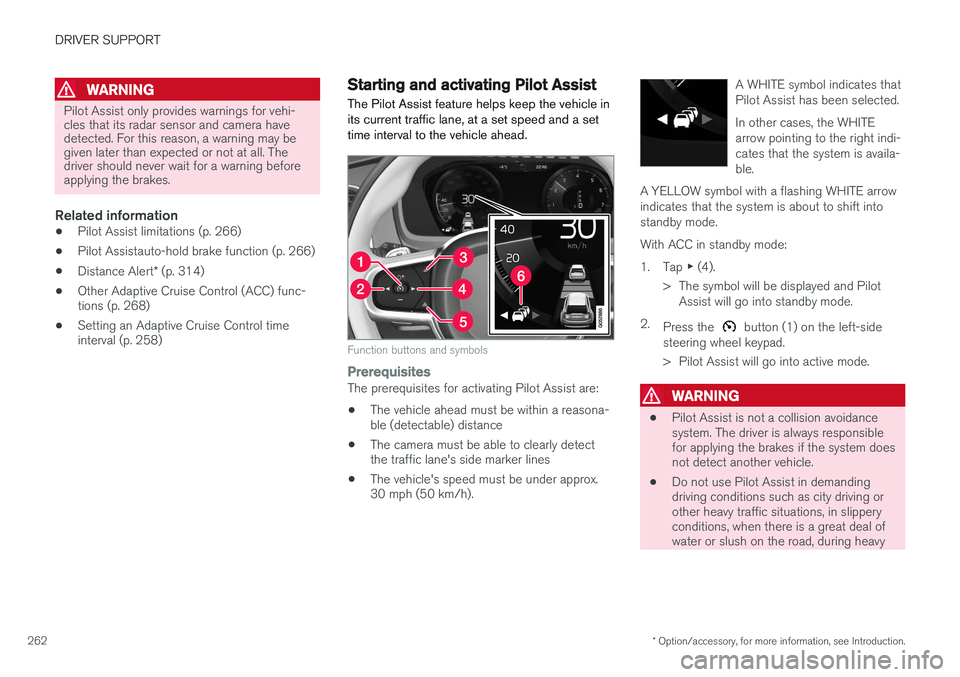
Function buttons and symbols
PrerequisitesThe prerequisites for activating Pilot Assist are:
• The vehicle ahead must be within a reasona- ble (detectable) distance
• The camera must be able to clearly detectthe traffic lane's side marker lines
• The vehicle's speed must be under approx.30 mph (50 km/h). A WHITE symbol indicates that Pilot Assist has been selected. In other cases, the WHITE arrow pointing to the right indi-cates that the system is availa-ble.
A YELLOW symbol with a flashing WHITE arrowindicates that the system is about to shift intostandby mode.
With ACC in standby mode: 1. Tap ▶ (4).
> The symbol will be displayed and Pilot Assist will go into standby mode.
2. Press the
button (1) on the left-side
steering wheel keypad.
> Pilot Assist will go into active mode.
WARNING
• Pilot Assist is not a collision avoidance system. The driver is always responsiblefor applying the brakes if the system doesnot detect another vehicle.
• Do not use Pilot Assist in demandingdriving conditions such as city driving orother heavy traffic situations, in slipperyconditions, when there is a great deal ofwater or slush on the road, during heavy
Page 273 of 570

DRIVER SUPPORT
* Option/accessory, for more information, see Introduction.271
Adaptive Cruise Control (ACC) - fault tracing
ACC is an optional system designed to assist the driver by maintaining a set speed or a settime interval to the vehicle ahead.
If this symbol is displayed in the instru- ment panel and the message
Windscreen sensor Sensor
blocked, see Owner's manual
appears, the ACC radar sensor is blocked and cannot detect vehicles ahead.
This message also indicates that the following systems may have reduced functionality:
• Distance Alert
• City Safety
• Driver Alert Control
• Pilot Assist
• Lane Departure Warning (LDW)
• Lane Keeping Aid (LKA)
• Traffic Sign Information (TSI) The following table lists possible causes for thismessage being displayed and suitable actions:
CauseAction
The windshield in front of the radar is dirty or covered with snow/ice.Clean/clear the windshield in front of the radar.
Heavy rain or snow is interfering with the radar signals.No action possible. Heavy precipitation may affect the function of the radar.
Swirling water or snow from the surface of the road may interfere with the radar signals.No action possible. A very wet or snow-covered road surface may affect the function of the radar.
The windshield in front of the radar is clean but the message remains in the display.Wait a short time. It may take several minutes for the radar to detect that it is no longer obstructed.
A text message can be erased by briefly pressing the
O button on the right-side steering wheel
keypad. If the message recurs, contact a trained and authorized Volvo service technician orretailer.
Related information
• Adaptive Cruise Control (ACC)
* (p. 252)
Page 276 of 570
DRIVER SUPPORT
274When triggered, City Safety carries out three steps in the following order: 1.
Collision warning
2. Brake assistance
3. Auto-brake
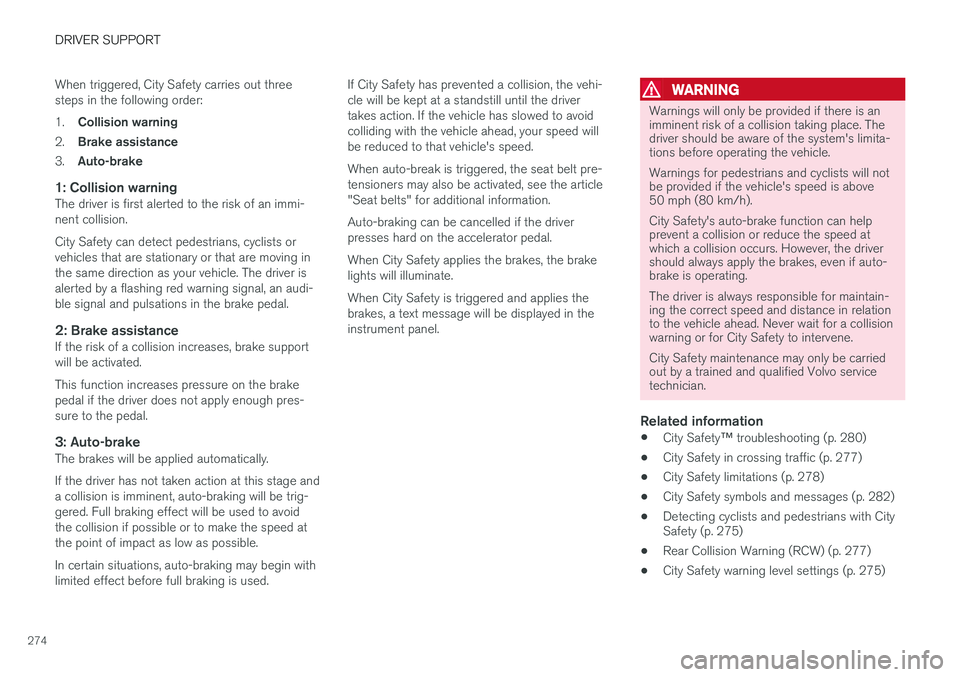
1: Collision warningThe driver is first alerted to the risk of an immi- nent collision. City Safety can detect pedestrians, cyclists or vehicles that are stationary or that are moving inthe same direction as your vehicle. The driver isalerted by a flashing red warning signal, an audi-ble signal and pulsations in the brake pedal.
2: Brake assistanceIf the risk of a collision increases, brake supportwill be activated. This function increases pressure on the brake pedal if the driver does not apply enough pres-sure to the pedal.
3: Auto-brakeThe brakes will be applied automatically. If the driver has not taken action at this stage and a collision is imminent, auto-braking will be trig-gered. Full braking effect will be used to avoidthe collision if possible or to make the speed atthe point of impact as low as possible. In certain situations, auto-braking may begin with limited effect before full braking is used. If City Safety has prevented a collision, the vehi-cle will be kept at a standstill until the drivertakes action. If the vehicle has slowed to avoidcolliding with the vehicle ahead, your speed willbe reduced to that vehicle's speed. When auto-break is triggered, the seat belt pre- tensioners may also be activated, see the article"Seat belts" for additional information. Auto-braking can be cancelled if the driver presses hard on the accelerator pedal. When City Safety applies the brakes, the brake lights will illuminate. When City Safety is triggered and applies the brakes, a text message will be displayed in theinstrument panel.
WARNING
Warnings will only be provided if there is an imminent risk of a collision taking place. Thedriver should be aware of the system's limita-tions before operating the vehicle. Warnings for pedestrians and cyclists will not be provided if the vehicle's speed is above50 mph (80 km/h). City Safety's auto-brake function can help prevent a collision or reduce the speed atwhich a collision occurs. However, the drivershould always apply the brakes, even if auto-brake is operating. The driver is always responsible for maintain- ing the correct speed and distance in relationto the vehicle ahead. Never wait for a collisionwarning or for City Safety to intervene. City Safety maintenance may only be carried out by a trained and qualified Volvo servicetechnician.
Related information
•
City Safety
™ troubleshooting (p. 280)
• City Safety in crossing traffic (p. 277)
• City Safety limitations (p. 278)
• City Safety symbols and messages (p. 282)
• Detecting cyclists and pedestrians with City Safety (p. 275)
• Rear Collision Warning (RCW) (p. 277)
• City Safety warning level settings (p. 275)