phone VOLVO XC90 2015 User Guide
[x] Cancel search | Manufacturer: VOLVO, Model Year: 2015, Model line: XC90, Model: VOLVO XC90 2015Pages: 570, PDF Size: 12.44 MB
Page 41 of 570
INTRODUCTION
39
Navigating in the center display's views
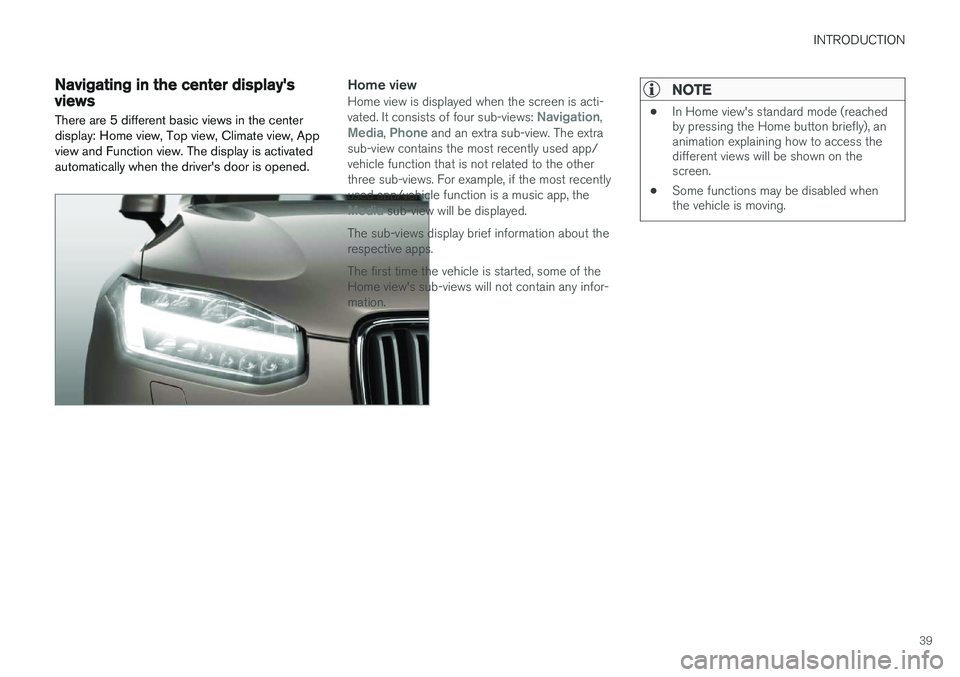
There are 5 different basic views in the center display: Home view, Top view, Climate view, Appview and Function view. The display is activatedautomatically when the driver's door is opened.Home viewHome view is displayed when the screen is acti- vated. It consists of four sub-views: Navigation,Media, Phone and an extra sub-view. The extra
sub-view contains the most recently used app/ vehicle function that is not related to the otherthree sub-views. For example, if the most recentlyused app/vehicle function is a music app, the
Media sub-view will be displayed.
The sub-views display brief information about the respective apps. The first time the vehicle is started, some of the Home view's sub-views will not contain any infor-mation.
NOTE
• In Home view's standard mode (reached by pressing the Home button briefly), ananimation explaining how to access thedifferent views will be shown on thescreen.
• Some functions may be disabled whenthe vehicle is moving.
Page 44 of 570
INTRODUCTION
42ignition is being started/switched off or when a message is displayed on the screen.
Going to Top view from an appTo pull down Top view when an app is running (e.g., FM radio):
• Tap
FM Radio Settings to display these
settings.
• Tap
Owner's manual to open an article
related to the specific app.
This applies only to your vehicle's factory- installed apps . This is not possible for third-
party apps that have been downloaded.
Climate viewThe climate bar, where the most common climatesystem settings can be made, is located at thebottom of the screen and is always visible.
Tap the symbol at the center of the cli-mate bar to open Climate view foraccess to additional climate systemsettings.
Tap the symbol to close Climate view and return to a previous view.
App view
App view
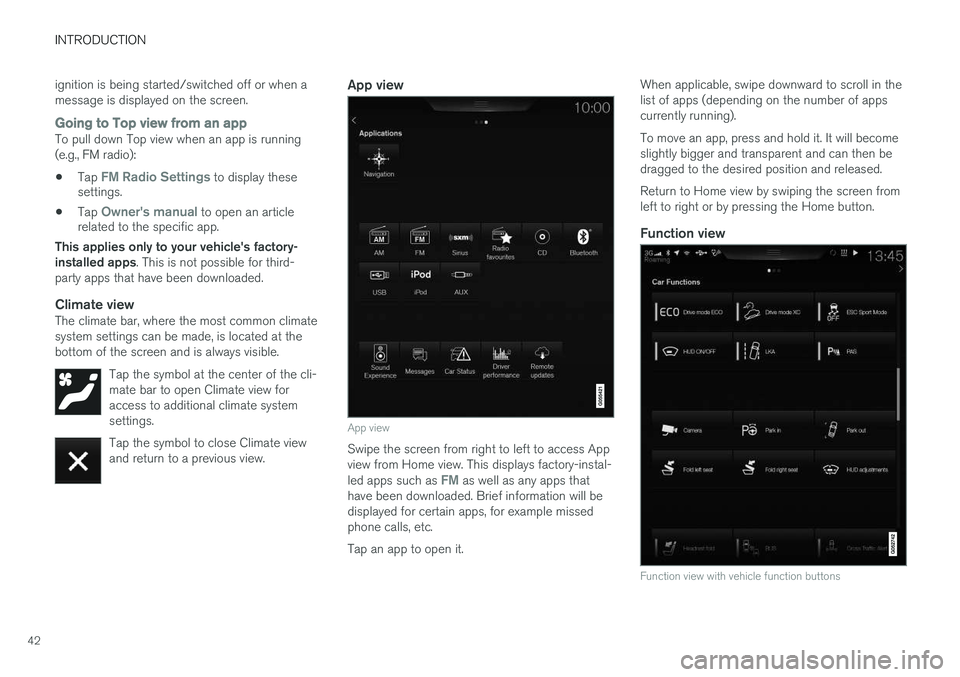
Swipe the screen from right to left to access App view from Home view. This displays factory-instal- led apps such as
FM as well as any apps that
have been downloaded. Brief information will be displayed for certain apps, for example missedphone calls, etc. Tap an app to open it. When applicable, swipe downward to scroll in the list of apps (depending on the number of appscurrently running). To move an app, press and hold it. It will become slightly bigger and transparent and can then bedragged to the desired position and released. Return to Home view by swiping the screen from left to right or by pressing the Home button.
Function view
Function view with vehicle function buttons
Page 46 of 570
INTRODUCTION
44
Symbols in the center display status bar
The following table provides an overview of the symbols used in the center display's status bar.
The status bar shows current vehicle activities and in certain cases, also their status. Due to lim-ited space in the status bar, not all symbols willbe displayed at all times.
SymbolMeaning
Roaming activated.
Cell phone network signal strength.
Bluetooth device connected.
Bluetooth activated but no device connected.
Connected to a Wi-Fi network.
Tethering activated. (Wi-Fi hotspot).
Vehicle modem activated.
Connected to the Internet via USB.
Type of cell phone connection (2G, 3G, etc.).
SymbolMeaning
Remote diagnostics active.
Action in progress.
Preconditioning A
in progress.
Audio source being played.
Audio source paused.
Phone call in progress.
Audio source muted.
News broadcasts from current radio station B
.
Traffic information being received B
.
Clock.
A Hybrid models only.
B Not available in all markets.
Related information
• Navigating in the center display's views (p. 39)
• Indicator symbols in the instrument panel(p. 126) •
Warning symbols in the instrument panel(p. 134)
• Messages in the instrument panel and centerdisplay (p. 149)
Page 47 of 570
INTRODUCTION
45
Changing settings in different types of appsApp view, which is one of the center display's basic views, contains all of the vehicle's apps(applications/programs). Access this view byswiping the screen from right to left.
Basic appsA number of apps are standard and are part of Volvo Sensus, such as FM Radio, USB and CD.
To change settings in a basic app: 1. Open the app, for example
Phone, either on
the home screen or full-screen from App view.
2. Pull down Top view. 3. Tap
Phone settings.
4. Change the desired settings and confirm.
5. Press the Home button, tap the screen out- side of Top view or pull Top view up.
Third-party appsThird party apps have to be selected and down- loaded. In these apps, setting are made fromwithin the app, not from Top view.
Page 52 of 570
INTRODUCTION
50
Using the owner's manualReading your owner's manual is a good way of familiarizing yourself with the features and sys-tems in your vehicle.
On-board owner's manualReading the owner's manual is a good way to become familiar with your vehicle and to learn toutilize the features and functions that it offers.Pay particular attention to the warnings provided. Volvo reserves the right to make model changes at any time, or to change specifications or designwithout notice and without incurring obligation. © Volvo Car Corporation
IllustrationsSome of the illustrations used in your owner's information may be generic and will give a gen-eral view of a certain feature or function. Forexample, some illustrations describing climatesystem functions may display a temperature indegrees Celsius but the same information appliesto Fahrenheit.
Options and accessoriesOptional or accessory equipment described inthis manual is indicated by an asterisk. Optional or accessory equipment may not be available in all countries or markets. Please note that some vehicles may be equipped differently,depending on special legal requirements. Contact your Volvo retailer for additional informa- tion.
FootnotesThis owner's information contains supplementary information indicated by an information symbol:
5
.
Tap the symbol to open a window showing the information.
MessagesThere are several displays in the vehicle thatshow messages generated by various systemsand functions in the vehicle. The appearance ofthese texts differs slightly from normal texts (for example:
Phone, Accept).
DecalsThere are various types of decals in the vehicle whose purpose is to provide important informa-tion in a clear and concise way. The importanceof these decals is explained as follows, indescending order of importance.
Risk of injury
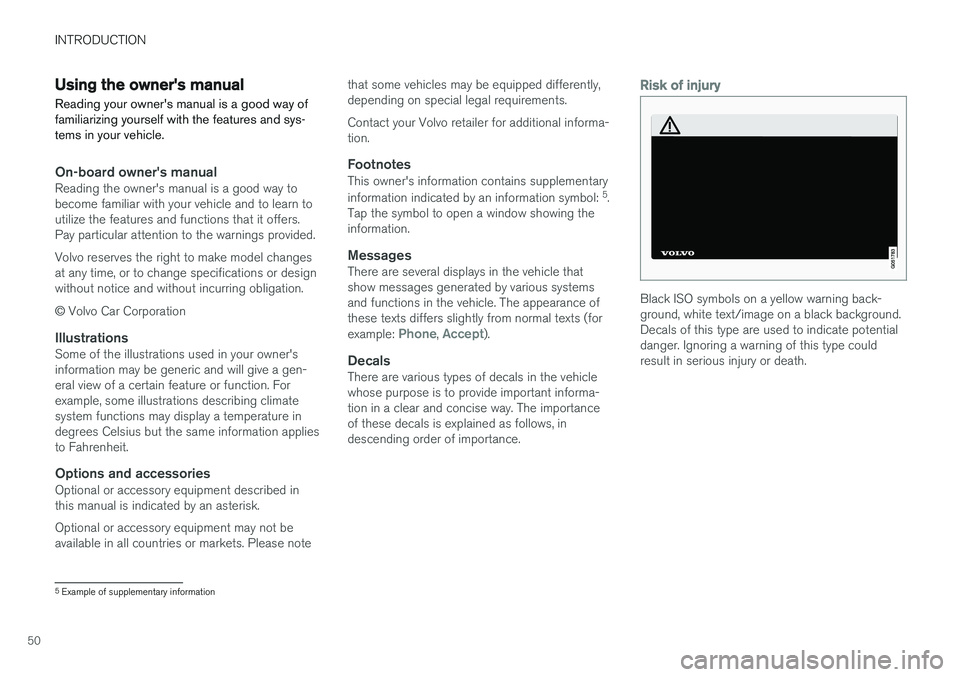
Black ISO symbols on a yellow warning back- ground, white text/image on a black background.Decals of this type are used to indicate potentialdanger. Ignoring a warning of this type couldresult in serious injury or death.
5 Example of supplementary information
Page 58 of 570
SAFETY
56
General safety information The vehicle is equipped with a number of safety systems for the driver and passengers.
Warning symbol in the instrument panelThe warning symbol in the instrument panel illuminates when the ignition is in mode II or higher. It will go out after
approx. 6 seconds if no faults are
detected in the airbag system.
WARNING
• If the SRS warning light stays on after the engine has started or if it illuminateswhile you are driving, have the vehicleinspected by a trained and qualified Volvoservice technician as soon as possible.
• Never try to repair any component or partof the SRS yourself. Any interference inthe system could cause malfunction andserious injury. All work on these systemsshould be performed by a trained andqualified Volvo service technician.
Related information
• Safety during pregnancy (p. 62)
• Seat belts (p. 58)
• Safety systems (p. 83)
• Airbag system (p. 83)
Occupant safety Safety is Volvo's cornerstone.
Volvo's concern for safetyOur concern for safety dates back to 1927 when the first Volvo rolled off the production line.Three-point seat belts (a Volvo invention), safetycages, and energy-absorbing impact zones weredesigned into Volvo vehicles long before it wasfashionable or required by government regulation. We will not compromise our commitment to safety. We continue to seek out new safety fea-tures and to refine those already in our vehicles.You can help. We would appreciate hearing yoursuggestions about improving automobile safety.We also want to know if you ever have a safetyconcern with your vehicle. Call us in the U.S. at:1-800-458-1552 or in Canada at:1-800-663-8255.
Occupant safety remindersHow safely you drive doesn't depend on how old you are but rather on:
• How well you see.
• Your ability to concentrate.
• How quickly you make decisions under stress to avoid an accident.
The following suggestions are intended to help you cope with the ever changing traffic environ-ment. •
Never drink and drive.
• If you are taking any medication, consult your physician about its potential effects on yourdriving abilities.
• Take a driver-retraining course.
• Have your eyes checked regularly.
• Keep your windshield and headlights clean.
• Replace wiper blades when they start toleave streaks.
• Take into account the traffic, road, andweather conditions, particularly with regard tostopping distance.
• Never send text messages while driving.
• Refrain from using or minimize the use of acell phone while driving.
Related information
• Recall information (p. 58)
• Reporting safety defects (p. 57)
Page 59 of 570
SAFETY
57
Reporting safety defects
The following information will help you report any perceived safety-related defects in your vehicle.
Reporting safety defects in the U.S.
If you believe that your vehicle has a defect which could cause a crash orcould cause injury or death, you shouldimmediately inform the National High-way Traffic Safety Administration(NHTSA) in addition to notifying VolvoCars of North America, LLC. If NHTSAreceives similar complaints, it may openan investigation, and if it finds that asafety defect exists in a group of vehi-cles, it may order a recall and remedycampaign. However, NHTSA cannotbecome involved in individual problemsbetween you, your retailer, or VolvoCars of North America, LLC. To contactNHTSA, you may either call the AutoSafety Hotline toll-free at 1-888-327-4236(TTY: 1-800-424-9153) or write to: NHTSA, U.S. Department of Transpor-tation, Washington D.C. 20590. You can also obtain other informationabout motor vehicle safety from http://www.safercar.gov, where you can alsoenter your vehicle's VIN (Vehicle Identi-fication Number) to see if it has anyopen recalls. Volvo strongly recommends that if your vehicle is covered under a service cam-paign, safety or emission recall or simi-lar action, it should be completed assoon as possible. Please check withyour local retailer or Volvo Cars ofNorth America, LLC if your vehicle iscovered under these conditions. NHTSA can be reached at:Internet:http://www.nhtsa.govTelephone:1-888-DASH-2-DOT (1-888-327-4236).
Reporting safety defects in CanadaIf you believe your vehicle has a defect that could cause a crash or could cause injury or death, youshould immediately inform Transport Canada inaddition to notifying Volvo Cars of Canada Corp.
Transport Canada can be contacted at:1-800-333-0510 Teletypewriter (TTY): 613 990-4500Fax: 1-819-994-3372Mailing Address: Transport Canada - Road Safety, 80 rue Noël, Gatineau, (Quebec) J8Z 0A1
Related information
•
Recall information (p. 58)
• Occupant safety (p. 56)
Page 109 of 570
INSTRUMENTS AND CONTROLS
107
Sub-categoriesSettings
Gracenote®Personal
VideoPersonal
Communication
Sub-categoriesSettings
Phone–
Text Messages–
Bluetooth–
Wi-FiGlobal
Vehicle Wi-Fi HotspotGlobal
Vehicle Modem InternetGlobal
Volvo On Call–
Volvo Service NetworksGlobal
Climate
The main category Climate has no sub-catego-
ries. All settings in this category are personal.
System
Sub-categoriesSettings
Driver ProfilePersonal
Date & Time–
LanguagePersonal
Sub-categoriesSettings
Keyboard LayoutsGlobal
Voice ControlPersonal
UnitsPersonal
Storage–
Software Updates–
Global Reset–
Services–
Related information
• Center display overview (p. 29)
• Navigating in the center display's views (p. 39)
• Using the center display (p. 46)
Categories in Settings view
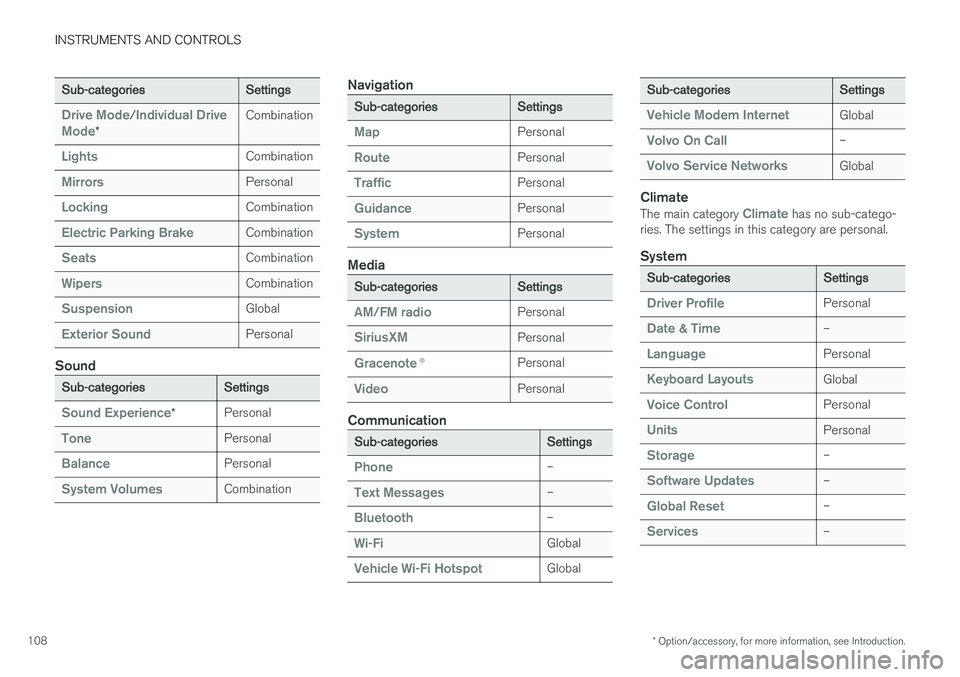
Settings view consists of a number of main cate- gories and sub-categories that contain settingsand information for many of the vehicle's fea-tures and functions.
The main categories in Settings view are: My
Car, Sound, Navigation, Media,Communication, Climate and System.
Each main category, in turn, contains several sub- categories with possible settings. The tableshows the first level of sub-categories. The possi-ble settings for a function or area are describedin greater detail in their respective articles in theowner's manual. For system settings not descri-bed in the respective articles, see "Changing sys-tem settings in Settings view." Certain settings are personal, which means that they can be saved in a driver profile. Other set-tings are global and are not linked to a driver pro-file. The table indicates if a category's settings are personal, global or a combination of the two.
My Car
Sub-categoriesSettings
DisplaysPersonal
IntelliSafeCombination
Park AssistGlobal
Page 110 of 570
INSTRUMENTS AND CONTROLS
* Option/accessory, for more information, see Introduction.
108
Sub-categoriesSettings
Drive Mode/Individual Drive
Mode*
Combination
LightsCombination
MirrorsPersonal
LockingCombination
Electric Parking BrakeCombination
SeatsCombination
WipersCombination
SuspensionGlobal
Exterior SoundPersonal
Sound
Sub-categoriesSettings
Sound Experience*Personal
TonePersonal
BalancePersonal
System VolumesCombination
Navigation
Sub-categoriesSettings
MapPersonal
RoutePersonal
TrafficPersonal
GuidancePersonal
SystemPersonal
Media
Sub-categoriesSettings
AM/FM radioPersonal
SiriusXMPersonal
Gracenote ®Personal
VideoPersonal
Communication
Sub-categoriesSettings
Phone–
Text Messages–
Bluetooth–
Wi-FiGlobal
Vehicle Wi-Fi HotspotGlobal
Sub-categoriesSettings
Vehicle Modem InternetGlobal
Volvo On Call–
Volvo Service NetworksGlobal
Climate
The main category Climate has no sub-catego-
ries. The settings in this category are personal.
System
Sub-categoriesSettings
Driver ProfilePersonal
Date & Time–
LanguagePersonal
Keyboard LayoutsGlobal
Voice ControlPersonal
UnitsPersonal
Storage–
Software Updates–
Global Reset–
Services–
Page 119 of 570
INSTRUMENTS AND CONTROLS
* Option/accessory, for more information, see Introduction.117
Automatic time
The function Automatic Time is also available,
which adjusts the time zone automatically, depending on the vehicle's location. If
Automatic
Time has not been selected, set the date and
time manually by tapping the up or down arrows on the center display.
Daylight savings timeIn certain countries, an automatic change to day- light savings time can be selected by activating
Auto. If the automatic change is not available,
change to daylight savings time by selecting Onor Off.
Related information
• Instrument panel (p. 128)
• Center display overview (p. 29)
• Using the center display (p. 46)
Head-up display (HUD)
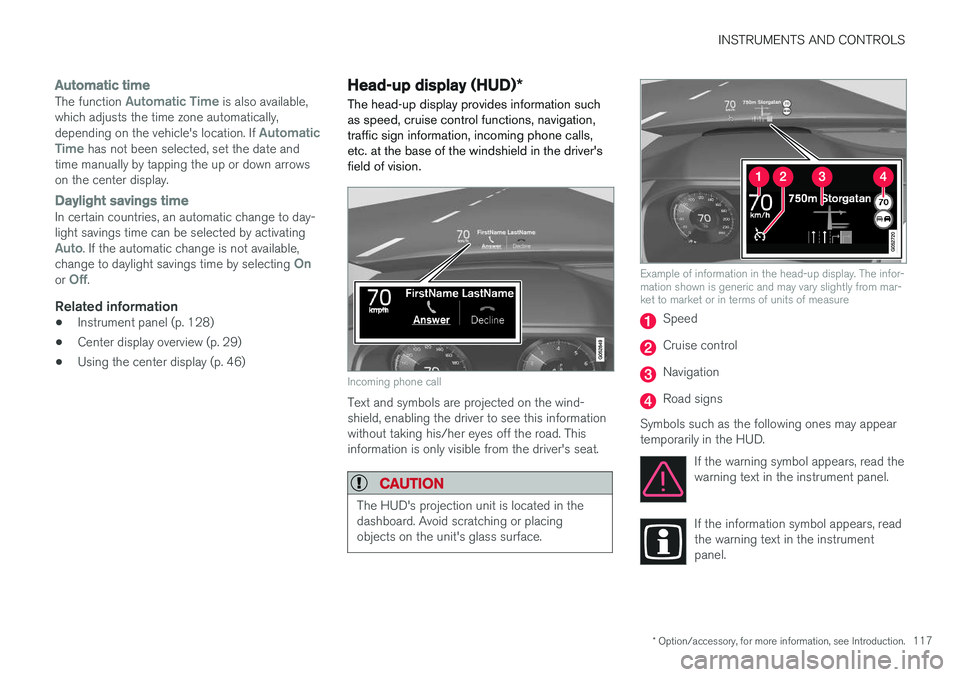
*
The head-up display provides information such as speed, cruise control functions, navigation,traffic sign information, incoming phone calls,etc. at the base of the windshield in the driver'sfield of vision.
Incoming phone call
Text and symbols are projected on the wind- shield, enabling the driver to see this informationwithout taking his/her eyes off the road. Thisinformation is only visible from the driver's seat.
CAUTION
The HUD's projection unit is located in the dashboard. Avoid scratching or placingobjects on the unit's glass surface.
Example of information in the head-up display. The infor- mation shown is generic and may vary slightly from mar-ket to market or in terms of units of measure
Speed
Cruise control
Navigation
Road signs
Symbols such as the following ones may appear temporarily in the HUD. If the warning symbol appears, read thewarning text in the instrument panel.
If the information symbol appears, read the warning text in the instrumentpanel.