display VOLVO XC90 2015 Repair Manual
[x] Cancel search | Manufacturer: VOLVO, Model Year: 2015, Model line: XC90, Model: VOLVO XC90 2015Pages: 570, PDF Size: 12.44 MB
Page 127 of 570
![VOLVO XC90 2015 Repair Manual INSTRUMENTS AND CONTROLS
125
•
"
Search [POI category] in [a city]:
Search for a POI 7
category in a city/loca-
tion.
• "
Enter contact: Enter a contact from a
list of phone contacts as a](/img/45/58555/w960_58555-126.png "VOLVO XC90 2015 Repair Manual INSTRUMENTS AND CONTROLS
125
•
\"
Search [POI category] in [a city]:
Search for a POI 7
category in a city/loca-
tion.
• \"
Enter contact: Enter a contact from a
list of phone contacts as a")
INSTRUMENTS AND CONTROLS
125
•
"
Search [POI category] in [a city]:
Search for a POI 7
category in a city/loca-
tion.
• "
Enter contact: Enter a contact from a
list of phone contacts as a destination.
• "
Enter POI: Enter a POI as a destination.
• "
Change country/Change state:
Changes the country/state in which a search is conducted.
• "
Enter address: Enter an address as a
destination.
• "
Enter zip code: Enter a zip code as a
destination.
• "
Add intersection: Enter an intersection
as a destination.
• "
Show favorites: Shows a list ofFavorites in the center display's Top
view.
• "
Clear itinerary: Deletes all intermediate
destinations in an itinerary.
• "
Repeat voice guidance: Repeats the
most recent guidance instruction.
• "
Pause guidance: Pauses guidance on
the map.
• "
Resume guidance: Resumes guidance
on the map.
• "
Turn off voice guidance: Turns voice
navigation guidance off.
• "
Turn on voice guidance: Turns voice
navigation guidance on.
Related information
• Navigation displays and controls (p. 433)
• Voice control (p. 120)
• Using voice commands (p. 121)
• Voice control settings (p. 125)
Voice control settings
There are a number of settings that can be made for the voice control system.
Open the center display's Top view and tap
SettingsSystemVoice Control and
select settings. •
Repeat Mode
•Gender
•Speech Rate
Sound settings
Open Top view and tap SettingsSound
System VolumesVoice Control.
Changing languagesThe voice control system only understands that languages that can be selected. Changing the language for this system also affects menus, messages and help texts. Open Top view and tap
SettingsSystemLanguage.
Related information
• Voice control (p. 120)
7
You can opt to call the POI or set it as a destination.
Page 130 of 570

INSTRUMENTS AND CONTROLS
128
Related information
•Instrument panel (p. 128)
• Warning symbols in the instrument panel (p. 134)
• Door and seat belt reminders (p. 61)
Instrument panel
The instrument panel displays vehicle- and driv- ing-related information.
Gauges, indicators and symbols in the
instrument panel
Left side
• Speedometer
• Trip odometer
• Odometer
• Cruise control/speed limiter information
• Road sign information
Center
•
Indicator and warning symbols
• Ambient temperature sensor
• Clock •
Messages (and in certain cases also graph- ics)
• Distance to empty tank
• Door and seat belt status
• Compass and altimeter
• Media player
• Navigation system map
• Cell phone
• Voice control
Right side
• Tachometer
• Fuel gauge
• Gear shift indicator
• Current driving mode
• ECO gauge
• Start/Stop function's status
• Current fuel consumption
• App menu (activated using the right-side steering wheel keypad)
Page 131 of 570
INSTRUMENTS AND CONTROLS
129
Instrument panel settings
Some of the settings for the instrument panel can be made in the App menu (see also the arti-cle "Instrument panel app menu"). The following settings can be made in the center display's Top view under:
SettingsMy CarDisplays:
•
Driver Display Center Area: Select what is
displayed in the background (center) of the instrument panel. The options are: (
Show no
information in the background, Show
information of current playing media orShow map even if no route is set).
•
Themes. Select a theme (appearance). The
options are: (Default, Minimalistic,Performance or Chrome Rings).
The system language can be changed under
SettingsSystemChoose system
language. This change affects the language
used in all displays.
Related information
• Instrument panel App menu (p. 129)
• Warning symbols in the instrument panel (p. 134)
• Indicator symbols in the instrument panel(p. 126)
Instrument panel App menu The App (application) menu in the instrument panel provides quick access to commonly usedfunctions in certain apps.
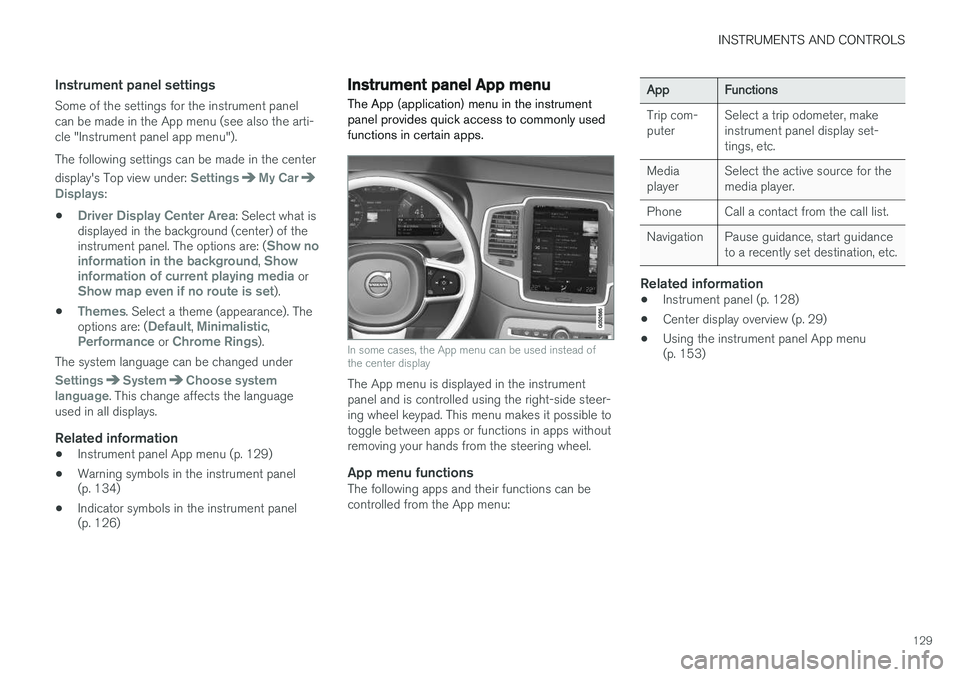
In some cases, the App menu can be used instead of the center display
The App menu is displayed in the instrument panel and is controlled using the right-side steer-ing wheel keypad. This menu makes it possible totoggle between apps or functions in apps withoutremoving your hands from the steering wheel.
App menu functionsThe following apps and their functions can becontrolled from the App menu:
AppFunctions
Trip com- puterSelect a trip odometer, make instrument panel display set-tings, etc.
Media playerSelect the active source for the media player.
PhoneCall a contact from the call list.
NavigationPause guidance, start guidance to a recently set destination, etc.
Related information
•Instrument panel (p. 128)
• Center display overview (p. 29)
• Using the instrument panel App menu (p. 153)
Page 132 of 570
INSTRUMENTS AND CONTROLS
130
Instrument panel licenses
BSD 4-clause "Original" or "Old" License
Copyright ©) 1982, 1986, 1990, 1991, 1993
The Regents of the University of California. All rights reserved. Redistribution and use in source and binary forms, with or without modification, are permittedprovided that the following conditions are met:
1. Redistributions of source code must retain the above copyright notice, this list of conditions and the following disclaimer.
2. Redistributions in binary form must reproduce the above copyright notice, this listof conditions and the following disclaimer inthe documentation and/or other materialsprovided with the distribution.
3. All advertising materials mentioning features or use of this software must display thefollowing acknowledgment: This productincludes software developed by theUniversity of California, Berkeley and itscontributors.
4. Neither the name of the University nor the names of its contributors may be used toendorse or promote products derived fromthis software without specific prior writtenpermission.
THIS SOFTWARE IS PROVIDED BY THE REGENTS AND CONTRIBUTORS
Page 138 of 570
INSTRUMENTS AND CONTROLS
136
WARNING
•If the fluid level is below the
MIN mark in
the brake fluid reservoir or if a warning message is displayed in the text window: DO NOT DRIVE . Have the vehicle towed
to a trained and qualified Volvo service technician and have the brake systeminspected.
• If the
BRAKE and ABS symbols illumi-
nate at the same time, there is a risk ofreduced vehicle stability.
Related information
• Instrument panel (p. 128)
• Indicator symbols in the instrument panel(p. 126)
Compass
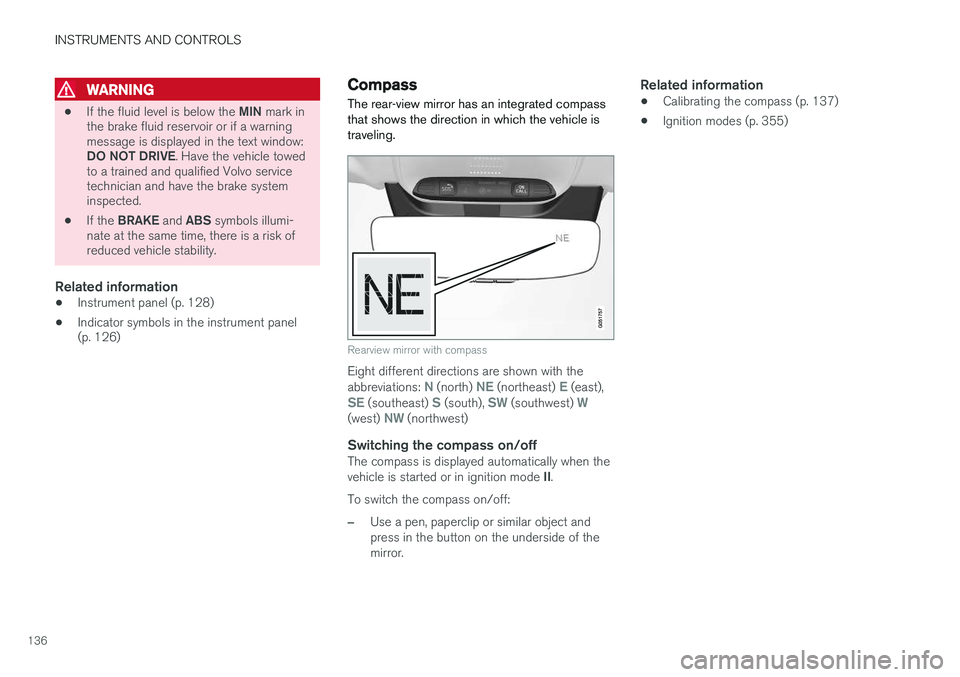
The rear-view mirror has an integrated compass that shows the direction in which the vehicle istraveling.
Rearview mirror with compass
Eight different directions are shown with the abbreviations: N (north) NE (northeast) E (east),SE (southeast) S (south), SW (southwest) W(west) NW (northwest)
Switching the compass on/offThe compass is displayed automatically when the vehicle is started or in ignition mode II.
To switch the compass on/off:
–Use a pen, paperclip or similar object and press in the button on the underside of themirror.
Related information
• Calibrating the compass (p. 137)
• Ignition modes (p. 355)
Page 139 of 570
INSTRUMENTS AND CONTROLS
* Option/accessory, for more information, see Introduction.137
Calibrating the compass
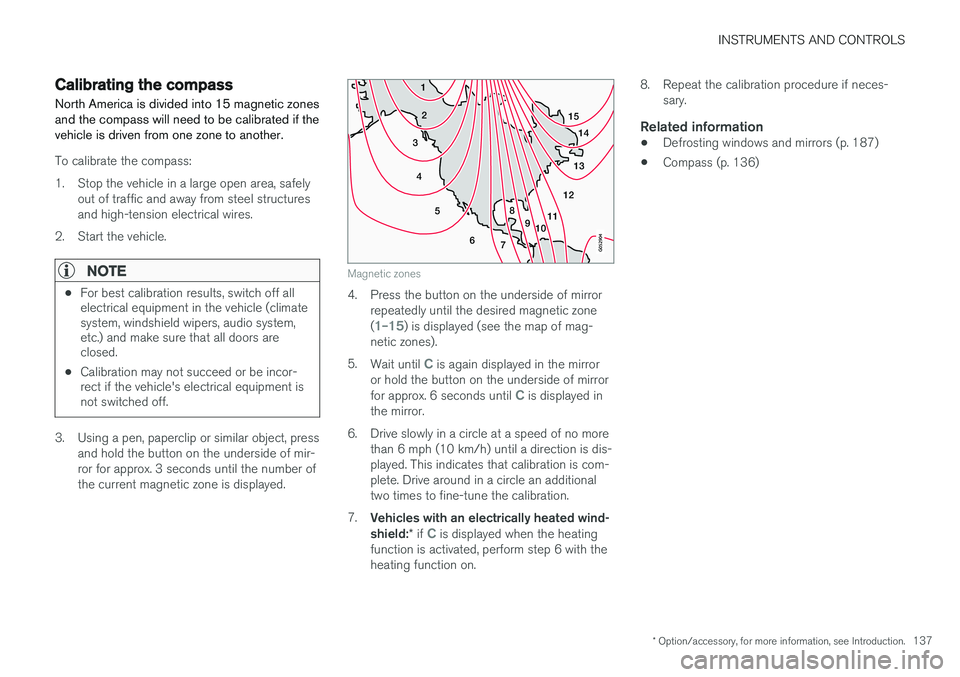
North America is divided into 15 magnetic zones and the compass will need to be calibrated if thevehicle is driven from one zone to another.
To calibrate the compass:
1. Stop the vehicle in a large open area, safely out of traffic and away from steel structures and high-tension electrical wires.
2. Start the vehicle.
NOTE
• For best calibration results, switch off all electrical equipment in the vehicle (climatesystem, windshield wipers, audio system,etc.) and make sure that all doors areclosed.
• Calibration may not succeed or be incor-rect if the vehicle's electrical equipment isnot switched off.
3. Using a pen, paperclip or similar object, press
and hold the button on the underside of mir- ror for approx. 3 seconds until the number ofthe current magnetic zone is displayed.
15
14
13
12
11
9
8
7
6
5
4
3
2
1
10
Magnetic zones
4. Press the button on the underside of mirrorrepeatedly until the desired magnetic zone (
1
Page 140 of 570
INSTRUMENTS AND CONTROLS
* Option/accessory, for more information, see Introduction.
138
Lighting panel and controls
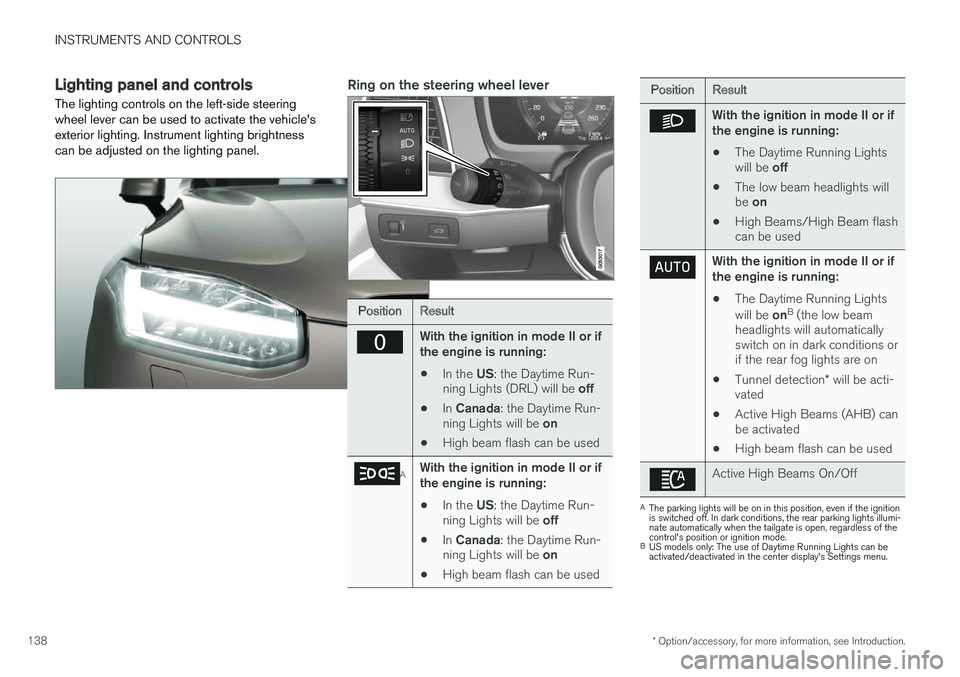
The lighting controls on the left-side steering wheel lever can be used to activate the vehicle'sexterior lighting. Instrument lighting brightnesscan be adjusted on the lighting panel.Ring on the steering wheel lever
PositionResult
With the ignition in mode II or if the engine is running:
• In the
US: the Daytime Run-
ning Lights (DRL) will be off
• In
Canada : the Daytime Run-
ning Lights will be on
• High beam flash can be used
AWith the ignition in mode II or if the engine is running:
• In the
US: the Daytime Run-
ning Lights will be off
• In
Canada : the Daytime Run-
ning Lights will be on
• High beam flash can be used
PositionResult
With the ignition in mode II or if the engine is running:
• The Daytime Running Lights will be
off
• The low beam headlights willbe
on
• High Beams/High Beam flash can be used
With the ignition in mode II or if the engine is running:
• The Daytime Running Lights will be
onB
(the low beam
headlights will automatically switch on in dark conditions orif the rear fog lights are on
• Tunnel detection
* will be acti-
vated
• Active High Beams (AHB) canbe activated
• High beam flash can be used
Active High Beams On/Off
A
The parking lights will be on in this position, even if the ignition is switched off. In dark conditions, the rear parking lights illumi-nate automatically when the tailgate is open, regardless of thecontrol's position or ignition mode.
B US models only: The use of Daytime Running Lights can beactivated/deactivated in the center display's Settings menu.
Page 141 of 570
INSTRUMENTS AND CONTROLS
139
NOTE
The use of Daytime Running Lights is recom- mended in the United States and is manda-
tory in Canada .
Volvo recommends using the position
whenever possible.
WARNING
• Daytime Running Lights are a driving aid designed to help make the vehicle visibleto other roads users.
• The driver is always responsible foradapting the use of Daytime RunningLights/headlights according to ambientlighting and weather conditions.
Lighting panel
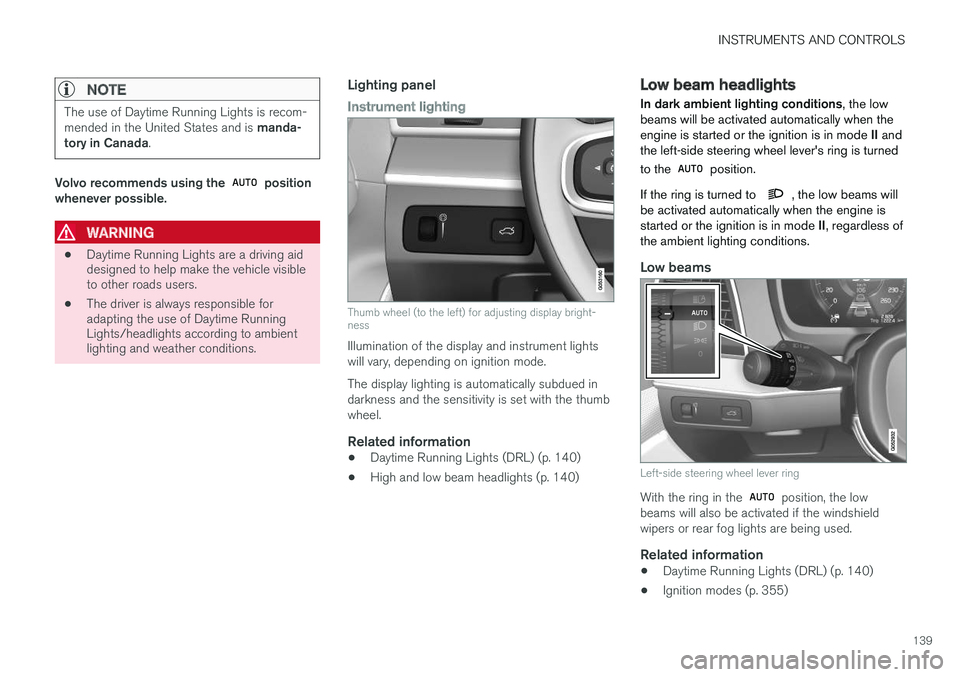
Instrument lighting
Thumb wheel (to the left) for adjusting display bright- ness
Illumination of the display and instrument lights will vary, depending on ignition mode. The display lighting is automatically subdued in darkness and the sensitivity is set with the thumbwheel.
Related information
• Daytime Running Lights (DRL) (p. 140)
• High and low beam headlights (p. 140)
Low beam headlights In dark ambient lighting conditions
, the low
beams will be activated automatically when the engine is started or the ignition is in mode II and
the left-side steering wheel lever's ring is turned to the
position.
If the ring is turned to
, the low beams will
be activated automatically when the engine is started or the ignition is in mode II, regardless of
the ambient lighting conditions.
Low beams
Left-side steering wheel lever ring
With the ring in the position, the low
beams will also be activated if the windshield wipers or rear fog lights are being used.
Related information
• Daytime Running Lights (DRL) (p. 140)
• Ignition modes (p. 355)
Page 142 of 570
INSTRUMENTS AND CONTROLS
140
Daytime Running Lights (DRL)
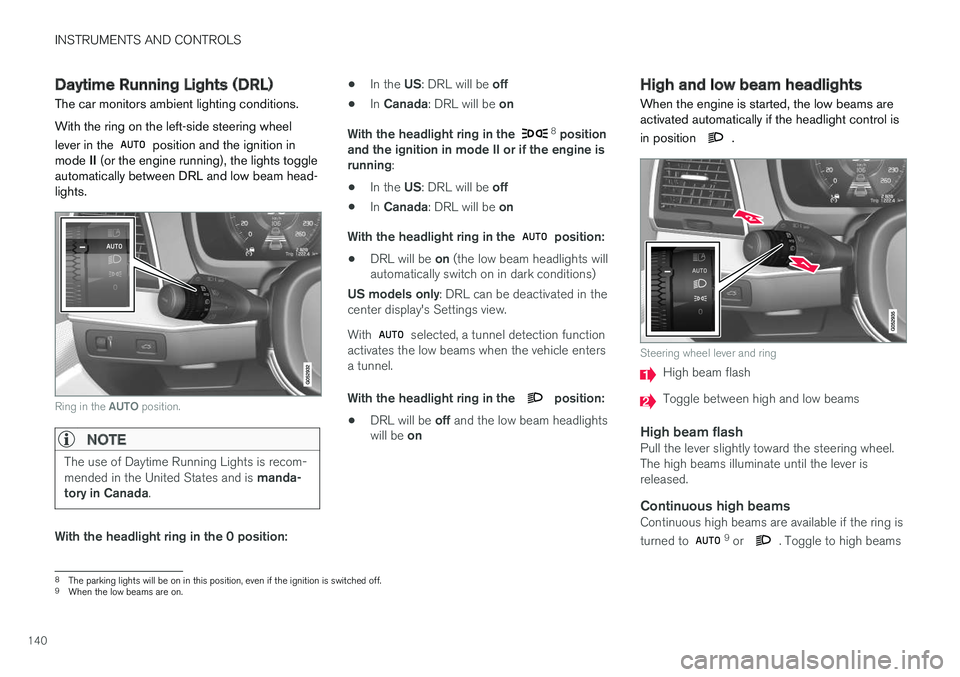
The car monitors ambient lighting conditions. With the ring on the left-side steering wheel lever in the
position and the ignition in
mode II (or the engine running), the lights toggle
automatically between DRL and low beam head- lights.
Ring in the AUTO position.
NOTE
The use of Daytime Running Lights is recom- mended in the United States and is manda-
tory in Canada .
With the headlight ring in the 0 position: •
In the
US: DRL will be off
• In
Canada : DRL will be on
With the headlight ring in the
8
position
and the ignition in mode II or if the engine is running :
• In the
US: DRL will be off
• In
Canada : DRL will be on
With the headlight ring in the
position:
• DRL will be
on (the low beam headlights will
automatically switch on in dark conditions)
US models only : DRL can be deactivated in the
center display's Settings view. With
selected, a tunnel detection function
activates the low beams when the vehicle enters a tunnel. With the headlight ring in the
position:
• DRL will be
off and the low beam headlights
will be on
High and low beam headlights
When the engine is started, the low beams are activated automatically if the headlight control is in position
.
Steering wheel lever and ring
High beam flash
Toggle between high and low beams
High beam flashPull the lever slightly toward the steering wheel. The high beams illuminate until the lever isreleased.
Continuous high beamsContinuous high beams are available if the ring is turned to 9 or . Toggle to high beams
8 The parking lights will be on in this position, even if the ignition is switched off.
9 When the low beams are on.
Page 143 of 570

INSTRUMENTS AND CONTROLS
141
by moving the lever forward. Return to low beams by moving the lever toward the steering wheel. The
symbol will illuminate in the instrument
panel when the high beams are on.
Active high beamsThe active high beam system uses a camera at the upper edge of the windshield to detect theheadlights of oncoming vehicles or the taillightsof a vehicle directly ahead. When this happens,the headlights will automatically switch from highbeams to low beams. When the camera no longer detects the head- lights/taillights of other vehicles, your headlightswill switch back to high beams after several sec-onds.
OperationActivate/deactivate this function by turning the ring on the left-side steering wheel lever to
.
If the ring is not in this position, toggling between high and low beams must be done manually. If the ring is turned to another position while the high beams are on, the headlights will automati-cally switch to low beams. A white symbol (
) in the instrument panel
indicates that the function has been activated. When the high beams are on, the symbol will change to blue.
NOTE
•Keep the windshield in front of the cam- era free of ice, snow, dirt, etc.
• Do not mount or in any way attach any-thing on the windshield that couldobstruct the camera.
If a message is displayed in the instrument panel saying that active high beams are temporarilyunavailable, switching between high and lowbeams will have to be done manually. However, the light switch can remain in the
position.
The same applies if a message saying that the windshield sensors are blocked and the
symbol are displayed. The symbol will go
out if this happens. Automatic high beams may be temporarily unavailable (e.g., in heavy fog or rain). When thesystem becomes active again or if the sensors inthe windshield are no longer obscured, the mes- sages will disappear and the
symbol will
illuminate.
WARNING
• Automatic high beams are a driving aid designed to help provide the best possi-ble headlight illumination in good drivingconditions.
• The driver is always responsible for man-ually toggling between high and lowbeams when this is required by traffic orweather conditions.
CAUTION
In the following situations, it may be neces- sary to switch between high and low beamsmanually:
• In heavy fog or rain
• In blowing snow or slush
• In bright moonlight
• In freezing rain
• In areas with dim street lighting
• When oncoming vehicles have dim front lighting
• If there are pedestrians on or near theroad
• If there are reflective objects, such assigns, near the road
• When oncoming vehicles' lights areobscured by e.g., fences, bushes, etc.