messages VOLVO XC90 2017 Owner´s Manual
[x] Cancel search | Manufacturer: VOLVO, Model Year: 2017, Model line: XC90, Model: VOLVO XC90 2017Pages: 560, PDF Size: 9.97 MB
Page 6 of 560
4
Using turn signals146
Passenger compartment lighting 147
Home safe lighting 150
Approach lighting 150
Messages in the instrument panel and center display 150
Handling messages in the instru-ment panel and center display 152
Handling messages stored from theinstrument panel and center display 154
Instrument panel App menu 155
Using the instrument panel App menu 156
Using the windshield wipers 157
Activating/deactivating the rain sensor 157
Windshield and headlight washers 158
Tailgate window wiper and washer 159
Steering wheel 160
Adjusting the steering wheel 161
Seats 162
Manually operated front seats 162
Power front seats *
163
Adjusting power front seats *
163
Adjusting the passenger's seat from the driver's seat * 164
Using the power seat memory function *
165
Multifunctional front seats *
166
Adjusting function settings in the multifunctional front seats *166
Rear seats 169
Adjusting the second row head restraints 170
Moving the second row seats for- ward/rearward 171
Adjusting the second row backrest tilt 172
Folding the second row backrests 173
Getting into and out of the third rowof seats 174
Folding the third row * backrests
175
Driver profiles 175
Selecting a driver profile 176
Editing a driver profile 177
Linking a remote key to a driver profile 177
Importing/exporting a driver profilefrom/to a USB flash drive 178
CLIMATE
Climate control system
182
Perceived temperature 182
Climate system sensors 183
Air quality 183
Clean Zone Interior Package (CZIP) *
184
Interior Air Quality System (IAQS) *
185
Passenger compartment air filter 185
Automatic climate control 186
Climate system controls 186
Climate system controls in the center display 187
Rear climate system controls on the tunnel console * 189
Setting the blower speed 190
Setting the temperature 191
Turning recirculation on and off 194
Defrosting windows and mirrors 194
Turning steering wheel heating * on
and off 197
Air conditioning 197
Turning seat heating * on and off
198
Turning front seat ventilation * on and off
200
Air distribution 201
Opening/closing/directing air vents 202
Adjusting air distribution 202
Page 8 of 560
6
Start and lock system type designations248
DRIVER SUPPORT
Driver support systems250
Adjustable steering force *
250
Electronic Stability Control (ESC) 251
Electronic Stability Control (ESC) sport mode 252
Electronic Stability Control (ESC)symbols and messages 253
Roll stability control (RSC) 255
Speed limiter (SL) *
255
Starting and activating the Speed Limiter (SL) * 256
Changing a Speed Limiter (SL) *
maximum speed 257
Automatic Speed Limiter (ASL) *
257
Activating/deactivating theAutomatic Speed Limiter (ASL) *259
Changing tolerance for the Automatic Speed Limiter 259
Deactivating/reactivating the Speed Limiter * 260
Turning the Speed Limiter * off
261
Cruise Control (CC) 262
Starting and activating Cruise Control 262
Changing Cruise Control speed 263
Deactivating/resuming Cruise Control (CC) 264
Turning Cruise Control off 265
Switching between Cruise Control and Adaptive Cruise Control*266
Distance Alert *
267
Using Distance Alert *
268
Distance Alert * limitations
269
Adaptive Cruise Control (ACC) *
269
Starting and activating AdaptiveCruise Control (ACC) * 272
Deactivating/resuming Adaptive Cruise Control (ACC) 273
Changing Adaptive Cruise Control(ACC) speed 275
Setting an Adaptive Cruise Controltime interval 276
Passing Assistance with AdaptiveCruise Control or Pilot Assist 277
Changing target vehicles and auto-matic braking with Adaptive CruiseControl (ACC) 277
Adaptive Cruise Control (ACC) -troubleshooting 279
Adaptive Cruise Control (ACC) - limi-tations 280
Adaptive Cruise Control (ACC) sym-bols and messages 281
Pilot Assist *
283
Starting and activating Pilot Assist 286
Changing Pilot Assist speed 288
Page 9 of 560
7
Setting a Pilot Assist time interval289
Deactivating/resuming Pilot Assist 290
Changing target vehicles and auto- matic braking with Pilot Assist 292
Pilot Assist limitations 293
Pilot Assist symbols and messages 295
Driver support system radar sensor 296
Radar sensor limitations 297
Radar sensor - type approval 300
Driver support system camera 300
Camera limitations 301
City Safety ™
304
City Safety warning level settings 306
Detecting obstructions with City Safety 307
City Safety in crossing traffic 309
City Safety when evasive action isnot possible 310
City Safety ™ troubleshooting
310
City Safety limitations 312
City Safety symbols and messages 315
Rear Collision Warning (RCW) 316
Blind Spot Information (BLIS) *
317
Blind Spot Information (BLIS) * On/Off
318
Blind Spot Information (BLIS) * limitations
319
Cross Traffic Alert (CTA) *
319
Activating/deactivating Cross Traffic Alert (CTA)* 320
Cross Traffic Alert (CTA) * limitations
321
Blind Spot Information (BLIS) * with
Cross Traffic Alert (CTA) * symbols
and messages 323
Road Sign Information (RSI) *
324
Road Sign Information (RSI) * operation
324
Road Sign Information (RSI) * limitations
326
Driver Alert Control (DAC) 326
Using Driver Alert Control (DAC) 327
Driver Alert Control limitations 328
Driving lane assistance 328
Activating/deactivating Lane Keeping Aid (LKA) 330
Driving lane assistance symbols andmessages 331
Run-off Mitigation 333
Run-off Mitigation * symbols and
messages 335
Park Assist *
336
Activating/deactivating Park Assist 337
Park Assist limitations 338
Park assist symbols and messages 339
Park Assist Camera (PAC) *
340
Park Assist Camera (PAC) * trajectory
lines and fields 342
Starting the Park Assist Camera (PAC)
*
344
Park Assist Camera * (PAC) limitations
345
Park Assist Pilot (PAP) *
346
Using Park Assist Pilot (PAP) *
347
Park Assist Pilot (PAP) * limitations
350
Park Assist Pilot (PAP) * symbols and
messages 352
Page 11 of 560
9
Managing the phone book423
Handling text messages 424
Phone settings 425
Text message settings 426
Connecting a Bluetooth ®
device 426
Connecting a device via the AUX/USB socket 426
Media player 427
Apple CarPlay 428
Apple CarPlay settings 429
Android auto *
430
Android Auto * settings
431
CD (media) player *
432
Playing media 432
Media searches 434
Playing media through theAUX/USB sockets 435
Streaming media through a Blue-tooth connection 435
Media sound settings 436
Gracenote 436
Video 437
Media player technical data 437
Internet connected vehicle 439
Connecting to the Internet 439
Bluetooth settings441
Downloading, updating and uninstal- ling apps 441
Internet connection troubleshooting 442
Tethering (Wi-Fi sharing) 443
Deleting Wi-Fi networks 444
Wi-Fi technology and security 444
Vehicle modem settings 444
Infotainment system license information 445
Terms, conditions and confidentiality 449
WHEELS AND TIRES
Tires452
Tire sidewall designations 454
Wheel (rim) designations 455
Tire terminology 456
Tire direction of rotation 457
Tread wear indicator 457
Loading specifications 458
Uniform Tire Quality Grading 459
Snow tires and chains 459
Checking tire inflation pressure 460
Changing tires 462
Tools 462
Jack 462
Spare tire 463
Wheel bolts 464
Removing a wheel 465
Installing a wheel 466
Tire Pressure Monitoring System (TPMS) 467
Checking tire inflation pressure 468
Reinflating tires equipped with the Tire Pressure Monitoring System (TPMS) 469
Calibrating the Tire PressureMonitoring System (TPMS) 470
Tire sealing system 471
Using the tire sealing system 473
Page 31 of 560
INTRODUCTION
* Option/accessory.29
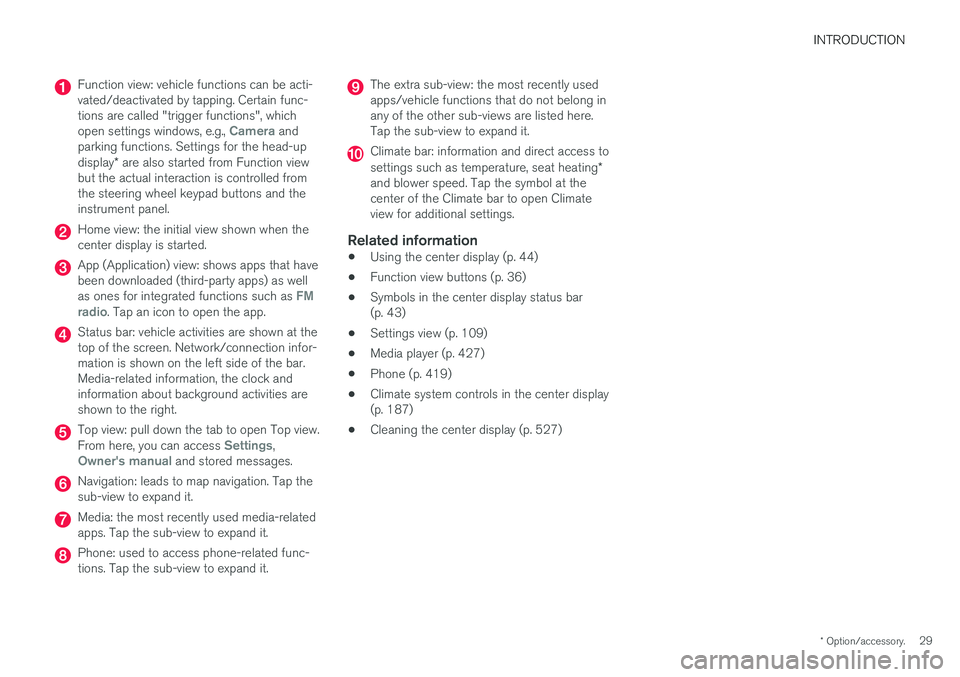
Function view: vehicle functions can be acti- vated/deactivated by tapping. Certain func-tions are called "trigger functions", which open settings windows, e.g.,
Camera and
parking functions. Settings for the head-up display * are also started from Function view
but the actual interaction is controlled from the steering wheel keypad buttons and theinstrument panel.
Home view: the initial view shown when the center display is started.
App (Application) view: shows apps that have been downloaded (third-party apps) as well as ones for integrated functions such as
FM
radio. Tap an icon to open the app.
Status bar: vehicle activities are shown at the top of the screen. Network/connection infor-mation is shown on the left side of the bar.Media-related information, the clock andinformation about background activities areshown to the right.
Top view: pull down the tab to open Top view. From here, you can access Settings,Owner's manual and stored messages.
Navigation: leads to map navigation. Tap the sub-view to expand it.
Media: the most recently used media-related apps. Tap the sub-view to expand it.
Phone: used to access phone-related func- tions. Tap the sub-view to expand it.
The extra sub-view: the most recently used apps/vehicle functions that do not belong inany of the other sub-views are listed here.Tap the sub-view to expand it.
Climate bar: information and direct access to settings such as temperature, seat heating *
and blower speed. Tap the symbol at the center of the Climate bar to open Climateview for additional settings.
Related information
• Using the center display (p. 44)
• Function view buttons (p. 36)
• Symbols in the center display status bar(p. 43)
• Settings view (p. 109)
• Media player (p. 427)
• Phone (p. 419)
• Climate system controls in the center display(p. 187)
• Cleaning the center display (p. 527)
Page 42 of 560
||
INTRODUCTION
40tive app's basic functions. When a sub-view is expanded, the Home view's fourth sub-view will temporarily not be displayed.
• To minimize a sub-view, tap anywhere on thescreen.
Opening/closing a sub-view in full-screen
mode
The extra sub-view and the Navigation sub-view
can be opened in full-screen mode to show addi- tional information and possible settings.
In expanded mode, open theapp in full-screen mode by tap-ping the symbol.
Tap on the symbol or the Home button below the screen toreturn to the expanded view.
It is always possible to return to Home view by pressing the Home button. Press the Home but- ton twice to return to Home view's standard view
from full-screen.
Home button for the center display
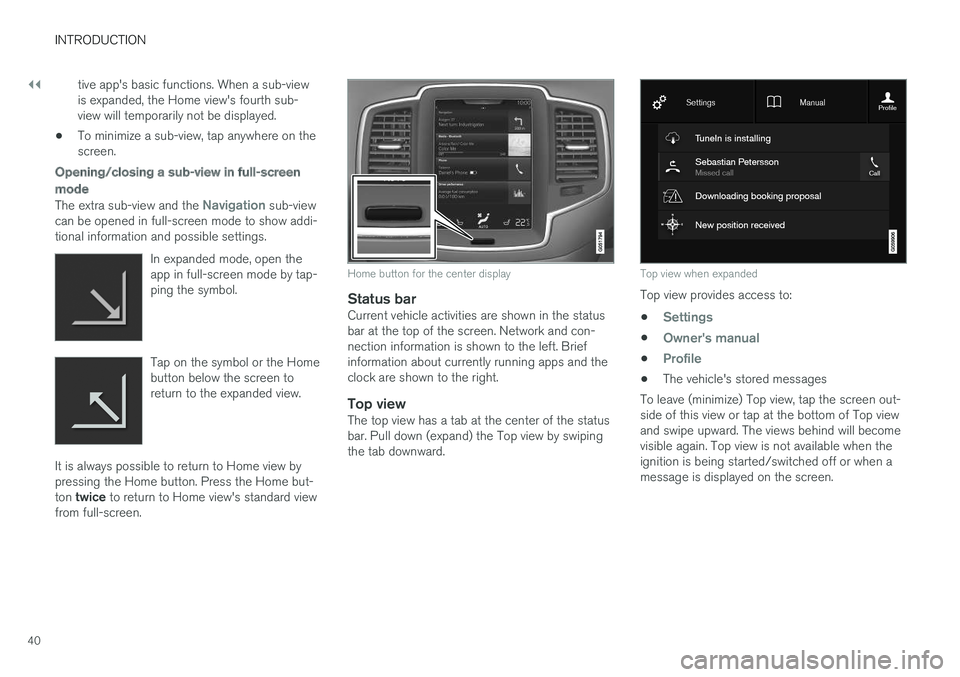
Status barCurrent vehicle activities are shown in the status bar at the top of the screen. Network and con-nection information is shown to the left. Briefinformation about currently running apps and theclock are shown to the right.
Top viewThe top view has a tab at the center of the statusbar. Pull down (expand) the Top view by swipingthe tab downward.
Top view when expanded
Top view provides access to: •
Settings
•Owner's manual
•Profile
• The vehicle's stored messages
To leave (minimize) Top view, tap the screen out- side of this view or tap at the bottom of Top viewand swipe upward. The views behind will becomevisible again. Top view is not available when theignition is being started/switched off or when amessage is displayed on the screen.
Page 45 of 560
INTRODUCTION
43
Symbols in the center display status bar
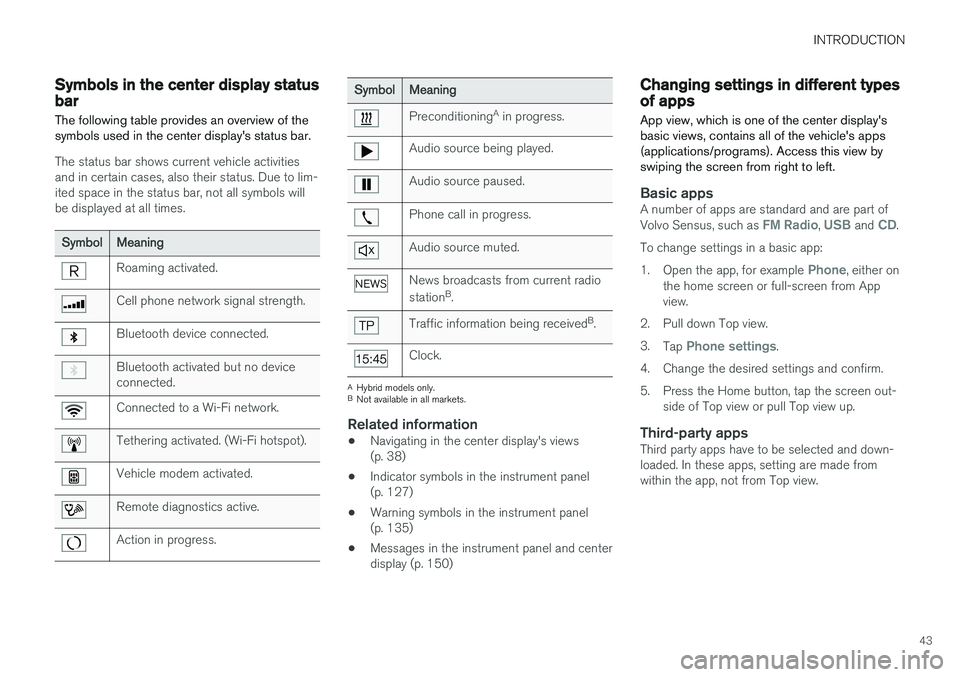
The following table provides an overview of the symbols used in the center display's status bar.
The status bar shows current vehicle activities and in certain cases, also their status. Due to lim-ited space in the status bar, not all symbols willbe displayed at all times.
Symbol Meaning
Roaming activated.
Cell phone network signal strength.
Bluetooth device connected.
Bluetooth activated but no device connected.
Connected to a Wi-Fi network.
Tethering activated. (Wi-Fi hotspot).
Vehicle modem activated.
Remote diagnostics active.
Action in progress.
SymbolMeaning
Preconditioning A
in progress.
Audio source being played.
Audio source paused.
Phone call in progress.
Audio source muted.
News broadcasts from current radio station B
.
Traffic information being received B
.
Clock.
A Hybrid models only.
B Not available in all markets.
Related information
• Navigating in the center display's views (p. 38)
• Indicator symbols in the instrument panel(p. 127)
• Warning symbols in the instrument panel(p. 135)
• Messages in the instrument panel and centerdisplay (p. 150)
Changing settings in different types of apps
App view, which is one of the center display's basic views, contains all of the vehicle's apps(applications/programs). Access this view byswiping the screen from right to left.
Basic appsA number of apps are standard and are part of Volvo Sensus, such as FM Radio, USB and CD.
To change settings in a basic app: 1. Open the app, for example
Phone, either on
the home screen or full-screen from App view.
2. Pull down Top view. 3. Tap
Phone settings.
4. Change the desired settings and confirm.
5. Press the Home button, tap the screen out- side of Top view or pull Top view up.
Third-party appsThird party apps have to be selected and down- loaded. In these apps, setting are made fromwithin the app, not from Top view.
Page 50 of 560
INTRODUCTION
48
Using the owner's manualReading your owner's manual is a good way of familiarizing yourself with the features and sys-tems in your vehicle.
On-board owner's manualReading the owner's manual is a good way to become familiar with your vehicle and to learn toutilize the features and functions that it offers.Pay particular attention to the warnings provided. Volvo reserves the right to make model changes at any time, or to change specifications or designwithout notice and without incurring obligation. © Volvo Car Corporation
Printed owner's informationWe advise keeping printed owner's information in the vehicle for quick access to necessary infor-mation and how to contact Volvo if help isrequired.
IllustrationsSome of the illustrations used in your owner'sinformation may be generic and will give a gen-eral view of a certain feature or function. Forexample, some illustrations describing climatesystem functions may display a temperature indegrees Celsius but the same information appliesto Fahrenheit.
Options and accessoriesOptional or accessory equipment described inthis manual is indicated by an asterisk. Optional or accessory equipment may not be available in all countries or markets. Please notethat some vehicles may be equipped differently,depending on special legal requirements. Contact your Volvo retailer for additional informa- tion.
FootnotesCertain pages of this manual contain informationin the form of footnotes at the bottom of thepage. This information supplements the text thatthe footnote number refers to (a letter is used ifthe footnote refers to text in a table).
MessagesThere are several displays in the vehicle thatshow messages generated by various systemsand functions in the vehicle. The appearance ofthese texts differs slightly from normal texts (for example:
Phone, Accept).
DecalsThere are various types of decals in the vehicle whose purpose is to provide important informa-tion in a clear and concise way. The importanceof these decals is explained as follows, indescending order of importance.
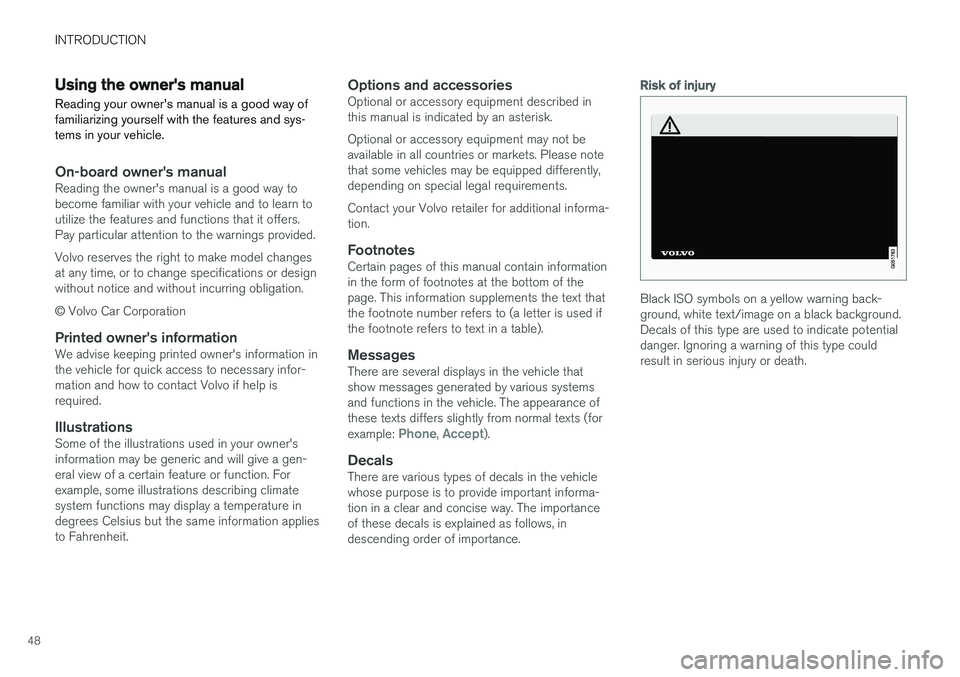
Risk of injury
Black ISO symbols on a yellow warning back- ground, white text/image on a black background.Decals of this type are used to indicate potentialdanger. Ignoring a warning of this type couldresult in serious injury or death.
Page 59 of 560
SAFETY
}}
57
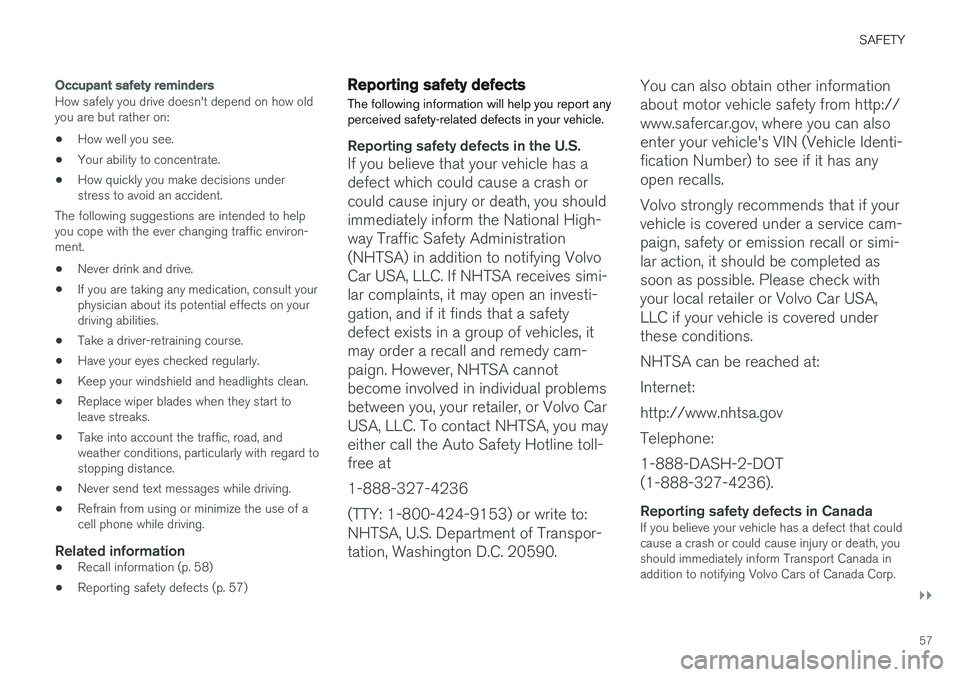
Occupant safety reminders
How safely you drive doesn't depend on how old you are but rather on:
• How well you see.
• Your ability to concentrate.
• How quickly you make decisions understress to avoid an accident.
The following suggestions are intended to helpyou cope with the ever changing traffic environ-ment.
• Never drink and drive.
• If you are taking any medication, consult yourphysician about its potential effects on yourdriving abilities.
• Take a driver-retraining course.
• Have your eyes checked regularly.
• Keep your windshield and headlights clean.
• Replace wiper blades when they start toleave streaks.
• Take into account the traffic, road, andweather conditions, particularly with regard tostopping distance.
• Never send text messages while driving.
• Refrain from using or minimize the use of acell phone while driving.
Related information
• Recall information (p. 58)
• Reporting safety defects (p. 57)
Reporting safety defects
The following information will help you report any perceived safety-related defects in your vehicle.
Reporting safety defects in the U.S.
If you believe that your vehicle has a defect which could cause a crash orcould cause injury or death, you shouldimmediately inform the National High-way Traffic Safety Administration(NHTSA) in addition to notifying VolvoCar USA, LLC. If NHTSA receives simi-lar complaints, it may open an investi-gation, and if it finds that a safetydefect exists in a group of vehicles, itmay order a recall and remedy cam-paign. However, NHTSA cannotbecome involved in individual problemsbetween you, your retailer, or Volvo CarUSA, LLC. To contact NHTSA, you mayeither call the Auto Safety Hotline toll-free at 1-888-327-4236(TTY: 1-800-424-9153) or write to: NHTSA, U.S. Department of Transpor-tation, Washington D.C. 20590. You can also obtain other informationabout motor vehicle safety from http://www.safercar.gov, where you can alsoenter your vehicle's VIN (Vehicle Identi-fication Number) to see if it has anyopen recalls. Volvo strongly recommends that if your vehicle is covered under a service cam-paign, safety or emission recall or simi-lar action, it should be completed assoon as possible. Please check withyour local retailer or Volvo Car USA,LLC if your vehicle is covered underthese conditions. NHTSA can be reached at:Internet:http://www.nhtsa.govTelephone:1-888-DASH-2-DOT (1-888-327-4236).
Reporting safety defects in CanadaIf you believe your vehicle has a defect that could cause a crash or could cause injury or death, youshould immediately inform Transport Canada inaddition to notifying Volvo Cars of Canada Corp.
Page 113 of 560
INSTRUMENTS AND CONTROLS
* Option/accessory.111
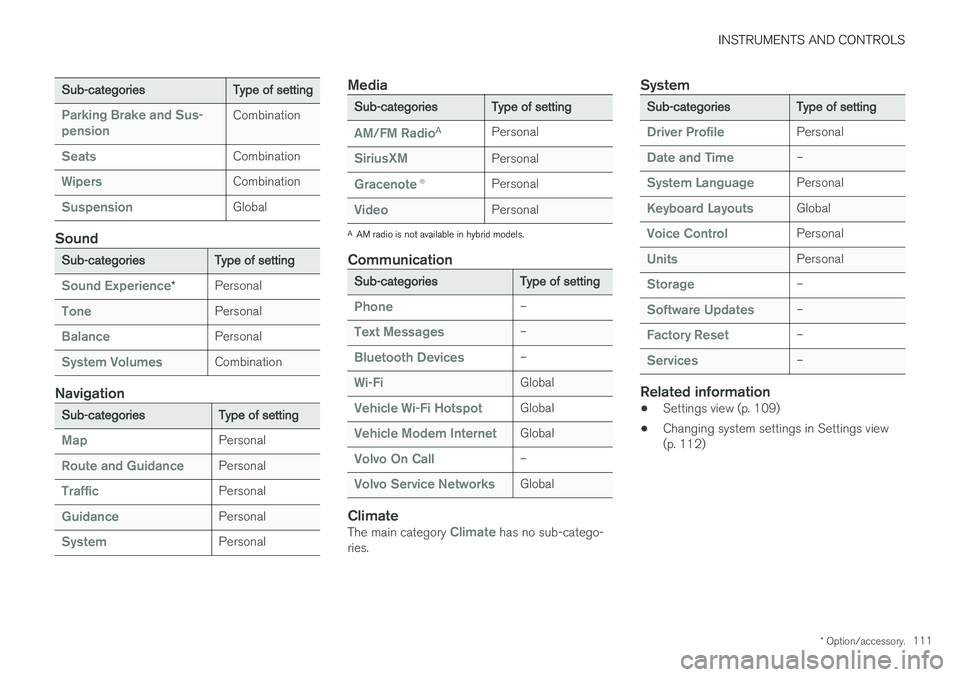
Sub-categories Type of setting
Parking Brake and Sus- pensionCombination
SeatsCombination
WipersCombination
SuspensionGlobal
Sound
Sub-categoriesType of setting
Sound Experience*Personal
TonePersonal
BalancePersonal
System VolumesCombination
Navigation
Sub-categories
Type of setting
MapPersonal
Route and GuidancePersonal
TrafficPersonal
GuidancePersonal
SystemPersonal
Media
Sub-categoriesType of setting
AM/FM RadioA
Personal
SiriusXMPersonal
Gracenote ®Personal
VideoPersonal
A
AM radio is not available in hybrid models.
Communication
Sub-categories Type of setting
Phone–
Text Messages–
Bluetooth Devices–
Wi-FiGlobal
Vehicle Wi-Fi HotspotGlobal
Vehicle Modem InternetGlobal
Volvo On Call–
Volvo Service NetworksGlobal
ClimateThe main category Climate has no sub-catego-
ries.
System
Sub-categories Type of setting
Driver ProfilePersonal
Date and Time–
System LanguagePersonal
Keyboard LayoutsGlobal
Voice ControlPersonal
UnitsPersonal
Storage–
Software Updates–
Factory Reset–
Services–
Related information
•Settings view (p. 109)
• Changing system settings in Settings view (p. 112)