display VOLVO XC90 T8 2016 Owner´s Manual
[x] Cancel search | Manufacturer: VOLVO, Model Year: 2016, Model line: XC90 T8, Model: VOLVO XC90 T8 2016Pages: 546, PDF Size: 10.26 MB
Page 106 of 546
||
INSTRUMENTS AND CONTROLS
* Option/accessory, for more information, see Introduction.
104
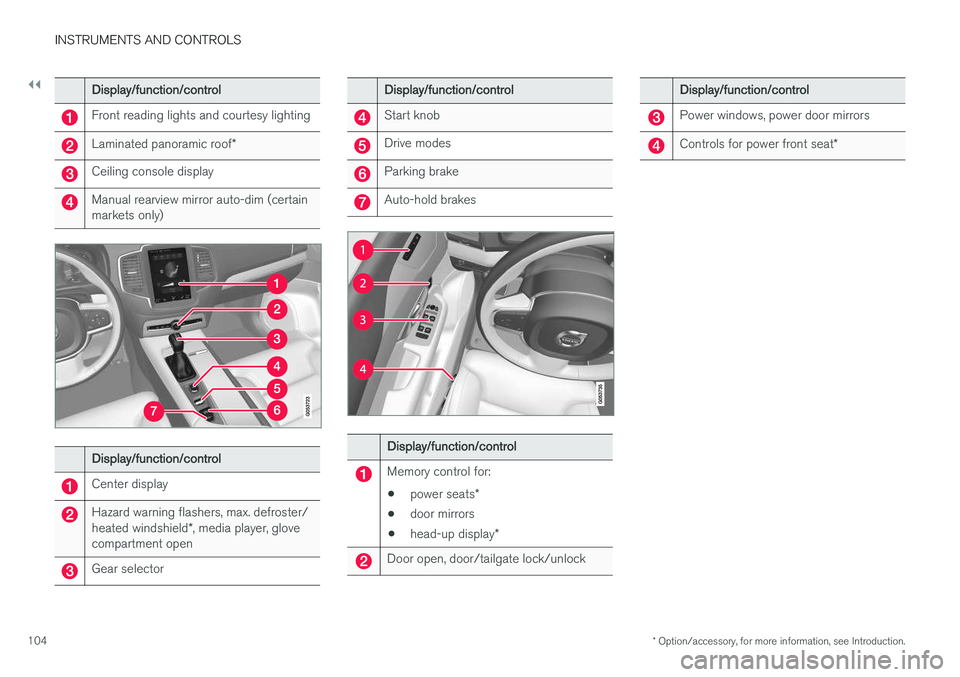
Display/function/control
Front reading lights and courtesy lighting
Laminated panoramic roof *
Ceiling console display
Manual rearview mirror auto-dim (certain markets only)
Display/function/control
Center display
Hazard warning flashers, max. defroster/ heated windshield*, media player, glove
compartment open
Gear selector
Display/function/control
Start knob
Drive modes
Parking brake
Auto-hold brakes
Display/function/control
Memory control for:
• power seats
*
• door mirrors
• head-up display
*
Door open, door/tailgate lock/unlock
Display/function/control
Power windows, power door mirrors
Controls for power front seat *
Page 107 of 546
INSTRUMENTS AND CONTROLS
}}
* Option/accessory, for more information, see Introduction.105
Adjusting the power door mirrors
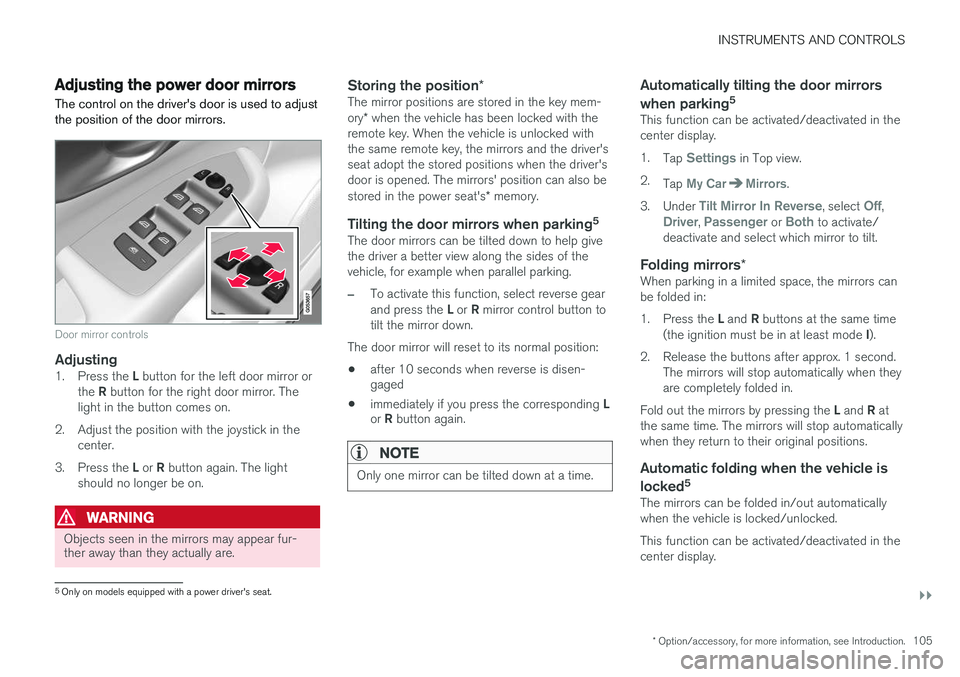
The control on the driver's door is used to adjust the position of the door mirrors.
Door mirror controls
Adjusting1. Press the L button for the left door mirror or
the R button for the right door mirror. The
light in the button comes on.
2. Adjust the position with the joystick in the center.
3. Press the L or R button again. The light
should no longer be on.
WARNING
Objects seen in the mirrors may appear fur- ther away than they actually are.
Storing the position *The mirror positions are stored in the key mem- ory* when the vehicle has been locked with the
remote key. When the vehicle is unlocked with the same remote key, the mirrors and the driver'sseat adopt the stored positions when the driver'sdoor is opened. The mirrors' position can also be stored in the power seat's * memory.
Tilting the door mirrors when parking 5The door mirrors can be tilted down to help give the driver a better view along the sides of thevehicle, for example when parallel parking.
–To activate this function, select reverse gear and press the
L or R mirror control button to
tilt the mirror down.
The door mirror will reset to its normal position:
• after 10 seconds when reverse is disen- gaged
• immediately if you press the corresponding
L
or R button again.
NOTE
Only one mirror can be tilted down at a time.
Automatically tilting the door mirrors when parking 5
This function can be activated/deactivated in the center display. 1.
Tap
Settings in Top view.
2. Tap
My CarMirrors.
3. Under
Tilt Mirror In Reverse, select Off,Driver, Passenger or Both to activate/
deactivate and select which mirror to tilt.
Folding mirrors *When parking in a limited space, the mirrors can be folded in: 1.
Press the L and R buttons at the same time
(the ignition must be in at least mode I).
2. Release the buttons after approx. 1 second. The mirrors will stop automatically when they are completely folded in.
Fold out the mirrors by pressing the L and R at
the same time. The mirrors will stop automaticallywhen they return to their original positions.
Automatic folding when the vehicle is
locked 5
The mirrors can be folded in/out automaticallywhen the vehicle is locked/unlocked. This function can be activated/deactivated in the center display.
5
Only on models equipped with a power driver's seat.
Page 110 of 546
||
INSTRUMENTS AND CONTROLS
108Perform this procedure in reverse order to close the laminated panoramic roof and/or sun shade.
Quick open/close
The laminated panoramic roof and the sun shade can be opened/closed at the same time: •
Open
: pull the control back (to the auto
open position) twice in quick succession and release it.
• Close
: push the control forward (to the auto
close position) twice in quick succession andrelease it.
Manual operation1. Opening the sun shade : Pull the control
back to the first stop (the manual open posi- tion) and hold it until the sun shade hasopened to the position of your choice.
2. Opening the rear edge of the laminatedpanoramic roof : Pull the control back to the
first stop (the manual open position) a sec-
ond time to open the rear edge of the lami-
nated panoramic roof.
3. Opening the front glass section : Pull the
control back to the first stop (the manual open position) a third time and hold it until
the laminated panoramic roof has opened to the position of your choice. Perform this procedure in reverse order to closethe laminated panoramic roof and/or sun shade.
NOTE
For manual opening, the sun shade must first be fully open before it will be possible to openthe laminated panoramic roof. When closing,the laminated panoramic roof must be fullyclosed before the sun shade can be closed.
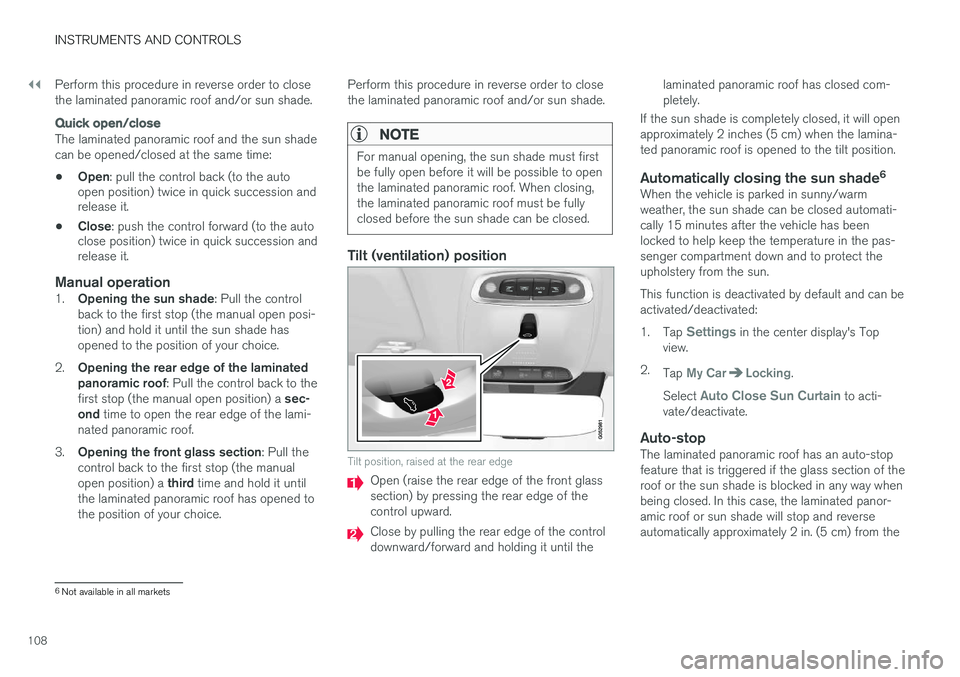
Tilt (ventilation) position
Tilt position, raised at the rear edge
Open (raise the rear edge of the front glass section) by pressing the rear edge of thecontrol upward.
Close by pulling the rear edge of the control downward/forward and holding it until the laminated panoramic roof has closed com-pletely.
If the sun shade is completely closed, it will openapproximately 2 inches (5 cm) when the lamina-ted panoramic roof is opened to the tilt position.
Automatically closing the sun shade 6When the vehicle is parked in sunny/warmweather, the sun shade can be closed automati-cally 15 minutes after the vehicle has beenlocked to help keep the temperature in the pas-senger compartment down and to protect theupholstery from the sun. This function is deactivated by default and can be activated/deactivated: 1.
Tap
Settings in the center display's Top
view.
2. Tap
My CarLocking.
Select
Auto Close Sun Curtain to acti-
vate/deactivate.
Auto-stopThe laminated panoramic roof has an auto-stop feature that is triggered if the glass section of theroof or the sun shade is blocked in any way whenbeing closed. In this case, the laminated panor-amic roof or sun shade will stop and reverseautomatically approximately 2 in. (5 cm) from the
6 Not available in all markets
Page 113 of 546
INSTRUMENTS AND CONTROLS
}}
111
NOTE
When the level of sensitivity is changed, this change will not be noticeable immediately butwill take effect after a short period of time.
The level of sensitivity is set from the center dis- play: 1.Tap
Settings in Top view.
2. Tap
My CarMirrors.
3. Under
Auto Dim Mirrors, select Normal,Dark or Light.
Related information
• Adjusting the power door mirrors (p. 105)
Using sun shades
Both rear doors have integrated sun shades.
Rear doors
Hook and locking mechanism
1. Pull up the sun shade and hook it to the upper section of the door frame.
2. Lock the sun shade by moving the locking mechanism upward.
The window can be opened/closed when the sun shade is being used.
Settings view
The center display's Settings view is used to make many of the vehicle's function settings andto display vehicle-related information.
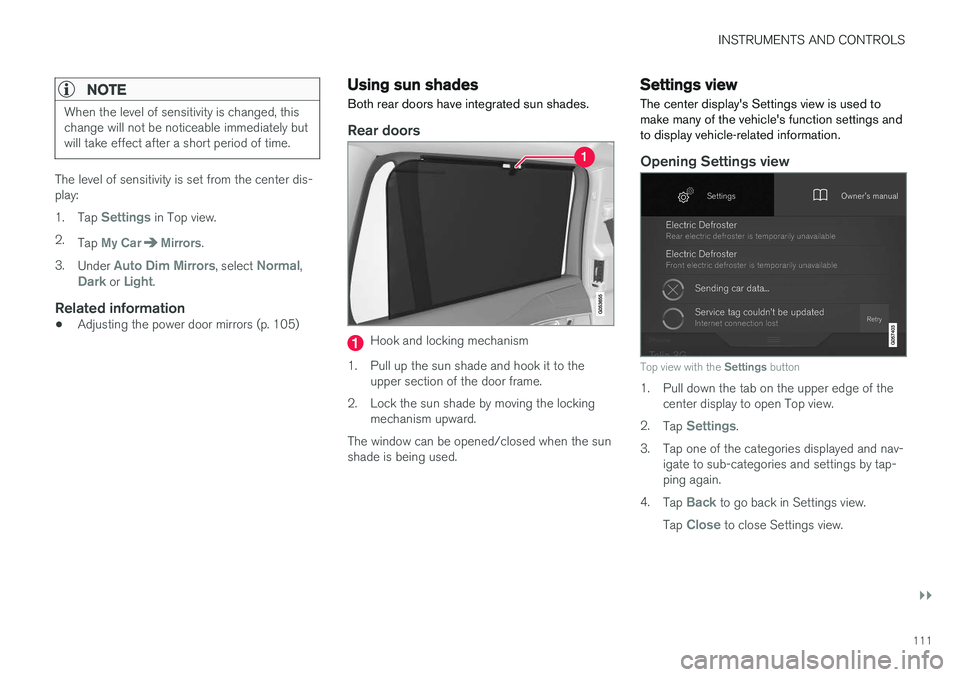
Opening Settings view
Top view with the Settings button
1. Pull down the tab on the upper edge of the
center display to open Top view.
2. Tap
Settings.
3. Tap one of the categories displayed and nav- igate to sub-categories and settings by tap- ping again.
4. Tap
Back to go back in Settings view.
Tap
Close to close Settings view.
Page 114 of 546
||
INSTRUMENTS AND CONTROLS
* Option/accessory, for more information, see Introduction.
112
Changing a setting
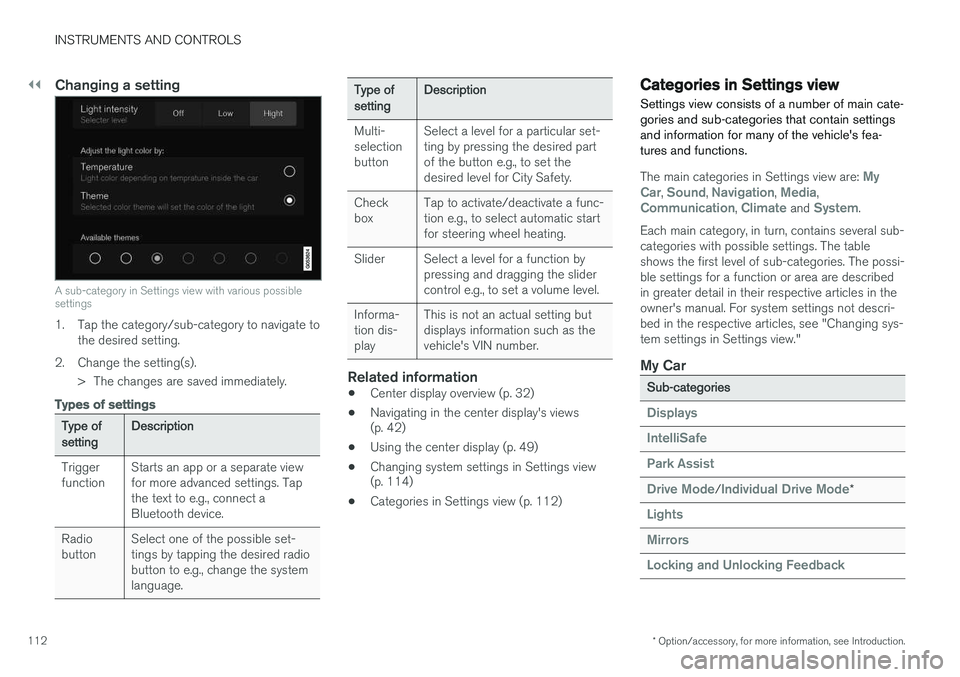
A sub-category in Settings view with various possible settings
1. Tap the category/sub-category to navigate to
the desired setting.
2. Change the setting(s). > The changes are saved immediately.
Types of settings
Type of settingDescription
Trigger functionStarts an app or a separate view for more advanced settings. Tapthe text to e.g., connect aBluetooth device.
Radio buttonSelect one of the possible set- tings by tapping the desired radiobutton to e.g., change the systemlanguage.
Type of settingDescription
Multi- selectionbuttonSelect a level for a particular set- ting by pressing the desired partof the button e.g., to set thedesired level for City Safety.
Check boxTap to activate/deactivate a func- tion e.g., to select automatic startfor steering wheel heating.
SliderSelect a level for a function by pressing and dragging the slidercontrol e.g., to set a volume level.
Informa- tion dis-playThis is not an actual setting but displays information such as thevehicle's VIN number.
Related information
• Center display overview (p. 32)
• Navigating in the center display's views (p. 42)
• Using the center display (p. 49)
• Changing system settings in Settings view(p. 114)
• Categories in Settings view (p. 112)
Categories in Settings view
Settings view consists of a number of main cate- gories and sub-categories that contain settingsand information for many of the vehicle's fea-tures and functions.
The main categories in Settings view are: My
Car, Sound, Navigation, Media,Communication, Climate and System.
Each main category, in turn, contains several sub- categories with possible settings. The tableshows the first level of sub-categories. The possi-ble settings for a function or area are describedin greater detail in their respective articles in theowner's manual. For system settings not descri-bed in the respective articles, see "Changing sys-tem settings in Settings view."
My Car
Sub-categories
Displays
IntelliSafe
Park Assist
Drive Mode/Individual Drive Mode*
Lights
Mirrors
Locking and Unlocking Feedback
Page 116 of 546
INSTRUMENTS AND CONTROLS
* Option/accessory, for more information, see Introduction.
114
Changing system settings in Settings view
Settings view's main category
System contains
general settings and information, such as lan- guage, units of measure, etc.
The system settings under Driver Profile, Date
& Time, Keyboard Layouts, Voice Control,Software Updates, Factory reset andServices are described in their respective arti-
cles in the owner's manual.
Changing system languages1. Pull down the center display's Top view and
tap Settings.
2. Tap
SystemLanguage.
3. Select a new system language. Languages that can be used for voice commands are indicated by a voice control symbol.
> This change affects the language used inthe instrument panel, center display and the head-up display *.
Changing units of measure
Changing length and volume units
1. Pull down the center display's Top view and
tap Settings.
2. Tap
SystemUnitsUnits. 3. Select one of the following measurement
standards:
•
Metric: kilometers, liters and degrees Cel-
sius.
•
Imperial: miles, gallons and degrees Cel-
sius.
•
US: miles, gallons and degrees Fahren-
heit.
> This change affects the units of measure used in the instrument panel, center dis- play and the head-up display *
Changing tire inflation pressure units
1. Pull down the center display's Top view and
tap Settings.
2. Tap
SystemUnitsTire Pressure.
3. Select a unit of measure for tire pressure. > This changes the tire inflation pressureunits used in the
Car status app in the
center display.
Viewing storage information1. Pull down the center display's Top view and
tap Settings.
2. Tap
SystemStorage.
> Storage information for the vehicle's hard drive will be displayed, including total capacity, available capacity and theamount of storage space used by theapps that have been installed.
Viewing the VIN (Vehicle Identification Number)
1. Pull down the center display's Top view and
tap Settings.
2. Tap
SystemVehicle Identification
Number.
> The vehicle's VIN will be displayed.
Page 117 of 546
INSTRUMENTS AND CONTROLS
115
Changing settings in apps
App view, which is one of the center display's basic views, contains all of the apps installed inthe vehicle. From Home view, navigate to Appview by swiping the screen from right to left.
Apps for integrated (basic) functionsCertain apps in your vehicle are factory-installed, such as FM, USB and CD and are part of Sen-
sus. Settings in these apps can be changed in the center display's Top view.
Changing settings for a basic app
1. Tap one of the basic apps, for example FM
radio.
2. Pull down Top view. 3. Tap
FM Radio Settings.
4. Change the desired settings and confirm.
5. Press the Home button below the center dis- play or tap the screen outside of Top view or pull up Top view to return to your originalview. See also the article "Categories in Set-tings view."
Third party appsThird party apps have to be downloaded e.g.,Volvo ID. Settings for these apps are made in
the apps themselves, not in Top view.
Related information
• Settings view (p. 111)
• Navigating in the center display's views (p. 42)
• Categories in Settings view (p. 112)
Resetting the settings view
All of the changes made under Settings view can be reset to their default values at the sametime.
Resetting1. Tap Settings in the center display's Top
view.
2. Tap
SystemFactory reset.
3. Tap
OK to confirm your choice.
Related information
• Settings view (p. 111)
• Resetting user data when the vehicle changes owners (p. 116)
Page 118 of 546
INSTRUMENTS AND CONTROLS
116
Resetting user data when the vehicle changes ownersWhen the vehicle changes owners, all user set- tings should be reset to the factory defaults.
When the vehicle changes owners, it is essential to reset all user data and system settings to theirfactory defaults, including Volvo On Call.
Related information
• Resetting the settings view (p. 115)
• Volvo ID (p. 31)
Ambient temperature sensor
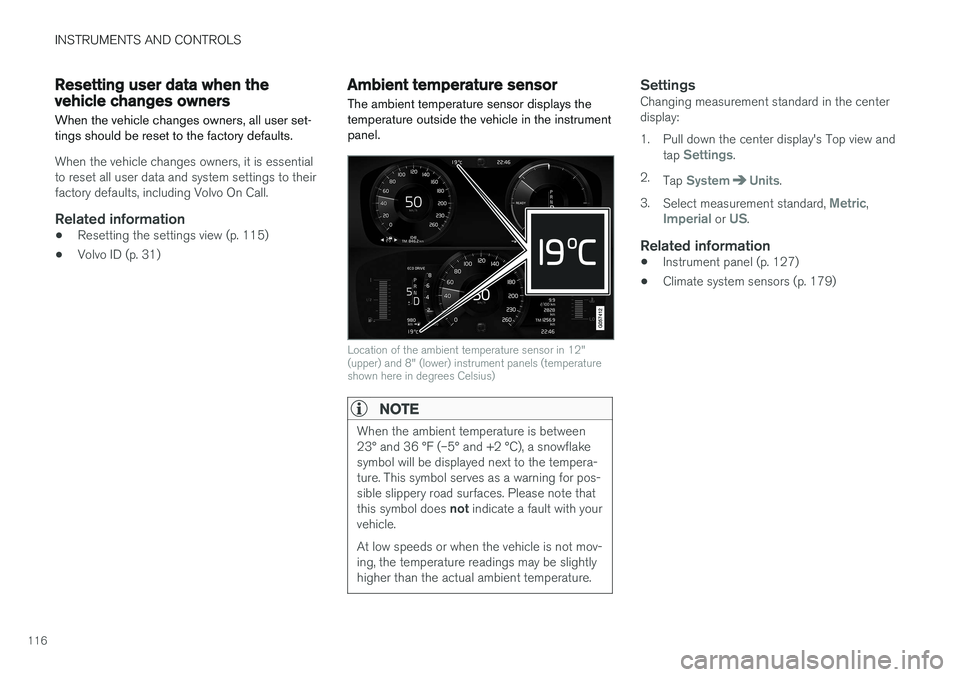
The ambient temperature sensor displays the temperature outside the vehicle in the instrumentpanel.
Location of the ambient temperature sensor in 12" (upper) and 8" (lower) instrument panels (temperatureshown here in degrees Celsius)
NOTE
When the ambient temperature is between 23° and 36 °F (–5° and +2 °C), a snowflakesymbol will be displayed next to the tempera-ture. This symbol serves as a warning for pos-sible slippery road surfaces. Please note that this symbol does not indicate a fault with your
vehicle. At low speeds or when the vehicle is not mov- ing, the temperature readings may be slightlyhigher than the actual ambient temperature.
SettingsChanging measurement standard in the center display:
1. Pull down the center display's Top view and
tap
Settings.
2. Tap
SystemUnits.
3. Select measurement standard,
Metric,Imperial or US.
Related information
• Instrument panel (p. 127)
• Climate system sensors (p. 179)
Page 119 of 546
INSTRUMENTS AND CONTROLS
}}
* Option/accessory, for more information, see Introduction.117
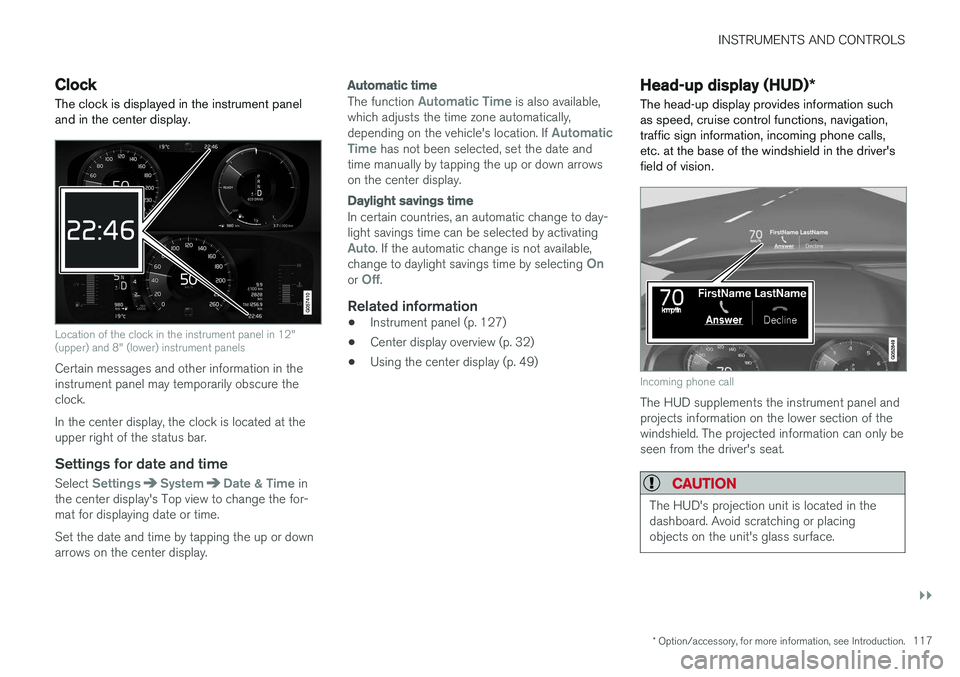
Clock The clock is displayed in the instrument panel and in the center display.
Location of the clock in the instrument panel in 12" (upper) and 8" (lower) instrument panels
Certain messages and other information in the instrument panel may temporarily obscure theclock. In the center display, the clock is located at the upper right of the status bar.
Settings for date and time
Select SettingsSystemDate & Time in
the center display's Top view to change the for- mat for displaying date or time. Set the date and time by tapping the up or down arrows on the center display.
Automatic time
The function Automatic Time is also available,
which adjusts the time zone automatically, depending on the vehicle's location. If
Automatic
Time has not been selected, set the date and
time manually by tapping the up or down arrows on the center display.
Daylight savings time
In certain countries, an automatic change to day- light savings time can be selected by activating
Auto. If the automatic change is not available,
change to daylight savings time by selecting Onor Off.
Related information
• Instrument panel (p. 127)
• Center display overview (p. 32)
• Using the center display (p. 49)
Head-up display (HUD)
*
The head-up display provides information such as speed, cruise control functions, navigation,traffic sign information, incoming phone calls,etc. at the base of the windshield in the driver'sfield of vision.
Incoming phone call
The HUD supplements the instrument panel and projects information on the lower section of thewindshield. The projected information can only beseen from the driver's seat.
CAUTION
The HUD's projection unit is located in the dashboard. Avoid scratching or placingobjects on the unit's glass surface.
Page 120 of 546
||
INSTRUMENTS AND CONTROLS
118
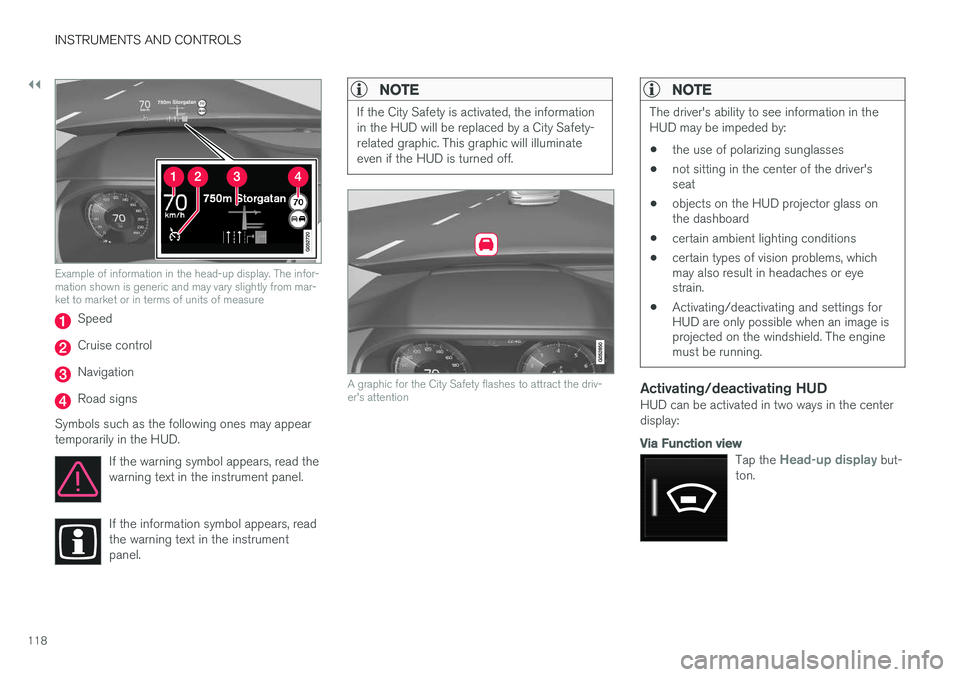
Example of information in the head-up display. The infor- mation shown is generic and may vary slightly from mar-ket to market or in terms of units of measure
Speed
Cruise control
Navigation
Road signs
Symbols such as the following ones may appear temporarily in the HUD. If the warning symbol appears, read thewarning text in the instrument panel.
If the information symbol appears, read the warning text in the instrumentpanel.
NOTE
If the City Safety is activated, the information in the HUD will be replaced by a City Safety-related graphic. This graphic will illuminateeven if the HUD is turned off.
A graphic for the City Safety flashes to attract the driv- er's attention
NOTE
The driver's ability to see information in the HUD may be impeded by: •the use of polarizing sunglasses
• not sitting in the center of the driver's seat
• objects on the HUD projector glass onthe dashboard
• certain ambient lighting conditions
• certain types of vision problems, whichmay also result in headaches or eyestrain.
• Activating/deactivating and settings forHUD are only possible when an image isprojected on the windshield. The enginemust be running.
Activating/deactivating HUDHUD can be activated in two ways in the center display:
Via Function view
Tap the Head-up display but-
ton.