instrument panel VOLVO XC90 TWIN ENGINE 2018 Manual Online
[x] Cancel search | Manufacturer: VOLVO, Model Year: 2018, Model line: XC90 TWIN ENGINE, Model: VOLVO XC90 TWIN ENGINE 2018Pages: 686, PDF Size: 17 MB
Page 361 of 686
DRIVER SUPPORT
}}
* Option/accessory. 359
Signs for "School" and "Children
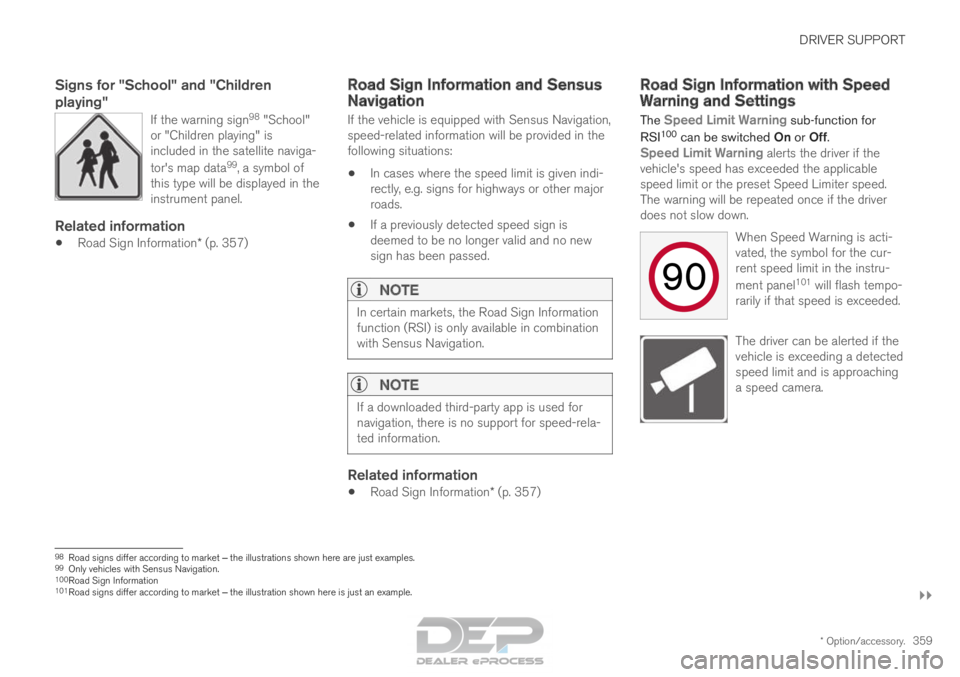
playing"
If the warning sign 98
"School"
or "Children playing" is
included in the satellite naviga-
tor's map data 99
, a symbol of
this type will be displayed in the
instrument panel.
Related information
• Road Sign Information* (p. 357) Road Sign Information and Sensus
Navigation
If the vehicle is equipped with Sensus Navigation,
speed-related information will be provided in the
following situations:
• In cases where the speed limit is given indi-
rectly, e.g. signs for highways or other major
roads.
• If a previously detected speed sign is
deemed to be no longer valid and no new
sign has been passed.
NOTE In certain markets, the Road Sign Information
function (RSI) is only available in combination
with Sensus Navigation.
NOTE
If a downloaded third-party app is used for
navigation, there is no support for speed-rela-
ted information.
Related information
•
Road Sign Information* (p. 357) Road Sign Information with Speed
Warning and Settings
The Speed Limit Warning sub-function for
RSI 100
can be switched On or Off.
Speed Limit Warning alerts the driver if the
vehicle's speed has exceeded the applicable
speed limit or the preset Speed Limiter speed.
The warning will be repeated once if the driver
does not slow down.
When Speed Warning is acti-
vated, the symbol for the cur-
rent speed limit in the instru-
ment panel101
will flash tempo-
rarily if that speed is exceeded. The driver can be alerted if the
vehicle is exceeding a detected
speed limit and is approaching
a speed camera.
98
Road signs differ according to market ‒ the illustrations shown here are just examples.
99 Only vehicles with Sensus Navigation.
100 Road Sign Information
101 Road signs differ according to market ‒ the illustration shown here is just an example.
Page 362 of 686
||DRIVER SUPPORT
* Option/accessory.
360
Settings
Adjusting the Speed Warning limit
The driver can adjust the settings to be alerted at
a higher speed than the posted speed limit.
To adjust the Speed Warning limit:
1. Select Settings My Car IntelliSafe
Road Sign Information
in the center
display's Top view.
2. Mark Speed Limit Warning.
>
The function is activated and a speed limit
selector is displayed.
3. Tap the up/down arrows on the screen to adjust the speed at which the Speed Warn-
ing will be given.
Please note that the set warn-
ing limit will not be used when
a speed camera symbol is dis-
played in the instrument panel.
Audible alert On/Off
An audible alert can also be given along with the
Speed Warning.
To adjust the audible alert settings:
1. Select Settings My Car IntelliSafe
Road Sign Information
in the center
display's Top view. 2.
Select/deselect Road Sign Audio Warning
to activate/deactivate the audible alert.
When
Road Sign Audio Warning is activated,
the driver will also be alerted if the vehicle is
approaching a one-way/"no-entry" road or
entrance.
Related information
• Road Sign Information* (p. 357) Activating/deactivating Speed
Warning in Road Sign Information
To activate the
Speed Limit Warning sub-func-
tion:
1.
Select Settings My Car IntelliSafe
Road Sign Information
in the center
display's Top view.
2. Mark Speed Limit Warning.
>
The function is activated and a speed limit
selector is displayed.
(see description for "selecting speed
limit" in section "Road Sign Information
with Speed warning and Settings")
Related information
• Road Sign Information* (p. 357)
• Road Sign Information with Speed Warning
and Settings (p. 359)
Page 363 of 686
DRIVER SUPPORT
}}
* Option/accessory. 361
Road Sign Information with speed
camera information
Vehicles equipped with RSI 102
and Sensus
Navigation* can provide information on upcom-
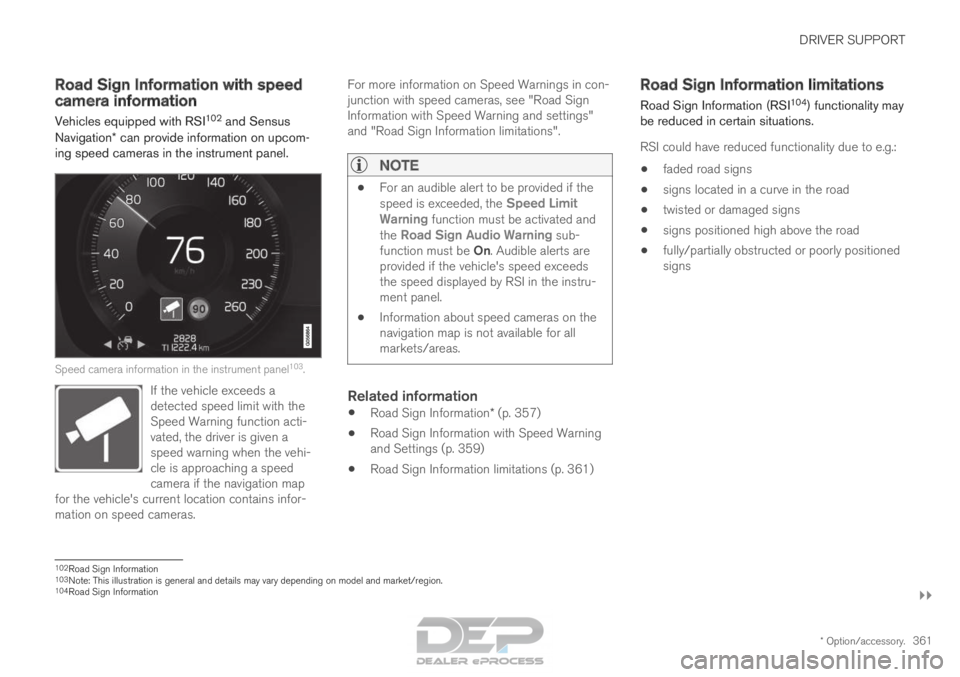
ing speed cameras in the instrument panel. Speed camera information in the instrument panel
103
.
If the vehicle exceeds a
detected speed limit with the
Speed Warning function acti-
vated, the driver is given a
speed warning when the vehi-
cle is approaching a speed
camera if the navigation map
for the vehicle's current location contains infor-
mation on speed cameras. For more information on Speed Warnings in con-
junction with speed cameras, see "Road Sign
Information with Speed Warning and settings"
and "Road Sign Information limitations".
NOTE
•
For an audible alert to be provided if the
speed is exceeded, the
Speed Limit
Warning function must be activated and
the Road Sign Audio Warning sub- function must be On. Audible alerts are
provided if the vehicle's speed exceeds
the speed displayed by RSI in the instru-
ment panel.
• Information about speed cameras on the
navigation map is not available for all
markets/areas.
Related information
•
Road Sign Information* (p. 357)
• Road Sign Information with Speed Warning
and Settings (p. 359)
• Road Sign Information limitations (p. 361) Road Sign Information limitations
Road Sign Information (RSI 104
) functionality may
be reduced in certain situations.
RSI could have reduced functionality due to e.g.:
• faded road signs
• signs located in a curve in the road
• twisted or damaged signs
• signs positioned high above the road
• fully/partially obstructed or poorly positioned
signs 102
Road Sign Information
103 Note: This illustration is general and details may vary depending on mod\
el and market/region.
104 Road Sign Information
Page 364 of 686
||DRIVER SUPPORT
* Option/accessory.
362 •
signs partially or fully covered by frost, snow
and/or dirt
• digital road maps 105
that are outdated, incor-
rect or do not contain speed information 106
.
NOTE Certain types of bike carriers that are con-
nected to the trailer socket may be interpre-
ted as a connected trailer by the RSI function.
In such cases, the instrument panel may indi-
cate incorrect speed information.
NOTE
The function uses the vehicle's camera unit,
which has some general limitations – see the
section "Camera unit limitations".
Related information
•
Road Sign Information* (p. 357) Driver Alert Control
The Driver Alert Control (DAC) function is
designed to help capture the driver become
aware of erratic behavior, e.g. if the driver is dis-
tracted or showing signs of fatigue.
The objective of DAC is to detect slowly deterio-
rating driving behavior and is primarily intended to
be used on major roads. The function is not
intended for use in city traffic.
DAC is activated when the vehicle's speed
exceeds 65 km/h (40 mph) and remains active
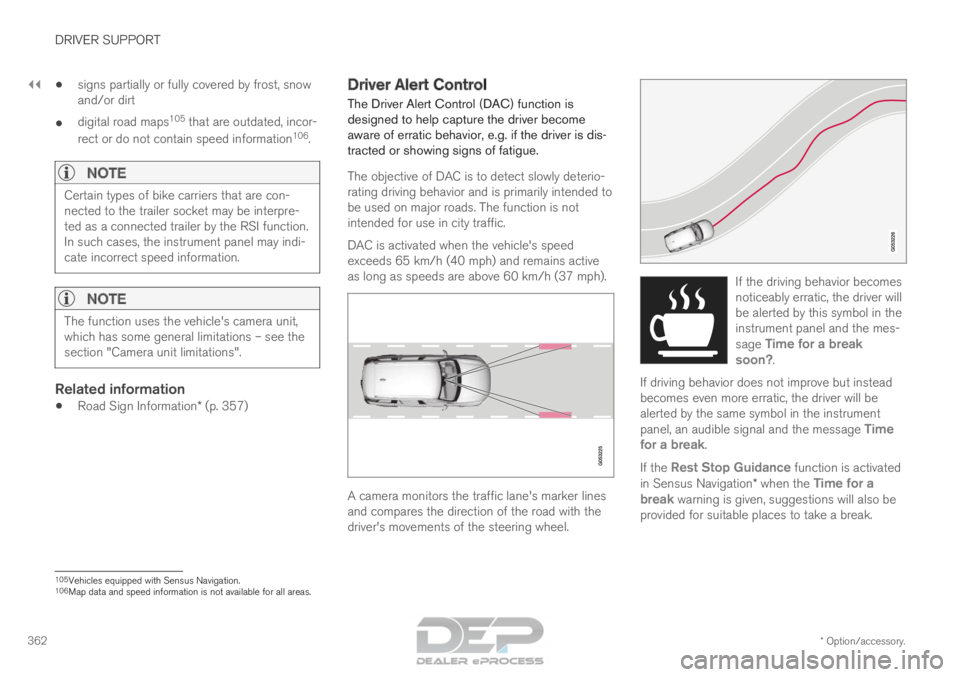
as long as speeds are above 60 km/h (37 mph). A camera monitors the traffic lane's marker lines
and compares the direction of the road with the
driver's movements of the steering wheel. If the driving behavior becomes
noticeably erratic, the driver will
be alerted by this symbol in the
instrument panel and the mes-
sage
Time for a break
soon?.
If driving behavior does not improve but instead
becomes even more erratic, the driver will be
alerted by the same symbol in the instrument
panel, an audible signal and the message Time
for a break. If the Rest Stop Guidance function is activated
in Sensus Navigation* when the Time for a
break warning is given, suggestions will also be provided for suitable places to take a break. 105
Vehicles equipped with Sensus Navigation.
106 Map data and speed information is not available for all areas.
Page 368 of 686
||DRIVER SUPPORT
366
Lane Keeping Aid does not intervene
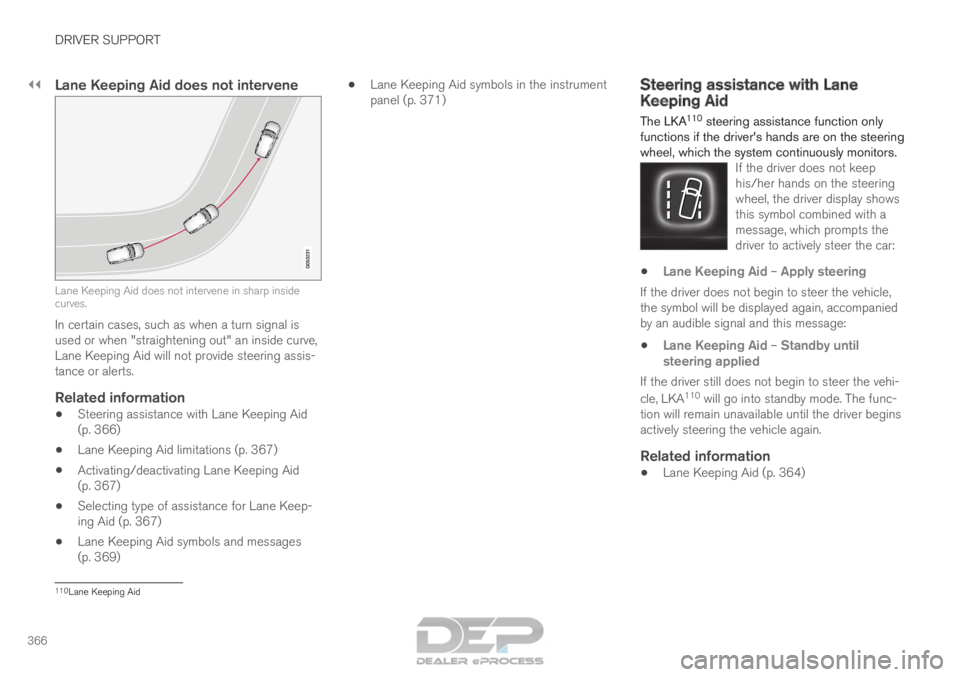
Lane Keeping Aid does not intervene in sharp inside
curves.
In certain cases, such as when a turn signal is
used or when "straightening out" an inside curve,
Lane Keeping Aid will not provide steering assis-
tance or alerts.
Related information
• Steering assistance with Lane Keeping Aid
(p. 366)
• Lane Keeping Aid limitations (p. 367)
• Activating/deactivating Lane Keeping Aid
(p. 367)
• Selecting type of assistance for Lane Keep-
ing Aid (p. 367)
• Lane Keeping Aid symbols and messages
(p. 369) •
Lane Keeping Aid symbols in the instrument
panel (p. 371) Steering assistance with Lane
Keeping Aid
The LKA
110
steering assistance function only
functions if the driver's hands are on the steering
wheel, which the system continuously monitors. If the driver does not keep
his/her hands on the steering
wheel, the driver display shows
this symbol combined with a
message, which prompts the
driver to actively steer the car: •
Lane Keeping Aid – Apply steering
If the driver does not begin to steer the vehicle,
the symbol will be displayed again, accompanied
by an audible signal and this message:
• Lane Keeping Aid – Standby until
steering applied
If the driver still does not begin to steer the vehi-
cle, LKA 110
will go into standby mode. The func-
tion will remain unavailable until the driver begins
actively steering the vehicle again.
Related information
• Lane Keeping Aid (p. 364) 110
Lane Keeping Aid
Page 371 of 686
DRIVER SUPPORT
}}
369
Lane Keeping Aid symbols and
messages
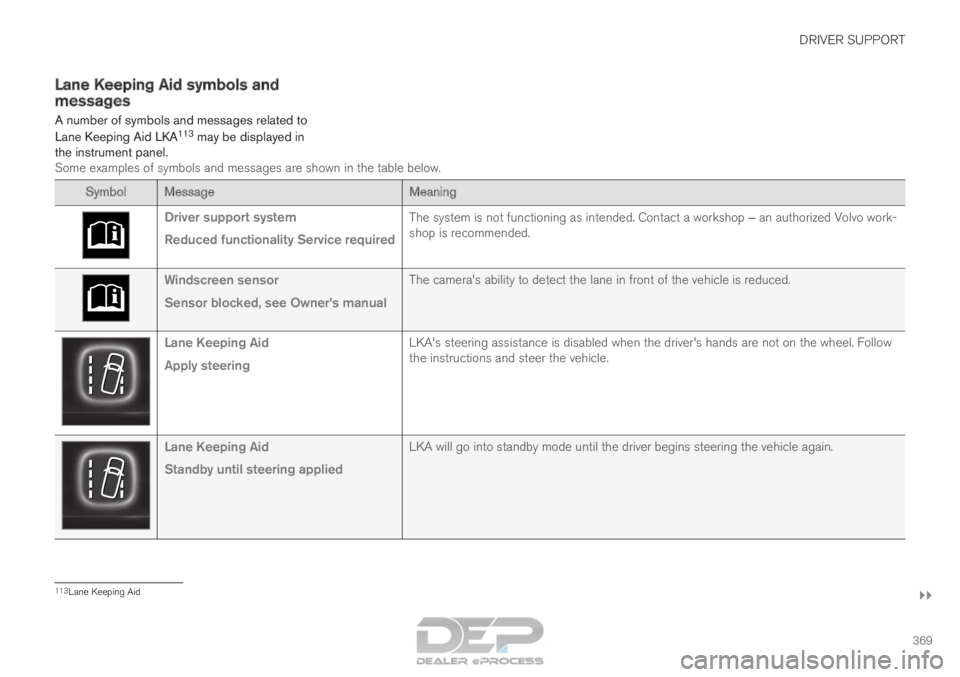
A number of symbols and messages related to
Lane Keeping Aid LKA 113
may be displayed in
the instrument panel. Some examples of symbols and messages are shown in the table below. Symbol
Message MeaningDriver support system
Reduced functionality Service required
The system is not functioning as intended. Contact a workshop ‒ an authorized Volvo work-
shop is recommended. Windscreen sensor
Sensor blocked, see Owner's manual
The camera's ability to detect the lane in front of the vehicle is re\
duced.Lane Keeping Aid
Apply steering
LKA's steering assistance is disabled when the driver's hands are \
not on the wheel. Follow
the instructions and steer the vehicle.Lane Keeping Aid
Standby until steering applied
LKA will go into standby mode until the driver begins steering the vehic\
le again.113
Lane Keeping Aid
Page 373 of 686
DRIVER SUPPORT
371
Lane Keeping Aid symbols in the
instrument panel
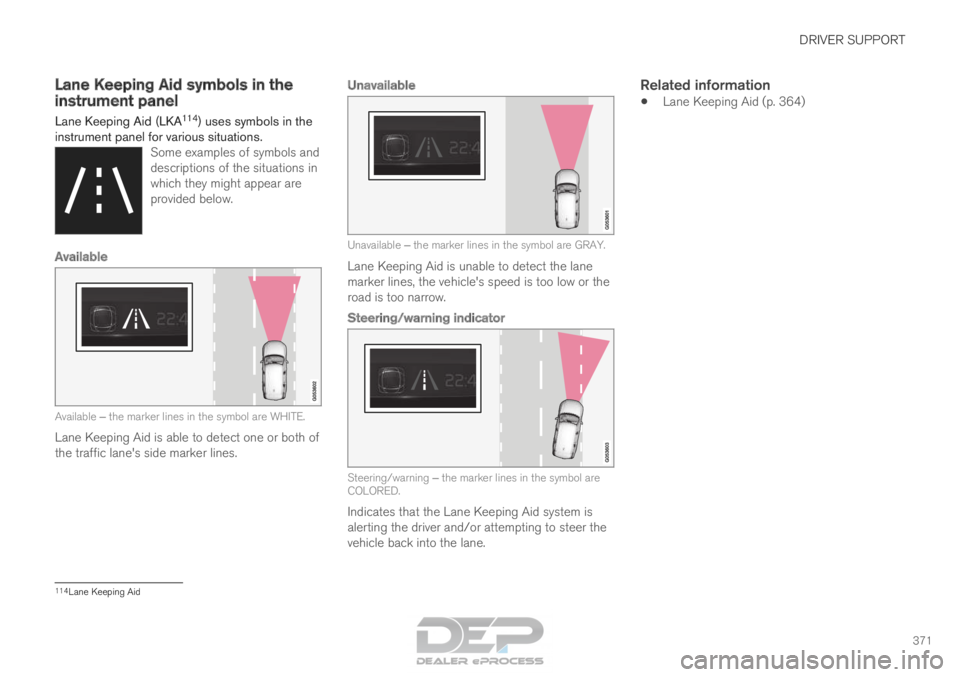
Lane Keeping Aid (LKA 114
) uses symbols in the
instrument panel for various situations. Some examples of symbols and
descriptions of the situations in
which they might appear are
provided below.
AvailableAvailable
‒
the marker lines in the symbol are WHITE.
Lane Keeping Aid is able to detect one or both of
the traffic lane's side marker lines.
Unavailable Unavailable ‒ the marker lines in the symbol are GRAY.
Lane Keeping Aid is unable to detect the lane
marker lines, the vehicle's speed is too low or the
road is too narrow.
Steering/warning indicator Steering/warning ‒ the marker lines in the symbol are
COLORED.
Indicates that the Lane Keeping Aid system is
alerting the driver and/or attempting to steer the
vehicle back into the lane.
Related information
• Lane Keeping Aid (p. 364) 114
Lane Keeping Aid
Page 374 of 686
DRIVER SUPPORT
* Option/accessory.
372 Steering assistance at risk of
collision
The Collision avoidance assistance function
is intended to help the driver reduce the risk of
the vehicle inadvertently veering from the traffic
lane and/or colliding with another vehicle or
obstacle by actively steering the vehicle back
into the lane and/or swerving out of the way.
Collision avoidance assistance consists of
three sub-functions:
• Run-Off Mitigation with steering assistance
• Steering assistance during collision risks
from oncoming traffic
• Steering assistance during collision risks
from behind*
After the system has automatically intervened,
this text message will appear in the instrument
panel:
• Collision avoidance assistance –
Automatic intervention
NOTE It is always the driver who must decide how
much the vehicle should be in control – the
vehicle can never take command.
Related information
•
Activating/deactivating steering assistance
during collision risks (p. 372)
• Symbols and messages for steering assis-
tance during collision risks (p. 380)
• Run-Off Mitigation with steering assistance
(p. 373)
• Run-Off Mitigation with steering assistance
levels (p. 373)
• Activating/deactivating Run-Off Mitigation
with steering assistance (p. 374)
• Limitations of Run-Off Mitigation with steer-
ing assistance (p. 374)
• Steering assistance during collision risks
from oncoming traffic (p. 375)
• Activating/deactivating Steering assistance
during collision risks with oncoming vehicles
(p. 376)
• Limitations of steering assistance during col-
lision risks from oncoming traffic (p. 376)
• Steering assistance during collision risks
from behind* (p. 377)
• Activating/deactivating Steering assistance
during collision risks from behind* (p. 378)
• Limitations of steering assistance during col-
lision risks from behind (p. 378) Activating/deactivating steering
assistance during collision risks
The driver can choose to have this function On
or Off.
To switch off the function:
1.
Select Settings My Car IntelliSafe
in
the center display's Top view.
2. Deselect Collision avoidance assistance.
>
The function will be deactivated.
NOTE When the
Collision avoidance assistance
function is deactivated, all subfunctions of the
following are deactivated:
• Steering assistance at risk of run-off
• Steering assistance at risk of head-on
collision
• Steering assistance during collision risks
from behind*
Although it is possible to deactivate the func-
tion, the driver is advised to keep it activated
since it can help improve driving safety in
most cases.
Related information
• Steering assistance at risk of collision
(p. 372)
Page 375 of 686
DRIVER SUPPORT
}}
373
Run-Off Mitigation with steering
assistance
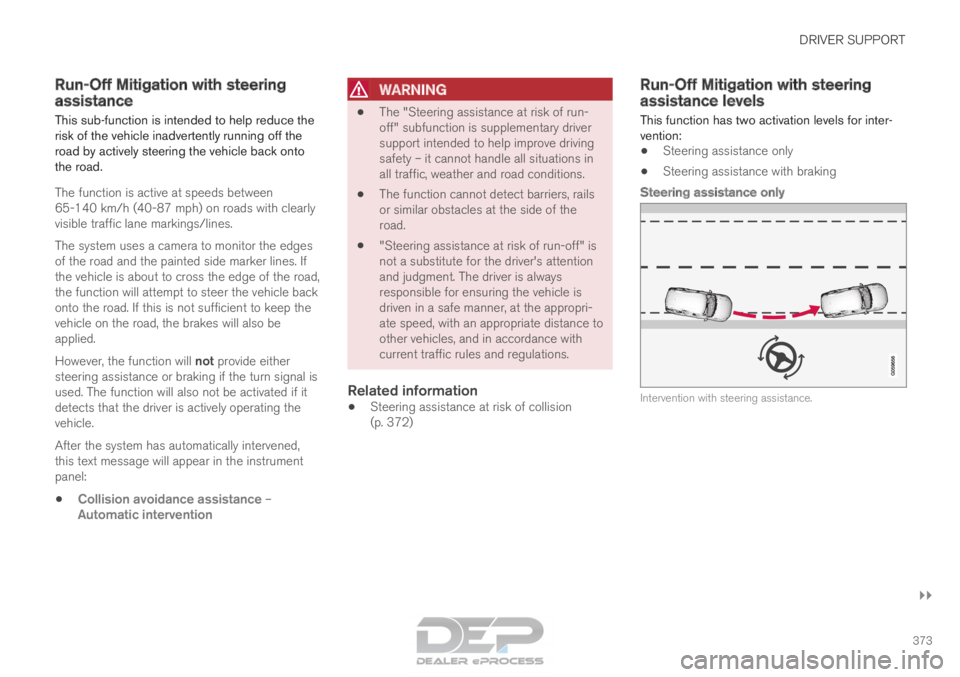
This sub-function is intended to help reduce the
risk of the vehicle inadvertently running off the
road by actively steering the vehicle back onto
the road.
The function is active at speeds between
65-140 km/h (40-87 mph) on roads with clearly
visible traffic lane markings/lines.
The system uses a camera to monitor the edges
of the road and the painted side marker lines. If
the vehicle is about to cross the edge of the road,
the function will attempt to steer the vehicle back
onto the road. If this is not sufficient to keep the
vehicle on the road, the brakes will also be
applied.
However, the function will not provide either
steering assistance or braking if the turn signal is
used. The function will also not be activated if it
detects that the driver is actively operating the
vehicle.
After the system has automatically intervened,
this text message will appear in the instrument
panel: • Collision avoidance assistance –
Automatic intervention
WARNING •
The "Steering assistance at risk of run-
off" subfunction is supplementary driver
support intended to help improve driving
safety – it cannot handle all situations in
all traffic, weather and road conditions.
• The function cannot detect barriers, rails
or similar obstacles at the side of the
road.
• "Steering assistance at risk of run-off" is
not a substitute for the driver's attention
and judgment. The driver is always
responsible for ensuring the vehicle is
driven in a safe manner, at the appropri-
ate speed, with an appropriate distance to
other vehicles, and in accordance with
current traffic rules and regulations.
Related information
•Steering assistance at risk of collision
(p. 372) Run-Off Mitigation with steering
assistance levels
This function has two activation levels for inter-
vention:
•
Steering assistance only
• Steering assistance with braking
Steering assistance only Intervention with steering assistance.
Page 377 of 686
DRIVER SUPPORT
}}
375
NOTE The function uses the vehicle's radar unit,
which has some general limitations – see the
section "Radar unit limitations".
Related information
•
Steering assistance at risk of collision
(p. 372)
• Speed-dependent steering wheel resistance
(p. 272) Steering assistance during collision
risks from oncoming traffic
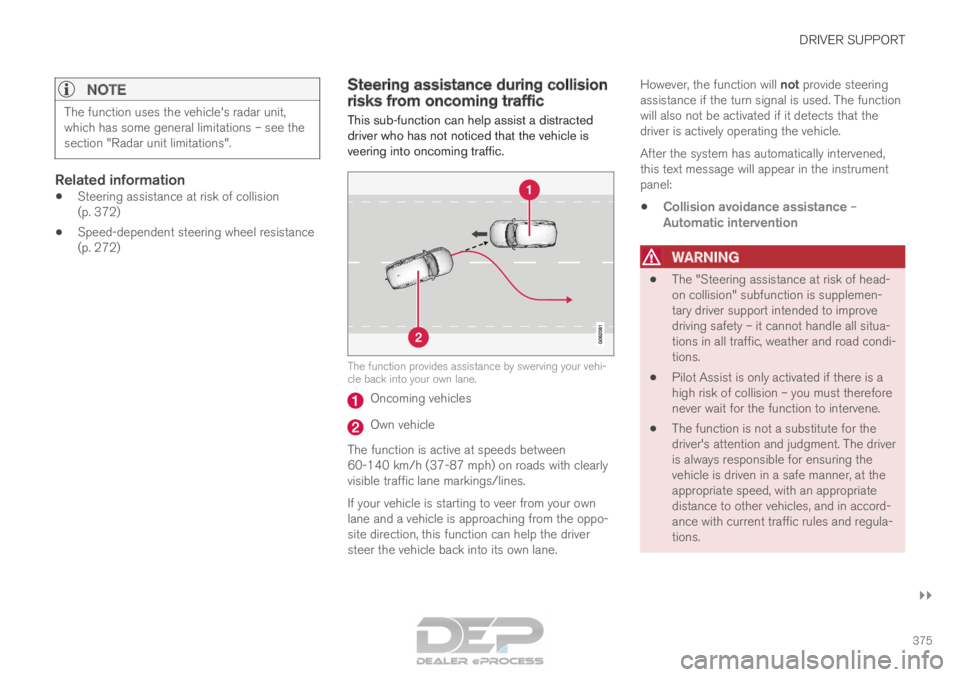
This sub-function can help assist a distracted
driver who has not noticed that the vehicle is
veering into oncoming traffic. The function provides assistance by swerving your vehi-
cle back into your own lane.
Oncoming vehicles
Own vehicle
The function is active at speeds between
60-140 km/h (37-87 mph) on roads with clearly
visible traffic lane markings/lines.
If your vehicle is starting to veer from your own
lane and a vehicle is approaching from the oppo-
site direction, this function can help the driver
steer the vehicle back into its own lane. However, the function will not provide steering
assistance if the turn signal is used. The function
will also not be activated if it detects that the
driver is actively operating the vehicle.
After the system has automatically intervened,
this text message will appear in the instrument
panel:
• Collision avoidance assistance –
Automatic intervention
WARNING •
The "Steering assistance at risk of head-
on collision" subfunction is supplemen-
tary driver support intended to improve
driving safety – it cannot handle all situa-
tions in all traffic, weather and road condi-
tions.
• Pilot Assist is only activated if there is a
high risk of collision – you must therefore
never wait for the function to intervene.
• The function is not a substitute for the
driver's attention and judgment. The driver
is always responsible for ensuring the
vehicle is driven in a safe manner, at the
appropriate speed, with an appropriate
distance to other vehicles, and in accord-
ance with current traffic rules and regula-
tions.