change VOLVO XC90 TWIN ENGINE 2019 Owners Manual
[x] Cancel search | Manufacturer: VOLVO, Model Year: 2019, Model line: XC90 TWIN ENGINE, Model: VOLVO XC90 TWIN ENGINE 2019Pages: 697, PDF Size: 10.33 MB
Page 463 of 697
STARTING AND DRIVING
}}
* Option/accessory. 461
Leveling control* and suspension
The vehicle's leveling control system adjusts the
suspension and shock absorbers automatically
to help provide good comfort and control while
driving. Leveling can also be controlled manually
to facilitate loading or getting in and out of the
vehicle.
Pneumatic suspension and shock
absorbers
The system is adapted to the selected drive
mode and vehicle speed. The pneumatic suspen-
sion reduces the vehicle's ground clearance at
higher speeds to reduce air resistance and
increase stability. The shock absorbers are nor-
mally set to provide the best possible comfort
and are adjusted continuously according to the
road surface and the vehicle's acceleration, brak-
ing and cornering. The instrument panel indicates
when the suspension level is
being adjusted.The following apply if a door or the tailgate is
opened:
If a door is opened, the level can only be
adjusted upwards.
If the tailgate is open, the level can only be
adjusted downwards.
ParkingWhen parking, make sure that there is adequate
space above and below the vehicle since ground
clearance may vary depending on e.g. ambient temperature, how the vehicle is loaded, if loading
mode is used, which drive mode is selected after
the engine is started, etc.
The level may also be adjusted a period after the
vehicle is parked. This is to compensate for any
height changes that may occur due to tempera-
ture changes in the air springs when the vehicle
cools.
TransportingWhen transporting the vehicle on a ferry, train or
truck, only secure (lash) the vehicle around the
tires, not using any other parts of the chassis.
Changes in the pneumatic suspension may occur
during transport, which could adversely affect the
lashing and result in damage.
Page 467 of 697
STARTING AND DRIVING
465
NOTEWhen LSC with HDC is activated in the OFF
ROAD drive mode, the feel of the accelerator
pedal and engine response will change.
NOTE
This drive mode is not designed to be used
for normal street driving.
NOTE
The function is deactivated when driving at
high speeds and must be reactivated at lower
speeds if so desired.
Related information
Activating and deactivating Low Speed Con-
trol using the function button (p. 465)
Changing drive mode (p. 459)
Hill Descent Control (p. 466)
All Wheel Drive (AWD) (p. 452) Activating and deactivating Low
Speed Control using the function
button
There is a function button for driving at low
speeds with Hill Descent Control in the center
display's Function view if the vehicle is not
equipped with a drive mode control in the tunnel
console.
Selecting Low Speed Control in the
center display's Function view
– Tap the Hill Descent Control button to
activate or deactivate the function. > An indicator light in the button will illumi-
nate when the function is activated.
When the engine is switched off, the function will
be automatically deactivated.
NOTE The function is deactivated when driving at
high speeds and must be reactivated at lower
speeds if so desired.
Related information
Low Speed Control (p. 464)
Changing drive mode (p. 459)
Page 468 of 697
STARTING AND DRIVING
466Hill Descent Control
The function for assisting when driving downhill,
Hill Descent Control (HDC), is a low-speed
function with increased engine braking. The
function makes it possible to increase or
decrease the vehicle's speed on steep downhill
gradients by only using the accelerator pedal,
without applying the brakes.
The function is included in the Off Road drive
mode.
HDC is designed for driving on rough roads at
low speeds and downhill gradients with slippery
or otherwise difficult road surfaces. The driver
does not need to use the brake pedal but can
instead focus on steering.
WARNING
HDC is only intended to be a supplementary
braking aid and it does not function in all sit-
uations.
The driver is always ultimately responsible for
operating the vehicle in a safe manner.
FunctionHill Descent Control allows the vehicle to move
forward or backward at very low speeds assisted
by the brake system. The driver can increase the
speed by pressing the accelerator pedal. When
the accelerator pedal is released, the vehicle will
return to very low speed regardless of how steep the hill is and without the brakes needing to be
applied. The brake lights will illuminate when the
function is activated.
The driver can brake to stop or slow the vehicle
at any time by depressing the brake pedal.
HDC is activated along with Low Speed Control
(LSC), which facilitates and improves traction and
control on rough and slippery surfaces. The sys-
tem is intended to be used at low speeds, up to
approximately 40 km/h (25 mph).
To keep in mind when using HDC
If the function is switched off while driving on
a steep downhill gradient, braking effect will
be gradually reduced.
HDC can be used in gear positions D and R,
and in manual gears 1 or 2.
It is not possible to manually shift to third
gear or higher when HDC is active.
NOTE When LSC with HDC is activated in the OFF
ROAD drive mode, the feel of the accelerator
pedal and engine response will change.
NOTE
This drive mode is not designed to be used
for normal street driving.
NOTE The function is deactivated when driving at
high speeds and must be reactivated at lower
speeds if so desired.
Related information
Activating and deactivating Hill Descent Con-
trol using the function button (p. 467)
Changing drive mode (p. 459)
Low Speed Control (p. 464)
All Wheel Drive (AWD) (p. 452)
Page 474 of 697
STARTING AND DRIVING
472Preparing for a long trip
It is important to have the vehicle's systems and
equipment checked carefully before driving long
distances.
Check that:
the engine is running properly and that fuel
consumption is normal
there are no leaks (fuel, oil or other fluid)
the brake pedal is functioning optimally
all lights are working ‒ adjust the headlight
height if the vehicle is carrying a heavy load
tire tread depth and air pressure are at cor-
rect levels. Change to snow tires when driv-
ing in areas where there is a risk of snowy or
icy roads
the start battery is sufficiently charged
the wiper blades are in good condition
Related information
Checking tire pressure (p. 567)
Filling washer fluid (p. 662)
Winter driving (p. 472)
Economical driving (p. 467)
Vehicle modem settings (p. 545)
Loading recommendations (p. 598)
Driving with a trailer (p. 483)
Pilot Assist (p. 316)
Speed limiter (p. 283)
Tire sealing system (p. 582) Winter driving
It is important to check the vehicle before driving
in cold/snowy conditions to make sure it can be
driven safely.
Before the cold season arrives: Make sure the engine coolant contains 50%
antifreeze. This mixture helps protect the
engine from frost erosion down to
approx. -35 °C (-31 °F). Do not mix different
types of antifreeze as this could pose a
health risk.
Keep the fuel tank well filled to prevent con-
densation from forming.
Check the viscosity of the engine oil. Oil with
low viscosity (thinner oil) improves cold-
weather starting and reduces fuel consump-
tion when driving with a cold engine.
CAUTION Low-viscosity oil should not be used with hard
driving or in hot weather.
Check the condition and charge level of the
start battery. Cold weather places greater
demands on the start battery and reduces its
capacity.
Use washer fluid containing antifreeze to
help prevent ice from forming in the washer
fluid reservoir.
Page 494 of 697
||STARTING AND DRIVING
* Option/accessory.
492
WARNING
If you use HomeLink ®
to open a garage
door or gate, be sure no one is near the
gate or door while it is in motion.
Do not use HomeLink ®
with any garage
door opener that lacks safety stop and
reverse features as required by US fed-
eral safety standards (this includes any
garage door opener model manufactured
before April 1, 1982). A garage door that
cannot detect an object - signaling the
door to stop and reverse - does not meet
current U.S. federal safety standards. For
more information, contact HomeLink at:
www.homelink.com.
Related information
HomeLink ®
* (p. 489)
Programming HomeLink ®
* (p. 490)
Type approval for HomeLink ®
* (p. 492) Type approval for HomeLink
®
*15
FCC (USA) and IC (Canada)This device complies with FCC rules part 15 and
Industry Canada RSS-210. Operation is subject
to the following two conditions: (1) This device
may not cause harmful interference, and (2) This
device must accept any interference that may be
received including interference that may cause
undesired operation.
WARNING The transmitter has been tested and complies
with FCC and IC rules. Changes or modifica-
tions not expressly approved by the party
responsible for compliance could void the
user's authority to operate the device.
16
Type approval for EUGentex Corporation hereby declares that
HomeLink®
Model UAHL5 complies with the
Radio equipment directive 2014/53/EU.
Wavelengths within which the radio equipment
operates:
433.05MHz-434.79MHz <10mW E.R.P.
868.00MHz-868.60MHz <25mW E.R.P.
868.70MHz-868.20MHz <25mW E.R.P.
869.40MHz-869.65MHz <25mW E.R.P.
869.70MHz-870.00MHz <25mW E.R.P.
Certificate holder address: Gentex Corporation,
600 North Centennial Street, Zeeland MI 49464,
USA
For more information, see support.volvocars.com.
Related information
HomeLink ®
* (p. 489) 14
Certain markets only.
15 Certain markets only.
16 The term "IC:" before the certification/registration number only signifi\
es that Industry Canada technical specifications were met.
Page 504 of 697
AUDIO, MEDIA AND INTERNET
502
Changing waveband and radio station
(p. 502)
Storing radio favorites (p. 503)
Radio settings (p. 504)
Voice control for radio and media (p. 148) Changing waveband and radio
station
Instructions for changing wavebands, waveband
lists and radio stations in the selected list are
provided here.
Changing wavebandsSwipe from App view on the center display and
select the desired waveband (e.g. FM) or open
the App menu in the instrument panel with the
right-side steering wheel keypad and make your
selection there.
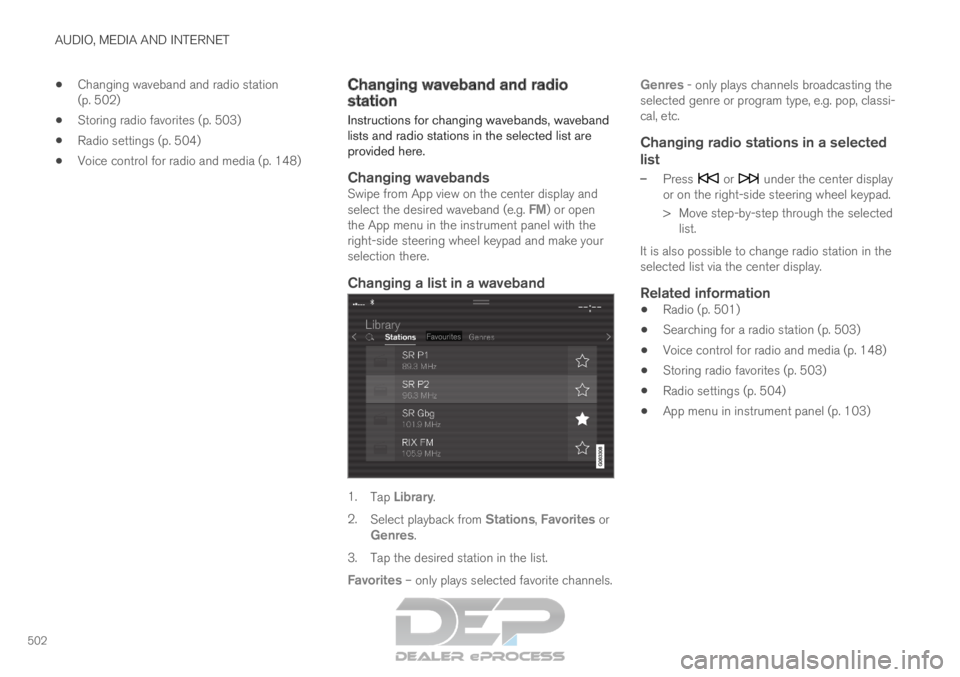
Changing a list in a waveband 1.
Tap Library.
2. Select playback from Stations, Favorites or
Genres.
3.
Tap the desired station in the list.
Favorites – only plays selected favorite channels. Genres - only plays channels broadcasting the
selected genre or program type, e.g. pop, classi-
cal, etc.
Changing radio stations in a selected
list
– Press or under the center display
or on the right-side steering wheel keypad.
>
Move step-by-step through the selected
list.
It is also possible to change radio station in the
selected list via the center display.
Related information
Radio (p. 501)
Searching for a radio station (p. 503)
Voice control for radio and media (p. 148)
Storing radio favorites (p. 503)
Radio settings (p. 504)
App menu in instrument panel (p. 103)
Page 505 of 697
AUDIO, MEDIA AND INTERNET
}}
503
Searching for a radio station
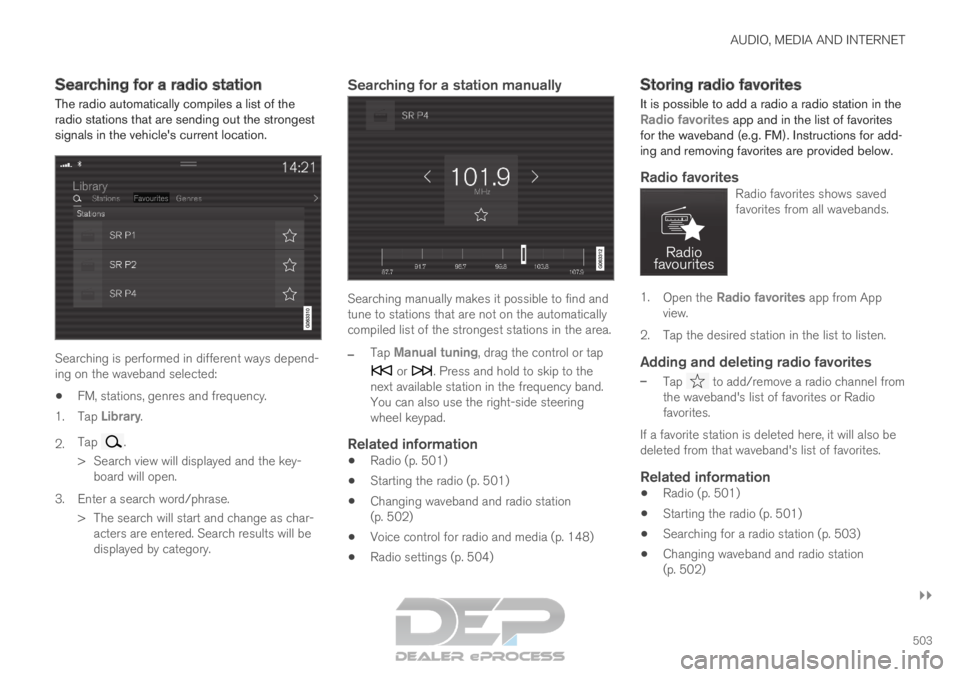
The radio automatically compiles a list of the
radio stations that are sending out the strongest
signals in the vehicle's current location. Searching is performed in different ways depend-
ing on the waveband selected:
FM, stations, genres and frequency.
1. Tap Library.
2. Tap .
>
Search view will displayed and the key-
board will open.
3. Enter a search word/phrase. > The search will start and change as char-acters are entered. Search results will be
displayed by category.
Searching for a station manually Searching manually makes it possible to find and
tune to stations that are not on the automatically
compiled list of the strongest stations in the area.
–
Tap
Manual tuning, drag the control or tap or . Press and hold to skip to the
next available station in the frequency band.
You can also use the right-side steering
wheel keypad.
Related information
Radio (p. 501)
Starting the radio (p. 501)
Changing waveband and radio station
(p. 502)
Voice control for radio and media (p. 148)
Radio settings (p. 504) Storing radio favorites
It is possible to add a radio a radio station in the Radio favorites app and in the list of favorites
for the waveband (e.g. FM). Instructions for add-
ing and removing favorites are provided below.
Radio favoritesRadio favorites shows saved
favorites from all wavebands. 1.
Open the Radio favorites app from App
view.
2.
Tap the desired station in the list to listen.
Adding and deleting radio favorites
– Tap to add/remove a radio channel from
the waveband's list of favorites or Radio
favorites.
If a favorite station is deleted here, it will also be
deleted from that waveband's list of favorites.
Related information
Radio (p. 501)
Starting the radio (p. 501)
Searching for a radio station (p. 503)
Changing waveband and radio station
(p. 502)
Page 510 of 697
AUDIO, MEDIA AND INTERNET
* Option/accessory.
508 HD Radio™
limitations
Limitations
Main channel vs. sub-channels (FM only):
The main channel is the only channel that
can receive in hybrid mode (both digital and
analog). If a frequency has sub-channels,
they are broadcast in digital mode only. The
main FM channel will be displayed as, for
example, "WRIF-FM HD1". The sub-FM
channels will be displayed as"WRIF-FM
HD2", "WRIF-FM HD3", etc.
Reception coverage area: Due to current
IBOC transmitter power limitations, the
reception coverage area in digital mode is
somewhat more limited than the station's
analog coverage area. Be aware that, like all
radio transmission technology, terrain, time of
day, vegetation and buildings can have a
positive or negative effect on radio reception.
Analog to digital/digital to analog blend-
ing: Analog to digital blending will occur as
the signal strength reaches a preset thresh-
old in the receiver. This will be noticeable in
fringe areas (areas with weak reception) and
is normal.
NOTE There may be a noticeable difference in
sound quality when a change from analogue
to digital or digital to analogue occurs, such
as:
Volume increase or decrease
Equalizer settings, i.e., Bass/ Midrange/
Treble cut or boost
Time alignment (Digital program material
in extreme cases can be as much as 8
seconds behind the analogue). This will
noticeable as a "stuttering" effect.
The above items are dependant on the
broadcaster's equipment settings and do
not indicate a fault in the vehicle's radio
receiver or antenna systems.
Related information
HD Radio™ (p. 505)
Activating and deactivating the HD Radio™
(p. 506)
HD Radio
™
sub-channels (p. 507) SiriusXM
®
Satellite radio*
The SiriusXM ®
Satellite system broadcasts from
of a number of high elevation satellites in geo-
synchronous orbit.
Listening to satellite radioThe digital signals from the satellites are line-of-
sight, which means that physical obstructions
such as bridges, tunnels, etc, may temporarily
interfere with signal reception.
Avoid any obstructions, such as metallic objects
transported on roof racks or in a ski box, or other
antennas that may impede signals from the
SiriusXM ®
satellites.
Selecting SiriusXM ®
Satellite radio
mode
1. From the center display's Home view, swipe from right to left to come to App view. 2.
Tap the SiriusXM ®
Satellite radio icon.
Page 522 of 697
AUDIO, MEDIA AND INTERNET
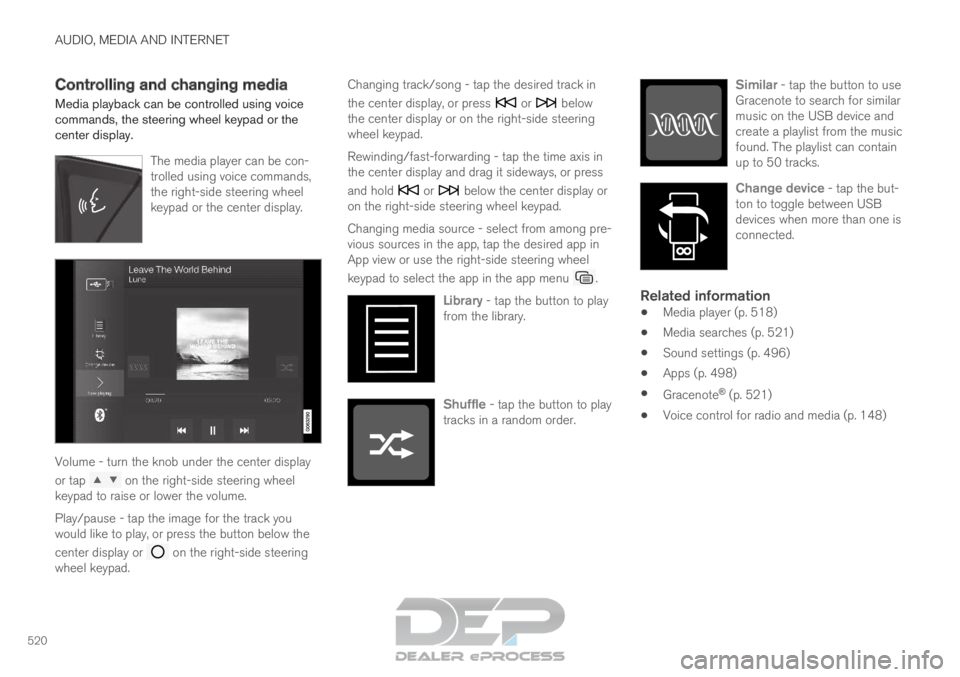
520Controlling and changing media
Media playback can be controlled using voice
commands, the steering wheel keypad or the
center display.
The media player can be con-
trolled using voice commands,
the right-side steering wheel
keypad or the center display.Volume - turn the knob under the center display
or tap
on the right-side steering wheel
keypad to raise or lower the volume.
Play/pause - tap the image for the track you
would like to play, or press the button below the
center display or on the right-side steering
wheel keypad. Changing track/song - tap the desired track in
the center display, or press or below
the center display or on the right-side steering
wheel keypad.
Rewinding/fast-forwarding - tap the time axis in
the center display and drag it sideways, or press
and hold or below the center display or
on the right-side steering wheel keypad.
Changing media source - select from among pre-
vious sources in the app, tap the desired app in
App view or use the right-side steering wheel
keypad to select the app in the app menu .
Library - tap the button to play
from the library. Shuffle - tap the button to play
tracks in a random order. Similar - tap the button to use
Gracenote to search for similar
music on the USB device and
create a playlist from the music
found. The playlist can contain
up to 50 tracks. Change device - tap the but-
ton to toggle between USB
devices when more than one is
connected.
Related information
Media player (p. 518)
Media searches (p. 521)
Sound settings (p. 496)
Apps (p. 498)
Gracenote ®
(p. 521)
Voice control for radio and media (p. 148)
Page 530 of 697
||AUDIO, MEDIA AND INTERNET
* Option/accessory.
528 5. Tap the desired app.
> The app will start up.
Starting CarPlay
CarPlay can be started as follows after an iPhone
is connected.
1. Connect an iPhone to the USB port. If thereare two USB ports, use the one with the
white frame.
>If the auto start setting is selected -
the name of the phone will be displayed.
2. Tap the name of the phone - the CarPlay tile will open and compatible apps will be dis-
played.
3. If the CarPlay tile does not open, tap Apple
CarPlay in App view.
>
The CarPlay tile will open and compatible
apps will be displayed.
4. Tap the desired app. > The app will start up.
CarPlay will run in the background if another app
is started in the same tile. To display CarPlay in
the tile, tap the CarPlay icon in App view.
Switching connection between CarPlay and iPod
CarPlay to iPod
1. Tap Settings in the Top view. 2.Proceed to
Communication Apple
CarPlay .
3.
Uncheck the box for the Apple device that
should no longer start CarPlay automatically
when the USB cable is connected.
4. Remove and then reinsert the Apple device into the USB port.
5. Open the iPod app from App view.
iPod to CarPlay
1.
Tap Apple CarPlay in App view.
2.
Read the information in the pop-up window
and then tap OK.
3.
Remove and then reinsert the Apple device
into the USB port.
> The Apple CarPlay tile will open and com-
patible apps will be displayed 7
.
Related information
Connecting a device via the USB port
(p. 525)
Apple ®
CarPlay ®
* (p. 527)
Settings for Apple ®
CarPlay ®
* (p. 528)
Connecting the vehicle to the Internet via a
phone (Wi-Fi) (p. 543)
Connecting the vehicle to the Internet via
vehicle modem (SIM card) (p. 544)
Voice control (p. 145) Settings for Apple
®
CarPlay ®
*
Settings for an
Apple device connected through
CarPlay 8
.
Automatic start1. Tap Settings in the Top view.
2.
Tap Communication Apple CarPlay
and
select the desired setting:
Check the box - CarPlay will start auto-
matically when the USB cable is con-
nected.
Uncheck the box - CarPlay will not start
automatically when the USB cable is con-
nected.
A maximum of 20 Apple devices can be stored in
the list. When the list is full and a new device is
connected, the oldest one will be deleted.
To delete the list, the settings must be rest in the
center display (factory reset).
System Volumes1. Tap Settings in the Top view.
2.
Tap Sound System Volumes
to change
the settings for the following:
Voice Control
Navi Voice Guidance
Phone Ringtone 7
Apple, CarPlay, iPhone and iPod are registered trademarks of Apple Inc.