buttons VOLVO XC90 TWIN ENGINE 2019 User Guide
[x] Cancel search | Manufacturer: VOLVO, Model Year: 2019, Model line: XC90 TWIN ENGINE, Model: VOLVO XC90 TWIN ENGINE 2019Pages: 697, PDF Size: 10.33 MB
Page 130 of 697
||DISPLAYS AND VOICE CONTROL
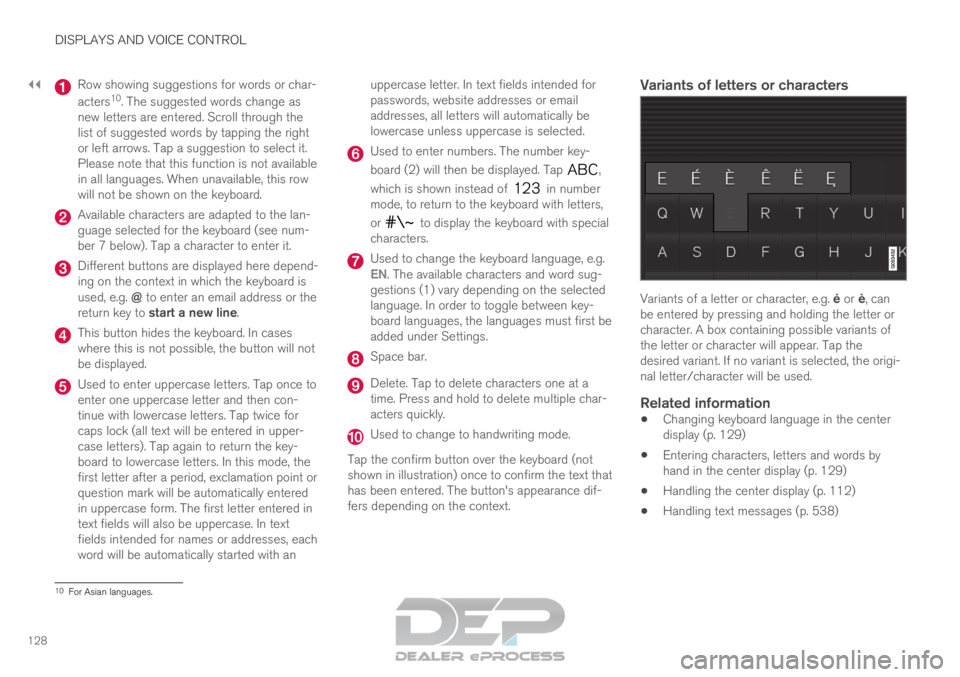
128 Row showing suggestions for words or char-
acters
10
. The suggested words change as
new letters are entered. Scroll through the
list of suggested words by tapping the right
or left arrows. Tap a suggestion to select it.
Please note that this function is not available
in all languages. When unavailable, this row
will not be shown on the keyboard. Available characters are adapted to the lan-
guage selected for the keyboard (see num-
ber 7 below). Tap a character to enter it.
Different buttons are displayed here depend-
ing on the context in which the keyboard is
used, e.g. @ to enter an email address or the
return key to start a new line. This button hides the keyboard. In cases
where this is not possible, the button will not
be displayed.
Used to enter uppercase letters. Tap once to
enter one uppercase letter and then con-
tinue with lowercase letters. Tap twice for
caps lock (all text will be entered in upper-
case letters). Tap again to return the key-
board to lowercase letters. In this mode, the
first letter after a period, exclamation point or
question mark will be automatically entered
in uppercase form. The first letter entered in
text fields will also be uppercase. In text
fields intended for names or addresses, each
word will be automatically started with an uppercase letter. In text fields intended for
passwords, website addresses or email
addresses, all letters will automatically be
lowercase unless uppercase is selected. Used to enter numbers. The number key-
board (2) will then be displayed. Tap
,
which is shown instead of in number
mode, to return to the keyboard with letters,
or to display the keyboard with special
characters. Used to change the keyboard language, e.g.
EN
. The available characters and word sug-
gestions (1) vary depending on the selected
language. In order to toggle between key-
board languages, the languages must first be
added under Settings. Space bar.
Delete. Tap to delete characters one at a
time. Press and hold to delete multiple char-
acters quickly.
Used to change to handwriting mode.
Tap the confirm button over the keyboard (not
shown in illustration) once to confirm the text that
has been entered. The button's appearance dif-
fers depending on the context.
Variants of letters or characters Variants of a letter or character, e.g. é or è, can
be entered by pressing and holding the letter or
character. A box containing possible variants of
the letter or character will appear. Tap the
desired variant. If no variant is selected, the origi-
nal letter/character will be used.
Related information
Changing keyboard language in the center
display (p. 129)
Entering characters, letters and words by
hand in the center display (p. 129)
Handling the center display (p. 112)
Handling text messages (p. 538) 10
For Asian languages.
Page 142 of 697
DISPLAYS AND VOICE CONTROL
140Messages in the center display
The center display shows messages in certain
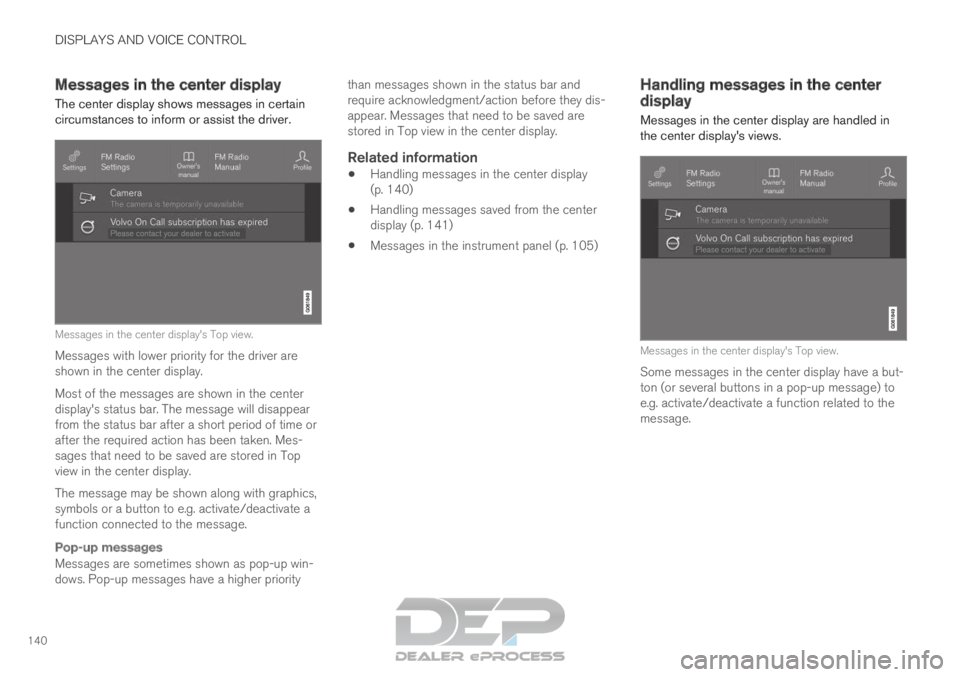
circumstances to inform or assist the driver. Messages in the center display's Top view.
Messages with lower priority for the driver are
shown in the center display.
Most of the messages are shown in the center
display's status bar. The message will disappear
from the status bar after a short period of time or
after the required action has been taken. Mes-
sages that need to be saved are stored in Top
view in the center display.
The message may be shown along with graphics,
symbols or a button to e.g. activate/deactivate a
function connected to the message.
Pop-up messages
Messages are sometimes shown as pop-up win-
dows. Pop-up messages have a higher priority than messages shown in the status bar and
require acknowledgment/action before they dis-
appear. Messages that need to be saved are
stored in Top view in the center display.
Related information
Handling messages in the center display
(p. 140)
Handling messages saved from the center
display (p. 141)
Messages in the instrument panel (p. 105) Handling messages in the center
display
Messages in the center display are handled in
the center display's views. Messages in the center display's Top view.
Some messages in the center display have a but-
ton (or several buttons in a pop-up message) to
e.g. activate/deactivate a function related to the
message.
Page 143 of 697
DISPLAYS AND VOICE CONTROL
141
Handling new messages
For messages with buttons:
–Tap the button to perform the action or let
the message automatically time-out after a
short period.
>
The message will disappear from the sta-
tus bar.
For messages without buttons:
– Close the message by tapping it or let the
message automatically time-out after a short
period.
>
The message will disappear from the sta-
tus bar.
Messages that need to be saved are stored in
Top view in the center display.
Related information
Messages in the center display (p. 140)
Handling messages saved from the center
display (p. 141)
Messages in the instrument panel (p. 105) Handling messages saved from the
center display
Messages saved from the instrument panel and
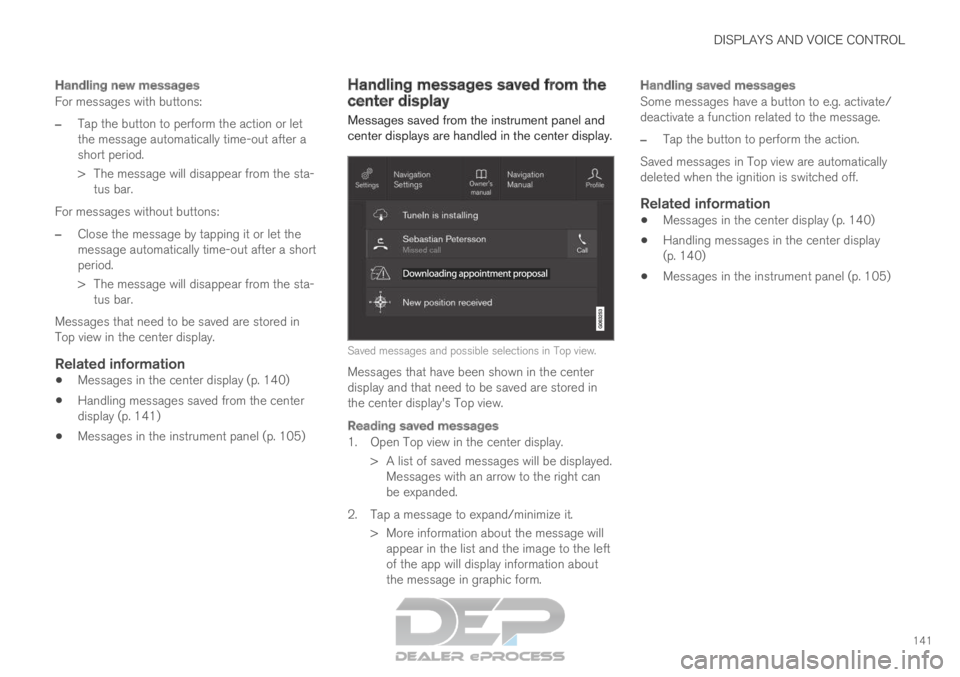
center displays are handled in the center display. Saved messages and possible selections in Top view.
Messages that have been shown in the center
display and that need to be saved are stored in
the center display's Top view.
Reading saved messages
1. Open Top view in the center display. > A list of saved messages will be displayed.Messages with an arrow to the right can
be expanded.
2. Tap a message to expand/minimize it. > More information about the message willappear in the list and the image to the left
of the app will display information about
the message in graphic form.
Handling saved messages
Some messages have a button to e.g. activate/
deactivate a function related to the message.
– Tap the button to perform the action.
Saved messages in Top view are automatically
deleted when the ignition is switched off.
Related information
Messages in the center display (p. 140)
Handling messages in the center display
(p. 140)
Messages in the instrument panel (p. 105)
Page 171 of 697

WINDOWS, GLASS AND MIRRORS
}}
* Option/accessory. 169
WARNINGMake sure that no child or other passenger
comes into contact with the windows as they
are closing with keyless closing*.
NOTE
One way to reduce the pulsating wind noise
heard when the rear windows are open is to
also open the front windows slightly.
NOTE
The windows cannot be opened at speeds
over approx. 180 km/h (ca112 mph), but they
can be closed.
The driver is always responsible for following
applicable traffic regulations.
Related information
Power windows (p. 167)
Pinch protection for windows and sun cur-
tains (p. 166)
Reset procedure for pinch protection
(p. 167)
Keyless locking and unlocking* (p. 259)
Locking and unlocking using the remote key
(p. 246) Using sun curtains*
There are integrated sun curtains in each rear
door.
Rear door – manually operated The illustration is generic – the design may vary.
Hook with locking mechanism
– Pull up the sun curtain and hook it to the
upper section of the door frame.
The window can be opened and closed when the
sun curtain is being used.
Related information
Pinch protection for windows and sun cur-
tains (p. 166)
Reset procedure for pinch protection
(p. 167)
Power windows (p. 167) Rearview/door mirrors
The rearview mirror and door mirrors can be
used to improve the driver's visibility behind the
vehicle.
Rearview mirrorThe rearview mirror can be easily adjusted man-
ually. The rearview mirror can be equipped with
HomeLink*, auto-dim* and compass*.
Door mirrors
WARNING The door mirror on the passenger side is
curved to improve visibility. Objects in the mir-
ror may appear farther away than they actually
are.
The joystick in the drivers' door control panel is
used to adjust the position of the door mirrors.
There are also several automatic settings that
can also be connected to the memory function
buttons for the power seat*.
Related information
HomeLink ®
* (p. 489)
Compass* (p. 493)
Adjusting the rearview mirror dimming func-
tion (p. 170)
Adjusting the door mirrors (p. 171)
Page 173 of 697
WINDOWS, GLASS AND MIRRORS
}}
* Option/accessory. 171
Adjusting the door mirrors
To improve visibility to the rear, the door mirrors
need to be adjusted to the driver's height and
seating position. There are several automatic
settings that can also be connected to the mem-
ory function buttons for the power seat*.
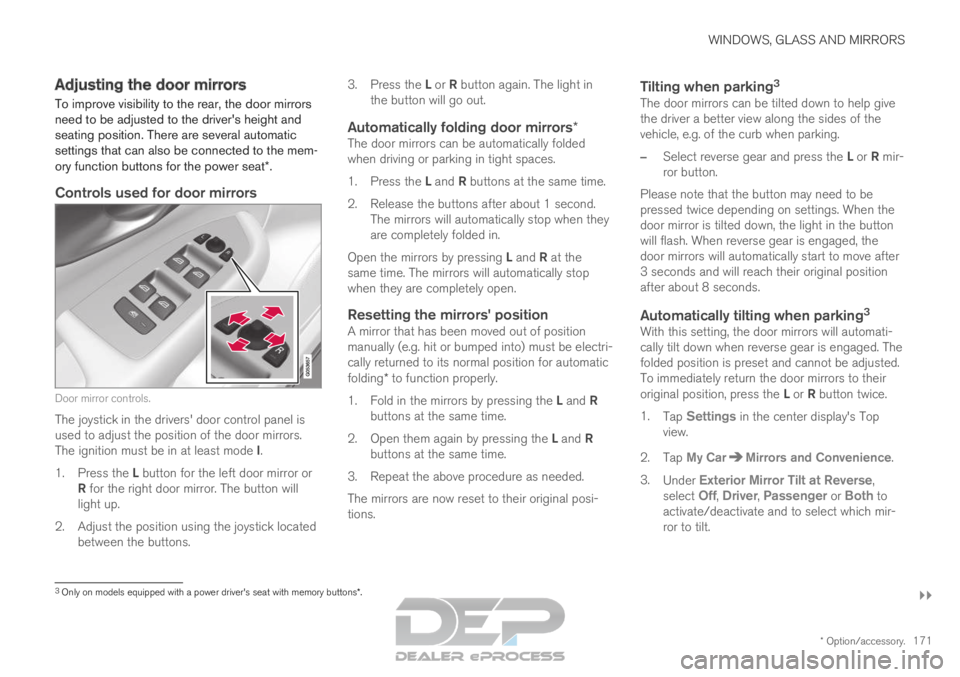
Controls used for door mirrors Door mirror controls.
The joystick in the drivers' door control panel is
used to adjust the position of the door mirrors.
The ignition must be in at least mode I.
1. Press the L button for the left door mirror or
R for the right door mirror. The button will
light up.
2.
Adjust the position using the joystick located
between the buttons. 3.
Press the L or R button again. The light in
the button will go out.
Automatically folding door mirrors*The door mirrors can be automatically folded
when driving or parking in tight spaces.
1. Press the L and R buttons at the same time.
2. Release the buttons after about 1 second. The mirrors will automatically stop when they
are completely folded in.
Open the mirrors by pressing L and R at the
same time. The mirrors will automatically stop
when they are completely open.
Resetting the mirrors' positionA mirror that has been moved out of position
manually (e.g. hit or bumped into) must be electri-
cally returned to its normal position for automatic
folding* to function properly.
1. Fold in the mirrors by pressing the L and R
buttons at the same time.
2. Open them again by pressing the L and R
buttons at the same time.
3. Repeat the above procedure as needed.
The mirrors are now reset to their original posi-
tions.
Tilting when parking 3The door mirrors can be tilted down to help give
the driver a better view along the sides of the
vehicle, e.g. of the curb when parking.
–
Select reverse gear and press the L or R mir-
ror button.
Please note that the button may need to be
pressed twice depending on settings. When the
door mirror is tilted down, the light in the button
will flash. When reverse gear is engaged, the
door mirrors will automatically start to move after
3 seconds and will reach their original position
after about 8 seconds.
Automatically tilting when parking 3With this setting, the door mirrors will automati-
cally tilt down when reverse gear is engaged. The
folded position is preset and cannot be adjusted.
To immediately return the door mirrors to their
original position, press the L or R button twice.
1. Tap Settings in the center display's Top
view.
2.
Tap My Car Mirrors and Convenience
.
3. Under Exterior Mirror Tilt at Reverse ,
select
Off, Driver, Passenger or Both to
activate/deactivate and to select which mir-
ror to tilt.
3 Only on models equipped with a power driver's seat with memory button\
s*.
Page 188 of 697
||SEATS AND STEERING WHEEL
* Option/accessory.
186 Raise/lower the seat by moving the control
up/down.
Move the seat forward/rearward by moving
the control forward/rearward.
Change the backrest tilt by moving the con-
trol forward/backward.
Only one movement (forward/rearward/up/
down) can be performed at a time.
The front seat backrests cannot be folded down
completely.
Related information
Manual front seats (p. 184)
Power* front seats (p. 185)
Storing positions for seats, mirrors and head-
up display* (p. 186)
Using stored positions for seats, mirrors and
head-up display* (p. 187)
Adjusting front seat massage settings*
(p. 189)
Adjusting* front seat cushion length (p. 189)
Front seat massage* settings (p. 188)
Adjusting front seat side bolster settings*
(p. 190)
Adjusting front seat lumbar support* (p. 191)
Adjusting the passenger seat from the driv-
er's seat* (p. 192) Storing positions for seats, mirrors
and head-up display*
Adjustment settings for the power* seat, door
mirrors and head-up display* can be stored in
the memory buttons.
Three different positions for the power* seat,
door mirrors and head-up display* can be stored
using the memory buttons. The buttons are
located on the inside of either one or both* front
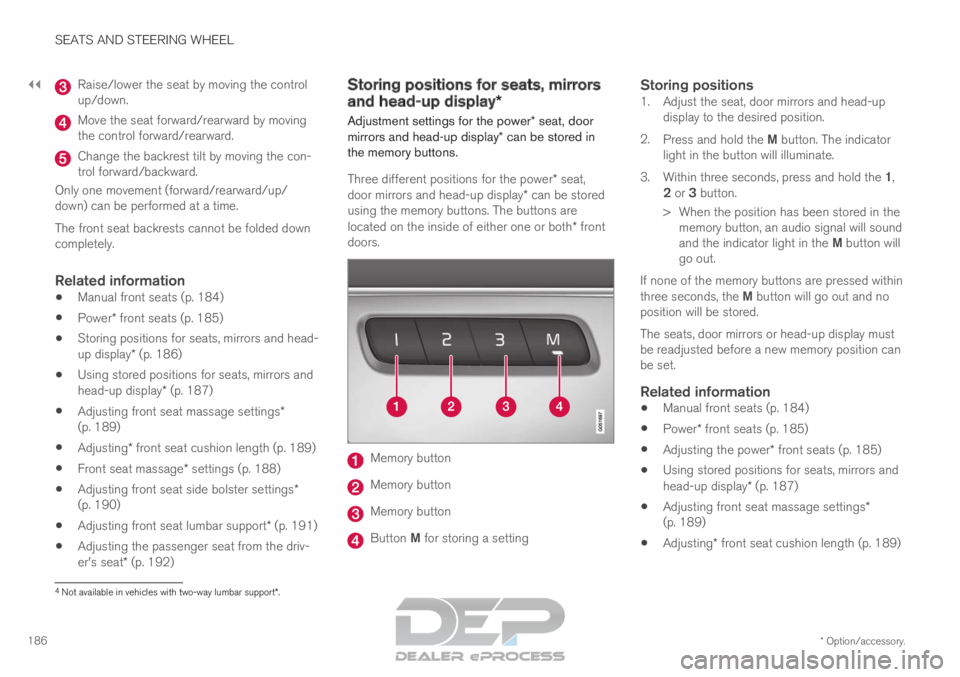
doors. Memory button
Memory button
Memory button
Button M for storing a setting
Storing positions1. Adjust the seat, door mirrors and head-up
display to the desired position.
2. Press and hold the M button. The indicator
light in the button will illuminate.
3. Within three seconds, press and hold the 1,
2 or 3 button.
> When the position has been stored in the memory button, an audio signal will sound
and the indicator light in the M button will
go out.
If none of the memory buttons are pressed within
three seconds, the M button will go out and no
position will be stored.
The seats, door mirrors or head-up display must
be readjusted before a new memory position can
be set.
Related information
Manual front seats (p. 184)
Power* front seats (p. 185)
Adjusting the power* front seats (p. 185)
Using stored positions for seats, mirrors and
head-up display* (p. 187)
Adjusting front seat massage settings*
(p. 189)
Adjusting* front seat cushion length (p. 189) 4
Not available in vehicles with two-way lumbar support*.
Page 189 of 697
SEATS AND STEERING WHEEL
}}
* Option/accessory. 187
Front seat massage* settings (p. 188)
Adjusting front seat side bolster settings*
(p. 190)
Adjusting front seat lumbar support* (p. 191)
Adjusting the passenger seat from the driv-
er's seat* (p. 192)
Adjusting the door mirrors (p. 171)
Head-up display settings* (p. 144) Using stored positions for seats,
mirrors and head-up display*
If the positions for the power* seat, door mirrors
and head-up display* have been stored, they can
be easily activated using the memory buttons.
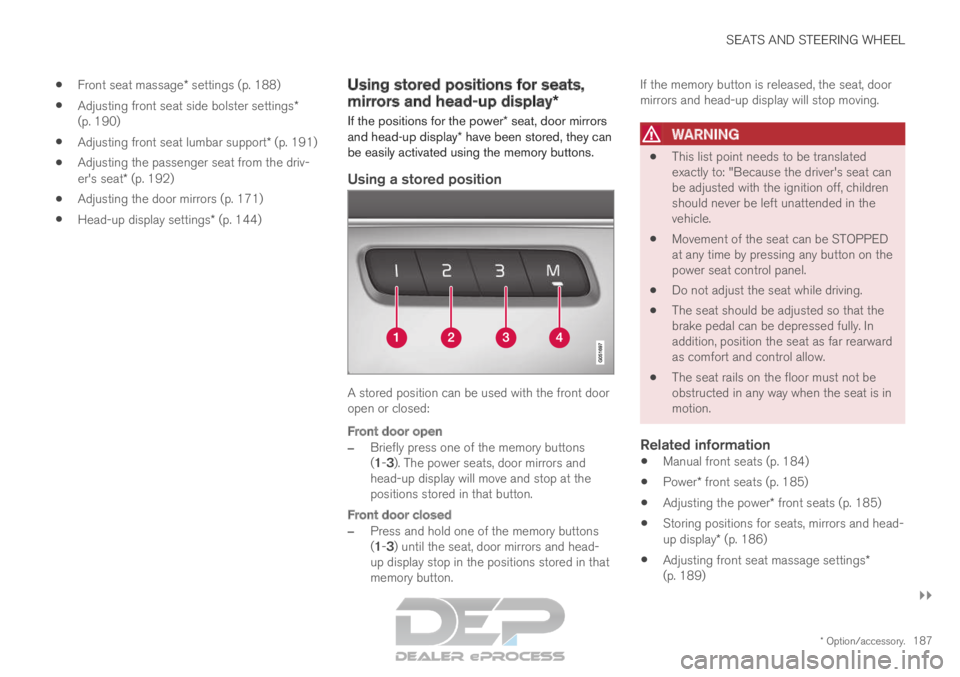
Using a stored position A stored position can be used with the front door
open or closed:
Front door open
–
Briefly press one of the memory buttons
(1-3). The power seats, door mirrors and
head-up display will move and stop at the
positions stored in that button.
Front door closed
– Press and hold one of the memory buttons
(1-3) until the seat, door mirrors and head-
up display stop in the positions stored in that
memory button. If the memory button is released, the seat, door
mirrors and head-up display will stop moving.
WARNING
This list point needs to be translated
exactly to: "Because the driver's seat can
be adjusted with the ignition off, children
should never be left unattended in the
vehicle.
Movement of the seat can be STOPPED
at any time by pressing any button on the
power seat control panel.
Do not adjust the seat while driving.
The seat should be adjusted so that the
brake pedal can be depressed fully. In
addition, position the seat as far rearward
as comfort and control allow.
The seat rails on the floor must not be
obstructed in any way when the seat is in
motion.
Related information
Manual front seats (p. 184)
Power* front seats (p. 185)
Adjusting the power* front seats (p. 185)
Storing positions for seats, mirrors and head-
up display* (p. 186)
Adjusting front seat massage settings*
(p. 189)
Page 191 of 697
SEATS AND STEERING WHEEL
}}
* Option/accessory. 189
Adjusting front seat massage
settings*
The settings for the multifunctional seats can be
adjusted using either the mutifunction control on
the seat or the center display. The adjustment
settings are shown in the center display.
Adjusting front seat massage settingsThe front seat backrests have a massage func-
tion. Air-filled cushions provide the massaging
action and a number of settings are available.
The massage function can only be activated
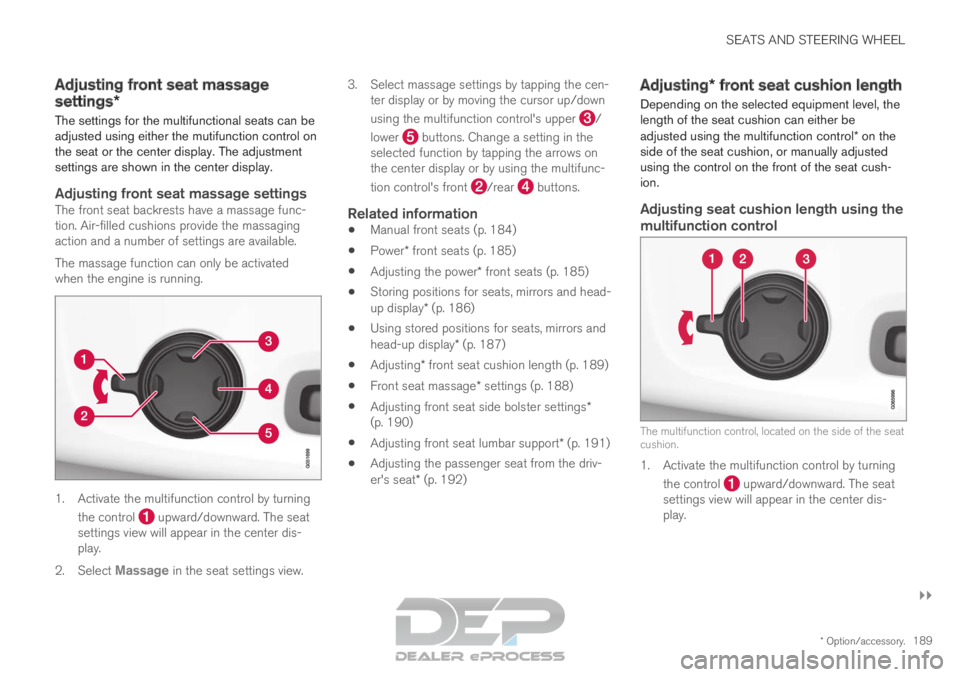
when the engine is running. 1. Activate the multifunction control by turning
the control upward/downward. The seat
settings view will appear in the center dis-
play.
2. Select Massage in the seat settings view. 3.
Select massage settings by tapping the cen-
ter display or by moving the cursor up/down
using the multifunction control's upper /
lower buttons. Change a setting in the
selected function by tapping the arrows on
the center display or by using the multifunc-
tion control's front /rear buttons.
Related information
Manual front seats (p. 184)
Power* front seats (p. 185)
Adjusting the power* front seats (p. 185)
Storing positions for seats, mirrors and head-
up display* (p. 186)
Using stored positions for seats, mirrors and
head-up display* (p. 187)
Adjusting* front seat cushion length (p. 189)
Front seat massage* settings (p. 188)
Adjusting front seat side bolster settings*
(p. 190)
Adjusting front seat lumbar support* (p. 191)
Adjusting the passenger seat from the driv-
er's seat* (p. 192) Adjusting* front seat cushion length
Depending on the selected equipment level, the
length of the seat cushion can either be
adjusted using the multifunction control* on the
side of the seat cushion, or manually adjusted
using the control on the front of the seat cush-
ion.
Adjusting seat cushion length using the
multifunction control The multifunction control, located on the side of the seat
cushion.
1. Activate the multifunction control by turning
the control upward/downward. The seat
settings view will appear in the center dis-
play.
Page 206 of 697
CLIMATE CONTROL
* Option/accessory.
204 Climate
The vehicle is equipped with electronic climate
control. The climate system cools, heats and
dehumidifies the air in the passenger compart-
ment.
All of the climate system functions are controlled
from the center display and the buttons on the
center console.
Certain rear seat functions can also be controlled
from the climate controls* on the rear of the tun-
nel console.
Related information
Climate zones (p. 204)
Climate control sensors (p. 204)
Perceived temperature (p. 205)
Climate control system voice commands
(p. 205)
Parking climate (p. 231)
Air quality (p. 206)
Air distribution (p. 209)
Climate system controls (p. 215) Climate zones
The vehicle is divided into climate zones to make
it possible to set different temperatures for dif-
ferent parts of the passenger compartment.
4-zone climate system Climate zones with 4-zone climate system.
In 4-zone climate systems, the passenger com-
partment temperature can be set separately for
the left and right sides of the vehicle, and for the
front and rear seats.
Related information
Climate (p. 204) Climate control sensors
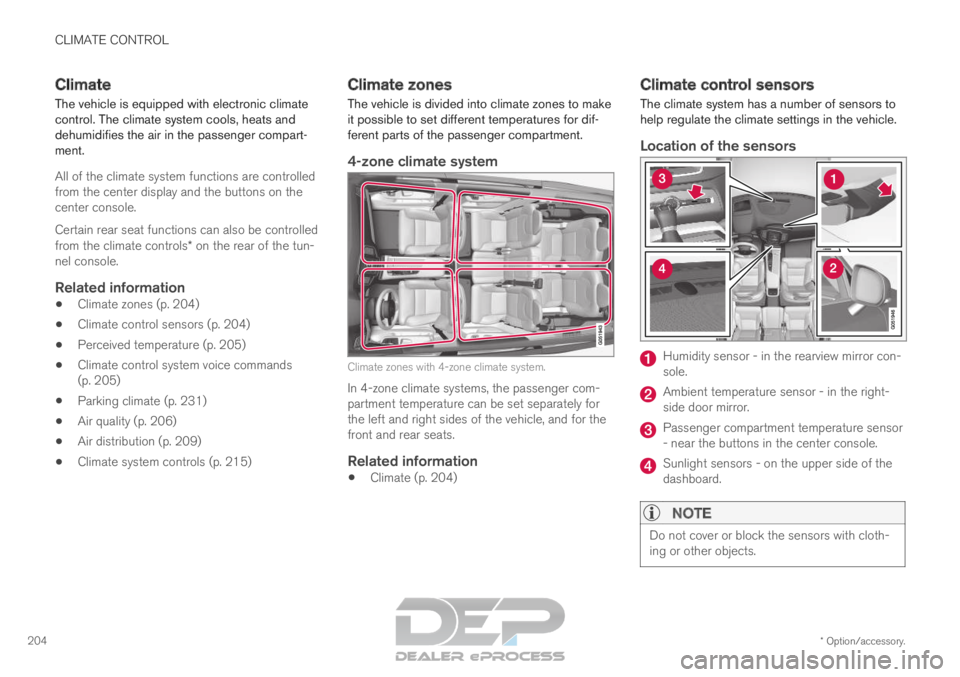
The climate system has a number of sensors to
help regulate the climate settings in the vehicle.
Location of the sensors Humidity sensor - in the rearview mirror con-
sole.
Ambient temperature sensor - in the right-
side door mirror.
Passenger compartment temperature sensor
- near the buttons in the center console.
Sunlight sensors - on the upper side of the
dashboard.
NOTE
Do not cover or block the sensors with cloth-
ing or other objects.
Page 212 of 697
||CLIMATE CONTROL
210
one on each side of the pillars between the
front and rear doors.
Seven seats - one additional vent on each of
the pillars behind the rear doors.
Related information
Climate (p. 204)
Adjusting air distribution (p. 210)
Opening, closing and directing air vents
(p. 211)
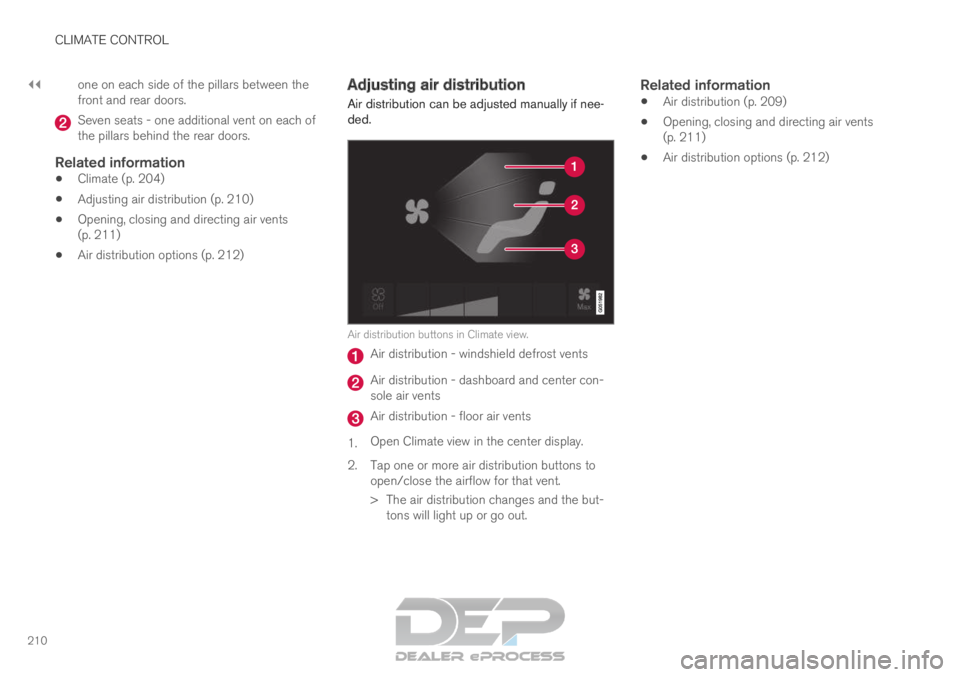
Air distribution options (p. 212) Adjusting air distribution
Air distribution can be adjusted manually if nee-
ded. Air distribution buttons in Climate view.
Air distribution - windshield defrost vents
Air distribution - dashboard and center con-
sole air vents
Air distribution - floor air vents
1. Open Climate view in the center display.
2.
Tap one or more air distribution buttons to
open/close the airflow for that vent.
> The air distribution changes and the but- tons will light up or go out.
Related information
Air distribution (p. 209)
Opening, closing and directing air vents
(p. 211)
Air distribution options (p. 212)