ECU VOLVO XC90 TWIN ENGINE 2020 Service Manual
[x] Cancel search | Manufacturer: VOLVO, Model Year: 2020, Model line: XC90 TWIN ENGINE, Model: VOLVO XC90 TWIN ENGINE 2020Pages: 693, PDF Size: 13.34 MB
Page 472 of 693
||
STARTING AND DRIVING
* Option/accessory.
470
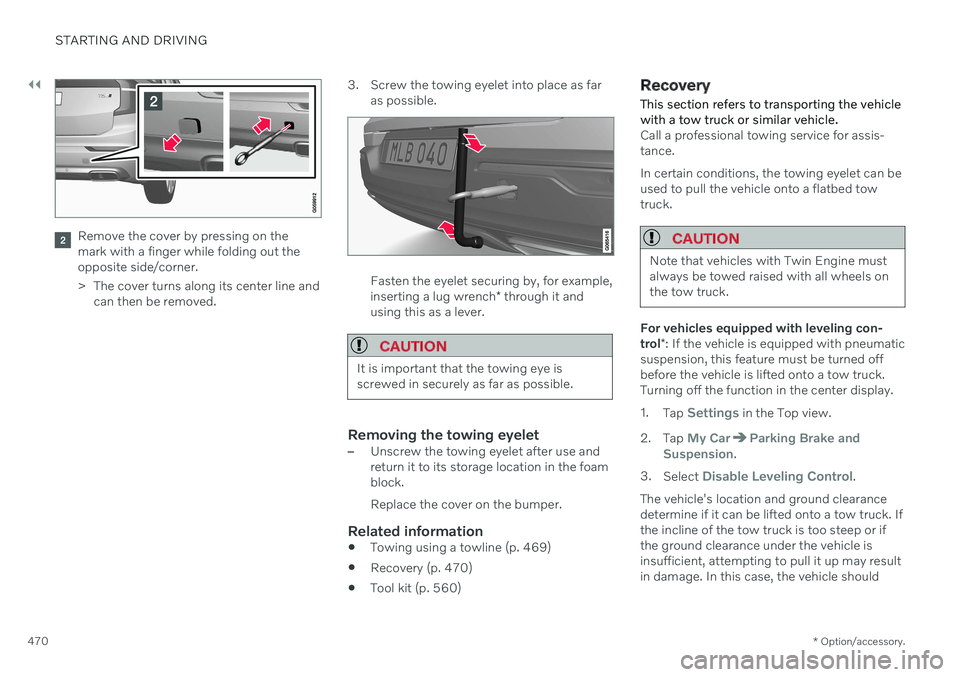
Remove the cover by pressing on the mark with a finger while folding out theopposite side/corner.
> The cover turns along its center line and
can then be removed. 3. Screw the towing eyelet into place as far
as possible.
Fasten the eyelet securing by, for example, inserting a lug wrench * through it and
using this as a lever.
CAUTION
It is important that the towing eye is screwed in securely as far as possible.
Removing the towing eyelet–Unscrew the towing eyelet after use and return it to its storage location in the foamblock. Replace the cover on the bumper.
Related information
Towing using a towline (p. 469)
Recovery (p. 470)
Tool kit (p. 560)
Recovery
This section refers to transporting the vehicle with a tow truck or similar vehicle.
Call a professional towing service for assis- tance. In certain conditions, the towing eyelet can be used to pull the vehicle onto a flatbed towtruck.
CAUTION
Note that vehicles with Twin Engine must always be towed raised with all wheels onthe tow truck.
For vehicles equipped with leveling con- trol *: If the vehicle is equipped with pneumatic
suspension, this feature must be turned off before the vehicle is lifted onto a tow truck.Turning off the function in the center display. 1. Tap
Settings in the Top view.
2. Tap
My CarParking Brake and
Suspension.
3. Select
Disable Leveling Control.
The vehicle's location and ground clearance determine if it can be lifted onto a tow truck. Ifthe incline of the tow truck is too steep or ifthe ground clearance under the vehicle isinsufficient, attempting to pull it up may resultin damage. In this case, the vehicle should
Page 474 of 693
STARTING AND DRIVING
* Option/accessory.
472
Programming HomeLink ®
*20
Follow these instructions to program HomeLink ®
, reset all programming, or pro-
gram individual buttons.
NOTE
In some vehicles, the ignition must be on or in the "accessory position" before HomeLink ®
can be programmed or used. It
can be a good idea to put new batteries in the remote control being replaced by HomeLink ®
for faster programming and
better radio signal transmission. TheHomeLink ®
buttons should be reset before
programming.
WARNING
While HomeLink ®
is being programmed,
the garage door or gate being programmed may be activated. Make sure that no one isnear the door or gate during programming.When programming a garage door opener,it is advised to park outside of the garage. 1. Point the remote control at the
HomeLink ®
button to be programmed and
hold it about 2-8 cm (1-3 inches) from the button. Do not obstruct the HomeLink ®
indicator light. Note: Some remote controls are more
effective at programming HomeLink ®
from
a distance of about 15-20 cm (6-12 inches). Keep this in mind if you experi-ence any programming difficulties.
2. Press and hold both the remote control button and the HomeLink ®
button to be
programmed. 3. Do not release the buttons until the indica-
tor light has stopped flashing slowly(about once a second) and either flashesquickly (about 10 times a second) orglows steadily. >If the indicator light glows steadily: Indication that programming is com-plete. Press the programmed buttontwice to activate. If the indicator light flashes quickly: The device being programmed with HomeLink ®
may have a security func-
tion that requires an extra step. Try pressing the programmed button twiceto see whether the programmingworks. Otherwise, continue with thefollowing steps.
20 Certain markets only.
Page 478 of 693

STARTING AND DRIVING
* Option/accessory.
476
Calibrating the compass *
The globe is divided into 15 magnetic zones. The compass 27
should be calibrated if the
vehicle is driven from one zone to another.
1. Stop the vehicle in a large, open area away from steel constructions and high-voltage power lines.
2. Start the engine and switch off all electri- cal equipment (climate system, wipers,etc.) and make sure all doors are closed.
NOTE
Calibration may fail or not even be initiated if electrical equipment is not turned off.
3. Hold the button on the bottom of the rear-view mirror pressed for about 3 seconds (using e.g. a paper clip). The number of thecurrent magnetic zone is shown.
15
14
13
12
11
9
8
7
6
5
4
3
2
1
10
Magnetic zones.
4. Press the button on the underside of themirror repeatedly until the desired mag- netic zone (
1–15) appears (see the map of
magnetic zones).
5. Wait until the display again shows
C, or
press and hold the button on the under- side of the rearview mirror for approx.
6 seconds until
C is displayed.
6. Drive slowly in a circle at a speed of no more than 10 km/h (6 mph) until a com- pass direction is shown in the display. Thisindicates that calibration is complete.Drive in a circle two more times to fine-tune the calibration. 7.
Vehicles with heated windshields *: If
Cis shown in the display when the wind- shield heating function is activated, per-form step 6 above with the heating func-tion on.
8. Repeat the above procedure as needed.
Related information
Compass
* (p. 475)
Activating and deactivating the compass
*
(p. 475)
27 Rearview mirror with compass is available as an option only on certain markets and models.
Page 526 of 693
AUDIO, MEDIA AND INTERNET
* Option/accessory.
524
Internet-connected vehicle *
When the vehicle is connected to the Inter- net, it is possible to use web radio and musicservices via apps, download software andcontact retailers from the vehicle.
The vehicle can be connected to the Internet using Bluetooth, Wi-Fi or the vehicle's inte-grated modem (SIM card). When the vehicle is connected to the Internet, it is possible to share the vehicle's Internetconnection (Wi-Fi hotspot) so that other devi- ces, e.g. tablets, can access the Internet 12
.
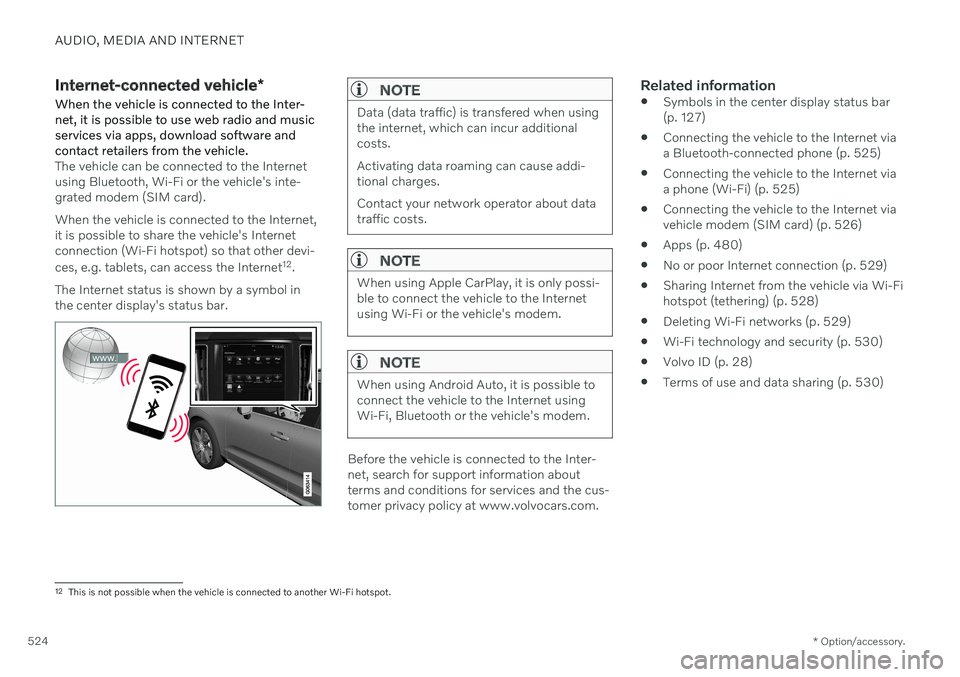
The Internet status is shown by a symbol in the center display's status bar.
NOTE
Data (data traffic) is transfered when using the internet, which can incur additionalcosts. Activating data roaming can cause addi- tional charges. Contact your network operator about data traffic costs.
NOTE
When using Apple CarPlay, it is only possi- ble to connect the vehicle to the Internetusing Wi-Fi or the vehicle's modem.
NOTE
When using Android Auto, it is possible to connect the vehicle to the Internet usingWi-Fi, Bluetooth or the vehicle's modem.
Before the vehicle is connected to the Inter- net, search for support information aboutterms and conditions for services and the cus-tomer privacy policy at www.volvocars.com.
Related information
Symbols in the center display status bar(p. 127)
Connecting the vehicle to the Internet viaa Bluetooth-connected phone (p. 525)
Connecting the vehicle to the Internet viaa phone (Wi-Fi) (p. 525)
Connecting the vehicle to the Internet viavehicle modem (SIM card) (p. 526)
Apps (p. 480)
No or poor Internet connection (p. 529)
Sharing Internet from the vehicle via Wi-Fihotspot (tethering) (p. 528)
Deleting Wi-Fi networks (p. 529)
Wi-Fi technology and security (p. 530)
Volvo ID (p. 28)
Terms of use and data sharing (p. 530)
12
This is not possible when the vehicle is connected to another Wi-Fi hotspot.
Page 528 of 693
||
AUDIO, MEDIA AND INTERNET
* Option/accessory.
526 the vehicle. The phone's tethering function will then need to be reactivated the next time thephone's hotspot is used to connect to theInternet. When a phone is connected to the vehicle, it will be saved for future use. To display a list ofsaved networks or to manually delete saved networks, tap
SettingsCommunication
Wi-FiSaved networks.
NOTE
The cellular phone and network operator must support tethering (sharing of Internetconnection) and the subscription mustinclude data traffic.
Technical and security requirements for Wi-Fi connection are described in a separate sec-tion.
Related information
Internet-connected vehicle
* (p. 524)
Deleting Wi-Fi networks (p. 529)
No or poor Internet connection (p. 529)
Wi-Fi technology and security (p. 530)
Connecting the vehicle to the Internet via vehicle modem (SIMcard)
It is possible to establish an Internet connec- tion via the vehicle modem and a personal
SIM card (P-SIM).
Vehicles equipped with Volvo On Call will use the vehicle modem Internet connection for theservices. 1.
Insert a personal SIM card in the holder. Note that the vehicle's card reader requires mini SIM cards.
2. Tap
Settings in the Top view.
3. Tap
CommunicationVehicle Modem
Internet.
Page 531 of 693

AUDIO, MEDIA AND INTERNET
* Option/accessory.529
No or poor Internet connection Factors affecting the Internet connection.
The amount of data transmitted depends on the services or apps currently in use in thevehicle. Streaming music, for example,involves the transmission of a large amount ofdata, and this requires a good connection anda strong signal.
Phone to vehicleInternet connection speed may vary depend-ing on the location of the cellular phone in thevehicle. Move the phone closer to the centerdisplay to increase signal strength. Make surethat nothing is between the phone and centerdisplay that could be blocking the signal.
Phone to network operatorThe speed of the mobile network variesdepending on the coverage in the vehicle'scurrent location. Coverage may be poorer ine.g. tunnels, mountainous areas, deep valleysor indoors. Connection speed is also depend-ent on the subscription you have with yourservice provider.
NOTE
If you experience any problems with data traffic, contact your network service pro-vider.
Restarting the phoneIf you experience any Internet connection problems, it may help to restart your phone.
Related information
Internet-connected vehicle
* (p. 524)
Wi-Fi technology and security (p. 530)
Deleting Wi-Fi networks
Networks that are not needed can be deleted.
1. Tap Settings in the Top view.
2. Proceed to
CommunicationWi-FiSaved networks.
3. Tap
Forget to delete the network.
4. Confirm the selection. > The vehicle will no longer connect tothe deleted network.
Deleting all networksAll networks can be deleted at once by per- forming a factory reset. Please note that alluser data and system settings will be restoredto original default factory settings.
Related information
Internet-connected vehicle
* (p. 524)
No or poor Internet connection (p. 529)
Resetting center display settings (p. 137)
Connecting the vehicle to the Internet viaa phone (Wi-Fi) (p. 525)
Page 532 of 693

AUDIO, MEDIA AND INTERNET
* Option/accessory.
530
Wi-Fi technology and security
Networks must meet certain criteria in order for the vehicle to connect.
It is possible to connect to the following types of networks:
Frequency - 2.4 or 5 GHz 14
.
Standards - 802.11 a/b/g/n.
Security type - WPA2-AES-CCMP.
The vehicle's Wi-Fi system is designed to han-dle Wi-Fi devices inside the vehicle. Performance may be impaired if multiple devi- ces are using a frequency at the same time.
Related information
Internet-connected vehicle
* (p. 524)
Terms of use and data sharing The first time certain services and apps are started, a pop-up window with the heading
Terms and conditions and Data sharingmay open.The aim is to inform the user about Volvo's terms of use and data sharing policy. Byaccepting data sharing, the user accepts thatcertain information will be sent from the vehi-cle. This is required for certain services andapps to work with full functionality. The data sharing function for connected servi- ces and apps is disabled by default 15
. For cer-
tain connected services and apps in the vehi- cle to work, data sharing must be activated.Data sharing can be set from the center dis-play's settings menu or when the services orapps are started in the center display.
Privacy and data sharingThe software update that became available inNovember 2017 introduced privacy and datasharing settings for connected services anddownloaded apps. These settings can be found under
Privacy and data in the settings
menu in the vehicle's center display. There, you can choose which connected servi- ces will be allowed to share data. Data sharingfor downloaded apps can also be disabled there. Note that services and apps cannot beused as intended if data sharing is disabled. After a factory reset or e.g. a workshop visit or a software update, your data sharing preferen-ces may be reset to default settings. You willthen need to reactivate data sharing for con-nected services and downloaded apps.
NOTE
Settings for privacy and data sharing are unique for each driver profile.
Related information
Activating and deactivating data sharing (p. 531)
14
Selecting a frequency is not possible on all markets.
15 Does not apply to Volvo On Call.
Page 540 of 693

||
AUDIO, MEDIA AND INTERNET
538
Country/ Area Brazil:
Este equipamento opera em caráter secundário isto e, náo tem direito a protecão contra interferéncia prejudicial, mesmo tipo, e não pode causar interferéncia a sistemas operando em caráter primário. Para consultas, visite: www.anatel.gov.br
EU:
Manufacturer: Mitsubishi Electric Corporation Sanda Works 2-3-33, Miwa, Sanda-city. Hyogo, 669-1513, Japan Mitsubishi Electric Corporation hereby declares that this type of radio equipment [Audio Navigation Unit] conforms with directive 2014/53/EU. For further details, search for support information on www.volvocars.com.
United Arab Emi-rates:
Page 566 of 693
WHEELS AND TIRES
* Option/accessory.
564
Installing a wheel Wheel changes must always be carried out correctly. The following instructions showhow to install a wheel and what is importantto keep in mind.
CAUTION
When not in use, the jack
* should be
kept in its storage compartment under the cargo compartment floor.
The jack provided with your vehicle isintended to be used only in temporarysituations such as changing wheels inthe event of a flat tire. Only the jackthat came with your particular modelshould be used to lift the vehicle. If thevehicle needs to be lifted more fre-quently or for a prolonged period, usinga garage jack or hoist is recommended.Always follow this device's instructionsfor use.
WARNING
Apply the parking brake and put the gear selector in the Park (
P) position.
Block the wheels standing on theground, use rigid wooden blocks orlarge stones.
Check that the jack is not damaged,the threads are properly lubricated andit is free from dirt.
Be sure the jack is on a firm, level, non-slippery surface and that it is uprightand not leaning.
The jack must correctly engage in thejack attachment.
No objects should be placed betweenthe base of the jack and the ground, orbetween the jack and the attachmentbar on the vehicle.
Never let anyone remain in the vehiclewhen it is raised on a jack.
If a tire must be changed near passingtraffic, make sure all passengers moveto a safe location.
Use a jack intended for the vehiclewhen changing a tire. For any otherjob, use stands to support the vehicle.
Never crawl under or allow any part of your body to be extended under a vehi-cle supported by a jack.
The vehicle must be raised high enough sothat the wheel you are removing can turnfreely.
1. Clean the contact surfaces between the wheel and the wheel hub.
2. Lift the wheel into place. Tighten the wheel bolts securely.Do not grease the wheel bolt threads.
3. Lower the vehicle so that the wheel can- not rotate.
Page 567 of 693
WHEELS AND TIRES
}}
* Option/accessory.565
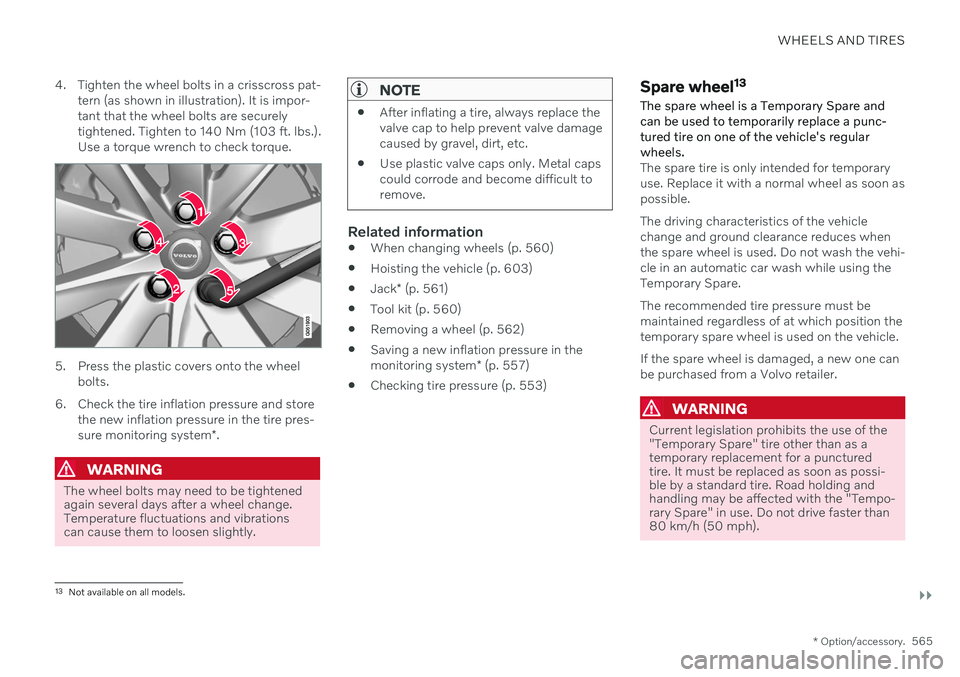
4. Tighten the wheel bolts in a crisscross pat-
tern (as shown in illustration). It is impor- tant that the wheel bolts are securelytightened. Tighten to 140 Nm (103 ft. lbs.).Use a torque wrench to check torque.
5. Press the plastic covers onto the wheel bolts.
6. Check the tire inflation pressure and store the new inflation pressure in the tire pres- sure monitoring system *.
WARNING
The wheel bolts may need to be tightened again several days after a wheel change.Temperature fluctuations and vibrationscan cause them to loosen slightly.
NOTE
After inflating a tire, always replace the valve cap to help prevent valve damagecaused by gravel, dirt, etc.
Use plastic valve caps only. Metal capscould corrode and become difficult toremove.
Related information
When changing wheels (p. 560)
Hoisting the vehicle (p. 603)
Jack
* (p. 561)
Tool kit (p. 560)
Removing a wheel (p. 562)
Saving a new inflation pressure in the monitoring system
* (p. 557)
Checking tire pressure (p. 553)
Spare wheel 13
The spare wheel is a Temporary Spare and can be used to temporarily replace a punc- tured tire on one of the vehicle's regularwheels.
The spare tire is only intended for temporary use. Replace it with a normal wheel as soon aspossible. The driving characteristics of the vehicle change and ground clearance reduces whenthe spare wheel is used. Do not wash the vehi-cle in an automatic car wash while using theTemporary Spare. The recommended tire pressure must be maintained regardless of at which position thetemporary spare wheel is used on the vehicle. If the spare wheel is damaged, a new one can be purchased from a Volvo retailer.
WARNING
Current legislation prohibits the use of the "Temporary Spare" tire other than as atemporary replacement for a puncturedtire. It must be replaced as soon as possi-ble by a standard tire. Road holding andhandling may be affected with the "Tempo-rary Spare" in use. Do not drive faster than80 km/h (50 mph).
13 Not available on all models.