ESP VOLVO XC90 TWIN ENGINE HYBRID 2017 User Guide
[x] Cancel search | Manufacturer: VOLVO, Model Year: 2017, Model line: XC90 TWIN ENGINE HYBRID, Model: VOLVO XC90 TWIN ENGINE HYBRID 2017Pages: 584, PDF Size: 14.2 MB
Page 79 of 584
SAFETY
}}
77
WARNING
•Keep the following points in mind withrespect to the OWS system. Failure tofollow these instructions could adverselyaffect the system's function and result inserious injury to the occupant of the frontpassenger's seat:
•The full weight of the front seat passen-ger should always be on the seat cushion.The passenger should never lift him/herself off the seat cushion using thearmrest in the door or the center console,by pressing the feet on the floor, by sit-ting on the edge of the seat cushion, orby pressing against the backrest in a waythat reduces pressure on the seat cush-ion. This could cause OWS to disable thefront, passenger's side airbag.
WARNING
•Do not place any type of object on thefront passenger's seat in such a way thatjamming, pressing, or squeezing occursbetween the object and the front seat,other than as a direct result of the correctuse of the Automatic Locking Retractor/Emergency Locking Retractor (ALR/ELR)seat belt.
•No objects should be placed under thefront passenger's seat. This could inter-fere with the OWS system's function.
Related information
•Airbag system (p. 71)Side impact airbags
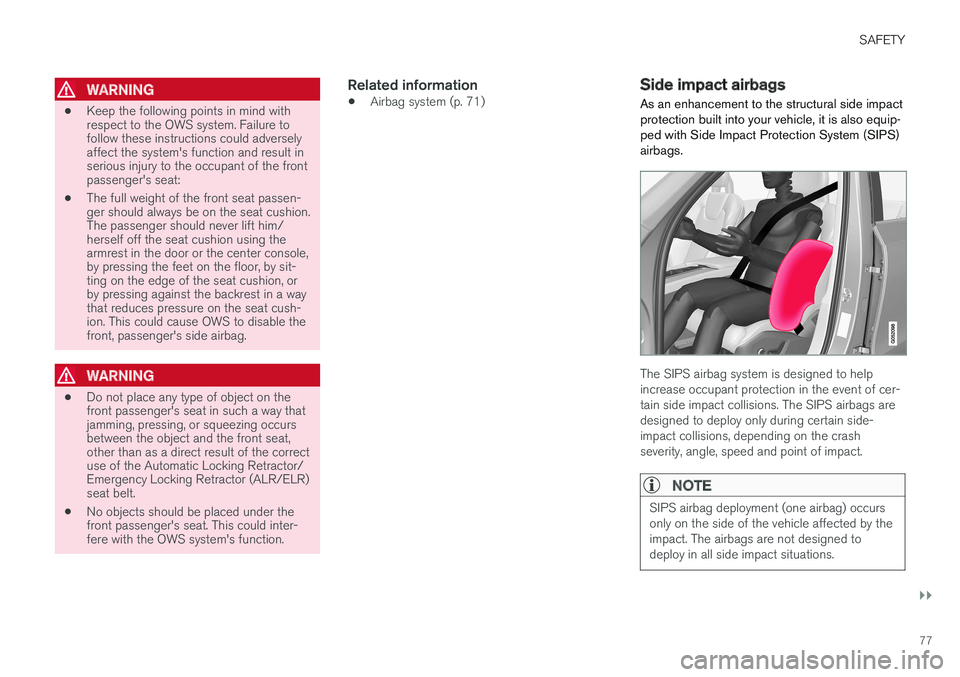
As an enhancement to the structural side impactprotection built into your vehicle, it is also equip-ped with Side Impact Protection System (SIPS)airbags.
The SIPS airbag system is designed to helpincrease occupant protection in the event of cer-tain side impact collisions. The SIPS airbags aredesigned to deploy only during certain side-impact collisions, depending on the crashseverity, angle, speed and point of impact.
NOTE
SIPS airbag deployment (one airbag) occursonly on the side of the vehicle affected by theimpact. The airbags are not designed todeploy in all side impact situations.
Page 104 of 584
||
INSTRUMENTS AND CONTROLS
102
The accuracy of this figure may vary if your driv-ing style changes. An economical driving style willgenerally increase this distance.
Distance to discharged battery
This gauge shows the approximate distance thatcan be driven on the charge remaining in thehybrid battery. When the gauge displays "----"there is no guaranteed driving charge remainingin the battery.
This calculation is based on the average electricalcurrent consumption in a normally loaded vehicleduring normal driving, and whether the A/C is onor off.
An economical driving style will generallyincrease this distance.
Distance using the electric motor
To get the optimal driving distance using theelectric motor, it is essential to conserve current.Functions that use a great deal of current (e.g.,audio system, electrical heating in the steeringwheel/door mirrors/rear window/seats, very coldair from the climate system, etc.) reduce the pos-sible driving distance.
NOTE
In addition to high electrical consumption inthe passenger compartment, fast accelera-tion, sudden braking, heavy loads, low ambienttemperatures and driving up hills can reducethe possible driving distance.
Tourist (alternative speedometer)
This is an alternative digital speedometer can beused when driving in areas in which the speedlimit is listed in a different unit of measure. If thespeedometer is in mph, this gauge will show thevehicle's speed in km/h and vice versa.
Related information
•Displaying trip computer information (p. 102)
•Displaying trip statistics (p. 104)
Displaying trip computerinformation
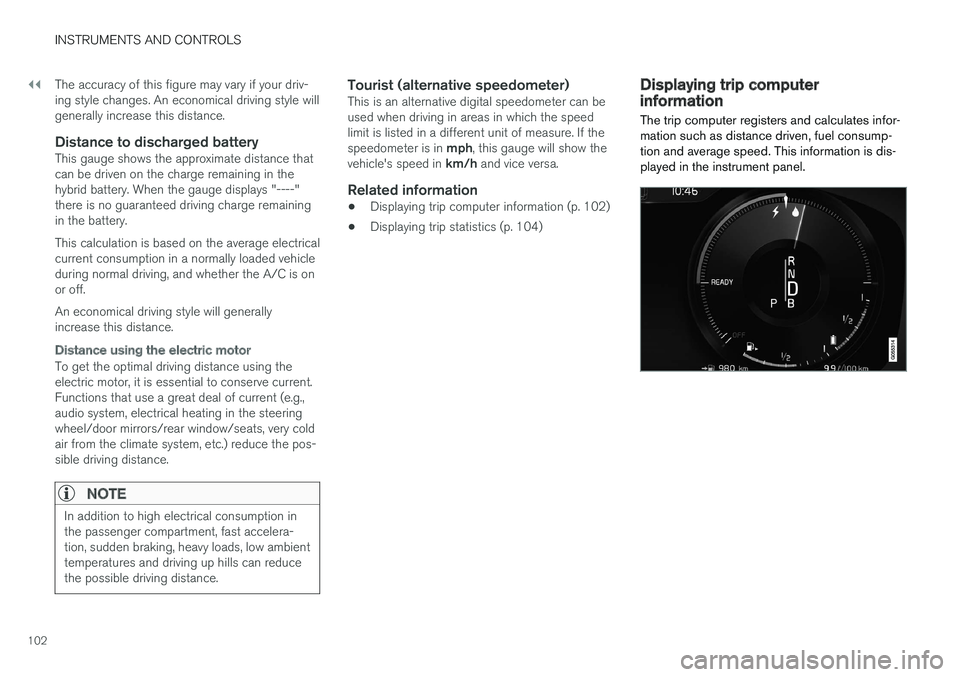
The trip computer registers and calculates infor-mation such as distance driven, fuel consump-tion and average speed. This information is dis-played in the instrument panel.
Page 109 of 584
INSTRUMENTS AND CONTROLS
}}
107
Gate Operator/Canadian Programming
Canadian radio-frequency laws require transmit-ter signals to “time-out” (or quit) after severalseconds of transmission – which may not be longenough for HomeLink to pick up the signal dur-ing programming. Similar to this Canadian law,some U.S. gate operators are designed to “time-out” in the same manner.
If you live in Canada or you are having difficultiesprogramming a gate operator or garage dooropener by using the “Programming” procedures,replace “Programming HomeLink” step 3with the following:
•Continue to press and hold the HomeLinkbutton while you press and release - everytwo seconds (“cycle”) your hand-held trans-mitter until the HomeLink indicator lightchanges from a slow to a rapidly blinkinglight. Now you may release both the Home-Link and hand-held transmitter buttons.
Proceed with “Programming” step 4 to complete.
Using HomeLink ®
When programming has been completed,
HomeLink® can be used instead of the originalremote controls.
To operate, press and hold the programmed
HomeLink® button until the trained device begins
to operate3 (this may take several seconds). The
indicator light will glow steadily or flash when thebutton has been pressed. Activation will nowoccur for the trained device (i.e., garage dooropener, gate operator, security system, entry doorlock, home/office lighting, etc.).
NOTE
If the ignition is switched off, HomeLink willfunction for 30 minutes after the driver's doorhas been opened.
For convenience, the hand-held transmitter of thedevice may also be used at any time.
In the event that there are still programming diffi-culties or questions, contact HomeLink at:www.HomeLink.com, www.youtube.com/HomeLinkGentex or by phoning the hotline at 1–800–355–3515.
Resetting HomeLink ®
buttons
Use the following procedure to reset (erase pro-
gramming) from the three HomeLink® buttons(individual buttons cannot be reset but can be“reprogrammed” as outlined in the following sec-tion):
1.Press and hold HomeLink® buttons 1 and 3for approx. 10 seconds until the indicatorlight begins to flash green.
2. Release both buttons.
>HomeLink® is now in the training (orlearning) mode and can be programmedat any time beginning with “To program
HomeLink®" above.
Reprogramming a single HomeLink ®
button
To reprogram an individual HomeLink® button:
1.Press and hold the desired HomeLink® but-ton. DO NOT release the button.
2. The yellow indicator light will begin to flashafter 20 seconds. Without releasing theHomeLink button, proceed with “To program
HomeLink®" step 1 above.
For questions or comments, contact HomeLinkat: www.HomeLink.com, www.youtube.com/HomeLinkGentex or by phoning the hotline at 1–800–355–3515.
FCC (USA) and IC (Canada)
This device complies with FCC rules part 15 andIndustry Canada RSS-210. Operation is subjectto the following two conditions: (1) This devicemay not cause harmful interference, and (2) Thisdevice must accept any interference that may bereceived including interference that may causeundesired operation. WARNING: The transmitterhas been tested and complies with FCC and IC
3Do not hold the button for more than 20 seconds as this will clear the programming of the button.
Page 110 of 584
||
INSTRUMENTS AND CONTROLS
* Option/accessory, for more information, see Introduction.108
rules. Changes or modifications not expresslyapproved by the party are prohibited.
NOTE
The transmitter has been tested and complieswith FCC and IC rules. Changes or modifica-tions not expressly approved by the partyresponsible for compliance could void the
user
Page 115 of 584
INSTRUMENTS AND CONTROLS
}}
* Option/accessory, for more information, see Introduction.113
Auto-stop
The laminated panoramic roof has an auto-stopfeature that is triggered if the glass section of theroof or the sun shade is blocked in any way whenbeing closed. In this case, the laminated panor-amic roof or sun shade will stop and reverseautomatically approximately 2 in. (5 cm) from thepoint at which it was blocked (or will open fully tothe tilt position).
The auto-stop feature also functions when thelaminated panoramic roof or sun shade is beingopened.
WARNING
For 10 minutes after the auto-stop functionhas been triggered, it will not function againthe first time the control is moved in the samedirection as when the auto-stop function wastriggered.
The auto-stop feature can be overridden if theclosing procedure has been interrupted (e.g., dueto ice around the moonroof) by pressing andholding the control forward/down until the moon-roof is closed.
Power windows
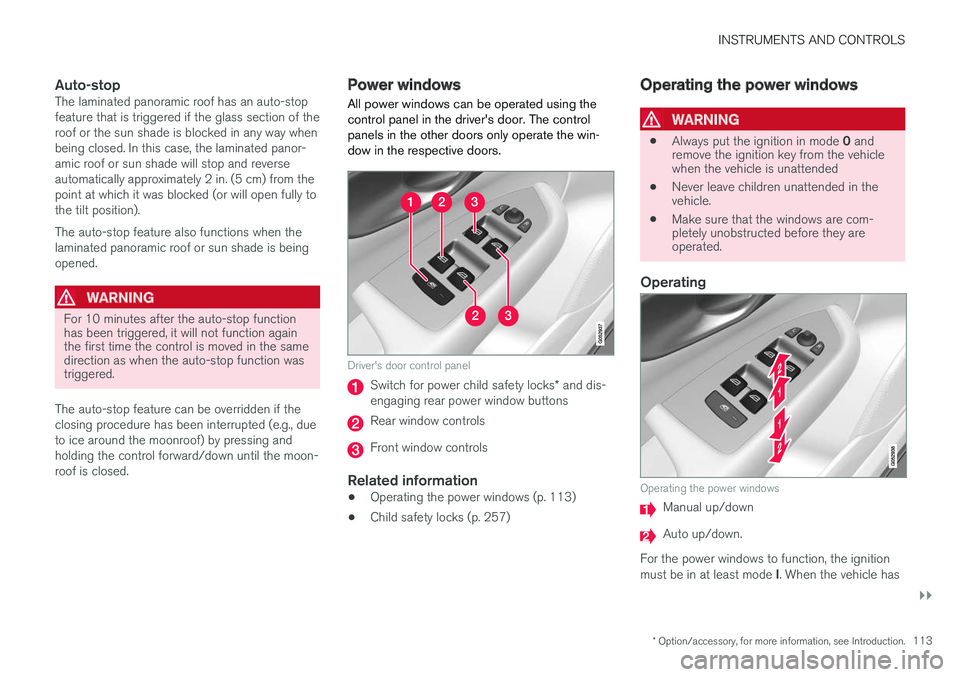
All power windows can be operated using thecontrol panel in the driver's door. The controlpanels in the other doors only operate the win-dow in the respective doors.
Driver's door control panel
Switch for power child safety locks* and dis-engaging rear power window buttons
Rear window controls
Front window controls
Related information
•Operating the power windows (p. 113)
•Child safety locks (p. 257)
Operating the power windows
WARNING
•Always put the ignition in mode 0 andremove the ignition key from the vehiclewhen the vehicle is unattended
•Never leave children unattended in thevehicle.
•Make sure that the windows are com-pletely unobstructed before they areoperated.
Operating
Operating the power windows
Manual up/down
Auto up/down.
For the power windows to function, the ignitionmust be in at least mode I. When the vehicle has
Page 118 of 584
||
INSTRUMENTS AND CONTROLS
* Option/accessory, for more information, see Introduction.116
Changing a setting
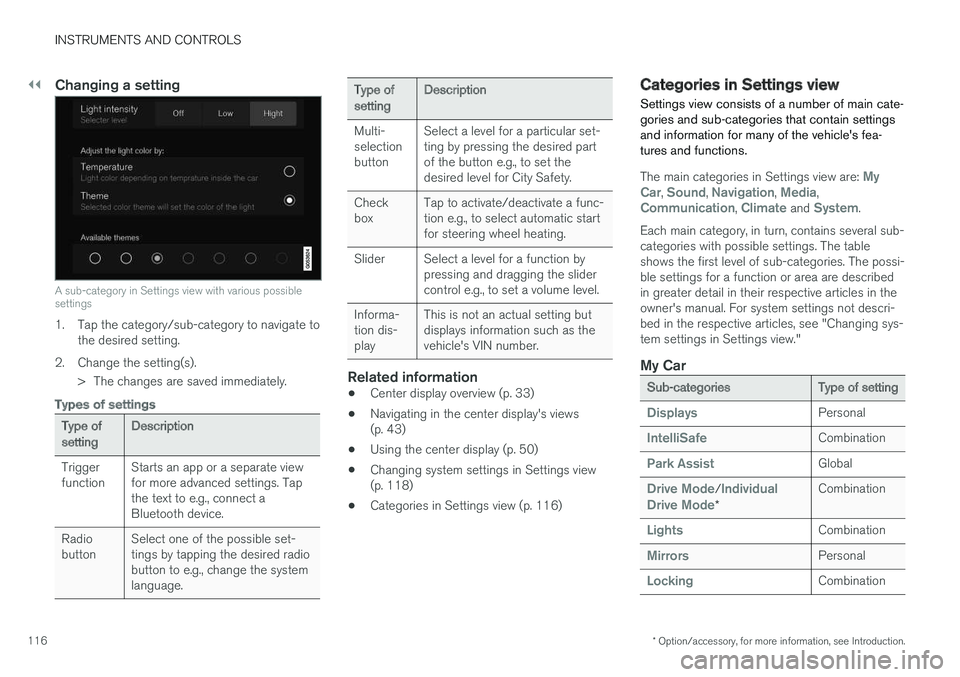
A sub-category in Settings view with various possiblesettings
1. Tap the category/sub-category to navigate tothe desired setting.
2.Change the setting(s).
> The changes are saved immediately.
Types of settings
Type ofsettingDescription
TriggerfunctionStarts an app or a separate viewfor more advanced settings. Tapthe text to e.g., connect aBluetooth device.
RadiobuttonSelect one of the possible set-tings by tapping the desired radiobutton to e.g., change the systemlanguage.
Type ofsettingDescription
Multi-selectionbutton
Select a level for a particular set-ting by pressing the desired partof the button e.g., to set thedesired level for City Safety.
CheckboxTap to activate/deactivate a func-tion e.g., to select automatic startfor steering wheel heating.
SliderSelect a level for a function bypressing and dragging the slidercontrol e.g., to set a volume level.
Informa-tion dis-play
This is not an actual setting butdisplays information such as thevehicle's VIN number.
Related information
•Center display overview (p. 33)
•Navigating in the center display's views(p. 43)
•Using the center display (p. 50)
•Changing system settings in Settings view(p. 118)
•Categories in Settings view (p. 116)
Categories in Settings view
Settings view consists of a number of main cate-gories and sub-categories that contain settingsand information for many of the vehicle's fea-tures and functions.
The main categories in Settings view are: MyCar, Sound, Navigation, Media,Communication, Climate and System.
Each main category, in turn, contains several sub-categories with possible settings. The tableshows the first level of sub-categories. The possi-ble settings for a function or area are describedin greater detail in their respective articles in theowner's manual. For system settings not descri-bed in the respective articles, see "Changing sys-tem settings in Settings view."
My Car
Sub-categoriesType of setting
DisplaysPersonal
IntelliSafeCombination
Park AssistGlobal
Drive Mode/IndividualDrive Mode*
Combination
LightsCombination
MirrorsPersonal
LockingCombination
Page 120 of 584
INSTRUMENTS AND CONTROLS
* Option/accessory, for more information, see Introduction.118
Changing system settings inSettings view
Settings view's main category System containsgeneral settings and information, such as lan-guage, units of measure, etc.
The system settings under Driver Profile, Date& Time, Keyboard Layouts, Voice Control,Software Updates, Factory reset andServices are described in their respective arti-cles in the owner's manual.
Changing system languages
1. Pull down the center display's Top view andtap Settings.
2.Tap SystemLanguage.
3. Select a new system language. Languagesthat can be used for voice commands areindicated by a voice control symbol.
> This change affects the language used inthe instrument panel, center display andthe head-up display*.
Changing units of measure
Changing length and volume units
1. Pull down the center display's Top view andtap Settings.
2.Tap SystemUnitsUnits.
3. Select one of the following measurementstandards:
•Metric: kilometers, liters and degrees Cel-sius.
•Imperial: miles, gallons and degrees Cel-sius.
•US: miles, gallons and degrees Fahren-heit.
>This change affects the units of measureused in the instrument panel, center dis-play and the head-up display*
Changing tire inflation pressure units
1. Pull down the center display's Top view andtap Settings.
2.Tap SystemUnitsTire Pressure.
3.Select a unit of measure for tire pressure.
> This changes the tire inflation pressureunits used in the Car status app in thecenter display.
Viewing storage information
1. Pull down the center display's Top view andtap Settings.
2.Tap SystemStorage.
>Storage information for the vehicle's harddrive will be displayed, including totalcapacity, available capacity and theamount of storage space used by theapps that have been installed.
Viewing the VIN (Vehicle Identification
Number)
1. Pull down the center display's Top view andtap Settings.
2.Tap SystemVehicle IdentificationNumber.
>The vehicle's VIN will be displayed.
Page 127 of 584
INSTRUMENTS AND CONTROLS
}}
* Option/accessory, for more information, see Introduction.125
Voice control
Voice commands make it possible for the driverto voice-control certain functions in the mediaplayer, a Bluetooth-connected cell phone, cli-mate system and the Volvo navigation system*.
Voice control offers convenience and enables thedriver to keep his/her hands on the steeringwheel and concentrate on driving and the trafficsituation around the vehicle.
WARNING
As the driver, you have full responsibility foroperating the vehicle safely and adhering toall applicable traffic regulations.
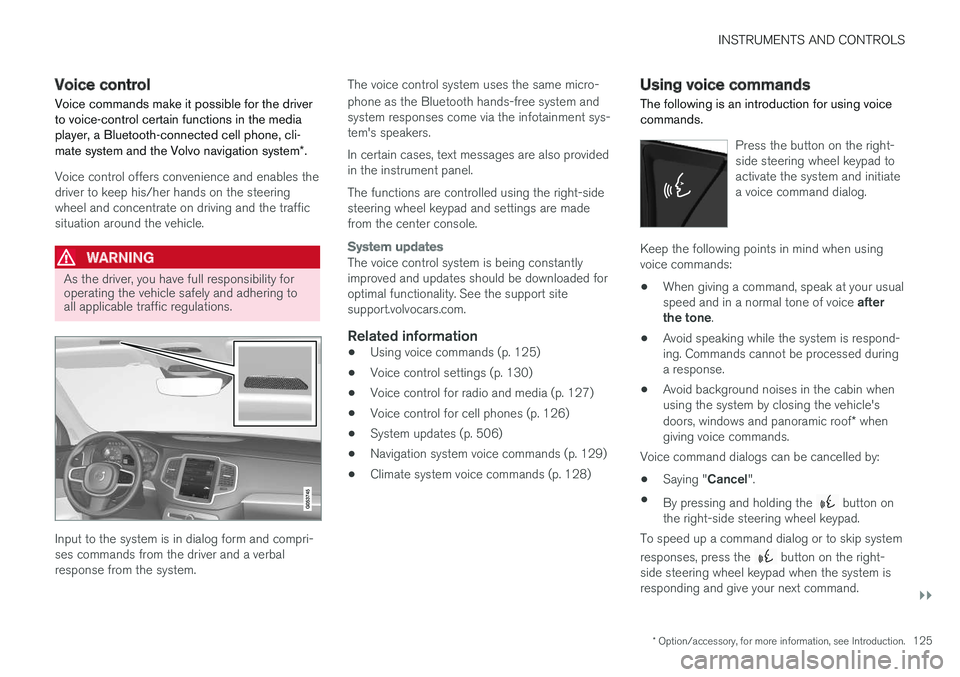
Input to the system is in dialog form and compri-ses commands from the driver and a verbalresponse from the system.
The voice control system uses the same micro-
phone as the Bluetooth hands-free system andsystem responses come via the infotainment sys-tem's speakers.
In certain cases, text messages are also providedin the instrument panel.
The functions are controlled using the right-sidesteering wheel keypad and settings are madefrom the center console.
System updates
The voice control system is being constantlyimproved and updates should be downloaded foroptimal functionality. See the support sitesupport.volvocars.com.
Related information
•Using voice commands (p. 125)
•Voice control settings (p. 130)
•Voice control for radio and media (p. 127)
•Voice control for cell phones (p. 126)
•System updates (p. 506)
•Navigation system voice commands (p. 129)
•Climate system voice commands (p. 128)
Using voice commands
The following is an introduction for using voicecommands.
Press the button on the right-side steering wheel keypad toactivate the system and initiatea voice command dialog.
Keep the following points in mind when usingvoice commands:
•When giving a command, speak at your usualspeed and in a normal tone of voice afterthe tone.
•Avoid speaking while the system is respond-ing. Commands cannot be processed duringa response.
•Avoid background noises in the cabin whenusing the system by closing the vehicle'sdoors, windows and panoramic roof* whengiving voice commands.
Voice command dialogs can be cancelled by:
•Saying "Cancel".
•By pressing and holding the button onthe right-side steering wheel keypad.
To speed up a command dialog or to skip system
responses, press the button on the right-side steering wheel keypad when the system isresponding and give your next command.
Page 128 of 584
![VOLVO XC90 TWIN ENGINE HYBRID 2017 User Guide ||
INSTRUMENTS AND CONTROLS
126
Voice command examples
Press , say "Call"-"[First-name]"-"[Last-name]"-"[number category]" to call a contactin your phonebook if the pe](/img/45/59300/w960_59300-127.png "VOLVO XC90 TWIN ENGINE HYBRID 2017 User Guide ||
INSTRUMENTS AND CONTROLS
126
Voice command examples
Press , say \"Call\"-\"[First-name]\"-\"[Last-name]\"-\"[number category]\" to call a contactin your phonebook if the pe")
||
INSTRUMENTS AND CONTROLS
126
Voice command examples
Press , say "Call"-"[First-name]"-"[Last-name]"-"[number category]" to call a contactin your phonebook if the person has more thanone phone number listed (i.e., home, mobile, work,etc.).
For example, press and say"Call"-"Robin"-"Smith"-"mobile".
Commands/phrases
The following commands can always be used:
•Repeat: the system will repeat the mostrecent voice instruction.
•Cancel: cancel the dialog.
•Help: Initiates a help dialog. The system willprovide several alternative commands thatcan be used in a given situation.
The commands for specific situations are descri-bed in the respective articles such as "Cell phonecommands", etc.
Numbers
Numbers can be spoken in different waysdepending on the context and function beingused:
•Phone numbers and zip codes should bespoken individually, number by number, e.g.,five five five one two three four (5551234).
•Addresses (house numbers) can be spo-ken individually or as a group, e.g., two two ortwenty-two (22). It is also possible to say a
sequence of numbers, e.g., twenty-twotwenty-two (22 22) and "double" or "triple"can also be used, e.g., double zero (00) or tri-ple zero (000). Numbers in the range0-2300 can be used.
•Frequencies can be spoken ninety-eightpoint eight (98.8), one hundred four pointtwo (104.2) or hundred four point two(104.2).
Related information
•Voice control (p. 125)
Voice control for cell phones
Voice commands can be used to control many
of the most common functions in a Bluetooth®-connected cell phone.
To specify a phone book contact, the voice com-mand has to include the contact's informationthat is in the phone book. For example, if a con-tact such as John Smith has several phonenumbers, a number category such as home ormobile can be specified. To call, say: "Call JohnSmith mobile".
To use the voice control system, press the on the right-side steering wheel keypad and sayone of the following commands after the tone:
•"Call [contact]": call a contact from yourphone book.
•"Call [phone number]": call a phone num-ber.
•"Recent calls": displays the list of recentcalls.
•"Read message": reads a message aloud.If there are several messages, select the oneto be read.
•"Message to [contact]": an empty mes-sage to the selected contact will open and isready for dictation to begin.
Page 147 of 584
INSTRUMENTS AND CONTROLS
145
Lightingring posi-tion
Result
With the ignition in mode II or ifthe engine is running:
•The Daytime Running Lightswill be on in daylight condi-
tionsB
•The low beam headlights willautomatically switch on indark conditions
•Tunnel detection will be acti-vated
•Active High Beams (AHB)can be activated
•High beam flash can be used
•Continuous high beams canbe used in dark conditions
Active High Beams On/Off
AThe parking lights will be on in this position, even if the ignitionis switched off. In dark conditions, the rear parking lights illumi-nate automatically when the tailgate is open, regardless of thering's position or ignition mode.BUS models only: The use of Daytime Running Lights can beactivated/deactivated in the center display's Settings menu.
NOTE
Volvo recommends the use of Daytime Run-ning Lights in the United States. The use ofthese lights is mandatory in Canada.
Volvo recommends using the positionwhenever possible.
WARNING
•Daytime Running Lights are a driving aiddesigned to help make the vehicle visibleto other roads users.
•The driver is always responsible foradapting the use of Daytime RunningLights/headlights according to ambientlighting and weather conditions.
Lighting panel
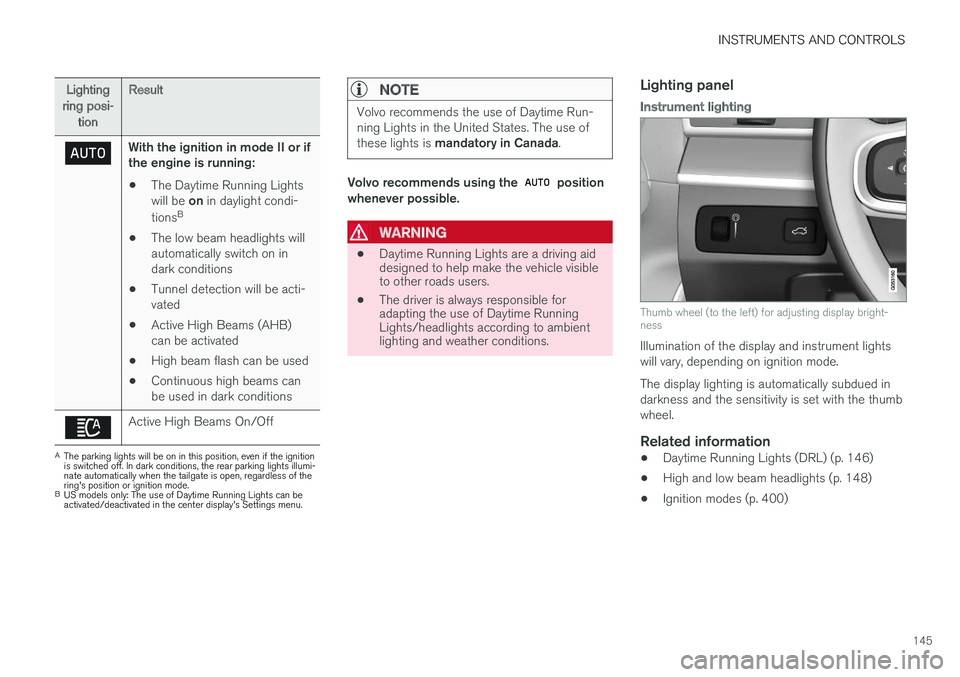
Instrument lighting
Thumb wheel (to the left) for adjusting display bright-ness
Illumination of the display and instrument lightswill vary, depending on ignition mode.
The display lighting is automatically subdued indarkness and the sensitivity is set with the thumbwheel.
Related information
•Daytime Running Lights (DRL) (p. 146)
•High and low beam headlights (p. 148)
•Ignition modes (p. 400)