open VOLVO XC90 TWIN ENGINE HYBRID 2017 Owners Manual
[x] Cancel search | Manufacturer: VOLVO, Model Year: 2017, Model line: XC90 TWIN ENGINE HYBRID, Model: VOLVO XC90 TWIN ENGINE HYBRID 2017Pages: 584, PDF Size: 14.2 MB
Page 7 of 584
5
Defrosting windows and mirrors206
Turning steering wheel heating* onand off208
Air conditioning209
Turning seat heating* on and off210
Turning front seat ventilation* on and off211
Air distribution212
Opening/closing/directing air vents213
Adjusting air distribution213
Air distribution table215
LOADING AND STORAGE
Cargo space218
Loading218
Passenger compartment storage spaces220
Using the glove compartment221
Tunnel console222
Grocery bag holder223
Cargo net223
Steel cargo grid*225
Load anchoring eyelets226
Cargo compartment cover*227
Sun visors229
Electrical sockets230
LOCKS AND ALARM
Locks and remote keys234
Immobilizer234
Changing the remote key's battery235
Remote key238
Remote key's range240
Red Key*240
Detachable key blade242
Foot movement tailgate operation*243
Locking/unlocking from outside thevehicle244
Locking/unlocking from inside thevehicle246
Antenna locations for the start andlock system247
Locking and unlocking confirmation248
Locking/unlocking the tailgate249
Power tailgate*251
Private (valet) locking253
Locking/unlocking with the detacha-ble key blade254
Automatically arming/disarming thealarm255
Alarm256
Deactivating the alarm without afunctioning remote key257
Child safety locks257
Page 10 of 584
8
STARTING AND DRIVING
Starting and driving376
Brakes376
Brake functions378
Auto-hold brake function379
Brake assist system379
Braking effect after a collision380
Emergency brake lights380
Hill Descent Control (HDC)380
Hill Start Assist381
Parking brake382
Using the parking brake382
Parking brake malfunctions384
Before a long distance trip385
Driving economically385
Driving through standing water387
Overheating the engine and transmission387
Winter driving388
Towing eyelet389
Towing recommendations389
Fuel391
Octane rating392
Opening/closing the fuel filler door393
Emission controls394
Jump starting395
Driving with a trailer397
Detachable trailer hitch398
Trailer Stability Assist (TSA)399
Ignition modes400
Battery drain402
Starting the engine402
Turning the engine off404
Driving systems405
Hybrid battery charging cable405
Hybrid charging cable circuit breaker407
Hybrid-related symbols and messages408
Preparations for charging the hybridbattery410
Stopping hybrid battery charging411
Initiating hybrid battery charging412
Charging the hybrid battery413
Hybrid battery charge status415
Charger status indicators417
Hybrid battery charging current417
Long-term storage of a vehicle witha hybrid battery418
Using the electric motor in city driving419
Maintaining/increasing the hybridbattery's charge while driving420
Drive modes420
Automatic transmission424
Shiftlock424
Gear shift indicator425
Gear selector positions425
Steering wheel paddles*427
Low Speed Control (LSC)428
All Wheel Drive (AWD)429
Suspension and leveling control*429
Page 13 of 584
11
Opening and closing the hood539
Engine compartment overview540
Engine oil541
Checking and refilling engine oil542
Windshield wipers in the service position543
Replacing wiper blades544
Refilling coolant546
Refilling the windshield washer fluidreservoir547
Cleaning the exterior547
Cleaning the interior550
Cleaning the center display552
Corrosion protection552
Paint damage553
Touching up paint damage554
Polishing and waxing554
SPECIFICATIONS
Label information558
Dimensions561
Weights563
Air conditioning refrigerant565
Hybrid battery specifications565
Brake fluid specification and volume566
Coolant specifications and volumes566
Engine specifications567
Engine oil specifications and volume568
Fuel tank volume568
Tire inflation pressure table569
Transmission fluid specification andvolume570
INDEX
Index571
Page 36 of 584
||
INTRODUCTION
* Option/accessory, for more information, see Introduction.34
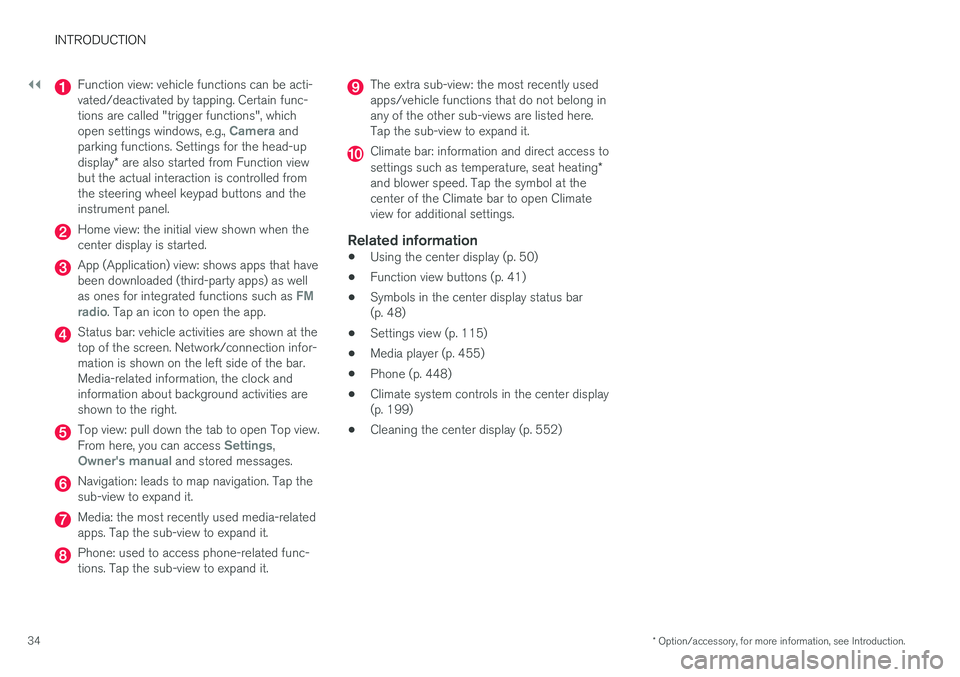
Function view: vehicle functions can be acti-vated/deactivated by tapping. Certain func-tions are called "trigger functions", whichopen settings windows, e.g., Camera andparking functions. Settings for the head-updisplay* are also started from Function viewbut the actual interaction is controlled fromthe steering wheel keypad buttons and theinstrument panel.
Home view: the initial view shown when thecenter display is started.
App (Application) view: shows apps that havebeen downloaded (third-party apps) as wellas ones for integrated functions such as FMradio. Tap an icon to open the app.
Status bar: vehicle activities are shown at thetop of the screen. Network/connection infor-mation is shown on the left side of the bar.Media-related information, the clock andinformation about background activities areshown to the right.
Top view: pull down the tab to open Top view.From here, you can access Settings,Owner's manual and stored messages.
Navigation: leads to map navigation. Tap thesub-view to expand it.
Media: the most recently used media-relatedapps. Tap the sub-view to expand it.
Phone: used to access phone-related func-tions. Tap the sub-view to expand it.
The extra sub-view: the most recently usedapps/vehicle functions that do not belong inany of the other sub-views are listed here.Tap the sub-view to expand it.
Climate bar: information and direct access tosettings such as temperature, seat heating*and blower speed. Tap the symbol at thecenter of the Climate bar to open Climateview for additional settings.
Related information
•Using the center display (p. 50)
•Function view buttons (p. 41)
•Symbols in the center display status bar(p. 48)
•Settings view (p. 115)
•Media player (p. 455)
•Phone (p. 448)
•Climate system controls in the center display(p. 199)
•Cleaning the center display (p. 552)
Page 37 of 584
INTRODUCTION
35
Changing center display settings
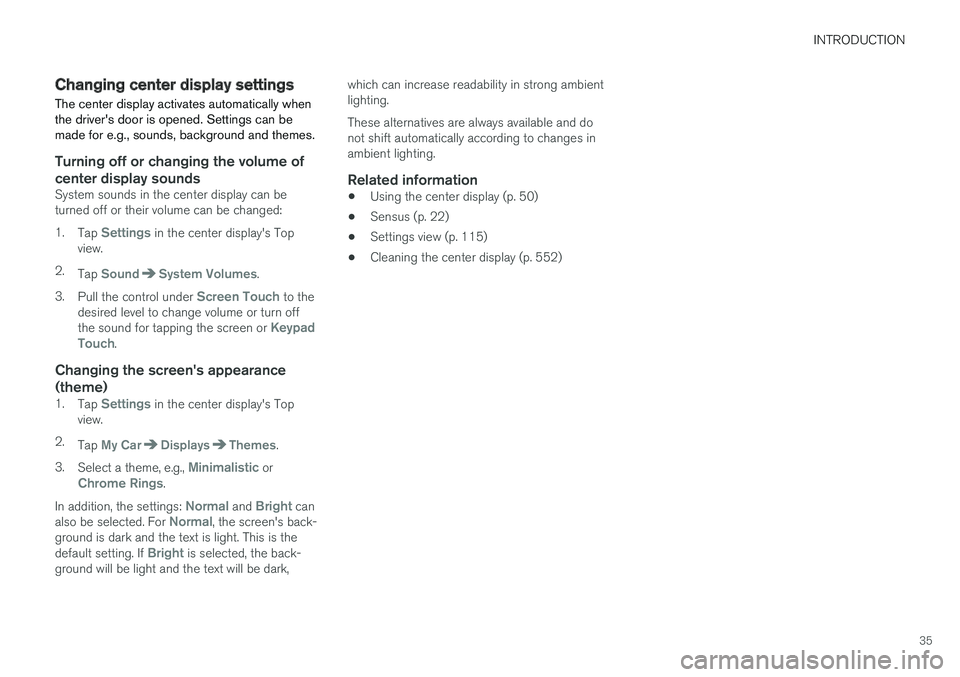
The center display activates automatically whenthe driver's door is opened. Settings can bemade for e.g., sounds, background and themes.
Turning off or changing the volume of
center display sounds
System sounds in the center display can beturned off or their volume can be changed:
1.Tap Settings in the center display's Topview.
2.Tap SoundSystem Volumes.
3.Pull the control under Screen Touch to thedesired level to change volume or turn offthe sound for tapping the screen or KeypadTouch.
Changing the screen's appearance
(theme)
1.Tap Settings in the center display's Topview.
2.Tap My CarDisplaysThemes.
3.Select a theme, e.g., Minimalistic orChrome Rings.
In addition, the settings: Normal and Bright canalso be selected. For Normal, the screen's back-ground is dark and the text is light. This is thedefault setting. If Bright is selected, the back-ground will be light and the text will be dark,
which can increase readability in strong ambientlighting.
These alternatives are always available and donot shift automatically according to changes inambient lighting.
Related information
•Using the center display (p. 50)
•Sensus (p. 22)
•Settings view (p. 115)
•Cleaning the center display (p. 552)
Page 41 of 584
INTRODUCTION
}}
39
Special characters
To enter language-specific characters such as éor è (if available):
1.Press and hold a character key.
> A box with available characters will open.
2. Tap the desired character. If none of the spe-cial characters is selected, the key's initialcharacter will be entered.
Handwritten text
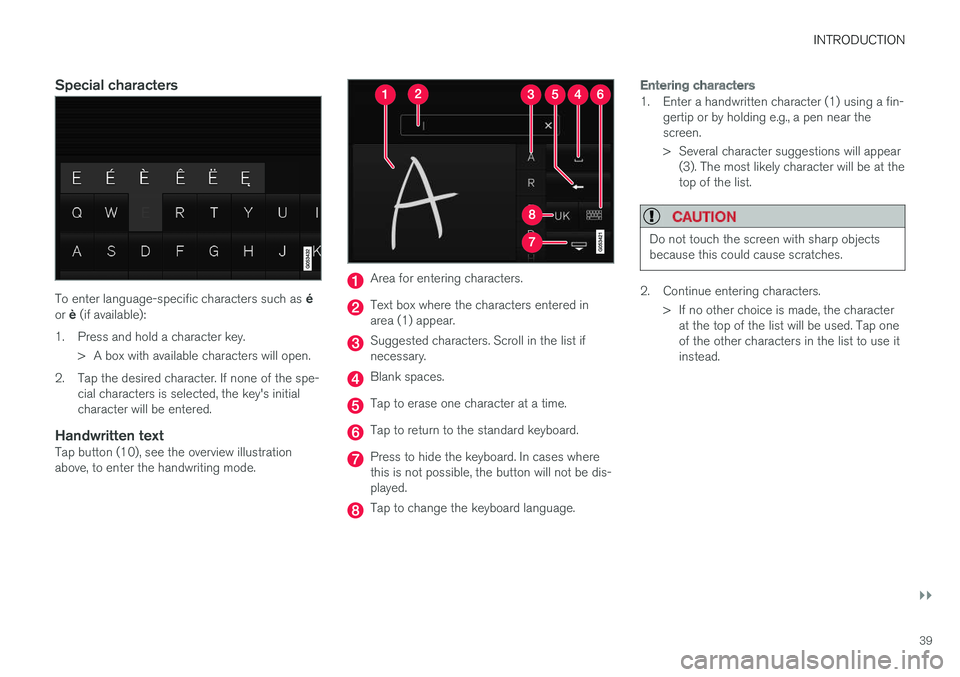
Tap button (10), see the overview illustrationabove, to enter the handwriting mode.
Area for entering characters.
Text box where the characters entered inarea (1) appear.
Suggested characters. Scroll in the list ifnecessary.
Blank spaces.
Tap to erase one character at a time.
Tap to return to the standard keyboard.
Press to hide the keyboard. In cases wherethis is not possible, the button will not be dis-played.
Tap to change the keyboard language.
Entering characters
1. Enter a handwritten character (1) using a fin-gertip or by holding e.g., a pen near thescreen.
> Several character suggestions will appear(3). The most likely character will be at thetop of the list.
CAUTION
Do not touch the screen with sharp objectsbecause this could cause scratches.
2. Continue entering characters.
>If no other choice is made, the characterat the top of the list will be used. Tap oneof the other characters in the list to use itinstead.
Page 43 of 584
INTRODUCTION
}}
41
Function view buttons
The Function view, which is one of the centerdisplay's basic views, contains all of the vehicle's
on-screen function buttons. From the Homeview, swipe from left to right on the screen tocome to the Function view.
Different types of buttons
There are three different types of vehicle functionbuttons as listed in the following table.
Type of buttonFunctionsVehicle function affected
Function buttonsHave On/Off modes.
An LED indicator light to the left of the button's icon will illuminate when a function isactive. Press the button to turn the function on or off.
Most of the buttons in the function view arefunction buttons.
Start buttonsDo not have On/Off modes.
Pressing a start button opens a function's window, e.g., a window for adjusting thedriver's seat.
•Camera.
•Headrest fold.
•Functions for folding down a seat.
•Head-up display adjustments.
Parking buttonsHave On/Off and scanning modes.
Similar to function buttons but have an additional parking scanning mode.
•Park In.
•Park Out.
Button modes
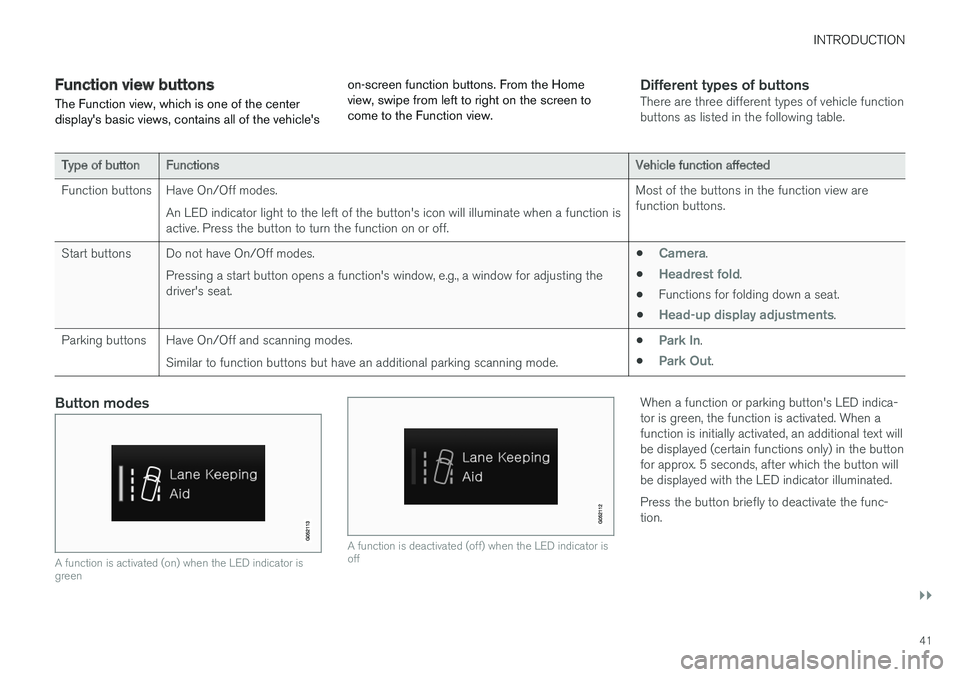
A function is activated (on) when the LED indicator isgreen
A function is deactivated (off) when the LED indicator isoff
When a function or parking button's LED indica-tor is green, the function is activated. When afunction is initially activated, an additional text willbe displayed (certain functions only) in the buttonfor approx. 5 seconds, after which the button willbe displayed with the LED indicator illuminated.
Press the button briefly to deactivate the func-tion.
Page 45 of 584
INTRODUCTION
}}
43
Navigating in the center display'sviews
There are 5 different basic views in the centerdisplay: Home view, Top view, Climate view, Appview and Function view. The display is activatedautomatically when the driver's door is opened.
Home view
Home view is displayed when the screen is acti-vated. It consists of four sub-views: Navigation,Media, Phone and an extra sub-view. The extra
sub-view contains the most recently used app/vehicle function that is not related to the otherthree sub-views. For example, if the most recentlyused app/vehicle function is a music app, theMedia sub-view will be displayed.
The sub-views display brief information about therespective apps.
The first time the vehicle is started, some of theHome view's sub-views will not contain any infor-mation.
NOTE
•In Home view's standard mode (reachedby pressing the Home button briefly), ananimation explaining how to access thedifferent views will be shown on thescreen.
•Some functions may be disabled whenthe vehicle is moving.
Page 47 of 584
INTRODUCTION
}}
45
tive app's basic functions. When a sub-viewis expanded, the Home view's fourth sub-view will temporarily not be displayed.
•To minimize a sub-view, tap anywhere on thescreen.
Opening/closing a sub-view in full-screen
mode
The extra sub-view and the Navigation sub-viewcan be opened in full-screen mode to show addi-tional information and possible settings.
In expanded mode, open theapp in full-screen mode by tap-ping the symbol.
Tap on the symbol or the Homebutton below the screen toreturn to the expanded view.
It is always possible to return to Home view bypressing the Home button. Press the Home but-ton twice to return to Home view's standard viewfrom full-screen.
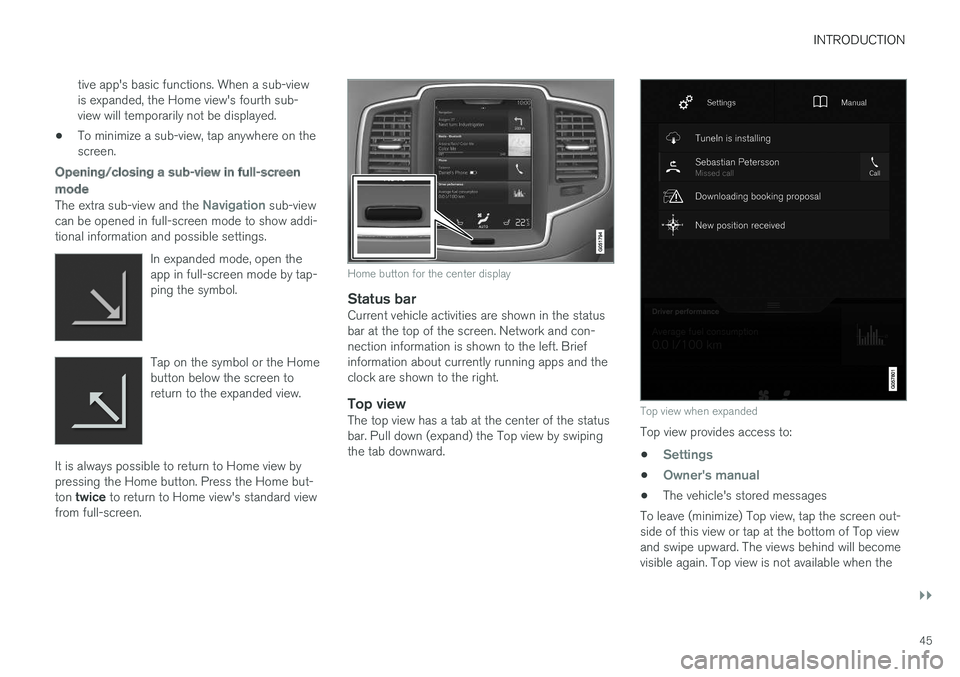
Home button for the center display
Status bar
Current vehicle activities are shown in the statusbar at the top of the screen. Network and con-nection information is shown to the left. Briefinformation about currently running apps and theclock are shown to the right.
Top view
The top view has a tab at the center of the statusbar. Pull down (expand) the Top view by swipingthe tab downward.
Top view when expanded
Top view provides access to:
•Settings
•Owner's manual
•The vehicle's stored messages
To leave (minimize) Top view, tap the screen out-side of this view or tap at the bottom of Top viewand swipe upward. The views behind will becomevisible again. Top view is not available when the
Page 48 of 584
||
INTRODUCTION
46
ignition is being started/switched off or when amessage is displayed on the screen.
Going to Top view from an app
To pull down Top view when an app is running(e.g., FM radio):
•Tap FM Radio Settings to display thesesettings.
•Tap Owner's manual to open an articlerelated to the specific app.
This applies only to your vehicle's factory-installed apps. This is not possible for third-party apps that have been downloaded.
Climate view
The climate bar, where the most common climatesystem settings can be made, is located at thebottom of the screen and is always visible.
Tap the symbol at the center of the cli-mate bar to open Climate view foraccess to additional climate systemsettings.
Tap the symbol to close Climate viewand return to a previous view.
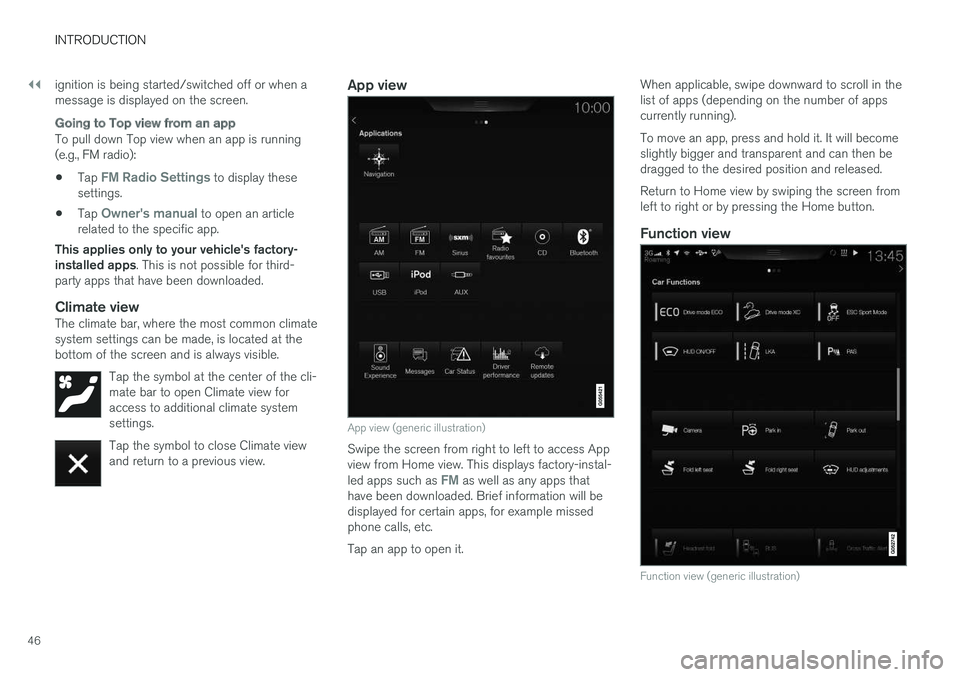
App view
App view (generic illustration)
Swipe the screen from right to left to access Appview from Home view. This displays factory-instal-led apps such as FM as well as any apps thathave been downloaded. Brief information will bedisplayed for certain apps, for example missedphone calls, etc.
Tap an app to open it.
When applicable, swipe downward to scroll in thelist of apps (depending on the number of appscurrently running).
To move an app, press and hold it. It will becomeslightly bigger and transparent and can then bedragged to the desired position and released.
Return to Home view by swiping the screen fromleft to right or by pressing the Home button.
Function view
Function view (generic illustration)