map Acura RDX 2016 Navigation Manual
[x] Cancel search | Manufacturer: ACURA, Model Year: 2016, Model line: RDX, Model: Acura RDX 2016Pages: 363, PDF Size: 17.77 MB
Page 322 of 363
321
uuTroubleshooting uGuidance, Routing
Troubleshooting
Guidance, Routing
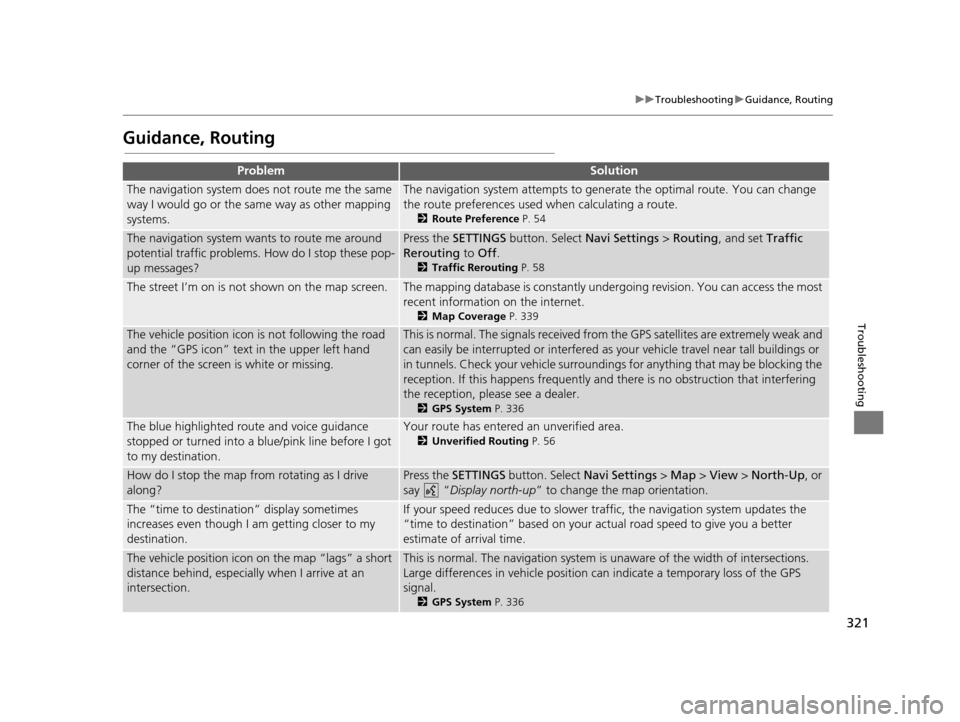
ProblemSolution
The navigation system does not route me the same
way I would go or the same way as other mapping
systems.The navigation system attempts to generate the optimal route. You can change
the route preferences used when calculating a route.
2 Route Preference P. 54
The navigation system wants to route me around
potential traffic problems. How do I stop these pop-
up messages?Press the SETTINGS button. Select Navi Settings > Routing, and set Traffic
Rerouting to Off .
2Traffic Rerouting P. 58
The street I’m on is not shown on the map screen.The mapping database is constantly under going revision. You can access the most
recent information on the internet.
2 Map Coverage P. 339
The vehicle position icon is not following the road
and the “GPS icon” text in the upper left hand
corner of the screen is white or missing.This is normal. The signals received from the GPS satellites are extremely weak and
can easily be interrupted or interfered as your vehicle travel near tall buildings or
in tunnels. Check your vehicle surroundings for anything that may be blocking the
reception. If this happens frequently and there is no obstruction that interfering
the reception, please see a dealer.
2 GPS System P. 336
The blue highlighted route and voice guidance
stopped or turned into a blue/pink line before I got
to my destination.Your route has entered an unverified area.
2Unverified Routing P. 56
How do I stop the map from rotating as I drive
along?Press the SETTINGS button. Select Navi Settings > Map > View > North-Up , or
say “ Display north-up ” to change the map orientation.
The “time to destination” display sometimes
increases even though I am getting closer to my
destination.If your speed reduces due to slower tra ffic, the navigation system updates the
“time to destination” based on your actual road speed to give you a better
estimate of arrival time.
The vehicle position icon on the map “lags” a short
distance behind, especially when I arrive at an
intersection.This is normal. The navigati on system is unaware of the width of intersections.
Large differences in vehicle position ca n indicate a temporary loss of the GPS
signal.
2 GPS System P. 336
16 ACURA RDX NAVI-31TX48300.book 321 ページ 2015年3月6日 金曜日 午後1時26分
Page 323 of 363
322
uuTroubleshooting uGuidance, Routing
Troubleshooting
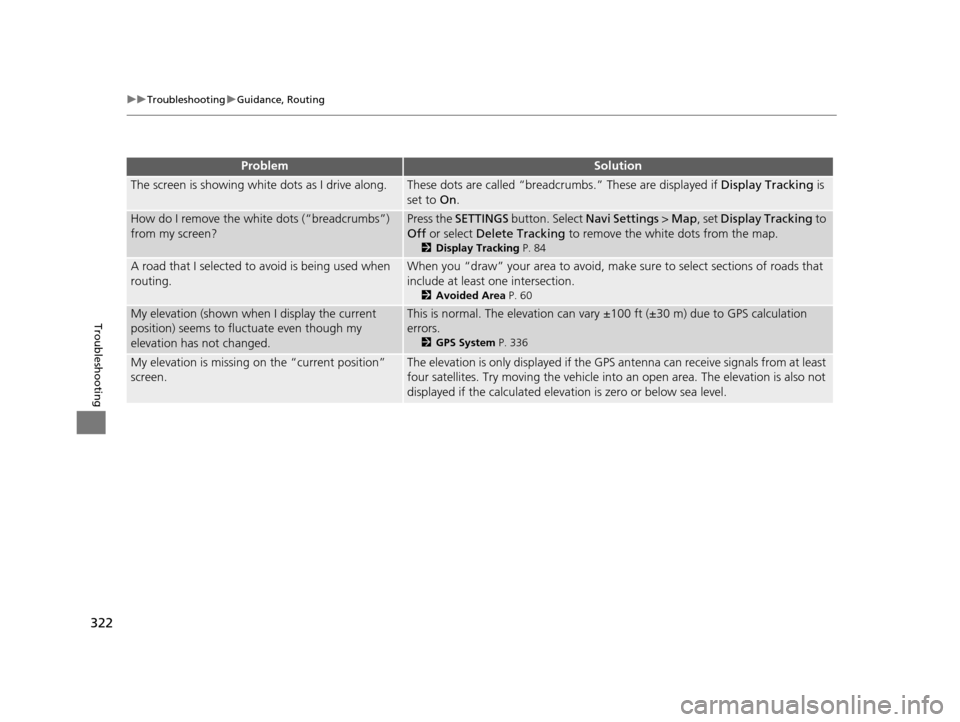
The screen is showing wh ite dots as I drive along.These dots are called “breadcr umbs.” These are displayed if Display Tracking is
set to On.
How do I remove the white dots (“breadcrumbs”)
from my screen?Press the SETTINGS button. Select Navi Settings > Map, set Display Tracking to
Off or select Delete Tracking to remove the white dots from the map.
2Display Tracking P. 84
A road that I selected to avoid is being used when
routing.When you “draw” your area to avoid, make sure to select sections of roads that
include at least one intersection.
2 Avoided Area P. 60
My elevation (shown when I display the current
position) seems to fluc tuate even though my
elevation has not changed.This is normal. The elevation can vary ±100 ft (±30 m) due to GPS calculation
errors.
2 GPS System P. 336
My elevation is missing on the “current position”
screen.The elevation is only displayed if the GPS antenna can receive signals from at least
four satellites. Try moving the vehicle into an open area. The elevation is also not
displayed if the calculated elevation is zero or below sea level.
ProblemSolution
16 ACURA RDX NAVI-31TX48300.book 322 ページ 2015年3月6日 金曜日 午後1時26分
Page 324 of 363
323
uuTroubleshooting uUpdate, Coverage, Map Errors
Troubleshooting
Update, Coverage, Map Errors
Display, Accessories
Multi-View Rear Camera
ProblemSolution
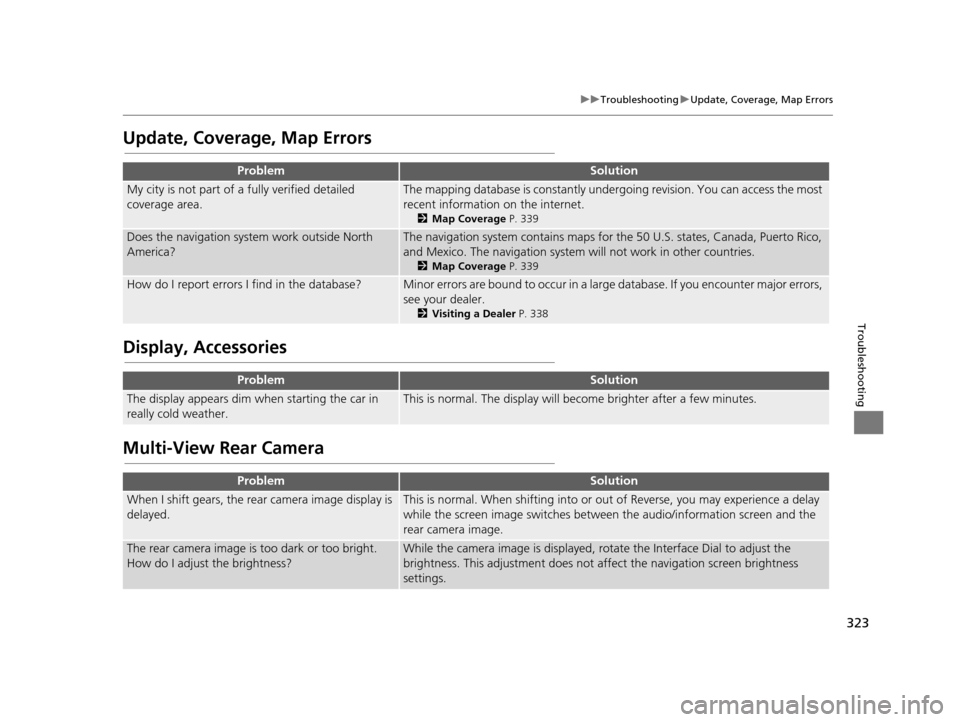
My city is not part of a fully verified detailed
coverage area.The mapping database is constantly under going revision. You can access the most
recent information on the internet.
2 Map Coverage P. 339
Does the navigation system work outside North
America?The navigation system contains maps for the 50 U.S. states, Canada, Puerto Rico,
and Mexico. The navigation system will not work in other countries.
2 Map Coverage P. 339
How do I report errors I find in the database?Minor errors are bound to occur in a large database. If you encounter major errors,
see your dealer.
2Visiting a Dealer P. 338
ProblemSolution
The display appears dim when starting the car in
really cold weather.This is normal. The display will become brighter after a few minutes.
ProblemSolution
When I shift gears, the rear camera image display is
delayed.This is normal. When shifti ng into or out of Reverse, you may experience a delay
while the screen image switches between the audio/information screen and the
rear camera image.
The rear camera image is too dark or too bright.
How do I adjust the brightness?While the camera image is displayed, ro tate the Interface Dial to adjust the
brightness. This adjustment does not affect the navigation screen brightness
settings.
16 ACURA RDX NAVI-31TX48300.book 323 ページ 2015年3月6日 金曜日 午後1時26分
Page 334 of 363
333
Reference Information
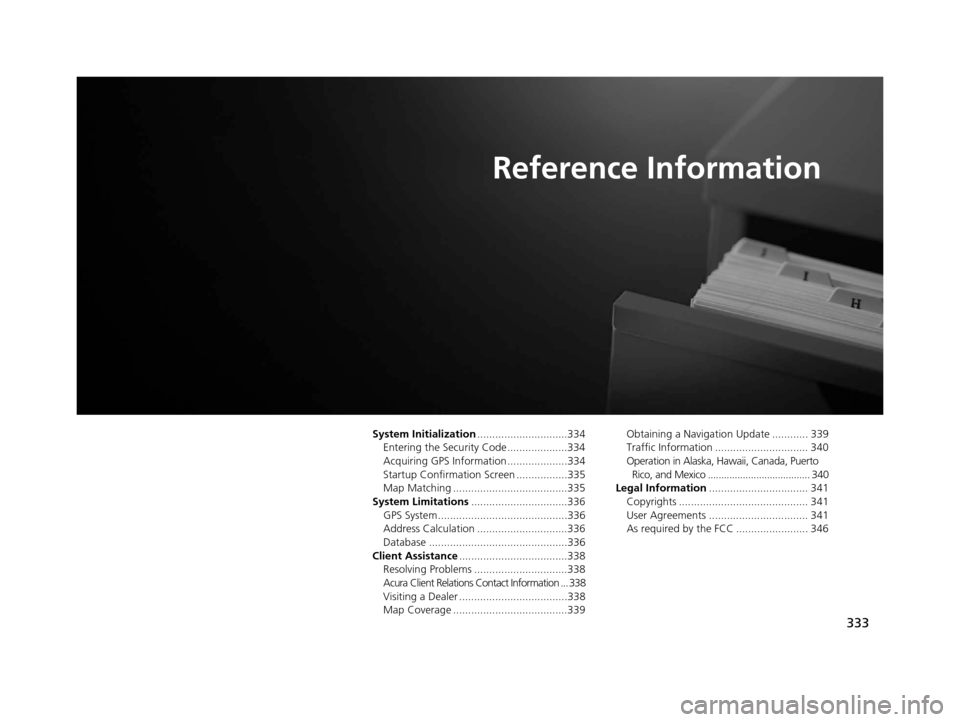
System Initialization..............................334
Entering the Security Code ....................334
Acquiring GPS Information ....................334
Startup Confirmation Screen .................335
Map Matching ......................................335
System Limitations ................................336
GPS System...........................................336
Address Calculation ..............................336
Database ..............................................336
Client Assistance ....................................338
Resolving Problems ...............................338
Acura Client Relations Contact Information ... 338
Visiting a Dealer ....................................338
Map Coverage ......................................339 Obtaining a Navigation Update ............ 339
Traffic Information ............................... 340
Operation in Alaska, Hawaii, Canada, Puerto
Rico, and Mexico ...................................... 340
Legal Information ................................. 341
Copyrights ........................................... 341
User Agreements ................................. 341
As required by the FCC ........................ 346
16 ACURA RDX NAVI-31TX48300.book 333 ページ 2015年3月6日 金曜日 午後1時26分
Page 336 of 363
335
uuSystem Initialization uStartup Confirmation Screen
Reference Information
Startup Confirmation
Screen
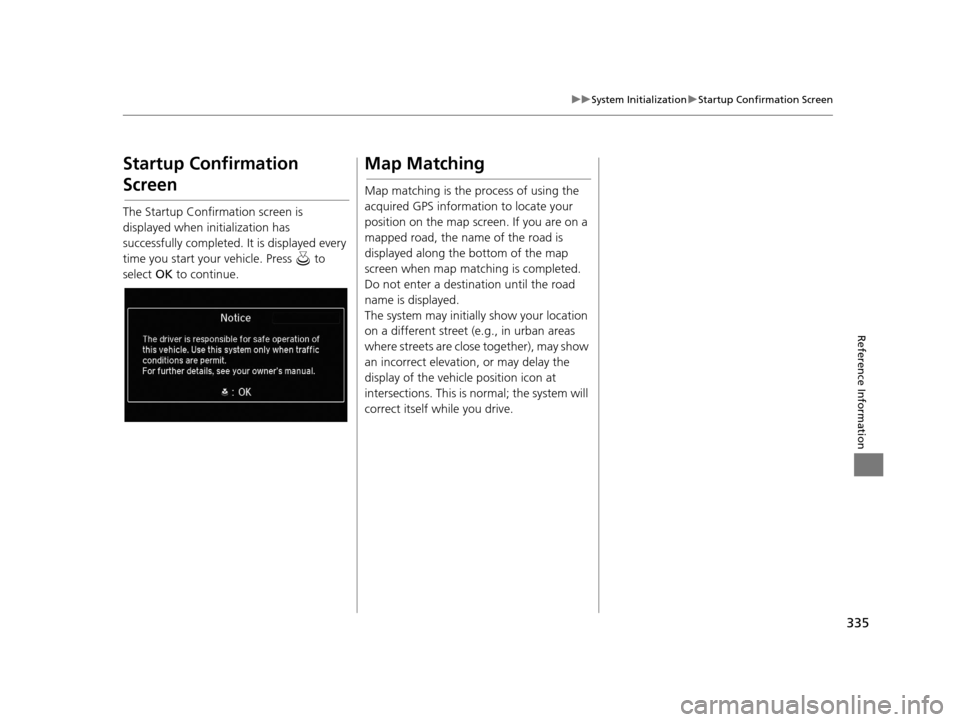
The Startup Confirmation screen is
displayed when initialization has
successfully completed. It is displayed every
time you start your vehicle. Press to
select OK to continue.
Map Matching
Map matching is the process of using the
acquired GPS information to locate your
position on the map screen. If you are on a
mapped road, the name of the road is
displayed along the bottom of the map
screen when map matching is completed.
Do not enter a destination until the road
name is displayed.
The system may initially show your location
on a different street (e.g., in urban areas
where streets are close together), may show
an incorrect elevation, or may delay the
display of the vehicle position icon at
intersections. This is normal; the system will
correct itself while you drive.
16 ACURA RDX NAVI-31TX48300.book 335 ページ 2015年3月6日 金曜日 午後1時26分
Page 337 of 363
336
Reference Information
System Limitations
GPS System
The signals received from the GPS satellites
are extremely weak (less than a millionth of
the strength of a local FM station) and
require an unobstructed view of the sky.
The GPS antenna is located in the roof. The
signal reception can easily be interrupted or
interfered with by trees, tall buildings,
freeway/highway overpasses, tunnels, or
overhead electrical power wires.
The GPS is operated by the U.S. Department
of Defense. For security reasons, there are
certain inaccuracies bu ilt into the GPS for
which the navigation system must
constantly compensate. This can cause
occasional positioning errors of up to
several hundred feet or tens of meters.
Address Calculation
The destination icon shows only the
approximate location of a destination
address. This occurs if the number of
possible addresses is different from the
number of actual addr esses on a block. For
example, the address 1425 on a 1400 block
with 100 possible addresses (because it is
followed by the 1500 block) will be shown a
quarter of the way down the block by the
system. If there are only 25 actual addresses
on the block, the actual location of address
1425 would be at the end of the block.
Database
The digitized map database reflects
conditions as they existed at various points
in time before production. Accordingly,
your database may contain inaccurate or
incomplete data or information due to the
passage of time, road construction,
changing conditions, or other causes.
For example, some places/landmarks may
be missing when you search the database
because the name was misspelled, the place
was improperly categorized, or a place/
landmark is not yet in the database. This is
also true for police stat ions, hospitals, and
other public institutions. Do not rely on the
navigation system if you need law
enforcement or hospital services. Always
check with local information sources.
In addition, the map database contains
verified and unverifie d areas. Unverified
streets may be missing from the map, in the
wrong location, or have an incorrect name
or address range. A message will warn you
if your route includes unverified streets.
Exercise additional caution when driving in
unverified areas.
16 ACURA RDX NAVI-31TX48300.book 336 ページ 2015年3月6日 金曜日 午後1時26分
Page 338 of 363
337
uuSystem Limitations uDatabase
Reference Information
The database does not include, analyze,
process, consider, or reflect any of the
following categories of information:
• Neighborhood quality or safety
• Population density
• Availability or proximity of law
enforcement
• Emergency, rescue, medical, or other assistance
• Construction work, zones, or hazards
• Road and lane closures
• Legal restrictions (such as vehicular type, weight, load, height, and speed
restrictions)
• Road slope or grade
• Bridge height, width, weight, or other
limits
• Traffic facilities safety
• Special events
• Pavement characteristics or conditions
Every effort has been made to verify that
the database is accurate. The number of
inaccuracies you experience increases the
longer you go without obtaining an
updated map database.
2 Obtaining a Navigation Update P. 339
We assume no liability for any incident that
may result from an error in the program, or
from changed conditions not noted above.
16 ACURA RDX NAVI-31TX48300.book 337 ページ 2015年3月6日 金曜日 午後1時26分
Page 340 of 363
339
uuClient Assistance uMap Coverage
Reference Information
Map Coverage
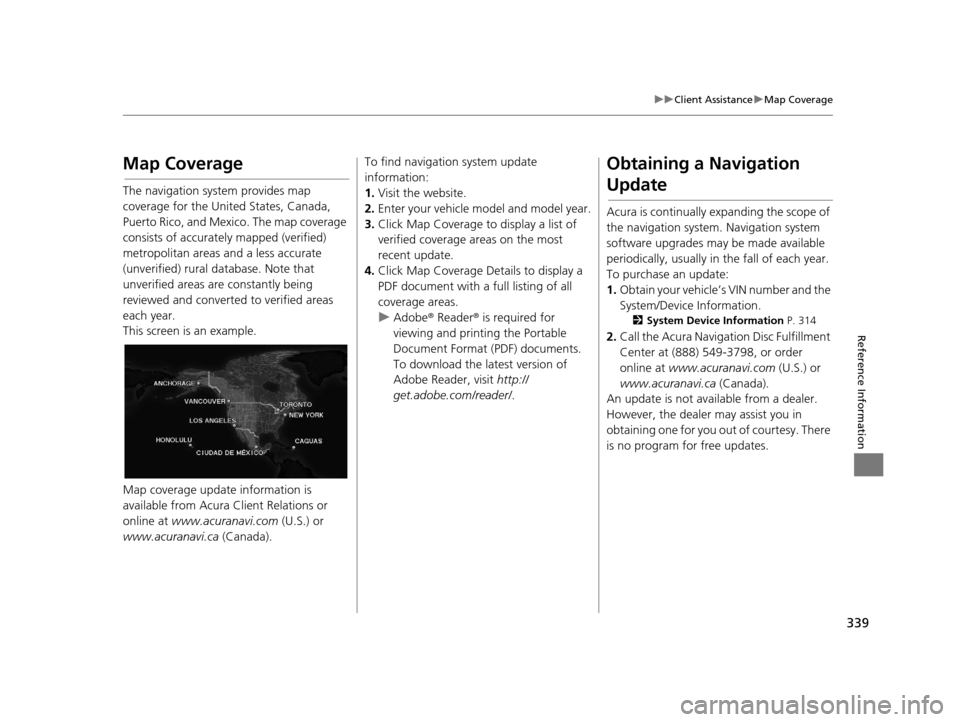
The navigation system provides map
coverage for the United States, Canada,
Puerto Rico, and Mexico. The map coverage
consists of accurately mapped (verified)
metropolitan areas and a less accurate
(unverified) rural database. Note that
unverified areas are constantly being
reviewed and converted to verified areas
each year.
This screen is an example.
Map coverage update information is
available from Acura Client Relations or
online at www.acuranavi.com (U.S.) or
www.acuranavi.ca (Canada).
To find navigation system update
information:
1. Visit the website.
2. Enter your vehicle mo del and model year.
3. Click Map Coverage to display a list of
verified coverage areas on the most
recent update.
4. Click Map Coverage Details to display a
PDF document with a full listing of all
coverage areas.
u Adobe ® Reader ® is required for
viewing and printing the Portable
Document Format (PDF) documents.
To download the latest version of
Adobe Reader, visit http://
get.adobe.com/reader/ .Obtaining a Navigation
Update
Acura is continually expanding the scope of
the navigation system. Navigation system
software upgrades may be made available
periodically, usually in the fall of each year.
To purchase an update:
1. Obtain your vehicle’s VIN number and the
System/Device Information.
2 System Device Information P. 314
2.Call the Acura Navigation Disc Fulfillment
Center at (888) 549-3798, or order
online at www.acuranavi.com (U.S.) or
www.acuranavi.ca (Canada).
An update is not available from a dealer.
However, the dealer may assist you in
obtaining one for you out of courtesy. There
is no program for free updates.
16 ACURA RDX NAVI-31TX48300.book 339 ページ 2015年3月6日 金曜日 午後1時26分
Page 341 of 363
340
uuClient Assistance uTraffic Information
Reference Information
Traffic Information
Continuously updated traffic information is
available in major metro politan areas across
the 48 contiguous states and some cities in
Canada. A list of coverage areas is available
online.
To find traffic information:
1. Visit www.acura.com/realtimetraffic .
2. Select Real-Time Traffic on the ILX.
3. Click AcuraLink Real-Time Traffic.
Operation in Alaska,
Hawaii, Canada, Puerto
Rico, and Mexico
All roads displayed on the map screens are
verified roads. Inform ation in this manual
relating to “unverified” roads or areas is not
applicable.
Entering a destinatio n address or place/
landmark on another island may result in a
screen caution message. This is because
there are no ferry routes between islands in
the database.
If Street Name Guidance is set to On, the
street names will not be read out by voice
guidance. This may change in a future data
update.
■ Map Coverage
■Address and Place Entry
Screens
■Puerto Rico and Mexico
16 ACURA RDX NAVI-31TX48300.book 340 ページ 2015年3月6日 金曜日 午後1時26分
Page 349 of 363
348
Voice Commands
Voice Commands
Navigation Commands
The system accepts these commands on a
map/guidance screen.Display voice portal
Display phone (equivalent to PHONE)
Display audio (equivalent to AUDIO)
Display navigation (if en route, displays
the Route screen)
Display information (equivalent to INFO)
Display menu (equivalent to MENU. if en
route, displays Route Options)
Display setting (equivalent to SETTINGS
button)
Display map
Display map guide (when en route, shows
the next guidance point)
Cancel
What time is it?
What is today’s date?
Voice help (displays commands for
current screen)
Messages
■ General Commands
Display current location
(shows current
latitude, longitude, and elevation)
Display/Hide (specify icon type):
ATM
gas station
restaurant
post office
grocery store
lodging (hotel, motel)
parking garage
parking lot
school
hospital
freeway exit information (U.S.)
highway exit information (Canada)
traffic
traffic speeds
traffic icons
traffic incidents
Go home
Register the current location (stores
current location in the Address Book)
■ Map Display Commands
Display north up
Display heading up
Display 3D map
Display zoom in
Display zoom out
Display
(specify scale):
1/20 mile (80 m) scale
1/8 mile (200 m) scale
1/4 mile (400 m) scale
1/2 mile (800 m) scale
1 mile (1600 m) scale
2 mile (3 km) scale
5 mile (8 km) scale
15 mile (24 km) scale
50 mile (80 km) scale
150 mile (240 km) scale
350 mile (560 km) scale
1000 mile (1600 km) scale
Max zoom in
Max zoom out
■ Map Scale Commands
16 ACURA RDX NAVI-31TX48300.book 348 ページ 2015年3月6日 金曜日 午後1時26分