map Acura RDX 2016 Navigation Manual
[x] Cancel search | Manufacturer: ACURA, Model Year: 2016, Model line: RDX, Model: Acura RDX 2016Pages: 363, PDF Size: 17.77 MB
Page 116 of 363

115
Navigation
This section describes how to enter a destination, select a route to take, and follow the
route to your destination. It also describes how to change your route or destination along
the way.
Entering a Destination......................... 116
Address ............................................... 118
Address Book ....................................... 125
Previous Destination ............................. 126
Place Category ..................................... 127
Local Search ......................................... 129
Place Name .......................................... 131
Place Phone Number ............................ 134
Download POI ...................................... 135
Scenic Route ........................................ 136
Intersection .......................................... 137
Map Input............................................ 138
Coordinate .......................................... 140 Calculating the Route
............................141
Viewing the Routes ...............................143
Driving to Your Destination .................144
Viewing the Route ................................144
Listening to Voice Guidance ..................149
Reaching a Waypoint ............................150
Map Menu ..............................................151
Displaying the Map Menu .....................151
Hide Traffic Flow ...................................153
Directions .............................................154
Traffic Rerouting
TM................................156
Changing Your Route ............................159
Pausing the Route .................................160
Canceling the Route .............................160 Adding Waypoints ............................... 161
Editing the Destination List ................... 165
Taking a Detour ................................... 167
Avoiding Streets ................................... 167
Changing Your Destination ................. 168
Find Nearest Place ................................ 168
Selecting a Destination on the Map ...... 169
Entering a New Destination .................. 170
Resuming Your Trip .............................. 171
16 ACURA RDX NAVI-31TX48300.book 115 ページ 2015年3月6日 金曜日 午後1時26分
Page 117 of 363
116
Navigation
Entering a Destination
HMENU button (on map)
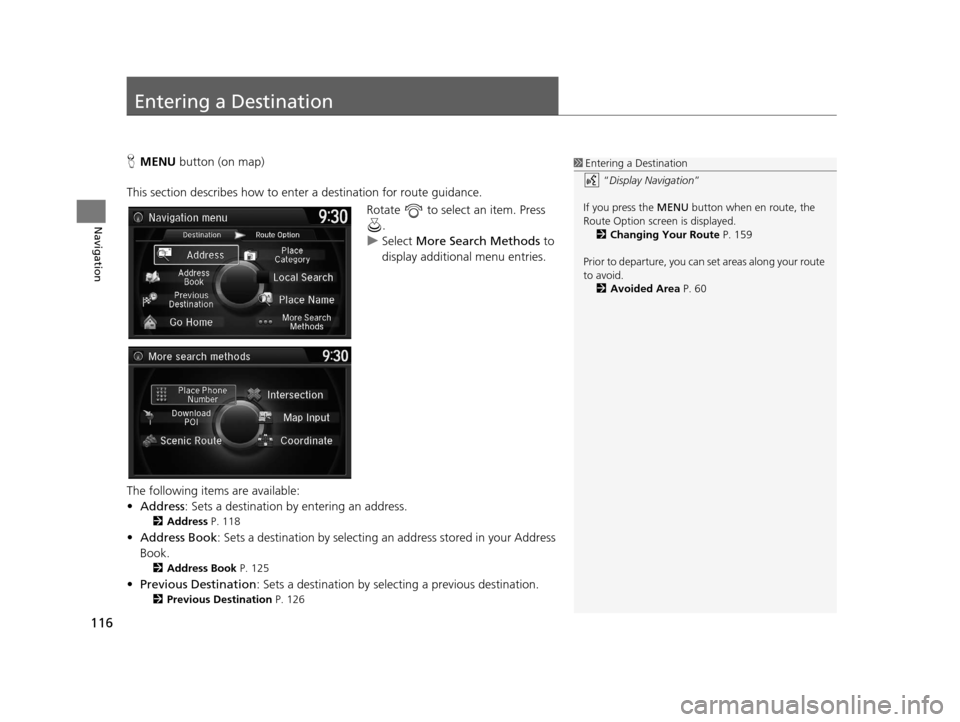
This section describes how to enter a destination for route guidance. Rotate to select an item. Press .
u Select More Search Methods to
display additional menu entries.
The following items are available:
• Address : Sets a destination by entering an address.
2Address P. 118
•Address Book : Sets a destination by selecting an address stored in your Address
Book.
2 Address Book P. 125
•Previous Destination : Sets a destination by select ing a previous destination.
2Previous Destination P. 126
1Entering a Destination
“Display Navigation ”
If you press the MENU button when en route, the
Route Option screen is displayed.
2 Changing Your Route P. 159
Prior to departure, you can set areas along your route
to avoid.
2 Avoided Area P. 60
16 ACURA RDX NAVI-31TX48300.book 116 ページ 2015年3月6日 金曜日 午後1時26分
Page 118 of 363

117
uuEntering a Destination u
Navigation
•Go Home : Sets your home address as a destination.
2Going Home P. 11
•Place Category : Sets a destination by selecting a place/landmark.
2Place Category P. 127
•Local Search : Sets a destination by using Local Search.
2Local Search P. 129
•Place Name : Sets a destination by entering a place name.
2Place Name P. 131
•Place Phone Number : Sets a destination by ente ring the phone number of a
place/landmark.
2 Place Phone Number P. 134
•Download POI : Sets a destination by using a list of the imported POI (category
and places) data you created.
2 Download POI P. 135
•Scenic Route : Sets a destination by using a list of scenic roads for each state or
province (U.S. and Canada only).
2 Scenic Route P. 136
•Intersection : Sets a destination (intersect ion) by entering two streets.
2Intersection P. 137
•Map Input : Sets a destination by scrolling through the map.
2Map Input P. 138
•Coordinate : Sets a destination by entering latitude and longitude.
2Coordinate P. 140
16 ACURA RDX NAVI-31TX48300.book 117 ページ 2015年3月6日 金曜日 午後1時26分
Page 128 of 363
127
uuEntering a Destination uPlace Category
Continued
Navigation
Place Category
H MENU button uPlace Category
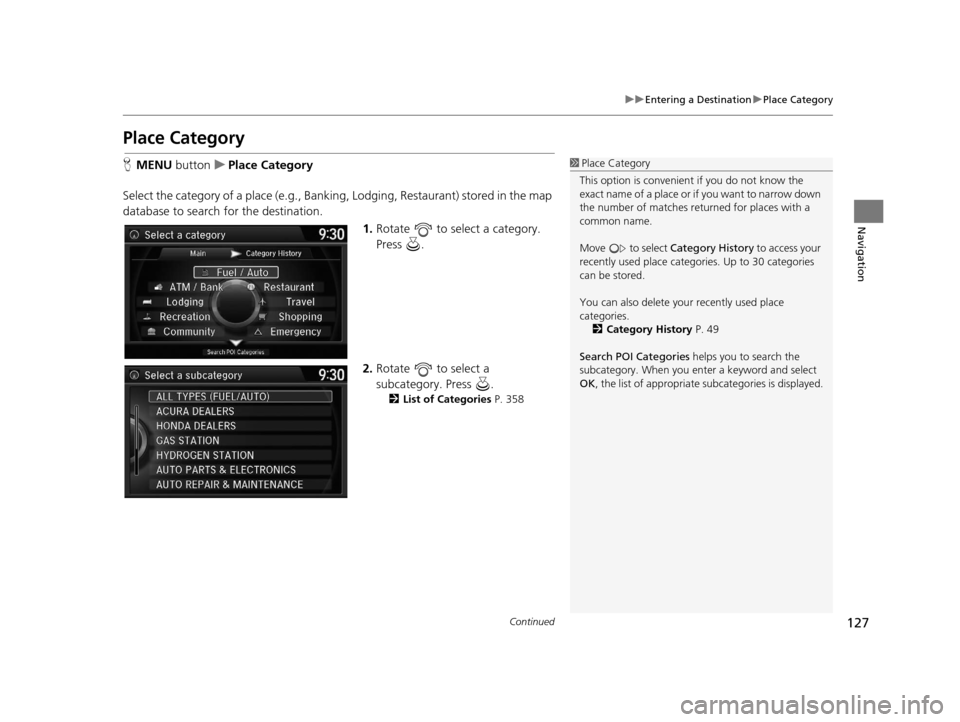
Select the category of a place (e.g., Bankin g, Lodging, Restaurant) stored in the map
database to search for the destination.
1.Rotate to select a category.
Press .
2. Rotate to select a
subcategory. Press .
2 List of Categories P. 358
1Place Category
This option is convenient if you do not know the
exact name of a place or if you want to narrow down
the number of matches returned for places with a
common name.
Move to select Category History to access your
recently used place categor ies. Up to 30 categories
can be stored.
You can also delete your recently used place
categories.
2 Category History P. 49
Search POI Categories helps you to search the
subcategory. When you enter a keyword and select
OK , the list of appropriate subcategories is displayed.
16 ACURA RDX NAVI-31TX48300.book 127 ページ 2015年3月6日 金曜日 午後1時26分
Page 131 of 363
130
uuEntering a Destination uLocal Search
Navigation
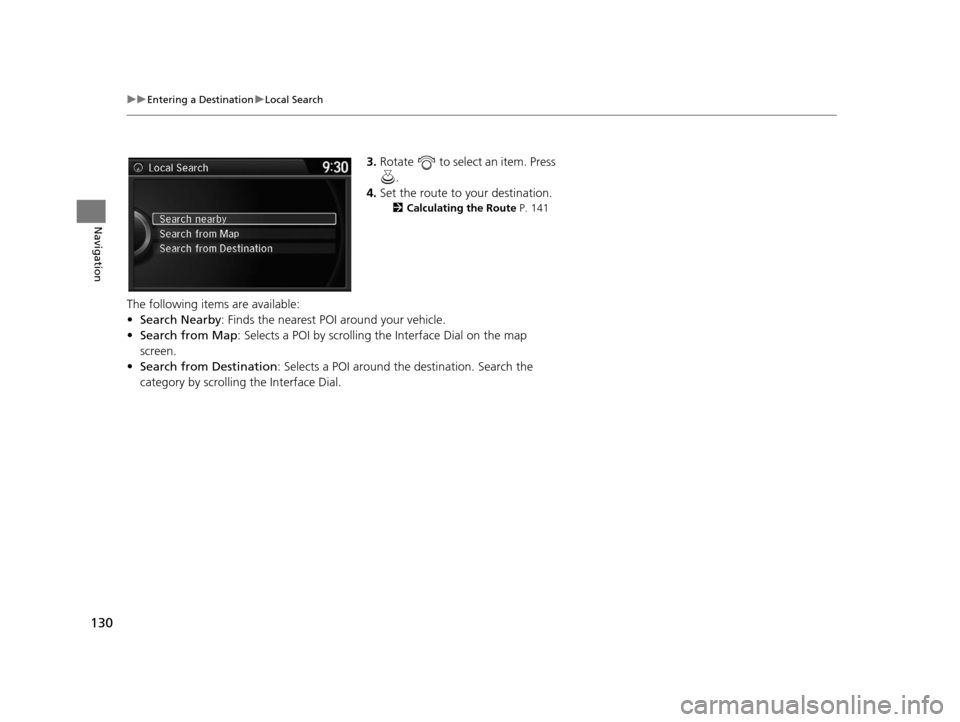
3. Rotate to select an item. Press
.
4. Set the route to your destination.
2 Calculating the Route P. 141
The following items are available:
•Search Nearby : Finds the nearest POI around your vehicle.
• Search from Map : Selects a POI by scrolling the Interface Dial on the map
screen.
• Search from Destination : Selects a POI around the destination. Search the
category by scrollin g the Interface Dial.
16 ACURA RDX NAVI-31TX48300.book 130 ページ 2015年3月6日 金曜日 午後1時26分
Page 132 of 363

131
uuEntering a Destination uPlace Name
Continued
Navigation
Place Name
H MENU button uPlace Name
Enter the name of a place (e.g., busine ss, hotel, restaurant) stored in the map
database to use as the destination.
1.Enter a place name.
2. Move to select OK to display a
list of matching hits. Press .
3. Rotate to select a place name
from the list. Press .
u If the place name is in multiple
categories, the categories are
displayed when you select it.
2 Place Name in Multiple
Categories P. 132
4.Set the route to your destination.
2 Calculating the Route P. 141
1Place Name
You can find a place by na me using voice commands.
Say “ Place Name” on the Voice Portal screen. Say
a category, for example “ ATM/Bank.” Say the
name of the place, for example “ ABC Bank.” The
system interprets the name. Say “ Set as
destination ” to set the route.
This option is convenient if you know the exact name
of a place.
Once a name is entered and selected, move to
select Sort by Name or Sort by Distance . Matching
letters are highlighted.
U.S. models
16 ACURA RDX NAVI-31TX48300.book 131 ページ 2015年3月6日 金曜日 午後1時26分
Page 133 of 363
uuEntering a Destination uPlace Name
132
Navigation
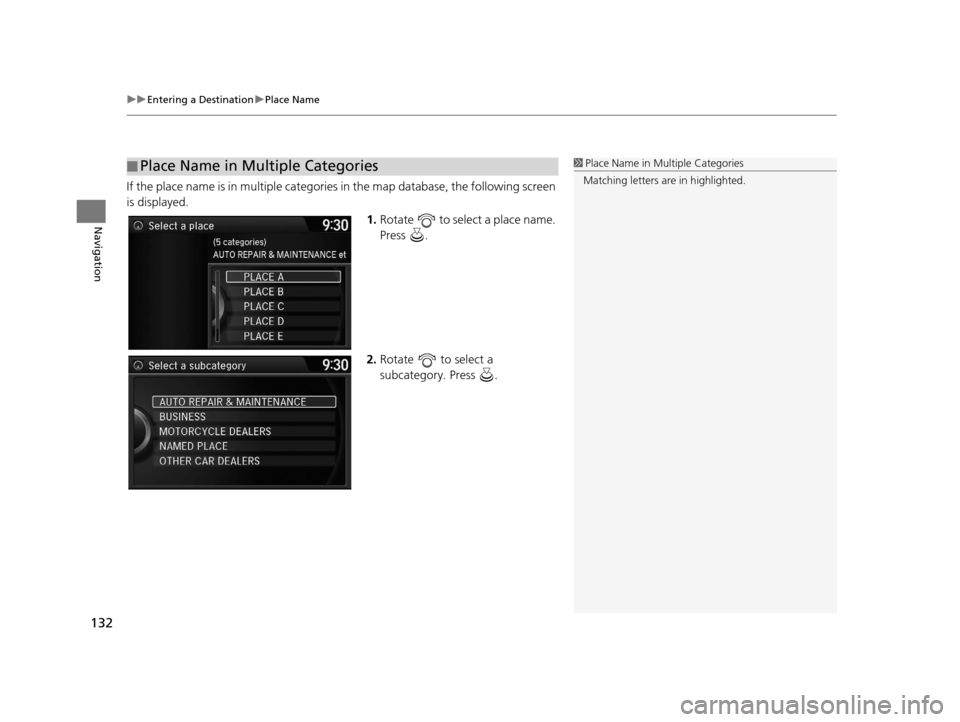
If the place name is in multiple categories in the map database, the following screen
is displayed.
1.Rotate to select a place name.
Press .
2. Rotate to select a
subcategory. Press .
■Place Name in Multiple Categories1
Place Name in Multiple Categories
Matching letters are in highlighted.
16 ACURA RDX NAVI-31TX48300.book 132 ページ 2015年3月6日 金曜日 午後1時26分
Page 139 of 363
138
uuEntering a Destination uMap Input
Navigation
Map Input
H MENU button uMore Search Methods uMap Input
Use the Interface Dial to manually select an icon or a location on the map screen as
the destination.
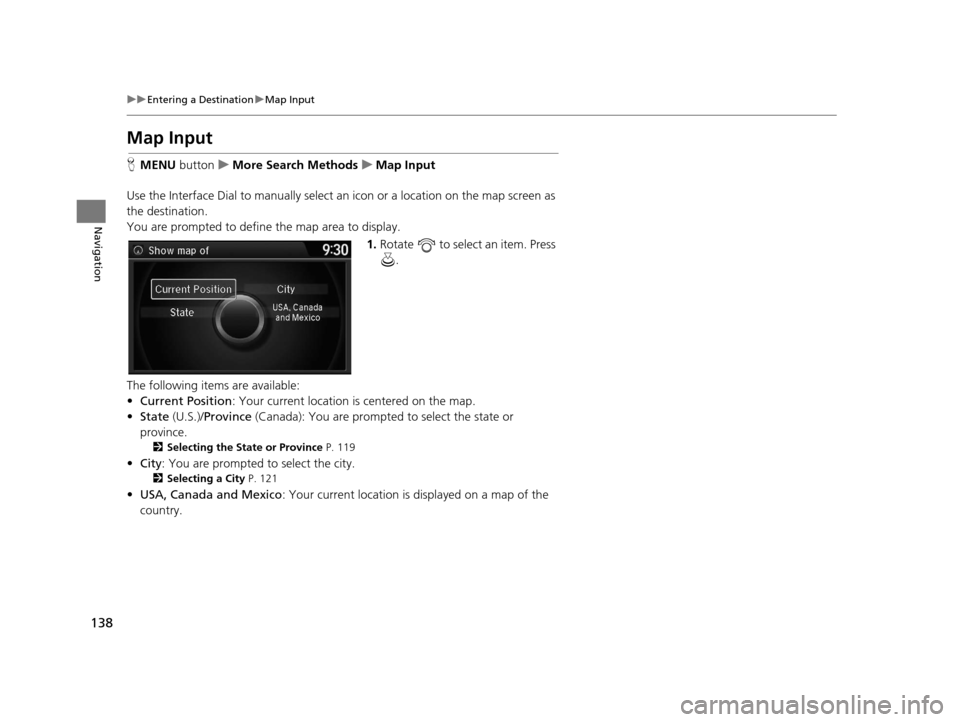
You are prompted to define the map area to display.
1.Rotate to select an item. Press
.
The following items are available:
• Current Position : Your current location is centered on the map.
• State (U.S.)/Province (Canada): You are prompted to select the state or
province.
2 Selecting the State or Province P. 119
•City : You are prompted to select the city.
2Selecting a City P. 121
•USA, Canada and Mexico : Your current location is displayed on a map of the
country.
16 ACURA RDX NAVI-31TX48300.book 138 ページ 2015年3月6日 金曜日 午後1時26分
Page 140 of 363
139
uuEntering a Destination uMap Input
Navigation
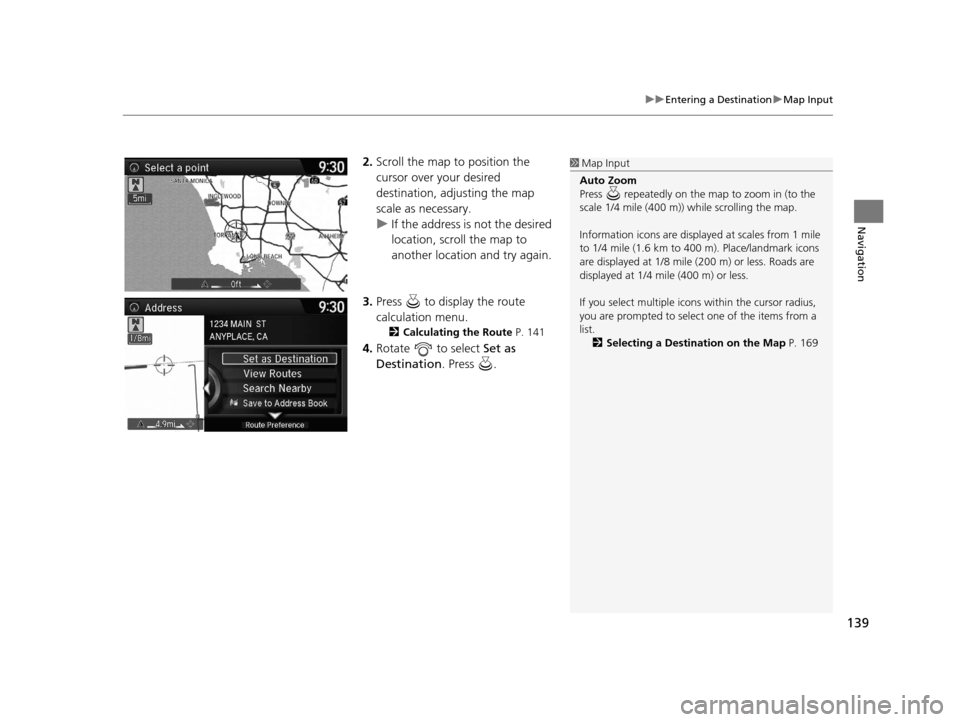
2. Scroll the map to position the
cursor over your desired
destination, adjusting the map
scale as necessary.
u If the address is not the desired
location, scroll the map to
another location and try again.
3. Press to display the route
calculation menu.
2 Calculating the Route P. 141
4.Rotate to select Set as
Destination . Press .
1Map Input
Auto Zoom
Press repeatedly on the map to zoom in (to the
scale 1/4 mile (400 m)) while scrolling the map.
Information icons are displaye d at scales from 1 mile
to 1/4 mile (1.6 km to 400 m). Place/landmark icons
are displayed at 1/8 mile (200 m) or less. Roads are
displayed at 1/4 mi le (400 m) or less.
If you select multiple icon s within the cursor radius,
you are prompted to select one of the items from a
list.
2 Selecting a Destination on the Map P. 169
16 ACURA RDX NAVI-31TX48300.book 139 ページ 2015年3月6日 金曜日 午後1時26分
Page 141 of 363
140
uuEntering a Destination uCoordinate
Navigation
Coordinate
H MENU button uMore Search Methods uCoordinate
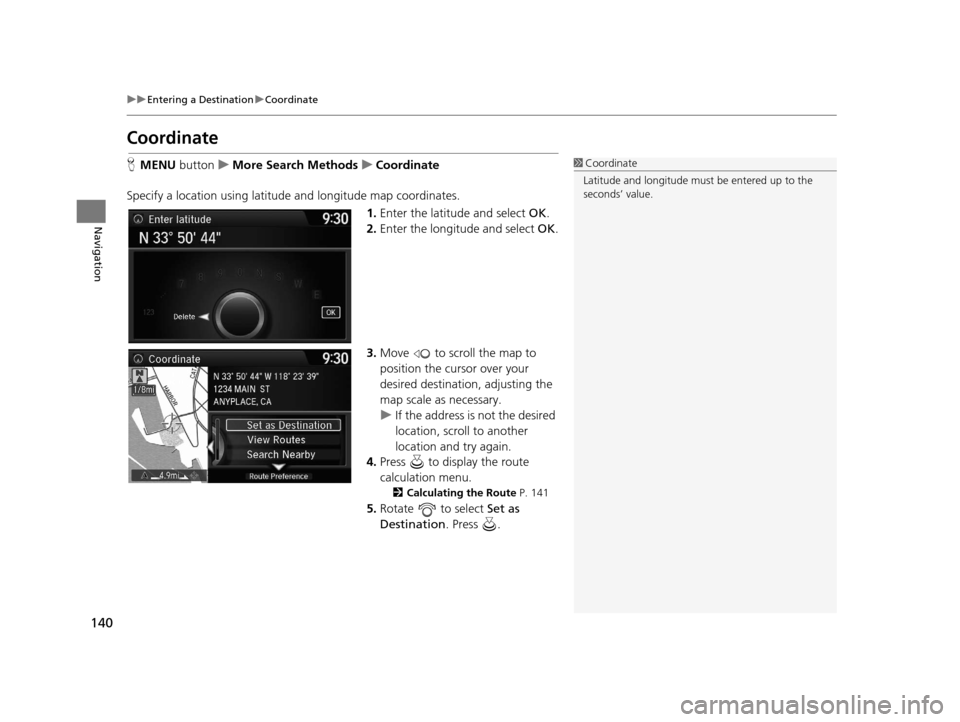
Specify a location using latitude and longitude map coordinates. 1.Enter the latitude and select OK.
2. Enter the longitude and select OK .
3. Move to scroll the map to
position the cursor over your
desired destination, adjusting the
map scale as necessary.
u If the address is not the desired
location, scroll to another
location and try again.
4. Press to display the route
calculation menu.
2 Calculating the Route P. 141
5.Rotate to select Set as
Destination . Press .
1Coordinate
Latitude and longitude must be entered up to the
seconds’ value.
16 ACURA RDX NAVI-31TX48300.book 140 ページ 2015年3月6日 金曜日 午後1時26分