map Acura RDX 2016 Navigation Manual
[x] Cancel search | Manufacturer: ACURA, Model Year: 2016, Model line: RDX, Model: Acura RDX 2016Pages: 363, PDF Size: 17.77 MB
Page 156 of 363
155
uuMap Menu uDirections
Navigation
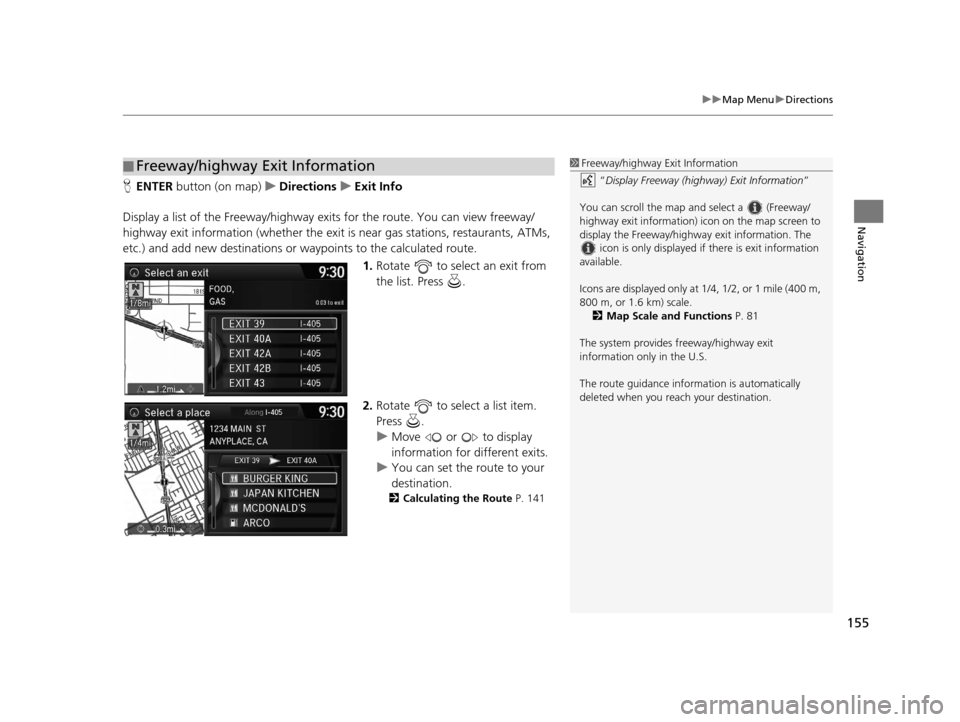
H ENTER button (on map) uDirections uExit Info
Display a list of the Freeway/highway ex its for the route. You can view freeway/
highway exit information (whe ther the exit is near gas stations, restaurants, ATMs,
etc.) and add new destinations or waypoints to the calculated route.
1.Rotate to select an exit from
the list. Press .
2. Rotate to select a list item.
Press .
u Move or to display
information for different exits.
u You can set the route to your
destination.
2 Calculating the Route P. 141
■Freeway/highway Exit Information1
Freeway/highway Exit Information
“Display Freeway (highway) Exit Information ”
You can scroll the map a nd select a (Freeway/
highway exit information) icon on the map screen to
display the Freeway/highway exit information. The
icon is only displayed if there is exit information
available.
Icons are displayed only at 1/4, 1/2, or 1 mile (400 m,
800 m, or 1.6 km) scale. 2 Map Scale and Functions P. 81
The system provides freeway/highway exit
information only in the U.S.
The route guidance inform ation is automatically
deleted when you reac h your destination.
16 ACURA RDX NAVI-31TX48300.book 155 ページ 2015年3月6日 金曜日 午後1時26分
Page 157 of 363
156
uuMap Menu uTraffic ReroutingTM
Navigation
Traffic ReroutingTM
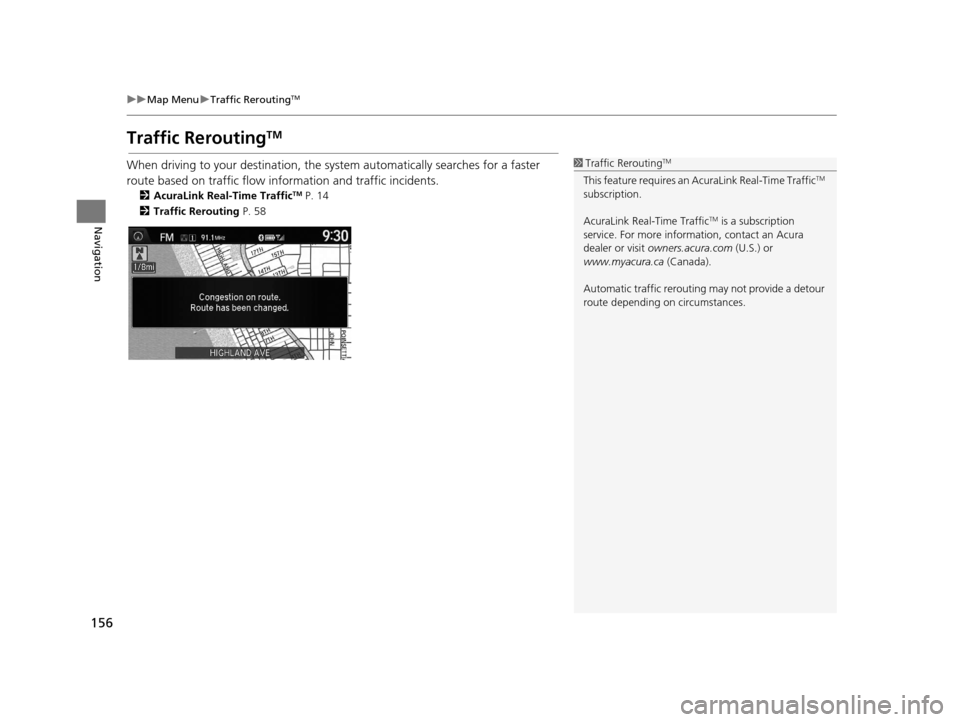
When driving to your destination, the sy stem automatically searches for a faster
route based on traffic flow info rmation and traffic incidents.
2AcuraLink Real-Time TrafficTM P. 14
2 Traffic Rerouting P. 58
1Traffic ReroutingTM
This feature requires an AcuraLink Real-Time TrafficTM
subscription.
AcuraLink Real-Time Traffic
TM is a subscription
service. For more information, contact an Acura
dealer or visit owners.acura.com (U.S.) or
www.myacura.ca (Canada).
Automatic traffic rerouting may not provide a detour
route depending on circumstances.
16 ACURA RDX NAVI-31TX48300.book 156 ページ 2015年3月6日 金曜日 午後1時26分
Page 158 of 363
Continued157
uuMap Menu uTraffic ReroutingTM
Navigation
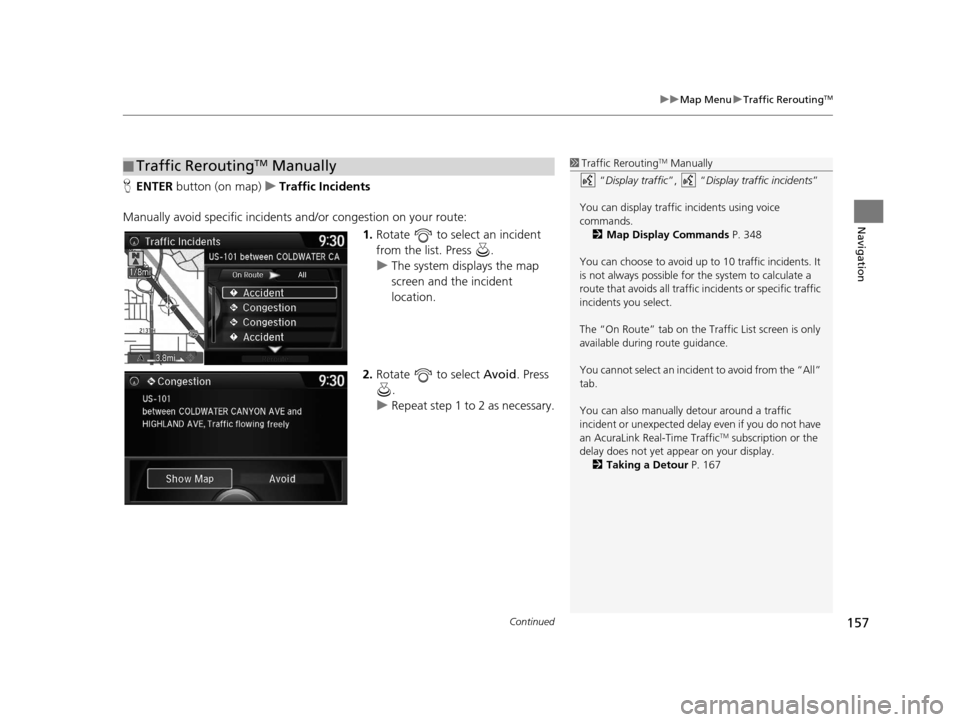
H ENTER button (on map) uTraffic Incidents
Manually avoid specific incidents and/or congestion on your route:
1.Rotate to select an incident
from the list. Press .
u The system displays the map
screen and the incident
location.
2. Rotate to select Avoid. Press
.
u Repeat step 1 to 2 as necessary.
■Traffic ReroutingTM Manually1
Traffic ReroutingTM Manually
“Display traffic”, “Display traffic incidents ”
You can display traffic incidents using voice
commands. 2 Map Display Commands P. 348
You can choose to avoid up to 10 traffic incidents. It
is not always possible for the system to calculate a
route that avoids all traffic incidents or specific traffic
incidents you select.
The “On Route” tab on the Traffic List screen is only
available during route guidance.
You cannot select an incident to avoid from the “All”
tab.
You can also manually detour around a traffic
incident or unexpected dela y even if you do not have
an AcuraLink Real-Time Traffic
TM subscription or the
delay does not yet appear on your display.
2 Taking a Detour P. 167
16 ACURA RDX NAVI-31TX48300.book 157 ページ 2015年3月6日 金曜日 午後1時26分
Page 159 of 363
158
uuMap Menu uTraffic ReroutingTM
Navigation
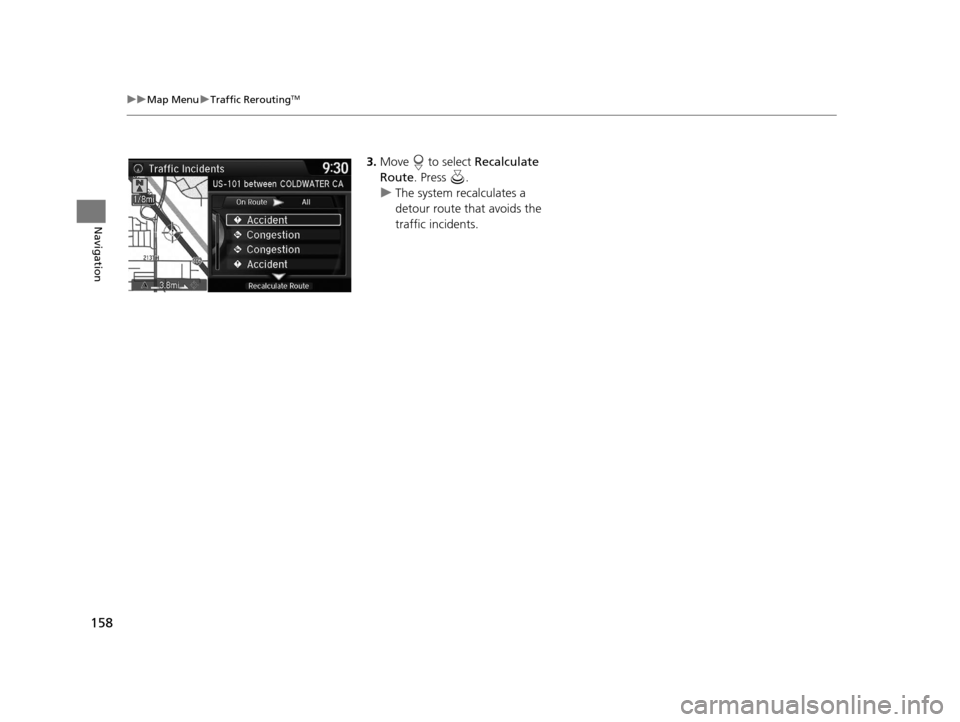
3. Move to select Recalculate
Route . Press .
u The system recalculates a
detour route that avoids the
traffic incidents.
16 ACURA RDX NAVI-31TX48300.book 158 ページ 2015年3月6日 金曜日 午後1時26分
Page 161 of 363
uuChanging Your Route uPausing the Route
160
Navigation
• Change Route Preference : Changes the route preferences (calculating
method).
2 Route Preference P. 54
•Detour : Calculates a detour route.
2Taking a Detour P. 167
•Avoid Streets : Avoids streets along your route.
2Avoiding Streets P. 167
Pausing the Route
HMENU button (when en route) uPause Guidance
Pause the route guidance and return to the map screen. The de stination icons and
all waypoint flags remain displayed on the map. Press the MENU button when en
route and select Resume Guidance to resume the route guidance.
Canceling the Route
HMENU button (when en route) uCancel Route
Cancel the route guidance and remove th e destination and all waypoints from the
destination list. The system th en returns to the map screen.
1Pausing the Route
You can also pause your route from the Map Menu. 2 Map Menu P. 151
16 ACURA RDX NAVI-31TX48300.book 160 ページ 2015年3月6日 金曜日 午後1時26分
Page 162 of 363
161
uuChanging Your Route uAdding Waypoints
Continued
Navigation
Adding Waypoints
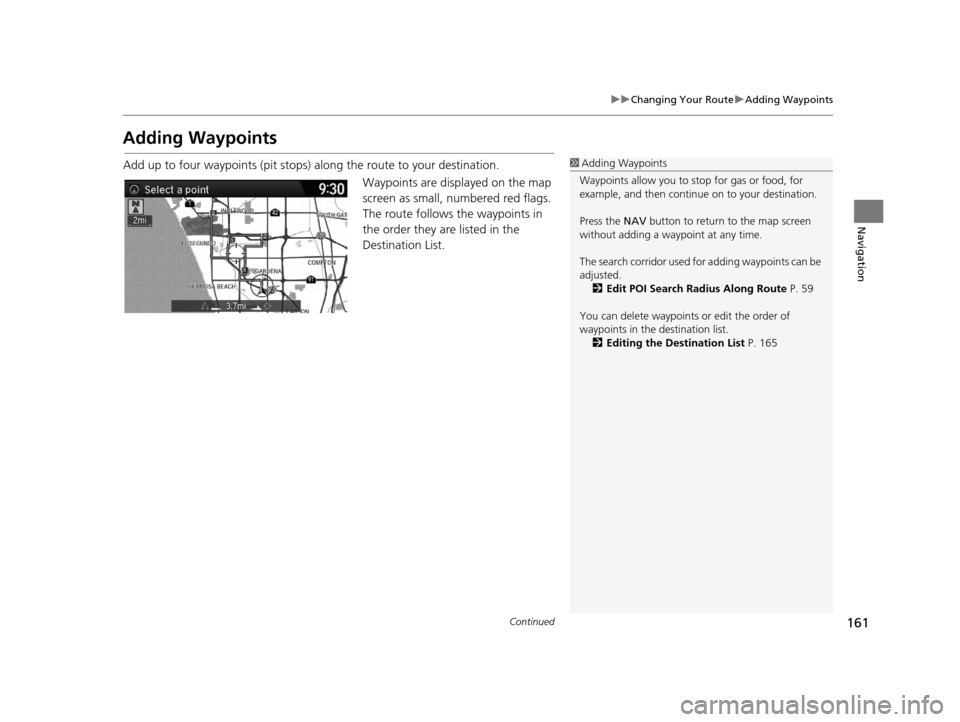
Add up to four waypoints (pit stops) along the route to your destination.
Waypoints are displayed on the map
screen as small, numbered red flags.
The route follows the waypoints in
the order they are listed in the
Destination List.1Adding Waypoints
Waypoints allow you to stop for gas or food, for
example, and then continue on to your destination.
Press the NAV button to return to the map screen
without adding a waypoint at any time.
The search corridor used fo r adding waypoints can be
adjusted.
2 Edit POI Search Radius Along Route P. 59
You can delete waypoints or edit the order of
waypoints in the destination list. 2 Editing the Destination List P. 165
16 ACURA RDX NAVI-31TX48300.book 161 ページ 2015年3月6日 金曜日 午後1時26分
Page 164 of 363
163
uuChanging Your Route uAdding Waypoints
Continued
Navigation
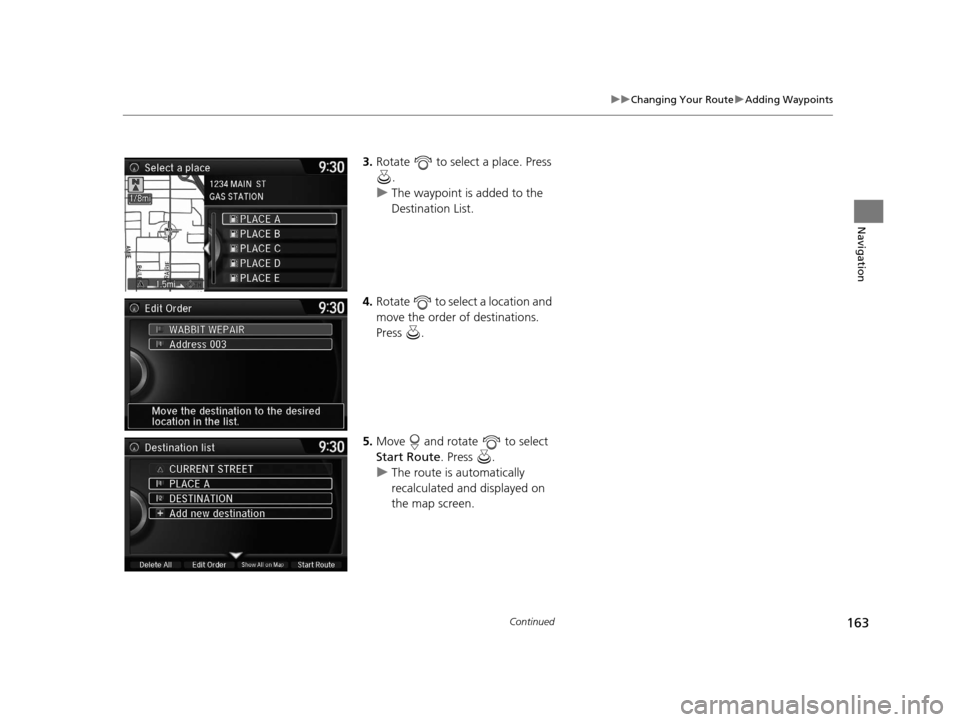
3. Rotate to select a place. Press
.
u The waypoint is added to the
Destination List.
4. Rotate to select a location and
move the order of destinations.
Press .
5. Move and rotate to select
Start Route . Press .
u The route is automatically
recalculated and displayed on
the map screen.
16 ACURA RDX NAVI-31TX48300.book 163 ページ 2015年3月6日 金曜日 午後1時26分
Page 165 of 363
uuChanging Your Route uAdding Waypoints
164
Navigation
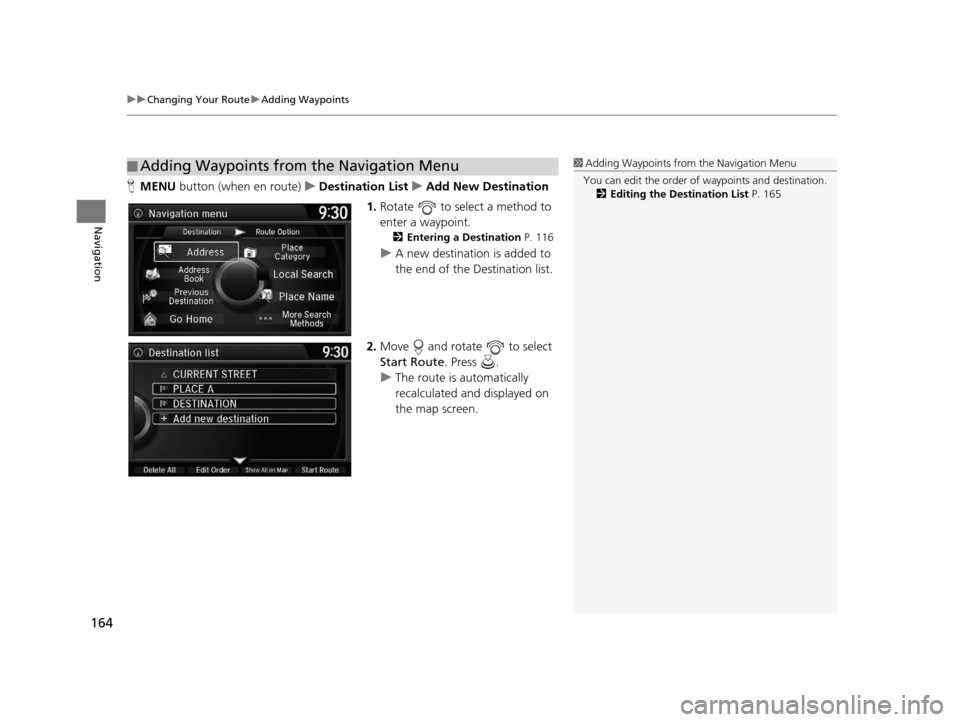
H MENU button (when en route) uDestination List uAdd New Destination
1. Rotate to select a method to
enter a waypoint.
2 Entering a Destination P. 116
uA new destination is added to
the end of the Destination list.
2. Move and rotate to select
Start Route . Press .
u The route is automatically
recalculated and displayed on
the map screen.
■Adding Waypoints from the Navigation Menu1
Adding Waypoints from the Navigation Menu
You can edit the order of waypoints and destination.
2 Editing the Destination List P. 165
16 ACURA RDX NAVI-31TX48300.book 164 ページ 2015年3月6日 金曜日 午後1時26分
Page 166 of 363
165
uuChanging Your Route uEditing the Destination List
Continued
Navigation
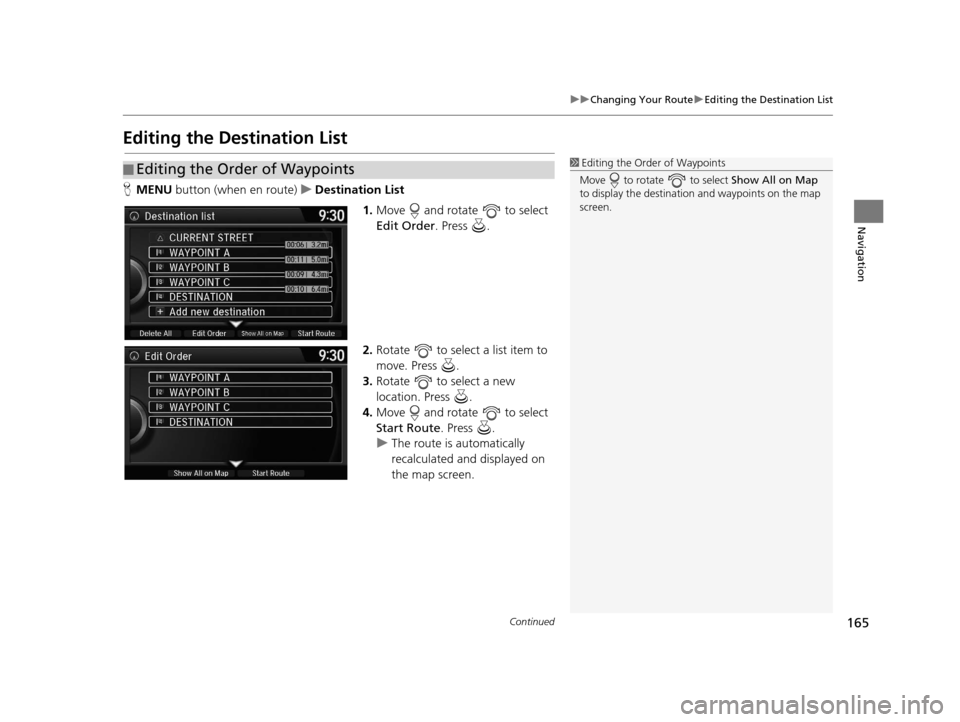
Editing the Destination List
H MENU button (when en route) uDestination List
1.Move and rotate to select
Edit Order . Press .
2. Rotate to select a list item to
move. Press .
3. Rotate to select a new
location. Press .
4. Move and rotate to select
Start Route . Press .
u The route is automatically
recalculated and displayed on
the map screen.
■Editing the Order of Waypoints1
Editing the Order of Waypoints
Move to rotate to select Show All on Map
to display the destination and waypoints on the map
screen.
16 ACURA RDX NAVI-31TX48300.book 165 ページ 2015年3月6日 金曜日 午後1時26分
Page 167 of 363
uuChanging Your Route uEditing the Destination List
166
Navigation
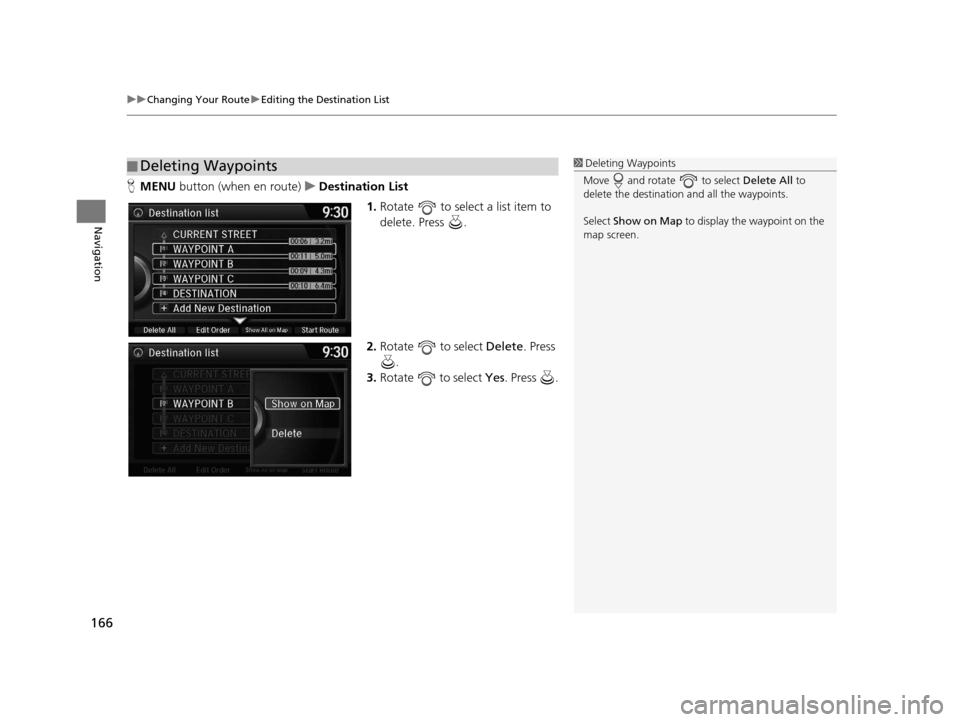
H MENU button (when en route) uDestination List
1.Rotate to select a list item to
delete. Press .
2. Rotate to select Delete. Press
.
3. Rotate to select Yes. Press .
■Deleting Waypoints1
Deleting Waypoints
Move and rotate to select Delete All to
delete the destination and all the waypoints.
Select Show on Map to display the waypoint on the
map screen.
16 ACURA RDX NAVI-31TX48300.book 166 ページ 2015年3月6日 金曜日 午後1時26分