ECO mode ACURA RDX 2023 Repair Manual
[x] Cancel search | Manufacturer: ACURA, Model Year: 2023, Model line: RDX, Model: ACURA RDX 2023Pages: 713, PDF Size: 21.99 MB
Page 259 of 713
257
uuAudio System uAudio System Theft Protection
Features
Audio System Theft Protection
The audio system is disabled when it is disconnected from the power source, such as
when the battery is disconnected or goes dead. In certain conditions, the system
may display a code entry screen. If this occurs, reactivate the audio system.
■Reactivating the audio system
1. Set the power mode to ON.
2. Turn on the audio system.
3. Press and hold the audio system power knob for more than two seconds.
u The audio system is reac tivated when the audio co ntrol unit establishes a
connection with the vehicl e control unit. If the control unit fails to recognize
the audio unit, you must go to a dealer and have the audio unit checked.
23 ACURA RDX-31TJB6400.book 257 ページ 2022年8月4日 木曜日 午後1時51分
Page 262 of 713
260
Features
Audio System Basic Operation
You can use the audio system for 30 minutes when the power mode is set to
VEHICLE OFF (LOCK) with the driver’s door closed. The system will then turn off
automatically.
If you want to keep using it, we reco mmend that you turn the power mode to
ACCESSORY or ON.
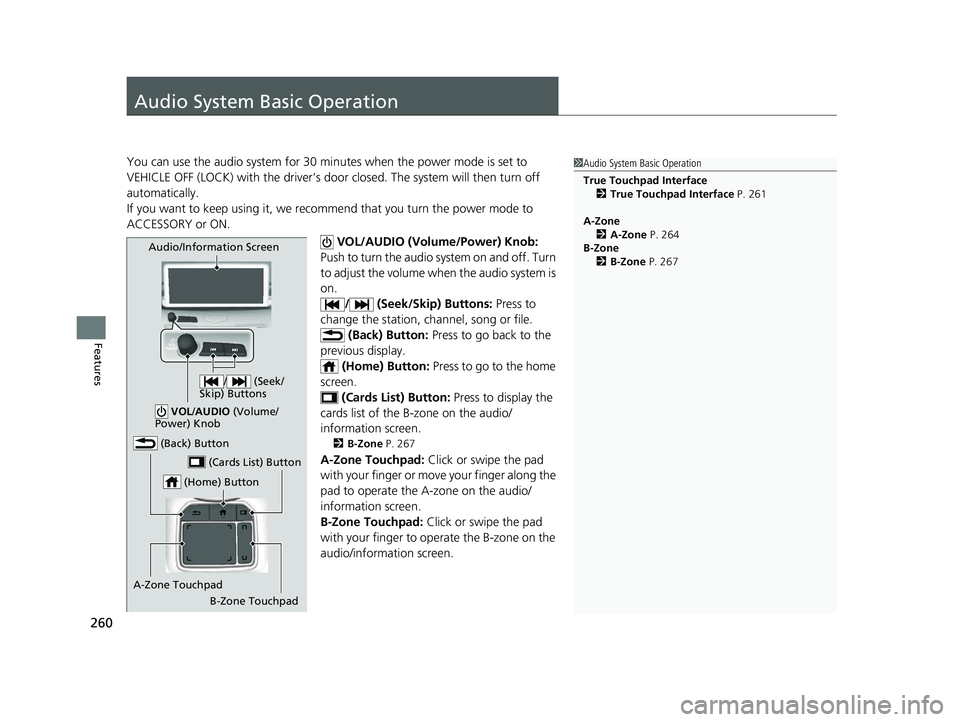
VOL/AUDIO (Volume/Power) Knob:
Push to turn the audio sy stem on and off. Turn
to adjust the volume when the audio system is
on. / (Seek/Skip) Buttons: Press to
change the station, channel, song or file. (Back) Button: Press to go back to the
previous display. (Home) Button: Press to go to the home
screen.
(Cards List) Button: Press to display the
cards list of the B-zone on the audio/
information screen.
2 B-Zone P. 267
A-Zone Touchpad: Click or swipe the pad
with your finger or move your finger along the
pad to operate the A-zone on the audio/
information screen.
B-Zone Touchpad: Click or swipe the pad
with your finger to operate the B-zone on the
audio/information screen.
1 Audio System Basic Operation
True Touchpad Interface
2 True Touchpad Interface P. 261
A-Zone 2 A-Zone P. 264
B-Zone 2 B-Zone P. 267
(Home) Button
(Back) Button
A-Zone Touchpad (Cards List) Button
Audio/Information Screen
/ (Seek/
Skip) Buttons
VOL /AUDIO (Volume/
Power) Knob
B-Zone Touchpad
23 ACURA RDX-31TJB6400.book 260 ページ 2022年8月4日 木曜日 午後1時51分
Page 281 of 713
Continued279
uuAudio System Basic Operation uSmart Shortcuts
Features
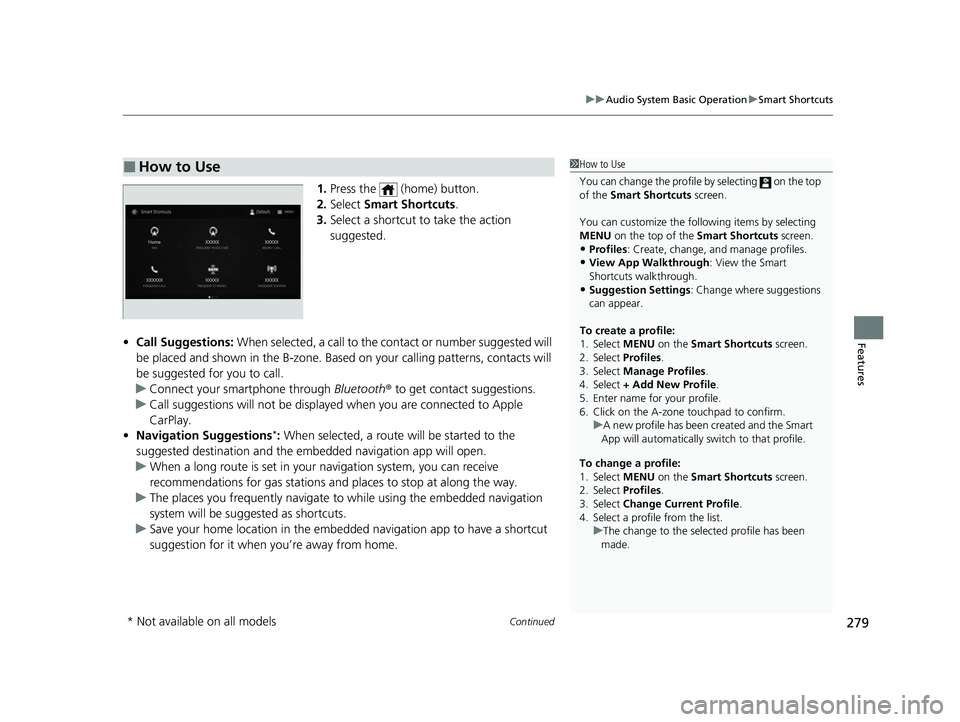
1. Press the (home) button.
2. Select Smart Shortcuts .
3. Select a shortcut to take the action
suggested.
• Call Suggestions: When selected, a call to the contact or number suggested will
be placed and shown in the B-zone. Base d on your calling patterns, contacts will
be suggested for you to call.
u Connect your smartphone through Bluetooth® to get contact suggestions.
u Call suggestions will not be displayed when you are connected to Apple
CarPlay.
• Navigation Suggestions
*: When selected, a route will be started to the
suggested destination and the embedded navigation app will open.
u When a long route is set in your navigation system, you can receive
recommendations for gas stations and places to stop at along the way.
u The places you frequently navigate to while using the embedded navigation
system will be suggested as shortcuts.
u Save your home location in the embedded navigation app to have a shortcut
suggestion for it when you’re away from home.
■How to Use1How to Use
You can change the profile by selecting on the top
of the Smart Shortcuts screen.
You can customize the foll owing items by selecting
MENU on the top of the Smart Shortcuts screen.
•Profiles : Create, change, a nd manage profiles.
•View App Walkthrough : View the Smart
Shortcuts walkthrough.
•Suggestion Settings : Change where suggestions
can appear.
To create a profile:
1. Select MENU on the Smart Shortcuts screen.
2. Select Profiles .
3. Select Manage Profiles .
4. Select + Add New Profile .
5. Enter name for your profile.
6. Click on the A-zone touchpad to confirm.
To change a profile:
1. Select MENU on the Smart Shortcuts screen.
2. Select Profiles .
3. Select Change Current Profile .
4. Select a profile from the list. u
A new profile has been created and the Smart
App will automatically switch to that profile.
u The change to the selected profile has been
made.
* Not available on all models
23 ACURA RDX-31TJB6400.book 279 ページ 2022年8月4日 木曜日 午後1時51分
Page 304 of 713
uuAudio System Basic Operation uPlaying SiriusXM ® Radio
302
Features
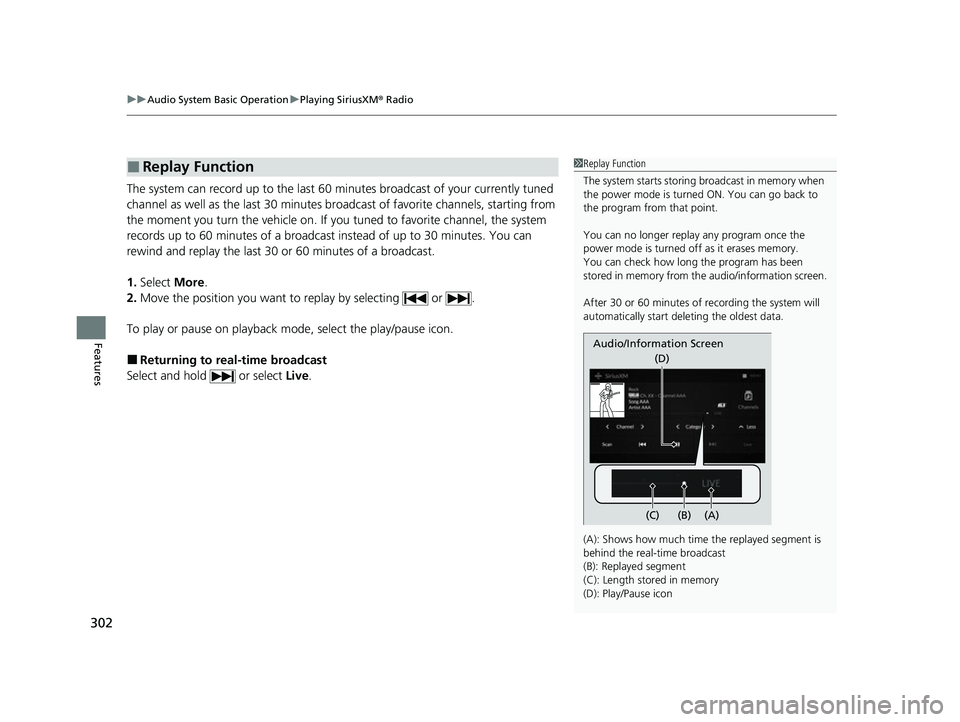
The system can record up to the last 60 minutes broadcast of your currently tuned
channel as well as the last 30 minutes br oadcast of favorite channels, starting from
the moment you turn the vehicle on. If yo u tuned to favorite channel, the system
records up to 60 minutes of a broadcast instead of up to 30 minutes. You can
rewind and replay the last 30 or 60 minutes of a broadcast.
1. Select More.
2. Move the position you want to replay by selecting or .
To play or pause on playback m ode, select the play/pause icon.
■Returning to real-time broadcast
Select and hold or select Live.
■Replay Function1Replay Function
The system starts storing broadcast in memory when
the power mode is turned ON. You can go back to
the program from that point.
You can no longer repl ay any program once the
power mode is turned off as it erases memory.
You can check how long the program has been
stored in memory from th e audio/information screen.
After 30 or 60 minutes of recording the system will
automatically start deleting the oldest data.
(A): Shows how much time the replayed segment is
behind the real-time broadcast
(B): Replayed segment
(C): Length stored in memory
(D): Play/Pause icon
Audio/Information Screen
(C) (B) (A)(D)
23 ACURA RDX-31TJB6400.book 302 ページ 2022年8月4日 木曜日 午後1時51分
Page 310 of 713
uuAudio System Basic Operation uPlaying SiriusXM ® Radio
308
Features
Sample each channel on the selected mode for 10 seconds.
1. Select More.
2. Select Scan.
You can change a scan mode by the following procedure.
1. Select MENU .
2. Select SiriusXM Settings .
3. Select Scan Mode .
4. Select Channels or Favorites .
To turn off scan, select Stop.
■Scan1Scan
The favorites scan func tion is based on TuneScan
TM
technology of SiriusXM ®.
The “Featured Channels ” function is based on
Featured Favorites
TM technology of SiriusXM ®.
TuneScan
TM and Featured FavoritesTM are registered
trademarks of SiriusXM ® Radio, Inc.
23 ACURA RDX-31TJB6400.book 308 ページ 2022年8月4日 木曜日 午後1時51分
Page 313 of 713
Continued311
uuAudio System Basic Operation uPlaying an iPod
Features
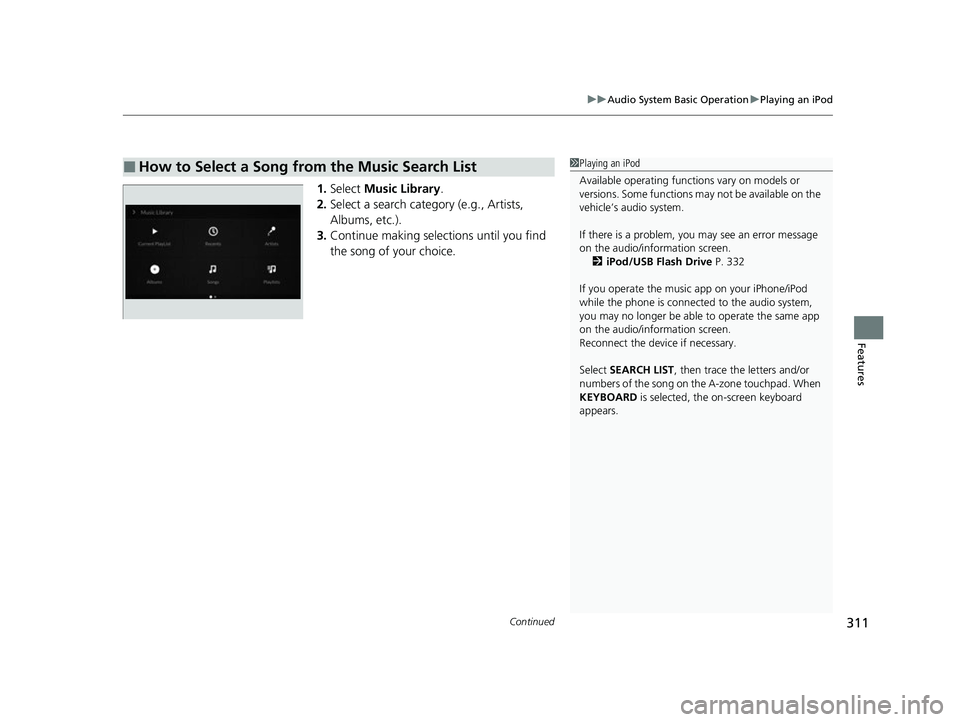
1. Select Music Library .
2. Select a search catego ry (e.g., Artists,
Albums, etc.).
3. Continue making selections until you find
the song of your choice.
■How to Select a Song from the Music Search List1Playing an iPod
Available operating functi ons vary on models or
versions. Some functions ma y not be available on the
vehicle’s audio system.
If there is a problem, you may see an error message
on the audio/information screen. 2 iPod/USB Flash Drive P. 332
If you operate the musi c app on your iPhone/iPod
while the phone is connected to the audio system,
you may no longer be able to operate the same app
on the audio/information screen.
Reconnect the devi ce if necessary.
Select SEARCH LIST, then trace the letters and/or
numbers of the song on the A-zone touchpad. When
KEYBOARD is selected, the on-screen keyboard
appears.
23 ACURA RDX-31TJB6400.book 311 ページ 2022年8月4日 木曜日 午後1時51分
Page 315 of 713
313
uuAudio System Basic Operation uPlaying a USB Flash Drive
Continued
Features
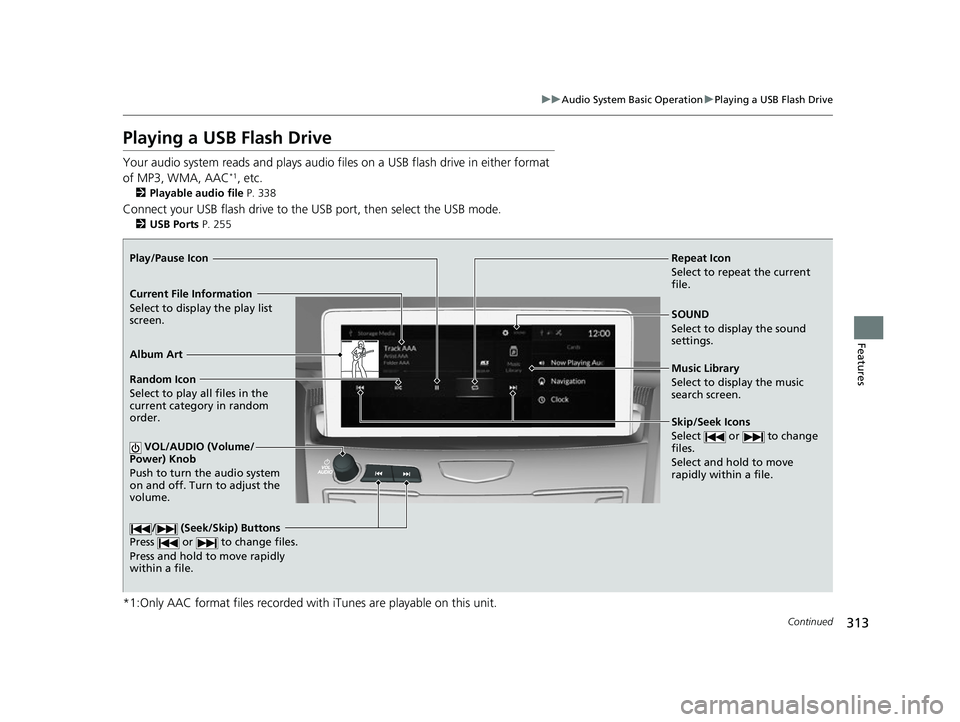
Playing a USB Flash Drive
Your audio system reads and plays audio f iles on a USB flash drive in either format
of MP3, WMA, AAC*1, etc.
2 Playable audio file P. 338
Connect your USB flash drive to the USB port, then select the USB mode.
2USB Ports P. 255
*1:Only AAC format files recorded with iTunes are playable on this unit.
Repeat Icon
Select to repeat the current
file.
SOUND
Select to display the sound
settings.
Music Library
Select to display the music
search screen.
Skip/Seek Icons
Select or to change
files.
Select and hold to move
rapidly within a file.
Random Icon
Select to play all files in the
current category in random
order.
VOL/AUDIO (Volume/
Power) Knob
Push to turn the audio system
on and off. Turn to adjust the
volume.
/ (Seek/Skip) Buttons
Press or to change files.
Press and hold to move rapidly
within a file.
Play/Pause Icon
Album Art
Current File Information
Select to display the play list
screen.
23 ACURA RDX-31TJB6400.book 313 ページ 2022年8月4日 木曜日 午後1時51分
Page 319 of 713
Continued317
uuAudio System Basic Operation uPlaying Bluetooth ® Audio
Features
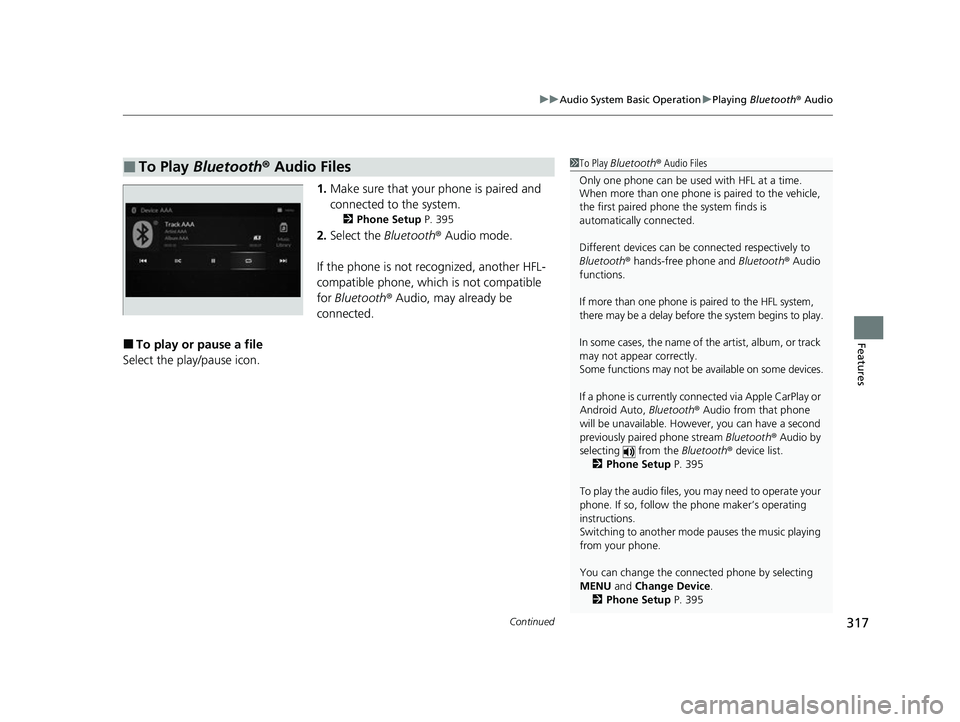
1. Make sure that your phone is paired and
connected to the system.
2 Phone Setup P. 395
2.Select the Bluetooth® Audio mode.
If the phone is not recognized, another HFL-
compatible phone, which is not compatible
for Bluetooth ® Audio, may already be
connected.
■To play or pause a file
Select the play/pause icon.
■To Play Bluetooth® Audio Files1To Play Bluetooth ® Audio Files
Only one phone can be used with HFL at a time.
When more than one phone is paired to the vehicle,
the first paired phone the system finds is
automatically connected.
Different devices can be co nnected respectively to
Bluetooth ® hands-free phone and Bluetooth® Audio
functions.
If more than one phone is paired to the HFL system,
there may be a delay before the system begins to play.
In some cases, the name of the artist, album, or track
may not appear correctly.
Some functions may not be available on some devices.
If a phone is currently conne cted via Apple CarPlay or
Android Auto, Bluetooth® Audio from that phone
will be unavailable. Howe ver, you can have a second
previously paired phone stream Bluetooth® Audio by
selecting from the Bluetooth® device list.
2 Phone Setup P. 395
To play the audio files, y ou may need to operate your
phone. If so, follow the phone maker’s operating
instructions.
Switching to another mode pauses the music playing
from your phone.
You can change the connected phone by selecting
MENU and Change Device.
2 Phone Setup P. 395
23 ACURA RDX-31TJB6400.book 317 ページ 2022年8月4日 木曜日 午後1時51分
Page 379 of 713

377
uuCustomized Features u
Continued
Features*1:Default SettingSetup Group Customizable Features
Description Selectable Settings
VehicleMeter SetupSpeed Limit Information Select whether the speed limit
information source is camera located
behind the rearview mirror or the
navigation system. You can also turn
off speed limit information. Traffic Sign
Recognition
*1/
Navigation /Off
Speed Limit Information Selects whether the speed limit
information should be displayed on
head-up display
*/meter.
On
*1/
Off
Models with navigation system
Models without navigation system
* Not available on all models
23 ACURA RDX-31TJB6400.book 377 ページ 2022年8月4日 木曜日 午後1時51分
Page 392 of 713

uuBluetooth ® HandsFreeLink ®u Using HFL
390
Features
Left Selector Wheel:
• Incoming call: Move the selector wheel to the ri ght to answer the call. Move it
to the left to decline the call.
• During a call: Move the selector wheel to the ri ght to display the call options
menu. Move it to the left to end the call.
• (back) button: Press the button to go back to the previous screen or to
cancel a command.
• (talk) button: Press the button to start voice recognition.
To go to the phone screen of the multi-in formation display or the head-up display
*:
1. Press the APPS button on the steering wheel.
2. Using the selector wheel, scroll to Phone on the multi-information display or the
head-up display
*, and then press the left selector wheel.
u You can select Favorites or Recents by moving the selector wheel to the left
or the right.
1 Bluetooth ® HandsFreeLink ®
Bluetooth ® Wireless Technology
The Bluetooth ® word mark and logos are registered
trademarks owned by Bluetooth SIG, Inc., and any
use of such marks by Honda Motor Co., Ltd., is under
license. Other trademarks and trade names are those
of their respective owners.
HFL Limitations
An incoming call on HFL will interrupt the audio
system when it is playing. It will resume when the call
is ended.
* Not available on all models
23 ACURA RDX-31TJB6400.book 390 ページ 2022年8月4日 木曜日 午後1時51分