steering ALFA ROMEO STELVIO 2022 Owner's Guide
[x] Cancel search | Manufacturer: ALFA ROMEO, Model Year: 2022, Model line: STELVIO, Model: ALFA ROMEO STELVIO 2022Pages: 256, PDF Size: 10.17 MB
Page 114 of 256
STARTING AND OPERATING
112
The bumper is damaged or misaligned
Interference with other equipment causes
electromagnetic waves
Construction sites
If the indications given by the navigation
system of the radio system are not yet ready or
if the system is recalculating
System Limited Operation
The TJA system may have limited or reduced
functionality when one of the following conditions
occurs:
Lane boundaries are not clear or in conditions
of poor visibility (e.g. in heavy rain, snow, fog,
etc.)
Either the camera or radar are damaged,
covered, or obstructed (e.g. by mud, ice, snow,
etc.)
When driving on hills or narrow bends
Near highway toll booths
When the highway entrance or exit is more
than 20 ft (6 m) wide
If the camera is exposed to glare from
reflections or direct sunlight
NOTE:
If damage to the windshield occurs, have the
windshield replaced by an authorized dealer
as soon as possible.
If the vehicle approaches a bend that is too
narrow with respect to the current speed, the
TJA system will deactivate.
TRAFFIC SIGN
RECOGNITION (TSR)
SYSTEM — IF EQUIPPED
The Traffic Sign Recognition (TSR) system uses a
camera mounted on the windshield to detect
recognizable road signs such as:
Speed limits
Signs indicating the end of the situations
indicated above If the camera does not detect valid speed limits,
the radio system navigation system may suggest
unregulated speed limits.
The system always checks the traffic signs
indicating the current speed limit signs. The
system is able to recognize and display up to two
different road signs in the instrument cluster
display.
Depending on the unit of measurement (km or
mph) set through the Unit of Measurement menu
in the radio system, the TSR system will automat
-
ically show the indication of the road sign in the
unit of measurements selected in the instrument
cluster display.
TO ACTIVATE/DEACTIVATE
The TSR system can be activated/deactivated in
the radio system in the Driver Assistance menu.
The system activation is signaled by road signs
shown on the instrument cluster display.
NOTE:
By selecting “Blinking”, the driver can activate
a warning to display when the speed exceeds
the limit indicated by the TSR system. The
speed road sign on the instrument cluster
display will blink until the vehicle speed drops
below the displayed limit.
Selecting “Offset” will set the speed at which
“Blinking” is activated up to a maximum of
6 mph (10 km/h) above the limit detected by the system.
If no speed limit signs are found, the system
will revert to the speed limit signs that are
stored in the NAV system.
WARNING!
To prevent serious injury or death:
Always remain alert and be ready to take
control of the car in the event that the TJA
system disables.
Always keep your hands on the steering
wheel when the TJA system is activated.
Maintain a safe distance from other vehicles
and pay attention to traffic conditions.
The TJA system should only be used as a
driving aid. The driver must always pay
attention to their surroundings when the
system is operating and be ready to take
control of the vehicle at any time.
Do not place any objects on the steering
wheel (e.g. steering wheel covers) which
could interfere with the hand detection
sensor on the steering wheel.
22_GU_OM_EN_USC_t.book Page 112
Page 115 of 256
113
(Continued)
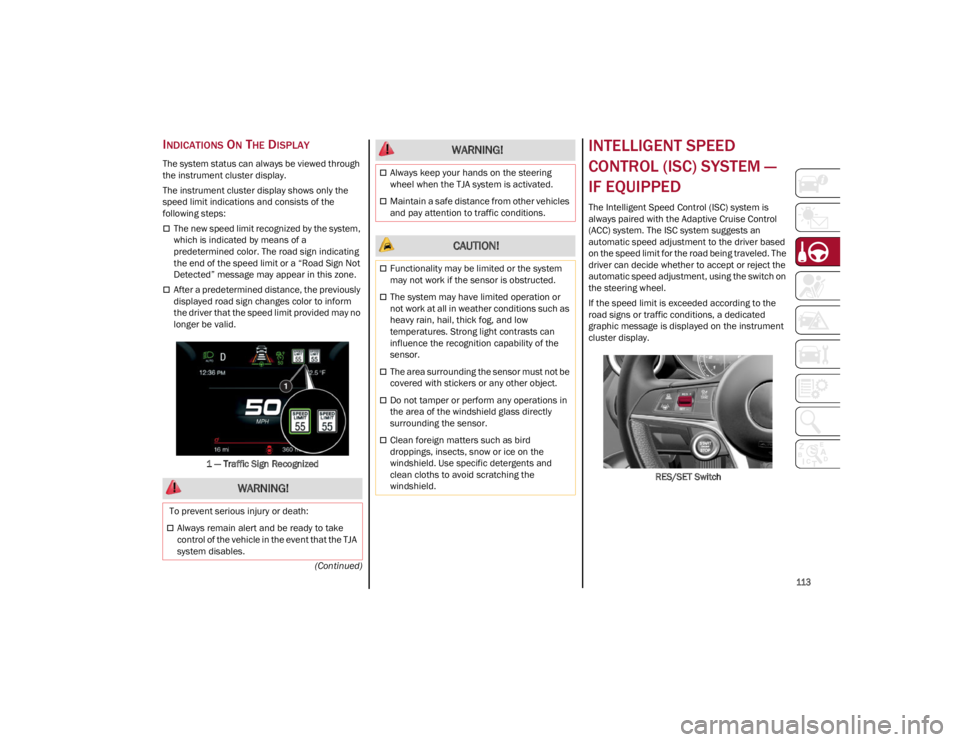
INDICATIONS ON THE DISPLAY
The system status can always be viewed through
the instrument cluster display.
The instrument cluster display shows only the
speed limit indications and consists of the
following steps:
The new speed limit recognized by the system,
which is indicated by means of a
predetermined color. The road sign indicating
the end of the speed limit or a “Road Sign Not
Detected” message may appear in this zone.
After a predetermined distance, the previously
displayed road sign changes color to inform
the driver that the speed limit provided may no
longer be valid.1 — Traffic Sign Recognized
INTELLIGENT SPEED
CONTROL (ISC) SYSTEM —
IF EQUIPPED
The Intelligent Speed Control (ISC) system is
always paired with the Adaptive Cruise Control
(ACC) system. The ISC system suggests an
automatic speed adjustment to the driver based
on the speed limit for the road being traveled. The
driver can decide whether to accept or reject the
automatic speed adjustment, using the switch on
the steering wheel.
If the speed limit is exceeded according to the
road signs or traffic conditions, a dedicated
graphic message is displayed on the instrument
cluster display. RES/SET Switch
WARNING!
To prevent serious injury or death:
Always remain alert and be ready to take
control of the vehicle in the event that the TJA
system disables.
Always keep your hands on the steering
wheel when the TJA system is activated.
Maintain a safe distance from other vehicles
and pay attention to traffic conditions.
CAUTION!
Functionality may be limited or the system
may not work if the sensor is obstructed.
The system may have limited operation or
not work at all in weather conditions such as
heavy rain, hail, thick fog, and low
temperatures. Strong light contrasts can
influence the recognition capability of the
sensor.
The area surrounding the sensor must not be
covered with stickers or any other object.
Do not tamper or perform any operations in
the area of the windshield glass directly
surrounding the sensor.
Clean foreign matters such as bird
droppings, insects, snow or ice on the
windshield. Use specific detergents and
clean cloths to avoid scratching the
windshield.
WARNING!
22_GU_OM_EN_USC_t.book Page 113
Page 116 of 256
STARTING AND OPERATING
114
TO ACTIVATE/DEACTIVATE
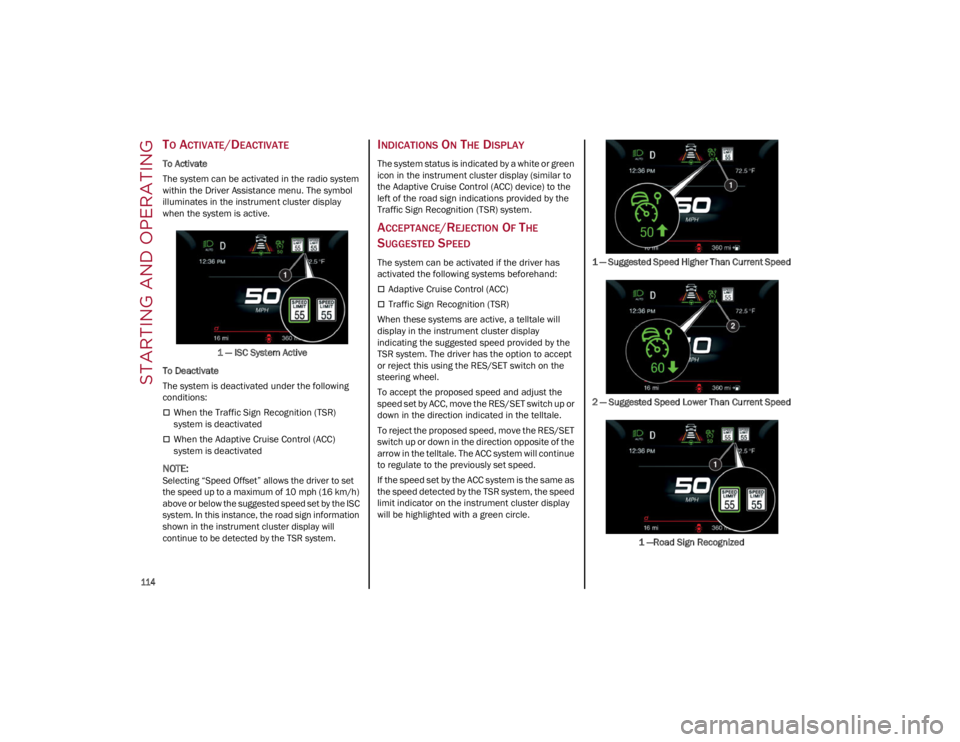
To Activate
The system can be activated in the radio system
within the Driver Assistance menu. The symbol
illuminates in the instrument cluster display
when the system is active.1 — ISC System Active
To Deactivate
The system is deactivated under the following
conditions:
When the Traffic Sign Recognition (TSR)
system is deactivated
When the Adaptive Cruise Control (ACC)
system is deactivated
NOTE:Selecting “Speed Offset” allows the driver to set
the speed up to a maximum of 10 mph (16 km/h)
above or below the suggested speed set by the ISC
system. In this instance, the road sign information
shown in the instrument cluster display will
continue to be detected by the TSR system.
INDICATIONS ON THE DISPLAY
The system status is indicated by a white or green
icon in the instrument cluster display (similar to
the Adaptive Cruise Control (ACC) device) to the
left of the road sign indications provided by the
Traffic Sign Recognition (TSR) system.
ACCEPTANCE/REJECTION OF THE
S
UGGESTED SPEED
The system can be activated if the driver has
activated the following systems beforehand:
Adaptive Cruise Control (ACC)
Traffic Sign Recognition (TSR)
When these systems are active, a telltale will
display in the instrument cluster display
indicating the suggested speed provided by the
TSR system. The driver has the option to accept
or reject this using the RES/SET switch on the
steering wheel.
To accept the proposed speed and adjust the
speed set by ACC, move the RES/SET switch up or
down in the direction indicated in the telltale.
To reject the proposed speed, move the RES/SET
switch up or down in the direction opposite of the
arrow in the telltale. The ACC system will continue
to regulate to the previously set speed.
If the speed set by the ACC system is the same as
the speed detected by the TSR system, the speed
limit indicator on the instrument cluster display
will be highlighted with a green circle. 1 — Suggested Speed Higher Than Current Speed
2 — Suggested Speed Lower Than Current Speed
1 —Road Sign Recognized
22_GU_OM_EN_USC_t.book Page 114
Page 121 of 256
119
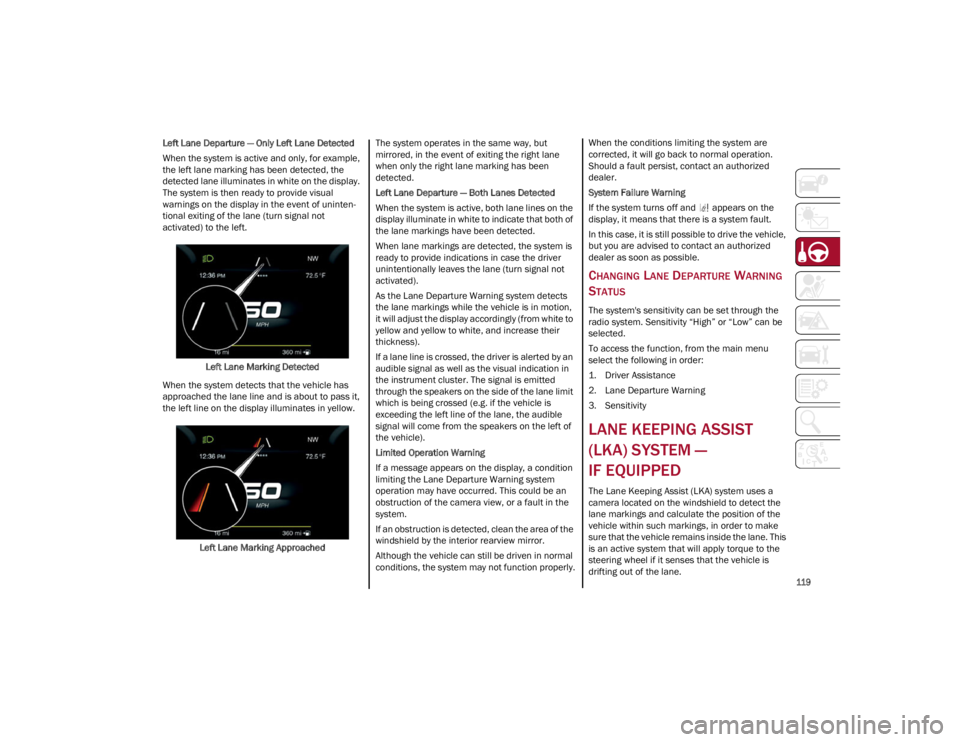
Left Lane Departure — Only Left Lane Detected
When the system is active and only, for example,
the left lane marking has been detected, the
detected lane illuminates in white on the display.
The system is then ready to provide visual
warnings on the display in the event of uninten-
tional exiting of the lane (turn signal not
activated) to the left.
Left Lane Marking Detected
When the system detects that the vehicle has
approached the lane line and is about to pass it,
the left line on the display illuminates in yellow.
Left Lane Marking Approached The system operates in the same way, but
mirrored, in the event of exiting the right lane
when only the right lane marking has been
detected.
Left Lane Departure — Both Lanes Detected
When the system is active, both lane lines on the
display illuminate in white to indicate that both of
the lane markings have been detected.
When lane markings are detected, the system is
ready to provide indications in case the driver
unintentionally leaves the lane (turn signal not
activated).
As the Lane Departure Warning system detects
the lane markings while the vehicle is in motion,
it will adjust the display accordingly (from white to
yellow and yellow to white, and increase their
thickness).
If a lane line is crossed, the driver is alerted by an
audible signal as well as the visual indication in
the instrument cluster. The signal is emitted
through the speakers on the side of the lane limit
which is being crossed (e.g. if the vehicle is
exceeding the left line of the lane, the audible
signal will come from the speakers on the left of
the vehicle).
Limited Operation Warning
If a message appears on the display, a condition
limiting the Lane Departure Warning system
operation may have occurred. This could be an
obstruction of the camera view, or a fault in the
system.
If an obstruction is detected, clean the area of the
windshield by the interior rearview mirror.
Although the vehicle can still be driven in normal
conditions, the system may not function properly. When the conditions limiting the system are
corrected, it will go back to normal operation.
Should a fault persist, contact an authorized
dealer.
System Failure Warning
If the system turns off and appears on the
display, it means that there is a system fault.
In this case, it is still possible to drive the vehicle,
but you are advised to contact an authorized
dealer as soon as possible.
CHANGING LANE DEPARTURE WARNING
S
TATUS
The system's sensitivity can be set through the
radio system. Sensitivity “High” or “Low” can be
selected.
To access the function, from the main menu
select the following in order:
1. Driver Assistance
2. Lane Departure Warning
3. Sensitivity
LANE KEEPING ASSIST
(LKA) SYSTEM —
IF EQUIPPED
The Lane Keeping Assist (LKA) system uses a
camera located on the windshield to detect the
lane markings and calculate the position of the
vehicle within such markings, in order to make
sure that the vehicle remains inside the lane. This
is an active system that will apply torque to the
steering wheel if it senses that the vehicle is
drifting out of the lane.
22_GU_OM_EN_USC_t.book Page 119
Page 122 of 256
STARTING AND OPERATING
120
When one or both lane markings are detected
and the vehicle passes over one without a turn
signal being applied, the system will apply torque
to the steering wheel and a visual signal will be
displayed in the instrument cluster display. An
audible signal may also sound.
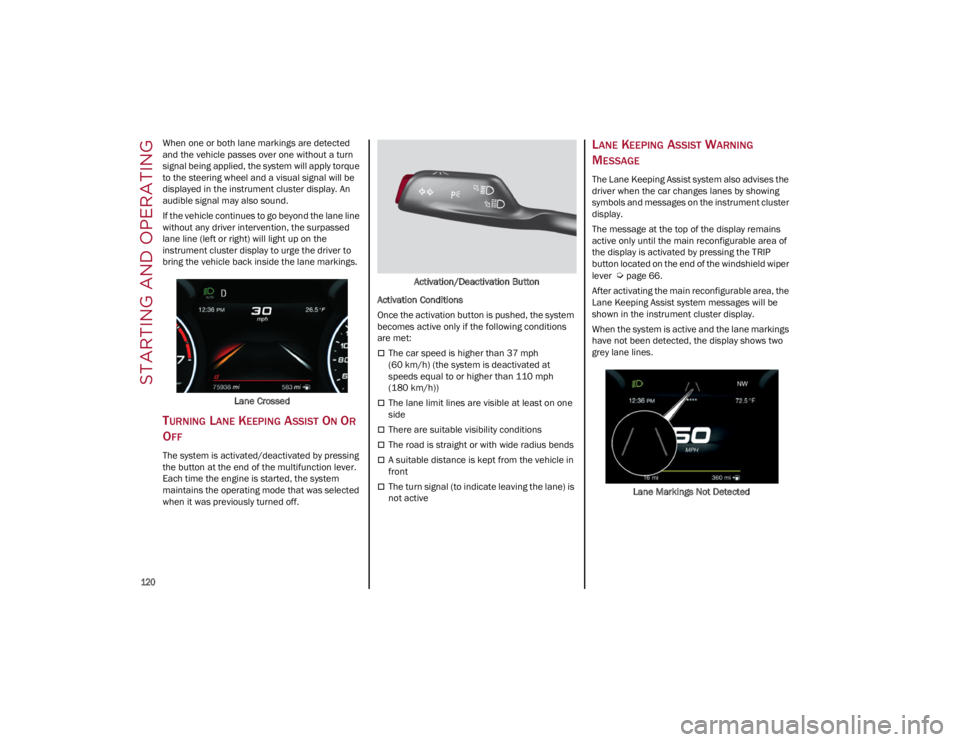
If the vehicle continues to go beyond the lane line
without any driver intervention, the surpassed
lane line (left or right) will light up on the
instrument cluster display to urge the driver to
bring the vehicle back inside the lane markings.Lane Crossed
TURNING LANE KEEPING ASSIST ON OR
O
FF
The system is activated/deactivated by pressing
the button at the end of the multifunction lever.
Each time the engine is started, the system
maintains the operating mode that was selected
when it was previously turned off. Activation/Deactivation Button
Activation Conditions
Once the activation button is pushed, the system
becomes active only if the following conditions
are met:
The car speed is higher than 37 mph
(60 km/h) (the system is deactivated at
speeds equal to or higher than 110 mph
(180 km/h))
The lane limit lines are visible at least on one
side
There are suitable visibility conditions
The road is straight or with wide radius bends
A suitable distance is kept from the vehicle in
front
The turn signal (to indicate leaving the lane) is
not active
LANE KEEPING ASSIST WARNING
M
ESSAGE
The Lane Keeping Assist system also advises the
driver when the car changes lanes by showing
symbols and messages on the instrument cluster
display.
The message at the top of the display remains
active only until the main reconfigurable area of
the display is activated by pressing the TRIP
button located on the end of the windshield wiper
lever
Ú
page 66.
After activating the main reconfigurable area, the
Lane Keeping Assist system messages will be
shown in the instrument cluster display.
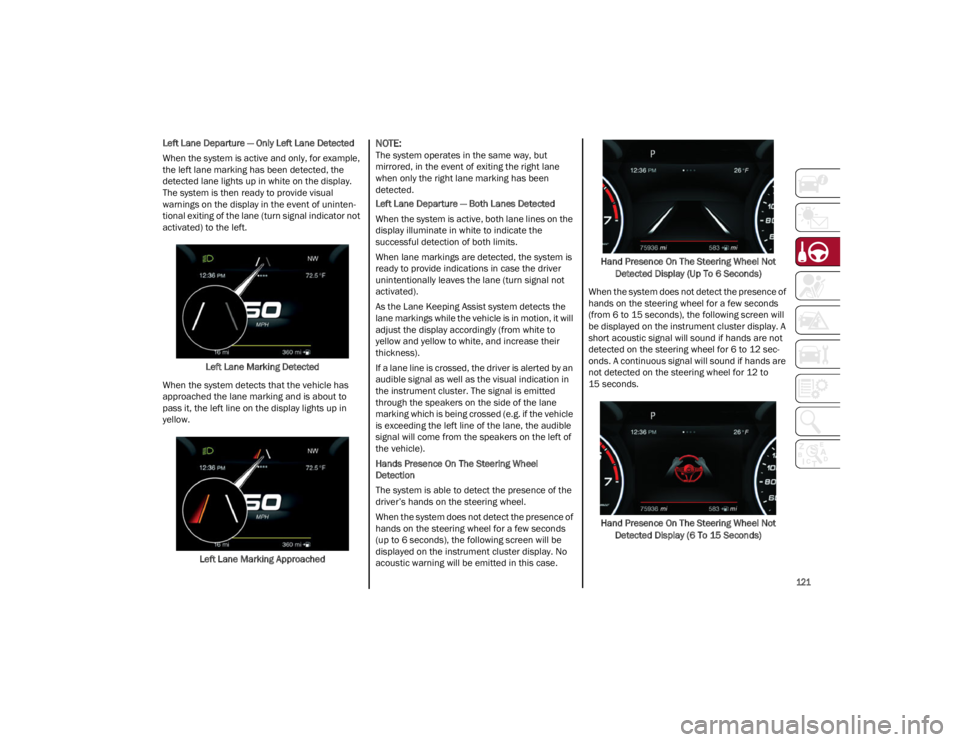
When the system is active and the lane markings
have not been detected, the display shows two
grey lane lines.
Lane Markings Not Detected
22_GU_OM_EN_USC_t.book Page 120
Page 123 of 256
121
Left Lane Departure — Only Left Lane Detected
When the system is active and only, for example,
the left lane marking has been detected, the
detected lane lights up in white on the display.
The system is then ready to provide visual
warnings on the display in the event of uninten-
tional exiting of the lane (turn signal indicator not
activated) to the left.
Left Lane Marking Detected
When the system detects that the vehicle has
approached the lane marking and is about to
pass it, the left line on the display lights up in
yellow.
Left Lane Marking Approached
NOTE:
The system operates in the same way, but
mirrored, in the event of exiting the right lane
when only the right lane marking has been
detected.
Left Lane Departure — Both Lanes Detected
When the system is active, both lane lines on the
display illuminate in white to indicate the
successful detection of both limits.
When lane markings are detected, the system is
ready to provide indications in case the driver
unintentionally leaves the lane (turn signal not
activated).
As the Lane Keeping Assist system detects the
lane markings while the vehicle is in motion, it will
adjust the display accordingly (from white to
yellow and yellow to white, and increase their
thickness).
If a lane line is crossed, the driver is alerted by an
audible signal as well as the visual indication in
the instrument cluster. The signal is emitted
through the speakers on the side of the lane
marking which is being crossed (e.g. if the vehicle
is exceeding the left line of the lane, the audible
signal will come from the speakers on the left of
the vehicle).
Hands Presence On The Steering Wheel
Detection
The system is able to detect the presence of the
driver’s hands on the steering wheel.
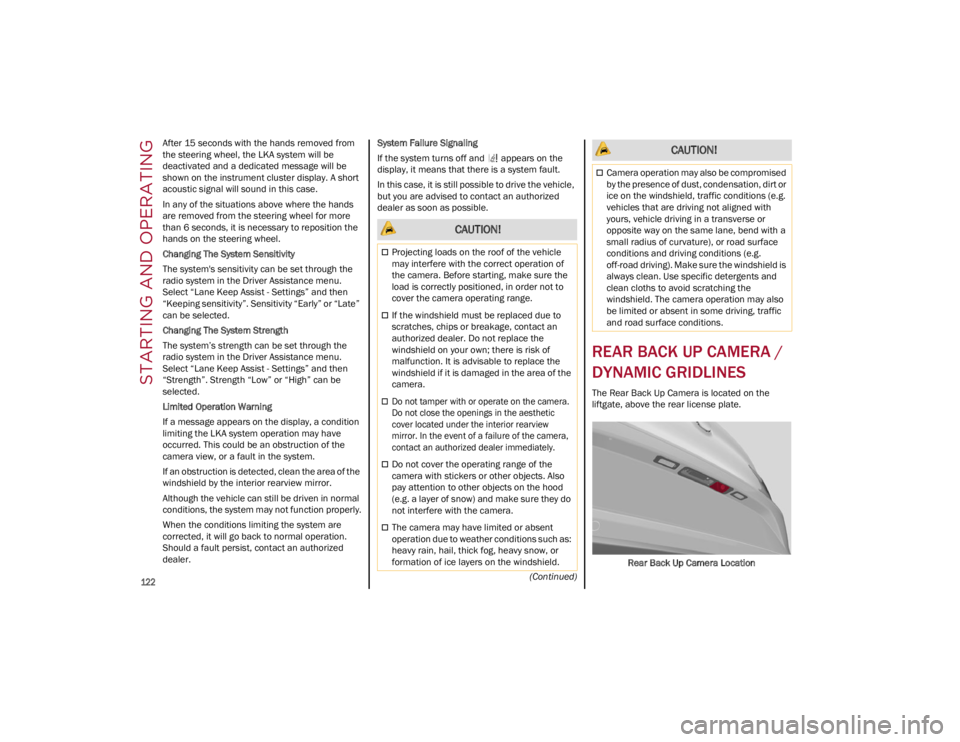
When the system does not detect the presence of
hands on the steering wheel for a few seconds
(up to 6 seconds), the following screen will be
displayed on the instrument cluster display. No
acoustic warning will be emitted in this case. Hand Presence On The Steering Wheel Not
Detected Display (Up To 6 Seconds)
When the system does not detect the presence of
hands on the steering wheel for a few seconds
(from 6 to 15 seconds), the following screen will
be displayed on the instrument cluster display. A
short acoustic signal will sound if hands are not
detected on the steering wheel for 6 to 12 sec-
onds. A continuous signal will sound if hands are
not detected on the steering wheel for 12 to
15 seconds.
Hand Presence On The Steering Wheel Not Detected Display (6 To 15 Seconds)
22_GU_OM_EN_USC_t.book Page 121
Page 124 of 256
STARTING AND OPERATING
122
(Continued)
After 15 seconds with the hands removed from
the steering wheel, the LKA system will be
deactivated and a dedicated message will be
shown on the instrument cluster display. A short
acoustic signal will sound in this case.
In any of the situations above where the hands
are removed from the steering wheel for more
than 6 seconds, it is necessary to reposition the
hands on the steering wheel.
Changing The System Sensitivity
The system's sensitivity can be set through the
radio system in the Driver Assistance menu.
Select “Lane Keep Assist - Settings” and then
“Keeping sensitivity”. Sensitivity “Early” or “Late”
can be selected.
Changing The System Strength
The system’s strength can be set through the
radio system in the Driver Assistance menu.
Select “Lane Keep Assist - Settings” and then
“Strength”. Strength “Low” or “High” can be
selected.
Limited Operation Warning
If a message appears on the display, a condition
limiting the LKA system operation may have
occurred. This could be an obstruction of the
camera view, or a fault in the system.
If an obstruction is detected, clean the area of the
windshield by the interior rearview mirror.
Although the vehicle can still be driven in normal
conditions, the system may not function properly.
When the conditions limiting the system are
corrected, it will go back to normal operation.
Should a fault persist, contact an authorized
dealer.
System Failure Signaling
If the system turns off and appears on the
display, it means that there is a system fault.
In this case, it is still possible to drive the vehicle,
but you are advised to contact an authorized
dealer as soon as possible.
REAR BACK UP CAMERA /
DYNAMIC GRIDLINES
The Rear Back Up Camera is located on the
liftgate, above the rear license plate.
Rear Back Up Camera Location
CAUTION!
Projecting loads on the roof of the vehicle
may interfere with the correct operation of
the camera. Before starting, make sure the
load is correctly positioned, in order not to
cover the camera operating range.
If the windshield must be replaced due to
scratches, chips or breakage, contact an
authorized dealer. Do not replace the
windshield on your own; there is risk of
malfunction. It is advisable to replace the
windshield if it is damaged in the area of the
camera.
Do not tamper with or operate on the camera.
Do not close the openings in the aesthetic
cover located under the interior rearview
mirror. In the event of a failure of the camera,
contact an authorized dealer immediately.
Do not cover the operating range of the
camera with stickers or other objects. Also
pay attention to other objects on the hood
(e.g. a layer of snow) and make sure they do
not interfere with the camera.
The camera may have limited or absent
operation due to weather conditions such as:
heavy rain, hail, thick fog, heavy snow, or
formation of ice layers on the windshield.
Camera operation may also be compromised
by the presence of dust, condensation, dirt or
ice on the windshield, traffic conditions (e.g.
vehicles that are driving not aligned with
yours, vehicle driving in a transverse or
opposite way on the same lane, bend with a
small radius of curvature), or road surface
conditions and driving conditions (e.g.
off-road driving). Make sure the windshield is
always clean. Use specific detergents and
clean cloths to avoid scratching the
windshield. The camera operation may also
be limited or absent in some driving, traffic
and road surface conditions.
CAUTION!
22_GU_OM_EN_USC_t.book Page 122
Page 125 of 256
123
Camera Activation/Deactivation
To activate the Rear Back Up Camera features,
select “Driver Assistance” from the Main Menu of
the radio system. Under Driver Assistance, Rear
Back Up Camera features can be selected:
View
Camera Delay
Camera Guidelines
Selecting “View” will activate the camera view on
the display.
Selecting “Camera Delay” will allow the camera
view to remain on the display shortly after the
vehicle is no longer in REVERSE, followed by the
previously active screen.
Selecting “Camera Guidelines” will activate the
display of the dynamic guidelines that indicate
the route of the vehicle.
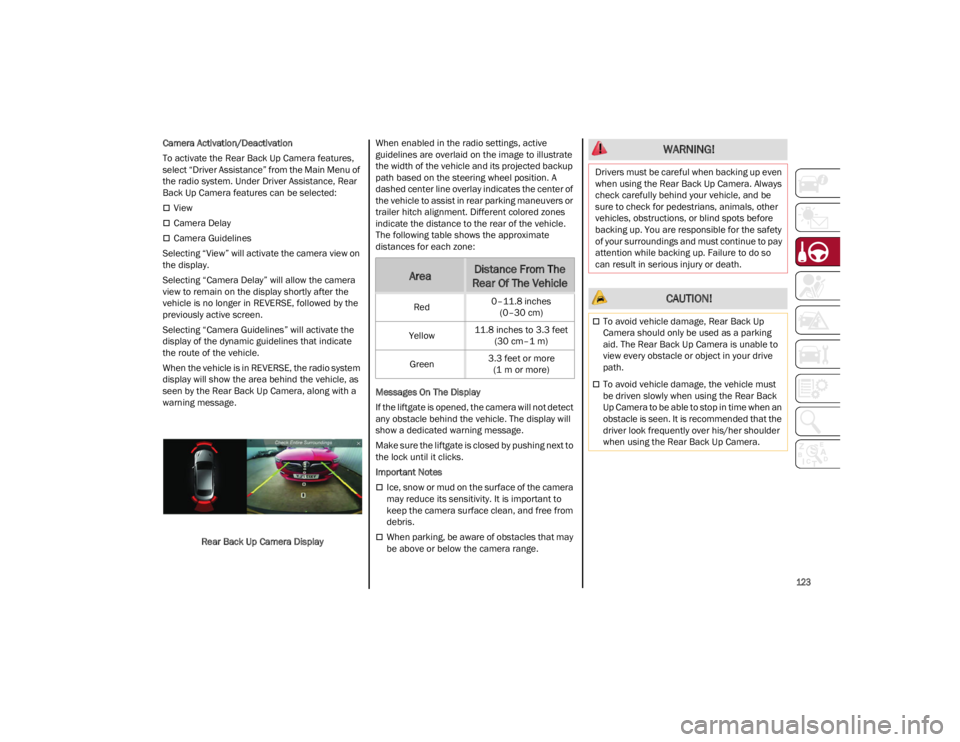
When the vehicle is in REVERSE, the radio system
display will show the area behind the vehicle, as
seen by the Rear Back Up Camera, along with a
warning message.
Rear Back Up Camera Display When enabled in the radio settings, active
guidelines are overlaid on the image to illustrate
the width of the vehicle and its projected backup
path based on the steering wheel position. A
dashed center line overlay indicates the center of
the vehicle to assist in rear parking maneuvers or
trailer hitch alignment. Different colored zones
indicate the distance to the rear of the vehicle.
The following table shows the approximate
distances for each zone:
Messages On The Display
If the liftgate is opened, the camera will not detect
any obstacle behind the vehicle. The display will
show a dedicated warning message.
Make sure the liftgate is closed by pushing next to
the lock until it clicks.
Important Notes
Ice, snow or mud on the surface of the camera
may reduce its sensitivity. It is important to
keep the camera surface clean, and free from
debris.
When parking, be aware of obstacles that may
be above or below the camera range.
AreaDistance From The
Rear Of The Vehicle
Red 0–11.8 inches
(0–30 cm)
Yellow 11.8 inches to 3.3 feet
(30 cm–1 m)
Green 3.3 feet or more
(1 m or more)
WARNING!
Drivers must be careful when backing up even
when using the Rear Back Up Camera. Always
check carefully behind your vehicle, and be
sure to check for pedestrians, animals, other
vehicles, obstructions, or blind spots before
backing up. You are responsible for the safety
of your surroundings and must continue to pay
attention while backing up. Failure to do so
can result in serious injury or death.
CAUTION!
To avoid vehicle damage, Rear Back Up
Camera should only be used as a parking
aid. The Rear Back Up Camera is unable to
view every obstacle or object in your drive
path.
To avoid vehicle damage, the vehicle must
be driven slowly when using the Rear Back
Up Camera to be able to stop in time when an
obstacle is seen. It is recommended that the
driver look frequently over his/her shoulder
when using the Rear Back Up Camera.
22_GU_OM_EN_USC_t.book Page 123
Page 129 of 256
127
TRAILER TOWING
In this section you will find safety tips and
information on limits to the type of towing you can
reasonably do with your vehicle. Before towing a
trailer, carefully review this information to tow
your load as efficiently and safely as possible.
To maintain the New Vehicle Limited Warranty
coverage, follow the requirements and
recommendations in this manual concerning
vehicles used for trailer towing.
COMMON TOWING DEFINITIONS
The following trailer towing related definitions will
assist you in understanding the following
information:
Gross Vehicle Weight Rating (GVWR)
The GVWR is the total allowable weight of your
vehicle. This includes driver, passengers, cargo
and tongue weight. The total load must be limited
so that you do not exceed the GVWR
Ú
page 126.
Gross Trailer Weight (GTW)
The GTW is the weight of the trailer plus the weight
of all cargo, consumables, and equipment
(permanent or temporary) loaded in or on the trailer
in its "loaded and ready for operation" condition.
The recommended way to measure GTW is to put
your fully loaded trailer on a vehicle scale. The
entire weight of the trailer must be supported by
the scale.
Gross Combination Weight Rating
(GCWR)
The GCWR is the total allowable weight of your
vehicle and trailer when weighed in combination.
Gross Axle Weight Rating (GAWR)
The GAWR is the maximum capacity of the front
and rear axles. Distribute the load over the front
and rear axles evenly. Make sure that you do not
exceed either front or rear GAWR
Ú
page 126.
Tongue Weight (TW)
The tongue weight is the downward force exerted
on the hitch ball by the trailer. You must consider
this as part of the load on your vehicle.
Trailer Frontal Area
The frontal area is the maximum height multiplied
by the maximum width of the front of a trailer.
Weight-Carrying Hitch
A weight-carrying hitch supports the trailer tongue
weight, just as if it were luggage located at a hitch
ball or some other connecting point of the vehicle.
These kinds of hitches are the most popular on
the market today and they are commonly used to
tow small and medium sized trailers.
Weight-Distributing Hitch
A weight-distributing hitch system works by
applying leverage through spring (load) bars. They
are typically used for heavier loads to distribute
trailer tongue weight to the tow vehicle's front
axle and the trailer axle(s). When used in
accordance with the manufacturer's directions, it
provides for a more level ride, offering more
consistent steering and brake control thereby
enhancing towing safety. The addition of a
friction/hydraulic sway control also dampens
sway caused by traffic and crosswinds and
contributes positively to tow vehicle and trailer
stability. Trailer Sway Control and a
weight-distributing (load equalizing) hitch are
recommended for heavier Tongue Weights (TW)
and may be required depending on vehicle and
trailer configuration/loading to comply with Gross
Axle Weight Rating (GAWR) requirements.
WARNING!
Do not load your vehicle any heavier than the
GVWR or the maximum front and rear GAWR. If
you do, parts on your vehicle can break, or it
can change the way your vehicle handles. This
could cause you to lose control. Overloading
can shorten the life of your vehicle.
WARNING!
It is important that you do not exceed the
maximum front or rear GAWR. A dangerous
driving condition can result if either rating is
exceeded. You could lose control of the vehicle
and have a collision.
WARNING!
An improperly adjusted weight-distributing
hitch system may reduce handling, stability,
braking performance, and could result in a
collision.
Weight-distributing hitch systems may not be
compatible with surge brake couplers.
Consult with the hitch and trailer
manufacturer or a reputable Recreational
Vehicle dealer for additional information.
22_GU_OM_EN_USC_t.book Page 127
Page 131 of 256
129
(Continued)
(Continued)
TRAILER AND TONGUE WEIGHT
Never exceed the maximum tongue weight
stamped on your fascia/bumper or trailer hitch.
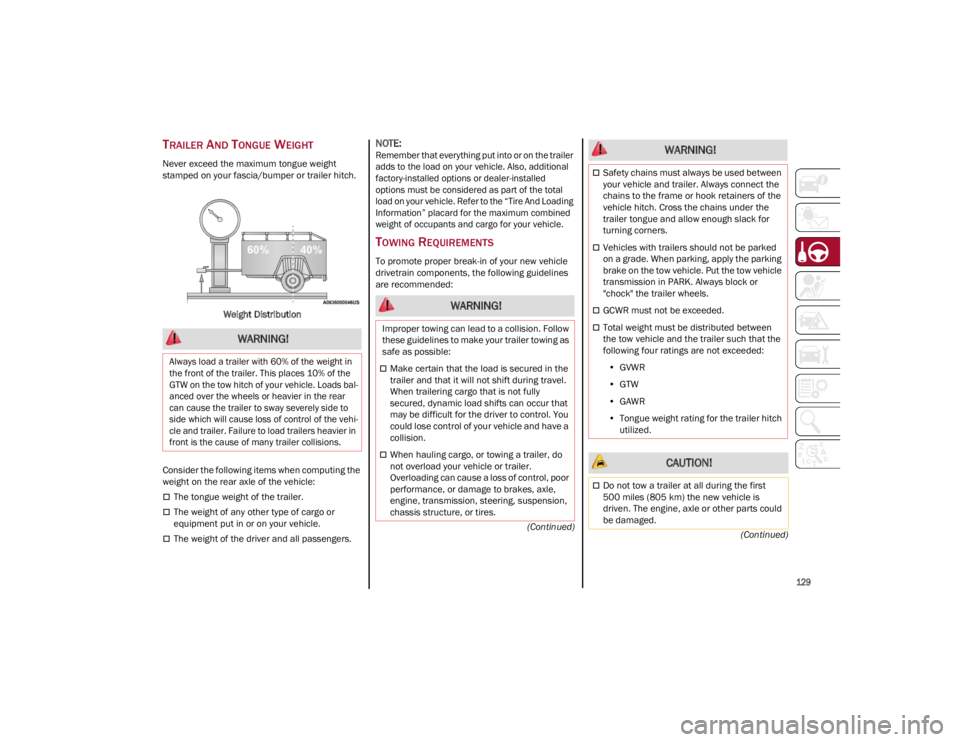
Weight Distribution
Consider the following items when computing the
weight on the rear axle of the vehicle:
The tongue weight of the trailer.
The weight of any other type of cargo or
equipment put in or on your vehicle.
The weight of the driver and all passengers.
NOTE:Remember that everything put into or on the trailer
adds to the load on your vehicle. Also, additional
factory-installed options or dealer-installed
options must be considered as part of the total
load on your vehicle. Refer to the “Tire And Loading
Information” placard for the maximum combined
weight of occupants and cargo for your vehicle.
TOWING REQUIREMENTS
To promote proper break-in of your new vehicle
drivetrain components, the following guidelines
are recommended:
WARNING!
Always load a trailer with 60% of the weight in
the front of the trailer. This places 10% of the
GTW on the tow hitch of your vehicle. Loads bal -
anced over the wheels or heavier in the rear
can cause the trailer to sway severely side to
side which will cause loss of control of the vehi -
cle and trailer. Failure to load trailers heavier in
front is the cause of many trailer collisions.
WARNING!
Improper towing can lead to a collision. Follow
these guidelines to make your trailer towing as
safe as possible:
Make certain that the load is secured in the
trailer and that it will not shift during travel.
When trailering cargo that is not fully
secured, dynamic load shifts can occur that
may be difficult for the driver to control. You
could lose control of your vehicle and have a
collision.
When hauling cargo, or towing a trailer, do
not overload your vehicle or trailer.
Overloading can cause a loss of control, poor
performance, or damage to brakes, axle,
engine, transmission, steering, suspension,
chassis structure, or tires.
Safety chains must always be used between
your vehicle and trailer. Always connect the
chains to the frame or hook retainers of the
vehicle hitch. Cross the chains under the
trailer tongue and allow enough slack for
turning corners.
Vehicles with trailers should not be parked
on a grade. When parking, apply the parking
brake on the tow vehicle. Put the tow vehicle
transmission in PARK. Always block or
"chock" the trailer wheels.
GCWR must not be exceeded.
Total weight must be distributed between
the tow vehicle and the trailer such that the
following four ratings are not exceeded:
• GVWR
• GTW
• GAWR
• Tongue weight rating for the trailer hitch
utilized.
CAUTION!
Do not tow a trailer at all during the first
500 miles (805 km) the new vehicle is
driven. The engine, axle or other parts could
be damaged.
WARNING!
22_GU_OM_EN_USC_t.book Page 129