infotainment AUDI A3 2020 Owner´s Manual
[x] Cancel search | Manufacturer: AUDI, Model Year: 2020, Model line: A3, Model: AUDI A3 2020Pages: 400, PDF Size: 107.47 MB
Page 196 of 400
![AUDI A3 2020 Owner´s Manual Navigation
Adding a stopover
Applies to: vehicles with navigation system
RAX-0083] A CUA] a
= De Conch) —@
RCO oe
Ne
Fig. 169 Infotainment system: active route guidance with
stopover
You](/img/6/40265/w960_40265-195.png "AUDI A3 2020 Owner´s Manual Navigation
Adding a stopover
Applies to: vehicles with navigation system
RAX-0083] A CUA] a
= De Conch) —@
RCO oe
Ne
Fig. 169 Infotainment system: active route guidance with
stopover
You")
Navigation
Adding a stopover
Applies to: vehicles with navigation system
RAX-0083] A CUA] a
= De Conch) —@
RCO oe
Ne
Fig. 169 Infotainment system: active route guidance with
stopover
You can enter an additional destination when
route guidance is active.
Requirement: route guidance must already be ac-
tive.
Opening a menu
> Press the LNAV/MAP] button repeatedly until
the Enter destination menu is displayed
=> page 189, fig. 166.
Entering a destination as a stopover
> Enter a destination in the input line @
=> page 189, fig. 166
> Select and confirm a destination from the re-
sults list.
> Select and confirm Add as stopover.
Deleting a stopover
> Push the control knob up. Free text search and
active route guidance are displayed, or:
> Turn the control knob to the left until the active
route guidance is shown.
> Select and confirm Delete stopover (2). The
stopover is deleted.
Cancel route guidance
Applies to: vehicles with navigation system
Requirement: route guidance must be active.
> Press the LNAV/MAP] button repeatedly until
the Enter destination menu is displayed
=> page 189, fig. 166.
> Turn the control knob to the left until the active
route guidance is shown > page 194, fig. 169.
194
> Select and confirm Delete destination @
=> page 194, fig. 169. The destination is delet-
ed, or:
>» Select: right control button > Cancel route
guidance
Additional options when entering a
Ciel)
Applies to: vehicles with navigation system
> Press the right control button.
Depending on the selected function, the follow-
ing options may be available when entering a
destination:
Cancel route guidance: Requirement: route guid-
ance must be active. Route guidance is canceled.
For additional information, see > page 194.
Country information: you can display the appli-
cable urban and rural speed limits for any coun-
try/state. If this function is activated, the infor-
mation will be automatically shown to you in the
route information @ > page 199, fig. 174 when
the speed limit is exceeded > page 201.
Country/state selection: > page 189.
Route criteria: > page 198.
Show location on map: Requirement: you must
have selected a destination from the results list.
The destination entered is displayed on the map.
Parking at this location*: Requirement: you must
have selected a destination from the results list.
All parking options near the selected location are
displayed in the Infotainment system.
Delete: the selected entry is deleted. You can de-
lete individual entries or all entries (for example,
favorites or last destinations).
Audi connect at this location*: Requirement: you
must have selected a destination from the results
list. Allows you to search for items in the vicinity
of the selected location, such as travel informa-
tion.
Online traffic data*: the online traffic informa-
tion = page 204 can be switched on or off.
Add destination to contact: > page 196.
Page 197 of 400
8V2012721BK
Navigation
Store as favorite: > page 196.
Voice guidance: > page 198.
Navigation settings: > page 197.
@ Tips
Information on online traffic data* can also
be found online at www.audiusa.com.
Personal route
assistance
Applies to: vehicles with navigation system and personal
route assistance
Rameau e- (ele ge}
= ie (Ota
LS a
® Market Street
4
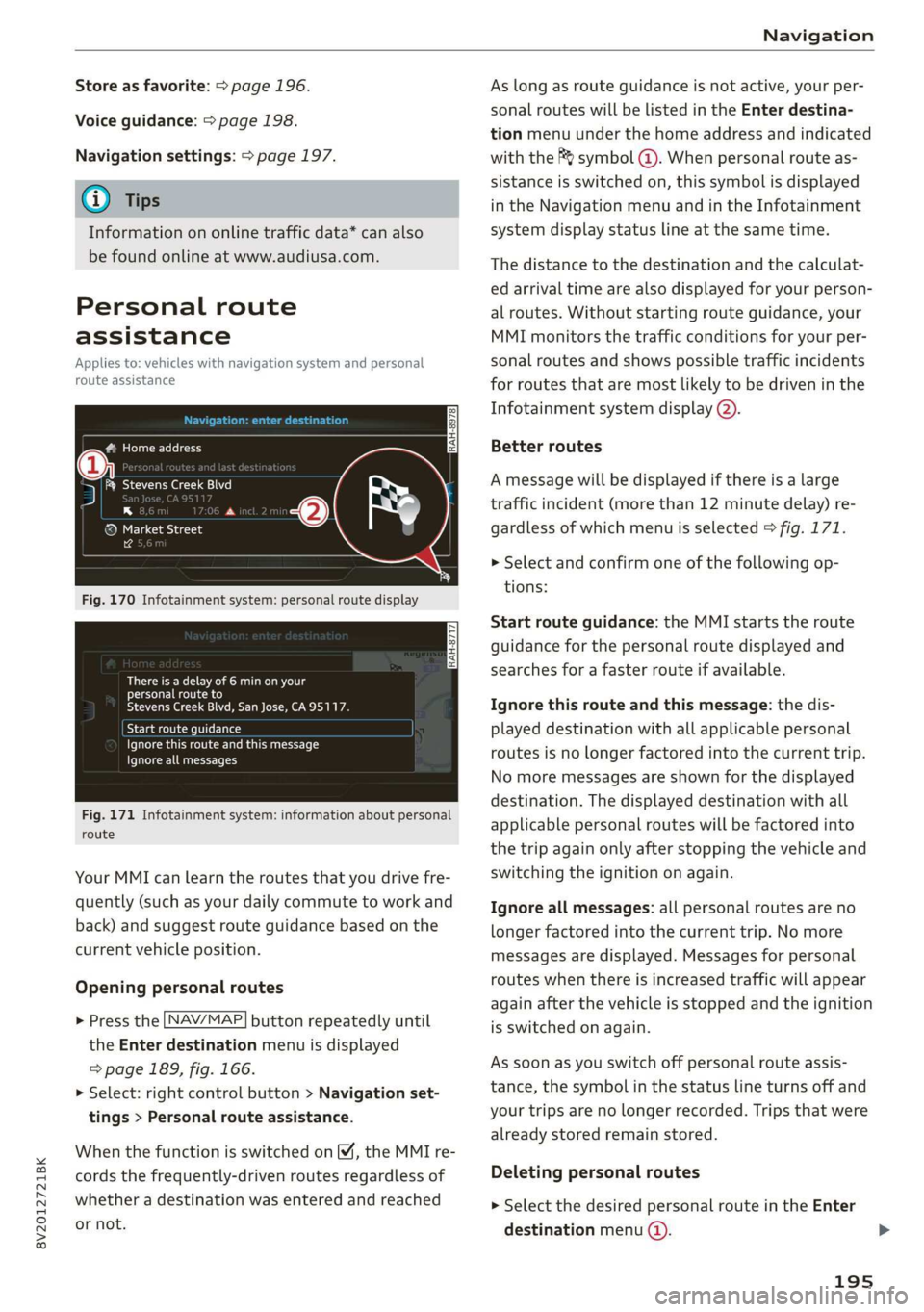
Fig. 170 Infotainment system: personal route display
There is a delay of 6 min on your
personal route to
Stevens Creek Blvd, San Jose, CA95117.
Start route guidance
Ignore this route and this message
Ignore all messages
Fig. 171 Infotainment system: information about personal
route
Your MMI can learn the routes that you drive fre-
quently (such as your daily commute to work and
back) and suggest route guidance based on the
current vehicle position.
Opening personal routes
> Press the [NAV/MAP] button repeatedly until
the Enter destination menu is displayed
=> page 189, fig. 166.
>» Select: right control button > Navigation set-
tings > Personal route assistance.
When the function is switched on M, the MMI re-
cords the frequently-driven routes regardless of
whether a destination was entered and reached
or not.
As long as route guidance is not active, your per-
sonal routes will be listed in the Enter destina-
tion menu under the home address and indicated
with the f& symbol @). When personal route as-
sistance is switched on, this symbol is displayed
in the Navigation menu and in the Infotainment
system display status line at the same time.
The distance to the destination and the calculat-
ed arrival time are also displayed for your person-
al routes. Without starting route guidance, your
MMI monitors the traffic conditions for your per-
sonal routes and shows possible traffic incidents
for routes that are most likely to be driven in the
Infotainment system display (2).
Better routes
A message will be displayed if there is a large
traffic incident (more than 12 minute delay) re-
gardless of which menu is selected > fig. 171.
> Select and confirm one of the following op-
tions:
Start route guidance: the MMI starts the route
guidance for the personal route displayed and
searches for a faster route if available.
Ignore this route and this message: the dis-
played destination with all applicable personal
routes is no longer factored into the current trip.
No more messages are shown for the displayed
destination. The displayed destination with all
applicable personal routes will be factored into
the trip again only after stopping the vehicle and
switching the ignition on again.
Ignore all messages: all personal routes are no
longer factored into the current trip. No more
messages are displayed. Messages for personal
routes when there is increased traffic will appear
again after the vehicle is stopped and the ignition
is switched on again.
As soon as you switch off personal route assis-
tance, the symbol in the status line turns off and
your trips are no longer recorded. Trips that were
already stored remain stored.
Deleting personal routes
> Select the desired personal route in the Enter
destination menu ().
195
Page 199 of 400

8V2012721BK
Navigation
Storing a destination as a contact in the
directory
Requirement: a mobile device must be connected
to the MMI 5 page 169.
> Select: a destination > right control button >
Add destination to contact.
> Enter the first letters of the desired contact in
the free text search input field > page 189,
fig. 166 and then select a contact from the list.
> Select and confirm Add business destination or
Add private destination.
Alternative routes
Applies to: vehicles with navigation system
Fig. 172 Infotainment system: display of alternative
routes
Requirement: a destination must be entered and
the route guidance must be started.
> Press the [NAV/MAP| button repeatedly until
the Enter destination menu is displayed
=> page 189, fig. 166.
> Select: right control button > Navigation set-
tings > Show alternative routes.
Three routes are displayed in the overview map
after you enter a destination.
> Select and confirm the desired route that you
would like to use for route guidance.
If available, the following information will ap-
pear on the route suggestions:
— Route type (fast (, fast alternative (2), eco-
nomic route @))
— Distance to the destination and the calculated
arrival time
— Traffic congestion along the route including
time delays
The route that was calculated according to the
route criteria you selected is shown on the over-
view map . The special properties of the route
will also be displayed @) and provided as a spo-
ken message.
Using the control knob, you can select the possi-
ble routing for the alternative routes and show
them on map Select and confirm the desired
route that you would like to use for route guid-
ance.
Additional settings
Navigation settings
Applies
to: vehicles with navigation system
> Press the [NAV/MAP] button repeatedly until
the Enter destination menu is displayed
=> page 189, fig. 166.
> Select: right control button > Navigation set-
tings.
Depending on the selected function, the follow-
ing settings can be selected:
Show alternative routes
Up to three suggested routes are shown on the
map when this function is switched on
=> page 197.
Low fuel warning
A message is displayed if the fuel gauge goes be-
low the reserve marking when this function is
switched on (M. Confirming this message displays
a list of gas stations in the area. When a gas sta-
tion is selected, route guidance from the current
vehicle position is calculated.
Trailer mode*
Trailer mode is switched off at the factory.
When the function is switched on M, the maxi-
mum permitted speed for vehicles with trailers is
incorporated into the route guidance and the cal-
culated arrival time is adjusted accordingly. Trail-
er mode is displayed using symbols % in the side
menu on the map.
197
Page 200 of 400

Navigation
Personal route assistance*
Personal route assistance is switched off at the
factory.
Your trips are recorded and destinations are sug-
gested by the MMI when this function is switched
on page 195.
The personal route assistance is indicated by the
R& symbol in the status line of the Infotainment
system display.
Notification when nearby*
The notification when nearby is switched off at
the factory.
The MMI notifies you when you are approaching
selected points of interest when this function is
switched on M. You can also have a Notification
tone.
Presentation mode
The Presentation mode helps you to effectively
plan a trip and follow the planned route without
moving the vehicle. You can use Select starting
point
when you would like to calculate a route
starting
from a location other than the vehicle
position, for example. Start Presentation mode
to simulate route guidance.
lead]
Applies to: vehicles with navigation system
10) [8
> tak) ° [|
Fig. 173 Infotainment system: possible route criteria
RAH-8472
> Press the LNAV/MAP] button repeatedly until
the Enter destination menu is displayed
=> page 189, fig. 166.
) High occupancy vehicle
198
> Select: right control button > Route criteria.
@ HOV/carpool lanes”: with the Avoid function,
HOV lanes will be excluded when calculating
routes. When Allow is selected, the MMI will
route you through HOV lanes and show them on
the map.
@ Highways / @) Toll roads / @) Ferries: you can
set the Avoid function if you do not want the nav-
igation system to include highways, toll roads or
ferries when calculating the route, if it is possi-
ble.
Applies to: vehicles with navigation system
> Press the [NAV/MAP] button repeatedly until
the Enter destination menu is displayed
=> page 189, fig. 166.
> Select: right control button > Voice guidance.
Voice guidance: voice guidance can be Complete
or Shortened. With the Traffic function, voice
guidance prompts are only given when there are
traffic incidents on your route. When Off is se-
lected, no voice guidance is given.
Voice guidance during phone call: voice guidance
during a phone call can be switched on or off.
Entertainment fader: > page 235.
Voice guidance volume: you can adjust the vol-
ume during voice guidance using the On/Off knob
=> page 146 You can also find additional informa-
tion under > page 235.
Page 201 of 400

8V2012721BK
Navigation
Map
Applies to: vehicles with navigation system
Fig. 174 Infotainment system: 3D map with the crosshairs
switched off
enna’
Los Angeles
RAH-8632|
Fig. 175 Infotainment system: standard map with the
crosshairs switched on
Opening the map
> Press the [NAV/MAP] button repeatedly until
the map is displayed > fig. 174.
Zooming in/out on the map
> Turn the control knob to the left or to the right.
Alternatively, you can also zoom in/out on the
map using the MMI touch control pad*
=> page 150 if the crosshairs are switched on,
or:
> Turn the left thumbwheel on the multifunction
steering wheel* > page 17, fig. 9.
Turning the crosshairs on
> Press the control knob in the map view
> fig. 174.
Turning the crosshairs off
BACK] button.
> Press the
When the crosshairs are switched off > fig. 174:
D_ Only applies to vehicles without camera-based speed limit
display.
@ Orientation: the map is either displayed as a
2D north-up map or as a 2D heading-up
map.
Distance to the destination
When the trailer mode function is switched
on, the corresponding symbol is displayed
next to the arrival time.
@ Scale: turn the control knob to the left or
right to decrease or increase the scale. When
the Automatic zoom [¥ function is switched
on, an “A” for “Automatic” is displayed in the
magnifying glass.
Altitude
Vehicle location
©®
CoO®@ Route information: various information will
be displayed during active route guidance
(for example, the upcoming maneuver in-
cluding calculated distance and street
names). The display also provides traffic in-
formation or points of interest on the current
route.
Street being driven on: displayed here as “off-
road” when the vehicle is stationary.
When the crosshairs are switched on > fig. 175:
© Crosshairs: move the crosshairs in the desired
direction using the MMI touch control pad*
or the control knob and set a point on the
map as the destination or have information
about the focal point displayed.
@ Speed limit display)”: display of the maxi-
mum permitted speed on the expressways
and highways.
Entertainment sliding menu *: > page 151.
©®® Additional information on the crosshairs po-
sition: if you move the crosshairs to a loca-
tion on the map, available information for
the current crosshairs position is displayed.
Press the control knob to open destination
details or to start route guidance. When the
crosshairs are turned off, the road being cur-
rently driven on is shown.
@ Map content (points of interest, favorites): if
there are multiple POIs in the immediate
199
>
Page 203 of 400

8V2012721BK
Navigation
Depending on the selected function, the follow-
ing settings can be selected:
Map colors
Day/Night: the map is displayed with a light/
dark background.
Automatic: the map display adapts to the light-
ing conditions (for example, changing from Day
to Night when driving through a tunnel).
Map display
Standard: > page 199, fig. 175.
Satellite map): > page 202.
Plug-in hybrid drive: Electric range: > page 201.
Map orientation
Destination map: the map indicates the destina-
tion and is oriented to the north.
2D heading-up map/2D north-up map: the cur-
rent vehicle position is displayed. The map is ori-
ented in the direction of travel or to the north.
3D heading-up map”: the current vehicle posi-
tion is shown on a three-dimensional map and is
aligned to the direction of travel. At a scale of 62
mi (100 km) and larger, the map orientation is to
the north.
Overview map: the entire route from the vehicle
position to the destination or the next stopover is
displayed on the map. The map scale depends on
the length of the route and adapts automatically.
The map is oriented to the north.
Route information
The display of route information, such as the cur-
rent street being driven on or points of interest
along the current route, can be switched on/off
or can be minimized on the display of upcoming
maneuvers.
Automatic zoom
On: the map scale is adapted automatically de-
pending on the type of road being traveled (ex-
D) AUDI AG provides access to services from third party pro-
viders. Permanent availability cannot be guaranteed, be-
cause that depends on the third party provider.
pressway, highway, other roads) so that you al-
ways have an optimal overview of the road ahead.
The scale will also be automatically adapted
when there are upcoming maneuvers to provide a
better detailed view.
Intersection: when route guidance is active, the
map temporarily zooms in to a detailed scale
when there are upcoming maneuvers so that you
can see the street or turn better.
Off: the map scale you have chosen is main-
tained.
Map content
Map content such as weather, traffic information
or favorites can be displayed or hidden.
The weather forecast* is displayed on a 3 mile (5
km) scale on the map > page 197, fig. 172.
Electric range
Applies to: vehicles with navigation system and plug-in hybrid
drive
Fig. 176 Infotainment system: electric range display
The electric range shows the maximum distance
that can be driven using electric power. Informa-
tion such as the type of road, speeds, and alti-
tude will be taken into account.
> Press the [NAV/MAP] button repeatedly until
the map is displayed > page 199, fig. 175.
> Select: right control button > Map settings >
Map display > Electric range.
> Press the [BACK] button to return to the map
view.
201
Page 204 of 400

Navigation
You can read the electric range of your vehicle
based on the border (2).
The map scale will automatically adjust to the
range.
Satellite map
Applies to: vehicles with a navigation system and Audi con-
nect Infotainment
S Figueroa St
W Washington Blvd D 3
Los Angeles
Fig. 177 Infotainment system: satellite map
You can display the navigation map with satellite
images.
Requirement: the requirements for Audi connect
Infotainment must be met > page 182.
> Press the LNAV/MAP] button repeatedly until
the map is displayed.
> Select: right control button > Map settings >
Map display > Satellite map).
The map view is based on data packets received
from the Internet in the form of satellite images,
which are then combined with the roadways from
the Standard map view. There are two gigabytes
of memory space in the MMI memory that can be
used to temporarily store the map or navigation
data that was received. This is roughly the
amount required for the map/navigation data for
a 2,485 mile (4,000 km) route. As long as the
satellite images loaded for route guidance are
stored, you can use them without having an ac-
tive data connection.
2) AUDI AG provides access to services from third party pro-
viders. Permanent availability cannot be guaranteed, be-
cause that depends on the third party provider.
202
@) Note
Read the information about Audi connect, and
be sure to note the connectivity costs section
=> page 182.
@) Tips
—The stored satellite map data) can be de-
leted under Factory settings > Navigation
and online memory > page 231.
—The satellite map) is updated regularly
whenever the function is opened. The proc-
ess may take several seconds.
— When the satellite map display” is switched
on with the 3D position map, the map dis-
play automatically switches to the 2D map
type when driving through tunnels.
— For additional information, visit www.
audiusa.com.
Map update
Applies to: vehicles with navigation system
There are multiple options available for updating
your map material:
— Map updates through the online map update*
=> page 203.
— Import map updates from the SD card* to your
MMI. You can find additional information on-
line at my.audi.com.
— Map update at an authorized Audi dealer or au-
thorized Audi Service Facility. This can result in
additional costs.
Page 205 of 400
8V2012721BK
Navigation
Online map update
Applies to: vehicles with a navigation system and Audi con-
nect Infotainment
Recommended regions —> Confirmation
You have chosen to download 109 MB of data
Please be aware of your mobile data
allowance. Would you like to continue?
@
Start download
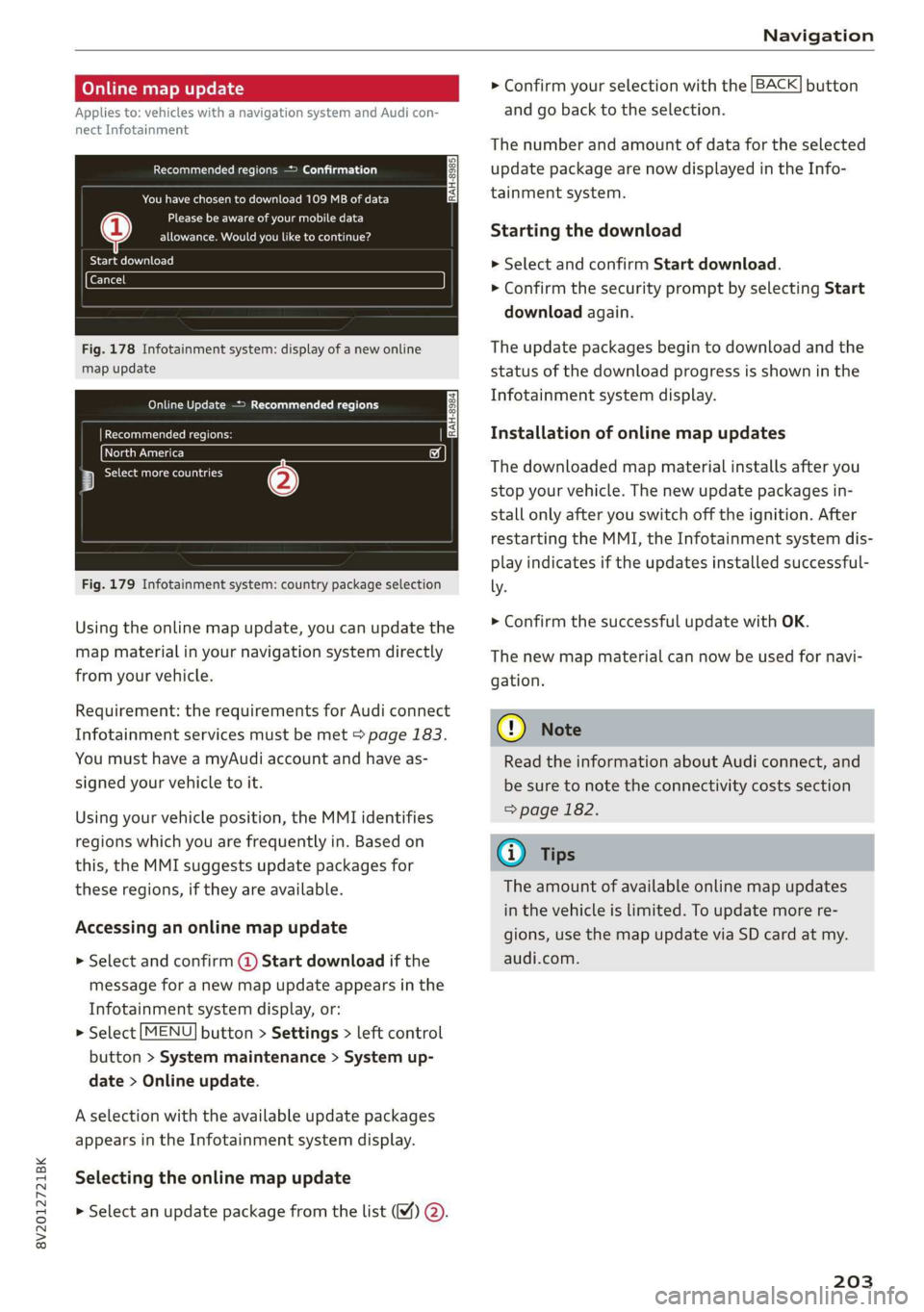
Fig. 178 Infotainment system: display of a new online
map update
Online Update > Recommended regions
RAH-8984 | Recommended regions: |
eta) w
3 botany (2)
Fig. 179 Infotainment system: country package selection
Using the online map update, you can update the
map material in your navigation system directly
from your vehicle.
Requirement: the requirements for Audi connect
Infotainment services must be met > page 183.
You must have a myAudi account and have as-
signed your vehicle to it.
Using your vehicle position, the MMI identifies
regions which you are frequently in. Based on
this, the MMI suggests update packages for
these regions, if they are available.
Accessing an online map update
> Select and confirm @ Start download if the
message for a new map update appears in the
Infotainment system display, or:
> Select [MENU] button > Settings > left control
button > System maintenance > System up-
date > Online update.
A selection with the available update packages
appears in the Infotainment system display.
Selecting the online map update
> Select an update package from the list (4) @.
> Confirm your selection with the [BACK] button
and go back to the selection.
The number and amount of data for the selected
update package are now displayed in the Info-
tainment system.
Starting the download
> Select and confirm Start download.
> Confirm the security prompt by selecting Start
download again.
The update packages begin to download and the
status of the download progress is shown in the
Infotainment system display.
Installation of online map updates
The downloaded map material installs after you
stop your vehicle. The new update packages in-
stall only after you switch off the ignition. After
restarting the MMI, the Infotainment system dis-
play indicates if the updates installed successful-
ly. >
Confirm the successful update with OK.
The new map material can now be used for navi-
gation.
@) Note
Read the information about Audi connect, and
be sure to note the connectivity costs section
=> page 182.
@) Tips
The amount of available online map updates
in the vehicle is limited. To update more re-
gions, use the map update via SD card at my.
audi.com.
203
Page 206 of 400

Navigation
Accessing traffic
information
COT eee adele)
Applies to: vehicles with a navigation system and Audi con-
nect Infotainment
RAH-8979) Reece t eye Ce ml)
> G5) Northbound
J
@5) Nogales St, Northbound
(2) . LINE
Fig. 180 Infotainment system: online traffic information
display* without better route
The MMI can receive real-time online traffic infor-
mation about congestion, accidents, road con-
struction, and other incidents.
Requirement: the requirements for Audi connect
Infotainment must be met > page 182.
Accessing online traffic information
> Press the LNAV/MAP] button repeatedly until
the map is displayed.
> Select: left control button > Traffic messages.
An overview of all the traffic messages is dis-
played in the Infotainment system. Traffic inci-
dents on your route are shown in the upper sec-
tion of the list, sorted according to distance ©.
Colored markings indicate the flow of traffic
=> page 204.
Turning on traffic information online
> Press the right control button and turn on On-
line traffic data (MY). The [ONLINE] symbol is
shown in the Infotainment system display @).
You can also display the online traffic informa-
tion on the satellite map!) > page 202.
Traffic information display
Color-coded markings along the route indicate
the traffic flow:
2) AUDI AG provides access to services from third party pro-
viders. Permanent availability cannot be guaranteed, be-
cause that depends on the third party provider.
204
Green: traffic is flowing freely.
Orange: stop-and-go traffic
Red: congestion.
Shaded markings indicate the length of the area
with congestion.
Colored warning symbols: there is a traffic inci-
dent immediately ahead on the route.
Grayed out warning symbols: traffic incidents
that are not on your route.
Red warning symbols: all warning symbols will
be red when route guidance is not active.
The display of colored markings, warning sym-
bols, etc. can be set in the Map content menu
=> page 201.
Traffic information is switched on at the factory.
You can switch off the reception of online traffic
information at any time > page 204.
@) Note
Read the information about Audi connect, and
be sure to note the connectivity costs section
=> page 182.
G) Tips
— Having the Online traffic data function
switched on provides the most accurate re-
ports of traffic situations as well as traffic
forecasting. Your vehicle transmits and
processes its anonymous, encrypted posi-
tion information at regular intervals to the
traffic data provider. If you do not want to
use this, you can switch off the online traf-
fic information function at any time.
— The online traffic information network is
currently not available in all countries, and
the coverage is not nationwide. For addi-
tional information, visit www.audiusa.com.
Page 207 of 400

8V2012721BK
Navigation
Better route
Applies to: vehicles with a navigation system and Audi con-
nect Infotainment
By receiving traffic information online, your MMI
calculates a better route if available and the pos-
sible time saved compared to the current route.
You can decide which route you would like to use.
Selecting a better route
Requirement: route guidance must be active and
online traffic information must be available
=> page 204.
> Press the [NAV/MAP] button repeatedly until
the map is displayed.
If your MMI has calculated a better route than
the current route guidance, the message A better
route is available. appears for several seconds
along with the time that may be saved. A better
Troubleshooting
Applies to: vehicles with navigation system
route is indicated in the map view by the symbol
" > page 199, fig. 175.
Apply better route
> Press the right control button.
> Select and confirm the better route, or:
> Select and confirm Details to display details
about the better route.
You can zoom in or out on the map using the MMI
touch control pad*.
Requirement: there must be more than one opti-
mized route calculated.
> Press the control knob to switch to the next
route in the detailed view.
> Closing the detailed view: press the [BACK
button.
After you have selected a better route, the route
will be recalculated.
Problem Solution
Free text search: the desired des-
tination cannot be found.
tries/states.
The destination may not be included in the navigation database,
or the term may have been entered incorrectly. Check if the de-
sired country/state was selected for the free text search using the
Country/state selection > page 189 or select the option All coun-
205