infotainment AUDI A3 2020 Owner´s Manual
[x] Cancel search | Manufacturer: AUDI, Model Year: 2020, Model line: A3, Model: AUDI A3 2020Pages: 400, PDF Size: 107.47 MB
Page 156 of 400
Multi Media Interface
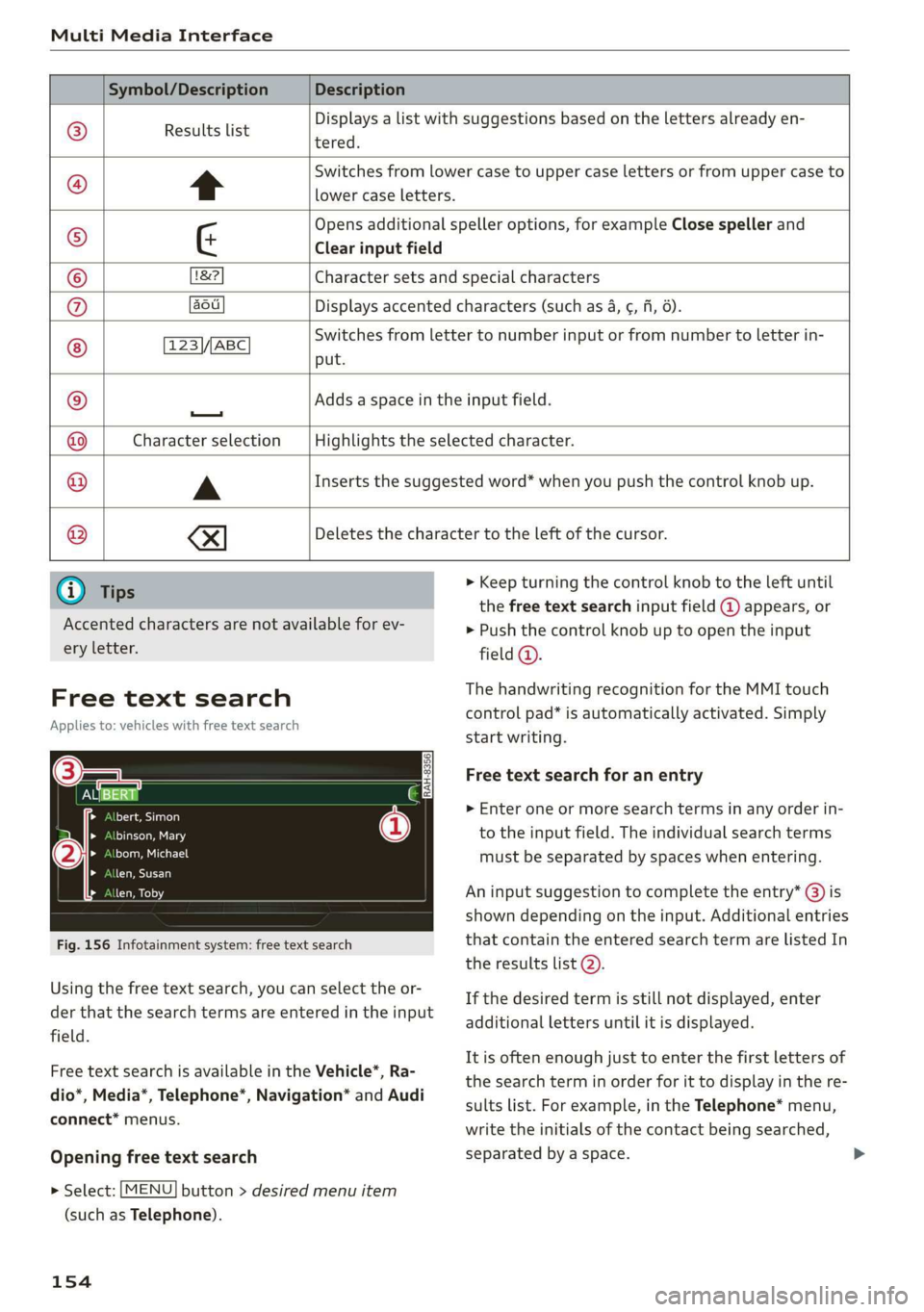
Symbol/Description Description
Results list
tered.
Displays a list with suggestions based on the letters already en-
t
Switches from lower case to upper case letters or from upper case to
lower case letters.
Opens additional speller options, for example Close speller and
¢ Clear input field
1&2 Character sets and special characters
aou Displays accented characters (such as 4, ¢, fi, 6).
123 ABC ©
|O|O|
©
|O)/@
put.
Switches from letter to number input or from number to letter in-
—
Adds a space in the input field.
Character selection Highlights the selected character.
A
Inserts the suggested word* when you push the control knob up.
®
|
©
|O|
©
I
Deletes the character to the left of the cursor.
@) Tips
Accented characters are not available for ev-
ery letter.
Free text search
Applies to: vehicles with free text search
i)
ola}
tye led
Lola ot Lg
len, Susan
(
Fig. 156 Infotainment system: free text search
Using the free text search, you can select the or-
der that the search terms are entered in the input
field.
Free text search is available in the Vehicle*, Ra-
dio*, Media*, Telephone*, Navigation* and Audi
connect* menus.
Opening free text search
> Select: [MENU] button > desired menu item
(such as Telephone).
154
> Keep turning the control knob to the left until
the free text search input field @ appears, or
> Push the control knob up to open the input
field ©.
The handwriting recognition for the MMI touch
control pad* is automatically activated. Simply
start writing.
Free text search for an entry
> Enter one or more search terms in any order in-
to the input field. The individual search terms
must be separated by spaces when entering.
An input suggestion to complete the entry* (3) is
shown depending on the input. Additional entries
that contain the entered search term are listed In
the results list 2).
If the desired term is still not displayed, enter
additional letters until it is displayed.
It is often enough just to enter the first letters of
the search term in order for it to display in the re-
sults list. For example, in the Telephone* menu,
write the initials of the contact being searched,
separated by a space.
Page 157 of 400
8V2012721BK
Multi Media Interface
Selecting the input suggestion to complete
the entry
Requirement: an input suggestion to complete
the entry* @) must be displayed.
> MMI touch input*: press the control knob.
> MMI touch input*: turn the control knob to the
right. Select and confirm an entry from the list.
> Speller input: select and confirm [LIST] @
=> page 153, fig. 155, or
» Push the control knob down. Select and con-
firm an entry from the list.
Selecting an entry from the results list
Requirement: at least one entry must be dis-
played in the results list @).
Menus and Symbols
Qs
EXC eR
Seen
arcs
ome
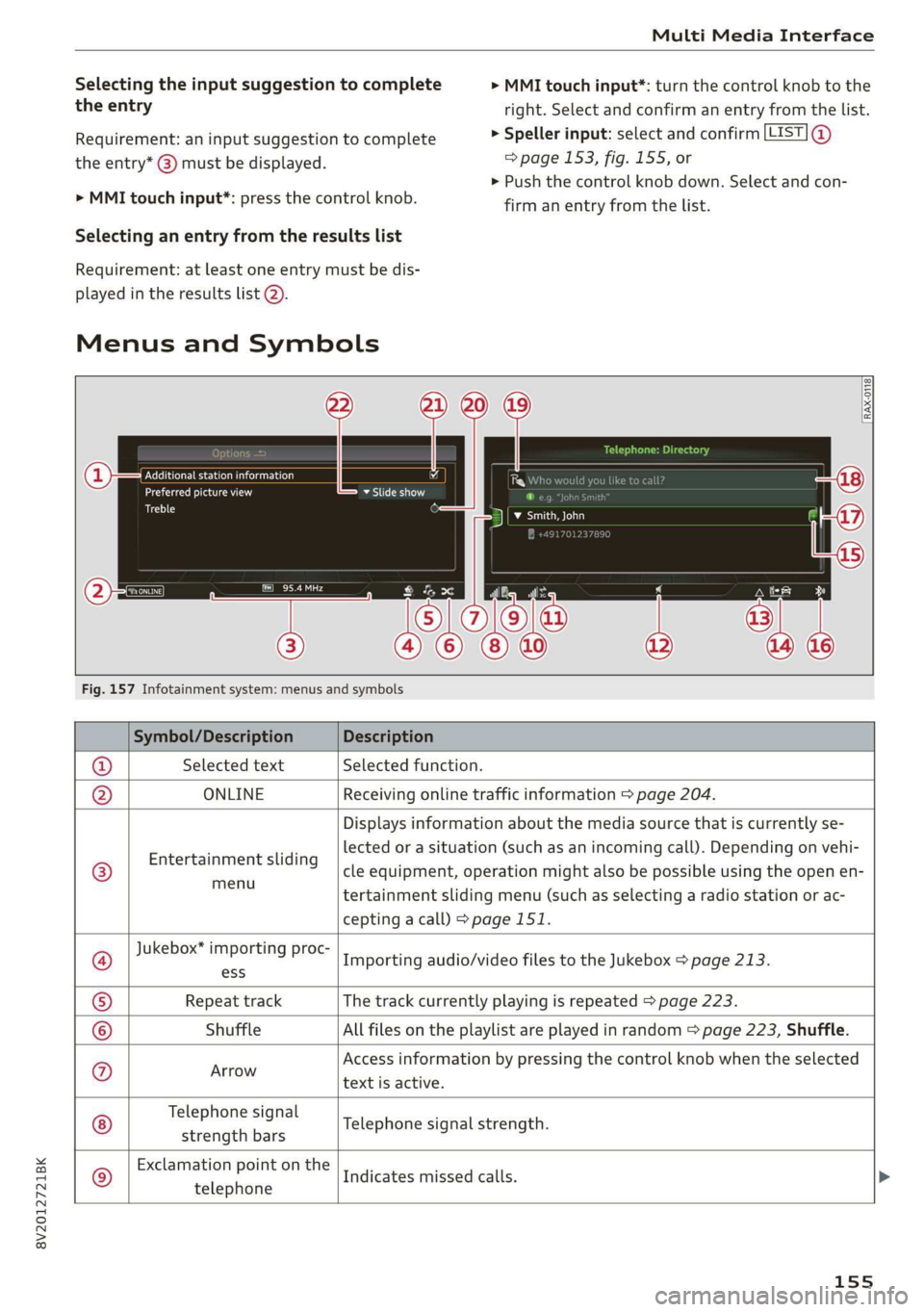
Fig. 157 Infotainment system: menus and symbols
Symbol/Description Description
® Selected text Selected function.
@ ONLINE Receiving online traffic information > page 204.
©
Entertainment sliding
menu
Displays information about the media source that is currently se-
lected or a situation (such as an incoming call). Depending on vehi-
cle equipment, operation might also be possible using the open en-
tertainment sliding menu (such as selecting a radio station or ac-
cepting a call) >page 151.
Jukebox* importing proc-
Importing audio/video files to the Jukebox > page 213.
ess
Repeat track The track currently playing is repeated > page 223.
Shuffle All files on the playlist are played in random > page 223, Shuffle.
Arrow Access information by pressing the control knob when the selected
text is active.
©
|
@
|O/@|
©
Telephone signal
strength bars
Telephone signal strength.
©
Exclamation point on the
telephone
Indicates missed calls.
155
Page 159 of 400

8V2012721BK
Multifunction steering wheel
Multifunction steering
wheel
Introduction
Applies to: vehicles with multifunction steering wheel
In the driver information system display, you can
control numerous Infotainment functions using
the multifunction steering wheel plus* > page 17
or the multifunction steering wheel* > page 20.
You can control additional Infotainment func-
tions using the MMI control panel > page 146 in
the Infotainment system display.
ZA WARNING
Direct your full attention to driving. As the
driver, you have complete responsibility for
safety in traffic. Only use the functions in such
a way that you always maintain complete con-
trol over your vehicle in all traffic situations.
Radio
Applies to: vehicles with multifunction steering wheel and ra-
dio
Requirement: radio mode must be started
= page 206 and the radio/media tab must be dis-
played.
> Press either the =lIbutton or the left control
button > page 18, depending on vehicle equip-
ment.
Depending on vehicle equipment, the following
functions
may be available in the driver informa-
tion system.
— Selecting the frequency band: select and con-
firm a frequency band.
— Selecting a station from the presets list*: se-
lect: Presets > the desired radio station.
— Selecting a station from the station list*: se-
lect and confirm a radio station.
— Selecting a station from the presets list: se-
lect: Presets > the desired radio station.
— Opening a media source: select and confirm To
media.
Additional settings
Applies to: vehicles with Audi virtual cockpit
— Select: right control button > desired entry.
Depending on the function selected, the follow-
ing additional settings may be possible:
— Show "Now Playing" screen: see > page 210.
Media
Applies to: vehicles with multifunction steering wheel and
media
Requirement: a media drive must contain audio/
video files > page 212 and the radio/media tab
must be displayed.
> Press either the [=lbutton or the left control
button > page 18, depending on vehicle equip-
ment.
Depending on vehicle equipment, the following
functions may be available in the driver informa-
tion system.
— Selecting a media source: select and confirma
source such as the “SD card”.
— Playing an audio/video file: select and confirm
a track/file.
— Pausing/resuming playback: press the right
thumbwheel @) > page 19, fig. 13. To resume
playback, press the right thumbwheel again.
Applies to: vehicles with analog instrument cluster
— Switching to radio: select and confirm a fre-
quency band (such as FM).
Applies to: vehicles with Audi virtual cockpit
— Switching to the radio: select and confirm
Switch to radio.
— Opening additional track information: select:
right
control button > Show "Now Playing"
screen. For additional information, see
=> page 222.
@) Tips
— The media drives do not play files that are
protected by DRM and that are identified
with the symbol ff.
— Please note that within a media source in
the driver information system, only playlists
that were selected through the MMI control
panel can be played = page 220.
157
>
Page 160 of 400
Multifunction steering wheel
— Always pay attention to the Infotainment
system display. Additional operation
through the MMI control panel may be nec-
essary, depending on the selected function.
Telephone
Applies to: vehicles with multifunction steering wheel and
telephone
Requirement: a cell phone must be connected to
the MMI > page 169 and the telephone tab must
be displayed.
> Press either the =lbutton or the left control
button > page 18, depending on vehicle equip-
ment.
Depending on vehicle equipment, the following
functions may be available in the driver informa-
tion system.
— Accessing a contact: select and confirm Call
list / Favorites / Directory. Select and confirm a
contact.
— Directory contacts: the driver information sys-
tem only displays directory contacts that have a
phone number stored. If several phone num-
bers are stored with a contact, the list of stored
numbers is displayed first when the entry is se-
lected. For more information about the dis-
played symbols, refer to > page 178.
— Recent calls: the recent calls list contains all in-
coming, outgoing and missed calls.
— Caller information*: the name, phone number
or Unknown appears in the driver information
system display depending on whether the caller
has been stored in the directory and if the
phone number has been transmitted.
Functions during an incoming call
— Accepting a call: press the left thumbwheel
when there is an incoming call.
— Declining a call: select and confirm Decline
when there is an incoming call.
— Ending a phone call: select and confirm End
call.
Functions during a phone call
158
Applies to: vehicles with analog instrument cluster
— Making an additional phone call: select Hold >
button > Directory or Call list > an entry in
the list.
— Accepting an incoming call when there is an
active call and a call on hold: select and con-
firm Replace. The active call is replaced with
the incoming call.
Applies to: vehicles with Audi virtual cockpit
— Making an additional phone call: select: Hold
call > left control button > Directory or Call list
>anentry.
— Accepting an incoming call when there is an
active call and a call on hold: select and con-
firm Answer. The active call is replaced with the
incoming call.
Additional functions include:
Mute: if you select and confirm this function, the
other person on the phone cannot hear you. You
will still be able to hear the other person.
Holding/resuming a call: you can place the exist-
ing call on hold and resume it again.
Swap call: you can alternate between two phone
calls at the same time. One of the calls will be on
hold. Selecting End call will end the active phone
call. A call that was placed on hold stays on hold
and can be taken off hold with Resume held call.
Conference call: a call on hold and up to five ac-
tive parties (depending on the cell phone service
provider) can be added to a conference call. To
make an additional call, put all participants in
the current conference call on hold using Hold
conference. By pressing the left control button,
you can make additional calls from the directory
or the call list. Resume conference takes all par-
ticipants off hold.
@) Tips
— The phone functions can only be controlled
with the multifunction steering wheel if the
phone equipment was installed at the fac-
tory.
— The telephone functions depend on the cell
phone and whether they are supported by
your cell phone service provider or not.
Page 166 of 400
Voice recognition system
Function Say:
Selecting a phone number with an
address card open
Call / Call work / Call private / Call landline / Call cell phone
work
Calling a contact from your favor-
ites list
Telephone favorites > after being prompted, say the desired
contact > Dial
Displaying the call list Call list
Calling the last number dialed Redial
Dialing a phone number Enter number > when prompted, say the telephone number in
groups of individual numbers, for example, 888 555 1212 > Di-
al
Correcting the phone number that
was entered
Correction / Delete number
Showing contact information Directory > say the desired contact when prompted,
for example John Smith
Listening to messages Call voicemail
Entering the PIN (SIM) Enter PIN > when prompted, say the PIN in individual numbers
> Save
Correcting the PIN entry Correction / Delete PIN
Correcting data input No I meant (XY)
Closing the full-screen command
list
Close
@) Tips
— Contacts in the directory can selected using
the full name (“first name last name” and
“last name, first name”) as well as with only
the first or last name. This applies to cell
phones that transmit names separated into
first and last names.
— Please note that commands can only be giv-
en for the primary phone* = page 170.
Audi connect Infotainment
Applies to: vehicles with voice recognition system and Audi connect Infotainment
Requirement: the requirements for Audi connect
Infotainment must be met > page 182.
Function Say:
Accessing Audi connect Infotain-
ment services
Audi connect > follow the system prompts
Audi connect Infotainment services Weather / Online news / Fuel prices / Parking information /
Travel information / Twitter / Traffic information
Search areas for Audi connect Info-
tainment services
Near destination / Nearby / In a new city
Correcting data input
No I meant (XY) >
164
Page 167 of 400
8V2012721BK
Voice recognition system
@) Note
Read the information about Audi connect, and
be sure to note the connectivity costs section
=@ in General information on page 182.
Messages (Audi connect Infotainment)
Applies to: vehicles with voice recognition system and Audi connect Infotainment
Requirement: a cell phone with an active MAP
(Message Access Profile) must be connected to
the MMI > page 175.
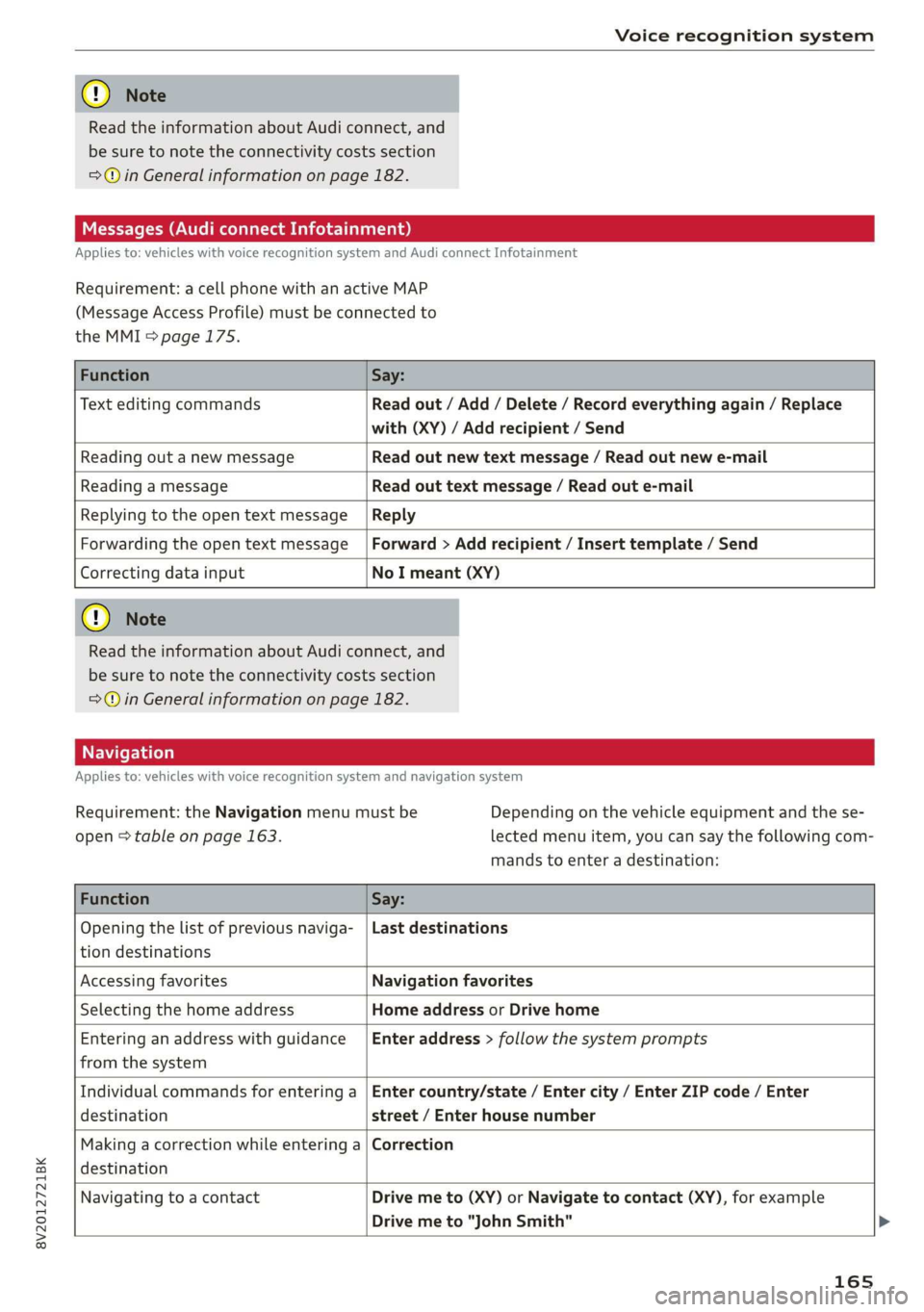
Function Say:
Text editing commands Read out / Add / Delete / Record everything again / Replace
with (XY) / Add recipient / Send
Reading out a new message Read out new text message / Read out new e-mail
Reading a message Read out text message / Read out e-mail
Replying to the open text message Reply
Forwarding the open text message Forward > Add recipient / Insert template / Send
Correcting data input
No I meant (XY)
@® Note
Read the information about Audi connect, and
be sure to note the connectivity costs section
=@ in General information on page 182.
Applies to: vehicles with voice recognition system and navigation system
Requirement: the Navigation menu must be
open > table on page 163.
Depending on the vehicle equipment and the se-
lected menu item, you can say the following com-
mands to enter a destination:
Function Say:
Opening the list of previous naviga-
tion destinations
Last destinations
Accessing favorites Navigation favorites
Selecting the home address Home address or Drive home
Entering an address with guidance
from the system
Enter address > follow the system prompts
Individual commands for entering a
destination
Enter country/state / Enter city / Enter ZIP code / Enter
street / Enter house number
Making a correction while entering a
destination
Correction
Navigating to a contact
Drive me to (XY) or Navigate to contact (XY), for example
Drive me to "John Smith"
165
Page 175 of 400
8V2012721BK
Telephone
Using the telephone
Opening the telephone
Applies to: vehicles with telephone
(2 *& Favorites
©— Directory
333 Dial number
3 Text message (mobile device)
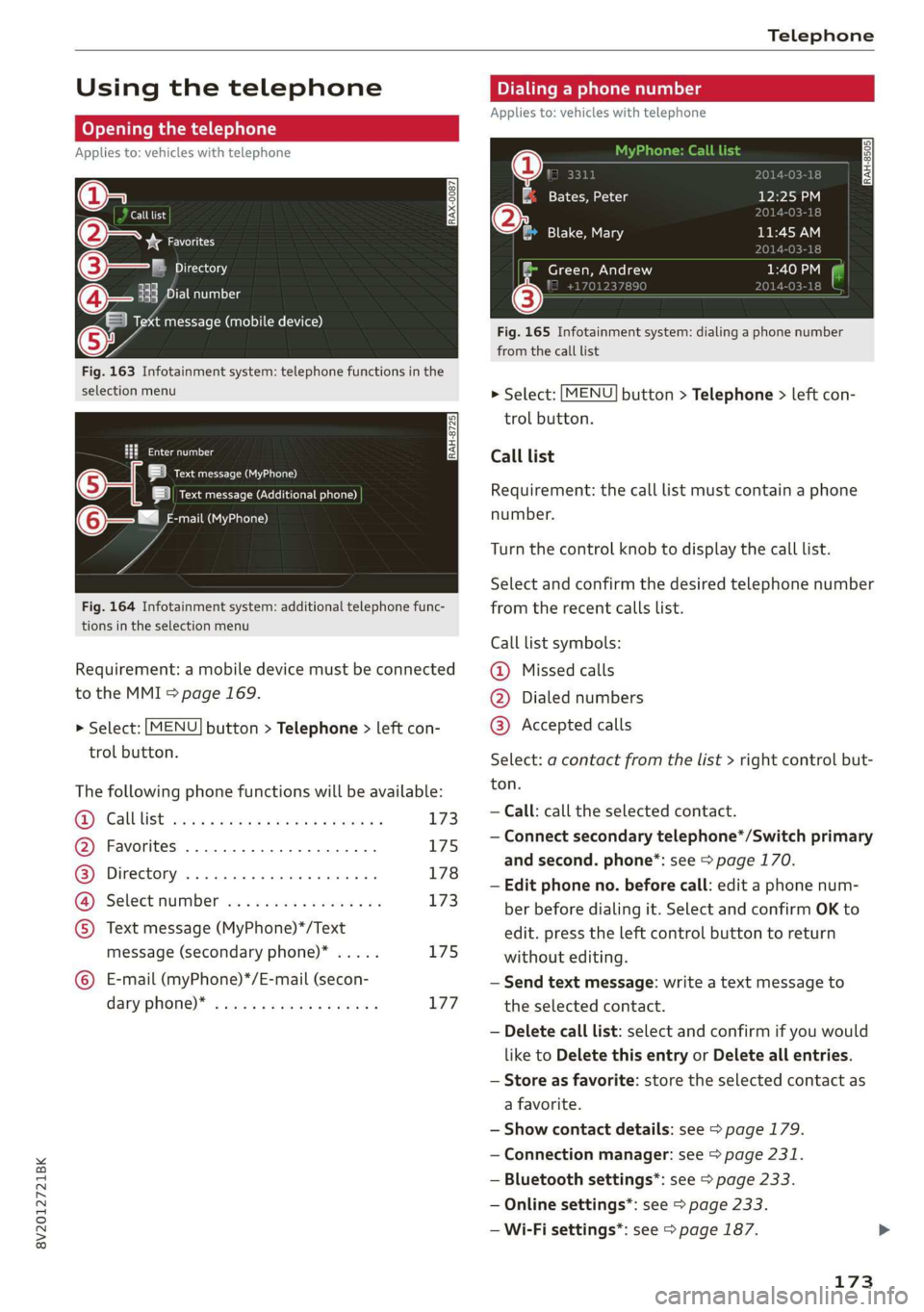
Fig. 163 Infotainment system: telephone functions in the
selection menu
ami
Lota ON a)
Lieu Ceara)
©-—= Pee)
Fig. 164 Infotainment system: additional telephone func-
tions in the selection menu
Requirement: a mobile device must be connected
to the MMI > page 169.
> Select: [MENU] button > Telephone > left con-
trol button.
The following phone functions will be available:
Galblist sews + wean ¢ y wee ge pews x L73
Favorites .............--..0.00. 175
Directory 00... ccc cece ee eae 178
Select number ...........2..-.. 173
Text message (MyPhone)*/Text
message (secondary phone)* ..... 175
©
©8000
E-mail (myPhone)*/E-mail (secon-
dary phone)” « sews ¢ wewu 6 weewe e 177
Dialing a phone number
Applies to: vehicles with telephone
RAH-8505| 1 caer )14-03-18
(4 SF at e -1a-lg 12:25 PM
014-03-18
11:45 AM
2014-03-18
Green, Andrew er Ton]
18 +170123789¢ )14-03-16
Fig. 165 Infotainment system: dialing a phone number
from the call list
@ Blake, Mary
> Select: [MENU] button > Telephone > left con-
trol button.
Call list
Requirement: the call list must contain a phone
number.
Turn the control knob to display the call list.
Select and confirm the desired telephone number
from the recent calls list.
Call list symbols:
@ Missed calls
@ Dialed numbers
@® Accepted calls
Select: a contact from the list > right control but-
ton.
— Call: call the selected contact.
— Connect secondary telephone*/Switch primary
and second. phone”: see > page 170.
— Edit phone no. before call: edit a phone num-
ber before dialing it. Select and confirm OK to
edit. press the left control button to return
without editing.
— Send text message: write a text message to
the selected contact.
— Delete call list: select and confirm if you would
like to Delete this entry or Delete all entries.
— Store as favorite: store the selected contact as
a favorite.
— Show contact details: see > page 179.
— Connection manager: see > page 231.
— Bluetooth settings*: see > page 233.
— Online settings*: see > page 233.
— Wi-Fi settings*: see > page 187.
173
Page 178 of 400
Telephone
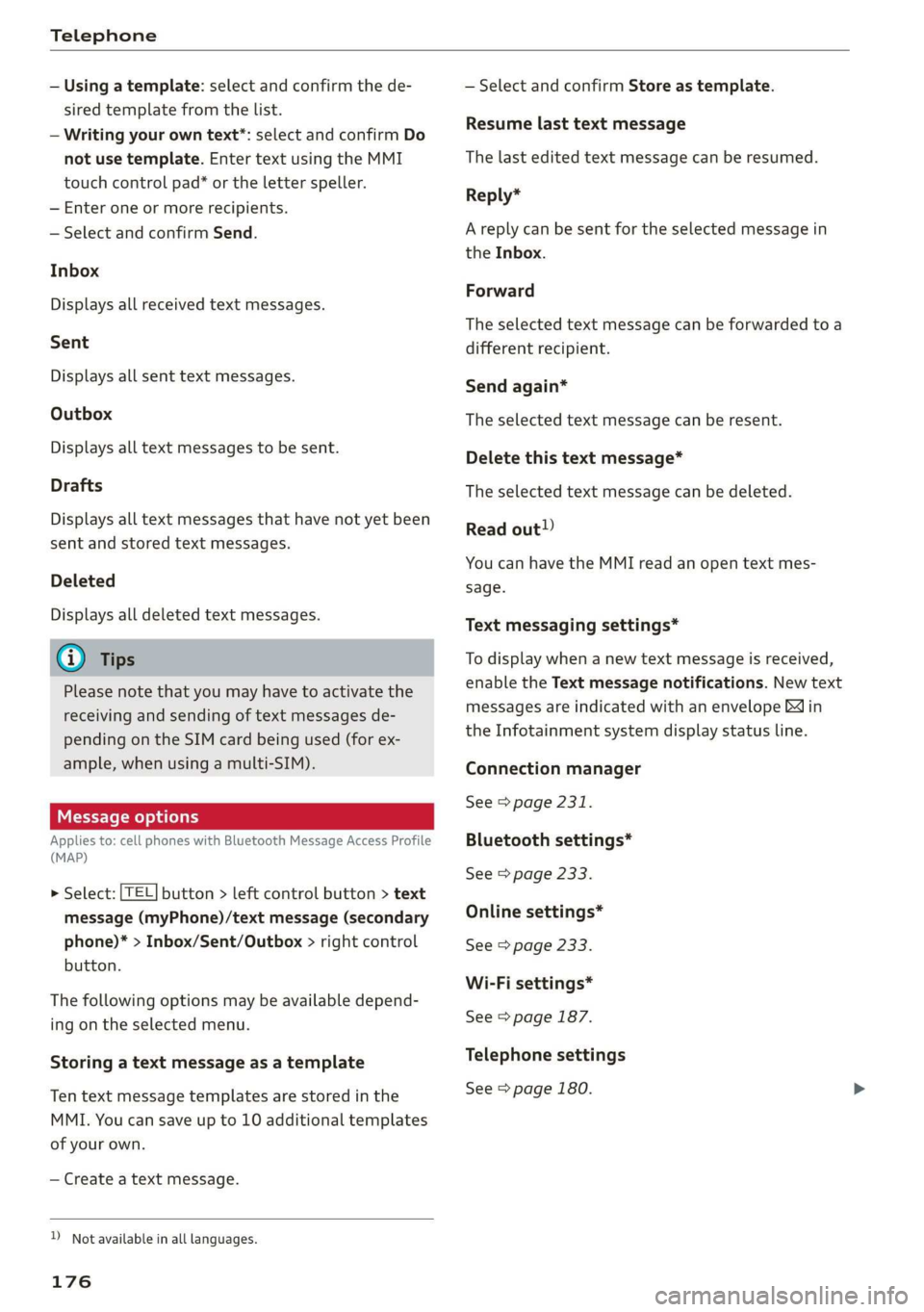
— Using a template: select and confirm the de-
sired template from the list.
— Writing your own text”: select and confirm Do
not use template. Enter text using the MMI
touch control pad* or the letter speller.
— Enter one or more recipients.
— Select and confirm Send.
Inbox
Displays all received text messages.
Sent
Displays all sent text messages.
Outbox
Displays all text messages to be sent.
Drafts
Displays all text messages that have not yet been
sent and stored text messages.
Deleted
Displays all deleted text messages.
@ Tips
Please note that you may have to activate the
receiving and sending of text messages de-
pending on the SIM card being used (for ex-
ample, when using a multi-SIM).
Message options
Applies to: cell phones with Bluetooth Message Access Profile
(MAP)
> Select: [TEL] button > left control button > text
message (myPhone)/text message (secondary
phone)* > Inbox/Sent/Outbox > right control
button.
The following options may be available depend-
ing on the selected menu.
Storing
a text message as a template
Ten text message templates are stored in the
MMI. You can save up to 10 additional templates
of your own.
— Create a text message.
D_ Not available in all languages.
176
— Select and confirm Store as template.
Resume last text message
The last edited text message can be resumed.
Reply*
A reply can be sent for the selected message in
the Inbox.
Forward
The selected text message can be forwarded to a
different recipient.
Send again*
The selected text message can be resent.
Delete this text message*
The selected text message can be deleted.
Read out!)
You can have the MMI read an open text mes-
sage.
Text messaging settings*
To display when a new text message is received,
enable the Text message notifications. New text
messages are indicated with an envelope & in
the Infotainment system display status line.
Connection manager
See > page 231.
Bluetooth settings*
See > page 233.
Online settings*
See > page 233.
Wi-Fi settings*
See > page 187.
Telephone settings
See > page 180.
Page 180 of 400
Telephone
Read out)
You can have the MMI read an open e-mail.
E-mail settings*
To display when a new e-mail is received, activate
the E-mail notifications. New e-mails are indicat-
ed with an envelope & in the Infotainment sys-
tem display status line.
Connection manager
See > page 231.
Bluetooth settings*
See > page 233.
Online settings*
See > page 233.
Wi-Fi settings*
See > page 187.
Telephone settings
See > page 180.
G) Tips
— Messages that are deleted in the MMI are
also automatically deleted in the connected
cell phone.
— You cannot read any messages while driv-
ing.
Listening to voicemail
Applies to: vehicles with telephone
> Select: [MENU] button > Telephone > left con-
trol button. Select and confirm Call list/Direc-
tory/Favorites > Voicemail.
Requirement: there must be no voicemail num-
ber stored.
> Entering the voicemail number: enter the de-
sired number. Select and confirm OK.
Requirement: a voicemail number must be stor-
ed.
> Dialing the voicemail number: select and con-
firm
Voicemail.
) Not available in all languages.
178
G) Tips
This service must be set up and activated in
advance by the cell phone service provider.
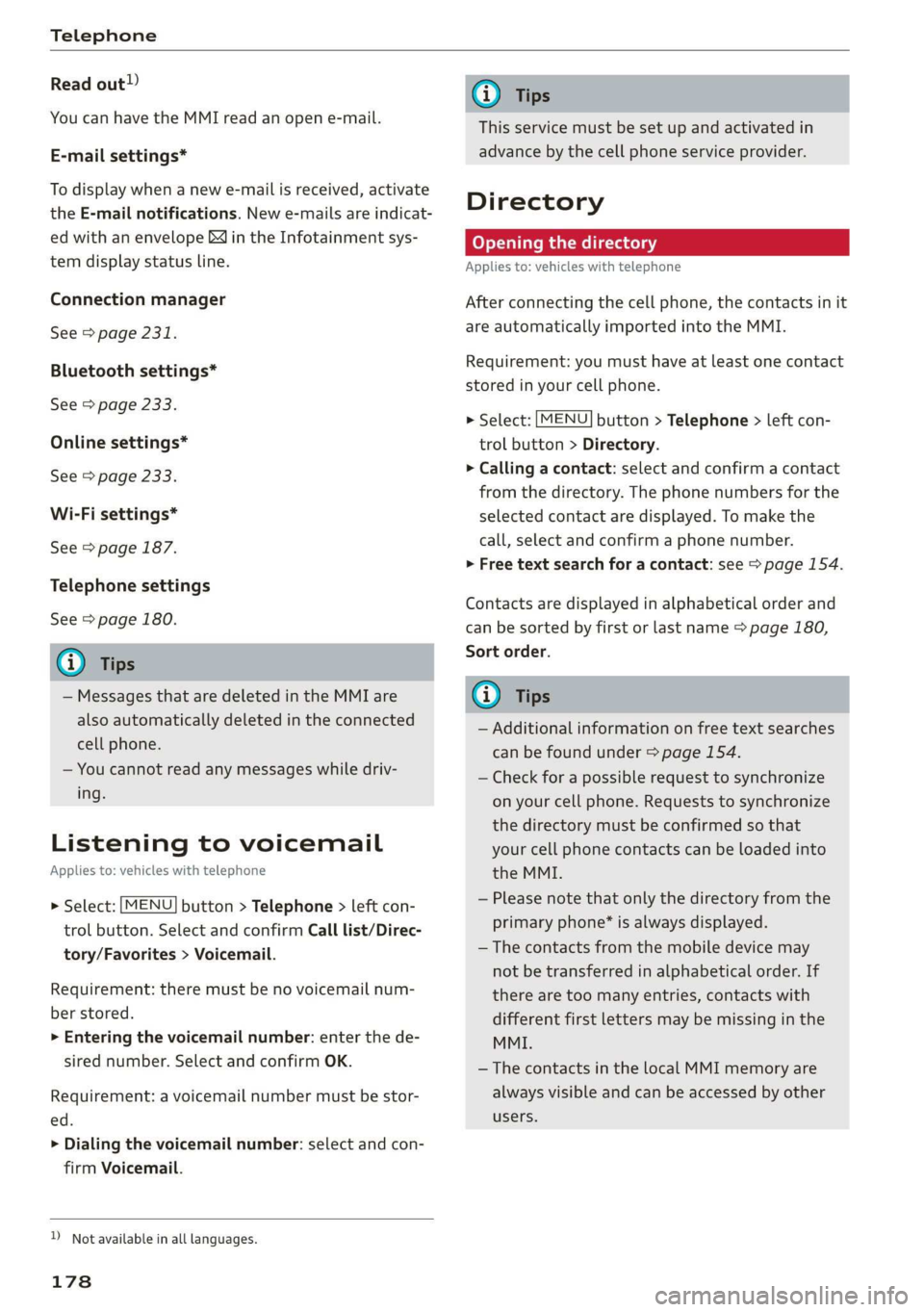
Directory
Opening the directory
Applies to: vehicles with telephone
After connecting the cell phone, the contacts in it
are automatically imported into the MMI.
Requirement: you must have at least one contact
stored in your cell phone.
> Select: [MENU] button > Telephone > left con-
trol button > Directory.
> Calling a contact: select and confirm a contact
from the directory. The phone numbers for the
selected contact are displayed. To make the
call, select and confirm a phone number.
> Free text search for a contact: see > page 154.
Contacts are displayed in alphabetical order and
can be sorted by first or last name > page 180,
Sort order.
(i) Tips
— Additional information on free text searches
can be found under > page 154.
— Check for a possible request to synchronize
on your cell phone. Requests to synchronize
the directory must be confirmed so that
your cell phone contacts can be loaded into
the MMI.
— Please note that only the directory from the
primary phone* is always displayed.
— The contacts from the mobile device may
not be transferred in alphabetical order. If
there are too many entries, contacts with
different first letters may be missing in the
MMI.
—The contacts in the local MMI memory are
always visible and can be accessed by other
users.
Page 181 of 400
![AUDI A3 2020 Owner´s Manual 8V2012721BK
Telephone
Free text search for a contact
Applies to: vehicles with telephone
> Select: [MENU] button > Telephone > left con-
trol button > Directory.
> To limit the search,](/img/6/40265/w960_40265-180.png "AUDI A3 2020 Owner´s Manual 8V2012721BK
Telephone
Free text search for a contact
Applies to: vehicles with telephone
> Select: [MENU] button > Telephone > left con-
trol button > Directory.
> To limit the search,")
8V2012721BK
Telephone
Free text search for a contact
Applies to: vehicles with telephone
> Select: [MENU] button > Telephone > left con-
trol button > Directory.
> To limit the search, enter the initials of the con-
tact being searched with each initial separated
by a space in the input field. Enter additional
letters if necessary.
> Select and confirm a contact from the directory.
The phone numbers for the selected contact are
displayed.
> To make the call, select and confirm a phone
number.
@ Tips
— You can scroll through long lists quickly by
turning the control knob quickly. The scroll-
ing speed depends on the number of list en-
tries.
— Additional information on free text searches
can be found under > page 154.
Showing contact details*
Applies to: vehicles with telephone
You may be able to show contact details depend-
ing on the vehicle equipment:
> Select: [MENU] button > Telephone > left con-
trol button.
>» Select and confirm Directory > a contact from
the directory.
> Select: right control button > Show contact de-
tails.
— Calling: select and confirm the desired tele-
phone number.
— Navigating: to start navigation, select and con-
firm
the desired address. Select and confirm
Start route guidance.
Press the right control button to open additional
options
for the contact details.
— Add destination: to start navigation, select and
confirm the desired address. Select and confirm
Start route guidance.
— Store as favorite: see > page 175.
— Send text message*: you can send a text mes-
sage to the selected contact > page 175.
— Delete contact: the selected contact can be de-
leted.
G) Tips
— Contacts edited in the MMI directory cannot
be automatically updated in the connected
cell phone. Audi recommends editing cell
phone contacts directly in the cell phone.
— Only the contacts in the local MMI memory
can be edited or deleted.
Importing and exporting contacts
Applies to: vehicles with telephone
Contacts in vCard format (.vcf) can be imported
into the directory or exported.
Requirement: an SD card must be inserted in one
of the SD card readers* > page 212 or a USB stor-
age device must be connected to the Audi music
interface* > page 217 or the requirements for
Audi connect Infotainment services* must be
met > page 182.
> Select: [MENU] button > Telephone > left con-
trol button > Directory.
> Select: right control button > Contact settings.
> Importing contacts from a storage device: se-
lect and confirm Import contacts > SD card
1/SD card 2 or USB device 1/USB device 2 >
desired contacts > Start import.
> Exporting contacts to a storage device: select
and confirm Export contacts > SD card 1/SD
card 2 or USB device 1/USB device 2 > desired
contacts > Start export.
> Selecting all contacts at once to import/
export: select and confirm Import contacts/Ex-
port contacts > SD card 1/SD card 2 or USB de-
vice 1/USB device 2 > All > Start import/Start
export.
C) Note
Read the information about Audi connect, and
be sure to note the connectivity costs section
=> page 182.
(i) Tips
— For additional information on the myAudi
account, visit my.audi.com.
179