ad blue AUDI A5 2020 User Guide
[x] Cancel search | Manufacturer: AUDI, Model Year: 2020, Model line: A5, Model: AUDI A5 2020Pages: 302, PDF Size: 81.67 MB
Page 173 of 302

8W7012721BA
Telephone
> Sending an e-mail: press on an e-mail address.
Listening to voicemail
Applies to: vehicles with telephone
> Applies to: MMI: Select on the home screen:
PHONE > Voicemail.
Requirement: there must be no voicemail num-
ber stored.
>» Entering the voicemail number: enter the de-
sired number. Press OK.
Requirement: a voicemail number must be stor-
ed.
> Dialing the voicemail number: press Voice-
mail. The call begins immediately.
@ Tips
This service must be set up and activated by
the mobile phone service provider.
Dialing a phone number
Applies to: vehicles with telephone
Depending on the vehicle equipment, you may
have the following options for dialing a phone
number:
— Using text input in the MMI = page 21.
— Using voice operation > page 24.
Call options
Applies to: vehicles with telephone
> To accept or end a call, press the @ button on
the multifunction steering wheel. For opera-
tion, see > page 12.
Depending on your mobile device, the following
options may be available in the MMI when there
is an incoming call:
— Answer
— Decline
— Message
If you exit the vehicle during a phone call, the
Bluetooth connection will be disconnected. De-
pending on your mobile device, phone calls in
progress may be automatically transferred from
the MMI to your mobile device.
@) Tips
The radio or media playback is muted during a
phone call.
During a phone call
Applies to: vehicles with telephone
Depending on your mobile device and the type of
connection, the following options may be availa-
ble during a call:
— End call...
— Mute
Sending a tone sequence
Press Numbers. You can enter tone sequences
(DTMF) and send them to the other party on the
call.
Hold
Puts the current call on hold. To resume the call,
press Resume.
Answering an incoming call
One of these options will be available, depending
on the mobile phone service provider:
— Answer: the current phone call will be put on
hold. The incoming call will be answered.
— Replace: the active call will be replaced with
the incoming call.
Declining an incoming call
If you select Decline, the incoming call will be de-
clined.
Conference
Requirement: two phone calls must be in prog-
ress.
Depending on your mobile phone service provid-
er, you can add a call on hold and up to five active
callers to a conference call.
Swap call
Requirement: two phone calls must be in prog-
ress.
You can alternate between two phone calls.
171
>
Page 175 of 302

8W7012721BA
Telephone
The directory for the selected phone will be dis-
played.
Hide grayed-out contacts
When this function is switched on, contacts that
have no phone numbers stored for them will be
hidden.
Sort order
You can sort the contacts by Last name or First
name.
Download contacts
Requirement: a mobile device must be connected
to the MMI.
To update the contacts in the MMI, you can man-
ually download your mobile device contacts. De-
pending on the mobile device, you may need to
disconnect and reconnect the Bluetooth connec-
tion to update the contacts.
Importing and exporting contacts
Requirement: a USB storage device must be con-
nected to the Audi music interface > page 203.
Contacts in vCard format (.vcf) can be imported
or exported from the MMI.
— Importing contacts from a storage device: Re-
quirement: the USB storage device must con-
tain contacts in the vCard format. They must
not be located in sub-folders. Select: Import
contacts > Search for import data > USB device
1/USB device 2 > desired contacts or Select all
contacts > Start import.
— Exporting contacts to a storage medium: Re-
quirement: you must have a contact imported.
Select: Export contacts > Find exporting
source > USB device 1/USB device 2 > desired
contacts or Select all contacts > Start export.
Gi) Tips
— The imported contacts are stored in the lo-
cal MMI memory.
— There should be no other files or folders on
the storage medium containing the contacts
to be imported.
— Contacts that were downloaded from a mo-
bile device cannot be exported.
— Apple devices and MTP devices (such as
smartphones) are not recognized as USB
storage devices.
Messages
Text messages
Applies to: vehicles with telephone
Requirement: your mobile device must be con-
nected to the MMI via Bluetooth Message Access
Profile (Bluetooth MAP).
> Applies to: MMI: Select on the home screen:
MESSAGES > (®) > e-mail (phone 1)/e-mail
(phone 2)*.
The following functions are available:
— New text message*
— Inbox
— Sent
— Outbox*
— Drafts*
— Deleted
User defined*
If necessary, user-defined folders will be copied
to your mobile device.
Message options
Press on a text message.
Depending on the country, the following options
may be available:
— Read out
— Reply
— Forward
— More
To switch between messages, press < or >.
Press More. Depending on your mobile device
and the selected mailbox, additional options may
be available:
— Call
— Forward
— Navigate
— Extract numbers
— Send again
173
Page 176 of 302
Telephone
Settings
Press (2h.
New text message notification
When the function is switched on, an envelope M
in the MMI status bar will indicate when there is
a new text message.
@ Tips
Only new received messages may be displayed
depending on your mobile device.
Applies to: vehicles with telephone
Requirement: your mobile device must be con-
nected to the MMI via Bluetooth Message Access
Profile (Bluetooth MAP).
> Applies to: MMI: Select on the home screen:
MESSAGES > (©) > e-mail (phone 1)/e-mail
(phone 2)*.
The following functions are available:
— New e-mail
— Inbox
— Sent
— Outbox
— Drafts*
— Deleted*
User defined*
If necessary, user-defined folders will be copied
to your mobile device.
Message options
Press on an e-mail.
Depending on the country, the following options
may be available:
— Read out
— Reply
— Reply to all
—
Forward
— More
To switch between messages, press < or >.
174
Press More. Depending on your mobile device
and the selected mailbox, additional options may
be available:
— Call
— Forward
— Extract e-mail
— Navigate
— Extract numbers
— Show all recipients
— Send again
Settings
Press ©.
New e-mail notification
When the function is switched on, an envelope M
in the MMI status bar will indicate when there is
a new e-mail.
@) Note
Read the information about Audi connect, and
be sure to note the connectivity costs section
=> page 176.
Safety belt microphone
Applies to: vehicles with safety belt microphone
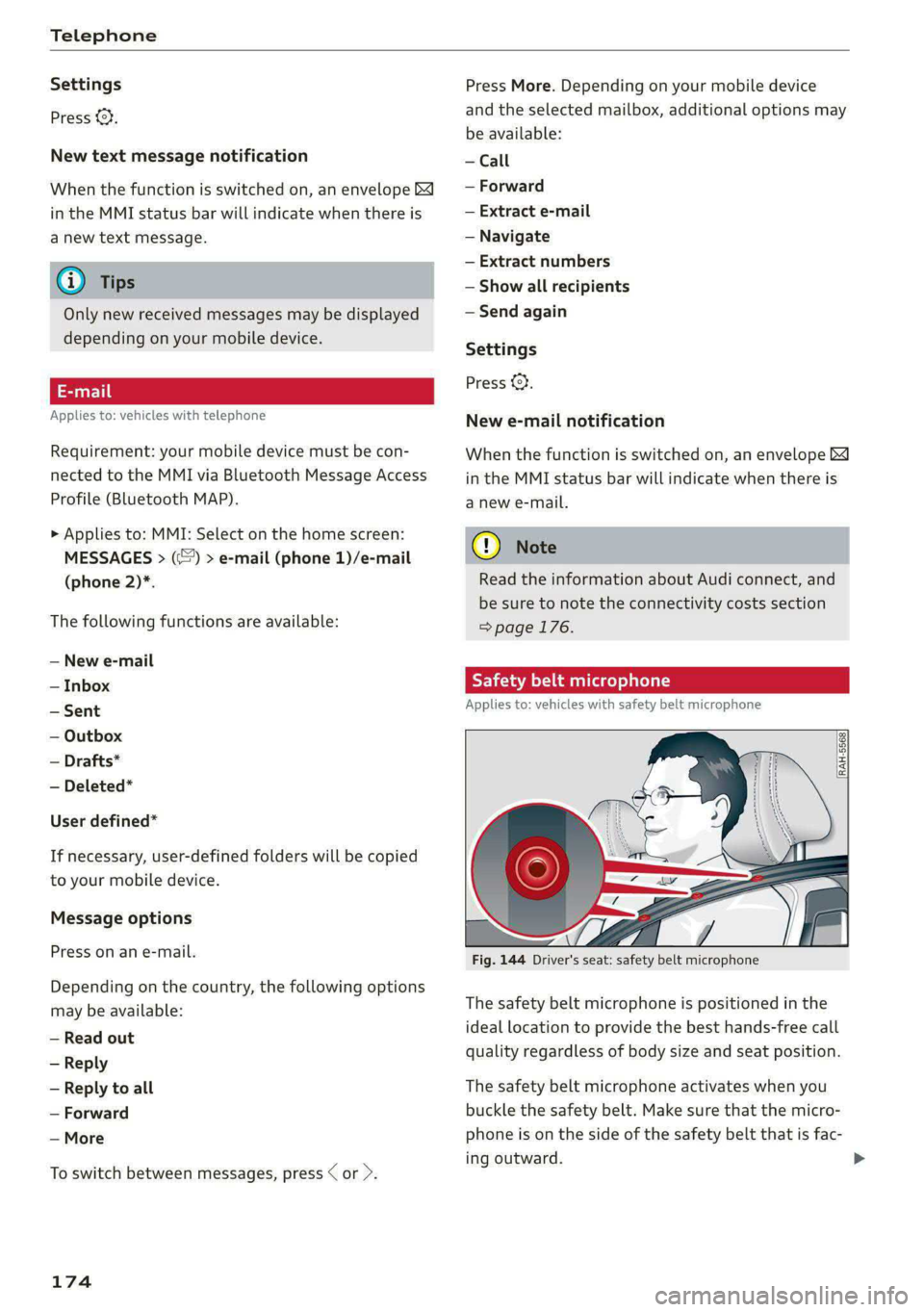
Fig. 144 Driver's seat: safety belt microphone
The safety belt microphone is positioned in the
ideal Location to provide the best hands-free call
quality regardless of body size and seat position.
The safety belt microphone activates when you
buckle the safety belt. Make sure that the micro-
phone is on the side of the safety belt that is fac-
ing outward.
Page 177 of 302

8W7012721BA
Telephone
If you unbuckle the driver's safety belt, the sys-
tem switches from the safety belt microphone to
the roof microphone.
Troubleshooting
Applies to: vehicles with telephone
iG) Tips
A dirty microphone opening can affect hands-
free call quality. If this happens, clean the
safety belt microphone using a brush.
The information that follows lists some trouble-
shooting options. They depend on the equip-
ment.
Problem Solution
Pairing the mobile device to the
MMI failed.
Make sure the requirements for connecting a mobile phone have
been met > page 165, or
make sure you did not accidentally decline the PIN for establishing
a connection on your mobile phone. If necessary, repeat the pair-
ing process > page 165.
After pairing, not all contacts or
no contacts have been loaded in-
to the MMI.
Avoid using special characters in names.
Avoid using contact groups on your mobile phone.
Check for prompts on your mobile device when connecting via
Bluetooth.
Certain telephone functions are
grayed out or not available.
The telephone functions depend on the mobile device service pro-
vider and the mobile device you are using.
Some telephone functions may
be switched off or not available,
even though the mobile device is
supported.
Check if the Bluetooth settings on your cell phone are limited or
individual Bluetooth settings are deactivated. This may be the
case with business cell phones.
The MESSAGES menu is not avail-
able.
Make sure your mobile device has an option to show messages op-
tion and that it is enabled.
Wireless cell phone charging is
not working or is interrupted.
Check if wireless charging with the Audi phone box is switched on.
Check if your mobile device is Qi-capable.
Make sure your mobile device is positioned correctly in the Audi
phone box > page 167 and that there are no objects located be-
tween the phone box and the phone.
175
Page 204 of 302
Media
Media
General information
There may be different media sources and con-
nections available depending on the vehicle
equipment. For example, you can play media files
using a connected USB drive or connect your mo-
bile devices to the Audi music interface and oper-
ate them through the MMI.
Media and format restrictions: the MMI (includ-
ing the USB storage device connection) was test-
ed with a variety of products and media on the
market. However, there may be cases where indi-
vidual devices or media and audio/video files may
not be recognized, may play only with restric-
tions, or may not play at all.
Restricted functionality: reset the MMI to the
factory default settings if functionality is restrict-
ed. > page 214
Digital Rights Management: please note that
the
audio/video files are subject to copyright pro-
tection.
Files that are protected by DRM and are identi-
fied with the symbol f@ will not play.
Data security: never store important information
on mobile devices. Audi is not responsible for
damaged or lost files and media.
Loading times: the more files/folders/playlists
there are on a storage medium, the longer it will
take to load. To reduce the amount of time it
takes the audio/video files to load, use a storage
medium that only contains audio/video files, and
create subfolders (for example, for each artist or
album).
Additional information: when playing, audio
files are automatically displayed with any addi-
tional information that is stored (such as the ar-
tist, track and album cover). If this information is
not available on the medium, the MMI will revert
to the local Gracenote metadata database or
search online if necessary. See > page 208, On-
line additional data. However, in some cases, the
additional information may not be displayed.
202
C@) Note
Read the information about Audi connect, and
be sure to note the connectivity costs section
=>@ in General information on page 176.
@) Tips
Certain settings are automatically stored and
assigned to the active user.
Bluetooth audio player
With the Bluetooth audio player, you can play
music wirelessly through the MMI from your
Bluetooth-capable mobile device (such as a mo-
bile phone).
Requirement: the vehicle must be stationary and
the ignition must be switched on. The Bluetooth
settings will open on your mobile device during
the connection setup. The Bluetooth function and
visibility of the MMI > page 213 and mobile de-
vice must be switched on.
Connecting a mobile device
> Applies to: MMI: Select on the home screen:
MEDIA > Source > Connect external device >
New connection. The available Bluetooth devi-
ces will be displayed after several seconds.
> Press on the desired mobile device in the list of
displayed Bluetooth devices.
> To update the list, press OQ.
> A PIN for a secure Bluetooth connection will be
generated.
> Confirm the PIN on your mobile device, or:
> Enter the PIN for the connection setup on your
mobile device. The time allowed for entering
the PIN is limited to approximately 30 seconds.
After connecting successfully, the mobile device
will be displayed in the Connected devices menu
as a Bluetooth audio player.
Playing media > page 204.
G) Tips
— Check for any connection requests on your
Bluetooth device.
— Multiple Bluetooth audio players can be
paired with the MMI, but only one at a time >
Page 205 of 302

8W7012721BA
Media
can be active as a Bluetooth audio player
=> page 214.
— The supported media functions (such as
shuffle, list view, categories, search, op-
tions) depend on the Bluetooth device being
used.
— Note the volume setting on your Bluetooth
device. Audi recommends setting your mo-
bile device to the maximum volume when
using it as a Bluetooth audio player.
—Aselection of supported Bluetooth devices
can be found in the database for tested mo-
bile devices at www.audi.com/bluetooth.
Multimedia connections
USB adapter cable
[RAH-9202
Fig. 158 Audi Genuine Accessories: USB adapter
You can connect your mobile devices through the
Audi music interface to the MMI using the USB
adapter and charge the battery at the same time.
You can purchase the USB adapter cable from an
authorized Audi dealer or at specialty stores:
@ USB adapter for devices with a mi-
cro USB connection
@ USB adapter for devices with an Ap-
ple Lightning connection
@ USB adapter for devices with USB
type C connection
() Note
Handle the USB adapter carefully. Do not al-
low it to be pinched.
@ Tips
Mobile devices with an Apple Dock connector
can only be charged using a USB adapter de-
signed for devices with an Apple Dock connec-
tor. Data cannot be transmitted.
Audi music interface
Connect your mobile devices to the Audi music in-
terface in order to operate them through the
MMI and charge the batteries.
The Audi music interface USB ports are located in
the center console in the front and in the rear*
and are labeled with the - symbol. If multiple
USB devices are connected to the USB ports (for
example, a smartphone and a USB flash drive),
all of these devices can be used as the playback
source.
Connecting or charging mobile devices using
a USB adapter
> Connect the matching USB adapter to the Audi
music interface USB port and connect it to the
mobile device, such as a smartphone.
The battery will charge automatically.
Mobile devices connected to the Audi music inter-
face can be started and operated using the MMI
=> page 204.
Disconnecting a mobile device from the Audi
music interface
> Remove the USB adapter cable from the Audi
music interface.
Z\ WARNING
Driving requires your complete and undivided
attention. As the driver, you have complete re-
sponsibility for safety in traffic. Never operate
mobile devices while driving, because this in-
creases the risk of an accident.
CG) Note
— Pull the cable out of the Audi music inter-
face carefully so that the USB ports are not
damaged.
— Use a USB extension cable to connect devi-
ces that have an integrated USB connector
(such as a USB stick) to reduce the risk of
damage to your USB device and the Audi
music interface.
203
Page 206 of 302
Media
— Extremely high or low temperatures that
can occur inside vehicles can damage mobile
devices and/or impair their performance.
Never leave mobile devices in the vehicle in
extremely high or low temperatures.
Gi) Tips
— Always follow the information found in
=> page 88.
— When you switch the ignition off, the USB
ports are still supplied with power until the
energy management intervenes.
— Do not use an additional adapter cable or
USB extension cable to connect mobile devi-
ces to the Audi music interface that already
have a cable or that must be connected with
a USB adapter cable (> page 203, fig. 158).
Using an additional adapter or US extension
cable may impair functionality.
— Functionality is not guaranteed for mobile
devices that do not conform to the USB 2.0
specification.
— USB hubs are not supported.
— Video playback through the Audi music in-
terface is not supported on Apple and MTP
devices (such as smartphones).
— iPod touch or iPhone malfunctions also af-
fect the operation of the MMI. Reset your
mobile device in these situations.
— Audi recommends updating the iPod touch
or iPhone software to the latest version. Re-
fer to your mobile device owner's manual
for more information.
— The USB adapter on the Audi music inter-
face will support iPod touch or iPhone devi-
ces from the 5th generation or newer with
the lightning connector.
— For more information about the Audi music
interface and supported devices, check the
Audi database for mobile devices at www.
audi.com/mp3 or contact an authorized
Audi dealer or authorized Audi Service Fa-
cility.
204
Playing media
The following sources can be selected depending
on the vehicle equipment:
— USB device > page 203.
— Connect external device: you can connect ex-
ternal devices via Bluetooth and use the Blue-
tooth audio player > page 202, or you can con-
nect an external device directly to the Audi mu-
sic interface > page 203.
Nee mate)
Playing media files using the MMI
>» Applies to: MMI: Select on the home screen:
MEDIA > Source > a source. Depending on the
connected device, the symbol for a source may
change. The device name may be displayed (for
example: myPhone).
>» Select a track from the categories in the media
center > page 205.
Playing media files through the
multifunction steering wheel
Requirement: a media source must contain me-
dia files > page 204.
> Select the radio/media tab in the instrument
cluster.
> Turn the left thumbwheel to display the play-
list.
> To switch to a different source, press the
button.
> To select a media file or a source, turn and
press the left thumbwheel.
> To switch between radio and media, select in
the instrument cluster: the =] button > Switch
to radio/Switch to media.
@) Tips
— For safety reasons, the video image is only
displayed when the vehicle is stationary. On-
ly the sound from the video plays while driv-
ing.
Page 212 of 302
Media
Troubleshooting
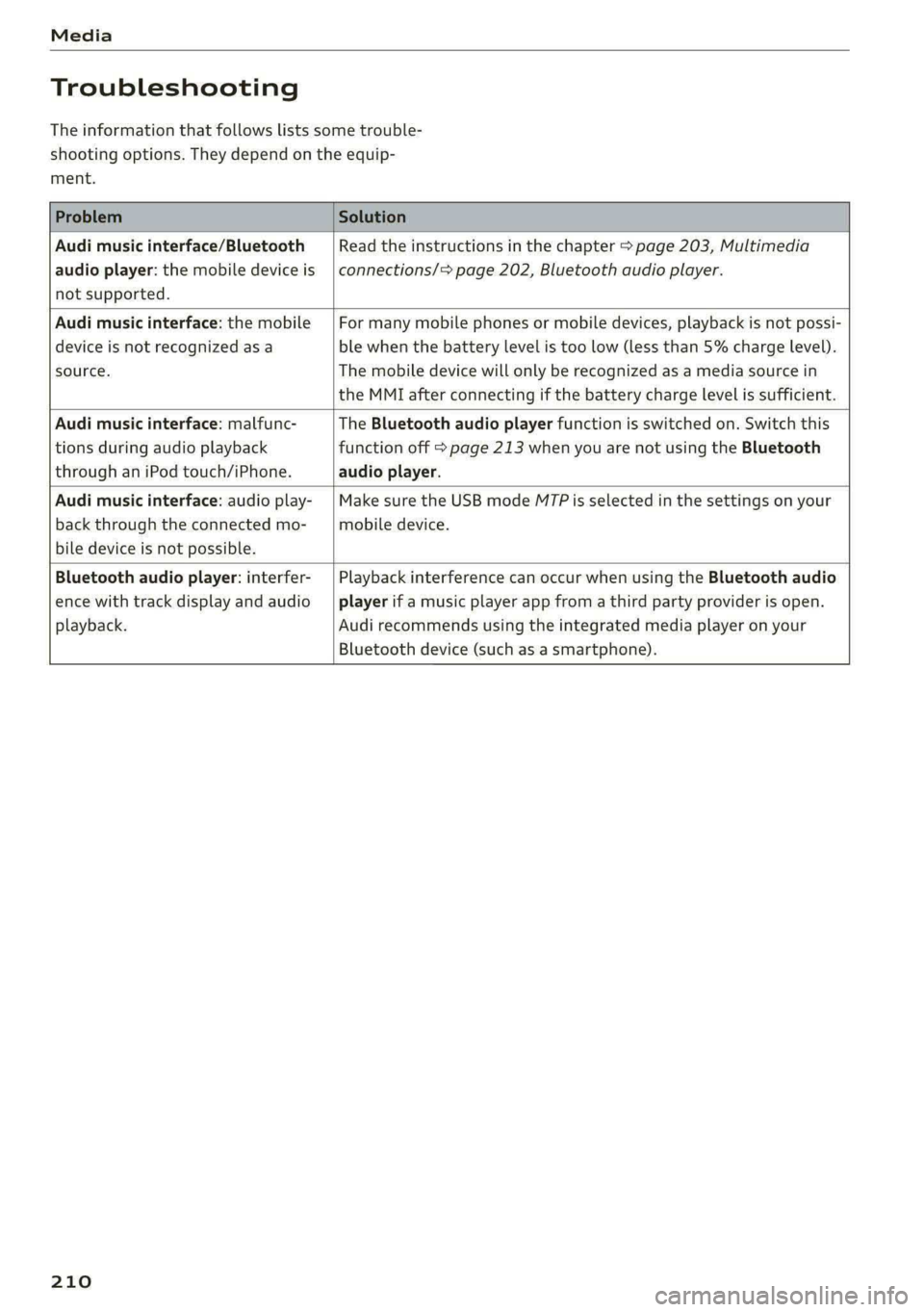
The information that follows lists some trouble-
shooting options. They depend on the equip-
ment.
Problem Solution
Audi music interface/Bluetooth
audio player: the mobile device is
not supported.
Read the instructions in the chapter > page 203, Multimedia
connections/> page 202, Bluetooth audio player.
Audi music interface: the mobile
device is not recognized as a
source.
For many mobile phones or mobile devices, playback is not possi-
ble when the battery level is too low (less than 5% charge level).
The mobile device will only be recognized as a media source in
the MMI after connecting if the battery charge level is sufficient.
Audi music interface: malfunc-
tions during audio playback
through an iPod touch/iPhone.
The Bluetooth audio player function is switched on. Switch this
function off > page 213 when you are not using the Bluetooth
audio player.
Audi music interface: audio play-
back through the connected mo-
bile device is not possible.
Make sure the USB mode MT7Pis selected in the settings on your
mobile device.
Bluetooth audio player: interfer-
ence with track display and audio
playback.
Playback interference can occur when using the Bluetooth audio
player if a music player app from a third party provider is open.
Audi recommends using the integrated media player on your
Bluetooth device (such as a smartphone).
210
Page 213 of 302
8W7012721BA
Audi smartphone interface
Audi smartphone
interface
Setup
Applies to: vehicles with Audi smartphone interface
You can connect your smartphone to the MMI
with a cable or wirelessly* using the Audi smart-
phone interface. Certain content on your smart-
phone is adapted in the MMI while driving and
can be operated through the MMI.
Requirement: the vehicle must be stationary and
the ignition must be switched on. iPhone genera-
tion 5 or higher with Lightning connector and iOS
7.1.2 operating system or higher, or smartphone
with Android Auto app and Android 5.0 Lollipop
operating system or higher.
> Applies to: MMI: Select on the home screen:
SETTINGS > Connected devices > Audi smart-
phone interface > New connection.
> Connect your smartphone to the Audi music in-
terface > page 203 using a USB adapter
=> page 203, fig. 158, or
> To connect your iPhone wireless*, switch on the
Bluetooth function and Wi-Fi on your iPhone.
Open the CarPlay settings in your iPhone. In the
MMI, press on your iPhone in the list of dis-
played devices.
> To update the list, press OQ.
> Follow the system instructions.
> Pay attention to any additional system prompts
on your smartphone, if applicable.
> Applies to: MMI: If you declined use of Apple
CarPlay or Android Auto the first time you con-
nected your smartphone, then select on the
home screen: SETTINGS > Connected devices >
Audi smartphone interface > a smartphone.
> Follow the system instructions.
Z\ WARNING
Driving requires your complete and undivided
attention. As the driver, you have complete re-
sponsibility for safety in traffic. Never operate
mobile devices while driving, because this in-
creases the risk of an accident.
CG) Note
Read the information about Audi connect, and
be sure to note the connectivity costs section
=> page 176.
G@) Tips
— The functions that can be used depend on
the following factors, among others:
— The brand of your smartphone
— The version of the operating system in
your smartphone
— The software version of the app used
— The USB adapter cable and correct connec-
tion
— Your cell phone service provider
— The customized settings on your smart-
phone
— One of the factors above or a combination
of any of them could cause your smart-
phone to be incompatible with the Audi
smartphone interface. Compatibility cannot
be guaranteed for all types of smartphones.
For more information and assistance, refer
to the user guide and the manufacturer of
your smartphone.
— Please note that you can only connect your
smartphone via the front Audi music inter-
face in order to use the Audi smartphone in-
terface.
— Wireless CarPlay* is not available in all
countries.
— Wireless CarPlay* was a planned function at
the time this manual was printed. Wireless
CarPlay* is not available in your vehicle.
— Wireless CarPlay* is only possible in vehicles
without a navigation system if the following
requirement is met: the embedded SIM card
for the vehicle must be logged into the mo-
bile phone network > page 176.
— If the connected smartphone has voice con-
trol, you can operate your smartphone using
the external voice recognition system
=> page 25.
— The menu language shown in the MMI is
based on the settings in your smartphone.
211
>
Page 214 of 302

Audi smartphone interface
— Some MMI functions are not available when
there is an active Audi smartphone interface
connection.
— You cannot connect any mobile devices via
Bluetooth when an Audi smartphone inter-
face connection is active.
— Usage of the Audi smartphone interface de-
pends on the availability of services through
third party providers.
Troubleshooting
Applies to: vehicles with Audi smartphone interface
The information that follows lists some trouble-
shooting options. They depend on the equip-
ment.
— Audi merely provides access to third party
services through the MMI and does not as-
sume any responsibility for the content of
these services.
Problem Solution
Audi smartphone Check the battery charge level on your smartphone.
interface cannot be | Check the USB cable and use a different one if necessary.
opened.
cle is being operated.
Check if Android Auto or Apple CarPlay is available in the country where the vehi-
Android Auto: check if the Android Auto app is installed on your smartphone.
Connecting the Make sure that you are using the correct USB adapter and check if the USB
smartphone to the | adapter is connected correctly to your smartphone and the Audi music interface
MMI failed. => page 203.
Apple CarPlay: check if Apple CarPlay is activated on your iPhone.
vehicles.
Android Auto: check in the Android Auto app if Android Auto permits new
start your iPhone.
Wireless connection: open the settings for Bluetooth and CarPlay on your
iPhone. Remove your vehicle. Open the connection manager in the MMI
=> page 214. Delete your iPhone in the Telephone 1 and Audi smartphone inter-
face submenus. Repeat the connection process. Restart the MMI > page 18. Re-
The smartphone is | Make sure that you are using the correct USB adapter and check if the USB
not automatically
detected. => page 203.
adapter is connected correctly to your smartphone and the Audi music interface
Check if the requirements needed to connect a smartphone have been met.
212