ignition AUDI A5 COUPE 2018 Service Manual
[x] Cancel search | Manufacturer: AUDI, Model Year: 2018, Model line: A5 COUPE, Model: AUDI A5 COUPE 2018Pages: 409, PDF Size: 67.63 MB
Page 158 of 409
Intelligent Technology
greater than the amount being generated in or
der to maintain an optimal vehicle battery charge
level.
(D Tips
- Energy management cannot overcome the laws of physics. Note that the charge level
and length of the vehicle battery life are
limited.
- When the starting ability is endangered, the
(•j indicator light turns on ¢ page 30.
What you should know
Maintaining the starting ability is the highest
priority.
A lot of stress is placed on the vehicle battery
when driving short distances, during city driving,
and at cold times of the year. A lot of energy is
used but little is generated. It is also critical
when the engine is not running but electrical
equipment is switched on. In this case, energy is used but none is generated .
In situations like this, energy management will
actively regulate the distribution of energy.
Long periods without use
If you do not drive your vehicle for several days or
weeks, electrical equipment is gradually scaled
back or switched off. This reduces energy use and
ensures the vehicle will be able to start after long
periods of time. Some convenience functions,
such as interior lighting or power seat adjust
ment, may not be available under certain circum
stances . These convenience functions will be
available again once you switch the ignition on
and start the engine.
With the engine switched off
The vehicle battery will drain if you use Infotain
ment functions such as listening to the radio
while the engine is switched off .
If the vehicle's ability to start may be impaired by
the energy use, a message will appear in the In
fotainment system display. The message indi
cates that the system will switch off automatical-
156
ly soon. If you would like to continue using the
functions, you must start the engine.
With the engine running
Although electrical energy is generated while
driving , the vehicle battery can drain. This can
happen if little energy is generated but much is
used, and the charge level of the vehicle battery
is not optimal.
To restore the balance of energy, components
that require large amounts of energy are tempo
rarily scaled back or switched off . Heating sys
tems in particular require a great deal of energy. If you notice, for example, that the seat heating*
or rear window defogger is not working, then it
has been temporarily reduced or switched off.
T hese systems are available again as soon as the
energy supply has been restored.
In addition, you may notice that the idle speed has slightly increased. That is normal and no
cause for concern . By increasing the idling speed,
the additional required energy will be generated
and the vehicle battery will be charged.
Notice about data
recorded by the Event
Data Recorder and
vehicle control modules
Event Data Recorder
This vehicle is equipped with an Event Data Re
corder (EDR). The main purpose of an EDR is to
record, in certain crash or near crash-like situa
tions, such as an airbag deployment or hitting a
road obstacle, data that will assist in understand
ing how a vehicle's systems performed. The EDR
is designed to record data related to vehicle dy
namics and safety systems for a short period of
time , typically 30 seconds or less. The EDR in this
vehicle is designed to record such data as:
- How various systems in your vehicle were oper ating;
- Whether or not the driver and passenger safety
belts were buckled/fastened;
- How far (if at all) the driver was depressing the
accelerator and/or brake pedal; and,
.,_
Page 173 of 409
Voice recognition system Operating
Appl ies to: veh icles wit h vo ice recog nitio n system
You con operate many Infotainment functions
conveniently by speaking .
Requirements: the ignition and the MM I must be
switched on
~page 158, the re must not be any
phone call in progress and the park ing system
must not be active.
~ Switching on : press the 51 button@
~ page 15, fig. 11 or~ page 16, fig. 13 briefly
on the mu ltifunction steering wheel and say
the des ired command after the
Beep .
~ Switching off : press and hold the 51 button.
Or: press the [2] butto n.
~ Pau sing : say the command Pau se . To resume,
press the
l2;J button .
~ Correcting : say the command Corre ction . Or :
simply say a new command during an an
nouncement
<=> page 251.
Input assistance
The system gu ides you throug h the input with
v isua l and audio feedbac k.
- Vi sua l input as sistan ce: after switching on
vo ice recogn it io n, a display w ith a selection of
poss ible commands appears. This command
display can be sw itched on o r off. Se lect:
IMENU I button> Setting s> left cont rol button
> MMI setting s > Speech dialog system .
- Audio input a ssis tance :
to have the poss ible
commands read, tu rn the voice recognition sys
tem on and say
Help.
For the s yst em to understand you:
Speak clearly and dist inctly at a normal vo lume .
Speak louder when d riving faste r.
Emphasize the words in the commands evenly
and do not leave long pauses .
C lose the doors, the windows and the sunroof* to
reduce background noise . Make sure that passen-
;;!; gers are not speaking when you are giving a voice
;::; command. ,....
N .... 0 \0
3
Do not direct the air vents toward the hands-free
microphone, which is on the roof headliner near
t h e front inte rior lights .
Only use the system from the dr iver's seat be
ca use the hands -free microphone is directed to
ward that seat.
Additional settings
Seer=;, page 251, Spee ch dialog system .
A WARNING
-Direct your full attention to dr iv ing. As the
driver, you have complete responsibility for
safety in traffic . Only use the functions in
such a way that you a lways maintain com
p lete contro l over your vehicle in all traffic
situations.
-Do not use the voice recognition system in
emergencies beca use your voice may change
in stressful situations. It may take longer to
d ial the number or the system may not be
able to dial it at all. Dial the emergency
number manually.
@ Tips
- The d ialog pauses when there is an incom
ing phone call and will continue if you ig
nore the call. The d ialog ends if you answer
the ca ll.
- You can select an item in the list using ei
ther the vo ice recognit ion system or the
cont rol knob .
Command overview
information
Appl ies to: ve hicles w ith vo ice recognit ion system
T he following overv iews describe the comma nds
t h at can be used to operate the MMI using the
voice recognition system.
Alte rnative commands a re separate d using
a"/",
for example say: Telephone / (or) Navigation /
(or) Radio.
Sequences of commands used to perfo rm an ac
t ion are iden tified w it h
a"> ", fo r ex ample say:
Ente r addre ss > (t hen) Enter country /state . ..,.
171
Page 178 of 409
Voice recognition system Radio
Applies to: vehicles with voice recognition system
Requirement: the Radio mus t already be open. Depend ing o n the vehicle equipment and these
l e cted frequency band, you ca n say the fo llow ing
commands :
Function
Say:
Selecting the frequency band FM*/ Siriu sXM * / FM / AM
Selecting a station from the station Channel (XV) / !Frequency (XV)
list
Selecting a station from favorites/
Radi o pre sets > Line (XV)
presets
Setting the frequency
Frequency (XV) / Frequency (XV ) HD 1
Correcting data inp ut No I meant (XV)
Closing the full-sc reen command Clo se
list
Media
Applies to: vehicles with voice recognition system
Requirement: you must be in the Med ia menu. Depending on the vehicle equipment and the ac
tive media, you can say the following commands :
Function
Say:
Selecting a source directly Jukebo x*/ CO/ DVD / SO ca rd 1 / SO card 2 / Aud i music inte r-
face *
I iPhone* / USB * / Bluetooth* / Wi-Fi * / Medium (XV), for
example "John 's player"
Selecting aud io/video files* from
M edia favor ites/ Arti sts / Album s/ Genres / Tr ack s/ Playli st s /
the Jukebox* Video s
Selecting aud io files on an iPod Art ists / Albu mis / Genre s I Tracks / Pla ylists / Composer s I
(source: Audi music interface*) Podcast s / Audio books
Naviga ting within a folder struc -Folder up / Line (XV )
tu re/list
Selecting shuffle
Shuffl e on I Shuffle off
Correcting data inp ut No I meant (XV)
Closing the full-sc reen command Close
list
CJ) Note External voice operation
Always follow the info rmation found in ~CD in
Wi-Fi hotspot on page 197.
Applies to: vehicles with voice recognition system and exter
nal vo ice operation
Requirement:
176
The ignition and the MM I must be switched on.
No phone call is in p rogress.
Page 180 of 409
Telephone
Telephone Introduction
Applies to: vehicles with telephone
To make phone coils in your vehicle using the
/11/111, connect your cell phone to the /11/111 via
Bluetooth.
Hand sfree
Afte r you have connected you r ce ll phone to the
MMI via Bluetooth , you can use the handsfree
system and operate telephone functions through
your MMI. You can make calls using the antenna on your cell phone.
A WARNING
- Med ical experts warn that cell phones can
interfere w ith the funct ion of pacemakers .
Always mainta in a m inimum d istance of 20
cent imeters between the cell phone anten
na and the pacemaker.
- Do not carry the cell phone in a pocket di
rectly over the pacemaker when the phone
is switched on.
- Sw itch the cell phone off immediately if
you suspect it may be interfering w ith the
pacemaker.
- Do not use the vo ice recognit ion system*
Q poge 171 in emergencies because your
vo ice may change in stressful situations . It
may take longer to dial the number or the
system may not be able to dial it at all. Dial
the emergency numbe r manua lly.
- Switch your cell phone off in areas where
there is a risk of an exp losion . These loca
tions are not always clearly mar ked. This
may include gas stations, fuel and chemical
storage facilities or transport vehicles, or lo cations where fue l vapors (such as propane
or gaso line vapor in vehicles or bui ldings),
chemicals or large quantities of dust parti
cles (such as flour, sawdust or metal) may
be present in the air. This also applies to all
other locations where you would normally
turn yo ur vehicle engine off .
- The demands of traffic requ ire yo ur full at
tent ion . Always read the chapter
Q page 158, Traffic safety information.
178
-
(D Note
A lways fo llow the information found in Q @ in
Wi-Fi hotspot on page 197.
@ Tips
-The Bluetooth connect ion range is limited
to inside the vehicle. It can also be affected by local condit ions and interference with
other devices.
- To learn which Bluetooth connections and
wh ich of the funct ions in your cell phone are
supported, check with your cell phone serv ice provider or the database for mob ile devi
ces at
www .audiu sa.com /bluetooth .
Setup
Connecting a cell phone using Bluetooth
Applies to: vehicles with telephone
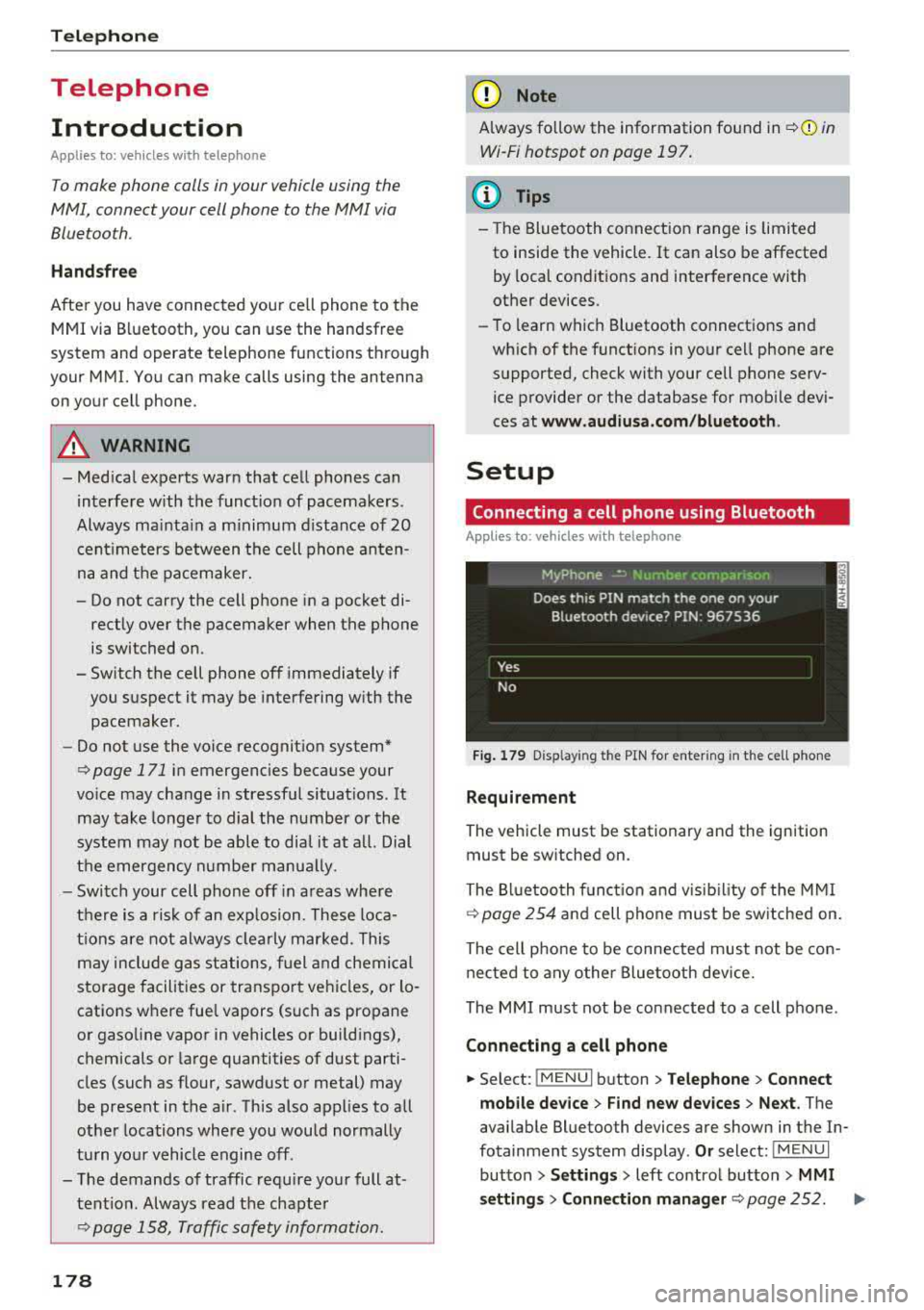
Fig. 1 79 D is pl ay ing the PIN for enter ing in t he cell p hone
Requirem ent
The vehicle must be stationary and the ignition
must be switched on.
The Bl uetooth funct ion and visib il ity of the MMI
Q page 254 and cell phone must be switched on.
The cell phone to be connected must not be con nected to any other Bluetooth device.
The MMI must not be connected to a cell phone .
Connecting a cell phone
... Select: !MENU I button> T el ephon e> Connect
mob ile de vice > Find ne w de vices > Next .
The
available Bluetooth devices are shown in the In
fotainment system display .
Or select: !M ENUI
button >Setting s> left control butto n> MMI
setting s> Connection manag er
Q page 252. ..,_
Page 181 of 409
<( a, .... N ,....
N .... 0 \0
3 a,
~ Select and confirm the desired cell phone from
the list of disp layed Bluetooth devices.
~ The MMI generates a PIN for the connect ion
setup
¢fig. 179.
~ Select and confirm Yes.
~ Enter the PIN for connecting on your cell
phone.
Or : whe n the PIN is displayed on your
cell phone, confirm the PIN on your cell phone
and in the MMI. The time allowed for entering
the PIN is limited to approximately 30 seconds.
~ Pay attention to any additional system prompts
displayed on your ce ll phone, for example if the
system shou ld connect automatically in the fu
ture. Depend ing on the ce ll phone, you may
have to confirm downloading the directory sep
arately.
After connecting successfully
After connecting successfully, information about
the connected profiles will appear . You can also
change the profiles later. Select:
!MENUI button>
Settings> left control button > MMI settings>
Connection manager
¢ page 2 52.
In addition, the cell phone contacts are automat
ically loaded in the MMI directory. This process
can take several minutes, depend ing on the num
ber of contacts .
You can a lso make your connected cell phone the
default phone by selecting
Set as default tele
phone
in the Connection manager ¢page 254.
@ Note
Always follow the information found in ~CD in
Wi-Fi hotspot on page 197.
(D Tips
-Making phone calls throug h the MMI is only
possible using the
Handsfree Bluetooth pro
file.
- You can apply additional settings to con
nected mobile devices using the
Connection
manager
¢ page 252.
-You can also search for the MMI in your cell
phone using the Bluetooth device search.
- You only have to pair your device one time.
Bluetooth devices that are already pa ired
automat ically connect to the MMI when the
Telephone
Bluetooth function is switched on, they are
within range and the ignition is switched on.
The last connected cell phone is given first
pr iority.
- Authorizing the MMI connection in your cell
phone w ill make automatic connection pos
sible .
- Pay attention to any system prompts dis
played on your ce ll phone, for example if
the system should connect automatically in
the future . Depend ing on the cell phone,
you may also need to download the directo
ry and confirm access to your text messages
separately.
- When leaving the veh icle, the Bluetooth
connection to the cell phone will automati
cally disconnect . Depending on your cell
phone, phone calls in progress may be auto
matically redi rected from the MMI to your
cell phone and you can continue the ca ll on
your phone .
- You can obtain more information from your
cell phone service provider or from your ce ll
phone user guide. For information on using
the te lephone, v is it
www.audiusa.com/
bluetooth
or contact an authorized Audi
dea ler or authorized Audi Service Facility.
- Applies to: vehicles without secondary
phone: Several cell phones can be paired to
the
MM I, but only one cell phone can be ac
tively connected to the MMI.
- Applies to : vehicles without secondary
phone: If a Bluetooth device is already con
nected to the MMI, it will be disconnected
when another device connects to the MMI.
'
Operating two telephones through the
MMI
You can connect two cell phones to the MMI, for
example your business cell phone as the primary
phone and your private cell phone as the secon
dary phone. You can be reached in your vehicle
through both cell phones.
T he first connected cell phone is displayed as the
primary phone in the MMI. The second cell phone
is connected as the secondary phone .
.,.
179
Page 182 of 409
Telephone
The directory from the connected primary phone
will always be displayed . If you wou ld like to use
the directory from the secondary phone, you must switch the primary and secondary phone
¢page 180.
Connect ing a c ell phone as the prima ry
ph one
Connect your cell phone to the MMI via Blue
tooth. The first connected cell phone is displayed
as the
Primar y phone in the MM!.
See
¢ page 178, Connecting a cell phone using
Bluetooth.
Conn ecting a cell phon e as th e secondary
ph one
Requirement: a cell phone must be connected to
the MMI
as the primary phone.
Select:
! MENU ! button> Telephone > right con
trol button >
Conn ect sec ond ary teleph one.
See ¢ page 178, Connecting a cell phone using
Bluetooth.
Example: you have connected your business ce ll
phone to the MMI as the prima ry phone and your
p rivate cell phone as the secondary phone. To be
ab le to call contacts from you r private cell phone
d irectory, you must switch the primary and sec
ondary phone, since the directory from the pri
mary phone is always displayed.
Swit c hing the primary and secondary phone
Req uirement: a primary phone and a seconda ry
phone must be connected.
Switch prim ary and seco nd . p hon e: select
I MENU ! button >Teleph one > right control but
ton >
Swit ch prim ary and second . ph one .
Q) Tips
-Please note that only the d irectory from the
primary phone is always displayed.
- You can see if a cell phone is co nnected as
the primary phone or secondary phone in
the
C o nnection manager ¢ page 2 52. Or :
the dev ice name of the connected p rimary
phone is shown i n the
Telephon e menu
(such as MyPhone).
180
- If the primary phone does not connect auto
matically to the MMI when the ignition is
switched on, for example because it is out
of the vehicle range or the Bluetooth func
tion is switched off, then a previously paired secondary phone is automatically connected
as the primary phone.
- You can send and receive messages on your
pr imary phone as well as on your secondary
phone
¢page 180, fig. 180. You do not
need to switch your primary phone and sec
ondary phone fo r th is.
- You can also make your connected cell
phone the default phone by se lecting
Se t as
de fault telephone
in the C on nection man
ager¢ page 254.
Using the telephone
Opening the telephone
Applies to: vehicles wit h telepho ne
Fig. 180 Example: te lephone funct ions in selection menu
Fig. 181 Examp le: addit ional te lephone functions in selec
t ion menu
Requirement: a ce ll phone must be connected to
the MMI
¢ page 178 .
.. Select: !MENUI button> Te lephone > left con
trol button .
The following phone functions are availab le
¢ fig. 180/9fig. 181:
Page 199 of 409
<( a, .... N ,....
N .... 0 \0
3 a,
Connection man ag er
See ¢ page 2 52.
Licen se sub scr ipt ion
The val idity and expirat ion date of your licenses
are displayed . When the function is switched on
~, the message Warning befor e subscription
e xpire s
will display to warn you that your license
is about to expire.
Refre sh
The content of the selected Audi connect Info
tainment service o r the entire Audi connect (Info
tainment) list is updated.
Wi-Fi hotspot
A ppl ies to: ve hicles with Wi -F i h otspot
You can use the MMI as a Wi-Fi hotspot to con
nect up to eight Wi-Fi devices to the Internet.
While driving, restricted use of unsecured, light,
small wireless devices is only possible from the
rear of the vehicle.
Requirement: the ignition must be switched on.
.,. Se lect : I MENU I button >Telep ho ne> right con-
trol button
> Wi -Fi settin gs.
The follow ing settings can be selected:
Wi-F i
The MMI Wi-Fi hotspot is deactivated at the fac
tory. Switch the Wi-Fi hotspot to
Hot spo t before
establishing a connection between your vehicle
and your Wi -F i dev ice.
- On: the MMI Wi-Fi hotspot is active and visib le
to other devices . You can connect your Wi-Fi
device to the MMI and use the Internet connec
tion if necessary .
-Off: the MMI Wi-Fi hotspot is deactivated. An
Internet connection for Wi-Fi devices is not
poss ible.
A WARNING
- To reduce the risk of an accident, use the
Audi connect Infotainment serv ices w ith a
Wi -Fi hotspot on ly in the rea r seat when the
-
Audi c onn ect ( Inf ota inm ent )
vehicle is in motion, or only when the vehi
cle is stat ionary.
- It is only safe to use tablets, laptops, mo
bile devices and other similar devices when
the vehicle is stationary because, like all
loose objects, they could be thrown around
the inside of the vehicle in a crash and cause
serio us injuries . Store these types of devices
securely while driving.
- Do not use any wireless dev ices on the front
seats within range of the airbags while dr iv
ing. Also read the warnings in the chapte r
¢ page 281, Front airbags.
-As the driver, do not allow usage of the W i
F i hotspot to distract you from driv ing, as
this cou ld increase the r isk of an accident.
(D Note
- Under some conditions, certain mobile devi
ces and ope rating systems may automati
cally sw itch from your vehicle's Wi-Fi hot
spot to the device's mobi le da ta connection.
In that event, standard text and data usage
rates would apply whi le the device's mobile
data connection is in use . Please refer to
documentation provided by your mobile de
vice's manufacture and your data carrier for
details , related terms and privacy state
ment.
- You are responsib le for all precautions tak
en for data protect ion, anti-virus protection
and protection against loss of data on mo
bile devices that are used to access the In
ternet through the Wi-Fi hotspot.
(D Tips
- In vehicles w ithout Audi connect (Infota in
ment)*, the use of the Wi-Fi hotspot is only
possible fo r the W i- Fi aud io player*. A data
c onnect io n to the Inte rnet cannot be es tab
lished.
- For add itiona l information about the Audi
connect Info tainment services, visit
www .audiusa.com /myaudi .
197
Page 203 of 409
<( a, .... N ,....
N .... 0 \0
3 a,
Audi connect vehicle control
Introduction
Applies to vehicles with Aud i connect vehicle control
With the Audi connect vehicle control services l) ,
you can access various information or use individ
ual functions in the
Audi MMI connect app or in
myAudi .
Audi connect vehicle control includes the follow
ing services:
- Remote locking and unlocking ¢
page 202.
-Vehicle status report ¢ page 202.
-Parking location ¢ page 202.
-Geofencing Alert ¢ page 203.
-Speed Alert ¢ page 203.
-Valet Alert¢ page 203 .
- Stolen Vehicle Locator ¢ page 203.
-Online Audi service request ¢ page 203.
(D Tips
-Accessing specific data or controlling func
tions remote ly depends on the charge level
of the vehicle battery. Therefore, these
functions only have limited availability after
switching off the ignition.
- The services are provided through a SIM
card installed in the vehicle . The cost of the
call and data connections is included in the
price for the services. Services are provided
assuming that the cell phone network re
quired for the installed S IM card is funct ion
i ng and ready to operate. The available serv
ic es set by Audi AG are only available within
the cell phone network coverage area for
the cell phone service provider selected by
Audi AG .
- You can also find more information on Audi
connect on line at www.audiusa.com.
l) In pre parat io n at the time of pri nting. T he ava ilab ilit y of
the services offe red depends on th e co untry an d ma y
c hang e over tim e.
Audi connect vehicle control
Setup
Applies to vehicles with Audi connect vehicle control
To use Audi connect vehicle control services 1l,
please note the following:
Creating and verifying a user account
"'Create an account at www.audiusa.com/myaudi
and verify it.
Setting a key user in the vehicle
Requirements: the ignition must be switched on .
Another key user must not be set in the vehicle .
If necessary, reset the key user¢
page 202.
"'Select in the Infotainment system: I MENU ! but-
ton >
Audi connect > if necessary, Display
available functions >
right control button>
Audi connect user management > Key user >
Set key u ser.
"' Enter the user name for your ve rified account
and enter the 10-digit vehicle code. You can rub
the key tag for your remote control key to re
veal the vehicle code ¢
page 38.
"'Select and confirm Log in.
You can now use the vehicle control services
through the
Audi MMI connect app or thro ugh
www.audiusa.com/myaudi.
Using vehicle control services in the Audi
MMI connect app
Requirement: your mobile devices must be com
patible.
"' Install and start the Audi MMI connect app on
your mobi le device .
"'Log in to the Audi MMI connect app using your
user name and Audi online password and select
your vehicle.
(D Tips
- Store the vehicle code in a secure place. It
may be necessary to re-enter the vehicle
code.
201
Page 204 of 409
Audi connect vehicle control
-Pay attention to upper- and lower-case let
ters when entering the vehicle code.
-If you do not have the 10-digit vehicle code,
contact an authorized Audi dealer or author
ized Audi Service Facility.
Additional options
Applies to vehicles with Audi connect vehicle control
License subscription
The validity and expirat ion date of you r subscrip
tions are displayed. When
Warning before sub
scription expires
is activated, a message wi ll be
d isp layed warning you that your license is about
to expire.
Select:
! MENU ! button> Audi connect > Display
available functions >
right control button> Li
cense subscription.
Resetting the primary user
F or examp le, you ca n reset the key user when
selling your vehicle in order to deactivate these
services .
Requirement: the ignition must be switched on.
Select :
!MENU ! button> Audi connect > right
control button
> Audi connect user management
> Key user> Reset key user .
Warning levels
Requirement: the primary user must have set one
or more warning levels. Secondary users can only
see if a warning level is act ive or not .
Select:
! MENU ! button> Audi connect > right
control button
> Alerts.
Remote locking and
unlocking
Applies to vehicles with Audi connect vehicle control
You can lock and unlock your veh icle using this
service.
Requirement
-This requires the 4-dig it PIN that you specified
during the verification on www.audiusa.com/
myaudi.
-The vehicle must be stationary.
202
-T he ignition must be switched off.
Vehicle status report
Applies to vehicles w ith Audi connect vehicle control
The Driver Information System collects data un
der certain conditions and sends it to a server.
When data is stored, yo u can access va lues such
as these using the service:
-Remaining range
-Fue l tank level
-Oil level
-Vehicle doors are open/closed or locked/un-
locked
-Mi leage
-Next oil change
-Next inspection
-Warning messages
-Side marker lights/parking lights on/off
For additional information on the Driver Informa
tion System, refer to
c:> page 17, Driver informa
tion system.
A WARNING
Do not ignore messages and warning or ind i
cator lights that turn on in the vehicle be
cause of the information in the status report .
This could lead to break downs in on the road,
accidents and serious injuries.
Parking location
Applies to vehicles with Audi connect vehicle control
The vehicle collects data under certain cond it ions
and sends it to a serve r.
When data is stored, you can access values such
as these using the service :
-Vehicle location display,
-Display of one's own location,
-Route to you r vehicle .
If your mobile device also has a navigation func
tion, you ca n navigate to your last kno wn parking
lo ca tion .
Page 205 of 409
<( a, .... N ,....
N .... 0 \0
3 a,
Deactivating and activating parking position
-Select : IMENUI > Audi connect> Car Finder
parking position.
If you do not set./, no location informat ion will
be sent to the server.
(D Tips
-The new parking location cannot be deter
mined with this service if the vehicle is
moved after shutt ing the vehicle off and
without switching the ignition on and off
again, for example when being towed or if
the veh icle is stolen.
- If the vehicle is moved and shut off again
using the second key, for example, the new
parking location is transmitted to the server
after switching the ignition off.
Geofencing Alert
Applies to vehicles with Audi connect vehicle control
You can set approved and forbidden zones for
your vehicle using this service. If your vehicle
leaves an approved :zone or enters a forbidden
zone, you will be notified by a push notification
and/or an e-mail. You can set up to five zones
and also ass ign time limits.
Requirement
-You must be verified as the primary user of your
vehicle on myAudi.
You can set on myAudi if you would like to be
notified via push notifications and/or e-mail.
Speed Alert
Applies to vehicles with Audi connect vehicle control
You can set up to two speed limits for your vehi
cle using this service . If your vehicle exceeds a set
speed limit, you will be notified by a push notifi
cation and/or e-mail.
Requirement
- You must be verified as the primary user of your
vehicle on myAudi.
Audi connect vehicle control
{!) Tips
You can set on myAud i if you would like to be
notif ied v ia push notifications and/or e-mail.
Valet Alert
Applies to vehicles with Audi connect vehicle control
If you give your vehicle over to a parking service,
you can set a zone and a speed limit using the
Audi MMI connect app . If the vehicle leaves the
zone or the exceeds the speed limit, you will be
notified by a push notification and/or e-mail.
Requirement
- You must be verified as the primary user of your
vehicle on myAud i.
(D Tips
You can set on myAudi if you would like to be
notified via push notifications and/or e-mail.
Stolen Vehicle Locator
Applies to vehicles with Audi connect vehicle control
This service helps you to track your vehicle if it is
stolen.
Proceed as follows if there is a theft:
.,. Contact the police. You receive a Case ID .
.,. Call the service hotline and give your Case ID .
The service hotline will forward the established data to the police .
@ Tips
You receive the Audi Service hotline number
when you purchase your vehicle.
Online Audi service request
Applies to vehicles with Audi connect vehicle control
Requirement: to be able to use on line Audi serv
ice request, you must activate the service at
www .audiusa.com/myaudi and select an author
ized Audi dealer or authorized Audi service facili-
~-~
203