ignition AUDI A5 COUPE 2018 Owner's Guide
[x] Cancel search | Manufacturer: AUDI, Model Year: 2018, Model line: A5 COUPE, Model: AUDI A5 COUPE 2018Pages: 409, PDF Size: 67.63 MB
Page 95 of 409
@j indicator light appears in the instrument clus
ter disp lay, the engine will not be stopped, for
examp le in the following situations:
- T he eng ine has not reached the minimum re
quired temperature for Start/Stop mode.
- T he interior temperature selected by the cli-
mate contro l system has not been reached .
- T he outs ide temperature is ext remely h igh/low.
- The windshield is being defrosted.
- The neck heating* is turned on .
- The vehicle battery charge level is too low.
- The steering wheel is turned at a sharp angle or is moving .
- After engaging the reverse gear.
- On sharp inclines.
- At high altitudes .
Engine automatically restarts
The standard Start/Stop mode will be canceled
during a stop phase in the follow ing s ituations .
The engine resta rts without any action by the
driver.
- The vehicle rolls , for example while on a slope.
- The interior temperature differs from the tem-
perature selected in the A/C system .
- The windshield is being defrosted.
- The brake pedal is pressed several times in a
row.
- The vehicle battery charge level is too low .
- Power consumption is high.
The engine can turn off again when the condi
tions for Start/Stop mode are met.
Ignition is switched off automatically
To prevent the vehicle battery from draining, the
ignition will switch off automat ically under the
following conditions :
- The Start/Stop system has stopped the engine .
- The vehicle is stationary.
- You left the ve hicle and the engine was not re-
started within approximate ly 30 seconds .
If th is happens, you w ill see the message
Igni
<( ~ tion turns off automatically in the instrument
~ cluster and the activated low beams are replaced N
8 by the parking light. The parking lights will \0
3
switch off after approximately 30 minutes or
when you lock the vehicle .
T he ign ition also switches off when you lock the
vehicle from the outside during a stop phase.
If the Start/Stop system has not turned off the
engine or if you have switched the Start/Stop sys
tem off manually, the ignition w ill no t be auto
matically sw itched off and the eng ine will contin
ue to
run ¢& .
A WARNING
To reduce the risk of poisoning, never allow
the engine to run in confined spaces.
(D Tips
Applies to: vehicles with automatic transmissions
- If you leave the vehicle with the 0/5 or R se
lector lever position engaged, the parking
brake is automatically set.
- If you select the D or N selector lever posi
tion after shifting into reverse, the vehicle
must be driven faster than 6 mph (10 km/h)
in order for the engine to switch off again .
Manually switching the Start/Stop system
off/on
Applies to: veh icles w ith Start/Stop system
If you do not wish to use the system, you can
switch it off manually.
Fig. 100 Center co nsole: Start/Stop system butto n
-
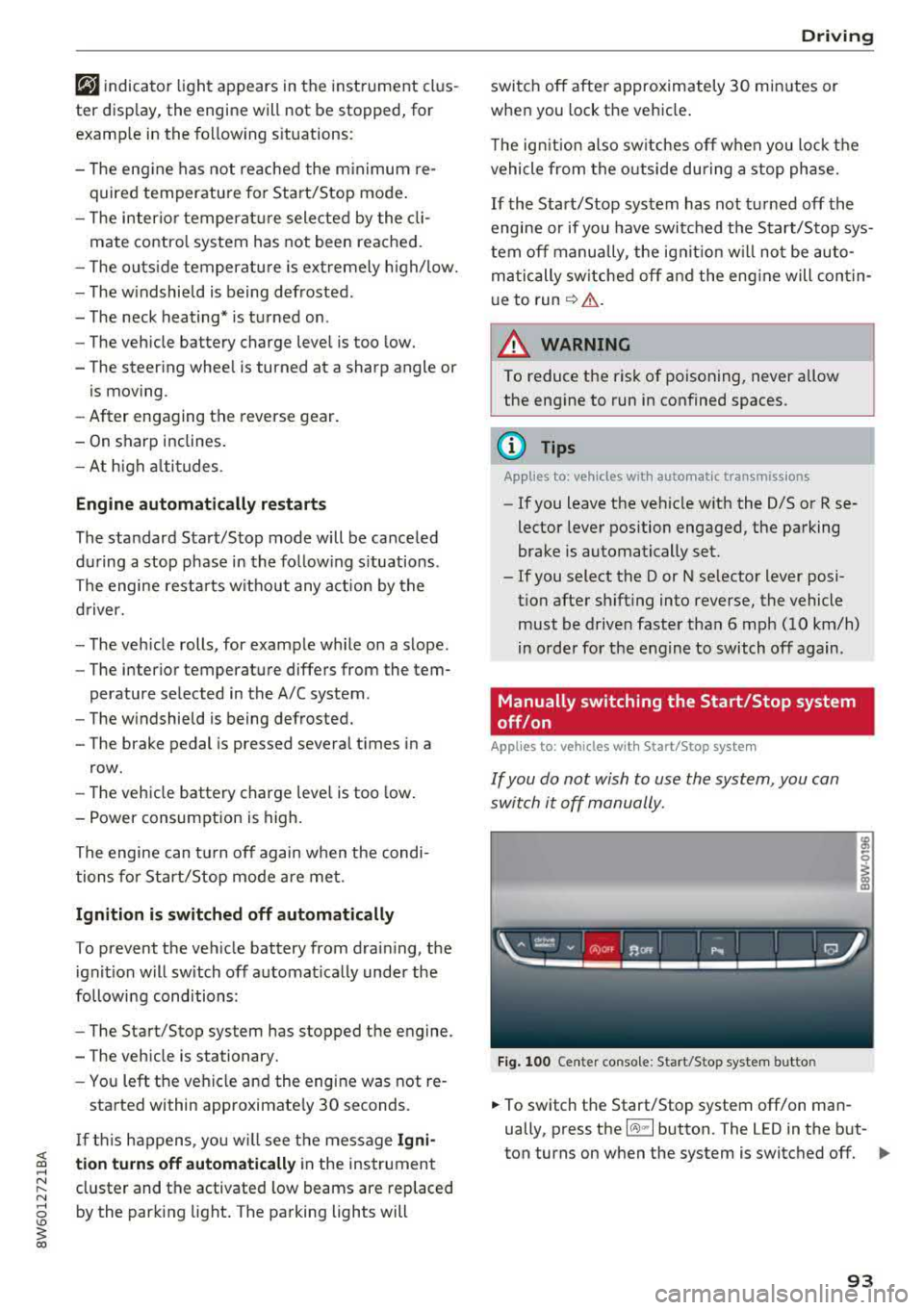
.,. To switch the Start/Stop system off/on man
ually, press the
l (A) ml button. The LED in the but
ton turns on when the system is switched off.
Ill-
93
Page 99 of 409
<( a, .... N ,....
N .... 0 \0
3 a,
~ To engage the nearest selector lever position,
move the selector lever forward/back until you
feel the first pressure point. The selector lever
will return to its original position.
~ To skip over one selector lever position, move
the selector lever past the pressure point into
the desired position. The selector lever will re
turn to its original position.
For example, you can skip over the N position if
you would like to go directly from D into R .
Selector lever lock
The selector lever lock prevents you from select
ing a position unintentionally, causing the vehicle
to roll. When engaging some selector lever posi
tions, you must press the locking button
@on
the selector lever and/or press the brake pedal
¢fig. 102 .
You must press the brake pedal to engage a se
lector lever position when the engine is running
and the vehicle is stationary.
You do not have to press the brake pedal if you
shift from D to R within one second . This allows
you to "rock" the vehicle to free it when it is
stuck .
P - Park
This selector lever position prevents the vehicle
from rolling. Only shift into park when the vehi
cle is
stationary ¢.&, . To select the P selector lev
er position, press the P button @on the selector
lever ¢ fig. 102 . P appears next to the selector
lever .
Applies to vehicles w ith S tronic transmission:
the parking lock can only be released when the
ignition is switched on and the brake pedal is
pressed . To release the parking lock, press the
brake pedal, press the locking button
(Don the
selector lever and select the desired position
¢fig. 102. The engine must also be started to
engage the D or R selector lever position.
Ap plies to vehi cles w ith tiptron ic tra nsmiss io n:
the parking lock can only be released when the
engine is running and the brake pedal is pressed .
To release the parking lock, press the brake ped-
Driving
al, press the locking button (Don the selector
lever and select the desired position¢
fig. 102.
P engages automatically if you switch the engine
off while the selector lever is in D, E, S, R or man
ual mode.
If you switch the engine off when the N selector
lever position is selected, the transmission re
mains in N for approximately 30 minutes and
then Pis engaged. The vehicle is not secured
from rolling in the N selector lever position, so
you need to set the parking
brake© ¢ page 94.
You must use the parking lock emergency release
before towing the vehicle
¢page 102.
R- Reverse
The reverse gear is engaged in this position . Only
select reverse gear when the vehicle is stationary
and the engine is running at idle
speed¢ .&,. To
engage the R selector lever position, press the
brake pedal, press the locking button
(D on the
selector lever and select the R position
¢ fig . 102.
A confirmation tone will sound when the reverse
gear is engaged.
N - Neutral (idle)
The transmission is in idle in this position. To en
gage the N selector lever position, press the lock
ing button
(Don the selector lever and shift into
the N position
¢fig. 102.
If you switch the engine off when the N selector
lever position is selected, the transmission re
mains in N for approximately 30 minutes and
then Pis engaged.
You cannot select the N position when the igni
tion is switched off. When driving through an au
tomatic car wash, first select the N position and
then turn the engine off.
For safety reasons, the vehicle cannot be locked
when the transmission is in the N position.
DIS -Driving forward
When the transmission is in the D/S position, it
can be operated either in the normal D mode or
in the S sport mode. Move the selector lever back
.,.
97
Page 100 of 409
Driving
to engage the S sport mode. You can only select
the S selector lever position when the D or E posi
tion is selected. To select the Dor
E position
again when S is engaged, move the selector lever
back ¢,& . To shift from N to D when traveling at
speeds below
1 mph (2 km/h), press the brake
pedal and shift into the D
position ¢,& .
In the normal mode D, the transmission auto
matically selects the suitable gear ratio. It de
pends on engine load, vehicle speed and driving
style .
Select the
sport mode S for sporty driving. The
vehicle makes full use of the engine's power.
Shifting may become noticeable when accelerat
ing.
The S selector lever position engages automati cally when you select the
dynamic mode in drive
select* .
A WARNING
Read and follow all WARNINGS.
- The vehicle can roll even if the ignition is
switched off .
- Power is still transmitted to the wheels
when the engine is running at idle. To pre
vent the vehicle from "creeping", you must keep your foot on the brake in all selector
lever positions (except P and N) when the
engine is running.
- Before opening the hood, select the P selec
tor lever position and set the parking brake.
This reduces the risk of an accident. Always
read and follow the applicable warnings
¢ page 330, Working in the engine com
partment.
(D Tips
If
you accidentally select N while driving, take
your foot off the accelerator pedal and wait
for the engine to slow down to idle before se
lecting Dor S.
98
· Driving tips
App lies to: vehicles with automatic transmissions
Starting the engine
.,. The P or N position must be selected .
Starting from a stop
.,. Press and hold the brake pedal.
.,. Start the engine¢ page 89.
.,. Press the locking button (Don the selector lev
er and select the
D, E, Sor R position
¢ page 96 .
.,. Wait a moment until the transmission shifts.
You will notice a slight movement when the
gear engages .
.,. Release the brake pedal and press the accelera-
tor
pedal ¢ _A.
Various convenience functions are available for
starting on hills
¢ page 95.
Stopping temporarily
.,. Press the brake pedal to stop the vehicle, for
example at a traffic light . Do not press the ac
celerator pedal when doing this.
.,. To prevent the vehicle from rolling when you
start driving, set the parking brake when stop
ping on steep
hills ¢ _A.
.,. The parking brake will release automatically
and the vehicle will start moving once you press
the accelerator pedal.
Stopping/parking
If the selector lever is not in the P position when
you open the driver's door, the vehicle could roll.
.,. Press and hold the brake pedal ¢_& .
.,. Set the parking brake .
.,. To select the P selector lever position, press the
P button
@ on the selector lever ¢ page 96,
fig. 102.
Under certain conditions, such as driving in the
mountains or when towing a trailer, it may be
helpful to switch to manual mode temporarily
and shift
manually to adapt to the driving condi
tions
¢ page 99.
On hills, activate the parking brake first and then
shift into the P
position ¢ page 94. This prevents ..,.
Page 111 of 409
Switching off completely
• Press the lever into position @(clicked into
place), or
• Switch the ignition off .
The speed yo u stored w ill be mainta ined if the
cru ise control has been switched off tempora rily .
To resume the stored speed, release the brake or
clutch pedal and p ull the lever into
position (!).
Sw itching the ig nition off will erase the stored
speed .
A WARNING
You should only resume the stored speed if it
is not too high for existing traffic conditions .
Otherwise you can increase the r isk of an acci
dent.
Camera-based traffic
sign recognition
Description
A pp lies to: ve hicles with camera-based t raffic sign recogni
tion
~ 180 m, & I ~ IPFl '1 iJ
I I /I
:I)' mmml ll : I tm ,, '
) ' ' ' ,,' :
Fig. 108 Inst ru ment cluste r: traffic s ig n recognit ion
F ig. 109 Windshield : came ra window for traffic sign recog
n it io n
Assistance systems
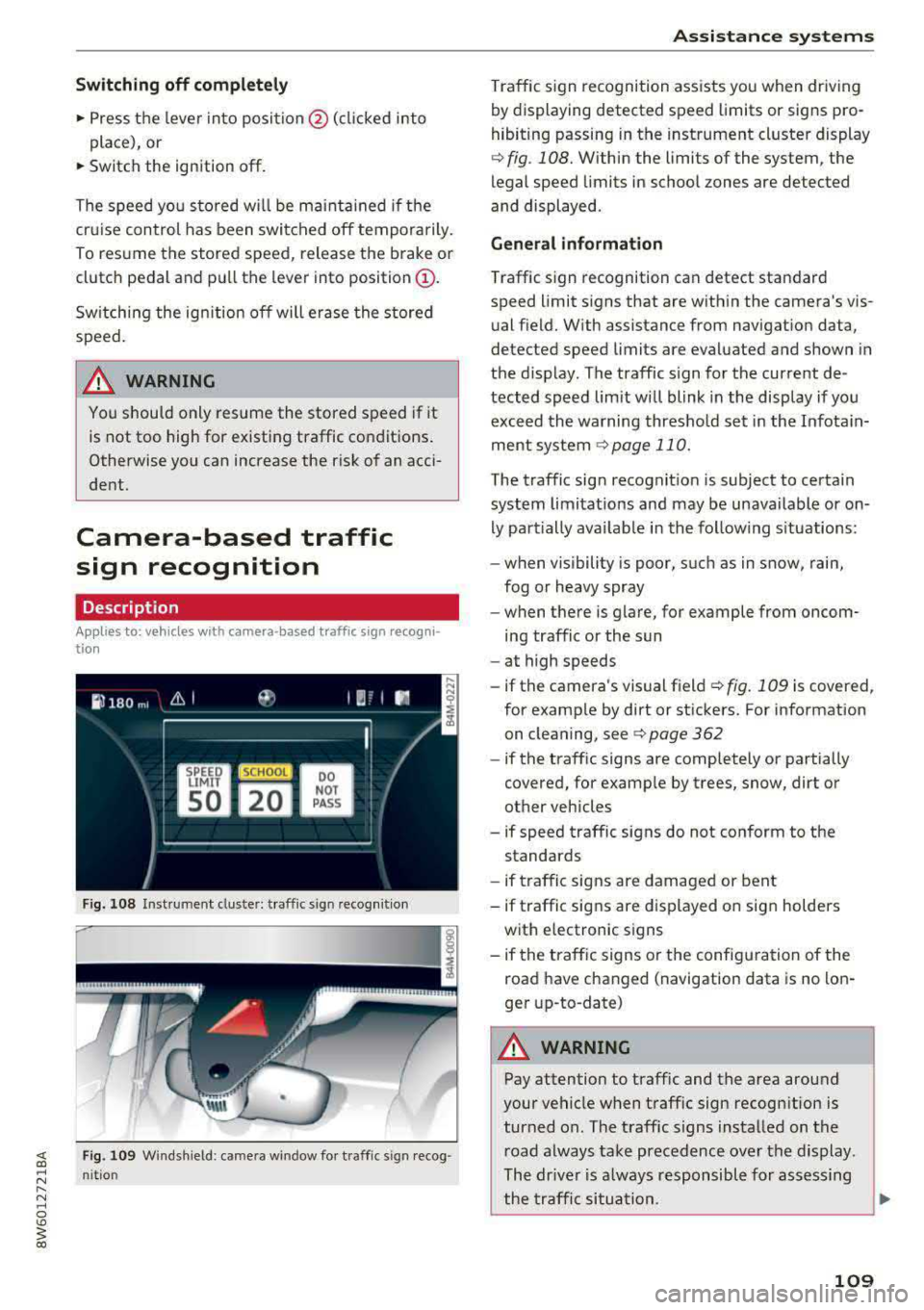
Traffic sign recognition assists you when driving
by displaying detected speed limits or signs pro
hibiting passing in the instrument cluster display
¢ fig . 108. Within the limits of the system , the
legal speed limits in school zones are detected
and displayed.
General information
Traffic sign recognition can detect standard
speed limit signs that are within the camera's vis
ual field. With assistance from navigation data,
detected speed limits are evaluated and shown in
the display. The traffic s ign for the current de
tected speed lim it w ill blink in the disp lay if you
exceed the warning threshold set in the Infotain
ment
system ¢ page 110.
The traffic sign recognition is subject to certain
system limitat ions and may be unavailable or on
ly part ially ava ilable in the follow ing s ituations:
- when visibility is poor, such as in snow, rain,
fog or heavy spray
- when there is glare, for example from oncom
ing traffic or the sun
- at high speeds
- if the camera's visual
field ¢ fig. 109 is covered ,
for examp le by dirt or stickers. For information
on cleaning, see
¢ page 362
- if the traffic signs are completely or partially
covered, for examp le by trees, snow, dirt or
other vehicles
- if speed traffic signs do not conform to the standards
- if traffic signs are damaged or bent
- if traffic signs are displayed on sign holders
with electronic signs
- if the traffic signs or the configuration of the
road have changed (navigation data is no lon
ger up-to-date)
A WARNING
-Pay attention to traffic and the area around
your vehicle when traff ic sign recognition is
turned on. The traff ic signs installed on the
road always take precedence over the display.
The drive r is a lways responsible for assessing
the traffic situation .
-
109
Page 113 of 409
<( a, .... N ,....
N .... 0 \0
3 a,
The vehicle is in a country where the function is
n ot available.
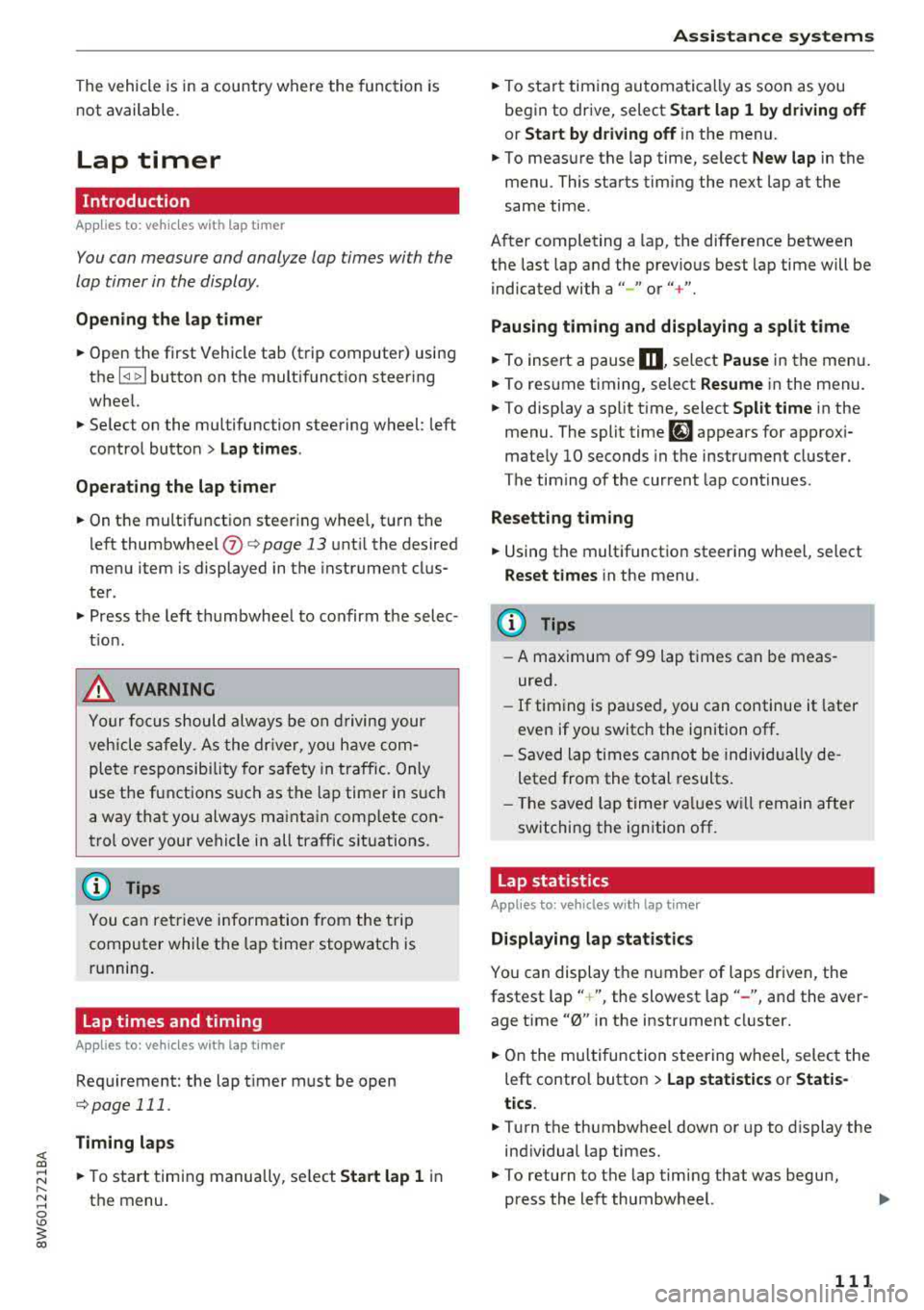
Lap timer
Introduction
Appl ies to: vehicles with lap timer
You can measure and analyze lap times with the
lap timer in the display.
Opening the lap timer
• Open the first Vehicle tab (trip computer) using
the
l <1 t> I button on the mult ifunct ion steer ing
wheel.
• Se lect o n the multifunction steering wheel: left
contro l button
> Lap times .
Operating the lap t imer
• On t he multifunction steer ing whee l, tu rn the
left thumbwheel
(J) c> page 13 unt il the desired
menu item is displayed in the instrument cl us
te r.
• Press the left thumbwhee l to confirm t he selec
t io n.
_& WARNING
Your focus s hould always be on driving your
vehicle sa fely. A s the dr iver, y ou have com
ple te responsib ility for safety in tra ffic. Only
use the f unctions s uch as t he la p timer in s uch
a way that you always mainta in comp lete co n
trol over your vehicle in all traffic s ituations.
(D Tips
You c an ret rieve information from the trip
computer while the lap time r stopwatch is
r u nning .
Lap times and timing
Applies to: vehicles with lap timer
Req uirement: the lap t imer must be open
c>page 111.
Timing laps
• T o start timing manually, se lect Start lap 1 in
the menu.
Assistance systems
• To star t timing automatica lly as soon as you
beg in to drive, select
Start lap 1 by driving off
or Start b y driving off in the menu.
• To meas ure the lap time, select New lap in the
menu. This starts timing the next lap at the
same time.
A fter completing a lap, the difference between
the last lap and the previo us best lap time will be
indicated with a" -" or" +".
Pausing timing and displaying a split time
• To insert a pause m , select Pause in the menu .
• To resume timing, select Resume in the menu.
• To display a sp lit t ime, select Split time in the
menu. The split
time [~] appears for app rox i
mate ly 10 seconds in the instr ument cluster.
The tim ing of the cur rent lap con tinues .
Resetting timing
• Using the mult ifunct io n steer ing whee l, select
Reset times i n the menu.
(!) Tips
- A maximum of 99 lap t imes can be meas
ured.
- If tim ing is pa used, you can continue it later
even if you switch the ignition off.
- Saved lap times cannot be indivi dually de
leted from the total results .
- The s ave d la p time r va lues w ill rem ain after
switchin g the ignition off.
Lap statistics
Applies to: vehicles with lap timer
Displaying lap statistics
You can display t he n umbe r of laps driven, the
f astest lap" +", the slowest lap" -", an d the aver
age t ime
"0" in the instrument cluster.
• On t he mul tif unc tion stee ring w heel, selec t th e
left contro l button
> Lap statistics or Statis
tics .
• Turn the thumbwheel down o r up to display the
ind ividual lap times .
• To return to t he lap timing that was begun,
press the left thumbwheel.
111
Page 121 of 409
That is equal to the general recommendation of
"half the speed shown on the speedometer".
The distances provided are specified val ues. De
pending on the d riving situation and how the ve
hicle ahead is driving, the actual distance may be
more or less than these target distances.
If you change the time gaps, the newly se t value
appears briefly in the instrument cluster display,
for example
II for Distance 3. This only occurs if
the
Driver assistance disp lay is not currently
shown in the display
~ page 115, fig. 116.
Distance 1 : this setting corresponds to a distance
of 92 feet (28 meters) when traveling at 62 mph
(100 km/h), or a time distance of 1 second.
Distance 2 : this setting corresponds to a distance
of 118 feet (36 meters) when traveling at 62
mph (100 km/h), or a time distance of 1.3 sec
onds.
Distance 3: this setting corresponds to a distance
of 164 feet (SO meters) when traveling at 62
mph (100 km/h), or a time distance of 1.8 sec
onds.
Distance 4: this setting corresponds to a distance
of 219 feet (67 meters) when traveling a t 62
mph (100 km/h), or a time distance of 2.4 sec
onds.
Distance 5: this setting corresponds to a distance
of 328 feet (100 meters) when traveling at 62
mph (100 km/h), or a time distance of 3.6 sec
onds.
A WARNING
When setting the distance, the driver is re
sponsible for adhering to any applicab le legal
regulations.
@ Tips
- Depending on the selected driving mode in
drive select* and the set distance, the driv
ing behavior will vary from dynamic to com
fortable when accelerating
c::;, page 139.
- Distance 3 is set automatically each time
you switch the ignition on. If you would like
to set another d istance as the default set
ting, you can have the
adaptive cruise con-
Assistance systems
trol menu enabled by an authorized Audi
dealer or authorized Audi Service Facility.
- Your settings are automatica lly stored and
assigned to the remote control key being
used.
Setting the driving program
Applies to : vehicles wit h Audi ada ptive c ruise control
Depending on the selected driving program and
distance, driving behavior when accelerating will
vary from dynamic to comfortable .
Setting the driving program on vehicles
without drive select*
.,. Select in the Infotainment system: I MENU! but
ton
> Vehicle > left control button > Driver as
sistance> Audi adaptive cruise control > Driv
ing program
> Comfort, Standard or Dynamic.
Setting the driving mode on vehicles with
drive select*
See c::;, page 139.
¢j) Tips
Your settings are automatically stored and as
s igned to the remote control key being used .
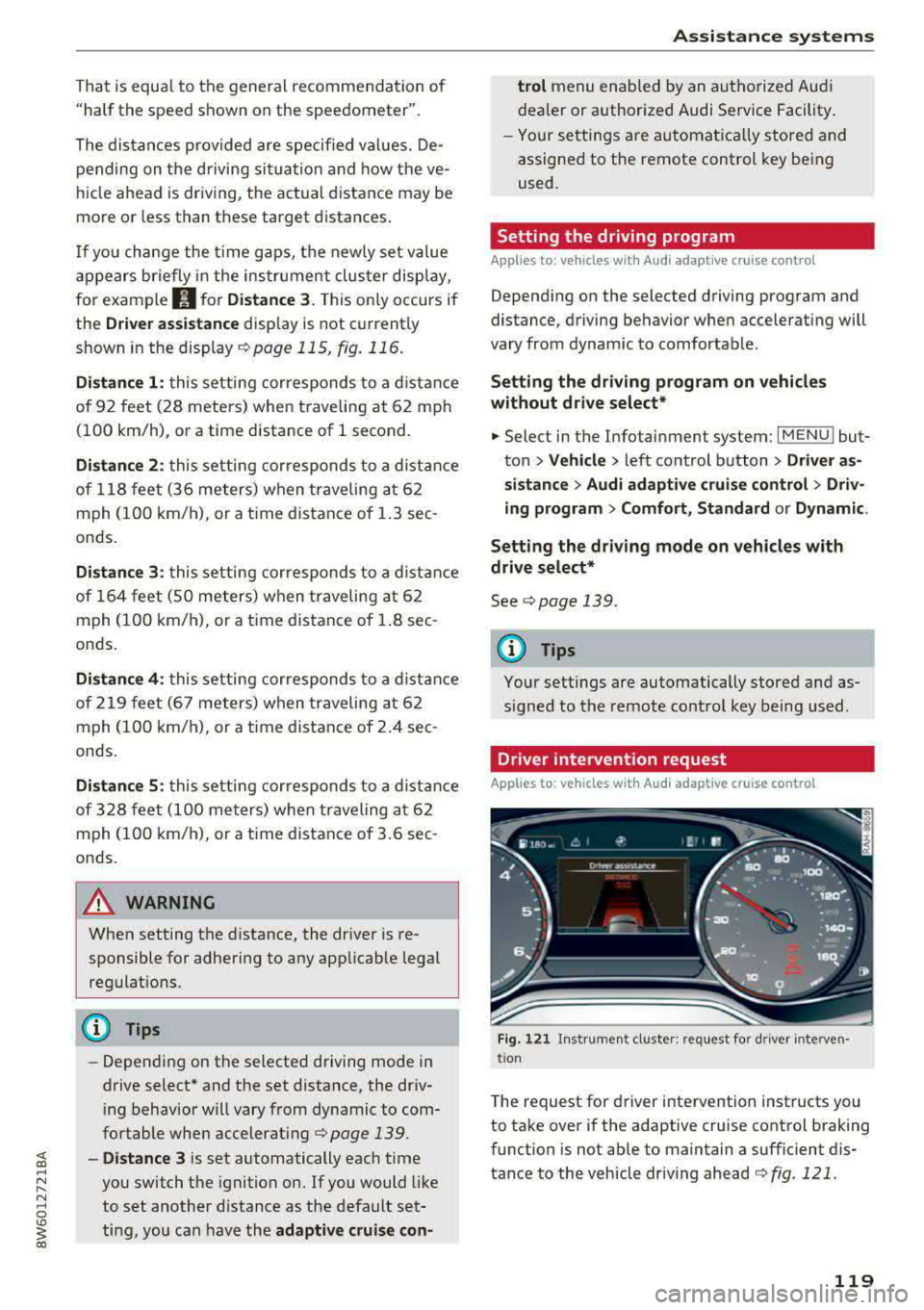
Driver intervention request
Applies to: vehicles wit h Audi ada ptive cr uise contro l
Fig. 121 Instrument cluster : request for driver interven·
t ion
T he request for driver intervention instructs you
to take over if the adaptive cruise control braking
function is not able to maintain a sufficient dis
tance to the vehicle driving ahead
c::;, fig. 121 .
119
Page 131 of 409
<( a, .... N ,....
N .... 0 \0
3 a,
-when there are visual obstructions, such as glare, reflections or var iations in light
-when it is dark
-if the camera window or the windshie ld is
dirty, iced over, damaged or covered
-when driving on snow, ice or loose ground
-in curves
-if the ESC was restricted or switched off
-when towing a trailer
-when the driver's seat belt is unfastened
-up to ten seconds after switching on the ig-
nition
(D Note
Impacts or damage to the camera mount on
the windshield can displace the sensor. Pre
sense city can be impaired by this. Have an au
thorized Audi dealer or authorized Audi Serv
ice Facility check the ir function.
-You can cancel the system braking interven
tion if you accelerate considerably or swerve
away.
-Keep in mind that pre sense city can brake
unexpectedly. Always secure any cargo or
objects that you are transport ing to reduce
the risk of damage or injury.
-Certain pre sense city funct ions are switch
ed off when the ESC is limited or switched
off¢ page 152.
-When there is a malfunction in the camera,
the pre sense city functions also switch off.
Settings in the
Infotainment system
A ppl ies to: ve hicles with Audi pre sense
~ Se lect in the Infotainment system: !MENUI but
ton
> Vehicle > left contro l button > Driver as
sistance> Audi pre sense.
Turn on /off Audi pre sense -
the pre sense func
tions can be turned on and off.
If the system is switched off, it switches o n again
automatically once the ignition is sw itched on
again.
Assistance systems
Prewarning -the early warning can be switched
off or the pre sense city/front warning point can
be set
(Ea rly/Medium /Late ).
Set the warning t ime for the early warning to
Early at first. If this causes undesired ear ly warn
ings to appear, then set the warning time to
Me
dium .
The Late warning time should on ly be set
in special circumstances, for example, when driv
ing with a very dynamic style.
(D Tips
Your settings are automatically stored and as
signed to the remote control key being used.
Messages
Applies to : v ehicles wi th Audi pre sense
IIJ Audi pre sense: malfunction! Please contact
Service
T his message appears when the pre sense func
tion is affected. For example, this could be
ca used by a faulty sensor. Drive to an authorized
Audi dealer or authorized Audi Service Facility im
mediately to have the malfunction corrected.
II Audi pre sense currently restricted. Restrict
ed sensor vision due to surroundings. See own
er's manual
This message appears if the radar sensor and
camera view is obstructed, for example by leaves,
snow, heavy spray or dirt. If necessary, clean the
sensors and the area around the camera
¢ page 114, fig . 112 or ¢page 134, fig. 134 .
II Audi pre sense: currently restricted. Towing
mode
For vehicles with a trailer hitch installed at the
factory, the pre sense rear functions switch off
when the electrical connector at the socket is
plugged in. There is no guarantee the functions
will switch off when using a retrofitted trailer
hitch.
II Audi pre sense: currently restricted
This message appears if the ESC is restricted or
switched off, for example.
IJl,,
129
Page 133 of 409
potential for hydroplaning. Using active lane
assist under these conditions may increase
the risk of a crash.
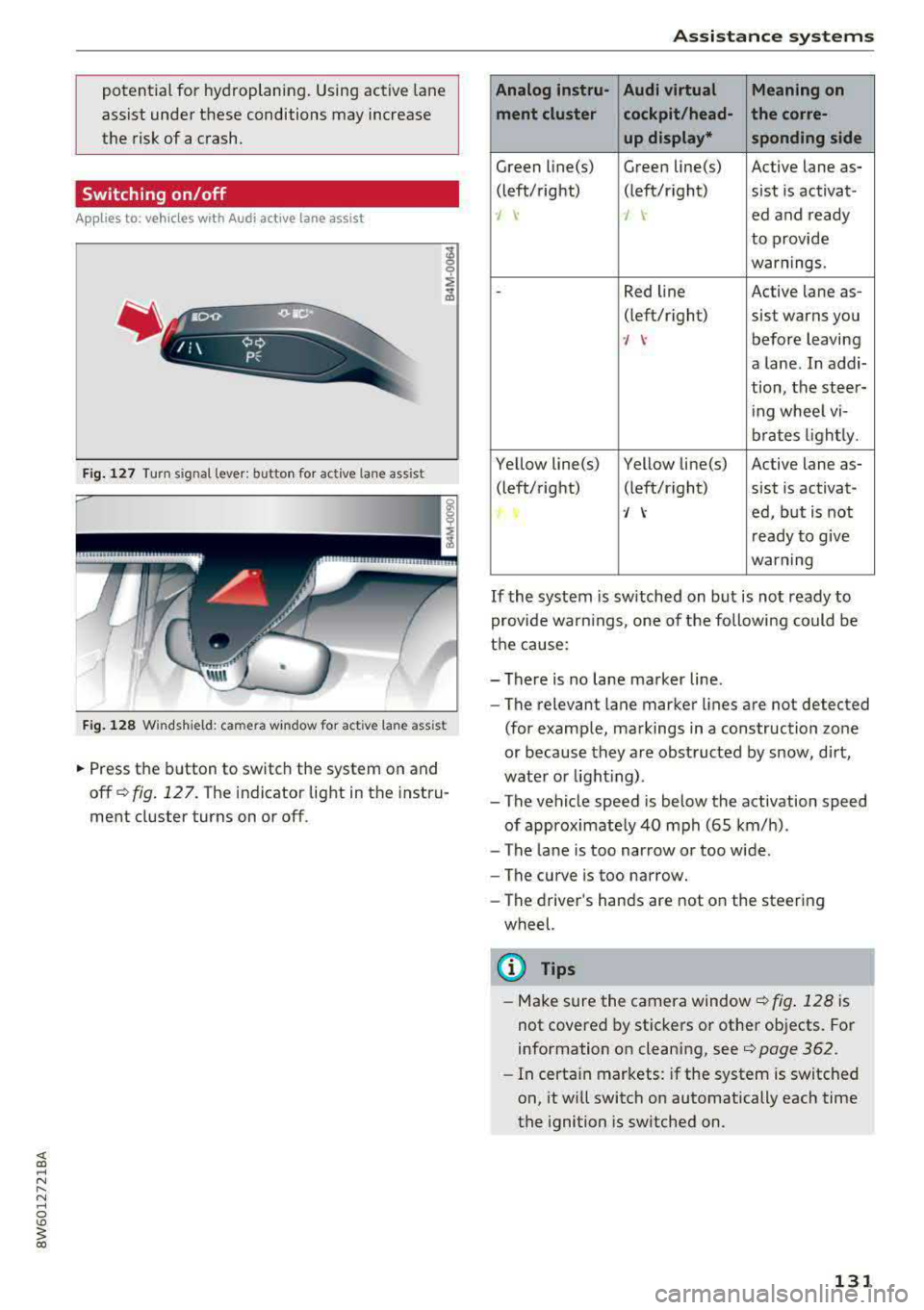
Switching on/off
Applies to: veh icles with Audi active lane assist
Fig . 127 Turn s ignal lever: button for act ive lane ass ist
F ig . 128 W inds hield: camera window for active lane ass ist
.. Press the button to switch the system on and
off ¢ fig. 127. The indicator light in the instru
ment cluster turns on or off.
Assistance systems
Analog instru- Audi virtual Meaning on
ment cluster cockpit/head- the corre- up display* sponding side
Green Li ne(s) Green line(s) Active lane as-
(left/right) (left/right) s ist is activat -
J \' J \' ed and ready
to provide
warnings .
-Red line Active lane as-
(left/right) sist warns you
· / \' before leaving
a lane . In addi-
tion, the steer-
ing whee l vi-
brates light ly.
Yellow line(s) Yellow line(s) Active lane as- (left/right) (left/right) s ist is activat-
·/ \' ed, but is not
re ady to give
warning
If the system is switched on but is not ready to
provide warn ings, one of the following could be
the cause:
- There is no lane marker line .
- The relevant lane marker lines are not detected
(for example, markings in a construction zone
or because they are obstructed by snow, dirt,
water or light ing) .
- The vehicle speed is below the activation speed of approximately 40 mph (65 km/h).
- The lane is too narrow or too wide.
- The curve is too narrow.
- The driver's hands are not on the steering
wheel.
CI) Tips
- Make sure the camera window ¢fig. 128 is
not covered by stickers or other objects. For
information on cleaning, see
¢page 362 .
-In certa in markets: if the system is switched
on, it will switch on automatically each time
the ignition is switched on.
131
Page 145 of 409
sound was muted, no tone will sound. Pay atten
tion to the vehicle's surroundings when you start
to drive.
Switching on /off
A pp lies to: ve hi cles w ith parkin g system plus
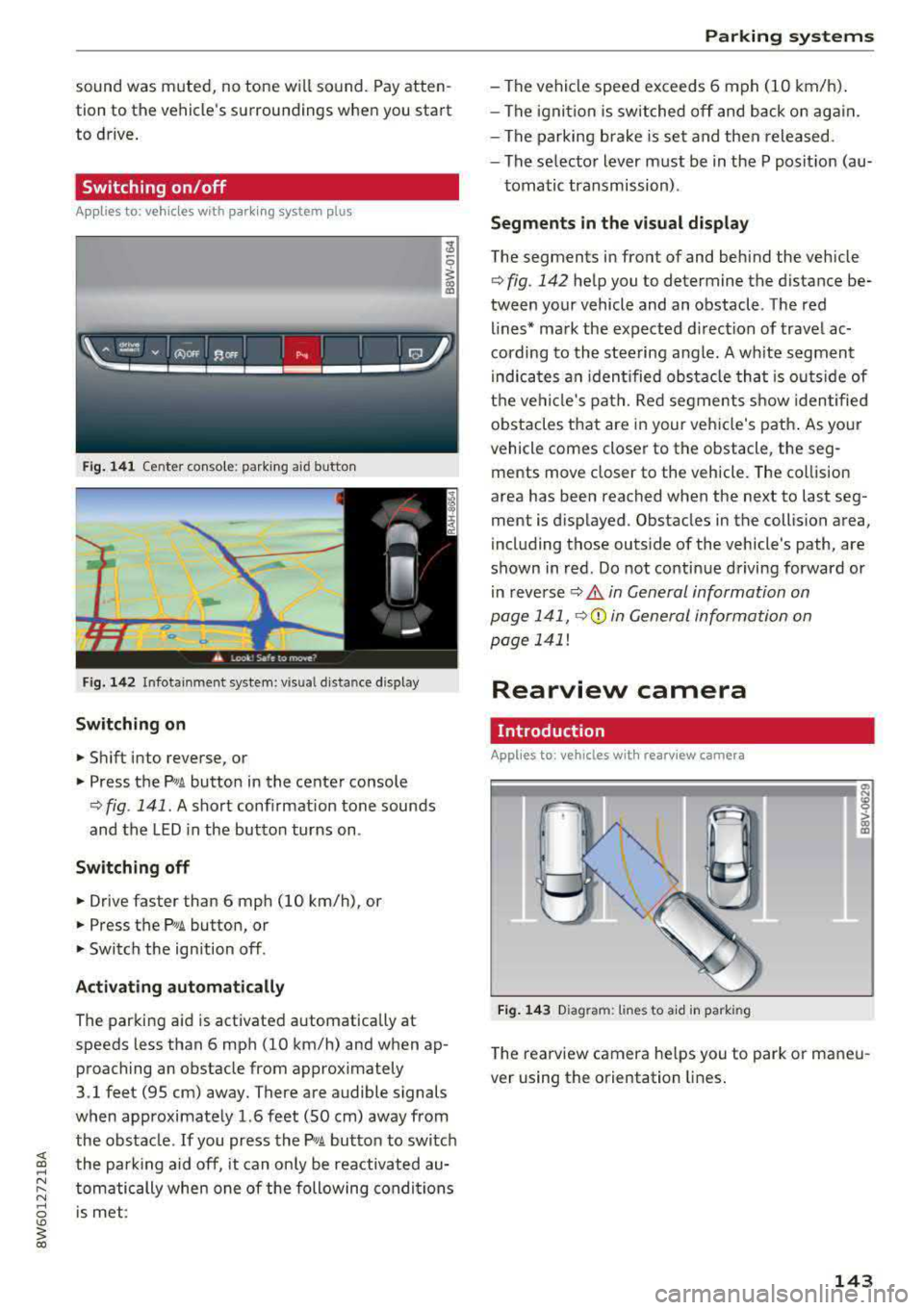
Fig. 141 Center conso le: parki ng aid button
Fig . 142 Infotainment system: visual d istance display
Switching on
~ Shift into reverse, or
~ Press the Pw A button in the center console
¢ fig . 141. A short confirmation tone sounds
and the LED in the button turns on.
Switching off
~ Drive faster than 6 mph (10 km/h), or
~ Press the P,11A button, or
~ Switch the ign ition off .
Activating automatically
The parking aid is activated a utomat ica lly at
speeds less than 6 mph (10 km/h) and when ap
proaching an obstacle from approximately
3.1 feet (95 cm) away. There are audible signals
when approximately 1.6 feet (SO cm) away from the obstacle . If you press the
p,,;A button to switch
the park ing aid off, it can on ly be reactivated au
tomatically when one of the following conditions
is met :
Parking systems
-The vehicle speed exceeds 6 mph (10 km/h).
- The ignition is switched off and back on again.
- The parking brake is set and then released .
- The selecto r lever must be in the P posit ion (au-
tomatic transmission) .
Segments in the visual display
The segments in front of and behind the veh icle
¢fig. 142 help you to determine the distance be
tween your vehicle and an obstacle . Th e red
lines* mark the expected direction of travel ac
cording to the steering angle. A wh ite segment
i ndica tes an identified obstacle tha t is outsid e of
the vehicle's path. Red segments show identified
obstacles that are in your veh icle's path. As your
vehicle comes closer to the obstacle, the seg
ments move closer to the veh icle. The collision
area has been reached when the next to last seg
ment is displayed . Obstacles in the collision area,
including those outs ide of the vehicle's path, are
shown in red. Do not continue driving forward or
in
reverse ¢ A in General information on
page 141,
Q© in General information on
page 141!
Rearview camera
Introduction
App lies to : vehicles wi th rearv iew camera
Fig. 143 D iagram: li nes to a id in parking
a, N :g
:l,. (I) (X)
The rearview camera he lps you to park or maneu
ver using the orientation lines.
143
Page 147 of 409
Switching off
• Drive faster than 6 mph (10 km/h), or
• Press the p,,,A button, or
• Switch the ignition off.
(D Tips
-The visual display in the r ight part of the
display should help you detect the critica l
vehicle area.
- You can change the volume of the signals
and the display
c:!) page 148.
Perpendicular parking
Applies to: vehicles with rearview came ra
This view may be used when parking in a garage
or in a parking space.
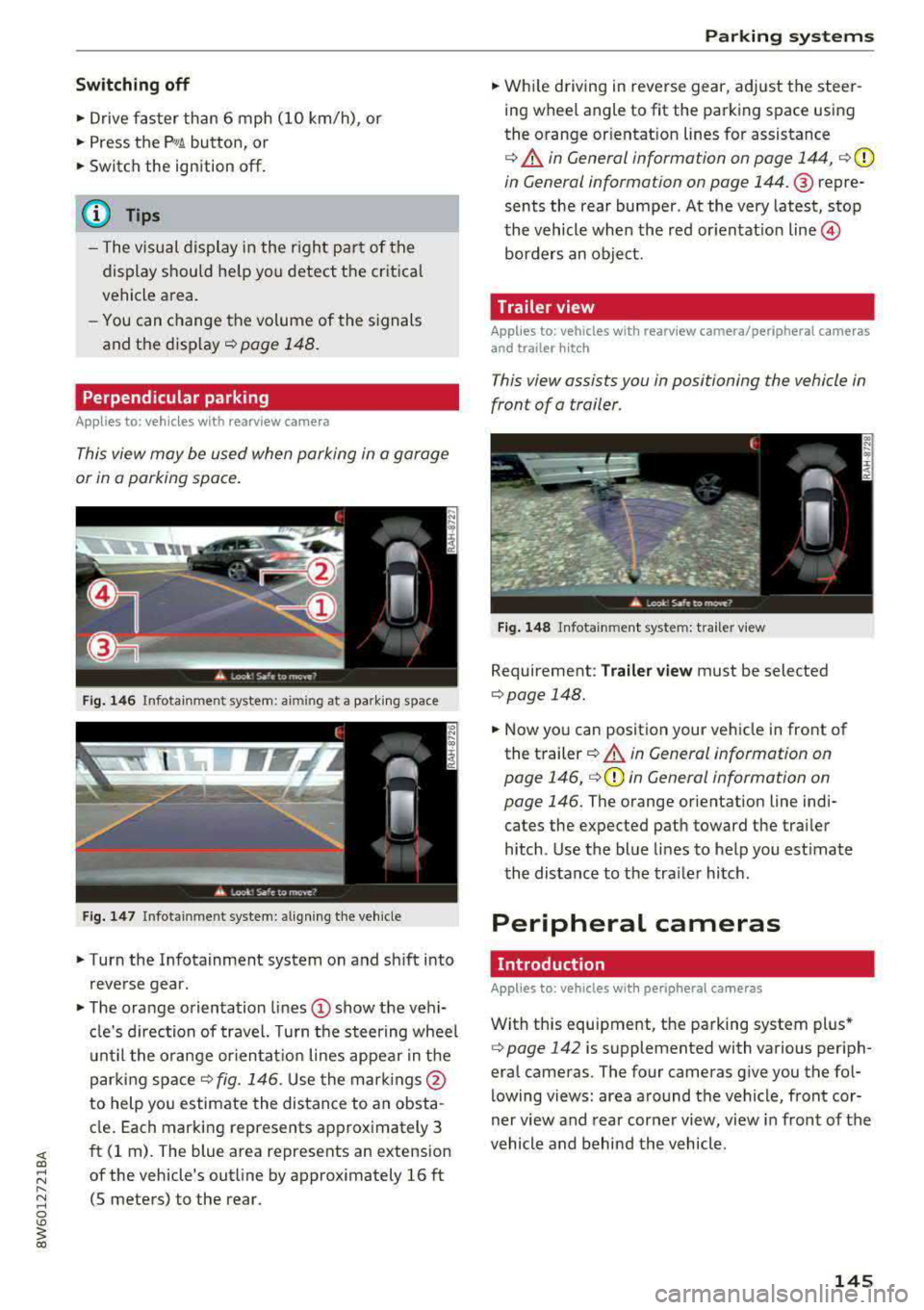
Fig. 146 Infotainment system: aiming at a parking space
Fig . 147 Infotainment sys tem: aligning th e vehicle
• Turn the Infotainment system on and sh ift into
reverse gear.
• The orange orientation lines (D show the vehi
cl e's direction of travel. Turn the steering wheel
until the orange orientat ion lines appear in the
parking
space ¢ fig. 146. Use the marking s@
to help you estimate the distance to an obsta
cle. Each marking represents approximately 3
ft (1 rn). The blue area represents an extension
of the vehicle's outline by approx imately 16 ft
(5 meters) to the rear.
Parking systems
• While driving in reverse gear, adjust the steer
ing wheel angle to fit the parking space using
the orange or ientation lines for assistance
¢ &. in General information on page 144, ¢(D
in General information on page 144. ® repre
sents the rear bumper. At the very latest, stop
the vehicle when the red or ientat io n
line ©
borders an object.
Trailer view
Applies to: vehicles with rearview camera/peripheral cameras
and trailer hitch
This view assists you in positioning the vehicle in
front of a trailer.
Fig. 148 Infota inment system: trailer view
Requirement: Trailer view must be selected
¢page 148.
• Now you can position your vehicle in front of
the trailer
c:!) &. in General information on
page 146,
¢ (D in General information on
page 146.
The orange orientation line indi
cates the expected path toward the trai ler
h itch. Use the blue lines to help you estimate
the distance to the tra iler hitch.
Peripheral cameras
Introduction
Applies to: vehicles wit h periph eral cameras
With this equipment, the parking system plus*
c:> page 142 is supplemented with various periph
eral cameras. The four cameras give you the fo l
lowing views: area around the vehicle, front cor
ner view and rear corner view, view in front of the
vehicle and behind the vehicle.
145