warning AUDI A5 COUPE 2018 Manual PDF
[x] Cancel search | Manufacturer: AUDI, Model Year: 2018, Model line: A5 COUPE, Model: AUDI A5 COUPE 2018Pages: 409, PDF Size: 67.63 MB
Page 112 of 409
Ass is tance sy stems
- Under some circumstances, traffic sign rec
ognition may not detect traffic signs cor
rectly or detect them at all. As a result, the
system may not display the correct speed limit or any speed limit.
- Traffic s ign recognition does not adapt your
vehicle's speed to match the speed limit!
- The disp lay in the instrument cluster is
based on the units of measurement used for
speed in that country . As a result, the d is
play
SO in the instr ument cluster can mean
ei ther km/h o r mph, depending on the coun
t ry .
Operation
Applies to : vehicles with camera-based traffic sign recogn i
tion
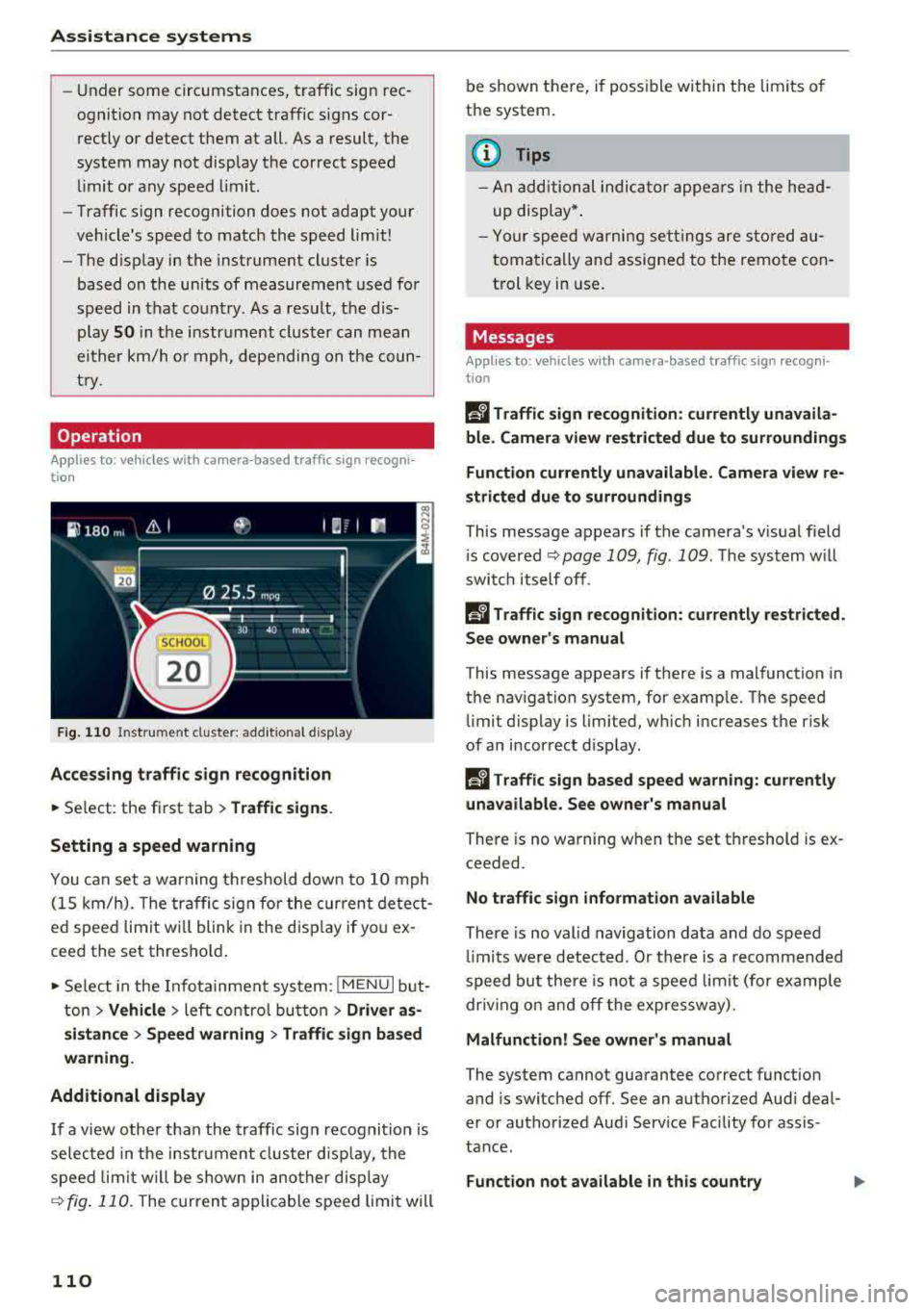
F ig. 11 0 In stru ment cl uste r: add it iona l d isplay
Acces sing traffic sign recogniti on
.,. Se lect : the first tab> Traffic signs .
Setting a speed warning
You can set a warning t hreshold down to 10 mph
(15 km/h). The tra ffic sign for the current detect
ed spee d limit w ill blink in the disp lay if yo u ex
ceed the set thresho ld .
.,. Se lect in the Infotainment sys tem : I MENU I but
t on
> Vehicle > left contro l button > Driver a s
sistan ce
> Speed warning > Traffic sign ba sed
warning .
Additional display
I f a view othe r than the traffic sign recogni tion is
selec ted in the instrument cluster disp lay, the
speed lim it w ill be shown in ano ther disp lay
q fig . 110 . The curren t appl ica ble speed limi t will
110
be shown there, if possible within t he limits o f
the system .
(1) Tips
-An additional indica tor appe ars in the he ad
up display* .
- Your speed w arning set tings are sto red au
toma tic ally and assigned to the remo te con
t rol key in use .
Messages
Applies to: vehicles with camera -based traff ic sign recogn i
tio n
Ii Traffic sign recognition: currently unavaila
ble . C amera view re str icted due to surroundings
Fun ction currently unavailable. Camera view r e
strict ed due to surroundings
This message appears if the camera's v is ual field
i s covered
q page 109, fig . 109 . The system w ill
swi tch itself off .
Ii Traffic sign recognition: currently restricted.
Se e own er's manual
This message appears if there is a malfunction in
the nav igation system, for examp le. The speed
limit d isplay is limited, w hich increases the risk
of an incor rect d isplay .
Ii Tra ffic sign based speed warning : currently
unavailable. See owne r's manual
There is no warning when the set threshold is ex
ceeded.
No traffic sign inform ation available
There is no valid navigation data and do speed
li mi ts were detec ted . Or there is a recommended
speed bu t there is not a speed limit (for examp le
dr iv ing on and off the exp ressw ay).
Malfunction! See owner' s manual
The system cannot guarantee correct function
and is switched off. See an authorized Aud i deal
er o r autho rized Aud i Serv ice Facility for assis
tance.
Function not a vailable in this country
Page 113 of 409
<( a, .... N ,....
N .... 0 \0
3 a,
The vehicle is in a country where the function is
n ot available.
Lap timer
Introduction
Appl ies to: vehicles with lap timer
You can measure and analyze lap times with the
lap timer in the display.
Opening the lap timer
• Open the first Vehicle tab (trip computer) using
the
l <1 t> I button on the mult ifunct ion steer ing
wheel.
• Se lect o n the multifunction steering wheel: left
contro l button
> Lap times .
Operating the lap t imer
• On t he multifunction steer ing whee l, tu rn the
left thumbwheel
(J) c> page 13 unt il the desired
menu item is displayed in the instrument cl us
te r.
• Press the left thumbwhee l to confirm t he selec
t io n.
_& WARNING
Your focus s hould always be on driving your
vehicle sa fely. A s the dr iver, y ou have com
ple te responsib ility for safety in tra ffic. Only
use the f unctions s uch as t he la p timer in s uch
a way that you always mainta in comp lete co n
trol over your vehicle in all traffic s ituations.
(D Tips
You c an ret rieve information from the trip
computer while the lap time r stopwatch is
r u nning .
Lap times and timing
Applies to: vehicles with lap timer
Req uirement: the lap t imer must be open
c>page 111.
Timing laps
• T o start timing manually, se lect Start lap 1 in
the menu.
Assistance systems
• To star t timing automatica lly as soon as you
beg in to drive, select
Start lap 1 by driving off
or Start b y driving off in the menu.
• To meas ure the lap time, select New lap in the
menu. This starts timing the next lap at the
same time.
A fter completing a lap, the difference between
the last lap and the previo us best lap time will be
indicated with a" -" or" +".
Pausing timing and displaying a split time
• To insert a pause m , select Pause in the menu .
• To resume timing, select Resume in the menu.
• To display a sp lit t ime, select Split time in the
menu. The split
time [~] appears for app rox i
mate ly 10 seconds in the instr ument cluster.
The tim ing of the cur rent lap con tinues .
Resetting timing
• Using the mult ifunct io n steer ing whee l, select
Reset times i n the menu.
(!) Tips
- A maximum of 99 lap t imes can be meas
ured.
- If tim ing is pa used, you can continue it later
even if you switch the ignition off.
- Saved lap times cannot be indivi dually de
leted from the total results .
- The s ave d la p time r va lues w ill rem ain after
switchin g the ignition off.
Lap statistics
Applies to: vehicles with lap timer
Displaying lap statistics
You can display t he n umbe r of laps driven, the
f astest lap" +", the slowest lap" -", an d the aver
age t ime
"0" in the instrument cluster.
• On t he mul tif unc tion stee ring w heel, selec t th e
left contro l button
> Lap statistics or Statis
tics .
• Turn the thumbwheel down o r up to display the
ind ividual lap times .
• To return to t he lap timing that was begun,
press the left thumbwheel.
111
Page 114 of 409
Assistance systems
Resetting lap statistics
.,. On the multif unction steering whee l, select:
the right control button
> Reset statistics.
@ Tips
The lap stat istics l ist the lap times for the last
30 laps. The fastest and slowest lap time out
o f up to 99 measured laps are also displayed .
Predictive efficiency
assist
Description
Applies to: vehicles with predictive efficiency assist
General information
The predictive efficiency assist helps the driver to
d rive with anticipation and therefore helps to
save fuel. The system accesses predict ive trip da
ta (including speed limits, inclines and the radius
of curves) from the navigation system*. Informa
tion from the camera-based traffic sign recogni
tion* is also applied to recogni ze traffic signs
r::;i page 109 .
The messages displayed depend on the naviga
tion data * being up-to-date and the correct iden
tification by the traffic sign recognition*.
When adaptive cruise contro l* is switched off,
the predict ive efficiency assist only provides noti
fications without controlled interventions. When
adaptive cruise control* is switched on, the sys
tem responds to upcoming situations automati
cally .
Vehicles with adaptive cruise control*
Refer to predictive control c> page 120.
Indicator in the instrument cluster display
Predictive messages appear in the instrument
cluster display to show the driver the appropriate
time to coast when a situation ahead requires
you to drive at a lower speed.
The messages are only shown if the cr uise control
system* or adaptive cruise control* is switched
off.
112
An additional indicator appears in the head-up
display* .
Symbol Meaning
Remove your foot from the acceler-
~
ator pedal to slow down, because
there is a situation ahead that re- quires a lower speed.
If you see
Driver assistance in the instrument
cluster display, the following symbols will indi
cate which situation the system is currently re
acting to .
Symbol Meaning
MPH
USA models:
speed limiter
km/h
Canada models:
speed limiter
_J!L Intersection
'"l i r
w
Traffic c ircle
If there are mult iple situations, then these situa
tions wi ll appear in order in the display.
_&. WARNING
Pay attention to traffic and the area around
your vehicle when the efficiency assist is
switched on. The driver is always respons ible
for assessing the traffic situation.
(D Tips
- The wording of the message may vary de
pending on the dr iving mode set in drive se
lect* c> page 138 and the current selector
lever position (automatic transmiss ion*) .
No messages are displayed when in the S
selector lever position or in
Dynamic mode.
- When a route is planned using the nav iga
t ion system*, then the message feed is
based on this route . Without route guid
ance, the system uses an assumed route fo r
the message feed.
- There will not be a message for every situa
tion ahead, fo r example if there is not
enough distance remaining to react to the
situation.
Page 116 of 409
Assistance systems
General information
Applies to: ve hicles w ith Aud i adapt ive cruise co ntro l
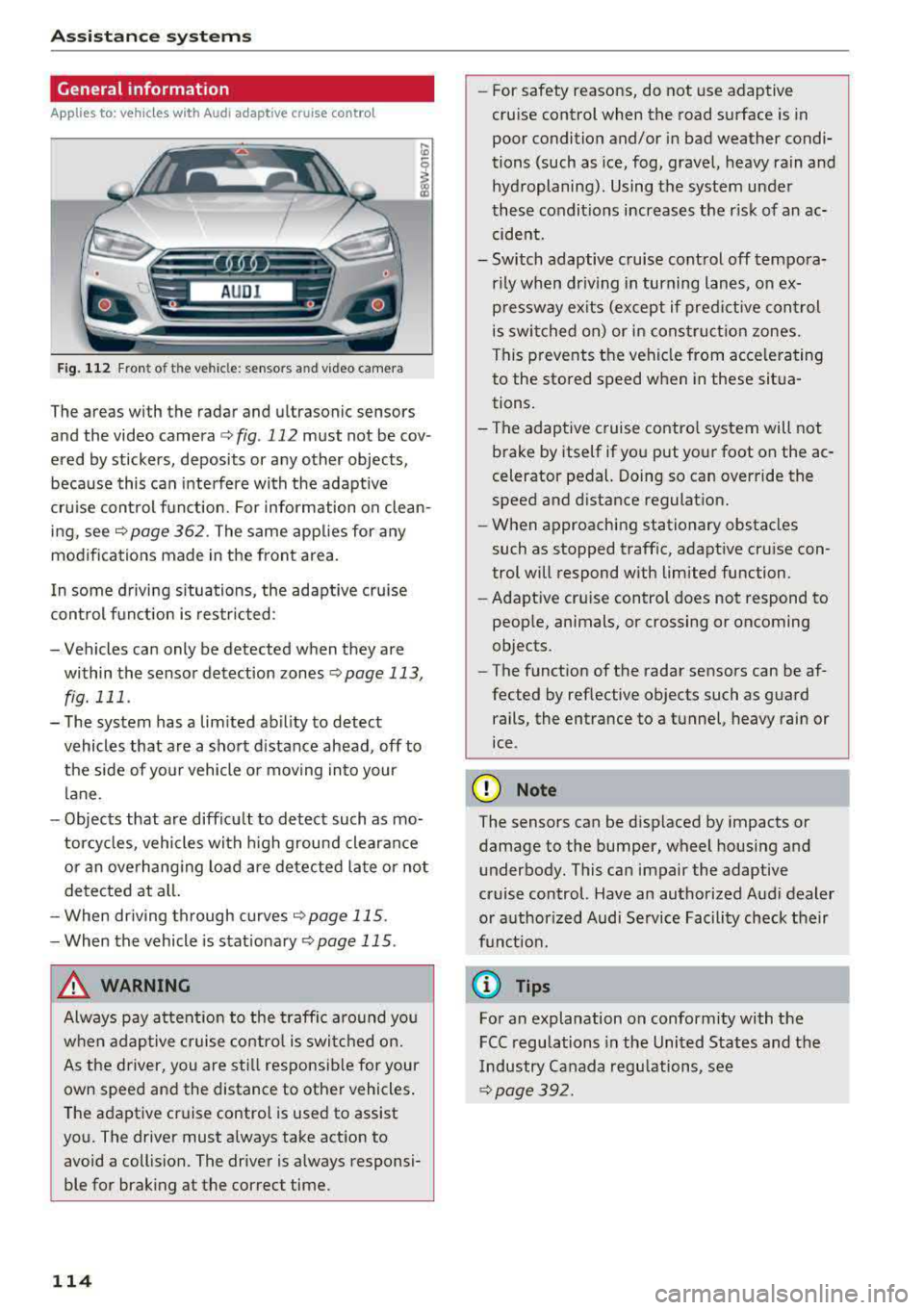
Fig. 112 Fro nt of th e ve hicle: senso rs an d video camera
The areas with the radar and ultrasonic sensors
and the video camera ¢
fig. 112 must not be cov
ered by stickers, deposits or any other objects ,
because this can interfere with the adaptive
cruise control function. For information on clean
ing, see
c::> page 362 . The same applies for any
modifications made in the front area .
In some driving situations , the adaptive cruise
control function is restricted :
-Vehicles can only be detected when they are
within the sensor detection zones
<:;> page 113,
fig. 111 .
-The system has a limited ability to detect
vehicles that are a short distance ahead, off to
the side of your vehicle or moving into your
lane.
-Objects that are difficu lt to detect such as mo
torcycles, vehicles with high ground clearance
or an overhanging load are detected late or not
detected at all.
-When driving through curves
c::>page 115 .
-When the vehicle is stationary <:;> page 115.
_& WARNING
Always pay attention to the traffic around you
when adaptive cruise control is switched on.
As the driver, you are still responsible for your
own speed and the distance to other vehicles.
The adaptive cruise control is used to assist
you. The driver must always take action to
avoid a collision. The driver is always responsi
ble for braking at the correct time.
114
-For safety reasons, do not use adaptive
cruise control when the road surface is in
poor condition and/or in bad weather condi
tions (such as ice, fog, gravel, heavy rain and
hydroplaning) . Using the system under
these conditions increases the risk of an ac
cident.
- Switch adaptive cruise control off tempora
rily when driving in turning lanes, on ex
pressway exits (except if predictive control
is switched on) or in construction zones.
This prevents the vehicle from accelerating
to the stored speed when in these situa
tions.
-The adaptive cruise control system will not
brake by itself if you put your foot on the ac
celerator pedal. Doing so can override the
speed and distance regulation.
-When approaching stationary obstacles
such as stopped traffic, adaptive cruise con
trol will respond with limited function .
- Adaptive cruise control does not respond to
people, animals, or crossing or oncoming
objects.
-The function of the radar sensors can be af
fected by reflective objects such as guard rails, the entrance to a tunnel, heavy rain or
ice .
(D Note
The sensors can be displaced by impacts or damage to the bumper, wheel housing and underbody. This can impair the adaptive
cruise control. Have an authorized Audi dealer
or authorized Audi Service Facility check their
funct ion.
@ Tips
For an explanation on conformity with the
FCC regulations in the United States and the
Industry Canada regulations, see
c::> page 392.
Page 118 of 409
Assistance systems
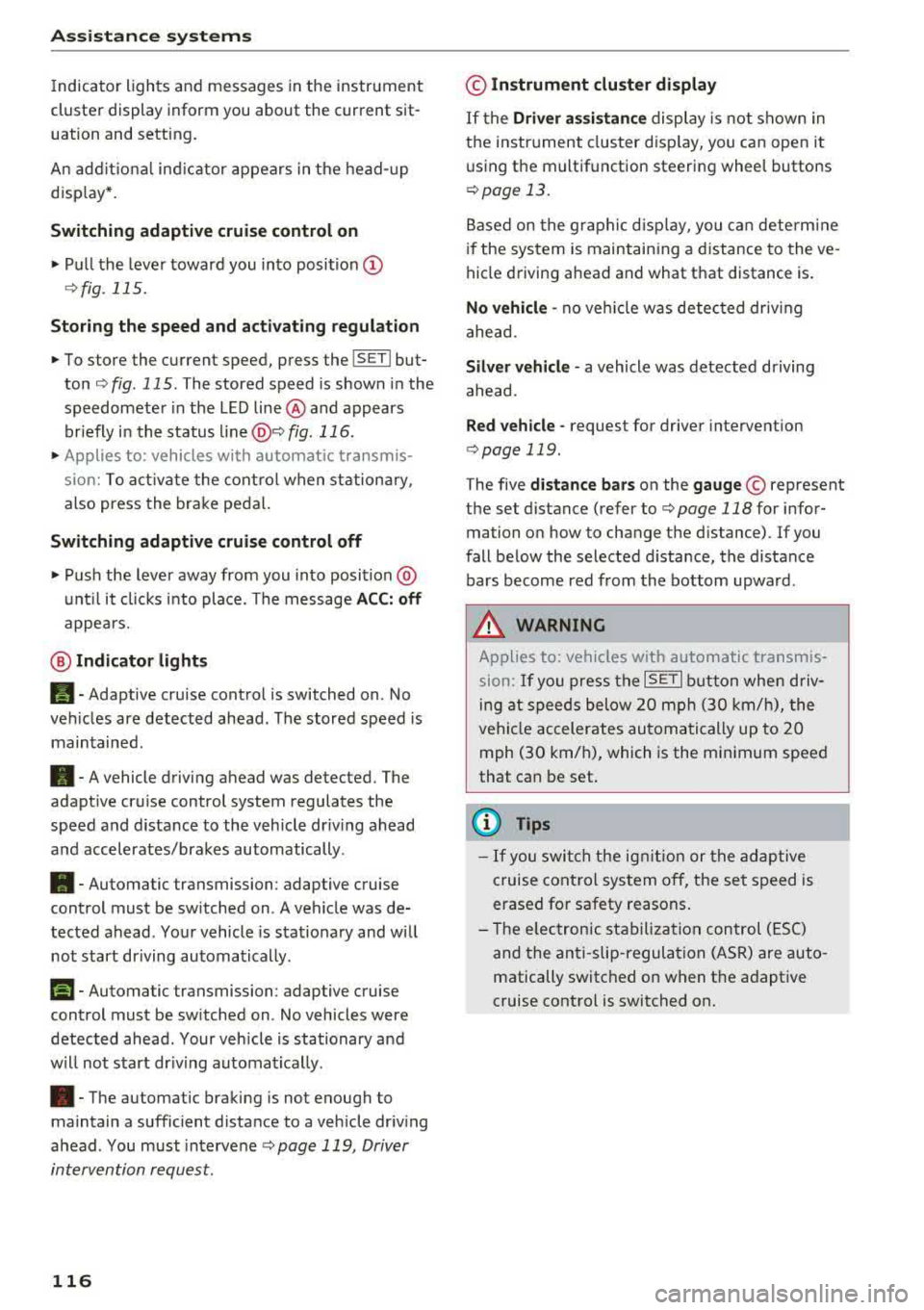
Indicator lights and messages in the instrument
cluster display inform you about the current sit
uation and setting.
An add itiona l ind icator appears in the head-up
disp lay*.
Switching adaptive cruise control on
.,. Pull the lever toward you into position@
<::;,fig. 115.
Storing the speed and activating regulation
.,. To store the current speed, press the !SET ! but
ton
¢ fig . 115 . The stored speed is shown in the
speedometer in the LED line @and appears
briefly in the status
line @c:;, fig. 116 .
.,. Applies to: vehicles with automatic transmis
sion: To activate the control when stationary,
also press the brake pedal.
Switching adaptive cruise control off
.,. Push the lever away from you into position @
until it clicks into place. The message
ACC: off
appears.
@ Indicator lights
Ill-Adaptive cruise control is switched on . No
veh icles are detected ahead . The stored speed is
maintained.
• -A vehicle driving ahead was detected. The
adapt ive cruise control system regulates the
speed and distance to the vehicle dr iv ing ahead
and accelerates/brakes automatically.
• -Automatic transmission : adaptive cruise
control must be switched on . A vehicle was de
tected ahead . Your vehicle is stat ionary and will
not start driving automatically .
fai-Automatic transmission : adaptive cruise
control must be switched on . No vehicles were
detected ahead. Your vehicle is stationary and
will not start dr iving automatically .
•-The automatic braking is not enough to
maintain a sufficient distance to a vehicle driving
ahead . You must intervene
c:;, page 119, Driver
intervention request.
116
© Instrument cluster display
If the Driver assistance display is not shown in
the instrument cluster display, you can open it
using the multif unction steering wheel buttons
c:;, page 13.
Based on the graphic display, you can determine
if the system is maintaining a distance to the ve
hicle driving ahead and what that distance is .
No vehicle -no veh icle was detected driv ing
ahead .
Silver vehicle -a vehicle was detected driving
ahead.
Red vehicle -request for driver intervention
¢ page 119 .
The five distance bars on the gauge© represent
the set distance (refer to
c:;, page 118 for infor
mation on how to change the distance). If you
fall below the selected d istance, the distance
bars become red from the bottom upwa rd .
A WARNING
Applies to: vehicles with automatic transmis
sion: If you press the
ISET ! button when driv
ing at speeds below 20 mph (30 km/h), the
vehicle accelerates automatically up to 20
mph (30 km/h), which is the minimum speed
that can be set.
(D Tips
- If you switch the ignitio n or the adaptive
cruise control system off, the set speed is
erased for safety reasons .
- T he electronic stabilization control (ESC)
and the anti-slip-regulation (ASR) are auto
matically switched on when the adaptive
cruise control is switched on.
Page 120 of 409
Assistance systems
-Press the brake pedal to slow your vehicle
down.
A WARNING
If the message ACC : automatic go1> appears,
your vehicle will start driving even if there is an obstacle between your vehicle and the ve
hicle drivi ng ahead. This increases the risk of
an acc ident.
(D Tips
If adaptive cruise contro l is active and your
veh icle does not start driving even though the
message
ACC: automatic go1l appears, you
can start driving by tapping the accelerator
pedal.
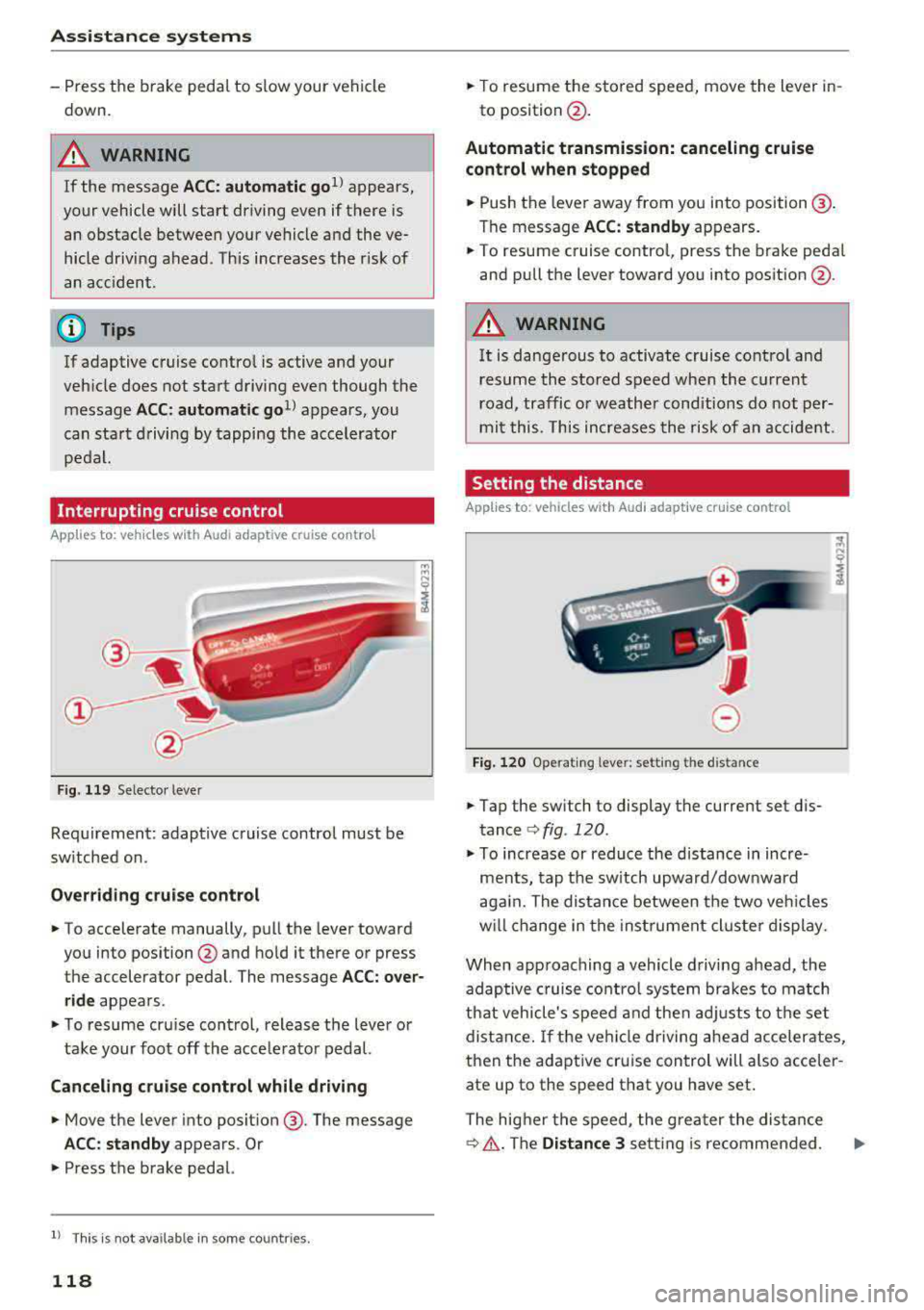
Interrupting cruise control
App lies to: veh icles with Audi adaptive cruise control
Fig. 119 Selecto r lever
Requirement: adaptive cruise control must be
sw itched on.
Overriding cruise control
.,. To accelerate manually, p ull the lever toward
you into position @and hold it there or press
the accelerator pedal. The message
ACC: over
ride
appears.
.,. To resume cruise cont rol, release the lever or
take your foot off the acce lerat or pedal.
Canceling cruise control while driving
.,. Move the lever into posit ion @. The message
ACC: standby appears . Or
.,. Press the brake pedal.
l ) Thi s is not ava ilab le in some countr ies .
118
.,. To resume the stored speed, move the lever in-
to position @.
Automatic transmission: canceling cruise
control when stopped
.,. Push the lever away from you into posit ion@.
The message
ACC: standby appears.
.,. To resume cruise control, press the brake pedal
and pull the lever toward you into position @.
A WARNING
It is dangerous to activate cruise control and
resume the stored speed when the current
road, traffic o r weather conditions do not per
mit this . This increases the risk of an accident .
Setting the distance
Applies to: vehicles with Audi adaptive cruise control
,
0
Fig. 120 Operating lever: setting the distance
.,. Tap the sw itch to display the current set dis
tance
c:> fig. 120.
.,. To increase or reduce the distance in incre
ments, tap the switch upward/dow nward
again. The distance between the two vehicles
w ill change in the instr ument cluster display.
When approaching a vehicle driving ahead, the
adaptive cruise control system brakes to match
that vehicle's speed and then adjusts to the set
distance. If the vehi cle driving ahead accelerates,
then the adaptive cruise control will also acceler
ate up to the speed that you have set .
The higher the speed, the greater the distance
c:> &. The Distance 3 setti ng is recommended .
Page 121 of 409
That is equal to the general recommendation of
"half the speed shown on the speedometer".
The distances provided are specified val ues. De
pending on the d riving situation and how the ve
hicle ahead is driving, the actual distance may be
more or less than these target distances.
If you change the time gaps, the newly se t value
appears briefly in the instrument cluster display,
for example
II for Distance 3. This only occurs if
the
Driver assistance disp lay is not currently
shown in the display
~ page 115, fig. 116.
Distance 1 : this setting corresponds to a distance
of 92 feet (28 meters) when traveling at 62 mph
(100 km/h), or a time distance of 1 second.
Distance 2 : this setting corresponds to a distance
of 118 feet (36 meters) when traveling at 62
mph (100 km/h), or a time distance of 1.3 sec
onds.
Distance 3: this setting corresponds to a distance
of 164 feet (SO meters) when traveling at 62
mph (100 km/h), or a time distance of 1.8 sec
onds.
Distance 4: this setting corresponds to a distance
of 219 feet (67 meters) when traveling a t 62
mph (100 km/h), or a time distance of 2.4 sec
onds.
Distance 5: this setting corresponds to a distance
of 328 feet (100 meters) when traveling at 62
mph (100 km/h), or a time distance of 3.6 sec
onds.
A WARNING
When setting the distance, the driver is re
sponsible for adhering to any applicab le legal
regulations.
@ Tips
- Depending on the selected driving mode in
drive select* and the set distance, the driv
ing behavior will vary from dynamic to com
fortable when accelerating
c::;, page 139.
- Distance 3 is set automatically each time
you switch the ignition on. If you would like
to set another d istance as the default set
ting, you can have the
adaptive cruise con-
Assistance systems
trol menu enabled by an authorized Audi
dealer or authorized Audi Service Facility.
- Your settings are automatica lly stored and
assigned to the remote control key being
used.
Setting the driving program
Applies to : vehicles wit h Audi ada ptive c ruise control
Depending on the selected driving program and
distance, driving behavior when accelerating will
vary from dynamic to comfortable .
Setting the driving program on vehicles
without drive select*
.,. Select in the Infotainment system: I MENU! but
ton
> Vehicle > left control button > Driver as
sistance> Audi adaptive cruise control > Driv
ing program
> Comfort, Standard or Dynamic.
Setting the driving mode on vehicles with
drive select*
See c::;, page 139.
¢j) Tips
Your settings are automatically stored and as
s igned to the remote control key being used .
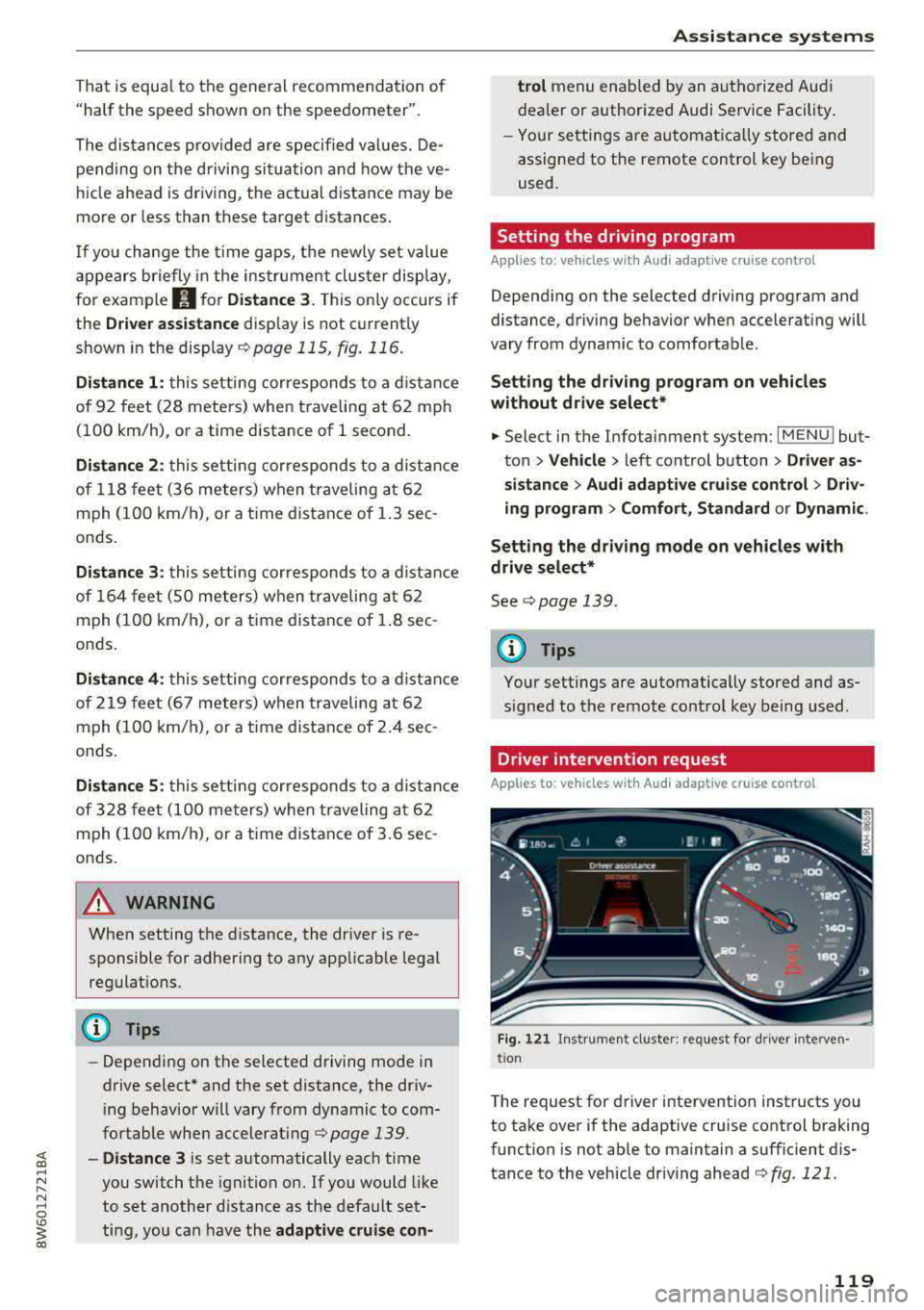
Driver intervention request
Applies to: vehicles wit h Audi ada ptive cr uise contro l
Fig. 121 Instrument cluster : request for driver interven·
t ion
T he request for driver intervention instructs you
to take over if the adaptive cruise control braking
function is not able to maintain a sufficient dis
tance to the vehicle driving ahead
c::;, fig. 121 .
119
Page 122 of 409
Assistance systems
Predictive control
(efficiency assist)
Description
Applies to: vehicles with Audi adaptive cruise control and pre·
dict ive efficiency assist
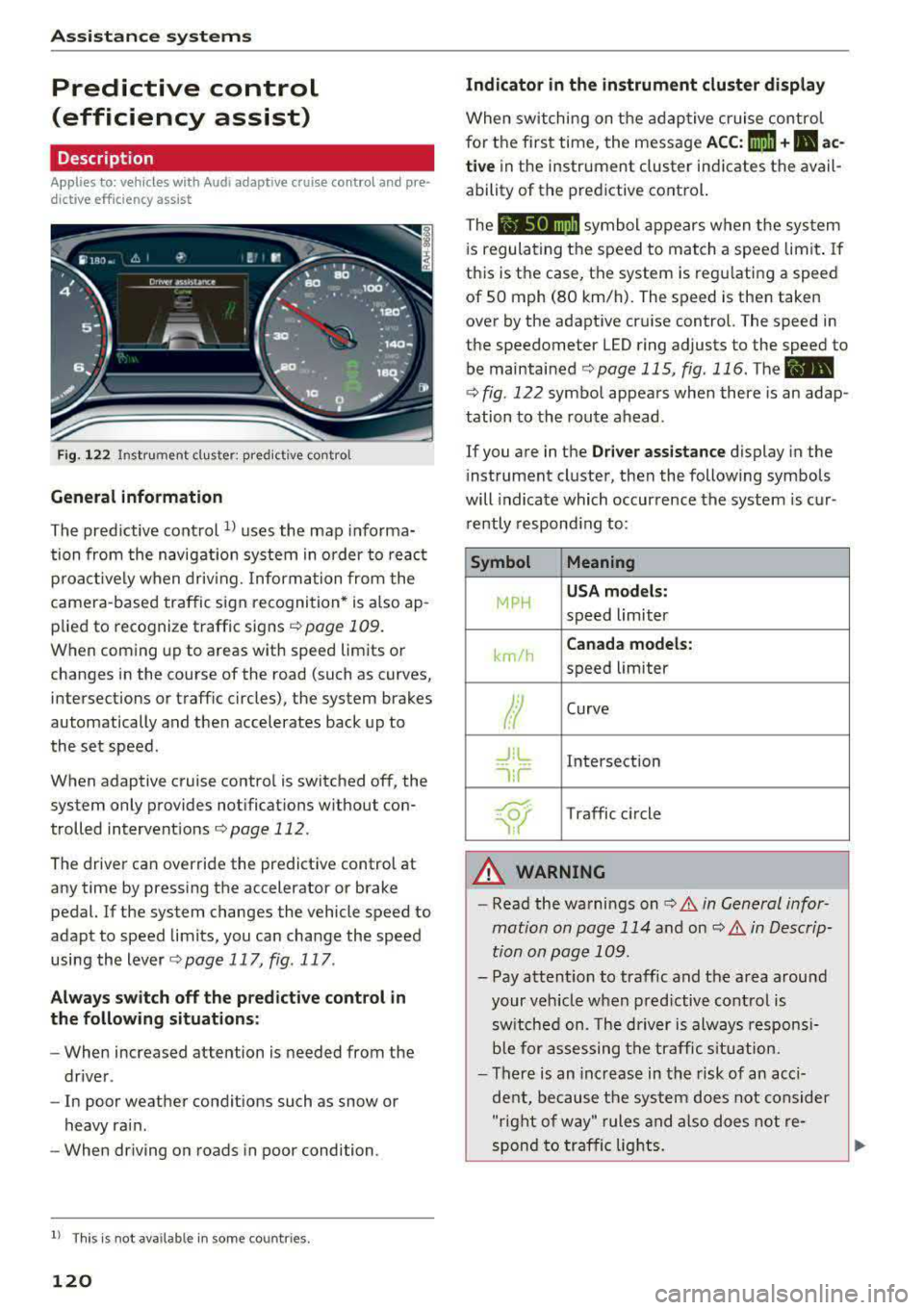
Fig. 122 Instrument cluster: predictive control
General information
The predictive control 1l uses the map informa·
tion from the navigation system in order to react
proactively when driving. Information from the
camera -based traffic sign recognition* is also ap·
plied to recognize traffic signs
r::!> page 109.
When coming up to areas with speed limits or
changes in the course of the road (such as curves,
inte rsections or traffic circles), the system brakes
automatically and then accelerates back up to
the set speed.
When adaptive cruise cont rol is switched off, the
system only provides notificat ions without con
trolled intervent ions
r::!> page 112 .
The driver can override the predictive control at
any time by pressing the accelerator or brake
pedal. If the system changes the vehicle speed to
adapt to speed limits, you can ch ange the speed
using the lever
<:!> page 117 , fig . 117 .
Always switch off the predictive control in
the following situations:
- When increased attention is needed from the
driver .
- In poor we ather condit ions such as snow or
heavy rain .
- When driving on roads in poor condition.
l) This is no t a vail able in som e coun trie s.
120
Indicator in the instrument cluster display
When switching on the adaptive cruise control
for the first time, the message
ACC: 1111 + B ac
tive
in the instr ument cluster indicates the avail
ability of the predictive control.
The symbol appears when the system
i s regulating the speed to match a speed limit .
If
this is the case, the system is regulating a speed
of 50 mph (80 km/h). The speed is then taken
over by the adaptive cruise control. The speed in
the speedometer LED ring adjusts to the speed to
be maintained
r::!> page 115, fig. 116 . The ..
r::!> fig. 122 symbol appears when there is an adap
tation to the route ahead .
If you are in the
Driver assistance display in the
i nstrument cluster, then the following symbols
will indicate which occurrence the system is cur
rently responding to:
Symbol Meaning
MPH
USA models:
speed limiter
km/h
Canada models:
speed limiter
Ir
Curve
_J!L
,ir
Intersection
~ Traffic circle ·· Of );
A WARNING
- Read the warnings on c> .& in General infor
mation on page 114
and on r::!> .& in Descrip
tion an page 109 .
-Pay attention to traffic and the area around
your vehicle when predictive control is
sw itched on. The driver is always responsi
ble for assessing the traffic situation.
-There is an increase in the risk of an acci
dent, because the system does not consider
"right of way" rules and also does not re-
spond to traffic lights.
._
Page 124 of 409
Assistance systems
In a speed range under 40 mph (65 km/h), traffic
jam assist can help to keep the vehicle within a
lane calculated by the system. Within the limits
of the system, the system controls the steering
automatically when adaptive cruise control is
switched on . Since traffic jam assist is only an as
sist system, the driver must always keep his or
her hands on the steering wheel and be ready to
steer. The driver can override the control at any
time by actively steering.
The system is designed for driving on express
ways and highways.
Switching traffic jam assist on and off
.., Press the button to switch the system on and
off¢fig. 123.
.., To turn the system off completely, select in the
Infotainment system:
I M ENU I button > Vehicle
> left contro l button > Driver assistance > Traf
fic jam assist.
If traffic jam assist was deactivated through the
Infotainment system, you can cont inue operating
the active lane assist using the
c::> fig . 123 button
c::> page 131. T he traffic jam assist functions a re
no longer available.
Requirements for using traffic jam assist:
- Traffic jam assist must be switched on in the
Infota inment system.
- Adaptive cruise control must be switched on
and active
c;> page 115 .
Always switch off traffic jam assist in the
following situations:
- When increased attention is needed from the
driver .
- In poor weather conditions such as snow or
heavy rain .
- When driving on roads in poor condition.
- In construction zones.
- In city driving.
Traffic jam assist availability:
If you are in the Driver assistance disp lay in the
i n strument cluster,
the@ indicat or light and
the message
Traffic jam assist available appea rs
if traffic congestion situation was recognized.
You can open the
D rive r assistance disp lay using
122
the multifunction steering wheel buttons
¢ page 13. To activate traffic jam assist, you
must press the
c;> fig. 123 button and switch on
the adapt ive cruise control
¢ page 115.
Indicator lights
Ill and. -traff ic jam assist is switched on.
Vehicles driving ahead were detected. Your vehi
cle adapts whi le driving
c;> fig. 124.
• - Traffic jam assist switches off if the driver
does not take over steering after multiple driver
intervention requests. The system brakes the ve
hicle until it is stationary.
A WARNING
A lways keep your hands on the steering wheel
so you can be ready to steer at any t ime . The
driver is always respons ible for staying in a
lane and for assessing traffic situations . Read
and follow the warnings on
c;> .& in General
information on page 114.
Never use traffic
jam ass ist in the following situations or you
will increase the risk of an accident.
- Driving offroad or on unpaved roads. Traffic
jam assist is only designed for use on paved
roads.
- In city driv ing or in construction zones.
- On curv ing stretches of road.
- In narrow lanes.
- In unclear traffic situat ions such as at inter-
sections or toll stations.
(D Tips
You are not necessarily guided to the center
of your lane.
Page 125 of 409
Distance indicator and
distance warning
Description
Applies to: vehicles with Audi adaptive cruise control
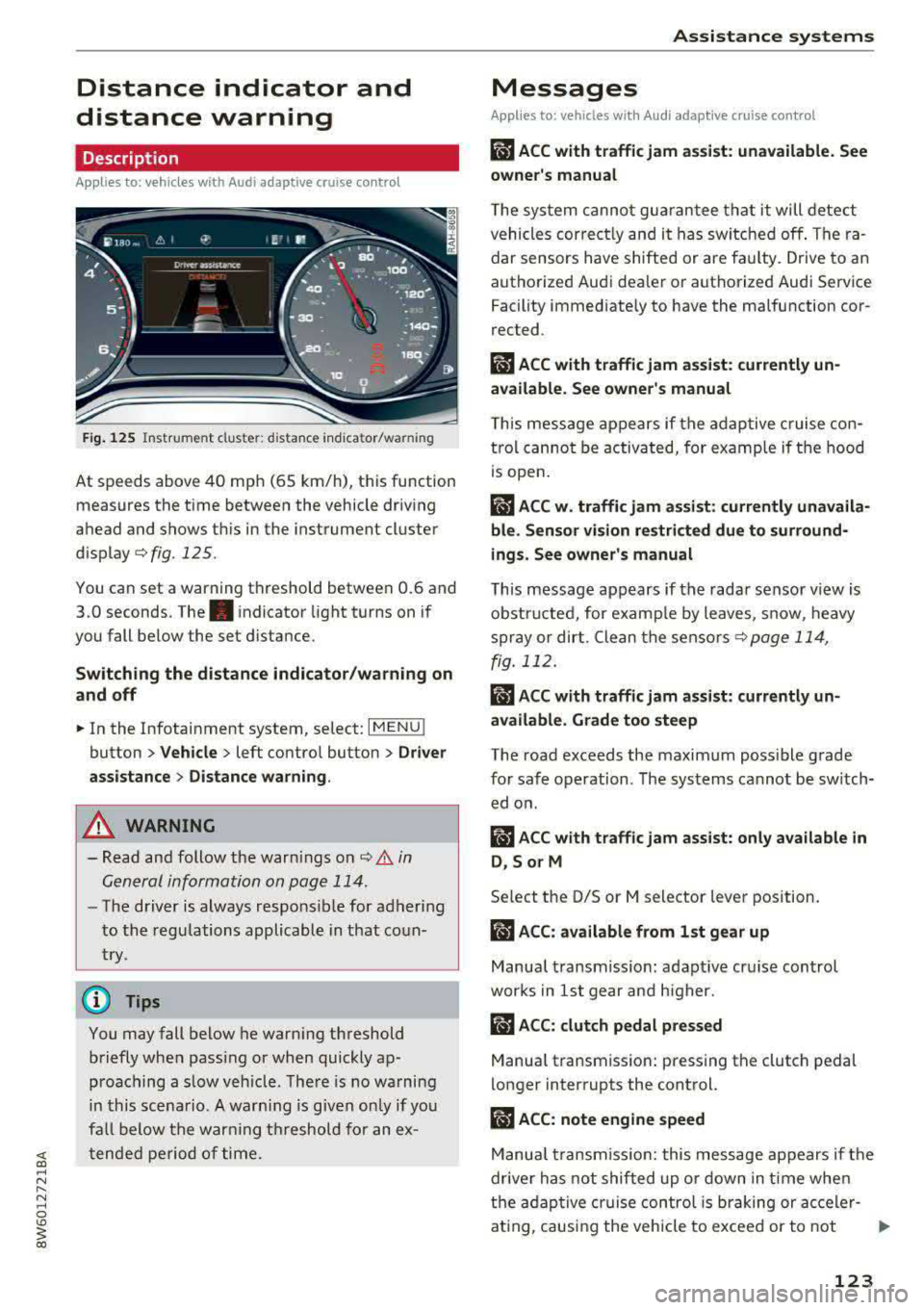
Fig. 125 I n st ru ment cl uste r: d istance ind ica tor /wa rnin g
At speeds above 40 mph (65 km/h), t his function
measures the time betwee n the vehicle driving
ahead and shows th is in the inst rument cluster
d isplay ¢ f1g. 125.
You can set a warning th reshold between 0.6 and
3 .0 seconds. The . indicator light turns on if
you fall below the set d is tance .
Switching the distance indicator /warning on
and off
.. In the Infotainment system, se lect: IM ENU I
button > Vehicle > left contro l button > Driver
assistance
> Distance warning .
A WARNING
- Read and follow the war nings on ¢ A in
General info rmation on page
114 .
-
-The driver is always respo nsib le for adher ing
to the regulations applicable in that co un
tr y.
@ Tips
You may fall below he war ning th reshold
b riefly whe n passing or when quickly ap
proach ing a slow veh icle . T he re is no wa rning
in this sce na rio . A war ning is given only if yo u
fa ll b elow the war ning thresh o ld fo r an ex
t en ded p erio d o f tim e.
Assistance systems
Messages
Applies to: vehicles with Aud i adapt ive c ru ise control
111 ACC with traffic jam ass ist: unavailable. See
owne r's manual
The system cannot gu arantee t hat it will dete ct
vehicles cor rec tly an d it has sw itche d off . The ra
dar sensors have shifted or are fa ulty . Drive to an
a u tho rized Audi dea le r o r a uth orized Aud i Service
Facility immed iate ly to have the malfunction cor
rected .
111 ACC with traffic jam ass ist: currently un
available. See owner 's manual
Th is mess age appears if the adap tive cruise co n
t ro l cannot be activ ated, for examp le if t he hood
is ope n.
fl ACC w. traffic jam assist : currently unavaila
ble . Sensor vision restricted due to surround
ings. See owner's manual
This message appears if the rada r senso r view is
obst ructed, for e xam ple by leaves, s now , h eavy
s p ra y or dirt . Cle an the
sensors ¢ page 114,
fig. 112 .
ill ACC with traffic jam assist: currently un
available. Grade too steep
The road exceed s the maxim um poss ible g rade
f or safe operation . T he systems cannot be sw itch
ed o n.
ill ACC with traffic jam assist : only available in
D, Sor M
Se lect t he D/S or M s ele ctor leve r position.
r,J ACC: available from 1st gear up
Manua l t ransmiss io n: ada ptive cr uise control
wor ks in 1st gear an d higher.
IIJ ACC: clutch pedal press ed
Manua l transmiss io n: pr essing th e clutch p edal
longer inter rupts the control.
IIJ ACC: note engine speed
M anua l t ra nsmiss io n: this message appears if t he
drive r has not shifted up o r down in t ime whe n
t he adapti ve c ruise contro l is br aking or a ccele r-
a ti ng , causin g the veh icle to exceed or to not
..,..
123