car stand AUDI Q2 2021 Owner´s Manual
[x] Cancel search | Manufacturer: AUDI, Model Year: 2021, Model line: Q2, Model: AUDI Q2 2021Pages: 364, PDF Size: 87.77 MB
Page 113 of 364
Driver assist systems
CO
< o rN
iv
rN
•-i
00
- In certain situations, the system may misin
terpret driving manoeuvres and inappropri
ately recommend a break.
- No acute warning is given if the driver falls
into a microsleep.
Instrument cluster display
Applies to: vehicles with rest recommendation
H
Rest recommended
If the warning lamp lights up and the message
appears, the evaluation of the steering input has
resulted in a rest recommendation. This is also
indicated by a warning tone. Take a break as soon
as possible.
The message may be displayed again once if nec
essary.
Switching on/off
Applies to: vehicles with rest recommendation
Select the following on the infotainment system:
|MENU|
button > Car > left control button > Driv
er assist > Rest recommendation.
© Note
If you switch off the system,
it
will remain
switched off the next time you switch on the
ignition.
Audi adaptive cruise
control
Description
Applies to: vehicles with Audi adaptive cruise control
»
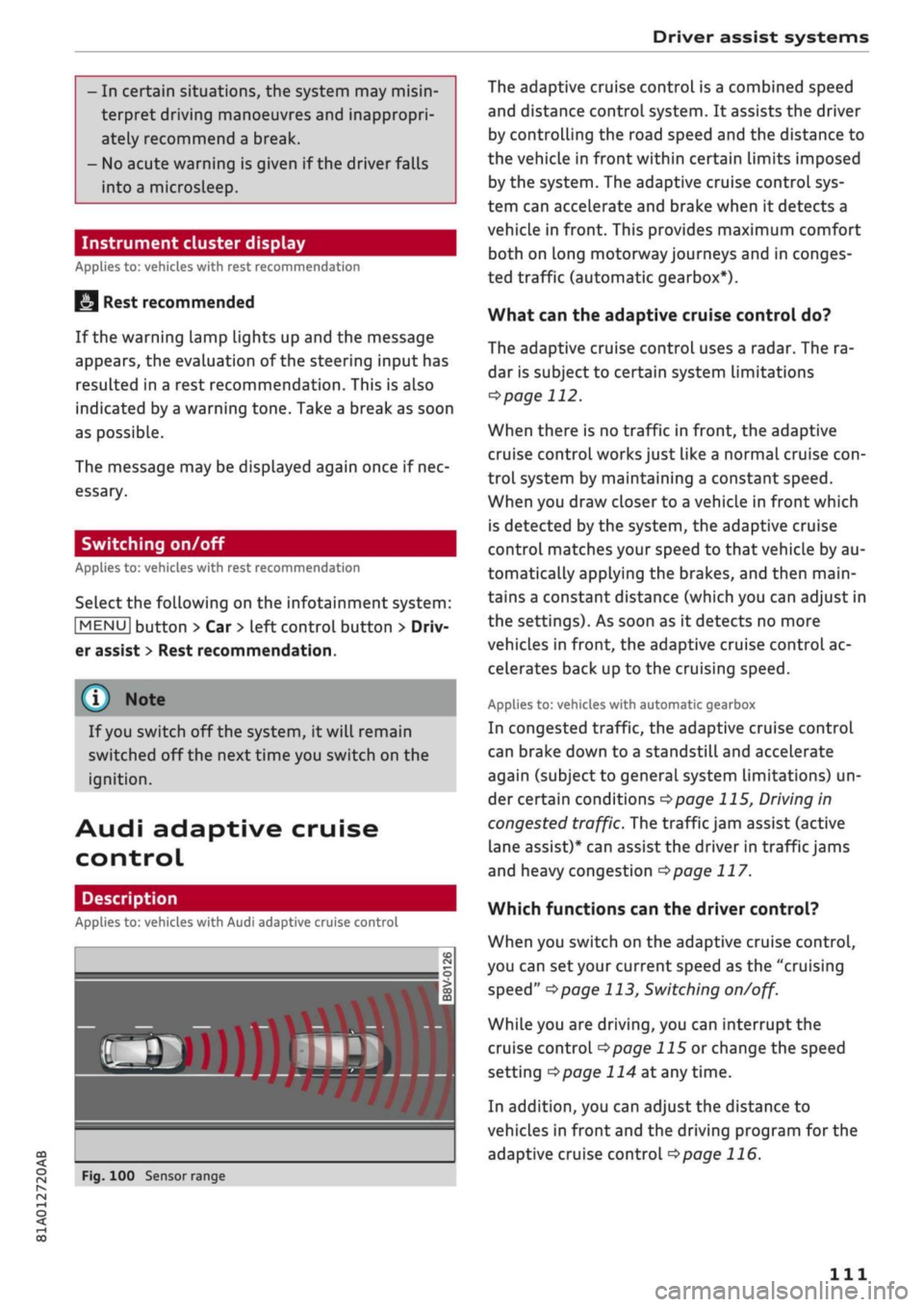
Fig.
100 Sensor range
The adaptive cruise control is a combined speed
and distance control system. It assists the driver
by controlling the road speed and the distance to
the vehicle in front within certain limits imposed
by the system. The adaptive cruise control sys
tem can accelerate and brake when it detects a
vehicle in front. This provides maximum comfort
both on long motorway journeys and in conges
ted traffic (automatic gearbox*).
What can the adaptive cruise control do?
The adaptive cruise control uses a radar. The ra
dar is subject to certain system limitations
opage
112.
When there is no traffic in front, the adaptive
cruise control works just like a normal cruise
con
trol system by maintaining a constant speed.
When you draw closer to a vehicLe in front which
is detected by the system, the adaptive cruise
control matches your speed to that vehicle by au
tomatically applying the brakes, and then main
tains a constant distance (which you can adjust in
the settings). As soon as it detects no more
vehicles in front, the adaptive cruise control ac
celerates back up to the cruising speed.
Applies to: vehicles with automatic gearbox
In congested traffic, the adaptive cruise control
can brake down to a standstill and accelerate
again (subject to general system limitations) un
der certain conditions
*$page
115, Driving in
congested traffic. The traffic jam assist (active
lane assist)* can assist the driver in traffic jams
and heavy congestion
<=>page
117.
Which functions can the driver control?
When you switch on the adaptive cruise control,
you can set your current speed as the "cruising
speed"
^>page
113, Switching
on/off.
While you are driving, you can interrupt the
cruise control
opage
115 or change the speed
setting
Opage
114 at any time.
In addition, you can adjust the distance to
vehicles in front and the driving program for the
adaptive cruise control
^>page
116.
Ill
Page 117 of 364
Driver assist systems
CO
<
O
rN rN
t-H
o <
•
To increase or reduce the speed quickly, hold
the lever towards
©/©
until the
LED ©
opage
113, Fig. 105 reaches the de
sired cruising speed.
You can preselect the speed, even when the
adaptive cruise control is inactive, by moving the
lever in the appropriate direction ©/©. To
acti
vate the preselected speed, pull the lever to
posi
tion ©
^>page
113, Fig. 104.
Following any changes, the new stored speed will
be displayed briefly in the status line
opage
113, Fig. 105 ©. The indicator lamp
E53
KOI
is also lit when the adaptive cruise control is
active,
and the indicator Lamp
B3 iS Lit
when the
adaptive cruise control is inactive. The indicator
lamp El
will Light up instead in the Audi virtual
cockpit*.
Driving in congested traffic
Applies to: vehicles with Audi adaptive cruise control and au
tomatic gearbox
The adaptive cruise control assists you when driv
ing in congested traffic. If
a
vehicLe which has
been detected in front stops, the adaptive cruise
control applies the brakes (within the limits im
posed by the system) and holds the vehicle at a
standstill.
•
To set the vehicle in motion again with the
adaptive cruise control, tap the accelerator
with
your foot, or
•
Pull the lever towards you to position ©
•=>
page 115, Fig. 107.
Using the adaptive cruise control to set the
vehicle in
motion1'
If the message ACC: ready to drive off is on the
display and the vehicle in front drives off, your
vehicle will automatically start moving
•=>
A. You
can reactivate the ACC: ready to drive off mes
sage briefly by pulling the lever to position ©.
For safety reasons, your vehicle will start moving
only if
- the driver's seat belt is
buckled.
x)
Not available on vehicles for some markets.
- all the doors and the bonnet are closed,
- your vehicle has been stationary for Less than
3 minutes.
A
WARNING
If the ACC: ready to drive
offx)
message ap
pears,
your vehicle will start moving even if
there is an obstacle between your car and the
vehicle in front - risk of accident!
© Note
If your vehicle does not start moving as ex
pected with the adaptive cruise control, even
though the ACC: ready to drive
off1)
message
is displayed, you can set the vehicle in motion
by tapping the accelerator with your foot.
Interrupting the cruise control
Applies to: vehicles with Audi adaptive cruise control
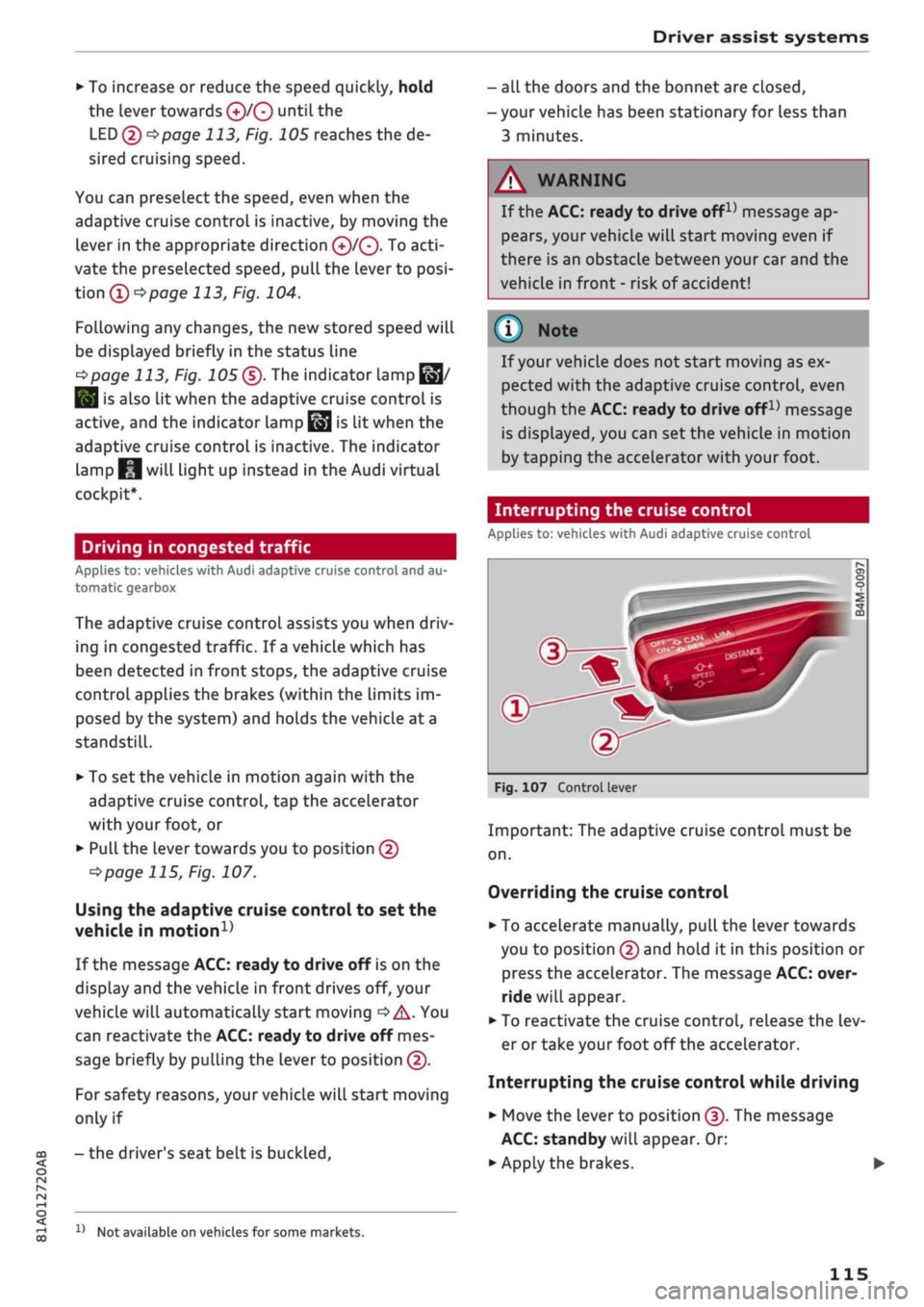
Fig.
107 Control lever
Important: The adaptive cruise control must be
on.
Overriding the cruise control
•
To accelerate manually, pull the lever towards
you to position © and hold it in this position or
press the accelerator. The message ACC: over
ride will appear.
• To reactivate the cruise control, release the Lev
er or take your foot off the accelerator.
Interrupting the cruise control while driving
•
Move the lever to position ©. The message
ACC:
standby will appear. Or:
• Apply the brakes.
115
Page 119 of 364
Driver assist systems
CO
rN
rN
•-i
00
Setting the driving program
Applies
to: vehicles with Audi adaptive cruise control
The acceleration style ranges from dynamic to
comfortable, depending on the selected driving
program and the distance setting.
Selecting the driving program on vehicles
without drive select*
•
Select the following on the infotainment sys
tem:
|MENU|
button > Car
>
left control button
> Driver assist
>
Audi adaptive cruise control >
Driving program
>
comfort, standard or dy
namic.
Selecting the driving mode on vehicles with
drive select*
Refer to
^page
132.
© Note
Your personal settings are stored automati
cally and assigned to the remote control key
which is being used.
Driver intervention prompt
Applies
to: vehicles with Audi adaptive cruise control
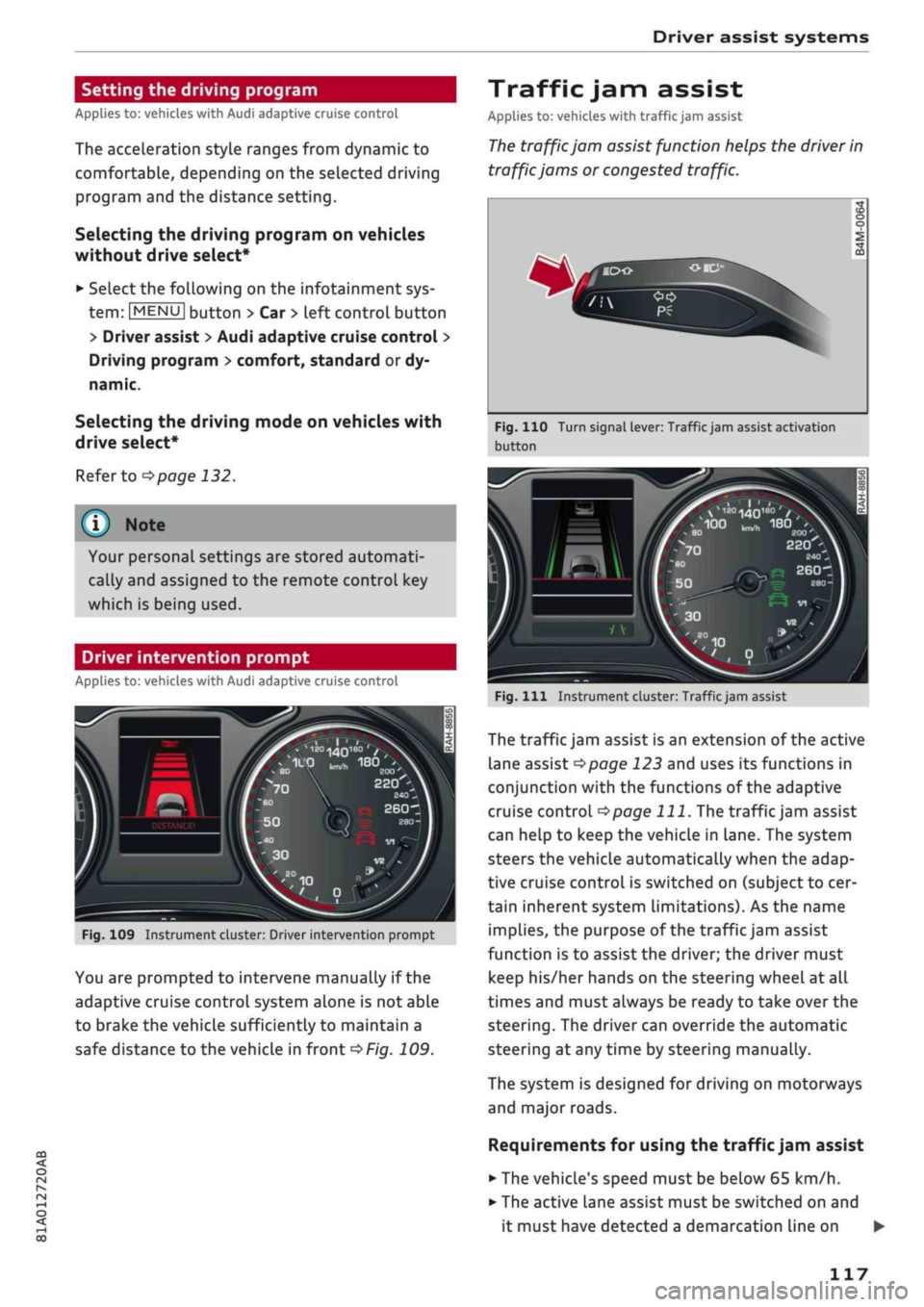
Fig.
109 Instrument cluster: Driver intervention prompt
You are prompted to intervene manually if the
adaptive cruise control system alone is not able
to brake the vehicle sufficiently to maintain a
safe distance to the vehicle in front
^>Fig.
109.
Traffic jam assist
Applies
to: vehicles with traffic jam assist
The
traffic jam assist function helps the driver in
traffic jams or congested traffic.
Fig.
110 Turn signal lever: Traffic jam assist activation
button
20O'
220
-_
2401
260-1
Fig.
Ill
Instrument cluster: Traffic jam assist
The traffic jam assist is an extension of the active
lane assist
^>page
123 and uses its functions in
conjunction with the functions of the adaptive
cruise control
^>page
111.
The traffic jam assist
can help to keep the vehicle in Lane. The system
steers the vehicle automatically when the adap
tive cruise control is switched on (subject to cer
tain inherent system limitations). As the name
implies, the purpose of the traffic jam assist
function is to assist the driver; the driver must
keep his/her hands on the steering wheel at all
times and must always be ready to take over the
steering.
The driver can override the automatic
steering at any time by steering manually.
The system is designed for driving on motorways
and major roads.
Requirements for using the traffic jam assist
• The vehicle's speed must be below
65
km/h.
• The active lane assist must be switched on and
it must have detected a demarcation line on •
117
Page 147 of 364
Intelligent technology
CO
< o rN
iv
rN
t-H
o < 00
Intelligent technology
Electronic stabilisation
control (ESC)
Description
The electronic stabilisation control (ESC) increa
ses the car's stability. It reduces the tendency to
skid and improves the stability and roadholding
of the vehicle. The ESC detects critical handling
situations, such as understeer, oversteer and
wheelspin
on the driven wheels. It stabilises the
vehicle by braking individual wheels or by reduc
ing the engine torque. The indicator
lamp^
in
the instrument cluster starts flashing as soon as
the ESC intervenes.
The following systems are integrated in the ESC:
Anti-lock brake system (ABS)
ABS prevents the wheels from locking up under
braking until the vehicle has reached a virtual
standstill.
You can continue to steer the vehicle
even when the brakes are on
full.
Keep your foot
on the brake pedal and do not pump the brakes.
You will feel the brake pedal puLsate while the
anti-lock brake system is working.
Brake assist system
The brake assist system can shorten the braking
distance. The braking force is automatically boos
ted if
you
press the brake pedal quickly in an
emergency. You must keep pressing the brake
pedal until the danger has passed. On
vehides
with adaptive cruise control*, the response of the
brake assist system will be more sensitive if you
are too close to the vehicLe in front.
Traction control system (ASR)
In the event of
wheelspin,
the traction control
system reduces the engine torque to match the
amount of grip available. This helps the car to
start moving, accelerate or climb a gradient.
Electronic differential lock (EDL)
When the EDL detects wheelspin, it brakes the
spinning wheel and directs the power to the
oth
er driven wheel (or wheels on quattro* versions).
This function is not available at high speeds.
To prevent the disc brake of the braked wheel
from overheating, the EDL cuts out automatically
if subjected to excessive loads. The vehicLe can
still be driven. The EDL will switch on again auto
matically when the brake has cooled down.
Steering recommendation
The ESC helps to stabilise the vehicle by changing
the steering wheel torque.
Trailer stabilisation system
Applies to: vehicles with trailer stabilisation system
Trailers have a tendency to sway. If the
ESC
de
tects that the trailer is swaying and this is affect
ing the towing vehicLe, it will automatically brake
the vehicle in order to stabilise the trailer
^>page
97.
Selective wheel torque control
Selective wheel torque control intervenes when
cornering by braking the wheel(s) on the inside of
the bend individually as required. This enables
precision cornering.
Multicollision brake assist system
The "multicollision brake assist system" can help
to reduce the risk of skidding and further
colli
sions during an accident. If the airbag control
unit detects that
a
collision has taken place up
wards of
a
certain speed, the vehicle is braked by
the
ESC.
The vehicle will not be braked automatically if:
- the driver presses the accelerator,
- or the
ESC,
the brake system or the vehicle's
electrical system are not fully functional.
WARNING
- The grip provided by the ESC and the inte
grated systems is still subject to the physi
cal limits of adhesion. Always bear this in
mind,
especially on wet or sLippery roads. If
you notice the systems cutting in, you
should reduce your speed immediately to
suit the road and traffic conditions. Do not
let
the extra safety provided tempt you into
taking any risks when driving - this can
cause accidents.
145
Page 151 of 364
Intelligent technology
the standard tyres. Nevertheless, we still recom
mend that winter tyres or all-season tyres should
be fitted on all four wheels when winter road
conditions are expected, mainly because this will
give a better braking response.
Snow chains
On roads where snow chains are mandatory, this
also applies to cars with four-wheel drive
Opcrge
309, Snow chains.
Replacing tyres
On vehicles with four-wheel drive, all four tyres
must have the same rolling circumference. Also
avoid using tyres with varying tread depths
tapage
305,
New wheels or tyres.
Off-roader?
Some models do not have enough ground clear
ance to be used on rough tracks and uneven ter
rain,
so it is best to avoid off-road driving.
A WARNING
- Even with four-wheel drive, you should al
ways adjust your speed to suit the condi
tions.
Do not let the extra safety provided
tempt you into taking any risks when driving
- this can cause accidents.
- The braking ability of your car is limited by
the grip of the tyres. In this respect, your
car is no different from a car without four-
wheel drive. So do not be tempted to drive
too fast on icy or slippery roads just because
the car still has good acceleration in these
conditions - risk of accident!
- On wet roads bear in mind that the front
wheels may start to "aquaplane" and lose
contact with the road if the car is driven too
fast. If this should happen, there will be no
sudden increase in engine speed to warn the
driver, as with a front-wheel drive car. So do
not drive too fast in the wet: adjust your
speed to suit the conditions (accident risk).
CO
rN
IV
rN
•-i
00
Power management
This system helps to ensure reliable
starting
The
power management controls the distribu
tion of electrical energy and thus helps to ensure
that there is always enough power available to
start the engine.
If
a
vehicle with a conventional electrical system
is left parked for
a
long time, the vehicle battery
will gradually lose its charge because certain
electrical equipment (such as the immobiliser)
continues to draw current even when the ignition
is off. In some cases there may not be enough
power available to start the engine.
Your vehicLe is equipped with an intelligent pow
er management system to control the distribu
tion of electrical energy. This significantly im
proves reliability when starting the engine, and
also prolongs the life of the vehicle battery.
The main functions incorporated in the power
management system are battery diagnosis, re
sidual current management and dynamic power
management.
Battery diagnosis
The battery diagnosis function constantly regis
ters the condition of the vehicle battery. Sensors
detect the battery voltage, battery current and
battery temperature. This enables the system to
calculate the current power level and charge
con
dition of the vehicle battery.
Residual current management
The residual current management reduces power
consumption while the vehicle is parked. It
con
trols the supply of power to the various electrical
components while the ignition is switched off.
The system takes the battery diagnosis data into
consideration.
Depending on the power Level of the vehicle bat
tery, the individual electrical components are
switched off one after the other to prevent the
vehicle battery from losing too much charge and
to ensure that the engine can be started reliably. •
149
Page 179 of 364

Telephone
|MENU|
button
>
Settings
>
left control button >
MMI settings > Connection manager
•=>
page 257.
In addition, the contacts on the mobile phone are
automatically loaded into the directory of the
MMI.
This may take several minutes, depending
on how many contacts are stored on the mobile
phone.
Removing a mini SIM card
• Briefly press the mini SIM
card.
The card will
then eject from the slot. Remove the mini SIM
card.
© CAUTION
-To avoid damaging the SIM card reader, on
ly use mini SIM cards
(25
mm x
15
mm)
^Fig.
160. Please contact your service pro
vider for more information on mini SIM
cards.
- Should you have inserted a different SIM
card size in the SIM card reader, do not un
der any circumstances attempt to remove it
yourself as this may damage the SIM card
reader. Please contact
a
qualified workshop.
- If
you
use SIM card adapters, the vibrations
caused by the movement of the vehicle may
cause the SIM card to become detached
from the adapter - risk of damage to the
SIM card reader.
If your mobile phone does not support the re
mote SIM Access Profile (e.g. iPhone), you can
use the contacts from your mobile phone by
connecting the mobiLe phone to the system
via the Directory/contacts profile
•=>
page 258.
Using the Audi phone
box
Applies
to: vehicles with Audi phone box
You
can use the Audi phone box to charge your
mobile phone's battery.
You
can use the vehicle's
external aerial to make calls, which reduces
radi
ation in the vehicle and also ensures better re
ception quality.*
Fig.
161 Audi phone
box
with
connections
The Audi phone box is Located in the centre
con
sole beneath the armrest©
opage
10, Fig. 2
Important: A mobile phone must be connected
via Bluetooth
^>page
173.
The following options are available:
- To establish a connection with the external car
aerial15:
Place your mobiLe phone onto the
mid
dle of the telephone symbol in the Audi phone
box
^>Fig.
161 with the phone's display facing
upwards. When doing so, make sure that there
are no objects between the Audi phone box and
the mobile phone.
- To charge a mobile phone wirelessly: Place
your
Qi
compatible25 mobile phone onto the
middle of the
<]>
symbol in the Audi phone box
oFig.
161 with the phone's display facing up
wards. The mobile phone
wiLl
be charged.
- To charge a mobile phone via a USB adapter:
Connect your mobile phone to the USB charging
socket
(TjoF/g.
161 using a USB adapter cable.
You can charge your mobiLe phone using special
USB adapters
^>page
240, Fig. 196. •
CO
<
O
rN
IN
rN
t-H
o
< 00
^
Not available in all markets. Additional car telephone
function
only with Audi connect (infotainment)*.
2)
The Qi standard enables you to charge your mobile phone
wirelessly.
177
Page 208 of 364
Audi connect (infotainment)
Audi connect (MMI)
With the Audi connect (MMI) function, you can
allow or deny the use of Audi connect infotain
ment services if the connection is
set
to no re
quest or with request.
Wi-Fi devices*
You can use the Wi-Fi devices function to allow
or deny a connection to the Internet.
Connection settings
Depending on the SIM card used, the connection
may be configured automatically. However, these
settings can be changed. For more information,
contact your service provider.
- APN: The system access point depends on your
mobile network service provider and is assigned
automatically.
- User name: The user name for your online pro
file is assigned by your mobile network service
provider.
- Password: The password for your online profile
is assigned by your mobile network service pro
vider.
- Use settings: The changed connection settings
are
stored.
Reset configuration
An online profile is created and configured auto
matically. The Connection settings you have
changed manually are reset to the default set
tings.
/Sy
WARNING
- Do not allow the features of the Wi-Fi hot-
spot to distract you from watching the traf
fic - taking your eyes off the road can cause
an accident.
- Mobile devices, tablet and laptop computers
and devices of a similar weight can only be
operated safely when the vehicle is station
ary. Like any loose object, they can be cata
pulted through the vehicle in an accident
and cause serious injuries. Always make sure
that such devices are securely stowed while
you are driving.
- No Wi-Fi devices may be used from the front
seats in the areas around the airbags while
the vehicle is being driven. Please also ob
serve the safety warnings in the chapter on
^>page
282, Front airbags.
© CAUTION
Please always observe the information
•=>©
in
Wi-Fi hotspot on page 202.
© Note
- According to the factory settings, the data
connection will be interrupted initially when
you travel abroad to protect you from unex
pected roaming charges. If you want to use
Audi connect infotainment services abroad,
you must first activate the Data roaming
option.
- For more information on roaming charges,
contact your service provider.
- Further information can be found on the In
ternet at www.audi.com.
General notes on Audi
connect (infotainment)
Audi connect infotainment services
Applies to: vehicles with Audi connect (infotainment)
-The mobile phone standard LTE* is not
available for use in all countries. For further
information, please consult an Audi dealer
or your mobile network service provider.
- Whether Audi connect infotainment serv
ices can be used depends on the availability
of services provided by third parties.
- Audi connect infotainment services are only
available within the mobiLe network area
covered
by
your network provider.
- The availability, scope, provider and price of
the services offered can vary, as can the way
in which the services are displayed on the
screen.
These variations depend on your
country, model, model year, device and mo
bile phone contract.
204
Page 223 of 364
Navigation
CO
< o rN
IV
rN
t-H
o <
00
Map
How to
use
the map
Applies
to: vehicles with navigation system
H
an^fc Hetnuc'ijlo
'
in
1,2 km
Blaubach
in
1,0
km
Autobahn-Flugh
Fig.
181 Example: Standard map with crosshairs switched
off
Aachen
AlexanderstraBe Komphausbad da n se m an n pi
a
Fig.
182 Example: Standard map with crosshairs switched
on
•
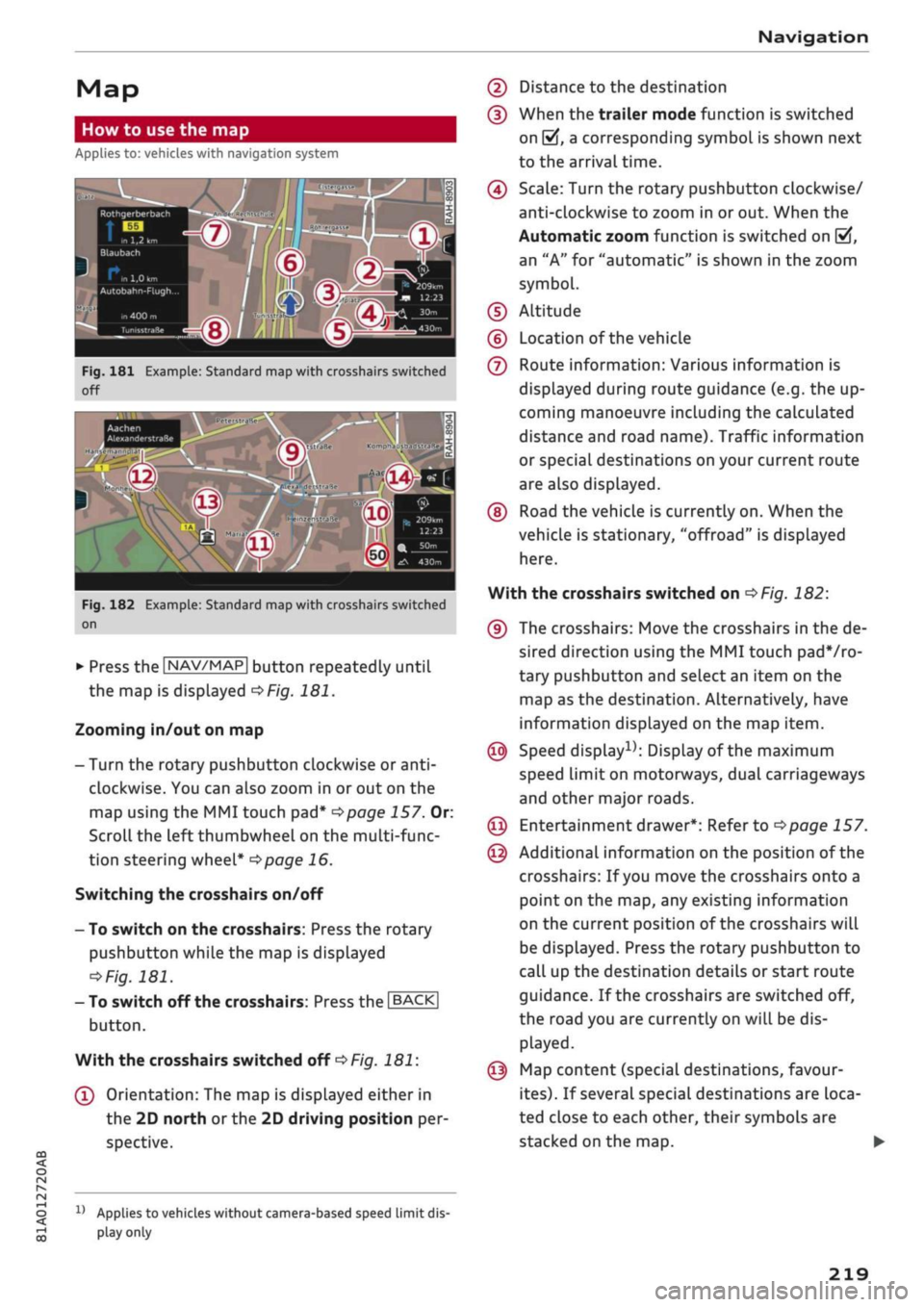
Press the |NAV/MAP| button repeatedly until
the map is displayed
^Fig.
181.
Zooming in/out on map
- Turn the rotary pushbutton clockwise or
anti
clockwise. You can also zoom in or out on the
map using the MMI touch
pad*
^>page
157. Or:
Scroll the left thumbwheel on the multi-func
tion steering wheel*
^>page
16.
Switching the crosshairs on/off
- To switch on the crosshairs: Press the rotary
pushbutton while the map is displayed
^Fig.
181.
- To switch off the crosshairs: Press the |BACK|
button.
With the crosshairs switched off
•=>
Fig.
181:
(l)
Orientation: The map is displayed either in
the 2D north
or
the 2D driving position per
spective.
1J
Applies to vehicles without camera-based speed limit
dis
play
only
(2) Distance to the destination
(D When the trailer mode function is switched
on
[vj,
a corresponding symbol is shown next
to the arrival time.
(4) Scale: Turn the rotary pushbutton clockwise/
anti-clockwise to zoom in or out. When the
Automatic zoom function is switched on
(vf,
an "A" for "automatic" is shown in the zoom
symbol.
(D Altitude
(?) Location of the vehicle
(7) Route information: Various information is
displayed during route guidance (e.g. the up
coming manoeuvre including the calculated
distance and road name). Traffic information
or special destinations on your current route
are also displayed.
(D Road the vehicle is currently on. When the
vehicle is stationary, "offroad" is displayed
here.
With the crosshairs switched on
^>Fig.
182:
(9) The crosshairs: Move the crosshairs in the de
sired direction using the MMI touch padVro-
tary pushbutton and select an item on the
map as the destination. Alternatively, have
information displayed on the map item.
© Speed display1); Display of the maximum
speed limit on motorways, dual carriageways
and other major roads.
© Entertainment drawer*: Refer to
^page
157.
© Additional information on the position of the
crosshairs: If
you
move the crosshairs onto a
point on the map, any existing information
on the current position of the crosshairs will
be displayed. Press the rotary pushbutton to
call up the destination details or start route
guidance. If the crosshairs are switched off,
the road you are currently on will be dis
played.
© Map content (special destinations, favour
ites).
If several special destinations are loca
ted close to each other, their symbols are
stacked on the map.
219
Page 230 of 364

Navigation
All traffic jams or other obstructions are marked
with a coloured warning symbol on the map
when route guidance is not active.
You can adjust the settings for the display of the
coloured markings, warning symbols etc. in the
Map content menu
^>page
221.
Reception of traffic information is also indicated
by the
[TMc1/|TMCpro|*/|ONLiNE>
symbol in the
status Line of the infotainment display
(f)
OFig.
187.
- Urgent traffic information, such as a car
travelling in the wrong direction on the mo
torway, is displayed automatically. To hide
the traffic information, press the |BACK|
button or the rotary pushbutton.
- The "Traffic information" function is not
available for the markets of the Gulf Coop
eration Council (GCC) member states or for
the Mexican market.
Better route
Applies to: vehicles with navigation system
By
receiving traffic information via
TMC,
your
MMI calculates a better route (if
one
is availa
ble) and any possible time saving for the current
route guidance.
You
can then choose which route
you would like to use.
•
Press the |NAV/MAP| button repeatedly until
the map is displayed.
Important: The route guidance function must be
active.
Dynamic traffic avoidance must be set to manual
•=>poge 217
and the map must be displayed.
If your MMI has calculated a better route
for
the
current route guidance, the message A better
route is
available,
and the time saving will be
displayed on the map. In the map view, the
symbol
^page
219, Fig. 182
draws
your atten
tion to a better route.
Using a better route
- Press the rotary pushbutton. Or: Select the left
control button
>
Traffic messages. The better
route will be displayed along with your calcula
ted arrival time.
- SeLect and confirm the better route.
- The better route will be used for the continuing
route guidance.
Online traffic information
Applies to: vehicles with navigation system and Audi connect
(infotainment)
The
MMI system can receive real-time informa
tion from the Internet regarding traffic conges
tion, accidents, roadworks and other incidents.
Important: The requirements for Audi connect
(infotainment) must be met
^>page
191.
•
Press the |NAV/MAP| button repeatedly until
the map is displayed.
•
Select: right control button
>
Online traffic da
ta on (ED.
- To switch on the traffic map display: To have
the traffic information displayed in the best
possible way, select the
I
NAV/MAP]
button >
right control button > Map settings
>
Map dis
play
>
Traffic.
You can also have the traffic information dis
played on the Google Earth map
^>page
222 or
the standard map
•=>page
219, Fig. 181.
If online traffic information cannot be received,
the traffic information will automatically be re
ceived via
|TMC|/|TMCpro|» ^>
page 225.
Prayer
compass*15
Applies to: vehicles with prayer compass
Important: The display must be set to the map
view
<=>page
219.
- SeLect: Left controL button > Mecca. The direc
tion of prayer in relation to the current vehicle
position will then be shown on the infotain
ment display.
11
This function is only available
for
the markets of the Gulf
Cooperation Council (GCC) member states.
226
Page 238 of 364
Media
Media
Introduction
The MMI system includes various media drives
and provides various options for connecting
devi
ces.
For example, you can play audio/video* files
from the jukebox* or connect mobile devices to
the Audi music interface* and operate it via the
MMI.
Notes
General information
Media and format limitations: The MMI system
(including the SD card reader and the connection
for
the USB mass storage device*) has been tes
ted for use with many of the products and media
currently available on the market. However,
there may be some devices/media and audio/vid
eo*
files that are not supported or cannot be
played,
or the functionality may be limited under
certain circumstances.
Digital rights management: Please note that
copyright Law applies to audio/video* files.
The MMI media drives do not support DRM-pro-
tected files; these files are marked with the sym
bol S.
Data storage: Never store important data on SD
cards,
the jukebox*, CDs/DVDs or mobile devices.
AUDI AC shall not accept any liability whatsoever
for
the loss of files and media.
Loading times: The more files, folders or play
lists are stored on a storage device, the longer it
will take to load the audio files/video* files. We
recommend using a storage device which
con
tains only audio/video* files. If
you
want to re
duce the time it takes to load the audio/video*
files,
you can create subfolders (e.g. for an artist
or album). The loading time will be extended ad
ditionally if
you
are importing data.
Metadata: Metadata stored on audio files (e.g.
artists, tracks, album covers) will be displayed
automatically when the files are played. If this
information is not stored on the relevant medi
um,
the MMI system will use the database of
metadata from Gracenote. Nevertheless, meta
data may not be displayed in some cases.
Restricted performance: If
you
experience re
stricted performance, reset the Media settings
to the factory defaults
^page
256.
If
you
experience restricted performance from
the Jukebox*, reset it to the factory settings
<=>
page 256.
For information on the characteristics of the sup
ported media and file formats, please refer to
opage
249 onwards.
CAUTION
Please always observe the information
<=>(J)in
Wi-Fi hotspot on page 202.
CD/DVD mode
CD/DVD and format limitations: In view of the
variety of CDs/DVDs and the difference in memo
ry capacities, the functionality may be restricted
in the case of some storage devices. Under cer
tain circumstances, audio CDs/video DVDs that
are copy-protected or CDs/DVDs that do not com
ply with the standard audio format, and multi-
session CDs cannot be played at all, or the func
tionality may be limited. We recommend always
finalising the burning process when creating
multisession
CDs. Multisession is not supported
for DVDs.
Handling CDs/DVDs, the CD drive or the DVD
drive:
To ensure perfect, high-quality playback
and avoid scanning errors or damage to the me
dia drive, always store CDs/DVDs in a suitable
case and do not expose them to direct sunlight.
Do not use:
- Damaged, dirty or scratched CDs/DVDs
- Single CDs/DVDs (diameter 8 cm)
- Non-circular CDs/DVDs (shape CDs)
- CDs/DVDs with stickers
- Protective rings
- Cleaning discs
Thermal cut-out: In the case of unusually hot or
cold outside temperatures, it is possible that CD/
DVD playback will temporarily not be possible. A •
234