steering wheel AUDI Q2 2021 Owner´s Manual
[x] Cancel search | Manufacturer: AUDI, Model Year: 2021, Model line: Q2, Model: AUDI Q2 2021Pages: 364, PDF Size: 87.77 MB
Page 92 of 364
Driving
tiptronic mode to use the engine braking effect
and reduce the load on the brakes.
Downhill speed control is deactivated as soon as
the road Levels out again or you press the acceler
ator pedal.
On vehicles with cruise control system*
<^>page
104, downhill speed control is activated
when you set
a
cruising speed.
A WARNING
The downhill speed control function cannot
defy the Laws of physics and may therefore
not be able to maintain a constant speed in
certain circumstances. Always be prepared to
use the brakes!
Manual gear selection (tiptronic mode)
Applies to: vehicles with automatic gearbox
The
tiptronic feature allows the driver to also
change gear manually.
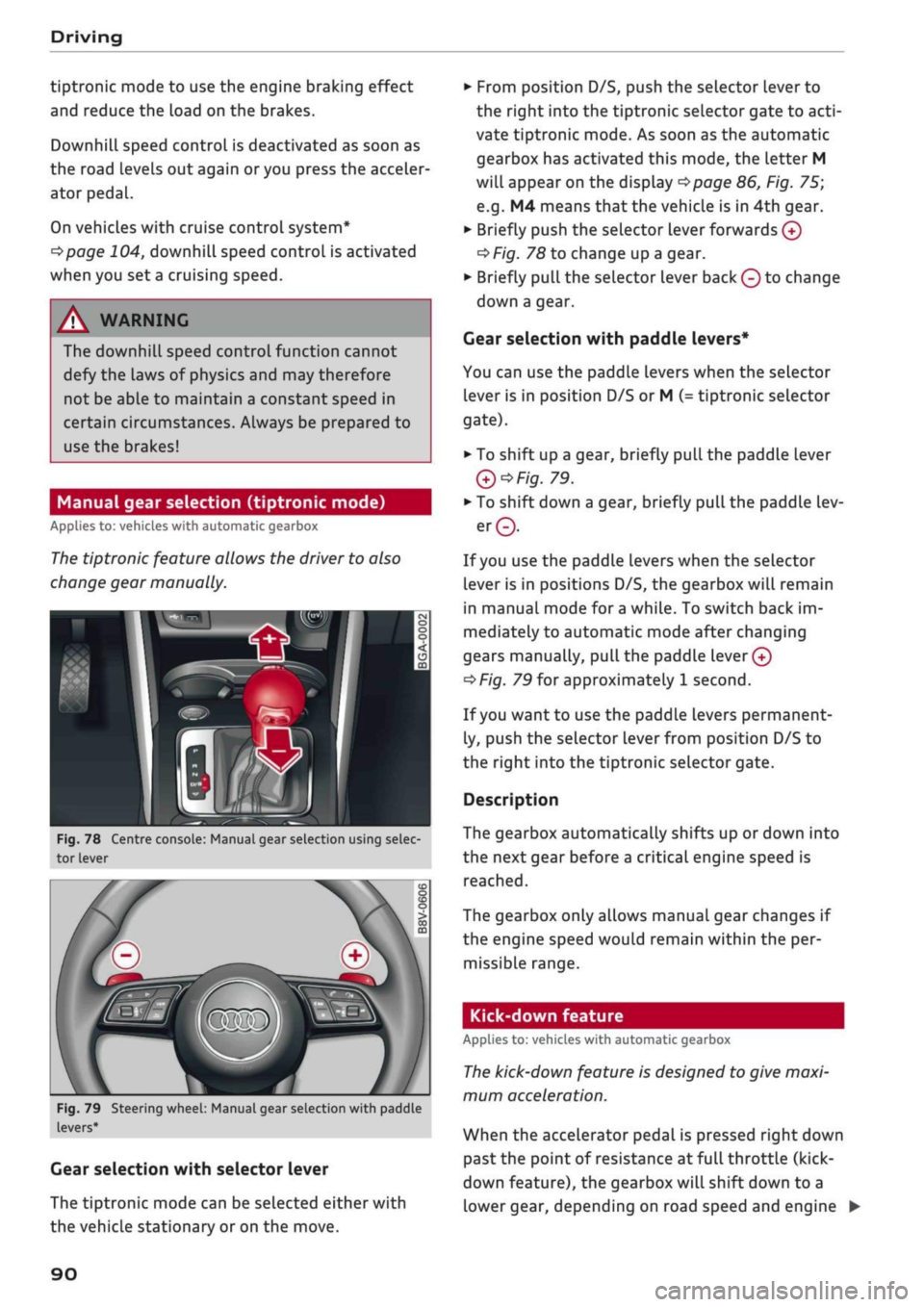
Fig.
78 Centre console: Manual gear selection using selec
tor lever
Fig.
79 Steering wheel: Manual gear selection with paddle
levers*
Gear selection with selector lever
The tiptronic mode can be selected either with
the vehicLe stationary or on the move.
•
From position D/S, push the selector lever to
the right into the tiptronic selector gate to
acti
vate tiptronic mode. As soon as the automatic
gearbox has activated this mode, the letter M
will appear on the display
opage
86, Fig. 75;
e.g.
M4 means
that
the vehicle is in 4th gear.
•
Briefly push the selector lever forwards
0
oF/'g.
78 to change up a gear.
•
Briefly pull the selector lever back
Q
to change
down a gear.
Gear selection with paddle levers*
You can use the paddle levers when the selector
lever is in position D/S or M
(-
tiptronic selector
gate).
• To shift up a gear, briefly pull the paddle lever
Q*Fig.
79.
•
To shift down a gear, briefly pull the paddle lev
er©.
If
you
use the paddle levers when the selector
lever is in positions D/S, the gearbox will remain
in manual mode for
a
while. To switch back im
mediately to automatic mode after changing
gears manually,
pull
the paddle
lever 0
^>Fig.
79 for approximately 1 second.
If
you
want to use the paddle levers permanent
ly, push the selector lever from position D/S to
the right into the tiptronic selector gate.
Description
The gearbox automatically shifts up or down into
the next gear before a critical engine speed is
reached.
The gearbox only allows manual gear changes if
the engine speed would remain within the per
missible range.
Kick-down feature
Applies to: vehicles with automatic gearbox
The
kick-down feature is designed to give maxi
mum acceleration.
When the accelerator pedal is pressed right down
past the point of resistance at full throttle (kick-
down feature), the gearbox
wilL
shift down to a
lower gear, depending on road speed and engine •
90
Page 93 of 364

Driving
speed.
The upshift to the next higher gear is de
layed until the engine reaches maximum rpm.
WARNING
Please note that if the road surface is slippery
or wet, the kick-down feature could cause the
driven wheels to
spin,
which could result in
skidding.
Coasting mode
Applies to: vehicles with S tronic gearbox and coasting mode
In coasting
mode1)
you can use the vehicle's mo
mentum to freewheel, for instance when ap
proaching a speed restriction in a built-up area.
The engine is disengaged from the gearbox. This
allows you to save fuel by anticipating the traffic
situation ahead.
Requirements for using coasting mode
•
Efficiency mode selected in drive select*
^>page
131.
*•
The selector lever must be in position D.
•
Road speed less than approx. 130 km/h.
•
Road relatively level.
Activating coasting mode
•
Take your foot off the accelerator.
The
message1)
Coasting will then appear in the
"on-board computer" display. The engine ticks
over at idling speed while the vehicLe is coasting.
Stopping coasting mode
•
Press the brake or accelerator pedal or briefly
pull the paddle lever
^page
90, Fig. 79.
A WARNING
- When coasting mode is activated, there is
no engine braking effect and the vehicle
does not slow down as quickly as usual or
may even pick up speed if
you
are driving
down a slope - risk of accident!
- If other people are using your car, you
should draw their attention to the coasting
mode.
© Note
- The gear is no longer displayed when you
are in coasting mode (e.g.
E
instead of E7).
- The coasting mode is deactivated tempora
rily on gradients of
15
% or greater.
- Coasting mode is not available while the
cruise control system* or adaptive cruise
control*
is switched on.
Launch control programme
Applies to: vehicles with S tronic gearbox and launch control
programme
The
launch control programme enables maxi
mum acceleration.
The launch control programme is not available
for all engine/gearbox combinations.
Important: The engine must be warm and the
steering wheel must be pointing straight ahead.
•
Deactivate^
the start/stop system*
^>page
81.
The LED in the
Sj
button will light up.
•
Deactivate25
the hold assist*
^page
84. The
LED in the button will go out.
•
Press the
|aQFF|
button once briefly while the
engine is running
3) 4).
CO
rN
IV
rN
t-H
o < 00
1)
Not available for all countries.
2)
The system does not need to be deactivated on all gearbox
versions.
3'
On vehicles with driver information system, the ESC lamp
lights up permanently and the message Stabilisation
con
trol (ESC): offroad. Warning! Restricted stability appears
temporarily in the instrument cluster to indicate the deac
tivation status.
4)
Vehicles without driver information system: The indicator
lamp flashes slowly.
91
Page 99 of 364
Towing a trailer
Tyre pressure
Check the tyre pressures on your car, and adjust
for "full
load"
conditions (refer to the sticker list
ing the tyre pressures)
^>page
307. It may also
be necessary to adjust the tyre pressures on the
trailer according to the recommendations of the
trailer manufacturer.
Exterior mirrors
Check whether you can see enough of the road
behind the trailer with the standard mirrors. If
this is not the case you should have additional
mirrors fitted. Both exterior mirrors should be
mounted on hinged extension brackets. Adjust
the mirrors to give sufficient vision to the rear.
Headlights
Before starting
a
journey, check the headlight
beam settings with the trailer hitched up. Adjust
the headlight settings if necessary.
On vehicles with halogen headlights, the
head
light range control must be adjusted, see
tapage
49.
The headlight range control will be adjusted au
tomatically if your vehicle is equipped with LED
headlights*.
Power supply
To ensure that the engine can be started again
after the ignition is switched off, the power
man
agement system
^>page
149 controls the distri
bution of electrical power and gradually switches
off unnecessary electrical equipment. The trailer
is supplied with power during this period. The
power supply to the trailer is interrupted while
the engine is being started.
Removable ball joint coupling
Vehicles with a factory-fitted towing bracket are
equipped with a removable
ball
joint coupling.
This is stored in the spare wheel well or in a sepa
rate bag on the floor of the luggage compart
ment, together with the necessary fitting instruc
tions.
We recommend having the car serviced be
tween the normal inspection intervals if it
used frequently for towing a trailer.
Trailer stabilisation system
Applies to: vehicles with towing bracket
Trailer stabilisation helps to reduce the risk of
the vehicle skidding when towing a
trailer.
When is the trailer stabilisation
system1'
activated?
Trailer stabilisation is active when the following
requirements are met:
- The ESC must be switched on
^>page
146 and
fully functional (no ESC malfunction).
- The trailer connector must be properly secured
in the vehicle socket.
- The vehicle speed must be higher than approx.
60 km/h.
How trailer stabilisation works
In many cases, the driver can stabilise a swaying
trailer by manually braking the vehicle.
However, if the ESC detects that the trailer is
swaying and this is affecting the towing vehicle,
it will automatically brake the vehicle in order to
stabilise the trailer. The indicator
Lamp Hi
will
flash in the instrument cluster. If possible, do
not turn the steering wheel at this stage.
In order to warn traffic behind you, the brake
lights will come on during this automatic braking
operation.
A trailer may sway quite considerably without the
trailer stabilisation system intervening.
If the system for activating the trailer brake
lights is defective, this will be indicated in the in
strument cluster display
opage
35,
:&
Bulb
monitor.
•
CO
rN
rN
t-H
o <
x)
Not available on vehicles for some markets.
97
Page 111 of 364
Driver assist systems
CO
<
O
rN rN
t-H
o <
- The traffic sign detection system does not
adjust the speed of your vehicle to the speed
limits.
The speed limit displayed in the instrument
cluster is given in the units applicable in a
particular country.
Controls
Applies to: vehicles with camera-based traffic sign recogni
tion
-22.0-C
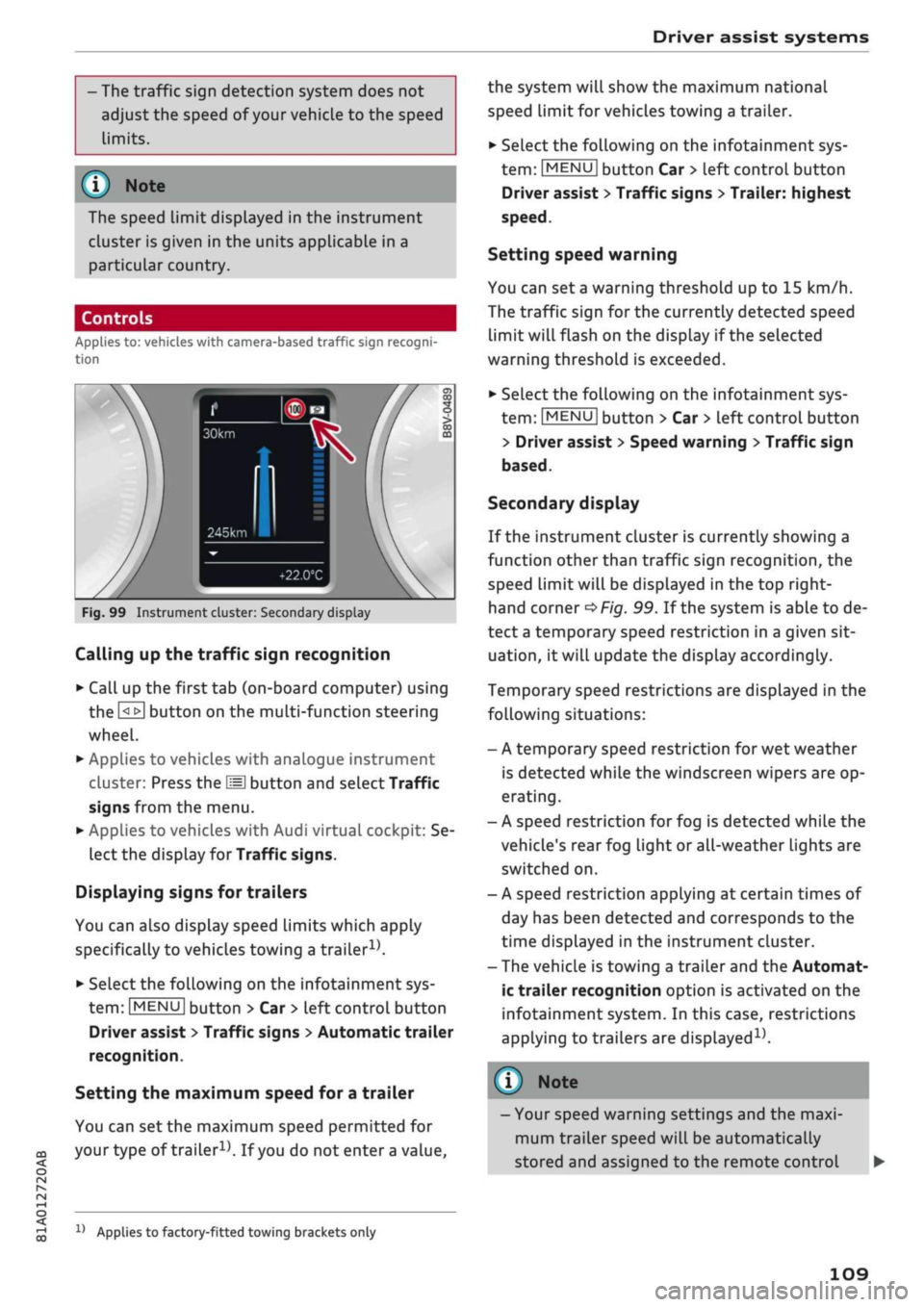
Fig.
99 Instrument cluster: Secondary display
Calling up the traffic sign recognition
•
Call up the first tab (on-board computer) using
the
GL>]
button on the multi-function steering
wheel.
•
Applies to vehicles with analogue instrument
cluster: Press the
LU]
button and select Traffic
signs from the menu.
•
Applies to vehicles with Audi virtual cockpit: Se
lect the display for Traffic signs.
Displaying signs for trailers
You can also display speed limits which apply
specifically to vehicles towing a trailer1).
•
Select the following on the infotainment sys
tem:
|MENU|
button > Car
>
left control button
Driver assist
>
Traffic signs
>
Automatic trailer
recognition.
Setting the maximum speed for a trailer
You can set the maximum speed permitted for
your
type of
trailer15.
If
you
do not enter
a
value,
x)
Applies to factory-fitted towing brackets only
the system will show the maximum national
speed limit for vehicles towing a trailer.
•
Select the following on the infotainment sys
tem:
|MENU|
button Car
>
left control button
Driver assist
>
Traffic signs
>
Trailer: highest
speed.
Setting speed warning
You can set a warning threshold up to
15
km/h.
The traffic sign for the currently detected speed
limit will flash on the display if the selected
warning threshold is exceeded.
•
Select the following on the infotainment sys
tem:
IMENU|
button > Car
>
left control button
> Driver assist
>
Speed warning
>
Traffic sign
based.
Secondary display
If the instrument cluster is currently showing a
function other than traffic sign recognition, the
speed limit will be displayed in the top right-
hand corner
^Fig.
99. If the system is able to de
tect
a
temporary speed restriction in a given sit
uation,
it will update the display accordingly.
Temporary speed restrictions are displayed in the
following situations:
- A temporary speed restriction for wet weather
is detected while the windscreen wipers are op
erating.
- A speed restriction for fog is detected while the
vehicle's rear fog light or all-weather lights are
switched on.
- A speed restriction applying at certain times of
day has been detected and corresponds to the
time displayed in the instrument cluster.
- The vehicle is towing a trailer and the Automat
ic trailer recognition option is activated on the
infotainment system. In this case, restrictions
applying to trailers are
displayed15.
© Note
- Your speed warning settings and the maxi
mum trailer speed will be automatically
stored and assigned to the remote control
109
Page 116 of 364
Driver assist systems
Setting the speed and activating the cruise
control
•
To set the current speed as the cruising speed
and activate the cruise control, press the
|SET|
button
<=>Fig.
104
"=>^.
The speed setting is in
dicated by the LEDs © in the speedometer and
is also shown briefly in the system status
indi
cator©
OF/g.
J
05.
•
Vehicles with automatic gearbox: To activate
the cruise control when the vehicle is station
ary, the hold assist* function must have been
activated
or
you must press the brake pedal.
Switching off the adaptive cruise control
•
Push the Lever away from you to position © un
til it engages. The message
ACC:
off will ap
pear.
The LEDs indicating the stored speed in the
speedometer dial will go out.
(3) Warning and indicator lamps
I
- The adaptive cruise control is switched on.
No vehicle has been detected in front. A constant
cruising speed is being maintained.
] - A vehicle in front has been detected. The
adaptive cruise control is regulating the speed to
maintain a constant distance to the vehicle in
front, and will accelerate and brake the vehicle
automatically.
I
- Automatic gearbox: The adaptive cruise
con
trol is switched on. A vehicle in front has been de
tected.
Your vehicLe is stationary and will not be
set in motion again automatically.
I
- The adaptive cruise control alone is not able
to brake the vehicle sufficiently to maintain a
safe distance to the vehicLe in front. You must in
tervene
ipage
117,
Driver intervention prompt.
©
Graphical display in instrument cluster
If the adaptive cruise control is not shown on the
instrument cluster display, you can call up the
display using the controls on the multi-function
steering wheel
^>page
15.
The graphical display shows you when a vehicLe in
front is detected and indicates how far away you
are from that vehicle:
No vehicle - No vehicLe has been detected in
front.
Vehicle in silver - A vehicle has been detected in
front.
Vehicle in red - Driver intervention prompt
<5page
117.
The five distance bars on the scale © represent
the distance setting (for information on how to
change the distance setting, refer to
^>page
116). The distance bars are coloured in
red from the bottom up if the actual distance is
shorter than the distance selected.
A
WARNING
Applies to: vehicles with automatic gearbox
If
you
press the
|SET|
button at
a
speed of less
than 30 km/h, the vehicLe will automatically
accelerate up to the minimum speed setting
of 30 km/h.
Note
- The speed setting is cleared for safety rea
sons when you switch off the ignition or the
adaptive cruise control system.
- Applies to vehicles with front-wheel drive:
The electronic stabilisation control (ESC)
and traction control system (ASR) are auto
matically activated when the adaptive cruise
control is switched on.
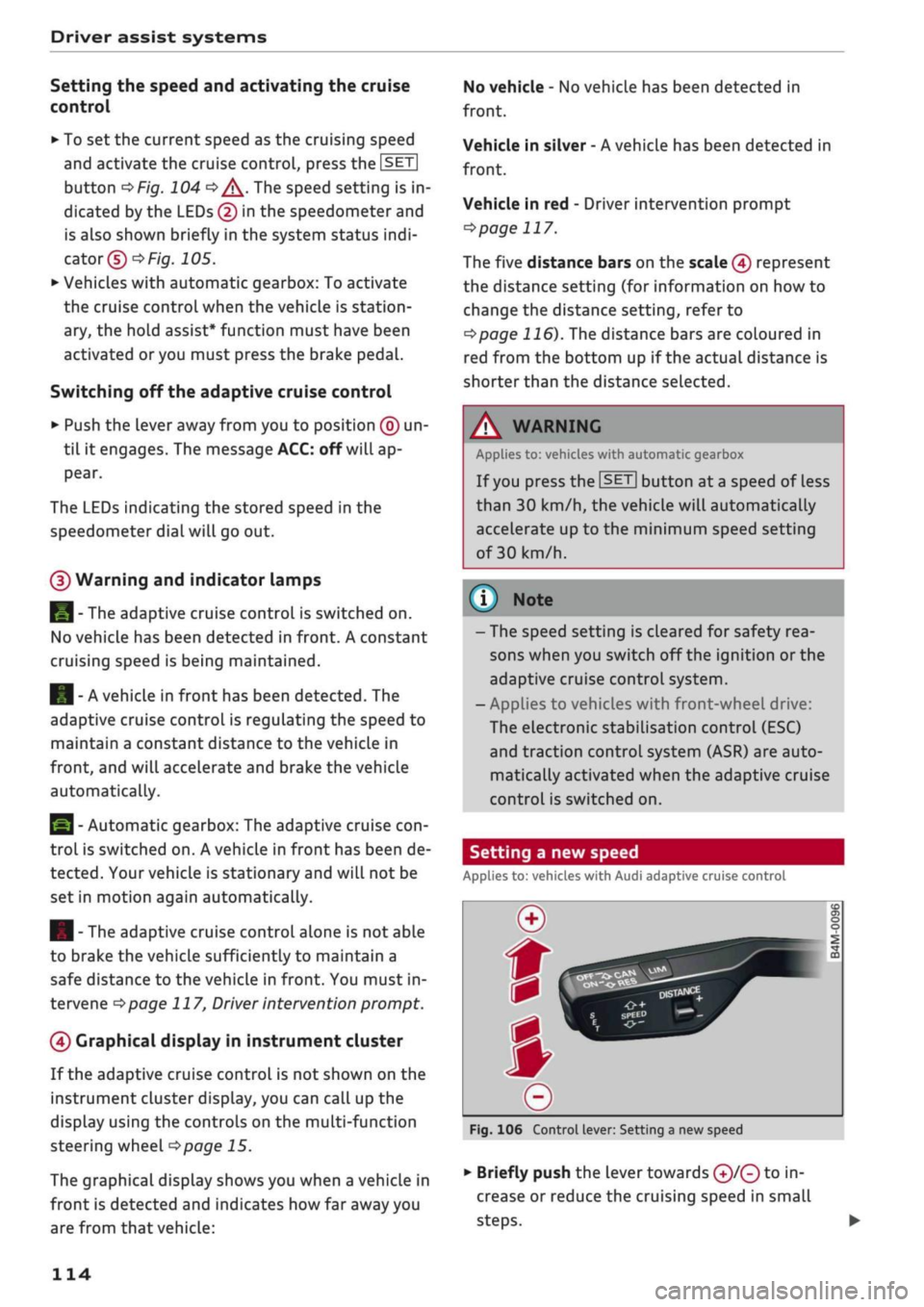
Setting a new speed
Applies to: vehicles with Audi adaptive cruise control
Fig.
106 Control lever: Setting a new speed
•
Briefly push the lever towards ©/© to in
crease or reduce the cruising speed in small
steps.
•
114
Page 119 of 364
Driver assist systems
CO
rN
rN
•-i
00
Setting the driving program
Applies
to: vehicles with Audi adaptive cruise control
The acceleration style ranges from dynamic to
comfortable, depending on the selected driving
program and the distance setting.
Selecting the driving program on vehicles
without drive select*
•
Select the following on the infotainment sys
tem:
|MENU|
button > Car
>
left control button
> Driver assist
>
Audi adaptive cruise control >
Driving program
>
comfort, standard or dy
namic.
Selecting the driving mode on vehicles with
drive select*
Refer to
^page
132.
© Note
Your personal settings are stored automati
cally and assigned to the remote control key
which is being used.
Driver intervention prompt
Applies
to: vehicles with Audi adaptive cruise control
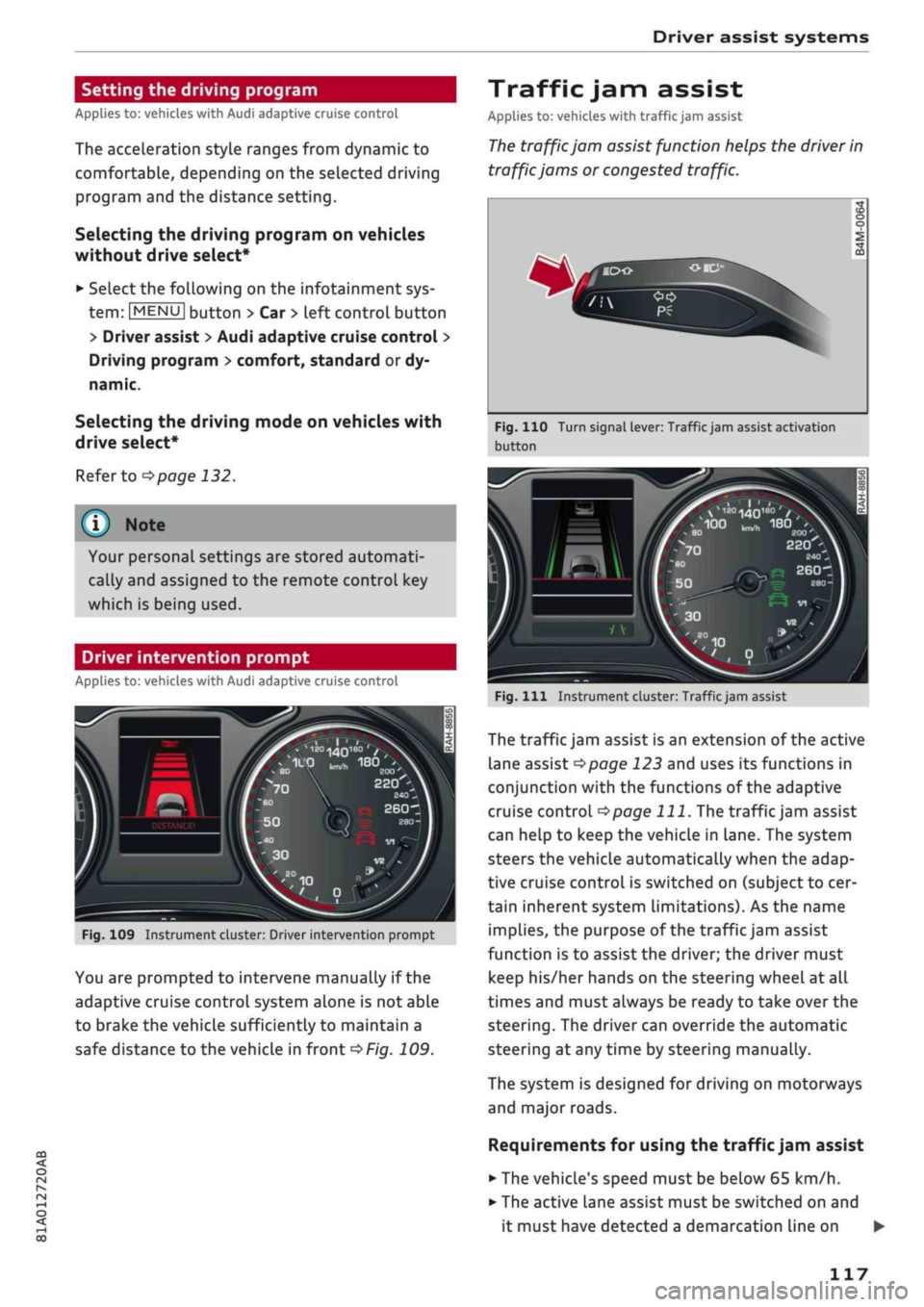
Fig.
109 Instrument cluster: Driver intervention prompt
You are prompted to intervene manually if the
adaptive cruise control system alone is not able
to brake the vehicle sufficiently to maintain a
safe distance to the vehicle in front
^>Fig.
109.
Traffic jam assist
Applies
to: vehicles with traffic jam assist
The
traffic jam assist function helps the driver in
traffic jams or congested traffic.
Fig.
110 Turn signal lever: Traffic jam assist activation
button
20O'
220
-_
2401
260-1
Fig.
Ill
Instrument cluster: Traffic jam assist
The traffic jam assist is an extension of the active
lane assist
^>page
123 and uses its functions in
conjunction with the functions of the adaptive
cruise control
^>page
111.
The traffic jam assist
can help to keep the vehicle in Lane. The system
steers the vehicle automatically when the adap
tive cruise control is switched on (subject to cer
tain inherent system limitations). As the name
implies, the purpose of the traffic jam assist
function is to assist the driver; the driver must
keep his/her hands on the steering wheel at all
times and must always be ready to take over the
steering.
The driver can override the automatic
steering at any time by steering manually.
The system is designed for driving on motorways
and major roads.
Requirements for using the traffic jam assist
• The vehicle's speed must be below
65
km/h.
• The active lane assist must be switched on and
it must have detected a demarcation line on •
117
Page 120 of 364
Driver assist systems
both sides of the lane you are in
^page
124.
The early setting must be selected for the
steering input on the infotainment system
^>page
126.
•
The adaptive cruise control must be switched
on and activated
^page
113.
Switching the traffic jam assist on/off
•
Press the button
^>Fig.
110 to switch the sys
tem on/off.
Always switch off the traffic jam assist in the
following situations:
- In situations requiring extra care and attention
from the driver.
- In poor weather, for instance in snow or heavy
rain.
- In poor road conditions.
- In roadwork areas.
-In city traffic.
Indicator lamps
|
and
||
-
Traffic
jam assist is switched on. Ve
hicle detected in front. The system is controlling
your vehicle as it moves
^Fig.
111.
If the driver does not take over the steering after
being prompted with several severity levels, the
traffic jam assist
wilL
be switched off and the
emergency assist will be activated
^>page
126.
A
WARNING
Always leave your hands on the steering
wheel and be ready to steer at all times. It is
always the driver's responsibility to keep in
the traffic lane and to assess the traffic situa
tion and take appropriate care. Please observe
the safety warnings
^A in
General notes on
page 112. Never use the traffic jam assist in
the following situations - risk of accident!
- On off-road terrain or unsealed roads.
- In city traffic or roadwork areas.
-On twisty roads.
- In narrow traffic lanes.
- In unpredictable traffic situations, e.g. at
intersections or toll gates.
118
© Note
The system does not always keep the vehicle
in the centre of the lane.
Distance indicator and
distance warning
Applies to: vehicles with Audi adaptive cruise control
This
function measures the distance to the
vehi
cle in front in time units and shows the result on
the instrument cluster display.
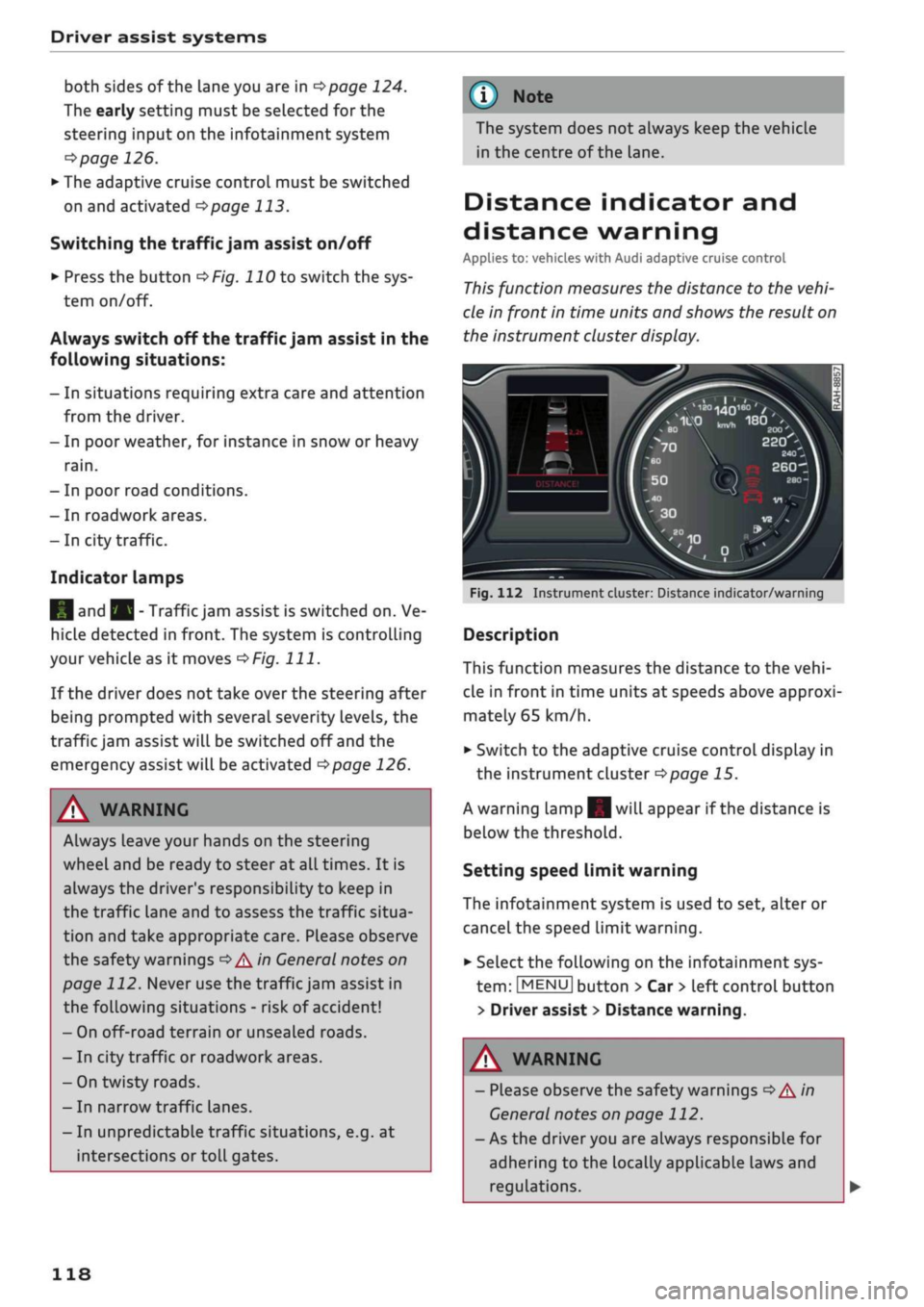
Fig.
112 Instrument cluster: Distance indicator/warning
Description
This function measures the distance to the
vehi
cle in front in time units at speeds above approxi
mately
65
km/h.
•
Switch to the adaptive cruise control display in
the instrument cluster
^>page
15.
A warning lamp|| will appear if the distance is
below the threshold.
Setting speed limit warning
The infotainment system is used to set, alter or
cancel the speed limit warning.
•
Select the following on the infotainment sys
tem:
|MENU|
button
>
Car
>
left control button
> Driver assist
>
Distance warning.
A
WARNING
- Please observe the safety warnings
General notes on page 112.
- As the driver you are always
•=>A''n
responsible for
adhering to the locally applicable la
regulations.
ws and
Page 125 of 364

Driver assist systems
H
Audi pre sense: currently restricted. Sensor
view restricted due to surroundings.
This message appears if the radar sensor vision is
impaired,
e.g. by leaves, snow, heavy road spray
or dirt. If necessary, clean the sensor
*$
page 112, Fig. 101.
[^
Audi pre sense: currently restricted
This message appears in certain situations, e.g.
when the ESC is partially or fully deactivated.
Q
Audi pre sense: currently restricted. See
owner's manual
Applies to: vehicles with Audi side assist
If
you
operate the turn signals while the active
lane assist and side assist are active, the steering
will be corrected just before you cross the lane
demarcation if the side assist detects vehicles ap
proaching quickly or travelling at about the same
speed as your own vehicle and judges the situa
tion to be critical. This intervention is intended to
keep the vehicle in the Lane.
Applies to: vehicles without Audi side assist
The system does not warn you if
you
operate the
turn signal before crossing a Lane marking. In
this case, it assumes that you intend to change
lanes.
Applies to: vehicles with traffic jam assist
The traffic jam assist can be activated at speeds
below approximately 65 km/h if the correspond
ing conditions have been met
^page
117.
•
123
This driver message appears if one or more sub
systems, such as the
ESC,
fails temporarily. If the
message is displayed several times, drive to a
qualified workshop and have the fault rectified.
[g]
Audi pre sense: emergency braking system
off
This message appears if the functions of the pre
sense system are deactivated via the infotain
ment system or if the system is not available.
Audi active Lane assist
Description
Applies to: vehicles with Audi active lane assist
The active lane assist (lane departure warning
feature) uses a camera in the windscreen to de
tect lane markings (subject to general system
limitations). If
you
approach one of the detected
lane markings, the system corrects the steering
to warn you that the vehicle might be about to
cross one of the markings. You can override this
steering input at any time. The steering wheel vi
brates slightly if
you
cross a lane marking. The vi
bration warning must be activated beforehand on
the infotainment system. The active lane assist is
functional when it detects a demarcation line on
at least one side of the lane in which you are driv
ing.
As the system is designed for driving on motor
ways and other major roads, it is only active
§
above a speed of about 65 km/h (may vary in dif-
£
ferent export markets).
r\i
.-H
00
A WARNING
- The system initiates a corrective steering in
put to warn the driver that the vehicle is
about to leave the lane. As the driver you
are always responsible for staying in your
own lane.
- The system can assist you to keep the
vehi
cle in the lane, however it is not capable of
driving on its own. Never take your hands
off the steering wheel.
- In certain situations, e.g. during heavy brak
ing,
the system may not correct the steer
ing.
- In certain circumstances, not all of the lane
markings may be detected by the camera. A
corrective steering input can only be
initi
ated if the system detects a lane marking on
the side in question.
- Variations in the road surface or objects on
the road may be misinterpreted as lane
markings. In this case, the steering may be
corrected unexpectedly or not at all.
- The camera's view might be obstructed, for
example by vehicles travelling in front,
rain,
snow, a lot of water on the
road,
adverse
light
or
dirt on the windscreen. If this hap
pens,
the active lane assist may not detect
Page 126 of 364

Driver assist systems
the lane markings or may respond incorrect-
iy.
- In certain circumstances, for instance if
visi
bility is poor, the setting for the steering in
put may temporarily be switched from "ear
ly"
to "late"
«.
- In certain driving conditions, such as ruts in
the road surface, adverse cambers or side
winds, the assistance provided by the steer
ing correction may be insufficient to keep
the vehicle in the middle of the lane.
- For safety reasons, the active lane assist
must not be used in poor weather or in
diffi
cult or slippery road conditions (such as ice,
fog,
loose grit or gravel, heavy
rain,
snow,
etc.) - risk of accident!
Switching on/off
Applies to: vehicles with Audi active lane assist
Fig.
114 Turn signal lever: Button for active lane assist
--•
In
s^\
l'fV
A
Fig.
115 Wind
sist
SSS1M
screen:
Ca
o
o
o o
5
^Aw ^
mera
window for active lane as-
•
Press the button
^Fig.
114 to switch the sys
tem on/off. The indicator lamp in the instru
ment cluster will light up or go out.
Analogue in
strument clus
ter
Green lines
7
V
-
Yellow lines
•/
V
Audi virtual
cockpit/head-
up display*
Green Line(s)
(left/right)
7
V
Red line
(Left/right)
7 V
Grey Line(s)
(left/right)
7 V
Meaning on
corresponding
side
The active Lane
assist is
switched on
and ready to
warn.
The active lane
assist warns
you before you
cross the Lane
demarcation.
In addition,
the steering
wheel vibrates
slightly.
The active Lane
assist is
switched on
but not ready
to warn.
The system may be switched on but not ready to
warn due to the following reasons:
- There are no Lane markings.
- The system cannot detect the relevant lane
markings (e.g. temporary markings for road
works or markings obscured by snow, dirt, rain
or adverse light).
- The vehicle's speed is below 65 km/h, the
speed at which the lane assist system is activa
ted (the threshold may vary in different export
markets).
- The traffic lane is too narrow or too wide.
- The bend is too tight.
- You have taken your hands off the steering
wheel.
- Make sure that the camera window
^>Fig.
115
is not covered with stickers or
similar objects. Notes on cleaning
^>page
312.
l)
This function is not available on all export versions.
124
Page 127 of 364
Driver assist systems
CO
< o
rN
r>
rN
t-H
o < 00
- On vehicles for some export markets: once
the system is activated, it is "ready" each
time the ignition is switched on.
Instrument cluster display
Applies to: vehicles with Audi active lane assist
Drive to a qualified workshop soon and have the
fault rectified.
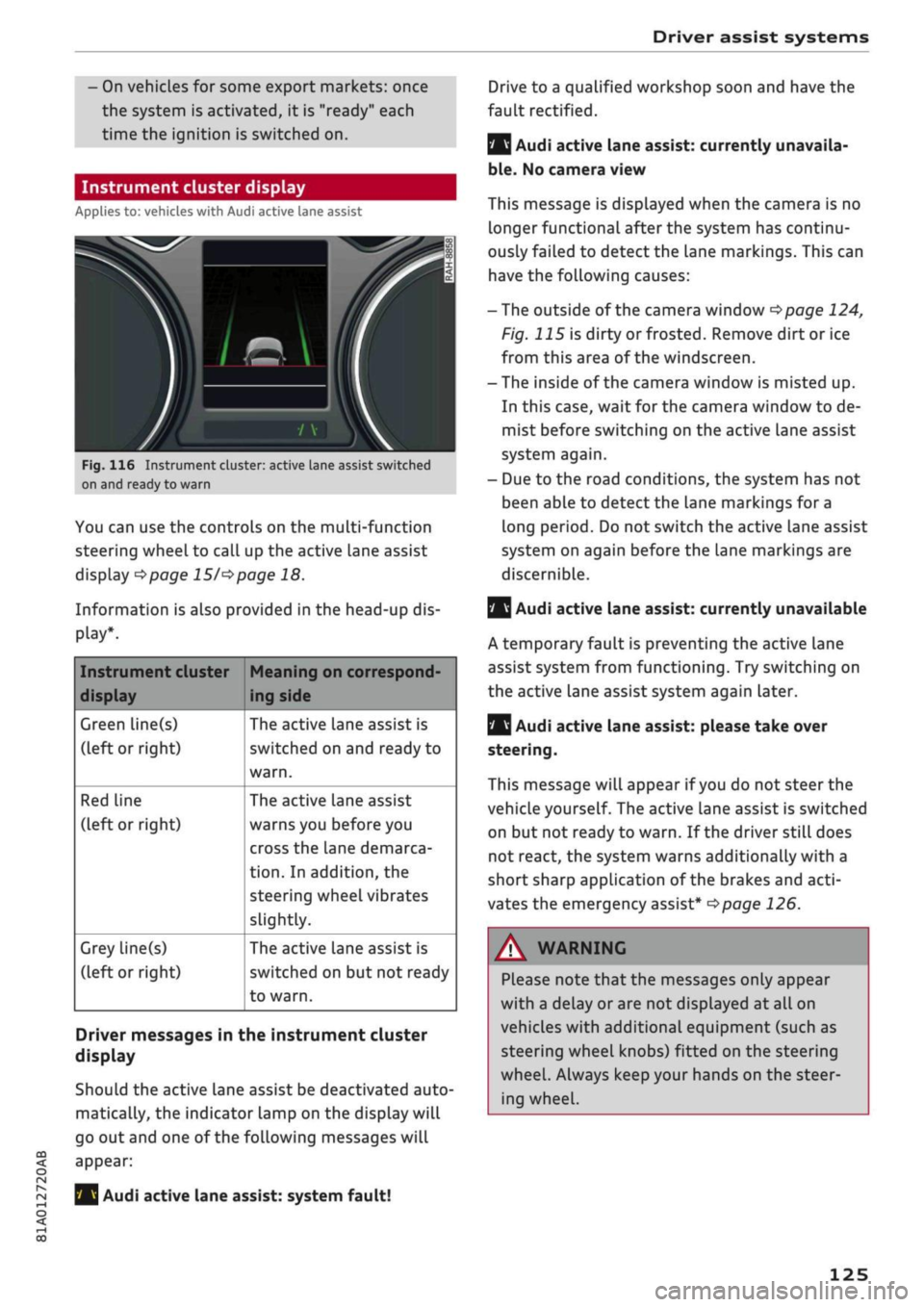
Fig.
116 Instrument cluster: active Lane assist switched
on and ready to warn
You can use the controls on the multi-function
steering wheel to call up the active lane assist
display
^>page 15/^>page
18.
Information is also provided in the head-up dis
play*.
Instrument cluster
display
Green line(s)
(left or right)
Red Line
(left or right)
Grey line(s)
(left or right)
Meaning on correspond
ing side
The active lane assist is
switched on and ready to
warn.
The active lane assist
warns you before you
cross the lane demarca
tion.
In addition, the
steering wheel vibrates
slightly.
The active lane assist is
switched on but not ready
to warn.
Driver messages in the instrument cluster
display
Should the active lane assist be deactivated auto
matically, the indicator lamp on the display will
go out and one of the following messages will
appear:
Audi active lane assist: system fault!
Audi active lane assist: currently unavaila
ble.
No camera view
This message is displayed when the camera is no
longer functional after the system has continu
ously failed to detect the lane markings. This can
have the following causes:
-The outside of the camera window
^page
124,
Fig. 115 is dirty or frosted. Remove dirt or ice
from this area of the windscreen.
- The inside of the camera window is misted up.
In this case, wait for the camera window to de
mist before switching on the active lane assist
system again.
- Due to the road conditions, the system has not
been able to detect the lane markings for a
long period. Do not switch the active Lane assist
system on again before the lane markings are
discernible.
Q
Audi active lane assist: currently unavailable
A temporary fault is preventing the active lane
assist system from functioning. Try switching on
the active lane assist system again later.
|
Audi active lane assist: please take over
steering.
This message will appear if
you
do not steer the
vehicle yourself. The active lane assist is switched
on but not ready to warn. If the driver still does
not react, the system warns additionally with a
short sharp application of the brakes and
acti
vates the emergency assist*
^>page
126.
A WARNING
Please note that the messages only appear
with a delay or are not displayed at all on
vehicles with additional equipment (such as
steering wheel knobs) fitted on the steering
wheel.
Always keep your hands on the steer
ing wheel.
125