navigation AUDI Q3 2019 Owner's Manual
[x] Cancel search | Manufacturer: AUDI, Model Year: 2019, Model line: Q3, Model: AUDI Q3 2019Pages: 280, PDF Size: 72.73 MB
Page 173 of 280
83A012721BA
Navigation
Start map update
Requirement: a map update for your vehicle must
be onan SD card or a USB flash drive.
> Insert the SD card in your vehicle's SD card
reader > page 182. Or: connect the USB flash
drive to the Audi music interface > page 184.A
notification for a map update will appear in the
center display.
> Press on the notification. Or: access the notifi-
cation in the notification center on > page 20
and press on the notification. The update pack-
age is shown.
> Press Next. The status of the installation is
shown in the center display.
> When the update has ended, a notification will
be displayed.
Map updates settings
Applies to: vehicles with navigation system and Audi connect
Infotainment
> Applies to: MMI: Select on the home screen:
SETTINGS > System maintenance.
Automatic online map update: map updates are
automatically downloaded and installed when
this function is switched on.
@) Note
Read the information about Audi connect, and
be sure to note the connectivity costs section
=>@ in General information on page 154.
Traffic information
Introduction
Applies to: vehicles with navigation system
50}
RAX-0020] MA PR eae niches ni
eee en
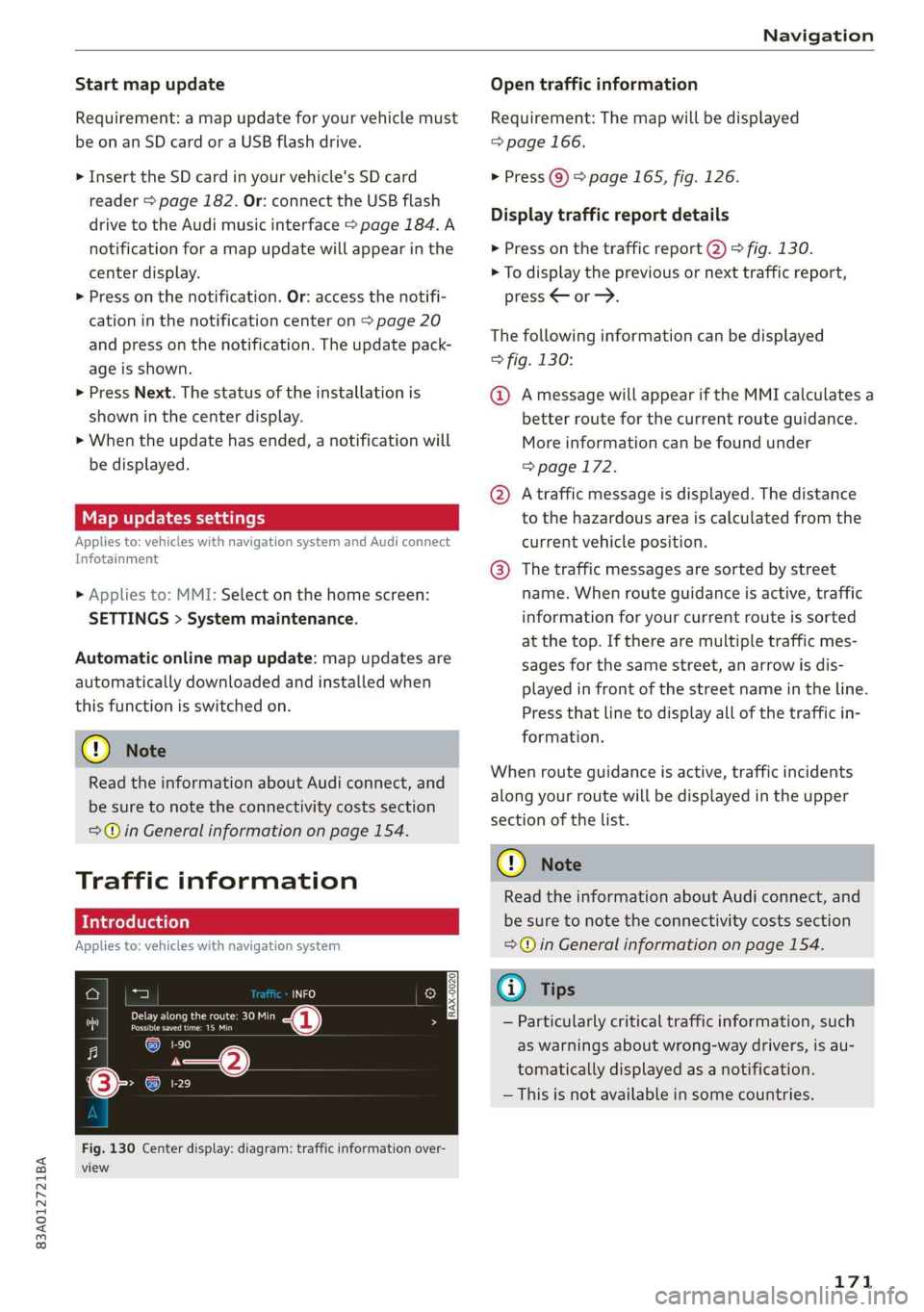
Fig. 130 Center display: diagram: traffic information over-
view
Open traffic information
Requirement: The map will be displayed
=> page 166.
> Press Q) > page 165, fig. 126.
Display traffic report details
> Press on the traffic report @) > fig. 130.
> To display the previous or next traffic report,
press < or.
The following information can be displayed
> fig. 130:
@ Amessage will appear if the MMI calculates a
better route for the current route guidance.
More information can be found under
=> page 172.
@ Atraffic message is displayed. The distance
to the hazardous area is calculated from the
current vehicle position.
@® The traffic messages are sorted by street
name. When route guidance is active, traffic
information for your current route is sorted
at the top. If there are multiple traffic mes-
sages for the same street, an arrow is dis-
played in front of the street name in the line.
Press that line to display all of the traffic in-
formation.
When route guidance is active, traffic incidents
along your route will be displayed in the upper
section of the list.
@) Note
Read the information about Audi connect, and
be sure to note the connectivity costs section
=@ in General information on page 154.
(i) Tips
— Particularly critical traffic information, such
as warnings about wrong-way drivers, is au-
tomatically displayed as a notification.
— This is not available in some countries.
171
Page 174 of 280
Navigation
Tad ite
Applies to: vehicles with navigation system
By receiving traffic, your MMI calculates a better
route if available and the possible time saved
compared to the current route. You can decide
which route you would like to use.
A notification will appear for several seconds if
your MMI calculates a better route for the cur-
rent route guidance.
A message will also appear in the traffic informa-
tion overview @) > page 171, fig. 130.
Accept better route
Requirement: A notification about a better route
is displayed.
> Press PF. The better route is used for route
guidance and the route is recalculated. Or:
press the notification in the central area. The
better route with the calculated arrival time is
displayed > page 167, Alternative routes. Press
on a better route (for example @) > page 167,
fig. 129).
CON eee aie leleurliela)
Applies to: vehicles with navigation system and online traffic
information
The MMI can receive real-time online traffic in-
formation about congestion, accidents, road
construction, and other incidents.
Requirement: The MMI must be connected to the
Internet > page 154, Audi connect. Traffic infor-
mation must be switched on in the MMI
=> page 173.
Traffic information will be displayed on the
standard map > page 165, fig. 126.
Online traffic information is also displayed on the
standard map > page 169.
@) Note
Read the information about Audi connect, and
be sure to note the connectivity costs section
=@ in General information on page 154.
172
G) Tips
— Having the Online traffic information func-
tion switched on provides the most accurate
reports of traffic situations and traffic fore-
casting. Your vehicle transmits and process-
es its anonymous, encrypted position infor-
mation at regular intervals to the traffic da-
ta provider. You can switch off data transfer
at any time > page 256.
— The online traffic information network is
not available in all countries, and the cover-
age is not nationwide.
Options and settings
Applies to: vehicles with navigation system
Context-specific functions and settings may be
available depending on the vehicle equipment.
Requirement: a list with navigation destinations
(such as last destinations) must be displayed.
> Press and hold an element until the Options
menu is displayed.
Storing a favorite
See > page 168.
Edit address
You can edit an address for the next destination
entry and navigate to the destination. Select: Ed-
it address > enter a street > Use address > Start.
If the address is permanently stored (for exam-
ple, in the favorites), the stored entry will not be
changed.
Change address
See > page 168, Favorites.
Entering an address
See > page 168, Contacts as navigation destina-
tions.
Change name
See > page 168, Favorites.
Save as a shortcut
See > page 21, Shortcuts.
Page 175 of 280

83A012721BA
Navigation
Applies to: vehicles with navigation system
You can adjust the navigation system settings in
the instrument cluster and the center display
separately. The settings depend on the country
and vehicle equipment.
Accessing settings
> Applies to: MMI: Select on the home screen:
NAVIGATION > &
Accessing settings using the multifunction
steering wheel
> Applies to: multifunction steering wheel: Select
in the instrument cluster: Navigation tab >
button.
Please note that a setting applied to the multi-
function steering wheel is only valid for the in-
strument cluster map.
Map settings
Satellite map: see > page 169.
Traffic: you can display current traffic informa-
tion on the map. See > page 166, Traffic infor-
mation display on the map or map preview
— Free flow of traffic
— Traffic obstructions
— Traffic information
Map colors
— Automatic: the map display adapts to the light-
ing conditions (for example, by changing from
day to night when driving through a tunnel).
— Day or Night
Map orientation
— 2D map or 2D north up: the current vehicle po-
sition is displayed. The map is oriented in the
direction of travel or to the north.
— 3D map: the current vehicle position is shown
on a three-dimensional map and is oriented to
the direction of travel.
— Overview: the entire route from the vehicle po-
sition to the destination or the next stopover is
displayed on the map. The map is oriented to
the north.
Automatic zoom
— On: the map scale adapts automatically de-
pending on the type of road being traveled (ex-
pressway, highway, other roads) so that you al-
ways have an optimal overview of the road
ahead. When route guidance is active, the scale
is adjusted automatically for a better detailed
view when there are upcoming maneuvers.
— Intersection: when route guidance is active, the
scale is adjusted automatically for a better de-
tailed view when there are upcoming maneu-
vers.
— Off
MMI map contents/Map content: you can switch
the display of additional information (such as
POIs) on the map in the center display on or off.
— Always follow >@ for the following map con-
tent:
— 3D city model
— The weather forecast is displayed on a 3 mile (5
km) scale on the map.
Voice guidance
Voice guidance: you can adjust the voice guid-
ance settings. With the Traffic setting, the MMI
will only give prompts if there are traffic inci-
dents on your route.
Voice guidance during phone call
Entertainment fader during navigation: the au-
dio playback volume is temporarily lowered when
navigation prompts are active.
Route criteria
You can adjust which route criteria should be al-
lowed or avoided for the route calculation.
HOV/carpool lanes
Highways
Toll roads
Ferries
Route information
When this function is switched on and route
guidance is active, route information ®
=> page 165, fig. 126 is displayed. The next ma-
neuver will be displayed at the bottom. POIs and >
173
Page 176 of 280
Navigation
traffic information will also be displayed. Press
route information to display a preview of the next
maneuver on the map. You can switch the follow-
ing information on or off in route information.
— POIs along the route
— Traffic information
Personal route assistance
Personal route assistance is switched off at the
factory.
Your trips are recorded and destinations are sug-
gested by the MMI when this function is switched
on > page 167.
Trailer mode
Trailer mode is switched off at the factory.
When the function is switched on, the maximum
permitted speed for vehicles with trailers is in-
cluded during route guidance and the calculated
arrival time is adjusted accordingly. When the
function is switched on, the symbol
= page 165, fig. 126 is displayed on the map.
Troubleshooting
Applies to: vehicles with navigation system
The information that follows lists some trouble-
shooting options. They depend on the equip-
ment.
Presentation mode
In presentation mode, the system simulates driv-
ing on the center display along the planned route
without the vehicle actually moving. You can use
Specify starting point when you would like to
calculate a route starting from a location other
than the current vehicle position, for example.
Simulating route guidance: start route guidance
and press Presentation mode.
() Note
Read the information about Audi connect, and
be sure to note the connectivity costs section
=@ in General information on page 154.
G) Tips
You can adjust the volume of navigation
prompts during voice guidance using the
On/Off knob = page 18. Also see > page 195.
Problem Solution
Intelligent search: the desired
destination cannot be found.
essary.
The destination might not be entered in the navigation database.
Or: check the spelling of the term that was searched.
Check the current search area > page 160 and use another, if nec-
174
Page 181 of 280
83A012721BA
Radio
Requirement: At least two favorites must be stor-
ed.
— Moving a favorite: Select: All > Z. Touch the
symbol and move the entry to the desired posi-
tion. Press Done.
@) Note
Read the information about Audi connect, and
be sure to note the connectivity costs section
=@ in General information on page 154.
G) Tips
— Depending on the Internet connection and
network traffic, the connection may be lost
when online radio is playing.
— Online radio reception may not be possible
if Internet service is throttled.
— The use of online radio depends on the serv-
ice availability of the third party provider.
— The range and screen display of online me-
dia services from third party providers in the
vehicle can vary.
— AUDI AG only provides access to online radio
and does not assume any responsibility for
the content of these services.
Radio text
Applies to: vehicles with radio text
Program information (for example, general text
messages, artist, composer, song) is displayed in
the radio text.
Opening radio text
> Applies to: MMI: Select on the home screen:
RADIO > select a frequency band (such as FM)
> select a station > More > Radio text.
Displaying previous radio text entries: drag your
finger downward. The last radio text entries are
displayed if they are available.
Browsing through radio text entries: drag your
finger upward or downward on the screen.
If a radio text entry is displayed with a color, a
phone number or a navigation destination for the
station is available as radio text plus information.
@) Tips
The availability of radio text and RadioText
Plus depends on the radio station.
TMi a cy
Applies to: vehicle with SiriusXM
You can see an overview of your favorite artists,
favorite songs, or teams that are currently being
broadcast on a SiriusXM channel.
> Applies to: MMI: Select on the home screen:
RADIO > Source > SiriusXM alerts.
After you have saved a SiriusXM alert, you can see
an overview in the SiriusXM alerts menu of the
songs, artists, or teams being currently received
and can play them directly from there.
Storing a SiriusXM music alert
Requirement: an artist or song must be playing
ona SiriusXM channel.
— Applies to: MMI: Select on the home screen:
RADIO > Source > SiriusXM > select a channel
> More > Artist as SXM alert/Title as SXM
alert.
Storing a SiriusXM game alert
— Applies to: MMI: Select on the home screen:
RADIO > © > Manage SiriusXM alerts > Store
SiriusXM game alerts > select an entry from
the list.
Playing a song/artist/team from a SiriusXM
alert (option 1)
Requirement: a SiriusXM music/game alert must
be stored and must be currently broadcast on a
SiriusXM channel.
— Applies to: MMI: Select on the home screen:
RADIO > Source > SiriusXM alerts > select an
entry from the list.
Playing a song/artist/team from a SiriusXM
alert (option 2)
Requirement: a SiriusXM music/game alert must
have been received.
— Press on the notification, or access the notifica-
tion in the notification center on > page 20 and
press on the notification.
179
>
Page 197 of 280
83A012721BA
Additional settings
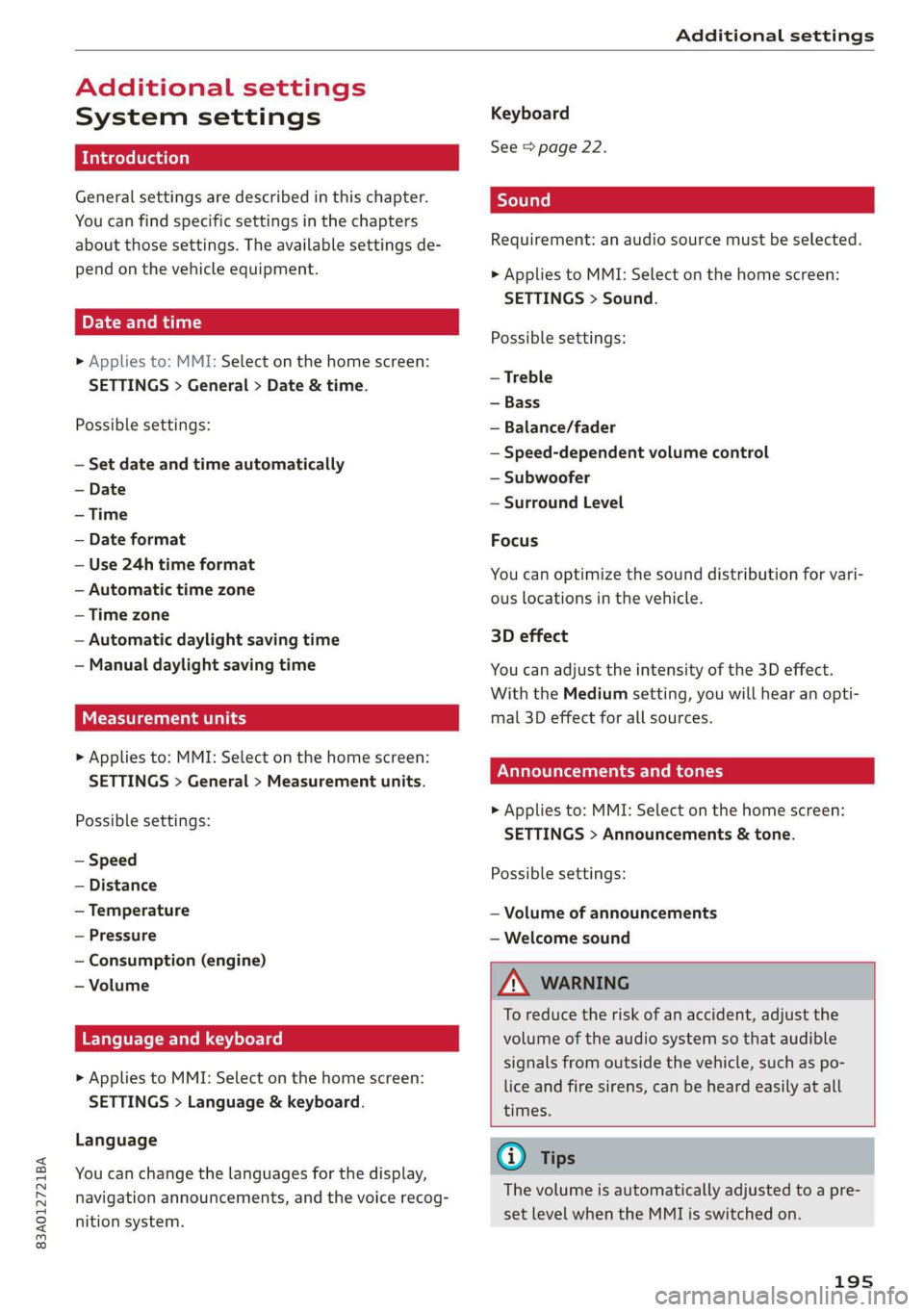
Additional settings
System settings
Introduction
General settings are described in this chapter.
You can find specific settings in the chapters
about
those settings. The available settings de-
pend on the vehicle equipment.
Date and time
> Applies to: MMI: Select on the home screen:
SETTINGS > General > Date & time.
Possible settings:
— Set date and time automatically
— Date format
— Use 24h time format
— Automatic time zone
— Time zone
— Automatic daylight saving time
— Manual daylight saving time
CERT Taal lat ae ay
> Applies to: MMI: Select on the home screen:
SETTINGS > General > Measurement units.
Possible settings:
— Speed
— Distance
— Temperature
— Pressure
— Consumption (engine)
— Volume
Language and keyboard
> Applies to MMI: Select on the home screen:
SETTINGS > Language & keyboard.
Language
You can change the languages for the display,
navigation announcements, and the voice recog-
nition system.
Keyboard
See > page 22.
Requirement: an audio source must be selected.
> Applies to MMI: Select on the home screen:
SETTINGS > Sound.
Possible settings:
— Treble
— Bass
— Balance/fader
— Speed-dependent volume control
— Subwoofer
— Surround Level
Focus
You can optimize the sound distribution for vari-
ous locations in the vehicle.
3D effect
You can adjust the intensity of the 3D effect.
With the Medium setting, you will hear an opti-
mal 3D effect for all sources.
Announcements and tones
> Applies to: MMI: Select on the home screen:
SETTINGS > Announcements & tone.
Possible settings:
— Volume of announcements
— Welcome sound
ZA\ WARNING
To reduce the risk of an accident, adjust the
volume of the audio system so that audible
signals from outside the vehicle, such as po-
lice and fire sirens, can be heard easily at all
times.
G) Tips
The volume is automatically adjusted to a pre-
set level when the MMI is switched on.
195
Page 260 of 280
Accessories and technical changes
Accessories and
technical changes
Warranty
Your vehicle is covered by various warranties:
— New Vehicle Limited Warranty
— Limited Warranty Against Corrosion Perforation
— Emissions Control System Warranties: Federal
Emissions Control System Defect Warranty,
Federal Emissions Performance Warranty
— Applies to: USA models: Kansas Safety Belt
Limited Warranty
— Applies to: USA models: California Emissions
Control Warranties: Short-term Emissions De-
fects Warranty, Long-term Emissions Defects
Warranty, TZEV models Emissions Defects
Warranty, California Emissions Performance
Warranty
You can find detailed information in your Warran-
ty & Maintenance Booklet and in the California
Emissions Booklet*.
Audi Literature Shop
Service information is available as soon as possi-
ble after a model is introduced and can be or-
dered in the Audi Literature Shop: http://
literature.audiusa.com
Driving in other
countries
Government regulations in the United States and
Canada require motor vehicles to comply with
emissions regulations and safety standards.
Therefore, vehicles that were produced for the
U.S. and Canadian markets are different from ve-
hicles produced for other countries.
If you plan to use your vehicle outside of the
United States or Canada, it is possible that:
— Fuel may have a significantly lower octane rat-
ing. Unsuitable fuels can cause engine damage.
— Proper maintenance and repair work may not
be possible because special service equipment,
tools, or measuring devices needed for your ve-
hicle may not be available.
258
— Replacement parts may not always be availa-
ble.
— Navigation systems for vehicles built for the
U.S.A. and Canada will not necessarily work in
Europe, and may not work in other countries.
() Note
Audi is not liable for damage to the vehicle re-
sulting from these country-specific differen-
ces.
Maintenance, repairs,
and technical modifi-
cations
Note the safety precautions > page 203, General
information and > page 243, Raising the vehicle.
General information
Due to the increasing complexity of technology in
these vehicles, as well as the safety and environ-
mental standards that apply, you can only per-
form a very limited amount of repairs and modifi-
cations to the vehicle yourself.
Proof of maintenance work may be required to
submit a claim within the warranty period.
We recommend that you have your vehicle serv-
iced by an authorized Audi dealer or authorized
Audi Service Facility and that Audi Genuine Parts
and Audi Genuine Accessories are used. This
helps to ensure that your vehicle's functionality,
performance, and safety are not impaired.
Maintenance and repairs
Your vehicle was designed to help keep mainte-
nance requirements to a minimum. Some regular
maintenance is required to help ensure that your
vehicle runs in a safe, economical, and reliable
manner. Please refer to your Warranty & Mainte-
nance Booklet for more detailed information
about vehicle maintenance.
When operating the vehicle under more extreme
operating conditions, for example when outside
temperatures are very low or in very dusty envi-
ronments, certain maintenance should be per-
formed between the specified intervals.
Page 272 of 280
Index
PANIC Button ssicsooe © 2 cocvise © avant ww rumen @ eee 32
Replacing the battery...............0-. 34
Unlocking and locking...............005 33
Vehicle Code ssicve x + swine ee etre oe eas a 2 one 32
Kick#dOWn'. 2 scons e senea oe ae ao ca @ eee 84
L
Lane assist
refer to Lane departure warning......... 119
Lane departure warning................. 119
Cleaning the camera area.............. 237
LATCH (securing child safety seats)......... 68
Leather care/cleaning...............005 239
Legal information
License subscriptions................. 197
Software information................. 197
Software:licensesies . sowie ae iawn ws nsenn a 6 197
Version
information.................. 197
License plate bracket................0.. 260
Lifting points (vehicle jack).............. 243
Light/rain sensor
Headlights...............00 020-0 ee eee 43
Intermittent mode (windshield wipers) .... 49
Light functions
Interior lighting!sc . = ssw = 2 ese sy eee eee 46
Lighting
Exterior. « ic © wesen ae ease a 2 wane vo ore 43
Interior... 0... eee eee 46
Lights 0.0... eee eee eee 43
Listening to music
refertoMedia................005. 182,185
Load... 6.6... eee 264
Locking and unlocking
By remote control............2.2.0005. 33
Using the lock cylinder................. 30
With the convenience key............... 33
Low beam headlights.................... 43
Lowering the cargo floor................. 76
Luggage compartment...............05. 73
COVER ime x x cena % 2 soamere # x wemnER oo en aw Re 74
Double cargo floor..............0..000- 76
Increasing the size............0--.00 ee 75
also refer to Luggage compartment...... 73
Luggage compartment lid
Closing button. ...............000 ee eee 36
Emergency releasing:ss : < waa x x aeax ¢ gaee 37
270
General information 34
Opening and closing 35
Opening and closing with foot motion..... 37
Power opening/closing................. 36
Lumbar'support:s + ses so sews oo owen oo 54,55
M
Maintenance’: « « sews + » sen + e awe + pores a 258
Maintenance intervals................-. 245
Malfunction Indicator Lamp (MIL)........ 202
Manual shifting ................0020 eee 84
Map
Changing the scale ............ee eves 164
Display’ « sncine 2 2 setese a a comes ow anes ve to 166
Operating. ..... 0.0... cece eee eee eee 165
Setting the destination................ 164
Map preview...............0- 00-00 e eee 163
Map update................0 20. e ee eee 170
Oli: 2 gems + 2 wise = pense & ¥ em ee See = 170
SD card/USB connection........0.. 00006 170
Media somes: i sxonns ao eevee ¥ oe orem wae 182,185
Supported formats.................-. 190
Media Cemberin. « . acewus « w snonsue = auarems wo meriite 186
Memory card
SD card reader (MMI).............0... 182
Supported types and formats........... 190
Menu language
refer to Setting the language........... 195
MeSSaQeSixc: « ¢ sews & ¢ ese 2s ees § oe ees es 147
MIrforcompass:s « « ues cs wean: 2 meee + eee 51
Mirrors
Adjusting exterior mirrors............... 47
DUUANTING Ss, « scersiss ow snouts om exons 6 x oxmanm x 48
Vanity mirror... 1.2... eee ee eee 48
MMI Navigation plus
refer to Multi Media Interface........... 18
MMI Radio plus
refer to Multi Media Interface........... 18
Mobile device
referto Telephone..............0.0005 139
Mobile phone network
Connection settings...............00. 152
Mountain passeS....... 00.0. e cece ee eee 93
MouintainirOadsivn. « scins a 6 vimses a 6 nraeiise #6 om 93
Multifunction steering wheel
Buttons......... 0... ee eee eee eee 12, 26
Page 273 of 280
83A012721BA
Index
Operating « « secs + x sess 6 ot wees v aeaueee w & cams 12
Programming buttons...............00. 26
Voice recognition system.............-. 24
Multi Media Interface................... 18
Menus and symbols...............--00. 19
Operating ....... 0... cee ee eee eee 16,19
Switching on or off...........-....-00. 18
Muting (mute)............. 0002s 26
MmyAUdi..... eee eee eee 27,155
myAudi navigation................. 159, 163
N
Natural leather care/cleaning............ 239
Navigation susie c+ asco xv anti © oreo wn oan 159
Better route ......... 0.0... e cece 172
GalliniGis: s vem sv news ss tee ov eee see 163
Changing the scale. ......... cece eves 163
also refertoMap............-000 eee 165
Navigation database
Version information...............04- 197
Navigation (instrument cluster).......... 166
SY 260
Notification:cemter’. csiccis . « sessue oo ernuous oo weet 20
Oo
Octane rating (gasoline)................ 199
OMOMCLER wisi & 2 mace & oO + ¥ eOER oH ERED « 14
Resetting...............0..0..000000. 14
Office address
refer to Business address.............. 168
Offroad
refer to Offroad driving...............5. 93
Offroad ArivVinG!s + = sss <= evan ¢ = Hares ¢ = Hom 93
Oil
refer to Engine oils = acs 22 ees ee eees ee 205
On-board computer................-.04. 14
On Board Diagnostic System (OBD)... 202, 255
Online destination
refer to Point of interest............... 162
Online map
refer to Satellite map................. 169
Online: Mediates. «vies ss wees ss wees @ vee 183
OnliMePAdIO sx « weam x gogo gx mem Ge Se 178
also refer to Online radio.............. 178
Online services
refertoconnect...........0+-008 154,155
Online system update.................. 196
OPO bes » sccmesnse © axensies wo > vase @ 8 meme = = com 28
Automatic luggage compartment lid...... 36
Convenience opening................085 39
Fuel filler door........ 0... c eee eee ee 200
Hood... 0... eee ee 204
Luggage compartmentlid............... 35
Luggage compartment lid with foot motion . 37
Panoramic glass roof................... 39
Sunshade (FOOT): « 2 some a @ ears oo eee a eae 39
Wind OWS 3s « cence wv cmermes a a smenees oa omemee es 38
Opening and closing
refer to Unlocking and locking........ 28, 33
Operating
Instrument cluster.................00. 12
Multifunction steering wheel............ 12
Multi Media Interface ...... 0 cece eee 16,19
Text input......... 0.00.00... eee eee 22
Touch displays: « veces s eae x > wee se ree 16
Optional equipment number............. 263
Options
Media’. » 2 seas 2 4 segue 2s sete go ewe te ee 189
NAVIQAtIOMsc i « sunsais « x wrens o 0 suessun w seats 1 172
Radio... 2.6... cece eee cee eee eee 180
Overview (cockpit) ............00 eee eee ee 6
P
Paint damage.......... cece eee eee eee 238
Paintmumbe ttc 5 cscs 2 x ennme o « cereus 6 2 sownate 1 263
PANIC: DUttONY « & cresce: 6 0 cemmmes an awawons 1 a anos 32
Pani@ TUMGtion. « secs x x covers 2 2 serie ¥ 3 aoa © 3 32
Panorama glass roof...............-.05. 39
Panoramic glass roof
Convenience opening and closing......... 39
Emergency closing..............0eeeeae 40
QuickOpening << : sree ¢ = veces s eee se we 40
Park assist... 0.0.0... cc cece eee eee eee 136
Parking aid... ... 2... eee ee eee 127
Cleaning the sensors and camera........ 237
Parking space search.................. 134
Peripheral cameraS......- 0.0. - eee eee 129
Rearview Cameraiew. ss ews a vee as bees 129
Trailee views. 2s swavece x x sens « anamens a a amenees oo 130
271
Page 275 of 280
83A012721BA
Repeatix « sscemes v & sxcssus os anasaus oo aeeuens v stevens a 187
Replacement key........ 000s eee en eee eee 32
Replacement parts... .....-0secceeeevees 260
Replacing
Light BULBS « seems: swe © 2 aeawoe ¥ evens © 2 253
Replacing fuses. « csv. se even ae nen oo eee 251
Replacing wiper blades................0. 51
Reporting Safety Defects................ 260
Reverse gear
Fefer to Gears seiws «5 sw so wow eo wee 2 Oe 82
Rewinding (media files)................. 185
RUMS*: « aasay = & Qame 2 BREE s BRE Ze OE ees 230
Cleaning « « cessie: a x cnn
Roof
refer to Panoramic glass roof............ 39
Roof load... . 2... cc eee ee eee eee 76, 264
Rooftrackices » 2 sexes #0 waa 6% wii ¥ wenn © © ee 76
also refer to Roof rack..........--...--- 76
Route guidance
Stopping...............0....000000. 164
also refer to Navigation............... 159
Running direction (tires)...........00005 245
S
Safety beltSis:: « s seas 5 « xeme « pews 2 v wees es 58
Cleaning « « ssiws x 6 seis ow sees 2 a oneneen & © ae 238
Locking... .. 0... cece eee eee eee 70
Securing child safety seats.............. 69
Satellite map... .. 22... ee eee eee 169
Saving fuel
EMGtGYy CONSUMERS es: sx wsen 2 wae so Be 8 15
Recuperation « ssc wo cece «vores ow smn vs 15
Screen
refer to Touch display...............005 16
SErEWRIVERs = eveswos 2 5 wise wo aemsnme 6 4 axons © 242
SDicard reader (MMI) swewise © scm ao arene a a ao 182
Search area (point of interest)............ 162
Search function
refer to Free text search............... 189
SEAPMEALING sci 6 & sensine a w sxawere @ w saa @ & aerEOR 79
Seats
Adjusting... 0.0.0... cece cece ee eee 54
Adjusting the front seats................ 55
Adjusting the rearseats................ 55
Cleaning........ 0... cece eee ee eee 239
FOlGIMG secs «wo cnewess oo commen vw aneeens ¥ & commu wo ave 75
Head restraints. ........... 00 cece eee 57
Selecting a source (media).............. 185
Selector lever... 0.0.2... cece eee eee 82
Self-learning navigation
refer to Personal route assistance....... 167
Sensor overvieW.. 1... 0... eee eee 105
Service interval display................. 215
Service position
refer to Replacing wiper blades.......... 50
Setting measurement units.............. 195
SOCEMGS. 6 « snsnane a o wmmnaus wo orawiss % 6 cuienae a a ams 195
Announcements and tones............. 195
BlUGtOOth’s = s cues = seee se pew es deme eee 196
Datezand times «a cessive o ¥ arene 6 2 orevene 4 2 195
Language
Measurement units...........00.0 eee 195
Medias: « 3 scien x o ansane o cenne so ema 2 2 aes 190
Navigation ..... 0... c cece ee eee eee eee 173
RadiOis: s ¢ sees 2 e ees ee es ae eee gee 180
SOUNGb sem: «wena x x anne 3 2 seonee oH MUA oS ¥ 195
System... 2. ee eee eee 195
TiMGZOGinex s 2 eemK oy eees x BoeES eb ES 195
Wi-Fi Hotspot wise ss cso se sere oo oes 2 157
Setting the date’. « ¢ cas ¢ < new 4 e news s ¢ oe 195
Setting the language..........eeee scene 195
Setting the time. ¢ ¢ sees se eens ee ese eee 195
Shift paddles........... 0... cscs eee eee 84
Shortcut
réferto SHOrtcuts « wesa ss eews so wees sa ew 21
SHOFtCUtS:: « = aneu ¢ s qaaw 2 e Sewe sb ee EE ss 21
Shuffle... 2... ee eee eee 187
Side assist... 6... eee eee 124
Cleaning the sensors...............-.. 237
SIMGatd = scios + = S008 4 BERS ¥ BROS FB ORS 155
SiriusXM alert notifications.............. 179
Sliding/tilting sunroof
refer to Panoramic glass roof............ 39
Smart favorites................000000- 178
Smartphone
Wirelessicharging@’s « swiss « 2 gown 2 x same se 141
also refer to Telephone.............065 139
Snow chains: « + sis 2 6 sean so een ee eww 232
SOCKEb ss ss wane 5 x wae & EES & F RoUER XB HEHE 72
Software
Updates « esses ea ciaunee s scare» wenser ao sssoee 196
273