display AUDI Q7 2013 Owner´s Manual
[x] Cancel search | Manufacturer: AUDI, Model Year: 2013, Model line: Q7, Model: AUDI Q7 2013Pages: 348, PDF Size: 87.72 MB
Page 145 of 348
Parking systems
General information
App lies to vehicles: with rea r park assis t/Audi park ing sys
tem plus w ith rearview camera/front -and rearview cam
era
Depending on your vehicle's equipment, vari
ous parking aids will help you when parking
and maneuvering.
The
rear park assist is an acoustic park assist
system that will give you a sound warning to let you know there is something
behind the
veh icle ¢page
144 .
The Audi parking system plus with rearview
camera
audibly and visually tells you there is
something
in front of and behind the vehicle .
A rearview camera also shows you what is be
hind the vehicle ¢ page
144 .
The Audi parking system plus with front- and
rearview camera
audibly and visually tells you
there is something
in front of and behind the
veh icle. A front and rearview camera also
shows you what is in front of and behind the
veh icle¢ page
148 .
& WARNING
-Always look for traffic and check the area
around your vehicle by looking at it di
rect ly as well. The parking system cannot
replace the driver's attention. The driver
is a lways responsible for safety during
park ing and for all other maneuvers.
- Please note that some surfaces, such as clothing, are not detected by the system.
- Sensors and cameras have blind spots in
wh ich people and objects cannot be de
tected. Be especially cautious of children
and animals.
- The sensors can be displaced by impacts
or damage to the radiator grille, bumper,
wheel housing and the underbody . The
park ing systems may become impaired
as a resu lt. Have your authorized Audi
dealer or qualified workshop check their
function.
- Make sure the sensors are not covered by
stickers, deposits or any other obstruc-
Parking systems 143
tions as it may impair the sensor func
tion. For informat ion on cleaning, refer
to¢ page
247.
([) Note
-Some objects are not detected by the
system under certain circumstances:
- Objects such as barrier chains, trailer
draw bars, vertical poles or fences
- Objects above the sensors such as wall
extensions
- Objects w ith specific surfaces or struc
tures such as chain link fences or pow
der snow.
- If you continue driving closer to a low-ly
ing object, it may disappear from the
sensor range. Note that you w ill no lon
ger be warned about this obstacle.
@ Tips
-The system may provide a warning even
though there are no obstacles in the cov
erage area in some situations, such as:
- certain road surfaces or for long grass.
- externa l ultrasonic sources e .g . from
cleaning vehicles.
- heavy rain, snow or thick vehicle ex
haust.
- We recommend tha t you practice park
ing in a traff ic-free location or parking
lot to become familiar with the system.
When doing this, there should be good
light and weather cond itions.
- You can change the vo lume and pitch of
the s ignals as well as the disp lay
¢page
153.
- Please refer to the instructions for tow
ing a trailer ¢page
153.
-What appears in the MMI display is
somewhat time-delayed.
Page 147 of 348

General Information
Applies to vehicles: with Audi parking system plus w ith
rea rview camera
@
Fig . 166 Area covered (D and area not covered @by
t h e rearv iew camera.
Fig. 167 Rea r lid: Location of the rea rv iew came ra
Sen sor s
Sensors are located in the front and rear
bumpers. If these detect an obstacle, aud ible
and visual signals warn you.
Make sure the sensors are not covered by
stickers, deposits or any other obstructions as it may impair the sensor function. For infor
mation on cleaning, refer to ¢
page 247.
The range at which the sensors begin to meas
ure is approximately:
front
rear s
ide
center
s ide
center 3 ft (0
.90
m)
2 ft (0.60 m)
5.2 ft (1.60 m)
The closer you get to the obstacle, the shorter
the interval between the audible signa ls . A
continuous tone sounds when the obstacle is less than approximately 1 ft (0.30 m) away .
Do not cont inue driving farther forward or in
reverse
¢ .& in General information on
Parking sys tems 145
page 143, ¢(i) in General information on
page 143.
If t he distance to an obstacle rem ains con
stant, the volume of the distance warn ing
gradua lly drops after about fo ur seconds (this
does not apply in the continuo us tone range).
Rearview camera
T he rearview camera is located above t he rear
l ice nse p late bracket. M ake s ure that the lens
for the parking system¢
fig. 167 is not cov
ered by deposits or any other obstructions be
cause this can affect the function of the park
ing system. For informat ion on cleaning, refer
to
¢ page 247.
The rearview camera coverage area includes
(D ¢ fig . 166. Only this area is displayed in
the MMI. Objects that are outside of this area
@ are not displayed.
The orientation lines become less accurate
and the b lue surfaces diminis h if the Adaptive
Air S uspension* is faulty, the vehicle is lifted
or cargo mode is act ivated, or if the
Dynamic ,
Offroa d
or Lift mode is set¢ page 155.
.&_ WARNING
- Always read and follow the applicable
warn ings¢ .&
in General information on
page 143.
- If the position and the installation angle
of the rearview came ra was chang ed, for
examp le, afte r a coll is io n, do not cont in
ue to use the system for safety reasons.
Have it che cked by your authori ze d Aud i
dea le rship or authorized repair facility.
- On ly use the rearv iew came ra to assist
you if it shows a good, clear picture. Fo r
examp le, the image may be affected by
the sun shining into the lens, dirt on the
lens or if there is a system fault.
- Use the rearv iew camera only if the lug
gage compartment lid is complete ly
closed. Make sure any objects you may
have mounted on the luggage compart
ment lid do not block the rearview cam
era.
-
Page 148 of 348
146 Parking systems
-The camera lens en larges and disto rts
the field of vision. The object appears
both altered and inaccurate on the
screen.
- In certain situations, people or objects in
the display appear closer or further
away:
- objects that do not touch the ground,
such as the bumper of a parked vehicle,
a trailer hitch or the rear of a truck. Do
not use the help lines in this case.
- If driven from a leve l surface onto an
incline, or a downward slope.
- If driven toward protruding objects.
- If the vehicle is carrying too much load
in the rear.
(D Note
-Always read and follow the applicable
warnings
¢ (D in General information on
page 143 .
-The orange colored orientation lines in
the MMI display show the vehicle path
depending on the steering wheel angle .
The front of the vehicle front swings out more than the rear of the vehicle. Main
tain plenty of distance so that your out
side mirror or a corner of your vehicle does not collide with any obstacles.
Switching on and off
Applies to vehicles: with Audi parking system p lus w ith
rearview camera
Fig. 168 Center co nsole: P"A button
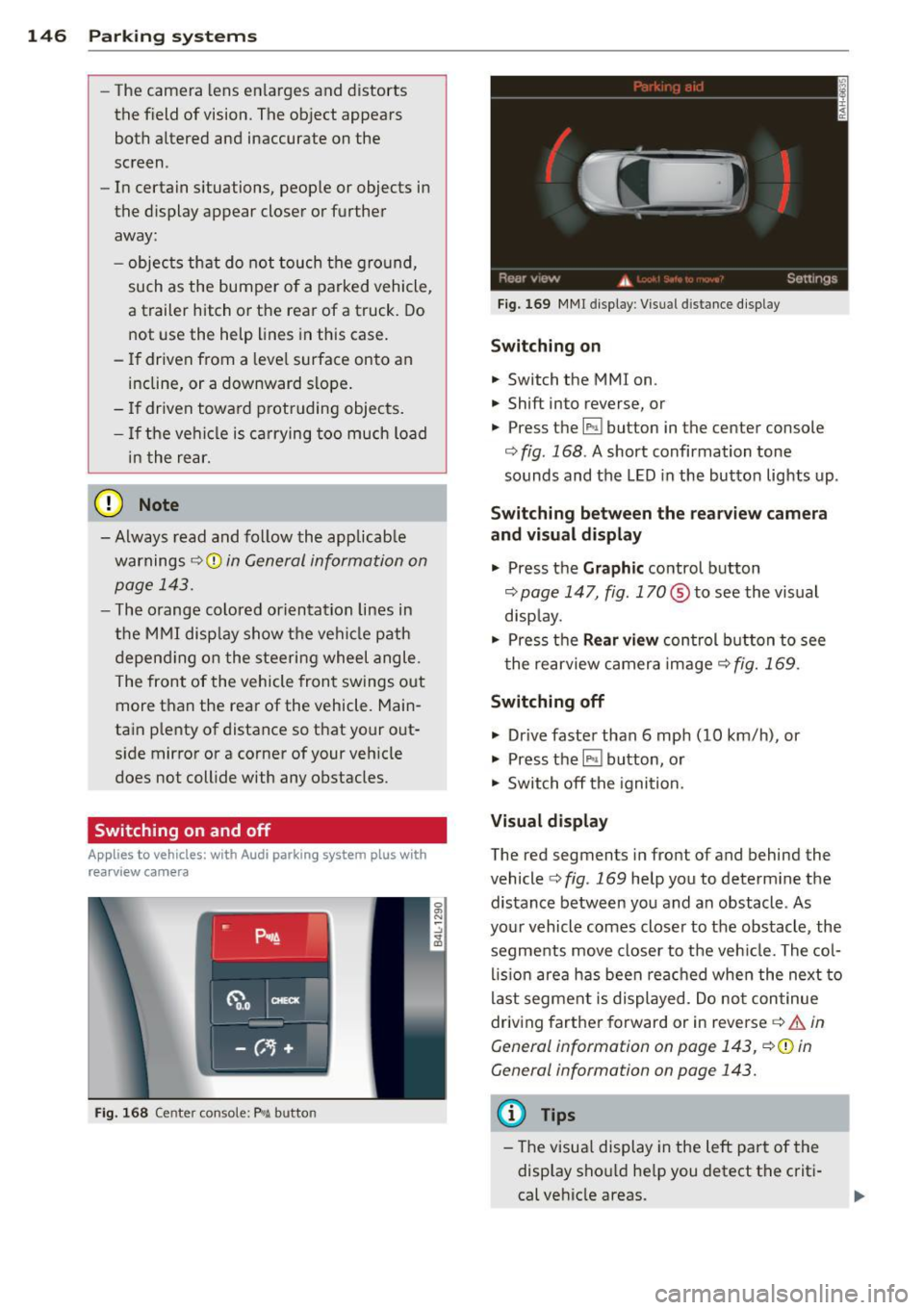
Fig. 169 MMI display: Visual distance display
Switching on
.. Switch the MMI on .
.,. Shift into reverse, or
.,. Press t he[!;] button in the center console
¢ fig. 168. A short confirmation tone
sounds and the LED in the button lights up .
Switching between the rearview camera
and visual display
.,. Press the Graphic control button
¢ page 147, fig. 170 ® to see the visual
display.
.,. Press the
Rear view control button to see
the rearview camera image
c> fig. 169.
Switching off
.,. Drive faster than 6 mph (10 km/h), or
.,. Press the [!;] button, or
.,. Switch off the ignition.
Visual display
The red segments in front of and behind the
vehicle
c> fig. 169 help you to determine the
distance between you and an obstacle . As
your vehicle comes closer to the obstacle , the
segments move closer to the vehicle. The col
lision area has been reached when the next to
last segment is displayed . Do not continue
driving farther forward or in reverse
c> .&. in
General information on page 143,
c> @ in
General information on page 143.
(D Tips
-The visual display in the left part of the
display should help you detect the criti
cal vehicle areas .
Page 149 of 348
-You can change the volume and pitch of
the signals as well as the display
Qpage 153.
Cross parking
Applies to vehicles: with Audi parking system plus w ith
rearview camera
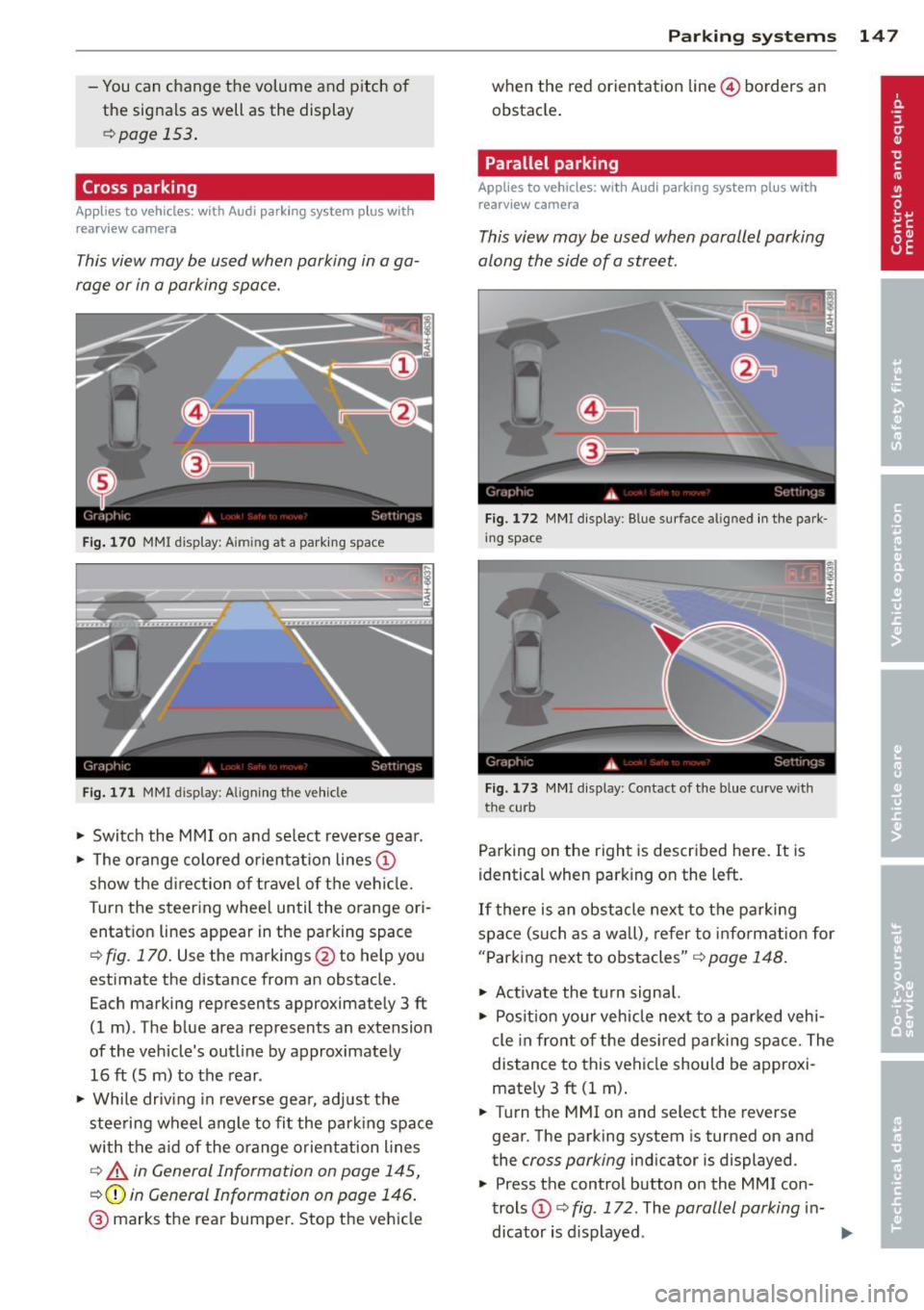
This view may be used when parking in a ga
rage or in a parking space.
Fig. 170 MMI display: A im ing at a parking space
Fig. 171 MMI display: Aligning the vehicle
"' Switch the MMI on and select reverse gear.
"' The orange colored orientation lines@
show the direction of travel of the vehicle.
Turn the steering wheel until the orange ori
entation lines appear in the parking space
Q fig. 170. Use the markings @to help you
estimate the distance from an obstacle.
Each marking represents approximately 3 ft
(1 m) . The blue area represents an extension
of the vehicle's outline by approximately
16 ft (Sm) to the rear .
"' While driving in reverse gear, adjust the
steering wheel angle to fit the parking space
with the aid of the orange orientation lines
c::> A in General Information on page 145,
Q@in General Information on page 146.
@ marks the rear bumper. Stop the vehicle
Parking systems 147
when the red orientation line© borders an
obstacle.
Parallel parking
Applies to vehicles: with Audi parking system plus with
rearview camera
This view may be used when parallel parking
along the side of a street.
Fig. 172 MMI display: Blue surface aligned in the park
ing space
Fig. 173 MMI display : Contact of the blue curve w ith
the cu rb
Parking on the right is described here. It is
identical when parking on the left.
If there is an obstacle next to the parking
space (such as a wall), refer to information for
"Parking next to obstacles"
c::> page 148.
"' Activate the turn signal.
"' Position your vehicle next to a parked vehi
cle in front of the desired parking space. The
distance to this vehicle should be approxi
mately 3
ft (1 m).
"' Turn the MMI on and select the reverse
gear. The parking system is turned on and
the
cross parking indicator is displayed .
"' Press the control button on the
MMI con
trols
(D c::> fig. 172. The parallel parking in-
dicator is displayed.
II>
Page 150 of 348
148 Parking system s
• Back up and align you r vehicle so the b lue
area @ borders on the rear end of the vehi
cle or on the parking space line
c:> A in Gen
eral Information on page 145,
c:> (D in Gen
eral Information on page 146 .
The blue
area represents an extension of the vehicle's
outline by app rox imately 16 ft (5 m) to the
rear. The long side of the b lue a rea shou ld
be o n the curb. The enti re blue area must fit
i n to the par kin g space.
• With the veh icle stopped, turn the steer ing
wheel to the right as far as it wi ll go .
• Back into the parking space until t he b lue
curve
c:> fig. 173 touches the curb c:> A in
General Information on page 145,
c:> (D in
General Information on page 146.
Stop the
vehicle .
• With the veh icle stopped, turn the steer ing
wheel to the left as far as it will go .
• Co ntin ue to bac k into the park ing space un
t il the vehicle is parked p aralle l to the c urb
c:> A in General Information on page 145,
c:> (D in General Information on page 146 .
® marks the rear bumper. Stop the vehicle,
at the latest, when the red orientation line
@ borders an obstacle . Keep an eye on the
front of your vehicle wh ile doing this.
P ar king ne xt to ob stacle s
When there is an obstacle (s uch as a wall)
next to the parking space, choose a space with
more space on the sides. Pos ition the long
side of the blue area so that there is sufficient
space from the curb . The area must not be on
the curb . You w ill also need to start turning
the steering whee l much earl ie r. T he re shou ld
be a suffi cient amount of space between the
curb and the b lue curve, and the blue curve
c:> fig. 173 mus t not touch the curb.
@ Tips
The left or right orientation lines and sur
faces wi ll be displayed, depending on the
t urn signa l bei ng use d.
Audi parking system
plus with front- and
rearview camera
Introduction '
Applies to vehicles: with Aud i parking system plus with
front- and rearview camera
In addition to an acoustic and visual parking
system, this parking system contains a front
and rearview camera
c:> page 146. You are as
s isted by various views, such as corner v iews
at the front and rear of the ve hicle, and views
directly in front of or behind the vehicle.
General information
Appli es to vehicles: with Audi parking system plus with
front- and rearview camera
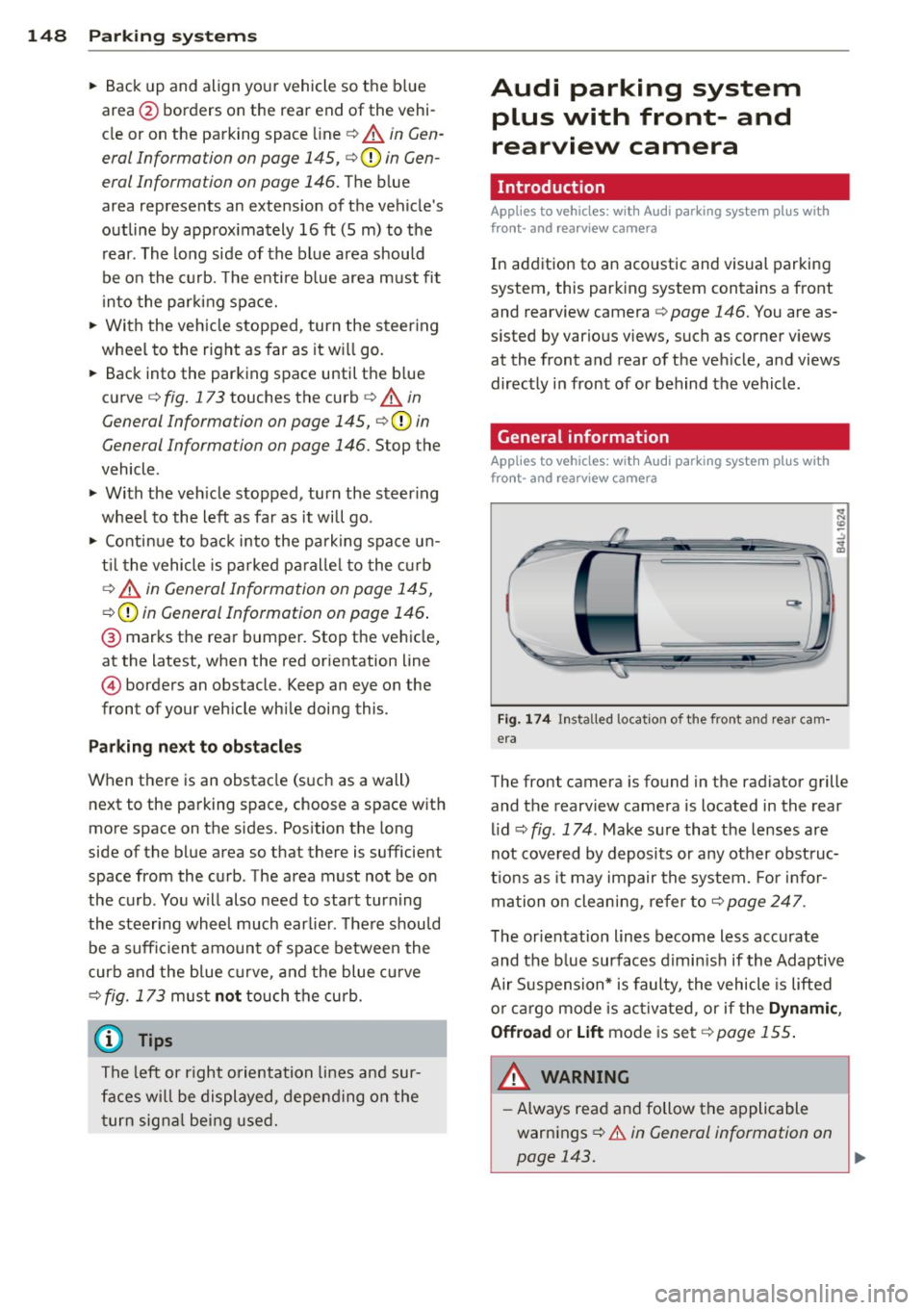
Fig . 1 74 Ins talled locat ion of the front and rea r cam
era
The front camera is found in the radiator grille and the rearview camera is located in the rear
l id
c:> fig . 174 . Make sure that t he lenses are
not cover ed by deposits or any other obst ruc
tio ns as it may impair the system. Fo r in for
mation o n clean ing, re fer to
c:> page 247 .
The orientation lines become less accurate
and the b lue surfaces d imin is h if the Adaptive
Air S uspension* is faulty, the vehicle is lifted
o r car go mode is acti va ted , or if the
Dynami c,
Offroad or Lift
mode is set c:> page 155.
A WARNING
-Always rea d and follow the applicable
warnings
c:> .& in General information on
-
page 143. .,..
Page 151 of 348
-If the position or the installation angle
of a camera was changed, after a colli
sion for example, do not continue to use
the system for safety reasons . Have it
checked by your authorized Audi dealer
ship .
- Use the
Rear mode and the Corner view
(rear)
mode only when the rear lid is
completely closed, otherwise the image
in the display will be inaccurate.
- Objects and obstacles
above the camera
are not displayed.
- Camera lenses enlarge and distort the
field of vision. The objects appear both
altered and inaccurate on the screen.
(0 Note
- Always read and follow the applicable
warnings
o0 in General information on
page 143 .
-The MMI display shows the direction in
which the rear of the vehicle is traveling
based on the steering wheel angle. The
vehicle front swings out more than the
vehicle rear. Maintain plenty of distance
so that your outside mirror or a corner of
your vehicle does not collide with any ob
stacles .
@ Tips
If the rear lid is open, the image in the
rearview camera is displayed without ori
entation lines and without blue surfac es.
Switching on or off
Applies to vehicles: with Audi parking system plus w ith
fro nt- and rearv iew ca mera
Fig. 175 Center console : P,•A but ton
Parking systems 149
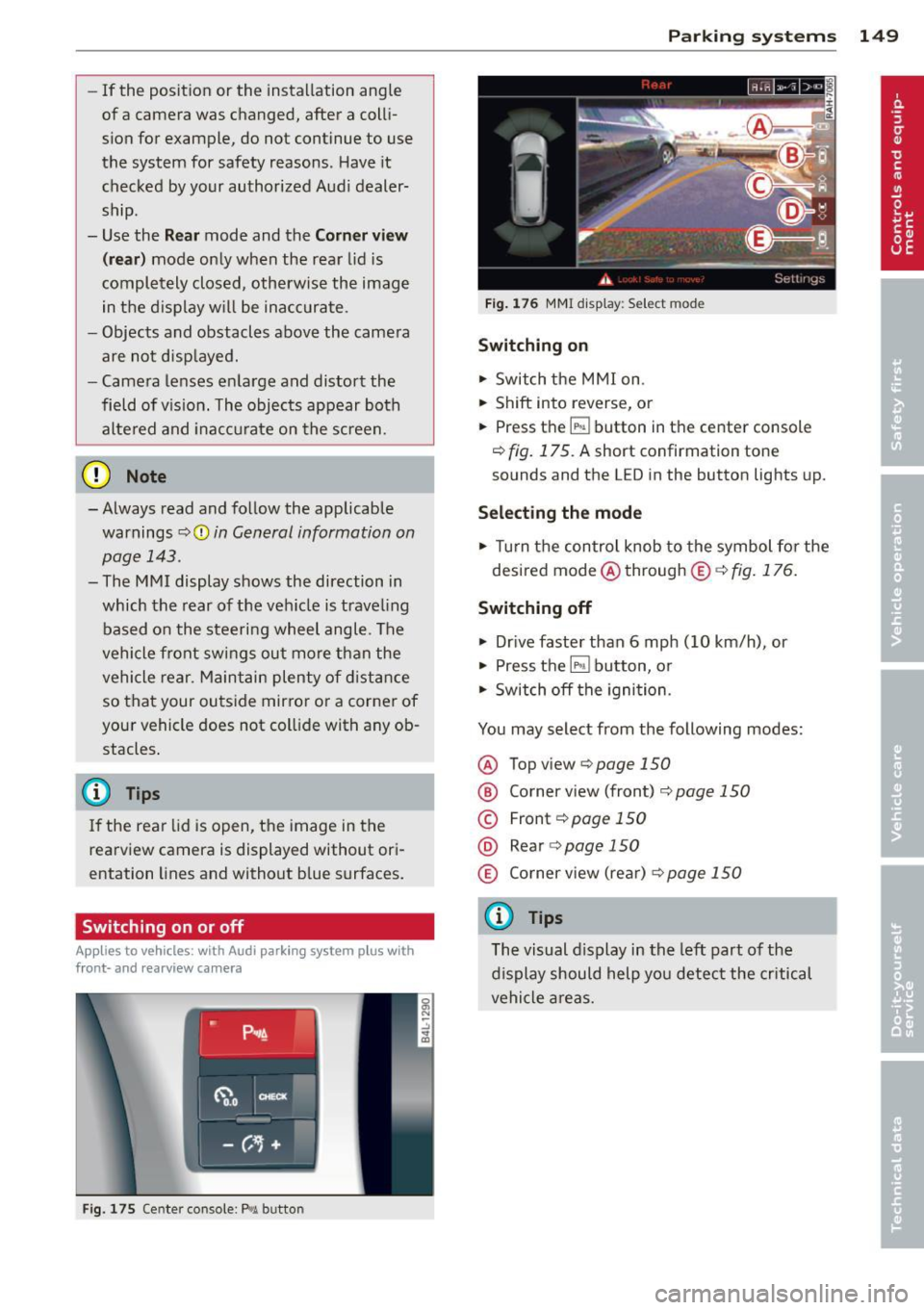
Fig. 176 MMI display: Select mode
Switching on
.,. Switch the MMI on.
.,. Shift into reverse, or
.,. Press the~ button in the center console
o fig. 175. A short confirmation tone
sounds and the LED in the button lights up.
Selecting the mode
.,. Turn the control knob to the symbol for the
desired mode @through
® o fig. 176.
Switching off
.,. Drive faster than 6 mph (10 km/h), or
.,. Press the
IP>11 button, or
.,. Switch off the ignition.
You may select from the following modes:
@ Topview opage150
@ Corner view (front) ¢ page 150
© Front¢ page 150
@ Rear o page 150
® Corner view (rear) o page 150
(D Tips
The visual display in the left part of the
display should help you detect the critical
vehicle areas.
Page 152 of 348
150 P ark in g s ystems
Top view
App lies to vehicles: with Audi parking system p lus w ith
front- and rearv iew camera
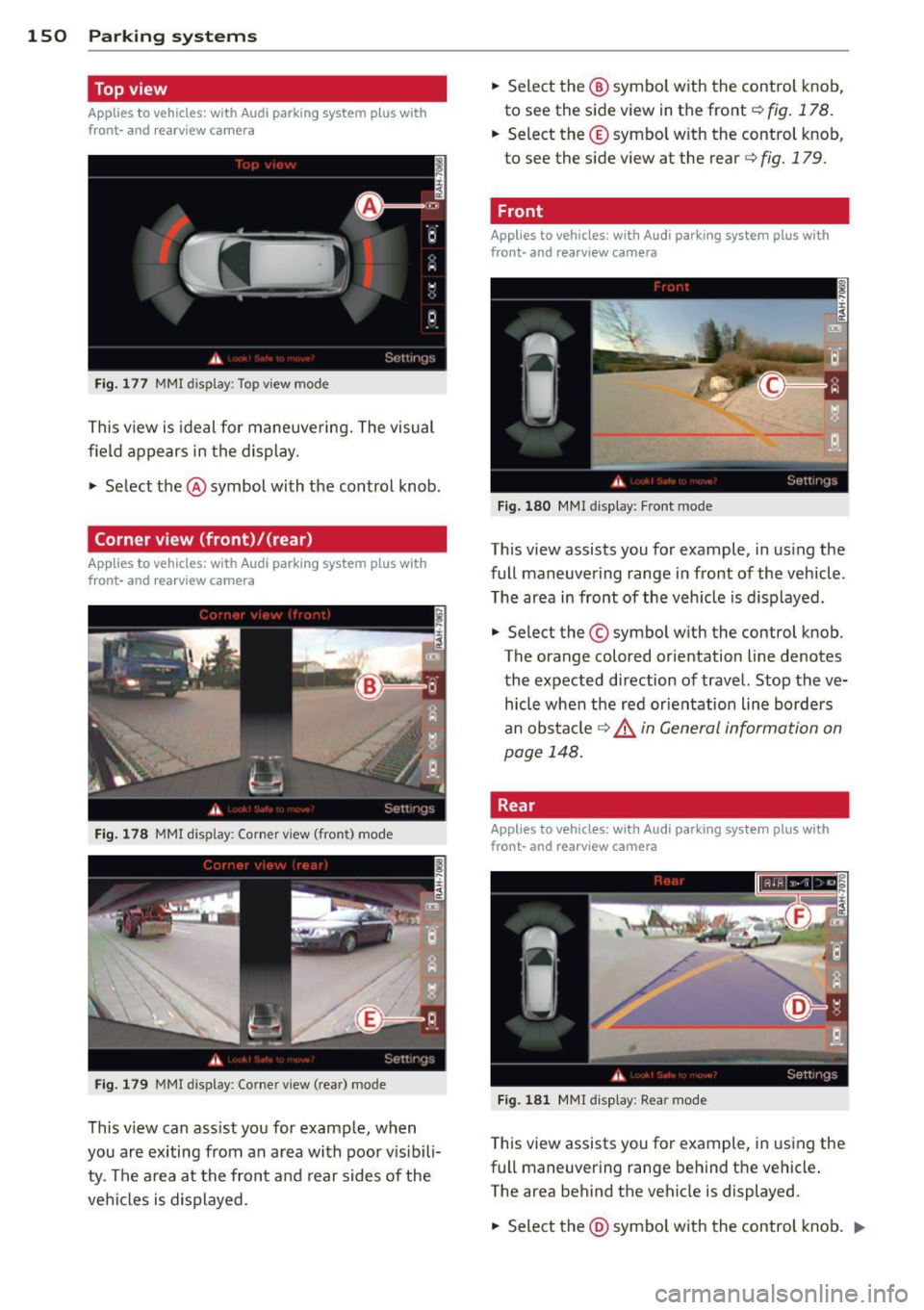
Fi g. 177 MMI display: To p view mode
This view is ideal for maneuvering. The visual
field appears in the display .
.,. Select the @ symbol with the control knob .
Corner view (front)/{rear)
Applies to vehicles: with Audi parking system plus w ith
front- and rearv iew camera
F ig . 178 MMI display: Corner view (fron t) mode
Fig. 179 MMI display: Corner v iew ( rear) mode
This v iew can ass ist you for example, when
you are ex iting from an a rea with poor v is ibili
ty . The area at the front and rear sides of the
veh icles is displayed . .,.
Select the ® symbo l with the control knob,
to see the side view in the front
c::> fig. 178.
.. Select the © symbo l w ith the control knob,
to see the side v iew at the rear
c::> fig. 179.
Front
Applies to vehicles: wit h Aud i parking system plus with
front- and rea rview camera
Fig . 1 80 MMI display: Fron t m ode
This view assists you for example, in us ing the
full maneuvering range in front of the vehicle .
T he area in front of the vehicle is d isp layed .
.,. Select the © symbo l with the control knob.
The orange colored orientation Line denotes
the expected direction of travel. Stop the ve hicle when the red orientation Line borders
an obstacle
c::> & in General information on
page 148.
Rear
Applies to vehicles: wit h Audi parking syste m plus with
front -and rearview camera
Fi g. 1 81 MMl display: Rear mode
T his view assists you for example, in using the
full maneuvering range behind the vehicle .
The area behind the vehicle is displayed.
.,. Sele ct the @ symbo l with the control knob . ..,.
Page 153 of 348

You can choose between three different views in this mode.
.. To cross park, parallel park, or position the
vehicle in front of a trai ler, press the ® con
trol button on the controls repeatedly until
the symbo l for the desired mode is selected .
Cross parking
Applies to vehicles: with Audi parking system p lus w it h
fr ont- an d rearview ca mera
This view may be used when parking in a ga
rage or in a parking space .
Fig. 182 MMI display: A iming at a pa rki ng space
Fi g. 183 MMI display: Al ign ing the vehicle
Requirement: cross parking is selected
¢ page 150 .
.. The orange colo red o rien tation lines©
show the d irection of t ravel of t he vehi cle.
T urn the s teering whee l until the orange ori
entatio n lines appear in the parking space
¢
fig. 182 . Use the markings @to help you
est imate the distance from an obstacle.
Each marking represents approximately 3
ft
(1 m) . The blue area represents an extension
of the vehicle's out line by approximate ly
16
ft (5 m) to the rear .
.. While driv ing in reverse ge ar, ad just the
stee ring wheel angle to fi t the park ing space
P arking sys tems 151
with the aid of the orange orientation lines
¢ A in General information on page 148,
¢ (Din General information on page 149 .
® marks the rear bumper. Stop the vehicle
when the red orientat ion line @ borders an
obstacle¢
A in General Information on
page 145.
Parallel parking
Applies to vehicles : wit h Audi parking system pl us with
front- and rearview camera
This view may be used when parallel parking
along the side of a street.
Fi g. 184 MMI disp lay: B lue surface aligned in t he park
i n g space
Fi g. 185 MMI disp lay: Contact o f the b lue curve w ith
the curb
Parking on the right is described here. It is
identical when parking o n the left.
If there is an obstacle next to the parking
spa ce (such as a wall), refer to in fo rm atio n for
"Park ing next to o bstacles"
r::!:> page 152.
Req uirement: pa ra ll el par king is sele cted
¢ page 150.
.. Act ivate the turn signal.
.. Pos it ion your veh icle n ext to a par ked v ehi-
cle in fro nt of t he des ired par kin g space. The ...
Page 154 of 348
152 Parking systems
distance to this vehicle should be approxi
mately 3 ft (1 m).
• Turn the
MMI on and select the reverse
gear. The parking system is turned on and
the
parallel parking indicator is displayed.
• Press the contro l button on the
MMI con
t ro ls
(D ¢ fig . 184. The cross parking indica
tor is displayed.
• Back up and align your vehicle so the b lue
area @ borders on the rear end of the vehi
cl e or on t he pa rking space line¢ .&.
in Gen
eral information on page 148,
¢(D in Gen
eral information on page 149.
The blue area
represents an extension of the veh icle's out
line by approximately
16 ft (5 m) to the rear.
The long side of the blue area should be on
the curb. The entire blue area must f it into
the parking space .
• With the veh icle stopped, turn the steer ing
wheel to the r ight as far as it w ill go.
• Back in to the par king space until the b lue
cu rve ¢
fig. 185 touches the curb¢.&. in
General information on page 148,
~ CD in
General information on page 149 .
Stop the
vehicle.
• With the vehicle stopped, turn the steer ing
wheel to the left as far as it will go.
• Cont inue to back into the parking space un
t il the vehicle is parked pa rallel to the curb
¢ .&. in General information on page 148,
¢(Din General information on page 149.
@ marks the rear bum per. Stop the ve hicle,
at the latest, when the red orientation line
© borders an obstacle. Keep an eye on the
front of your vehicle whi le doing this .
Parking next to obstacles
When there is an obstacle (s uch as a wall)
n ex t to the parking space, choose a space w it h
mo re space on the sides. Pos ition the long
side of the blue area so that there is sufficient
space from the c urb. The area must not be on
the curb. You wi ll also need to start turn ing
the steering wheel much earlier. The re should
be a sufficient amount of space between the
curb and the blue curve, and the blue c urve
c::> fig. 185 must not touch the curb.
(D Tips
The left or rig ht orientation lines and s ur
faces will be disp layed, depending on t he
turn s ignal being used.
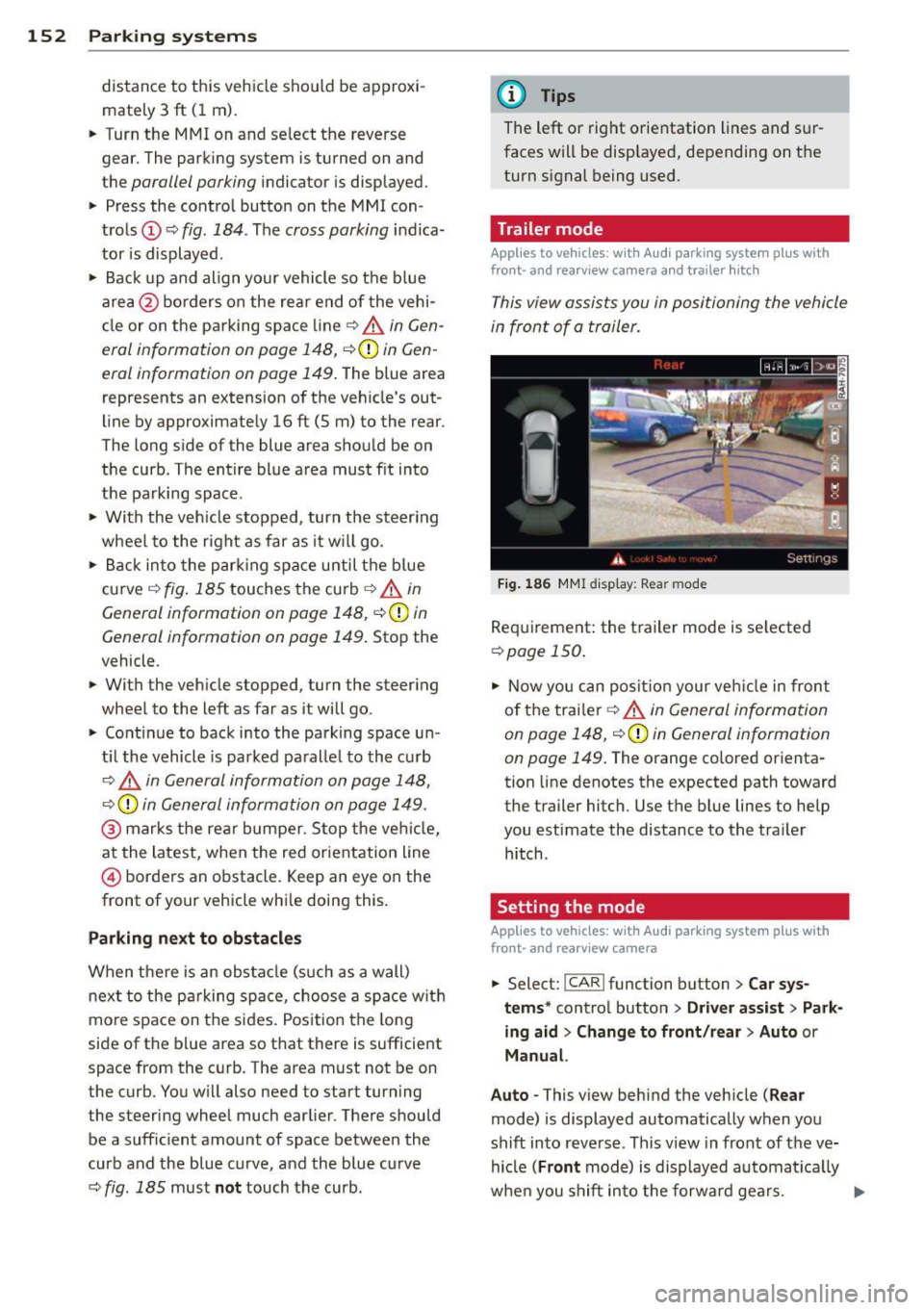
Trailer mode
Applies to vehicles: with Audi parking system plus with
front· and rearview camera and trailer hitch
This view a ssists you in positioning the vehicle
in front of a trailer.
Fi g. 186 MM I disp lay: Rear mode
Requirement: the t railer mode is se lected
c:> page 150 .
• Now you can posi tion your veh icle in front
of the trailer ¢.&.
in General information
on page 148,
c::> (D in General information
on page 149.
The orange co lored orienta
tion line denotes the expected path toward
the trailer hitch. Use the blue lines to help
you estimate the distance to the tra ile r
h itch .
Setting the mode
Applies to vehicles: with Audi parking system plus with
front· and rearview camera
• Select: I CAR ! function button > Car sys
tems *
control button > Driv e r assist > Pa rk
ing a id
> Chang e to front/rear > Auto or
Manual.
Auto -
This view behind the vehicle ( Rear
mode) is displayed automatically when you
sh ift into reve rse . This v iew in front of the ve
hicle
( Front mode) is displayed au tomat ica lly
whe n you shift in to the forwa rd gears. ..,.
Page 155 of 348
Manual -This view behind the vehicle (Rear
mode) is a lways disp layed when you turn on
the system.
Adjusting the display and warning tones
Applies to vehicles: with rear park assist/Audi parking sys
t em plus with rearview camera/front- and rearview cam·
e ra
The display* and warning tones can be ad
justed in the MMI.
""S elect: ICARlf unction button> Systems*
control button > Parking system. Or
"" Se lect: I CAR
I function button > Car sys
tems* control button > Driver assist
> Park
ing aid.
Display*
- Off -when the parking system is switched
off, only aud ible signals are given.
-On -when the parking system is switched
on, either the visual display or the picture
from the rearview camera is disp layed .
Warning tones
- Front volume* - front sensor vo lume
- Front frequency* -front sensor frequency
- Rear volume - rear sensor volume
- Rear frequency -rear sensor frequency
- In-car entertainment fader/Music volume
while parking - when the parking system is
switched on, the volume of the active audio
source is lowered.
The new ly adjusted value is briefly heard from
the signal generator.
@ Tips
- The warning tones can also be adjusted
direct ly by the visual disp lay* or the pic
ture from the camera*. S imply press the
Settings* control button.
- Changed settings are activated when
parking system is switched on again.
- The settings are automatically stored
and assigned to the remote control key
being used. Parking
systems 153
Error messages
Applies to
vehicles: with rear park assist/Audi parking sys
tem plus with rearview camera/front- and rearv iew ca m
era
There is an error in the system if the LED in
the~ button* is blinking and you hear a con
tinuo us alarm for a few seconds after switch
ing on the park ing system or when the park
ing system is already activated .
If the error is
not corrected before you switch off the igni
tion, when you switch on the parking system
again, the LED in the ~ button* will blink. If
you activate the parking system with the but
ton in this case, the continuous warning tone
will continue to sound.
Parking system plus with front and
rearview camera*
There is another system error if:
- the~·· symbol appears in the display and
the corresponding display area is shown in
blue. The camera is not working in this area.
- all segments around the vehicles are red or
if no segments are displayed.
Drive to your authorized A udi dealer or au
thorized repair fac ility immed iate ly to have
the mal function corrected .
Trailer hitch
Applies to vehicles: with rea r park assist/Audi parking sys
tem plus with rearview camera/front- and rearview cam
era and tra iler hitch
For vehicles using the trailer socket, the park
ing system rear sensors do not turn on when
you shift into reverse gear or when you press
the~ button*. This results in the follow ing
restrictions:
Rear park assist*
There is no warning for distances to the rear.
Audi parking system plus with rearview
camera/front and rearview camera*
There is no distance warning for the rear. The
front sensors remain act ivated. The visual dis
play sw itches to the trailer towing mode. The
rearview camera image will not show the ori-
entat ion lines and the blue surfaces . ..,.