radio AUDI Q7 2017 Owner´s Manual
[x] Cancel search | Manufacturer: AUDI, Model Year: 2017, Model line: Q7, Model: AUDI Q7 2017Pages: 402, PDF Size: 100.39 MB
Page 168 of 402
Multi Media Interface
It is often enough just to enter the first letters of
the search term in order for it to display in the re
sults list . For example, in the
Telephone* menu,
write the in itials of the contact being searched
separated by a space.
Selecting the input suggestion to complete
the entry
Requirement: an input suggestion to complete
the entry* ®
r:> fig. 173 must be displayed.
.,. MMI touch input* : press the control knob. Or:
press on the MMI touch control pad *.
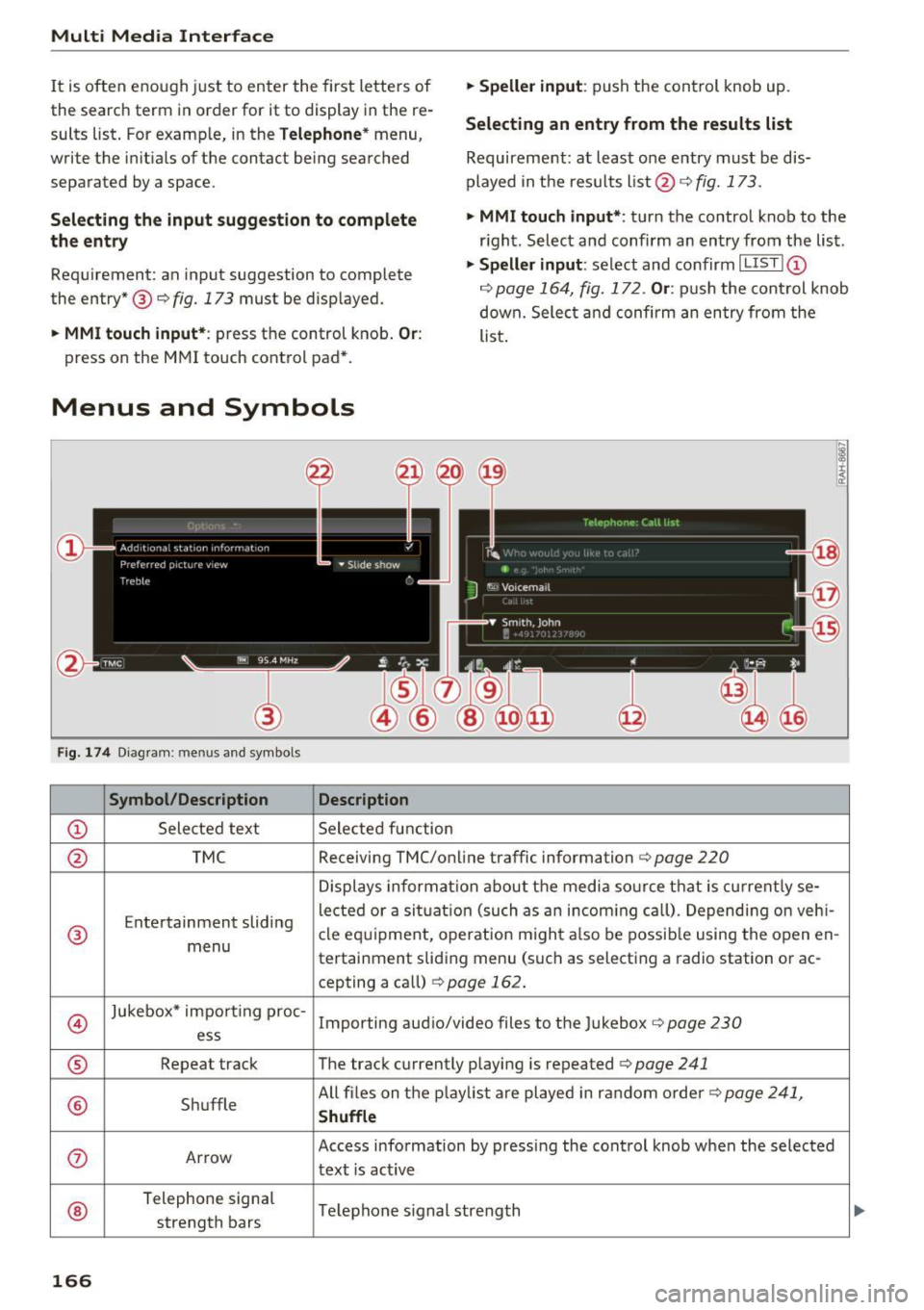
Menus and Symbols
F ig. 174 Diag ram : me nus and symbols
Symbol /Description Description
@ Selected text Selected function
.,. Speller input : push the control knob up.
Selecting an entry from the results list
Requirement: at least one entry must be dis
played in the results list @ ¢
fig. 173.
.,. MMI touch input*:
turn the control knob to the
r ight. Select and confirm an entry from the list .
.,. Speller input: select and confirm I LIST!@
c:> page 164, fig. 172. Or : push the cont rol knob
down. Select and confirm an entry from the
list .
@ TMC Receiving TMC/online traffic
information
c:::> page 220
Displays informat ion about the media source that is current ly se-
Entertainment sliding lected or a
situation (such as an incom ing call) . Depending on veh i-
® cle
equipment, operation m ight also be possible using the open en-
menu tertainment sliding menu (such as selecting a radio station or ac-
cepting a call)
¢ page 162.
©
Jukebox* impo rt ing proc-
Importing audio/video files to the Jukebox r:> page 230
ess
® Repeat track The track currently playing is repeated <=:>page 241
® Shuffle All files on the
playlist are played in random order c:>page 241,
Shuffle
(J) Arrow Access information by pressing the control knob when the selected
text
is act ive
®
Telephone signal
Telephone s ignal strength
strength bars
166
Page 170 of 402
Voice recognition system
• Telephone
• Audi connect •
Favorites
• Call (XV)
• Navigation
• Directory
• Radio
• Media
• Sound •
Enter number
• Redial
• Read new text message
• Navigate to
(XY)
• Enter address/destination
• Help • Online destinations
• Help Speech dialog system
• Help Telephone •
Cancel route guidance
• Map
• Help Audi connect •
Line
(XV)
• Help Navigation
• Help
Map
• Help Radio •
Next page/ previous page
• Cancel
• No. I meant (XV)
• He lp Media • Correction
TE ,EPflON ~
• Enter number • Call list
• Delete number/ correction • Redial
• Directory
• Call
(XV)
• Call mailbox
• Telephone favorites
· business/ private/ land tine
I mobile
• Nav igate to
(XV)
• Start I cancel route guidance
• Directory
• Last destinations •
Block route for (XV) miles
I Block
the next section
• Route list
• Calculate alternative routes
• Nav igation favorites
• Drive home
• Enter address •
Online destinations
• Special destination
• Enter country
I town I street/ state
• Exclude route/ Exclude route for
(XV) km/ m
• Map
• Day map/ Night map
• 2D driving position map/ 20 north position map/ 3D map/ Destination map/ Overview map
~UJDI CONNECT
• Audi connect
• Travel Information/ Parking Information
• Fuel prices
• Weather
RADIO
• Radio presets
• FM
• FM /AM/ SIRIUS XM
• Station (XY) / Frequency (XV)
• Traffic announcement on
I off
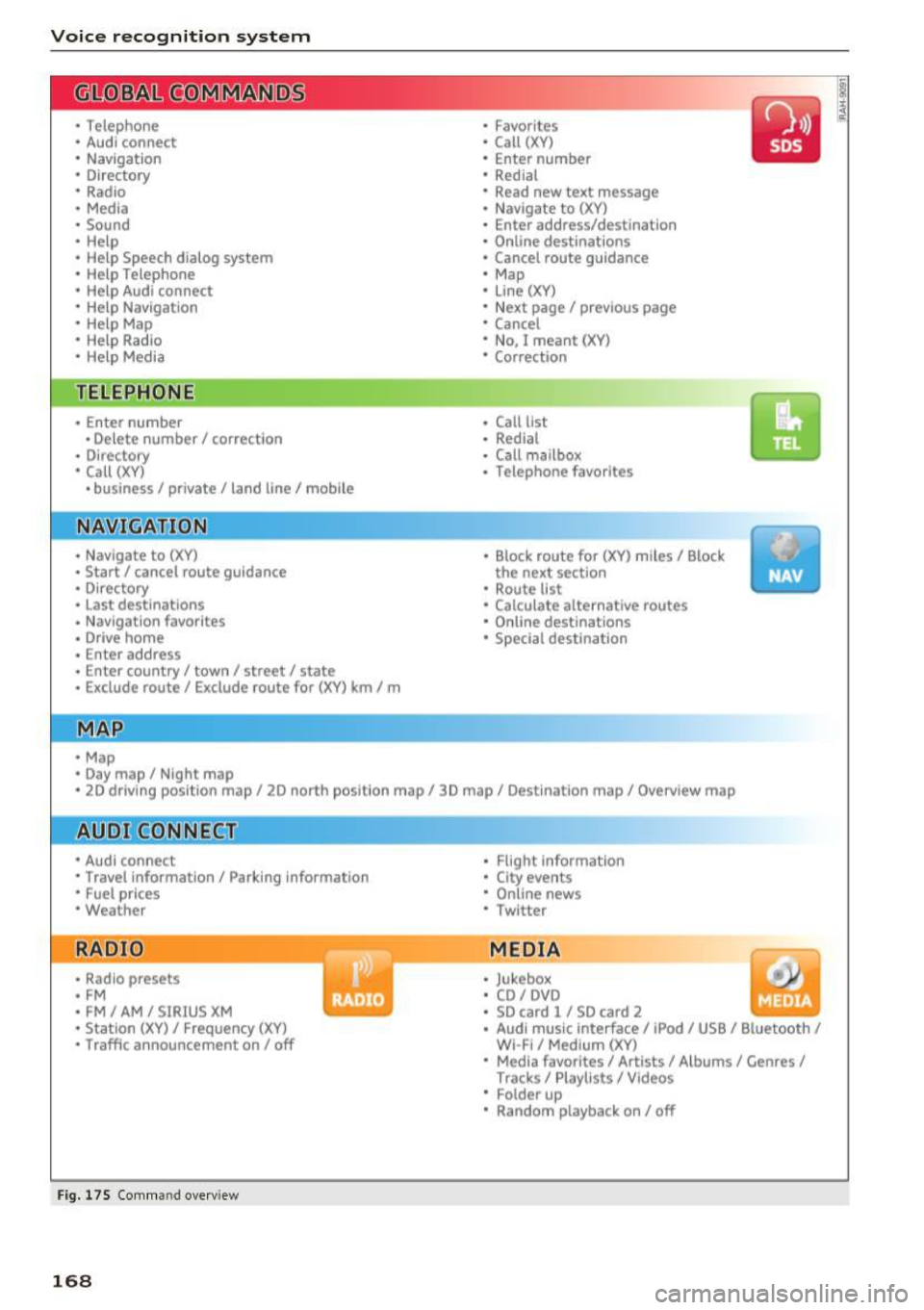
Fig. 175 Comm and overv iew
168
•
• Flight Information
• City events
• Online news
• Twitter
MEDIA
• Jukebox
• CD
I DVD
• SD card l / SD card 2
• Audi music Interface/ I Pod/ USB / Bluetooth /
WI -Fl/ Med ium (XV)
• Media favorites / Artists / Albums / Genres /
Tracks/ Playllsts / Videos
• Folder up
• Random playback on/ off
Page 171 of 402
u co ...... N r-... N ...... 0
0
:E: '
Appl ies to: veh icles wit h vo ice recog nitio n system
You con operate many Infotainment functions
conveniently by speaking .
Requirements: the ign ition and the MM I must be
switched on
~ page 156, there must not be any
phone call in progress and the park ing system
must not be active .
~ Switching on: briefly press the~ button @
~page 14, fig. 11 on the m ultifunction steer
ing whee l and say the desired command after
the
Beep .
~ Switching off : press and hold the~ button.
Or: press the [2] butto n.
~ Pau se : say the command Pause . To resume,
press the~ button.
~ Correcting : say the command Corre ction . Or :
simply say a new command during an an
nouncement
c::> page 249.
Input assistance
The system gu ides you throug h the input with
v isua l and audio feedbac k.
- Vi sua l input as sistan ce: after switching on
vo ice recogn it io n, a display w ith a selection of
poss ible commands appears. This command
display can be sw itched on o r off . Se lect:
IMENU I button> Setting s> left cont rol button
> MMI setting s > Speech dialog system .
- Audio input a ssis tance :
to have the poss ible
commands read, tu rn the voice recognition sys
tem on and say
Help.
For the s yst em to understand you:
Speak clearly and dist inctly at a normal vo lume .
Speak louder when d riving faste r.
Emphasize the words in the commands evenly
and do not leave long pauses .
C lose the doors, the windows and the sunroof* to
reduce background noise . Make sure that passen
gers are not speaking when you are giving a voice
command .
Voice recognition system
Do not direct the air vents toward the hands-free
microphone, which is on the roof headliner near
t h e front inte rior lights .
Only use the system from the dr iver's seat be
ca use the hands -free microphone is directed to
ward that seat .
Additional settings
See c::> page 249, Speech dialog system .
A WARNING
-Dire ct your full attention to dr iv ing. As the
driver, you have complete responsibility for
safety in traffic . Only use the functions in
such a way that you a lways maintain com
p lete contro l over your vehicle in all traffic
situations.
- Do not use the voice recognition system in
emergencies beca use your voice may change
in stressful situations. It may take longer to
d ial the number or the system may not be
able to dial it at all. Dial the emergency number manually.
@ Tips
- The d ialog pauses when there is an incom
ing phone call and will continue if you ig
nore the call. The d ialog ends if you answer
the ca ll.
- You can select an item in the list using ei
ther the vo ice recognit ion system or the
cont rol knob.
Command overview
information
Appl ies to: ve hicles w ith vo ice recognit ion system
T he following overv iews des cribe the comma nds
t h at can be used to operate the MMI using the
voice recognition system.
Alte rnative commands a re separate d using a"/ ",
for example say:
Telephone / (or) Navigation /
(or) Radio.
Sequences of commands used to perfo rm an ac
t ion are iden tified w it h a"> ", fo r ex ample say:
Ente r addre ss > (t hen) Enter country /state . ..,.
169
Page 172 of 402
Voice recognition system
The majority shown are main commands . This
system also recognizes synonyms in ce rtain cas- es
. For a Business addre ss, you can also say busi
ness , work , office or at the office .
Commands
Global commands
Applies to: vehicles with voice recogn ition system
You can a lways use th e global commands, re
g ar dless of the me nu selec ted.
Function Say:
Opening a menu Telephone / Directory / Navigation / Radio / Media / Audi con-
nect * /Car / Tone
Hav ing the possible commands Help / Help Speech dialog system / Help Telephone /
read aloud Help Navigation / Help Map / Help Radio / Help Media / Help
Audi connect*
T elephone f unctions Call (XV) , for example Call "John Smith" /
Enter number / Redial / Directory / Read out new text mes-
sage
I Read out new e -ma il
Nav ig at ion f un ct io ns* Drive me to (XY ) or Navigate to (XV) , for example Navigate to
"John Smith" /
Enter address / Cancel route guidance / Map / Online destina-
tions* / Online destination (XV )*
Accessing favorites Favorites > follow the system prompts
Selecting a n entry from a list Line (XV)
Scro llin g thro ugh a lis t Next page / Previous page
Co rrecting the command given Correction
Swi tching the voice recog nition sys-Cancel
tern off
Telephone
Applies to: vehicles with voice recognition system and telephone
Requ ir emen t: a cell phone must be connected to
the MMI
¢page 176 and the Telephone menu
m ust be open ¢
table on page 170.
Depend ing on the vehicle equipmen t and these
l ected men u item, you can say the following com
mands:
Function Say:
Call contact from directory Call (XV), for example Call "John Smith"
Se lecting a specific co ntac t nu mbe r Call (XV) at work / Private / Land line / Cell phone ,
for ex am ple, Call "John Smith" private
Selecting a phone number w ith an Call / Call work / Call private / Call land line / Call cell phone
address card open work
Ca lling a con tac t fr om yo ur favor-Telephone favorites > a~er being prompted, say the desired
ites lis t contac t > Dial
Displaying the ca ll list Call list
170
Page 176 of 402
Voice recognition system Radio
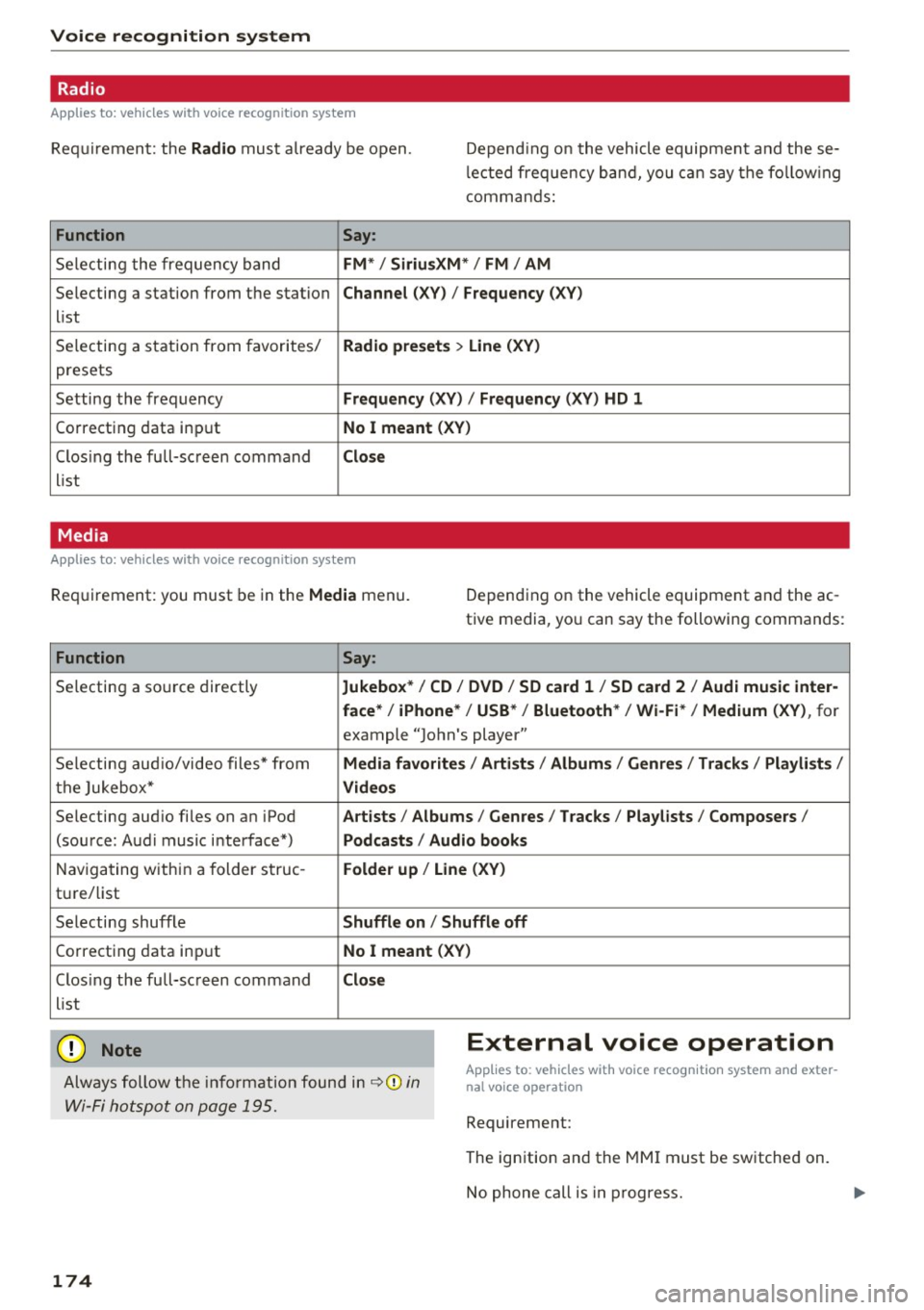
Applies to: vehicles with voice recognition system
Requirement: the Radio mus t already be open. Depend ing o n the vehicle equipment and these
l e cted frequency band, you ca n say the fo llow ing
commands :
Function
Say:
Selecting the frequency band FM*/ Siriu sXM * / FM / AM
Selecting a station from the station Channel (XV) / !Frequency (XV)
list
Selecting a station from favorites/
Radi o pre sets > Line (XV)
presets
Setting the frequency
Frequency (XV) / Frequency (XV ) HD 1
Correcting data inp ut No I meant (XV)
Closing the full-sc reen command Clo se
list
Media
Applies to: vehicles with voice recognition system
Requirement: you must be in the Med ia menu. Depending on the vehicle equipment and the ac
tive media, you can say the following commands :
Function
Say:
Selecting a source directly Jukebo x*/ CO/ DVD / SO ca rd 1 / SO card 2 / Aud i music inte r-
face *
I iPhone* / USB * / Bluetooth* / Wi-Fi * / Medium (XV), for
example "John 's player"
Selecting aud io/video files* from
M edia favor ites/ Arti sts / Album s/ Genres / Tr ack s/ Playli st s /
the Jukebox* Video s
Selecting aud io files on an iPod Art ists / Albu m is / Genre s I Tracks / Pla ylists / Composer s I
(source: Audi music interface*) Podcast s / Audio books
Naviga ting within a folder struc -Folder up / Line (XV )
tu re/list
Selecting shuffle
Shuffl e on I Shuffle off
Correcting data inp ut No I meant (XV)
Closing the full-sc reen command Close
list
CJ) Note External voice operation
Always follow the info rmation found in ~CD in
Wi-Fi hotspot on page 195.
Applies to: vehicles with voice recognition system and exter
nal vo ice operation
Requirement:
174
The ignition and the MMI must be switched on.
No phone call is in p rogress.
Page 183 of 402
u co ...... N r-... N ...... 0
0
:E: '
ce ll phone service prov ider or from your cell
phone user guide .
- When leaving the vehicle, the Bl uetooth
connection to the ce ll phone w ill automati
ca lly disconnect . Depending on you r cell
phone, phone ca lls in progress may be auto
matically redirected from the MMI to your
ce ll phone and you ca n cont inue the call o n
you r phone.
- The display of an i ncoming phone call in the
Infotainment system d is p lay may still be
v is ible fo r a few s econds after a call is an
swered/ig nored depending on the cell
p ho ne in us e.
Making an emergency call
Appl ies to: vehicles with telephone
.,. Select: I MENU I but ton > Telephone > left con
t ro l button >
Enter number > Enter emergency
ca ll number (for example, 911) >
OK.
_&. WARNING
- Beca use your p hone wo rks with radio s ig
nals, a connection cannot be guara nteed un
der all ci rcumstances. Do not rely on only
yo ur phone w hen it comes to essent ial com
mu nication (suc h as a med ica l emer gency).
-Always follow the instructions g iven by t he
e me rge ncy perso nnel d uring an emergency
ca ll a nd only end t he call whe n they inst ruct
yo u t o do so.
(j) Tips
Eme rge ncy nu mbers are not the same every
where. Fi nd ou t which eme rge ncy nu mber is
used in yo ur current lo ca ti on .
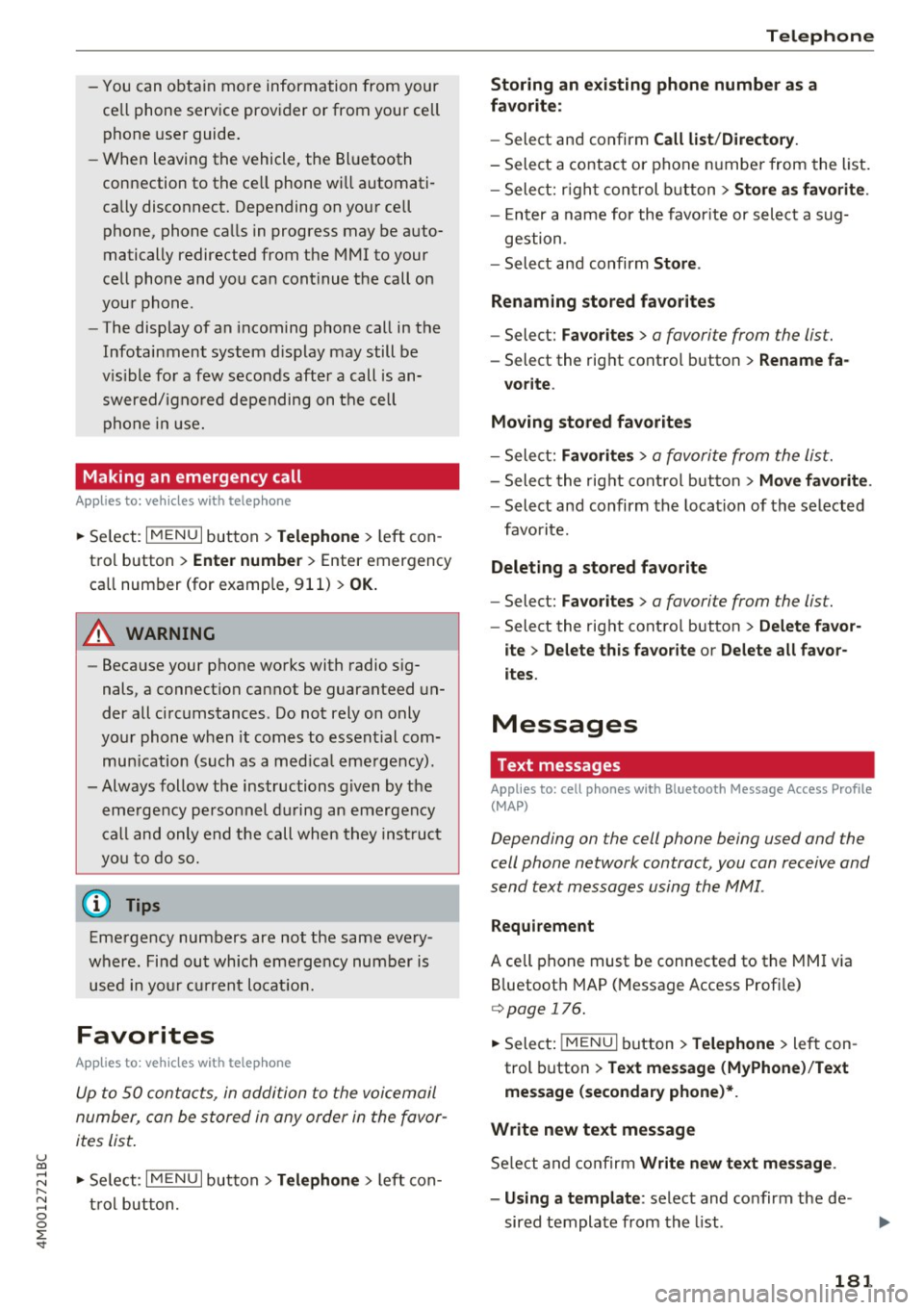
Favorites
Applies to: vehicl es with telep hone
Up to 50 co n ta cts, in addition to the voicemail
num ber, can be s tored in any order in the fav or
ites lis t.
.,. Se lect: I M ENU I butto n >Telephone > left con
t ro l bu tton .
Telephone
Storing an existing phone number as a
favorite:
-Select an d confirm Call list /Directory.
- Select a contact or phone n umbe r from the list.
- Sele ct: r igh t co ntro l but to n >
Store as favorite .
-En ter a name for the favor ite or s elect a sug-
gestion .
- Select and confirm
Store .
Renaming stored favorites
- Select: Favorites > a favorite from the list.
-Select the right cont ro l button> Rename fa-
vorite .
Moving stored favorites
- Select: Favorites > a favori te from the list .
-Sele ct the rig ht c ontro l bu tton> Move favorite .
-Select an d confirm the loca tion of the selected
favorite .
Deleting a stored favorite
- Select: Favorites > a favorite from the list.
-Select the rig ht cont ro l button > Delete favor-
ite
> Delete this favorite or Delete all favor
ites .
Messages
' Text messages
Applies to: cell phones with Bluetooth Message Access Profile
(MAP)
Depending an the cell phone being used and the
cell phone network contract, you can receive and
send text messages using the
MMI .
Requirement
A cell phone must be connected to the MM I via
B luetoot h MAP ( Message Access Profi le)
c> page 176.
.,. Sele ct: ! ME NUI bu tton> Telephone > left con
trol button >
Text message (MyPhone )/Text
message (secondary phone) *.
Write new text message
Se lect a nd con firm Write new text me ssage .
- Using a template :
select and confirm the de
sired templa te from the list .
181
Page 196 of 402

Audi connect (Infotainment)
The fo llow ing A udi connect In fota inment serv ices
are curre ntly availab le:
- Naviga tio n wi th
online map view a nd Street
View ¢
page 217.
-Point of Interest (POI) online search with
voice recognition
( such as res taur ant s): plan
r ou te g uida nce using t he M MI con trol panel
¢
page 209 and the voice recognition system
¢ page 169.
- Set up dest ina tions in you r M MI using yo ur
myAudi account or onl ine map view
¢ page 217.
-Online traffic information : receive up-to-the
minute t raffic info rmation about accidents,
r oad construction and other incidents
¢ page 221.
-Map update : import navigat ion map updates
directly to yo ur vehicle using a n SD ca rd o r as
an on line update¢
page 219.
@ Tips
-Fo r the map update Au di c onnect Infotain
ment se rvice via SD car d, check the current
software vers ion in your vehicle and then
check
www.audiusa.com/myaudi to see if a
newe r ve rsion is ava ilable. You can a lso have
th e ne w naviga tion da ta insta lled by an A ud i
d eale r, w hich can be done for an addition al
c har ge.
- Y ou can a lso fin d ad dit io na l informat ion
a bout th e
map update onlin e at
www.audiusa.com /myaudi .
Audi connect (Infotainment) on the phone
Applies to vehicles with Audi connect (Infotainment)
~ Se lect: I M ENU I but ton > Audi connect > left
contro l button >
Communication .
The fo llow ing A udi con nect Info tainment services
a re curre ntly availab le:
- Stor ing contacts on yo ur compute r us ing yo ur
myAudi A ccount and loadi ng the contacts into
t he MM I direct ory
¢ page 186.
194
Audi connect (Infotainment) in Media
menu
Applies to vehicles with Audi connect (Infotainment)
~ Sele ct: !ME NUI button> Audi connect > righ t
control button >
Entertainment.
- Online media and Internet radio :
offers access
t o di fferen t on line me dia services as well as In
ternet radio and ope ration th ro u gh t he M MI us
ing the
Audi MMI connect app ¢ page 233 .
Applies to: vehicles with Wi·Fi audio player
-Wi-F i audio player : you can access the med ia
center throug h a Wi-Fi connecte d media player
(su ch as a s martphone)
¢ page 232.
.8, WARNING
It is only s afe to u se ta ble ts, l ap to p s, mo bile
d evi ces and other simi la r devices whe n the ve
hicl e is sta tionary beca use , like a ll loose ob
jects, they co uld be thrown a roun d the inside
of the vehicle in a cras h and cause serious in
ju ries. Store these types of devices sec urely
while driv ing.
(D Note
A lways fo llow the information fo und in ¢ 0 in
Wi -Fi hotspot on page 195.
@ Tips
- Also see t he cha pter¢ page 196, Audi con
nect (Infotainment) general information .
- For more in fo rmat ion on t he Wi-Fi a udi o
player and su pported devices, contact an
authorized A udi dealer or aut ho rize d Au di
Service Facility.
Additional options
Applies to vehicles with Audi connect (Infotainment)
~ Select: ! ME NUI button> Aud i connect > right
cont rol button.
The following options are available in the Aud i
connect In fota inment serv ices overview :
Log in*
See c:::> page 189, Logging into myAudi in the vehi -
de. ~
Page 225 of 402
u (0 .-I N r--. N .-I 0
0
:E
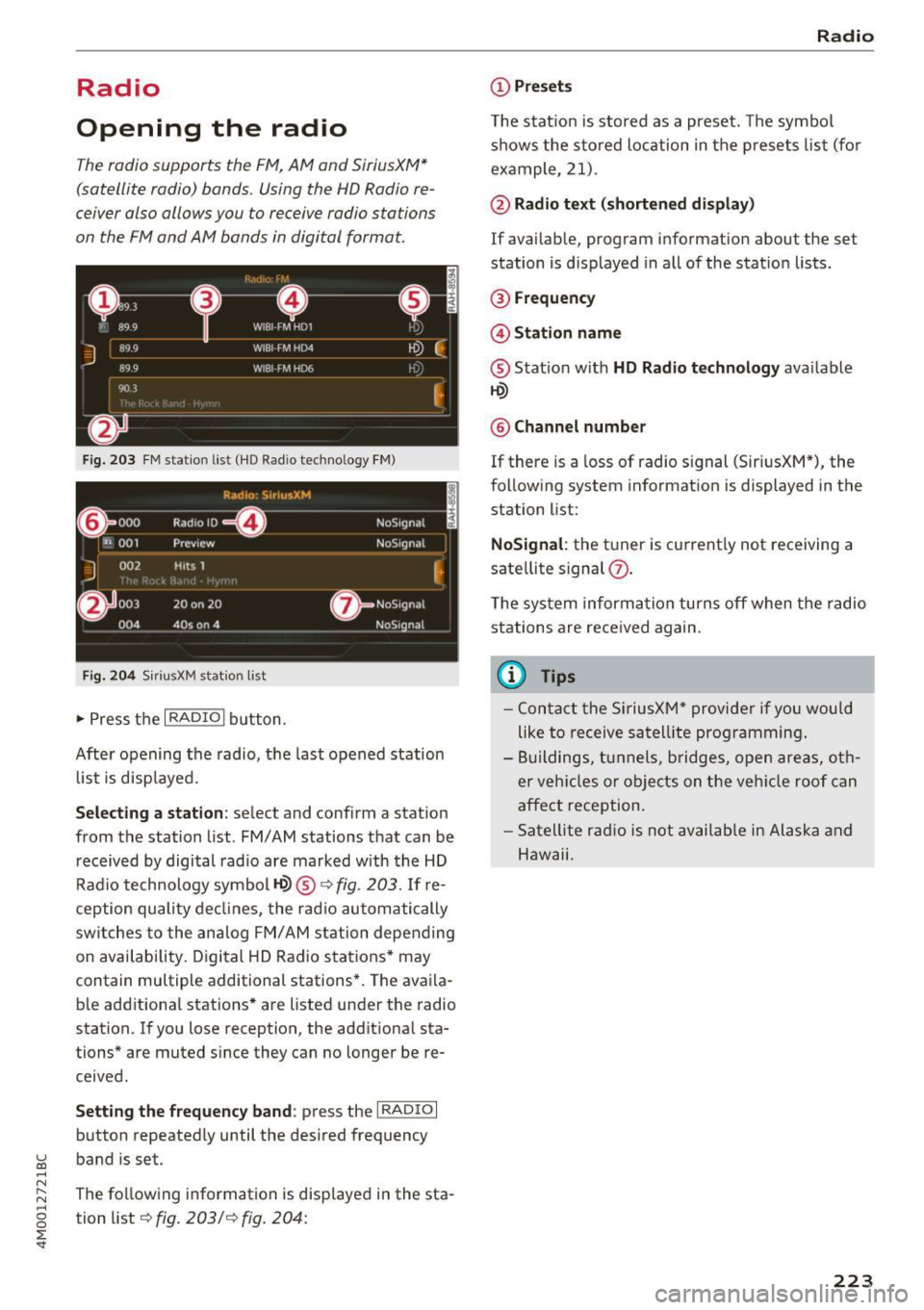
Opening the radio
The radio supports the FM , A M and SiriusXM *
(satellite radio) bands. Using the HO Radio re
ceiver also allows you to receive radio stations
on the FM and AM bands in digital format.
Fig . 203 F M stat ion list ( HO Ra dio tec hn ology FM)
R.td10: SiriusXM
~000 ---=0---Radio ID ,
NoS19nal
... 001 Prev iew N oS19nal
J 002 H its 1
~
f) 003 20 on 20 N
oS19na l
004 40s on 4 NoS19nal
F ig. 204 S iri usXM station list
.. Press the I RAD IO I bu tton .
Afte r opening the rad io, t he last opened station
lis t is disp laye d.
.
I
Selecting a station : select and confirm a stat io n
from the station list . FM/ AM stations t hat can be
received by digital rad io are ma rked w ith the HD
R adio technology symbol
tQ) ® ¢fig. 203 . If re
ception quality decl ines, the r adio automatically
switches to the analog FM/AM station depe nding
on availability . D igi tal HD Radio s ta tions * may
contain multiple additional stations* . The ava ila
b le add itiona l stations* are listed under the radio
station. I f you lose reception, the add it iona l sta
tions* are muted since they can no longer be re
ceived.
Setting the frequency band : press the I RADIO I
button repeated ly until the desired frequency
band is set.
The follow ing information is displayed in the sta
tion list ¢
fig. 203/ ¢ fig . 204:
Radio
(D Presets
The s tat ion is stored as a preset. The symbo l
shows the s to red lo cation in the prese ts list (fo r
example, 21) .
@Radio text (shortened display )
If avai lab le, program info rmation about the set
station is d isplayed in a ll of the statio n lists.
@ Frequency
@ Station name
® Stat io n w ith HD Radio t echnolog y available
tQ)
® Channel number
If there is a loss of radio signal (Sir iusXM*), the
fo llowing system in format ion is displayed in the
station list:
NoSignal : the tu ner is cu rrent ly not receiving a
sate llite s ignal
(j) .
The system informa tion turns off when the radio
st ations are rece ived again.
(D Tips
- Con tact the SiriusXM" provider if you would
like to receive sa tel lit e programming .
- B uilding s, tu nnels, b ridges, ope n area s, oth
er veh icles or objects o n the veh icle roof can
affect reception.
- Satel lite ra dio is not availab le in Alaska and
Hawaii.
223
Page 226 of 402
Radio
Radio functions
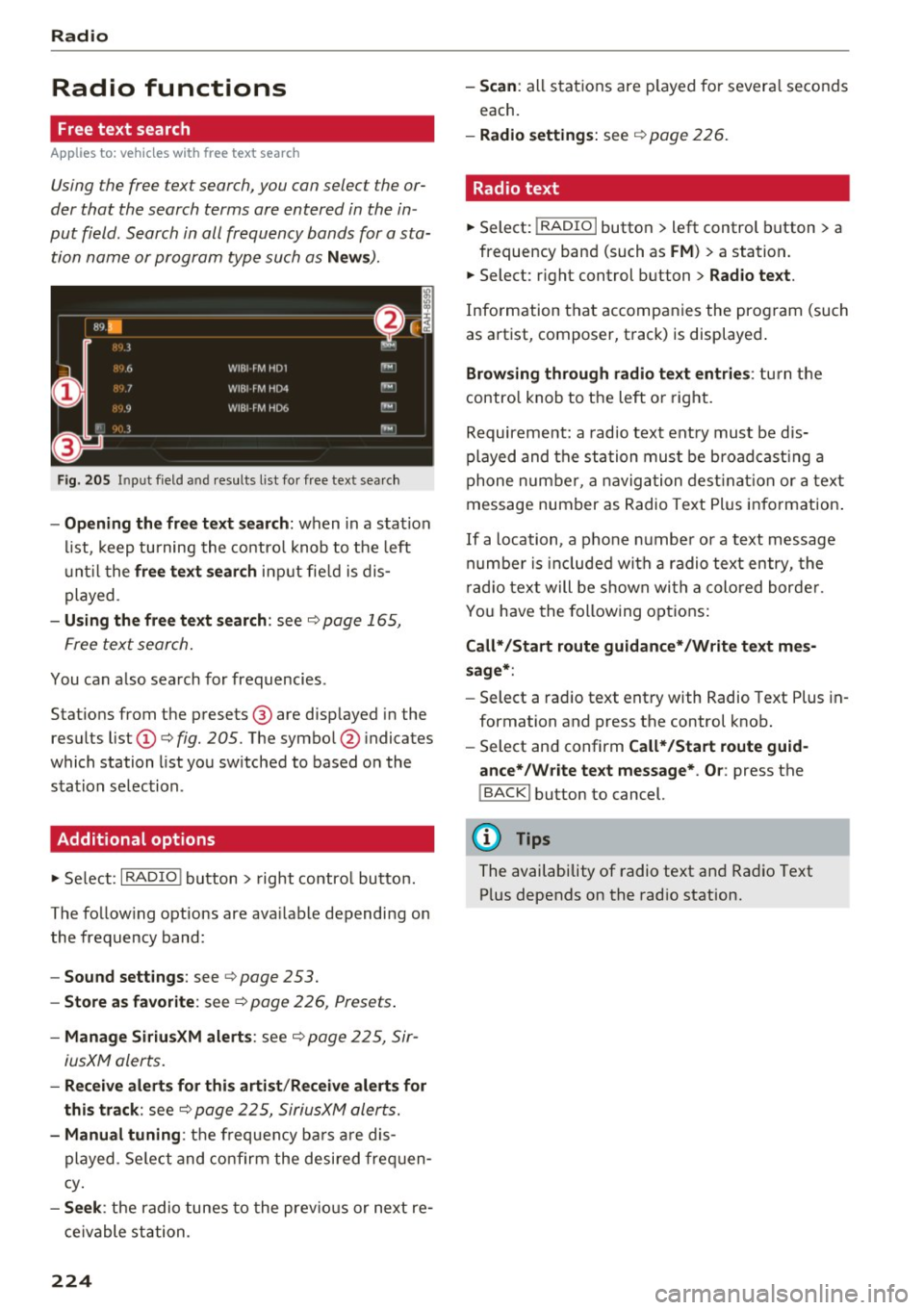
Free text search
App lies to: ve hicles w ith free text search
Using the free text search, you can select the or
der that the search terms are entered in the in
put field. Search in all frequency bands for a sta
tion name or program type such as
News ).
Fig . 20 5 Input field a nd results l ist fo r free tex t sea rch
- Opening the free text search : when in a s ta tion
l ist, keep turning the contro l knob to the left
u nt il the
free tex t search inp ut fie ld is dis
played .
-Using the free text sear ch : see c::> page 165,
Free text search.
You can a lso search for frequencies .
Stat ions from the presets @ are disp layed in the
results list
(D c::> fig. 205. The symbo l@ indicates
which station list you sw itched to based on the
station selection.
Additional options
.,. Se lect : I RADIO I button > right contro l button.
The follow ing options are ava ilable depending on
the frequency band:
- Sou nd settings : see c::>page 253.
-Store a s fa vorite : see c::> page 226 , Pr esets .
-Manage Siriu sXM al ert s: see c::> page 225, Sir-
iusXM alerts.
- Re ceive alert s for thi s arti st/ Re cei ve alert s fo r
thi s tr ack :
see c::> page 225, SiriusXM alerts.
-Manu al tuning : the frequency ba rs a re dis
played . Se lect and confirm the desired frequen
cy .
-See k: the radio tunes to the prev ious or next re
ce ivable station .
224
-Scan : all s tations are p layed for severa l seconds
each.
- Radio settin gs: see c::> page 226.
Radio text
.,. Select: I RADIO I button > left control button > a
frequency band (such as
FM ) > a station.
.,. Select: r ight control button>
Rad io te xt.
Information that accompanies the program (such
as artist, composer, t rack) is displayed .
Browsing through radio text entrie s: turn the
contro l knob to t he left or right.
Requirement: a rad io text entry must be dis
played and the station must be broadcast ing a
phone number, a navigation dest inat ion or a text
message number as Radio Text Plus in formation .
If a location, a phone number or a text message
numbe r is included with a radio text entry, the
r ad io text will be shown wi th a colored borde r.
You have the following opt ions:
Call* /Start route gu idance */Write t ext mes
s age *:
-Sel ect a radio text entry with Radio Text Plus in
formation and press the control knob.
- Select and confirm
Call */Start route guid
a nce* /W rite te xt me ssage* . O r:
press the
I BACK I button to cancel.
(!') Tips
The availability of radio text and Radio Text
P lus depends on the radio station.
Page 227 of 402
u (0 ...... N r--. N ...... 0
0
:E
Appl ies to: ve hicles with SiriusXM
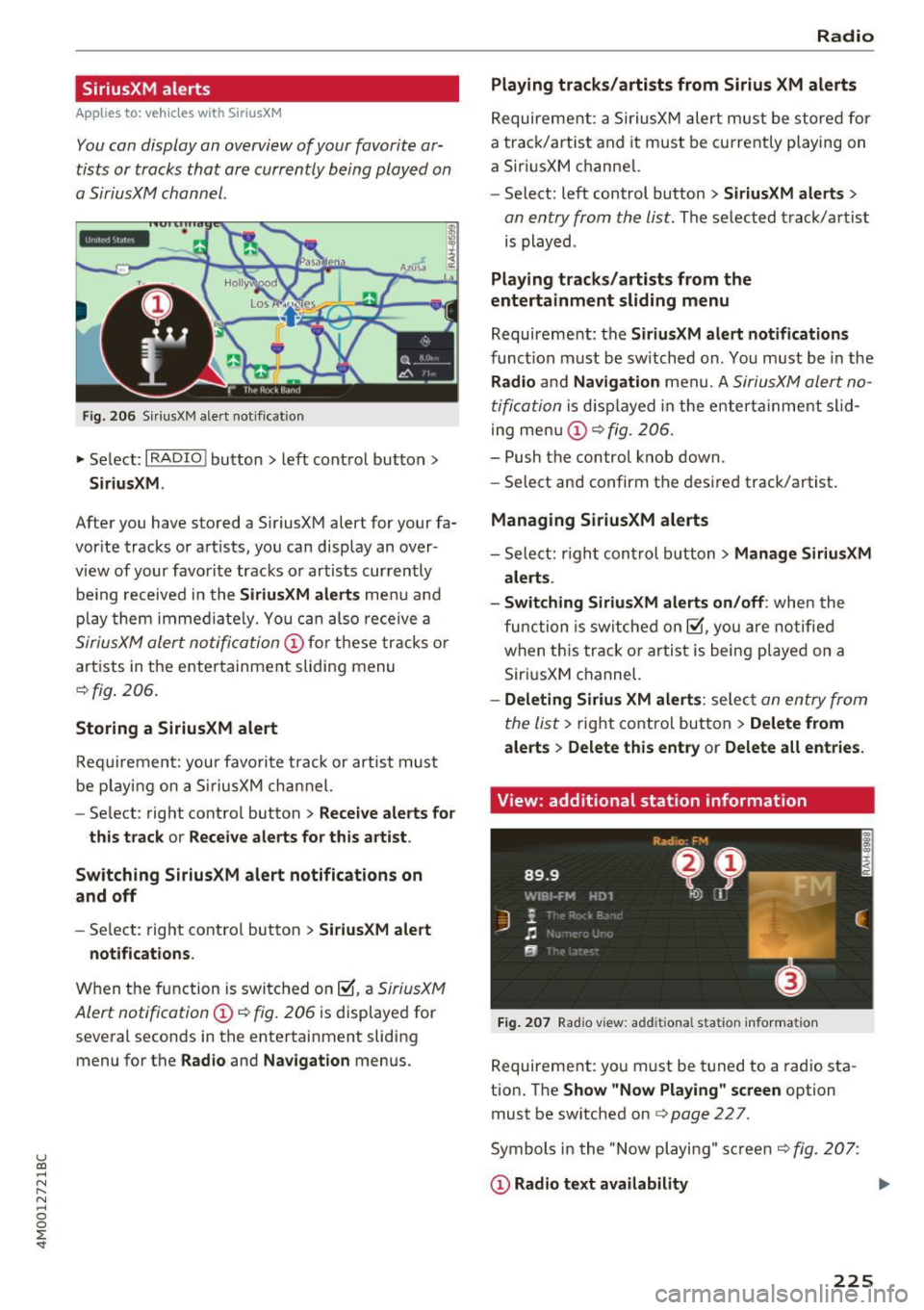
You can display an overview of your favorite ar
tists or tracks that are currently being played on
a SiriusXM channel .
Yll,IIMl1&1
Fig. 206 SiriusXM ale rt not if icat ion
• Select : I RADIO I button > left control button >
SiriusXM .
After you have stored a SiriusXM alert for your fa
vor ite tracks or artists, you can display an over
view of your favorite tracks or artists currently
be ing received in the
SiriusXM alerts menu and
play them immed iately. You can also receive a
SiriusXM alert notification CD for these tracks or
artists in the enter tainment sliding menu
<=:> fig . 206.
Storing a SiriusXM alert
Requirement: your favorite track or artist must
be playing on a SiriusXM channel.
- Se lect : right contro l button
> Receive alerts for
this track or Receive alerts for this artist .
Switching SiriusXM alert notifications on
and off
- Se lect: right contro l button > SiriusXM alert
notifications.
When the function is switched on~' a SiriusXM
Alert notification
CD c::> fig. 206 is disp layed for
several seconds in the entertainment sliding
menu for the
Radio and Navigation menus.
Radio
Playing tracks/artists from Sirius XM alerts
Requireme nt: a SiriusXM alert must be stored for
a track/artist and it must be current ly playing on
a SiriusXM channe l.
- Select: left control button
> SiriusXM alerts >
an entry from the list . The selected track/artist
is played .
Playing tracks/artists from the
entertainment sliding menu
Requirement: the SiriusXM alert notifications
function must be switched on . You must be in the
Radio and Navigation menu. A SiriusXM alert no
tification
is d isplayed in the enterta inment slid
i ng menu
CD <=:>fig. 206.
-Push the control knob down.
- Select and confirm the desired track/artist .
Managing SiriusXM alerts
-Select: right con trol button > Manage SiriusXM
alerts .
- Switching SiriusXM alerts on/off :
when the
fu nction is switched on~' you are notified
when th is track or artist is being played on a
SiriusXM channel.
-Deleting Sirius XM alerts : select an entry from
the list>
right control button > Delete from
alerts
> Delete this entry or Delete all entries.
View: additional station information
Fig. 207 Radio v iew: add it io nal sta ti on info rma tion
Requirement: yo u must be tuned to a radio sta
tion . The
Show "Now Playing " screen option
must be switched on
c::> page 22 7.
Symbols in the "Now playing " screen
c::> fig. 207:
CD Radio text availability ..,.
225