radio AUDI Q7 2017 Owner´s Manual
[x] Cancel search | Manufacturer: AUDI, Model Year: 2017, Model line: Q7, Model: AUDI Q7 2017Pages: 402, PDF Size: 100.39 MB
Page 228 of 402
Radio
Radi o te xt
is availab le for the selected stat ion.
See
c::> page 224.
@ FM HD Radio technolo gy
The station is received through FM HD Radio
technology .
@ Screen view
Display Cov er a rt or Station log o. See
c::> page 22 7, Pr efer red p icture vie w *.
Di splaying the station list:
T ur n the control knob. Or : press the !BACK ! but
ton .
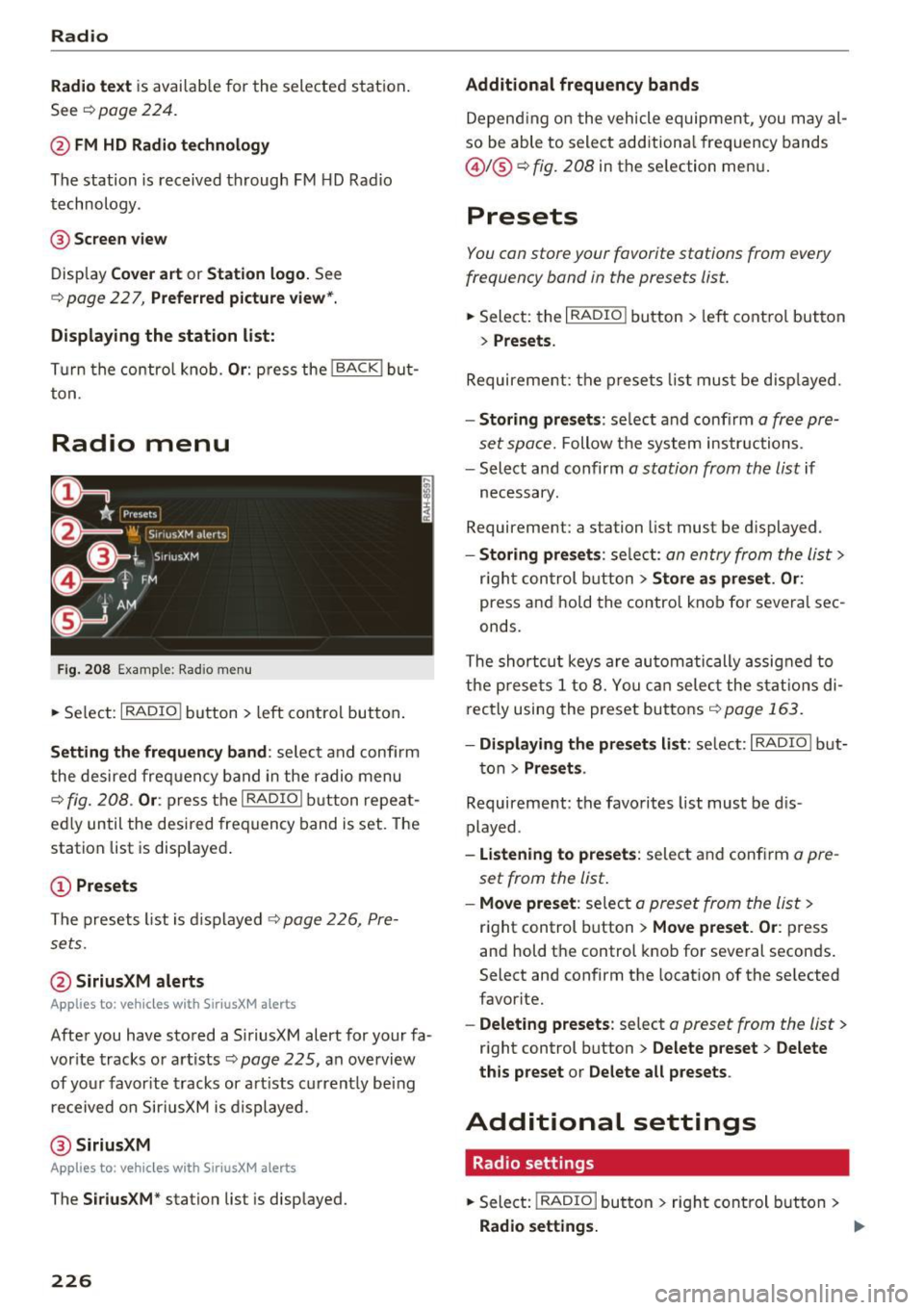
Radio menu
Fig. 208 Example : Rad io menu
.,. Se lect: I RADIO I button > left cont rol but ton .
Setting the frequen cy band : select and confi rm
the desired freq uency band in the radio menu
c::> fig. 208 . Or: press the I RADIO ! button repeat
ed ly until the desired frequency band is set. The
station list is displayed .
© Presets
The presets list is d isplayed c::> page 226, Pre
sets.
@ SiriusXM alerts
Appl ies to: ve hicles w ith SiriusXM alerts
After you have stored a S iriusXM alert for your fa
vor ite tracks or artists
c::> page 225 , an overview
of your favor ite tracks or artists current ly being
received on Siri usXM is displayed.
@ Siriu sXM
A ppl ies to: ve hicles w ith SiriusXM alerts
The S iri usX M * station list is displayed.
226
Additional frequency bands
Depend ing o n the vehicle equipment, you may al
so be able to select additiona l frequency bands
@ l@ c::> fig. 208 in the selection men u.
Presets
You can store your favorite stations from every
frequency band in the presets list.
.. Select: the I RADIO I button > left control button
> Pre set s.
Requirement: the p resets list must be disp layed.
- Storing pr esets : select and confirm a free pre
set space.
Follow the system instructions.
- Select and confirm
a station from the list if
necessary.
Requirement: a station list must be d isplayed .
-Sto ring pre set s: se lect: an entry from the list>
r igh t con trol b utton > Store as pr eset . Or :
press and ho ld the contro l knob for severa l sec
onds .
The shortcut keys are au tomatically assig ned to
the p rese ts 1 to 8. You ca n select the stat ions di
rectly using the preset buttons
c::> page 163 .
-Di spl aying the pr esets list: se lect: I RADIO! b ut-
ton
> Pre sets .
Requirement: the favorites list must be d is
played .
-Listening to p re sets : select and confirm a pre
set from the list.
- Mo ve pre set : select a preset from the list >
right control button > Move pre set . Or : press
and hold the control knob for several seconds .
Select and confirm the location of the selected
favorite.
- Deleti ng p resets: select a preset from the list >
right control button > Delete p reset > Delete
th is p reset or Delete all pres ets .
Additional settings
Radio settings
.. Select: I RADIO I button > rig ht control button >
Radio setting s. Ill>
Page 229 of 402
u co ...... N r-... N ...... 0
0
:E: -
Station names (FM )
Variabl e:
scroll ing text transmitted by the FM
stations is shown in the Infotainment system d is
p lay .
Fixe d: scro lling text transm itted by the FM sta
tions is no t shown in the Infotainment system
d isp lay. On ly the cu rrent sect ion of the scro lling
text is displayed .
FM/ AM HD Radio*
You can switch HD Radio recept ion on or off .
Station sorting (Sirius XM* )
You can set the station so rt ing for SiriusXM sta
tion lists* by:
- Channel number : the stations are sorted in as
cending order according to their cha nnel num
ber.
- Channel name : the stations are listed in a lpha
betica l order.
- First category, then channel number : the sta
tions are sorted by their category and then by
their channe l numbers.
- First category, then channel name : the sta
t ions are sorted by their category and then by
their channe l names.
Cat egory filter (Siriu sXM* )
The stations shown in the s ta ti on list c an be fi l
tered by your personal prefe re nces and by pro
gram type. The program categories that you can
select depend on what is offered by your provid
er. Select the
All catego ries option to deactivate
all filter opt ions and disp lay all available stations
in the sate llite station list .
Troubleshooting
Problem Solution
Radio
Show "Now Playing" screen
When the funct io n is switched on@' and the sta
t ions or presets list is open, the disp lay w ill
switch to the
Show "Now Playing" screen view
after approximate ly five seconds ¢
page 225. De
pending on availab ility, information about the
set station (such as station name, artist and sta
t ion logo) is displayed in this v iew .
Prefe rred picture view*
You can set your preferred screen v iew for the
Show "Now Playing " screen ¢page 225 .
-Stati on lo go : the station logo is displayed, de
pending on availability .
-Cov er ar t: the album cover is displayed if availa
b le.
Gracenote online database*
Requirement: the MMI must be connected to t he
Internet . T he
Cover art opt ion m ust be selected
¢ page 22 7, Preferred pictur e view *.
When the funct io n is switched on@', the album
cove r or genre cover for the song that is p lay ing
is loaded from the Gracenote online database,
depe nd ing on ava ilabil ity.
Subscription status (SiriusXM )*
This opt io n is available when your subscription is
about to expire or has already expired . The expi
ration date fo r your license is displayed .
Call to SiriusXM *: the contact info rmat ion for
your sate llite rad io prov ider is displayed . To call
your satellite rad io prov ider using the MMI, press
Call to SiriusXM *.
A station with poo r reception is no longer Store the stat ion as a preset in advance . Access the pre-
displayed in the station list once you se ts usi ng the presets list
¢ page 226 .
switch to a d ifferen t sta tion.
227
Page 235 of 402

u (0 ...... N r--. N ...... 0
0
:E
are displayed in the M MI.
- Songs dow nloaded for offline use using m u
sic st reaming services are stored on you r
mobile device (suc h as a smartphone) an d
may be ORM protected. The Wi-Fi audio
player w ill not play ORM protected files.
- Contact an a uthorized Audi dea le r or a u
thorized Audi Service Facility for additional i nformat ion on the Wi-Fi audio p layer.
Online media and
Internet radio
App lies to: veh icles with Audi connect
Yo u can playba ck and oper ate various onli ne me
dia servi ces and In ternet radio using the MMI.
F ig. 212 O nlin e med ia
• Press the I MEDIA i button . P ress the left contr ol
bu tton until the so urces overview ¢
fig. 212 is
displayed.
Applies to: using online media and Inte rnet rad io
Req uirement :
- The
Audi MMI connect app m ust be installed
and open on your mo bile device.
- You m ust be logged into your myA udi account
in the
Audi MMI connect app a nd you must
hav e selected your ve hicle.
- The Wi-Fi function on the mobi le device and on
t h e M MI m ust be switched on .
- If necessary, check in the connection manager
¢
page 250 i f the mobi le device you connected
is se lected under the
MMI connect app (~).
-The M MI must be con nected to the ne twor k.
- The symbo l for the
Online media source @
¢
fig . 212 is shown in the MMI.
Applies to : using online media
Additional requ irement :
Media
-A s uppor ted online me dia se rvice mus t be avail
a b le in yo ur cou ntry.
- You mus t have a n acco unt with a suppor ted on
line me dia se rvice .
- Depending on t he on line m edia se rvice, yo u
m ust ins tall and open an app on yo ur mobile
dev ice.
Starting Online media
- Press the I MEDIA i button. Press the lef t control
button unt il the sources overv iew ¢
page 237
is displayed.
- Select an d confirm an o nline media serv ice .
Starting Internet radio
-Press the I MEDIA i button. Press the left cont rol
button unti l the sources overv iew
¢ page 237
is displayed.
- Select and confirm
Internet radio. The Internet
radio b rowser or the last stat io n that was play
ing is shown.
- Selecting the station : if necessary, select and
confirm a category in the Inte rnet radio
Brows
er >
a station.
Online media and Internet radio: additional op
tions
- Press the r ight cont rol b utton.
The following options may be available, depend ing on the information shown (such as the sta
t ion/t rack that is curre ntly playing):
- Sound settings : see¢ page 253 .
-Wi-Fi settings : see¢ page 1 95, Wi- Fi hot spo t.
- Connection manager : see¢ page 250 .
-Add itio na l options may be available, depend ing
on t he active online med ia service or In ternet
radio.
_& WARNING
- It is only s afe to use table ts, lap to ps, mo
b ile dev ices and other si mila r devi ces whe n
t he vehicle i s st ati ona ry becau se, li ke all
loose objec ts, they co uld be thrown around
the inside of the ve hicl e in a c rash and ca use
serio us in juries. Store these types of devices
securely w hile d riving.
~
233
Page 236 of 402
Media
-Do not u se any wireless devices on the fro nt
seats within range of the airba gs w hile driv
ing. Also read and follow the warnings in
c:> page 2 77, Fro nt airbags.
CD Note
- Always follow the information found in c> 0
in Wi-Fi hotspot on page 195 .
- Please note that there ge nerally are add i
tiona l costs when using an online media
service account, especially when it is used i nternationally.
{!) Tips
- Depending on the Internet connection and
network traff ic, a connection loss can occur
during p layback of on line media serv ices.
- Online media and Internet radio usage de
pends on the serv ice avai lability of the third
party provider.
- Audi AG simply makes the access to on line
media serv ices possible t hrough the MMI
and does not take any respons ibility for the
contents of the onli ne med ia serv ices .
- Always read the chapter
c:> page 196, Audi
connect (Infotainment) general informa
tion.
- Depending on the mobile device used, the re
may be interr uptions du ring media playback
and when using the
Audi MMI connect app.
T o avoi d inter ruption s when usi ng a mob ile
device, do no t loc k t he s creen on you r mo
bi le dev ice a nd keep the
Audi MMI connect
app in the foreground .
- Co ntact an a utho rized Audi dea le r or a u
thorized Audi Service Facili ty for additional
informat ion about on line media .
234
Multimedia connections
USB adapter for Audi music interface
You can connect your mobile devices (such as a
smartphone or MP3 player) to the Audi music in
terface and charge them using a special USB
adapter .
®-
Fig. 213 A udi USB adapters
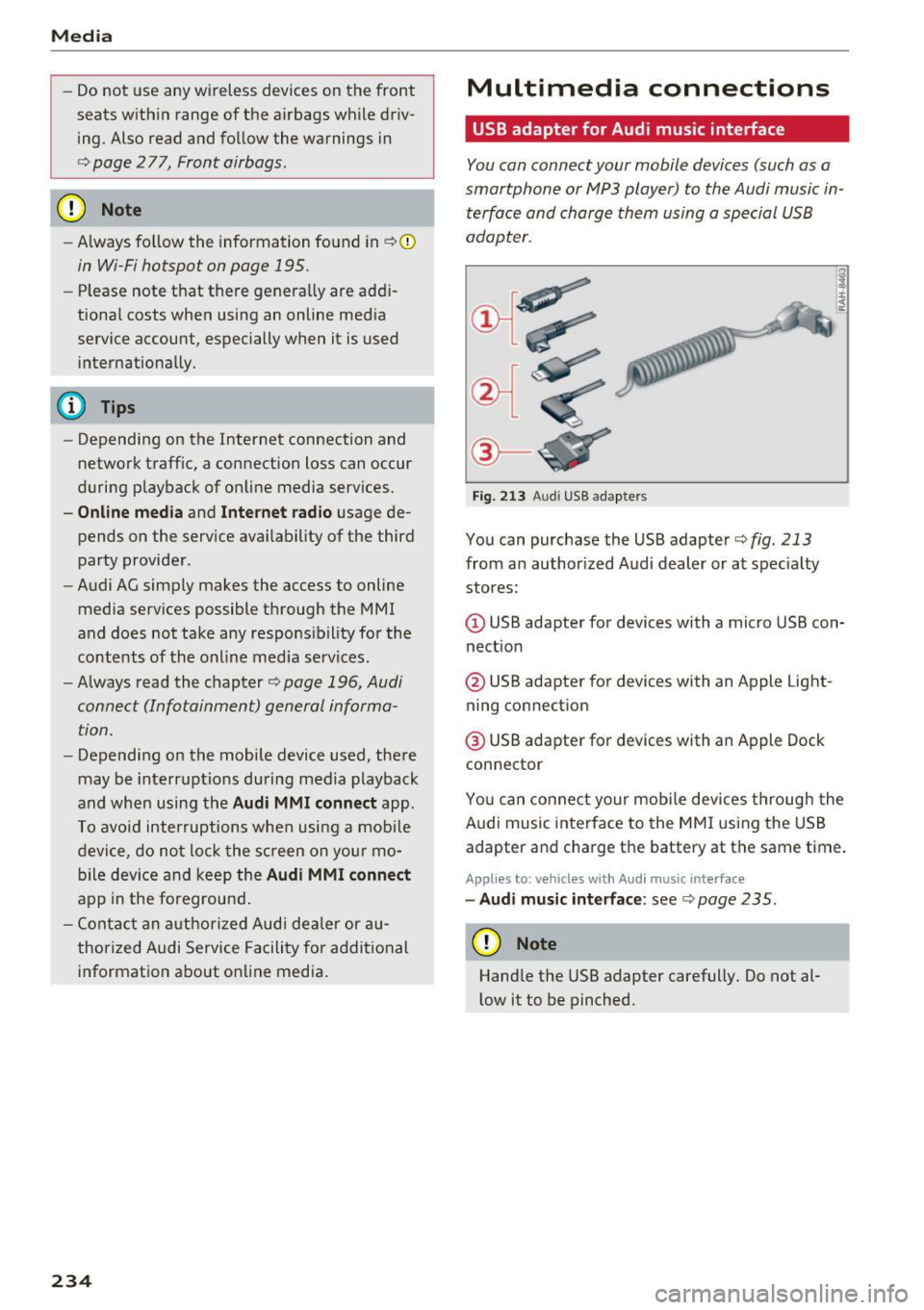
You can purchase the USB adapter c>fig . 213
from an author ized Audi dealer or at spec ia lty
stores:
Q) USB adapter for devices with a micro USB con
nect ion
@ USB adapter for devices with an Apple Light
ning connect ion
@ USB adapte r for devices with an Apple Dock
connector
You can conne ct your mob ile dev ices throug h the
Audi music interface to the MM I using the USB
adapter and charge the battery at the same time.
Applies to: vehicles wit h Aud i music interface
- Audi musi c interface : see c> page 235.
CD Note
Handle the USB adapter carefully. Do not al
l ow it to be pinched .
Page 239 of 402
u (0 ...... N r--. N ...... 0
0
:E
Accessing media
You can start and operate various media
th rough the MMI control panel.
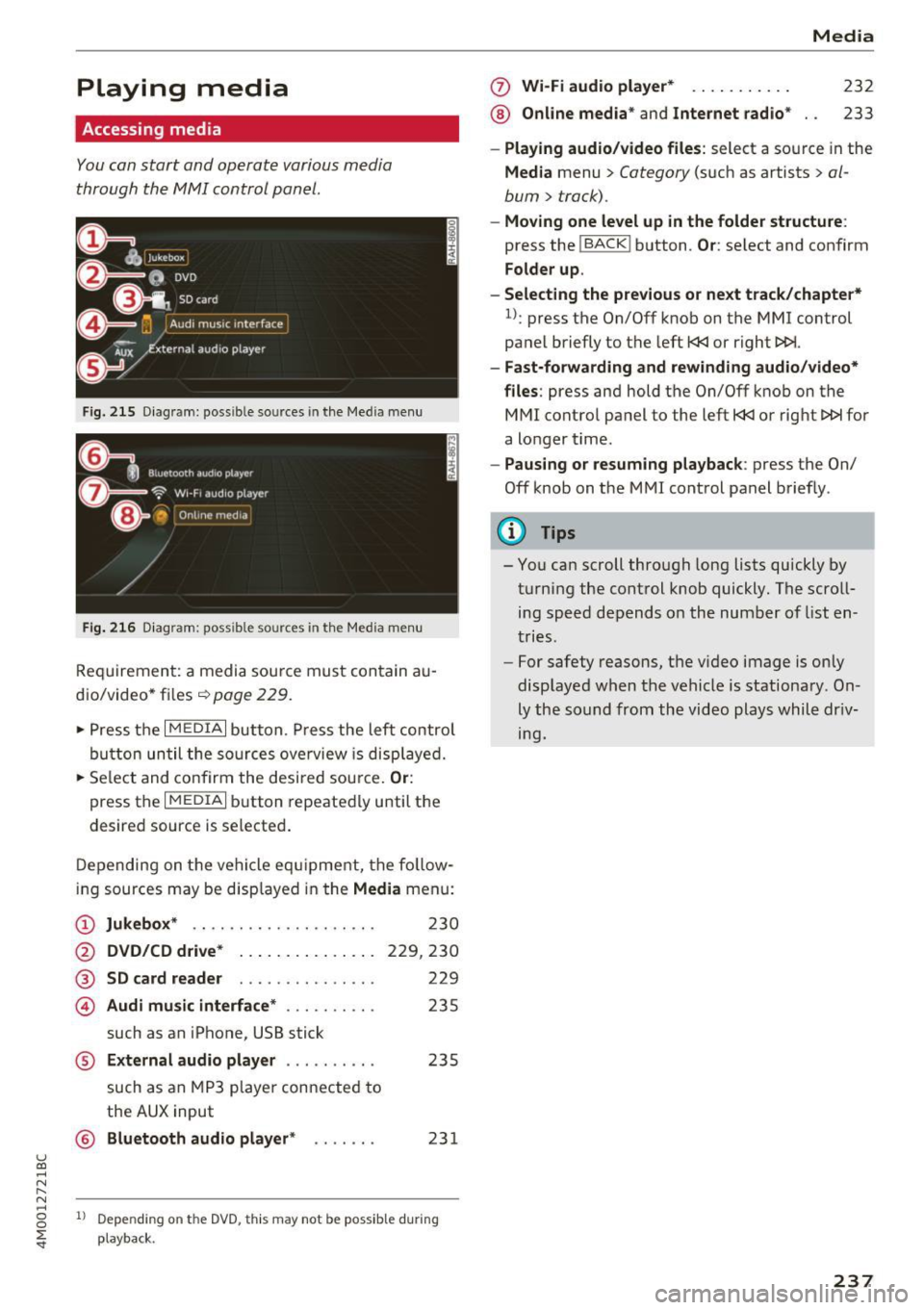
F ig . 2 15 Diag ram: possible sources in the Med ia m enu
Fi g. 216 D iagram : possible sources in the Media me nu
Req uirement: a media sou rce mu st con tain au
dio/video* files ¢
page 229.
~ Press t he I M EDIA i button. Press the left control
bu tton until the so urces ove rview is disp laye d.
~ Se le ct and confirm the desi red sou rce. Or :
press the I MEDIAi button repeated ly until the
desired source is selecte d.
D epen ding on t he veh icle eq uipment, the fo llow
ing sources may be disp layed in the
Media menu:
(D Jukebox * .. ... ... .... .. ... .. .
@ DVD /CD d rive * .. . .... ... .. .. .
®
© SD card reader
Audi mu sic interface * ......... .
such as an iPhone, USB stick 2
30
229,230
229
235
® External audio player . . . . . . . . . . 235
such as an MP3 playe r con nected to
the
AUX input
© B luetooth audio player * . . . . . . . 231
1l Depe ndi ng on the DVD, thi s may not be possib le d urin g
playba ck.
0 Wi-Fi audio player* ... ....... .
® Online med ia * and Internet radio * Media
232
233
-
Play ing audio /video files : select a source in the
Media menu > Category (such as artists > al
bum
> track).
- Moving one level up in the folder structure :
press the !BACKI button . Or: select and confirm
Folder up .
- Selecting the previous or next track /chapte r*
1
l: press the On/Off knob on the MMI control
panel briefly to the left
t
- Fast-forw arding and rewinding audio/video*
files :
press and hold the On/Off knob on the
MMI control pa nel to the left
t
a longer t ime .
-Paus ing or resuming playback : press the On/
Off knob on the MMI cont rol panel brief ly .
(D Tips
- You can scroll through long lists quickly by
turning the control knob quickly . The scroll
ing speed depends o n the numbe r of list en
tries .
- For safety reasons, t he v ideo image is on ly
displaye d when the vehicle is stationary. On
ly the so und from th e video plays whil e dr iv
ing.
237
Page 240 of 402
Media
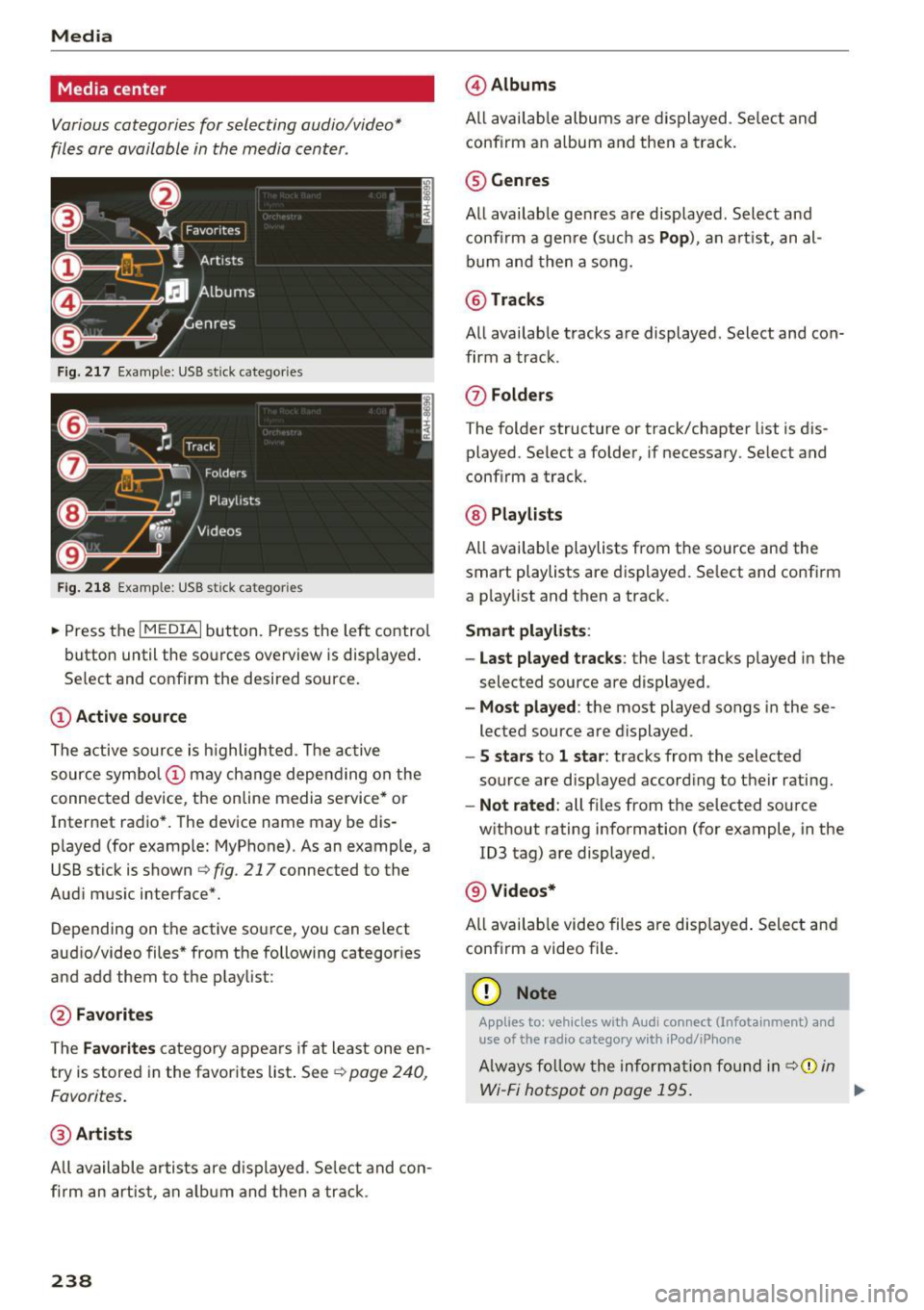
Media center
Various categories for selecting audio/video*
files ore available in the media center .
Fig. 217 Example : USB stick categories
F ig. 218 Example: USB stick cat egories
~ Press the I MEDIAi but ton. Press the left control
button until the sources overview is displayed .
Se lect and confirm the desired source.
(D Active source
The active source is highlighted . T he active
source symbol (!) may change depending on the
connected device, the online media service* or
Internet radio*. The device name may be dis
played (for example: MyPhone). As an example, a
USB stick is shown
Q fig . 217 connected to the
Aud i mus ic interface*.
Depending on the active source, you can select
aud io/video files * from the following categor ies
and add them to the playlist :
@Favorites
The Favorites category appea rs if at least one en
try is stored in the favorites list . See
Q poge 240,
Favorites.
@ Artists
All available artists are displayed. Select and con
firm an artist , an album and then a track .
238
@Albums
All available albums are displayed . Select and
conf irm an album and then a track.
® Genres
All available genres are displayed . Select and
confirm a genre (s uch as
Pop ), an artist, an al
bum and then a song.
@Tracks
All availab le tracks are displayed . Select and con
firm a track.
0 Folders
The folder structure or track/chapter list is dis
played. Se lect a folder , if necessary. Select and
conf irm a track .
@ Playlists
All available playlists from the source and the
smart playlists are displayed . Select and confirm
a playlist and then a track .
Smart playlists :
- Last played tracks :
the last tracks played in the
selected source are displayed.
-Most played : the most played songs in these
lected source are displayed.
- S stars to 1 star: tracks from the selected
source are disp layed according to their rating.
- Not rated: all files from the selected source
w ithout rating information (for example, in the
103 tag) are displayed.
@ Videos*
All availab le video files are displayed. Select and
conf irm a video file .
(D Note
Applies to: veh icles with Audi co nnect (Infotainment) a nd
use of the radio category w ith iPod/iP hone
Always follow the information found in q(i) in
Wi-Fi hotspot on page 195. .,.
Page 241 of 402
u (0 ...... N r--. N ...... 0
0
:E
-Only the categories supported by the medi
um are available. For example, CD/DVD
ROM tracks cannot be selected with catego
ries such as
Artists, Albums or Genres.
With an iPod/iPhone (source: Audi music in
terface¢
page 234), the Podcasts, Audio
books
and Composers categories are also
available .
- For safety reasons, the video image is only
displayed when the vehicle is stationary. On
ly the sound from the video plays while driv
ing .
- When synchronizing a portable device with
"Cloud" services, playlists may display incor
rectly in the MMI. Use the media center in
the device.
- With an iPod/iPhone (media source: Audi
music interface ¢
page 234), the Podcasts,
Audio books
and Composers categories are
also available.
(D Tips
Applies to: iPod/lPhone on Audi music Interface
- An Internet connection is required to use
the additional
Radio category, an on line
media service. Also see the chapter
¢
page 195, Wi-Fi hotspot. Also read the in
formation on the Audi music interface and
the supported devices¢
page 234.
-Depending on the Internet connection and
network traffic, a connection loss can occur
during playback of on line media services.
- The use of online media services depends on
the service availability of the third party
provider.
- Audi AG simply makes the access to on line
media services possible through the MMI
and does not take any responsibility for the
contents of the online media services.
Media
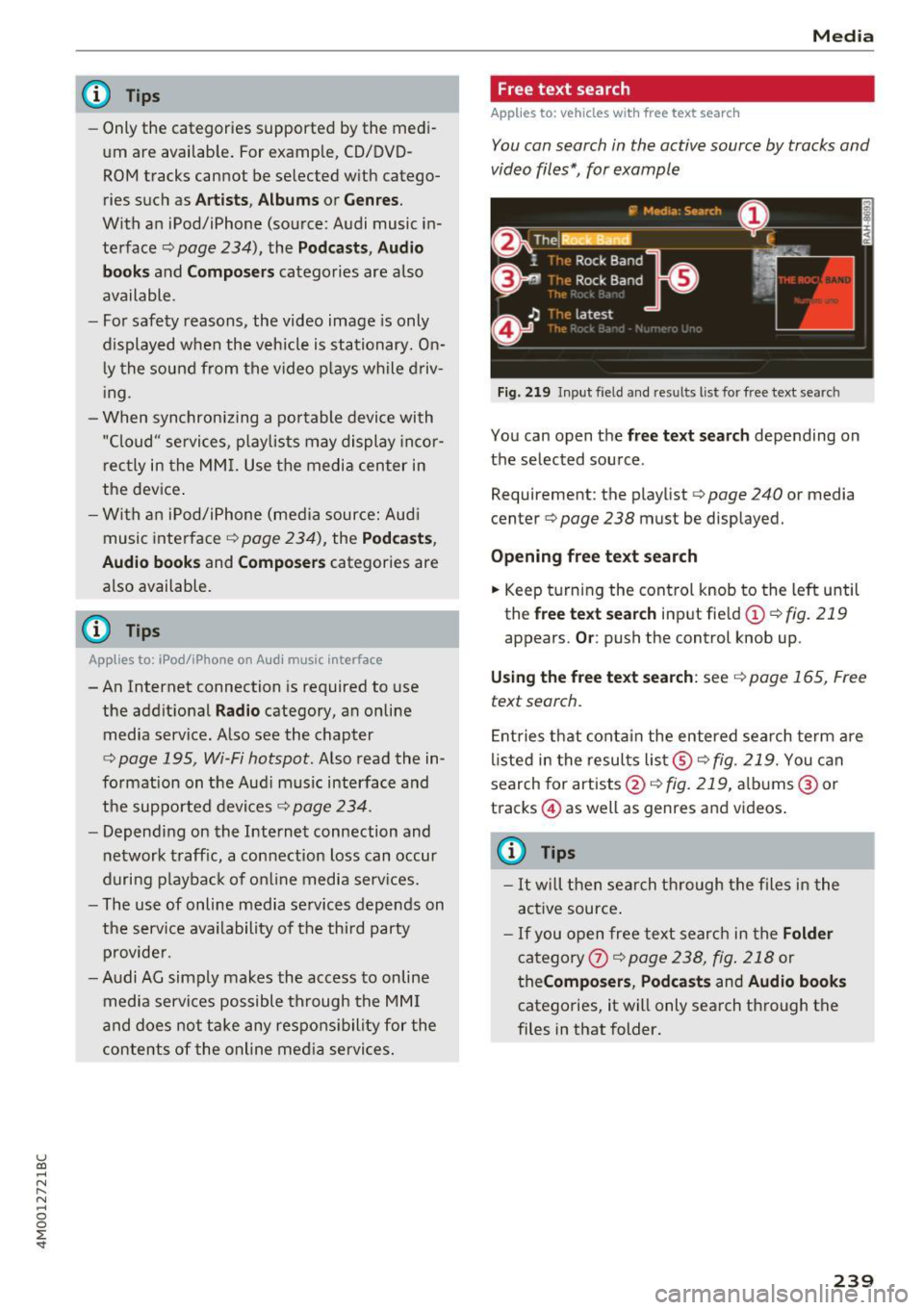
Free text search
Applies to: veh icles w ith free text search
You can search in the active source by tracks and
video files*, for example
Fig. 219 Input field and results list for free text search
You can open the free text search depending on
the selected source .
Requirement: the playlist
¢ page 240 or media
center¢
page 238 must be displayed.
Opening free text search
.. Keep turning the control knob to the left until
the
free text search input field(!) ¢fig. 219
appears. Or: push the control knob up.
Using the free text search: see ¢ page 165, Free
text search.
Entries that contain the entered search term are
listed in the results list@¢
fig. 219. You can
search for artists @¢fig.
219, albums @or
tracks @) as well as genres and videos.
@ Tips
-It will then search through the files in the
active source.
-If you open free text search in the Folder
category 0 c;> page 238, fig. 218 or
theComposers, Podcasts and Audio books
categories, it will only search through the
files in that folder.
239
Page 247 of 402
u co ..... N r--... N ..... 0
0
:E: '
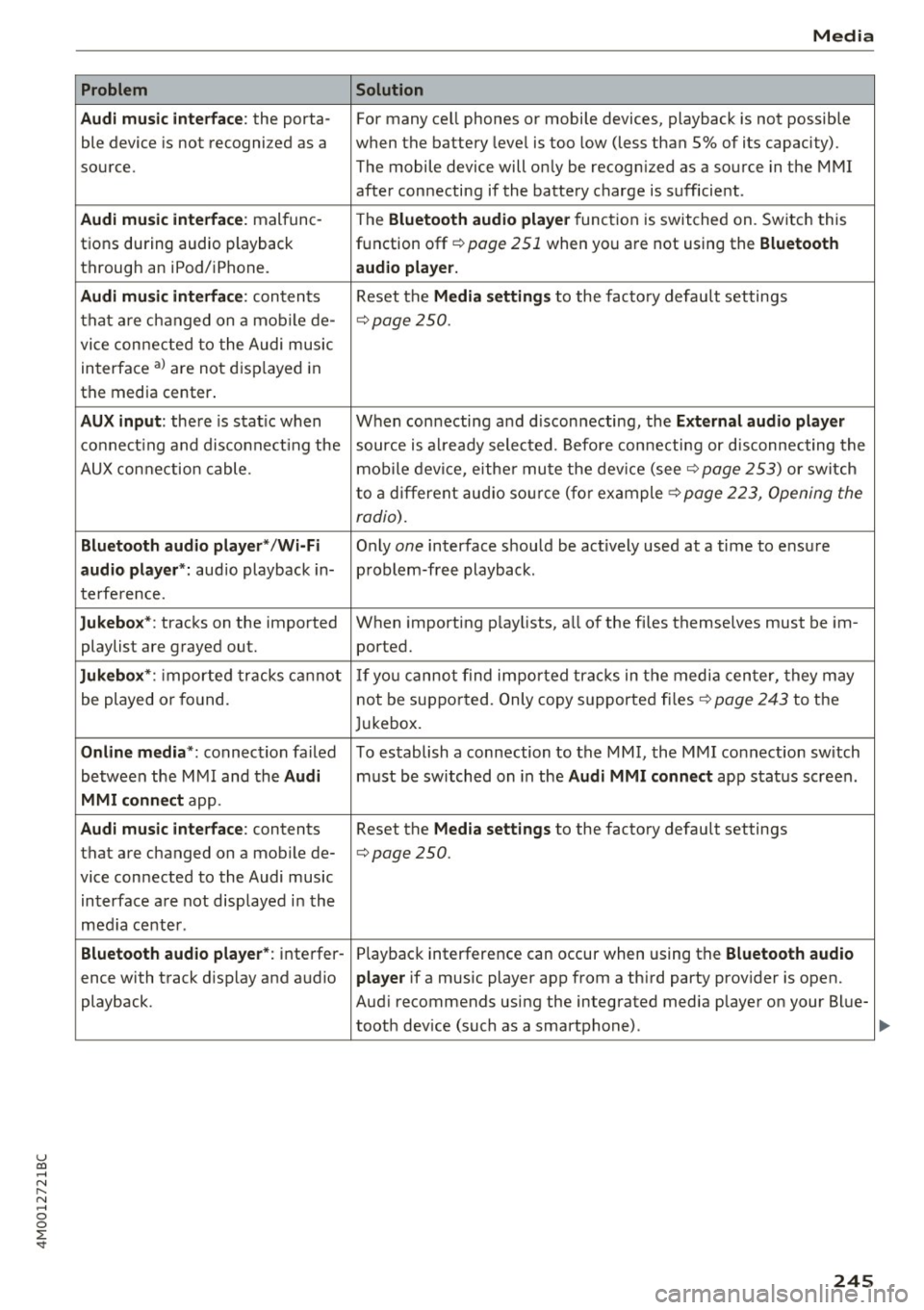
Audi music interface :
the porta-
ble device is not recogni zed as a
source.
Audi music interface : malfunc-
tions during audio playback
through an iPod/ iPhone.
Audi music interface : contents
that are changed on a mobile de-
vice connected to the Audi music
interface al are not displayed in
the media center.
AUX input: there is stat ic when
connecting and disconnecting the
AUX connection cable .
Bluetooth audio player* /Wi-Fi
audio player *:
aud io playback in-
terference.
Jukebox* : tracks on the imported
playlist are grayed out.
Jukebox* : imported tracks cannot
be played or found.
Online media *: connection failed
between the MMI and the
Audi
MMI connect
app.
Audi music interface: contents
that are changed on a mobile de-
vice connected to the Audi music interface are not displayed in the
med ia center .
Bluetooth audio player *: interfer-
ence with track d isplay and audio
playback.
Media
Solution
For many ce ll phones or mobile devices, playback is not possible
when the battery level is too low (less than 5% of its capacity).
The mobile de-vice will only be recognized as a source in the MMI
after connecting if the battery charge is sufficient .
The
Bluetooth audio player f unction is switched on. Switch this
function off
c:> page 2 51 when you a re not using the Bluetooth
audio player.
Reset the Media settings to the facto ry defau lt settings
c:> page250.
When connecting a nd disconnecting, the External audio player
source is already selected. Before connecting or disconnecting the
mobile device, either mute the device (see
c:> page 253) or switch
to a different audio source (for example
c:> page 223, Opening the
radio) .
Only one interface should be act ively used at a time to ensure
problem-free playback .
When importing playlists, a ll of the fi les themselves must be im-
ported.
If yo u cannot find impor ted tracks in the media center, they may
not be supported. Only copy supported files
c:> page 243 to the
Jukebox.
To establish a connection to the MMI, the MMI connection sw itch
must be switched on in the
Audi MMI connect app status screen .
Reset the
Media settings to the factory default settings
c:> page 250.
Playback interference can occur when using the Bluetooth audio
player
if a music player app from a th ird party provider is open.
Aud i recommends using the integrated media player on your Blue-
tooth dev ice (such as a smartphone) .
245
Page 252 of 402
System settings
wait for the signal tone (beep) to say a new
command.
Volume: yo u can adjust the volume of the
p rompts by turning the control knob.
Individual speech training (only when the vehi
cle is stat ionary): you can adapt the voice recog
n it ion system to your voice or pronunciation in
order to improve the system's ability to recognize
your speech . Individua l training is comprised of
20 speech entries that consist of commands and
sequences of numbers. You can delete the pro
grammed voice tra ining w ith the
Reset individu
al speech training
function.
Display brightness
You can adjust the brightness of the Infotain
m ent system disp lay by turning the contro l knob.
Factory settings
The following functions can be reset to the facto
ry default settings :
-Sound settings
- Radio
- Media settings
- Jukebox *
- Directory
-Telephone
- Bluetooth and Wi-Fi*
- Navigation settings*
- Navigation and online memory *
- Voice recognition system*
- Shortcut keys
- Message settings*
-Apps*
-Tool tips
- Audi connect *
- Audi smartphone interface*
You can se lect the desired functions individually
or all at once with the option
Select all entries .
Select and confirm Restore factory settings .
(D Tips
Make sure that not only the settings were de
leted but also the stored data, if applicable .
250
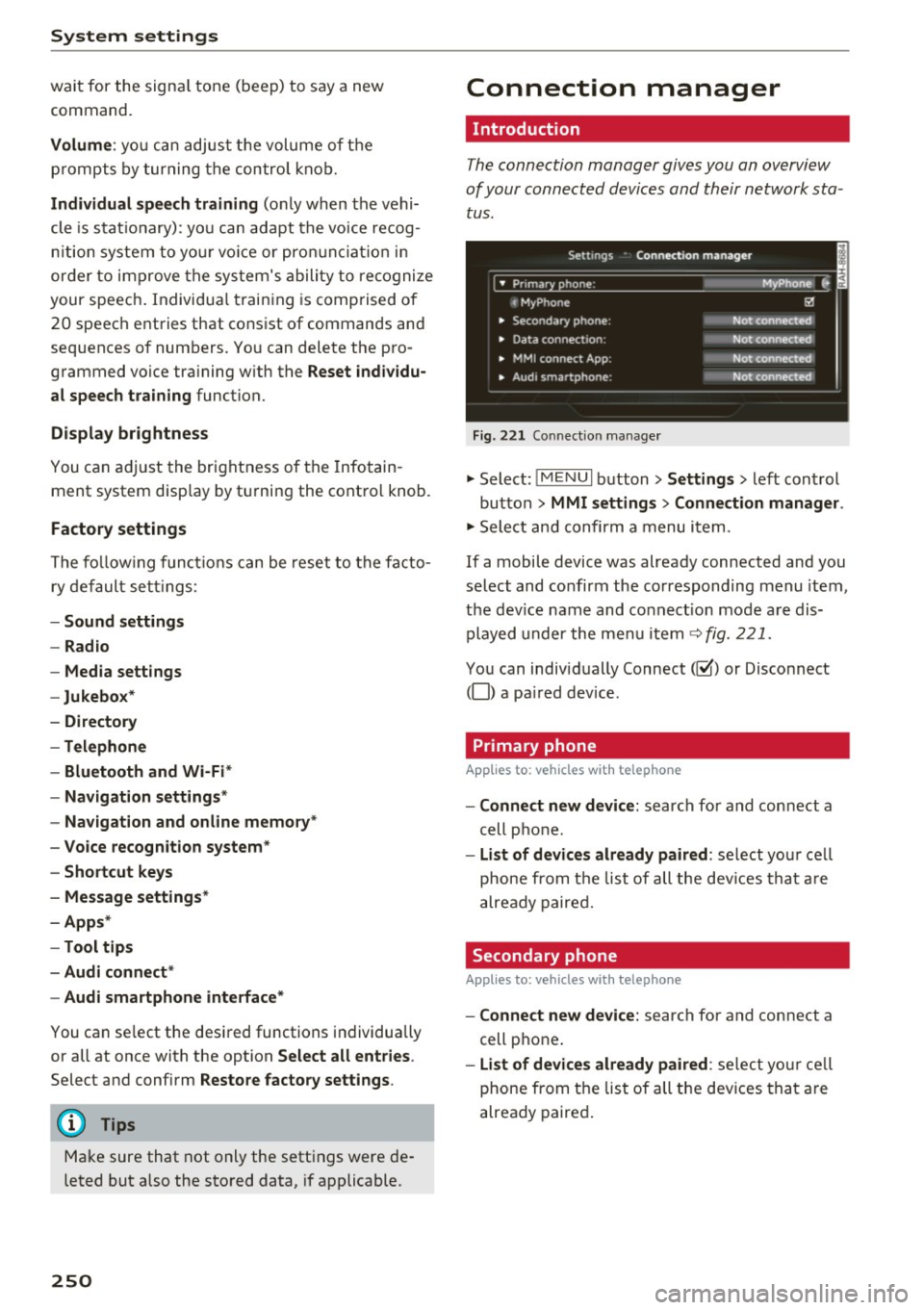
Connection manager
' Introduction
The connection manager gives you an overview
of your connected devices and their network sta
tus.
Settings Conne·ction manager I
====- .. · ~•_P_n_m_•~~-h~o_n~e_: ________ _____ M_ y ~ Phone ~
, MyPhone
• Secondary phone:
• Data connection :
• MMI connect App:
" Audi smartphone:
Fig. 221 Connect io n manager
@
Not connected
Not connected
Not connected
Not connected
"Select : !M ENUI button> Settings > left control
button >
MMI settings> Connection manager .
"Select and confirm a menu item.
If a mobile device was already connected and you
select and confirm the corresponding menu item,
the dev ice name and co nnect ion mode are dis
played under the menu item
c:!;> fig. 221.
You can individually Connect(~ or Disconnect
(0) a paired device .
' Primary phone
Applies to: vehicles with telephone
- Connect new device: search for and connect a
cell phone.
- List of devices already paired : select you r cell
phone from the list of all the devices that are
already paired.
Secondary phone
Applies to: vehicles with telephone
-Connect new device: search for and connect a
cell phone .
-list of devices already paired : select yo ur cell
phone from the list of all the devices that are
already paired.
Page 290 of 402
Airbag syste m
Make sure that the PASSENGER AIR BAG
OFF
11;; li ght comes on and stays on all t he
t ime whenever the ignition is switched on.
A WARNING
- If the PA SSEN GER AIR BAG OFF 11;; light
does not go out when an adult is si tting on
the front passe nger seat a fter ta king the
steps described above, make sure the adult is p roperly seated and restrained at one of
the rear seating positions.
- Have the airbag system inspected by your
authorized Aud i dealer before transporting
anyone on the front passenger seat.
@ Tips
If the capacitive passenger detection system
determines that the front passenger seat is
empty, the frontal airbag on the passenge r
side w ill be tu rned off, and the
PASSENGER
AIR BAG OFF
11;; light will stay on.
-
Repair , care and disposal of the airbags
Parts of the a irbag system are installed at many
different places on your Audi. Installing, remov ing, servic ing or repa iring a part in an area of the
ve hicle can damage a part of an airbag system
and prevent that system from working properly
i n a collision .
There are some important things you have to
know to make sure that the effectiveness of the
system w ill not be impaired and that discarded
components do not cause injury or pollute the
env ironment.
A WARNING
Improper care, serv icing and repai r proce
dures can increase the r is k of personal injury
and death by preventing an airbag from de
ploying when needed or dep loying an airbag
unexpectedly:
-
- Never cover, obstruct, or change the stee r
ing wheel horn pad or airbag cover or the in
strument pane l or modify them in any way.
288
- Never attach any objects s uch as c upholders
or telephone mountings to the surfaces cov
ering the a irbag un its.
- For cleaning the horn pad or instrument
panel, use only a soft, dry cloth or one mois
tened w ith plain water. Solvents or cleaners
could damage the airbag cover or change
the st iffness or strength of the material so
that the airbag canno t deploy and p rotect
properly.
- Never repair, adjust , or change any parts of
the airbag system.
- All work on the steering wheel, inst rument
panel, front seats or e lectr ica l system ( in
cluding the installation of a udio eq uipment,
cellular telephones and C B radios, etc.)
m ust be perfo rmed by a qualified techn ician
who has the training and specia l equipment
necessary.
- For any work on the airbag system, we strong ly recommend that you see your au
thorized A udi dealer or qualified workshop.
- Never modify the front b umper or parts of
the vehicle body.
- Always make sure that the side a irbag can
inflate w ithout interference:
- Never install seat covers or replacement
upholstery over the front seatbacks that
have not been specifically approved by
A udi.
- Never use additional seat c ushions that
cover the areas where the side airbags in
flate.
- Damage to the orig inal seat cove rs or to
the seam in the area of the s ide airbag
module mus t always be repaired immedi
ate ly by an autho riz ed Au di dealer.
- The a irbag system can deploy on ly once. Af
ter an airbag h as been deployed, i t m ust be
repla ced with new replacement parts de
signed and approved espec ia lly for your
Audi model version . Replacement of com
plete airbag systems or airbag components
must be perfo rmed by qua lified workshops
only. Make su re that any airbag service ac
tion is entered in your A udi Warranty
&
Ma intenance boo klet under AIRBAG RE-
PLAC EM EN T RECORD.
~