steering AUDI RS7 SPORTBACK 2016 Owner's Manual
[x] Cancel search | Manufacturer: AUDI, Model Year: 2016, Model line: RS7 SPORTBACK, Model: AUDI RS7 SPORTBACK 2016Pages: 282, PDF Size: 70.78 MB
Page 90 of 282
Audi acti ve la n e ass is t
Audi active lane assist
Lane assist
Description
A pp lies to: ve hicles w ith Audi active lane assist
Active lane ass ist detects lane marker lines with
in the limits of the system us ing a camera in the
windshie ld. If you are approaching a detected
lane marker line and it appears likely that you
will leave the lane, the system will warn you with
corrective steering. You can override this steering
at any time. If you pass over a line, the steering
wheel will vibrate lightly. In order for this warn ing vibration to occur, it must first be switched
on in the Infotainment system. Act ive lane assist
is operable when the lane marker line is detected
on at least one side of the vehicle.
The system is designed for driving on freeways
and expanded highways and thus works only at
speeds of 40 mph (65 km/h) or more.
Applies to vehicles w ith side assist*: if you act i
vate a turn s ignal when active lane assist is ready
and it classif ies a lane change as critical because
of vehicles traveling alongside you or approach ing you, there w ill be not iceable correct ive steer
i n g short ly before you leave the lane. This will at
tempt to keep your vehicle in the lane.
Appl ies to veh icles w ithout s ide ass ist* : the sys
tem does not warn when it is ready if you activate
the t urn signa l before crossing the lane marker
line. In this case, it ass umes that you a re chang
ing lanes intentionally.
Applies to vehicles w ith adapt ive cr uise control*
or pa rk ing aid*: the co rrective steering is ta rget
ed based on the d riving situation. In addition to
the lane marker lines, the system can also take
into account other objects such as guard rails. If
they are detected in close proximity to the vehi
cle, active lane assist helps prevent the vehicle
from dr iv ing too close to them. There is a lso
passing assistance . The system does not provide
any corrective steer ing if it detects that you are
passing anothe r vehicle.
88
A WARNING
-
- The system warns the driver that the vehicle
is leaving the lane using correct ive steering.
The driver is always responsible for keeping
the vehicle within the lane.
- The system can help you keep the vehicle in the lane, but it does not drive by itse lf. Al
ways keep your hands on the steering
wheel.
- Cor rective steering may not occur in certain
situations, such as du ring heavy braking.
- There may be cases whe re the camera does
not recognize all lane marker lines. Correc
tive stee ring can only take place on the s ide
of the vehicle where lane marker lines are
detected.
- Othe r road stru ctures or objects could poss i
bly be identified un intent ionally as lane
marker lines . As a result, corrective steering
may be unexpected or may not occ ur.
- The camera view can be restricted, for ex
ample by vehicles driving ahead or by rain,
snow, heavy spray or lig ht shining into t he
camera. Th is can result in active lane ass ist
not detecting the lane marker lines or de
tect ing them incorrectly.
- Under certain cond it ions such as r uts in the
road, a banked roadway or crosswinds, the
corrective steer ing alone may not be enough
to keep the vehicle in the m iddle of the lane .
- For safety reasons, act ive lane assist must
not be used when there are poor road and/
or weather conditions such as slippery
roads, fog, gravel, heavy rain, snow and the po tential fo r hydrop laning. Using active lane
assist under these cond it ions may increase
the risk of a crash .
Page 91 of 282
Switching on and off
App lies to: ve hicles with Audi active lane assist
Fig. 97 T urn signal lever: button for act ive lane assist
F ig. 98 W indsh ield: camera window for active lane assist
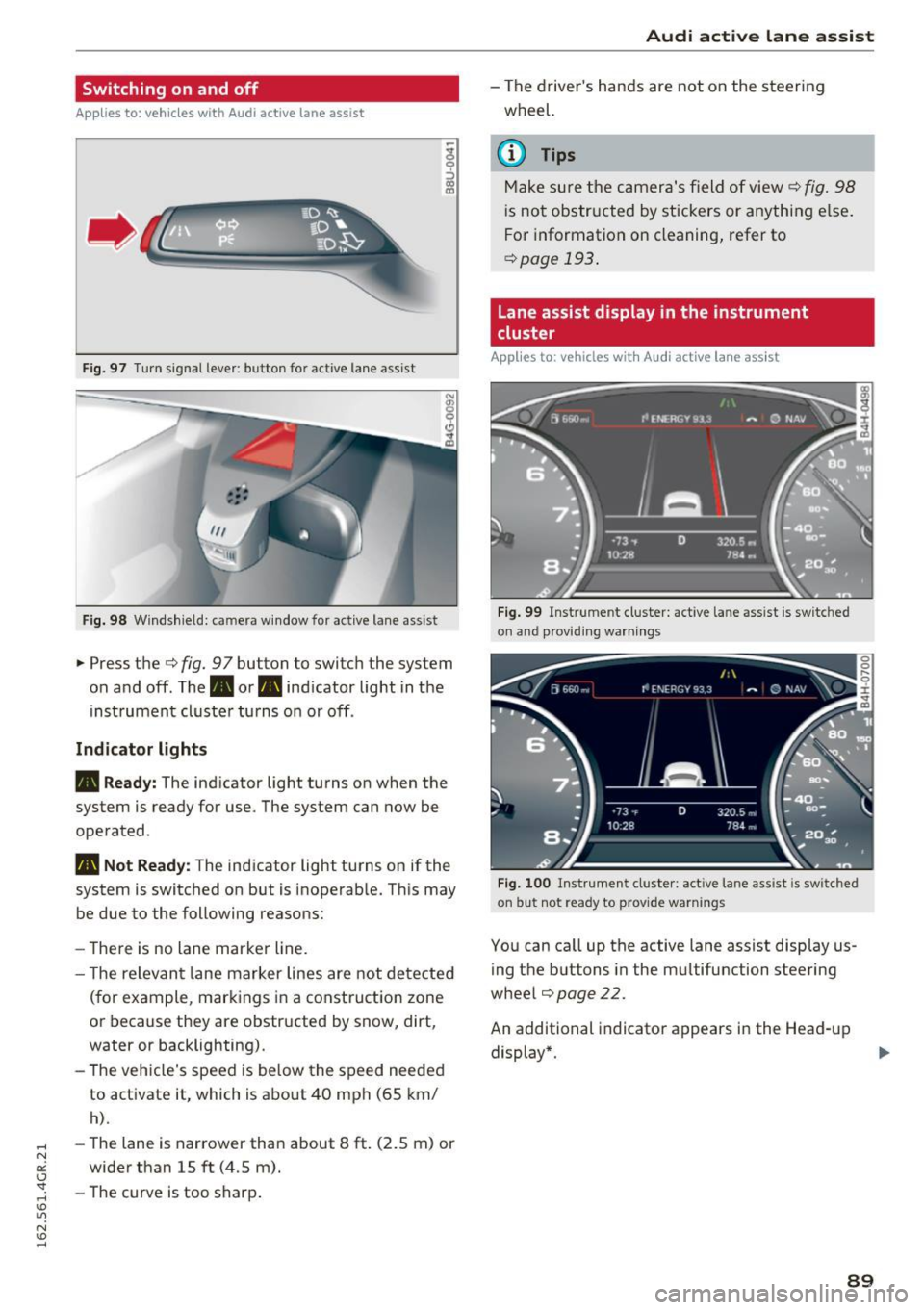
... Press the c:> fig. 9 7 button to switch the system
on and off. The. or
Pl1 indicator light in the
instrument cluster turns on or off.
Indic ator light s
• Rea dy : The indicator light turns on when the
system is ready for use. The system can now be
operated .
Pl1 Not Read y: The indicator light turns on if the
system is switched on but is inoperable. Th is may
be due to the following reasons:
- There is no lane marker line.
- T he relevant lane marker lines are not detected
(for example, markings in a construction zone
or because they are obstructed by snow, dirt,
water or backlighting).
- The vehicle's speed is below the speed needed
to activate it, which is about 40 mph (65 km/
h).
-The lane is narrower than about 8 ft. (2.5 m) or
wider than 15 ft (4.5 m).
- The curve is too sharp.
Audi act ive lane ass is t
- The driver 's hands are not on the steering
wheel.
(D Tips
Make sure the camera's field of view c:> fig. 98
is not obstructed by stickers or anything else.
For information on cleaning, refer to
c:> page
193 .
Lane assist display in the instrument
cluster
App lies to: vehicles wit h Audi active la ne ass ist
F ig . 99 Inst rum ent clus ter: active la n e assis t is switc hed
on and provid ing warn ing s
Fig. 100 Instrument cluster: act ive lane assist is sw itched
on but not ready to provide warnings
You can ca ll up the active lane assist display us
ing the buttons in the mu ltifunction steering
wheel
c:> page 22.
An additional indicato r appears in the Head-up
display*.
8 9
Page 92 of 282
Audi active lane assist
White line(s) Active lane assist is activated
and ready to provide warnings.
Red line(s) Active lane assist warns you
(left or r ig ht) before leaving a lane¢
fig. 99.
In addition, the steering wheel
v ib rates lightly.
Gray line(s)
Active lane assist is activated,
but not ready to give warning
¢fig. 100.
Messages in the instrument cluster display
If the active lane assist switches off automatical
ly, the indicator light in the display turns off and
one of the following messages appears:
Audi active lane a ssist: Currently unavailable.
No camera view
This message appears if the came ra is unable to
detect the lines. This could happen if:
- The camera field of view ¢
page 89, fig. 98 is
dirty o r covered in ice. Clean this area on the
windshield.
- The camera field of v iew is fogged over . Wait
until the fog has cleared before switching the
active lane assist on again.
- T he system has been unable to detect the lanes
for an extended period of time due to road con
ditions. Switch the active lane assist back on
when the lines are more vis ible.
Audi active lane assist: currently unavailable
There is a temporary active lane assist malfunc
tion . Try sw itching the act ive lane assist on aga in
later.
Audi active lane assist: system fault!
Drive to an authorized Aud i dea ler or authorized
Audi Service Facility immediately to have the
malfunct ion corrected.
Audi active lane assist: Please take over steering
This message appears if you are not steering by
yourse lf. If th is is the case, active lane assist does
not switch off, but it is "not ready" to provide a
warn ing. The system can he lp you keep the vehi
cle in the lane. However, you are responsib le for
driving the vehicle and must steer it yourself.
90
· Adjusting the vibration warning
Applies to: vehicles with Audi active lane assist
.,. Select: the I CARI function button > (Car) * Sys
tems
control button > Driver assistance > Audi
active lane assist .
You can switch the addit ional vibrating warning
i n the steer ing whee l on or off.
(D Tips
Your settings are automatically stored and as
signed to the remote control key being used.
Page 97 of 282
Audi drive select Drive settings
Introduction
Drive select makes it possible to experience dif
ferent types of vehicle settings in one vehicle.
The driver can select
Comfort, Auto and Dynami c
modes in the Infotainment system to switch, for
examp le, between a sporty and a comfortab le
driving mode. In the
Individual mode, the set
tings can be adjusted to your personal preferen
ces. This makes it possible to combine settings
such as a sporty engine with smooth steering.
_& WARNING
-
Improper use of the Audi dr ive select can
cause collisions, other accidents and serious
personal inju ry.
Description
The follow ing systems are affected by drive se
lect:
Engine and transmission
Depending on the mode, the eng ine and the
transmission respond quicker or in a more bal
anced manner to accelerator pedal movements.
I n the sporty dynamic mode, the transmission
shifts at higher RPMs.
Air suspension*
The adaptive air suspension/adaptive air suspen
sion sport*
(A ir suspension in the MMI) is an
e lectronically controlled air suspension and
damping system. They are adjusted depending
on the se lected dr iv ing mode, the driver's steer
ing, braking and acceleration input and the road
surface, vehicle speed and load. A sporty setting
is generally used in vehicles with adaptive air sus
pension sport*.
The vehicle clearance varies depending on these lected mode and the speed.
The highway setting is activated automatically
when yo u drive above 75 mph (120 km/h) for
more than 30 seconds in the
Auto or Dynamic
Audi drive select
mode. The ground clearance is increased auto
matically if the speed drops be low 44 mph (70
km/h) for more than 120 seconds.
Steering
T he steering adapts in terms of steer ing effort
and steering ratios. Indirect stee ring that moves
easily, like the steering in com fort mode, is best
suited to long drives on a highway. In contrast,
dynamic mode provides sporty, direct steering.
T he following applies to vehicles with dynamic
steering*: the steering ratio changes based on
vehicle speed in order to maintain optimum
steering effort for the driver at all times . This
sets the steering to be less sensitive at higher
speeds in order to provide improved vehicle con
trol. At reduced speeds, however, steering is
more direct in order to keep the steering effort as
min imal as possible when the dr iver is maneuver
ing the vehicle. At low and average speeds, dy
nam ic steering additionally provides more re
sponsive stee ring performance.
Adaptive dampers*
The adapt ive dampers* use sensors to record in
format ion regard ing stee ring movements, brak
ing and accele ration operations by the driver,
road surface, driving speed, and load . This makes
it possible to adapt damping to the driving situa
tion virtua lly in real time. Drive select also makes
it possible to satisfy the desire for sporty suspen
s ion (Dynamic) and comfortable suspension
(Comfort) without giving up balanced tuning (Au
to) .
Sport differential*
As a component of the all whee l drive system
(quattro)
c::> page 184, the Sport differentia l*
distributes the driving power to the rear axle de
pending on the situation. The distribution of
power varies depending on the selected mode,
from balanced (comfort) to ag ile (dynamic) . The
goal is a high level of agility and ability to accel
erate on curves. The vehicle is very responsive to
steering.
95
Page 98 of 282
Audi dri ve s elec t
Cur ve ligh t*
The curve ligh t adapts to driving on curves . The
pivoting action and the lighting are also adapted
to the mode .
Adaptive cru is e control *
The behavior when accele rating can be adjusted
from comfortab le to sporty, depending on the
drive select mode. Adaptive cru ise control also
responds to the driving behavior of the vehicle
ahead in a more conservative or sporty manner.
Engine sound
The sound of the engine is adapted to the select
ed mode and ranges from subt le to sporty.
(D Note
- Make sure there is enough clearance above
and below the veh icle when parking. The
height of the vehicle can change once it is
parked due to temperature f luctuations,
changes to the load conditions and changes
to the driving modes, which can affect clear
ance.
- When transporting the vehicle on a car car
rier, train, ship or by other means, only tie
the vehicle down at the running surface of
the tires, which is the outer circumference.
Securing the vehicle at the axle compo
nents, suspension struts or towing eyes is
not permitted because the pressu re in the
a ir suspension struts can change dur ing
transport. The vehicle may not be secured
sufficiently if this happens.
@ Tips
- In some models, the maximum vehicle
speed can only be reached in the
Auto and
D ynami c modes.
- Se lec ting the
D ynami c mode results in spor
ty shifting characterist ics. The S gear posi
tion engages automatica lly.
96
- In veh icles that have dynamic steering *, op
erating noise is heard when starting or stop
ping the engine . This does not indicate a
problem.
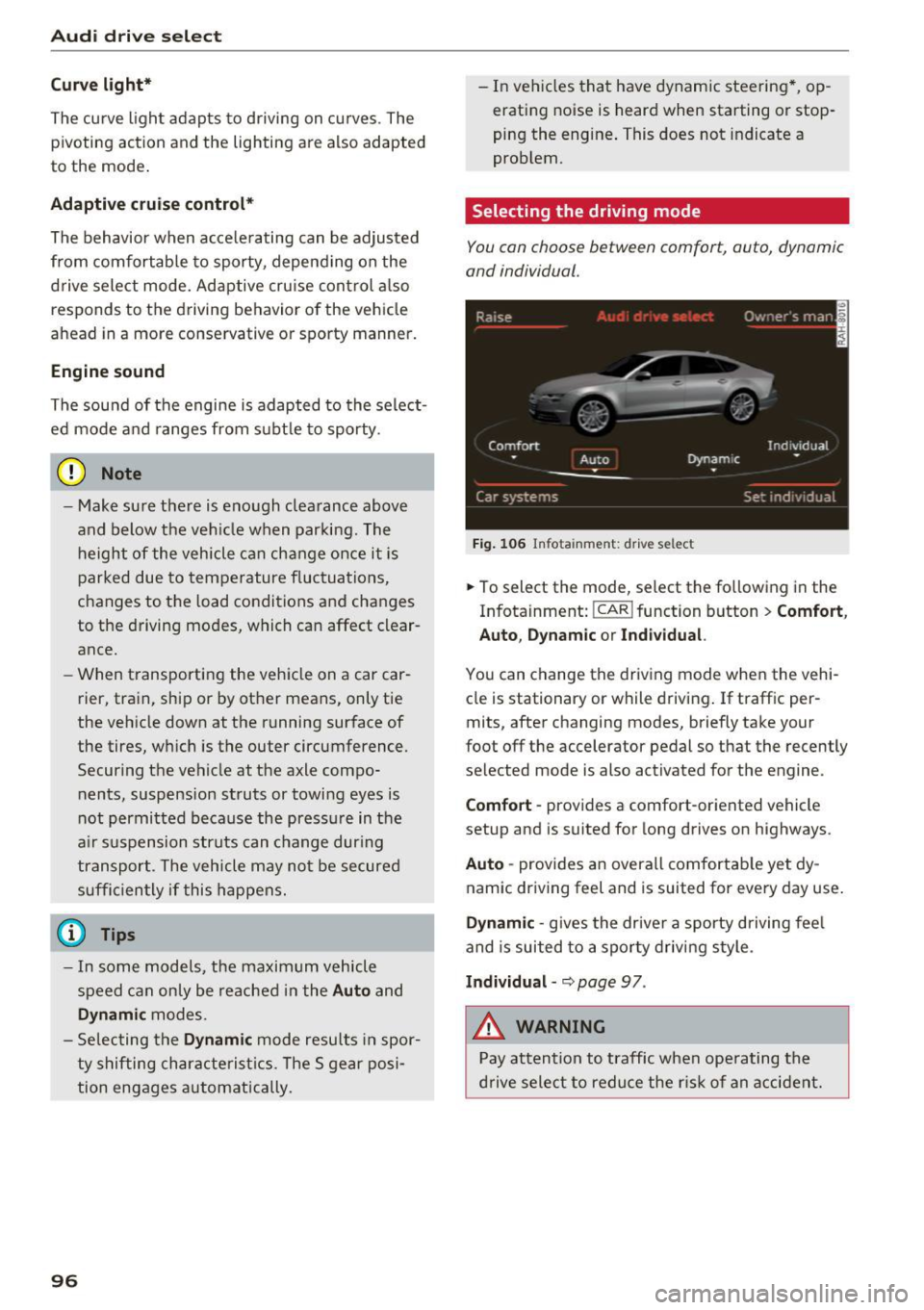
Selecting the driving mode
You con choose between comfort, auto, dynamic
and individual .
Fig. 106 Infota inment: drive se lect
.,. To select the mode, select the following in the
Infotainment:
! CAR ! function button > Comf ort ,
Auto , Dyn amic or In d iv idual.
You can change the driv ing mode when the vehi
cle is stationary or while driving . If traffic per
mits, after changing modes, briefly take your
foot off the accelerator pedal so that the recently
selected mode is also activated for the engine .
Comfo rt -prov ides a comfort-oriented vehicle
setup and is suited for long drives on highways.
Aut o -provides an overall comfortab le yet dy
namic driving feel and is suited for every day use.
Dynami c -gives the drive r a sporty d riving feel
and is suited to a sporty driving style .
Indi vidua l -~ page 97 .
&_ WARNING
Pay attention to traffic when ope rating the
d rive select to reduce the r is k of an accident.
-
Page 99 of 282
Audi drive select
Adjusting the Individual mode
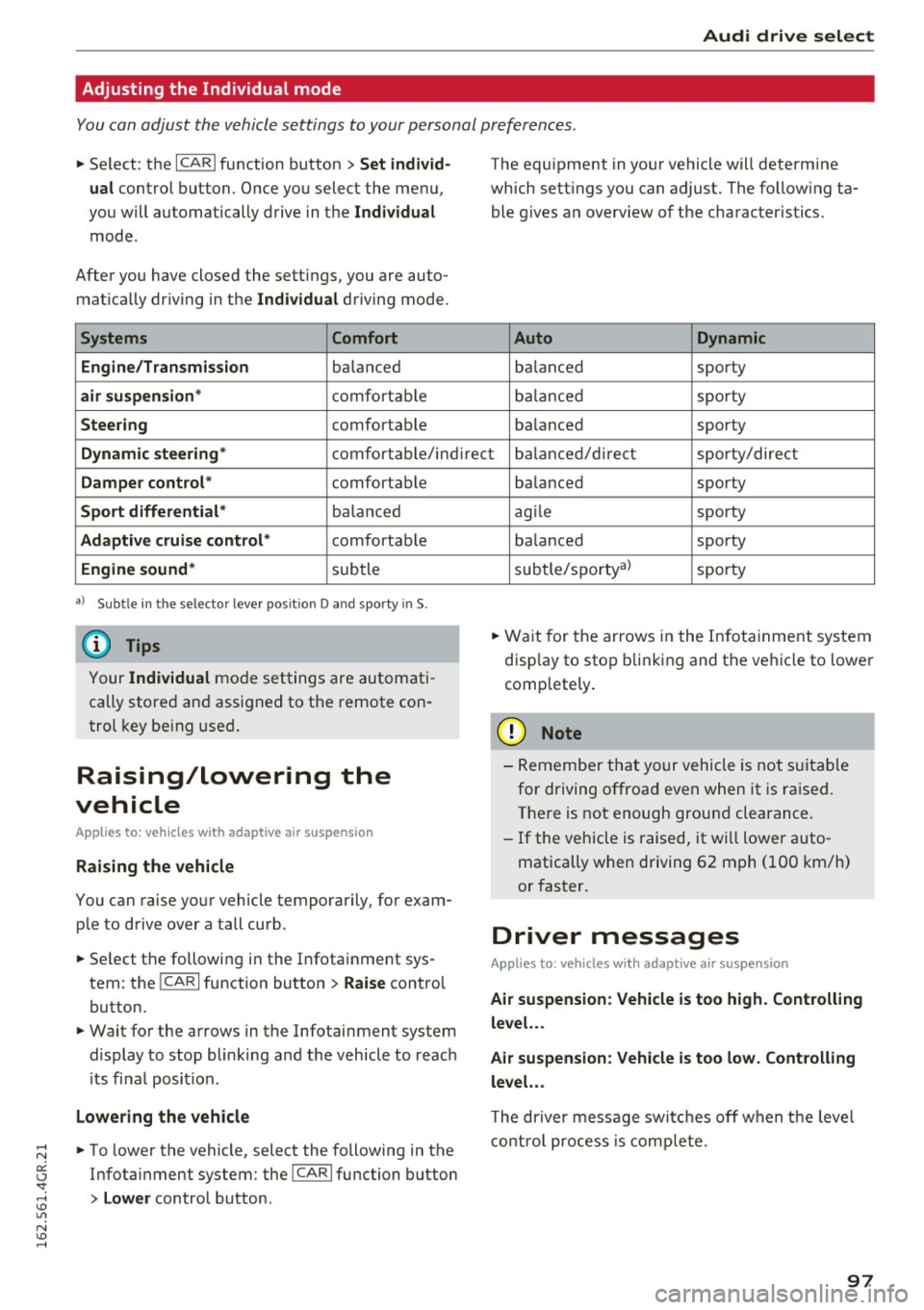
You can adjust the vehicle settings to your personal preferences.
~ Se lect : the ICARI function button > Set indiv id
ual
control button . Once you select the menu,
you wi ll automatically drive in the
Individual
mode .
After you have closed the sett ings, you are auto
mat ica lly dr iv ing in the
Individua l driving mode.
Systems Comfort
Engine/Transmission
balanced
air suspension * comfortable
Steer ing comfortable The equipment in yo
ur vehicle will determine
which sett ings you can adjust. The fo llow ing ta
ble g ives a n overview of the characteristics.
Auto Dynamic
balanced sporty
b alan ced sporty
ba lanced sporty
Dynamic steering * comfort able/in direc t bala nce d/d irect sporty/dire ct
Damper control * comfortable
Sport differential* balan ced
Adaptive cruise control * comfortable
Engine sound * subtle
a} Sub tle in th e se lector leve r po sitio n D a nd sporty in S.
(D Tips
Your Indiv idual mo de settings are automati
cally store d an d assigned to the remote con
t rol key be ing used.
Raising/lowering the
vehicle
Applies to: vehicles with adaptive air suspension
Raising the vehicle
You can raise yo ur vehicle temporarily, for exam
p le to drive ove r a tall curb .
~ Select the followin g in the Infota inment sys
tem : the
ICARI function button > Raise control
button.
~ Wait for the arrows in the Infotainment system display to stop blinking and the vehicle to reac h
its fi na l posi tion.
Lowe ring the vehicle
~ To lower the vehicle, select the following in the
Infotai nment system: the
!CAR I function button
> Lower control button . ba
lanced sporty
ag ile sporty
ba lanced sporty
subtle/sportyal sporty
~ Wa it for the arrows in the In fot ainme nt system
disp lay to stop b linking and the ve hicl e to lowe r
completely.
(D Note
- Remembe r that your vehicle is not s uita ble
for driving offroad even when it is ra ised.
There is not enough ground clearance.
- If the vehicle is raised, it wi ll lower auto
matically when driving 62 m ph (100 km/h)
or faster.
Driver messages
Applies to: vehicles with adaptive air suspension
Air suspension : Veh icle is too high . Controlling
level. . .
Air su spension : Vehicle is too low. Controlling
level. ..
T he driver message switc hes off w hen the leve l
con trol p rocess is com plete.
97
Page 100 of 282
Night vision assist
Night vision assist
Night vision assist with
pedestrian and wild
animal highlighting
Description
A pp lies to: ve hicles w ith night v isio n ass ist
The night vision assist can detect, highlight and,
if necessary, warn about pedestrians and large
wild animals.
Night vision assistant with pedestrian and wild
animal detection assists you in darkness by using
an infrared camera to monitor the area in front of
your vehicle, within the limits of the system.
It
can display objects up to approximately 1000 feet (300 meters) away . The heat image
detected by the camera is shown in th e instru
ment cluster display . Warm areas appear lighter
and cold areas appear darker.
Highlighting detected pedestrians and wild
animals
Applies to: ve hicles w ith n ig ht v isio n ass ist
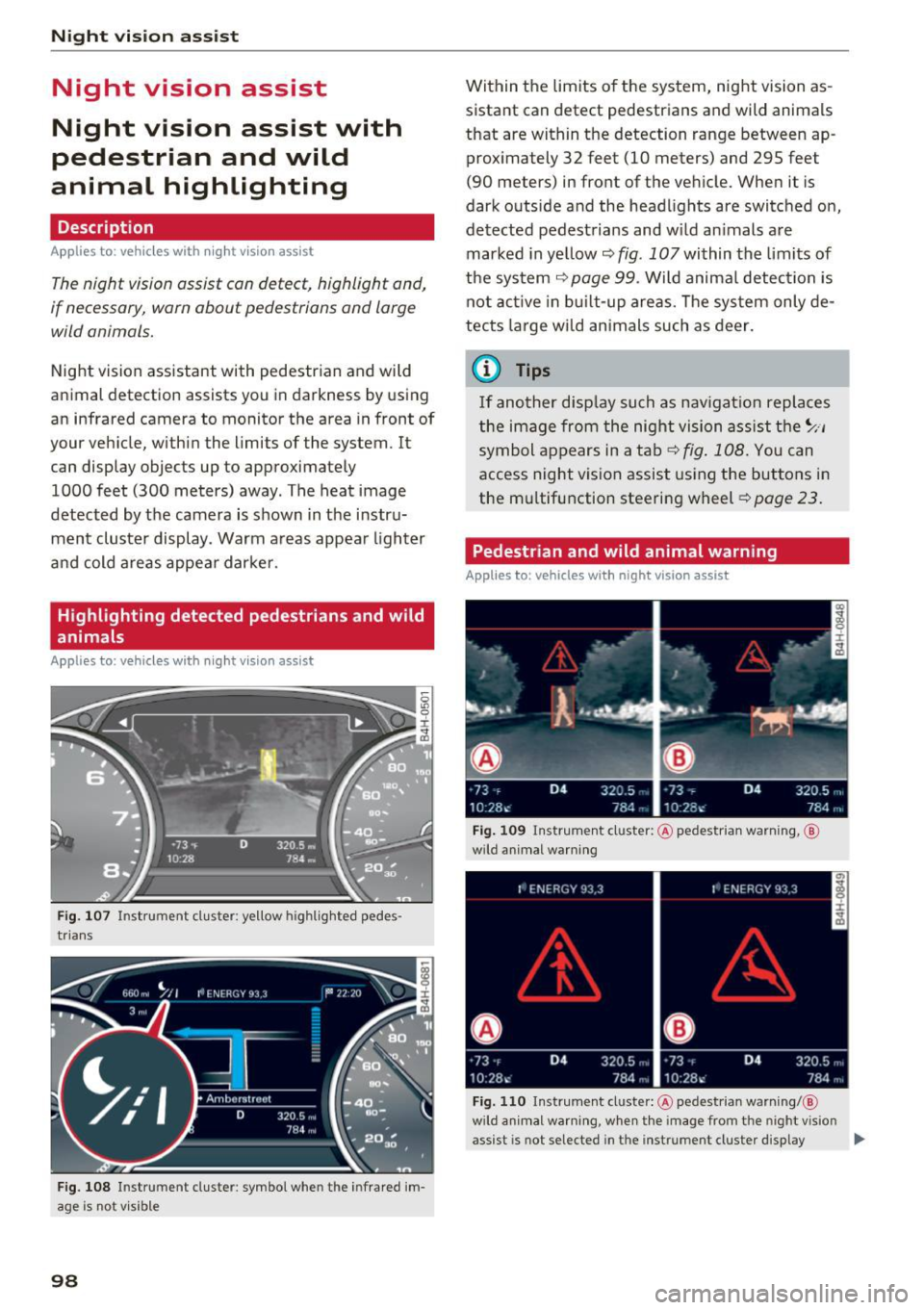
Fig . 107 Instrument cluster: ye llow h ighlig hted pedes
trians
Fig. 108 I n stru ment cluste r: symbol when the i nfrared im
age is not v isible
98
Within the limits of the system, night vision as
sistant can detect pedestrians and wild animals
that are within the detection range between ap
proximately 32 feet (10 meters) and 295 feet
(90 meters) in front of the vehicle. When it is
dark outside and the headlights are switched on,
detected pedestrians and w ild animals are
marked in ye llow
c::> fig. 107 within the limits of
the system
c::> page 99. Wild animal detection is
not active in built-up areas. The system only de
tects large wild animals such as deer.
@ Tips
If another display such as navigation replaces
the image from the night vision assist the~ .. ,
symbol appears in a tab
c::>fig . 108. You can
access night vision assist using the buttons in
the mu ltifunction steering wheel
c::> page 23.
Pedestrian and wild animal warning
Applies to: vehicles wit h night vision assist
Fig. 109 Instrument cl uster: @pedestrian warning, ®
w ild animal warning
Fig. 110 Instrument cluste r: @ pedes trian warning/ @
wild a nimal warning, w hen the image from the n ight v ision
assist is not selected in t he instrument cluster display ...
Page 101 of 282
Display in the instrument cluster/head-up
display*
If there are pedestrians or wild animals in an
area in front of you r vehicle that is classified as
critical, the system will direct your attention to
this :
- Pedestrians or wild animals are highlighted in
red and the corresponding symbol. or.
turns on
¢fig. 109.
-There is also a tone.
The area classified as critical is based on the vehi
cle speed and the steering wheel angle. Pedes
trian and wild animal warning encourages you to
pay more attention.
If the night vision assist image is replaced by an
other display (such as the on-board computer),
the red indicator light . or. will appear if
there is a pedestrian or wild animal warning
¢ fig. 110 .
If the head-up display* is switched on and the
night vision assist content is activated, . or.
will appear in the head-up display*.
Marking light*
To direct the driver's attention to a pedestrian,
the headlights can flash on the pedestrian three
times in a row when there is a pedestrian warn
ing.
This happens at speeds above approximately
35 mph (60 km/h) when you are traveling out
side of well-lit areas and when flashing the head lights will not create glare for a vehicle detected
in the oncoming lane . The marker light* is con
trolled by the high beam assist*
c::;, page 44,
Headlight assistant .
The marking light is not used for wild animals.
Night vision assist
General information
Applies to : vehicles wit h night vision assist
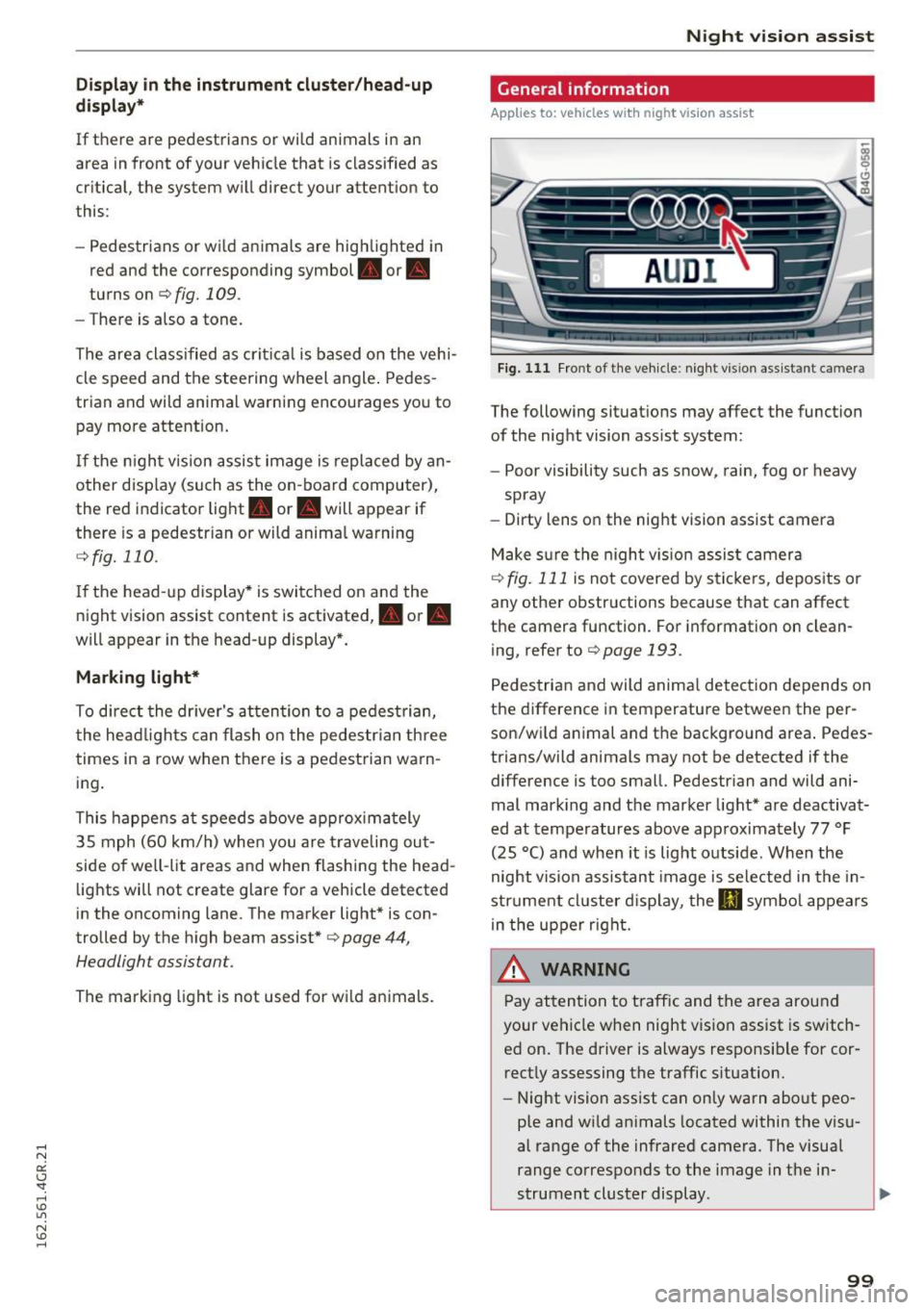
Fig. 111 Front of the vehicle : night vis ion assist ant ca mera
The following situations may affect the function
of the night vision assist system:
- Poor visibility such as snow, rain, fog or heavy
spray
- Dirty lens on the night vision assist camera
Make sure the night vision assist camera
c::;, fig. 111 is not covered by stickers, deposits or
any other obstructions because that can affect
the camera function . For information on clean
ing, refer to
c::;, page 193.
Pedestrian and wild animal detection depends on
the difference in temperature between the per
son/wild animal and the background area. Pedes
trians/wild animals may not be detected if the difference is too small. Pedestrian and wild ani
mal marking and the marker light* are deactivat
ed at temperatures above approximately 77 °F
(25 °C) and when it is light outside . When the
night vision assistant image is selected in the in
strument cluster display, the
II symbol appears
in the upper right.
A WARNING
Pay attention to traffic and the area around
your vehicle when night vision assist is switch
ed on. The driver is always responsible for cor
rectly assessing the traffic situation.
- Night vision assist can only warn about peo
ple and wild animals located within the visu
al range of the infrared camera. The visual
range corresponds to the image in the in
strument cluster display .
-
99
Page 112 of 282
Parking systems
-The camera lens enlarges and distorts the
field of vision. The object appears both al
tered and inaccurate on the screen.
- In certain situations, people or objects in
the display appear closer or farther away:
- For objects that do not touch the ground,
such as the bumper of a parked vehicle, a
trailer hitch or the rear of a truck. Do not
use the help lines in this case.
- If driven from a level surface onto an in
cline, or a downward slope.
- If driven toward protruding objects.
- If the vehicle is carrying too much load in
the rear.
(D Note
- Always read and follow the applicable warn
ings r::!>(D
in General information on
page 107 .
-The orange colored orientation lines in the
Infotainment display show the vehicle path
depending on the steering wheel angle. The
front of the vehicle swings out more than
the rear of the vehicle. Maintain plenty of
distance so that your outside mirror or a
corner of your vehicle does not collide with
any obstacles.
Switching on/off
Applies to: vehicles with rearview camera
Switching on
.,. Shift into reverse, or
.,. Press the
P,,, A button in the center console
r:=> page 108, fig. 120. A short confirmation
tone sounds and the LED in the button turns
on.
Switching between the rearview camera and
optical display
.,. Press the Graphic control button ®
r:=> page 110, fig. 125 to see the optical display .
.,. Press the
Rear view control button to see the
. . rearv1ew camera image.
Switching off
.,. Drive forward faster than 10 km/h, or
.,. press the
P,1
1.A button, or
110
.,. Switch the ignition off.
@ Tips
- The visual display in the left part of the dis
play should help you detect the critical vehi
cle areas.
- You can change the volume and pitch of the
signals as well as the display
r:=> page 116.
Cross parking
Applies to: vehicles with rearview camera
This view may be used when parking in a garage
or in a parking space.
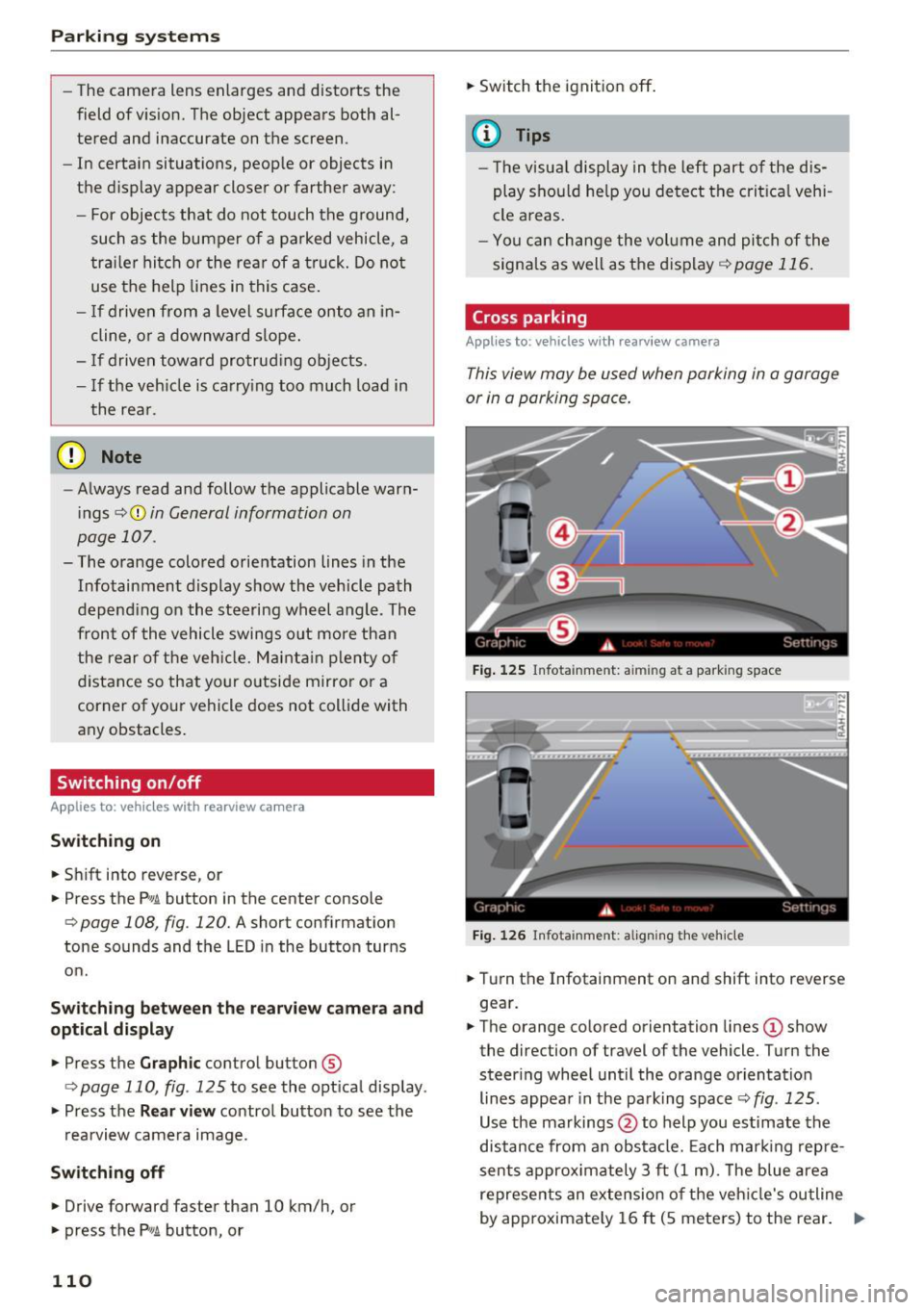
Fig. 125 Infotainment: aiming at a parking space
Fig. 126 Infota inment: aligning the vehicle
.,. Turn the Infotainment on and shift into reverse
gear.
.,. The orange colored orientation lines
(D show
the direction of travel of the vehicle. Turn the
steer ing wheel until the orange orientation
lines appear in the parking space r::!>
fig. 125 .
Use the markings @to help you estimate the
distance from an obstacle. Each marking repre
sents approximately 3 ft
(1 m). The blue area
represents an extension of the vehicle's outline
by approximately
16 ft (5 meters) to the rear. ..,.
Page 113 of 282
.. While driving in reverse gear, adjust the steer
ing wheel ang le to fit the parkin g space with
the a id of the orange orientation lines
c::> A in
General information on page 109 ,
c:>(D in Gen
eral information on page 110. @
displays the
rear bumper . Stop the veh icle, at the latest,
when the red or ientat io n line @ borders an ob
ject.
Parallel parking
App lies to: veh icles wit h rearv iew camera
This view may be used when parallel parking
along the side of a street.
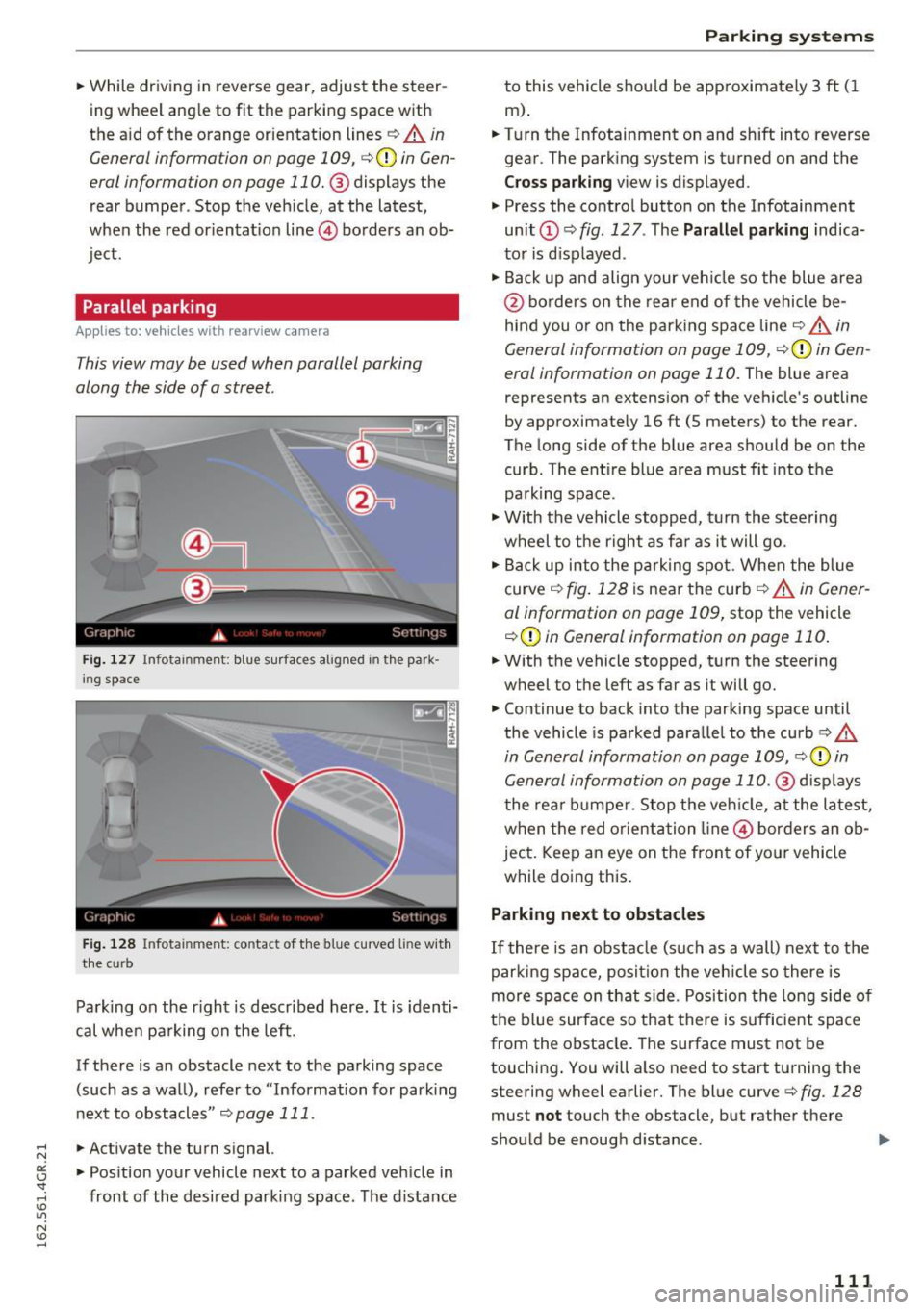
Fi g. 127 Infotai nmen t: b lue surface s alig n ed in t he park
i ng s pace
Fig . 12 8 In fota inmen t: co ntac t of t he blue curved li ne w it h
t he curb
Park ing on the r ight is descr ibed here. It is iden ti
cal whe n pa rking on the left .
If there is an obstacle next to the pa rking space
(such as a wall), refe r to "Information for park ing
nex t to obstacles"
c:> page 111 .
.. Activate the turn s ignal.
.. Pos ition your vehicle next to a parked veh icle in
front of the desired parking space. The d istance
Parking systems
to this vehicle shou ld be app roximately 3 ft ( 1
m).
.. Turn the Infotainment on and shift into reverse
gear . The park ing system is turned on and the
Cross pa rking v iew is displayed .
.,. Press the contro l button on the Infotainment
un it
(D c:> fig . 127 . The Parallel parking indica
to r is d isp layed .
.,. Back up and align your veh icle so the blue a rea
@ bo rde rs on the re a r end of the vehicle be
hind you o r on the park ing spa ce line
c::> A in
General information on page 109,
c::> (D in Gen
eral information on page 110.
The blue area
represents an extension of the veh icle's outline
by approximate ly 16 ft (5 meters) to the rear.
The long side of the b lue area should be on the
curb . The ent ire blue area must fit into the
pa rk ing space .
.,. With the vehicle s topped, t urn the stee ring
wheel to the r ight as far as it will go .
.,. Back up into the park ing spot. Whe n the blue
curve
c::> fig . 128 is near the curb c::> A in Gen er
al information on page 109,
stop the vehicle
c::> (D in General information on page 110 .
.. W ith the vehicle stopped, t urn the steering
wheel to the left as far as it will go .
.. Continue to back into the parking space until
the vehicle is parked para llel to the curb
c:> .&.
in General information on page 109, c::> (D in
Gen eral information on page 110 .@
d isp lays
t he rea r bu mpe r. Stop the ve hicle, at the la test,
when the red o rient ation line @ bor ders an ob
ject. Keep a n eye on the fron t of yo ur vehicle
while do ing this.
Parking next to obstacles
If there is an obstacle (such as a wall) next to t he
par king space, posi tion the vehicle so there is
more space on th at s ide . Pos ition the long side o f
the b lue surface so that there is s ufficient s pace
from the obstacle. The surface must not be
touching . You will a lso need to start turning the
steering wheel earlier. The blue curve
c:> fig. 128
must not touch the obstacle, but rathe r the re
sho uld be enough d istance .
111