auto AUDI S3 SEDAN 2018 Owners Manual
[x] Cancel search | Manufacturer: AUDI, Model Year: 2018, Model line: S3 SEDAN, Model: AUDI S3 SEDAN 2018Pages: 404, PDF Size: 62.3 MB
Page 213 of 404
u. co .-< N l' N
@ When the trailer m ode fu nction is switched
on~' the corresponding symbo l is displayed
next to the arriva l time.
© Scale: turn the cont rol knob to the left or
right to decrease or increase the scale . When
the
Automa tic zoom fu nct ion is swit ched on
~' an "A" fo r "Automatic" is displayed in the
magnifying glass .
® Altitude
@ Ve hicle posit ion
(J) Route information: various information wi ll
be disp layed during active route guidance
(for example, the upcoming maneuver in
cluding calculated d istance and street
names) . The disp lay also prov ides traffic in
formation or po ints of interest on the current
route.
@ Street being driven on: displayed here as
"offroad" w hen the vehicle is stationary .
When th e crosshair s ar e swit ch ed on ¢ fig. 190:
® Crosshairs: move the cross ha irs in t he de
sired direction us ing the MMI touch control
pad* o r the control knob and set a po int on
the map as the dest inat ion or have i nfo rma
tion about the foca l point displayed .
@) Speed limit disp lay1>: display of the maxi
mum permitted speed on the expressways
and highways .
@ Enterta inme nt s liding men u*: see
¢ page 159.
@ Addit ional information on the crosshairs po
sition: if you move the crosshairs to a loca
tion on the map, ava ilable information for
the current crossha irs pos ition is displayed .
Pr ess the cont rol knob to open destination
det ails o r to sta rt ro ute gu idance. When the
crossh airs a re tur ned off, the road being cur
ren tly driven on is shown .
@ Map contents (points of interest, favorites).
When there are multip le points of i nterest in
the immed iate vicinity, the symbols are
shown stacked on the map.
8 l ) O nly applies to vehicles without camera-based speed limit N
ii; display.
Na vigation
@ Better route~: if a better route is available
for the current route guidance, it will be indi
cated on the map including the t ime t hat
would be saved. Mo re information can be
found
under¢page215.
Map functions
Applies to: vehicles with navigation system
"Press the !NAV/MAPI button repeatedly until
the map is displayed
¢page 210, fig . 189 .
" Press the left control button .
The following map functions can be se lected:
Switch to de stination input
T he free text search in the Enter destination
men u is displayed ¢ page 201, fig. 182.
Traffic messages
Cu rren t traffic informa tion is disp layed i n the In
f ota inment system display. You can a lso find ad
ditional information under
¢ page 215 .
Route list
The route list can o nly be disp layed when route
guidance is a ctive and con ta ins informat io n re
gard ing the ro ute, the names of t he s treets and
the lengt h of the ro ute sec tions . W hen traveling
on highways, possible parking lots and rest areas
are shown, which you can se lect as a stopover.
POis along the route
Requirement: rou te g uid ance must be active.
Searching for po ints of inte rest a long your cur
r e nt route Fo r additional informat ion, see
¢ page 20 4.
Additional options on the map
Applies to: vehicles with navigation system
"Press the !NAV/MAPI button repeatedly u nti l
the map is displayed
¢page 210, fig . 189.
" Press the right control button.
211
Page 214 of 404
Navigation
Depending on the function selected, the follow
ing options can a lso be selected under the
Map
menu :
Cancel route guidance : see c:;, page 206.
Adjust position : you can manually move the veh i
cle position on the map to change the route.
Map settings: see c:;,page 212 .
Route criteria: see c:;, page 209.
Voice guidance: see c:;,page 210.
Navigation settings: see c:;, page 209.
Show alternative routes: see c:;, page 208.
Parking along the route*: parking options near
the vehicle are displayed.
Save current position* : you can save your current
vehicle position as a favorite
c:;, page 208 or save
it as a contact in th e directory
¢ page 208 .
Audi connect at this location *: allows you to
sea rch for
Travel information at the entered lo
cation (events, weather at the destination, etc.).
Online traffic data *: you can switch the on lin e
traffic data on or
off~.
Country information: see c:;, page 206 .
Avoid route* : when route guidance is act ive, the
calculated route w ill avoid the area you have
specified (max imum : 12 mi (20 km)), if possible .
The navigation system calculates an alternat ive
ro ute . The route to be avoided that you have en
tered applies only to the current route and must
be set again, if needed. The areas you have se
lected to avoid will appear with red and wh ite
shading on the map .
Move route *: move your finge r over the MMI
touch control pad* or use the con trol knob to ad
just the ro ute on the overview map .
ll AUDI AG pr ovide s access to se rvices from third part y p ro
v ider s. Pe rma ne nt ava ilabil ity c ann ot be g uara nteed , be
c a use that depen ds on the th ird party p ro vide r.
212
Map settings
Applies to: vehicles with navigation system
.,. Press the I NAV /MAPI button repeatedly unti l
the map is displayed.
.,. Select: r ight control button> Map settings.
Depend ing on the selected fu nction, the follow
in g settings can be selected:
Map colors
Day /Night :
the map is displayed wit h a light/
dark background .
Automatic: the map display adapts to the light
i ng condit ions (for examp le, changing from
Day
to Night when dr iving through a tunnel).
Map display
Standard :
see c:;, page 210, fig. 190.
Satellite map1>: see c:;, page 213.
Electric range : see c:;, page 217.
Map orientation
Destination :
the map indicates the destination
and is oriented to the north.
2D heading up map /2D north up map : the cur
rent vehicle position is displayed. The map is ori
ented in the direction of trave l or to the north.
3D position map *: the cur rent veh icle position is
shown on a three-dimensional map and is aligned
to the direction of travel. At a scale of 62 mi
(100 km) and larger, the map orientation is to
the north.
Overview map : the entire route from the vehicle
position to the destination or the next stopover is
displayed on the map. The map scale depends on
the length of the route and adapts automatically.
The map is oriented to the north.
Route information
The disp lay o f route information, such as the cur
rent street being driven on or points of interest
a long the current route, can be switched on/off
..,.
Page 215 of 404
LL co .... N
" N .... 0 N > co
or can be minimized on the display of upcoming maneuvers.
Automatic zo om
On : the map scale is adapted a utomat ica lly de
pending on the type of road being trave led (ex
pressway, hig hway, other roads) so that you al
ways have an optimal overview o f the road ahead.
The sca le is also automatica lly adapted when
there are upcoming maneuvers to provide a bet ter detailed view.
Inter section : when route guidance is active, the
map temporarily zooms in to a detailed scale
when there are upcom ing maneuvers so that you
can see the street or turn better.
Off: the map sca le you have chosen is main
tained.
M ap content
Map content such as weathe r, traff ic information
or favorites can be displayed or hidden .
The weather forecast* is d isplayed o n a 3 m i (5
km) scale on the map ¢
page 208, fig. 187.
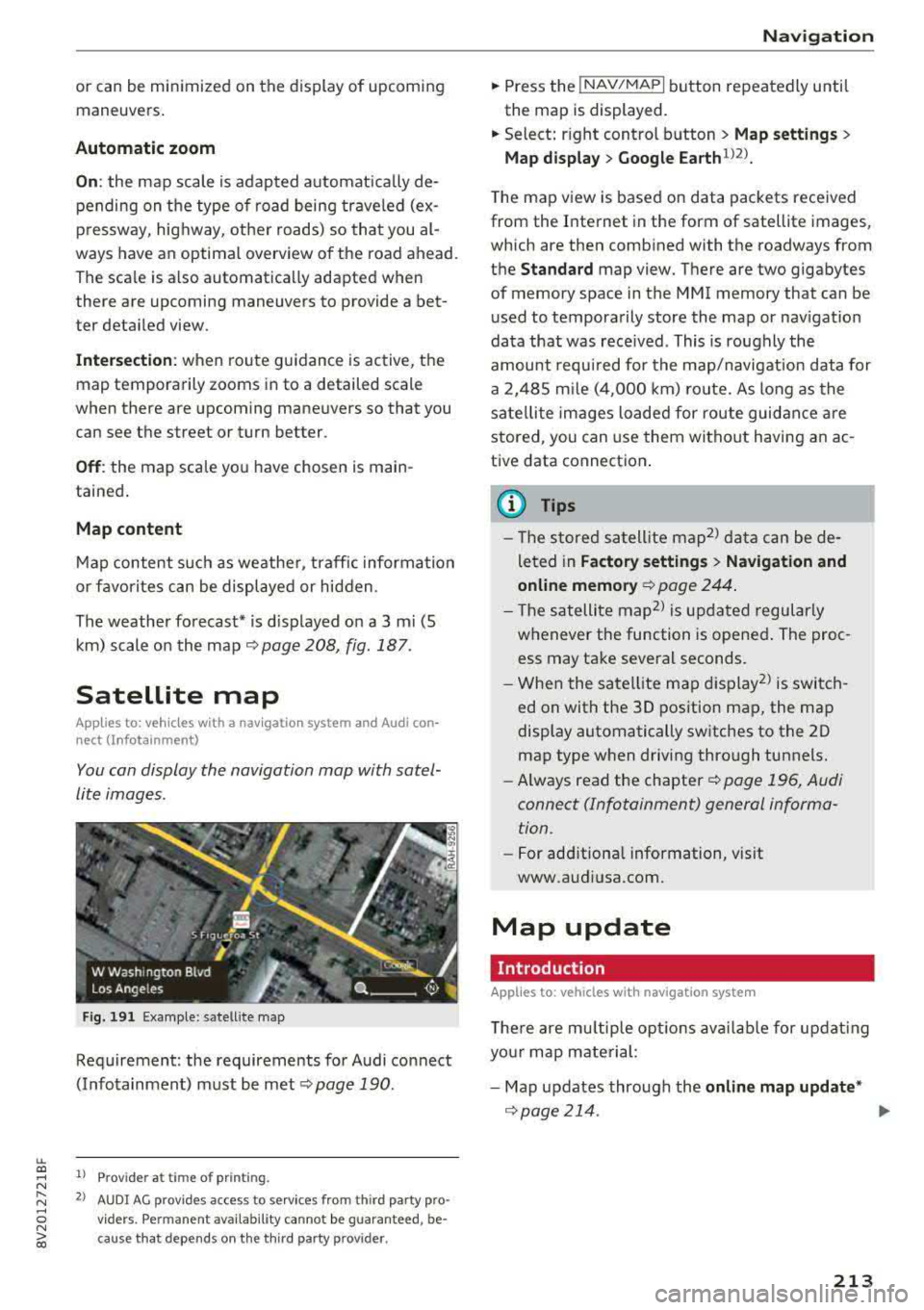
Satellite map
Appl ies to: ve hicles with a nav igatio n system an d Audi con
nect (I nfotainment)
You can display the navigation map with satel
lite images .
Fig. 191 Example: satellite map
Requirement: the requirements for Audi connect
(Infotainment) must be met
¢ page 190.
1> Prov ider at time of printing .
2> AUDI AG provides access to se rvices from th ird party pro ·
v iders . Pe rman ent ava ilability cannot be guaran teed , be
c ause that depe nds on th e th ird party provider.
Na viga tion
.. Press the !NAV/MAPI button repeatedly until
the map is displayed.
.. Select: r ight control b utton > M ap settings >
Map displa y> Google Earth ll2l_
T he map v iew is based on data packets received
from the Internet in the form of satellite images,
which are then combined with the roadways from
the
Standard map view. There are two gigabytes
of memory space in the MMI memory that can be
u sed to temporarily store the map or nav igat io n
data that was received . This is roughly the
amount requ ired for the map/navigation data for
a 2, 485 m ile ( 4,000 km) ro ute. As long as the
sate llite images loaded for route guidance are
stored, you can use them witho ut having a n ac
tive data connection .
(D Tips
- The sto red sa tell ite map2> d ata can be de
leted in
Factory setting s> Navigation and
online memory ¢
page 244.
- The s atellite map2> is updated regularly
whenever the function is opened . The proc
ess may take several seconds.
- When the satellite map d isplay
2> is switch
ed on with the 30 position map, the map
display automatically sw itches to the 20
map type when driving through tunnels.
- Always read the chapter¢
page 196, Audi
connect (Infotainment) general informa tion .
-For add itiona l information, v is it
www.audiusa.com.
Map update
Introduction
Applies to: vehicles wi th navigat ion syste m
The re are mu ltip le opt io ns avai lab le for updat ing
yo ur map mate rial:
- Map updates through the
online map upd ate *
¢page 214 . ..,_
213
Page 217 of 404
Accessing traffic information
Traffic information (TMC)
Appl ies to: vehicles with navigation system
.,. Press the I NAV /MAPI button repeatedly until
the map is displayed .
.,. Select : left control button > Traffic messages .
An overview of all the traffic messages is dis
p layed in the Infotainment system. Traffic inci
dents on your route are shown in the upper sec
tion of the list, sorted according to distance.
-Displaying all traffic messages for a street/
highway :
select and confirm the[] symbo l. A
li st of a ll the traffic messages for the selected
street/h ighway is displayed.
-Opening a detailed view of traffic information :
select and confirm the traffic information from
the list.
-Displaying the selected traffic information on
the map :
select the right control button >
Show on map . The shaded line shows the
street and the length of the traffic jam.
-Displaying the next traffic message on the
map:
press the control knob.
Traffic information display
Colored warning symbols:
traffic incidents on
your route are shown in the upper section of the
list and are sorted according to distance.
Warning symbols with~: avoided traffic inci
dents.
Grayed out warning symbols: traffic incidents
that are not on yo ur route. They are sorted ac
cording to road type (expressway, hig hway, othe r
road), country and name.
(D Tips
-Critical traffic informa tion, such as warn
ings about wrong- way drivers, is automati
ca lly displayed . To hide the traffic informa
tion, press the
I BACK I button or the control
u. knob. 00 .-< ~ -TMC traffic reports are not avai lab le in Can -
~ ada. For more information, please contact 0
~ Sirius Canada. 00
Navigation
Better route
Applies to: vehicles with navigation system
By receiving traffic information through TMC,
your MMI calculates a better route -if available -
and the possible time saved for the current route
guidance. You can decide yourself which route
you would like to use.
.,. Press the INAV/MAPI button repeatedly until
the map is displayed.
Requirement: route guidance must be active.
If your MMI has ca lculated a better route than
the current route guidance, the message
A better
route is available.
appears for several seconds
along with the time that may be saved . A better
route is ind icated in the map view by the symbol
rS ~page 210, fig. 190 .
Apply better route
-Press the right control button.
-Select and confirm the better route. Or: select
and confirm
Details to display details about the
optimized route. You can zoom in or out on the
map using the MMI touch control pad. Require
ment : there must be more than one opt im ized
route calculated. Press the control knob to
sw itch to the next route in the detailed view.
Closing the detailed view: press the I BACKI
button.
-The better route is used for the remaining
route guidance and the route is recalcu lated.
215
Page 219 of 404
LL co ..... N
" N ..... 0 N > co
e-tron navigation
functions
Electric range
Applies to: vehicles with plug- in hybrid drive
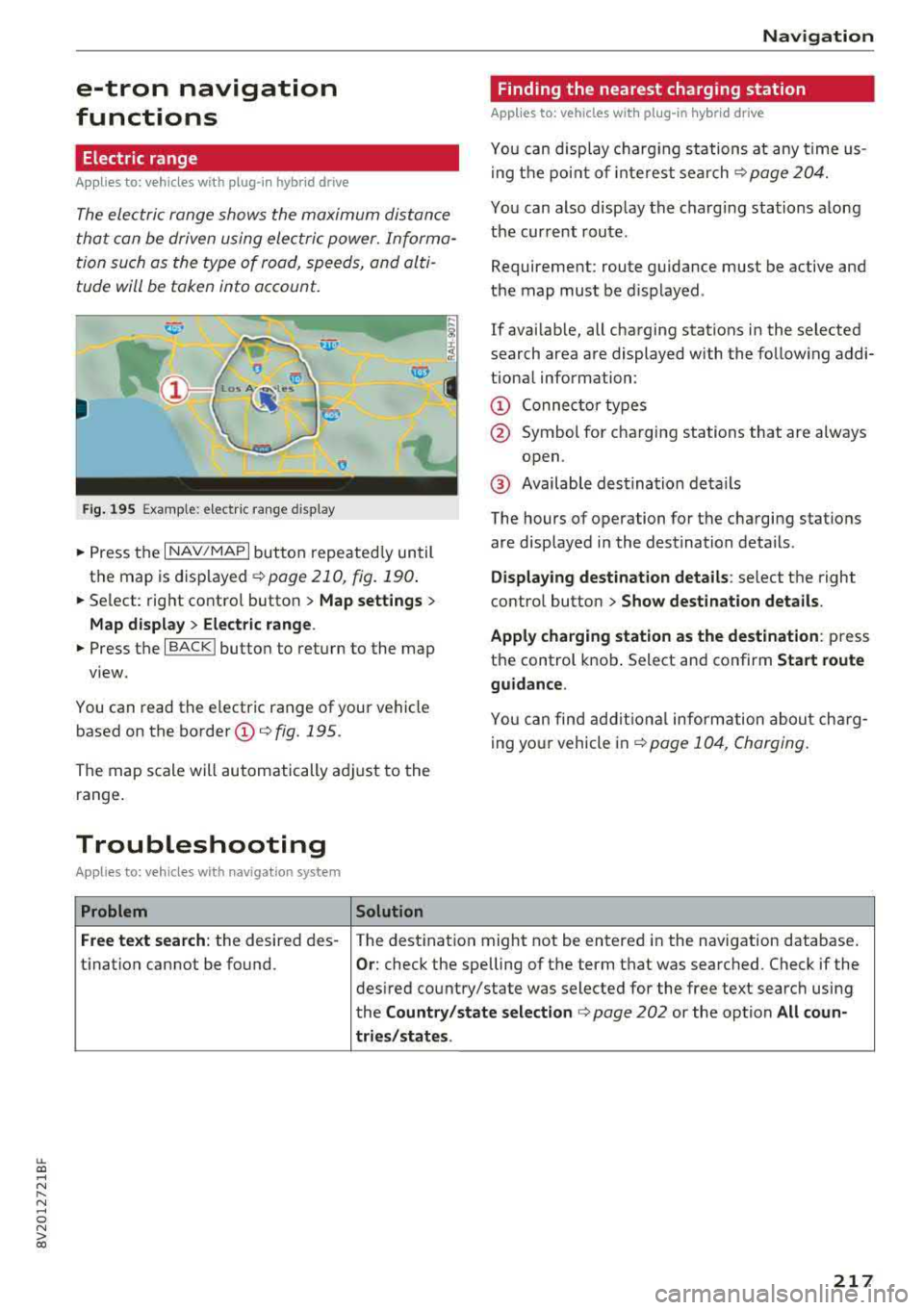
The electric range shows the maximum distance
that con be driven using electric power. Informa tion such as the type of rood, speeds, and alti
tude will be token into account.
Fig. 195 Example: e lectric range display
• Press the I NAV/MAPI button repeated ly un til
the map is displayed ¢
page 210, fig. 190 .
• Select: right contro l button > Map set tings >
Map display > Elect ric range .
• Press the I BACK I button to return to the map
view.
You can read the electric range of your vehicle
based on the border
(D ¢ fig. 195.
The map scale will automatically adjust to the
range .
Troubleshooting
Applies to: vehicles with navigation system
Problem Solution Na
viga tion
Finding the nearest charging station
Applies to: vehicles with plug -in hybrid drive
You can display charg ing stations at any time us
i ng t he po int of interest search
¢page 204.
You can also display the charging stations along
the cur rent route.
Requirement: route guidance must be active and
the map must be d isplayed .
If avai lab le, all charging stations in the selected
search area are displayed with the fo llow ing addi
tiona l information:
(D Connec to r types
@ Symbol for charging stations that are always
open.
@ Available destination deta ils
The hours of operation for the charging stations
are displayed in the destination details .
Displa ying destination detail s: se lect th e right
contro l button
> S how destination details .
Apply charging station a s the destinat ion:
p ress
the control knob. Select and confirm
Sta rt route
guidance .
You can find add it iona l information about charg
ing yo ur vehicle in
~ page 104, Charging.
Free te xt sear ch : the desired des- The destination might not be entered in the navigation database .
t i nation cannot be found .
Or: check the spelling of the term that was searched. Check if the
des ired country/state was selected for the free text search using
the
Count ry /s tate select ion ¢ page 202 or the option All coun-
tries /state s.
217
Page 220 of 404
Radio
Radio
Opening the radio
The radio supports the FM, AM and SiriusXM*
(satellite radio) bonds. Using the HO Radio re
ceiver also allows you to receive radio stations
on the FM and AM bonds in digital format.
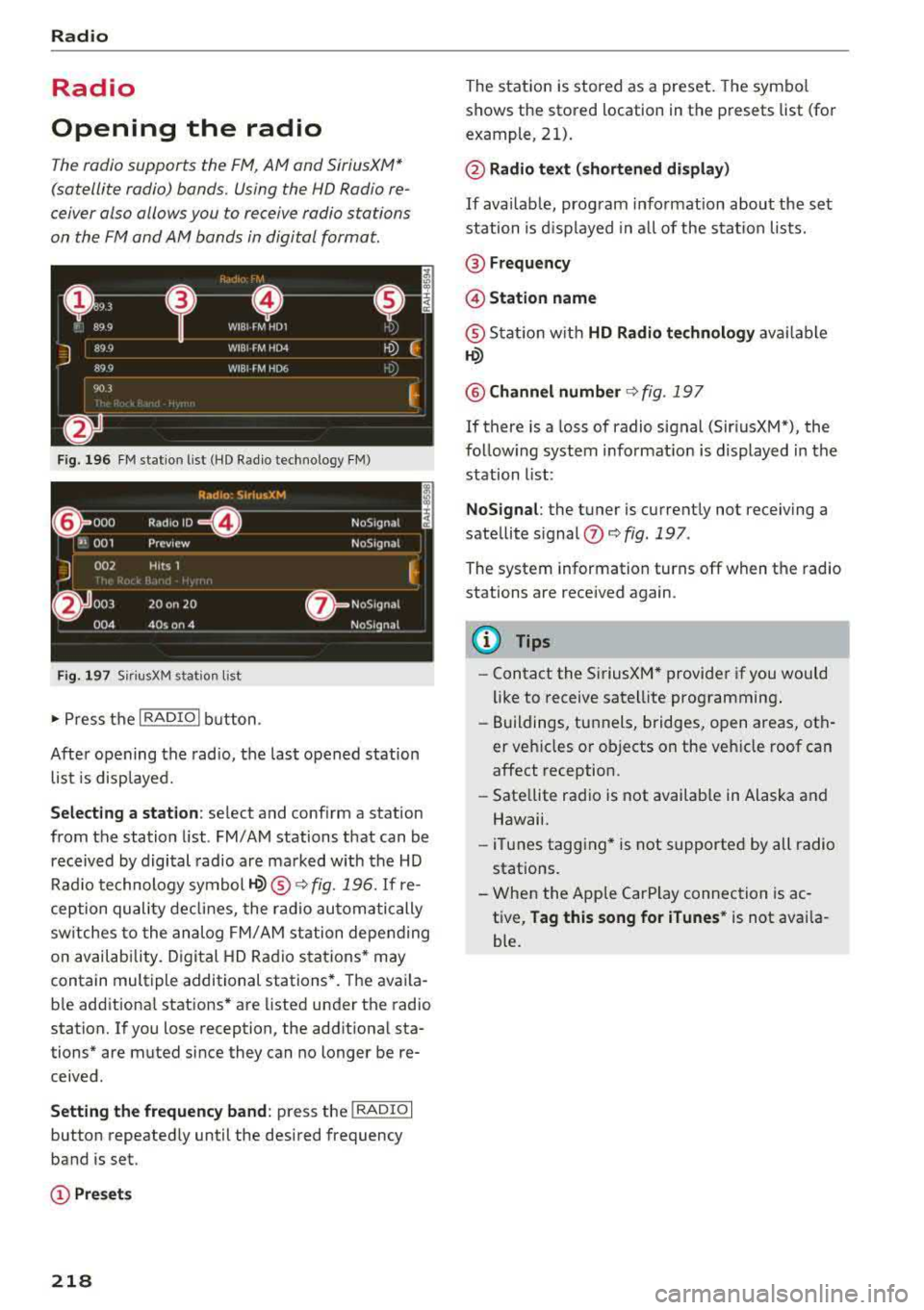
Fig. 196 FM station list (HD Radio technology FM)
Fig. 1 97 Sir iu sXM station lis t
..,. Press t he I RADIO I bu tton .
After opening the radio, t he last opened station
list is displayed.
Selecting a station : select and conf irm a stat ion
from the station list . FM/AM stations that can be
received by digital radio are ma rked with the HD
Rad io technology
symbol ©® ¢ fig. 196. If re
ception quality de clin es, the r ad io automatically
sw itches to the analog FM/ AM station depending
on availab ility. D igital HD Rad io sta tions * may
contain multiple additional stations *. The ava ila
b le add itiona l stations* are listed under the radio
station. If you lose reception, the add itiona l sta
tions* are muted since they can no longer be re
ceived.
Setting the frequency band : press the I RADIO I
button repeatedly until the desired frequency
band is set.
(!) Pre sets
218
The stat ion is stored as a preset. The symbo l
shows the stored location in the presets list (for
example, 21).
@ Radio text (shortened display )
If availab le, prog ram info rmation about the se t
station is d isplayed in a ll of the s tat io n lists.
@ Frequency
@ Station name
® Stat io n w ith HD Radio te chnolog y availa ble
©
@ Channel number ¢ fig. 197
If there is a loss of radio signal (Sir iusXM"), the
follow ing system informat io n is displayed in the
station list:
NoSignal : the tuner is current ly not receiving a
sate llite signal
0 ¢ fig . 197 .
The system information turns off when the radio
stations are received again.
(D Tips
-Contact the Si riusXM* provider if you would
like to receive satell ite programming .
- Buildings, tunnels, bridges, open areas, oth
er veh icles o r objects on the veh icle roof can
affect reception .
- Sate llite radio is not availab le in Alaska and
Hawaii.
- iT unes tagging* is not supported by all radio
stations.
- When the App le CarPlay connection is ac
t ive,
Tag this song for iTunes * is not availa
ble.
Page 225 of 404
u. 00 .-< N l' N .-< 0 N > 00
Media
Introduction
There are various media drives and connections
avai lab le in the MMI. For example, you can play
audio/video* fi les from t he Jukebox* or connect
your mobi le device to the Audi mus ic interface*
and operate it through the MMI.
Notes
General
Media and format re strictions :
the MM I (includ
ing the SD card reader and the USB storage de
vice connection *) was tested wit h a variety of
products and media on the market. However,
there may be cases where ind ividual devices or
media and audio/video files* may not be recog
n ized, may play on ly w ith restrictions, or may not
play at all.
Digital Rights Management : please note that
the audio/video* files are subjec t to copyright
protection .
The med ia drives do not play f iles that are pro
tected by
ORM and that are ident ified with the
symbol
rfl.
Data secu rity : never store important data on SD
cards, the Jukebox*, CDs/DVDs or mobile devices .
Aud i AG is not responsib le for damaged or lost
f il es and media .
Loading times : th e more files/fo lders/p lay lists
that are on a storage medium, the longer it will
take to load the audio/v ideo* files . Audi recom
mends using storage med ia tha t on ly conta in au
d io/video files* . To decrease the t ime it takes to
l oad audio/v ideo f iles*, create subfolders (fo r ex
ample, fo r th e a rt ist o r album). The loading time
will also increase when importing fi les.
Additional information : when playing, audio
f iles are automatically displayed with any add i
tional informat ion that is sto red (such as the ar
tis t, trac k and albu m cover). If this informa tion is
n o t availa ble o n the sto rage med ium, t he
M MI
will check the Grace note metadata database .
Media
However, in some cases, the additional in fo rma
tion may not be displayed.
Re stri cted functionality : reset the Media set
tings
t o the fac to ry defau lt settings if func tional
ity is restr icted
¢ page 244.
If fu nctionali ty is rest ricted, reset the Jukebox *
to the fa ctory default se tt ings ¢ page 244.
For information about the propert ies of s upport
ed med ia and fi le formats , see
¢ page 237 .
@ Note
Always fo llow the information fo und in ¢ @ in
Wi-Fi hotspot on page 195 .
CD/DVD operation
CD /DVD and format restrictions :
the funct iona li
ty of individ ua l st orage media may be limited due
to the v ariety of b lank CDs/DVDs avai lab le and
t h e various capacities. Audio C Ds or video DV Ds
with copy p rotection, CDs/DVDs that do not con
fo rm to the standard and multi session CDs may
have limit ed playback or may not play at a ll. Audi
recommends finaliz ing the recording process
whe n creat ing mult isess io n CDs . Mult isess ion is
not supported for DVDs .
Using CDs/DVDs , the CD dr ive or the DVD drive :
to ensure correct, hig h-quality playback and to
prevent damage to the dr ive or d isc read ing er
rors, always store CDs/DVDs in a protective
sleeve and do not expose t hem to direct sunlight .
Do
not u se:
- Damaged, dirty or scratched CDs/DVDs
- Sing le CDs/DVDs with 3 in (8 cm) d iameter
- CD/DVDs that a re not round
- CDs/DVDs w it h labe ls
- Protec tive rings
- Clea ning CDs
Thermal protection switch : CD/DVD playback
may be temporarily unavailab le if outs ide tem
peratures a re extremely hot or co ld . A thermal
pro tect io n sw itch is insta lled to p rotect the C D/
D VD and the laser.
La ser devi ce s: lase r devices a re divided i nto safe -
ty classes 1 to 4 in acco rdance w ith DIN I EC 76
.,.
223
Page 226 of 404
Media
(CO) 6/VDE 0837. The optical readers that are in
stalled conform to safety class
1. Lasers in this
class are very weak and well shielded, so there is no danger if used correctly.
Media drives
SO card reader
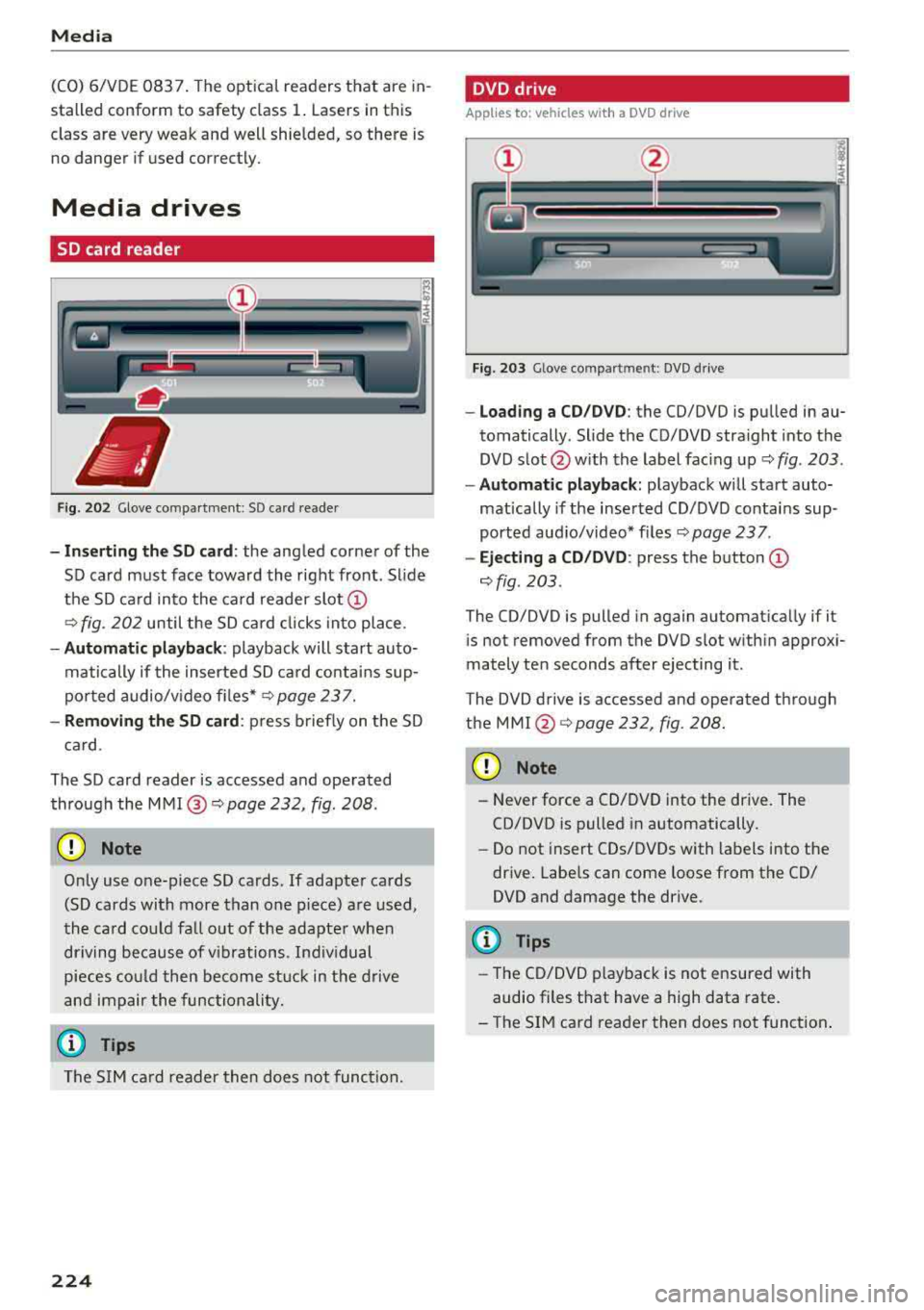
Fig. 202 Glove compa rtment : SD ca rd reader
-I n se rt in g th e S D card : the angled corner of the
SD card must face toward the right front . Sl ide
the SD ca rd into the card reader
slot @
9fig. 202 until the SD ca rd cli cks into place .
-Automatic pla yback : playback will start auto
matically if the inserted SD ca rd contains sup
po rted audio/v ideo fi les*
r:::.> page 23 7.
-Remo vin g the SD card : press briefly on the SD
ca rd.
The SD card reader is accessed and operated
through the
MMI @9 page 232, fig . 208 .
(D Note
Only use one-piece SD cards. If adapter cards
(SD cards with more than one piece) are used,
the card cou ld fa ll out of the adapter when
driving because of v ibrations . Ind ividual
pieces cou ld then become s tuck in the d rive
and impair the func tionality.
(D Tips
The S IM ca rd reader then does not func tion.
224
DVD drive
App lies to : vehicles with a DVD dr ive
Fig. 2 03 Glove comp art m en t: DVD d riv e
-Loading a CD /DVD : the CD/DVD is pu lled in au
tomatically . Slide the CD/DVD straight into the
DVD s lot @ with the label fac ing up
9 fig. 203 .
-Automa tic playback: playback w ill start auto
matically if the inserted CD/DVD conta ins sup
ported aud io/video* f iles
r:::.> page 23 7 .
-Ej ect ing a CD /DVD : press the button @
r:::.>fig . 203 .
The CD/DVD is pulled in again automat ica lly if it
is not removed from the DVD slot w ith in approx i
mately ten seconds after ejecting it.
T he DVD drive is accessed and operated through
the
MMI @r:::.>page 232 , fig . 208.
(D Note
-N ever force a CD/DVD into the drive. The
CD/DVD is pulled in automatically .
-Do not insert CDs/DVDs with labels into the
drive. Labe ls can come loose from the CD/
DVD and damage the drive.
(D Tips
-T he CD/DVD p layback is not ensured with
audio files that have a high data rate.
-T he SIM card reader then does not function .
Page 227 of 404
u. 00 .-< N l' N .-< 0 N > 00
CD drive
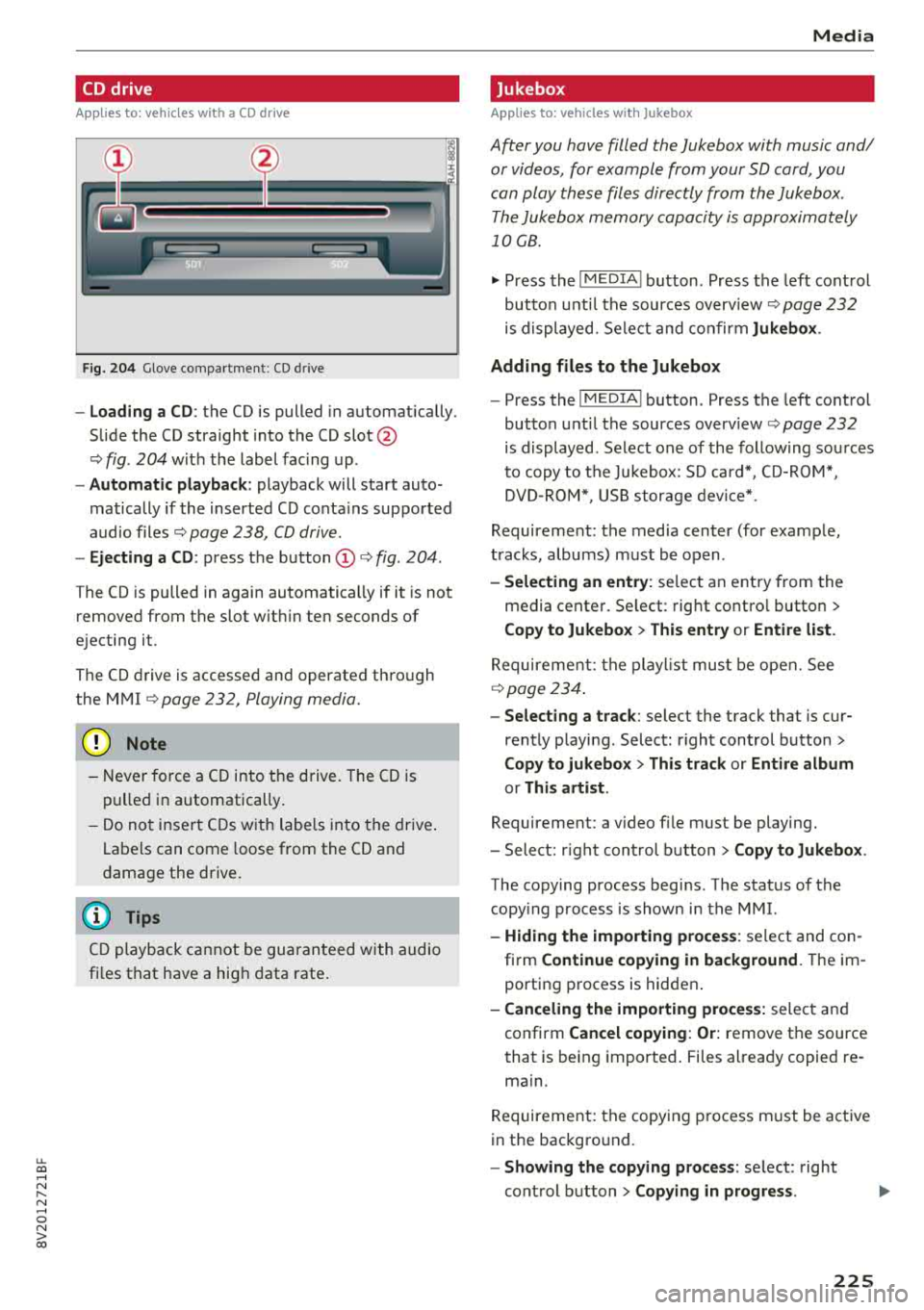
App lies to: ve hicles wit h a CD drive
Fig. 204 G love co mpart m en t: CD driv e
-Load ing a CD : the CD is pulled in automatically .
S lide the CD straight into the CD
slot @
ca:> fig. 2 04 wit h the label fac ing up .
- Automatic playback : playback will start auto
matically if the inserted CD conta ins sup port ed
a u dio files
ca:> pag e 238, CD driv e.
- Ejecting a CD : press t he b utton (D <=:> fig . 204 .
The CD is pulled in again automatically if it is not
removed from t he slot w it hi n ten seconds of
e j ecting it .
T h e CD drive is accessed and operate d th ro ug h
the M MI
<=:> page 232, Playing m edia.
{Ll) Note
- Neve r for ce a CD into t he dr ive . The CD is
pull ed in auto matically .
- D o no t in se rt CDs w ith la b els in to the dri ve.
La bels can come loose from the CD and
d ama ge the drive .
(D Tips
CD play back c anno t be guaran teed wit h audio
fi les t hat have a high d ata rate .
Media
Jukebox
Applies to : veh icles w it h Jukebox
After you have filled the Jukebo x with music and/
or videos, for example from your SD card , you
can play th ese fil es dir ectly from the Jukebo x.
T he Jukebox me mory capa city is approximately
1 0 GB .
.,. Press th e I M EDIA ! button . Press the left cont rol
bu tton unt il the sources
overv iew <=:> page 232
is displayed. Se le ct and co nfir m Jukebox .
Adding files to the Jukebox
- Press th e I MEDIA ! button. Press t he left cont rol
button unt il the sources
overv iew <=:> page 23 2
is displayed . Select one of the follow ing so urces
t o copy to t he Ju kebox: SD c ard*, CD-R OM* ,
DVD -ROM *, US B stor age devi ce*.
Requirem ent: the media center (for examp le ,
t racks, albums) m ust be o pen .
-Selecting an entry : selec t an e ntry fr om the
media cente r. Se lect : rig ht contro l butto n
>
Copy to Jukebox > This entry or Entire list.
Requiremen t: th e pla yli st mus t be open. See
<=:> page 234.
- Selecting a track : select the track that is cur
rent ly p layi ng . Selec t: right control b utton
>
Copy to jukebox > This track or Entire album
or This artist .
Requirement: a v ideo file must be playing .
- Sele ct: r ig h t con trol button
> Copy to Jukebox .
The copying process begins . T he stat us of the
copy ing process is shown i n the MMI.
- Hiding the importing process : select and co n
fi rm
Continue copying in background . Theim
porti ng process is hid den .
-Canceling the importing process: selec t and
confirm
Cancel copying : Or: remove t he source
that is be ing i mported . Files al rea dy copied re
ma in.
R equirement: the copy in g pr ocess m ust be a ctive
in the bac kg ro un d.
-Showing the copying process : select: right
con trol b utton
> Copying in progress .
225
Page 229 of 404
u. 00 ... N l' N ... 0 N > 00
The media is started and operated through the
mobile device or the
MMI, depending on the de
vice being used.
(D Tips
-Check for any connection requests on your
Bluetooth device.
-Multiple Bluetooth audio players can be
connected to the
MMI, but only one mobile
device can be active.
-Bluetooth protocols AVRCP (1.0/1.3/1.4)
and A2DP are supported.
-Note the volume setting on your Bluetooth
device. Audi recommends setting your mo
bile device to the maximum volume when
using it as a Bluetooth audio player.
-The supported media functions (such as
shuffle) depend on the Bluetooth device be
ing used.
-For more information on the supported de
vices, visit www.audiusa.com/bluetooth or
contact an authorized Audi dealer or author ized Audi Service Facility.
Wi-Fi audio player
Appl ies to: ve hicles with Wi-F i audio playe r
Using the Wi -Fi audio player media source on the
MMI, you can connect and operate your Wi-Fi-ca
pable media player (such as a smartphone) to
wirelessly play music from your media player
li
brary. The media player is connected through the
vehicle's Wi-Fi hotspot. A UPnP Server opp or an
integrated UPnPIDLNA server on your media
player is required to access your media player
li
brary.
Requirement: the Wi-Fi function on your media
player must be switched on. The
Audi MMI con
nect
app or a UPnP server app must be installed
on your media player .
Or: you must be using a
media player with an integrated UPnP/DLNA
server.
-Connecting a media player: press the I MEDIA !
button. Press the left control button until the
sources overview
c::;, page 232 is displayed. Se
lect and confirm
Wi-Fi audio player 0
c::;,page 232, fig . 209 .
Media
-If necessary, select and confirm Wi-Fi turned
off> Turn on Wi-Fi
to activate Wi-Fi in the
MMI. Select
Wi-Fi settings, if necessary. Select
the same settings on the wireless media player
that are used for the Wi-Fi hotspot.
-Starting the Wi-Fi audio player: start the Audi
MMI connect
app or a UPnP server app, or set
media permissions on your media player.
Operating the media player: the media player is
operated through the MMI.
-Press the left control button repeatedly until
the
Folders menu item appears. Select and con
firm
Folders.
-Playing music from the media player: select
and confirm
Media center .
Web radio:
see c::;, page 228 .
A WARNING
-
-As the driver, do not allow usage of the Wi
Fi hotspot to distract you from driving, as
this could increase the risk of an accident.
-It is only safe to use tablets, laptops, mo
bile devices and other similar devices when
the vehicle is stationary because, like all
loose objects, they could be thrown around
the inside of the vehicle in a crash and cause
serious injuries. Store these types of devices
securely while driving.
-Do not use any wireless devices on the front
seats within range of the airbags while driv
ing. Also read and follow the warnings in
c::;, page 2 73, Front airbags.
@ Note
Always follow the information found in ¢@ in
Wi-Fi hotspot on page 195.
(D Tips
-Always read the chapter c::;, page 196, Audi
connect (Infotainment) general informa
tion.
-Please note that a Wi-Fi connection does
not automatically make it possible to use
the Internet. For additional information,
see
c::;, page 190.
227