auto AUDI S3 SEDAN 2018 Owners Manual
[x] Cancel search | Manufacturer: AUDI, Model Year: 2018, Model line: S3 SEDAN, Model: AUDI S3 SEDAN 2018Pages: 404, PDF Size: 62.3 MB
Page 181 of 404
u. 00 .-< N l' N .-< 0 N > 00
Operating two telephones through the
MMI
You can connect two cell phones to the MMI, for
example your business cell phone as the primary
phone and your private cell phone as the secon
dary phone . You can be reached in your vehicle
through both cell phones.
The first con nected cell phone is disp layed as the
primary phone in the MMI. The second cell phone
is connected as the secondary phone.
The directory from the connected pr imary p ho ne
w ill always be disp layed. If yo u wou ld like to use
the directory from the secondary phone, yo u
must switch the primary and secondary phone
c:> page 179.
Connecting a cell phone as the primary
phon e
Connect yo ur ce ll phone to the M MI via Blue
tooth . The first connected cell p hone is displayed
as the
Prima ry phone in the MMI.
See
¢ page 177, Connecting a cell phone using
Bluetooth .
Connecting a cell phone as the secondary
phon e
Requirement: a cell phone must be connec ted to
the M MI as the prima ry phone.
Select:
IM ENU ! button> Telephone > right con
tro l button >
Conn ect secondary tel ephon e.
See c:> page 177, Connecting a cell phone using
Bluetooth .
Example: you have connec ted your business ce ll
phone to the MMI as the primary phone and your
private cell phone as the secondary phone . To be
ab le to call contacts from you r private cell p hone
d irecto ry, you m ust swit ch the pr ima ry and sec
onda ry phone, s ince the di rectory from the p ri
mary phone is always displayed.
Switching the primary and secondary phone
Requ irement: a primary phone and a seconda ry
phone must be connected .
Tele ph on e
Switch primary and second. phone : select:
IMENU I button> Telephone > right contro l but
ton >
Switch primary and second. phone .
(D Tips
-Please note that on ly the directory from the
pr imary phone is always disp layed .
-To view if your ce ll phone is co nne cte d as
the primary or secondary p hone, go to the
Connection manager c:> page 244 . Or: the
device name of the connected p rima ry
phone is shown in the
Telephone menu
(suc h as myPhone).
-If the pr imary phone does not connect a uto
matically to the MMI when the ignit ion is
switched on, for example because it is out
of the ve hicle range o r the Blue tooth func
tion is sw itched off, then a p reviously pa ired
se condary p ho ne is automa tic ally connected
as t he p rim ary phone .
-You can send and rece ive messages on your
pr ima ry phone as we ll as on your secon dary
phone
c:> page 180, fig. 174 . You do not
need to sw itch your pr im ary phone and sec
ondary phone fo r thi s.
-Yo u ca n a lso make you r co nne cted ce ll
phone the defau lt phone by se lecting
Set as
default telephone
i n the Connection man
ager
c:> page 246 .
179
Page 184 of 404
Tele phone
- Muting the incoming ca ll: select and confirm
Mut e.
- Additi onal c all :
se lect: Find c onta ct > Call li st/
Di rector y/Fa vo rites
> an entry from the list.
M ute: if you se lect and co nfirm th is function , the
other pe rson on the phone cannot hea r yo u. You
can hear the other person . To turn the micro
phone back on, se lect and confirm
Unmute.
Hold call /R es um e held call:
you can p lace the ex
isting call on hold and resume i t again. To re
sume the call, select and confirm the ca ll you
wou ld like to resume.
Tran sfe r ca ll to m obile d evic e*: select and con
fi rm
Tr ansfe r call to mobil e devic e to transfer
the existing call from the MM I to your cell phone.
Switch to hands -fr ee mod e*: Requirement: you
must have a phone ca ll in prog ress o n your cell
p hone. Select and confirm
Swit ch to hand s-free
mode
to transfer the call from your ce ll phone
back to the MMI.
Swap call : alternate between two phone ca lls
while one of the ca lls is on hold. Select ing
End
c a ll
wi ll end the active phone call. A p hone call on
hold can be resumed using the right control but
ton >
Resume .
Co nne cti on manag er:
see ~ page 244.
Telephone sett ings : see ~ page 187 .
(D Tips
-To be notified of an incoming call during a
phone call, the
call waiting function in your
cell phone must be switched on when using
the
Handsfre e profile .
- You can obta in more information from your
ce ll phone serv ice prov ider or from your cell
phone use r guide.
- When leaving the vehicle, the Bluetooth
con nection to the ce ll phone w ill automat i
ca lly dis co nne ct. Depending on you r cell
phone, phone ca lls in p rogress may be auto
matically redirected from t he M MI to your
ce ll phone and you can continue t he call on
your phone.
- The display of an incoming phone ca ll in the
Infotainment system disp lay may still be
182
visible for a few seconds after a call is an
swered/ignored depending on the ce ll
phone in use.
Making an emergency call
Applies to: vehicles with telephone
.,. Select: ! MENU I button> Telephone > left con
trol button >
Enter n umber > Enter emergency
call number (for example, 911) >
OK .
A WARNING
-
-Because you r phone works with rad io sig
na ls, a connection canno t be gua ran teed un
de r all ci rcumsta nces. Do not rely o n only
your phone when it comes to essential com
munication (such as a medical emergency) .
- Always follow the instr uct ions given by the
emergen cy personne l dur ing an emergency
call and on ly end the ca ll when they instruct
you to do so.
(D Tips
E mergency numbe rs a re not the s ame every
whe re. Find out wh ic h emergency n umber is
u sed in your current location.
Favorites
Applies to: vehicles with telephone
Up to 50 contacts , in addition to the voicemail
number, can be stored in any order in the favor
ites lis t.
.,. Select: !MENU I button> Telephone > left con-
trol b utton .
Storing an e xis ting phone number as a
fa vorit e:
-Select and confirm Call list /Director y.
- Select a contact or phone n umbe r from the list.
- Select: r ight cont rol b utton>
S tor e as favorite .
-Enter a name for the favor ite or select a sug-
gestion .
- Select and confirm
Save .
Ren aming stored fa vorite s
- Select: Favo rite s > a favorite from the list.
Page 186 of 404
Telephone
Forward
The selected text message can be forwarded to a
different recipient.
Send again*
The selected text message can be resent.
Delete this text me ssage*
The se lected text message can be deleted .
Read out1
)
You can have the MMI read an open text mes
sage .
Text messaging settings*
To disp lay when a new text message is received,
e na ble the
Text message notifications . New text
messages are indicated w ith an enve lope
121 in
the Infotainment system display status line.
Connection manager
See ¢ page 244 .
Wi-Fi settings
See ¢page 195.
Telephone settings
See ¢page 187.
(D Tips
Messages that are deleted in the MMI are also
deleted in the cell phone automatically.
E-mail*
Applies to: cell phones with Bluetooth Message Access Profile
(MAP)
Depending on the type of cell phone being used,
you can receive and send e-mails through the
MMI.
Requirement: a cell phone must be connected to
the MMI via Bluetooth MAP (Message Access Pro
file)
¢ page 177 . You can find out in your cell
phone owner's manual if your cell phone sup
ports this function.
1) Not availa ble in all l an guage s.
184
.. Select: IMENUI button> Telephone > left con
trol button >
e-mail (myPhone) /e-mail (secon
dary phone )*.
Write new e-mail
Select and confirm Write new e-mail.
- Using a template :
select and confirm the de
sired template from the list.
-Writing your own text* : select and confirm Do
not use template .
Enter text using the MMI
touch control pad* or the letter speller.
- Enter one or more rec ipients .
- Select and confirm
Send.
Inbox
A ll received e -mails are displayed .
Sent
All sent e-mails are displayed.
Outbox
All e-ma ils that will be sent are displayed.
Drafts
A ll saved e-mails that have not been sent yet are
displayed.
(@ Note
A lways follow the informa tion found in ¢Cl) in
Wi-Fi hotspot on page
195.
(D Tips
-For more information on supported cell
phones, visit www.a udiusa. com/bl uetoo th
or contact an authorized Audi dealer or au
thorized Audi Service Facility .
- To ensure that your sent e -mails are re
ceived, connect your cell phone to the Wi-Fi
hotspot* in the vehicle so that the e-mai l
app on your ce ll phone continues to have In
ternet access. If you are still not receiving e
ma ils even though you have a successfu l
connect ion, then contact your e-mail service
prov ider or you r cell phone service provider.
Page 187 of 404

u. 00 ... N l' N ... 0 N > 00
Message options
Applies to: cell phones with Blue toot h Message Access Profile
(MAP)
"' Select: I MENU I button >Telephone > left con
trol button >
e-mail (myPhone)/e-mail (secon
dary phone}* > Inbox /Sent /Outbox
> right
control button.
The following options may be available depend
i ng on the selected menu.
Store as template
Ten e-mail templates are stored in the MMI. You
can save up to ten addit ional templates.
- Create an e-mail.
- Select and confirm
Store as template.
Resume last edited e-mail
The last e-mail in progress can be resumed .
Reply*
A reply can be sent for the selected e -mail in the
Inbox .
Reply to all*
A reply can be sent for the selected e-mail in the
Inbox and it will be sent to all of the entered re
cipients.
Forward
The selected e -mail can be forwarded to a differ
ent rec ipient.
Delete this message*
The selected e-ma il can be deleted .
Read out1
)
You can have the MMI read an open e-mail.
E-mail settings*
To disp lay when a new e-mai l is received, activate
the
E-mail notifications . New e-mails are ind icat
ed with an envelope
[gJ in the Infotainment sys
tem disp lay stat us line.
ll Not availab le in all la nguages .
Connection manager
See~ page 244.
Wi-Fi settings
See ~page 195.
Telephone settings
See ~ page 187.
(D Tips
Telephone
-Messages that are deleted in th e MMI are
also automatically deleted in the connected
cell phone .
- You cannot read any messages whi le driv
ing .
Listening to voicemail
Applies to: vehicles with telephone
"'Select: IMENUI button> Telephone> left con
trol button. Select and confirm
Call list /Direc
tory /Favorites > Voicemail.
- Entering the voicemail number:
enter the de
sired number. Select and confirm
OK.
- Dialing the voicemail number: select and con
firm
Voicemail.
(D Tips
- This service must be set up and activated in
advance by the cell phone service provider.
You can obtain more information from your
cell phone service provider.
- Th e voicemail number depends on the cell
phone service provider .
185
Page 188 of 404
Telephone
Directory
Opening the directory
Applies to: vehicles w ith telep hone
After connecting the cell phone, the contacts in
it are automatically imported into the
MMI.
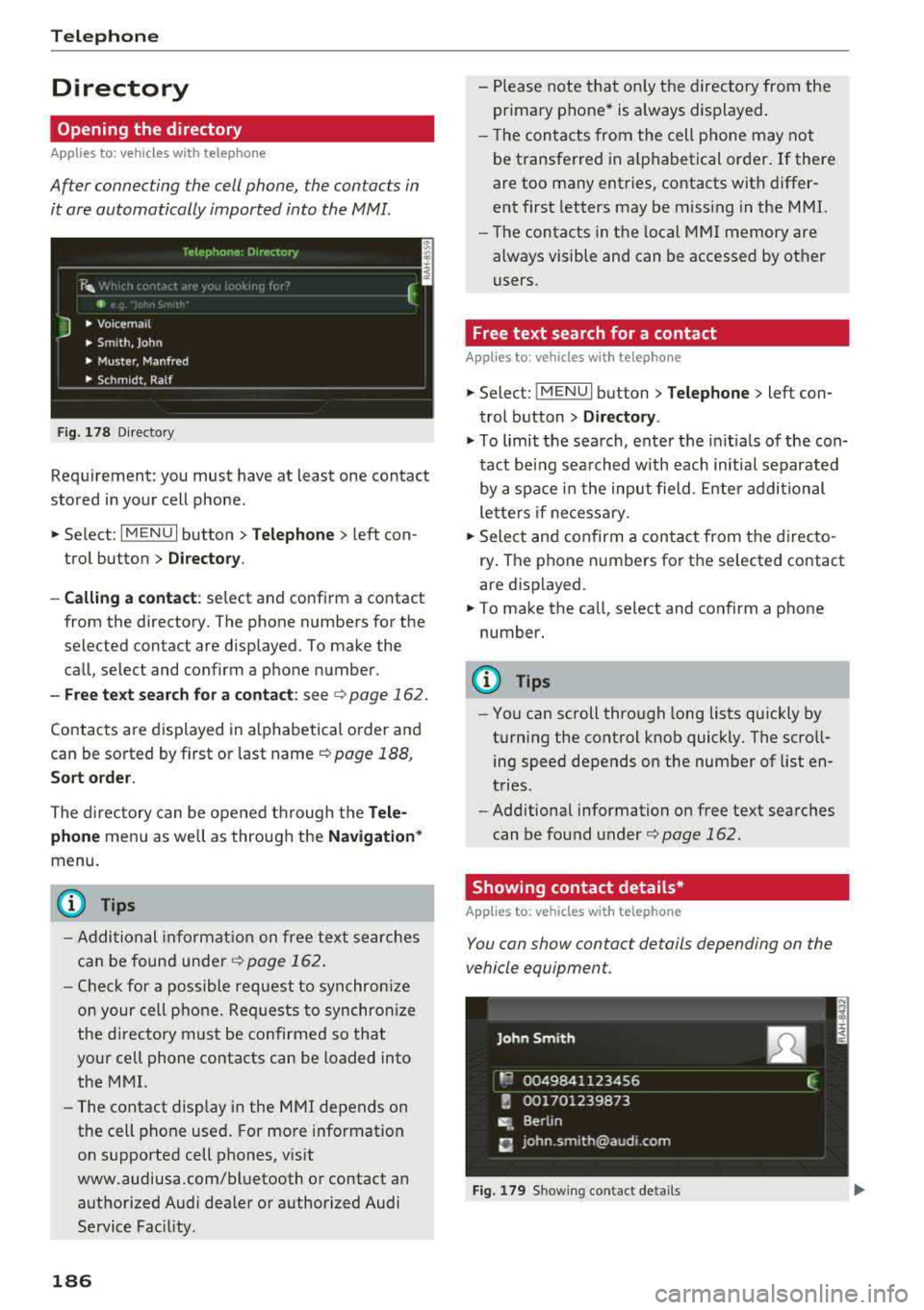
Fig. 178 Directory
Requirement: you must have at least one contact
stored in your cell phone .
.. Select: I MENU I button >Telephone > left con
trol button >
Directory .
- Calling a contact:
select and confirm a contact
from the directory. The phone numbers for the
selected contact are displayed. To make the call, select and confirm a phone number.
- Free text search for a contact: see ¢ page 162.
Contacts are displayed in alphabetical order and
can be sorted by first or last name ¢
page 188,
Sort order.
The directory can be opened through the Tele
phone
menu as well as through the Navigation *
menu.
(D Tips
-Additional information on free text searches
can be found under
¢ page 162.
-Check for a possible request to synchronize
on your cell phone. Requests to synchronize
the directory must be confirmed so that
your cell phone contacts can be loaded into
the MMI.
- The contact display in the MMI depends on
the cell phone used . For more information
on supported cell phones, visit
www.audiusa .com/bluetooth or contact an
authorized Audi dea ler or authorized Audi
Service Fac ility.
186
- Please note that only the directory from the
primary phone* is always displayed.
- Th e contacts from the cell phone may not
be transferred in alphabetical order. If there
are too many entries, contacts with differ
ent first letters may be miss ing in the MMI.
- The contacts in the local MMI memory are
always visible and can be accessed by other
users.
' Free text search for a contact
App lies to: vehicles wit h telepho ne
.. Select: !MENUI button> Telephone> left con
trol button >
Directory .
.,,. To limit the search, enter the initials of the con
tact being searched with each initial separated
by a space in the input field . Enter additional
letters if necessary .
.. Select and confirm a contact from the directo
ry . The phone numbers for the se lected contact
are displayed.
.. To make the call, select and confirm a phone
number.
(D Tips
- You can scroll through long lists quickly by
turning the control knob quickly. The scroll ing speed depends on the number of list en
tries.
- Additional information on free text searches
can be found under¢
page 162.
Showing contact details*
Applies to: vehicles with telephone
You can show contact details depending on the
vehicle equipment.
Fig. 179 Sh owing contact detail s
Page 197 of 404
u. 00 .-< N l' N .-< 0 N > 00
10, the message Warning befo re sub scripti on
e x pire s
will display to warn you that your license
is about to expire.
Refresh
The content of the selected A udi connect Info
tainment service o r the entire Audi connect (Info
tainment) list is updated .
Data privacy
Requirement: the ign it ion must be switched on.
Locat ion and personal data are transmitted when
using Aud i connect Infotainment services . If you
do not want this information to be transm itted,
activate data p rivacy .
-Acti vate pri vacy: the data connection is switch
ed off. Some Audi connect Infotainment serv
ices are not available.
- Deacti vate data priv acy : if the data connection
is switched off, you can switch on the data con
nect ion for the use of all Audi connect Infota in
ment services. Select and confirm
A cti vate d ata
conn ection.
Wi-Fi hotspot
A ppl ies to: ve hicles with Wi-F i hotspot
You can use the MMI as a Wi-Fi hotspot to con
nect up to eight Wi-Fi devices to the Internet.
While driving, restricted use of unsecured, light,
small wireless devi ces is only possible from the
rear of the vehicle.
Requirement: the ign ition must be switched on.
"' Select : I MENU I button> Telephone > right con-
trol button >
W i-Fi settings.
The fo llow ing settings can be selected:
Wi-Fi
The MM I Wi -Fi hotspot is deactivated at the fac
tory. Switch the Wi-Fi hotspot to
Hot spot before
establishing a connection between your vehicle
and your Wi -Fi device.
- On : the MMI Wi -Fi hotspot is active and visib le
to ot her devices. You can connect your Wi -Fi
device to the MMI and use the Internet connec
t ion if necessary.
Audi conn ect (Inf otainment )
-Off : the M MI Wi-Fi hotspot is deactivated. An
Internet connection for Wi -Fi devices is not
possible .
A WARNING
= -
- To reduce the r isk of an accident, use the
Aud i connect Infotainment services with a
W i- F i hotspot only in the rear seat when the
ve hicle is in mot io n, or only when the vehi
cle is stat ionary .
- It is o nly safe to use tablets, laptops, mo
b ile dev ices and other sim ilar devices when
the vehicle is stat ionary because, li ke all
loose objects, they co uld b e thrown around
t he inside o f th e ve hicl e in a c rash and ca use
serio us inj uries . Store these types of devices
secure ly while driving .
- D o not use any wireless dev ices on the front
seats within range of the airbags whi le driv
ing . A lso read the warnings in the chapter
¢ page 2 73, Front airbags .
-As the driver, do not allow usage of the Wi
F i hotspot to distract yo u from driving, as
this cou ld increase the r isk of an accident.
@ Note
- Under some conditions, ce rtain mobile devi
ces and operating systems may automati
cally switch from your vehicle's Wi -Fi hot
spot to the device's mobi le data connection.
In that event, standa rd text and data usage
rates would apply wh ile the device's mobile
data connect ion is in use. Please refer to
documentation prov ided by your mob ile de
vice's manufacture a nd you r data carrier for
details , rela ted te rms an d pr iva cy sta te
ment.
- Yo u ar e respons ib le for all precautions ta k
en for d ata prote ct io n, a nti -vir us p rotec tion
and protec tion agains t loss of data on mo
bile devices t hat are used to access the In
ternet through the Wi -Fi hotspot.
(D Tips
- In ve hicl es w it h out Audi con nect (I nfota in
ment)*, the use of the Wi -Fi hotspot is on ly
possible fo r the Wi -Fi audio player *. A data
.,.
195
Page 198 of 404
Audi conn ect (Infotainment)
connection to the Internet cannot be
established.
- F or additional in format io n about t he Aud i
connect Infotainment services, visit
www.audiusa.com/myaudi .
Configuring the data
connection
A pp lies to ve hicles wi th A ud i co nn ect (I nfotainment)
The data connection for Audi connect Infotain
ment services is pre-configured at the factory .
However, if a configuration should be necessary,
you can adjust the following settings.
.,.. Select: IMENUI button> right control button>
Conn ection man ager.
.,.. Se lect : rig ht contro l butto n > Online se tt ing s>
Da ta co nn ection setting s.
Using the D ata c onnection settings menu, you
can set when an Internet con nection should be
made . T he Inte rnet connect ion disconnects auto
matica lly once the requested Audi connect Info
tainment service no longer requires any data .
The fo llow ing settings can be selected:
Audi connect (MMI )
With the Audi conn ect ( MMI) function, you can
Allo w or Deny the use of Audi connect Infota in
ment services if the connect io n is set to
No re
quest or With reque st .
Wi-Fi de vices*
Using the Wi-Fi d evices function, you can Allo w
or Deny a connection to the Internet.
A WARNING
- As the dr iver, do not allow usage of the Wi
Fi hotspot to distract you from d riving, as
t hi s could inc rease the risk of an acc ident.
- It is only safe to use tablets, laptops, mo
bile devices and other s imilar dev ices when
the veh icle is stationa ry because, like all
loose objects, they could be th row n aro u nd
the inside of the vehicle in a crash an d cause
serious injuries . Store t hese types of devices
sec urely whi le driving.
196
- Do not use any wire less devices on the front
seats within range of the airbags while dr iv
ing. Also read the warnings in the chapter
¢ page 2 73 , Front airbags .
@ Note
Always fo llow the information fo und in¢(!) in
Wi -Fi hotspot on page 195.
Audi connect
(Infotainment) general
information
Audi connect Infotainment services
App lies to vehicles w it h Audi connect (I nfotai nme nt)
(D Tips
- You can only use serv ices supported by Aud i
connect (Infota inment) if yo u have the op
t ional MMI Navigation plus eq uipment w it h
M MI touch* and A udi connect (Infotai n
ment).
- Use of the LT E* mobile ne twork standard is
not ava ilab le i n every country . Contact an
authorized A udi dealer or authorized Audi
Service Facility or your cell phone service
prov ider for add itiona l information .
- Usage of Audi connect Infotainment serv
ices depends on the avai labi lity of services
through third party providers.
- Audi connect Infotainment services are on ly
availab le w ith in the cell phone network cov
erage from your cell phone service provider.
- Audi connect Infotainment services are
available in the USA . Audi connect Infota in
ment serv ices are currently not availab le in
Canada or in Mexico.
- Also read the info rmation in the chapter
¢page 177, Telephone.
- Availability, scope, prov iders, screen display
and costs of services may vary depending on
the country, model, model year, end device
and rates . For add itiona l information, v is it
www .aud iusa .com .
- An initial registration/act ivat ion on the
myAud i platform at www .audiusa .com/
Page 204 of 404
Navigat ion
-If avai lab le, confirm the input suggestion* to
complete the entry or a word suggestion*. See
¢ page 161 , Letter/number speller.
- Turn the control knob to the rig ht to change
the results list.
- Se lect and confirm a destination from the re -
su lts list .
- Se lect and confirm
Start rout e guidance .
The route d isplays as an ove rview in the map.
Route g uidance is a lready act ive.
Na rrow ing the se arch area
All countr ies/states are se lected at the factory
for the free text search.
- Se lect the right control button >
Country /state
selection
i n the input field (D ¢ page 201,
fig. 182.
- Se lect the country or state ( • ) that shou ld be
searched for in the free text search in order to
narrow the number of results and increase the
search speed. The selected entry in the coun
try/state se lection is sto red .
Or : select All
countrie s/ state s.
(D Tips
- The MMI input suggest ions depend on the
l ast navigated destinations .
- Up to 50 entries ca n be sto red in the last
dest inat ions list.
- Additional informat io n on free text searches
ca n be found unde r
¢page 162.
Loading previous destinations
App lies to: ve hicles w ith navigation system
Your last destinations are automatically stored
and can be loaded directly as a destination .
Requirement: a destination was already navigat
ed to.
~ Press the I NAV/MAPI button repeated ly until
the
Enter destination menu is displayed
¢ page 201, fig . 182.
Your last destination is listed direct ly in t he Enter
de stination
menu under the home add ress and
ident ified with the
symbol @¢ page 201,
fig. 182.
202
- Select and confirm one of the last destinations
from the list .
- Select and confirm
Start route guidance.
D eleting previous destinations
- Select one of the last destinations from the list.
- Select: r ight control button>
Delete destina-
tion
> Del ete this last de stination or Delete all
last destinations.
The selected destinat ion or all last dest inat ions
i s/are deleted and no longer d isplayed in the
En
ter destination
men u.
Entering an address
App lies to: vehicles wit h navigat ion syste m
As an alternative to free text search, you can al
so enter an address in stages .
~ Press the I NAV/MAPI button repeatedly until
the
Enter destinat ion menu is displayed
¢page 201, fig . 182 .
~ Select: left control button > Enter address .
- Ente ring a destination using a country /state :
select and confirm Country . Select and confirm
a country/state d irectly from the list .
Or :
search for a co unt ry/state us ing the input f ield .
-Entering a de stination u sing the City /ZIP
code :
select and confirm City/ZIP code . Enter a
city or a ZI P code .
Or: select and co nfirm a city
from the list.
- Select and confirm additional details about t he
destination s uch as
Street , Hou se number or
Downtown .
- De stination entry using a street intersection *:
Requirement: you must ente r a street. Select
and co nfirm
Int erse ction . Selec t and confi rm a
s tr eet directly from the list.
Or : search for a
s treet us ing the inp ut fie ld .
- Sele ct and confirm
Start route guidance .
Page 206 of 404
Navigat ion
-If a contact is grayed out in the directory,
this contact has neither a destination nor an
address assigned to them.
Point of interest search
Applies to: ve hicles w ith navigation system
.. Press the I NAV /MAPI bu tton repeatedly until
t he
E nte r d estination menu is displayed
¢page 201 , fig . 1 82 .
.. Select : left cont rol button > Point s of intere st.
-C hanging the search area : select and confirm
Sear ch ar ea > a search area from the list .
The following search categories are avai lab le:
Nearb y: points o f interes t can be sele cted from
different categories . The points o f interest are
list ed starting from the immediate vicinity of the
vehicle up to a radi us of approximate ly 124
miles (200 km).
Along the route: points of inte rest a long the
route can on ly be select ed during active rout e
gu idance. The points of interest are located d i
rect ly along or in the immediate vicinity of the
calcul ated route. The points of interest can like
wise be selected from various categor ies . For ex
ample, you can search for a hotel or park ing lot
at the destination .
Near destin ation /Near stopo ver : po ints of inter
est near a destination or a stopover can only be
selected dur ing active route guidance . T he poi nts
of interest can likewise be se lected from va rious
ca tegor ies. For examp le, you ca n search fo r a ho
tel or parking lot a t the destination.
In new city : select a country/state or searc h in a
new c ity . Ente r the name of the des ired c ity .
P oints of i nte rest can be selected from var ious
ca tegor ies. Th is f unction allows you to searc h for
points of interes t in any ci ty regardless of the ac
tive route guidance or the vehicle position.
-Sea rch for a p oint of inter est name in these
lec ted search are a:
en ter the name of the po int
of inte rest .
-Sear ching f or a poin t of inter est in a specifi c
ca tegory :
select Select cat egory . Select and
confirm a ca tegory such as
Restaurant s.
204
(D Tips
-Distances to points of interest are displayed
as a stra ight -line d istance from your current
location. The actual d istance from your cur
rent location to the point of interest is up
dated automatically. The list of found
points of interest is not resorted when this
happens.
-T here may be entr ies in the l ist that cannot
be displayed comp letely due to t heir length .
Select the cor respond ing ent ry from the
list. Select: r ight cont rol b utton> Show des
ti na tion det ails. De tailed informa tion fo r
the se lected entry in the list is then dis
played .
Online point of interest search (online
search)
App lies to: vehicles wit h a navigation system and Audi co n
nect (Infota inment)
You can search for points of interest on the In
t e rnet .
Requirement: the requirements for Aud i connect
(Infotai nment) must be met
¢ page 190 .
.. Press the I NAV/MAPI button repeatedly until
the
Enter des tination me nu is displayed
~ page 201, fig. 182 .
.. Select: left control button > Online sear ch . Th e
searc h area last set is displayed in the inpu t
fie ld .
-C hanging the search area : select: right cont rol
bu tton >
S elect sear ch are a.
-Searching for onlin e destinations in thes e
l ec ted search ar ea :
ente r a new c ity/state if
necessary. En ter the search term, such as hotel.
Press the contro l knob. Se lect and confirm an
online destination from the list.
-Sea rching for online de stinations in a specific
categor y:
se lect and confirm Sele ct category.
Select and confirm a category such as Re stau
rants .
Find w hich search areas are avai lab le under
¢ page 204 , Point of interest search .
You can search for online destinations using the
vo ice recog nitio n
sys tem ¢ table on page 173. .,..
Page 208 of 404
Navigation Cancel route guidance
App lies to: vehicles with navigation system
Requirement: route guidance must be active.
.,. Press the I NAV/MAPI button repeatedly until
the
Enter destination menu is displayed
c:::> page201, fig .182 .
.,. Turn the control knob to the left until the active
route gui dance is shown
c:::> page 205, fig. 184 .
.,. Select and confirm Cancel route guidance (D
c:::> page 205, fig. 184 . The destination is delet
ed.
Or : select the right control button > Cancel
route guidance .
Additional options when entering a
destination
Applies to: vehicles with navigation system
.,. Press the right control button .
Depending on the selected function, the follow
ing options may be available when entering a
destination:
Cancel route guidance : Requirement: route guid
ance must be active. Route guidance is canceled. For addit ional information, see
c:::> page 206 .
Country information: you can d isp lay the appli
cable urban and rural speed limits for any coun
try/state. If this function is activated, the infor
mat ion will be automatically shown to you in the
route information
(z) c:::> page 210, fig . 189 when
the speed limit is exceeded
c:::> page 212 .
Country/state selection: see c::> page 202, Nar
rowing the search area.
Route criteria: see c:::> page 209, Route criteria.
Show location on map : Requirement: you must
have se lected a destination from the results list.
The destination entered is displayed on the map .
Parking at this lo cation *: Requirement: you
m ust have selected a destination from the re
sults list . All parking options near the selected
location are displayed in the Infotainment sys
tem .
Delete : th e selected en try is deleted. You can de
lete individua l entries or all entries (for example,
favorites or last destinations).
206
Audi connect at this location* : Requirement: yo u
must have se lected a destination from the re
su lts list. A llows you to search for items in the v i
cinity of the selected location, such as
Travel in
formation.
Online traffic data *:
the on line traffic informa
tion
c:::> page 216 can be sw itched on or off .
Add destination to contact: see c:::> page 208.
Store as favorite: see c:::> page 208 .
Voice guidance : see c:::> page 210.
Navigation settings: see c:::> page 209.
(D Tips
Information on on line traff ic data* can also
be found on line at www.audiusa .com .
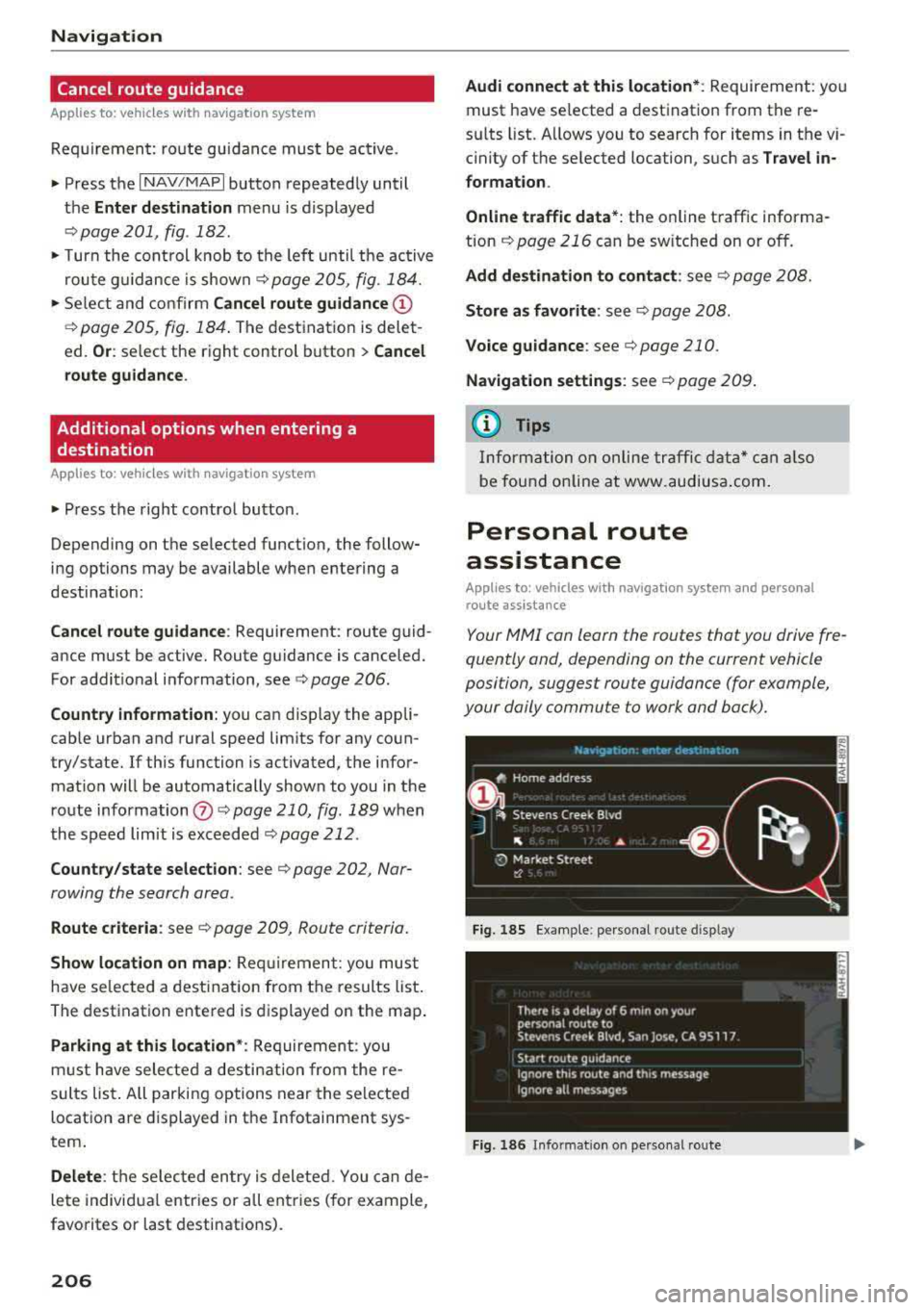
Personal route
assistance
Applies to: vehicles with navigation system and personal
ro ute assistance
Your MMI con learn the routes that you drive fre
quently and, depending on the current vehicle
position, suggest route guidance (for example,
your daily commute to work and back).
Fig. 185 E xample : personal route disp lay
Fig. 186 Info rmation o n personal route