ignition AUDI S4 2018 Service Manual
[x] Cancel search | Manufacturer: AUDI, Model Year: 2018, Model line: S4, Model: AUDI S4 2018Pages: 403, PDF Size: 66.81 MB
Page 170 of 403
Voice recognition system
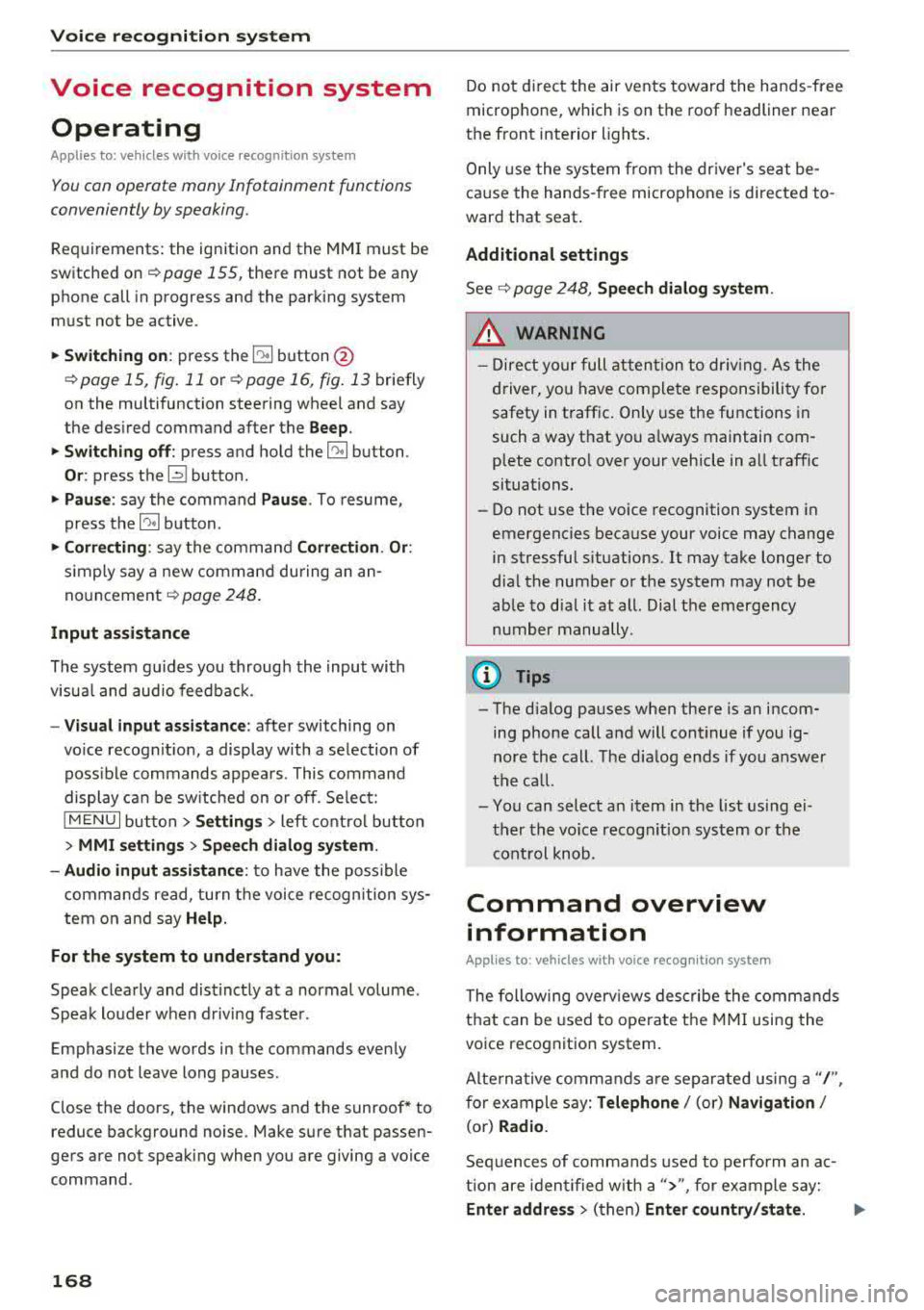
Voice recognition system Operating
Applies to: vehicles with vo ice recognition system
You con operate many Infotainment functions
conveniently by speaking.
Req uirements: the ignition and the MM I must be
sw itched
on~ page 155 , there must not be any
phone call in progress and the parking system
m ust not be active .
.. Switching on: press the~ button @
¢
page 15, fig. 11 or ¢ page 16, fig . 13 briefly
on the multifunction steering wheel and say
the des ired command after the
Beep .
.. Switching off : press and hold the~ button.
Or: press the l2l button.
.,. Pause : say the command Pause . To resume,
press
the~ button .
.,. Correcting : say the command Correction . Or :
simp ly say a new comma nd during an an
no uncement ¢
page 248.
Input assistance
The system gu ides you throug h the input with
visual and audio feedbac k.
- Visual input as sistance : after switching on
vo ice recognit ion, a display with a selection of
poss ible commands appears . This command
display can be sw itched on o r off. Se lect:
IMENU I button> Set tings > left co ntrol button
> MMI setting s> Speech di alog system .
- Audio input a ssistanc e:
to have the poss ible
commands read, turn t he voice recogn ition sys
tem on and say
Help.
For the system to understand you:
Speak clearly and dist inctly at a normal volume .
Speak louder when d riving faster .
Emphasize the words in the commands even ly
and do not leave long pauses .
Close the doors, the windows and the sunroof* to reduce background noise . Make sure that passen
gers are not speaking when you are giving a voice
command .
168
Do not direct the air vents toward the hands -free
microp hone, which is on the roof headliner near
the front interior lights .
Only use the system from the dr iver's seat be
ca use the hands -free microphone is directed to
ward that seat .
Additional settings
See¢ page 248, Speech dialog system .
.8, WARNING
-Dire ct yo ur full attention to dr iv ing . As the
driver, you have complete responsibility fo r
safety in traffic. Only use the functions in
such a way that yo u always maintain com
plete contro l over your vehicle in a ll traffic
situations .
- Do not use the voice recognition system in
emergencies beca use your voice may change
in stressful s ituations. It may take longer to
dia l the number or the system may not be
ab le to dial it at all. Dial the emergency
number manually.
(D Tips
- The d ialog pauses when there is an incom
ing phone call and will continue if you ig
nore the call. The dia log ends if you answer
the ca ll.
- You can select an item in the list us ing ei
ther the vo ice recognit ion system or the
cont rol knob.
Command overview
information
Applies to: vehicles with voice recognition system
The following overv iews des cribe the commands
that can be used to operate the MMI using the
voice recognition system.
Alte rnative commands are separated using a"/ ",
for example say:
Telephone / (or) Navigation /
(or) Radio.
Sequences of commands used to perform an a c
tion are identified w ith a
"> ", fo r example say:
Enter addre ss> (t hen) Enter country /state . ..,.
Page 175 of 403
a co .... N ,....
N .... 0 0
3 co
Voice recognition system
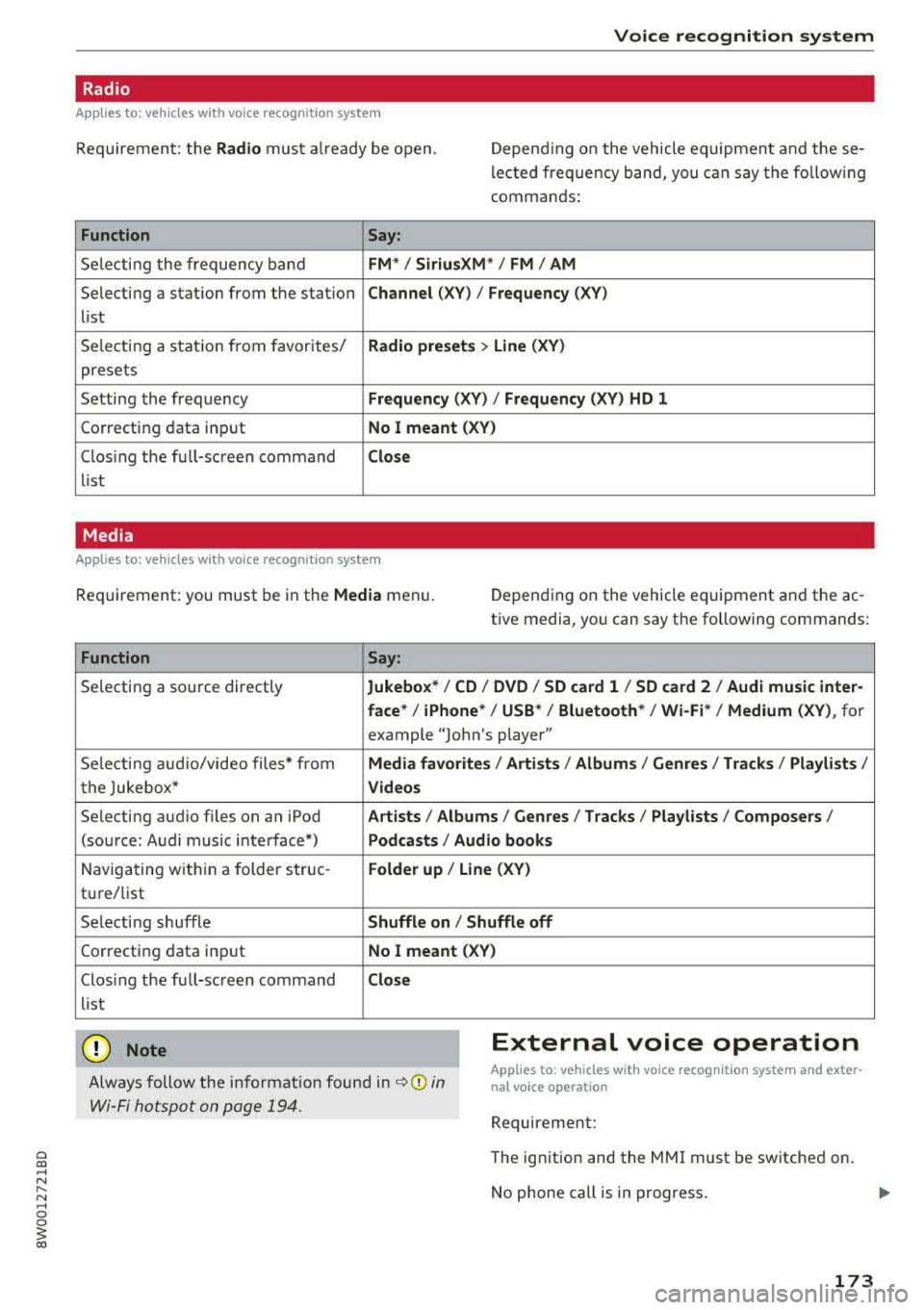
Radio
Applies to: vehicles with voice recognition system
Req uirement: the Radio must a lready be open. Depend ing on the vehicle equipmen t and these
lected frequency band, you can say the fo llow ing
commands :
Function
Say:
Selecting the frequency band FM*/ Siriu sXM * / FM / AM
Selecting a station from the station Channe l (XY) / Frequency (XV)
list
Selecting a stat ion from favorites/
Rad io prese ts > Line (XV )
presets
Setting the frequency
Frequency (XV) I Frequency (XV ) HD 1
Correcting data input No I mea nt ( XV)
Clos ing the full-sc reen command Clo se
list
Media
Applies to: vehicles with voice recognitio n system
Req uirement: you must be in the Media menu. Depending on the vehicle equipment and the ac
t ive media, yo u can say the following commands:
Function
Say:
Selecting a so urce directly Jukebox */ CO / DVD / SO card l / SO card 2 / Aud i music inte r-
face *
I iPhone* /USS */ Bluetooth* / Wi-Fi * / Medium (X V ), for
example "Jolhn's player"
Selecting aud io/video files* from
Media fav orites / Arti sts/ Album s/ Genr es / Track s/ Playli st s /
the Jukebox* V id eos
Selecting aud io files on an iPod Art ists I Albums / Genre s I Tracks / Pla ylists /Composer s/
(source: Audi music interface*) Podcast s / Audio books
Navigating w ith in a folder struc-Fo lde r up / Line (XV )
tu re/list
Selecting shuffle
Shuffle on / Shuffle off
Correcting data input No I meant (XV)
Clos ing the full-screen command Clos e
list
(D Note External voice operation
Always follow the i nformat io n found in ~0 in
Wi-Fi hotspot on page 194.
Applies to: vehicles with voice recognition system and exter
nal voice operation
Requirement:
The ignition and the MMI must be switched on.
No phone call is in progress.
173
Page 177 of 403
a co .... N ,....
N .... 0 0
3 co
Telephone Introduction
A pp lies to: ve hicles with telep hone
To make phone coils in your vehicle using the
MMI, connect your cell phone to the
MMI via
Bluetooth.
H and sfree
Afte r you have connected your cell phone to the
MMI via Bluetooth, you can use the handsfree
system and operate telephone functions through
your MMI. You can make calls using the antenna
on your cell phone.
A WARNING
- Medical experts warn that cell phones can
interfere w ith the function of pacemakers.
Always ma inta in a m inimum distance of 20
centimeters between the cell phone anten
na and the pacemaker.
- Do not carry the cell phone in a pocket di
rectly over the pacemaker when the phone
is switched on.
- Sw itch the cell phone off immediately if
you suspect it may be interfering with the pacemaker.
- Do not use the voice recognition system*
c::> page 168 in emergencies because your
voice may change in stressful situations. It may take longer to dial the number or the
system may not be able to dia l it at all. Dial
the emergency n umber manua lly.
- Switch your cell phone off in areas where
there is a risk of an exp losion. These loca
tions are not always clea rly marked. This
may include gas stations, fuel and chemical
storage facilities or transport vehicles, or lo
cations where fuel vapors (such as propane
or gasoline vapor in vehicles or bu ildings),
chem icals or large quantities of dust parti
cles (such as flour, sawdust or metal) may
be present in the air. Th is also applies to all
other locations where you would normally
tu rn your vehicle engine off.
- The demands of traffic requ ire your full at
tent io n. Always read t he chapter
c::> page 155, Traffic safety information.
-
T e le ph on e
(D Note
Always fo llow the information found in Q (!) in
Wi-Fi hotspot on page 194.
(D Tips
- The Bluetooth connect ion range is limited
to inside the vehicle. It can also be affected
by local condit ions and interference with
other devices.
- To learn which Bluetooth connections and
wh ich of the functions in your cell phone are
supported, check with your cell phone serv
ice provider or the database for mobile devi
ces at
www .audiu sa.com /bl uetooth .
Setup
Connecting a cell phone using Bluetooth
Applies to: vehicles wi th telepho ne
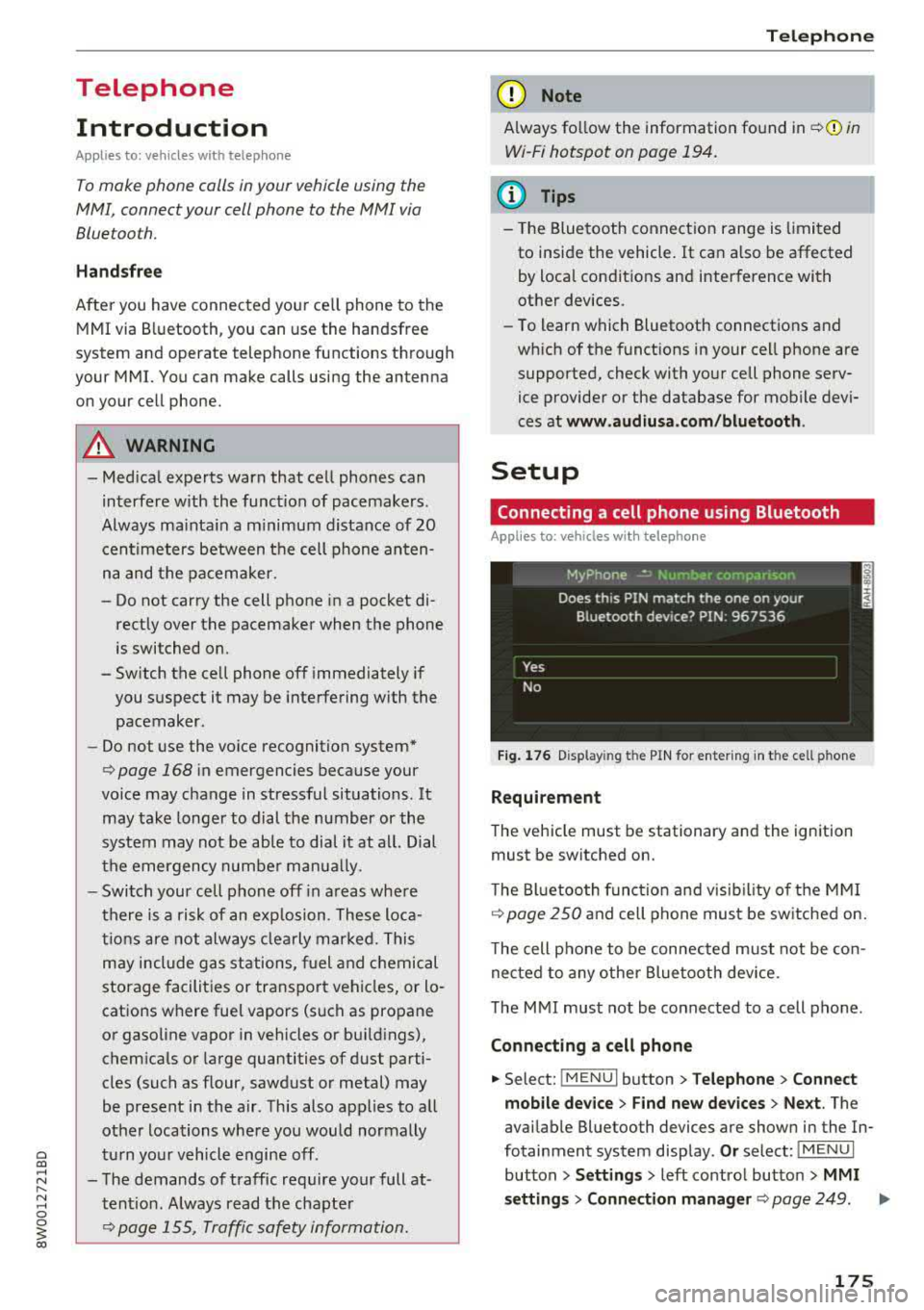
Fig . 17 6 Display ing t he PIN for enter ing in t he cell ph one
R equirem ent
The vehicle must be stationary and the ignition
must be switched on.
T he Bl uetoo th funct ion and v isib ility o f the MMI
¢ page 250 and cell phone must be sw itched on.
T he cell phone to be connected must not be con
nected to any other Bluetooth device.
T he
MMI must not be connected to a cell phone .
Connecting a cell phone
.,. Select: !MENUI button> T elephone > Co nnect
mobile dev ice
> Find new de vices > Ne xt. The
avai lable Bluetooth devices are shown in the In
fotainment system display .
Or select: !MENUI
button > S etting s> left contro l button > MMI
s etting s
> Connec tion manag er ¢ page 249 . .,..
175
Page 178 of 403
Telephone
"'Se lect and confirm the desired ce ll phone from
the list of disp layed Bluetooth devices.
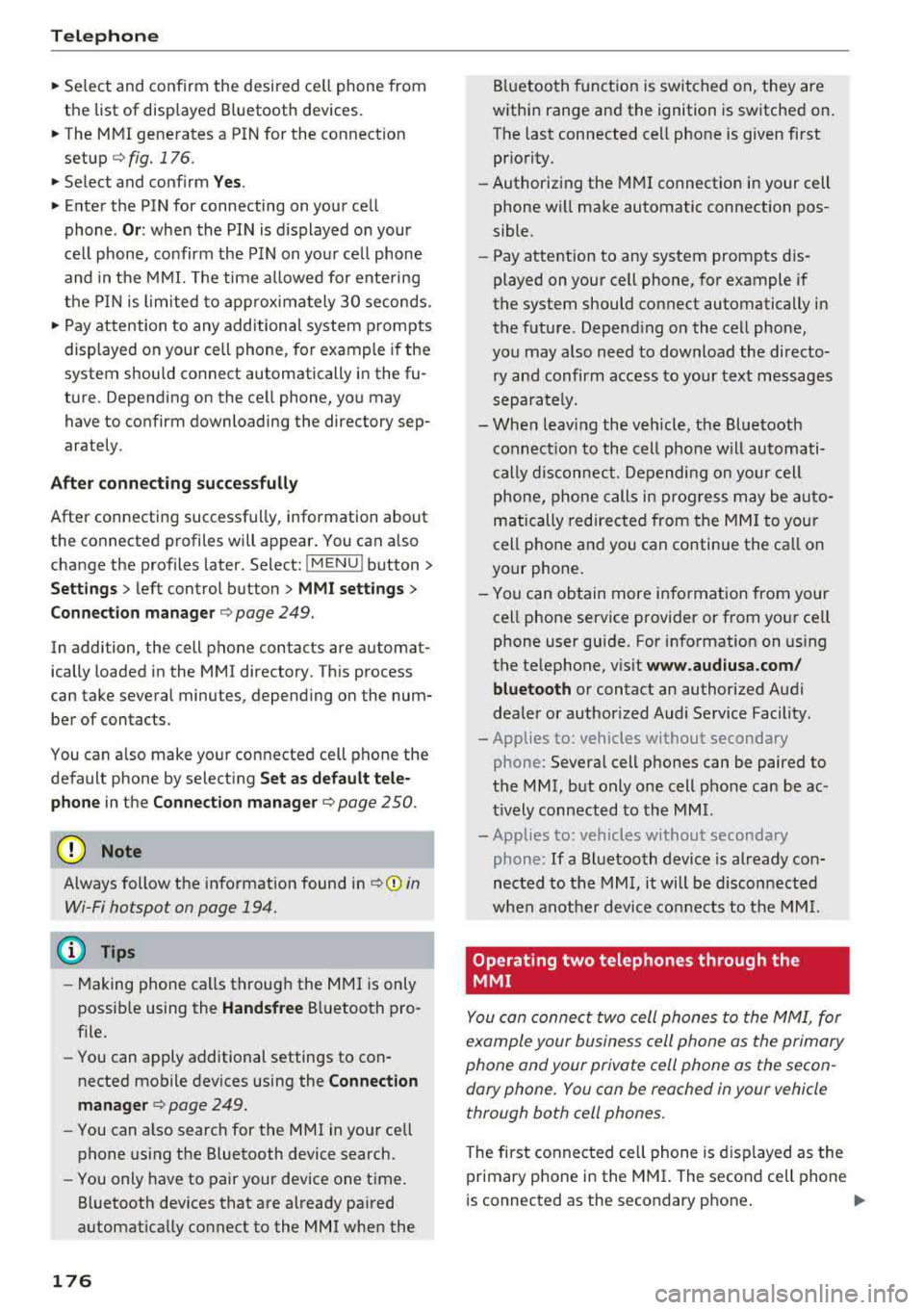
"' The MMI generates a PIN for the connect ion
setup
¢ fig. 176 .
"' Select and confirm Y es.
"' Enter the PIN for connecting on your cell
phone .
Or: when the PIN is d isplayed on your
ce ll phone, confirm the PIN on you r ce ll phone
and in the MMI. The time a llowed for ente ring
the PIN is l im ited to app rox imately 30 seconds.
"' Pay attention to any additiona l system prompts
displayed on your cell phone, for example if the
system should connect automatically in the fu
ture . Depending on the ce ll phone, you may
have to confirm downloading the directory sep
arately .
After connect ing succ essfull y
After connecting successfully, information about
the connected profiles will appear . You can a lso
change the profiles later. Select:
! MENUI button>
S ett ings > left control button > MMI sett ings >
C onn ection m ana ger
c:::;, page 249.
In addition, the cell phone contacts are automat
ically loaded in the MMI directory. This process
can take several minutes, depend ing on the num
ber of contacts.
You can a lso make your connected cell phone the
default phone by select ing
S et as def ault tele ·
phone
in the Connect ion manager c:::;, page 250.
(D Note
Always follow the information found in ¢ @ in
Wi-Fi hotspot on page 194.
(D Tips
-Making phone calls through the MMI is only
possib le using the
Handsfree Bluetooth pro
file.
- You can apply additional settings to con
nected mobile devices using the
C onnection
m anager
c:::;, page 249.
- You can also search for the MMI in your ce ll
phone us ing the Bluetooth device search.
- You only have to pair your device one time.
Bluetooth dev ices that are already paired
automat ically connect to the MMI when the
176
Bluetooth f unct ion is switched on, they are
within range and the ignition is switched on.
The last connected cell phone is given first
pr iority.
- Authorizing the MMI connection in your cell
phone w ill make automatic connection pos
sible.
- Pay attention to any system prompts dis
played on your cell phone, for example if
the system should connect automatically in
the future . Depend ing on the cell phone,
you may also need to download the directo ry and confirm access to your text messages
separately.
- Whe n leavi ng the vehicle, the Bluetooth
connect ion to the cell phone will automati
c ally d isconnect. Dependi ng on your cell
phone, phone calls in prog ress may be auto
matically redirected from the MM I to you r
cell phone and you can continue the ca ll on
your phone.
- Yo u can obtain more information from your
cell phone service provider or from yo ur ce ll
phone user guide. For information on us ing
the te lephone, v isit
w ww. audiu sa.com /
bluetooth
or contact an authorized Audi
dealer or author ized Audi Service Facility.
- Applies to: vehicles without secondary
phone: Several cell phones can be paired to
the MMI, but only one cell phone can be ac
t ively connected to the MMI.
- Applies to: vehicles without secondary
phone: If a Bluetooth device is already con
nected to the MMI, it will be d isconnected
when anothe r device connects to the MM I.
Operating two telephones through the
MMI
You can connect two cell phones to the MMI, for
example your business cell phone as the primary
phone and your private cell phone as the secon
dary phone . You can be reached in your vehicle
through both cell phones.
The first connected ce ll phone is d isplayed as the
primary phone in the MMI. The second cell phone
is connected as the secondary phone .
.,.
Page 179 of 403
The directory from the connected primary phone
will always be disp layed . If you wou ld like to use
the directory from the secondary phone , you
must switch the primary and secondary phone
¢page 177 .
Connecting a cell phone as th e prima ry
phone
Connect yo ur cell phone to the MMI via Blue
tooth. The f irst connected cell phone is displayed
as the
Main phon e in the MMI.
See
¢ pag e 175 , Connecting a cell phone using
Bluetooth.
Conn ecting a cell phone as the secondary
phone
Requirement : a cell phone must be connected to
the
MMI as the primary phone .
Select :
IMENU ! button> Telephone > right con
trol button >
Connect a ddition al telephone.
See ¢ page 175, Connecting a cell phone using
Bluetooth.
Example: you have connected your business ce ll
phone to the MMI as the prima ry phone and your
p rivate ce ll phone as the secondary phone. To be
ab le to call contacts from you r private cell phone
directo ry , you must switch the primary and sec
ondary phone, s ince the directory from the pri
mary phone is always displayed.
Switching the pr imary and secondary phone
Requirement : a prima ry phone and a secondary
phone must be connected .
Switch main and add it ional phone : select:
IMENU ! button> Teleph one > right contro l but
ton >
Swit ch main and additional phon e.
@ Tips
-Please note that only the directory from the
primary phone is always displayed.
- You can see
if a cell p hone is connected as
the prima ry phone or secondary phone in
the
Conne cti on mana ger ¢ page 249. Or:
the dev ice name of the connected primary
phone is shown in the
Telepho ne menu
(such as MyPhone).
Teleph one
- If the primary phone does not connect auto
matically to the MMI when the ignition is
switched on, for example because it is out
of the veh icle range or the Bluetooth func
tion is switched off, t hen a previously paired
secondary phone is automatically connected
as the prima ry phone.
- You can send and receive messages on your
pr imary phone as well as on your secondary
phone
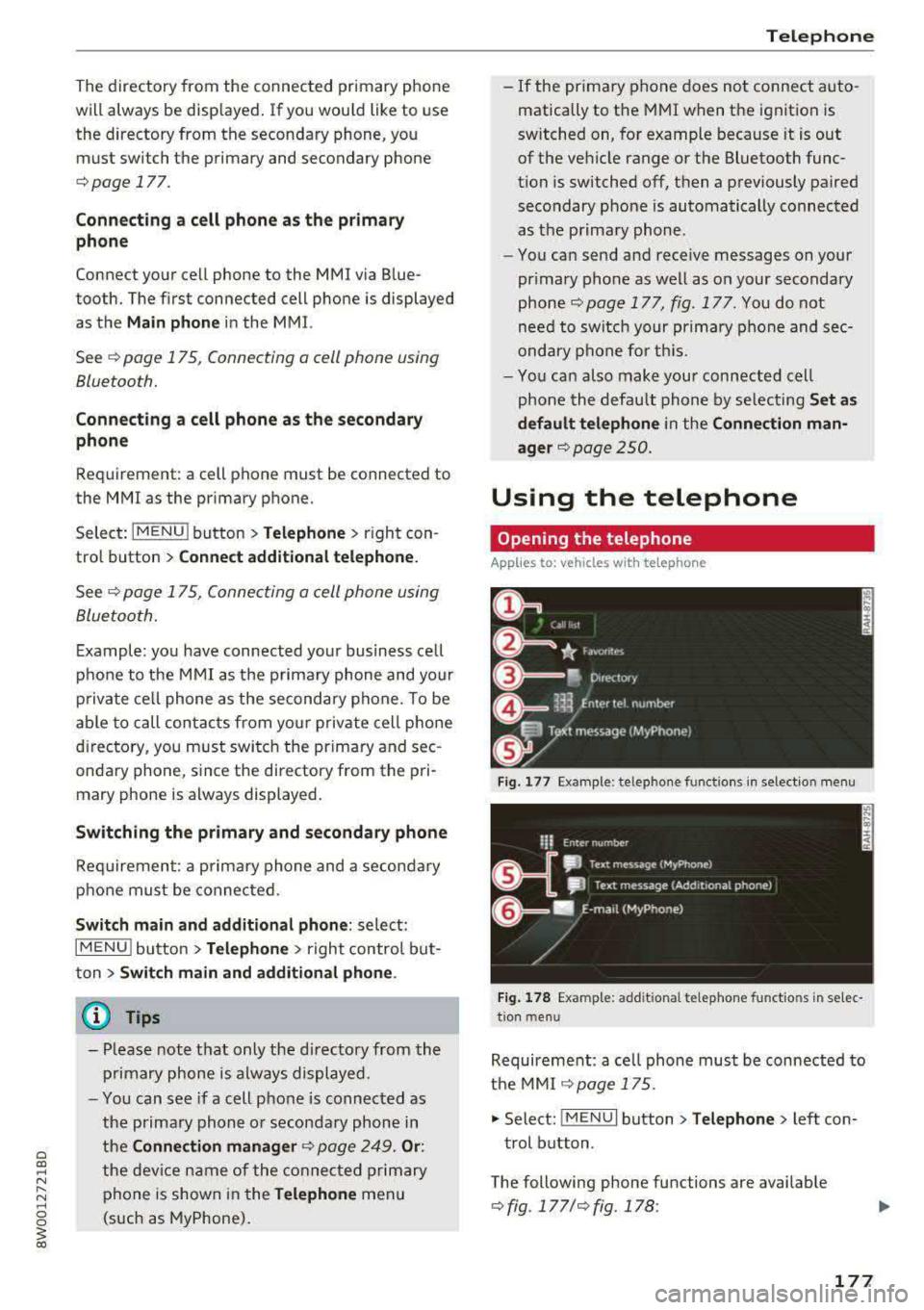
¢ page 177, fig . 177 . You do not
need to switch your primary phone and sec
ondary phone fo r th is.
- You can also make your connected cell
phone the default phone by se lecting
Set a s
def ault telephone
in the C on nec tion man
ager ¢ page 250.
Using the telephone
Opening the telephone
Applies to: vehicles with telephone
Fig. 177 Example: te lep hone funct ions in select io n menu
Fig . 17 8 Examp le: add it iona l te lephone fu nctio ns in se lec
t ion men u
Requirement: a ce ll phone must be connected to
the MMI
¢page 175.
.,. Select: !M ENU! button> Telephone > left con
trol button .
The following phone functions are available
¢ fig . 177/¢fig. 178 :
177
Page 200 of 403
a co .... N ,....
N .... 0 0
3 co
-Pay attention to upper-an d lowe r-case let
ters when enter ing the ve hicl e code.
-If yo u do no t have the 10- digit ve hicle code,
contact a n author ized A udi dealer or author
i zed Audi Se rvice Facility .
Additional options
Applies to vehicles with Audi connect vehicle control
License subscription
Th e validi ty and expirat io n date o f yo ur sub scr ip
tions a re displaye d. When
Warning before sub
scr iption expires
is activated, a message w ill be
d isp layed warning yo u that you r license is about
to expire.
Select:
IME NU! button> Audi connect > Display
available function s>
right control button> Li
cense subscription .
Resetting the primary user
F or example, y ou ca n rese t the key use r whe n
se lling your vehicle in o rder to dea ctivate these
services .
R eq uirement: the ign it ion mu st be swi tched on.
Select:
IMENU ! button> Audi connect > right
control b utton >
Audi connect user management
> Key user > Reset key user .
Warning levels
Req uirement: the primary use r must have set one
or more warning levels. Secondary users can only
see if a warning level is active or not .
Select:
IMENU ! button> Audi connect > right
control b utton >
Alerts .
Remote locking and
unlocking
Applies to vehicles with Audi connect vehicle control
You can lock a nd u nlock your vehicle using this
service .
Requirement
- This requires the 4-dig it PIN that you specified
dur ing the verification on www.audiusa.com/
myaud i .
- The veh icle must be stationary.
Audi connect veh icle control
- The ignition must be sw itched off.
Vehicle status report
Applies to vehicles with Audi connect vehicle control
T he Dr iver Info rmat ion System collec ts da ta u n
der certai n conditions and sends it to a serve r.
When data is sto red, you ca n access va lues such
as the se u sing the se rvice:
- Remaining range
- Fue l tank leve l
- O il level
- Veh icle doors a re open/closed or locked/un -
loc ke d
- Mileage
- Next o il ch ange
- N ext inspec tion
- Wa rning messages
- Side marker lights/parking lights on/off
For additional information on the D river Informa
t ion System, refe r to
c:> page 17, Driver informa
tion system .
A WARNING
Do not ignore messag es and wa rni ng or indi
cator lights that t urn on i n the vehicle be
cau se o f th e i nfo rmation in the status report .
Thi s could lea d to brea k downs in on the roa d,
a cci dents a nd ser iou s injuries.
Parking location
Applies to vehicles with Audi connect vehicle control
The vehicle collec ts data unde r ce rtain co ndit ions
and sends it to a serve r.
When data is sto red, you ca n access va lues such
as these using the se rvice:
- Veh icle location display,
- Display of one's own location,
- Rou te to you r vehicle .
If your mob ile dev ice also has a navigation func
t io n, you c an navigate to y our la st k nown par kin g
l oc ation .
199
Page 201 of 403
Audi connect vehicle control
Deactivating and activating parking position
-Se lect: I MENU I> Audi connect > Car Finder
parking position.
I f you do not set./, no location informat io n will
be sent to the se rver.
(D Tips
- The new parking location cannot be deter
mined w ith this service if the vehicle is
moved after shutting the vehicle off and
without switching the ignition on and off
again, for example when being towed or if
the veh icle is stolen.
- If the vehicle is moved and shut off again
using the second key, for example, the new
parking location is transmitted to the server
after switching the ignition off.
Geofencing Alert
Applies to vehicles with Audi connect vehicle control
You can set approved and forbidden zones for
your vehicle using this service. If your vehicle
leaves an approved :zone or enters a forbidden
zone, you will be notified by a push notificat ion
and/or an e-ma il. You can set up to five zones
and also ass ign time limits.
Requirement
-You must be verified as the primary user of your
vehicle on myAudi.
(D Tips
You can set on myAudi if you would like to be
notified via push notifications and/or e-mail.
Speed Alert
Applies to vehicles with Audi connect vehicle control
You can set up to two speed limits for your vehi
cle using this service . If your vehicle exceeds a set
speed limit, you will be notified by a push not ifi
cation and/or e-mail.
Requirement
- You must be verified as the primary user of your
vehicle on myAudi.
200
(D Tips
You can set on myAudi if you would like to be notified via push notifications and/or e-mail.
Valet Alert
Applies to vehicles with Audi connect vehicle control
If you give your vehicle over to a parking service,
you can set a zone and a speed limit using the
Audi MMI connect app. If the vehicle leaves the
zone or the exceeds the speed lim it, you will be
notified by a push notification and/or e-mail.
Requirement
- You must be verified as the primary user of your
veh icle on myAudi.
(D Tips
You can set on myAudi if you would like to be
notified via push notifications and/or e-mail.
Stolen Vehicle Locator
Applies to vehicles with Audi connect vehicle control
This service helps you to track your vehicle if it is
stolen.
Proceed as follows if there is a theft:
.. Contact the police . You receive a Case ID .
.. Call the service hotline and give your Case ID .
The service hotline will forward the established data to the police .
(D Tips
You receive the Audi Service hotline number
when you purchase your vehicle.
Online Audi service
request
Applies to vehicles with Audi connect vehicle control
Requirement: to be able to use on line Aud i serv
ic e request, you must activate the service at
www .audiusa.com/myaudi and select an author
iz ed Audi dealer or authorized Audi service facili
ty .
Page 203 of 403
Emergency call
Emergency call
Introduction
The following functions may be available depend
ing on the vehicle and the market.
- Emergency call
¢page 202.
- Online roadside assistance Q page 203 .
(D Tips
-The services are provided through a SIM
card installed in the vehicle. The cost of the
call and data connections is included in the
price for the services. Services are provided
assuming that the cell phone network re
quired for the installed SIM card is function
ing and ready to operate. The available serv
ices set by Audi AG are only available within
the cell phone network coverage area for
the cell phone service provider selected by
Audi AG.
- You can find what data will be transferred
at www.aud iusa.com.
- These services cannot be deactivated using
the settings in the Infotainment system .
Emergency call
Description
Applies to: vehicles with emergency call function
You can request help when in an emergency or
dangerous situation using the emergency call
function
l) _ An emergency call is a combination
of data transmission and a phone call. The data
transmission from your vehicle forwards impor
tant information, such as the vehicle and position
data, to the emergency call center.
1l The avai lability of the serv ices o ffere d de pen ds on t he
c oun try a nd may chang e ove r tim e.
202
Making an emergency call
Applies to: vehicles with emergency call function
The emergency call can be made two different
ways .
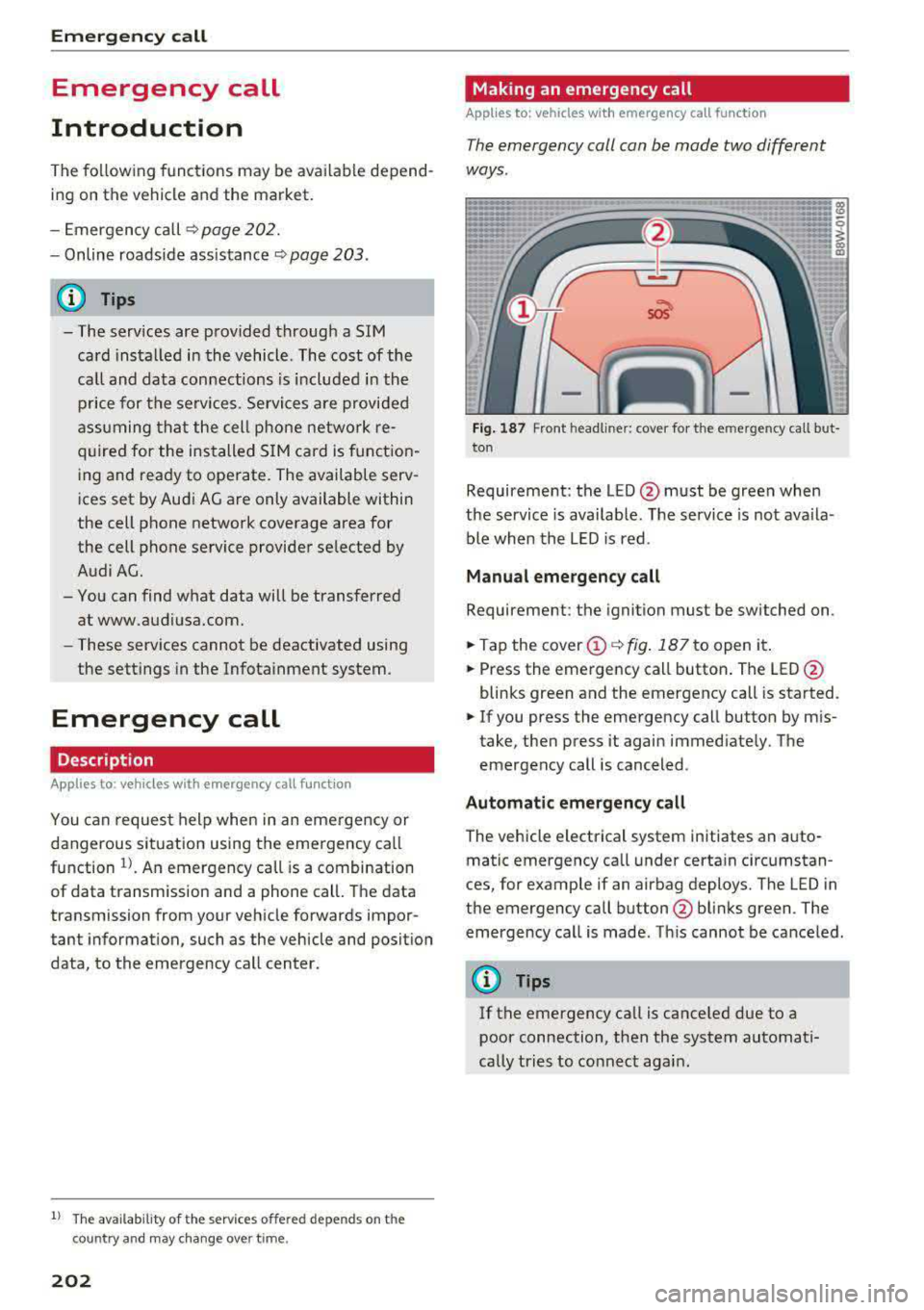
Fig. 187 Front headli ner: cover for the e mergency cal l but
ton
Requirement: the LED @must be green when
the service is available. The service is not ava ila
ble when the LED is red .
Manual emergency call
Requirement: the ignition must be switched on.
.. Tap the cover@¢ fig. 187 to open it .
.. Press the emergency call button. The LED@
blinks green and the emergency call is started.
.. If you press the emergency call button by mis
take, then press it again immediate ly. The
emergency call is canceled .
Automatic emergency call
The vehicle electrical system initiates an auto
matic emergency call under certain circumstan
ces, for example if an airbag deploys. The LED in
the emergency call button @blinks green . The
emergency call is made . Th is cannot be canceled.
(D Tips
If the emergency call is canceled due to a
poor connection, then the system automati
cally tries to connect again .
Page 212 of 403
with all applicable personal routes will be fac
tored into the trip again only after stopping the
vehicle and switching the ignition on again .
-Ignore all messages: all personal routes are no
longer factored into the current trip. No more
messages are d isplayed . Messages for personal
routes when there is increased traffic will ap
pear aga in after the vehicle is stopped and the
ignition is sw itched on again.
As soon as you switch off persona l route assis
tance, the symbol in the status line turns off and
your tr ips are no longer recorded. Trips that were
already stored remain stored.
Deleting personal routes:
- Select the desired personal route in the Enter
destination
menu q fig. 192.
- Select : right control button > Delete destina·
tion.
Deleting all personal routes :
-Select: I MENU I button >S ettings > left control
button
> MMI settings> Factory settings .
-Select : Navigation and online memory > Re
store factory settings
c::> page 249 .
(!') Tips
-Personal routes are learned based on the ve
hicle position. The route is prioritized ac
cording to how frequently you drive to a
dest inat ion.
- A maximum of three persona l routes are
displayed in the
Enter destination menu.
Based on the current vehicle position, the
traffic situation for the route that is most
lik ely to be driven out of the three routes
will always be monitored .
- Please note that personal routes that have
already been stored will remain stored after
the ignit ion is switched off and they must
be deleted manually.
Navigation
Alternative routes
Applies to: vehicles wit h navigat ion syste m
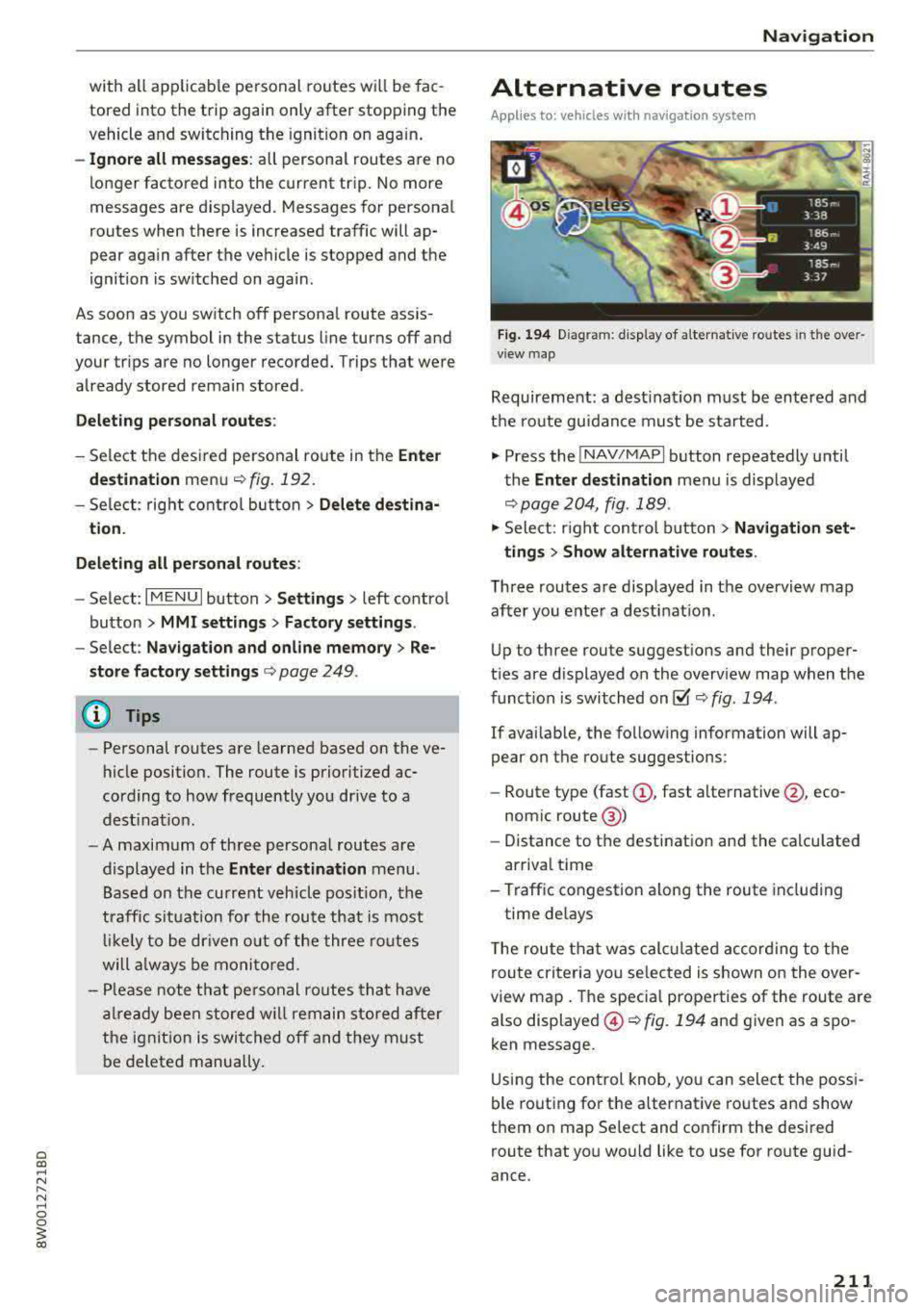
Fig. 194 Diag ra m : display of alternat ive routes in t he over
v iew map
Requirement: a destinat ion must be entered and
the route guidance must be started .
., Press the INAV/MAPI button repeatedly until
the
Enter destination men u is displayed
q page204, fig .189 .
., Select: right control button > Navigation set-
tings
> Show alternative routes .
Three routes are displayed in the overview map
after you enter a destination .
Up to three route suggest ions and their proper
t ies are displayed on the overv iew map when the
function is switched
on@' q fig. 194 .
If available, the following information will ap
pear on the route suggestions :
- Route type
(fast (!), fast alternative @, eco
nom ic route @)
- Distance to the destination and the calculated
arrival time
- Traffic congestion along the route including
time de lays
T he route that was calc ulated according to the
route criteria you selected is shown on the over
view map. The specia l properties of the route are
also displayed ©
c::> fig. 194 and given as a spo
ken message.
Using the control knob, yo u can select the possi
ble routing for the alternative routes and show
them on map Se lect and confirm the desired
route that you wou ld like to use for route guid
ance .
211
Page 247 of 403
Audi smartph one inte rfac e
Audi smartphone
interface
Setup
App lies to: ve hicles w ith Audi smartpho ne in te rface
You can connect your smartphone to th e MMI us
ing the Audi smartphone int erfac e. Certain con
te nt on your smartph on e is ada pted to the Info
t ainment syste m display while driving and can
be operated through the
MMI control panel.
Requirement
The vehicle must be stat ionary and the ignition
must be switched on .
iPhone generation 5 or higher with Lightning
connector and iOS 7.1.2 operating system or h igher.
Or :
Sma rtphone with Android Auto app and Android
5 .0 Lo llipop operating system or h ighe r.
"' Connect your smar tphone to the Audi music in -
te rface <=?
page 234 using a USB adapter
r=;,page 233 , fig . 213 .
.. Select and confirm A cti va te Apple CarPla y or
Activate And roid Auto now .
.. Follow the system instruct ions.
"' Pay attention to any additional system prompts
on your smartphone if applicable .
If you chose not to use Apple CarPlay or Andro id
Auto when connect ing your sma rtphone for the
first time, you can start the Audi smartp hone in
terface later on using the
Connection manager .
.. Select: I MENU I button > Audi smartphone in-
terfa ce > Change to conne ction manager .
.. Connect your sma rtphone to the A udi music in
terface using a USB adapter
r=;, page 233,
fig . 213.
.. Se lect and confirm Audi smartphone in the
Conne ction man ager r=;, page 249 . You can se
lect your smartphone in the list of devices that
are already paired
r=;, page 250.
"' Fol low the system instruct ions .
{U) Note
Always follow the information found in r=;,(D in
Wi-Fi hotspot on page 194.
246
(D Tips
- The functions t hat can be used depend on
t h e fo llow ing factors, among others :
- the brand of your smartpho ne
- the vers io n of the ope rating system in
your smartphone
- the software version of the app used
- the USB adapter cab le and correct connec-
tion
- your cell phone se rvice provide r
- the customized settings on your smart -
phone
- One o f the factors above or a combina tion
of any of them could cause your smartphone
to be incompatib le wit h the Audi smart
phone interface. Compatibility cannot be
guaranteed for all types of smartphones.
For more informat ion and assistance, refer
to the user guide and the manufactu rer of
you r smartphone .
- If the connected smartphone has voice con
t rol, you can ope ra t e you r smartpho ne usi ng
the externa l voice recognition system
r=;, page 173.
- The menu language shown in the MMI is
based on t he sett ing s in you r smartpho ne.
- Th e time d isp layed in the M MI is based on
t h e settings in yo ur smartp hone .
- Severa l MMI funct ions a re not availab le
when Apple Car Play o r Andro id Auto is ac
t ive.
- Yo u cannot connect any mobi le devices via
B lu etoo th when an App le Car Play connec
ti on is a ct ive .
Operating
App lies to: vehicles with A ud i smartp hone interface
Opening a menu
App le CarP lay:
you can go back to t he Apple Car
Play main menu regardless of the selec ted menu
i tem by p ressing and holdi ng the
!BACKI b utton .
Android Auto : to go back to the Andro id Auto
menu bar, pus h the co ntrol knob down.