wheel AUDI S8 2008 Owner's Manual
[x] Cancel search | Manufacturer: AUDI, Model Year: 2008, Model line: S8, Model: AUDI S8 2008Pages: 404, PDF Size: 52.7 MB
Page 138 of 404
___ o_ n_ t_
h _e _ ro_ a_d __________________________________________________ _
Starting off with a trailer To prevent rolling back unintentionally on an incline, do
the following:
- Keep the switch pulled and depress the accelerator. The
parking brake stays applied and prevents the vehicle
from rolling backward.
- You can release the switch once you are sure that you are
developing enough forward momentum at the wheels as
you depress the accelerator.
Depending on the weight of the rig (vehicle and trailer) and the
severity of the incline, you may roll backwards as you start. You can
prevent rolling backwards by holding the parking brake switch
pulled out and accelerating -just as you would when starting on a
hill with a conventional hand brake. •
Emergency braking
In the event that the conventional brake system fails or
locks.
- Pull the switch and continue to pull it to slow your vehicle
with the parking brake in an emergency.
- As soon as you release the switch or accelerate, the
braking process stops.
If you pull the switch and hold it above a speed of about 5 mph (8
km/h), the emergency braking function is initiated . The vehicle is
braked at all four wheels by activating the hydraulic brake system.
Brake performance is similar to making an emergency
stop~ &.
So that emergency braking is not activated by mistake, an audible
warning tone (buzzer) sounds when the switch is pulled . As soon as the switch is released
, or the accelerator pedal is depressed, emer
gency braking stops.
& WARNING
Emergency braking should only be used in an emergency, when
the normal foot brake has failed or the brake pedal is obstructed .
Using the parking brake to perform emergency braking will slow
your vehicle as if you had made a full brake application. The laws
of physics cannot be suspended even with ESP and its associated
components (ABS, ASR, EDS). In corners and when road or
weather conditions are bad, a full brake application can cause the
vehicle to skid or the rear end to break away -risking an
accident. •
Driver messages in the instrument cluster
Caution: Vehicle parked too steep
This message appears when the parking brake is applied on an
incline that exceeds about 30%.
In this case the braking power of the parking brake may
not be
adequate
to prevent the vehicle from rolling unintentionally.
Please release parking brake
This message appears, when a gear is selected and the accel erator
pedal is depressed -release the parking brake.
Press brake pedal to release parking brake
This driver message appears when the switch to release the parking
brake was pressed. The parking brake can only be released if you
press the brake or accelerator pedal and press the switch at the
same time .
~ Parking brake malfunction !
This driver message appears together with the yellow 'Jlf symbol
when there is a parking brake malfunction.
~
Page 141 of 404
____________________________________________ ..:.A..:.= d:.:a:.! p::. t
.:.: i:..: v :..: e::......: C::.:..: ru=.:.: is::.:e::.....: C::.::: o:..:.n.:..: t:.: r..: o :.: l:...__J9I
Adaptive Cruise Control
Speed and distance control system
Applies to vehicles : with Adaptive C ruise Cont rol
Description
The Adaptive Cruise Control driver assistance program is
a combined speed and distance control system .
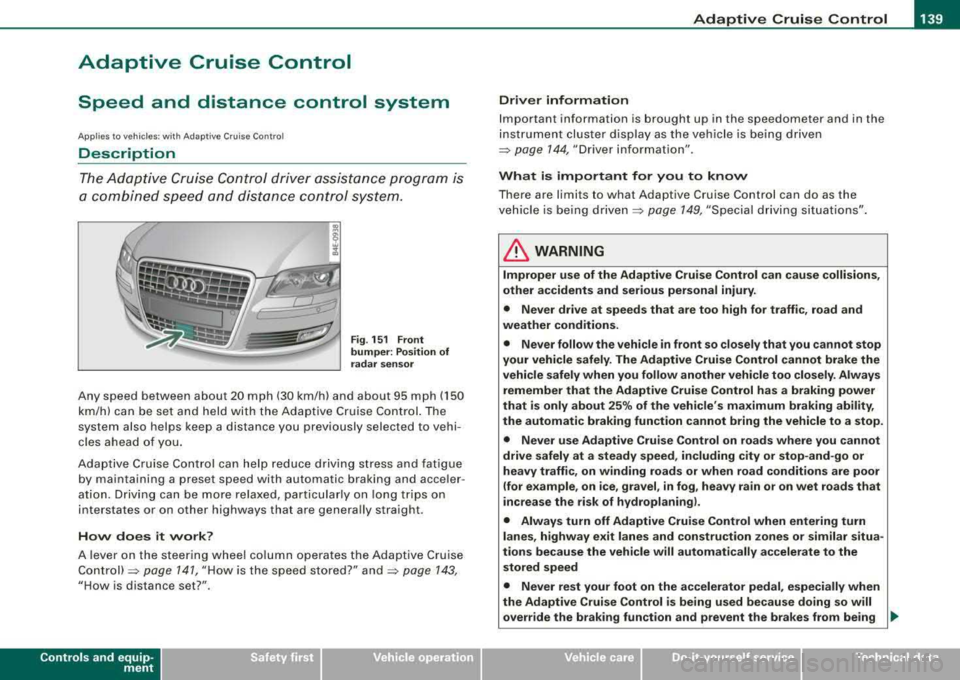
Fig. 151 Front
bumper: Position of
radar sensor
Any speed between about 20 mph (30 km/h) and about 95 mph (150
km/h) can be set and held with the Adaptive Cruise Control. The
system also helps keep a distance you previously selected to vehi
cles ahead of you.
Adaptive Cruise Control can help reduce driving stress and fatigue
by maintaining a preset speed with automatic braking and acce ler
ation. Driving can be more relaxed, particularly on long trips on
interstates or on other highways that are genera lly straight.
How does it work?
A lever on the steering wheel column operates the Adaptive Cruise
Control)=> page 141, "How is the speed stored?" and=> page 143,
"How is distance set?".
Contro ls a nd eq uip
ment
Driver information
Important information is brought up in the speedometer and in the
instrument cluster display as the vehicle is being driven
=> page 144, "Driver information".
What is important for you to know
There are limits to what Adaptive Cruise Control can do as the
vehicle is being
driven => page 149, "Special driving situations" .
LJ}. WARNING
Improper use of the Adaptive Cruise Control can cause collisions,
other accidents and serious personal injury.
• Never drive at speeds that are too high for traffic, road and
weather conditions.
• Never follow the vehicle in front so closely that you cannot stop
your vehicle safely. The Adaptive Cruise Control cannot brake the
vehicle safely when you follow another vehicle too closely. Always
remember that the Adaptive Cruise Control has a braking power
that is only about 25% of the vehicle's maximum braking ability,
the automatic braking function cannot bring the vehicle to a stop.
• Never use Adaptive Cruise Control on roads where you cannot
drive safely at a steady speed, including city or stop-and -go or
heavy traffic, on winding roads or when road conditions are poor
(for example , on ice, gravel , in fog , heavy rain or on wet roads that
increase the risk of hydroplaning).
• Always turn off Adaptive Cruise Control when entering turn
lanes , highway exit lanes and construction zones or similar situa
tions because the vehicle will automatically accelerate to the
stored speed
• Never rest your foot on the accelerator pedal, especially when
the Adaptive Cruise Control is being used because doing so will
override the braking function and prevent the brakes from being _.,
Vehicle care I I irechnical data
Page 152 of 404
___ A_ d_a_ p
:.,_ t_iv _ e_ C_r_ u _ i_ s _e _ C_ o
_ n_ t_ r_ o _ l _____________________________________________ _
Applies to veh ic les: with Ad apt ive Cruise Co ntro l
Vehicles offset to one side
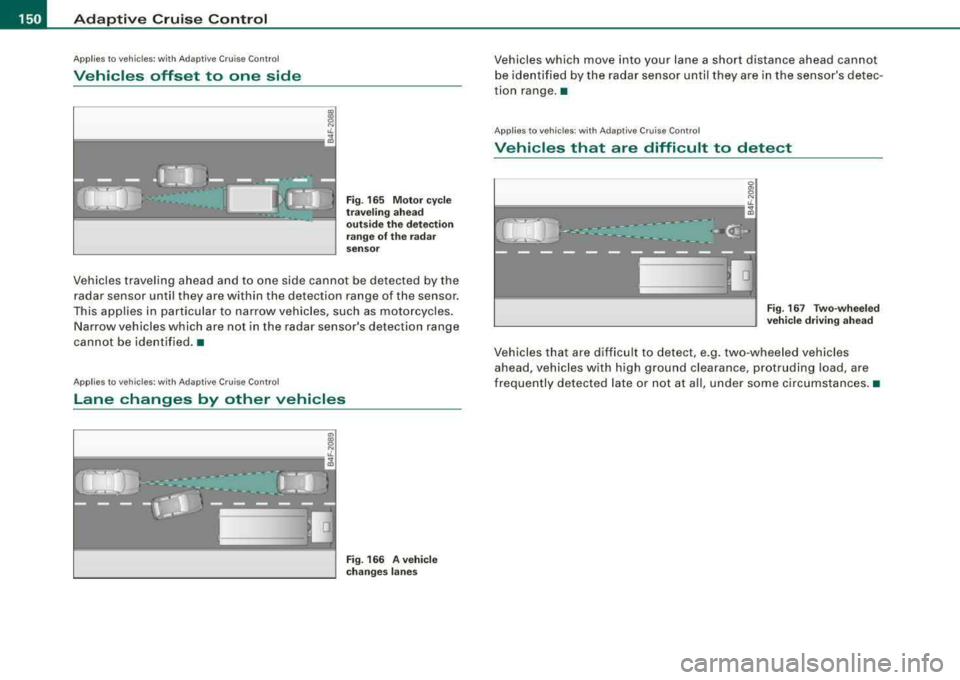
Fig . 165 Motor cycle
traveling ahead
outside the detection
range of the radar
sensor
Vehicles traveling ahead and to one side cannot be detected by the
radar sensor until they are within the detection range of the sensor .
This applies in particular to narrow vehicles, such as motorcycles .
Narrow vehicles which are not in the radar sensor's detection range
cannot be identified . •
App lies to ve hicles: w ith Ad apt ive Cruise Contro l
Lane changes by other vehicles
D
Fig. 166 A vehicle
changes lanes
Vehicles which move into your lane a short distance ahead cannot
be identified by the radar sensor until they are in the sensor's detec
tion range. •
Applies to veh ic les: with Adaptive Cru ise Contro l
Vehicles that are difficult to detect
Fig. 167 Two-wheeled
vehicle driving ahead
Vehicles that are difficult to detect, e.g. two -wheeled vehicles
ahead, vehicles with high ground clearance, protruding load, are
frequently detected late or not at all, under some circumstances. •
Page 153 of 404
Audi lane assist -_____________________ __.
Audi lane assist
Lane assist
Applies to vehicles: with lane assist
Description
Lane assist helps you keep your vehicle in your lane.
Lane assist uses a camera to detect lane boundary lines. If the
system detects that your vehicle is about to leave a lane boundary
line, the steering wheel
vibrates to alert the driver. If lane assist
detects boundary lines on both sides of the vehicle's lane, the
system enters active standby mode, which is indicated by the green
indicator light/: on the instrument cluster.
If the system is in active standby mode and the turn signal is acti
vated before driving over the boundary line, the warning does not
occur since the system allows for intentional lane changes.
The system is designed for driving on freeways and expanded high
ways and thus works only at speeds of 40 mph (65 km/h) or more.
& WARNING
• Lane assist will not keep your vehicle in your lane. The system
only warns the driver when the vehicle is leaving the lane. The
driver is always responsible for keeping the vehicle in the lane.
• The camera is not able to detect all lane boundary lines and in
some cases might also detect lane structures or objects as
boundary lines. This can lead to incorrect warnings or warnings
that fail to go off at all.
• The camera's visibility can be impaired by vehicles ahead of
you, for instance, or by rain, snow, heavy spray or light shining into
the camera lens. This can cause lane assist to fail to detect
boundary lines. •
Contro ls a nd eq uip
ment
Applies to vehicles: with lane assist
Activating and deactivating
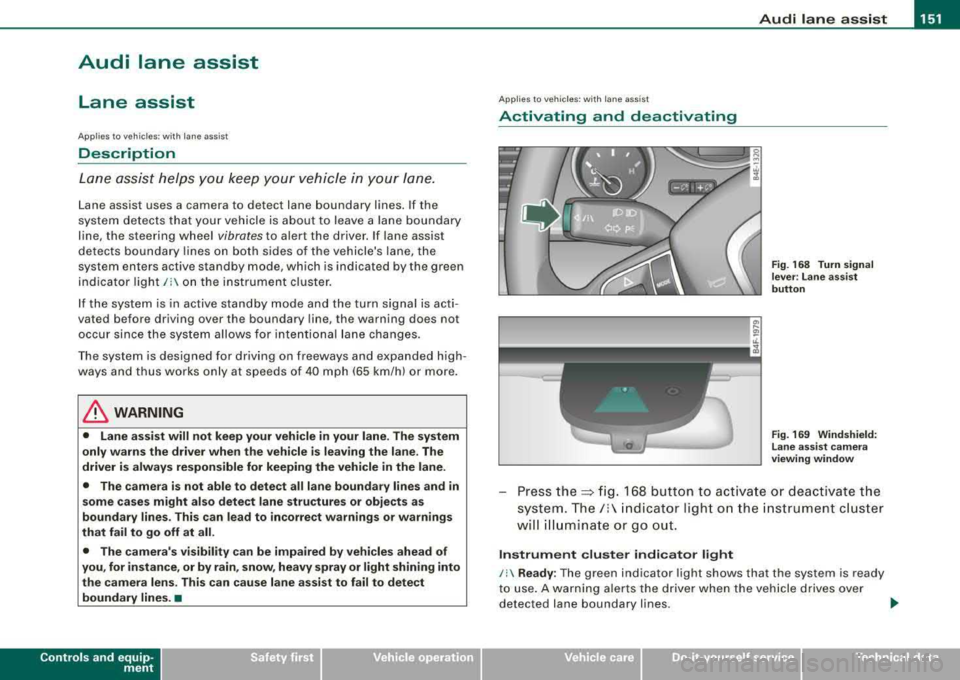
Fig. 168 Turn signal
lever : Lane assist
button
Fig . 169 Windshield:
Lane assist camera
viewing window
Press the:::> fig. 168 button to activate or deactivate the
system.
The/: indicator light on the instrument cluster
will illuminate or go out.
Instrument cluster indicator light
/: Ready : The green indicator light shows that the system is ready
to use. A warning alerts the driver when the vehicle drives over
detected lane boundary lines.
.,.
Vehicle care I I irechnical data
Page 154 of 404
-
Audi lane assist
----------------
I Not re ad y: The yellow ind icator light shows that the system is
t urned on but unab le to send a warning . This can be due to the
following:
• There are no boundary lines, or there is on ly one boundary line
present .
• The boundary lines are not detected (e.g. due to snow, dirt, wet
conditions or light shining into the camera lens) .
• More than two boundary lines (such as at construction sites) are
located in the vehicle's lane .
• The vehicle's speed is below the speed needed to activate it,
which is abou t 40 mph (65 km/h).
• The lane is narrower than about 8 ft . (2 .5 m), or wider than about
16
ft . (5 m).
• The curve is too sharp .
Notes on th e instr umen t clu ste r displa y
When the lane assist turns off automatically , the instrument cluster
indicator goes out and one of the following messages appears on
the display:
Audi lan e assist not available: C urre ntl y no se nsor vis ion
This message appears when the camera can no longer function
because it cannot detect the boundary lines. This may be due to the
following :
• The exterior s ide of the camera viewing
window => page 151,
fig. 169 is covered with dirt or ice. Clean this part of th e windshield.
• The camera v iew ing window is fogged up on the inside. In t his
case, wait until the fog disappears before turning lane assist on
aga in.
• The system was unable to detect boundary lines over an
extended period of time due to road conditions (such as snow
covered lanes). Do not turn lane assist on again unti l the lines can
be more easily detected .
Audi lane assist not ava ila bl e
A temporary malfunction is preventing lane assist from operating .
Try turning on lane assist again a t a la ter t ime.
Audi l ane ass is t: sys te m f ault
T he system should be checked by an authorized Audi dealer or other
qual ified workshop .
[ i ] Tips
• Make sure that the camera viewing window => page 151, fig. 169
is not covered by stickers or similar objects .
• Always keep the camera view ing w indow c lean . This can usual ly
b e don e by op erat ing the windshield wipers. •
App lies to vehicles: w it h l ane assist
MMI settings
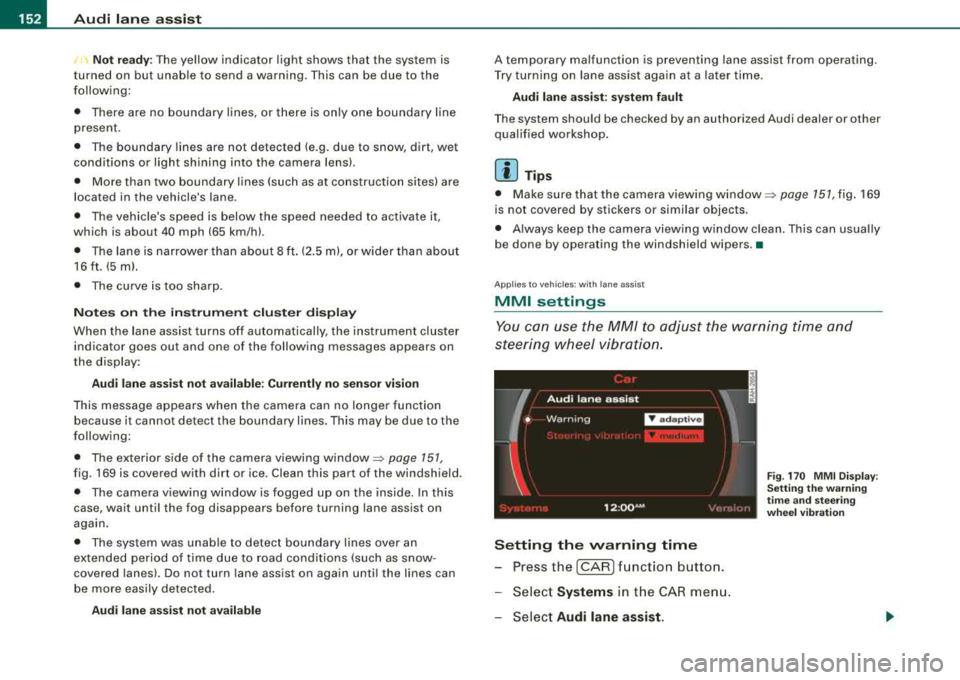
You can use the MM/ to adjust the warning time and
steering wheel vibration.
Setting the warning time
- Press the [CAR ] function button.
- Select
Systems in the CAR men u.
- Select
Audi l ane ass is t.
Fig . 17 0 M MI D isp lay :
Se ttin g th e w arning
t im e a nd stee ring
w hee l v ibr ati on
Page 155 of 404
![AUDI S8 2008 Owners Manual Audi lane a ssist -
----------------
-Sele ct Warning early , adaptive or late => page 152,
fig. 170 .
Sett ing th e st eering wh eel vibration
-Pressthe(CAR]function button.
-Selec t Syst](/img/6/57619/w960_57619-154.png "AUDI S8 2008 Owners Manual Audi lane a ssist -
----------------
-Sele ct Warning early , adaptive or late => page 152,
fig. 170 .
Sett ing th e st eering wh eel vibration
-Pressthe(CAR]function button.
-Selec t Syst")
Audi lane a ssist -
----------------
-Sele ct Warning early , adaptive or late => page 152,
fig. 170 .
Sett ing th e st eering wh eel vibration
-Pressthe(CAR]function button.
-Selec t Systems in the CAR menu .
-Select Audi lane a ssis t.
-Selec t Steering vibration weak, medium or strong.
Setting th e warning tim e
E a rl y:
This setting warns the driver before a wheel touches the
detected lane boundary line. The warning depends on the ve hicle's
angle as it approaches the boundary line . If you approach a
boundary l ine gradua lly, the warning will occur ear lier. If you
approach the boundary line at a very sharp angle, the warning wi ll
occur just before a whee l touches the l ine.
A dapti ve : In this setting, the warning time adjusts to the character
istics of the road and the vehic le speed. The warning occurs later for
curves and occurs ear lier for straight stretches of road . The warning
occurs later on narrow roads than on wide roads.
Late: Th is setting warns the driver when a whee l drives over the
detected lane boundary line.
Setting th e steering wheel vibrati on
When adjusting the steering whee l vibration, the steering wheel
v ibrates so that you can check the intensity you have set.
[ i ] Tips
• When making the adjustment, lane assist is not activated . The
steering whee l vibrates briefly only to assist you in changing the
se tting .
• Your settings are automatically stored and assigned to the
remote contro l key being used. •
Controls and equip
ment
Page 166 of 404

___ A_ u_ t
_ o_ m_ a_ t_ i_ c _ t_r _a _n_ s_ m_ is_ s_io _ n ________________________________________________ _
The selector lever must be in Nor P. If one of the driving positions
is e ngaged a sa fe ty swit ch will preven t the eng ine from bei ng
started. See
also=:> pa ge 130 .
Before you move the selector lever from the P pos ition, you m ust
a lways apply the b ra ke pe dal be fore and wh ile depress in g th e
button in the hand le of the selecto r lever.
& WARNING
• Unintended vehicle movement can cause seriou s injury .
- When the selector lever is in a driving position , the vehicle
may creep , even at idle speed . Therefore do not release the
parking brake or foot brake until you are ready to move,
be cause power is tran smitted to the wheels as soon as a
driving position is engaged .
- Do not accelerate while select ing a driving position . At th is
time the engine must be at idle speed so that undue stress is
not placed on the clut ches in the transmi ssion .
- Remember: -even when stopped briefly with the automatic
transmission in
" D " or "R ", engine power is being transmitted
to the wheels . Your vehicle could "creep " forward or backward.
When stopped , keep the brake pedal fully depressed and use
the parking brake if necessary to keep the vehicle from rolling.
• If the selector lever is unintentionally moved into N while you
are driving , take your foot off the accelerator pedal and wait for
the engine to return to idle speed before sele cting a driving posi
tion.
• Never shift into
" R " or "P " when the vehicle is in mot ion .
• Never get out of the dri ver's seat when the engine is running .
• If you must get out of the vehicle , move the selector lever
securely into the P position and apply the parking brake firmly .
• If the engine must remain running , never have any driving posi
tion engaged when checking under the hood . Make sure the
selector lever has securely engaged and is locked in
"P" with the
parking brake firmly
set => page 299, "Engine compartment ".
& WARNING (continued )
Otherwise , any increase in engine speed may set the vehi cle in
motion , even with the parking brake applied . •
Selector lever positions
This sec tion des crib es the selec tor lever p ositions an d
driv ing rang es.
Fig . 184 Disp lay in the
in strument clu ster :
selector lever in pos i
t ion D
T he sele cto r leve r posi tion engag ed ap pears next to the selector
l ever as we ll as in the instrument cluster disp lay . A lso, the current
gear engaged is show n in po sitions D and S .
P -Park
In this selector lever posit ion the t ra nsmi ssio n i s m ec hani cally
l ocked. Engage
P on ly when the vehicle is completely stopped=> &
i n "Dr iv ing th e auto mat ic tra nsmi ssion" on page 163 .
To shift in or out of position P , you must first press and hold the
b rake peda l
and then press the release button in th e selec tor leve r
handle wh ile movi ng the selector lever to or from
P . You can shift
ou t of this posi tion only wi th th e igni tio n on.
R -Reverse
Th e trans missi on wil l au to m atica lly select t he lowest gear ratio
when you shift into reverse .
Page 170 of 404
___ A_ u_ t_ o_ m_ a_ t_ i_c _ t_r _
a _n _ s_ m_ is_ s_ io_ n _______________________________________________ _
Applies to vehicles: with tipt ronic-steeri ng wheel
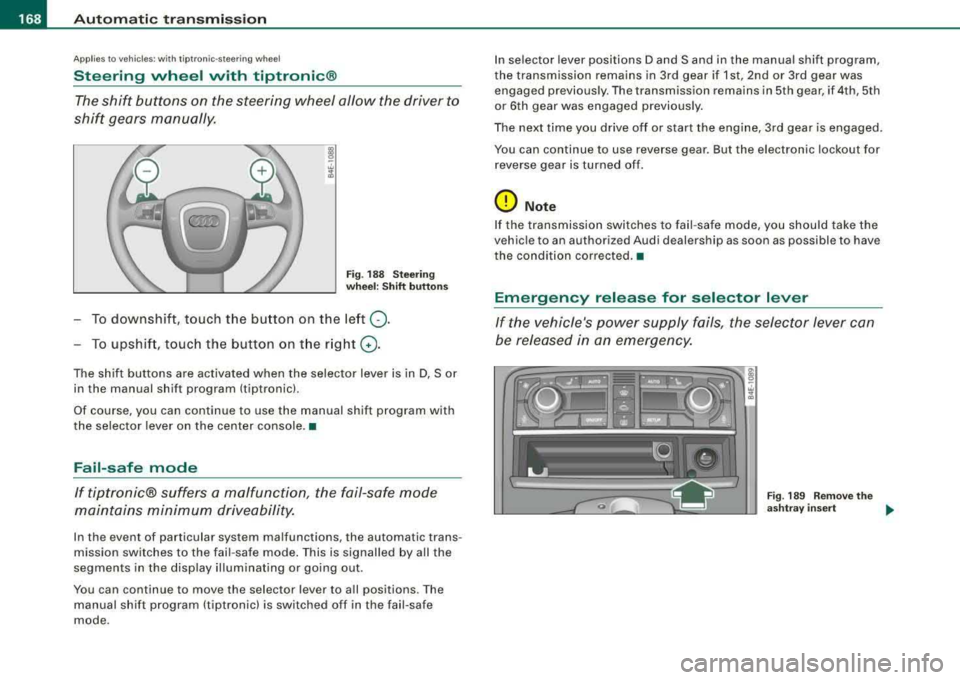
Steering wheel vvith tiptronic ®
The shift buttons on the steering wheel allow the driver to
shif t gears manually .
Fig . 18 8 S te ering
w heel : Shift button s
To downshift, touch the button on the left 0-
To upshif t, touc h the button on t he r ight G) .
The shift buttons are activated when the selector lever is in D, Sor
in the manual shift program (tiptronic).
Of course, you can continue to use the manual shift program with
the selector lever on the center console. •
Fail-safe mode
If tiptronic® suffers a ma/function, the fail-safe mode
maint ains minimum driveability.
In the event of particular system malfunctions, the automatic trans
mission switches to the fail -safe mode . This is signalled by all the
segments in the disp lay il lum inating or going out .
You can continue to move the selector lever to a ll positions. The
manual shift program (tiptronic) is switched off in the fail-safe
mode . I
n selector lever positions D and Sand in the manual shift program,
the transmission remains in 3rd gear if 1st, 2nd or 3rd gear was engaged previous ly. The transmission rema ins in 5th gear, if 4th, 5th
or 6th gear was engaged previous ly .
The next time you drive o ff or start the engine, 3rd gear is engaged .
You can continue to use reverse gear . But the electronic lockout for
r everse gear is turne d of f.
0 Note
If the transmission switches to fail -safe mode, you should ta ke the
vehic le to an authori zed Audi dealership as soon as possible to have
the condition co rrected. •
Emergency release for selector lever
If the vehicle's power supply fails , the selector lever can
be released in an emergency.
Fig . 18 9 R emo ve the
a sh tray insert
..
Page 177 of 404
Advanced Parking System -
----------------=---=------'
The rear-view camera section appearing in the MMI Display is
approximately the same as the coverage area represented in
=> page 174, fig. 196 or CD in=> page 174, fig. 197. Objects located in
the rear -view camera's uncovered area
0 => page 174, fig. 197 or in
the close vicinity of the bumper are not recognized.
& WARNING
Please note that objects not touching the ground can appear to be
further away than they really are (for example, the bumper of a
parked vehicle, a trailer hitch, or the rear of a truck) . In this case,
you should not use the guide help lines to measure distance
-
danger of accident! •
Applies to vehic les: with Advanced Parking System with rear view camera
Parking mode 1
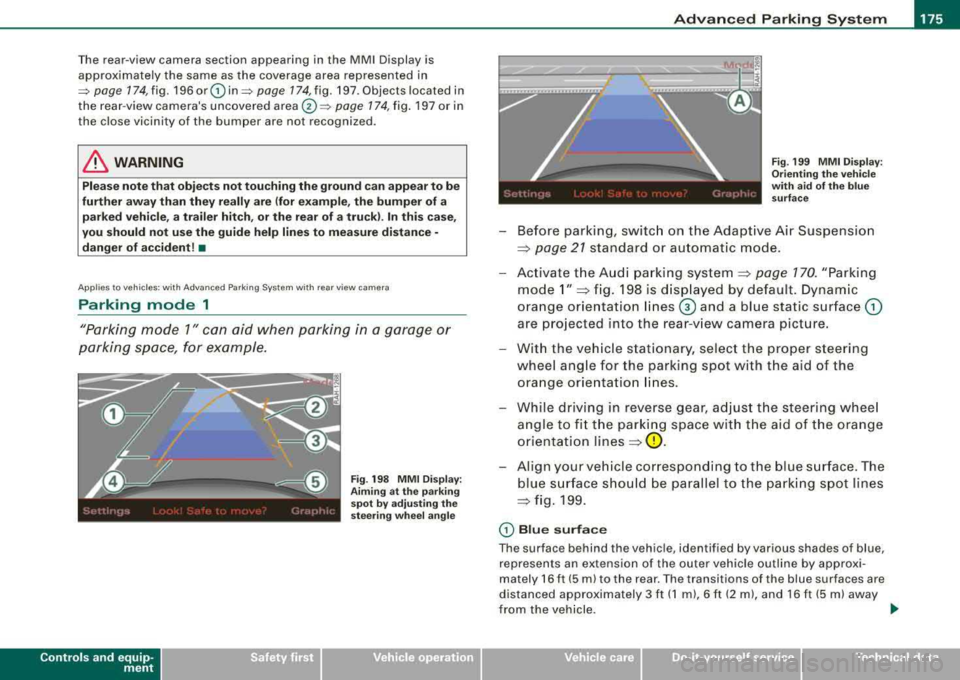
"Parking mode 1" can aid when parking in a garage or
parking space, for example.
Contro ls a nd eq uip
ment
Fig . 198 MMI Display:
Aiming at the parking
spot by adjusting the
steering wheel angle Fig
. 199 MMI Display:
Orienting the vehicle
with aid of the blue
surface
-Before parking, switch on the Adaptive Air Suspension
=> page 21 standard or automatic mode.
-Activate the Audi parking system=> page 170. "Parking
mode 1"
=> fig. 198 is displayed by default. Dynamic
orange orientation
lines @ and a blue static surface G)
are projected into the rear-view camera picture.
-With the vehicle stationary, select the proper steering
wheel angle for the parking spot with the aid of the orange orientation lines.
-While driving in reverse gear, adjust the steering wheel
angle to fit the parking space with the aid of the orange
orientation
lines=> 0 .
-Align your vehicle corresponding to the blue surface. The
blue surface should be parallel to the parking spot lines
=> fig. 199.
CD Blue surface
The surface behind the vehicle, identified by various shades of blue,
represents an extension of the outer vehicle outline by approxi
mately 16 ft (5 ml to the rear. The transitions of the blue surfaces are
distanced approximately 3 ft (1
ml, 6 ft (2 ml, and 16 ft (5 ml away
from the vehicle.
._
Vehicle care I I irechnical data
Page 178 of 404
___ A_ d_v _a_ n_ c_e _ d_ P_ a
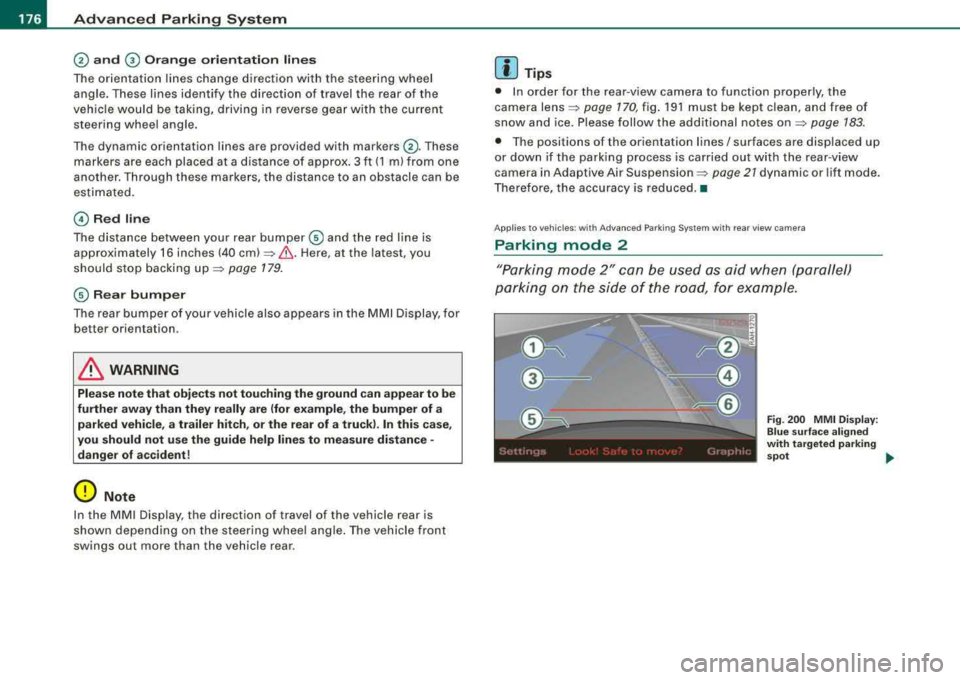
_ r_k _in -= g'-- S-
The orientation lines change direction with the steering wheel
angle. These lines identify the direction of travel the rear of the
vehic le would be taking, driving in reverse gear with the current
steering wheel angle.
The dynamic orientation lines are provided with markers
G). These
markers are each placed at a distance of approx. 3 ft (1 m) from one
another. Through these markers, the distance to an obstacle can be
estimated.
© Red line
The distance between your rear bumper © and the red l ine is
approximately 16 inches (40
cm)~&. Here, at the latest, you
should stop backing
up ~ page 179.
© Rea r bump er
The rear bumper of your vehicle also appears in the MMI D isplay, for
better orientation .
& WARNING
Please not e that obj ect s not t ouching the ground can app ear to be
further away th an they re ally are (for ex ample , th e bump er of a
parked vehicle , a tr ailer h itch , or the rear of a truc k). In t his ca se,
you sh o uld not use the guide h elp line s to m easure di stance
-
danger of accident!
0 Note
In the MM I Display, the direction of travel of the vehicle rear is
show n depending on the steering whee l ang le . The vehicle front
swings out more than the vehicle rear .
[ i] Tip s
• In order for the rear -v iew camera to function properly, the
camera
lens ~ page 170, fig. 191 must be kept clean, and free of
snow and ice. Please follow the additional notes
on~ page 183.
• The positions of the orientation lines/ surfaces are displaced up
or down if the parking process is carried out with the rear -v iew
camera in Adaptive Air
Suspension ~ page 21 dynamic or lift mode.
Therefore, the accuracy is reduced. •
Applies to vehicles : with Adva nce d Pa rking Sys tem with rear view came ra
Parking mode 2
"Parking mode 2" can be used as aid when (parallel)
parking on the side of the road, for example .
Fig. 200 MMI Di spl ay :
B lue surf ace ali gne d
w it h t arg ete d parking
s p ot _.,