ignition AUDI TT COUPE 2014 Workshop Manual
[x] Cancel search | Manufacturer: AUDI, Model Year: 2014, Model line: TT COUPE, Model: AUDI TT COUPE 2014Pages: 284, PDF Size: 34.42 MB
Page 118 of 284
Downloaded from www.Manualslib.com manuals search engine Speech
dialogue system
Speech dialogue system
How to use the system
Applies to vehicles: with speech dialogue system
You can operate many infotainment functions
conveniently by voice.
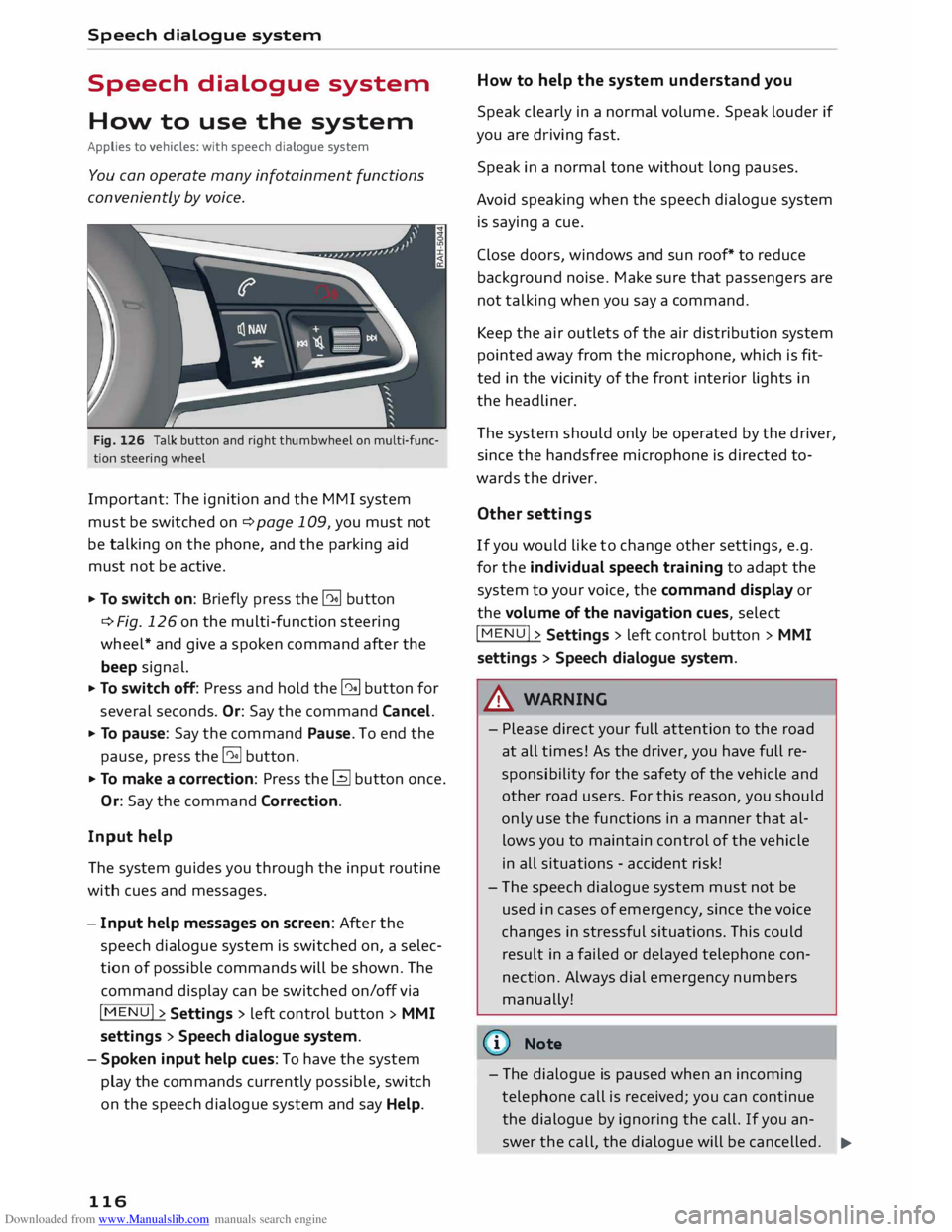
Fig. 126 Talk button and right thumbwheel on multi-func
tion steering wheel
Important: The ignition and the MMI system
must be switched on ¢page 109, you must not
be talking on the phone, and the parking aid
must not be active.
... To switch on: Briefly press the [2!] button
c:::> Fig. 126 on the multi-function steering
wheel* and give a spoken command after the
beep signal.
... To switch off: Press and hold the [2!] button for
several seconds. Or: Say the command Cancel.
... To pause: Say the command Pause. To end the
pause, press the l2!l button.
... To make a correction: Press the� button once.
Or: Say the command Correction.
Input help
The system guides you through the input routine
with cues and messages.
- Input help messages on screen: After the
speech dialogue system is switched on, a selec
tion of possible commands will be shown. The
command display can be switched on/off via
I MENU I>
Settings > left control button >
MMI
settings > Speech dialogue system.
- Spoken input help cues: To have the system
play the commands currently possible, switch
on the speech dialogue system and say Help.
116 How
to help the system understand you
Speak clearly in a normal volume. Speak louder if
you are driving fast.
Speak in a normal tone without long pauses.
Avoid speaking when the speech dialogue system
is saying a cue.
Close doors, windows and sun roof* to reduce
background noise. Make sure that passengers are
not talking when you say a command.
Keep the air outlets of the air distribution system
pointed away from the microphone, which is fit
ted in the vicinity of the front interior lights in
the headliner.
The system should only be operated by the driver,
since the handsfree microphone is directed to
wards the driver.
Other settings
If you would like to change other settings, e.g.
for the individual speech training to adapt the
system to your voice, the command display or
the volume of the navigation cues, select
I MENU I>
Settings > left control button >
MMI
settings > Speech dialogue system.
A WARNING
- Please direct your full attention to the road
at all times! As the driver, you have full re
sponsibility for the safety of the vehicle and
other road users. For this reason, you should
only use the functions in a manner that al
lows you to maintain control of the vehicle
in all situations -accident risk!
- The speech dialogue system must not be
used in cases of emergency, since the voice
changes in stressful situations. This could
result in a failed or delayed telephone con
nection. Always dial emergency numbers
manually!
{tI)) Note
- The dialogue is paused when an incoming
telephone call is received; you can continue
the dialogue by ignoring the call. If you an-
swer the call, the dialogue will be cancelled.
..,.
Page 126 of 284
Downloaded from www.Manualslib.com manuals search engine Telephone
Your
mobile phone must support the remote SIM
Access Profile (rSAP) and be connected to the
MMI using the Car phone mode in order to use
the online functions of Audi connect*. Alterna
tively, you can use a separate SIM card in the SIM
card reader* ¢ page 126. A data plan1
l
is neces
sary in both cases.
You can use the online functions of Audi connect
¢ page 137 if your mobile phone contract in
cludes a data option 1
l
.
Handsfree
With this type of connection, you can use the
handsfree system to operate the telephone func
tions via the MMI. Your phone calls will be made
via the antenna of your mobile phone.
With the Audi phone box*, you can use the vehi
cle's external aerial to make calls. You can also
charge your phone with a USB adapter.
Connecting a mobile phone using
Bluetooth
Applies to vehicles: with telephone
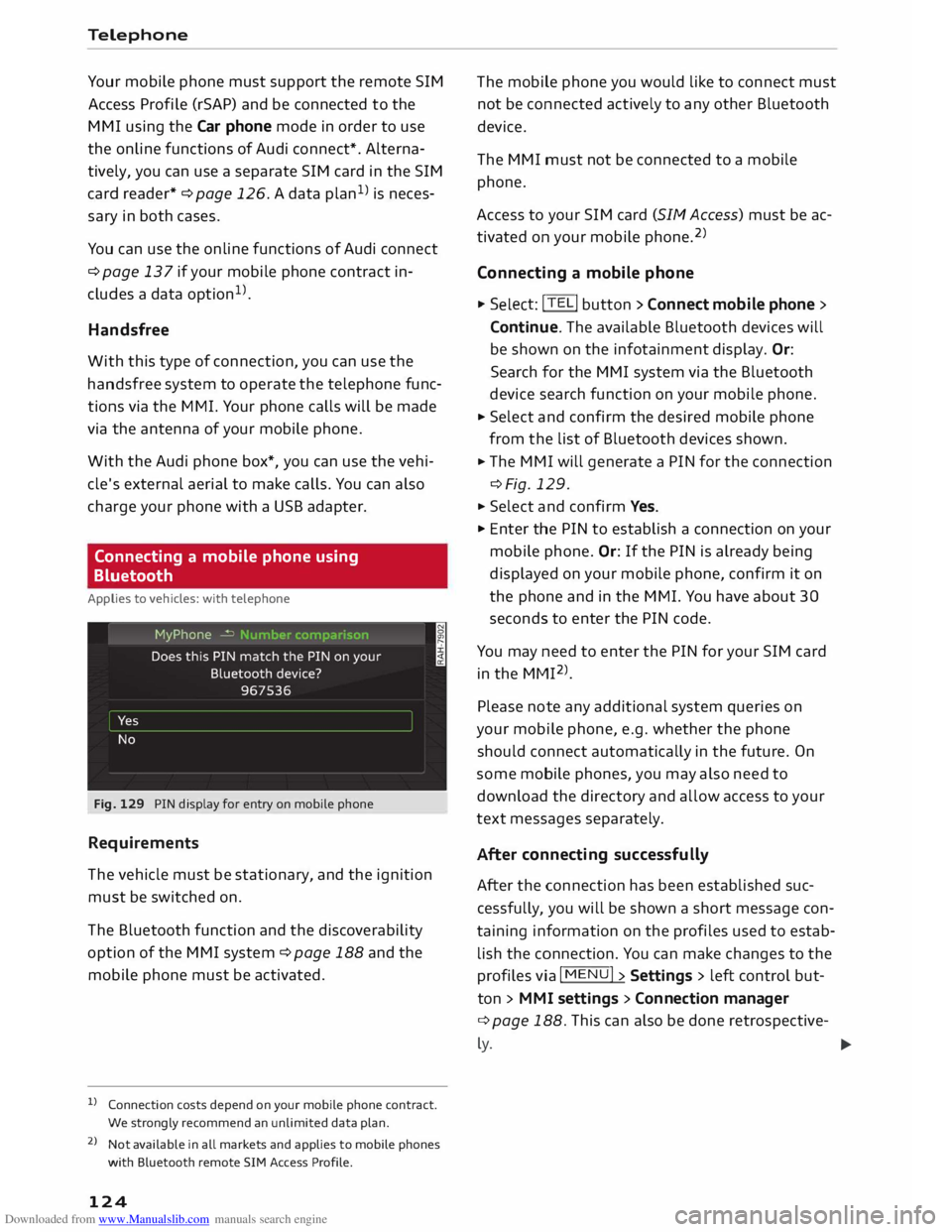
Fig. 129 PIN display for entry on mobile phone
Requirements
The vehicle must be stationary, and the ignition
must be switched on.
The Bluetooth function and the discoverability
option of the MMI system ¢ page 188 and the
mobile phone must be activated.
l) Connection costs depend on your mobile phone contract.
We strongly recommend an unlimited data plan.
2 l
Not available in all markets and applies to mobile phones
with Bluetooth remote SIM Access Profile.
124 The
mobile phone you would like to connect must
not be connected actively to any other Bluetooth
device.
The MMI must not be connected to a mobile
phone.
Access to your SIM card (SIM Access) must be ac
tivated on your mobile phone. 2
)
Connecting a mobile phone ... Sel ect: !TELi button > Connect mobile phone>
Continue. The available Bluetooth devices will
be shown on the infotainment display. Or:
Search for the MMI system via the Bluetooth
device search function on your mobile phone.
... Select and confirm the desired mobile phone
from the list of Bluetooth devices shown.
... The MMI will generate a PIN for the connection
¢Fig. 129 .
... Select and confirm Yes.
"' Enter the PIN to establish a connection on your
mobile phone. Or: If the PIN is already being
displayed on your mobile phone, confirm it on
the phone and in the MMI. You have about 30
seconds to enter the PIN code.
You may need to enter the PIN for your SIM card
in the MMI 2
l
_
Please note any additional system queries on
your mobile phone, e.g. whether the phone
should connect automatically in the future. On
some mobile phones, you may also need to
download the directory and allow access to your
text messages separately.
After connecting successfully
After the connection has been established suc
cessfully, you will be shown a short message con
taining information on the profiles used to estab
lish the connection. You can make changes to the
profiles via I MENU I> Settings > left control but
ton > MMI settings > Conn ection manager
¢ page 188. This can also be done retrospective-
� �
Page 127 of 284
Downloaded from www.Manualslib.com manuals search engine 0
N
co
....
\D Lfl
N
Lfl
.... In
addition, the contacts on the mobile phone are
automatically Loaded into the directory of the
MMI. This may take several minutes, depending
on how many contacts are stored on the mobile
phone.
After you have connected your mobile phone to
the MMI successfully, you can immediately begin
configuring Audi connect ¢page 137.
{i)) Note
- You can adjust further settings for connec
ted mobile phones using the connection
manager ¢page 187.
- Bluetooth devices only have to be bonded
once. Any devices that have already been
bonded to the MMI system are connected
automatically when they are within range
and the ignition is on.
- You will need to authorise the MMI connec
tion on your mobile phone to enable auto
matic connection.
- Please note any system queries on your mo
bile phone, e.g. whether the phone should
connect automatically in the future. On
some mobile phones, you may also need to
download the directory and allow access to
your text messages separately.
- You receive the SIM PIN code from your mo
bile network service provider together with
the SIM card. If you enter the SIM PIN code
incorrectly three times1
)
in a row, the SIM
card will be be blocked. A PUK (personal un
blocking key) must be entered in order to re
activate the SIM card.
- You can bond several mobile phones to the
MMI system; however only one connection
is active at a time.
- Any Bluetooth device that is already connec
ted to the MMI system is disconnected
when another device is connected to the
system.
- The Bluetooth connection between the sys
tem and the mobile phone is automatically
terminated when you Leave the car.
l l
The number of possible attempts depends on the SIM
card. Telephone
- For further information regarding your mo
bile phone, contact your mobile network
service provider or refer to the operating in
structions for your mobile phone. For infor
mation on using a phone in your car, please
go online (e.g. www.audi.com/bluetooth) or
ask an Audi dealer.
Using the Audi phone box
Applies to vehicles: with Audi phone box
With the Audi phone box*, you can use the vehi
cle's external aerial to make calls. You can also
charge your phone with a USB adapter. The use
of the external aerial reduces radiation in the ve
hicle and also ensures better reception quality.
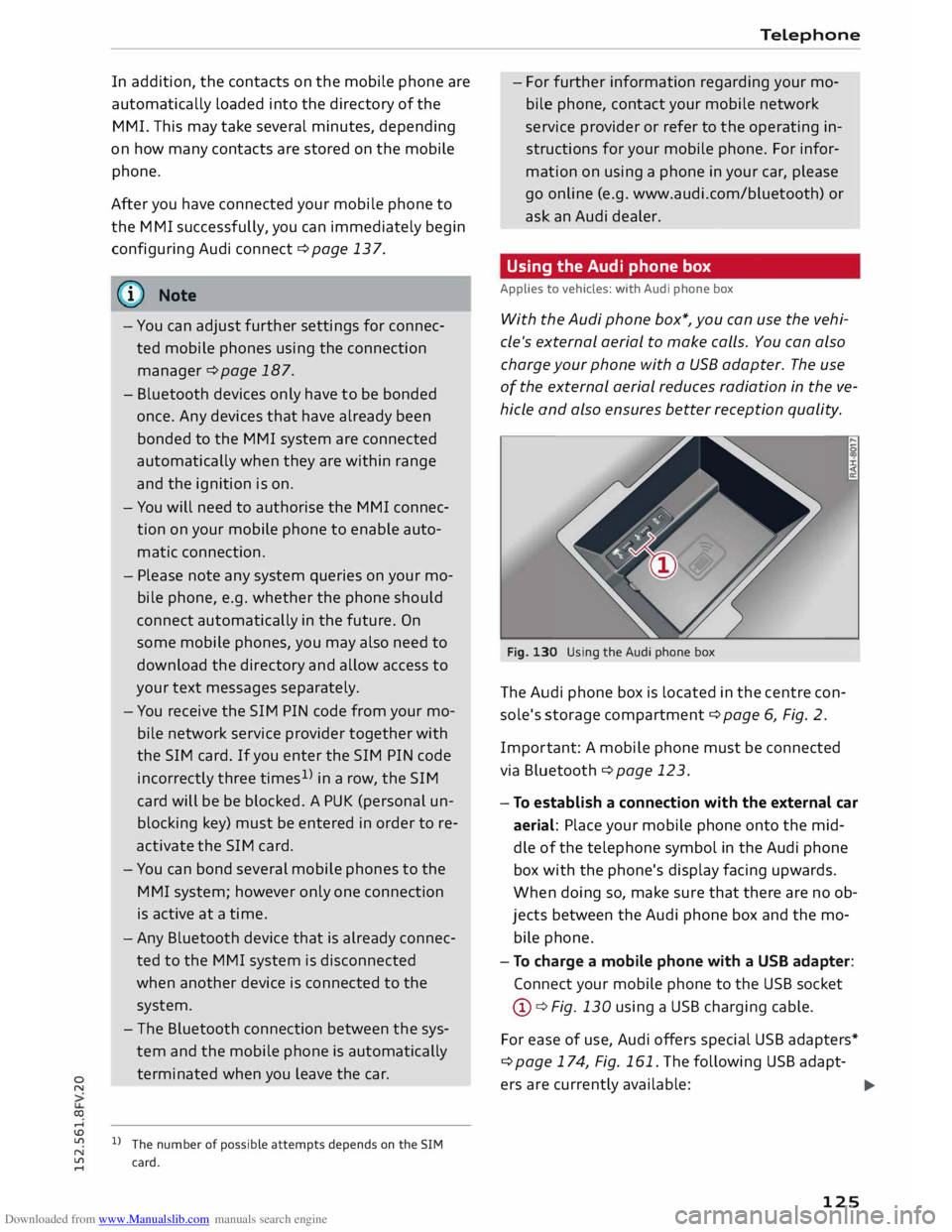
Fig. 130 Using the Audi phone box
The Audi phone box is Located in the centre con
sole's storage compartment¢ page 6, Fig. 2.
Impor tant: A mobile phone must be connected
via Bluetooth ¢ page 123.
- To establish a connection with the external car
aerial: Place your mobile phone onto the mid
dle of the telephone symbol in the Audi phone
box with the phone's display facing upwards.
When doing so, make sure that there are no ob
jects between the Audi phone box and the mo
bile phone.
- To charge a mobile phone with a USB adapter:
Connect your mobile phone to the USB socket
@ ¢Fig. 130 using a USB charging cable.
For ease of use, Audi offers special USB adapters*
¢ page 174, Fig. 161. The following USB adapt-
ers are currently available:
.,..
125
Page 128 of 284
Downloaded from www.Manualslib.com manuals search engine Telephone
® USB adapter for mobile phones with micro
USB connector*
@ USB adapter for mobile phones with Apple
Lightning connector*
© USB adapter for mobile phones with Apple
dock connector*
_& WARNING
Loose objects can be flung around in the pas
senger compartment in the event of sudden
driving or braking manoeuvres. This could re
sult in serious injuries and also cause you to
lose control of the vehicle. Always keep the
centre armrest closed when driving.
- The Audi phone box is not available in all
countries. Your Audi dealer will be able to
provide you with more detailed information.
- If the mobile phone is placed in the Audi
phone box in a bag or a protective case, this
may interfere with the connection to the ex
ternal aerial.
- An enhanced transmission quality cannot be
guaranteed if more than one mobile phone
is placed inside.
- Audi recommends the use of Audi Genuine
Accessories. Audi has tested these products
for suitability, reliability and safety.
- USB adapters are available from Audi deal
ers or specialist retailers.
- To avoid malfunctions, ensure that the mo
bile phone is correctly placed inside the Audi
phone box.
Using the SIM card reader
Applies to vehicles: with SIM card reader
You can choose how you wish to make telephone
calls when you insert a separate SIM card in the
SIM card reader:
Telephone installed in vehicle (SIM card)*
The SIM card in the SIM card reader is used both
for telephone calls and Audi connect services
¢page 137.
126 Your
telephone conversations are directed via the
external vehicle aerial to optimise sound and re
ception quality. For the telephone options, you
can be reached on the telephone number of the
SIM card in the SIM card reader. Depending on
the SIM card type, this may be the same number
as for your the current mobile phone contract
(twin/Multi SIM card) or another number from a
different mobile phone contract.
Personal mobile phone (Bluetooth)
Calls are made with the mobile phone connected
using the Handsfree function. You can therefore
be reached on the phone number of the SIM card
in your mobile phone. In this case, the SIM card
in the SIM card reader is used for Audi connect
services only.
Using a separate SIM card
Applies to vehicles: with SIM card reader
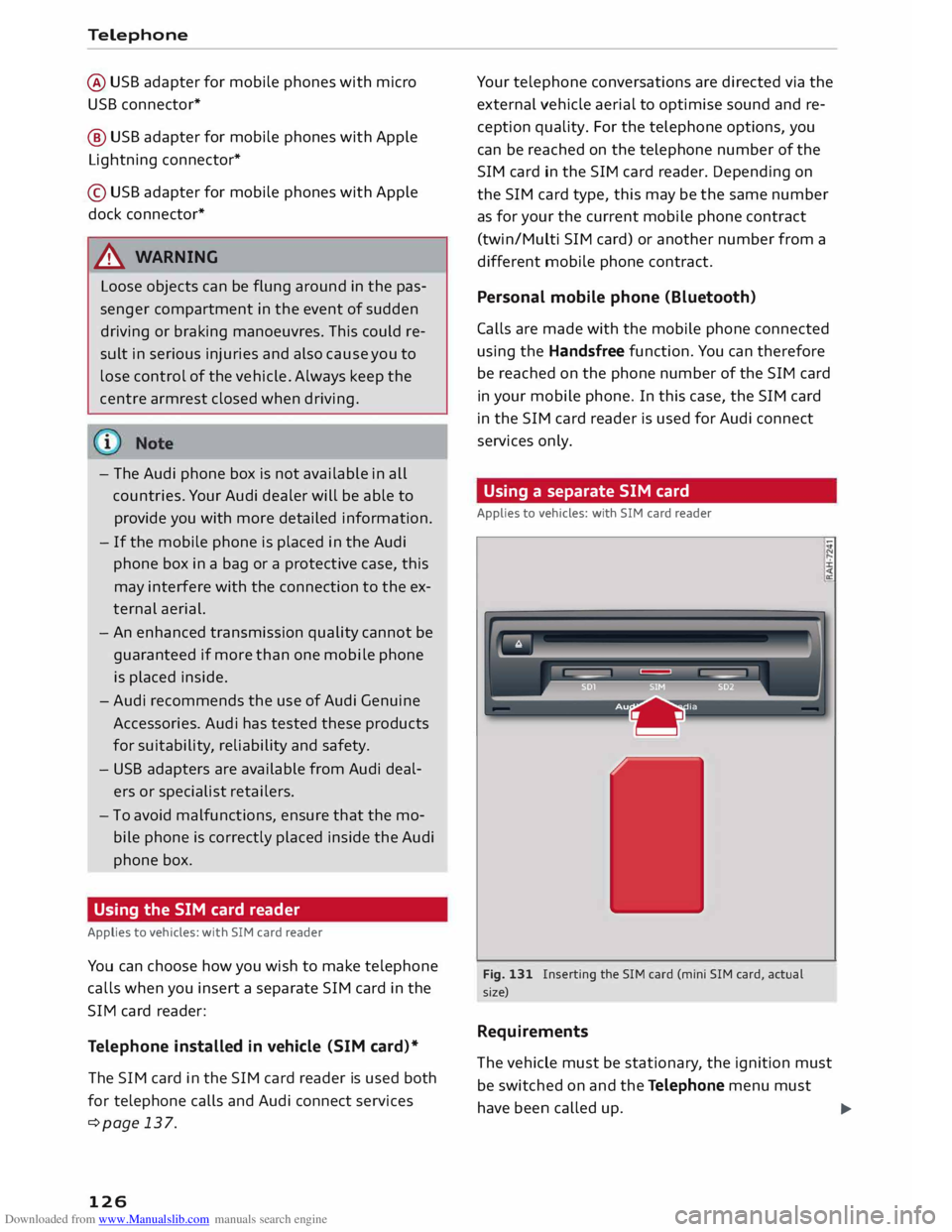
Fig. 131 Inserting the SIM card (mini SIM card, actual
size)
Requirements
The vehicle must be stationary , the ignition must
be switched on and the Telephone menu must
have been called up.
liJ.
Page 134 of 284
Downloaded from www.Manualslib.com manuals search engine Telephone
The contacts are displayed in alphabetical order;
they can be sorted by first name/surname
¢page 135.
You can connect up to four different mobile
phones to the MMI system, or use four different
SIM cards with the SIM card reader*, allowing
you to manage up to four private directories.
You can open the directory via the Telephone*
menu and via the Navigation* menu.
ijJ) Note
- For more information on the search func
tion, please refer to ¢ page 114.
- Please pay attention to any synchronisation
queries on your mobile phone. You must
confirm any synchronisation queries from
the directory before the contacts can be loa
ded from your mobile phone into the MMI
directory.
- Which contacts are displayed on the MMI
depends on the mobile phone you are using.
For more information on which mobile
phones are supported, please go to
www .audi.com/ bluetooth or contact an Audi
dealer.
- In certain cases, contacts from a mobile
phone may not be transmitted in alphabeti
cal order. If there are too many entries, con
tacts with certain initial letters may not be
displayed on the MMI system.
- If the SIM card is inserted in the SIM card
reader* ¢ page 126, the SIM card entries
and the contacts in the local MMI memory
(public) are displayed.
- The contacts in the local MMI memory (pub
lic) are visible anytime and are therefore not
protected against access by other users.
Using contacts from another mobile phone
Applies to vehicles: with SIM card reader
If a SIM card is inserted in the SIM card reader
and is used for telephone calls, you can access
the phone book on another mobile phone.
Important: A SIM card must be inserted in the
SIM card reader.
132 �
Refer to ¢ page 188, Directory.
((J} Note
- When the MMI system has downloaded the
phone book from the mobile phone, the
contacts from the SIM card will no longer be
shown in the MMI directory.
- When you switch the ignition on again after
switching it off and leaving the car, the MMI
system will load the phone book of the mo
bile phone if the phone is within range and
Bluetooth is activated both on the phone
and on the MMI system. If this is not the
case, the MMI system will show the con
tacts from the SIM card in the SIM card
reader.
Searching for a contact
Applies to vehicles: with telephone
�
Selec t:
!TEL! button > left control button> Di
rectory.
� Enter the initials of the contact you are looking
for individually, separating them with a space.
If necessary , enter further letters to narrow the
search.
� Select and confirm a contact in the directory .
The telephone numbers for the contact you
have selected will appear.
� Select
and confirm a phone number to start the
call.
� Note
- You can scroll rapidly through long lists by
turning the rotary pushbutton quickly.
- For more information on the search func
tion, please refer to ¢ page 114.
Page 137 of 284
Downloaded from www.Manualslib.com manuals search engine 0
N
co
....
\D Lfl
N
Lfl
.... with
the UMTS (3G) or GSM (2G) network de
pending on network availability and reception
and on the position of the vehicle. In this mode,
the reception is prioritised for the use of data
services. There may be restrictions when making
and receiving calls. We recommend that you
mainly use this setting in areas with good UMTS
(3G) network coverage.
Ring tone and volume settings 1
>
You can switch the MMI ring tone on or off using
the Mute telephone function. Ring tones are
played when you select the function Ring tone.
Press the rotary pushbutton to store the selected
ring tone. You can adjust the Microphone input
level during an active phone call using the rotary
pushbutton. For the settings Ring tone volume/
Message volume, see¢ page 190.
Network settings*
See ¢ page 188, Network settings* onwards
Serial number (IMEi)*
The serial number of the telephone module in
stalled in the MMI system is displayed.
Switch on teleph one/Switch off telephone
The car telephone will be turned "on" automati
cally when the ignition is switched on, as long as
it was not switched off separately the last time it
was used.
{D) Note
- You can bond several mobile phones to the
MMI system; however only one connection
is active at a time.
- All bonded Bluetooth devices can be deleted
by resetting the Bluetooth function to the
factory settings ¢page 187.
Directory settings
Applies to vehicles: with telephone .,. Sele
ct:
I TELi button > left control button > Di
rectory.
l l
Depends on the connected mobile phone Telephone
.,. Select: right control button > Directory set-
tings.
Memory capacity
The Memory capacity of the directory will be dis
played.
You can manage up to 17,000 contacts with the
directory. Up to 4,000 contacts can be loaded
from your mobile phone into each directory, and
up to 1,000 contacts can be imported from a
storage device.
Sort order
You can sort the contacts in your directory alpha
betically according to their surname or first
name.
Import contacts
Refer to ¢ page 133, Importing/exporting con
tacts.
Export contacts
Refer to ¢ page 133, Importing/exporting con
tacts.
Download phone book
To update the contacts in the MMI, you can
download the contacts from your mobile phone
manually. Depending on the mobile phone you
are using, the Bluetooth connection may have to
be disconnected and re-established before you
can update the contacts.
Greying out contacts without a number
If no number has been stored for a contact, the
contact is displayed greyed out in the directory.
You can activate this option if you wish to hide
these contacts.
135
Page 139 of 284
Downloaded from www.Manualslib.com manuals search engine 0
N
co
.... Audi
connect
Introduction
Applies to vehicles: with Audi connect
Audi connect services allow on line information to
be directly transmitted and integrated into the
vehicle.
Thanks to a Wi-Fi hotspot, it is possible to use a
mobile device to access the Internet in the rear of
the vehicle during journeys or anywhere in the ve
hicle when it is stationary .
.&_ WARNING
- Only use Audi connect services when the
traffic conditions allow you to do so safely -
risk of accident! Please always observe
¢ page 192, Notes on traffic safety.
- The Audi connect services should only be
used via a Wi-Fi hotspot when the vehicle is
stationary or from the rear seats if the vehi
cle is in motion -risk of accident!
Cl) Note
Please observe the Notes on Audi co nnect
¢ page 145 before using the system.
Setting up
Before you start
An Internet connection is required in order to use
Audi connect services. You can establish a con
nection by using one of the following options:
Option 11
>
Connecting an rSAP 2
) enabled mobile phone via
Bluetooth ¢page 137
Option 2 Using a separate SIM card in the SIM card reader
¢page 138
� l
l
Not available for all countries and models
N
� 2
l
Bluetooth remote SIM Access Profile Audi
connect
Option 3l)
Using a mobile device (e.g. a smartphone) as a
personal Wi-Fi hotspot for the MMI ¢ page 139
Connecting an rSAP enabled mobile phone
via Bluetooth
Applies to vehicles: with Audi connect
<(
a:
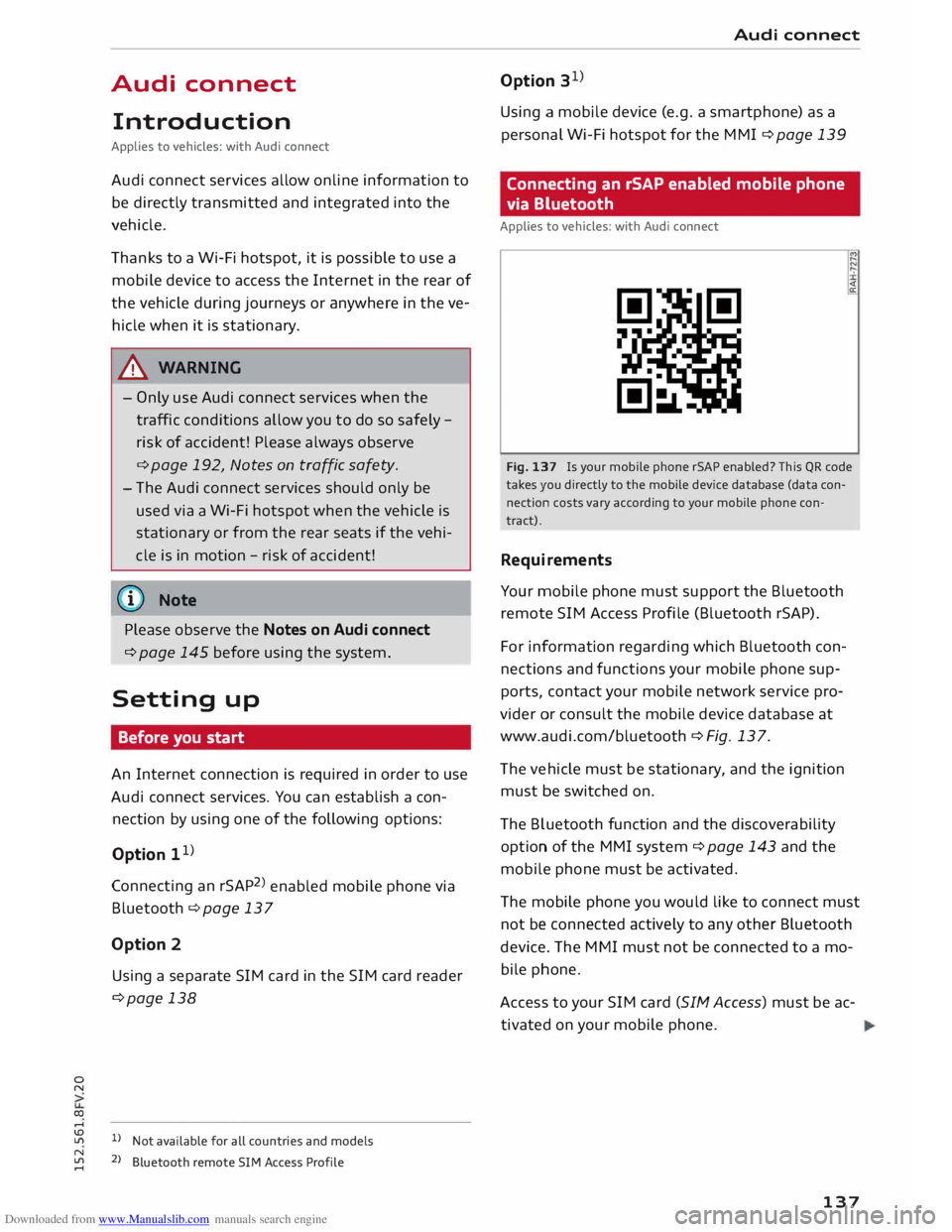
Fig. 137 Is your mobile phone rSAP enabled? This QR code
takes you directly to the mobile device database (data con
nection costs vary according to your mobile phone con
tract).
Requirements
Your mobile phone must support the Bluetooth
remote SIM Access Profile (Bluetooth rSAP).
For information regarding which Bluetooth con
nections and functions your mobile phone sup
ports, contact your mobile network service pro
vider or consult the mobile device database at
www.audi.com/bluetooth ¢ Fig. 13 7.
The vehicle must be stationary, and the ignition
must be switched on.
The Bluetooth function and the discoverability
option of the MMI system¢ page 143 and the
mobile phone must be activated.
The mobile phone you would like to connect must
not be connected actively to any other Bluetooth
device. The MMI must not be connected to a mo
bile phone.
Access to your SIM card (SIM Access) must be ac
tivated on your mobile phone.
137
Page 140 of 284
Downloaded from www.Manualslib.com manuals search engine Audi
connect
Connecting a mobile phone
"' Select: !TELi
button > Connect mobile phone>
Continue. The display will show the Bluetooth
devices available. Or: Search for the MMI sys
tem via the Bluetooth device search function on
your mobile phone.
"' Select and confirm the desired mobile phone
from the List of Bluetooth devices shown.
"' Enter the PIN to establish a connection on your
mobile phone. Or: If the PIN is already being
displayed on your mobile phone, confirm it on
the phone and in the MMI. You have about 30
seconds to enter the PIN code.
"' Then enter the PIN code for your SIM card in
the MMI.
Please note any additional system queries on
your mobile phone, e.g. whether the phone
should connect automatically in the future. On
some mobile phones, you may also need to
download the directory separately.
After connecting successfully
The signal strength bars and the Bluetooth sym
bol will appear in the status Line of the infotain
ment display after the device has been connected
success fully.
You can now use Audi connect .
.. Select: !MENU! button> Audi connect.
"' Confirm the system query of whether an Inter
net connection should be established with Al
ways accept.
«:I)) Note
- Bluetooth devices only have to be bonded
once. Depending on the mobile phone you
are using, any devices that have already
been bonded to the MMI system are connec
ted automatically when they are within
range and the ignition is on. You can bond
several mobile phones to the MMI system;
however only one connection is active at a
time.
l l
The number of possible attempts
depends
on the SIM
card.
138 -
You receive the SIM PIN code from your mo
bile network service provider together with
the SIM card. If you enter the SIM PIN code
incorrectly three times1
>
in a row, the SIM
card will be be blocked. A PUK (personal un
blocking key) must be entered in order to re
activate the SIM card.
- The Bluetooth connection between the sys
tem and the mobile phone is automatically
terminated when you Leave the car.
- For further information regarding your mo
bile phone, contact your mobile network
service provider or refer to the operating in
structions for your mobile phone. For infor
mation on using a phone in your car, please
go online (e.g. www.audi.com/bluetooth) or
ask an Audi dealer.
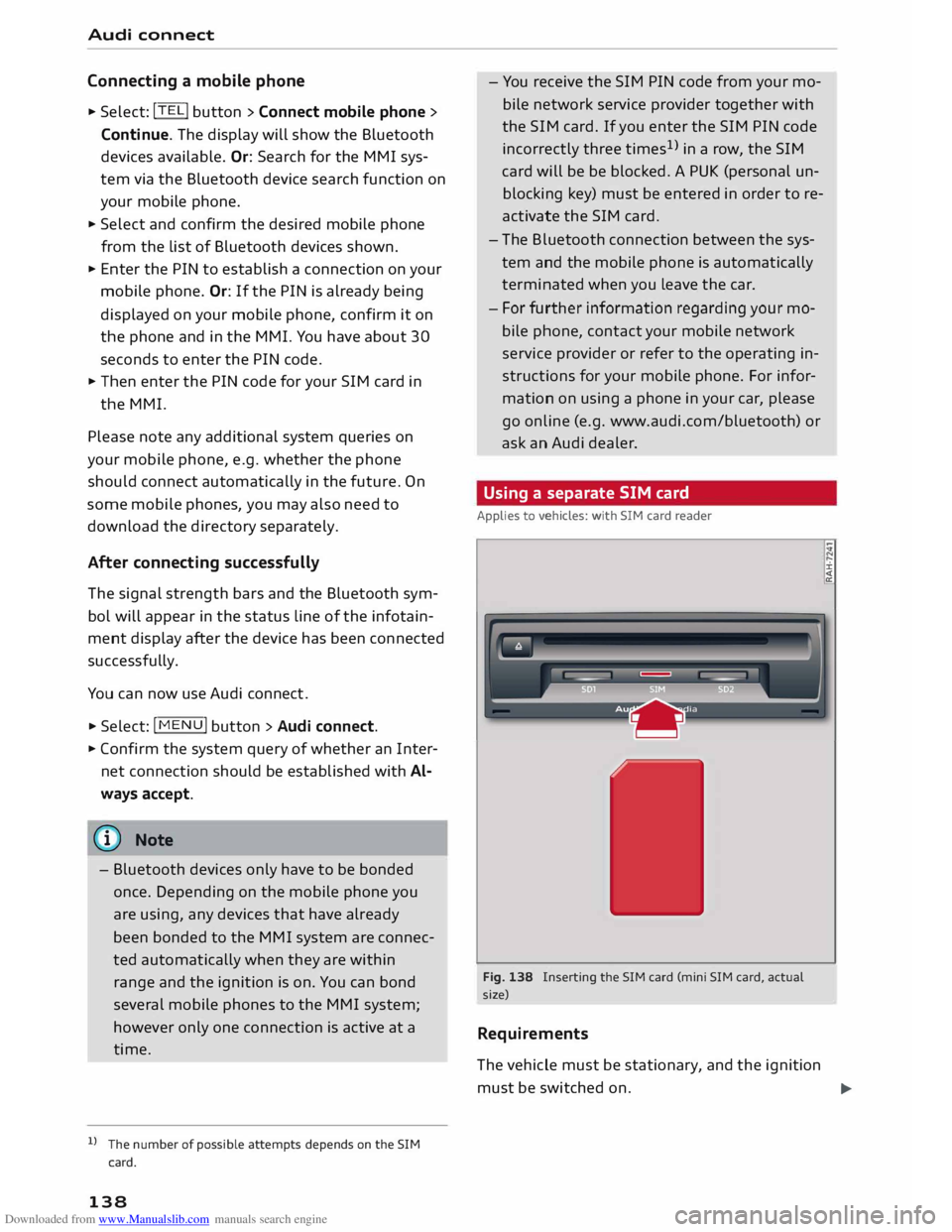
Using a separate SIM card
Applies to vehicles: with SIM card reader
Fig. 138 Inserting the SIM card (mini SIM card, actual
size)
Requirements
The vehicle must be stationary, and the ignition ±
must be switched on.
...,
Page 145 of 284
Downloaded from www.Manualslib.com manuals search engine 0
N
co
....
\D L/'l
N
L/'l
.... installed
in your vehicle. You can then check
whether a new version is available at
www.audi.com/myaudi. You can also have
the new navigation data installed by an Audi
dealer (carries additional charges).
- For more information on the myAudi spe
cial destinations and the navigation map
update service, please see the Operating
Manual for Audi connect at www.audi.com/
myaudi.
Audi connect services for the telephone
Applies to vehicles: with Audi connect
The following Audi connect services are currently
available:
- Creating contacts on your PC via your myAudi
account and loading the contacts into the direc
tory of your MMI system ¢page 133.
Audi connect services in the media menu
Applies to vehicles: with Wi-Fi audio player and Audi connect
- Wi-Fi audio player: To access the media centre
of your player (e.g. smartphone) connected via
Wi-Fi ¢page 172. Additionally, you can use
the Audi MMI connect app to access Internet
radio programmes*.
- Online media: With assistance from the Audi
MMI connect app, this function allows you to
access and operate various online media serv
ices using the MMI.
@ Note
Please contact an Audi dealer for more infor
mation on Wi-Fi audio players and for a list of
supported devices.
Further options
Applies to vehicles: with Audi connect
.,. Select: I MENU I button > Audi connect > right
control button.
The following options are available to you in the
overview of the Audi connect services:
- Login: ¢ page 140
- Connection manager: ¢page 187 Audi
connect
- Licence periods: The validity and the time re
maining on your licences is displayed. If the Li
cence expiry warning function is switched on, a
message will be displayed before the licence ex
pires.
Wi-Fi hotspot
Applies to vehicles: with Wi-Fi hotspot
You can use your MMI system as a Wi-Fi hotspot
for connecting to the Internet on up to eight Wi
Fi devices. Small, light Wi-Fi devices that are not
permanently attached to the vehicle must only
be operated from the rear seats while the vehicle
is moving.
Impor tant: The ignition must be switched on.
.,. Select: !TEL!
button > right control button Con-
nection manager.
.,. Select:
right control button > Wi-Fi settings.
You can access the following settings in the Wi-Fi
settings menu:
Wi-Fi mode
The Wi-Fi hotspot is deactivated when the vehicle
leaves the factory. Set the Wi-Fi hotspot to hot
spot before establishing a connection between
your vehicle and your Wi-Fi device.
- hotspot: The MMI's Wi-Fi hotspot is active and
visible to other devices. It is possible to connect
to new Wi-Fi devices.
- hotspot and client: The MMI's Wi-Fi hotspot is
active. An Internet connection to a personal
Wi-Fi hotspot (e.g. smartphone) can be estab
lished. You can search for your personal hot
spot and connect to the MMI using Network
search ¢page 144 ¢page 139.
- off: The MMI system's Wi-Fi hotspot is deacti
vated. It will not be possible to establish an In
ternet connection .
Hotspot settings
The Wi-Fi connection between your vehicle and
the Wi-Fi device (laptop or mobile phone) is en
crypted. Before a connection can be established,
you must enter the following values/settings
when setting up your Wi-Fi device (these values
can be edited as required):
..,.
143
Page 191 of 284
Downloaded from www.Manualslib.com manuals search engine 0
N
co
....
\D U'l
N
U'l
.... (D
Note
Some SIM cards do not allow the SIM PIN
query to be deactivated.
System update .,.
Sele
ct: I M
ENU I button >Settings > left control
button > System maintenance.
- System update: Insert the storage medium
with the update data into the appropriate drive
¢ page 169. Select and confirm the appropri
ate drive> Start update. The duration of this
process depends on the size of the update.
- Reset driver installation: The media driver
package selected is reset to the factory de
faults.
- Version information: Information on the soft
ware version of the M MI and the navigation da
tabase* are displayed. In addition, you can use
the Software information function to display
information on the MMI's software and
licence
conditions.
On-board handbook
Applies to vehicles: with On-board Handbook
The On-board Handbook includes the Owner's
Manual for your
vehicle.
Installing/updating the On-board Handbook
Important: The storage medium on which the
On-board Handbook is stored must have been in
serted into the relevant drive¢ page 169.
.,. Select:
I MENU I button >Settings > left control
button > System maintenance > System up
date > SD card 1, SD card 2, CD/DVD* or USB* .
.,. Follow the directions given by the system.
Starting the Hand book
Important: The Handbook must have been instal
led previously .
.,. Select: I
MENU I button >Car> left control but-
ton > Handbo ok.
The On-board Handbook will automatically load
in the language that is set under the option Menu
language in the MMI ¢ page 186. System
settings
Using the On-board Handbook
The following functions are available when you
are operating the On-board Handbook using the
rotary pushbutton:
- Select and confirm an entry: Turn the rotary
pushbutton to the entry you require and press
the rotary pushbutton.
- Show a picture in full size: Turn the rotary
pushbutton to the desired picture and press the
rotary pushbutton.
- Call up the options menu: You can return to
the Home page, Refresh the content in the On
board Handbook, Cancel refresh of the content
and open the Index.
A WARNING
Not paying attention to the road traffic can
lead to serious accidents and loss of life. Only
use the On-board Handbook when the traffic
conditions allow you to do so safel y. You must
maintain proper control of your vehicle at all
times. As the driver, you bear the responsibili
ty for road safety.
� Note
- The On-board Handbook is not available in
all countries. Your Audi dealer will be able
to provide you with more detailed informa
tion.
- Switch off the ignition while you are instal
ling/updating the On-board Handbook.
- Please note that the On-board Handbook is
not a substitute for the printed Owner's
Manual.
189