ignition AUDI TT COUPE 2016 Owner's Guide
[x] Cancel search | Manufacturer: AUDI, Model Year: 2016, Model line: TT COUPE, Model: AUDI TT COUPE 2016Pages: 322, PDF Size: 52.86 MB
Page 76 of 322
Downloaded from www.Manualslib.com manuals search engine Assist
The speed you saved will be retained ifthe cruise
control has been switched off temporarily. To re
sume the stored speed, release the brake or
clutch pedal and pull the lever to position(!).
Switching the ignition off will erase the stored
speed.
A WARNING
-You should only resume the saved speed if it
is not too high for existing traffic conditions.
Otherwise you risk an accident.
Audi active lane assist
Description
App lies to: ve h icles with Audi active lane assis t
Active lane assist detects lane marker lines with
in the limits of the system using a camera in the
windshield. If you are approaching a detected
lane marker line and it appears likely that you
will leave
the lane, the system will warn you with
corrective
steering. You can override this steering
at any time. If you pass over a line, the steering
wheel will vibrate lightly. In order for this warn
ing vibration to occur, it must first be switched
on in the Infotainment system. Active lane assist
is operable when the lane marker line is detected
on at least one side of the vehicle.
The
system is designed for driving on express
ways and highways and
therefore only activates
at speeds above approximately 40 mph (65 km/
h) (depending on the market).
Appl i
es to vehicles with side assist*: if you acti
vate a turn s ignal when active lane assist is ready
and it classifies a lane change as critical because
of vehicles traveling alongside you or approach
ing you, there will be noticeable corrective steer
ing
shortly before you leave the lane. This will at
tempt to keep your vehicle in the lane.
Applies
to vehicles without side assist*: the sys
tem does not warn when it is ready if you activate
the turn signal before crossing the lane marker
ll The co rrective steering function is not a va ilable in all mar
kets.
7 4
line. In this case, it assumes that you are chang
ing lanes intentionally.
A WARNING
!-="' -
-The system warns the driver that the vehicle
is leaving the lane using corrective steering.
The driver is always responsible for keeping
the vehicle within the lane.
- The
system can help you keep the vehicle in
the lane, but it does not drive by itself. Al
ways keep your hands on the steering
wheel.
- Corrective
steering may not occur in certain
situations, such as during heavy braking.
- There
may be cases where the camera does
not recognize all lane marker lines. Correc
tive steering can only take place on the side
of the vehicle where lane marker lines are
detected.
-Other road structures or objects could possi
bly be identified unintentionally as lane
marker lines. As a result, corrective steering
may be
unexpected or may not occur.
- The
camera view can be restricted, for ex
ample by vehicles driving ahead or by rain,
snow, heavy spray light shining into the
camera or by dirt on the window. This can
result in active lane assist not detecting the
lane marker lines or detecting them incor
rectly.
- In
certain situations where visibility is low,
the vehicle may switch internally from "ear
ly" to "late" steering correction ll.
-Under certain cond itions such as ruts in the
road, an inclined roadway or crosswinds, the
corrective steering alone may not be enough
to keep the vehicle in the middle of the lane.
- For
safety reasons, active lane assist must
not be used when there are poor road and/
or weather conditions such as slippery
roads, fog, gravel, heavy rain,
snow and the
potential for hydroplaning . Using active lane
assist under these conditions may increase
the risk of a crash.
Page 77 of 322
Downloaded from www.Manualslib.com manuals search engine Switching on and off
Applies to: vehicles with Audi active lane assist
F ig.
71 Turn signal lever: button for active lane assist
Fig. 72 Windshield : camera window for active lane assist
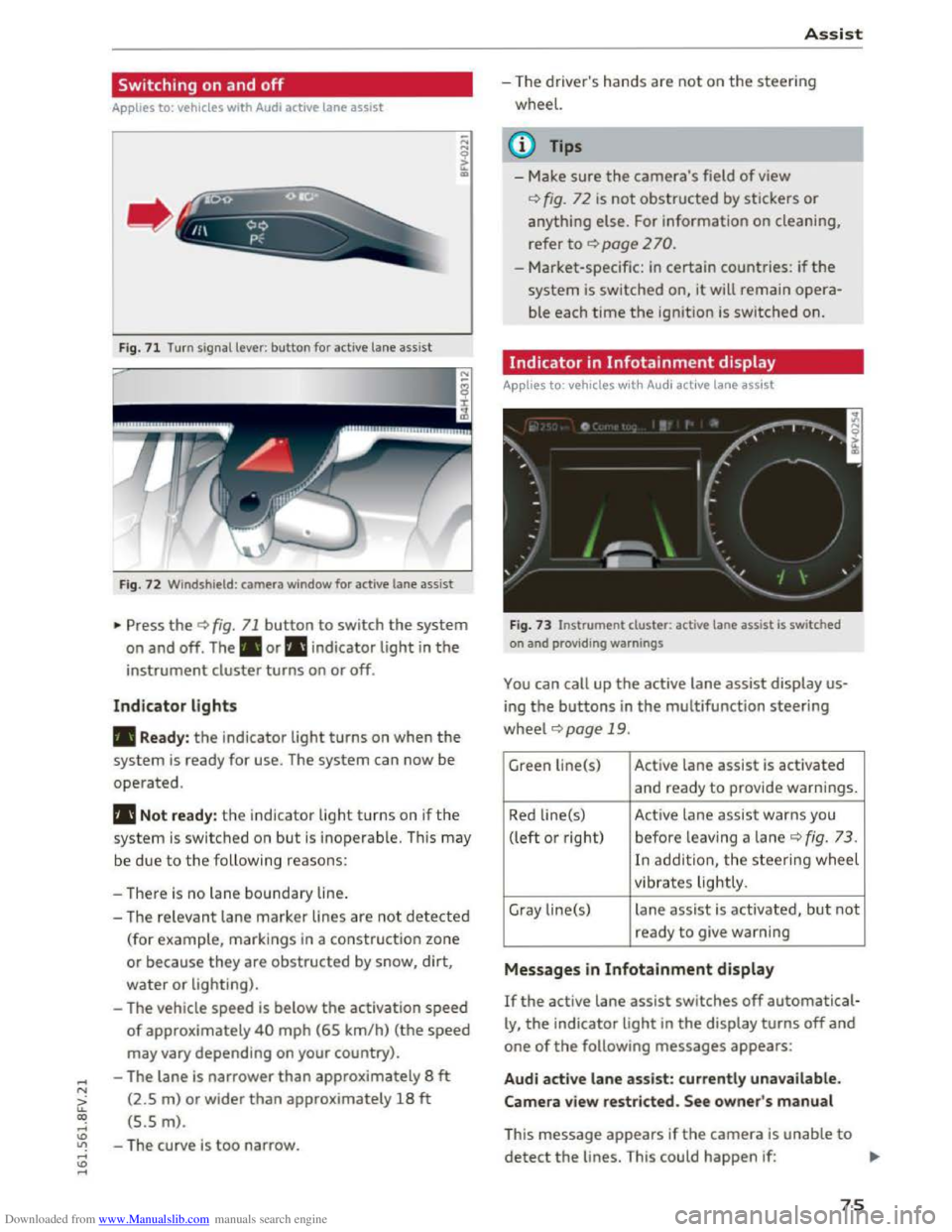
... Press the¢ fig. 71 button to switch the system
on and off. The . or rl1 indicator light in the
instrument cluster turns on or off.
Indicator lights
• Ready: the indicator light turns on when the
system is ready for use. The system can now be
operated.
rl1 Not ready: the indicator light turns on if the
system is switched on but is inoperable. This may
be
due to the following reasons:
- There
is no lane boundary line.
-
The relevant lane marker lines are not detected
(for example, markings in a construction zone
or because they
are obstructed by snow, dirt,
water or lighting).
- The vehicle
speed is below the activation speed
of approximately 40 mph (65 km/h) (the speed
may vary depending on your country).
- The lane
is narrower than approximately 8 ft
(2.5 m) or wider than approximately 18 ft
(5.5 m).
- The curve
is too narrow.
Assist
-The driver's hands are not on the steering
wheel.
{!) Tips
- Make sure the camera's field of view
¢fig. 72 is not obstructed by stickers or
anything else. For information on cleaning,
refer
to ¢ page 2 70.
- Market-specific: in certain countries: if the
system is switched on, it will remain opera
ble each time the ignition is switched on.
Indicator in Infotainment display
Applies to: vehicles with Audi active lane assist
Fig.
73 Instrument clu ster: active lane assist is switched
on and providing warnings
You can call up the active lane assist display us
ing the buttons in the multifunction steering
wheel ¢page 19 .
Green Li ne(s) Active lane assist is activated
and ready to provide warnings.
Red line(s) Active lane assist warns you
(left or right) before leav ing a lane
¢ fig. 73 .
In addit ion, the steering wheel
vibrates lightly.
Gray line(s)
lane assist is activated, but not
ready to give warning
Messages in Infotainment display
If the active lane assist switches off automatical
ly, the indicator light in the display turns off and
one of the following messages appears:
Audi active lane assist: currently unavailable.
Camera view restricted. See owner's manual
This message appears if the camera is unable to
detect the lines. This could happen if: ..,.
75
Page 86 of 322
Downloaded from www.Manualslib.com manuals search engine Parking systems
Swit c hing on
.. Shift into reverse, or
.. Press the PIJ/A button in the center console
¢fig. 81. A short confirmation tone sounds and
the LED in the button turns on.
Switching off
.. Drive faster than 6 mph (10 km/h), or
.. Press the P'#A button, or
.. switch the ignition off.
Segments in the visual display
The segments in front of and behind the vehicle
(veh i
cles with parking system p lus*) r::!;> fig. 82
he lp you to determine the distance between yo ur
ve hicle
and an obstacle. The red lines mark the
expected direction of travel according to the
steering angle. A white segment indicates an
identified
obstacle that is outside of the vehicle's
path. Red segments show identi fied obstacles
that are in your vehicle's path. As your vehicle
comes closer to the obstacle, the segments move
closer to the vehicle. The collision area has been
reached when the next to last segment is d is
played. Obstacles i n the collision area, in cl ud ing
those outside of the ve hicle's path, are shown in
red.
Do no t continue driving forward or in reverse
r::!;> .&. in General information on page 82, ¢0) in
General information on
page 82!
Rearview camera
Introduction
Applies to: vehicles with rearview camera
Fig . 83 D iagram: lines to aid in parking
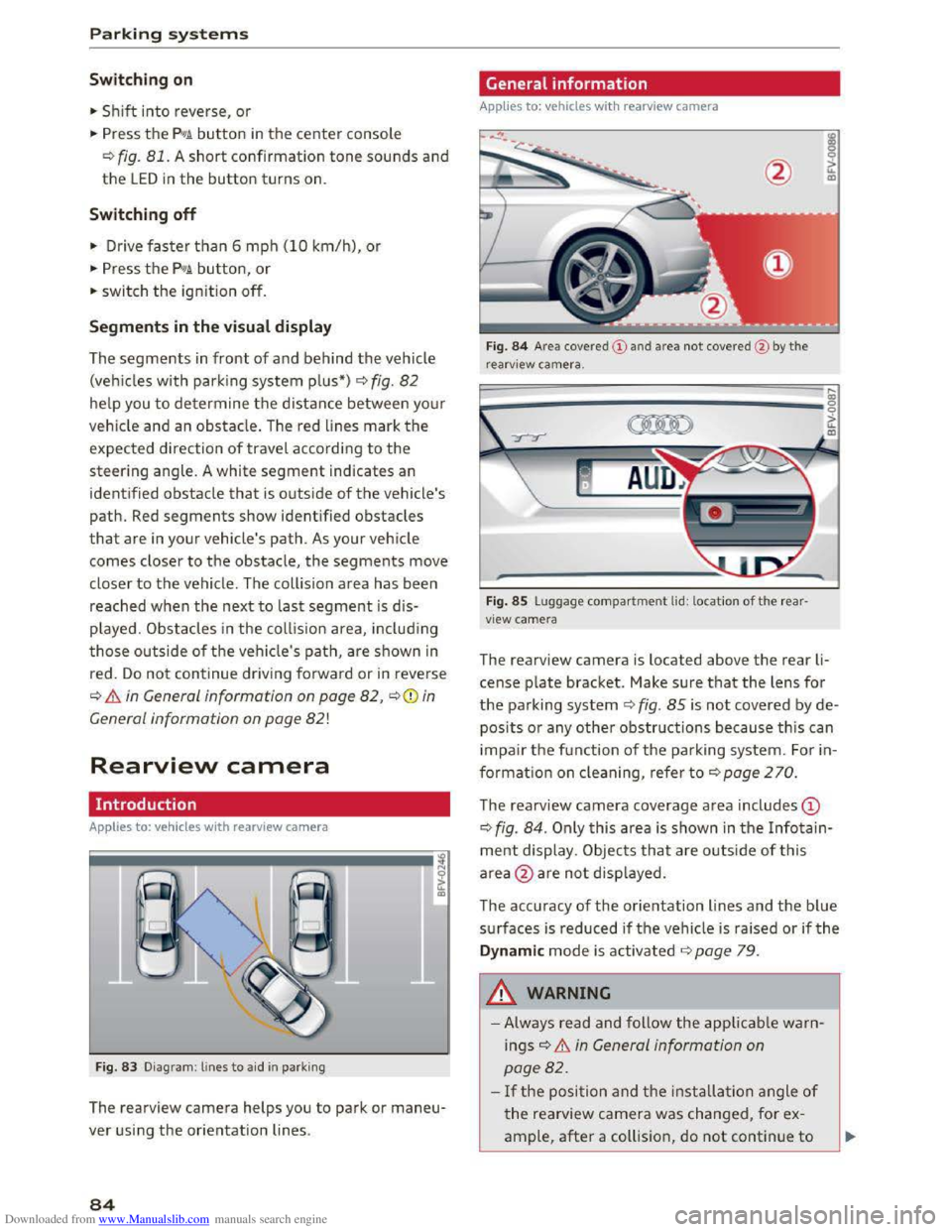
The rearview camera helps you to park or maneu
ver using the orientation lines .
84
General information
Applies to: vehicles with rearv iew camera
Fig. 84 Area cove red
r earv iew camera.
Fig . 85 Luggage compartment lid: location of the rear
view camera
The rearview camera is located above the rear li
cense plate bracket. Make sur e that the lens for
the parking system ¢fig. 85 is no t covered by de
posits or any other obstructions because this can
i
mpair the f u nction of the pa rking system. F o r in
formatio n on cleaning, refer to r::!;> poge 2 70.
The rearview camera coverage area includes ©
¢fig. 84. Only this area is shown in the Infotain
ment display . Objects that a re o utside of this
area @are not disp layed.
The accuracy
of the orientation lines and the blue
surfaces is reduced ifthe vehicle is raised or ifthe
Dynamic mode is activated r=;,page 7 9 .
.&_ WARNING
- Always read and follow the applicable war n
ings r::!;> & in General information on
page 82.
- If the posi tion and the installa tion angle of
the rearview camera was changed, for ex
ample, after a coll ision, do not continue to
Page 88 of 322
Downloaded from www.Manualslib.com manuals search engine Parking systems
in the parking space c) fig. 86. Use the mark
ings @
to help you estimate th e distance from
an obstacle. Each marking represents approxi
mately 3 ft (1 m) . The blue area represents an
extension of the vehicle's outline by approxi
mately 16 ft (5 meters) to the rear.
.,.. While driving in reverse gear, adjust the steer
ing wheel angle to fit the parking space using
the orange orientation lines for assistance
c) .&. in General information on page 84, c)(i)
in General information on page 85.@ displays
the rear bumper. Stop the vehicle, at the latest,
when
the red orientation line @ borders an ob
j ect.
Adjusting the display
and the warning tones
A pp lies to: vehicles with park ing system plus
The display and warning tones can be adjusted in
the Infotainment.
.,.. Select in the Infotainment system: IMENUI but
ton > Vehicle > left control button >Dr iver as
sistance > Parking aid.
Warning tones
Front volume -volume for the front area
Rear volume -volume for the rear area
Entertainment fader -when the parking system
is turned on, the volume of the aud io/video
source
is l owered.
The newly selected level is demonstrated briefly
b y the sou nd
generator.
(}) Tips
The settings are automatically stored a nd as
signed to the remote control key that is in
use.
Error messages
Applies to: vehicles with rear parking system/parking system
plus
Rear parking aid : malfunction! Obstacles not
detected
Front parking aid : malfunction! Obstacles can
not be detected
86
Parking aid: malfunction! Obstacles cannot be
detected
There is a system malfunction if the LED in the
pg~ button blinks when switching on the system.
If the error is not corrected before you switch off
the ignition, the LED in the pg~ button will blink
the next time you switch on the parking system
by shifting into reverse . As long as the error is ac
tive, you can display
the error messages in the
second tab of the driver information system.
Parking system plus*
If a sensor or speaker is faulty, the JM symbol
will
appear in front of/behind the vehicle in the
Infotainment display. If a rear sensor is faulty,
o nl y o
bstacles that a re in areas@and@ are
s h own c) page 83, fig. 80. If a front sensor is
faulty, only obstacles that are in areas© and @
ar e show n.
Drive
to an authorized Audi dealer or authorized
Audi Service Facility immediately
to have the
malfunction corrected.
Page 97 of 322
Downloaded from www.Manualslib.com manuals search engine Multi Media Interface
Traffic safety
information
Audi recommends only performing certain Info
tainment system functions, such as entering a
destination, when the vehicle is stationary. Al
ways be prepared to stop operating the Infotain
ment system in the interest of your safety a nd
the safety o f other road users.
A WARNING
Only use the Infotainment sy ste m whe n traf
fic cond itions pe rmi t an d alw ay s i n a way that
allow s you to m aintain complete control over
your ve hicl e.
Introduction
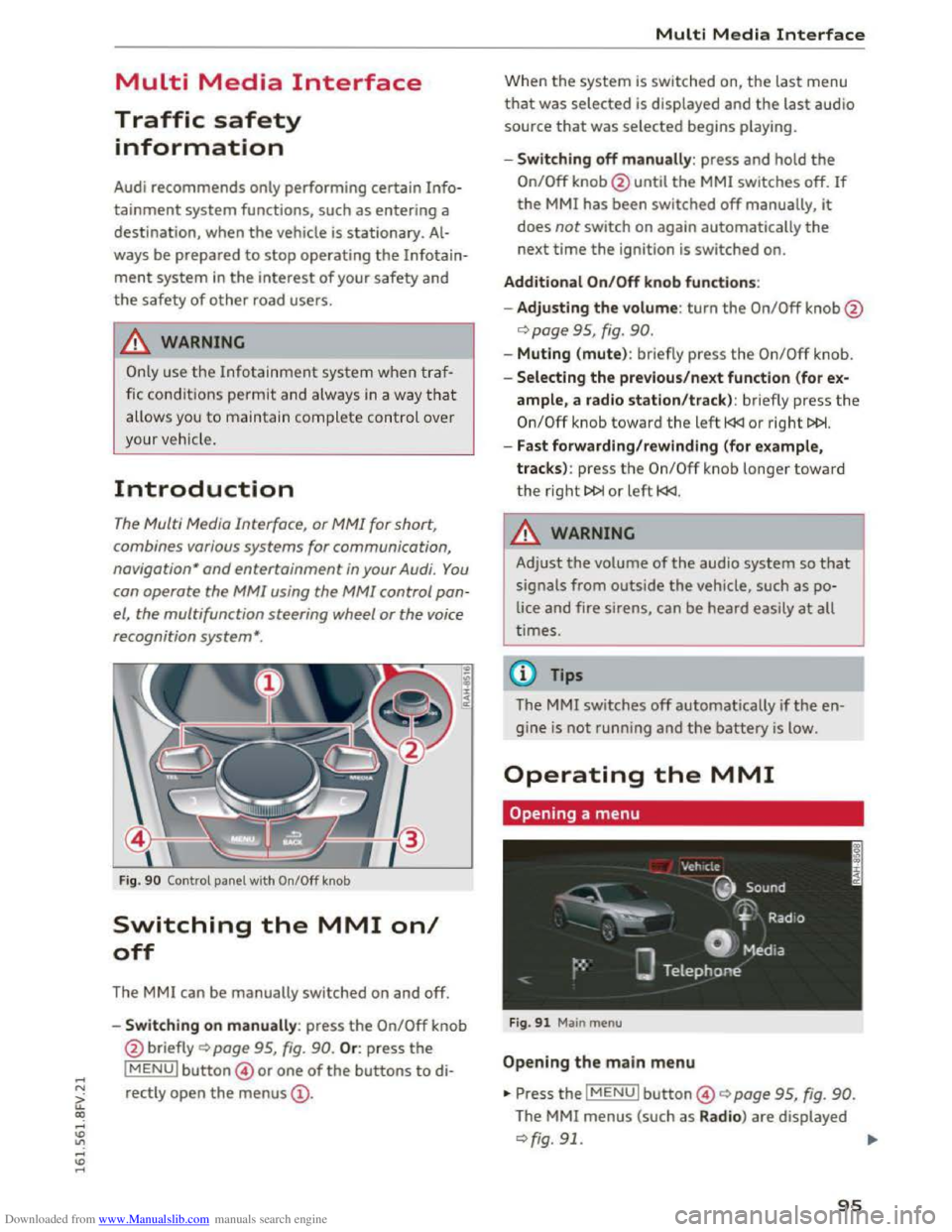
The Multi Media Interface, or MMI for short,
combines various
systems for communication,
navigation " and entertainment in your Audi. You
can operate the MMI using the MMI control pan
el, the multifunction steering wheel or the voice
recognition
system".
Fig. 90 Control panel with On/Off knob
Switching the MMI on/
off
The MMI can be manually switched on and off.
..
i
-Switching on manu ally: press the On/Off knob
@ briefly
Qpage 95, fig. 90. Or: press the
lMENUI button© or one of the buttons to di
rectly
open the menus@ .
Multi Media Interface
Wh en th e system is switched on, the last menu
that was selected is displayed and the last audio
source that was selected begins play ing.
-Swit ch ing off manually : press and hold the
On/Off knob@until the MMI switches off. If
the MMI has been switched off manually, it
does not switch on again automatically the
next time the ignition is switched on.
Additional On/Off knob functions:
- Adjusting the volum e:
turn the On/Off knob@
¢page 95, fig. 90.
-Muting (mute): br iefly press the On/Off knob.
-Selecting the previous/next function (for ex-
ample, a radio station/track ): br iefly press the
On/Off knob toward th e left l
-Fast forwarding/rewinding (for example,
tracks) :
press th e On/Off kno b longe r toward
the right t>l>I or left l
!-=-
Adjust the volume of th e a udio system so that
signals from outside the vehicle, such as po
lice
and fire sirens, can be heard easily at all
t imes.
Tips
The MMI switches off automatically if th e e n
gine
is not running and the battery is low.
Operating the MMI
Opening a menu
Fig . 91 Main menu
Open ing the main menu
•Press the IMENUI button© ~page 95, fig. 90.
The MMI menus (such as Radio ) are displayed
¢fig. 91. ....
95
Page 106 of 322
Downloaded from www.Manualslib.com manuals search engine Voice recognition system
Voice recognition system
Operating
Applies to: vehicles with voice recogn ition system
You con operate many Infotainment functions
conveniently by speaking .
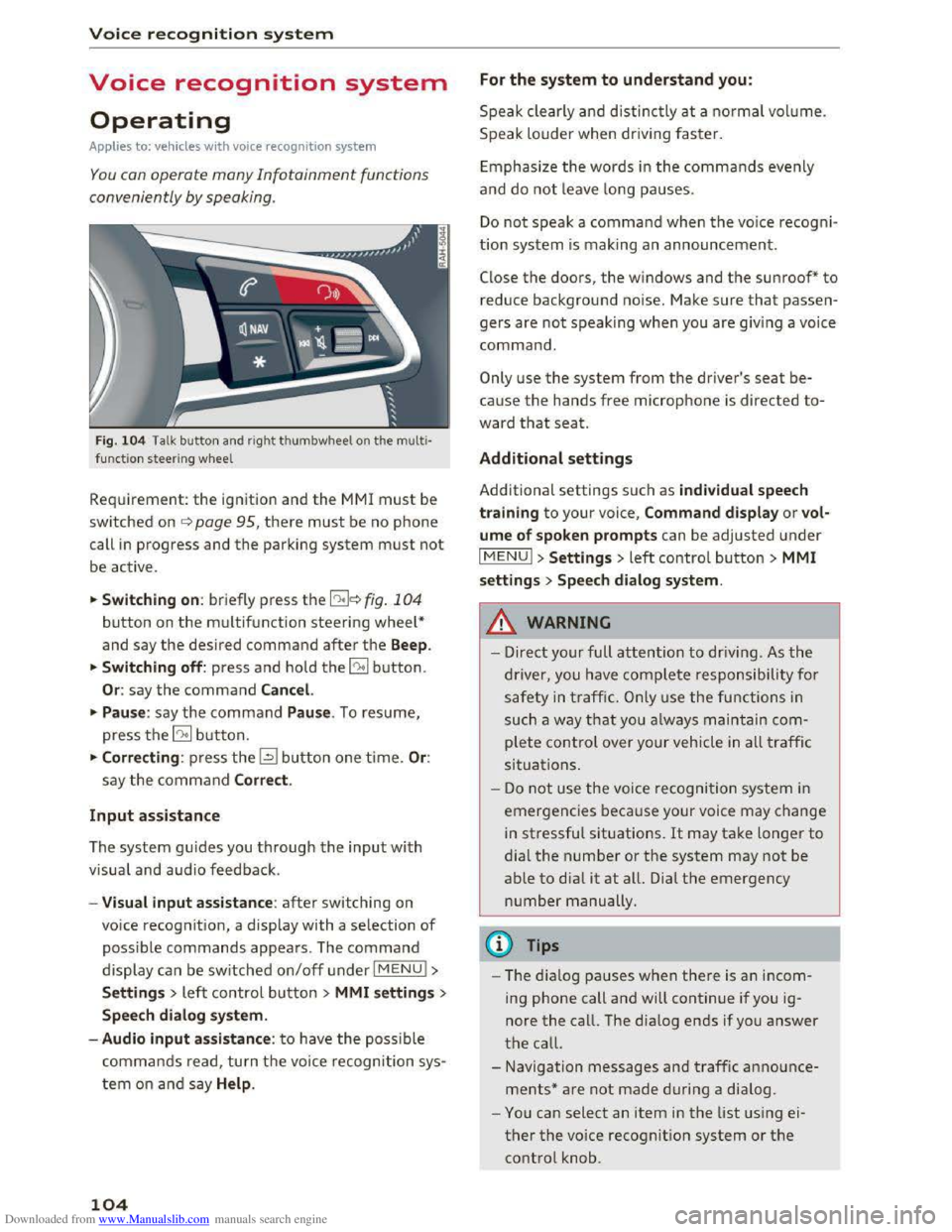
Fig. 10 4 Talk button and right thumbwheel on th e multi·
functi o n steer ing whee l
Requirement: the ignition and the MM! must be
switched on i::> page 95, there must be no phone
call in progress and the parking system must not
be active .
.. S
witching on: briefly press the 12!]c:> fig . 104
button on the multifunction steering wheel*
and say the desired command after the Beep.
..
Switching off: press and hold the 5:1 b utton.
Or : say the command Cancel.
.. Pause: say the command Pause . To resume,
press the 10°1 b utton.
.. Corre cting: press the~ button one time. Or:
say the command Correct.
Input assistance
The system gu ides you through the input with
visual
and audio feedback.
- Visual
input assistance: after switching on
voice
recognition, a display with a selection of
possible commands appears. The command
display can be switched on/off under I MENU!>
S ettings> left control bu tton > MMI settings>
Speech dialog system.
- Audio
input assistance: to have the possible
commands read, turn t h e voice recognition sys
tem on a nd say Help .
104
For the system to understand you:
Speak clearly and distinc tly at a normal vol ume.
Speak louder when driving faster.
E
mphasiz e the words in the commands evenly
and do not leave long pauses.
Do not speak a command when the voice recogni ·
tion system is making an announcement.
Close the doors, the windows and the sunroof* to
reduce background noise. Make sure that passen
gers are not speaking when you are giving a voice
command.
Only use the system from the driver's seat be
cause the hands free microphone is directed to·
ward that seat.
Additional settings
Additional settings such as individual speech
tra ining to your voice, Command display or v ol
ume of spoken prompts can be adjusted under
IMENUI >Settings> left control button> MMI
settings > Speech dialog system .
.&. WARNING
- Direct your full attention to driv ing . As the
driver, you have complete responsibility for
safety in traffic. O nly use the functions in
such a way th
at yo u always maintain com
plete control over your vehicle in all traffic
situations.
-
Do not use the voice recognition system in
emergencies beca use your voice may change
in stressful situations. It may take longer to
dial the number or the system may not be
able to dia l it at all. Dial th e emergency
number manually.
@Tips
- The dia log pauses when ther e is an incom
ing phone call and will continue if you ig
nore the call. The dialog ends if you answer
the call.
- Navigation messages and traffic announce·
ments* are not made during a dialog.
-
You can select an item in the list using ei
ther the voice recognition system or the
control knob.
Page 111 of 322
Downloaded from www.Manualslib.com manuals search engine Voice recognition system
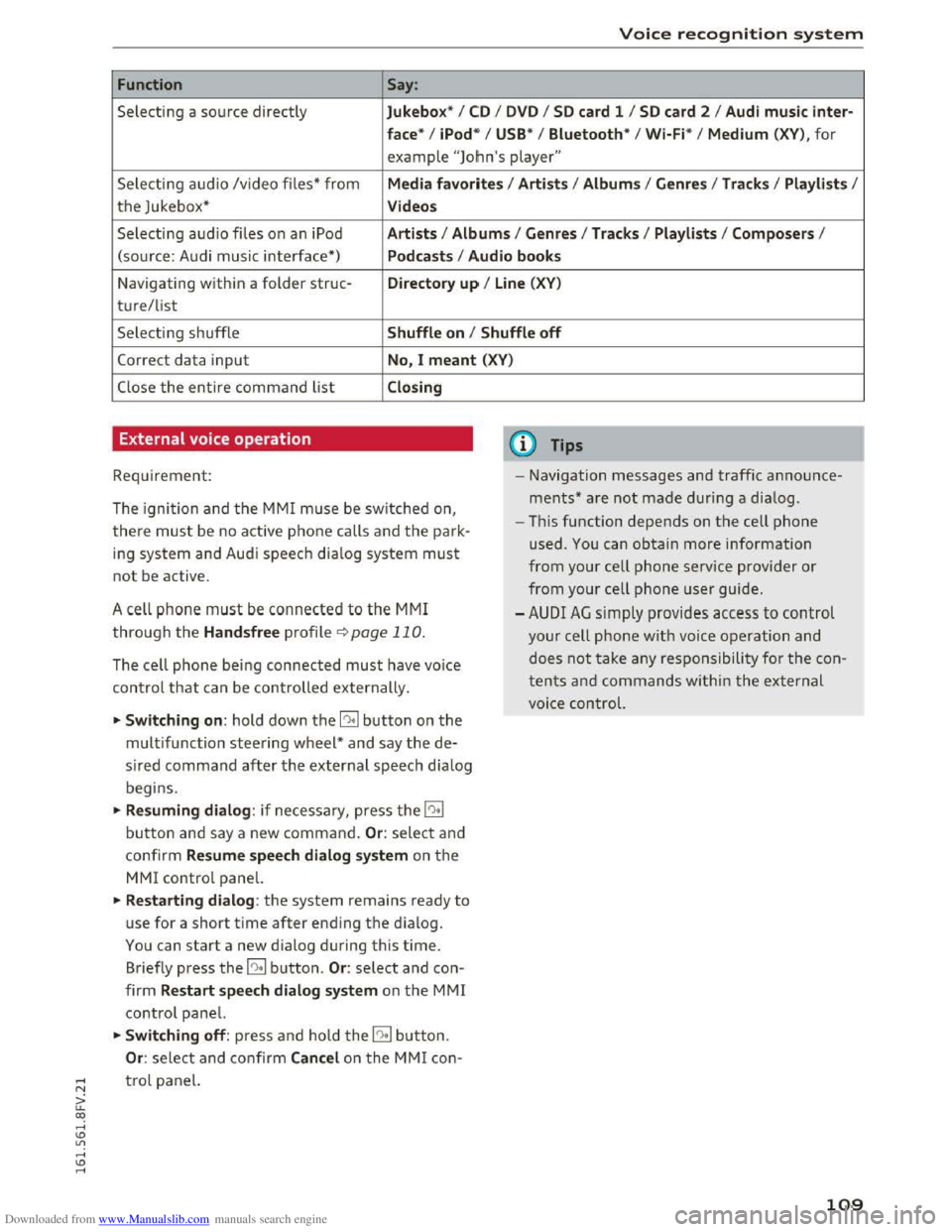
Function Say:
Selecting a source directly Jukebo x* I CD I D V D I SD card 1 I S D card 2 I Aud i mu sic inter-
face *
I iPod * I USB* I Bluetooth * I Wi-Fi* I Medium (XV), for
example "Jolhn's player"
Selecting audio /video files* from Media favo rite s I Artists I Album s I Genres I Tracks I Playli st s I
the Jukebox* Videos
Selecting audio files on an iPod A rt ists I Albums I Genre s I Tracks I Playlists I Compos ers I
(sou rce: Audi music interface*) Podcast s I Audio books
Navigating within a folder struc-Di rectory up I Line (XV)
t u re/list
Selecting shuffle Shuffle on I Shuffle off
Correct data input No, I meant (XV)
Close the entire command list Closing
External voice operation
Requirement:
The ignition and the MMI m use be switched on,
there must be no active phone calls and the park
ing system and Audi speech dia log system must
not be active .
A cell
phone must be connected to the MMI
through the Handsfree profile¢ page 110.
The cell phone bei ng connected must have voice
con trol that can be controlled externally.
~Switching on : hold down the 12!:1 button on the
multifunction steering wheel* and say the de
sired command after the external speech d ia log
begi ns.
~Resuming dialog : if necessary, press the l"l•I
button and say a new command. Or : select and
confirm Resum e speech dialog system on the
MMI control panel.
~Restarting dialog: the system remains ready to
use for a short time after ending the d ialog.
You can start a new dialog during this time.
Briefly press the 12!:1 button. Or: select and con
firm Restart speech dialog syste m on the MMI
control panel.
~Switching off: press and ho ld the 12!:1 b utton.
Or : select and confirm Cancel o n the MMI con-
(D Tips
- Navigation messages and traffic announce
ments* are not made duri ng a dialog.
-Th is function depends on the cell phone
used. You can obtain more information
from your cell phone ser vice provider or
from your cell phone user guide.
-AUDI AG simply provides access to control
your cell phone with voice operation and
does not take any responsibility for the con
t
ent s and commands within the external
voi ce control.
~ t ro l panel.
a: co ,....,
Page 112 of 322
Downloaded from www.Manualslib.com manuals search engine Telephone
Telephone
Introduction
Applies to: vehicles with telephone
To make calls through the MMI system, you must
connect your phone to the MMI with Bluetooth.
After connecting
your phone to the MM with
Bluetooth, you can use the telephone functions
conveniently
through the MMI.
Handsfree
After you have connected your cell phone to the
MMI via Bluetooth, you can use the handsfree
system and operate telephone functions through
your MMI. Phone calls are transmitted thro ug h
the antenna on your cell phone.
A WARNING
-Medical experts warn that cell phones can
interfere with the function of pacemakers.
Always maintain a minimum distance of 20
centimeters between the cell phone anten
na and the pacemaker.
-
Do not carry the cell phone in a pocket di
rectly over the pacemaker when the phone
is switched on.
- Switch
the cell phone off immediately if
you
suspect it may be interfering with the
pacemaker.
-Do not use the voice recognition system
¢page 104 in emergencies because your
voice may change in stressful situations. It
may take longer to dial the number or the
system may not be able to dial it at all. Dial
the emergency number manually.
- Switch
your cell phone off in areas where
there is a risk of an exp losion. These loca
tions are not always clearly marked. This
may include gas stations, fuel and chemical
storage facilities or transport vehicles, or lo
cations where fuel vapors (such as propane
or gasoline vapor in vehicles or buildings),
chemicals
or large quantities of dust parti
cles (such as flour, sawdust or metal) may
be present in the air. This also applies to all
other locations where you would normally
turn your vehicle engine off.
110
-
-The demands of traffic require your full at
tention. Read and follow the guidelines pro
vided in¢ page 95, Traffic safety informa
tion.
(D Tips
The Bluetooth connection range is limited to
inside the vehicle. It can also be affected by
local conditions
and interference with other
devices.
- Check
with your cell phone service provider
or the database for mobile devices at
www.audiusa.com/bluetooth to learn which
Bluetooth connections and functions are
supported on your cell phone.
Connecting a telephone
Connecting a cell phone using Bluetooth
Applies to: vehicles with telephone
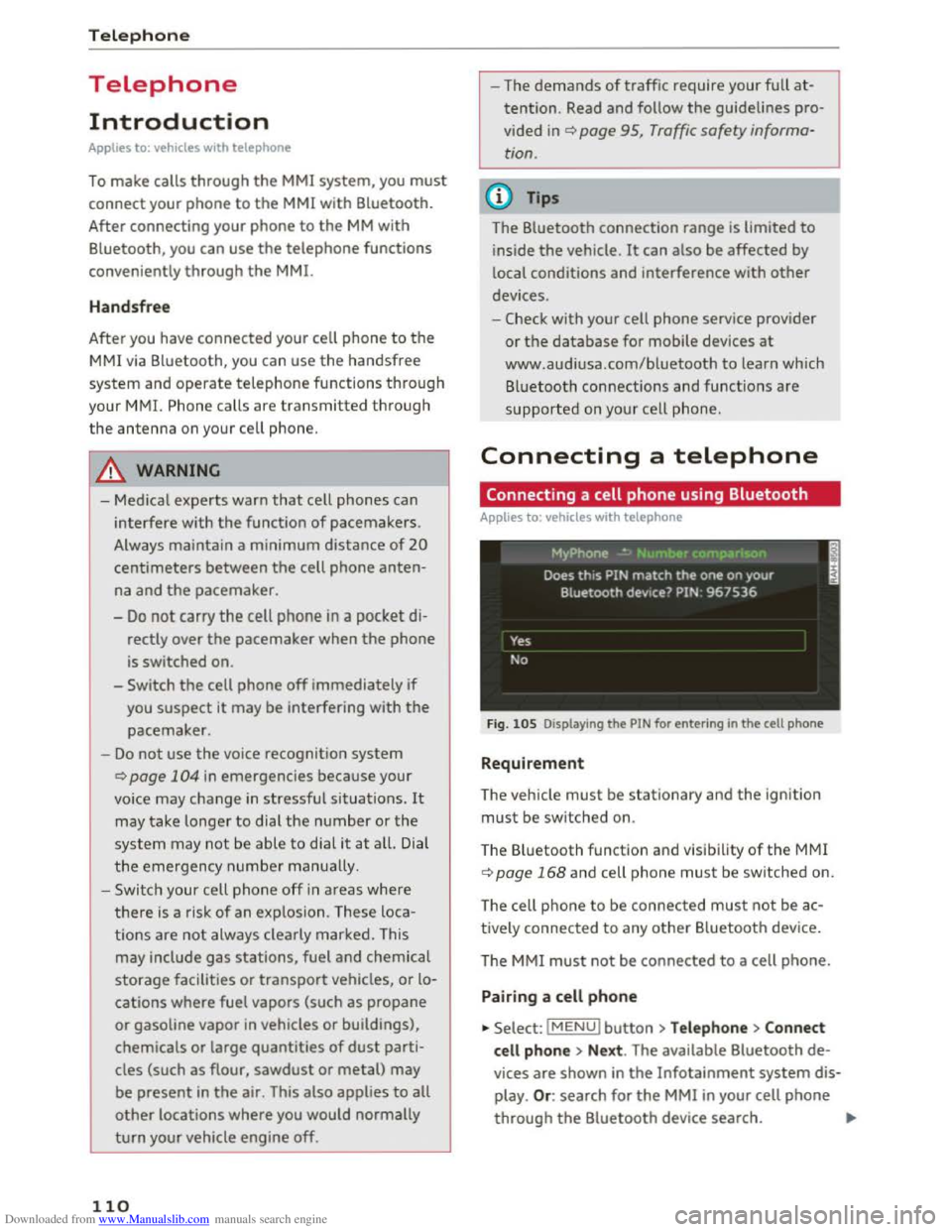
Fig. 105 Displaying the PIN for entering in the cell phone
Requirement
The vehicle must be stationary and the ignition
must be switched on.
The Bluetooth
function and visibility of the MMI
¢page 168 and cell phone must be switched on.
The cell ph
one to be connected must not be ac
tively connected to any other Bluetooth device.
T he
MMI must not be connected to a cell phone.
Pairing a cell phone
... Select: IMENUI button >Telephone> Connect
cell phone > Next . The available Bluetooth de
vices are shown in the Infotainment system dis
play. Or: search for the MMI in your cell phone
through the Bluetooth device search. ""'
Page 113 of 322
Downloaded from www.Manualslib.com manuals search engine ..... N
G: CX)
.....
"' U"I
.....
"' .....
.,.. Select and confirm the desired cell phone from
the list of displayed Bluetooth devices.
.. The MMI generates a PIN for the connection
setup ¢fig. 105.
.. Select and confirm Y es.
.. Enter the PIN for connecting on your cell
phone. Or: when the PIN is displayed on your
ce ll phone, confirm the PIN on your cell phone
and in the MMI. The time allowed for entering
the PIN is lim ited to approximately 30 seconds.
Pay attention to any additional system prompts
displayed on your cell phone, for example if the
system should connect automatically in the fu
ture. Depending on the cell phone, you may have
to confirm downloading the d irectory separately.
After connecting successfully
After connecting successfully, a short message
with information about the connected profiles
will appear. You can also cha nge the profile later
by selecting I MENU I > Settings> left control but
ton > MMI s ettings > Connection man ager
¢ page 168.
In addition, the cell phone contacts are a utomat
ic a lly loaded in the MMI directory. This process
can take several minutes, depending on the num
ber of contacts.
@ Tips
- Making phone calls through the MMI is only
possib le using a
Bluetooth profile (Hands
free ).
-You can apply additional settings to con
nected cell phones u s ing the connection
manager ¢ page 167.
-You only have to pair your dev ice one time.
Bluetooth devices that are already pa ired
automatically connect to the MMI when
they are within range and t h e ignition is
switched on.
- Authorizing
the MMI connection in your cell
phone will make automatic connection pos
s ible.
- Seve r
al cell phones can be paired to the
MM!, but only one cell phone can be actively
connected .
T elepho ne
- A B luetooth device that is already paired
with the MMI will be disconnected if anoth
er device is paired.
-
When leaving the veh icle, the Bluetooth
connection to the cell phone will automati
cally disconnect.
- You can obtain more information from your
cell phone service provider or from your ce ll
phone user guide. For information on using
the telephone, v isit www.aud iusa.com/blue
tooth or your authorized Audi dealer.
Using the Audi phone box
Applies to: vehicles with Audi phone box
Using the Audi phone box, you can call using the
external vehicle antenna and charge your cell
phone using a
USB adapter. Using the external
antenna helps when there is low signal strength
and also provides better reception quality.
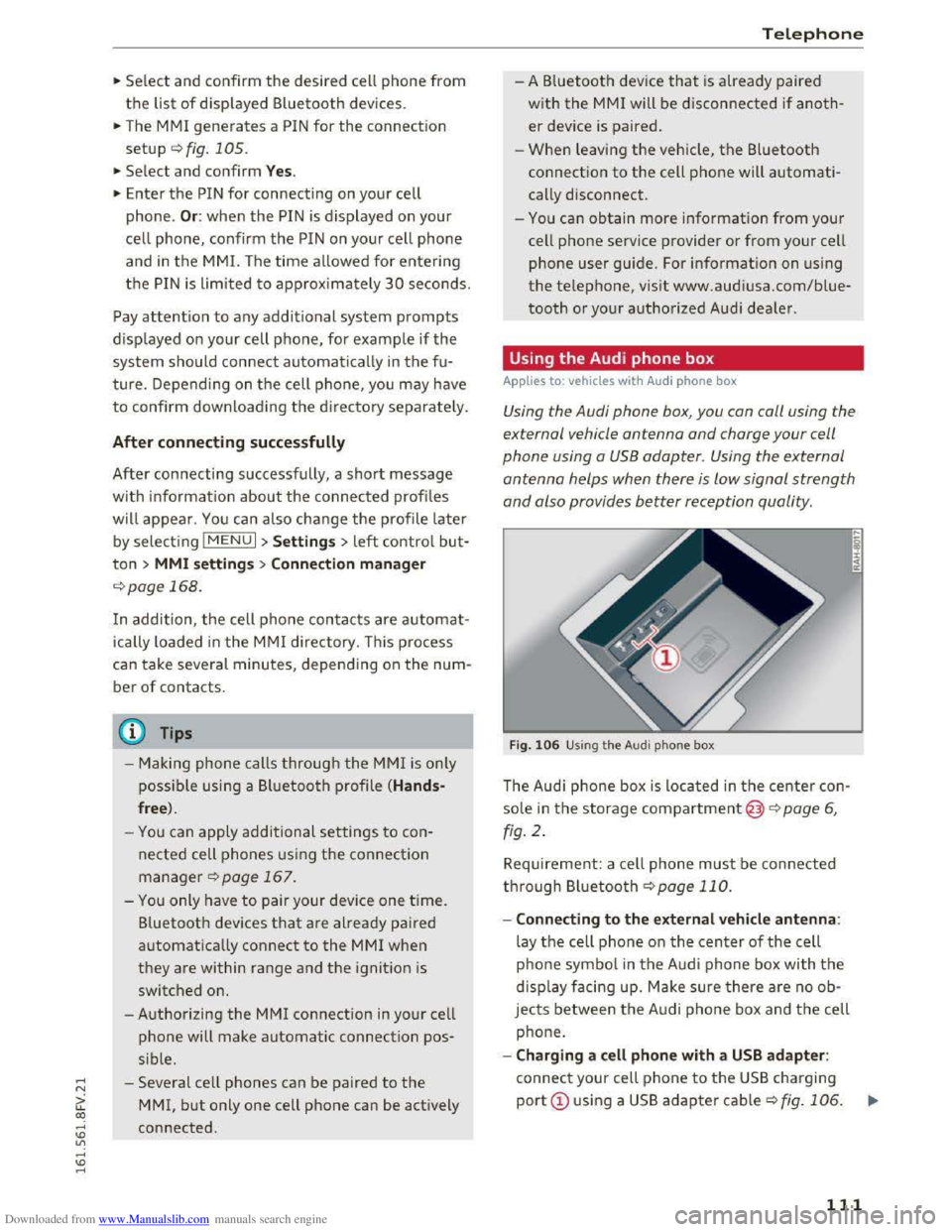
Fig. 106 Using t h e A udi p h one box
The Audi phone box is located in the center con
sole in the storage compartment@)¢ page 6,
fig . 2 .
Requirement: a cell phone must be connected
through Bluetooth ¢ page 110.
- Connecting to the ext ernal vehicl e antenna :
lay the cell phone on the center of the cell
p ho ne
symbol in the Audi phone box with th e
displa y facing up. Make sure there are no ob
jects between the A udi phone box and th e cell
phone.
-Charging a cell phone with a USB ada pter :
connect your cell phone to the USB charging
port CD using a USB adapter cable c:;, fig. 106.
...
I
111
Page 123 of 322
Downloaded from www.Manualslib.com manuals search engine Audi connect
Introduction
App lies to vehicles wit h Aud i connect
W ith Audi connect services, on line information is
transmitted and integrated directly in the vehi
cle.
A
mobile end device can be used to access the In
ternet through a Wi-Fi hotspot, either when the
vehicle is stationary or from the rear seat when
the vehicle is in motion .
.& WARNING
-To reduce the risk of an accident, only use
Audi connect services when road and traffic
conditions
permit. Always read and follow
the notes in ¢page 95, Traffic safety infor
mation.
-To reduce the risk of an accident, use the
Audi connect services with a Wi-Fi hotspot
only in the rear seat when the veh icle is in
motion or only when the vehicle is station
ary.
W Note
Audi connect is designed for use only with the
provided SIM card. Audi AG is not liable for
the consequences of using other SIM cards.
@ Tips
Read and follow the notes about Audi con
nect before starting it <:!;>page 128.
Setup
Requirements for Audi connect
App lies to vehicles with Aud i connect
An Internet connection is required to use Audi
connect. The following requirements must be
met to establish a connection:
-I
- The Audi connect SIM card must be inserted in-
to the SIM card reader for the MM!.
~ -A data connection must be configured for Audi
it connect services. co ,....,
Using the SIM card reader
Applies to: veh icles wit h SIM card reader
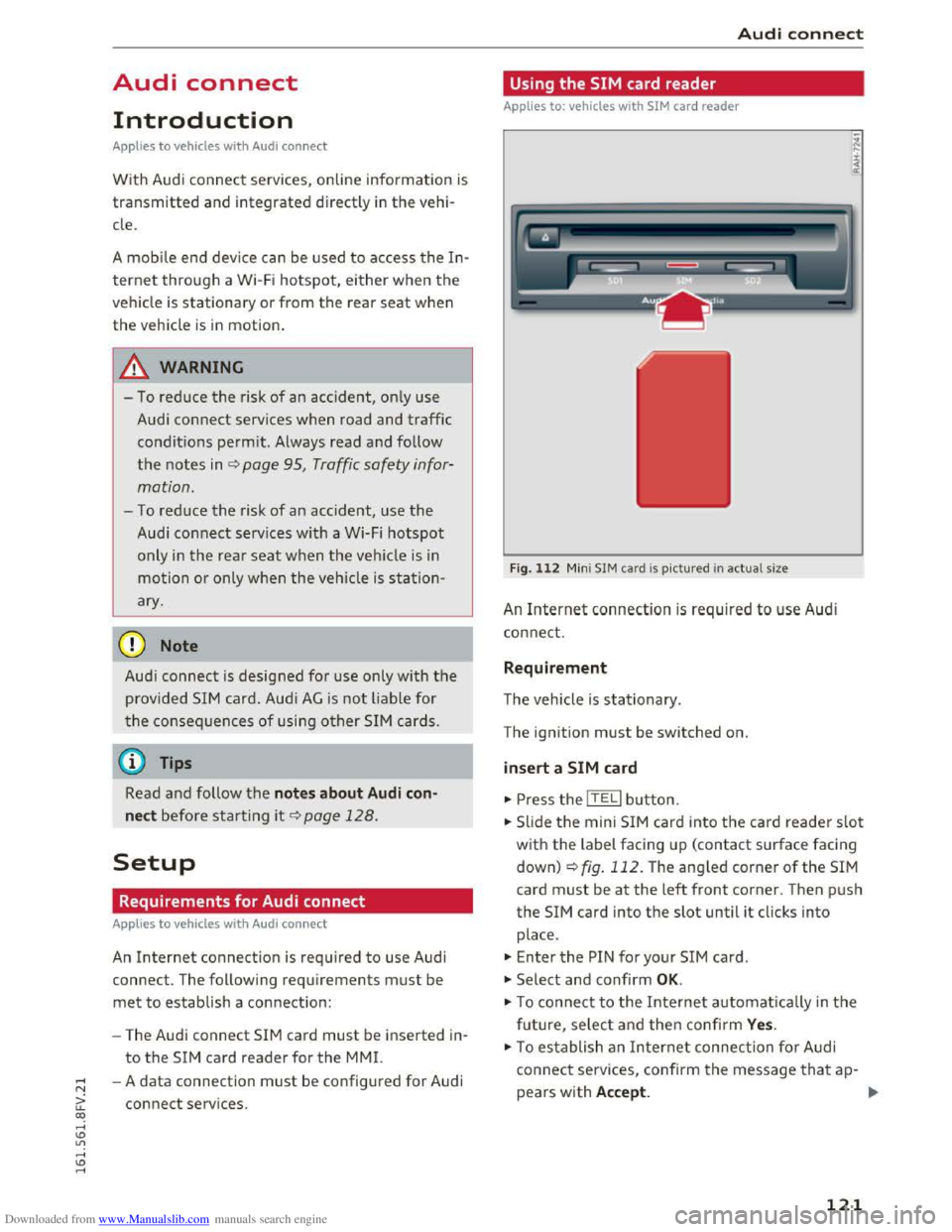
Fig.
112 Mini SIM card is pictured in act ual size
An Internet connection is required to use Audi
connect.
Requirement
The vehicle is stationary.
The ignition
must be switched on.
insert a SIM card
.,. Press the !TELi button.
... Slide the mini SIM card into the card reader slot
with the label facing up (contact surface facing
down)
c:!;>fig. 112. The angled corner of the SIM
card must be at the left front corner. Then push
the SIM card into the slot until it clicks into
place .
.,. Enter the PIN for your SIM card.
... Select and confirm OK.
.,. To connect to the Internet automatically in the
future, select and then confirm Yes.
.,. To establish an Internet connection for Audi
connect services, confirm the message that ap-
pears with Accept. .,.
121