reset AUDI TT ROADSTER 2014 Owners Manual
[x] Cancel search | Manufacturer: AUDI, Model Year: 2014, Model line: TT ROADSTER, Model: AUDI TT ROADSTER 2014Pages: 244, PDF Size: 60.87 MB
Page 12 of 244
10 Instruments and warning/indicator lights
Instruments and warning/indicator Lights
Instruments
Instrument cluster and controls
The instrument cluster is your central source of information.
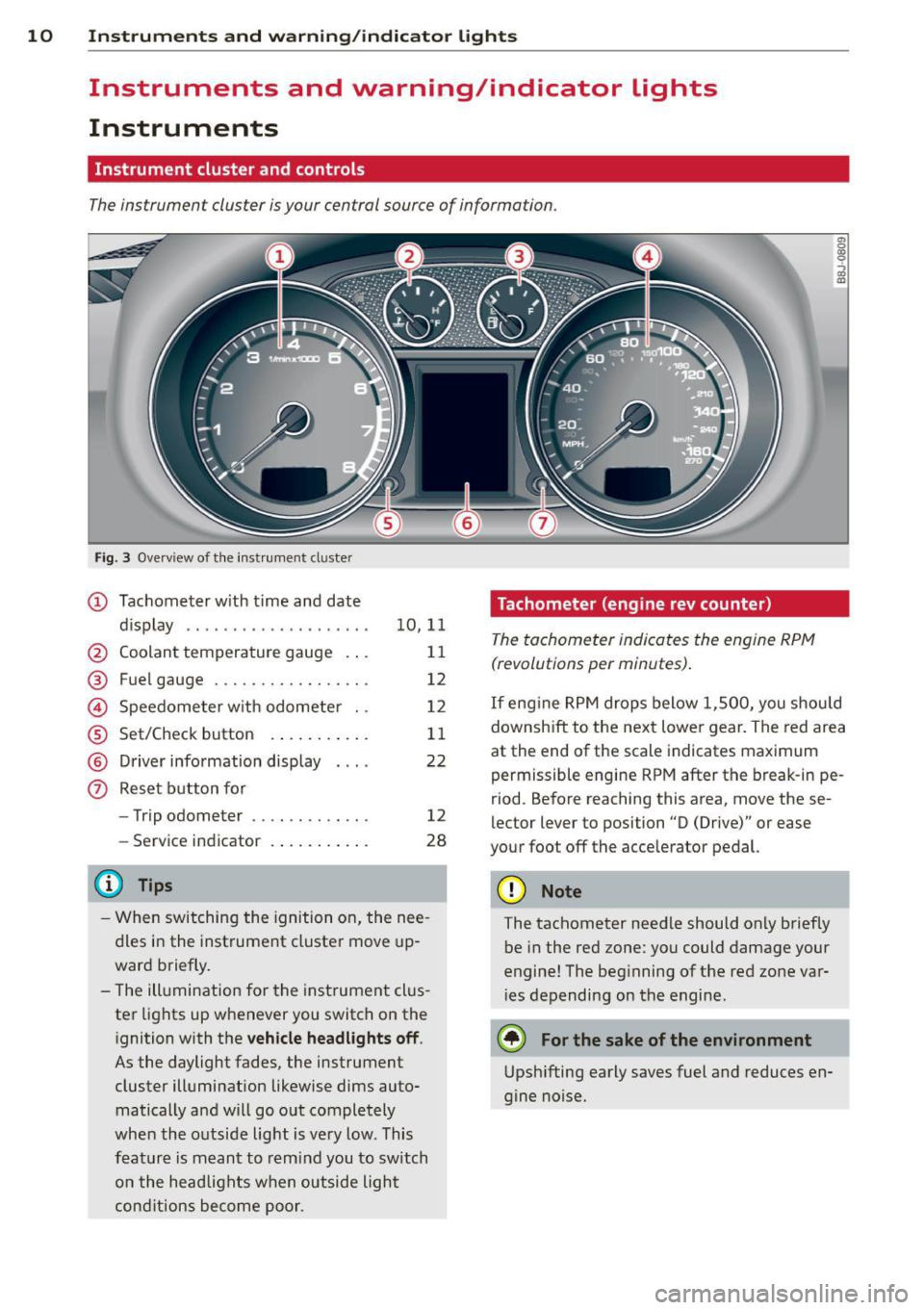
Fig. 3 Overv iew of the inst rument cluster
(D Tachometer with time and date
dis play .. .... ..... ........ .
@ Coolant temperature gauge .. .
® Fuel gauge ................ .
© Speedometer with odometer ..
® Set/Check button ..... ... .. .
@ Driver information display
(?) Reset button for
- Trip odometer .......... .. .
- Service indicator
@ Tips
10 ,11
11
12
12
11
22
12
28
- When switching the ignition on, the nee
dles in the instrument cluster move up
ward briefly.
- The illumination for the instrument clus
ter lights up whenever you switch on the
i gnition with the
vehicle headlights off .
As the daylight fades, the instrument
cluster illumination likewise dims auto
matically a nd will go out completely
when the outside light is very low. This
feature is meant to remind you to switch
on the head lights when outside light
conditions become poor .
Tachometer (engine rev counter)
The tachometer indicates the engine RPM
(revolutions per minutes) .
en 0
~
~
"'
If engine RPM drops below 1,500, you should
downshift to the next lower gear. The red area
at the end of the scale indicates maximum
permissible engine RPM after the br eak-in pe
riod. Before reaching this area, move these
lector lever to position "D (Drive)" or ease
your foot off the acce lerator pedal.
(D Note
The tachometer needle should only briefly
be in the red zone: you could damage your
engine! The beg inning of the red zone var
i es depending on the engine.
@ For the sake of the environment
Upshifting early saves fuel and reduces en
gine noise.
Page 14 of 244
12 Instruments and warning/indicator lights
Fuel gauge
The fuel gauge works only when the ignition is
on . When the needle reaches the red area, the
warning light in the instrument cluster will il
luminate ¢
page 20 00']. Time to refuel!
The total ta nk capacity of your vehicle is listed
in
¢ page 224
CD Note
Never run the tank completely dry! An ir
regula r supply of fue l can cause engine
m isfiri ng and fuel could enter into the ex
haust system. The catalyt ic converter
could then overheat and be damaged.
Speedometer with odometer
The speedometer shows you the vehicle
speed , and the odometer shows you how
many miles (kilometers) you have driven.
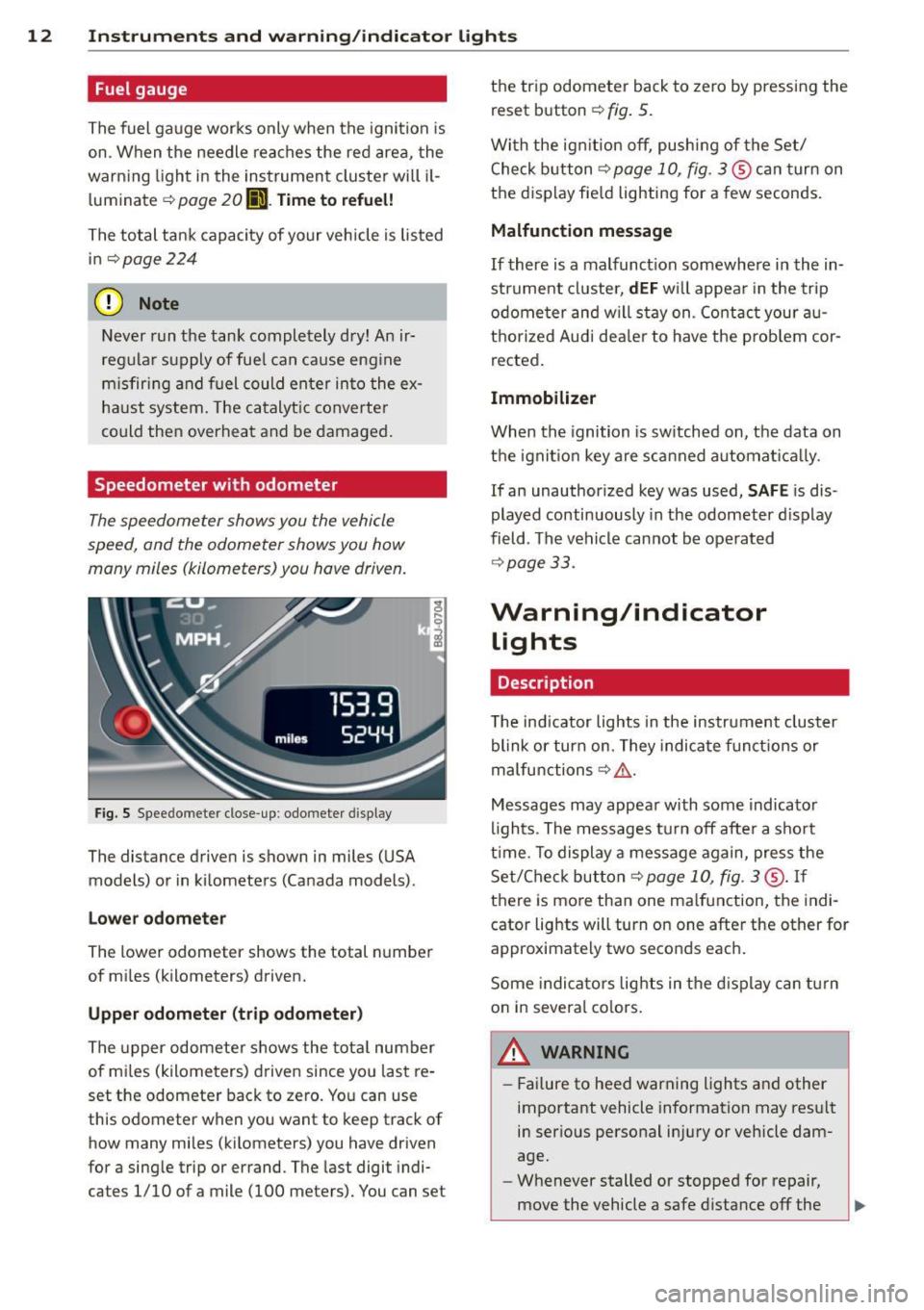
Fig . S Spee domete r close -up: odometer display
The dis tance driven is shown in miles (USA
models) or in kilometers (Canada models) .
Lower odometer
The lower odometer shows the total number
of miles (kilometers) driven.
Upper odometer (trip odometer)
The upper odometer shows the total number
of mi les (kilometers) driven since you last re
set the odometer back to zero. You can use
this odometer wh en you want to keep track of
how many miles (kilometers) you have driven
for a sing le trip or errand. The last digit indi
ca tes 1/10 of a mile (100 me ters). You can se t the trip odometer
back to zero by pressing the
reset button
¢ fig. 5.
With the ign ition off, pushing of the Set/
Check button ¢
page 10, fig . 3 ® can turn on
the display fie ld lighting for a few seconds.
Malfunction message
If there is a malfunct ion somewhere in the in
strument cluster,
dEF will appear in the trip
odometer and will stay on. Contact your au
thorized Audi dea ler to have the problem cor
rected .
Immobilizer
When the ignition is sw itched on, the data on
the ignition key are scanned automat ically .
If an unauthor ized key was used,
SAFE is dis
played continuously in the odometer display
field . The vehicle cannot be operated
¢ page 33.
Warning/indicator
Lights
Description
T he ind icator lights in the instrument cluster
blink or turn on . They indicate funct ions or
malfunctions ¢
,&.
Messages may appear with some indicator
lights . The messages turn
off after a short
time . To display a message again, press the
Set/Check button¢
page 10, fig . 3 ® · If
there is more than one ma lfunction, the indi
cator lights will turn on one after the other for
approximat ely two seconds each.
Some indicators lights in the display can turn
on in severa l colors.
A WARNING
=
- Failure to heed warning lights and other
important vehicle information may result
in ser ious personal in jury or vehicle dam
age.
- Whenever stalled or stopped for repair,
move the vehicle a safe distance
off the
Page 25 of 244
Trip computer
Introduction
The trip computer gives you information on
current and average fuel mileage, average
speed, fuel range and driving time .
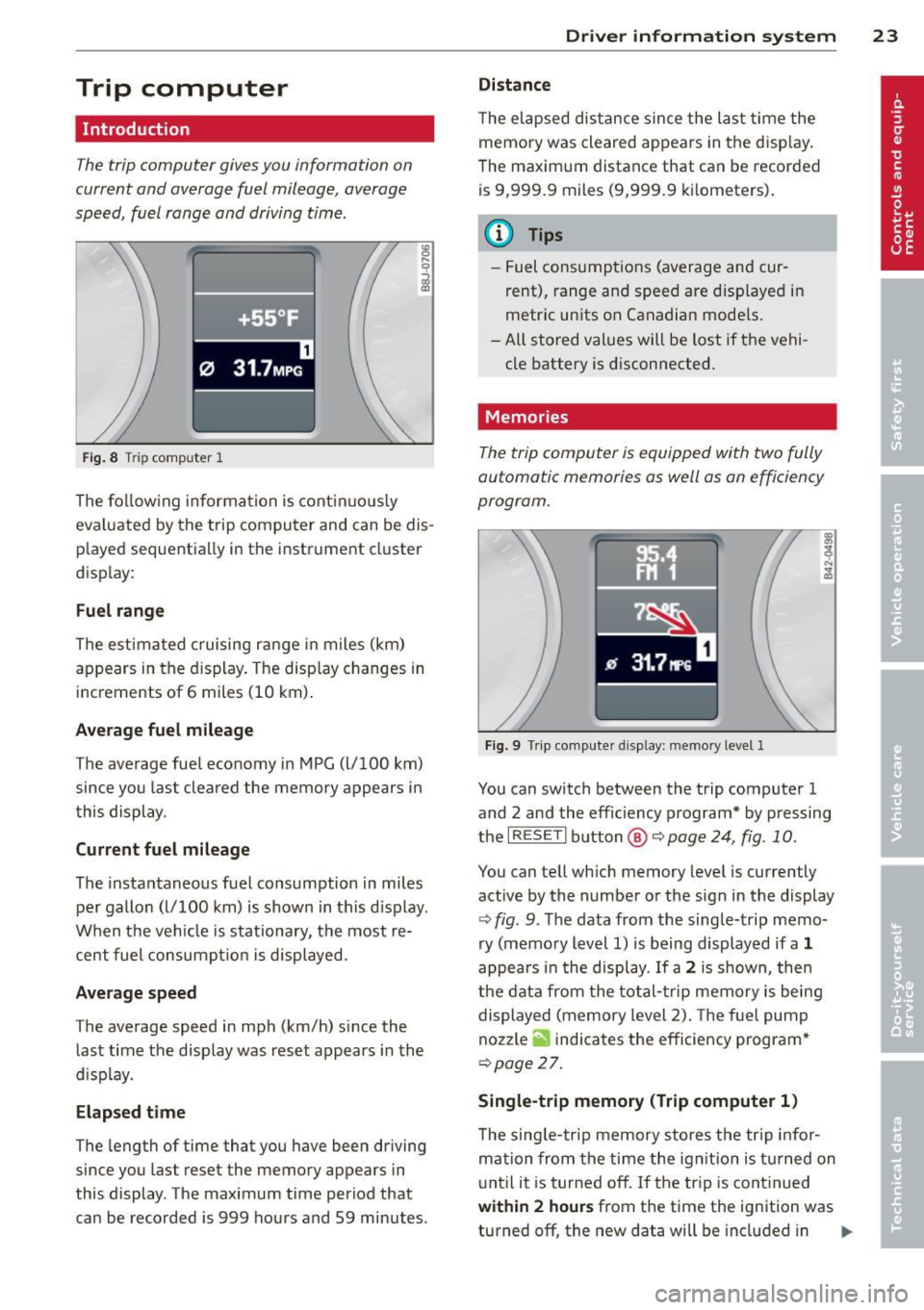
Fig. 8 T rip comp ute r 1
The fo llow ing informa tion is cont inuo usly
eva luated by the trip compu ter and can be dis
p layed sequentia lly in the instrument cl uster
d isplay:
Fuel range
The estimated c ruising ra nge in miles (km)
appears in the d isplay . The disp lay changes in
increments of 6 miles (10 km) .
Average fuel mileage
The average fue l economy in MPG (l/ 100 km)
since you last clea red the memory appears in
t his display .
Current fuel mileage
The instantaneous fuel consumption in miles
pe r gallon (l/ 100 km) is shown in this d isp lay .
When the ve hicle is stationary, the most re
cent fuel consumpt io n is displayed.
Average speed
The average speed in mph (km/h) since the
last time the display was reset appears i n the
d isp lay.
Elap sed t ime
The length of time that you have been driving
since you las t reset the memory appears in
this display . The maximum t ime period that
can be recorded is 999 ho urs and 59 minutes .
Driver in formation system 23
Distance
The elapsed dis tance sin ce the las t time the
memory was cleared appears in the d isp lay .
T he maxim um distance that can be recorded
is 9 ,999.9 miles (9,999 .9 k ilometers) .
(D Tips
- Fuel consump tions (average and cur
rent), range and speed are disp layed in
metric un its on Canadian mode ls.
- All sto red val ues wil l be lost if t he vehi
cle battery is d isconnected .
' . Memories
The trip computer is equipped with two fully
automatic memories as well as on efficiency
progrom.
Fi g. 9 Trip co mputer d isplay: memo ry level 1
You can switch between the trip computer 1
and 2 and the efficiency program* by pressing
the
I R ES ET I button @ c::> page 24, fig . 10 .
You can tell wh ich memory leve l is currently
active by the number or the sign in the display
c::> fig . 9. The data from the single-trip memo
ry (memo ry level 1) is being displayed if a
1
appea rs i n t he display . If a 2 is shown, then
the data from the total- trip memory is being
displayed (memory level 2). The f ue l pump
nozzle
ii indicates the efficiency program *
c::>poge 27.
Single-trip memory (Trip computer 1 )
The sing le -t rip memory stores the tr ip info r
ma tion from the time the ig nition is tu rned on
u nt il it is tur ned off. If the tr ip is cont inued
within 2 hour s from the time the ignit ion was
turned off, the new data will be included in ..,.
Page 26 of 244
24 Driver information system
the calculation of the current trip informa
t ion. If the trip is interrupted for
more than 2
hours
the memory is reset automatica lly.
Total -trip memory (Trip computer 2)
Unlike the sing le-trip memory, the total-trip
memory is not reset automatically. This per
mits you to evaluate your dr iving data for the
entire period between manual resets.
Efficiency program*
The effic ien cy program can help you to use
less fuel
~ page 2 7.
Operation
The trip computer is controlled by two
switches on the windshield wiper lever.
-----------< @
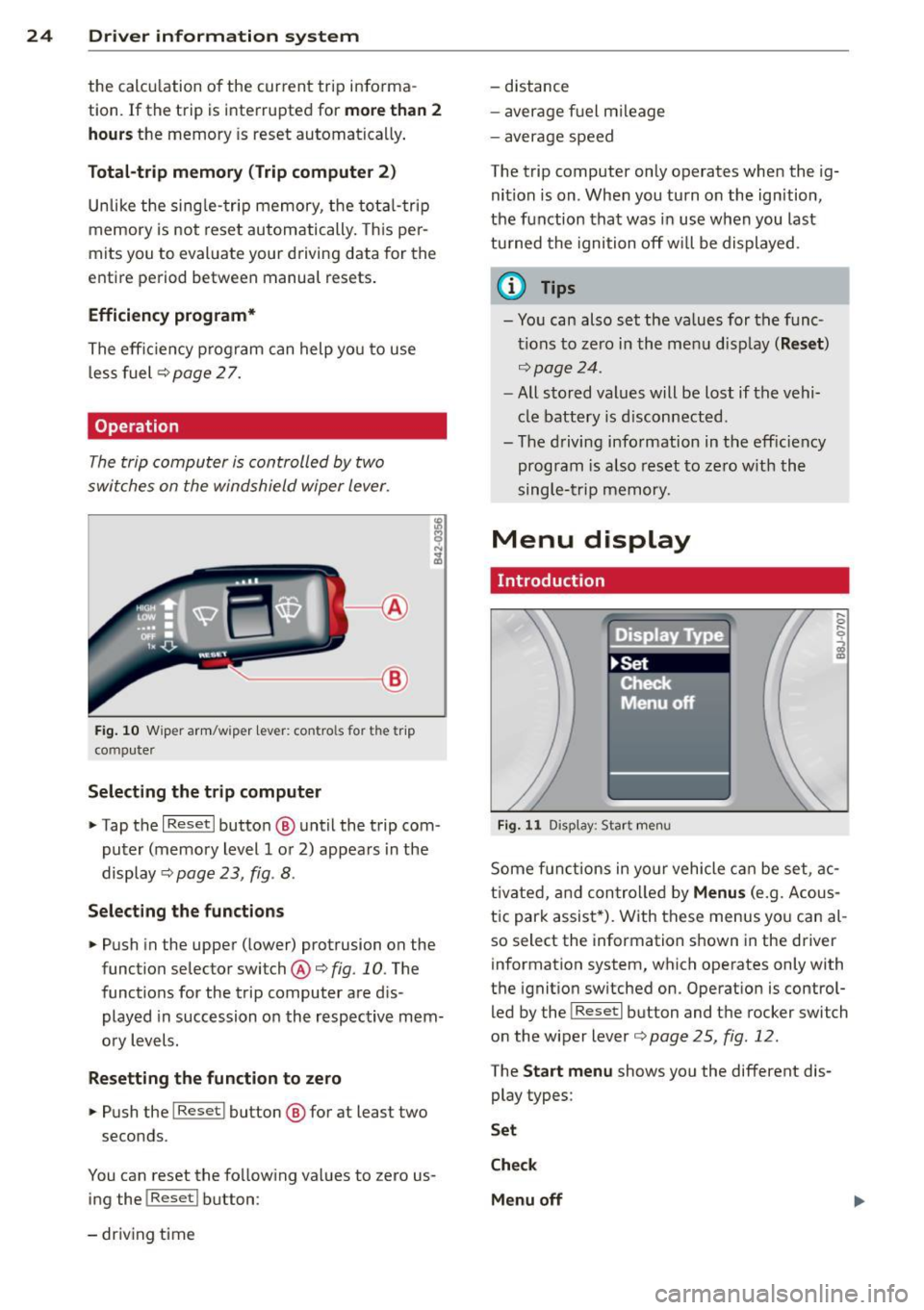
Fig. 10 W iper arm/w iper lever: con tro ls for t he trip
compute r
Selecting the trip computer
"Tap the I Reset I button @ until the trip com
puter (memory level 1 or 2) appears in the
display ¢
page 23, fig . 8.
Selecting the functions
" Push in the upper (lower) protrusion on the
function selector switch @
q fig. 10. The
functions for the trip computer are d is
played in succession on the respective mem
ory levels.
Resetting the function to zero
" Push the I Reset I button @ for at least two
seconds.
You can reset the fo llowing values to zero us
ing the
I Reset I button :
- driving time -
distance
- average f uel mileage
- average speed
The t rip computer only operates when the ig
nition is on. When you turn on the ignition,
the function that was in use when you last
turned the ignition off will be displayed .
(D Tips
-You can also set the values for the func
tions to zero in the menu display
(Reset )
qpage24 .
-All stored values will be lost if the vehi
cle battery is disconnected .
- The driving information in the efficiency
program is a lso reset to zero with the
single-trip memory.
Menu display
Introduction
Display Type
•set
iF'Cf t -,,., ==
Menu off
Fig. 11 D isplay: Sta rt men u
Some funct ions in yo ur vehicle can be set , ac
t ivated, and controlled by
Menus (e.g. Acous
tic park assist *). With these menus you can al
so select the information shown in the driver
information system, which operates only with
the ignition switched on. Operation is control
led by the
! Reset I button and the rocker switch
on the wiper lever
q page 25, fig . 12.
The Start menu shows you the different dis
play types:
Set
Check
Menu off
Page 27 of 244
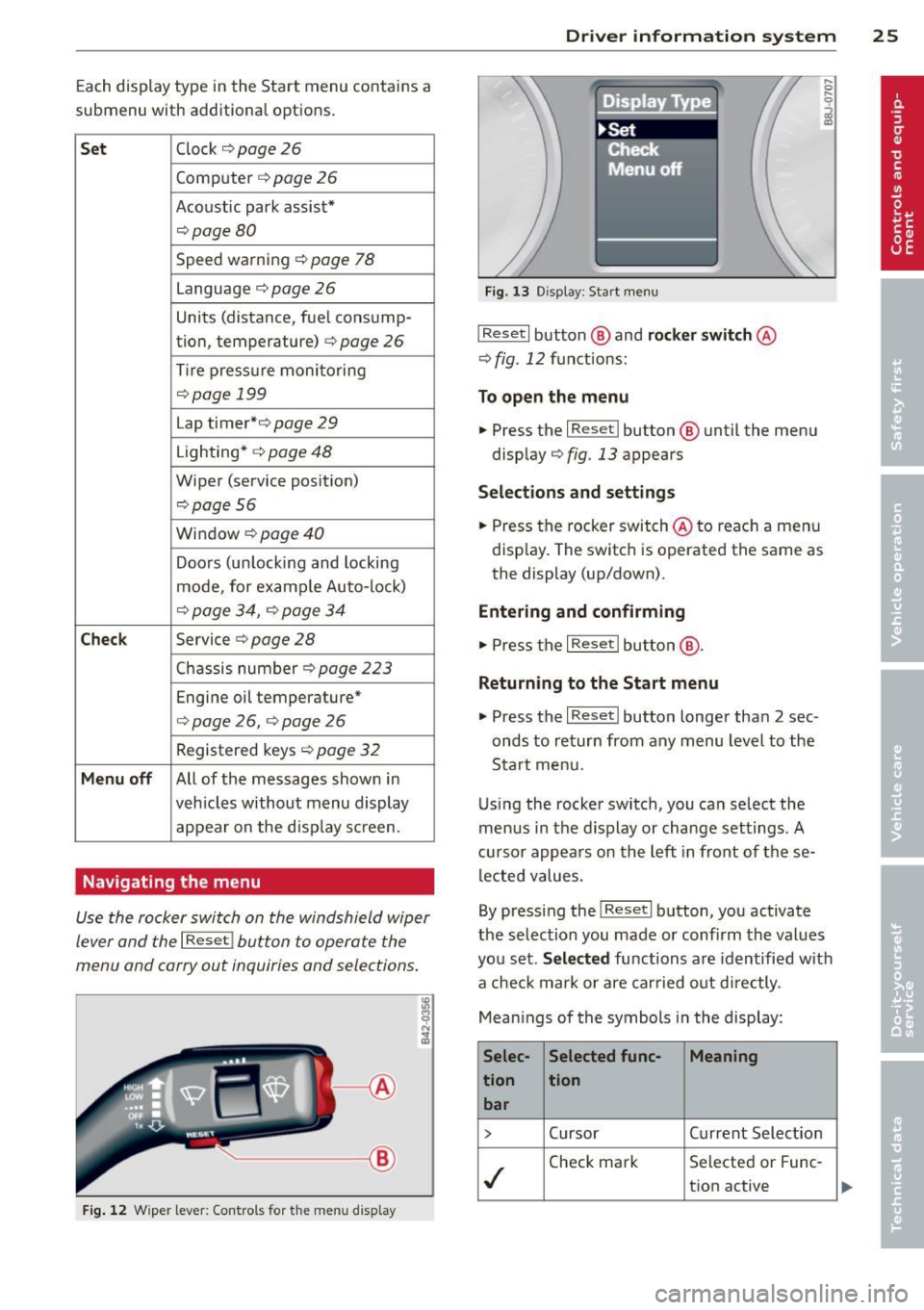
Each display type in the Start menu cont ains a
submenu with additional options.
Set Clock ¢ page 26
Computer c::>page 26
Acoustic park assist*
c:>page 80
Speed wa rning c::> page 78
Language c::> page 26
Units (distance, fue l consump-
tion, temperature)
c::> page 26
Tire press ure monitoring
c::> page 199
Lap timer* c:>page 29
Lighting* c::> page 48
Wiper (service posit ion)
c:> page 56
Wi ndow c::> page 40
Doors (unlock ing and locking
mode, for examp le Auto- lock)
c::> page 34, c::> page 34
Check Service c::> page 28
Chassis number c::> page 223
Engine oil temperature*
c:> page 26, c::> page 26
Registered keys c::> page 32
Menu off All of the messages show n in
veh icles without menu display
appear on the disp lay screen .
Navigating the menu
Use the racker switch on the windshield wiper
lever and the
I Reset ! button to operate the
menu and carry out inquiries and selections .
-----®
Fig. 12 W iper lever: Cont rols fo r th e me nu di splay
Dr iver in formation system 25
Fig . 1 3 D isplay: Start menu
I Reset I button @ and rocker switch @
c::> fig. 12 fu nctions:
To open the menu
.. Press the I Reset I button @ until the men u
disp lay
c::> fig . 13 appears
Sel ections and sett ing s
.. Press the rocker switch @to reach a men u
disp lay. The switch is operated the same as
the display (up/down) .
Entering and confirming
.. Press the I Reset I butt on @.
Returning to the Start menu
.. Press the I Reset I butto n longer tha n 2 sec
onds to return from any menu level to the
Sta rt me nu.
U sing the rocker switch, you can select the
menus in the d isplay or change settings. A
cu rsor appears on th e left in front of these
lec ted values.
By pressing the
I Reset I button, you activate
the se lection you made or confi rm the values
you set.
Selected functions are identified wit h
a check mark or are carried out d irectly .
Mean ings of the symbols in the display:
Selec- Selected func- Meaning
tion tion bar
> Cursor Current Selection
./
Check mark Se
lecte d or Fune-
t ion active
Page 28 of 244
26 Driver information system
Selec- Selected func- Meaning
tion tion bar
0
Box Not selected
•
Triangle
point-Previous page
ing up
•
Triangle point- Next page
ing down
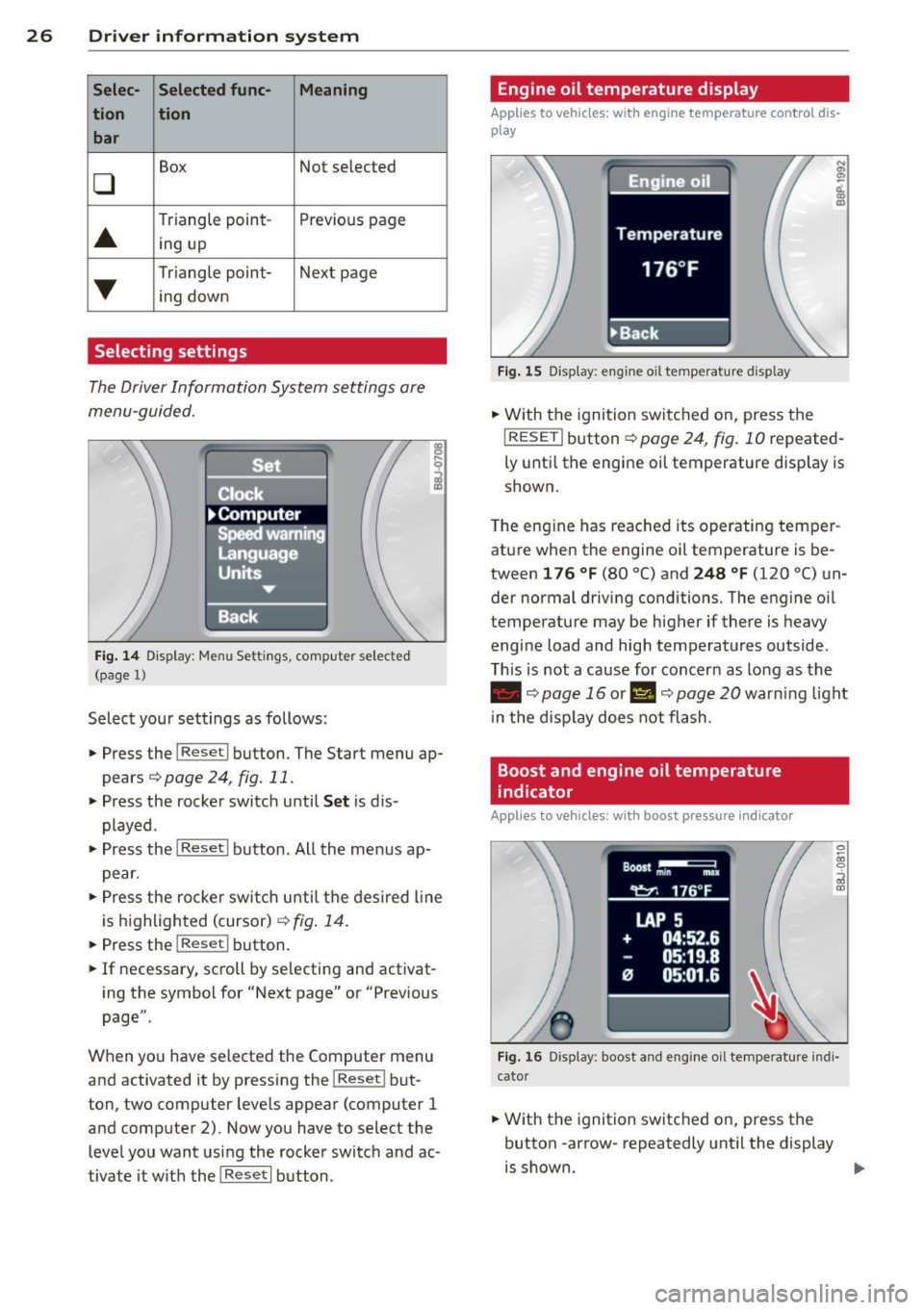
Selecting settings
The Driver Information System settings are
menu-guided .
Fig. 14 Display: Menu Set tings , computer selected
(page
l)
Select your settings as follows :
• Press the !Reset i button. The Start menu ap
pears¢
page 24, fig. 11.
• Press the rocker switch until Set is dis
played .
• Press the
I Reseti button. All the menus ap
pear.
• Press the rocke r switch u ntil the desired line
is highlighted (cursor)¢
fig. 14.
• Press the I Res et i button.
• If necessary, scro ll by se lecting and activat
ing the symbol for "Next page" or "Previous
page".
When you have selected the Computer menu
and activated it by pressing the!Reset i but
ton, two computer leve ls appear (computer 1
and computer 2). Now you have to select the
level you want using the rocker switch and ac
tivate it w ith the
I Reset I button .
Engine oil temperature display
Applies to vehicles: with engine temperature con tro l dis
play
Fig. 15 Display : eng ine oil temperature d isp lay
;
ci.. a, ID
• With the ignition switched on, press the
! RESETi button
¢page 24, fig. 10 repeated
ly until the engine oil temperature display is
shown.
The engine has reached its operating temper
ature when the engine oil temperature is be
tween
1 76 °f (80 °C) and 248 °f (120 °C) un
der normal driving conditions. The engine oil
temperature may be higher if there is heavy
engine load and high temperatures outside .
This is not a cause for concern as long as the
• ¢page 16 or II ¢page 20 warning light
in the display does not flash .
Boost and engine oil temperature
indicator
Applies to vehicles: with boost pressure indicato r
0 ~ 00 0
;;i a,
Fig. 16 Disp lay: boost and eng ine oi l temperature indi
cator
• With the ignition switched on, press the
button -arrow- repeatedly until the display
is shown . ..,.
Page 29 of 244
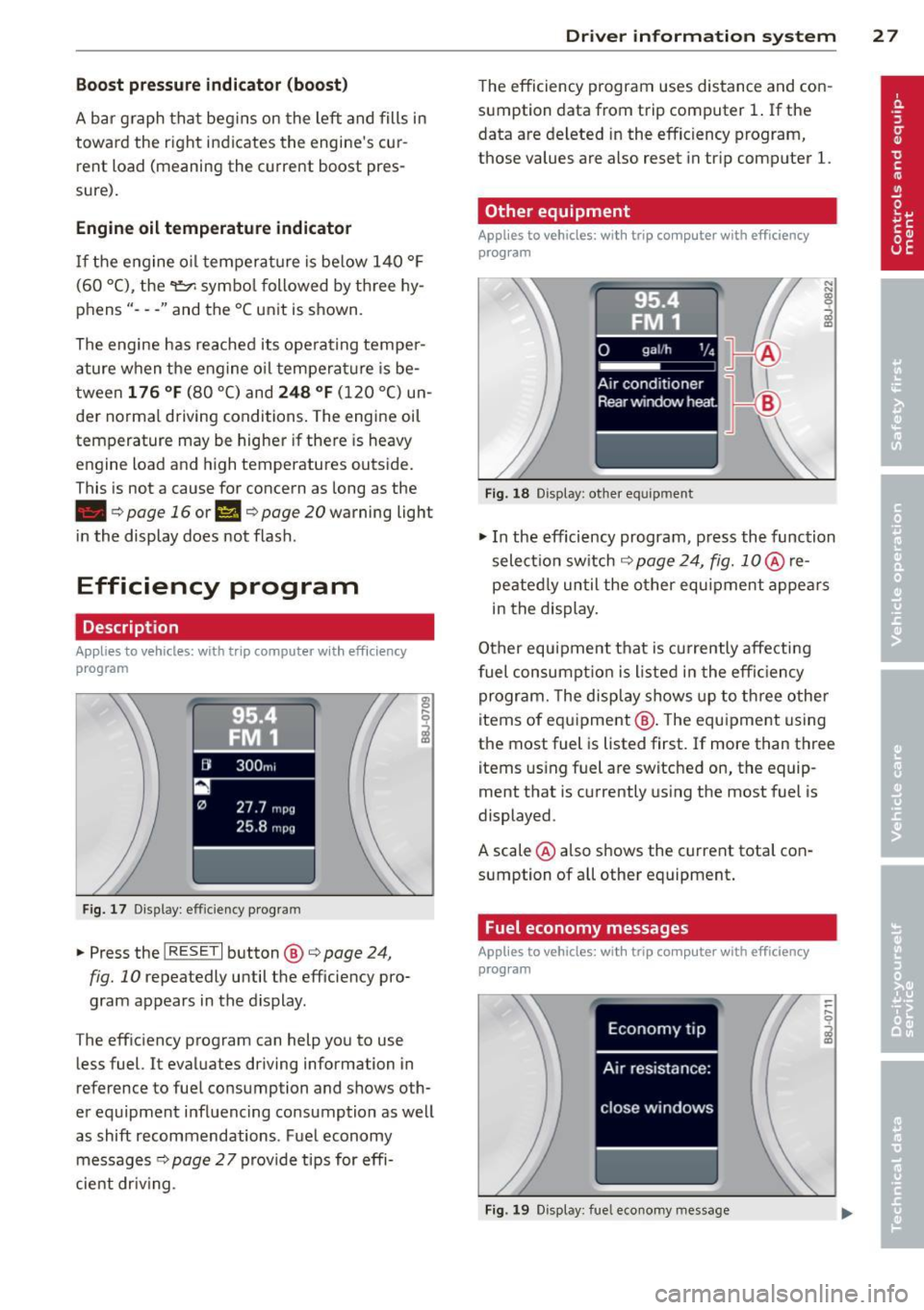
Boost pressure indicator (boost )
A bar graph that begins on the left and fills in
towa rd the right indicates the engine's cu r
rent load (meaning the c urrent boost pres
sure) .
Engine oil t emperature indicator
If the engine oil temperat ure is be low 140 °F
(60 °C), the
't:::7-symbo l followed by th ree hy
phens" -- -'' and the °C unit is shown .
The engine has reached its opera ting temper
ature when the e ngine o il temperat ure is be
tween
176 °F (80 °() and 248 °F (1 20 °() un
der normal driving conditions. The engine oil
temperature may be higher if there is heavy
engine load and high temperatures outside.
This is not a cause for concern as long as the
• ¢ page 16 or 1\1 ¢ page 20 warning light
i n the display does not flash .
Efficiency program
Description
Applies to vehicles: with trip computer with efficiency
program
F ig. 17 Display : effic iency program
• Press the I RESE T I button @¢ page 24,
fig. 10 repeatedly until the efficiency pro
gram appears in the display.
The eff iciency program can help you to use
less fuel. It evaluates driving information in
reference to fuel consumption and shows oth
er equipment influenc ing co nsumption as well
as shift recommendations . Fuel economy
messages ¢
page 2 7 provide tips for effi
cient dr iv ing .
Dr iver in formation system 2 7
The efficiency program uses distance and con
sumption data from trip computer
1. If the
data are deleted in the efficiency program,
those values are also reset in tr ip computer
l.
Other equipment
Appl ies to vehicles: with trip computer with efficiency
prog ram
Fi g. 18 D isplay: other equ ipment
• In the efficiency program , press the function
selectio n switch
¢ page 24, fig. 1 0 @ re
peated ly until the other equipment appea rs
in the display.
Other equipment that is currently affecti ng
fuel consump tion is listed in the effi cien cy
program. The display shows up to th ree other
items of equ ipment @. The equ ipment using
the most fuel is listed first. If more than three items using fuel are switched on, the equip
ment that is currently us ing the most fuel is
displayed .
A scale @also shows the current tota l con
sumption of all other equipment .
Fuel economy messages
Applies to vehicles: with trip computer with efficiency
program
Fig . 1 9 D isplay: fue l economy message
Page 30 of 244
28 Driver information system
Fue l economy messages are displayed when
fuel consumption is increased by certain con
ditions. If you follow these fuel economy mes
sages, you can reduce your vehicle's consump
t ion of fuel. The messages appear automati
cally and are only displayed in the efficiency
program . The fuel economy messages turn off
automatically after a certain period of time .
.,. To turn a fuel economy message off immedi
ately after it appears, press the
! R ESET I but
ton
¢ page 24 , fig . 1 O @, or
.,. Press the function selection switch
¢page 24, fig.10 @.
(D Tips
-Once you have turned a fuel economy
message off, it will only appear again af
ter you turn the ignition on aga in.
- The fuel economy messages are not dis
played in every instance, but rather in in
tervals over a period of ti me.
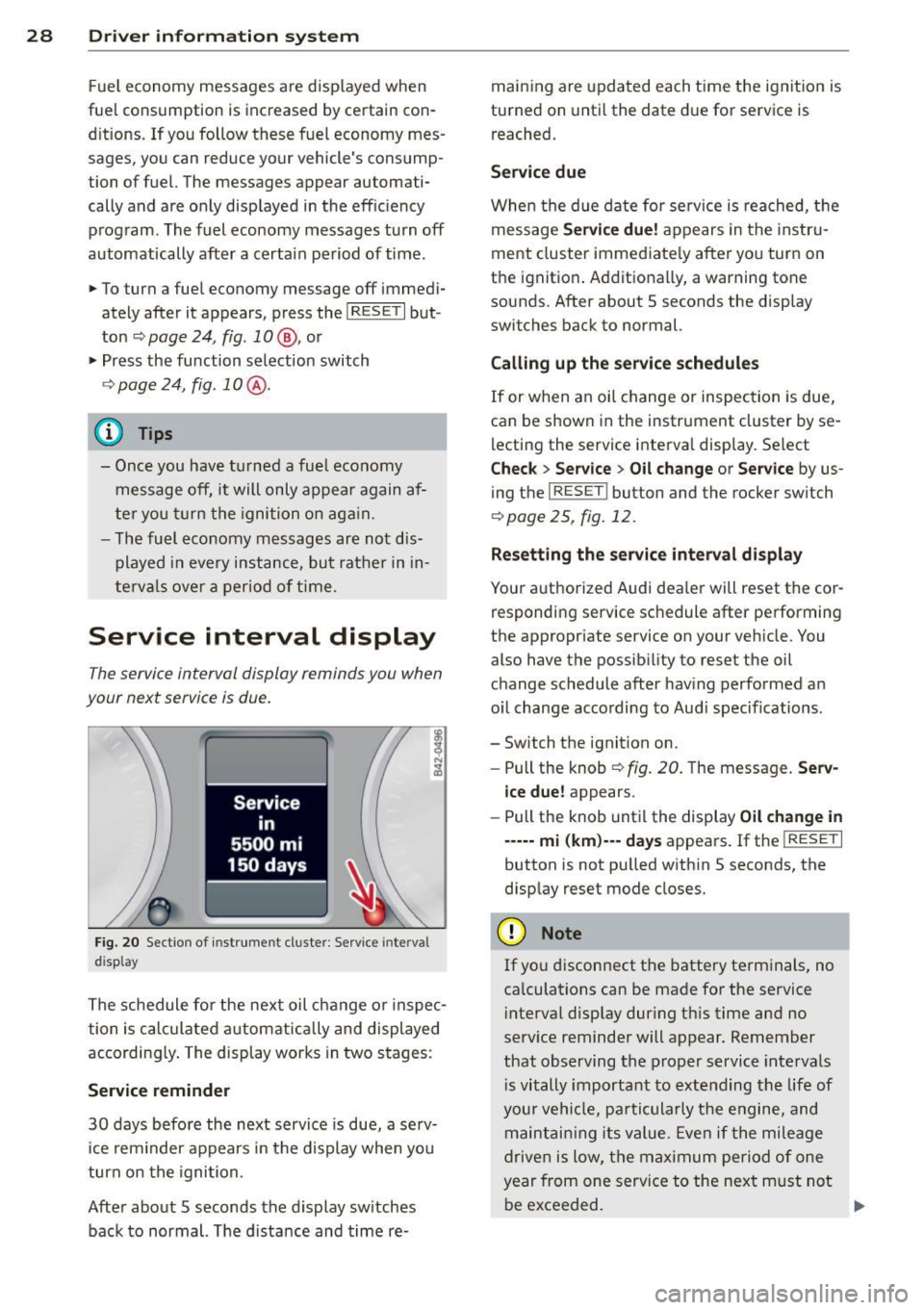
Service interval display
The service interval display reminds you when
your next service is due.
Fig. 20 Sectio n of inst rume nt cl uster : Serv ice interv al
d isplay
The schedule for the next oil change or inspec
tion is calculated automatically and displayed
according ly . The display works in two stages :
Service reminder
30 days before the next service is due, a serv
ice rem inder appears in the display when you
turn on the ignition.
After about 5 seconds the display sw itches
back to normal. The d istance and time re- maining are
updated each time the ignition is
turned on until the date due for service is
reached.
Service due
When the due date for service is reached, th e
message
Service due! appears in the instru
ment cluster immediately after you turn on
the ignition . Additionally, a warning tone
sounds. After about 5 seconds the disp lay
switches back to normal.
Calling up the service schedules
If or when an oil change or inspection is due,
can be shown in the instrument cluster by se
lecting the service interval display . Select
Chec k > Service > Oil change or Service by us
ing the
I RESET I button and the rocker switch
r:::> page 25, fig. 12 .
Resetting the service interval display
Your authorized Audi dealer will reset the cor
responding service schedule after performing
the appropriate service on you r vehicle. You
also have the possibility to reset the oil
change schedule after having performed an
o il change according to Audi specif ications.
- Switch the ignition on.
- Pull the knob
r:::> fig. 20. The message. Serv-
ice due!
appears.
- Pull the knob until the display
Oil change in
-----mi (km)--- days appears . If the I RESET I
button is not pulled within 5 seconds, the
display reset mode closes.
(D Note
If you disconnect the battery terminals, no
calculations can be made for the service
interval display dur ing this time and no
serv ice reminder will appear. Remember
that observing the proper service intervals
i s vitally important to extending the life of
your vehicle, pa rticularly the engine, and
maintaining its value. Even if the mileage
driven is low, the maximum period of one
year from one service to the next m ust not
be exceeded.
II>-
Page 31 of 244
@ Tips
-Do not reset the display between oil
changes, otherw ise the display will be in
correct.
- The information in the Service Reminder
remains stored even when the vehicle
battery is disconnected.
Lap timer
Introduction
Appl ies to vehicles : wit h lap timer
You ca n record and eva luate lap times wi th
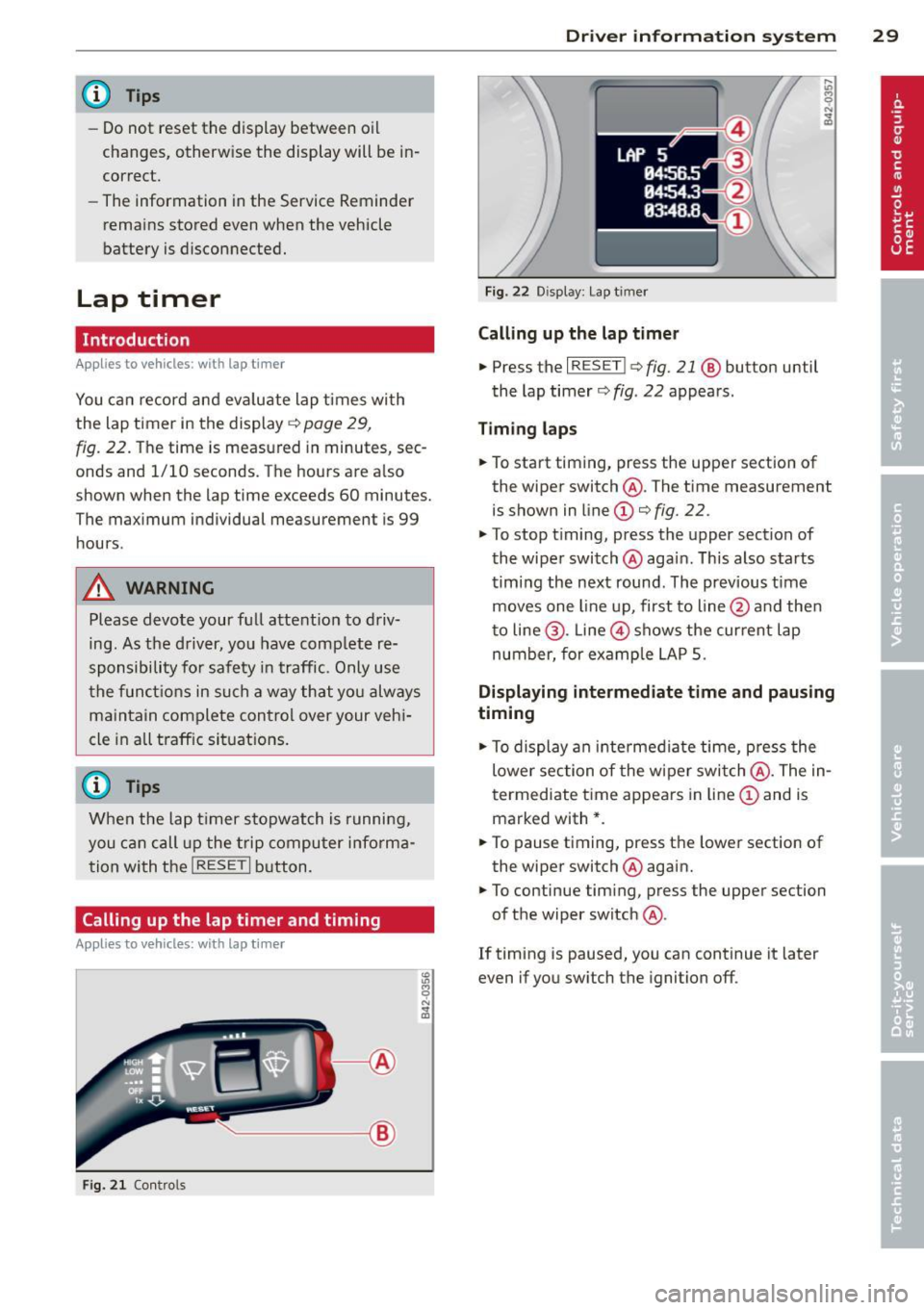
the lap timer in the display
c::> page 29,
fig. 22. The time is measured in minutes, sec
onds and 1/10 seconds. The hours are a lso
shown when the lap time exceeds 60 minutes.
The maximum individual measurement is 99
h ours.
A WARNING
-
Please devote your full attent ion to driv
ing. As the driv er, you have comp lete re
sponsibility for safety in traffic. Only use
t he funct io ns in such a way that yo u always
ma in tain complete contro l over your veh i
cle in all traff ic si tuations.
@ Tips
W hen the lap t imer stopwatch is running,
you can c all up the t rip computer info rma
t ion wi th the
I RESET I b utton .
Calling up the lap timer and timing
Applies to vehicles: with lap timer
------- @
Fig. 2 1 Contro ls
Dr iver in formation system 29
Fig . 22 D isplay: Lap t imer
Calling up the lap t imer
.. Press the I RESET I c:> fig. 21 @ button until
the lap timer
c::> fig . 22 appears .
Timing laps
.. To start timing, press the upper section of
the wiper switch @. The time measurement
is shown in line
CD c::> fig. 22.
.. To stop timing, press the upper section of
the wiper switch @again. This also starts
timing the next round . The previous t ime
moves one line up, first to line @and the n
t o line @. Line @ shows the current lap
number, for ex ample LAP 5.
Displaying intermediate time and pausing
timing
.. To display an intermediate time, press the
lower section of the w iper swi tch @ . The in
t ermediate t ime appears in line
CD and is
marked with* .
.. To pause t iming, press the lower section of
the wiper switch @again .
.. To continue tim ing, press the upper section
of the wiper switch @.
If timing is paused, you can continue it later
even if you sw itch the ignition off.
Page 32 of 244
30 Driver information system
Evaluating times and continuing or
resetting timing
Applies to vehicles: with lap timer
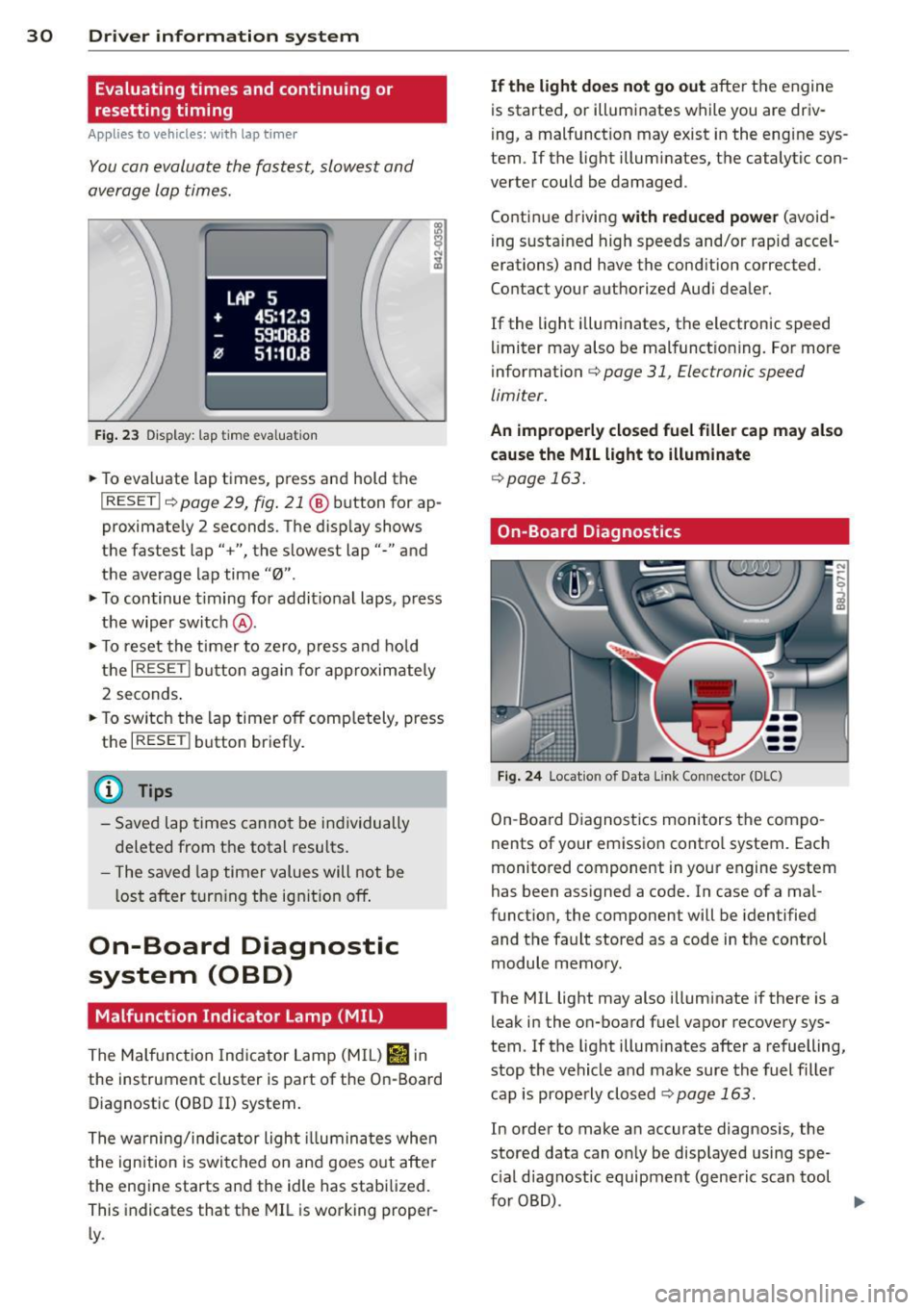
You can evaluate the fastest, slowest and
average lap times.
LAP 5
+ 45:12.9
59:08.8
0 51 :10.a
Fig. 23 Display: lap time eval uation
.. To eva luate lap times, press and hold the
I RESET Ir=) page 29, fig . 21 @ button for ap
proximate ly 2 seconds. The display shows
the fastest lap" +", the s lowest lap"-" and
the average lap time
"0" .
.. To continue t iming for addit ional laps, press
the wiper switch @ .
.. To reset the timer to zero , press and hold
the
I RESET I button again for approximately
2 seconds .
.. To switch the lap timer off comp letely, press
the
I RESET ! button briefly.
(D Tips
- Saved lap times cannot be individually
deleted from the tota l resu lts.
- The saved lap timer values will not be
l os t after turning the ignition off.
On-Board Diagnostic
system (OBD)
Malfunction Indicator Lamp (MIL)
The Malfunction Indicator Lamp (M IL) Iii in
the instrument cluster is part of the On-Board
Diagnostic (OBD
II) system.
The warning/indicator ligh t illuminates whe n
the ignition is switched on and goes out after
the eng ine starts and the idle has stabilized.
This indicates that the MIL is working proper
ly .
If the light does not go out after t he engine
is started, or illuminates while you are driv
i ng, a malfunction may exist in the eng ine sys
tem. If the light illuminates, the catalytic con
verter could be damaged .
Contin ue driving
with reduced power (avoid
i ng sustained high speeds and/or rapid accel
erations) and have the cond ition corrected.
Contact your a uthorized Audi dea ler.
If the light il luminates, the electronic speed
limiter may also be malfunct ioning. For more
information
c:> page 31, Electronic speed
limiter.
An improperly closed fuel filler cap may also
cause the MIL light to illuminate
c:> page 163.
On-Board Diagnostics
Fig. 24 Locat ion of Data Link Connector (DLC)
On-Board Diagnostics monitors the compo
nents of your emission contro l system . Each
monitored component in your engine system
has been assigned a code. In case of a mal
funct ion, the component will be identified
and the fault stored as a code in the control
module memory.
The MIL light may also illuminate if there is a
leak in the on-board fuel vapor recovery sys·
tem. If the light illuminates after a refuelling,
stop the vehicle and make sure the fuel filler
cap is properly closed
c:> page 163.
In order to make an accurate diagnosis, the
stored data can on ly be displayed using spe
c ial dia gnost ic equipment (generic scan tool
furOBD) .
~