warning AUDI TT ROADSTER 2016 Owners Manual
[x] Cancel search | Manufacturer: AUDI, Model Year: 2016, Model line: TT ROADSTER, Model: AUDI TT ROADSTER 2016Pages: 306, PDF Size: 31.82 MB
Page 154 of 306
Downloaded from www.Manualslib.com manuals search engine Telephone
The
following options may be available depend
ing on which menu you have selected:
Storing an e-mail as a template
There are already ten e-mail templates stored on
the MMI. You can store up to ten additional tem
plates.
- Create an e-mail.
- Select and confirm Store as template.
Continue with last edited e-mail
You can continue with the e-mail you last edited.
Reply*
You can reply to an e-mail you have selected in
the Inbox.
Reply to all*
You can reply to all the recipients of an e-mail
you have selected in the Inbox.
Forward
You can forward an e-mail you have selected to
another recipient.
Delete this message*
You can delete an e-mail you have selected.
Read 1
>
You can have the MMI read an opened e-mail to
you.
E-mail settings*
Activate E-mail notifications to have a notifica
tion displayed when a new e-mail is received. An
envelope symbol� is displayed in the status line
of the infotainment display if there are any new
e-mails.
Connection manager
Refer to¢ page 213.
Telephone settings
Refer to ¢page 155.
l l
Not available in all languages.
152 (I))
Note
Messages deleted using the MMI are also au
tomatically deleted on the mobile phone con
nected.
Listening to voicemail
messages Applies to: vehicles with telephone
... Select: I MENU I button >Telephone > left con
trol button. Select and confirm Call list/Direc
tory/Favourites > Mailbox.
- To enter the mailbox number: Enter the num
ber desired. Select and confirm OK.
- To dial the mailbox number: Select and con
firm Mailbox.
(I)) Note
- This service must be set up and activated by
your mobile network service provider before
you can use it. For more information, con
tact your service provider.
- The mailbox number depends on your serv
ice provider.
Emergency call functions
Applies to: vehicles with telephone
... Select: !MENU! button> Telephone > left con
trol button > Enter number > enter emergency
number (e.g. 112) > OK.
A WARNING
- Since your telephone operates via radio
waves, a connection cannot be guaranteed
under all circumstances. Do not rely solely
on your telephone when a vital communica
tion (e.g. medical emergency) is involved.
- Always follow the directions of the emer
gency operators when making an emergency
call and do not end the call before you are
requested to do so.
Page 161 of 306
Downloaded from www.Manualslib.com manuals search engine 0
N
,.....
N
......
0
,.....
Vl
CX) Audi
connect
Introduction
Applies to: vehicles with Audi connect
Audi connect services allow online information to
be directly transmitted and integrated into the
vehicle.
Thanks to a Wi-Fi hotspot, it is possible to use a
mobile device to access the Internet when the ve
hicle is stationary.
A WARNING
- Only use Audi connect services when the
traffic conditions allow you to do so safely -
risk of accident! Please always observe the
notes in the chapter ¢page 121, Notes on
traffic safety.
- Mobile devices, tablet and laptop computers
and devices of a similar weight can only be
operated safely when the vehicle is station
ary. Like any loose object, they can be cata
pulted through the vehicle in an accident
and cause serious injuries. Always make sure
that such devices are securely stowed while
you are driving.
-Audi connect services should only be used
via a Wi-Fi hotspot when the vehicle is sta
tionary -risk of accident!
Pl ease also refer to ¢ page 167, Notes on
Audi connect before using.
Setting up
Before you start
Applies to: vehicles with Audi connect
An Internet connection is required in order to use
Audi connect. You can establish a connection by
using one of the following options:
l) Not available in all markets. Applies to mobile phones
with Bluetooth remote SIM Access Profile on vehicles with
Audi connect and Audi phone box*.
2 > Not available for all countries and models Audi
connect
Option 1
Using a separate mini SIM card in the SIM card
reader ¢ page 159
Option 21
)
Connecting an rSAP¢ page 160 enabled mobile
phone via Bluetooth
Option 32
)
Using a mobile device (e.g. a smartphone) as a
personal Wi-Fi hotspot for the MMI ¢ page 161
Using the SIM card reader
Applies to: vehicles with SIM card reader
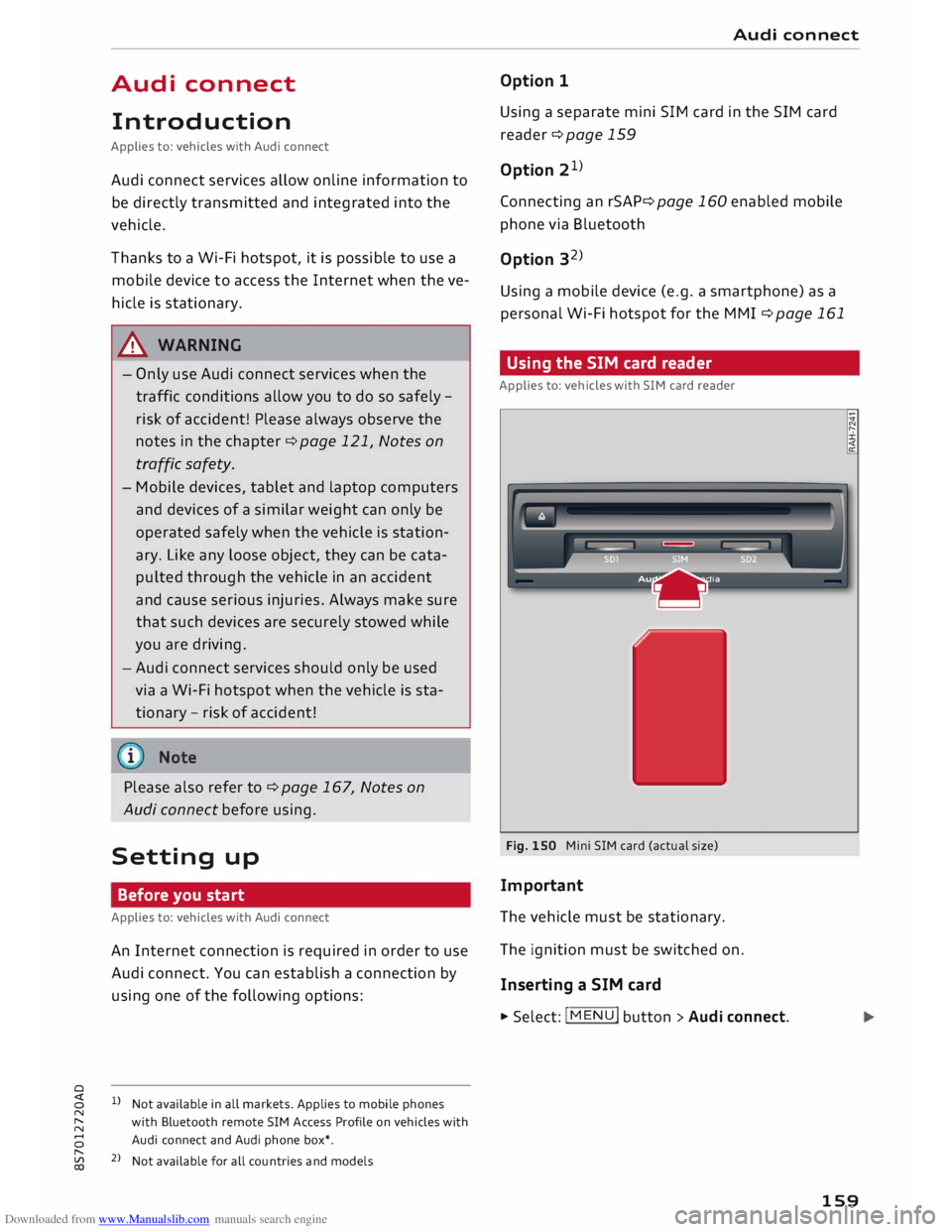
Fig. 150 Mini SIM card (actual size)
Important
The vehicle must be stationary.
The ignition must be switched on.
Inserting a SIM card
.,.. Select: I MENU
I button > Audi connect.
159
Page 167 of 306
Downloaded from www.Manualslib.com manuals search engine available
at my.audi.com. You can also have
the new navigation data installed by an Audi
dealer (carries additional charges).
- Further information on the myAudi special
destinations and the map update can be
found at my.audi.com.
Audi connect services for telephones
Applies to: vehicles with Audi connect
The following Audi connect services are currently
available:
Creating contacts on your PC via your myAudi ac
count and loading the contacts into the directory
of your MMI system ¢page 154.
Audi connect services in the Media menu
Applies to: vehicles with Wi-Fi audio player and Audi connect
- Wi-Fi audio player: To access the media centre
of your player (e.g. smartphone) connected via
Wi-Fi ¢page 195.
- Online media: With assistance from the Audi
MMI connect app, this function allows you to
access and operate various on line media serv
ices using the MMI.
CD CAUTION
Please always observe the information ¢(Din
Wi-Fi hotspot on page 166.
Note
Please contact an Audi dealer for more infor
mation on Wi-Fi audio players and for a list of
supported devices.
Further options
Applies to: vehicles with Audi connect .,.. Selec
t: I
MENU ! button
> Audi connect > right
control button.
The following options are available to you in the
overview of the Audi connect services:
- Login: Refer to ¢page 162, Logging into
0
� myAudi
in the vehicle.
� -Connection manager: Refer to ¢page 213.
N
......
0
"
Vl Audi
connect
- Licence periods: The validity and the time re
maining on your licences is displayed. If the Li
cence expiry warning function is switched on, a
message will be displayed before the licence
expires.
Wi-Fi hotspot
Applies to: vehicles with Wi-Fi hotspot
You can use your MMI system as a Wi-Fi hotspot
for connecting to the Internet on up to eight Wi
Fi devices.
Important: The ignition must be switched on.
.,.. Select:
I MENU
I button >Telephone > right con-
trol button > Wi-Fi settings.
The following settings can be made:
Wi-Fi
The Wi-Fi hotspot is deactivated when the vehicle
leaves the factory. Switch the Wi-Fi hotspot on
before establishing an Internet connection be
tween your vehicle and your Wi-Fi device.
- on: The MMI's Wi-Fi hotspot is activated and
visible to other devices. You can connect your
Wi-Fi device to the MMI.
- off: The M Mi's Wi-Fi hotspot is deactivated.
Wi-Fi devices will not be able to connect to the
Internet.
Network key
The Wi-Fi connection between your vehicle and
the Wi-Fi device (laptop or mobile phone) is en
crypted. Before a connection can be established,
you must enter the following values/settings
when setting up your Wi-Fi device (these values
can be edited as required):
-Access point (SSID): Name of the Wi-Fi net
work.
- Password: A random MMI password is set at
the factory. This password can be changed. The
encryption type WPA2 requires the password to
be at least 8 characters long. Please select a se
cure password.
- Discoverability: To switch the discoverability of
your Wi-Fi network on or off.
.,.
165
Page 168 of 306
Downloaded from www.Manualslib.com manuals search engine Audi
connect
Netwo rk search*
A List of the Wi-Fi networks available near you is
displayed.
Connection to personal hotspot1
)
The Wi-Fi hotspot of the MMI is activated. The
MMI can establish an Internet connection to a
personal Wi-Fi hotspot (e.g. smartphone). You
can search for your personal hotspot and connect
to the MMI using Network search. For more in
formation, please refer to ¢ page 161.
This mode is not available if your own SIM card is
inserted in the SIM card reader.
A WARNING
- Do not allow the features of the Wi-Fi hot
spot to distract you from watching the traf
fic -taking your eyes off the road can cause
an accident.
- Mobile devices, tablet and laptop computers
and devices of a similar weight can only be
operated safely when the vehicle is station
ary. Like any loose object, they can be cata
pulted through the vehicle in an accident
and cause serious injuries. Always make sure
that such devices are securely stowed while
you are driving.
- No Wi-Fi devices may be used in the areas
around the airbags while the vehicle is being
driven. Please also observe the safety warn
ings in the chapter on¢ page 235.
- Depending on the configuration of the Wi-Fi
device you are using (refer to the operating
manual of your Wi-Fi device for more de
tails), the SIM card of the device may be
used in certain
cases
to provide the data
connection for Internet-supported apps and
services which use the MMI Wi-Fi hotspot.
Depending on your network provider, you
may be charged for this service, especially if
you are using the system abroad. We there
fore strongly recommend that you use an
unlimited data plan. For more information,
l l
Not available in all markets.
166 contact
your service provider. Some exam
ple cases are described below:
- Data plan expired/used up
- Data plan not valid abroad
- SIM card in the card reader* is not a data
SIM card
- SIM card in the card reader* is defective/
not valid
- Network is switched automatically due to
a low signal strength/data rate of the Wi
Fi hotspot, the eSIM* or the SIM card in
the card reader*
- Connection to Wi-Fi hotspot interrupted
- Please note that it is your responsibility to
. take
precautions regarding data protection,
anti-virus protection and protection against
loss of data on mobile devices used to con
nect to the Internet via the Wi-Fi hotspot.
1 Note
- You might require a separate mobile phone
contract with extra costs before you can use
the Wi-Fi hotspot. For more information,
contact your service provider.
- In vehicles without Audi connect*, the Wi-Fi
hotspot can only be used for the Wi-Fi audio
player*. A data connection to the Internet
cannot be established.
- Further information can be found on the In
ternet at www.audi.com.
Configuring the data
connection
Applies to: vehicles with Audi connect
You must configure a data connection before you
can use Audi connect services.
� Select: I MENU
I button > right control button >
Connection manager.
� Select: right control button > Online settings >
Data connection settings.
You can select when you would Like the system to
establish an Internet connection in the Data con
nection settings menu. The online connection is �
Page 171 of 306
Downloaded from www.Manualslib.com manuals search engine 0
N
,.....
N
......
0
,.....
Vl
CX) Navigation
Navigation
Calling up the navigation menu
Applies to: vehicles with navigation system
The navigation system guides you directly to your destination, avoiding traffic obstructions and using
alternative routes if desired.
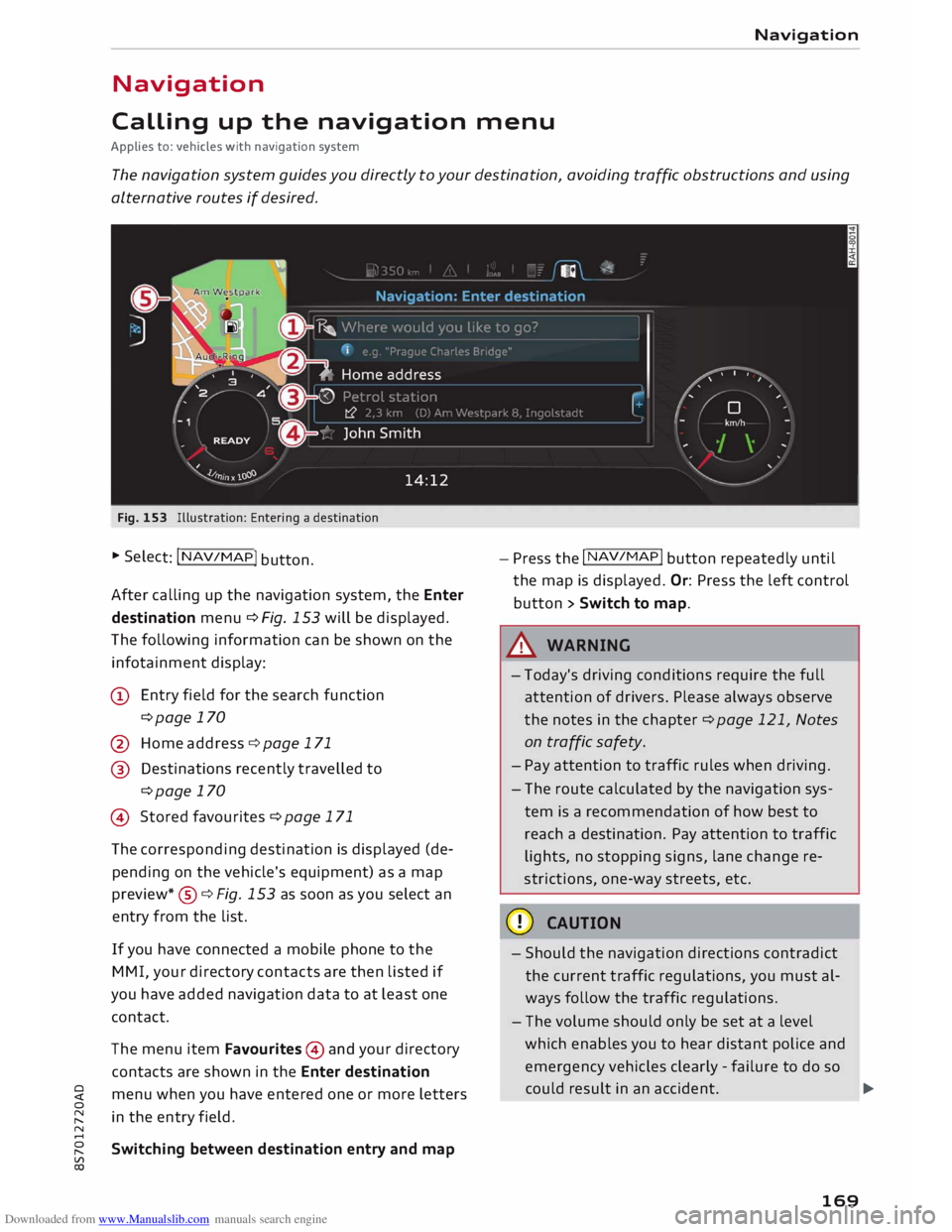
Fig. 153 Illustration: Entering a destination
.,. Selec
t: I N A
V/MAP!
button.
After calling up the navigation system, the Enter
destination menu¢ Fig. 153 will be displayed.
The following information can be shown on the
infotainment display:
(D Entry field for the search function
¢page 170
@ Home address ¢ page 171
@ Destinations recently travelled to
¢page 170
@ Stored favourites ¢page 171
The corresponding destination is displayed (de
pending on the vehicle's equipment) as a map
preview *® ¢ Fig. 153 as soon as you select an
entry from the list.
If you have connected a mobile phone to the
MMI, your directory contacts are then listed if
you have added navigation data to at least one
contact.
The menu item Favourites @and your directory
contacts are shown in the Enter destination
menu when you have entered one or more letters
in the entry field.
Switching between destination entry and map -
Press the I NAV/MAP!
button repeatedly until
the map is displayed. Or: Press the left control
button > Switch to map.
A WARNING
- Today's driving conditions require the full
attention of drivers. Please always observe
the notes in the chapter ¢page 121, Notes
on traffic safety.
- Pay attention to traffic rules when driving.
- The route calculated by the navigation sys-
tem is a recommendation of how best to
reach a destination. Pay attention to traffic
lights, no stopping signs, lane change re
strictions, one-way streets, etc.
CD CAUTION
- Should the navigation directions contradict
the current traffic regulations, you must al
ways follow the traffic regulations.
- The volume should only be set at a level
which enables you to hear distant police and
emergency vehicles clearly -failure to do so
could result in an accident.
..,.
169
Page 178 of 306
Downloaded from www.Manualslib.com manuals search engine Navigation
Other settings
Navigation settings
Applies to: vehicles with navigation system
"" Press the
I NAV
/M
AP
I button
repeatedly until
the Enter destination menu is displayed
¢ page 169, Fig. 153.
""Select: right control button > Navigation set-
tings.
Depending on the function selected, you can use
the following settings:
Always display alternative routes
When this function is switched on�. up to three
suggested routes and their characteristics are
displayed on the overview map. Refer to
¢ page 177, Displaying alternative routes.
Fuel warning
When the fuel gauge is in the reserve zone, a
message will appear when this function is on �
A list of nearby filling stations will be displayed
after you confirm this message. When you select
one of the filling stations, the route to its loca
tion will be calculated based on the current posi
tion of your car.
Arrival notification*
The arrival notification is switched off when the
vehicle leaves the factory.
When this function is switched on�. the MMI
will inform you when you are approaching selec
ted special destinations (e.g. imported myAudi
special destinations). You can also have a sound
played using the Play notification tone function.
Delete myAudi special destinations*
Destinations that you import from your myAudi
account to your MMI are automatically saved.
You can delete them individually or all at once.
Presentation mode
You can use the presentation mode to plan and
"drive" a journey effectively without the need to
move the vehicle. You can choose your start loca-
l l
This function is not available in the Mexican market.
176 tion
manually (Select start location) if, for exam
ple, you would like to calculate a route starting
from a different position than the current posi
tion of the vehicle. Start the presentation mode
to simulate route guidance.
Route criteria
Applies to: vehicles with navigation system
©- [tS
[
®-�
®- [J,[ @-�
®-[l;lj (?)-�
©-� ®-�
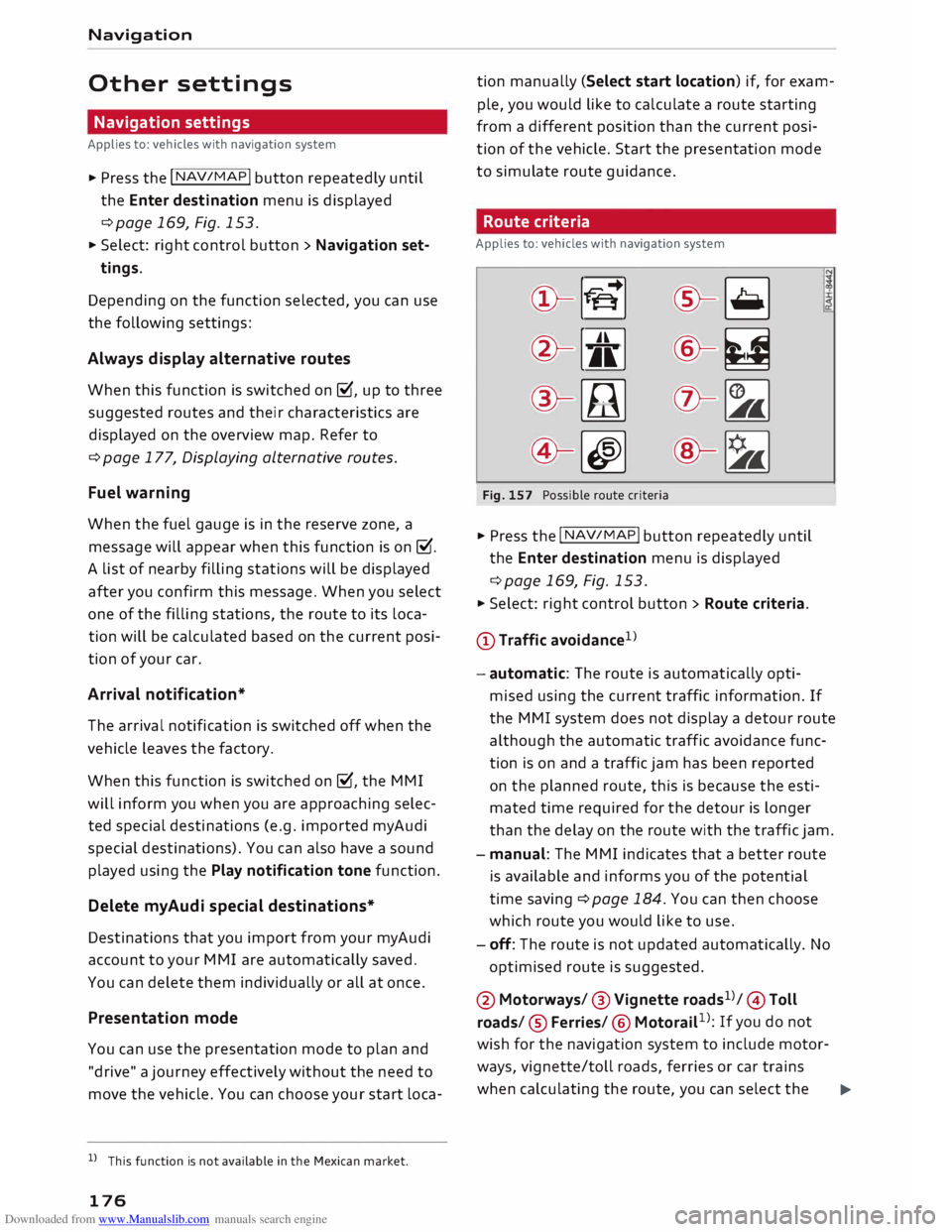
Fig. 157 Possible route criteria
"" Press the I NAV/
MAP
! button repeatedly until
the Enter destination menu is displayed
¢page 169, Fig. 153.
"" Select: right control button > Route criteria.
(D Traffic avoidance 1
> .!!;
- automatic: The route is automatically opti
mised using the current traffic information. If
the MMI system does not display a detour route
although the automatic traffic avoidance func
tion is on and a traffic jam has been reported
on the planned route, this is because the esti
mated time required for the detour is longer
than the delay on the route with the traffic jam.
- manual: The MMI indicates that a better route
is available and informs you of the potential
time saving ¢ page 184. You can then choose
which route you would like to use.
- off: The route is not updated automatically. No
optimised route is suggested.
@ Motorways/ @ Vignette roads1
>/ © Toll
roads/ ® Ferries/ ® Motorail 1
>: If you do not
wish for the navigation system to include motor
ways, vignette/toll roads, ferries or car trains
when calculating the route, you can select the
..,.
Page 184 of 306
Downloaded from www.Manualslib.com manuals search engine Navigation
- Please always note the information in the
chapter ¢page 167, Notes on Audi connect.
- Further information can be found on the In
ternet at www.audi.com.
Calling up traffic
information
Dynamic traffic avoidance
Applies to: vehicles with navigation system
Using the traffic information received via TMC/
TMCpro*/online* -depending on availability -you
can have the MMI guide you past traffic obstruc
tions whenever possible. For this, the traffic
avoidance must be switched on (D ¢ page 176.
Reception of traffic information is indicated by
the !TMC!�TMCprol
* or the !ONLINE!
symbol on
the map @¢page 183, Fig. 163.
Traffic information (TMC/TMCpro*)
Applies to: vehicles with navigation system
� Press the I N AV
/
M AP
I button repeatedly
until
the map is displayed ¢page 178, Fig. 160.
� Select: left control button > Traffic messages.
Reception of traffic information is indicated by
the !TMC!�TMCpro!*
symbol on the map:
Several traffic messages are summarised in the
overview under the relevant road/motorway
name.
- To display all the traffic messages for a road/
motorway: Press the right control button. A list
182 of
all traffic messages on the road/motorway
selected will be displayed.
- To call up the detail view for a traffic message:
Select a traffic message from the list and con
firm it.
- To show the selected traffic message on the
map: Select: right control button > Show on
map. The hatched line shows the stretch of
road affected by the traffic obstruction.
- To display the next piece of traffic information
on the map: Press the rotary pushbutton.
Traffic information display
Coloured warning symbols: Traffic obstructions
relevant for your route are shown in the top sec
tion of the list in order of the distance from your
current location.
Warning symbols with �: Traffic obstructions
that you have avoided.
Greyed out warning symbols: Traffic obstruc
tions that are not relevant for your route. They
are sorted according to road category (motor
ways, major roads, other roads), country and
road number.
(1') Note
- Urgent traffic information, such as a car
travelling in the wrong direction on the mo
torway, is displayed automatically. To hide
the traffic information, press the I BA
CK!
button or the rotary pushbutton.
- This function is not available in the Mexican
market.
Page 185 of 306
Downloaded from www.Manualslib.com manuals search engine 0
N
,.....
N
......
0
,.....
Vl
CX) Navigation
Online traffic information
Applies to: vehicles with navigation system and Audi connect
The MMI system can receive real-time information from the Internet regarding traffic congestion, ac
cidents, roadworks and other incidents.
WurmtalstraBe
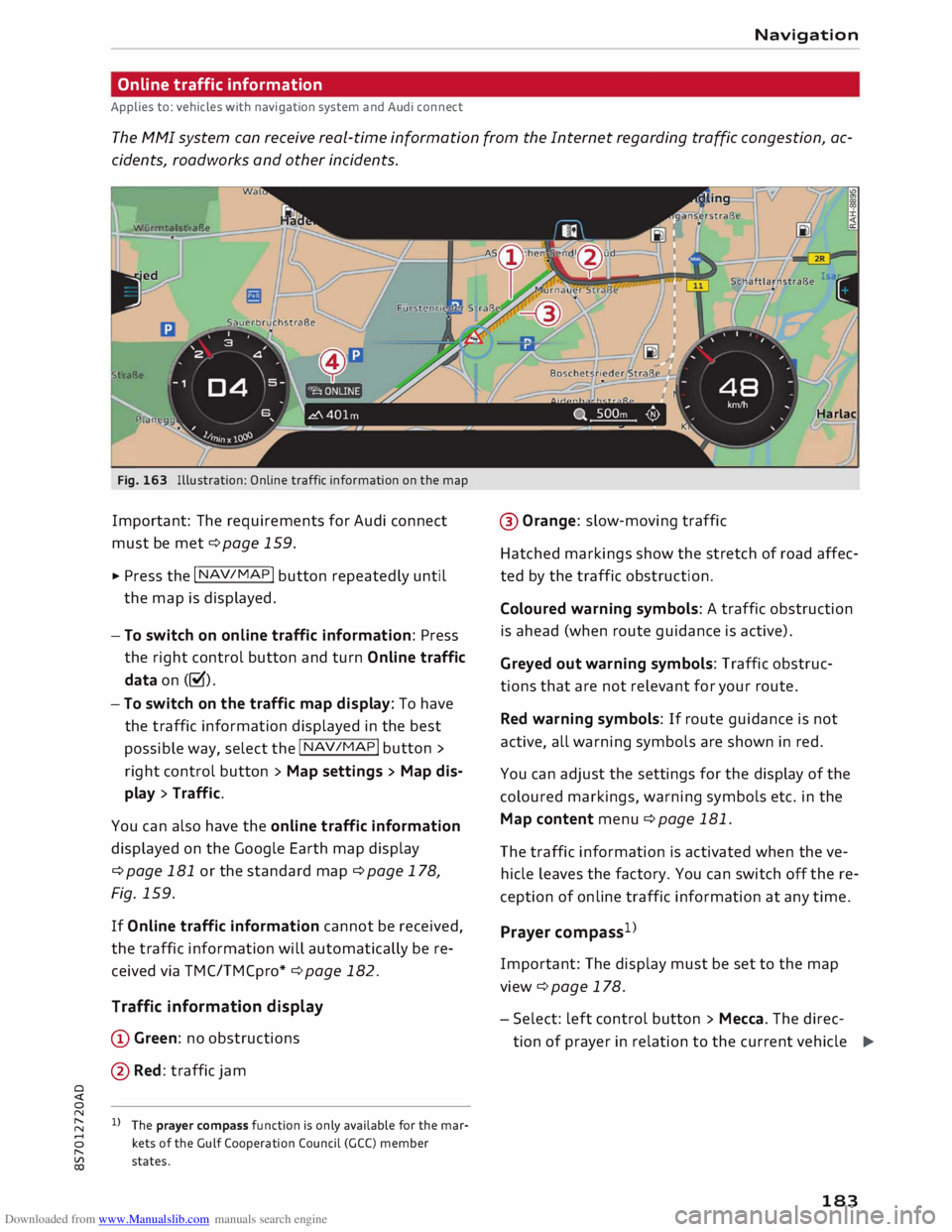
traBe Fig. 163 Illustration: Online traffic information on the map
Important: The requirements for Audi connect
must be met ¢page 159.
11- Press the I NAV/
M
AP !
button repeatedly until
the map is displayed.
- To switch on online traffic information: Press
the right control button and turn Online traffic
data on(�).
-To switch on the traffic map display: To have
the traffic information displayed in the best
possible way, select the
I NAV/
MAP
! button >
right control button> Map settings > Map dis
play > Traffic.
You can also have the online traffic information
displayed on the Google Earth map display
¢ page 181 or the standard map¢ page 178,
Fig. 159.
If Online traffic information cannot be received,
the traffic information will automatically be re
ceived via TMC/TMCpro* ¢page 182.
Traffic information display
CD Green: no obstructions
@ Red : traffic jam
1} The prayer compass function is only available for the mar
kets of the Gulf Cooperation Council (GCC) member
states. Harlac
@ Orange: slow-moving traffic
Hatched markings show the stretch of road affec
ted by the traffic obstruction.
Coloured warning symbols: A traffic obstruction
is ahead (when route guidance is active).
Greyed out warning symbols: Traffic obstruc
tions that are not relevant for your route.
Red warning symbols: If route guidance is not
active, all warning symbols are shown in red.
You can adjust the settings for the display of the
coloured markings, warning symbols etc. in the
Map content menu ¢ page 181.
The traffic information is activated when the ve
hicle leaves the factory. You can switch off the re
ception of on line traffic information at any time.
Prayer compass 1
)
Important: The display must be set to the map
view ¢page 178.
- Select: left control button> Mecca. The direc
tion of prayer in relation to the current vehicle
..,.
183
Page 197 of 306

Downloaded from www.Manualslib.com manuals search engine 0
N
,.....
N
......
0
,.....
Vl
CX) Depending
on the device you are using, the me
dia are started and operated using the mobile de
vice or the MMI.
Note
- Pay attention to any connection queries on
your Bluetooth device.
- You can bond several Bluetooth audio play
ers to the MMI system; however only one
connection can be active at a time.
- The system supports the Bluetooth proto
cols AVRCP (1.0/1.3/1.4) and A2DP.
- Please consider the volume control on your
Bluetooth device. Audi recommends setting
the volume of mobile devices to maximum
when they are being used as Bluetooth au
dio players.
- Which media functions (e.g. random play
back) are supported depends on the Blue
tooth device you are using.
- For more information on which devices are
supported, please go online (e.g.
www.audi.com/bluetooth) or contact an
Audi dealer.
Wi-Fi audio players
Applies to: vehicles with Wi-Fi
The MMI's Wi-Fi audio player media source al
lows you to connect and operate your Wi-Fi me
dia player (e.g. smartphone) to play music wire
Lessly from your player's media centre. The me
dia player is connected via the vehicle's Wi-Fi
hotspot. A UPnP server opp or an integrated
UPnPIDLNA server on the media player is re
quired to access the media centre of your media
player.
Important: The Wi-Fi
function of
the media play
er must be switched on. The Audi MMI connect
app or a UPnP server app must be installed on
your media player. Or: You must be using a
UPnP/DLNA server integrated in the media play
er.
- To connect a media player: Select the I MEDIAi
button. Press the left control button repeatedly
until the source overview ¢page 200 is dis- Media
played. Select and confirm Wi-Fi audio player
0 ¢ page 200, Fig. 175.
- You may need to select and confirm Wi-Fi off>
Activate Wi-Fi to switch Wi-Fi on in the MMI.
Select Wi-Fi settings if necessary. Use the set
tings of the Wi-Fi hotspot for the media player
you are using.
- To start the Wi-Fi audio player: Start the Audi
MMI connect app or a UPnP server app, or ena
ble media sharing on your media player.
To use the media player: The media player is op
erated using the MMI.
- Press the left control button repeatedly until
the menu item Folders appears. Select and con
firm Folders.
- To play music from a media player: Select and
confirm Media centre.
Internet radio: See ¢page 196.
& WARNING
-
- Do not allow the features of the Wi-Fi hot
spot to distract you from watching the traf
fic -taking your eyes off the road can cause
an accident.
- Mobile devices, tablet and laptop computers
and devices of a similar weight can only be
operated safely when the vehicle is station
ary. Like any loose object, they can be cata
pulted through the vehicle in an accident
and cause serious injuries. Always make sure
that such devices are securely stowed while
you are driving.
- No Wi-Fi devices may be used in the areas
around the airbags while the vehicle is being
driven. Please also observe the safety warn
ings in the chapter on¢ page 235.
CD CAUTION
Please always observe the information ¢0 in
Wi-Fi hotspot on page 166.
@ Note
- Inserting or removing the mini SIM card
from the SIM card reader* causes the Wi-Fi
connection to be reconfigured. This may
cause a short interruption in the audio play-
back of some media players.
_____ _ ...,.
195
Page 199 of 306
Downloaded from www.Manualslib.com manuals search engine 0
N
,.....
N
......
0
,.....
Vl
CX) &,
WARNING
- Mobile devices, tablet and laptop computers
and devices of a similar weight can only be
operated safely when the vehicle is station
ary. Like any loose object, they can be cata
pulted through the vehicle in an accident
and cause serious injuries. Always make sure
that such devices are securely stowed while
you are driving.
- No Wi-Fi devices may be used in the areas
around the airbags while the vehicle is being
driven. Please also observe the safety warn
ings in the chapter on¢ page 235.
CD CAUTION
Please always observe the information ¢(Din
Wi-Fi hotspot on page 166.
ijj) Note
- Depending on the Internet connection and
network load, playback of the on line media
services may be interrupted.
- Whether online media and Internet radio
can be used depends on the availability of
services provided by third parties.
- AUDI AG only enables you to access online
media services via the MMI system and ac
cepts no responsibility for the content of
online media services.
- Please always note the information in the
chapter ¢ page 167, Notes on Audi connect.
- Depending on the mobile device you are us
ing, you may experience interruptions in
media playback when using the Audi MMI
connect app. To avoid interruptions, keep
the Audi MMI connect app running in the
foreground and do not lock the screen on
your mobile device.
- Audi dealerships will be able to provide you
with further information on online media. Media
Multimedia connections
USB adapters for Audi music interface or
USB charging socket
Depending on the vehicle equipment, you may be
able to connect your mobile devices (e.g. smart
phones, MP3 players) to the Audi music interface
or the USB charging socket using the special USB
adapters.
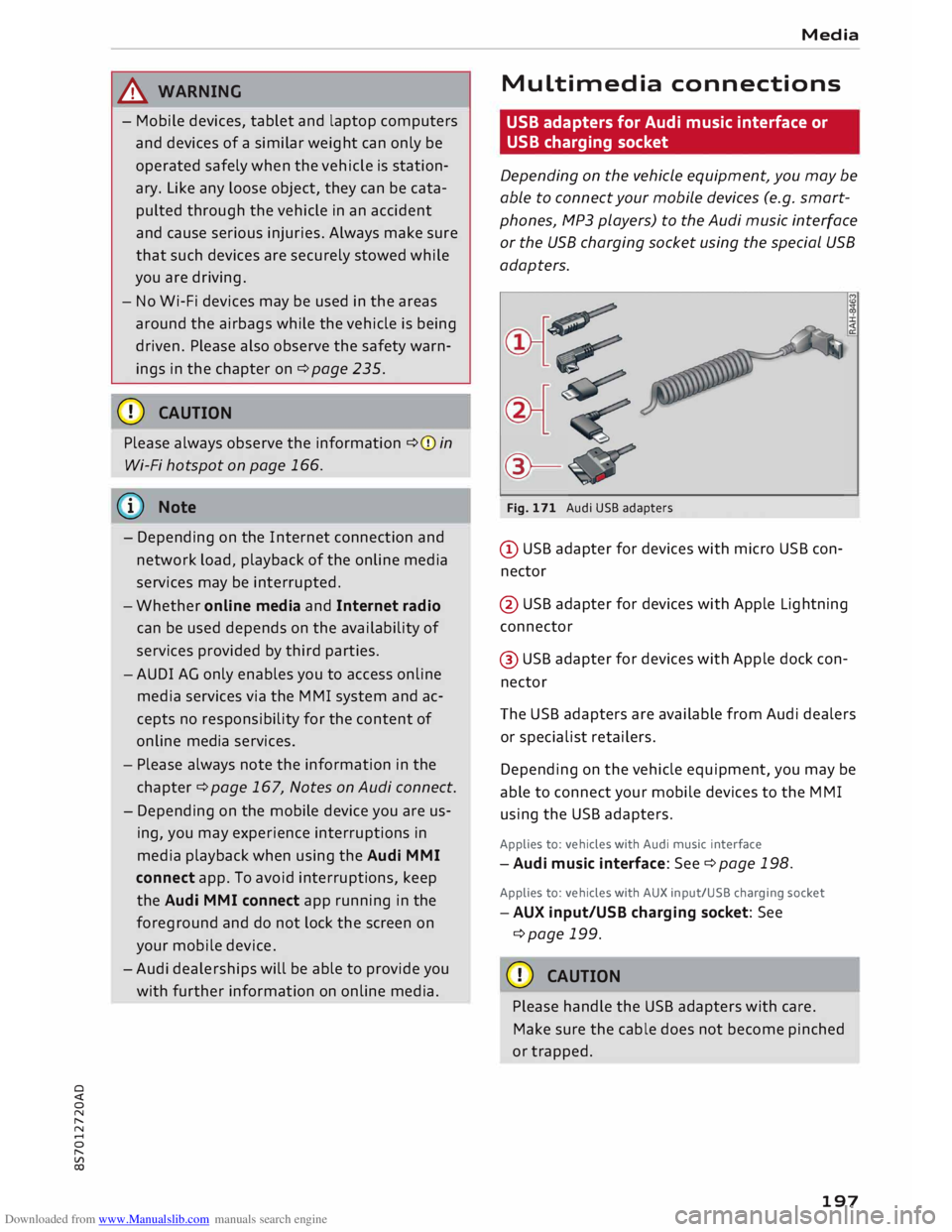
@-Fig. 171 Audi USB adapters
@ USB adapter for devices with micro USB con
nector
@ USB adapter for devices with Apple Lightning
connector
@ USB adapter for devices with Apple dock con
nector
The USB adapters are available from Audi dealers
or specialist retailers.
Depending on the vehicle equipment, you may be
able to connect your mobile devices to the MMI
using the USB adapters.
Applies to: vehicles with Audi music interface
-Audi music interface: See¢ page 198.
Applies to: vehicles with AUX input/USB charging socket
- AUX input/USB charging socket: See
¢page 199.
CD CAUTION
Please handle the USB adapters with care.
Make sure the cable does not become pinched
or trapped.
197