display AUDI TT ROADSTER 2016 Workshop Manual
[x] Cancel search | Manufacturer: AUDI, Model Year: 2016, Model line: TT ROADSTER, Model: AUDI TT ROADSTER 2016Pages: 306, PDF Size: 31.82 MB
Page 121 of 306
Downloaded from www.Manualslib.com manuals search engine 0
N
,.....
N
......
0
,.....
Vl
CX) consumed,
but only a small amount is supplied.
The situation is also critical if electrical equip
ment is in use when the engine is not running. In
this case power is consumed when none is being
generated.
In these situations you will be aware that the
power management system is intervening to con
trol the distribution of electrical power.
When the vehicle is parked for long periods
If you do not drive your vehicle for a period of
several days or weeks, the power management
will gradually shut off the on-board systems one
by one, or reduce the amount of current they are
using. This limits the amount of power consumed
and helps to ensure reliable starting even after a
long period. Certain convenience features, such
as remote control unlocking, may not be availa
ble. These functions will be restored when you
switch on the ignition and start the engine.
With the engine switched off
If you listen to the radio or use the other info
tainment functions when the engine is not run
ning, this will discharge the vehicle battery.
The infotainment display will show a warning
message before the battery power drops to a lev
el where the starting ability is impaired. This
message warns you that the system you are using
will soon be switched off automatically. You
should therefore start the engine if you wish to
continue using the system.
When the engine is running
Although the alternator generates electrical
power, the vehicle battery can still become dis
charged while the vehicle is being driven. This can
occur when a lot of power is being consumed but
only a small amount supplied, especially if the
vehicle battery is not fully charged initially.
To restore the necessary energy balance, the sys
tem will then temporarily shut off the electrical
components that are using a lot of power, or re
duce the current they are consuming. Heating
systems in particular use a large amount of elec
trical power. If you notice, for instance, that the
seat heating* or the rear window heater is not Intelligent
technology
working, they may have been temporarily switch
ed off or regulated to a lower heat output. These
systems will be available again as soon as suffi
cient electrical power is available.
You may also notice that the engine runs at a
slightly faster idling speed. This is quite normal,
and no cause for concern. The increased idling
speed allows the alternator to meet the greater
power requirement and charge the vehicle bat
tery at the same time.
Information saved in the
control units
The vehicle is fitted in the factory with electronic
control units that, among other things, control
the engine and the gearbox. The control units al
so monitor the exhaust system and the airbags.
The control units continually analyse data rele
vant to the vehicle while you are driving. In the
event of faults or anomalies in the vehicle data,
only these data are saved. As a rule, faults are
shown by the warning lamps in the instrument
cluster.
Data saved in the control units can only be read
and analysed with special equipment.
A qualified workshop is only able to recognise
and deal with faults by using the relevant saved
data. Among other things, the saved data may
contain the following information:
- Data relating to the engine and the gearbox
-Speed
- Direction of travel
- Braking force
- Seat belt warning system data
The control units installed will not under any cir
cumstances record conversations in the vehicle.
Event data recorder
Your vehicle is not equipped with an event data
recorder.
In an event data recorder, information about
the
vehicle is temporarily saved. In the event of an
accident, you can therefore obtain detailed infor-
mation about the course of events. On vehicles ...,.
119
Page 122 of 306
Downloaded from www.Manualslib.com manuals search engine Intelligent
technology
with an airbag system, accident-related data
such as impact speed, seat belt status, seat posi
tions and trigger times can be saved. The exact
information saved depends on the manufacturer.
The installation of an event data recorder is sub
ject to the agreement of the vehicle's owner. This
process is governed by legislation in some coun
tries.
Reprogramming control units
All data for controlling components are saved in
the control units. Some convenience features,
such as one-touch signalling, single door unlock
ing and display messages can be reprogrammed
using special workshop equipment. If any con
venience features are reprogrammed, the infor
mation in this Owner's Manual will no longer be
accurate for the features that have been
changed. We recommend having the reprogram
ming approved.
Your Audi dealer will be able to provide you with
information about possible reprogramming op
tions.
Event memory
There is a diagnostic connection for reading out
the event memory located in the footwell on the
driver's side of the vehicle. Information regard
ing the operation and status of the vehicle's elec
tronic control units is stored in the event memo
ry. The event memory should only be read out
and erased by a qualified workshop.
A WARNING
The diagnostic connection must not be used
for other purposes. Incorrect use can cause
malfunctions -risk of accident!
120
Page 124 of 306
Downloaded from www.Manualslib.com manuals search engine Multi
Media Interface
signals (such as the sirens of police and emer
gency vehicles) clearly -failure to do so could
result in an accident.
(© Note
If the engine is switched off and the vehicle
battery charge level is low, the MMI system
will be switched off automatically.
How to use the MMI
Selecting and confirming a function
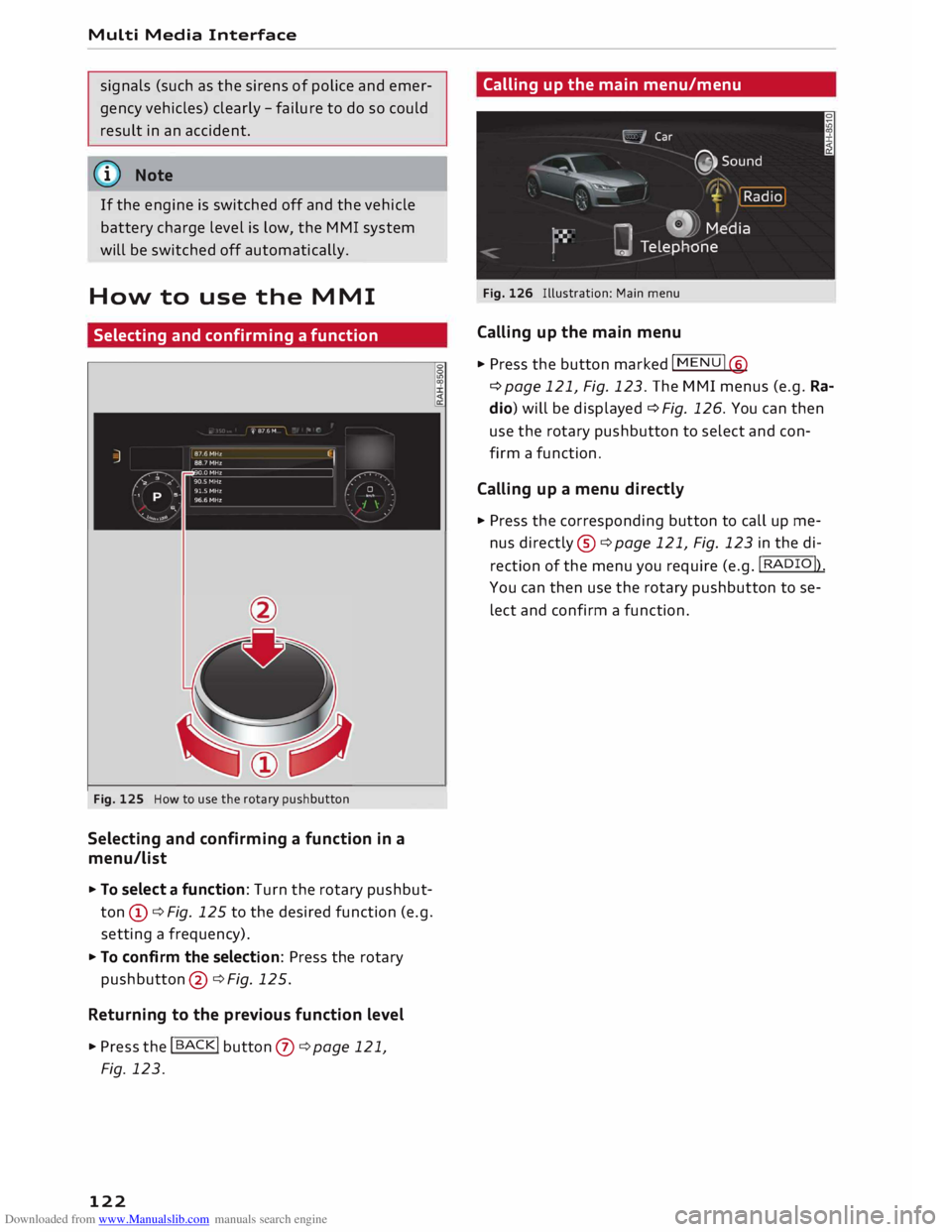
Fig. 125 How to use the rotary pushbutton
Selecting and confirming a function in a
menu/list
... To select a function: Turn the rotary pushbut
ton (D ¢ Fig. 125 to the desired function (e.g.
setting a frequency) .
... To confirm the select ion: Press the rotary
pushbutton @¢ Fig. 125.
Returning to the previous function level
... Press the I
B
A CK
I button
0 ¢ page 121,
Fig. 123.
122 Calling
up the main menu/menu
Fig. 126 Illustration: Main menu
Calling up the main menu
... Press the button marked I MENU I®
¢ page 121, Fig. 123. The MMI menus (e.g. Ra
dio) will be displayed ¢ Fig. 126. You can then
use the rotary pushbutton to select and con
firm a function.
Calling up a menu directly
... Press the corresponding button to call up me
nus directly ®¢ page 121, Fig. 123 in the di
rection of the menu you require (e.g. !RA
DIO!).
You can then use the rotary pushbutton to se
lect and confirm a function.
Page 125 of 306
Downloaded from www.Manualslib.com manuals search engine Calling
up the selection/options menu with
the control buttons
You can use the selection menu to call up further
functions for individual menu items (e.g. radio).
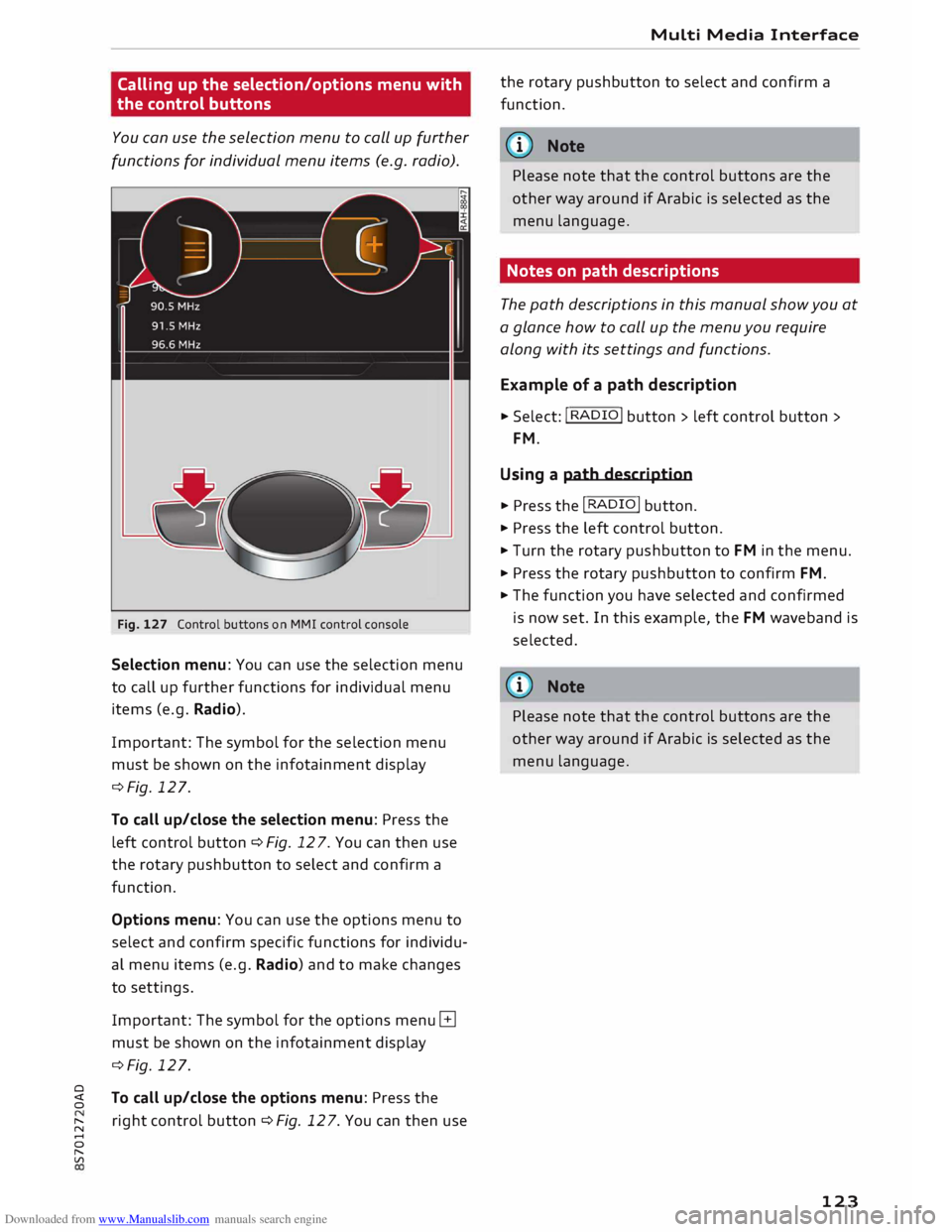
Fig. 127 Control buttons on MMI control console
Selection menu: You can use the selection menu
to call up further functions for individual menu
items (e.g. Radio).
Important: The symbol for the selection menu
must be shown on the infotainment display
¢Fig. 127.
To call up/close the selection menu: Press the
left control button ¢ Fig. 12 7. You can then use
the rotary pushbutton to select and confirm a
function.
Options menu: You can use the options menu to
select and confirm specific functions for individu
al menu items (e.g. Radio) and to make changes
to settings.
Important: The symbol for the options menu G
must be shown on the infotainment display
¢Fig. 127.
0
� To
call up/close the options menu: Press the
� right
control button ¢ Fig. 12 7. You can then use
......
0
"
Vl Multi
Media Interface
the rotary pushbutton to select and confirm a
function.
{(D Note
Please note that the control buttons are the
other way around if Arabic is selected as the
menu language.
Notes on path descriptions
The path descriptions in this manual show you at
a glance how to call up the menu you require
along with its settings and functions.
Example of a path description
.,. Select: I RADIO! button> left control button>
FM.
Using a path description
.,. Press the I RADIO I button .
.,. Press the left control button .
.,. Turn the rotary pushbutton to FM in the menu .
.,. Press the rotary pushbutton to confirm FM .
.,. The function you have selected and confirmed
is now set. In this example, the FM waveband is
selected.
@ Note
Please note that the control buttons are the
other way around if Arabic is selected as the
menu language.
123
Page 126 of 306
Downloaded from www.Manualslib.com manuals search engine Multi
Media Interface
MMI touch
MMI touch pad
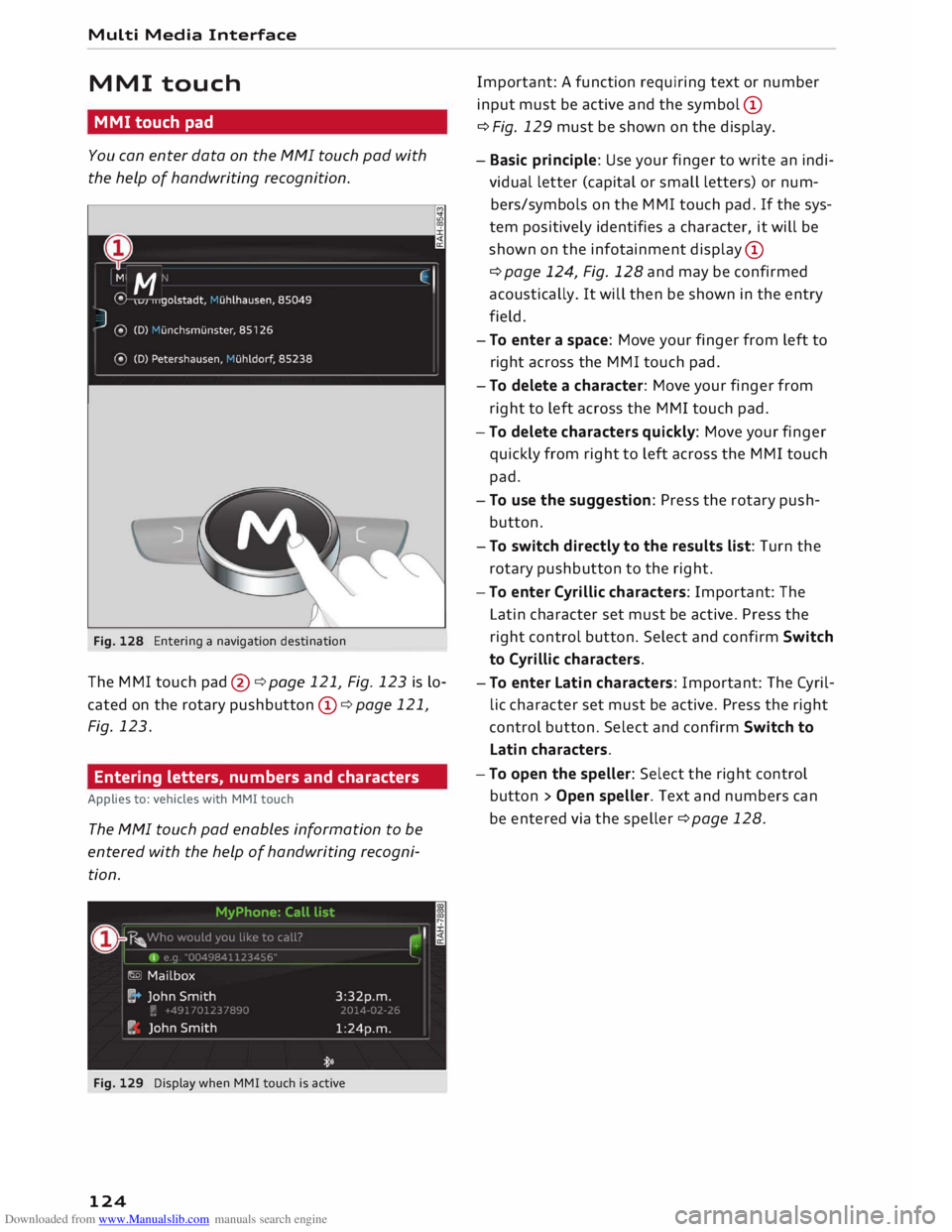
You can enter data on the MMI touch pad with
the help of handwriting recognition.
Fig. 128 Entering a navigation destination
The MMI touch pad@¢page 121, Fig. 123 is lo
cated on the rotary pushbutton @¢ page 121,
Fig. 123.
Entering letters, numbers and characters
Applies to: vehicles with MMI touch
The MMI touch pad enables information to be
entered with the help of handwriting recogni
tion.
Fig. 129 Display when MMI touch is active
124 Important:
A function requiring text or number
input must be active and the symbol @
¢ Fig. 129 must be shown on the display.
- Basic principle: Use your finger to write an indi
vidual letter (capital or small letters) or num
bers/symbols on the MMI touch pad. If the sys
tem positively identifies a character, it will be
shown on the infotainment display@
¢ page 124, Fig. 128 and may be confirmed
acoustically. It will then be shown in the entry
field.
- To enter a space: Move your finger from left to
right across the MMI touch pad.
- To delete a character: Move your finger from
right to left across the MMI touch pad.
-To delete characters quickly: Move your finger
quickly from right to left across the MMI touch
pad.
- To use the suggestion: Press the rotary push
button.
- To switch directly to the results list: Turn the
rotary pushbutton to the right.
-To enter Cyrillic characters: Important: The
Latin character set must be active. Press the
right control button. Select and confirm Switch
to Cyrillic characters.
- To enter Latin characters: Important: The Cyril
lic character set must be active. Press the right
control button. Select and confirm Switch to
Latin characters.
- To open the speller: Select the right control
button > Open speller. Text and numbers can
be entered via the speller ¢ page 128.
Page 127 of 306
Downloaded from www.Manualslib.com manuals search engine 0
N
,.....
N
......
0
,.....
Vl
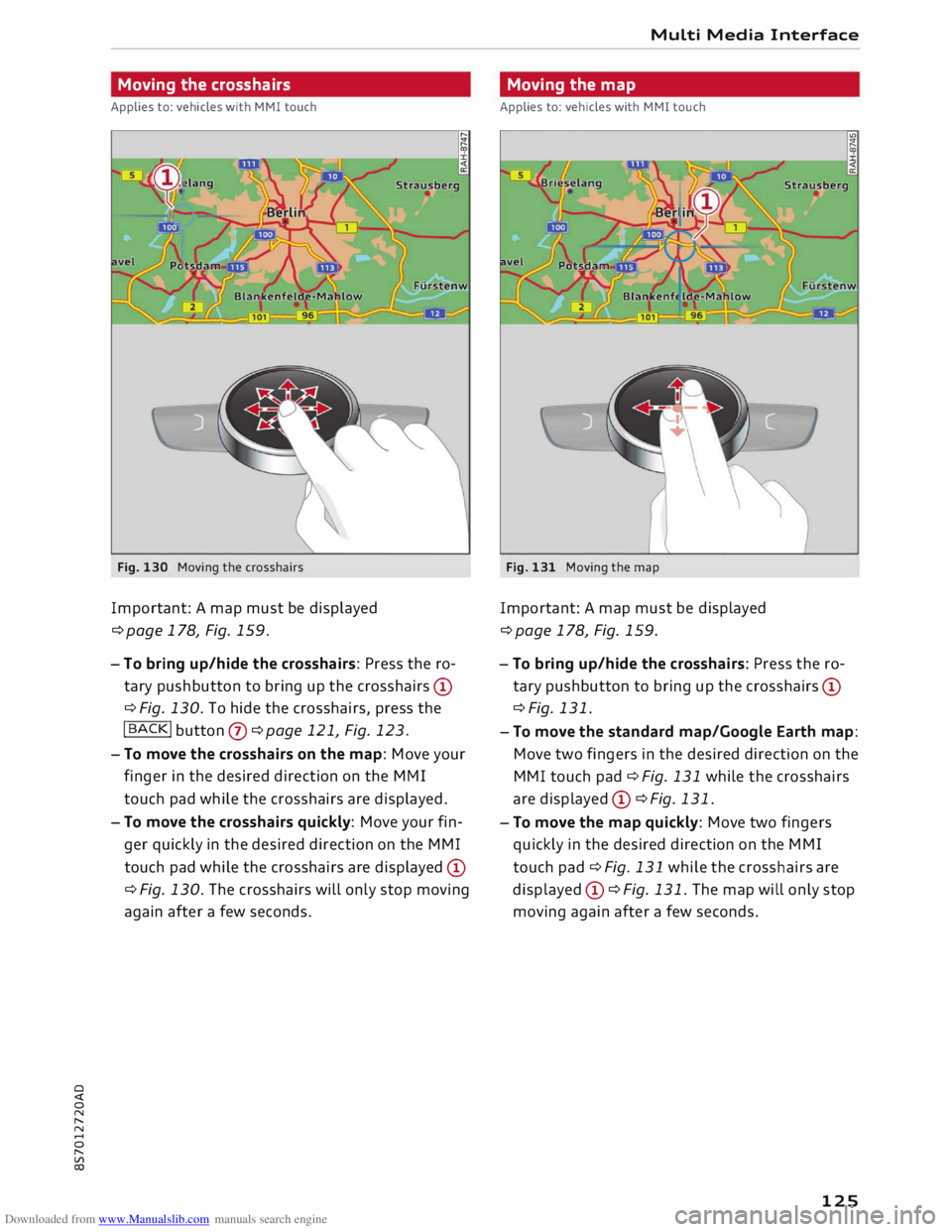
CX) Moving
the crosshairs
Applies to: vehicles with MMI touch
Fig. 130 Moving the crosshairs
Important: A map must be displayed
¢page 178, Fig. 159.
- To bring up/hide the crosshairs: Press the ro
tary pushbutton to bring up the crosshairs CD
¢ Fig. 130. To hide the crosshairs, press the
!BACK! button (J) ¢page 121, Fig. 123.
- To move the crosshairs on the map: Move your
finger in the desired direction on the MMI
touch pad while the crosshairs are displayed.
- To move the crosshairs quickly: Move your fin
ger quickly in the desired direction on the MMI
touch pad while the crosshairs are displayed CD
¢ Fig. 130. The crosshairs will only stop moving
again after a few seconds. Multi
Media Interface
Moving the map
Applies to: vehicles with MMI touch
Fig. 131 Moving the map
Important: A map must be displayed
¢page 178, Fig. 159.
- To bring up/hide the crosshairs: Press the ro
tary pushbutton to bring up the crosshairs CD
¢Fig. 131.
- To move the standard map/Google Earth map:
Move two fingers in the desired direction on the
MMI touch pad¢ Fig. 131 while the crosshairs
are displayed CD ¢Fig. 131.
- To move the map quickly: Move two fingers
quickly in the desired direction on the MMI
touch pad¢ Fig. 131 while the crosshairs are
displayed CD ¢Fig. 131. The map will only stop
moving again after a few seconds.
125
Page 128 of 306
Downloaded from www.Manualslib.com manuals search engine Multi
Media Interface
Zooming in/out on map
Applies to: vehicles with MMI touch
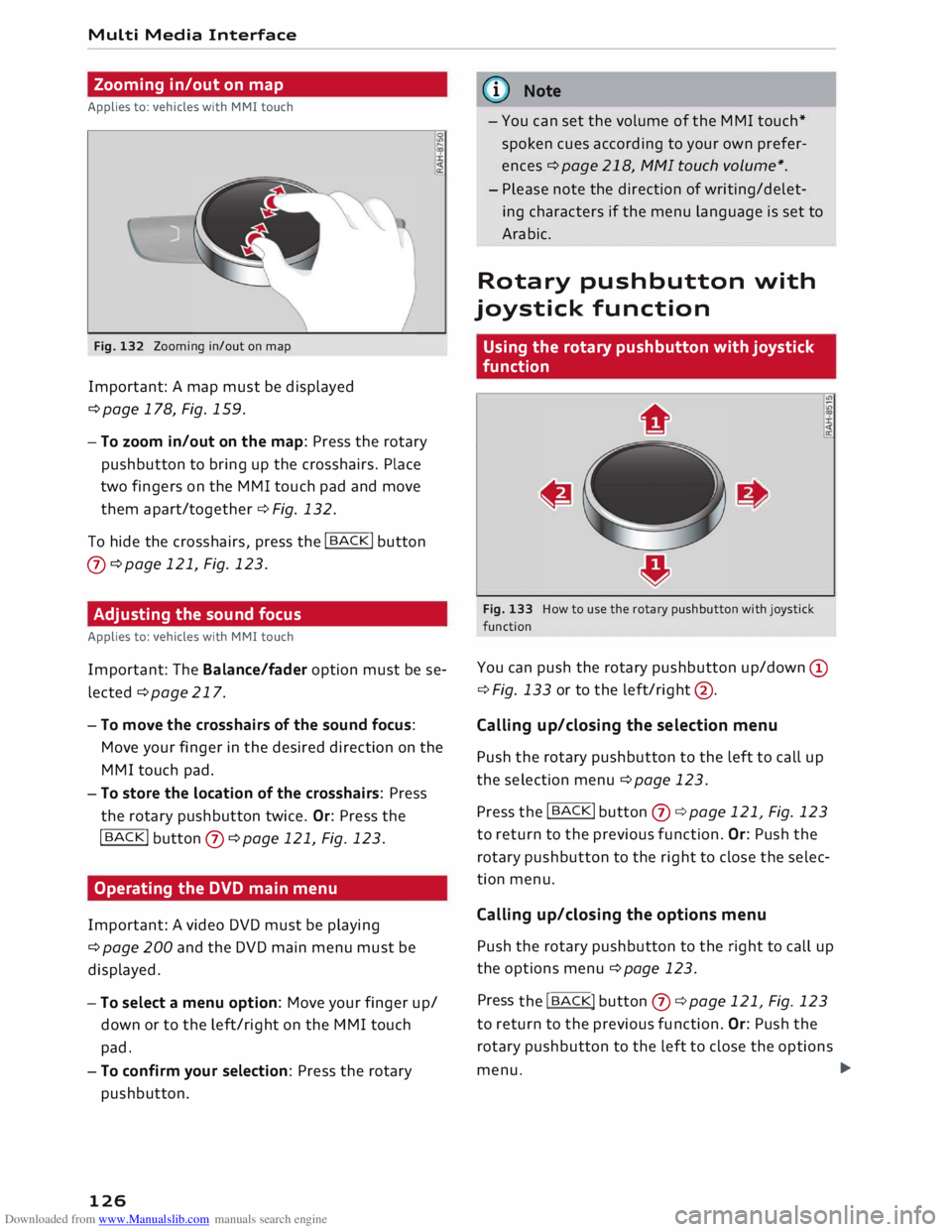
Fig. 132 Zooming in/out on map
Important: A map must be displayed
¢page 178, Fig. 159.
- To zoom in/out on the map: Press the rotary
pushbutton to bring up the crosshairs. Place
two fingers on the MMI touch pad and move
them apart/together ¢ Fig. 132.
To hide the crosshairs, press the I
BACK !
button
(J) ¢page 121, Fig. 123.
Adjusting the sound focus
Applies to: vehicles with MMI touch
Important: The Balance/fader option must be se
lected ¢ page 217.
- To move the crosshairs of the sound focus:
Move your finger in the desired direction on the
MMI touch pad.
- To store the location of the crosshairs: Press
the rotary pushbutton twice. Or: Press the
!BACK !
button (J) ¢page 121, Fig. 123.
Operating the DVD main menu
Important: A video DVD must be playing
¢ page 200 and the DVD main menu must be
displayed.
- To select a menu option: Move your finger up/
down or to the left/right on the MMI touch
pad.
- To confirm your selection: Press the rotary
pushbutton.
126 (I))
Note
- You can set the volume of the MMI touch*
spoken cues according to your own prefer
ences ¢page 218, fv1fv1I touch volume*.
- Please note the direction of writing/delet
ing characters if the menu language is set to
Arabic.
Rotary pushbutton with
joystick function
Using the rotary pushbutton with joystick
function
Fig. 133 How to use the rotary pushbutton with joystick
function
You can push the rotary pushbutton up/down @
¢ Fig. 133 or to the left/right @.
Calling up/closing the selection menu
Push the rotary pushbutton to the left to call up
the selection menu¢ page 123.
Press the I
BACK !
button (J) ¢ page 121, Fig. 123
to return to the previous function. Or: Push the
rotary pushbutton to the right to close the selec
tion menu.
Calling up/closing the options menu
Push the rotary pushbutton to the right to call up
the options menu ¢page 123.
Press the I BACK!
button (J) ¢ page 121, Fig. 123
to return to the previous function. Or: Push the
rotary pushbutton to the left to close the options
menu. �
Page 129 of 306
Downloaded from www.Manualslib.com manuals search engine Displaying
the entry field*
Push the rotary pushbutton upwards to access
the entry field or the beginning of a list in the
central area.
Switching to the speller*
If the entry field is already open, you can switch
directly to entry via the speller by pushing the ro
tary pushbutton upwards again¢ page 128,
Speller for Letters/numbers.
On the map
Important: A map must be displayed
¢page 178, Fig. 159.
- To display the entry field*: Push the rotary
pushbutton upwards.
- To display the route: If route guidance is ac
tive, you can have the route displayed by push
ing the rotary pushbutton upwards
¢page 170.
- To zoom in/out of the map: Turn the rotary
pushbutton to the left/right to make the map
scale larger or smaller.
Adjusting the sound focus*
Important: The balance/fader option must be se
lected ¢ page 217. The cross hairs must be dis
played.
- To adjust the sound focus using the cross
hairs: The crosshairs can be moved horizontal
ly. Turn the rotary pushbutton to the left or
right. To move the crosshairs vertically, press
the rotary pushbutton. Turn the rotary push
button to the left or right. Press the rotary
pushbutton again to save the setting.
Operating the DVD main menu
Important: A video DVD must be playing
¢page 200.
- To select a menu option: Move the rotary push
button with joystick function up or down, or to
the left or right.
- To confirm your selection: Press the rotary
� pushbutton.
0
N
,.....
N
......
0
,.....
Vl
CX) Multi
Media Interface
G}) Note
Please note that the control buttons are the
other way around if Arabic is selected as the
menu language.
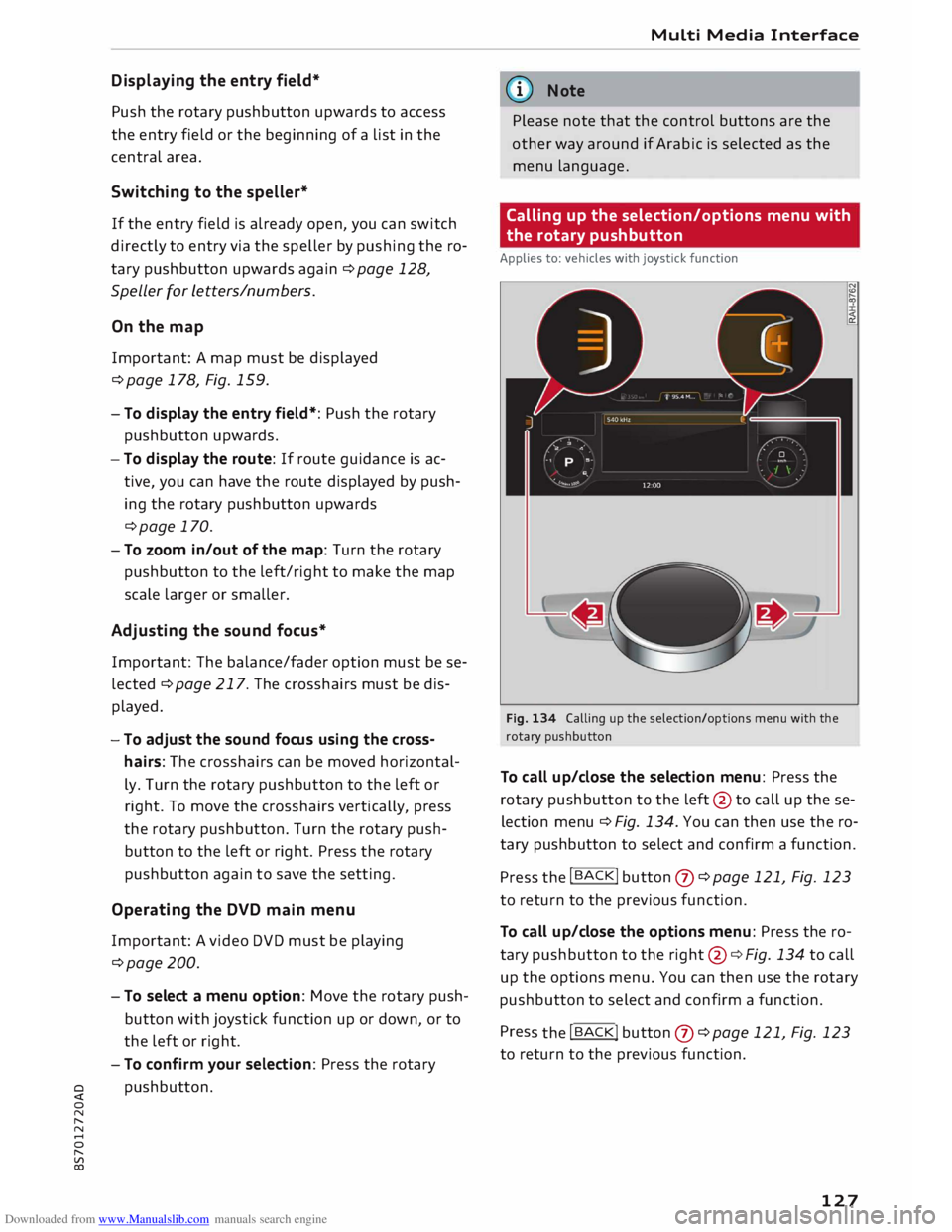
Calling up the selection/options menu with
the rotary pushbutton
Applies to: vehicles with joystick function
Fig. 134 Calling up the selection/options menu with the
rotary pushbutton
To call up/close the selection menu: Press the
rotary pushbutton to the left
@ to
call up the se
lection menu ¢ Fig. 134. You can then use the ro
tary pushbutton to select and confirm a function.
Press the !BACK!
button (J) ¢page
121, Fig. 123
to return to the previous function.
To call up/close the options menu: Press the ro
tary pushbutton to the right
@¢
Fig. 134 to call
up the options menu. You can then use the rotary
pushbutton to select and confirm a function.
Pres s the !BACK!
button
(J) ¢page
121, Fig. 123
to return to the previous function.
127
Page 131 of 306
Downloaded from www.Manualslib.com manuals search engine 0
N
,.....
N
....
0
,.....
Vl
CX) CD
@ ®
@
®
®
0
®
®
@
@
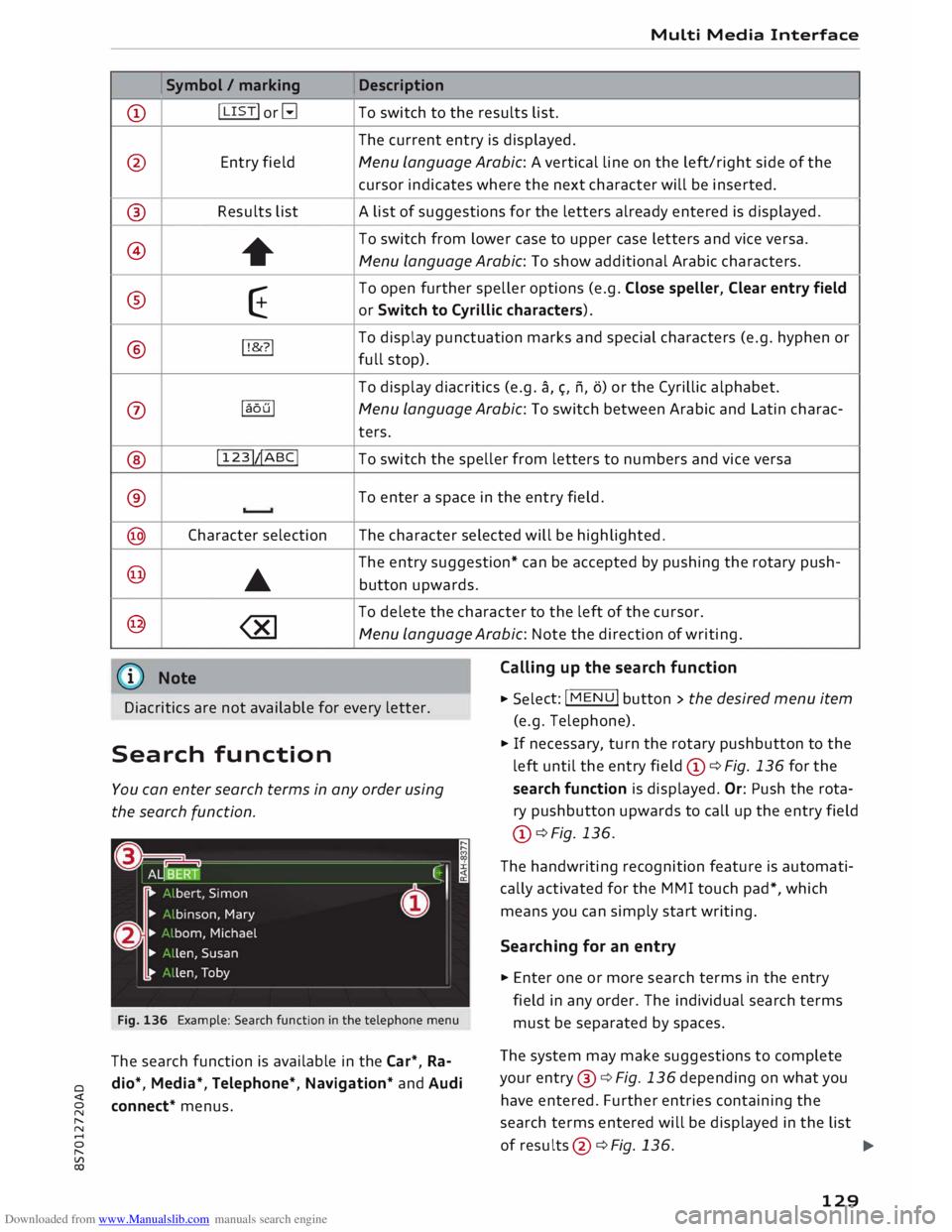
@ Symbol
/ marking
I LIST! or�
Entry field
Results list +
E
!!&? !
laoul
! 123!�ABC!
Character selection
•
Media Interface
Description
To switch to the results list.
The current entry is displayed.
Menu Language Arabic: A vertical line on the left/right side of the
cursor indicates where the next character will be inserted.
A list of suggestions for the letters already entered is displayed.
To switch from lower case to upper case letters and vice versa.
Menu Language Arabic: To show additional Arabic characters.
To open further speller options (e.g. Close speller, Clear entry field
or Switch to Cyrillic characters).
To display punctuation marks and special characters (e.g. hyphen or
full stop).
To display diacritics (e.g. a,�. n, o) or the Cyrillic alphabet.
Menu Language Arabic: To switch between Arabic and Latin charac-
ters.
To switch the speller from letters to numbers and vice versa
To enter a space in the entry field .
The character selected will be highlighted.
The entry suggestion* can be accepted by pushing the rotary push-
button upwards.
To delete the character to the left of the cursor.
Menu Language Arabic: Note the direction of writing.
Calling up the search function
Diacritics are not available for every letter. .,.
Select: !MENU
! button > the desired menu item
(e.g. Telephone) .
Search function
You can enter search terms in any order using
the search function.
Fig. 136 Example: Search function in the telephone menu
The search function is available in the Car*, Ra
dio*, Media*, Telephone*, Navigation* and Audi
connect* menus. .,.
If necessary, turn the rotary pushbutton to the
left until the entry field CD¢ Fig. 136 for the
search function is displayed. Or: Push the rota
ry pushbutton upwards to call up the entry field
CD ¢ Fig. 136.
The handwriting recognition feature is automati
cally activated for the MMI touch pad*, which
means you can simply start writing.
Searching for an entry
.,. Enter one or more search terms in the entry
field in any order. The individual search terms
must be separated by spaces.
The system may make suggestions to complete
your entry @¢ Fig. 136 depending on what you
have entered. Further entries containing the
search terms entered will be displayed in the list
of results
@¢
Fig.136.
1)11,,
129
Page 132 of 306
Downloaded from www.Manualslib.com manuals search engine Multi
Media Interface
If the desired term is not yet displayed, continue
entering letters until it appears.
The first few letters of the search terms will of
ten be sufficient to bring up a list of results. In
the Telephone* menu, for example, write the ini
tials of the contact you are looking for, separat
ing them with a space.
Confirming an autocomplete suggestion
Important: An autocomplete suggestion@
¢ Fig. 136 must be displayed .
... When using MMI touch: Press the rotary push
button.
Menus and symbols
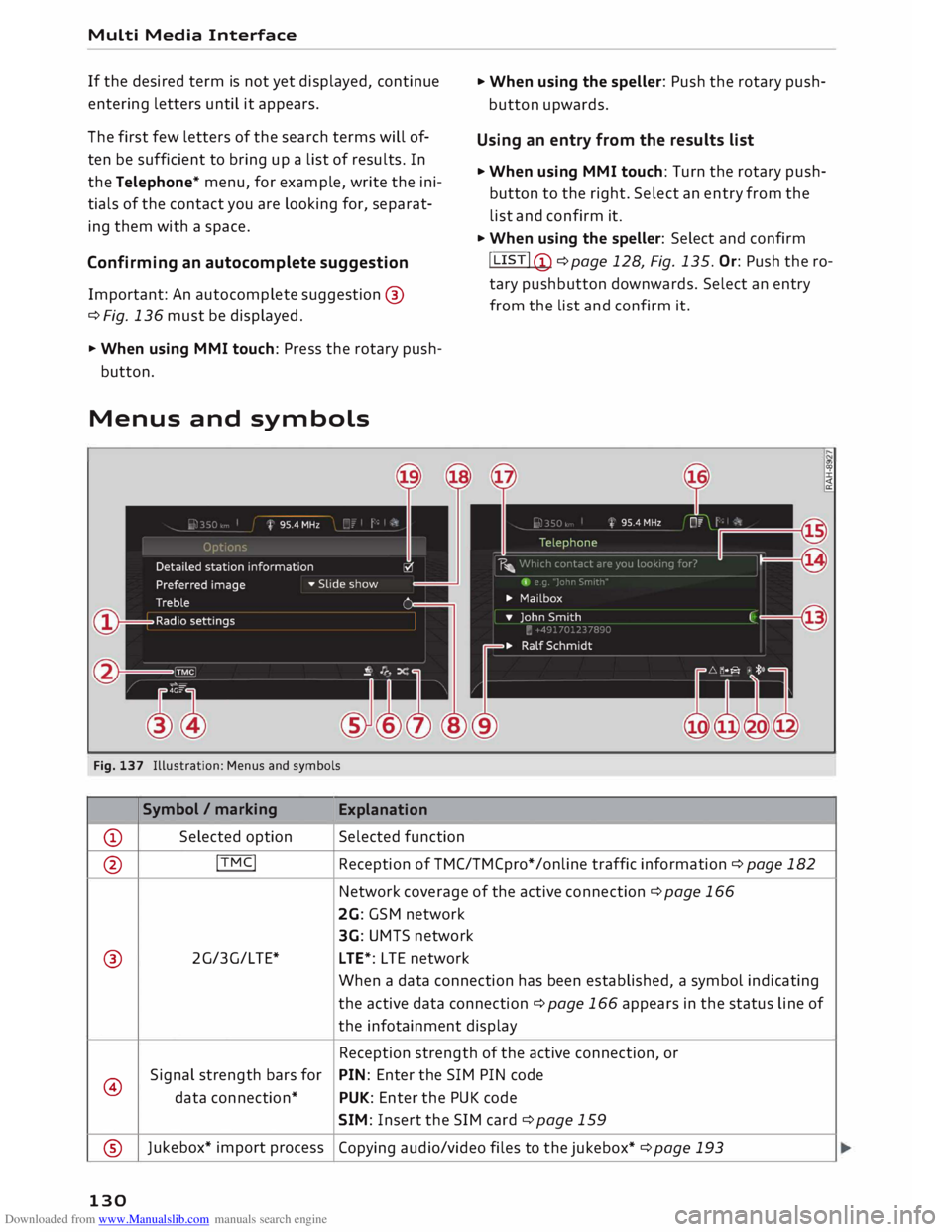
Fig. 137 Illustration: Menus and symbols
Symbol / marking
Explanation
CD Selected
option Selected function ...
When using the speller: Push the rotary push
button upwards.
Using an entry from the results list
... When using MMI touch: Turn the rotary push
button to the right. Select an entry from the
list and confirm it.
... When using the speller: Select and confirm
! LIST! (!)
¢page 128, Fig. 135. Or: Push the ro
tary pushbutton downwards. Select an entry
from the list and confirm it.
@ !TMC!
Reception of TMC/TMCpro* /on line traffic information ¢ page 182
Network coverage of the active
connection
¢ page 166
2G: GSM network
3G: UMTS network
® 2G/3G/LTE*
LTE*: L TE network
When a data connection has been established, a symbol indicating
the active data connection ¢page 166 appears in the status line of
the infotainment display
Reception strength of the active connection, or
@ Signal
strength bars for PIN:
Enter the SIM PIN code
data connection* PUK:
Enter the PUK code
SIM: Insert the SIM card¢ page 159
® Jukebox*
import process
Copying audio/video files to the jukebox* ¢ page 193
130