display AUDI TT ROADSTER 2016 Repair Manual
[x] Cancel search | Manufacturer: AUDI, Model Year: 2016, Model line: TT ROADSTER, Model: AUDI TT ROADSTER 2016Pages: 306, PDF Size: 31.82 MB
Page 135 of 306
Downloaded from www.Manualslib.com manuals search engine 0
N
,.....
N
....
0
,.....
Vl
CX) Speech
dialogue system
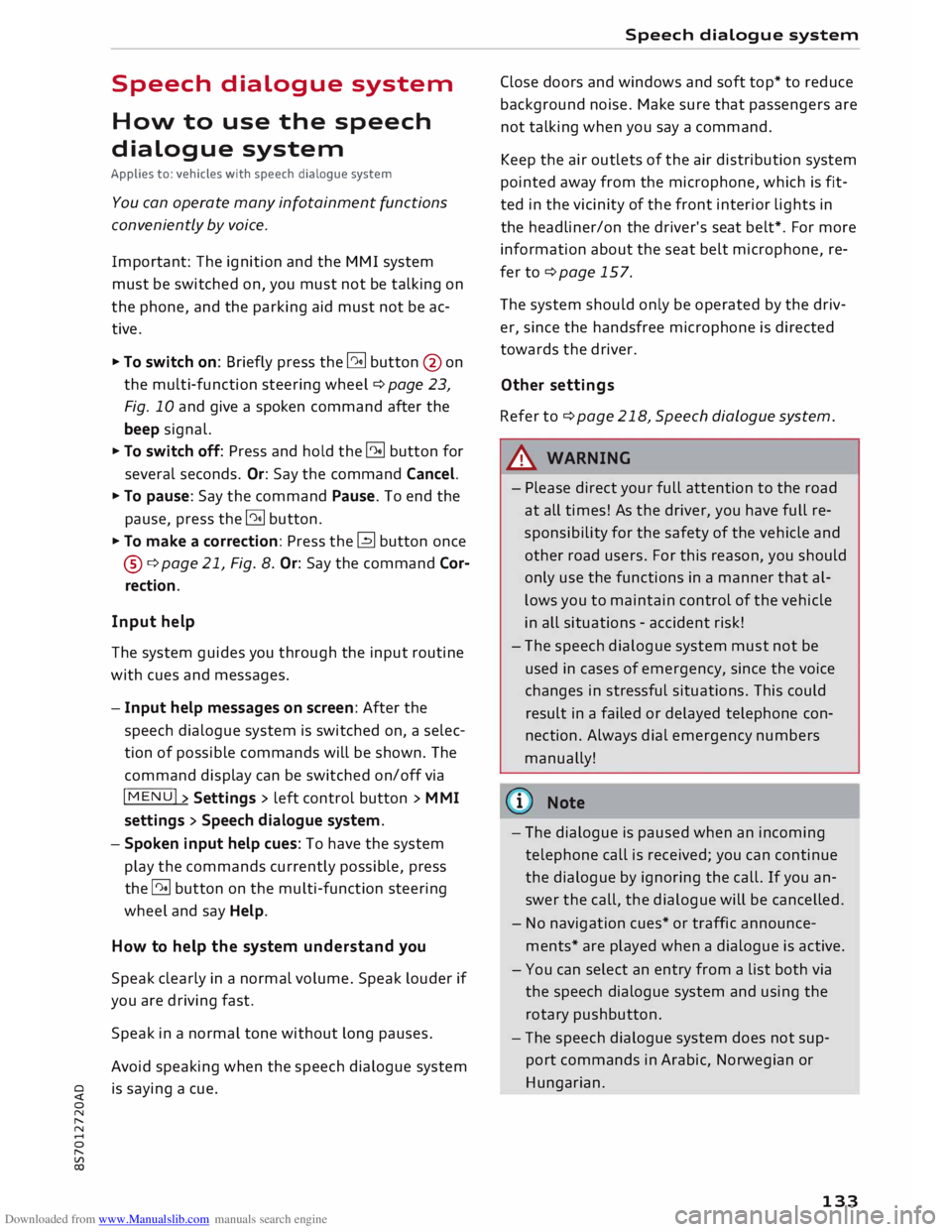
How to use the speech
dialogue system
Applies to: vehicles with speech dialogue system
You can operate many infotainment functions
conveniently by voice.
Important: The ignition and the MMI system
must be switched on, you must not be talking on
the phone, and the parking aid must not be ac
tive.
� To switch on: Briefly press the [2!l button @ on
the multi-function steering wheel¢ page 23,
Fig. 10 and give a spoken command after the
beep signal.
� To switch off: Press and hold the [2!l button for
several seconds. Or: Say the command Cancel.
� To pause: Say the command Pause. To end the
pause, press the [2!l button.
� To make a correction: Press the� button once
® ¢page 21, Fig. 8. Or: Say the command Cor
rection.
Input help
The system guides you through the input routine
with cues and messages.
- Input help messages on screen: After the
speech dialogue system is switched on, a selec
tion of possible commands will be shown. The
command display can be switched on/off via
IM ENU I
> Settings > left control button > MMI
settings > Speech dialogue system.
- Spoken input help cues: To have the system
play the commands currently possible, press
the [2!l button on the multi-function steering
wheel and say Help.
How to help the system understand you
Speak clearly in a normal volume. Speak louder if
you are driving fast.
Speak in a normal tone without long pauses.
Avoid speaking when the speech dialogue system
is saying a cue. Speech
dialogue system
Close doors and windows and soft top* to reduce
background noise. Make sure that passengers are
not talking when you say a command.
Keep the air outlets of the air distribution system
pointed away from the microphone, which is fit
ted in the vicinity of the front interior lights in
the headliner/on the driver's seat belt*. For more
information about the seat belt microphone, re
fer to¢ page 157.
The system should only be operated by the driv
er, since the handsfree microphone is directed
towards the driver.
Other settings
Refer to¢ page 218, Speech dialogue system.
&_ WARNING
- Please direct your full attention to the road
at all times! As the driver, you have full re
sponsibility for the safety of the vehicle and
other road users. For this reason, you should
only use the functions in a manner that al
lows you to maintain control of the vehicle
in all situations -accident risk!
- The speech dialogue system must not be
used in cases of emergency, since the voice
changes in stressful situations. This could
result in a failed or delayed telephone con
nection. Always dial emergency numbers
manually!
(@ Note
- The dialogue is paused when an incoming
telephone call is received; you can continue
the dialogue by ignoring the call. If you an
swer the call, the dialogue will be cancelled.
- No navigation cues* or traffic announce
ments* are played when a dialogue is active.
- You can select an entry from a list both via
the speech dialogue system and using the
rotary pushbutton.
- The speech dialogue system does not sup
port commands in Arabic, Norwegian or
Hungarian.
133
Page 136 of 306
Downloaded from www.Manualslib.com manuals search engine Speech
dialogue system
Notes on the overviews
of commands
Applies to: vehicles with speech dialogue system
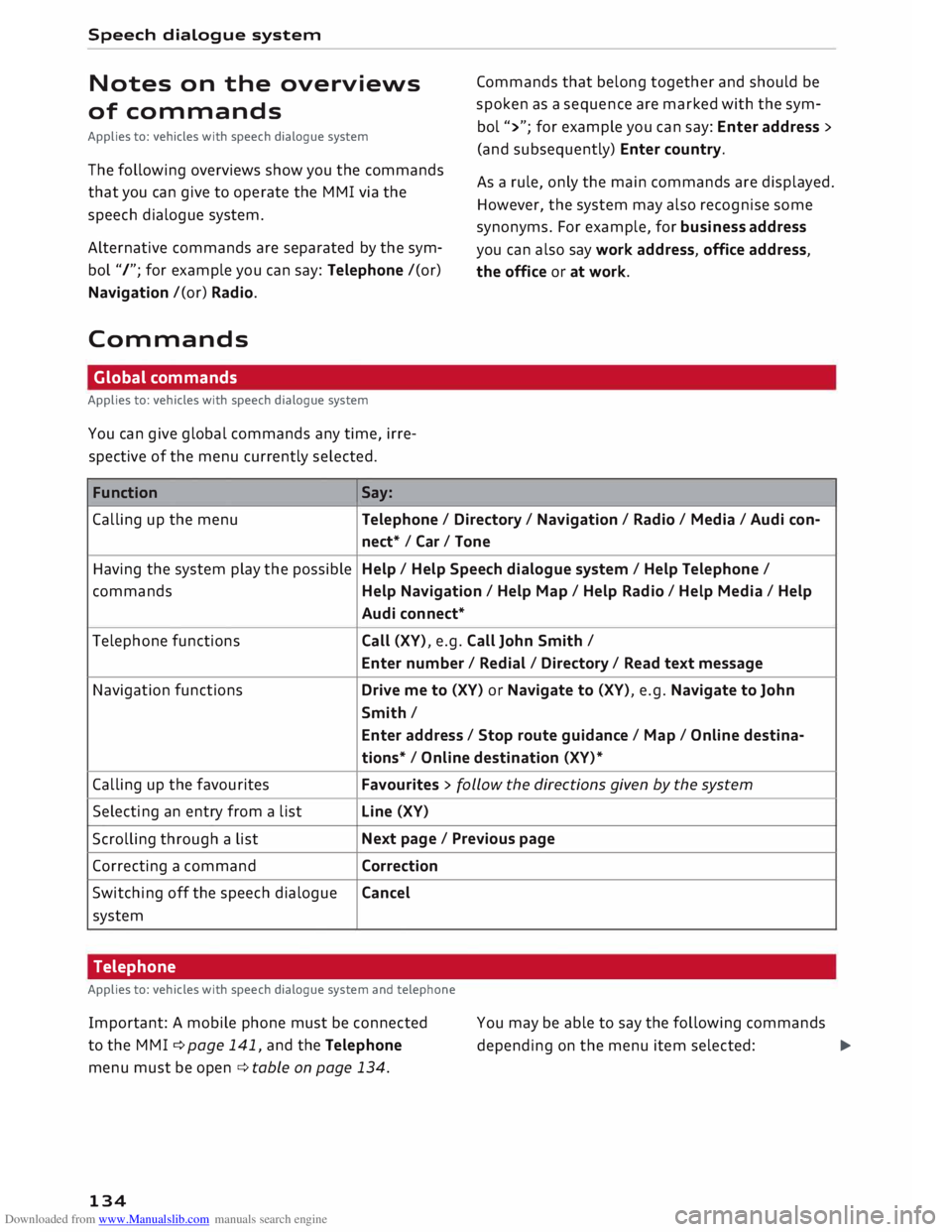
The following overviews show you the commands
that you can give to operate the MMI via the
speech dialogue system.
Alternative commands are separated by the sym
bol "/"; for example you can say: Telephone /(or)
Navigation /(or) Radio.
Commands Global commands
Applies to: vehicles with speech dialogue system
You can give global commands any time, irre
spective of the menu currently selected.
Function Say: Commands
that belong together and should be
spoken as a sequence are marked with the sym
bol ">"; for example you can say: Enter address >
(and subsequently) Enter country.
As a rule, only the main commands are displayed.
However, the system may also recognise some
synonyms. For example, for business address
you can also say work address, office address,
the office or at work.
Calling up the menu Telephone/ Directory/ Navigation / Radio / Media / Audi con-
nect* /Car/ Tone
Having the system play the possible Help
/ Help Speech dialogue system / Help Telephone /
commands Help Navigation / Help Map/ Help Radio/ Help Media / Help
Audi connect*
Telephone functions Call (XV), e.g. Call John Smith /
Enter number/ Redial/ Directory/ Read text message
Navigation functions Drive me to (XV) or Navigate to (XV), e.g. Navigate to John
Smith/ Enter address / Stop route guidance/ Map/ Online destina-
tions* / Online destination (XV)*
Calling up the favourites Favourites
> follow the directions given by the system
Selecting an entry from a list Line
(XV)
Scrolling through a list Next
page / Previous page
Correcting a command Correction
Switching off the speech dialogue Cancel
system
Telephone
Applies to: vehicles with speech dialogue system and telephone
Important: A mobile phone must be connected
to the M MI ¢ page 141, and the Telephone
menu must be open ¢ table on page 134.
134 You
may be able to say the following commands
depending on the menu item selected:
�
Page 137 of 306
Downloaded from www.Manualslib.com manuals search engine 0
N
,.....
N
......
0
,.....
Vl
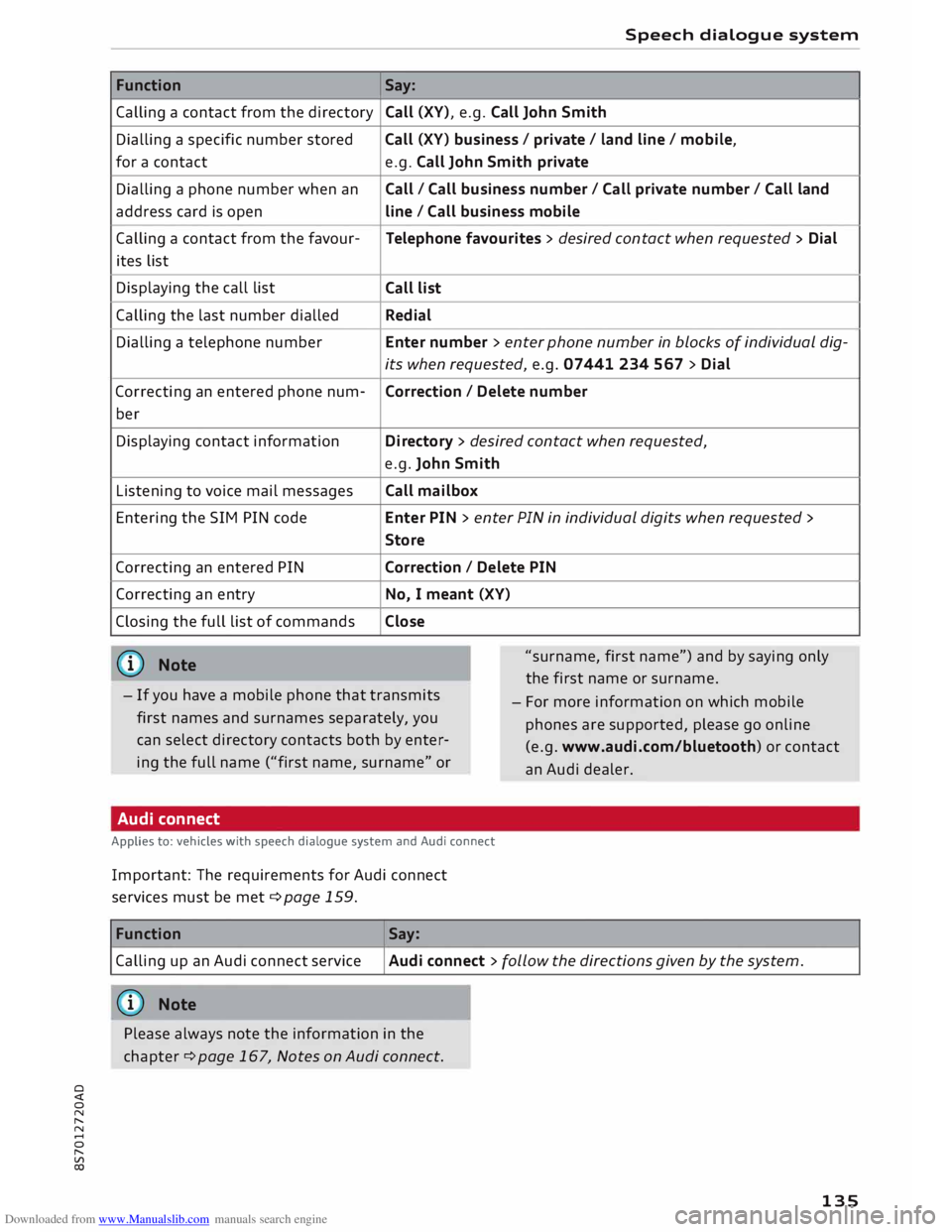
CX) Function
Calling a contact from the directory
Dialling a specific number stored
for a contact
Dialling a phone number when an
address card is open
Calling a contact from the favour-
ites list
Displaying the call list
Calling the last number dialled
Dialling a telephone number
Correcting an entered phone num-
ber
Displaying contact information
Listening to voice mail messages
Entering the SIM PIN code
Correcting an entered PIN
Correcting an entry
Closing the full list of commands
((I)) Note Speech
dialogue system
Say: Call (XV), e.g. Call John Smith
Call (XV) business/ private/ land line/ mobile,
e.g. Call John Smith private
Call/ Call business number/ Call private number/ Call land
line / Call business mobile
Telephone favourites > desired contact when requested > Dial
Call list
Redial
Enter number > enter phone number in blocks of individual dig-
its when requested, e.g. 07441 234 567 > Dial
Correction I Delete number
Directory > desired contact when requested,
e.g. John Smith
Call mailbox
Enter PIN > enter PIN in individual digits when requested >
Store
Correction I Delete PIN
No, I meant (XV)
Close
"surname, first name") and by saying only
the first name or surname.
- If you have a mobile phone that transmits
first names and surnames separately, you
can select directory contacts both by enter
ing the full name ("first name, surname" or -
For more information on which mobile
phones are supported, please go on line
(e.g. www.audi.com/bluetooth) or contact
an Audi dealer.
Audi connect
Applies to: vehicles with speech dialogue system and Audi connect
Important: The requirements for Audi connect
services must be met ¢page 159.
Function Say:
Calling up an Audi connect service
Audi connect > follow the directions given by the system.
((!)) Note
Please always note the information in the
chapter ¢ page 167, Notes on Audi connect.
135
Page 139 of 306
Downloaded from www.Manualslib.com manuals search engine 0
N
,.....
N
......
0
,.....
Vl
CX) Speech
dialogue system
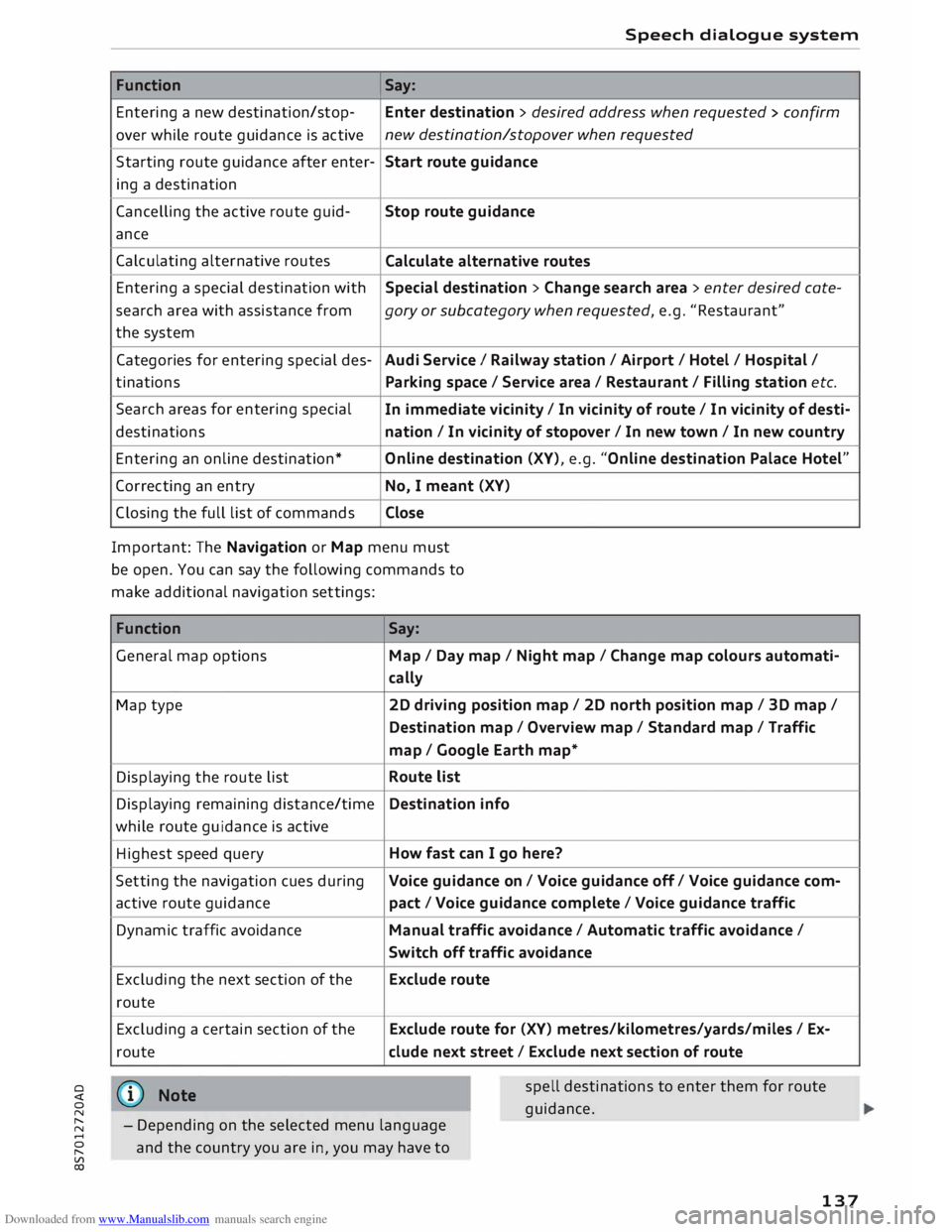
Function Say:
Entering a new destination/stop- Enter destination > desired address when requested > confirm
over while route guidance is active new
destination/stopover when requested
Starting route guidance after enter-
Start route guidance
ing a destination
Cancelling the active route guid-
Stop route guidance
ance
Calculating alternative routes
Calculate alternative routes
Entering a special destination with
Special destination > Change search area > enter desired cote-
se arch area with assistance from
gory or subcategory when requested, e.g. "Restaurant"
the system
Categories for entering special des-
Audi Service I Railway station/ Airport / Hotel / Hospital /
ti nations
Parking space/ Service area / Restaurant/ Filling station etc.
Search areas for entering special
In immediate vicinity/ In vicinity of route / In vicinity of desti-
destinations nation/ In vicinity of stopover / In new town/ In new country
Entering an online destination*
Online destination (XV), e.g. "Online destination Palace Hotel"
Correcting an entry
No, I meant (XV)
Closing the full list of commands Close
Important: The Navigation or Map menu must
be open. You can say the following commands to
make additional navigation settings:
Function
General map options
Map type
Displaying the route list
Displaying remaining distance/time
while route guidance is active
Highest speed query
Setting the navigation cues during
active route guidance
Dynamic traffic avoidance
Excluding the next section of the
route
Excluding a certain section of the
route
@ Note Say:
Map / Day map / Night map/ Change map colours automati-
cally
2D driving position map/ 2D north position map/ 3D map/
Destination map/ Overview map/ Standard map/ Traffic
map/ Google Earth map*
Route list
Destination info
How fast can I go here?
Voice guidance on/ Voice guidance off/ Voice guidance com-
pact / Voice guidance complete/ Voice guidance traffic
Manual traffic avoidance/ Automatic traffic avoidance /
Switch off traffic avoidance
Exclude route
Exclude route for (XV) metres/kilometres/yards/miles/ Ex-
elude next street / Exclude next section of route
spell destinations to enter them for route
guid ance.
- Depending on the selected menu language
and the country you are in, you may have to
137
Page 144 of 306
Downloaded from www.Manualslib.com manuals search engine Telephone
- We recommend using the vehicle's Wi-Fi
hotspot when the car phone is in use so that
your mobile phone's apps retain access to
the Internet.
Setting up
Connecting a mobile phone via Bluetooth
Applies to: vehicles with telephone
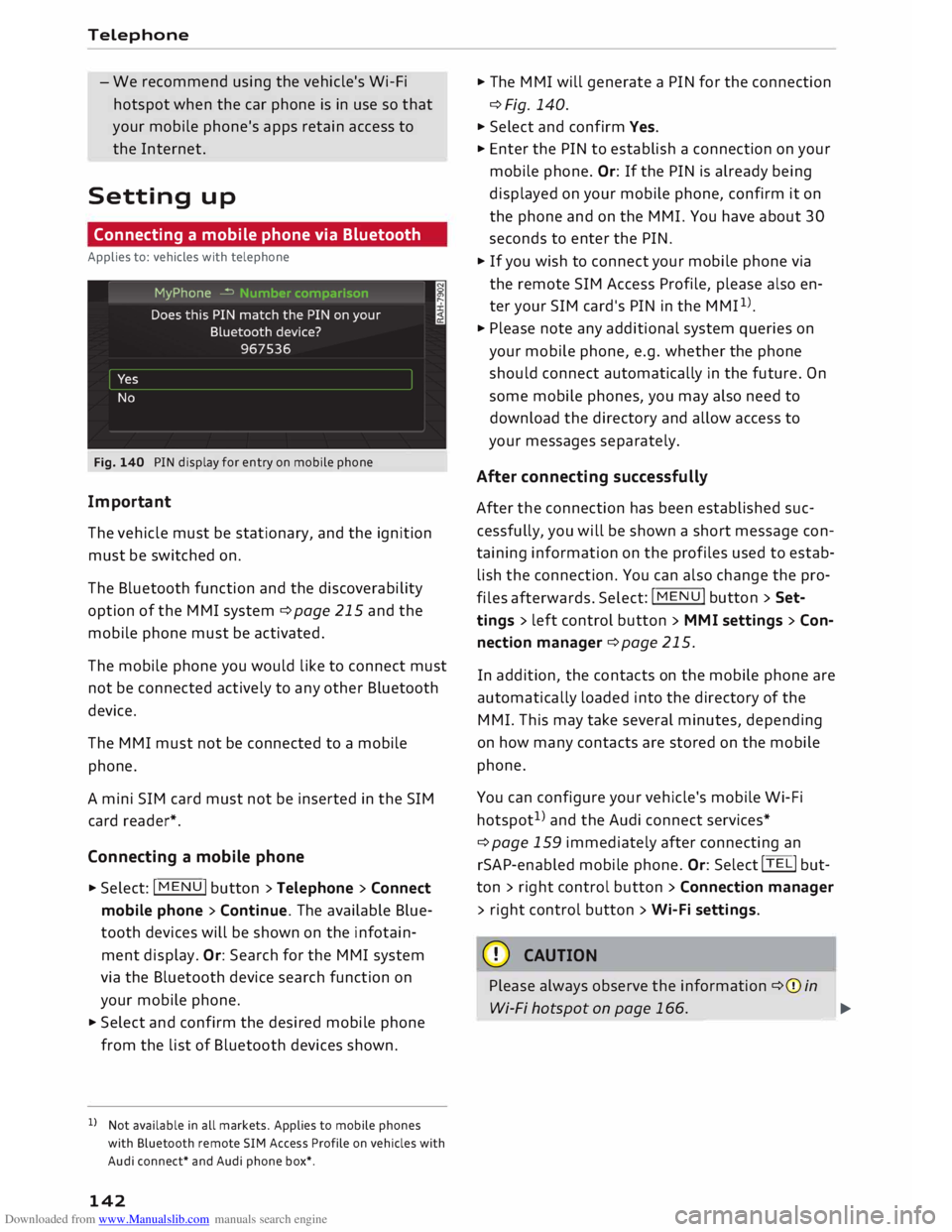
Fig. 140 PIN display for entry on mobile phone
Important
The vehicle must be stationary, and the ignition
must be switched on.
The Bluetooth function and the discoverability
option of the MMI system ¢page 215 and the
mobile phone must be activated.
The mobile phone you would like to connect must
not be connected actively to any other Bluetooth
device.
The MMI must not be connected to a mobile
phone.
A mini SIM card must not be inserted in the SIM
card reader*.
Connecting a mobile phone
... Select: I MENU I button >Telephone > Connect
mobile phone> Continue. The available Blue
tooth devices will be shown on the infotain
ment display. Or: Search for the MMI system
via the Bluetooth device search function on
your mobile phone.
... Select and confirm the desired mobile phone
from the list of Bluetooth devices shown.
l l
Not available in all markets. Applies to mobile phones
with Bluetooth remote SIM Access Profile on vehicles with
Audi connect* and Audi phone box*.
142 ...
The MMI will generate a PIN for the connection
¢Fig. 140.
... Select and confirm Yes.
... Enter the PIN to establish a connection on your
mobile phone. Or: If the PIN is already being
displayed on your mobile phone, confirm it on
the phone and on the M MI. You have about 30
seconds to enter the PIN.
... If you wish to connect your mobile phone via
the remote SIM Access Profile, please also en
ter your SIM card's PIN in the MMI 1
> .
... Please note any additional system queries on
your mobile phone, e.g. whether the phone
should connect automatically in the future. On
some mobile phones, you may also need to
download the directory and allow access to
your messages separately.
After connecting successfully
After the connection has been established suc
cessfully, you will be shown a short message con
taining information on the profiles used to estab
lish the connection. You can also change the pro
files afterwards. Select: !MENU! button
> Set
tings > left control button> MMI settings > Con
nection manager ¢page 215.
In addition, the contacts on the mobile phone are
automatically loaded into the directory of the
MMI. This may take several minutes, depending
on how many contacts are stored on the mobile
phone.
You can configure your vehicle's mobile Wi-Fi
hotspot 1
> and the Audi connect services*
¢page 159 immediately after connecting an
rSAP-enabled mobile phone. Or: Select !TEL! but
ton > right control button> Connection manager
> right control button > Wi-Fi settings.
CD CAUTION
Please always observe the information ¢0 in
Wi-Fi hotspot on page 166. _______ �
Page 145 of 306
Downloaded from www.Manualslib.com manuals search engine 0
N
,.....
N
......
0
,.....
Vl
CX) (D)
Note
- You can adjust further settings for connec
ted mobile phones using the connection
manager ¢page 213.
- You can also search for the MMI system via
the Bluetooth device search function on
your mobile phone.
- Bluetooth devices only have to be bonded
once. Any devices that have already been
bonded to the MMI system are connected
automatically when the Bluetooth function
is switched on, the devices are within range
of the car and the ignition is on. The mobile
phone last connected is given priority.
- You will need to authorise the MMI connec
tion on your mobile phone to enable auto
matic connection.
- Please note any system queries on your mo
bile phone, e.g. whether the phone should
connect automatically in the future. On
some mobile phones, you may also need to
download the directory and allow access to
your text messages separately.
- You receive the SIM PIN code from your mo
bile network service provider together with
the SIM card. If you enter the SIM PIN code
incorrectly three times1
>
in a row, the SIM
card will be be blocked. A PUK (personal un
blocking key) must be entered in order to
reactivate the SIM card.
- The Bluetooth connection between the sys
tem and the mobile phone is automatically
terminated when you leave the car. Depend
ing on the mobile phone, telephone calls
may be transferred automatically from the
MMI to your mobile phone so that you can
continue talking.
- For further information regarding your mo
bile phone, contact your mobile network
service provider or refer to the operating in
structions for your mobile phone. For infor
mation on using a phone in your car, please
l) The number of possible attempts depends on the SIM
card.
2 > Not available in all markets. On vehicles with Audi con
nect* and Audi phone box* Telephone
go online (e.g. www.audi.com/bluetooth)
or ask an Audi dealer.
Operating two phones via the MMI
Applies to: vehicles with Audi phone box
You can connect two mobile phones to the MMI
system using the Audi phone box (e.g. your busi
ness mobile as the primary phone and your per
sonal mobile as an additional phone). You can
then be reached inside the vehicle on both mo
bile phones.
The first mobile phone that you connect is shown
as the primary phone on the MMI system. The
second mobile phone is connected as an addi
tional phone.
The system will always display the phone book on
the primary phone while it is connected. To use
the phone book on the additional phone, you
have to swap the primary phone and additional
phone ¢ page 144.
Connecting a mobile phone as the primary
phone
Connect your mobile phone to the MMI system
via Bluetooth. The first mobile phone that you
connect is shown as the primary phone on the
MMI system.
Refer to ¢ page 142, Connecting a mobile phone
via Bluetooth.
Connecting a mobile phone as an additional
phone
Important: A mobile phone must be connected
to the MMI system as the primary phone. Or:
Your own mini SIM card2
> for making and receiv
ing calls must be inserted in the SIM card read
er*.
Select: I MENU!
button> Telephone > right con
trol button > Connect additional phone.
Refer to ¢ page 142, Connecting a mobile phone
via Bluetooth. llll-
143
Page 146 of 306
Downloaded from www.Manualslib.com manuals search engine Telephone
For example, you have connected your business
mobile to the MMI system as the primary phone
and your personal mobile as the additional
phone. To call a contact stored in your personal
phone book, you now have to swap the primary
phone with the additional phone because the sys
tem always displays the phone book from the pri
mary phone.
Using a mini SIM card in the SIM card
reader*
Refer to ¢ page 144, Making and receiving calls
using your own mini SIM card.
Connecting a mini SIM card as an additional
phone
Insert your own mini SIM card in the SIM card
reader*. Refer to¢ page 144, Making and re
ceiving calls using your own mini SIM card.
Then connect a mobile phone to the MMI system
as an additional phone* via Bluetooth.
You can now use the option Switch primary &
additi onal phone* so that the mini SIM card is
connected as an additional phone*.
Swapp ing the primary phone and additional
phone
Important: A primary phone and additional
phone must be connected.
To swap the primary phone with the additional
phone, select: !MENU! button
> Telephone > right
control button> Switch primary & additional
phone.
{© Note
- Please note that the system only ever dis
plays the directory on the primary phone.
- Please note that, when your mini SIM card is
inserted in the SIM card reader*, any mobile
phones for making and receiving calls which
are already connected to the MMI via Blue
tooth will be disconnected.
- You can see in the connection manager
¢ page 213 whether your mobile phone is
connected as a primary phone or additional
phone. Or: The device name of the primary
144 phone connected
to the system (e.g. my
Phone) is displayed in the Telephone menu.
- If the primary phone is not connected to the
MMI automatically when the ignition is
switched on, e.g. because it is out of range
of the vehicle or because the Bluetooth
function is switched off, a phone which was
previously connected as an additional phone
will be connected automatically as the pri
mary phone.
- You can send and receive messages on both
the primary phone and additional phone
¢ page 147, Fig. 143. You do not have to
swap the primary phone and additional
phone to do so.
- Using the function Store as default tele
phone in the Connection manager, you can
store one of your connected mobile phones
as the default phone ¢page 215.
Making and receiving calls using your own
mini SIM card
Applies to: vehicles with Audi connect and Audi phone box
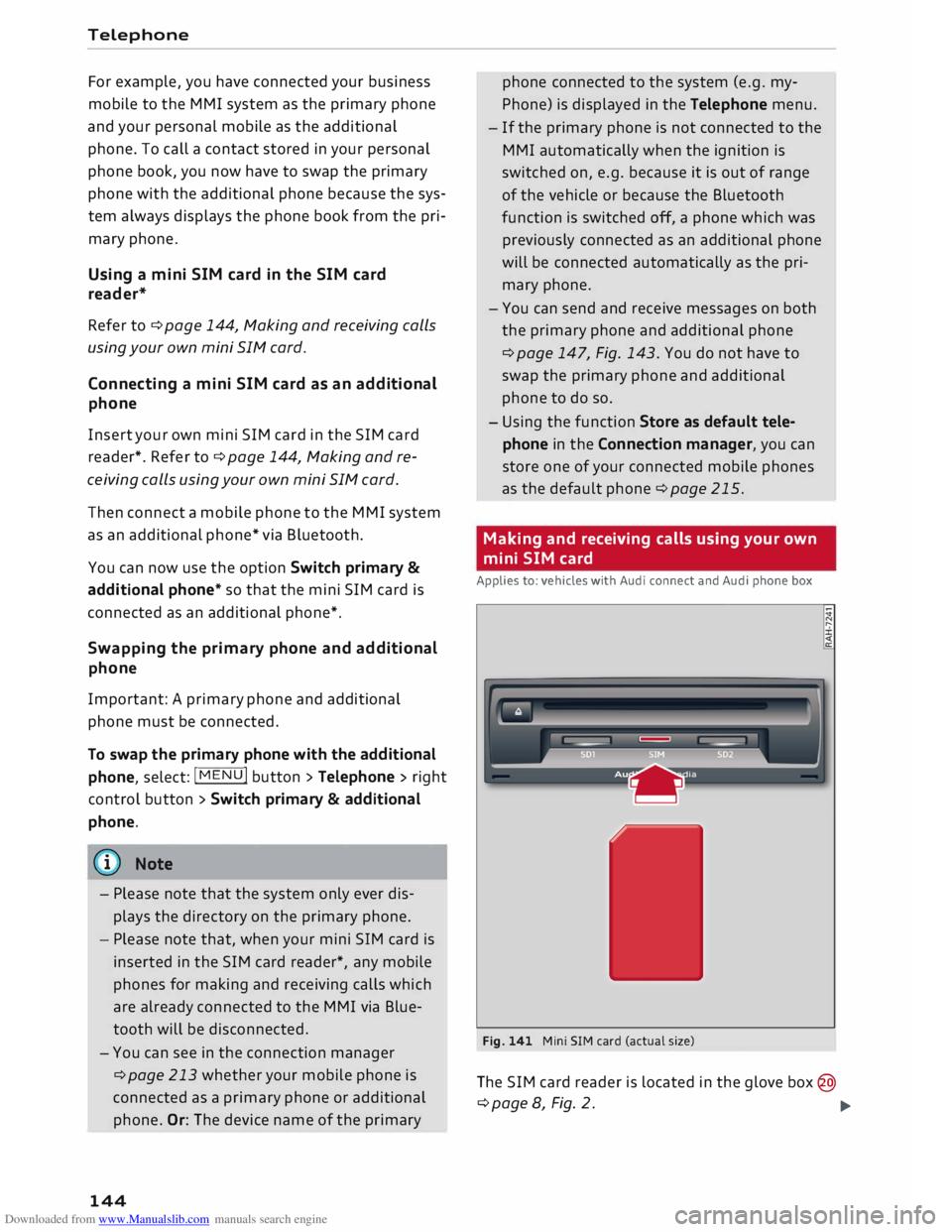
Fig. 141 Mini SIM card (actual size)
The SIM card reader is located in the glove box@
¢page 8, Fig. 2.
�
Page 148 of 306
Downloaded from www.Manualslib.com manuals search engine Telephone
Using the Audi phone
box
Applies to: vehicles with Audi phone box
You can use the Audi phone box to charge your
mobile phone's battery. You can use the vehicle's
external aerial* to make calls, which reduces ra
diation in the vehicle and also ensures better re
ception quality.
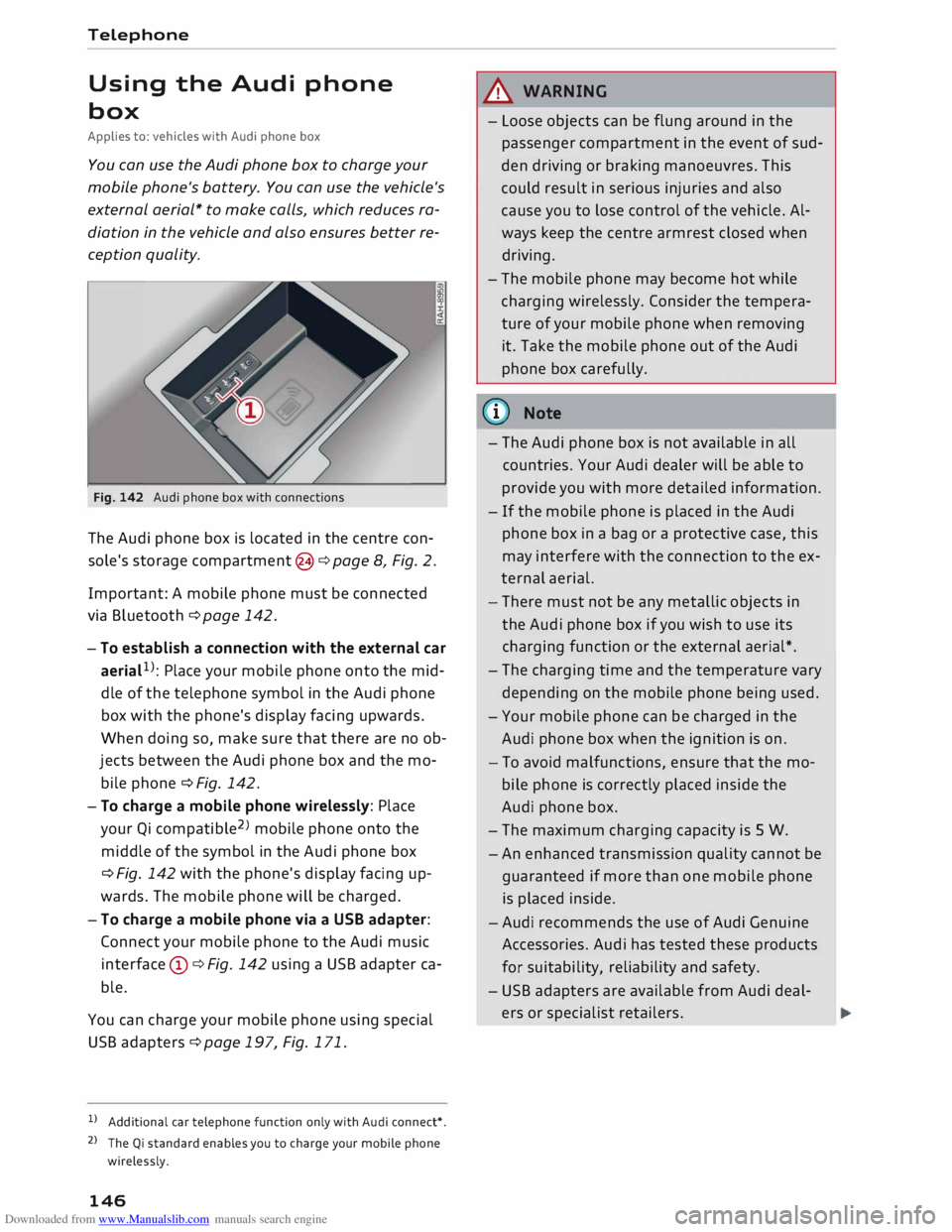
Fig. 142 Audi phone box with connections
The Audi phone box is located in the centre con
sole's storage compartment @¢ page 8, Fig. 2.
Important: A mobile phone must be connected
via Bluetooth ¢page 142.
- To establish a connection with the external car
aeriaL 1
>: Place your mobile phone onto the mid
dle of the telephone symbol in the Audi phone
box with the phone's display facing upwards.
When doing so, make sure that there are no ob
jects between the Audi phone box and the mo
bile phone¢ Fig. 142.
- To charge a mobile phone wirelessly: Place
your Qi compatible 2
>
mobile phone onto the
middle of the symbol in the Audi phone box
¢ Fig. 142 with the phone's display facing up
wards. The mobile phone will be charged.
- To charge a mobile phone via a USB adapter:
Connect your mobile phone to the Audi music
interface (D ¢ Fig. 142 using a USB adapter ca
ble.
You can charge your mobile phone using special
USB adapters ¢page 197, Fig. 171.
l) Additional car telephone function only with Audi connect*.
2 > The Qi standard enables you to charge your mobile phone
wirelessly.
146 A
WARNING
- Loose objects can be flung around in the
passenger compartment in the event of sud
den driving or braking manoeuvres. This
could result in serious injuries and also
cause you to lose control of the vehicle. Al
ways keep the centre armrest closed when
driving.
- The mobile phone may become hot while
charging wirelessly. Consider the tempera
ture of your mobile phone when removing
it. Take the mobile phone out of the Audi
phone box carefully.
countries. Your Audi dealer will be able to
provide you with more detailed information.
- If the mobile phone is placed in the Audi
phone box in a bag or a protective case, this
may interfere with the connection to the ex
ternal aerial.
- There must not be any metallic objects in
the Audi phone box if you wish to use its
charging function or the external aerial*.
- The charging time and the temperature vary
depending on the mobile phone being used.
- Your mobile phone can be charged in the
Audi phone box when the ignition is on.
- To avoid malfunctions, ensure that the mo
bile phone is correctly placed inside the
Audi phone box.
- The maximum charging capacity is 5 W.
-An enhanced transmission quality cannot be
guaranteed if more than one mobile phone
is placed inside.
-Audi recommends the use of Audi Genuine
Accessories. Audi has tested these products
for suitability, reliability and safety.
- USB adapters are available from Audi deal
ers or specialist retailers.
Page 149 of 306
Downloaded from www.Manualslib.com manuals search engine 0
N
,.....
N
......
0
,.....
Vl
CX) -
When you charge your mobile phone wire
lessly, the charging procedure may be inter
rupted if you place your remote control key
in the Audi phone box together with the
mobile phone.
Using the telephone
Calling up the telephone
Applies to: vehicles with telephone
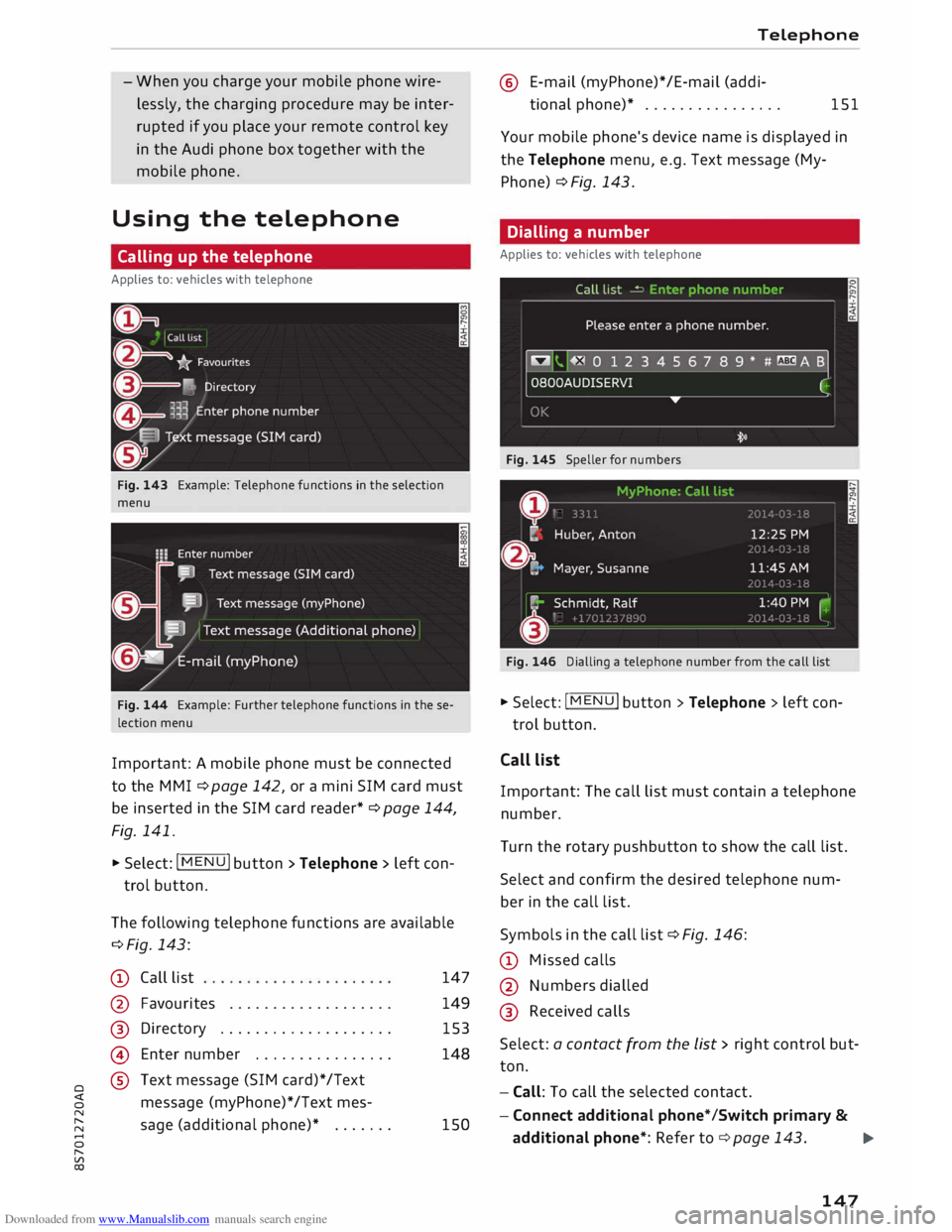
Fig. 143 Example: Telephone functions in the selection
menu
Fig. 144 Example: Further telephone functions in the se
lection menu
Important: A mobile phone must be connected
to the MMI ¢ page 142, or a mini SIM card must
be inserted in the SIM card reader* ¢ page 144,
Fig. 141.
� Select: IM EN
u I button > Telephone > left con
trol button.
The following telephone functions are available
¢Fig. 143:
CD Call list
@
®
@
® Favourites
.................. .
Directory ................... .
Enter number ............... .
Text message (SIM card)*/Text
message (myPhone)* /Text mes-
sage (additional phone)* ...... . 147
149 153
148
150 Telephone
@ E-mail (myPhone)*/E-mail (addi-
tional phone)* . . . . . . . . . . . . . . . . 151
Your mobile phone's device name is displayed in
the Telephone menu, e.g. Text message (My
Phone) ¢ Fig. 143.
Dialling a number
Applies to: vehicles with telephone
Fig. 145 Speller for numbers
Fig. 146 Dialling a telephone number from the call list
� Select: I MENU
I button
>Telephone > left con-
trol button.
Call list
Important: The call list must contain a telephone
number.
Turn the rotary pushbutton to show the call list.
Select and confirm the desired telephone num
ber in the call list.
Symbols in the call list¢ Fig. 146:
CD Missed calls
@ Numbers dialled
@ Received calls
Select: a contact from the list > rig ht control but
ton.
- Call: To call the selected contact.
- Connect additional phone*/Switch primary &
additional phone*: Refer to ¢ page 143.
..,.
147
Page 151 of 306
Downloaded from www.Manualslib.com manuals search engine 0
N
,.....
N
......
0
,.....
Vl
CX) select
Answer to place the current call on hold
and to answer the incoming call. If you select
Ignore, the incoming call will be declined.
Other functions are:
Switch microphone off: If you select and confirm
this option, the caller will no longer be able to
hear you; you will still be able to hear the caller.
Hold/Resume: You can put a call on hold and re
trieve it later from the hold queue. Select and
confirm a call to resume it.
Transfer call to mobile phone*: Select and con
firm Transfer call to mobile phone to transfer
your current call from the MMI to your mobile
phone.
Retrieve call*: Important: A call must be in pro
gress. Select and confirm Retrieve call to trans
fer the current call from your mobile phone to
the MMI.
Switch: You can switch between two phone calls
(one of them will be on hold at any given time).
Select End call to end whichever call is active.
The call on hold will remain in the hold queue
and can be continued by pressing the right con
trol button > Resume.
Merge to conference: Up to five callers and one
caller on hold can be added to a conference (de
pending on the network service). To set up a fur
ther call, place all the members of an existing
conference on hold by pressing the right control
button > Hold. Press the left control button. Se
lect and confirm Call list/Directory/Favourites >
an entry from the list. You can add the contact
you have called to the conference using the right
control button > Merge to conference. Select Re
sume if you want to retrieve all participants in an
existing conference from the hold queue.
Connection manager: Refer to ¢ page 213.
Telephone settings: Refer to¢ page 155.
CD) Note
- If you are using the handsfree profile
(Handsfree), the call waiting option must
be activated on your mobile phone for you Telephone
to be made aware of incoming calls during a
conversation.
- For further information, contact your mo
bile network service provider or refer to the
operating instructions for your mobile
phone.
- The Bluetooth connection between the sys
tem and the mobile phone is automatically
terminated when you leave the car. Depend
ing on the mobile phone, telephone calls
may be transferred automatically from the
MMI to your mobile phone so that you can
continue talking.
- The display for the incoming call may re
main visible for several seconds afterwards;
this depends on the type of mobile phone
you are using. Should you use the functions
Replace or Ignore, it is possible that the
current call will be ended.
Favourites
Applies to: vehicles with telephone
In addition to the mailbox number, you can store
up to 50 contacts in the list of favourites, in any
order.
� Select: I MENU
I button >Telephone > left con
trol button.
- To store an existing telephone number as a fa
vourite: Select and confirm Call list/Directory.
Select and confirm a contact/a telephone num
ber from the list. Select: right control button >
Store as favourite. Enter a name for the favour
ite or accept the suggestion. Select and confirm
Store.
- To rename a stored favourite: Select and con
firm Favourites > select a favourite from the
list. Select: right control button> Rename fa
vourite.
- To move a stored favourite: Select and confirm
Favourites > select a favourite from the list.
Select: right control button > Move favourite.
Select and confirm the position of the favourite
selected.
- To delete a stored favourite: Select and con-
firm Favourites > select a favourite from the ..,..
149